Home Blog Page 32

Download YouTube TV for PC – Windows & Mac
0
Download YouTube TV for PC – Windows & Mac
Welcome screen of YouTube TV on PC

Follow the steps given here to download YouTube TV for PC. You can install YouTube TV for PC on Windows 7, 8, 10, and macOS. By using YouTube TV for PC, you can watch live TV, movies, and TV shows on your PC.

YouTube TV

There is no doubt about YouTube being the most popular video content directory. Back in the day, YouTubes used to become celebrities and now it’s the opposite. We see celebrities becoming YouTubers now because YouTube has a broader audience. But it looks like YouTube itself doesn’t find it enough. YouTube has launched its TV service named as YouTube TV. Just as its name suggests, this app brings you to live TV channels, live shows, movies as you see on Netflix, and a lot more.

YouTube TV for PC
Welcome screen of YouTube TV on PC

YouTube TV’s aim is to reduce the use of cables. With this app, you completely go cordless. No cable subscription is needed. With just one YouTube TV app, you have over 70 channels of all the genres at your hand. Some of the most popular YouTube TV channels include ABC, FOX, NBC, CBS, ESPN, HGTV, TNT, Cartoon Network & more. It has TV channels from news categories, sports, reality shows, TV series, and a lot more.

YouTube TV has a unique subscription system for channels. Either you can get a bundle of channels for one good price, or you can pay for each individual channel on a monthly basis. The application welcomes you with an option for a trial. You can watch live TV on this app for 5 days for free. After that, you can decide if you want to continue your subscription or not.

Users can find the timings of their TV shows in the app. If you missed your favorite show from a TV channel you frequently watch, you can find its recorded version in the app. 

At the moment, YouTube TV is available in a few select regions only. It’s not known when the application will be expanded to more regions. Users can enter the postal code of their region to see if YouTube TV works there or not. In case it works in your region, it will show you the related channels only.

The application is originally available for Android. It has a web interface too, but if you want to run the YouTube TV’s Android app on your computer, you can do that by following the instructions given in this guide. I am going to show you how you can download and watch YouTube TV for PC on a Desktop PC and Laptop.

YouTube TV for PC

  1. First of all, you need an Android emulator. BlueStacks 4 is the best for this purpose. Download it and install it.
  2. Open BlueStacks on the computer and sign in using your Google Account.
  3. Now open the Play Store in the BlueStacks.
  4. Find YouTube TV in the Play Store and install it.
  5. Open YouTube TV from the Home Screen of BlueStacks.
  6. Watch live TV, movies, and TV shows now. That’s all.

In case you are unable to find YouTube TV in the Play Store, you can download its APK from here and install it manually by dragging into the BlueStacks.

YouTube TV for PC installed in BlueStacs
Welcome screen of YouTube TV on PC
TV Channels in YouTube TV – Bundle
The Home screen of YouTube TV
TV Shows in YouTube TV

Final Words

By now, you should have the YouTube TV for PC up and running on your computer. The only downside right now is that you can’t be sure of your region’s support in this app. We expect YouTube TV to expand soon. While using this application, make sure that you are not using your mobile data and you must be connected to WiFi because it’s going to eat a lot of your internet. For any questions or queries, feel free to use the comments section below.
Best Android Emulators to play COD Mobile on PC

Best Android Emulators to play COD Mobile on PC

Looking for the best Android Emulator to play Call of Duty Mobile on PC? Find them here! This is the list of best Android emulators to play COD Mobile on PC.

Best Android Emulators to play COD Mobile on PC

Before you pick up your favorite Emulator, let me tell you a little bit about this game.

Call of Duty Mobile – Playing on a PC

Call of Duty Mobile, the much-awaited Android, and iOS game rolled out last week. It didn’t take more than a couple of days for this game to grab the title of the most popular game across the world. Call of Duty Mobile turned out to be so good that players wanted to play the game on computers instead.

Call of Duty Mobile, at first, takes you back to the good old days of Call of Duty. You will find the multiplayer mode, the frontline battles, and the deathmatch modes will remind you of everything you used to enjoy in Call of Duty. On the top of the existing modes, the game brings a whole new Battle Royale Mode.

COD Mobile brings players, maps, locations, and elements from the famous computer counterparts like the Call of Duty Modern Warfare, Black Ops, and World at War. You will find your favorite heroes in the mobile version too.

The developers have done an amazing job with the graphics and sound effects of this game. Yes, it did take a lot of time for this game to come out of alpha and beta stages, but it looks like that the wait was worth it.

The high-quality graphics and immersive gameplay have urged gamers to experience this game on computers. Playing this game on a computer is possible through an Android emulator because that will let you install the Android version of COD Mobile on the computer. When you play COD Mobile on the PC, it’s not just about enjoying the game on a bigger screen, there is a lot more to the advantage here. Let me state a few of them here.

Best Android Emulators to play COD Mobile on PC
  1. You can use your Mouse & Keyboard to play COD Mobile on PC.
  2. Playing the game on a bigger screen gives you a better idea of the gameplay.
  3. You can enjoy the sound effects of this game on external speakers.
  4. There are minimum chances that you will face storage and compatibility issues.
  5. Your computer will not run out of resources when you play Call of Duty Mobile on it.
  6. You will have an edge over all other COD Mobile players, particularly the ones who are playing on the phone.
  7. Gamepad support is there on emulators like Gameloop.

Let me show you the best Android emulators which will let you play your favorite game on the computer.

Best Free Android Emulators to Play COD Mobile on PC

These are the 5 best and free Android emulators that will run Call of Duty Mobile on your computer. 4 of these emulators will run on Windows 7, Windows 8, and Windows 10. For Mac, your only option is the Nox App Player.

Gameloop [Formerly known as Tencent Gaming Buddy]

Gameloop is the official Call of Duty Mobile Emulator. The Gameloop emulator belongs to Tencent, the same guys who were behind PUBG Mobile. Tencent is a partner of Activision, and in collaboration, they have built the Call of Duty Mobile. As soon as the game’s mobile version rolled out, the company re-released its Tencent Gaming Buddy emulator as Gameloop.

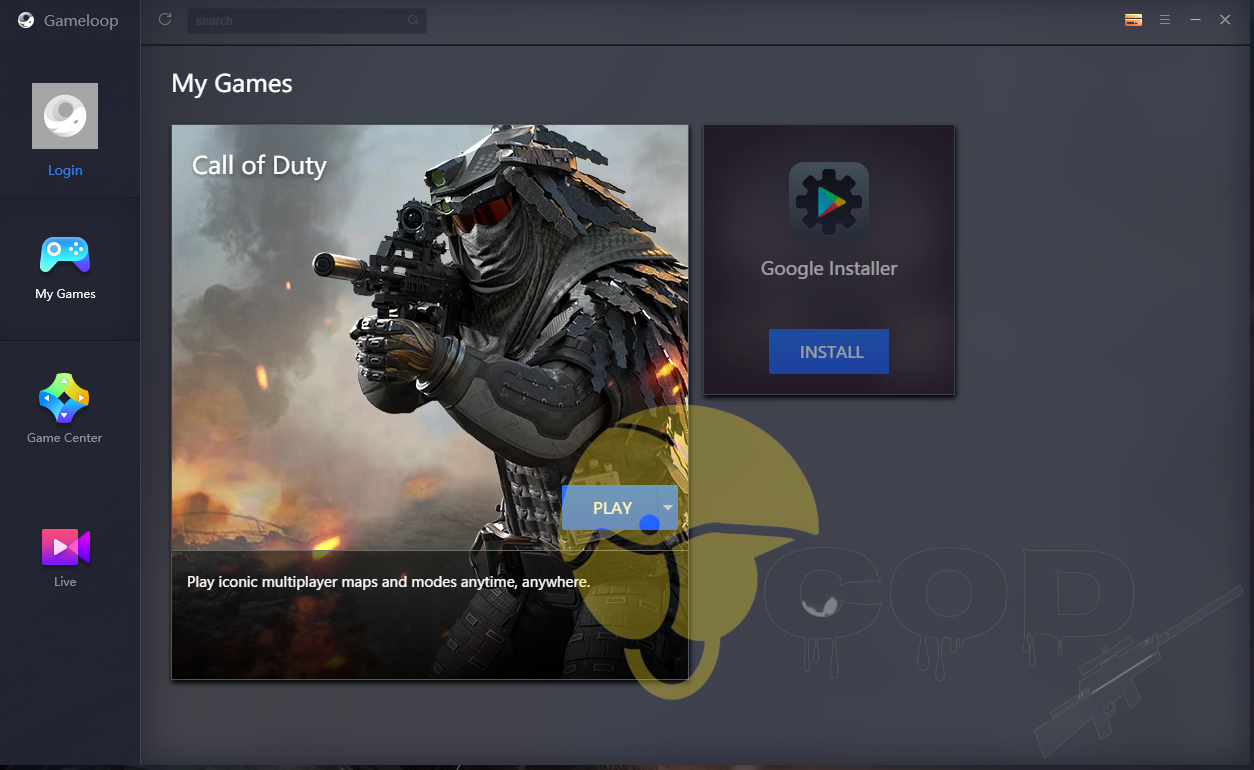
playing COD Mobile on PC via Gameloop

The new Gameloop came with native support for Call of Duty Mobile. If you run Gameloop right now, you will find Call of Duty Mobile on its home screen. It takes a few minutes to install the game and once you have it, you can set it up according to your own choice.

playing COD Mobile on PC via Gameloop

The default controls of Gameloop for COD Mobile give you an experience as good as the desktop counterpart of the previous Call of Duty games. You can use the Mouse and Keyboard for the whole game. Gameloop has its own graphics settings. If you dislike the stock look of the game, you can increase the graphics settings. The game runs smoothly in Gameloop. You can download Gameloop from here and here is the guide to install COD Mobile on PC via Gameloop.

BlueStacks

If you are an avid fan of running Android games on a computer, you must already have an idea of BlueStacks. The decade-old emulator also runs Call of Duty Mobile on the computers. Yes, the emulator failed on day 1. It couldn’t take the game ahead of the start screen which frustrated a lot of emulator players.

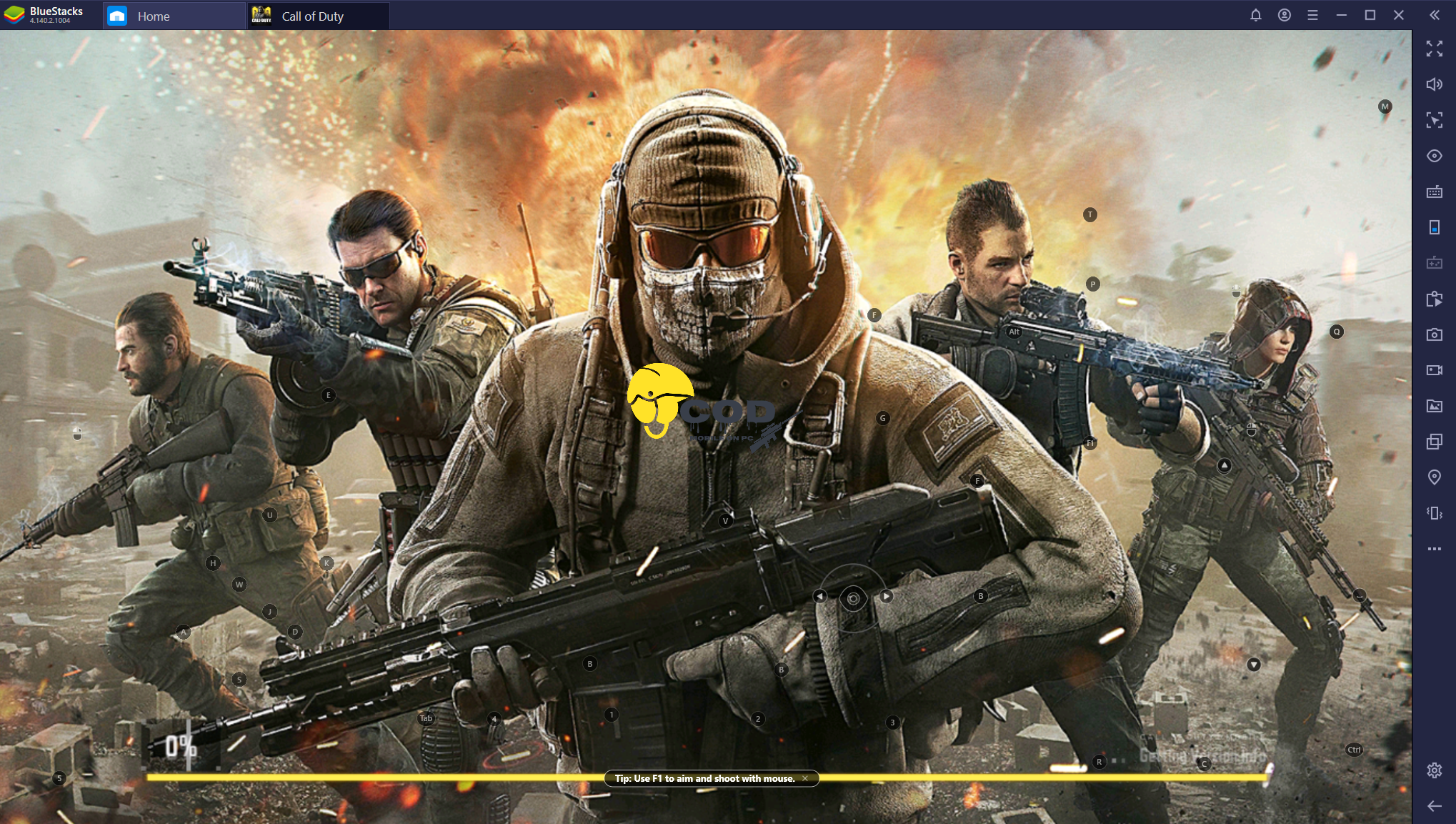
Playing cod mobile on PC via BlueStacks

After the announcement and release of Gameloop, the folks over BlueStacks decided to update their emulator and fixed the issues. As of writing this post, BlueStacks runs Call of Duty Mobile smoothly. I have already given it a try and I pretty much liked it.

Best Android Emulators to play cod mobile on pc

BlueStacks is as good as Gameloop, but remember that it’s a resource-heavy program. If your computer does not have high-end hardware, you should not be using BlueStacks. In such a case, Gameloop should be your one and only choice. Here is how to download COD Mobile for PC via BlueStacks.

Nox App Player

Nox App Player has been around for a few years now. This is a good Android emulator and is also not as resource-hungry as BlueStacks. Nox App Player, according to their official site, also runs Call of Duty Mobile. I have not tried it personally but keeping in view the track record of Nox Player, I can say that the player must be good at running Call of Duty Mobile. Nox App Player should be your choice only if Gameloop and BlueStacks fail to work for you. You can download Nox App Player from here.

MEmu Player

MEmu is another independent Android emulator. It originally started as a pilot project and transformed into a well-reputed product later on. MEmu has been helping players to run various games on the computer. Back in the day, it ran PUBG Mobile and its developers also introduced custom Key-mapping for the game.

Best Android Emulators to play cod mobile on pc

MEmu has earned a lot of respect in the past few months and it looks like it’s looking to bag a little bit more of it. The player has been shown off in numerous videos with Call of Duty Mobile running on the top. You can get MEmu player from here and use the Play Store in it to install Call of Duty Mobile.

LD Player

LD Player – not my personal favorite, but one of the few Android emulators that can successfully run Call of Duty Mobile. If you have run out of all the choices given above, you can use this one. LD Player has been shown off running COD Mobile as well. It also offers custom Key controls and advanced graphics settings. You can get LD Player from here.

Download Call of Duty Mobile for PC – Windows 7/8/10

Download Call of Duty Mobile for PC – Windows 7/8/10

Call of Duty Mobile now runs in the BlueStacks Android emulator. This is the guide on how to download and play Call of Duty Mobile for PC via BlueStacks. You can install COD Mobile on PC powered by Windows 7,8, and 10.

Playing Call of Duty Mobile via BlueStacks Emulator

Call of Duty Mobile, the most awaited game of the year is finally here. It has now become a trend to play games like Call of Duty Mobile on computers. The moment this game came out, a large number of gaming millennials ran towards the BlueStacks emulator to run the game on the computer. Unfortunately, the BlueStacks failed to run this game on the first day. BlueStacks loaded the game, showed the start screen and then crashed. I personally tried over a dozen methods to run COD Mobile on PC via BlueStacks, but it didn’t work. In the meanwhile, Tencent’s own Gameloop emulator came out which allowed players to experience Call of Duty Mobile on Windows computers.

The BlueStacks emulator got an update finally and it now fully supports Call of Duty Mobile. The game doesn’t get stuck anymore. If you are a fan of BlueStacks and you were waiting for it to run COD Mobile, you can get your hands on it. Yes, it happened a little late, but as they say, it’s better late than never.

As of writing this post, BlueStacks runs Call of Duty Mobile without any issues. The developers of BlueStacks have introduced custom controls especially for Call of Duty Mobile. You will find Gamepad support in the emulator too. Other than that, you always have the Keyboard and Mouse support.

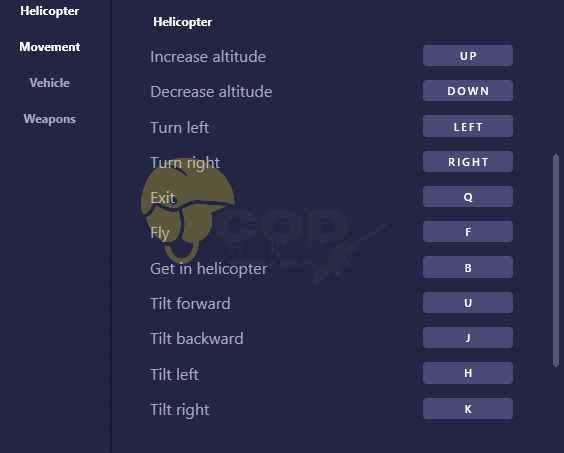
Although BlueStacks guys took their time, they did fix the issues that players were facing on Gameloop as well. For example, players on Gameloop were not able to fly the helicopter and here the BlueStacks team has introduced separate controls to flly it which gives it an edge over the Gameloop emulator.

Call of Duty Mobile for PC via BlueStacks

Other than this, the game looks crisp on the BlueStacks. You can adjust the graphics according to your own liking. It’s totally up to the players whether they want to use the touch controls in BlueStacks or they want to switch to Mouse and Keyboard.

It may be kept in mind that running BlueStacks can be cumbersome sometimes. We recommend BlueStacks to the users who are used to it or who can’t find any other emulator working for them.

Having said that, let’s move on to the steps to download and play Call of Duty Mobile on PC via BlueStacks Emulator.

How to download Call of Duty Mobile for PC via BlueStacks – Windows 7/8/10

  • First of all, download and install BlueStacks 4.1 on your computer.
  • Open the BlueStacks emulator on the computer.
  • Log in to the Emulator using your Google Account.
  • Now open the Play Store in the BlueStacks.
  • In the Play Store, type “Call of Duty Mobile” and find it.
  • As you find the game, install it.
  • Now open the game from “Home” of BlueStacks.
  • The game will show you control, keep them in mind and proceed.
  • As the game takes you to the main screen, log in and start playing. That’s all.

BlueStacks COD Mobile Video Tutorial

Conclusion

That’s all. By this time, you should have the Call of Duty Mobile up and running on your Windows 10, Windows 8, or Windows 7-powered desktop PC or Laptop. If you are interested in running COD Mobile for PC on macOS, you can take a look at this list of best Emulators to play COD Mobile on PC. Furthermore, you can take a look at the following guides:

If you have any questions or queries, feel free to reach out to us. I will try my best to get back to you as soon as possible. Thank you all.

Call of Duty Mobile for PC System Requirements

Call of Duty Mobile for PC System Requirements

Looking for the exact Call of Duty Mobile for PC system requirements? Well, you can find them here. Take a look at the Call of Duty Mobile for PC system requirements in this post.

Call of Duty Mobile is successfully maintaining its position at the top of all the charts since the day of its release. The game became much more famous when its official Android emulator was released. Players are preferring playing this game on their computers instead. A huge number of players are still a little bit skeptical about running this game on their computers. One major reason is that they are not sure about the system requirements for the Gameloop emulator which is the official emulator of COD Mobile. Here in this post, I am going to list down the minimum requirements to run Call of Duty Mobile for PC. Go ahead to learn about the Call of Duty Mobile for PC System Requirements.

Call of Duty Mobile for PC System Requirements

  • Operating System: Windows XP, Vista, 7, 8, 8.1, and Windows 10
  • Processor: Intel or AMD – Dual-core and above
  • RAM: 1GB or higher
  • Graphics: Intel/AMD/NVIDIA

Recommended System Requirements

  • Operating System: Windows 7, 8, 8.1 or 10
  • Processor: Intel – AMD – i5 and above
  • RAM: 8GB and above
  • Graphics: AMD/NVIDIA Dedicated card
Call of Duty Mobile for PC System Requirements

Final Words

Those are the minimum and recommended COD Mobile PC requirements. Remember that the more powerful your computer is, the better your gameplay will be. Apart from having those specifications on your computer, you can attach an external monitor to your laptop or Desktop PC to enjoy the game on a bigger screen. That’s the whole purpose of running this game on a computer after all. Furthermore, do not use a wireless mouse. If you want to make the best out of the game, use a wired mouse as it will perform better. You can also use control to play the game. I have already covered a number of guides regarding this game. You can find all COD Mobile for PC games below.

COD Mobile for PC Guides

Fix Black Camera Problem On iPhone 11 / Pro / Max

0
Fix Black Camera Problem On iPhone 11 / Pro / Max

I have heard from a number of iPhone users that they are facing problems with the new iPhone 11 / Pro / Max. Just to be clear, it seems there is a camera problem on iPhone 11 / Pro / Max. So, here’s how you can Fix Black Camera Problem On iPhone 11 / Pro / Max.

It seems Apple is working hard on their camera department, you can see for yourself, I mean Night mode in iPhone 11 Pro camera. Not only that, now you have a Wide angel and also in the latest update of iOS 13 beta, they have added Deep Fusion.

Black Camera Problem On iPhone 11

I mean come on, this is a lot coming from Apple. Most of the time they didn’t even bother to hear what their users want. You can see what they did in the past but now things have changed and they started listing.

Well, you get the picture, now let’s tell you what you can do when you start facing Black Camera Problem On iPhone 11 / Pro / Max. All the workarounds I am providing to you, these are all the basic troubleshooting steps that you should do. When you start seeing Black Camera Problem On iPhone 11 / Pro / Max.

Fix Black Camera Problem On iPhone 11 / Pro / Max:

Heed the instructions below and you will able to fix the iPhone 11, Pro, and Max black camera problem. There is no word from Apple and this issue will be most likely because of a software bug. Believe me iOS 13 is still buggy after getting new updates, still things are messy.

Reboot your iPhone:

This is the best and universal solution for everyone. Whether you are a pro or a layman, whenever your device starts acting funny. The first thing everyone does is to reboot their device. You should do the same.

Try Switching Cameras:

When you start seeing a black screen, the first thing you should do apart for restarting your device is to switch between cameras. Yes, for e.g, if you are using wide-angle mode, try switching it ultra-wide or maybe to the normal mode.

Force-Quit The Camera App:

Close the Camera app and wait for a few seconds and then launch the Camera app again. See it works, if not, close it again and open apps like Instagram, SnapChat, WhatsApp, etc. Check them and use the camera and see what going on, is it behaving the same as it was or on these apps, it is working.

Clear Cache and Data of iPhone:

Yes, you can do that on the iPhone. It’s pretty simple and it will just take a few seconds of yours. It may work or it may not but the thing is, you need to try everything is you want your device to behave normally again.

  1. Open Settings -> General -> iPhone Storage -> Offload Unused Apps -> Enabled.

That will be all for now. As soon as I found a proper solution or Apple provides an update, I will let you know.

How to connect AirPods to PS4 [ Easiest Method ]

0
How to connect AirPods to PS4 [ Easiest Method ]

If you own a set of AirPods, also you have a PS4 and want to connect AirPods to PS4. This is the right place for you, In this post, I will tell you all the possible methods you can use to connect AirPods to PS4. Let’s get started.

All those who own a PS4 are well aware of the fact that they cannot connect Airpods to PS4 directly. Even more, you cannot connect any other pair of headsets to PS4. Unless they are compatible with PS4 and that means you have to spend at least $60 or more. So now you know, you cannot directly connect any third-party Bluetooth handsfree to PS4.

connect AirPods to PS4

But that doesn’t mean that there is no option or method available. There are few and you can easily connect AirPods to PS4 or any other third-party headset. Now let’s get started and tell you how you can connect AirPods to PS4.

Download GameGem Hack For iOS and Android [ iPhone & iPad ]

How to connect AirPods to PS4 [ Easiest Method ]:

Heed the instructions provided below to learn how you can connect Apple Aripods and all the other Bluetooth handsfree to PS4. Before I proceed, you need to know that I’ll be using a third-party Bluetooth dongle. But not in all the methods, you may not need one if my first and second methods work for you.

Use PS4 Remote Play App:

This method will be cost-free because you will be using the official PS4 Remote Play App, which is available for both Android & iOS devices.  Now you may have heard about the PS4 Remote Play App, it allows you to play PS4 games on your Android and iOS devices. As long as you can using the same WiFi network. So I will be using the PS4 Remote Play App to connect Airpods to PS4.

  1. First, you will need an iPhone and an Andoird device. Make sure your iPhone is running the latest iOS 13 and your Android device is running Android 5.0+.
  2. After that, you need to download the Remote Play app on your iOS and Android devices. Once you have downloaded the app, head over to the PS4 and make sure the Remote Play feature is activated.
  3. If you don’t know how to do so, head over to the Settings -> Remote Play Connection Settings > check Enable Remote Play.
  4. Once done, head over to your smartphone. Open the Remote Play app and login with your PSN account. It may take some time if you are using the app on your device the first time.
  5. After it’s done, you will see that your device is connected with the PS4 automatically. Now it’s time to connect Airpods to PS4.
  6. All you have to do is connect the DS4 controller and Airpods to your device and now you can play PS4 games on your device. While using DS4 and Airpods. This is the best method you can get for free and I used it. It works not like the way you were thinking but it’s for free.

Now that was the free one. If you want to directly connect AirPods to PS4, you will need a Bluetooth Dongle. It is for sure that you have to pay some bucks, just $20-$30. If you are up for that, heed the instruction below.

One more thing, using Bluetooth dongle or adoptor that I am providing, you will be able to connect a number of headphones to PS4. Let’s jump right into it.

Connect AirPods to PS4 using Bluetooth Adopter:

So since you are using a third-party Bluetooth Adopter that means you first you need to buy one and if you haven’t. Use the link provided below.

  1. I am using Avantree Leaf Class 1 Long Range USB Bluetooth Audio Transmitter Adapter. It’s a plug & plays adaptor for a number of consoles and you can also use it on your PC.
  2. Once you have the Avantree Leaf Bluetooth Adopter. Now connect the USB dongle to PS4 using its cable. Head over to the Settings on your PS4-> audio devices > input and output both as a USB headset (Avantree leaf).
  3. Now it’s time to connect the Airpods to Avantree Leaf Bluetooth Adopter. First, you need to put Avantree Leaf Bluetooth Adopter in the pairing mode. Long press the button on the dongle and also put the Airpods in pairing mode. After both devices are in pairing mode, Airpods will automatically connect with the Avantree Leaf Bluetooth Adopter.
  4. Now it’s time to test that are the AirPods are connected to the PS4? Remove the AirPods from there case and put them in, you will hear a Chime Sounds. That means your AirPods are connected. In order to make sure that AirPods are connected, Open the Quick Menu -> Sound Devices -> OutPut to Head -> All Audio.

That will be all. This is how you can connect AirPods to PS4. Please do try this and let me know how’d it go for you. Also If you have any questions, use the contact page.

How to fix COD Mobile Connecting to Server Recurring Problem

How to fix COD Mobile Connecting to Server Recurring Problem

Connecting to Server is an annoying Call of Duty Mobile errors. This guide will help you to fix COD Mobile Connecting to Server problem that happens again and again.

COD Mobile Connecting to Server problem
COD Mobile Connecting to Server Problem

Connecting to Server – Call of Duty Mobile

Connecting to Server happens when the Call of Duty Mobile servers run out of resources to accommodate more gamers. This is a real-time multiplayer game that connects gamers across the globe through its servers. COD Mobile has become so much popular that it took only 1 week for this game to hit 100M downloads. The number of active users can be figured out by seeing how many accumulative downloads this game has raked in.

Connecting to Server is a very common error. It’s not something that happens once in a blue moon. It isn’t something that the developers can fix immediately. As long as the game is going to see a gradual increase in the number of its users, this problem is going to be there.

The downside of this error is that it can turn your victory into a defeat. If you are on the verge of winning a battle in the Battle Royale mode or if you are about to get your last kill to win the Frontline/Deathmatch mode, this error can disrupt the gameplay in one blow. Once the game restores, you will find that you have already lost.

Just to avoid this kind of mishap, you should give a try to a few solutions that can possibly fix the Connecting to Server error. Down below in this post, I am going to list a few solutions that may or may not work. I myself have been facing this problem and I wanted to share the solutions that have helped me to reduce its occurrence.

Take a look at the steps below to fix COD Mobile Connecting to Server problem now.

Fix COD Mobile Connecting to Server Recurring Problem

#1: Change Call of Duty Mobile Server

The first and foremost solution is to try using a new server. Call of Duty Mobile has 3 main servers. You can play with Southeast Asian players, Korean Players, or the International players. You can switch a new server to see if that fixes. International servers are going to have the highest amount of players for sure. The other servers will have different game data which means you will have to be careful with your choice. Here is how you can change Call of Duty Mobile server.

#2: Use A VPN to connect to a new Server [new region]

If you want to connect to a server of another region, you can try using a VPN. You can connect to another country like Canada, UK, Russia and then launch the game. The game will connect you to the server of that country and it will reduce the server connection errors.

#3: Check your Internet connection

Your internet connection has to be super stable for COD Mobile. If your WiFi has issues, try switching to Mobile Data and vice versa. Also, make sure that any other applications on your phone or computer are not putting the load on your internet. Fixing your poor internet can potentially fix the COD Mobile server error.

#4: Update the game

Check COD Mobile in the Play Store, App Store, and in the Gameloop for new updates. If there is a new update available, update the game immediately. New versions usually carry bug fixes and they help a lot with issues like the Server errors.

Conclusion

That’s all with the possible fixes for Server issues on Call of Duty Mobile. I hope that you have fixed the problem. If you have any other solution that I should add to this list, feel free to drop it in the comments below. I will try my best to get back to you as soon as possible.

More COD Mobile guides:

How to fix COD Mobile Network Connection Unstable Error

How to fix COD Mobile Network Connection Unstable Error

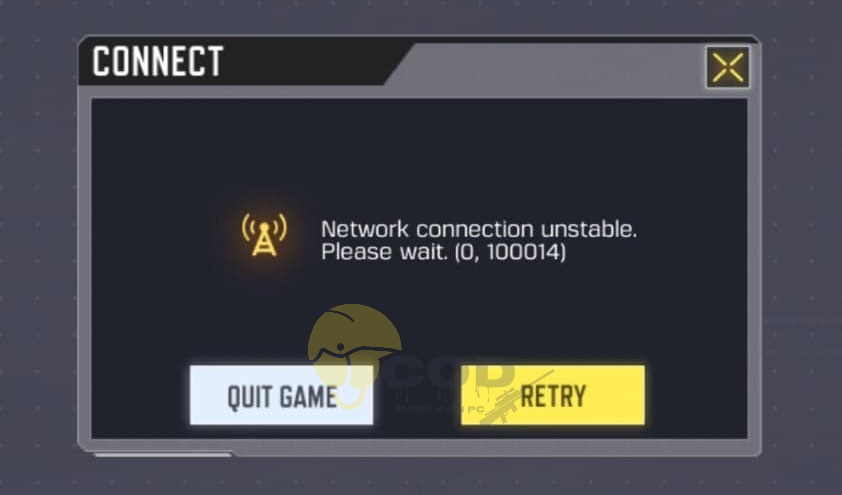
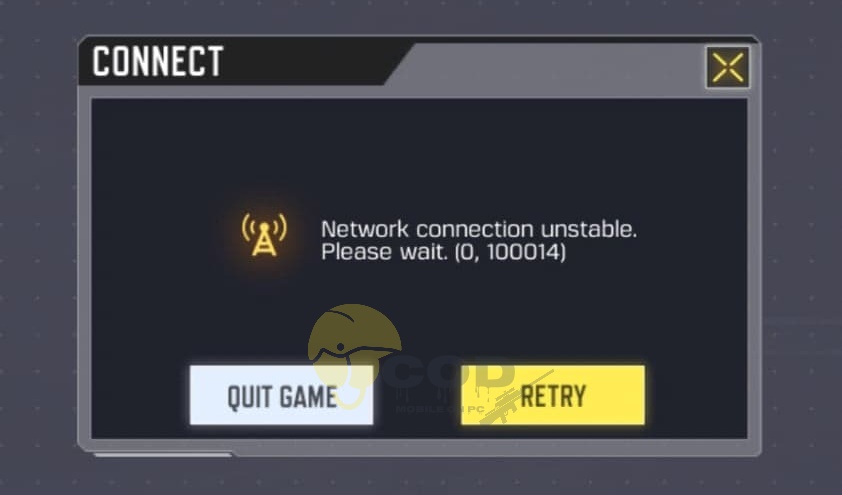
Follow the steps given in this guide to fix the most annoying COD Mobile Network Connection Unstable error. The error appears as “Network Connection Unstable. Please wait. (0,100014).

Network Connection Unstable. Please wait. (0,100014)

There is a reason for me to call this the most annoying COD Mobile error. Basically, there are two types of errors. There are the ones which will not ruin your gameplay halfway through, and then there are the ones which will transform your victory into a defeat at the last moment. The Network Connection Unstable falls in the 2nd category.

COD Mobile Network Connection Unstable Error

Suppose that you are playing in the Frontline or the Deathmatch mode, and you are only 1 kill away from victory and your game pops this error up, your victory will turn into a defeat because, in that 1 second, your opponent will surpass you. Similarly, if you are the last man standing in Battle Royale mode with only one opponent, and this error shows up, you will end up losing that match too. For this very reason, it’s very very important to fix this error.

Now, this error has to do with your internet connection and the COD Mobile servers. At times, your internet can mess it up and at times, the load on Call of Duty Mobile servers can add to your bad luck. You cannot entirely get rid of this problem, but you can take measures to prevent it most of the time.

I am going to list a few fixes that will bring down the number of times this error appears. Apply the solutions one by one to see which one works the best for you.

Fix COD Mobile Network Connection Unstable Error

#1: Make sure you have a stable internet connection

As mentioned above, your internet connection has to be super stable for COD Mobile to work flawlessly. You can try connecting to a different internet connection to see if the problem goes away. Otherwise, the following solutions will be of some help.

#2: Update your Call of Duty Mobile game

Games like COD Mobile receive minor stability updates every now and then. If there is something on the game’s end which is causing the Network Connection Unstable error, the developers will definitely fix it with the help of updates. You can check for new updates. If there is one available, update it immediately.

#3: Try changing COD Mobile server

The server load is one major reason behind this problem. Here is how you can change your COD Mobile server.

#4: Clear the Cache & Data of COD Mobile

Clearing the cache of your game can give it a fresh start. If you clear the data as well, it will ask you to re-login and start everything fresh. Before doing this, sync your data to your COD Mobile account. Not having the data synced will result in data loss after clearing the cache and data. Here is how to clear COD Mobile Cache & Data.

#5: Switch between WiFi and Mobile Data

If you have a good amount of Mobile Data, you can switch to it from your WiFi to see if it improves your gameplay. You can also switch from Mobile Data to WiFi if you were facing issues on Mobile Data.

Conclusion

Those were all the possible fixed of the Network Connection Unstable error. If you have managed to fix the problem using one of these solutions, make sure to let us know. Also, feel free to ask any questions or drop your feedback in the comments section below. I will try my best to get back to you as soon as possible.

More Call of Duty Mobile Tutorials:

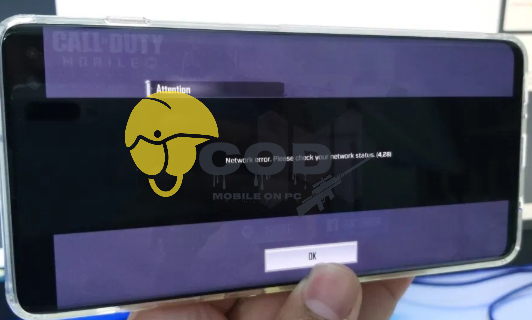
FIX COD MOBILE Network Error (4,28)(4,50)(4,51)(4,35)

FIX COD MOBILE Network Error (4,28)(4,50)(4,51)(4,35)

Facing Call of Duty Mobile Network error? Here is how you can fix COD Mobile Network Error (4,28)(4,50)(4,51)(4,35). You will also fix the Network connection unstable. Please wait. (0, 100014) error.

Call of Duty Mobile Network Errors

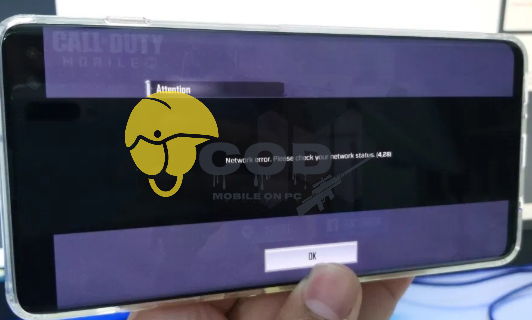
Call of Duty Mobile has been suffering from Network Errors since day 1. I’m not talking about the day of the final release of this game, I’m talking about the day the Call of Duy Mobile: Legends of War was released. When Call of Duty Mobile entered its beta stage and made it to regions like India, it encountered errors like 4,28, 4,50, and 4,51. These days, when the game has fully released across the globe, it’s coming up with the 4,35 Network Error. Another new error is the Network connection unstable. Please wait. (0, 100014).

Call of Duty Mobile Network Error

These errors do not occur all the time. They occur once or twice in a day and sometimes, they don’t appear at all. There are multiple reasons which can result in the Network error. Down below in this post, I’m going to list down a few solutions that will help you get past the COD Mobile Network Error.

Take a look at the solutions and make sure you apply them one by one.

FIX COD MOBILE Network Error (4,28)(4,50)(4,51)(4,35)

#1: Update Call of Duty Mobile

The very first thing you should do is to check if you are running on the latest version of COD Mobile or not. The developers have fixed most of the issues including the Network Error. If you are still facing this problem, check the App Store for COD Mobile updates. If you happen to be running on the latest version already, you can check the solutions given below.

#2: Make sure you have a stable internet connection

To play COD Mobile, you have to have a very stable internet connection. You can try switching between Mobile Data and WiFi to see if it fixes the problem. Remember that COD Mobile is a real-time multiplayer game that requires server connectivity all the time. If you have poor internet, you will not only face Network Error but will also face the server connection problems.

#3: Stop using a VPN

Back in the day, players were using VPN to play COD Mobile. That was because the game was available in India only. If you are still mistakenly using the VPN, you need to stop using it because COD Mobile is available worldwide now. Also, make sure that you are using the latest version of COD Mobile.

#4: Try changing the COD Mobile Server

In caes you think that the problem is with that specific server because the extra load on servers can sometimes cause network problems, you can try changing the server. Here is how to change the COD Mobile server on your phone and in the Gameloop as well.

#5: Re-install the game

The last solution would be to uninstall the game and reinstall it. Before unisntalling make sure that you have synced all your data with an account. If you were playing as a guest and you uninstall the game, your progress will be lost.

Conclusion

Those were all the possible solutions to the COD Mobile Network problems. If you have discovered some other solution for such a problem, make sure that you share it with other COD players in the comment section below. Also, if you have anything to ask or share, feel free to contact us. I will try my best to get back to you as soon as possible.

More Call of Duty Mobile guides:

Download Call of Duty Mobile for PC

0
Download Call of Duty Mobile for PC

Update: Call of Duty Mobile has been released. This guide on how to play Call of Duty Mobile for PC has been updated with a working method.

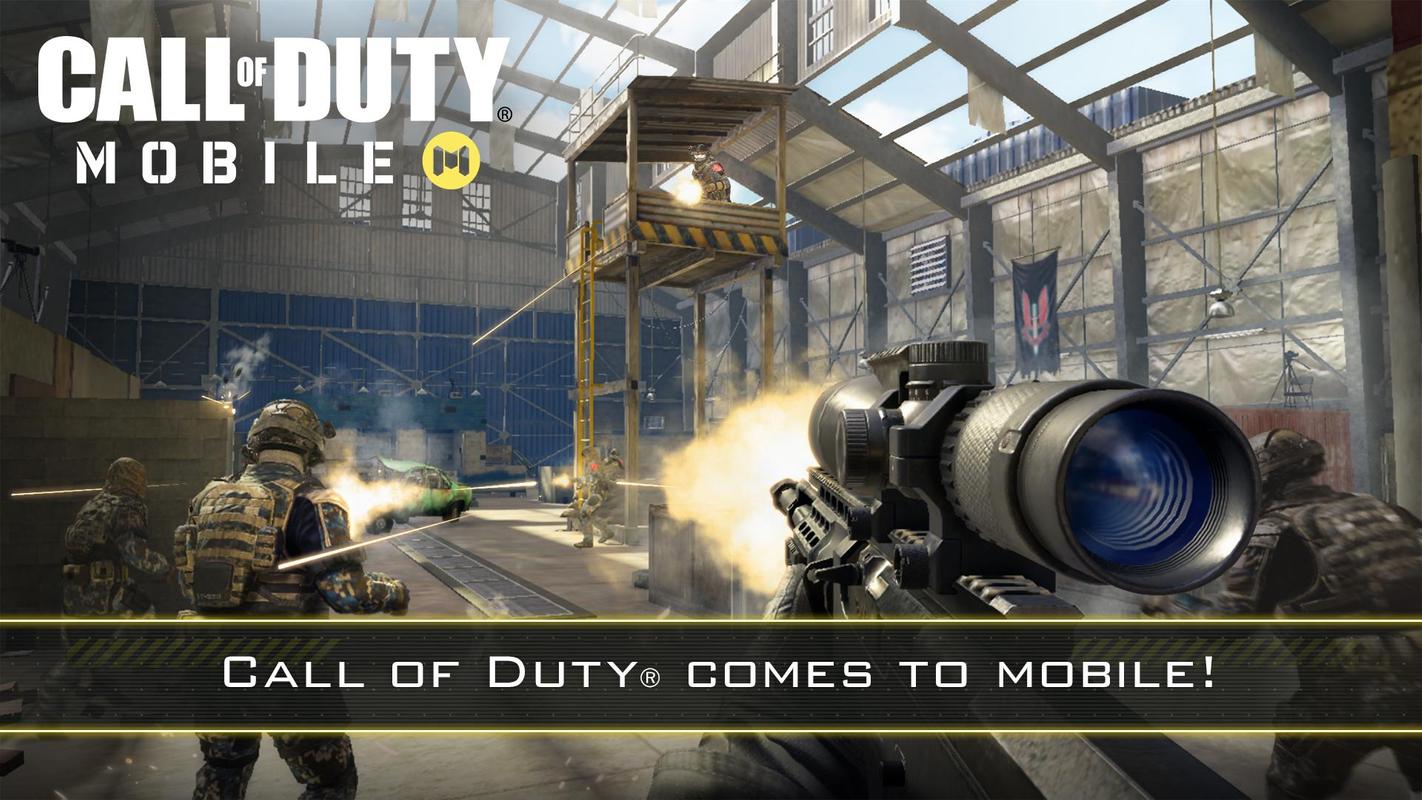
Call of Duty Mobile is here. The most popular FPS game’s mobile version has finally come out. Call of Duty Mobile promises to give you the same experience as its desktop counterpart. The game will be definitely designed to run on most of the Android phones. If you haven’t got a chance to run the original Call of Duty on your computer, you can try running the Call of Duty Mobile on the PC now. You heard it right. You can install and play Call of Duty Mobile for PC. This is the guide with all the necessary steps to download Call of Duty Mobile for PC. Take a look at an overview of this game before installing it.

Call of Duty Mobile for PC

Call of Duty Mobile

Call of Duty originally started back in 2003. The game took the players back to the days of World War II. Players had to choose their side and then take part in the combat missions. Since 2003, there have been tens of variants of the Call of Duty game. We have the Call of Duty Modern Warfare, Call of Duty Black Ops, Call of Duty Universe, and many other versions of this game. The game has evolved nicely to keep up with the latest gaming standards. While most of the games today have their smartphone counterparts, Call of Duty was still missing out. The good news for Call of Duty fans came out last week when Activision Publishing announced that they were bringing a mobile version too.

Gameplay, modes, and characters

Call of Duty Mobile is also set on the battlefield. The core idea of Call of Duty Mobile is the multiplayer gameplay. Players will be choosing their side in the Call of Duty Mobile too. They will be going places to take down the enemies. Abandoned buildings are taken over by the enemies as their safe houses. Players have to carefully carry out their missions without receiving any serious damage. Enemies will use the most dangerous weapons, so players are supposed to keep an eye on their surroundings for rocket launchers, mines, and bombs.

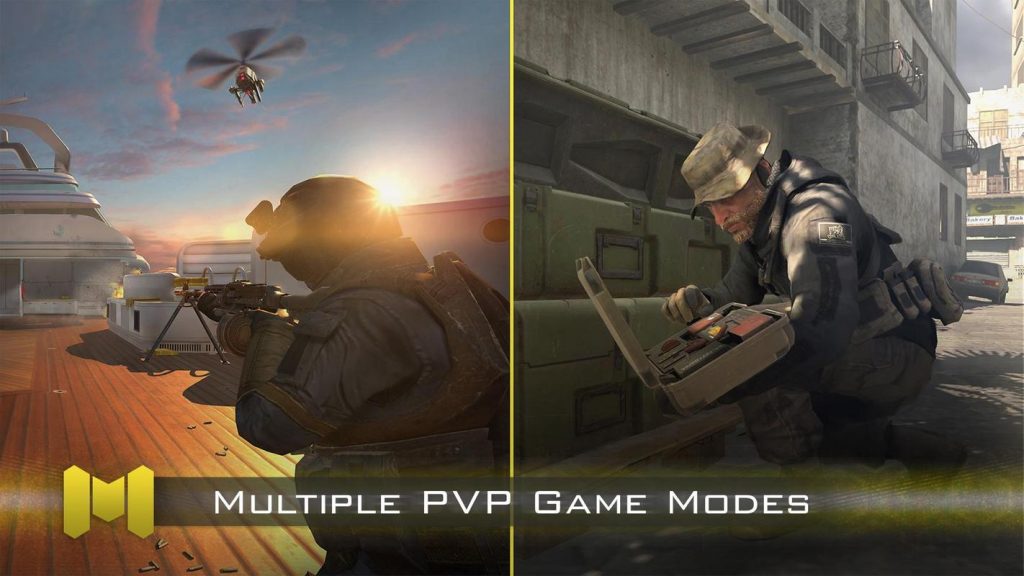
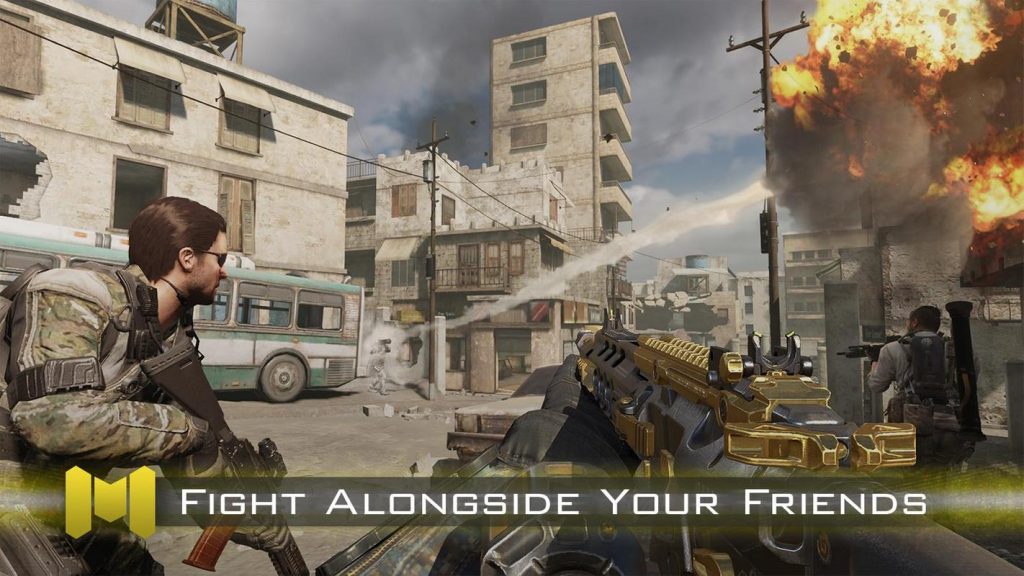
Players can upgrade their characters, weapons, and vehicles in this game. The game brings popular characters like Captain Price from Modern Warfare, Overlord from Ghosts, and many others. The game lets the players make 2 teams of 5 members each to play a match. There is a couple of multiplayer modes available in this game.

As far as the graphics of this game are concerned, expect nothing less from the developers. They have already shown off the best possible graphics in the Call of Duty Legends of War, which is the alpha version of the Call of Duty Mobile. The game will definitely come with the console-quality graphics to impress mobile gamers.

Call of Duty Mobile for PC

Call of Duty Mobile for PC can be installed via an Android emulator. This is a free game which means you can easily install it without any kind of tricks. Call of Duty Mobile for PC can run well on Windows 7, Windows 8, Windows 8.1, Windows 10, and macOS/OS X. To get Call of Duty Mobile for PC, follow the few easy steps given below.

  1. Download and install Tencent Gaming Buddy on your computer.
  2. Open Tencent Gaming Buddy.
  3. On the homepage of the TGB Emulator, you will find Call of Duty Mobile.
  4. Click on Download/Install. You will find the progress bar at the bottom of the TGB.
  5. As soon as the installation ends, you will find the Play button on COD Mobile.
  6. You can also set up the custom Keyboard controls in the TGB Emulator.
  7. Click on Play and have fun! That’s all.
call of duty mobile for pc
Installing COD Mobile for PC via Tencent Gaming Buddy/Gameloop
cod mobile for pc
cod mobile for pc controls
call of duty mobile windows 10

Note: For those who don’t know, Tencent Gaming Buddy is now called “Gameloop”. So, when you install it, make sure you don’t get confused there.

Update: Call of Duty Mobile for PC via BlueStacks – BlueStacks works now

  1. Download Call of Duty Mobile BlueStacks setup.
  2. Open the setup and install it.
  3. Open BlueStacks and log in using your Google Account.
  4. In the BlueStacks, go to Play Store, find “Call of Duty Mobile” and install it.
  5. Open the game after the installation.
  6. Learn about the controls and go ahead.
  7. You are all set to play the game now. That’s all.

Call of Duty Mobile for PC – Video Guide

Wrap up

That’s all with Call of Duty Mobile for PC. By running this mobile version of Call of Duty on PC, you can enjoy this game on a bigger screen. You can also enjoy the sound effects via your external speakers. Playing this game on a computer gives you extended control too. Using a Mouse and Keyboard, this game is a whole lot of fun. If you are facing any issues with Call of Duty Mobile for PC, feel free to reach out to us. I will try my best to get back to you as soon as possible.

Check out Call of Duty Mobile on Google Play Store.

More:

How to fix COD Mobile Reloading Bug – Cancels Reload

How to fix COD Mobile Reloading Bug – Cancels Reload

This is the guide on how to fix COD Mobile Reloading Bug. The Reloading Bug Cancels Reload when you run out of bullets during combat. The steps here will help you fix the problem right now.

fix COD Mobile Reloading Bug

Call of Duty Mobile – Everyone Glued!

Call of Duty Mobile is undoubtedly the most popular smartphone game at the moment. The game has not only got the smartphone gamers glued to their screens, but it has also got all the PC gamers busy. You heard that right. The official COD Mobile emulator, Gameloop makes it extremely easy to play COD Mobile on the computers. In fact, the gamers are playing it as if this game is built for PCs only.

There is a huge difference between the Gameplay of PC and Mobile which is why there is a huge clash between the COD Mobile emulator and mobile players. The mobile players don’t like PC players and PC players love to annoy mobile players.

fix COD Mobile Reloading Bug

The biggest edge is the use of Mouse and Keyboard and the controller on the PC. The mobile version of COD Mobile had the controller support on Day 1, but it was pulled back. The developers are trying their best to keep both the emulator and mobile players away from each other.

For example, when you will run this game on the PC, COD Mobile will connect you with the players who are already playing on the PC. In that case, there are meager chances that you will be playing with mobile players. The mobile players, however, will always be connected to other mobile players only.

Call of Duty Mobile Reloading Bug

Call of Duty Mobile has hit over 100 Million downloads in its first week. The journey has been topsy-turvy for this game. On day 1, the game was having server issues. The game then had network connection problems, and now another new bug is making rounds. This new bug reportedly cancels the reloading process. This happens when you are in combat, you run out of bullets, and the weapon attempts to reload, you press the reload button, and the reloading cancels on its own.

Annoying reloading bug. After animation completes, there’s a small time window where if you try to shoot again, it cancels your whole reload. Please fix. On iOS 13 XS max. from r/CallOfDutyMobile

This doesn’t happen every single time. It happens like 2 out of 10 times. It may seem like a small bug, but this little bug can cost you a whole match. Imagine you and your opponent both are 1 Kill away from victory, you run out of bullets, your reload cancels, and your opponent manages to get that 1 Kill. Keeping this scenario in view, it’s very important to fix this issue.

While there hasn’t been any official follow-up by the game developers on this issue, I have only tried to list a few solutions that may or may not fix the problem. You can try these solutions and you never know you end up fixing the game for good. Take a look at the solutions to fix the COD Mobile Reloading bug now.

Fix COD Mobile Reloading Bug

#1: Update your Call of Duty Mobile

  1. Open the Google Play Store or iOS App Store on your phone or Android emulator.
  2. Find Call of Duty Mobile.
  3. Check if there is an update available.
  4. In case there is, update the game.
  5. Launch the game and check it.

#2: Make sure you have a stable internet connection

  1. Your internet connection should be extremely stable for this game.
  2. If your connection is unstable, the game will keep trying to connect to the server.
  3. If the game loses connection while reloading, it will cancel the reload.
  4. Try switching between WiFi and Mobile Data to find out what works the best for you.

#3: Make sure you have not tweaked the animations on your phone

There are window animation scales on an Android phone and also in the Android emulator. If, for some reason, you have changed these animation scales, its time to revert them back to their stock settings. Reloading the weapon in COD Mobile is directly linked with the animations on the phone. Here is how you can change the settings.

  1. Open Settings on your phone or emulator.
  2. In the Settings, scroll all the way down and open Developer Options.
  3. Find the “Window Animation Scale”.
  4. Reset the Animation Scales to their default value.
  5. Restart the phone and launch the game.

#4: Delete Cache of COD Mobile on phone or PC

At times, there can be problems with the cache of the game. You can clear the COD Mobile cache on your phone by following this guide.

#5: Clear Cache & Data of COD Mobile on phone or PC

Clearing the data and cache of COD Mobile can help at times too. Follow this guide to delete data and cache of COD Mobile.

#6: Reinstall Call of Duty Mobile

In case all the solutions given above fail, uninstall COD Mobile from your device. Open the App Store and reinstall the game. Check if the issue has been resolved or not.

Conclusion

That’s all. There are users who are of the view that this is not a bug in the game, this is something that happens normally every other second. In that case, this problem will never go away. There are likely chances that the solutions given above will improve your gameplay. If you have anything to ask or share, use the comments section below. I will get back to you as soon as possible.

More COD Mobile guides:

How to clear COD Mobile Cache & Data

How to clear COD Mobile Cache & Data

This is the guide on how to clear COD Mobile Cache & Data. Clearing Call of Duty Mobile cache and data can give your game a fresh start. This guide explains the method to clear Call of Duty Mobile cache & data on both the phone and PC.

clear COD Mobile Cache &  Data

Clearing COD Mobile Cache & Data

Call of Duty Mobile is the most popular Android and iOS game right now. The game is also being played on computers with the help of Android emulators. In fact, the developers of Call of Duty Mobile have rolled out their official emulator named Gameloop. The game also runs on the BlueStacks emulator.

Where a major audience of this game is enjoying it, there are the players who are hating some of its issues too. Call of Duty Mobile has been suffering from minor issues since day 1. Fortunately, you can fix the issues by just clearing the cache data of COD Mobile in some cases. Those of you who have no idea what errors and issues Call of Duty Mobile is facing, here is a list.

  1. Stuck on Connecting to server
  2. Network Unstable Error
  3. COD Mobile Stuck on Getting Version Info
  4. Call of Duty Mobile stuck on the loading screen
  5. The game crashes again and again
  6. Call of Duty Mobile Reloading Bug – Reload Cancels
  7. Network Error: Please check your network status. (4,28)(4,50)(4,51)
  8. Authorization Error
  9. Shooting issues+
  10. And many more…

Not all these issues will be completely fixed by clearing cache and data, however, you can still try and you never know the issue goes away. The issues listed above are some of the most wide-spread.

Take a look at the steps to clear COD Mobile Cache & Data now.

Note: Remember that clearing data and cache does not mean that it will delete your game. All of your game stats will remain the same as well because they are synced with your account that you used to login to COD Mobile. However, clearing data will log you out of the game. After clearing the data, you will have to login again. If you were playing as a guest, your data will be lost.

Clear COD Mobile Cache & Data – Phone

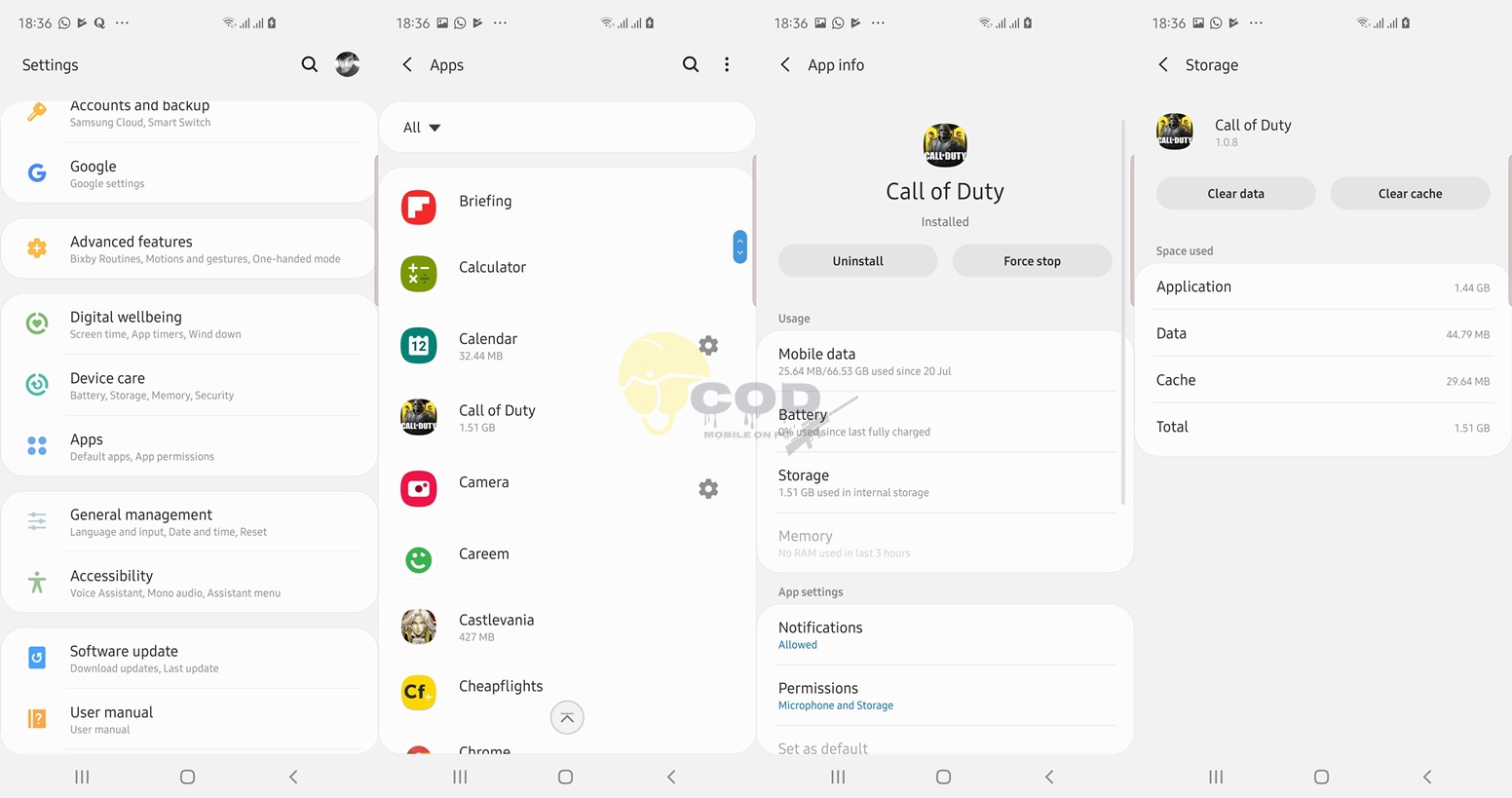
  • On your Android phone, open Settings.
  • In Settings, go to Apps or Application Manager.
  • Now find Call of Duty Mobile and open it.
  • Click on Storage.
  • You will find Clear Data and Clear Cache button.
clear COD Mobile Cache &  Data
  • Click on both buttons one by one.
  • Restart your Android phone and launch Call of Duty Mobile now.

Clear COD Mobile Cache & Data – PC

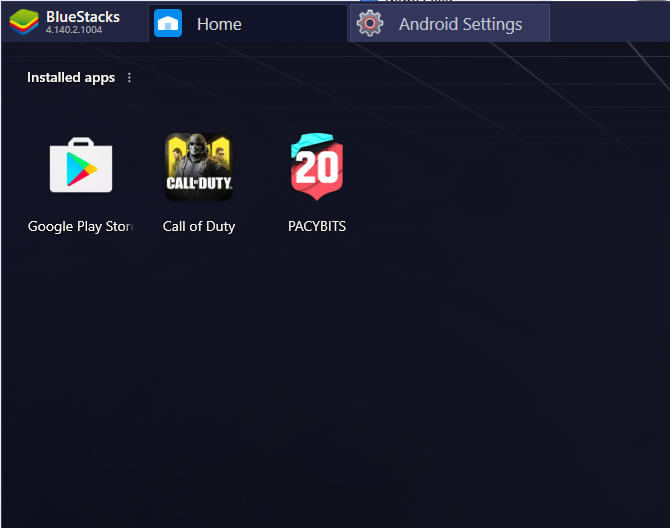
Clearing COD Mobile Data and Cache on PC is possible only when you are playing this game on the BlueStacks Android emulator. It’s not going to work on Gameloop. Take a look at the steps below.

  • Open BlueStacks emulator on the computer.
  • In the emulator, click on the “More Apps > Android Settings”.
  • In the Settings, click on Apps.
  • Now find Call of Duty Mobile and click on it.
  • Click on Storage now.
  • You will find Clear Data and Clear Cache buttons.
clear COD Mobile Cache &  Data on PC
  • Click on both buttons one by one.
  • Restart BlueStacks and launch the game again now.

Conclusion

That’s all. By this time, your Call of Duty Mobile game will have a fresh start. You can check if the previous errors have been fixed or not. If you have anything to ask, suggest, or say, feel free to use the comments section below or you can contact us through our Contact us page as well.

More Call of Duty Mobile for PC guides: