Home Blog Page 33

Best Alarm Clock Apps to Wake You Up [ Android & iOS ]

0
Best Alarm Clock Apps to Wake You Up [ Android & iOS ]

Here are the Best Alarm Clock Apps for Android and iOS users. So all of you Sleepyheads, it’s time for you all to use these apps and Wake Up at time. I have tested all the apps and then after carefully reviewing them. We bring them to you. Also, the apps I am providing you in this post are available on both the App Store and Google Play. Moreover, all these apps are free to use. But some of them have paid features too. Let’s get right into it.

There is one more thing I would like to add before we jump to the apps. I am sure all of you know that Apple has its Alarm App which is called Bedtime and so does Android which is called Google Clock. They both work the same as normal alarm clock should do. However, they both have some extra features for e.g, Apple Bedtime lets you track your sleep, also it will tell you when to sleep.

Best Alarm Clock Apps

On the other hand, Google Clock gives you a number of options such as you can set Spotify songs as your alarm. Now that is enough for most people because they both are providing the basic features that one can ask for. But there is more to it, you can have a number of new features by installing the apps I am providing you in this post.

You’ll be wondering what more we can get, well as a starter, you can get wake-up options, sleep tracking, and integration with wearable. This doesn’t stop here, there is so much more you will get after trying my Best Alarm Clock Apps lists below. So enough said an done, it’s time to tell you about the Best Alarm Clock Apps for Android & iOS devices. You may don’t agree with me but this what I found the best when it comes to Best Alarm Clock Apps.

The Best VPN to play Call of Duty Mobile

Best Alarm Clock Apps:

The following are the best Alarm Clock Apps you can get for your iPhone, iPad, and Android devices. All of them are free apps, mostly,  so it’s okay to give it a try.

Uhp Alarm Clock:

An Alarm Clock app with a simple interface and a number of exciting features, that you can find in all the other apps. This app is designed for iOS users, it lets you set the limit on the snoozes, that is really helpful believe me. Also, since it’s an alarm app you will get the weather forecasts which is more likely every other app will offer too.

Moreover, as Google Clock lets you set Spotify songs as your alarm. Uhp Alarm Clock allows you to set songs from your playlist in iTunes as your alarm. But there is one unique feature Uhp Alarm Clock provides. It’s also kind of funny though if you didn’t get up, Uhp Alarm Clock will embarrass you in front of your friends and family.

Yup, first it won’t let you turn off the alarm, it will keep on buzzing you unless you get up. Second, it will post on your social media account by telling all of your friends, family, co-workers, that how lazy you are. That’s nice and also sort of funny. So if you don’t want to be embarrassed in front of your people. Wake Up.

 

Snap Me Up:

I have something for Android users. Snap Me Up is a unique alarm app, which will take your sleepy face photo or otherwise, your alarm will keep on buzzing. That’s not it, you need to take clear Snap, that means you have to go to a lighter area or you need to turn on the lights. Once you have the Snap, you will have the option, either to share it or maybe not.

But that is a fun way to wake up. I means there are tons of alarm apps available but no one does this. I used this app for a week and trust me I do wake up now. Also, I do took Snap of my sleeping face otherwise alarm won’t go off.

best Alarm Clock Apps

Gentle Alarm:

Well from the past two months I have tried a number of Alarm apps and I found one thing the same in all the apps. Whenever alarm hits off, most of the time it scares the carp out you by bragging up in your peaceful bedroom. So in the midst of all these noise cracking alarm apps I found one app which does the opposite of all these apps.

Best Free FM Radio Apps for Android 2019

This app is called Gentle Alarm and it works in a manner where at first it starts with a slow volume and then as time passes by. It starts to increase the volume of the alarm tones whatever you have selected. That way, your sleep won’t be disturbed and this app will wake you up Gentley. However, if you think, you won’t be able to wake up by all the Gentle thing. There is an option provided in this app called “safe alarm”. Use this one if you are a heavy sleeper and it will wake you up for sure.

best Alarm Clock Apps

Sleep Cycle:

Sleep Cycle is available for both Android & iOS devices. If you are among those who want to keep a track of their Sleep Cycles. They should try this advance level app on their smartphones. Not only it does track you sleep it also works as an Alarm clock, as I said this is app on a very advanced level.

Sleep Cycle uses your device microphone and accelerometer to track your sleep. It tracks your sleep patterns, analyzes your sleep timings and then uses this data to provide you the best Sleep Cycle. If you started following Sleep Cycle patterns you will notice a change in your sleeping times.

However, I am didn’t continue using this app for long, it does help but sometimes I won’t be able to get restful sleep. Because in mind I was following my sleep patterns.

Use the following links to download Sleep Cycle on your iOS & Android devices.

Alarmy:

Alarmy is one of my favorite apps and also stands top in the list of my Best Alarm Clock Apps to Wake You Up. I have read on Digitaltrends that Alarmy was voted the world’s most annoying alarm and it is. Let me explain how Alarmy is the most annoying alarm app. Well, this sounds familiar, all of us do this, we wake up by our alarms just to turn them off. However, if you are using Alarmy, that is not the case here. Well, you see when the alarm hits on Alarmy, you just cannot turn it off. Like you do with the other apps.

On Alarmy in order to turn off the alarm, you have to complete a certain task provided by the Alarmy. Otherwise, alarm won’t go off and you cannot turn it off. There is another option you can choose, you will take a picture of a specific room and save it on Alarmy. Now when the Alarm hits on, you need to take the picture of the same room in order to turn it off. That’s also fun and I still use Alarmy.

Alarmy is available for both Android and iOS devices. Use the following link to download them on your iPhone, iPad or Android devices.

best Alarm Clock Apps

These were the best Alarm Clock Apps to Wake You Up for Android and iOS devices.

Download Call of Duty Mobile for PC – Direct Download

0
Download Call of Duty Mobile for PC – Direct Download

COD Mobile is now directly installable on a desktop PC or Laptop. From here you can download Call of Duty Mobile for PC. This method uses Gameloop.

Call of Duty Mobile for PC – Direct Download – But How?

Call of Duty Mobile, by all the means, is a game tailor-made for smartphones, but its developers, who are also the developers of PUBG Mobile, didn’t want to keep this game limited to smartphones only. The developers of Tencent updated their Tencent Gaming Buddy emulator to make it compatible with Call of Duty Mobile. Their new emulator named Gameloop runs Call of Duty Mobile on computers as smooth as the game runs on the smartphones.

Call of Duty Mobile for PC - Direct Download

Call of Duty Mobile was not compatible with the BlueStacks Android emulator on the first day. The original developers of the game took the opportunity to curate their own emulator let gamers enjoy this game on a computer.

On the computer version, you can use your mouse and keyboard to take full control. Yes, it does annoy the mobile players because the emulator players have sort of an edge with those better controls. The weapon handling is much easier this way. Character’s movement is also controllable and it’s easy to shoot down your enemies.

Especially when you are the only 1 emulator player among 99 other mobile players, you are definitely going to kill them all and believe me, they are not going to like it. There is a kind of a war between the emulator players and the mobile players.

Call of Duty Mobile for PC - Direct Download

To be honest, I personally love playing this game on an emulator. I am not a fan of FPS and Battle Royale games on a phone. These games make much more sense when played on a big screen with better controls.

Having said that, let’s get back to the topic. The Gameloop emulator’s setup having Call of Duty Mobile embedded into it is now available. You can download that from below. Installing it will install the COD Mobile on your computer. You can play the game right after downloading it from here.

Before you download Call of Duty Mobile for PC directly, let me give you an idea of this game.

COD Mobile – Overview

Call of Duty Mobile is not a typical smartphone game in real. The game is quite big. The gameplay and graphics are good enough to enjoy this game on a computer. At first, it’s not the old typical FPS game only. Call of Duty Mobile has a handful of modes with the Battle Royale Mode being on the top of the line.

The game brings the Multiplayer Frontline and Deathmatch mode in which players fight against another team to accomplish their target leading to victory. All the players will be playing the multiplayer mode for the first 7 levels because the Battle Royale Mode is unlocked after the 7th level only. Once you enter the Battle Royale, the game becomes interesting and equally difficult. This game uses the same concent of Battle Royale as you saw in PUBG Mobile. But what makes this game better is open-world gameplay and many interesting new elements like being able to ride a tank or fly a chopper. Other than that, the military-game lovers will enjoy this game much more than other Battle Royale games around.

Furthermore, you will find characters from your favorite Call of Duty parts like Call of Duty Black Ops, Modern Warfare, World at War, and previous titles.

It won’t be wrong to say that Tencent and Activision have done complete justice with the mobile version of Call of Duty Mobile. Not only the mobile actually, but they have also given the PC Gamers a whole new game to rely on.

Download Call of Duty Mobile for PC

Now that you have downloaded the game, follow the following guides.

Final Words

Remember that COD Mobile for PC will work on Windows 7, Windows 8, and Windows 10-powered PC. If you are not liking playing this game in Gameloop, you can check the Best Android Emulators to play COD Mobile for PC. In case you have any queries or questions, feel free to reach out to us. I will try my best to get back to you as soon as possible.

Sync iPhone and iPad in macOS Catalina on Mac

1
Sync iPhone and iPad in macOS Catalina on Mac

This is how you can Sync iPhone and iPad in macOS Catalina on Mac. iTunes is not available in the macOS Catalina. But there is nothing to worry about. In this guide, I will tell you everything about how to Sync your iPhone and iPad with your Mac in macOS Catalina.

We all know that Apple has rolled out the macOS Catalina final version. Those who have updated their Mac device to the latest macOS Catalina. They all be wondering where is iTunes. Well, it seems Apple has finally taken notice and iTunes are not anymore, to be honest, it was long due. However, they should have at least told us what is about to come.

So it’s true and there are not iTunes available in the latest update of macOS. Now if you want to sync your iPhone you need head over to the Finder App. There you will find your connected device. Let’s get started now.

How to enable Instagram Dark Mode on iOS & Android

Sync iPhone and iPad in macOS Catalina on Mac:

In this post, I will tell you about all the settings that you can use to sync your iPhone on Mac in macOS Catalina. First, let’s start by telling how to sync iPhone and iPad in macOS Catalina on Mac.

Where to sync your iPhone or iPad on macOS Catalina:

  • Connect your iPhone or iPad with your Mac.
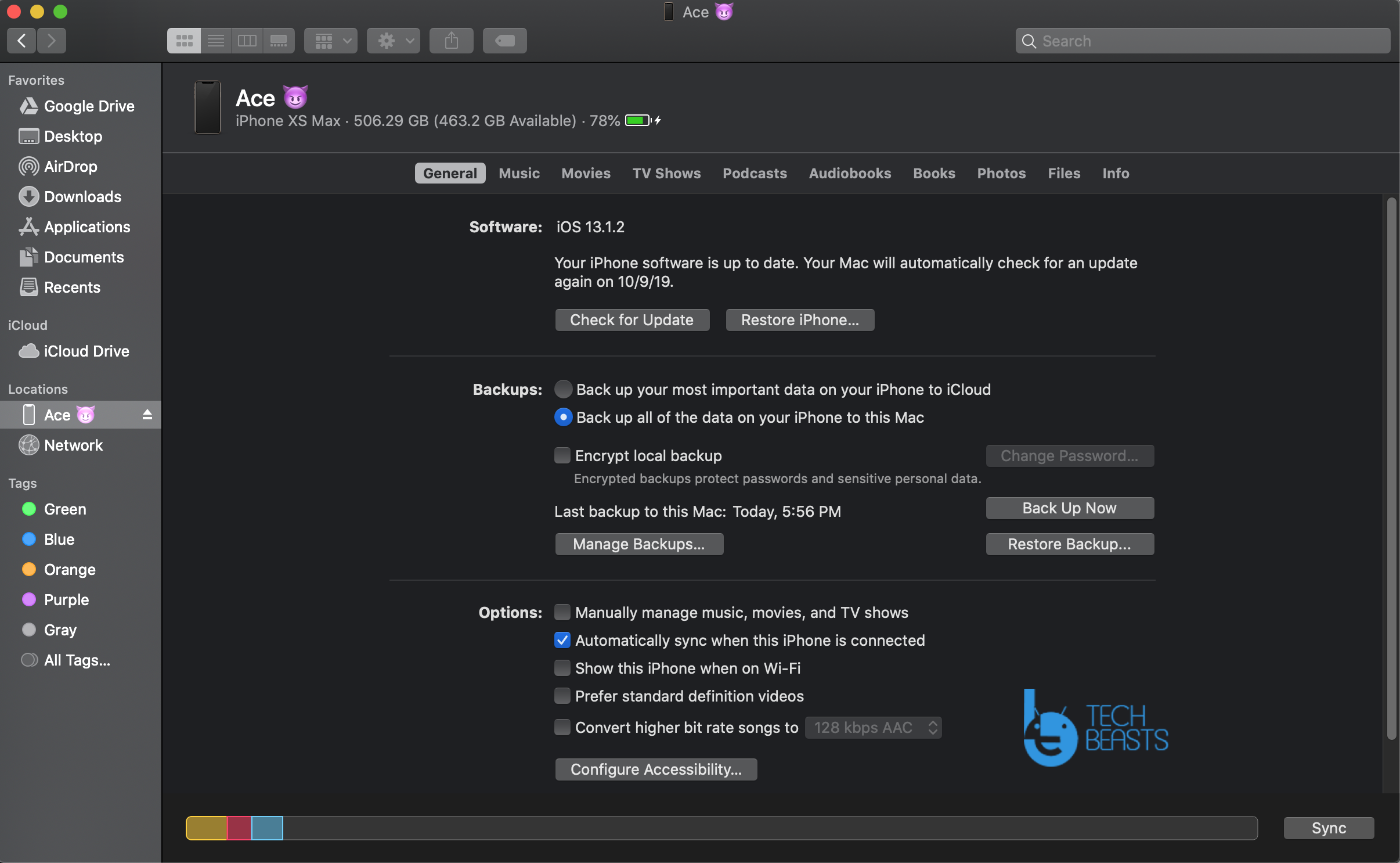
  • Head over to the finder and there you will see your device in the left sidebar of the finder app.
  • Click on your device and you will find a similar interface like iTunes.

Sync iPhone and iPad in macOS Catalina

There you go, now you can easily do all the things that you used to do with iTunes. You can check for new iOS updates, backup your device, restore your device. Moreover, you can manage all of the backups you have made. Apple has added a new dedicated button to access all the backups you have made in the past.

sync music to your iPhone or iPad on macOS Catalina:

  • Connect your device, open Finder app on your Mac. Click on your device name, you can find your device in the left sidebar of Mac.
  • Now Click on the music tab from your device settings.

Sync iPhone and iPad in macOS Catalina

  • Now click on the Sync music onto your device. This is the same settings we have used on iTunes. You will get to use it soon.

Youtube++ on iPhone/iPad | Download Youtube IPA For iOS

Sync movies between your iPhone or iPad on macOS Catalina:

  • Connect your iPhone or iPad. Open Finder App on your Mac.
  • Click on your device located in the left sidebar of the Finder app.
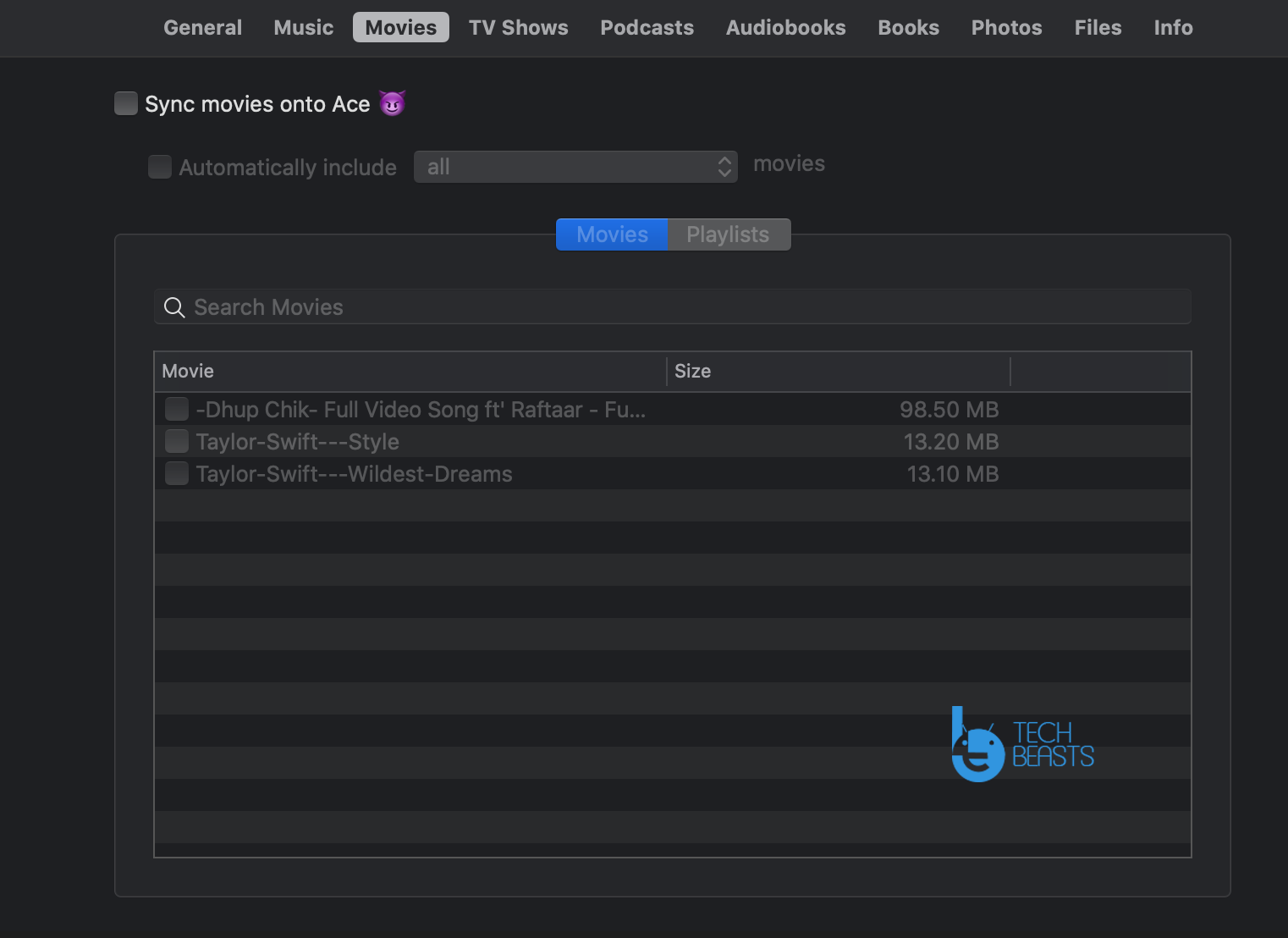
  • After that click on the Movies tab.


  • Now click on Sync movies onto your device. Also, check automatically Include option, right beneath it.
  • Once done with it, click on the Sync button at the end of the page.

Sync photos to your iPhone or iPad on macOS Catalina:

  • Connect your iPhone or iPad. Open Finder App on your Mac.
  • Click on your device located in the left sidebar of the Finder app.
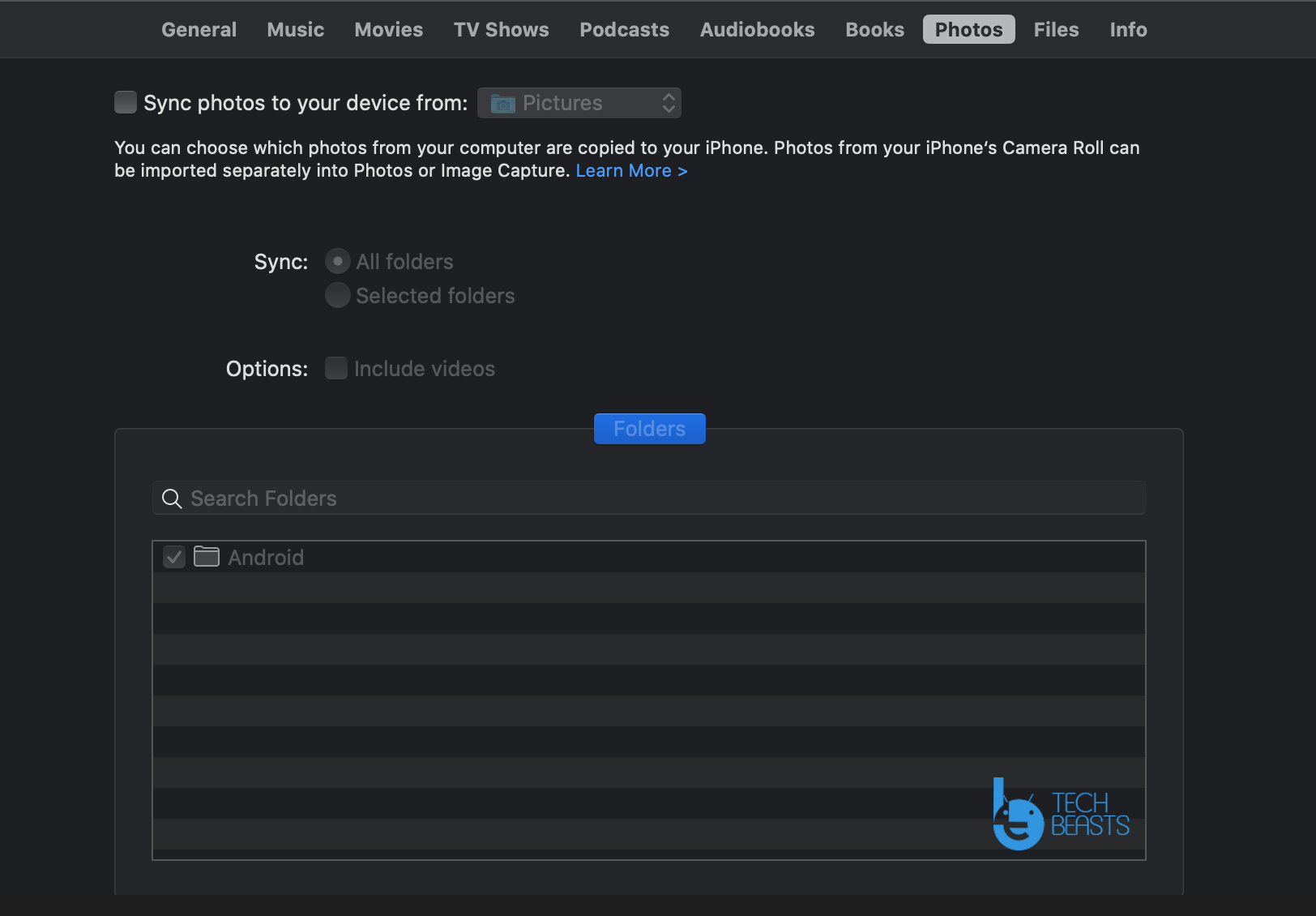
  • After that click on the Photos tab.

Sync iPhone and iPad in macOS Catalina

  • Check Sync Photos to your device from. Now select the folder from which you want to choose photos.
  • Once done, you can click on the Sync button at the bottom of the page.

Sync files to your iPhone or iPad on macOS Catalina:

  • Connect your iPhone or iPad. Open Finder App on your Mac.
  • Click on your device located in the left sidebar of the Finder app.
  • After that click on the Files tab.

Sync iPhone and iPad in macOS Catalina

  • Click on the files and folders you want to sync. A drop-down list will show up. Choose the files you want to sync.
  • After selecting the file, first, click Apply and then afterward click on Sync.

How to backup & restore iPhone and iPad in macOS Catalina on Mac:

iTunes is no longer with us but putting iTunes in the Finder app doesn’t change much. Once you have connected your device to Mac. Open the Finder app on Mac. You will find your device at the left sidebar.  Click on your device name to access its settings. On the right side of your Finder app, you will see a similar interface.

In order to backup your device, click on the backup button and wait for the process to be completed. Once done, now you if you want to restore your device, click on the restore button right next to the backup button.

It’s all the same, as we have used in iTunes. So it will take some time and then you will get used to it. To honest, I like that way, with iTunes we have to go through with a lot but this is a new update made things easier.

That’s all.

How to enable Instagram Dark Mode on iOS & Android

0
How to enable Instagram Dark Mode on iOS & Android

Learn how to enable Instagram Dark Mode on iOS & Android. It’s pretty simple and you can do it by enabling the system-wide dark mode.

There we go, long-awaited Instagram Dark mode is here. Yes and this update was rolled out for iOS users, don’t worry Android users are also in for a treat. Instagram has rolled out the dark mode for both Android and iOS devices. Although I was shocked that they didn’t make any announcement or what so ever.

Instagram Dark Mode

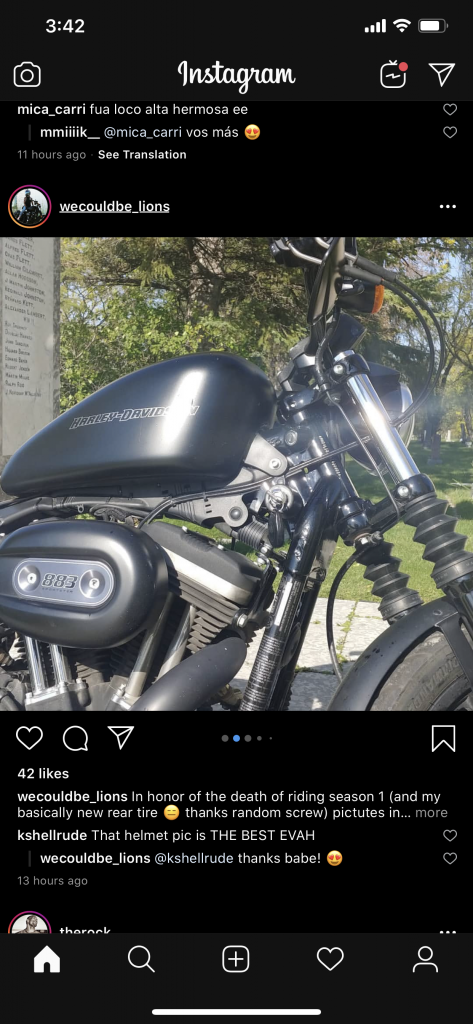
They quietly added the dark mode on Instagram. But there is no such direct option to enable it from the Settings of Instagram. They made is simple, enable dark mode on your device and Instagram will automatically switch from light to dark mode. Also, if you are an iOS user you need to update your device to iOS 13 and for Android users, they need to update their device to iOS 10.

However, if you are not running the latest Android 10, you can still trigger the Instagram Dark Mode by turning on the Night Mode. That being said, you also need to update your Instagram app to the latest version. Download the latest Instagram update using Google Play or App Store. Moreover, you can use the links below to directly download the latest Instagram update.

Once you have the latest update of Instagram installed, the entire interface will go dark including the feed, stories and the discover tab. That will make things more cool for me, I don’t about others but it seems cool. I think I have said enough, now let’s tell you how to enable Instagram Dark Mode on iOS & Android.

Update: You won’t be needing Android 10 to enable dark mode on Instagram. All you need is the latest update and night mode on your Android devices.

How to enable Instagram Dark Mode on iOS & Android:

Heed the instructions below to learn how to enable dark mode on Instagram. There is no direct option in Instagram settings, so you have to go with automatic settings.

iOS:

  • Make sure you are running the latest iOS 13 on your iPhone or iPad.
  • Now head over to the Settings -> Display -> Brightness -> Dark Mode.
  • Install the latest update of Instagram on your iPhone and iPad.
  • Launch the app and you will see the Dark Mode enabled on Instagram.

Disable Dark Mode on Instagram:

Now if you don’t like the dark mode and want to disable it. You have to turn off the system-wide dark mode and enable the light mode on iOS. Same goes for Android, Turn off the Night mode and enable the light mode.

Since there is no dedicated option available for Instagram Dark Mode, you have to go with the automatic system. In which Instagram Adopts the color environment of your device.

Android:

  • Download the latest Instagram update APK from here. Install it on your Android device.
  • Make sure your device supports night mode. Turn on the night mode on your Android.
  • Now launch the Instagram app on your Android device and it will automatically enable dark mode.


That’s all.

Download Xbox 360 Emulator For PC [ Windows & Mac ]

0
Download Xbox 360 Emulator For PC [ Windows & Mac ]

Let me tell you how you can download Xbox 360 Emulator For PC and run it on Windows & Mac. Through my guide, you will be able to install Xbox 360 Emulator on your Windows 10 or Mac. Once you have installed the Xbox 360 Emulator on your computer or laptop. You will be able to play a number of games on your PC.

Xbox 360 Emulator For PC

Now before we move on and get to the technical stuff. Let me give you a short overview of the Xbox 360 Emulator. You all are well aware of the Xbox 360 gaming console and it’s a Microsoft product. The biggest competitor or the Play Station and all the big games designed to be compatible with the Xbox 360.

Download BlueStacks 4.1 for Windows 10 & Windows 8

There are a number of other features that are worth mentioning. Such as, it has better sound quality, Texture, Rich Graphics and more. You can find a number alternates to Xbox 360 Emulator but none of them will perform as good as Xbox 360. Moreover, all of them have very few games that you can play but with Xbox 360 Emulator, you can play all of the top games.

Before you jump to start downloading Xbox 360 Emulator. Keep that in mind, you must have a high-end graphics card to use this Emulator. Otherwise, you will end up with the lagging problems while playing games.

What is Xbox 360 Emulator?

The Xbox 360 is a free Emulator designed fro Windows 10 & Mac. The basic purpose is to provide you the best Xbox 360 gaming experience on your PC. Once installed, you can play all the Xbox 360 games on your PC & Mac. Since Xbox 360 is a gaming console and it is a product of Microsft, it’s a bit expensive and not all of us have deep pockets.

So If you want to enjoy Xbox 360 games on your PC & Mac. You need to download the Xbox 360 Emulator For PC using my method. Xbox 360 Emulator is famous because it can allow you to play games that are not part of the Xbox 360 ecosystem. But still, you will require a high-end gaming PC to properly run Xbox 360 Emulator For PC. Otherwise, you will slow performance, lagging issues, freezing issues.

Now you want to know what are the requirements you need to meet in order to install Xbox 360 Emulator For PC? I can help you with that, read the following details and you will know all the requirements.

5 Best BlueStacks Android Emulator Alternatives in 2019

Requirements for Xbox 360 Emulator:

  1. 2GB Minimum RAM
  2. ATI Radeon 6950 or NVidia Ge Force GTX 560.
  3. Minimum Graphics Card Memory 512 or 1 GB.
  4. You must have Core 2 Duo 2.4 GHz, that will be the minimum.

If your system meets these requirements then you are good to go. Now let’s tell you how to download Xbox 360 Emulator For PC.

Download Xbox 360 Emulator For PC:

Heed the instructions below to download and install Xbox 360 Emulator For PC. The best reason why we should install Xbox 360 Emulator on our PC? It will be one. It allows you to play all the games of the Xbox 360 console on your PC for free. I have prepared a step by step guide to tell how you can easily download Xbox 360 Emulator and install it.

Install Xbox 360 Emulator on Windows 10/8.1/8/7/Vista or Mac:

Step1: Use the following download button to download the Emulator on your Windows.

Step2: Once you have downloaded the Emulator ZIP file. Find it and place it on the desktop. Now you need to extract the ZIP file on your desktop.

Step3: Before we proceed further you need to make sure you have installed Microsoft Net Framework 4.0. This is the most basic requirement your PC should have. Now if you don’t have it, use the following button to get Microsoft Net Framework 4.0 for your PC.

Step4: After downloading and install .Net Framework, it’s time to install Xbox 360 Emulator on our PC. Open the extracted folder and look for Xbox 360 Emulator.exe file -> Double Click -> Follow the on-screen instructions.

Step5: Grant all the permissions that are required to run the Xbox 360 Emulator. Once through with that, you need to wait for the installation process to be completed.

Step6: Xbox 360 Emulator needs some additional files and that is where the installation process will take time. It will download all the required files.

Step7: Once the installation process is finished. Open the Xbox 360 Emulator on your PC, it will ask for the Serial Number. It’s okay I’ve got you covered, you can find the serial number in the .Zip you downloaded in the first step.

That’s all. This is how you can download Xbox 360 Emulator For PC [ Windows & Mac ]. Please do let me know if you have any questions.

Welcome to the No#1 COD Mobile Fan Site!

1
Welcome to the No#1 COD Mobile Fan Site!

We welcome our respected viewers and users. This site is all about COD Mobile Guides, Tutorials, Tips & Tricks. We hope to keep providing you quality guides that will keep your interest in this game alive.

Here is my first COD Mobile Gameplay

How to download COD Mobile on PC

Download AltStore On iOS 13 / 13.1.1 Without Jailbreak

0
Download AltStore On iOS 13 / 13.1.1 Without Jailbreak

In this post, I will tell you how to download AltStore On iOS 13 / 13.1.1 Without Jailbreak. You will be glad to know that AltStore is the best App Store Alternate you can get. Moreover, you won’t be Jailbreaking your iPhone or iPad. Before we proceed let me give you a complete overview of AltStore.

Download AltStore

What is AltStore?

We all know that Apple App Store policies are very strict if your app or game doesn’t fall under their guidelines. There is no way they will let you distribute any of that material. The best example you can find is emulators, modified apps, clones, etc. Since that is the main reason behind Jailbreaking because iOS users cannot get out of their shell unless they Jailbreak their device. But in the past few years, Jailbreak is not that famous as it used to. The main reason behind all this, Apple’s new security patches and updates.

But when there is will there is a way. Since Apple is keen to stop the developers from Jailbreaking, somewhere someone has introduced a new thing called AltStore. A perfect App Store alternative, there is no need for Jailbreak and once installed. You can install all the third-party apps and tweaked without Cydia.

AltStore was developed by Riley Testut and trust me it worth installing the app. Moreover, it is working perfectly on iOS 13. I have heard that Riley Testut is using a feature that was used by the developer to test their apps before submitting them to the App Store. That is why it is compatible with the latest OS. Moreover, since Riley Testut is not using any enterprise certificates, Apple won’t be able to put a stop to AltStore.

Now let’s start the process to download and install AltStore On iOS 13 / 13.1.1 Without Jailbreak. Following is the list of all compatible devices and OS versions.

Supported Devices & Compatible iOS Versions:

Supported Devices:iPhone 11 Pro Max, iPhone 11 Max, iPhone 11, iPhone 8, iPhone 8+, iPhone X, iPhone 7, iPhone 7S, iPhone 6S Plus, iPhone 6S,iPhone 6Se, iPhone 6 Plus, iPhone 6, iPhone 5S
Compatible OS:iOS 13, iOS 12.1.4, 12.4, 12.3, 12.2, 12.1. iOS 12, iOS 11, iOS 11.0, iOS 11.0.2, iOS 11.0.3, iOS 11.1, iOS 11.1.1, iOS 11.1.2, iOS 11.2, iOS 11.2.1, iOS 11.2.2, iOS 11.2.5, iOS 11.2.6, iOS 11.3, iOS 11.3.1, iOS 10, iOS 10.0, iOS 10.0.1, iOS 10.0.2, iOS 10.0.3, iOS 10.1, iOS 10.1.1, iOS 10.2, iOS 10.2.1, iOS 10.3, iOS 10.3.1, iOS 10.3.2, iOS 10.3.2, iOS 9

Download AltStore On iOS 13 / 13.1.1 Without Jailbreak:

Installing AltStore on iOS devices is simple. All you have to do is follow the steps mentioned below. Keep that in mind, A PC is required to install AltStore on your iOS devices. There is no direct way to install AltStore on iOS 13 – 13.1.1.

Step1: Open up your browser either it can be Mac or Windows 10. I am using Mac, so the screenshots will be of Mac. Type in AltStore.io and hit enter.

Step2: Download AltStore for Mac or Windows. In my case that will be a Mac, once downloaded run the installation wizard. Follow the on-screen instructions.

Step3: Now connect your device with your PC or Mac. Run the AltStore, click on the AltStore icon located at the top right side of the screen.

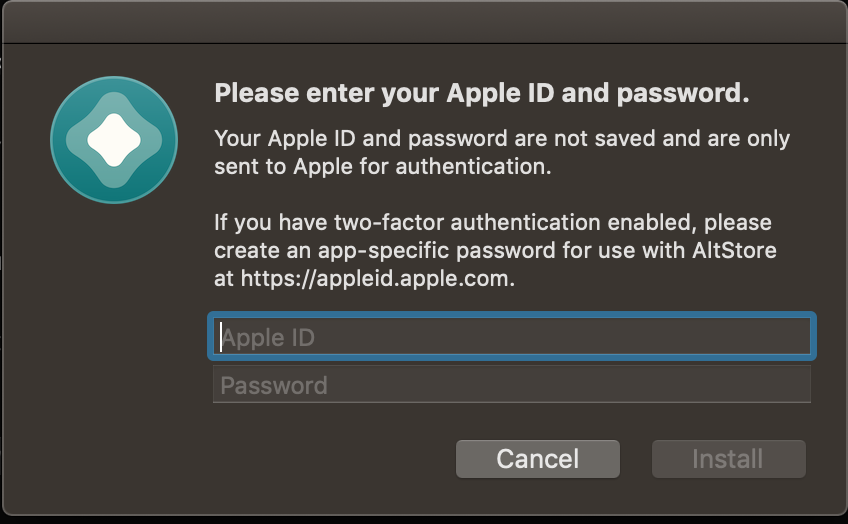
Step4: Click on Install AltStore and select your device. Next, you need to enter your Apple ID details in order to proceed with the installation.

That will be all. Now AltStore will be installed on your iPhone or Mac. Please let me know if you need anything more related to AltStore.

Download: iOS 13.1.2 / iPadOS 13.1.2 IPSW Links [ Direct Download ]

0
Download: iOS 13.1.2 / iPadOS 13.1.2 IPSW Links [ Direct Download ]

Apple has rolled out the latest update of iOS 13, you can now Download: iOS 13.1.2 / iPadOS 13.1.2. This latest update is available for iPhone 11, 11 Pro, 11 Pro Max, XS, XS Max, XR, X, 8, 8 Plus, iPad, and iPod touch 7th-generation. We are providing you the direct download links of iOS 13.1.2 / iPadOS 13.1.2 IPSW. In case you haven’t received the OTA update.

Download: watchOS 6.0.1 For Apple Watch

It seems Apple is taking seriously the issues that are crawling up after iOS 13 rolled out. This new update comes right after the iOS 13.1.1 and iPadOS 13.1.1 update.

Download iOS 13.1.2

What’s New in iOS 13.1.2 / iPadOS 13.1.2:

To be honest, if you are looking for something new, there won’t be any. This update is more likely to come with the bug fixes and security patches for the iPhone and iPad. May be after installing and trying out things, we do something new and if we did, we’ll let you know.

Update to iOS 13.1.2 / iPadOS 13.1.2:

There are two methods that you can use to update to iOS 13.1.2 / iPadOS 13.1.2. One is with the OTA update and we suggest everyone, go with that. However, OTA updates sometime take time more than usual. So the other method will be the best for you.

You need to download the iOS 13.1.2 / iPadOS 13.1.2 IPSW files from the links provided below. Use the iTunes to update your iPhone & iPad.

  • Settings > General > Software Update section.

Download iOS 13.1.2 / iPadOS 13.1.2 IPSW:

iOS 13.1.2 IPSW Download Links:

iPadOS 13.1.2 IPSW Direct Download Links:

That will be all. If you want to update your device using IPSW files. Follow the instructions provided below.

  • Connect your iPhone or iPad to the computer.
  • Open iTunes and select your device.
  • On a Mac, hold down the “Option” & hold down the “SHIFT” key. Then click Update
  • Select the iOS 13.1.2 / iPadOS 13.1.2 IPSW and Click choose.
  • That’s it.

Download: watchOS 6.0.1 For Apple Watch

0
Download: watchOS 6.0.1 For Apple Watch

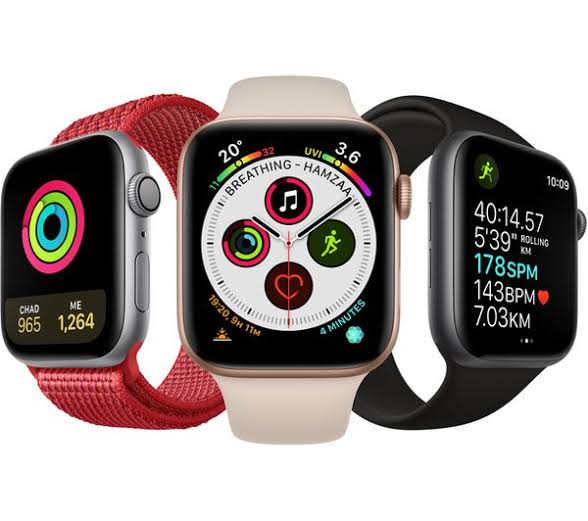
Apple has released its first watchOS 6.0.1 to the public. You can now download watchOS 6.0.1 for your Apple watches. It seems Apple is now working on software updates to provide more stability to their user experience. Moreover, these updates come with a number of fixes every time.

We have seen many bugs and issues on iOS 13, even in the beta stage. Well not just in the beta stage, I am still having issues with iPhone running iOS 13. These news updates are more focused on the iPhone and iPad OS. Because Apple has claimed that the iOS 13 is will load 2x faster apps than any other OS. So the pressure is huge, giving us 4GB Ram and telling us fastest, it doesn’t add up.

Youtube++ on iPhone/iPad | Download Youtube IPA For iOS

Now let’s talk about today’s update. First of all not huge or one with tons of new features. It’s more likely a patch that will help you fix all the recent issues you were facing on your Apple Watch. If you have heard about the bug ” display calibration ” problem. Well, this update will fix it.

Download: watchOS 6.0.1

Download: watchOS 6.0.1 For Apple Watch:

If you haven’t updated your device, I think you should and get rid of a number of issues. You can update through OTA or you can download watchOS 6.0.1 for free direct from Apple.

I would suggest you should follow the instructions below in order to update your Apple Watch to watchOS 6.0.1. It’s pretty simple no need to a pro to update your watch.

How to Update your Apple Watch to watchOS 6.0.1:

Heed the instructions below to update your Apple Watch Series 5 to watchOS 6.0.1. But before you proceed, you make sure that your Apple Watch battery is at least 50%.

  • Open up your Apple Watch on your iPhone.
  • Head over to the General Section.
  • Tap on Software update.
  • Follow the on-screen instructions and prompts.

That will be all. Make sure your iPhone and Apple Watch are in the specified range. This is important to remember, Updates can take time to download.

watchOS 6.0.1 For Apple Watch Release Note:

watchOS 6.0.1 optimizes performance, provides security updates, and contains improvements and bug fixes, including: – Resolves an issue where the Mickey Mouse and Minnie Mouse watch face does not speak time – Addresses an issue where the calendar complication may not display events – Fixes a bug that could result in a loss of display calibration dataApple

Enjoy!

Download Pixel 4 Apps, Wallpapers, Launcher & More

0
Download Pixel 4 Apps, Wallpapers, Launcher & More

We are only a few weeks away from the official unveiling of the Pixel 4 and 4XL, but it looks like Google has no control over the goodies leaking out of these phones. In the past couple of weeks, almost all the major elements have poured out of the Pixel 4 smartphones. We have the Pixel 4 Apps, Wallpapers, Home Launcher, Themes App, Ringtones, and Live Wallpapers out already. Not only that, the Google Camera application from Pixel 4 and 4XL is also out. You can download all of the leaked Google Pixel 4 Apps, Wallpapers, Ringtones, and other goodies from here now. Some of the Apps run on all Android phones.

Pixel 4 Apps

Before you download the Pixel 4 Apps, let me tell you what’s new in all the apps.

Google Pixel 4 and 4XL Apps | Wallpapers | Ringtones | Camera | Launcher | Themes & More

Ever since Google has introduced the new Pixel lineup, the company has been managing to live up to the expectations of the consumers. The Pixel phones come equipped with the industry’s top-level hardware, so do others, but what sets them apart is the software optimization.

Over the course of the past two years, Google has raised the bar high for a number of smartphone features. Especially, the camera. Phone manufacturers have been ridiculously adding a handful of cameras in a race to grab the top spot, but Google easily takes that away with only one camera, thanks to its software processing.

For the upcoming Pixels, Google is opting for dual cameras for the very first time. The news of 2-rear cameras has raised the expectations further. Google Pixel 4’s leaked camera application shows a unique feature called “Astrophotography”. It looks like Google will raise the bar for the night mode and low light photography this year.

Pixel 4 Apps
Pixel 4 Camera – Image Credits: XDA-Developers

It’s not only the Camera, but Google also puts in a lot of efforts for other aspects. This time around, the company is enhancing its launcher application. A swipe-down gesture has been added to the launcher which will let users swipe down and pull down the notifications bar from any area of the screen.

Google has invented a dedicated ringtones application for Pixel 4. It comes with over a dozen newly-crafted ringtones.

A themes application is on the way. Users can now change the entire UI of a Pixel phone with the help the Themes app.

The Wallpapers, which are over 20 stock Pixel 4 wallpapers and 9 live Pixel 4 and 4XL wallpapers are also out.

Pixel 4 Apps

A voice recorder has also leaked from the Pixel 4. This voice recorder comes with a new UI and also supports the system-wide Dark Mode of the Android 10.

Pixel 4 Apps

All the applications mentioned above are available for download now. Most of these apps will run smoothly on Pixel phones and the wallpapers can be installed on any Android phone. You can download the Pixel 4 apps from below now.

Download Pixel 4 Apps, Wallpapers, Ringtones, Camera App, Launcher, Themes App & Voice Recorder

  • Pixel 4 Launcher [Google Home] – Download
  • Stock Ringtones App of Pixel 4 – Download [Not available yet]
  • Pixel 4 and 4XL Stock Wallpapers – Download
  • Google Pixel 4 and 4XL Live Wallpapers – Download
  • Google Camera 7 APK – Download
  • Pixel 4 Themes App – Download
  • Voice Recorder of Pixel 4 & 4XL – Download

The Launcher, Themes, Google Camera, and Voice Recorder will work on Pixel 3XL and below running on Android 10. Stock Wallpapers and live wallpaper will work on any Android phone.

That’s all. For any questions or queries, use the comments section below.

Download Google Pixel 4XL Live Wallpapers APK for all Android phones

0
Download Google Pixel 4XL Live Wallpapers APK for all Android phones

Android users can install Google Pixel 4 and 4XL’s live wallpapers now. From here you can download Pixel 4XL Live Wallpapers APK for all Android phones. The guide to install the Pixel 4 Live Wallpapers APK is also given below.

Pixel 4XL Live Wallpapers APK
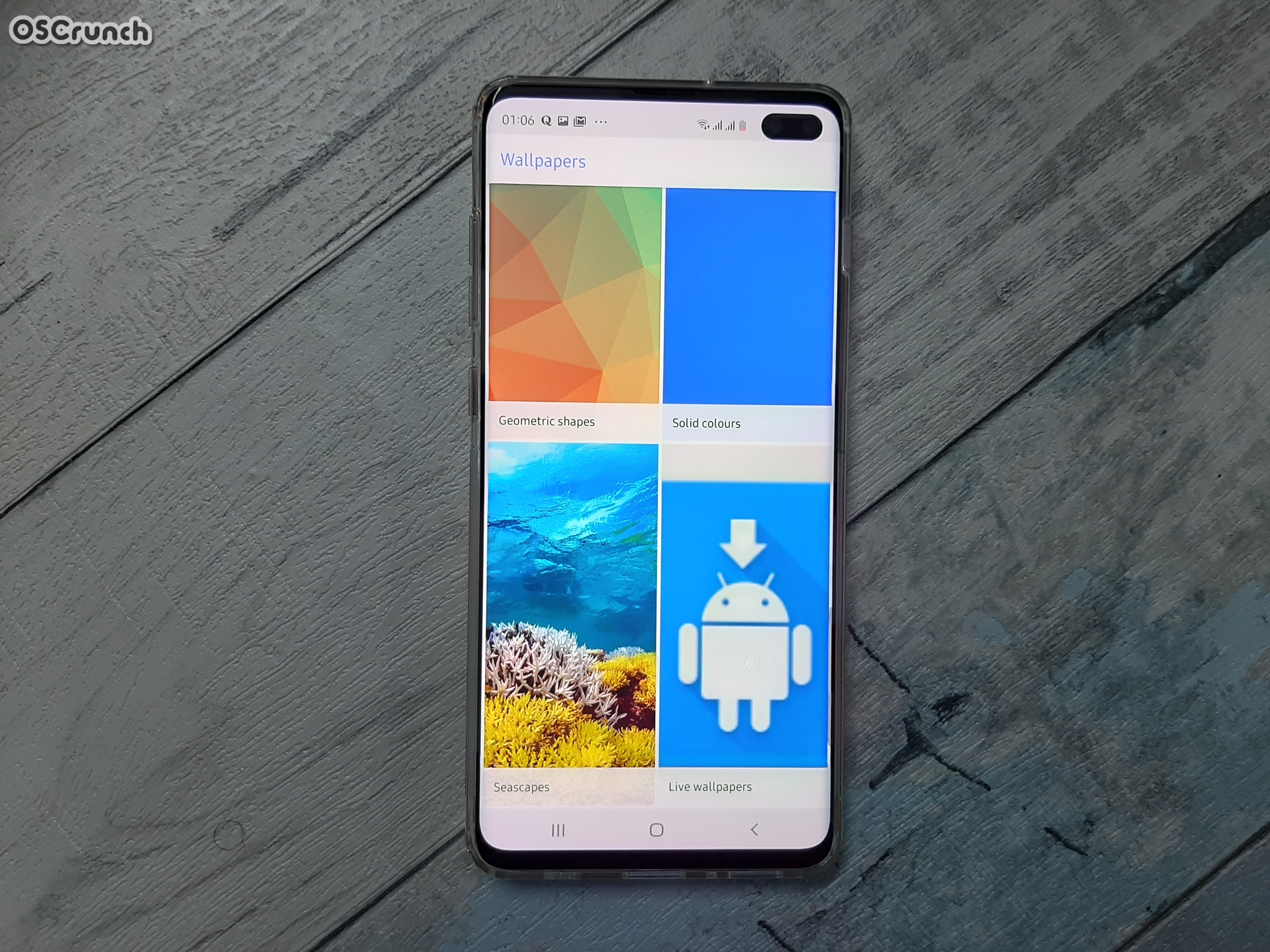
Pixel 4XL Live Wallpapers APK on my S10 Plus

Pixel 4XL Live Wallpapers

The Google Pixel 4XL Live Wallpapers application has leaked ahead of the phone’s official launch. A couple of days back, a YouTube channel named “Nextrift” got its hands on the Pixel 4’s pre-release version. The YouTuber sent out Pixel 4’s exclusive applications to 9to5Google. Pixel  4’s voice recorder, theme applications, ringtones, stock wallpapers, and live wallpapers apk were part of those apps. The Google Home Launcher has also leaked. The most important application among all these apps, is, of course, the Pixel 4 and 4XL Live Wallpapers app. 

Pixel 4’s live wallpaper application originally isn’t compatible with any other phone. However, the XDA-recognized developer Pranav Panday modified the application and made it compatible with all Android phones.

The available Pixel 4 Wallpapers APK works on all the Android phones running on Android 7 or higher. Another thing to note here is that this app supports ARM64-powered smartphones only. 

There are 9 live wallpapers in the upcoming Pixel phones. A few of these wallpapers show off the beauty of different landscapes and landmarks. These wallpapers include:

  • Compass
  • Garden: Rocky
  • Doodle
  • Garden: Leafy
  • Garden: Prickly
  • Sights from the sun
  • Uluru, Australia
  • Tarot Bay, Saudi Arabia
  • Mount Pilatus, Switzerland
Pixel 4 Live Wallpapers

The thing to note here is that these wallpapers are not simple copy-paste-apply wallpapers. They require a whole trick to being installed and run on an Android phone. In fact, it’s even trickier to get these wallpapers up and running on Samsung Galaxy handsets.

Fortunately, I have already given these live wallpapers are a try on my Galaxy S10 Plus and all of them looked absolutely stunning on the phone. You can now go ahead and download the Pixel 4XL Live Wallpapers APK from below. You can install the Pixel 4XL Live Wallpapers APK by following the instructions given next to it.

Download and Install Google Pixel 4XL Live Wallpapers APK

Pixel 4XL Live Wallpapers App APK: Download

Check ARM and ARM64 of an Android phone

Google Wallpapers App Play Store

  • Step 1: Copy the APK to your phone.
  • Step 2: Using a File Manager, open the APK and install it.
  • Step 3: Open Google Play Store on your phone and install Google Wallpapers App.
  • Step 4: Open the Google Wallpapers Application on the phone.
  • Step 5: Open Live Wallpapers from the Google Wallpapers App
  • Step 6: Apply the new installed Pixel 4 Live Wallpaper. That’s all.
Pixel 4 Live Wallpapers

That’s all. You should have the wallpapers rocking the screen of your Android handset now. If you have any questions or queries, feel free to reach out to us. That’s all.

Download Google Pixel 4XL Stock Wallpapers & Live Wallpapers

Download Google Pixel 4XL Stock Wallpapers & Live Wallpapers

Wallpaper enthusiasts! Here are all the stock wallpapers and live wallpapers of the Google Pixel 4 and 4XL. You can download Google Pixel 4XL stock wallpapers and Android phone. The stock wallpapers will even work on any iPhone.

Google Pixel 4XL Stock Wallpapers
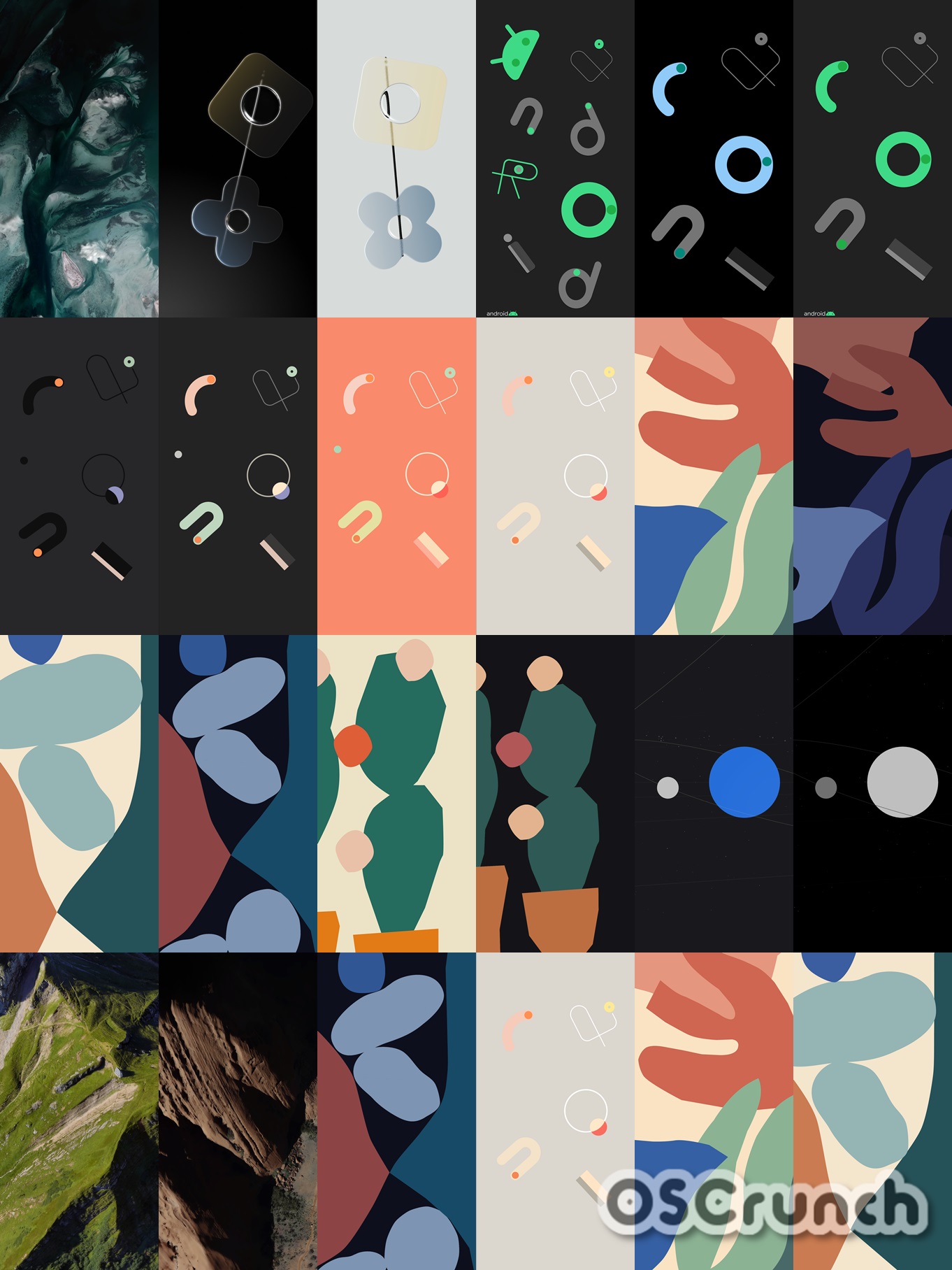
Pixel 4’s entire stock wallpapers collection.

Google Pixel 4XL Stock Wallpapers

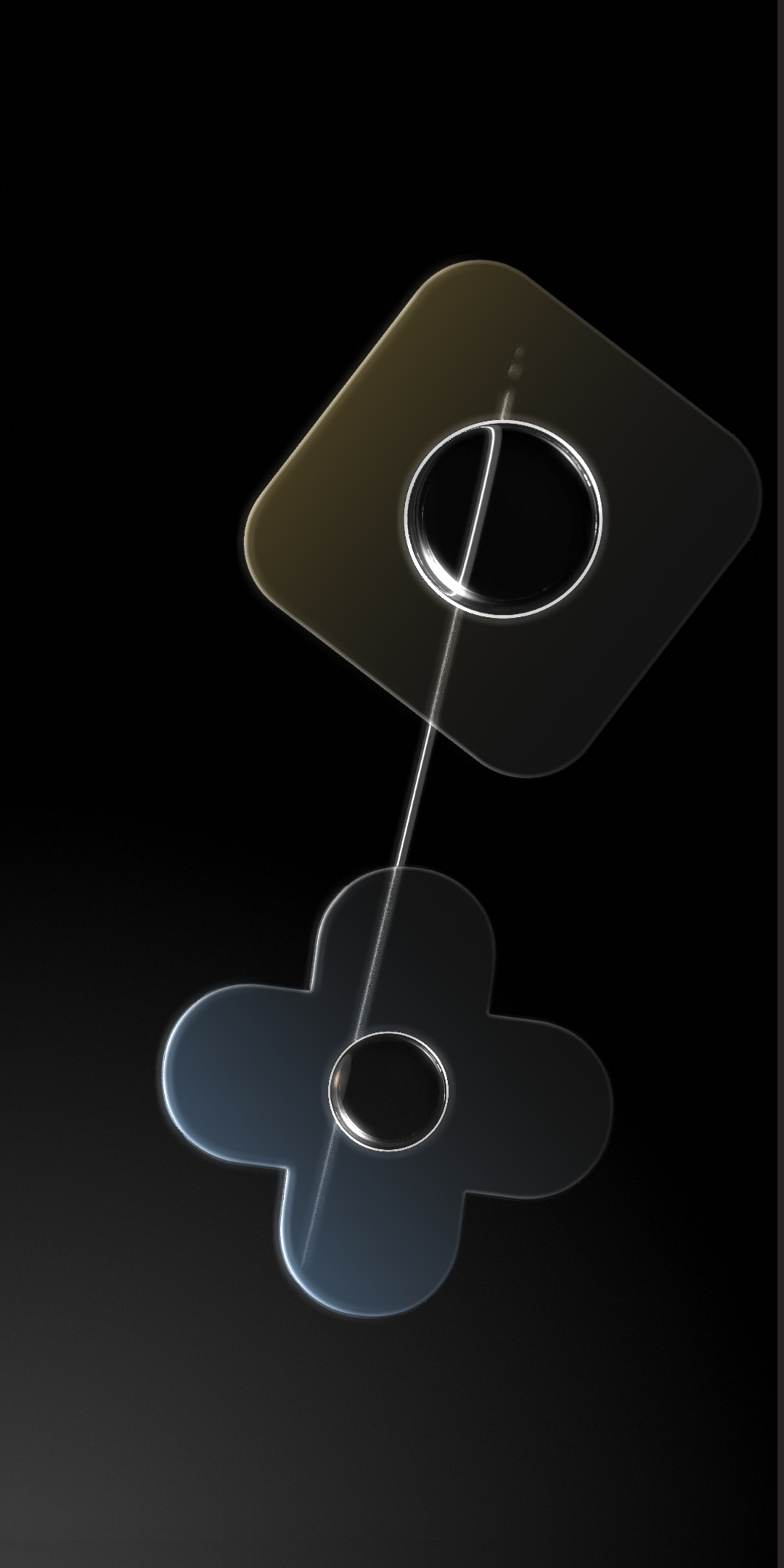
There are 20 stock wallpapers in the upcoming Pixel 4 and 4XL. The wallpapers have been tailor-made for the screens of the Pixels phones. Fortunately, the resolution of these wallpapers is a perfect match for thousands of Android phones and iPhones.

There are two different methods to download the Pixel 4XL stock wallpapers. Either you can download them all together using the all-in-one link below or you can download them one by one.

All Pixel 4 and Pixel 4XL Stock Wallpapers: Download

To download the wallpapers on your computer, right-click on the desired wallpaper and then click on “save image as…”. To download them to your phone, long-press the wallpaper and then click on “Download image”.

Note: All these Pixel 4 stock backgrounds have a resolution of 1080 x 2160 pixels.

google pixel 4xl stock wallpapers
google pixel 4xl stock wallpaper
pixel 4 stock wallpapers
pixel 4 stock wallpaper

Google Pixel 4XL Live Wallpapers

In Pixel 4 and 4XL, there are 9 live wallpapers. Google has been doing a really good job with the live wallpapers. The animated wallpapers on Pixel 3 and 3XL were incredible. Same goes for the Pixel 4XL as well. With these wallpapers, Google is highlighting the stunning beauty of various landmarks and landscapes. The Pixel 4XL highlights the following places.

  • Uluru, Australia
  • Tarot Bay, Saudi Arabia
  • Mount Pilatus, Switzerland
Pixel 4XL Live Wallpapers
Using live wallpaper from Pixel 4XL on my S10 Plus

Other wallpapers include:

  • Compass
  • Garden: Rocky
  • Doodle
  • Garden: Leafy
  • Garden: Prickly
  • Sights from the sun

These wallpapers are compatible with any Android phone running on Android 7 or higher. Your Android phone must have an ARM64 chipset. If you are not sure about the architecture of your Android phone, you can check it here.

Here is how to install the Pixel 4 or 4XL Live Wallpapers

These are the steps to download and install Pixel 4’s live wallpapers on any Android phone.

Total Time: 2 minutes

Step 1

Copy the Pixel 4 Live Wallpapers APK to your phone.

Step 2

Using a File Manager on the phone, open the Pixel Live Wallpapers APK and install it.

Step 3

Now open the Play Store on your Android phone and search for “Google Wallpapers App”. As you find the app, install it.

Step 4

Open the Wallpapers App on the Android phone now.Pixel 4 Live Wallpapers

Step 5

Go to the bottom of Wallpapers App > Live Wallpapers > Apply any Pixel 4XL Live Wallpaper to the home and lock screen now.Pixel 4 Live Wallpapers

Pixel 4 & 4XL – A saga of leaks

Google controls a major part of the internet. If you are an internet user, there is a highly likely chance that your online activity choices are being manipulated by Google. That’s how powerful Google’s algorithm has made the company today. Almost every other internet product is owned by the Mountain View-based tech giant. If there is one thing that Google has no control on, that’s the Google Pixel 4’s leaks.

The Pixel 4 and 4XL have leaked for over a dozen times now. The raining leaks have killed the surprise that the users were supposed to get on the Pixel 4’s official unveiling. Pixel 4’s launch event will be nothing more than conforming to those leaks now.

The Pixel 4’s press renders started making it to the internet a couple of months ago. It’s very normal for a phone’s pictures to slip out of the manufacturer’s hands, but that’s not the only thing that happened to the Pixel 4 phones. A couple of YouTubers got their hands on the pre-release Pixel 4/XL units and they took the opportunity to make entire videos on the devices. The content creators showed the Pixel 4 and XL from every single aspect explaining all of their features.

A few days back, another YouTuber going by the name Nextrift got hands on the Pixel 4XL. Nextrift did not only show off the phone but also extracted the exclusive Google Pixel 4 and 4XL goodies. Pixel 4’s recorder, camera applications, launcher, and the wallpapers APK made it to the internet.

Google’s native applications are nothing less than a luxury for Pixel users. At times, the non-pixel users also get to enjoy the perks of those applications. The same thing has happened this time around and as a result, almost all the Android phone owners can enjoy Pixel 4’s live wallpapers.

Pixel 4 & 4XL – Expectations

Pixel 4 and 4XL are the upcoming Google flagship smartphones. These phones are expected to come out in October 2019. At the time of writing this post, all eyes are on the upcoming Pixel phones because it’s only Google who’s yet to show off its flagship smartphones for the year 2019.

The Pixel 4 and Pixel 4XL are anticipated to come with a 5.7-inch Full HD and 6.2-inch QHD P-OLED displays respectively. Google is not expected to add a notch on these phones. The company will opt for the vintage forehead instead. The phones will carry the dual front cameras and a couple of sensors on the front.

Pixel 4 lineup is expected to be powered up by the Snapdragon 855 SoC. The company will add RAM of 6 or 8GB and the internal storage will vary between 64GB and 256GB.

Where companies are installing a quad-camera setup on their phones, Google is going to add a dual-camera on its Pixel 4 phones. So far Google has used a single camera only. Pixel 4 will be the first Google phone to have dual shooters. Google has done wonders with a single camera which is why the dual camera performance of the pixel is anticipated to be mind-blowing.

Pixel 4 is reportedly coming with a 2800 mAh battery and the 4XL will have a battery of 3700 mAh. Both phones will run on the Android 9 Pie out of the box. The availability of the under-display fingerprint scanner is unknown.

Conclusion

That’s all. The specifications of the Pixel phones should be taken with a pinch of salt. The final details of these phones can be known only after the release date. If you have anything to discuss or any questions to ask, feel free to use the comments section below. I will try my best to interact with you as soon as possible.

Check out more stock wallpapers on our site.

Live Wallpapers Source

Last Updated: 26th October 2019