Home Blog Page 34

Download Google Pixel 4XL Stock Wallpapers & Live Wallpapers

Download Google Pixel 4XL Stock Wallpapers & Live Wallpapers

Google Pixel 4 and 4XL’s stock wallpapers are out. There are 20 stock wallpapers in total and a bunch of live wallpapers. You can download all Google Pixel 4XL Stock Wallpapers and Live Wallpapers from here.

Google Pixel 4XL Stock Wallpapers
All Google Pixel 4XL Stock Wallpapers

Before you download the stock wallpapers of the upcoming Google Pixel 4, let me give you an idea of this phone.

Leaking Google Pixel 4 and 4XL Goodies

Pixel 4 and 4XL are the upcoming flagship Google devices. The devices have leaked for so many times that there is absolutely nothing left to the device. Not only the official renders or the press images of the phones leaked this time, in fact, but the entire devices also made it to the internet. What’s even worse is that a couple of YouTubers got their hands on the pre-release Pixel 4 devices and made pro-long videos explaining the devices from head-to-tea.

Another website and YouTube channel going by the name Nextrift recently got their hands on the Pixel 4 smartphones. Folks over Nextrift did not only show off the phones, but they also extracted the applications from the phones and uploaded for everyone.

Google is redesigning a number of applications for the Pixel 4 lineup. We are expecting a new voice recorder, a new launcher, a completely revamped camera application, and a handful of newly designed wallpapers. All of this is already up and here in this post, we have the Pixel 4’s wallpapers. 

Google Pixel 4XL Stock Wallpapers

There are 20 wallpapers in the Pixel 4/XL in total. All these wallpapers have been designed to show off the beauty of the P-OLED display of the phones. You can download the Pixel 4/4XL Stock wallpapers in full HD resolution from below.

There are two methods to download these wallpapers. Either you can download all these at once using the all-in-one file or you can download them one by one right-clicking and saving the image.

All Pixel 4XL Stock Wallpapers: Download

Pixel 4 and 4XL Live Wallpapers

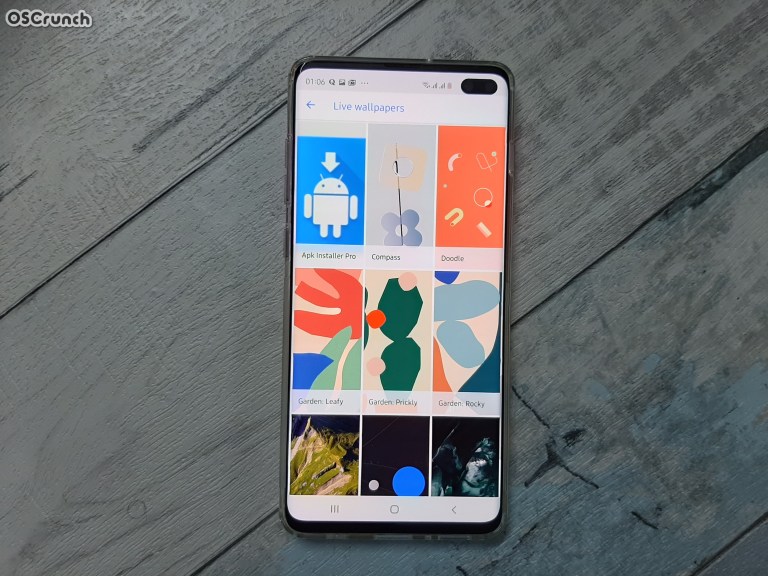
There are 9 live wallpapers in Pixel 4 and 4XL. These wallpapers include:

  • Compass
  • Doodle
  • Garden: Leafy
  • Garden: Prickly
  • Mount Pilatus, Switzerland
  • Sights from the Sun
  • Toarout Bay, Saudi Arabia
  • Garden: Rocky
  • Uluru, Australia
Pixel 4 and 4XL Live Wallpapers on my Galaxy S10 Plus

These wallpapers are available in the form of APK file. You will have to install the APK manually on your phone. The good thing is, this Google Pixel 4XL Live Wallpapers APK can be installed on any Android phone running on Android 7 or higher. You can download it from below.

Google Pixel 4 and 4XL Live Wallpapers APK: Download

How to install Pixel 4/XL Live Wallpapers on any Android phone

  1. Copy the downloaded APK to your phone.
  2. Open File Manager on the phone and open the APK.
  3. Follow on-screen instructions to install the APK.
  4. Once done, open the Play Store on the phone.
  5. From the Play Store, download and install the Google Wallpapers app.
  6. Now open the Wallpapers app on the phone.
  7. At the bottom of this app, you will find Live Wallpapers.
  8. Apply any Google Pixel 4XL Live Wallpaper on your Android phone now.

Pixel 4 & 4XL Expected Specs

For those who are interested, the Pixel 4 and 4XL are expected to come with a 5.7-inch and 6.23-inch P-OLED displays respectively. The screen will be protected by Gorilla Glass 6. The screen-to-body ratio of the handsets will be 19:9. Google is opting for a big forehead holding the front cameras and sensors. Both phones will be powered by Snapdragon 855 Processors. A RAM of 6 or 8GB with internal storage varying between 64 and 256GB is expected. Upcoming Pixel phones will have a dual rear camera system and a dual front camera system having one normal shooter and one TOF sensor. Pixel 4 will have a 2800 mAh battery and Pixel 4XL will have a 3700 mAh battery. There is no word about the in-display fingerprint scanner and wireless charging in these phones.

These specifications should be taken with a pinch of salt as the tables can turn with the official release of the Pixels.

That’s all for now. For any discussions, questions, and queries, use the comments section below.

More: Download Google Pixel 3a and 3a XL Stock Wallpapers and Ringtones

Source

How to get Frenzy Mode in Mario Kart Tour

0
How to get Frenzy Mode in Mario Kart Tour

Mario Kart Tour is driving everyone crazy right now. The game has hit millions of downloads in the past 24 hours. If you have already played this game, you must have an idea of why this game has got everyone addicted. The game may seem very simple at first, but there are a lot of features that you must discover. One of those features is the Frenzy Mode, which can boost up your adrenaline rush to win every race. Mario Kart Tour’s Frenzy Mode is a little bit tricky to activate. Since this mode can change your almost-lost game into won, it’s important to learn how to activate it. You can follow the few simple steps below to get Frenzy Mode in Mario Kart Tour

Frenzy Mode in Mario Kart Tour

Before you learn how to enable Frenzy Mode in Mario Kart Tour, let me give you an idea of how this mode works.

What is Frenzy Mode?

The Frenzy Mode in Mario Kart Tour frees your driver or glider from all the restrictions and limitations. Once activated, your Kart and driver become invincible. The collectible items in this mode become unlimited. You can collect as many as you can in that short span of time. The Frenzy Mode boosts the speed of your Kart as well which will push you all the way through the finish line. 

Frenzy Mode in Mario Kart Tour

If you have played a game like GTA V, you must have an idea of how the invincibility works. The invincibility of Mario Kart Tour is somewhat similar. 

The Frenzy Mode changes the game situation drastically. Unfortunately, the Frenzy Mode doesn’t work like pressing a NOS button in Need for Speed or Asphalt 9. You have to be extremely lucky to activate the Frenzy Mode. Not only luck, but you also have to have your luck and mind in synchronization with each other. Take a look at the steps below to get Frenzy Mode in your game now.

How to Get Frenzy Mode in Mario Kart Tour

  1. To activate the Frenzy Mode, your character must match the track.
  2. For example, if you are racing in the Browser’s Castle, you should choose the Browser as your Driver or Glider.
  3. The game loads three items at the top of the screen during a race.
  4. All these three items must be the same to activate Frenzy Mode.
  5. The items will keep changing throughout the race.
  6. As soon as all three items match, you will have the Frenzy Mode activated.
  7. The items will become unlimited for a while, make sure to use them as soon as possible because these are for a limited time.
  8. That’s all. This is how you will unleash the full potential of this game. That’s all.

How to install and play Mario Kart Tour on Windows 10

4
How to install and play Mario Kart Tour on Windows 10

Mario Kart, Nintendo’s latest game is out for Android and iOS. The same game is not available for Windows or macOS-powered computer. However, with the help of a little trick, you can play Mario Kart Tour on Windows 10 at the least. This is the guide to download, install, and play Mario Kart Tour on Windows 10. Before you take a look at the guide, let me give you a brief overview of the Mario Kart Tour.

Mario Kart Tour on Windows 10

Mario Kart Tour

Mario Kart Tour is a mixture of action and racing genre. The game will take you down the memory lane. At first, it will introduce you with all the legendary Mario characters. All the elements of this game are themed to reflect the good old Mario games.

Like the name of this game suggests, the racing in here takes place in the little cute Karts. The Mario characters, which are basically the drivers, are sitting inside the Kart and they have complete control over it. The Kart will be touring different cities and towns across the world. The outlook of the Kart and character will follow the culture it is in at that particular moment.

However, with the help of a little trick, you can play Mario Kart Tour on Windows 10 at the least. This is the guide to download, install, and play Mario Kart Tour on Windows 10.

To control the Kart, you have extremely simple controls at the bottom of the screen. You can swipe and tap towards left or right to drift. The Kart moves forward on its own, you just have to drift through the crazy curves.

During this race, you will be joined by a bunch of other Mario Kart drivers from across the world. Everyone is aiming for the first spot in the game. To ensure that you end up being the first one to cross the finish line, you can throw items at your opponents which will hinder the race for them. Your Kart will collect footballs and other such items that can be easily thrown at other players.

Players will also collect stars, coins, and many other collectibles. Your inventory will play a major role in performing upgrades. Players will get an opportunity to choose their driver at all levels. If they unlock the flying mode, they will get to choose the gliders too. The more stars you have, the more upgrades you will be able to perform. 

Mario Kart Tour is a very colorful game overall. The has the tendency to keep you addicted for a good amount of time. The cherry over the top is that this game comes for free. It does have IAPs, but you can definitely survive without those.

Getting back to the topic, you can take a look at the steps to play Mario Kart Tour on Windows 10 PC.

Requirements

  • A computer or laptop running Windows 10, 8, or 7
  • The latest BlueStacks 4.1 – Download & Install.
    • Remember that older versions of BlueStacks i.e. BlueStacks 4 do not support Mario Kart Tour. The emulator has been updated to support this game. It works on Windows only. Unfortunately, the new BlueStacks isn’t compatible with macOS as of now.

Play Mario Kart Tour on Windows 10

These are the steps to download Mario Kart Tour for PC on Windows 10, Windows 8, and Windows 7.

Total Time: 5 minutes

Install BlueStacks 4.1 on your computer.

First of all, install the emulator that you just downloaded above. Open the emulator and set it up using your existing or new Google Account.

Open Google Play Store in BlueStacks 4.1.

In the BlueStacks, open the Play Store now. If you are not already logged in, login now.

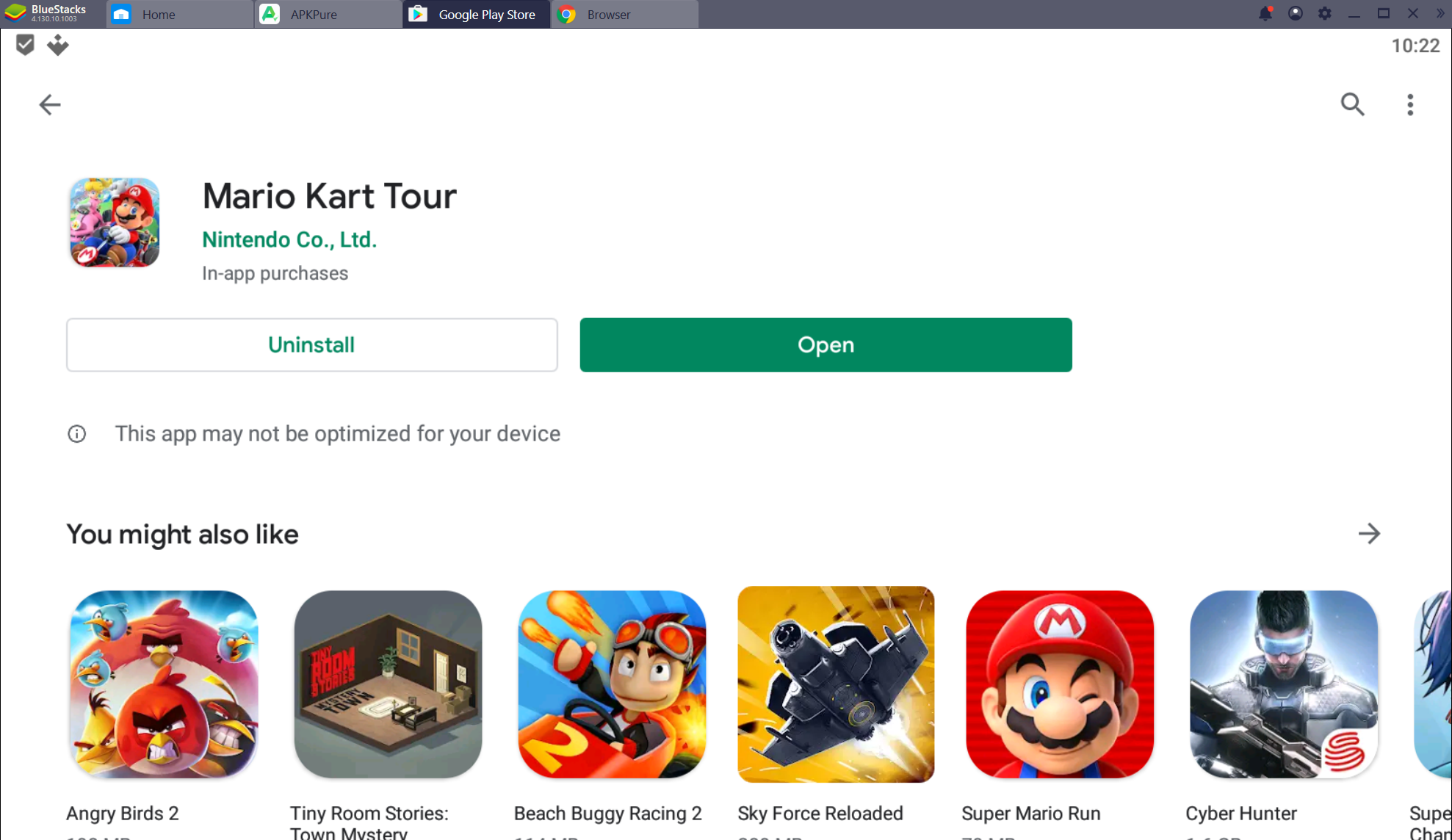
Search Mario Kart Tour and install it.

In the Play Store, type “Mario Kart” and find it. As you find the game, install it.However, with the help of a little trick, you can play Mario Kart Tour on Windows 10 at the least. This is the guide to download, install, and play Mario Kart Tour on Windows 10.

Open Mario Kart Tour on the PC now.

You are all set to open Mario Kart now. Either open the game from Play Store or open it from “All Apps” in the emulator.

Use the Mouse & Keyboard to play Mario Kart Tour on PC now.

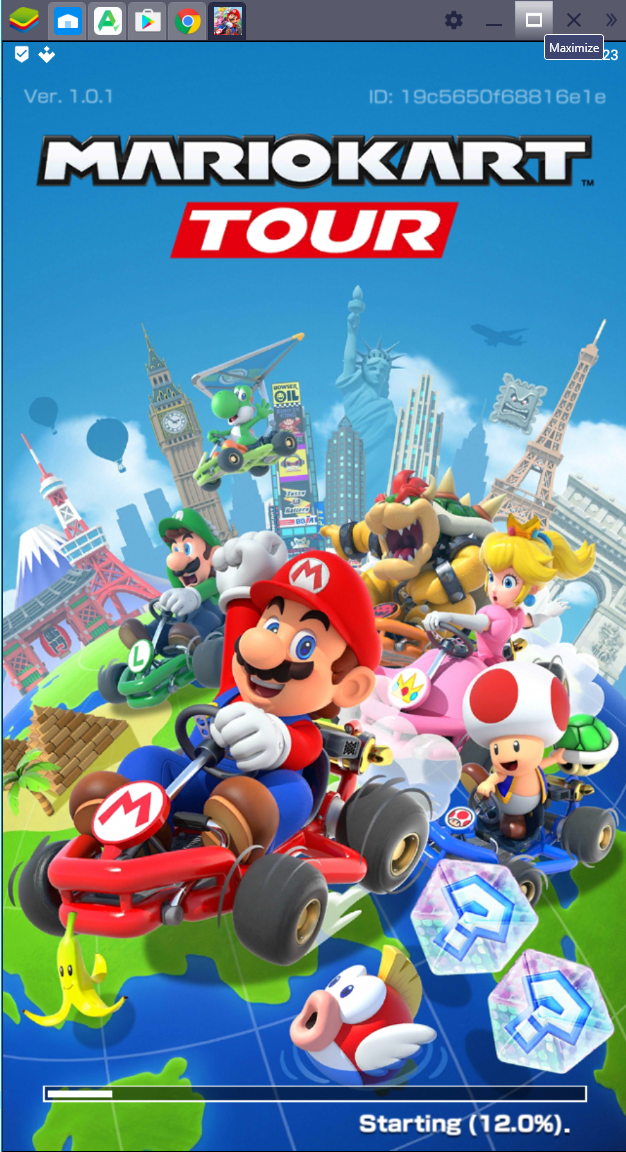
Let the game download its files. Once done, use your computer’s mouse and keyboard to play it. That’s all.Mario Kart Tour on Windows 10

That’s all. By this time, you should be enjoying the game on your computer. If you have run into any problem, feel free to drop it in the comments below. I will make sure to respond back as soon as possible.

Download Mario Kart Tour for Windows 10 PC

1
Download Mario Kart Tour for Windows 10 PC

Mario Kart Tour, the latest Nintendo game is out. Here is how to download Mario Kart Tour for Windows 10 PC. By following the instructions given here, you will be able to play Mario Kart Tour on your computer powered by Windows 10.

Mario Kart Tour

In this new installation of Mario series, players are all set to take a tour around the world in Mario’s Kart. The name of this game says pretty much all. Players will start off on a track with a race having contestants from all over the world. The game has characters from famous Mario games. The Kart drives itself and players have to drift towards left or right. Tapping at the bottom of the screen moves the Mario Kart on the track. On your way towards the finish line, you will find countless bonuses. Some of the bonuses will boost the speed of your Kart. Players will also find rockets which will turn the Kart into a glider. Furthermore, they will pick up items like footballs which can be thrown at other Karts to remove them from the track.

Mario Kart on Windows 10
Picture Courtesy: BlueStacks.com

The game may seem very simple at first, but it is not. It’s actually a lot more interesting. Players will be taking a tour of the entire world in this game. New locations come in the game every week. The races take place at the most famous locales. The Mario Kart and characters are colored in the culture of that particular location. Mario Kart Tour also receives new tasks on a regular basis. Players will be getting countless opportunities to improve their rank on the leaderboards.

The game uses Stars to maintain a player’s level. The more stars you have, the higher upgrades you can perform. At a certain point in the game, you will unlock the Frenzy mode. With the Frenzy mode, your cart becomes invincible. The boost will let you defeat all other carts within no time. Frenzy mode ensures your no.1 position in the race.

Talking about the graphics of Mario Kart Tour, it is impressive. The developers have put in a lot of efforts in the graphics and sound effects of the game. The time taken by this game to come out is well worth it. It comes for free, but there in-app purchases. The game is already out for Android and iOS users all around the world.

Unfortunately, there is no official version of Mario Kart Tour for desktop PCs or Laptops. If you are a fan of Mario Kart Tour, you can use a little trick to play it on a PC. In a few minutes, you will find the steps to play Mario Kart Tour on a Windows 10 PC.

Mario Kart Tour for Windows 10 PC

  1. First of all, download and install BlueStacks 4.1 on your computer.
  2. Open BlueStacks 4.1 and log in using your Google Account.
  3. Now open the Play Store in the BlueStacks.
  4. In the Play Store, type “Mario Kart” and find it.Mario Kart Tour for Windows 10
  5. As you find the game, install it.
  6. After installation, open the game from “All Apps”.Mario Kart Tour for Windows 10
  7. Log in into the game using your Nintendo Account.
  8. Now select your first game and join a race.
  9. Paly Mario Kart Tour using your Mouse & Keyboard now. That’s all.Mario Kart Tour for Windows 10

That’s pretty much it with the installation of Mario Kart Tour for PC. We are using BlueStacks 4.1 here because the old BlueStacks 4 doesn’t run Mario Kart. If you have older BlueStacks, you will have to uninstall that and install the latest one which is available above. Another thing to keep in mind is that the Mario Kart Tour doesn’t work with any other Android emulator at the moment. Hopefully, this guide will help you to play this game without any hiccups. If you have any questions or queries, drop them in the comments section below. I will make sure to respond back as soon as possible.


Download Google Core Installer for EMUI 10/9 [Huawei & Honor]

Download Google Core Installer for EMUI 10/9 [Huawei & Honor]

The newest version of Google Core Services Installer is here. You can install the Google Play Services and Play Store on all Huawei and Honor phones once again. To do so, download the Google Core Installer for EMUI 10/9 from here.

Before you download the Google Core Installer for Huawei and Honor phones, let me tell you why you need this latest version.

Missing Google Play Services & Framework on EMUI 10 & 9 – Huawei/Honor

Huawei and Honor smartphones in China do not have Google Apps. The Chinese government’s policies force the phone makers to not to put any Google Apps or any other Apps from the US-based tech giants on Chinese smartphones. Back in the day, this was the only limitation keeping the companies like Huawei and Honor to add Google Apps on their phones in China. Despite all the limitations and restrictions, it was still possible to get the Google Apps on those phones. But in that case, users had to sideload the Play Services and Play Store manually. There were various Google Installers, Google Core GMS Installers, and the Framework Installers that did this. However, things drastically changed with EMUI 9.

When Huawei released the EMUI 9, it shut down all the doors that allowed sideloading of Google Apps. Huawei and Honor smartphone owners in China were no longer capable of using the application market of the most popular smartphone operating system. The users in China had a bunch of Play Store alternatives, but the users who moved out of China with Chinese Huawei and Honor phones, they didn’t have any other choice. Huawei’s restriction in the EMUI 9 killed the hopes of many loyal consumers and a large number of tech enthusiasts moves to other phones too. Google Core Installer for EMUI 10

Earlier in June 2019, the US Government banned all the US companies from carrying out any kind of business activities with Huawei. This happened as a result of an ongoing trade war between China and the US. Where Huawei itself locked down the Google Apps in the EMUI 9 for Chinese users earlier, the US Government locked down Huawei from using any US Apps altogether. This meant that Huawei can no longer add any official GApps in its phones. As a result, Huawei’s Mate 30 series came out without apps like Play Store, Play Music, Calendar, etc.

After the US ban, the only thing Huawei could do was to remove the limit that is added in the EMUI 9. The lesson taught by the US pushed Huawei and it ended up lifting the restrictions in the EMUI 10. Huawei made this move to make sure that the consumers buy its new Mate 30 phones and install the Google Apps manually. With the Mate 30, a version of Google Core Installer landed as well. This new Core Installer installs the Google Framework, Play Services, Play Store, and all other services required to run the apps that belong to Google.

Huawei’s welcoming move has given the EMUI 10 and EMUI 9 users a new ray of hope. Until the ban is lifted by the US, this is the only option you have to run the missing services on new Huawei phones or on the newest UI. You can download the Google Core Installer for EMUI 10 and 9 from below. The instructions to install it are also given below.

Download Google Core Installer for EMUI 10/9

  • Google Core Installer GMS for EMUI 10/9/8Download
  1. Copy the APK to your phone’s internal storage.
  2. On your phone, open the Core Installer APK using a file manager.
  3. Follow on-screen instructions to install the app.
  4. In case the app is in Chinese, just press the big blue button in the middle.
  5. It will now install all required services and apps one by one.
  6. Once you’re done installing, you will find the Play Store on your phone’s home screen.
  7. You can now uninstall the Core Installer and enjoy the Google Apps. That’s all.

By this time, you should have the Play Store up and running on your Huawei or Honor phone once again. If you have any questions or queries, feel free to reach out to us. We will try our best to help you out.

Download Google Play Store Installer for EMUI 10

0
Download Google Play Store Installer for EMUI 10

A new version of Google Core Services installer is available for EMUI 10 and below. From here, you can download the Google Play Store Installer for EMUI 10. The Play Store and Google Services Framework installer will work on the EMUI 9 and previous EMUI versions as well.

Google Play Store Installer for EMUI 10

Before you learn how you can download Play Store and Play Services on EMUI 10, let me give you a brief idea of what these services are and why you need to install them manually.

Missing Play Store & Services on Huawei & Honor phones

Up until now, it was only the Chinese Huawei and Honor smartphones that missed Google Apps like the Play Store, Play Services, Gmail, etc. Starting from August 2019, almost all the upcoming Huawei/Honor handsets will follow the Chinese model and miss on the Google Apps. Here is why this is going to happen.

Previously, the Chinese government’s rules and regulations didn’t let the Chinese phone makers pre-load any Google Apps on the phones in their respective region. The users, however, used various tricks to sideload Google Apps. Huawei closed the door for all workarounds with the EMUI 9 as well. The great firewall of China made it even more difficult for Huawei and Honor phone owners to use any of those Google Apps.

It looks like the Chinese government’s ban wasn’t enough, the US government put a ban on Huawei to do business with any of the US companies. As a result, all the Huawei and Honor phones coming after the US-China trade war will not have anything called the Google Apps.

EMUI 10 – The Victim

The Huawei Mate 30 was the first victim of the repercussions. The new Mate 30 series does not have the Play Store, Play Services, Gmail, Calendar, and any other Google Apps.

Now here is what exactly happened. With the EMUI 9, Huawei itself blocked all the ways to install the Google Core Services. Later on, the ban put by US President killed the chances of Google Core on the EMUI 10.

Google Play Store Installer for EMUI 10

If you have no Google Mobile Services [GMS] running on your phone, you cannot install the Play Store either.

So, to have the Play Store running on the Huawei or Honor device, you must somehow install the Core GMS on the phone.

Fortunately, a new version of the Google Core GMS Installer has made it to the internet. This new version makes it incredibly easy to sideload the Play Store on the EMUI 10 and prior which is why I’d like to call it the Google Play Store installer. 

For those who don’t know, EMUI 10 is the latest iteration of Huawei’s in-house UI. The EMUI 10 is based on the Android 10. EMUI 9 was based on Android 9 Pie and EMUI 8 was based on Android Oreo.

You can download the new Google Core GMS Installer which is also the Play Store Installer for the EMUI 10 from below.

Download Google Play Store Installer for EMUI 10, EMUI 9 & Below

  • Google Core GMS/Play Store InstallerDownload
  1. Copy the APK to your Huawei or Honor phone.
  2. Open the APK using a File Manager.
  3. This is in Chinese, so just click on the big blue button in the middle of the screen.
  4. Let the application install all the Google Framework Apps.
  5. If the app asks for any permissions, allow it.
  6. Finish the installation.
  7. You can find the Play Store in the app drawer.
  8. Launch the Play Store and download/install any apps you want. That’s all.

That’s pretty much all. If you have any questions or queries, feel free to reach out to me through the comments section below. I will try my best to help you out.

The Best VPN to play Call of Duty Mobile

0
The Best VPN to play Call of Duty Mobile

Update 11/11/2019: A new VPN has been added to this list which will let you change the COD Mobile Server.

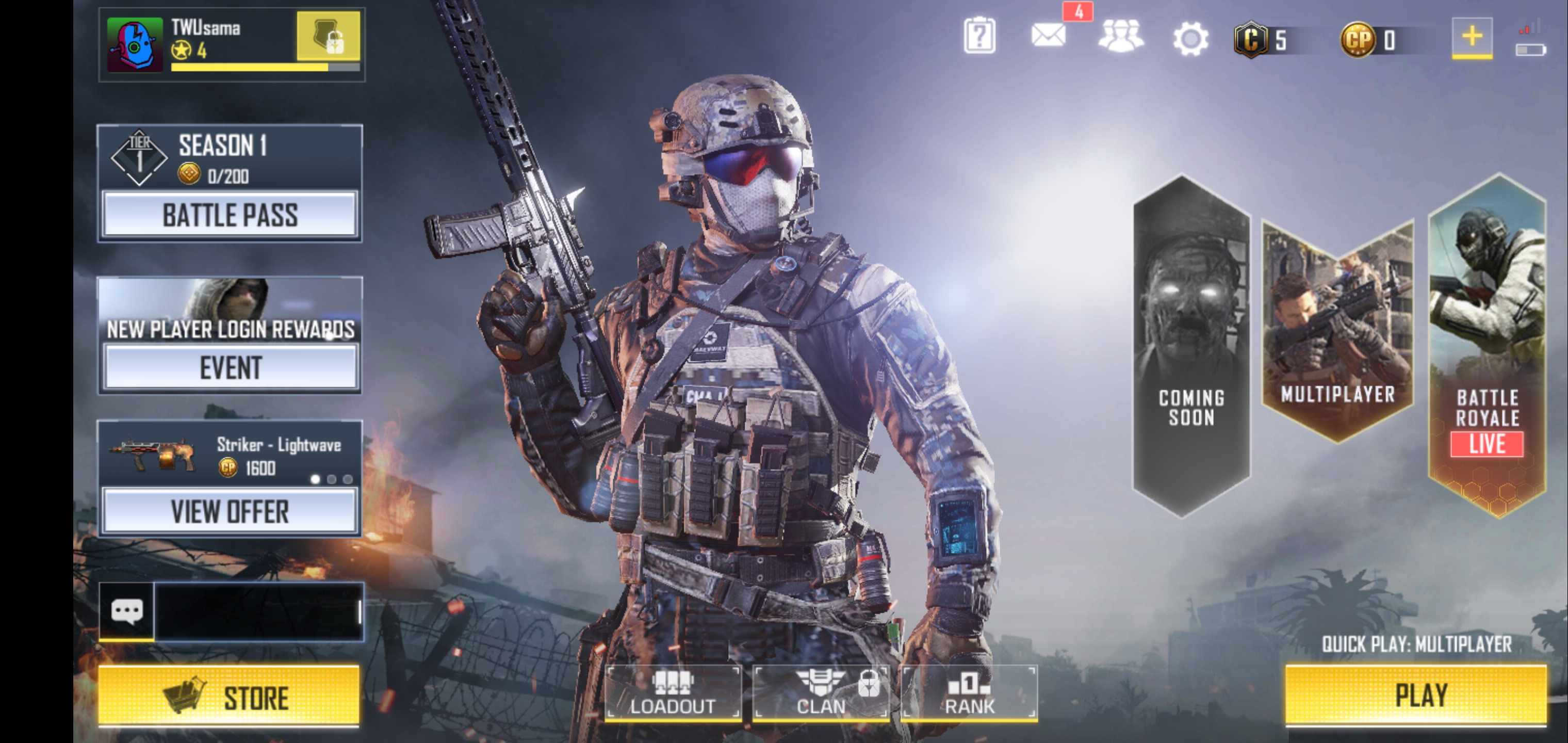
Want to play COD Mobile right now, but it’s not available in your region yet? Worry no more! Find the best VPN to play Call of Duty Mobile right now, anywhere in the world. I have shared the 2 working VPNs that will work for everyone.

Call of Duty Mobile – Overview

Call of Duty Mobile is the mobile version of the most popular FPS game Call of Duty. Just like Call of Duty, you get to show off your shooting skills in the battlefield in this game too. Call of Duty Mobile is similar to its desktop counterpart in many ways. It brings the same multiplayer mode too. Players can either join a random squad on the COD servers, or they can create a server where they can form a team/squad with their friends. After joining or creating a squad, players have to start a match where they fight with another team. The team that completes its target first wins the match. cod mobile gyroscope not working

Players wear the military uniform which is equipped with state-of-the-art gear. You get to use powerful weapons to put a great fight in the frontline and team deathmatch modes. Explosives are another option to blow up a large number of enemies at once. Call of Duty Mobile hands down is the best first-person-shooting game for smartphones to date.

On the top of its legendary multiplayer mode, the game also brings Battle Royale mode. If you have played PUBG Mobile, you will find the Battle Royale of COD Mobile very similar to that. Over a 100 soldiers jump off from choppers and gunship helicopters onto an Island or in between the mountains. These soldiers have to find weapons and start taking down other squads then. In the Battle Royale mode, players can break into buildings, drive various vehicles, and even fly the choppers. The soldier standing till the end wins the Battle Royale Mode.

Call of Duty Mobile uses very smooth controls. Players can use gyroscope to control the movement in the game. The sound effects and graphics of the game are equally good. It won’t be wrong to say that Activision and Tencent have successfully transformed the desktop version of COD into the Mobile version without any compromises.

Playing Call of Duty Mobile via VPN

At the time of writing this post, COD Mobile is in the beta stage. The game took months to come out of the Alpha stage. In the Alpha, it was called Call of Duty Legends of War. The game was not available openly at that time. Now that it has entered the beta stage and renamed to Call of Duty Mobile, it finally rolled out for the users in India. The gamers in India can see the Install button next to the Call of Duty Mobile in the Play Store now. Other countries are still seeing the pre-register button.

The Indian COD Mobile players have been talking great stuff about this game. They have literally rushed YouTube with the gameplay videos of COD Mobile. There is no doubt about this game being the best of its genre. COD lovers living in other countries have been looking for ways to install this game right now. Since there is a country limitation, the only way to install this game right now is through a VPN.

Usually, you can install such games by simply installing their APK files and copying the data files, but for COD Mobile, you need the files, and you need a VPN. The files can install the game, but when the game will try to connect to its servers, it will fail. The servers are up in India only, which is why your internet must be connected through India before you open the game.

If you try to open this game from a country other than India, you will either get Authorization Error, Network Error, or the COD Mobile will just be stuck at Getting Version Info screen. To avoid all these problems, you are going to need the best VPN app.


Best VPN for Call of Duty Mobile

There are dozens of VPN apps in the Play Store for Android, but you need a specific VPN for Call of Duty Mobile. There are two reasons for this. The first is that you need a VPN that has India in its servers list, and the 2nd is, you need a VPN that has multiple servers for India. I personally tried tens of VPN apps and most of them failed. When I finally found a couple of working VPNs, I quickly wanted to share those with the COD Mobile enthusiasts. So, here are the two best VPN to play Call of Duty Mobile in any country right now.

Hola Free VPN

If you want to play Call of Duty Mobile through different servers, you should use the Hola Free VPN. This VPN allows users to launch apps through different regions. You can launch Call of Duty Mobile from any region of your choices. Most of the regions for Call of Duty Mobile are available for free in the Hola Free VPN. Furthermore, if COD Mobile is having the 5027 server error at your end, you can use this app to bypass that error. It’s one of the best free choices to smoothly play the COD Mobile.

Best VPN to play Call of Duty Mobile
Hola VPN to change COD Mobile Server


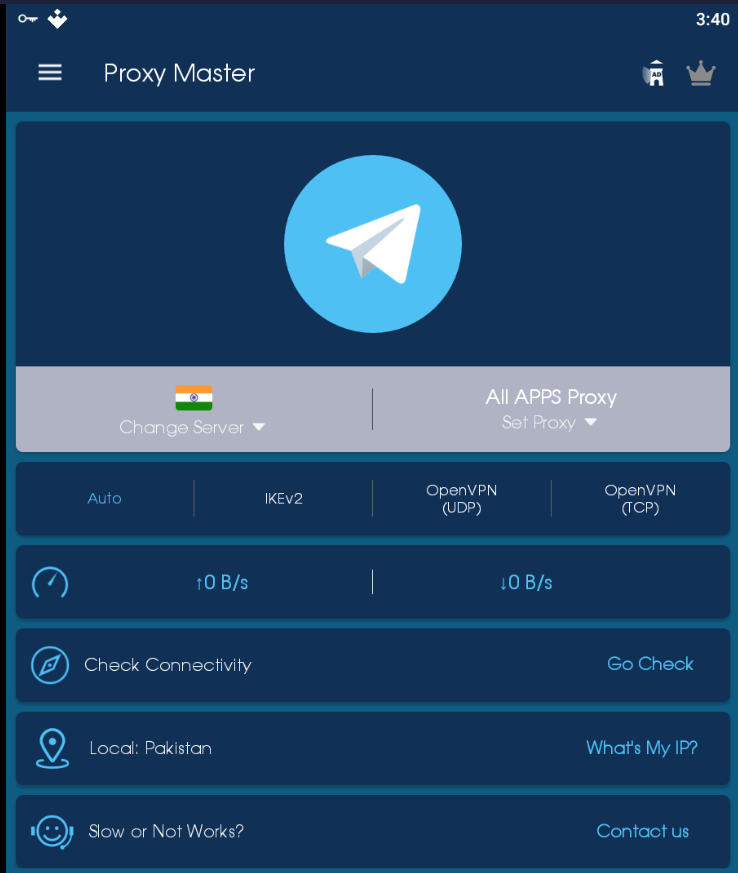
Proxy Master VPN – Free

Proxy Mater VPN by Hotspot gives you two Indian servers. If one of these servers gives you Network error, you can quickly switch to the 2nd server which will definitely work. I used the Proxy Master VPN to demonstrate the Call of Duty Mobile installation in my YouTube video too. There are no limits on the Proxy Master VPN’s bandwidth or speed, which is why its a great choice for a game like COD Mobile. You can download the Proxy Master VPN from the Play Store right now.Best VPN for Call of Duty Mobile

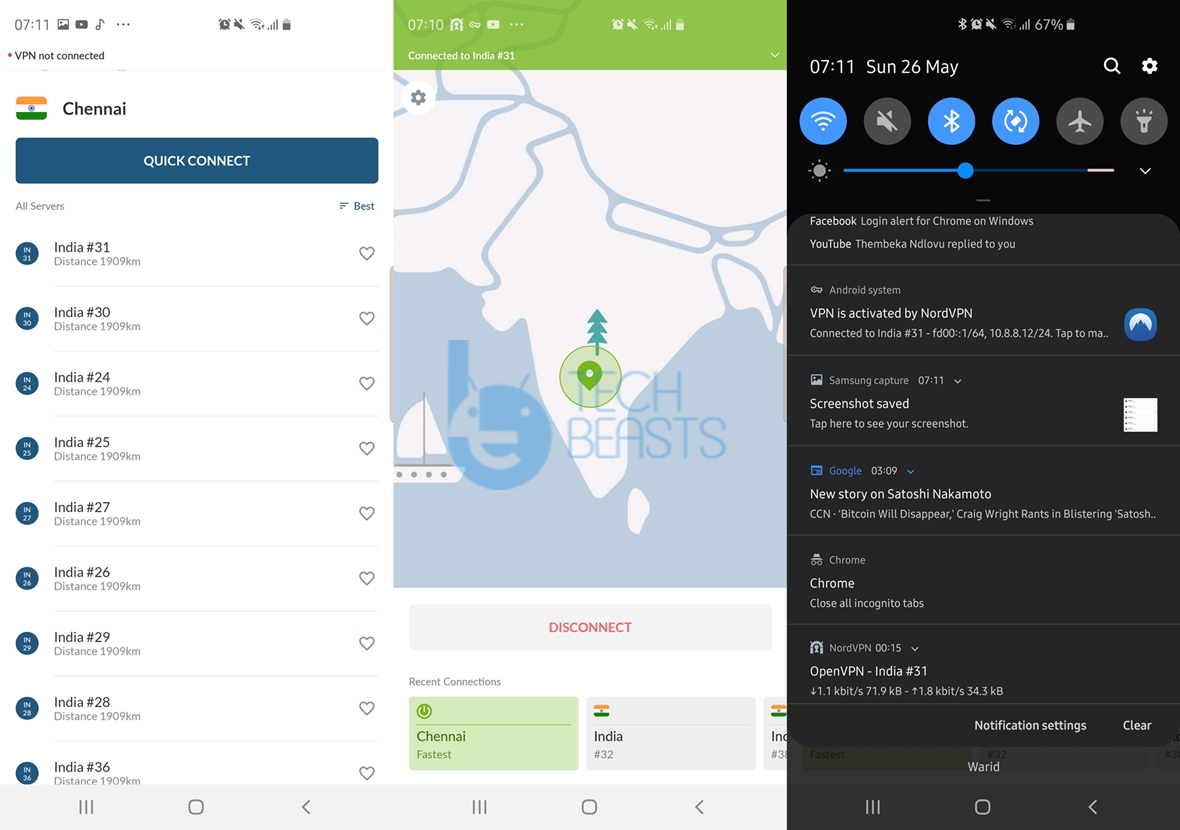
Nord VPN – Premium

Nord VPN, just as mentioned above, it is premium. What’s good here is, you get over 30 Indian servers with servers in all 30 different locations. So, even if 10 servers fail to load Call of Duty Mobile, you still have 20 other servers to give a try to. The ping speed of Nord VPN for the COD Mobile is just perfect. The game doesn’t lag. The gameplay goes buttery smooth with Nord VPN connected. On my Galaxy S10 Plus, I have been using Nord VPN to play Call of Duty Mobile. You can download Nord VPN from here.Best VPN for COD Mobile

Final Words

I hope you found these VPN apps really useful. If these worked for you, I would love to hear your feedback. For any queries or questions, feel free to reach out to us.

5 Best BlueStacks Android Emulator Alternatives in 2020

0
5 Best BlueStacks Android Emulator Alternatives in 2020

BlueStacks is arguably the most popular Android emulator to date. It is also the oldest Android emulator. There is no doubt how the BlueStacks has diversified the use of the Android OS. At the moment, BlueStacks is running its 4th iteration which is the BlueStacks 4. It is definitely a great Android app player, but it has a number of downsides. BlueStacks is a resource-hungry software. It can consume the entire RAM and CPU usage of your computer only after a few minutes of usage. This is why the BlueStacks users often turn to BlueStacks alternatives. Over the past 8 years, we have got a number of handy Android emulators that offer an experience similar to BlueStacks, but with less resource usage. So, in this post, you will find the best BlueStacks Android Emulator Alternatives of the year 2020. I have hand-picked the BlueStacks Android Emulator Alternatives and listed them here.

BlueStacks Android Emulator Alternatives

Before you take a look at the BlueStacks Alternatives, let me give you an idea about what Android Emulators are and how they work.

Android Emulators

Android Emulators bring the Android OS to your Windows or Mac-powered PC. They emulate Android using a virtual framework. This is possible because the Android OS is open-source. Today, we have the Android OS on smartwatches, washing machines, bicycles, and whatnot.

Previously, we used to have the old Android SDK Tools with the emulator packed in. Since the use of that emulator was limited to development purposes only, there was a dire need or an Android emulator with a good interface. BlueStacks came in a filled this space.

Since then, the Android emulators have been making it possible to run all the Android games and apps on computers. Whether you own an Android phone or not, you can always enjoy thousands of Google Play Store applications on your PC via a good emulator. Android Emulators have also helped the users to overcome the storage and compatibility issues of apps and games.

The idea put forward by BlueStacks was taken up by a number of its competitors which lead to the foundation of a few more emulators. As of today, we have tens of Android emulators. You can check them out in our list of Best Free Lightweight Android Emulators.

BlueStacks

Emulators today mostly focus on helping users to run Android games on the computer only. BlueStacks’ use is not limited to games only. You can use BlueStacks just like a tablet running inside your computer. It gives you a whole virtual Android device that you can use the way you like. Let’s take a look at the history of BlueStacks.

BlueStacks was originally released in the year 2010. It took 2 years for the company to bring BlueStacks out of Alpha and Beta stages. We had the first stable version of BlueStacks in 2012. BlueStacks was updated with time to run on the latest available version of Android. For a very long time, the BlueStacks 1 kept running on the Android KitKat.

In 2015, the company released the BlueStacks 2 with a brand new UI and also running on the Android Lollipop. Just after a year, we got the BlueStacks 3 running on the Android Marshmallow. After the BlueStacks 3, there was the BlueStacks N and then BlueStacks 4. At the moment, the BlueStacks runs on Android Nougat, which is actually a 2 years old version of Android.

BlueStacks 4 is enhanced to make things easy for gamers. It comes with its tools like the screenshot tool, video recording, and its own game hub. It’s got the Multi-instance feature.

Back in the day, we didn’t have the Google Play Store installed on BlueStacks by default. The company now adds Play Store as well.

As of today, BlueStacks has becomes the number 1 choice of FPS players who love playing Android games on a bigger screen.

BlueStacks Android Emulator Alternatives

Nox App Player

After the BlueStacks, my very first choice is the Nox App Player. It was recently updated to support Android 7.0 Nougat. While BlueStacks has its own and a very different kind of UI, the Nox App Player tries to keep things close to the stock Android. It looks like an Android tablet running on your computer. The UI is very neat and clean with the minimum amount of bloatware (unlike BlueStacks). Nox also supports Multi-instance, Keyboard mapping, you can use an external control with it too. It comes with the Play Store pre-installed. It’s an absolutely free emulator. Nox is the best BlueStacks alternative for all good reasons.

Nox Player Requirements:

MEmu Player

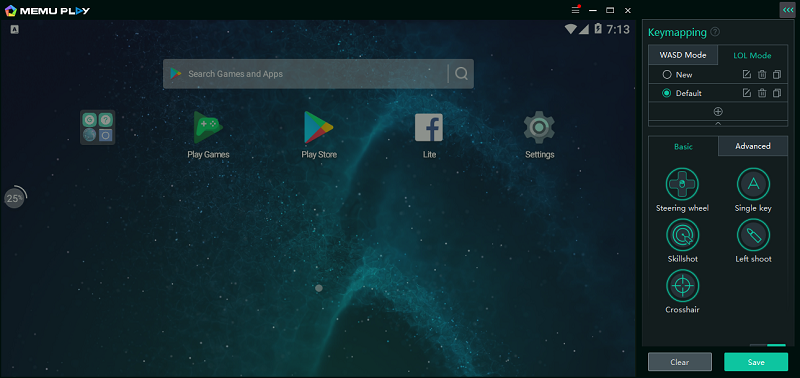
What started as a small project on the XDA Forum, turned into a great BlueStacks alternative. MEmu started off as a free Android emulator allowing users to play games. The MEmu Player has only got better and big since then. MEmu even offers some extended controls for games like PUBG Mobile. It also runs on Android 7.1.2 Nougat. If you love playing Android games on your computer without any hassle, MEmu is a good BlueStacks Alternative to look it. It also famous for its efficient resource usage.

MEmu Requirements:

KO Player

KO Player comes from China. The developers claim it to be the best Android Emulator, however, it is not that best to top our list. Its last version came back in November 2018. Unlike the other 3 emulators mentioned above, it still runs on an older version of Android. KO Player was also built to run Android games on the computer. If your focus is on playing small games on the computer, you can get the KO Player. I do not recommend playing games like PUBG Mobile and Fortnite on KO Player.

KO Player Requirements:

  • Windows XP SP3 (32 or 64 bits)
  • It supports Windows Vista (32 or 64 bits)
  • Also, Windows 7 (32 or 64 bits)
  • The graphics card supports OpenGL 2.0.
  • CPU supports VT-x or AMD-V virtualization,which can be opened in BIOS.
  • At least 512MB memory.
  • At least providing 3GB hard disk space to install KOPLAYER, and sometimes may need 8GB or more. This depends on the applications you installed in the virtual machine. And a working Internet connection for installation and update.
  • The resolution of the system should not be lower than 1024×768.

Genymotion

Genymotion is a very different emulator. It is famous for its development features basically. In Genymotion, you can select what device you want to use the Android software on. For example, you want to test a game or application on a Google Pixel 3, you can select that phone in the Genymotion and then run an application or game. Genymotion is mostly used by game and app developers to check the compatibility. If you think that you have this kind of use, or if you just want to deal with pro-things, Genymotion is your way to go.

Genymotion Requirements

Andyroid

If you have an old PC, with old hardware, you may consider the Andyroid Emulator. It hasn’t been updated in a while. It still runs on the Android KitKat. It is full of bugs, but for old PCs, you can definitely use it. I personally do not like Andyroid and that is why I am putting it in the end. It is one of the only few working Android emulators out there.

Andyroid Requirements:

  • Dual-core AMD or Intel CPU with Virtualization support
  • 3Gb of RAM; Andy uses less than 1Gb while running apps
  • At least 10Gb of free disk space
  • GPU with OpenGL 2.1 support
  • Windows 7 SP1 / Windows 8.1 / Ubuntu 14.04+ / OSX 10.8+

Final Words

That’s all with the best BlueStacks Alternatives. I really hope that you like this list. If you have any other emulator to add to this list, feel free to drop its name in the comments section below. For any queries and questions, feel free to reach out to us. I will try my best to get back to you as soon as possible.

Download GMS Installer APK for Chinese Phones

8
Download GMS Installer APK for Chinese Phones

GMS Installer is a necessity for all the phones without the Chinese Android phones. The Chinese Android phones do not have Google Mobile Services pre-installed. Those users who wish to install the apps like Play Services, Play Store, and Play Music on Chinese Android phone, they must install the GMS Installer first. You can find various versions of GMS Installer APKs in this post. As you go ahead, you will find the desired GMS Installer APK. I will try to explain the significance of GMS Installer a little more before jumping off towards the GMS Installer APK.

What is GMS Installer?

GMS stands for Google Mobile Services. This is basically a framework which helps all the Google Apps run on an Android phone. There are two basic things needed for the Google Apps to work on an Android phone.

The very first is the presence of Google Mobile Services, and the second is the Play Services App. Without Google Mobile Services, the Google Play Services will not work on an Android phone.

Without the Google Play Services, the Google Play Store or any other Google App will not work on an Android phone. So, to cut it short, without the GMS, you cannot have the Google Play Store on your phone.

Missing GMS in Chinese Android Phones

Chinese Android phones do not have the Play Store pre-installed. They do not have anything named Google installed in them. The phones in China have to comply with the policies of the Government. Since the Google, Facebook, WhatsApp, Instagram, Snapchat, Youtube are banned in China, users are unable to find these apps on their phones.

Users who take a Chinese Android smartphone out of China, they have every single right to enjoy the Google Play Store on their phones. The Play Store is the largest Android App repository after all. Developers have invented the ways to install the Google Play Store manually on Chinese Android phones and the GMS Installer that we are talking about is a part of that process.

How GMS Installer brings the Play Store?

It has to be kept in mind the GMS is the framework only. It does not itself install the Play Store in a Chinese Android phone. After installing GMS, the users need to install another application called Google Installer. It is the Google Installer that installs the basic 6 Google Apps in an Android phone. The Google Installer includes the Play Services, Play Store, Play Music, Calendar, Contacts, and one more application. You will definitely find the Google Installer in this post too.

Assuming that you have a clear idea of what Google Mobile Services are why they are important, let us take a look athe the GMS Installer APK now.

GMS Installer APK

There are different versions of GMS Installers available the moment. There is an installer that goes by the name “GMS Installer”. This Installer works on most of the phones from manufacturers like Huawei, Honor, Xiaomi, Vivo, and others. The GMS Installer works on all the phones released before the year 2018. While the GMS Installer has failed to work on latest smartphones like Honor 8, Honor 8X, Honor 10 Lite, and Honor 8C, a new version of GMS Installer has popped up. This new version goes by the name “GMSanzhuangqi”. So based on the phone you have, download your desired GMS Installer APK from below.

Update 9/25/2019: Google Core Installer for EMUI 10 & Below

A new version of Google Core Installer is available. It can install all the missing Google Framework and Services apps including the Google Play Store on your phone running on EMUI 10 and below. The new app has been tested on the Huawei Mate 30 series and it was found running flawlessly. You can download the latest Google Core Installer from below.

Google Core Framework & Services Installer: Download

Wrap up

The GMS Installer and Google Installer should be enough to bring the missing Play Store in a Chinese Android phone. However, if the phone refuses to install these applications, you will have to check something. In such a case, you can open the Application Gallery on your phone and look for Play Store and Play Services. If there is any such app in the Application Gallery, install it or update it. In this case, you will have the GMS installed by default. This scenario is not common. It happens only with a few Chinese Android phones only.

If you have any questions and queries related to the GMS Installer, feel free to drop them below. I will try my best to get back to you as soon as possible.

Download Google Installer for Chinese Android phones 2019

0
Download Google Installer for Chinese Android phones 2019

Updated: 9/25/2019. Android phones released in China do not have anything called Google inside them. This is because of China’s very strict policy towards tech companies and social media giants. It’s not just Google that can’t put its applications on the Chinese Android phones, there is no social media medium allowed either. Chinese Android phones do not have apps like Facebook, Instagram, and Twitter.Google Installer China definitely doesn’t want its users to use the aforementioned applications, however, it does not totally lock its users out of the option to install those apps. It is up to the users whether they want to use such applications or not. Users can manually install the Google Apps like the Google Play Store, Google Play Services, Google Play Music, Google Play Games, and others. The applications may not run because of the restrictions set on internet connections in China. The users have to find a VPN in order to use all these applications. Now, this is not the only scenario where the manual installation of Google Apps is needed. Millions of smartphones are shipped out of China. Especially, the smartphones that were primarily built for the Chinese region, but are exported by different parties. These phones do not have Google Apps either. For example, a user living inside a country like Indonesia, Japan, India or Pakistan with a Chinese phone may not have the Google Apps on the phone. While these countries do not have any such strict policy against Google, a user can install the apps manually and use them without a VPN as well. The question that trickles through the mind now is that how will you get the Google Apps on the phone?

Google Installer – The Easiest Way To Install Google Apps

Well, the most convenient and the most popular solution to install Google Apps on a Chinese phone is through Google Installer. The Google Installer, that was introduced a couple of years ago, has made it possible for millions of users with the Chinese phones to install all the Google Apps on their phones. The Google Installer comes in the form of an APK file. A Chinese Android phone user simply has to install this APK on the phone and go through the on-screen instructions to bring in the Google Apps. The Google Installer works on all the phones introduced by Chinese smartphone manufacturers as well as the manufacturers that produced the phones for Chines region. These manufacturers include Samsung, Huawei, Xiaomi, OnePlus, Oppo, Vivo, ZTE and all others that exist. So, if you have got any phone without the Google Play Services and Google Play Store, it’s time for you to grab the Google Installer. I have got my hands on the latest Google Installer. Chinese Android phone users can download Google Installer APK from this page now. Here is the Google Installer for Chinese Android phones.

Download Google Installer for Chinese Android phones

  1. Google Installer – APK – Download
  2. Copy the Google Installer APK to your phone.
  3. Now on your phone, go to Settings > Security > Unknown Sources > Allow.
  4. Locate the Google Installer using the File Manager now.
  5. Install Google Installer now.
  6. Run Google Installer and follow the on-screen instructions to install Google Apps. That’s all.

Update 9/25/2019: Google Core Installer for EMUI 10 & Below

A new version of Google Core Installer is available. It can install all the missing Google Framework and Services apps including the Google Play Store on your phone running on EMUI 10 and below. The new app has been tested on the Huawei Mate 30 series and it was found running flawlessly. You can download the latest Google Core Installer from below.

Google Core Framework & Services Installer: Download

80+ Free Best iOS 12.4 Jailbreak Tweaks [Cydia and Sileo]

0
80+ Free Best iOS 12.4 Jailbreak Tweaks [Cydia and Sileo]

Here are over 80 Free and Best iOS 12.4 Jailbreak Tweaks. These Tweaks are available in both the Cydia and Sileo apps.

Best iOS 12.4 Jailbreak Tweaks

The iOS 12.4 was Jailbroken a few days back. Apple’s own loophole in the iOS 12.4’s code led developers to Jailbreak the firmware. The iOS 12.4 was the active stable version which also makes it the first public iOS version in years to be Jailbroken. Then Unc0ver and Chimera tools helped iPhone and iPad owners Jailbreak iOS 12.4-powered devices.

For those of you who don’t know, Jailbreak helps iPhone/iPad owners modify their device. Apple strictly prohibits any kind of tweaks on iOS, and it makes perfect sense too since iOS is the most secure smartphone operating system in the world. IOS, however, is very limited. It’s designed for Everything from the system to the UI of the phone can be customized.

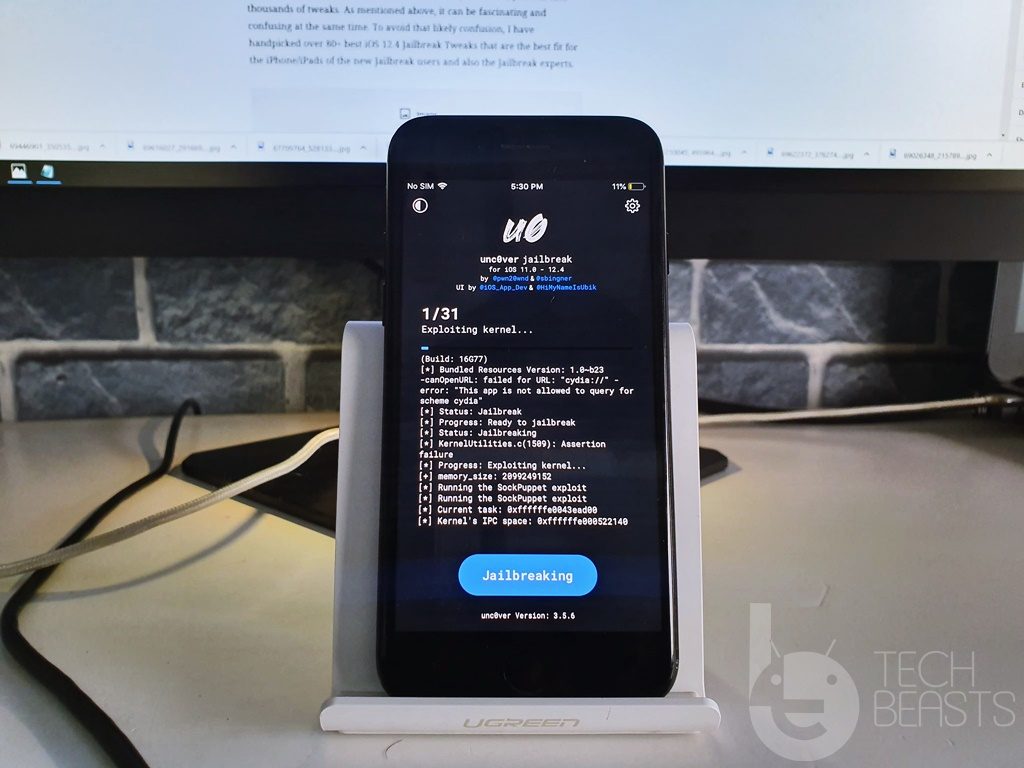
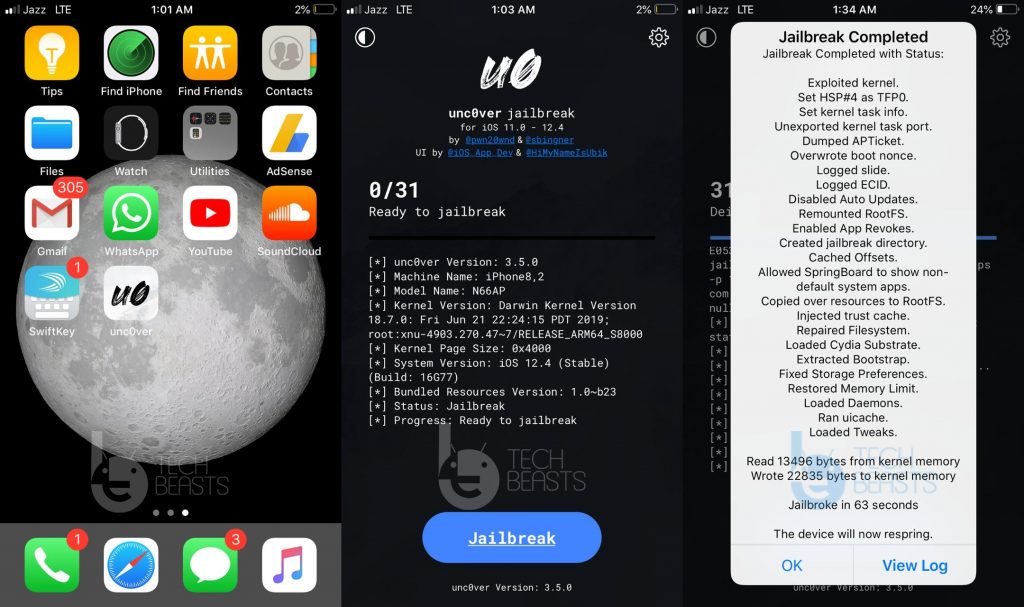
Jailbreak iOS 12.4 using Unc0ver 3.5.0
Jailbreaking my iPhone X running on iOS 12.4

The possibilities to customize iOS after Jailbreak are endless and limitless. Once you get your hands on a tool like Cydia or Sileo, you will find thousands of tweaks. At first, it can be intriguing. It will not take more than a minute for a new user to biting nails with all that confusion lies in the hands.

The unknown land of Cydia and Sileo can be conquered once you know what tweaks you should get your hands on. This is the exact reason why I’m putting up this list here. The list shows over 80 Best iOS 12.4 Jailbreak Tweaks. Furthermore, you will learn how to install these tweaks.

Before you take a look at the best iOS 12.4 Jailbreak Tweaks, you must also Jailbreak the device. Here are all the guides you need.

  1. Download Unc0ver 3.5.6 IPA – Jailbreak iPhone XR, XS, and XS Max
  2. Download Unc0ver 3.5.6 IPA to Jailbreak iOS 12.4 via Cydia Impactor
  3. Jailbreak iOS 12.4 using Unc0ver 3.5.x without computer

Best iOS 12.4 Jailbreak Tweaks [Cydia and Sileo]

Following are all the top Jailbreak Tweaks available in Cydia and Sileo. All these Tweaks serve a different purpose. You can install as many as you want to, depending on your choice and need.

Top Cydia Tweaks

  • TweakCount 2
  • Tweak Compatible
  • Flame
  • SwipeforMore

Top Sileo Tweaks

  • BatchOMatic
  • Silactions
  • SileNoBanner
  • FluidTabs

iOS 13 Features

  • QuickCC
  • 13HUD
  • Dune

Common Tweaks on Cydia and Sileo

  • Better Settings
  • Bubbles
  • Notifica
  • Gravity
  • Shuffle
  • PowerModule
  • Fast Unlock X
  • ShyLabels
  • BarMoji
  • Hide Bar X

More Cydia & Sileo Tweaks

  1. Dune (Skitty)
  2. VideoHud (BigBoss)
  3. SendDelay (BigBoss)
  4. MorePowerOptions (eXqusic)
  5. DoubleTapLock (SparkDev)
  6. ColorBoard (Gmoran)
  7. MarkFavorites (PackiX)
  8. VideoHud (BigBoss)
  9. Fast Unlock X (Cp Digital)
  10. HideBar X (SparkDev)
  11. PencilChargingIndicator (ShiftCMDK)
  12. Widgextend (D4ni)
  13. FloatyDock (Bigboss)
  14. PowerModule (Bigboss)
  15. Smooth Cursor
  16. Filza Tweak
  17. PullOver Pro
  18. Sylph
  19. Artistry
  20. Textyle
  21. AllowTouchesOnPageDots (ZeekForit)
  22. SmoothCursor (BigBoss)
  23. Disconnected (D4ni)
  24. NoSimAlert (SparkDev)
  25. SugarCane (PackiX)
  26. PlaceHolder (PackiX)
  27. Message Colors (Resistive)
  28. Asteroid (Dynastic)
  29. iGOLED (PackiX)
  30. iCleanerPro (Ivano) (IbSoft)
  31. Filza File Manager (BigBoss)
  32. SiriInvisible (Midkins)
  33. LeadMeHome (Bigboss)
  34. EvanescoXI (Chariz)
  35. CuttleFish (Bigboss)
  36. Animoji 12.2 (Pulandres)
  37. Togglow (iDH)
  38. CoolCC (BigBoss)
  39. New Grid Switcher (Nepeta)
  40. SmartLPM (Packix)
  41. Low Power DND (BigBoss)
  42. MitsuhaXI (Nepeta)
  43. NewGridSwitcher (Relatives)
  44. BetterSettings (Dynastic)
  45. Animations Be Fast (Exqusic)
  46. SilentScreenShot (PackiX)
  47. SnowBoard (Theme Lotus) (Chariz)
  48. XENHTML (Fluid Widget & EW.WdgtPack.6) (Evelyn)
  49. Clean Home Screen (Dynastic)
  50. Primal Folder (Bigboss)
  51. Renovare (BigBoss)
  52. Clean Player (Free PackiX)
  53. Konban (Nepeta)
  54. FindMyiDeviceXS (PackiX)
  55. HapticKeys (PackiX)
  56. ActionBar (PackiX)
  57. Cylinder (Bigboss)
  58. NaturalDeleteDismiss (Bqrichards)
  59. CCLinker (PackiX)
  60. ByeBetaAlert (Cydia Geek)
  61. WhatAboutThis (Nepeta)
  62. Filza Files Manager (BigBoss)

Here are some of the paid Tweaks that are absolutely worth it.

  • Boxy 3
  • Next Up 2
  • Lisa
  • BetterCCXI
  • JellyFish
  • SafeShutDown
  • Floating Dock Plus

It is noteworthy to mention that you must load the repositories of all these tweaks in Cydia and Sileo before you attempt to install them. The tweaks use their repositories to load all the needed resources. Once you have the repos added in the sources of Cydia/Sileo, you can install the Tweaks.

To install these Tweaks through Cydia, you will first install Flame from Cydia. After this, open Cydia and go to Sources > Edit and add the sources given below one by one.

In Sileo, you will go to Sources > Edit and add the repositories you want.

Here are all the sources.

  • https://repo.nepeta.me/
  • https://eXqusic.com/
  • http://gmoran.me/repo 
  • https://repo.packix.com/
  • http://ib-soft.net/cydia
  • https://www.idevicehacked.com/
  • https://repo.cpdigitaldarkroom.com/
  • https://shiftcmdk.github.io/repo/
  • https://repo.d4ni.nl/
  • http://sparkdev.me
  • https://fncxpro.github.io/
  • https://xenpublic.incendo.ws/
  • https://repo.dynastic.co
  • https://evynw.github.io/
  • https://ib-soft.net/cydia/
  • https://pulandres.rejail.ru/
  • http://skitty.xyz/repo/
  • https://bqrichards.github.io/repo
  • http://c1d3r.com/repo/
  • https://repo.chariz.io/
  • http://cydiageek.yourepo.com/
  • https://restiveconch.yourepo.com/
  • http://beta.sparkservers.co.uk/

That’s all. By this time, you should have multiple tweaks rocking your iPhone/iPad. If you have any questions/queries regarding the Tweaks above, feel free to use the comments section below.

Best Free FM Radio Apps for Android 2020

0
Best Free FM Radio Apps for Android 2020

The conventional Radio in the smartphones has been replaced by internet-based Radio apps. If you are on the lookout for one such app, you will find it here. Here are the best free FM Radio Apps for Android. We have picked the best free FM Radio Apps on the basis of popularity. Before taking a look at the FM Radio Apps for Android, let us take a look at how the internet killed the classic Radio.

FM Radio Apps for Android

What happened to the good old Radio?

Gone are the days when the Android smartphones used to come with the Radio apps pre-loaded. In the good old days, the classic Radio app used the headphone of the smartphone as an antenna to stream the live Radio channels.

With the internet world’s technological advancements, the term Radio evolved. Phone makers started removing the classic Radio from their smartphones which paved a way for App developers to come with internet-based Radio streaming websites/applications.

Old Radio

Industry-Altering Radio Apps

While the old Radios used to be a receiving medium only, the new online Radio apps are much more than that. These days, the Radio apps allow the users to listen to the on-demand songs. Users can create custom playlists in the radio apps, listen to podcasts, listen to the missed podcasts, later on, explore countless tracks stored in the app’s directory and so on. These Radio apps come with a modern UI which is very easy to navigate through.

The need for the handsfree as an antenna has been killed. To stream an FM Radio Station on your Android phone, all you need is a good internet connection. Furthermore, you can listen to any Radio Station while sitting in any corner of the world. So, these apps have definitely made the Radio much more convenient than it ever was.

There are some manufacturers that still pack the Radio in their phones, but you never know when they call it quits.

So, right now, if you can’t find Radio on your phone, and you are looking for a good online Radio app, you have landed at the right place.

FM Radio Apps for Android

Here are the 6 best free FM Radio Apps for Android as of 2020. You can download all these applications for free from the Google Play Store. Take a look at an overview of each application and pick up the one that impresses you the most.

TuneIn Radio

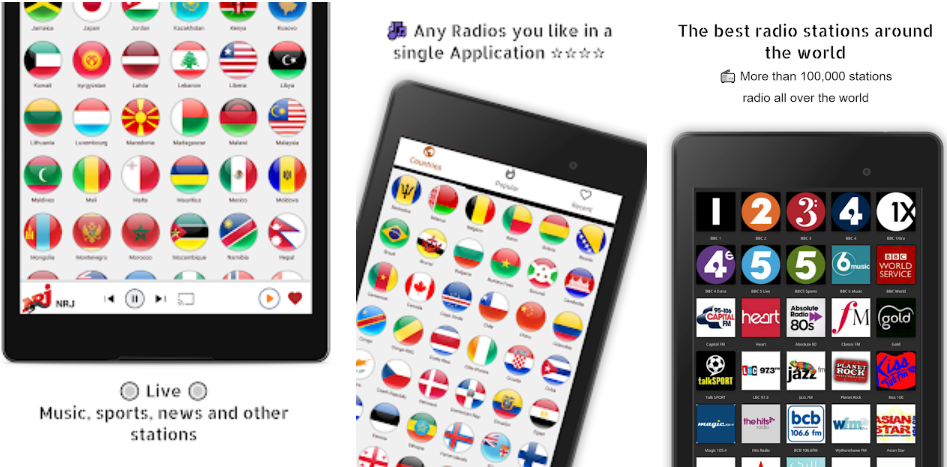
TuneIn Radio is arguable the most popular Radio application. With over 100,000 Radio stations, it brings you the content from the entire world. You can listen to the AM/FM radio stations in the TuneIn Radio.

TuneIn also offers on-demand podcasts and shows. It has the Sports, News, Entertainment, Knowledge, and many other Radio stations. TuneIn also offers some of the most popular stations like BBC, CNN, TalkSPORT, LBC London etc.

The free version of TuneIn Radio offers FM/AM stations. If you wish to access a library of over 40,000 audiobooks, you can invest in the premium version of TuneIn. TuneIn is also available for Android Wear, Google Chromecast, and Android TV.

Radio FM Live

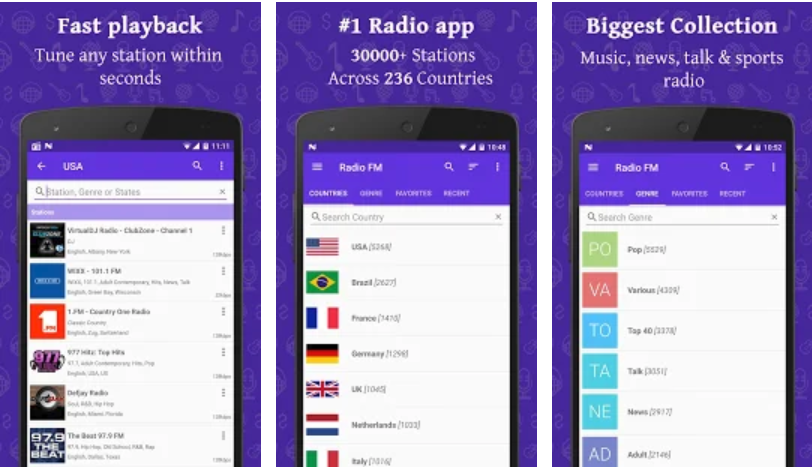
Radio FM Live offers over 30,000 Radio Stations from over 236 countries. It focuses on the live Radio channels only. The application makes it extremely easy for users to access their desired Radio. Users can tune in a Radio channel and then save it in the app. The app has an alarm feature. This feature can alert you about your favorite podcast or show so that you never miss it. Radio FM Live users can add the shortcut of their favorite Radio Station to the home screen of your phone.

The Radio FM keeps getting updated with new Radio channels frequently. It sorts out the stations based on their origin. The application offers easy navigation. Radio FM Live also comes for free.

World Radio FM

World Radio FM, as its name suggests, stream the Radio channels from the whole world. It has the stations sorted on the basis of countries too. World Radio FM streams the most popular channels from a country. World Radio FM is completely free application too.

Unlike TuneIn and Radio FM, this is a more straightforward application with a very clear purpose. World Radio FM does not offer any extra features to keep the things easy.

Last.fm

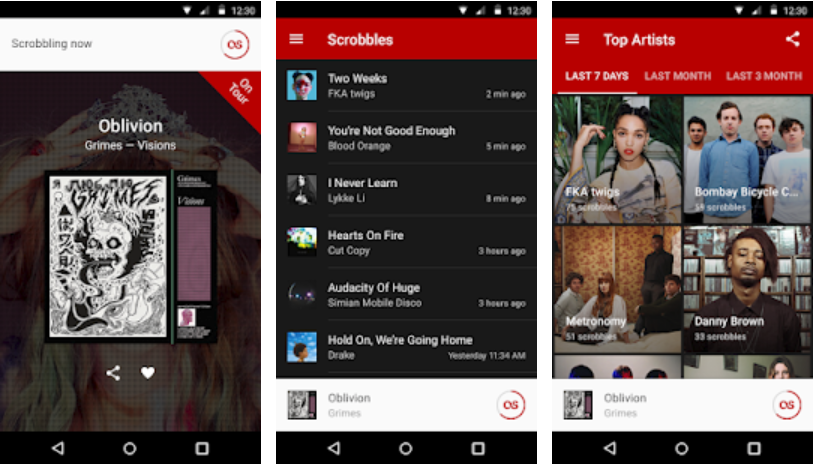
Last.fm is slightly different from the other Radio apps. This application definitely offers FM listening, but it has some other features too. Last.fm can stream podcasts and music from platforms like Spotify, Deezer, and Google Play. Users can demand the music from SoundCloud too. Last.fm is available worldwide and it comes for free.

Simple Radio

Simple Radio is designed to meet what its name says. This application comes with the most simple UI for a radio app. It streams over 45,000 Radio stations from all over the world. Simple Radio has categorized all the channels into their appropriate genres. Simple Radio shows the most popular Radio stations based on your location. Some of the popular stations include Absolute Radio, BBC-London, Celtic Music, Classic FM, Heart West Midlands, and Capital Manchesters. Simple Radio promises to offer a lag-free experience. It doesn’t let the Radio get stuck while buffering. Simple Radio can be downloaded on Android from the Play Store.

Radio Online

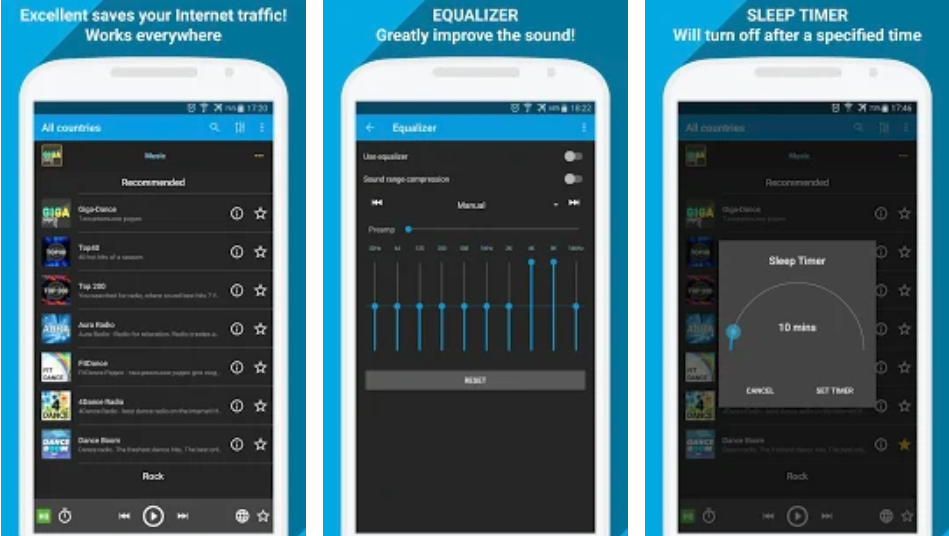
The last on our list is the Radio Online by PCARDIO. The specialty of this application is that it can run even with the poor internet speed. It needs only 24kb/s to stream the channel on your phone. Radio Online offers a plethora of stations from across the world. It has the news, sports, and entertainment stations. It displays the lists of stations based on the music genre. Users can find the Jazz FM, Relax FM, Deep FM, Pop FM etc. Radio Online comes for free and it is available worldwide too.

Wrap Up

That’s all with the list of best free FM Radio Apps for Android. In case you are unable to stream through an app, get a VPN for Android and run the Radio through VPN. If you think that there is another application to add to this list, let us know about it in the comments section below. Stay connected.