Home Blog Page 35

30+ Best Root Apps for Android in 2020
0
30+ Best Root Apps for Android in 2020

For the Android enthusiasts, here is a list of best Root Apps for Android in 2020. These are all the most useful apps for rooted Android phone right now. There are over 30 best Apps for Rooted phones listed here.Best Root Apps for Android in 2018

Rooting an Android phone is becoming tough day by day. However, if you successfully manage to root your phone, you are going to discover a new world of applications that will unleash the real power of your phone. Back in the year 2012-2015, it was extremely easy to root an Android phone.

With the new versions of Android coming out, Google improved the security resulting in keeping the users from rooting their phones. Thankfully, we now have tools like Magisk keeping root still live and alive. There is a handful of great app developers who have built some really useful applications for a rooted Android phone.

The term root access comes with its pros and cons. Where it has a number of pros, it has some cons as well. Before we head towards our list of best free Root Apps for Android, we will go through these pros and cons.

Rooting a phone gives the system access to applications and scripts that ask for it. It originated from Linux. Users use scripts like SuperSU and Magisk to root their phones. Once rooted, you can tweak the system of your phone. You can easily overclock and underclock the CPU of your phone. It can Add new features and elements to the UI of your phone. You can also enhance the performance of your phone and improve its battery life as well. Another great use of rooting your phone is to be able to install different MODs to improve the sound quality. There are MODs that can run YouTube in the background as well. The list of pros of root access will never come to an end if we just keep on discussing it.

That was just an idea about the pros, let’s discuss the cons now. Rooting the phone modifies the system. Some manufacturers use a binary counter in the bootloader of their phones. If rooted once, the binary counter gets triggered. Unrooting the phone does not erase this binary counter. This is the most common issue with Samsung users. They cannot erase the Knox counter of their phone. Because of this tripped counter, you cannot take your phone to a service center because they will refuse to provide you the warranty service. To cut it short, you are no longer eligible to claim the warranty of your phone. On the other hand, manufacturers like Google and OnePlus have a very soft policy. You can even lock the bootloaders of their phones and claim the warranty again.

In the end, rooting your phone is totally your own choice. You can have a look at these best root apps for Android now. Go through the list of root Apps for Android in 2020 and decide if you can benefit from rooting your phone or not. I have listed over 30 best apps for rooted phones here.

If you are wondering why you should root Android, you can have a look at my post where I have listed 10 reasons to root Android in 2020. You can continue reading here once you are convinced to root your phone.

Best Root Apps for Android in 2020

Magisk Manager

Magisk Manager is a Magisk-bound application. For this application to run on your phone, you must root your phone using the Magisk script. To manage the root privileges on your phone, you will find this application handy. Magisk Manager will also take care of the Magisk Modules that you may or may not install after rooting your phone through Magisk. It’s an essential application especially if Magisk was the method to root your phone. Unfortunately, Magisk Manager is not available in the Play Store. However, you can download it from the XDA Labs.

SuperSU

Just like Magisk, SuperSU comes with its application as well. After you root your phone with SuperSU, you will find the SuperSU application in the app drawer. Just in case you are unable to find it there, you can immediately install it. SuperSU comes for free. It’s available in the Google Play Store and also some other application repositories as well.

SuperSU
Price: Free

3. Root Checker

Rooted your phone but not sure if the root is working fine or not? Worry no more! Root checker will quickly check your phone and tell you if it’s rooted fine or not. This little tool comes for free as well and it’s listed in the Play Store.

Root Checker
Price: Free+

Titanium Backup

Titanium Backup is among the most popular apps for a rooted phone. Just as the name suggests, this application backup each and every single element of your phone. Be it the data of your games, your social profiles data, the placement of icons on your app drawer, the location of elements on your home screen or the entire data of your launcher, Titanium Backup can backup anything for you. To restore the data on another phone, you just have to tap a few options in Titanium and it will do the job. Titanium Backup can be found in the Play Store as well.

Greenify

After Titanium Backup, this is the most popular root application for Android. Titanium Backup hibernates the background applications in your phone. Usually, the apps running in the background eat a lot of battery. With the help of Greenify, you can save a lot of battery life now.

Greenify
Price: Free

Substratum Theme Engine

Substratum is a theme engine for Android OS which filled the gap left by CyanogenMOD’s theme engine. Subtratum has worked flawlessly on Android Oreo, Android Nougat and also on previous versions of Android. At the time of writing this post, it does not support Android P. However, if you are using a phone using Android Oreo or Nougat, you can quickly modify the look of your phone using this nice theme engine.

Xposed Framework

Xposed Framework literally killed the need of custom ROMs. The Xposed brings thousands of customizations in a few taps. To use Xposed Framework, you have to install the Xposed files through a custom recovery. The Xposed Framework then lists all the available MODs in the application. You can install a module just like you install applications from the Play Store. Some of the popular modules include Gravity Box and YouTube in the background.

Xposed Framework is not available in the Play Store. You can use our guide to install it right now.

Disk Digger

Lost your photos? Don’t worry, you can get them back. Disk Digger is a photo recovery application that works just like Recycle Bin. It enlists all the photos that you deleted recently. You can choose to restore your desired pictures. Disk Digger works on unrooted phones as well, but the options for an unrooted phones are limited. On a rooted phone, you can extend the usage of the Disk Digger tool.

Build Prop Editor

Buid.prop is a file that contains the build properties for an Android phone. By editing this file, you can change the behavior of your phone. The most common use of Build.prop editing is to enable the WiFi hotspot on the carrier-branded phones. There are many Build.prop editors existing today. The best one we have found is shown below.

BuildProp Editor
Price: Free

Here is our detailed guide to Build.prop file.

Root Explorer

While installing MODs on your phone, this is the file manager that you are going to need the most. At times, you have to copy some files in the system folder of your phone. You also need to make changes to the files of applications. If these files exist inside the system of your Android OS, Root Explorer is the only way you will be able to get them.

Root Explorer
Price: $4.99

Tasker

Want to add a little automation to your phone? Tasker is your friend for that. You can set applications to perform some tasks on their own. For example, you can set the Messaging application schedule a message, you can set the Internet browser to start browsing a particular website and so on. Tasker is a premium application. You can buy it if you find this application for any use.

Tasker
Price: $4.49

ES File Explorer

ES File Explorer serves the same purpose as Root Explorer. The Es File Explorer is for both root and non-root users. The manager for non-root users is quite liked by the masses. It comes with a very easy-to-use UI. If you don’t want to spend a few bucks on Root Explorer, you can get ES File Manager instead as it comes for free.
Adblock Plus

A simple and straightforward application to block Ads on your phone. If you are using Xposed Framework or Magisk Modules, you can avoid installing Adblock Plus. Both the Xposed Framework and Magisk have their own modules that can serve the same purpose. However, if you have rooted your phone using SuperSU, Adblock Plus is the best choice to go with. Head over to the Adblock Plus site to download it on your phone.

Rec. Screen Recorder

There are many screen recorders out for Android at the moment. Not all of them live up to expectations. Having a rooted phone, you can take the liberty of installing the Rec. Screen Recorder. It runs smoothly in the background while installing your activity.

Viper4Android

Viper4Android is for audiophiles. This application gives you extended control over the music of your phone. Viper4Android has loads of sound customization options. Whether you are using your phone’s speaker for sound output or the earphones, you will be able to tweak the sound for both the outputs. Viper4Android can be installed using TWRP custom recovery and to manage it, you need its application that works on rooted phones only.

Here is our guide to Viper4Android.

Link2SD

By default, the applications and games on an Android phone store their data in the internal storage of a phone. Link2SD is a neat application to link the game data to your phone’s SD card. An external SD card can help you save storage on the internal card.

Link2SD
Price: Free

TWRP Manager

If you have a rooted phone, then most likely, you have the TWRP recovery installed as well. If you want to quit the hassle of booting into the TWRP recovery to perform small operations, you can get the TWRP Manager application. It’s a good application to control the entire TWRP through the app drawer.


Unknown app
Price: Free

BusyBox

Want standard Unix Tools on your Android handset? BusyBox is what you need. The application comes in both the free and pro version. The pro version comes with a backup option to keep you on the safe side. You can download it depending on what features do you need.
Unknown app
Price: Free

System App Remover

Bloatware has been the number 1 problem for Android users since day 1. Although most of the phone manufacturers now add the ability to disable the stock applications in a phone, the bloatware problem still exists. You can disable the applications, but you cannot completely wipe them off from the phone. More than 50% of the stock applications in a phone are bloatware. These applications are either installed by the phone maker or the carrier. Deleting these applications can give you a few 100MB of free space. System App Remover can take care of the unnecessary system applications.

System app remover
Price: Free

Xposed GEL Settings

A complete solution to the problems you face on the Google Now Launcher. This application will let you hide search bar, icons from the app drawer or from the home screen and even the all apps button. Since the Google Now Launcher is loved by majority of the Android enthusiasts, you are most likely going to need the Xposed GEL Settings. Rooted Android masters, here you go.

Resolution Changer Pro
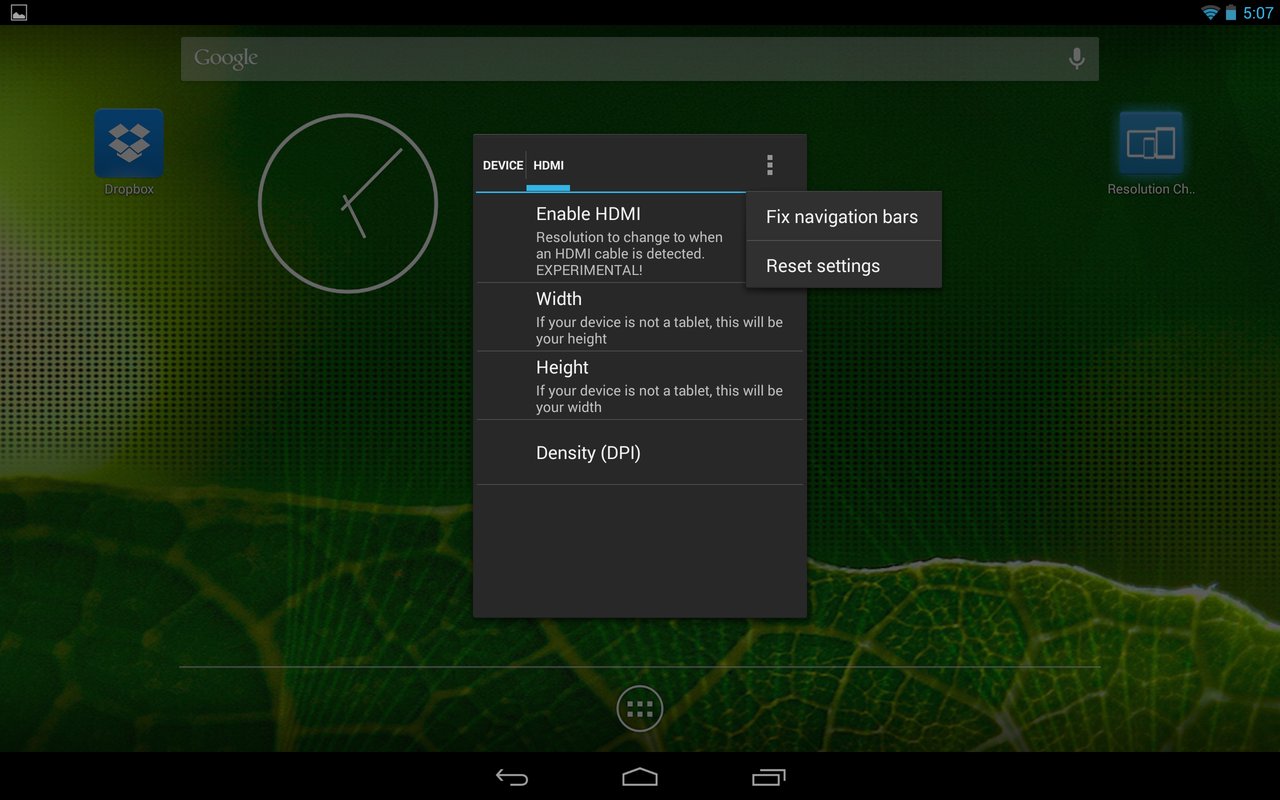
A very useful application especially for those who connect their phone to the Smart TVs. For example, you want to play a game on your TV through screen mirroring, and the game starts lagging, you can drop the resolution on your phone with the help of Resolution Changer Pro and it might run smoothly then.
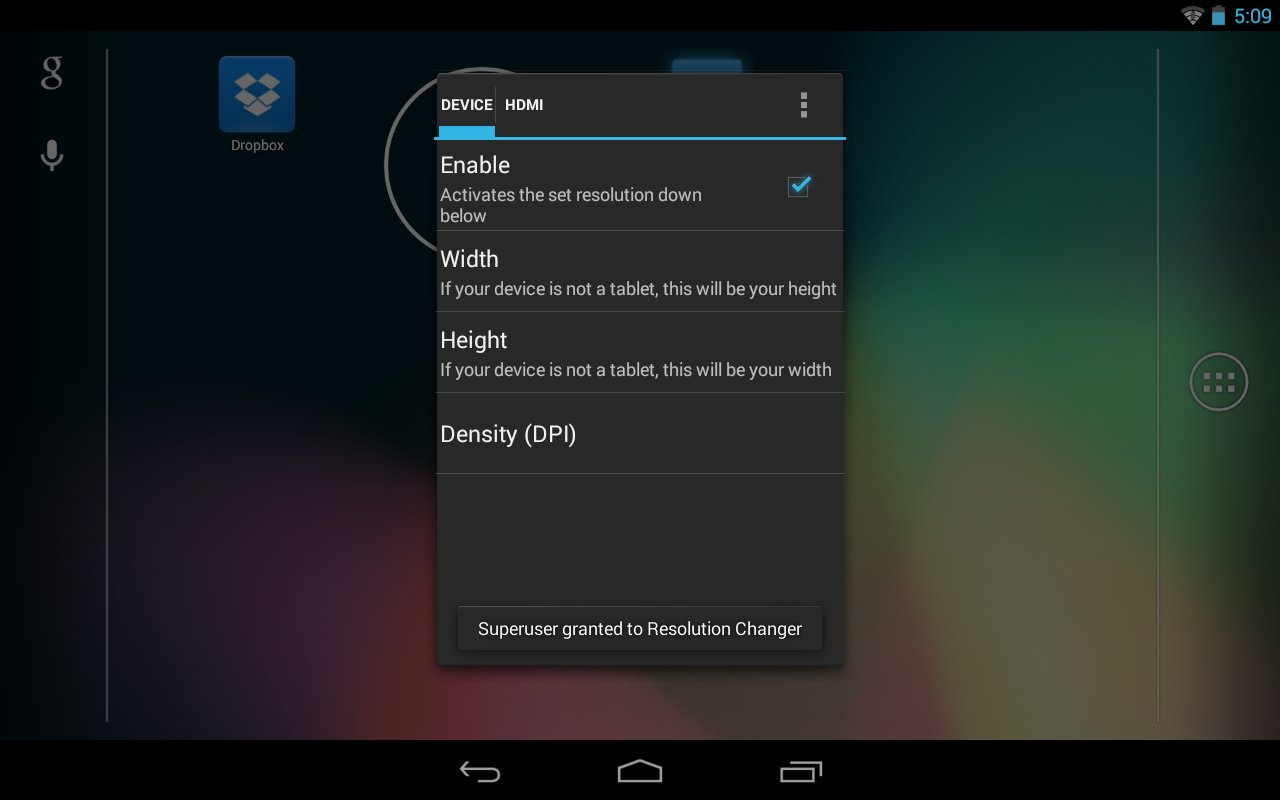
On Samsung Galaxy handsets like the S7, S8, S9 and Note 8, it’s possible to change the resolution through the Settings > Display. However, not many Android phones come with this feature in-built. 
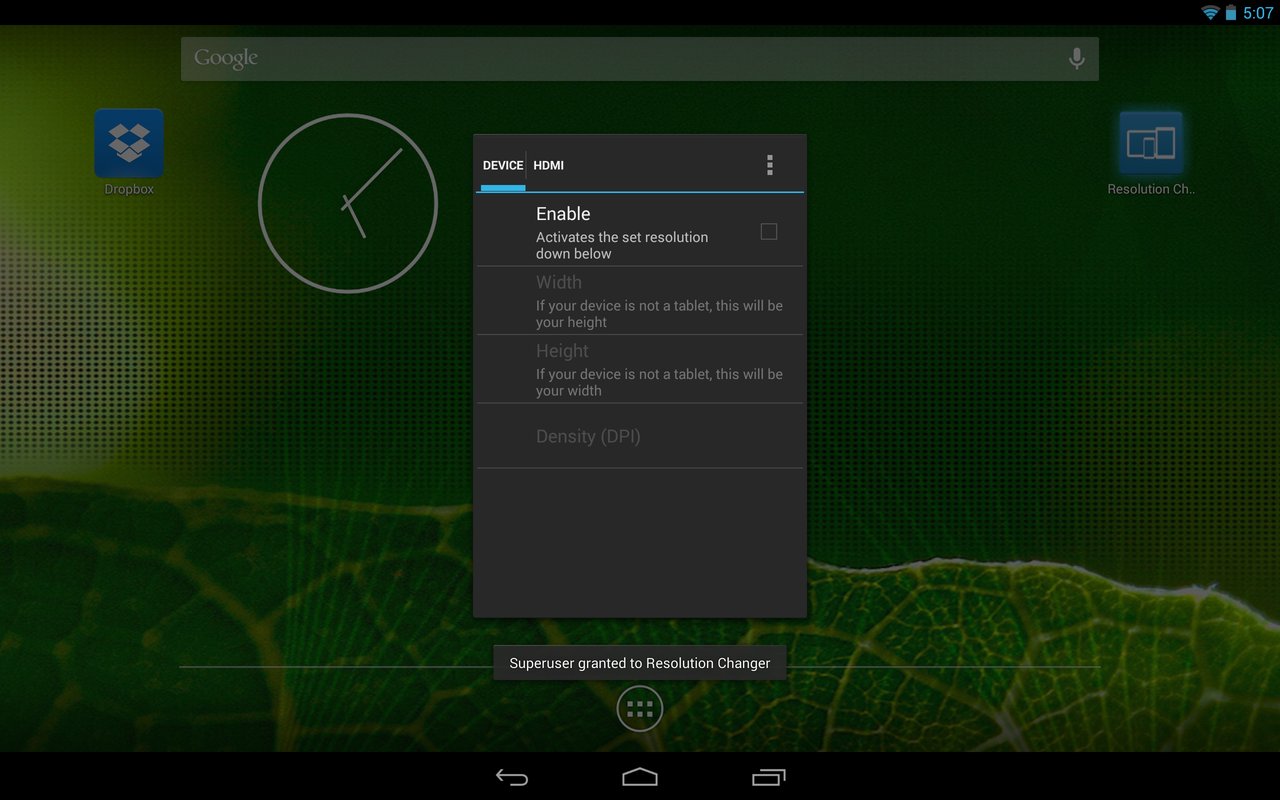
Resolution Changer Pro is not available in the Play Store. You can download it from here and install it manually.

Quick Reboot

Can’t remember what keys to use to put your phone in download or recovery mode? Quick Reboot will make it easy for you. With Quick Reboot, you don’t have to press any physical keys again. Simply tap the power button of your phone so that the extended reboot menu pops up on your phone. You can chose the reboot mode by tapping the screen.

Flashify

Flashify eliminates the need of going into custom recovery again and again. You can flash all .img and .zip files using this application. You can even backup and restore the Nandroid backup using Flashify application. It comes free for rooted Android phones.

You can also take a look at our comprehensive guide to Flashify.

Flash Fire

Want to update your phone but don’t want to lose root? Flash Fire is your friend. This application can flash full firmware files and also the OTA files in the .zip format without touching the root access on your phone. Flash Fire comes from the renowned developer Chainfire. Although the application will not be receiving any further updates as Chainfire has said goodbye to the Android community, you can still use it while its available and its working.

[root] FlashFire
Price: Free

Servicely

Control all the background services on your phone that eat up more than 50% of your battery while sleeping. Servicely will not let the unimportant applications wake up your phone again and again.

Wakelock Detector

Does your phone wake up randomly and you have no idea what’s going on? Well, there are certain applications that turn on the light of your phone every few hours. These applications do not just turn on the screen, they also consume the battery of your phone. Wakelock Detector is an application that can capture all the applications that triggered the display of your phone while it was on rest. You can then chose whatever you want to do with those applications.

Nandroid Manager

A simple tool to restore your Nandroid backup. The application can restore all of your data include the Apps and Games data to its place. Nandroid Manager is compatible with TWRP backups only. The application is not free.

ROM Toolbox Lite

An all-in-one application for modification lovers. ROM Toolbox puts together all the useful root apps and MODs under 1 roof. ROM Toolbox can install custom themes as well. The application has the Nandroid backup & restore feature too.

ROM Toolbox Lite
Price: Free+

Better Battery Stats

Want to take a deep look into what’s going on with the battery of your phone? Better Battery Stats application can give you an idea of every single application’s battery consumption. It’s a very good application if you’re looking to keep a strict control over the battery behavior of your phone.
BetterBatteryStats
Price: $1.99

Battery Calibration

After installing a new ROM on the phone, the battery often acts weird. That is because it loses the calibration and needs to be re-calibrated. Battery Calibration is handy in such cases. The application can calibrate the battery of your Android phone in only one tap.
Battery Calibration
Price: Free+

Here is our detailed guide to Battery Calibration on Android.

Dumpster

Another recycle bin for Android. It is slighty different from Disk Digger as it allows you to restore many files other than the photos. You can restore Videos and Music files as well.

WiFi Password Viewer

Back in the day, you could view the password of the WiFi that you are connected to on your Android phone. The feature is no longer available on many phones. If you want to know the password of your WiFi connection, you can use the WiFi Password viewer.

DNS Changer

If you want to use custom DNS for your internet connection 3G/4G or WiFi, the DNS Changer application will let you do that.

DNS Changer
Price: Free

WiFi Kill

Don’t like someone using your internet connection? With WiFi Kill, you can restrict the internet access of unwanted people. The people connected to your WiFi will be shown in the application. You can tap their connections to kill their access.

3C Toolbox

3C Toolbox combines the functionality of various applications into one package. This application is for those who don’t want to install so many root apps. They can install 3C Toolbox alone to enjoy various features.

3C All-in-One Toolbox
Price: Free

Also check: Best Free VPN/Proxy Apps for Android in 2020

Conclusion

That’s it for now. I have tried to list the best root apps for Android for average Android users. If you are not a pro in Android yet, you will still find these applications helpful and useful. I will try to keep updating this application whenever I come across a new and useful root app. If you have anything to add to this list, feel free to drop its name in the comment section. For any queries, reach out to me through the comment box or through our contact us page.

5 Best Free Android Screen Recorder Apps in 2020

0
5 Best Free Android Screen Recorder Apps in 2020
Samsung Galaxy S10 Plus with Screen Recorder

Which is the best Screen Recorder for Android? Well, there are quite a few. If you don’t want to get confused among so many options, you can find the best ones here. This is a list of best free Android Screen Recorder apps in the year 2020. These Android Screen Recorder apps will work on any new or old Android phone.

  1. Screen Recorder V Recorder
  2. AZ Screen Recorder
  3. Google Play Games
  4. Screen Recorder – No Ads
  5. Mobizen Screen Recorder

Screen Recorder – Why do you need one?

Back in the day, Screen Recorders were something that the users were reluctant to use. These days, Screen Recorders are natively installed in the mobile operating systems. Apple has a native screen recorder which can be operated through its quick toggles. OnePlus also added a native screen recorder to its OnePlus 7 Pro. Samsung has also introduced a screen recorder through its Good Lock application. While these native recorders are pretty new, the purpose was being fulfilled by third-party recorders previously.

Android Screen Recorder Apps
Samsung Galaxy S10 Plus with Screen Recorder

Third-party recorders are not completely phased out because not all companies are adding in-built apps. For this very reason, a major percentage of Android users still turn their heads to the app stores to find the best apps for this task. There are many uses of such apps and I’m going to list a few of them below.

  1. To record your gameplay.
  2. To record a video that you cannot download.
  3. In order to make a tutorial on your phone.
  4. To record any activity you want.
  5. To record a software bug on the phone.
  6. You can create a preview of anything.

Screen recorders can record the internal or external audio depending on your preferences. The recorded videos are saved into the Videos section of your phone. These are usually very high-resolution videos.

Assuming that you have a good idea about the screen recorders, let’s move towards the best Android screen recorder apps.

Android Screen Recorder Apps

Screen Recorder V Recorder

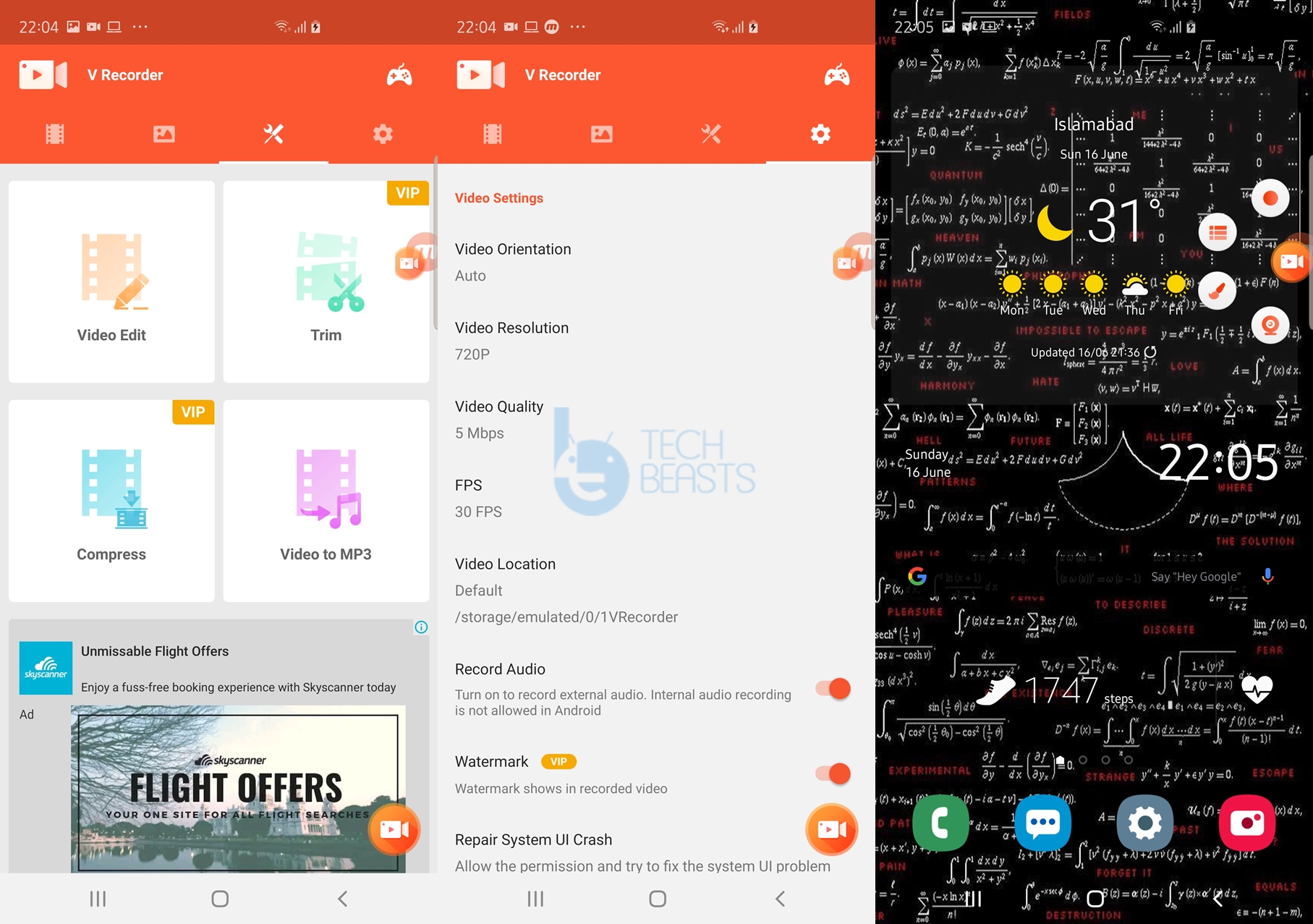
This is the best screen recorder for Android right now. The V Recorder is not just a recorder, is a video editor too. At first, it has plenty of features. You can define the video orientation in which you want to record a video. It allows changing the resolution, storage path, audio preferences, and everything else that can be possibly modified during a screen recording session. It gives you the editing options on the go. You can change anything in a video right after the recording ends. V Recorder has a separate Video Trimmer too. If you want to shorten the length of a video, you will find the Trim option useful. It’s got a video converter too. If you want to mute the audio in a video or you just want the audio from a video, you can do that using the native converter. V Recorder can be used for free for the first three days. After that, you can get it if you find it worthy.

AZ Screen Recorder

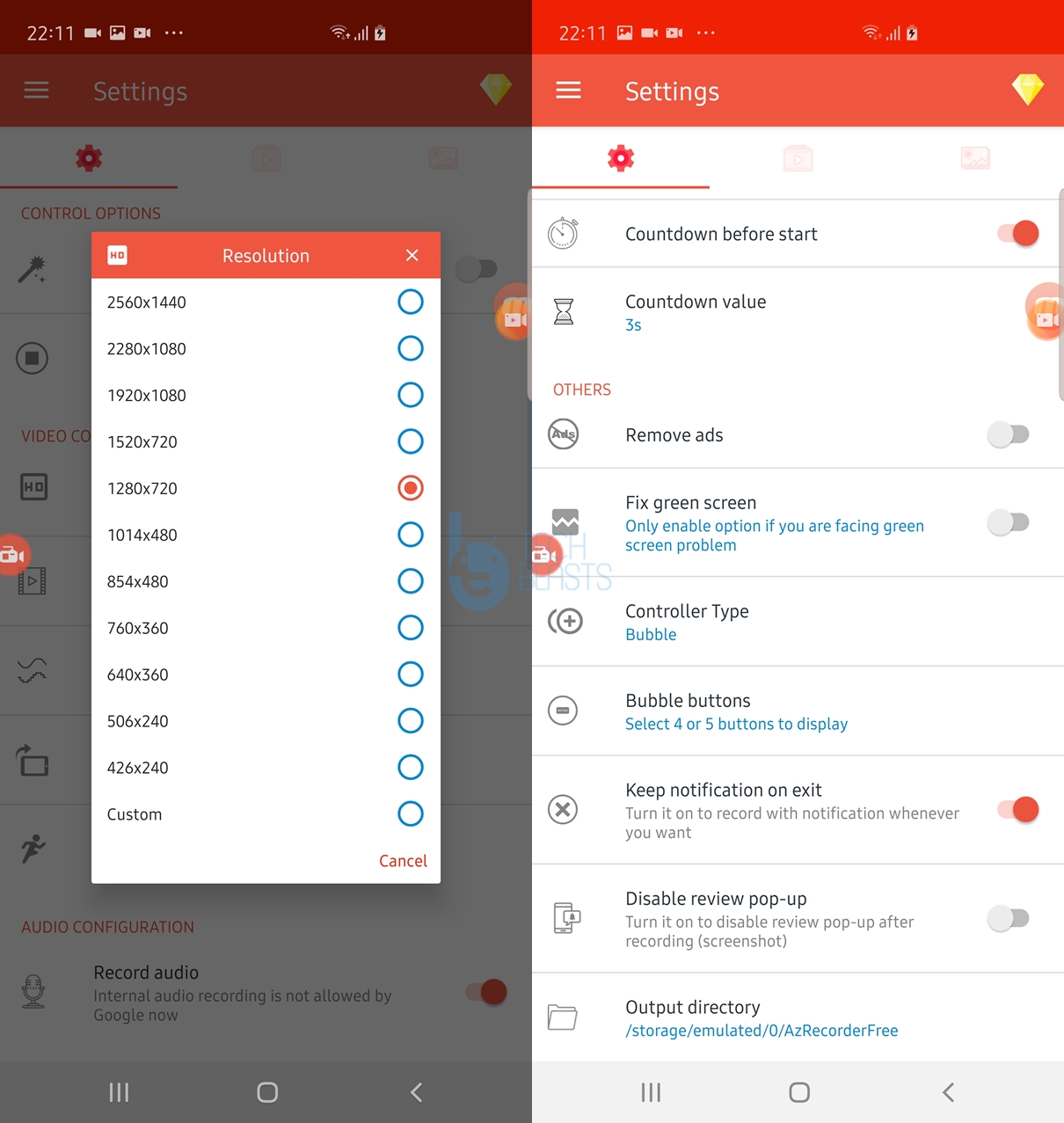
Like the V Recorder, AZ Screen Recorder is also a feature-rich application. It’s more like a screen recorder for the pros. Yes, it does have a video editor, trimmer, and converter too, but it’s got some additional features too. In the AZ Screen Recorder, you have more than 10 resolutions to choose from. You can even record in a custom resolution too. Apart from the resolution, you can also set the Frame rate i.e. 60 FPS, 50 FPS, 48 FPS, 30 FPS, 25 FPS, and 24 FPS. Furthermore, you can set the bit-rate too. It can record a time-lapse of your activity too. You can choose if you want to add a custom logo/text to a screen recording. The AZ Screen Recorder can be scheduled to record a video too.

To cut it short, if you are into recording some high-quality videos for YouTube or any other such platform, the AZ Screen Recorder is your way to go. The native recorders don’t give you the same kind of features and freedom. The best part about the AZ Screen Recorder is that it’s an absolutely free application. This is the very reason it falls at number 2 on our list.

Google Play Games

The Google Play Games are an essential part of an Android phone. Whenever you install a game and you want to link it to your Google account, you would need the Play Games. So, this automatically adds a handful of features enhancing your gaming. The Google Play Games app has a very nice recorder incorporated. You just have to turn on the recorder while playing a game. By default, it records both the internal and external audio. The only reason it falls in third place in our list is that this is built only for recording games. As soon as you exit or minimize a game, the screen recording will stop. Other than this, this is a great application as the recorded videos have the best resolution. Android Screen Recorder

Screen Recorder – No Ads

This recorder is exactly what its name says. Out of all the recorders that we talked about above, this is the cleanest one. It does everything that the AZ Screen Recorder and V Recorder can do. The reason it falls at 4th place is its user rating, which I believe will take some time to improve. It’s also got all options like changing the bit-rate of a video, setting the frame rate, changing the audio source, trimming a video, setting the time delay before starting a recording and so on. Screen Recorder is also a truly free screen recorder. It’s also my personal favorite because of its Dark Mode UI. No other screen recorder offers the dark mode at the moment.

Mobizen Screen Recorder

Mobizen falls at the last number because of a complex UI and its limited free trial. It is a very good application as it offers a lot of flexibility. For example, you can choose the video resolution, the external and internal audio recording, the watermark, etc. If you want, you can capture your own face over a screen recording. You can also define the screen recording time in the app. Furthermore, you can define the location where the saved videos will go. Mobizen is a good temporary screen recorder.

Conclusion

That’s all with the list of Android Screen Recorder apps. I hope that you find this list useful. I also hope that you would use these apps for positive means only. If you intend to use the recorders for any wrong means, beware of the laws in your country. Any illegal activity can land you in serious trouble too. If you have any questions or queries, feel free to reach out to us. I will try my best to get back to you as soon as possible.+

More:

Best Free Android Photo Compressor Apps in 2019

0
Best Free Android Photo Compressor Apps in 2019

Looking for the best Android Apps to compress photos on your smartphone? You can find them all here. This is a list of 5 best free Android Photo Compressor Apps. The Android Photo Compressor Apps listed here are best in the year 2019.

  1. Lit Photo
  2. JPEG Optimizer
  3. PicTools
  4. Photo Resizer
  5. Photo & Picture Resizer

Android Photo Compressor

Compressing Pictures on Android

In the year 2019, we have officially entered the era where technology is making most of the things portable. We have moved from wires to wireless. Laptops replaced Desktop PCs and now Smartphones are outnumbering Laptops. Anything that you once did with your computer can be done with a phone now. Be it document scanning, printing, photography and image editing, videography, gaming, etc. Name anything and you can do it with the phone. For this very reason, a major chunk of smartphone users prefers taking out their daily tasks through their phones.

For instance, people share documents over WhatsApp, they attend conferences through apps like Hangouts, and they fill the forms on the web through the phones too. When it comes to filling forms, you have to upload the pictures sometimes. Most of the websites have a size requirement for the images that you can upload. This is where the users are likely to face a bottleneck.

If you try uploading an image captured by your phone, you will get a size error. For such forms, you have to resize the images into a suitable size, and sometimes in a suitable format too. Most of the online form submission services support images in KB’s only, and that too less than 500 KB’s. The smartphones of today capture images of up to 10s of MBs, which is why you get those errors while uploading the images. Furthermore, if you want to send an image to someone else through an email, it is going to allow a specific size too.

This is where the Android Photo Compressor Apps come in. These images can significantly lower the size of a picture without compromising much on the quality. Any picture that you captured or you scanned through an Android scanning app, that can be resized through the Apps that can compress photos. This skips the need for a computer to perform such a small task.

I would also like to tell you why I’m sharing this list here and how did this idea come up my mind. Recently, I wanted to upload my Bachelors Degree on the Education Commission’s website for attestation. I had the Degree scanned through CamScanner. When I tried to upload it, it said that the maximum upload size was 500 KB. After this, I started finding out the photo compressors for Android. I came across 10s of photo compressors and found a few working only. Out of those few, I was able to find the best one. This is when I realized that there must be thousands of other users finding the same apps, so I decided to make this list.

While collecting these Android photo compressor apps, I have kept a few things in mind. First of all, all the apps that you are going to see, they are free. The apps have straight forward featured to reduce the size of a picture and also to crop. These apps do not add a watermark to your pictures. Last, but not the least, these Apps save all the resized/compressed photos to your phone’s gallery in a separate folder for the ease of access.

Best Android Photo Compressor Apps

Lit Photo – Photo Compress & Resize

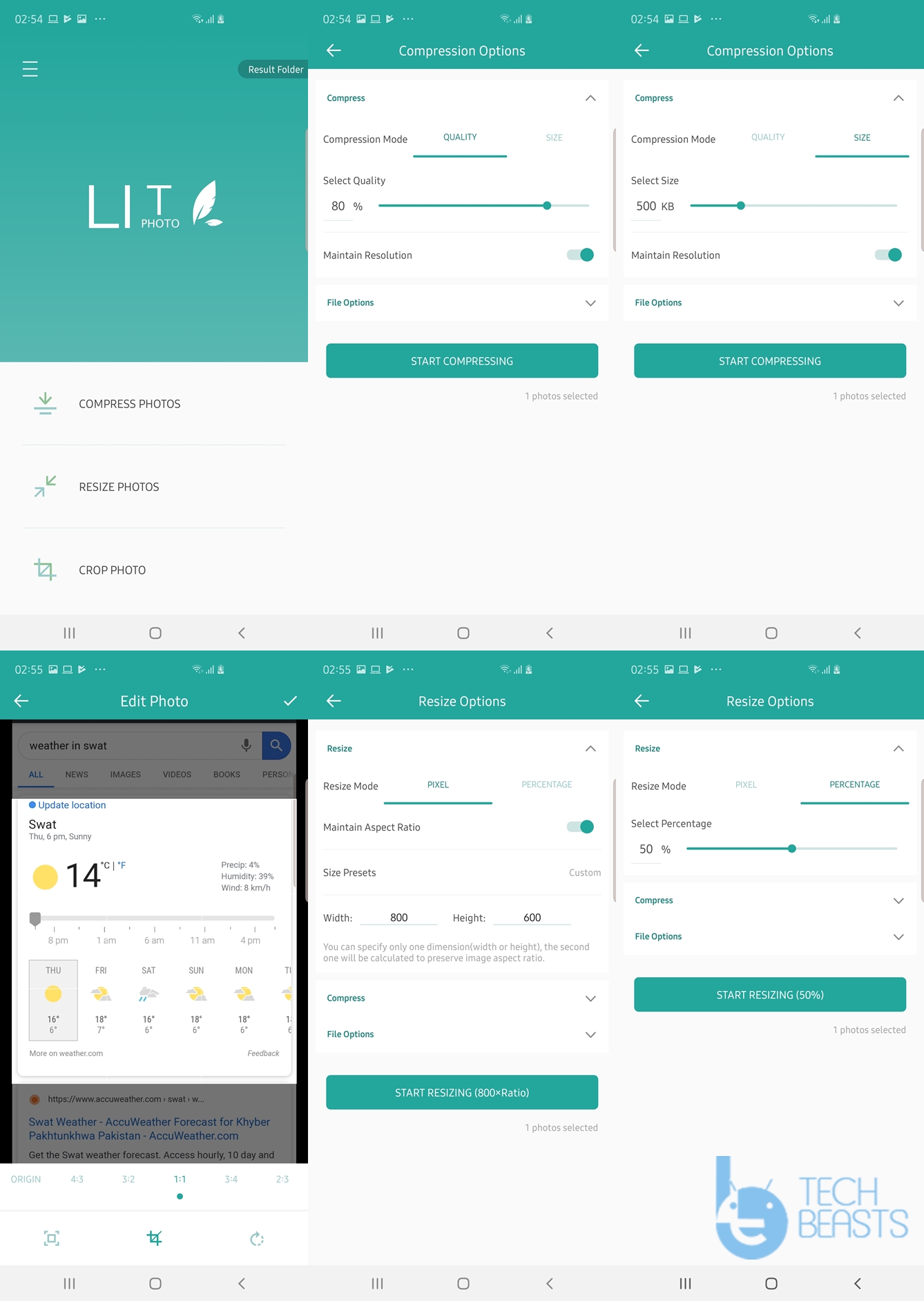
Lit Photo is the compressor that I personally used to compress my photos. This is the most straight forward, easy to use a compressor. Lit Photo has three basic functions. It can Compress Photos, Resize Photos, and Crop Photos.

When you compress photos, you get two further options. You can either compress the photo by choosing a lower level of quality, or you can select the size that you want to compress it too. A photo is comprised of multiple ingredients. For example, it has colors, shadows, sharpness, highlights, hue, temperature, and a dozen other things. A compressor lowers down all these values leaving minimal effect on the outcome. If you will select a too low size or quality, there will be a notable difference in the compressed photo and the original photo. If you want to keep the compressed photo as close to original, you should choose quality above 40% or a size above 300 KB.Android Photo Compressor Apps

The dimensions of a picture can be changed using the Resize option in Lit Photo. By default, a picture has the resolution offered by the Camera of a phone. Resizing a picture to a smaller size will also reduce its size. The third option in Lit Photo is the Crop. As the name suggests, you can crop any picture using this feature.

Lit Photo also offers batch resize/compression/crop. There is a premium version of this application but most of the basic functionality comes for free.

JPEG Optimizer

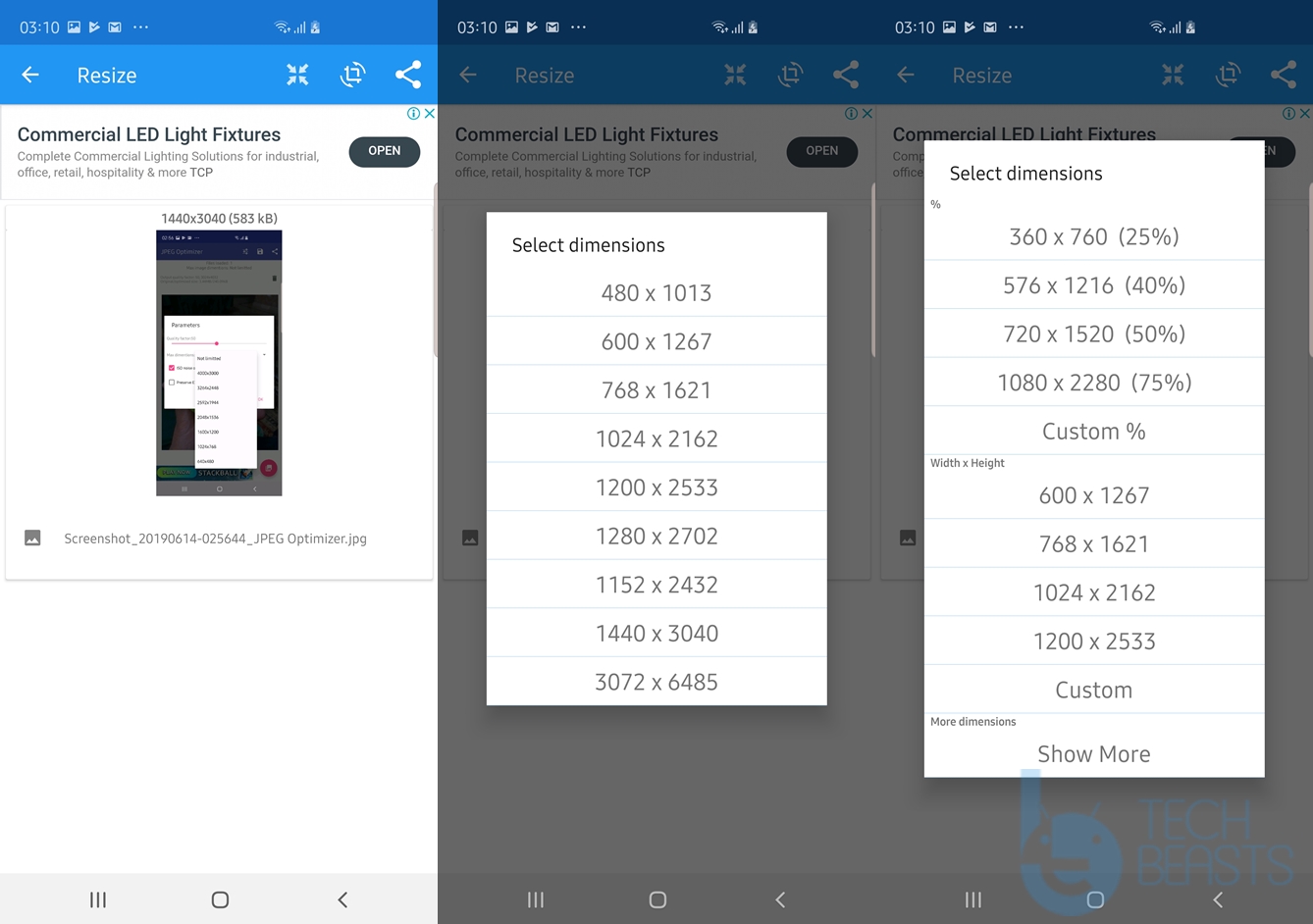
JPEG Optimizer by STOIK Soft is my 2nd favorite in this list. With the least number of options, this is the easiest app to use. JPEG Optimizer, as its name says, is just an optimizer which can reduce the size by lower down the quality or resizing a picture. These are the only two features you will find in this app. The idea of JPEG Optimizer is to reduce the size without a loss in the quality of the picture. You can select what percentage of quality you are ready to compromise or what dimensions you want a picture to have.Android Photo Compressor Apps

It also offers batch editing and photos are saved to the Gallery of your phone. All the pictures edited through JPEG Optimizer have the JPEG format, which is also the most friendly format for all mediums. One more thing that I’d like to mention here is that JPEG Optimizer uses an ISO Noise optimization which reduces noise in the edited pictures. JPEG also comes for free. It does have a previous version, but you don’t really need that.

PicTools

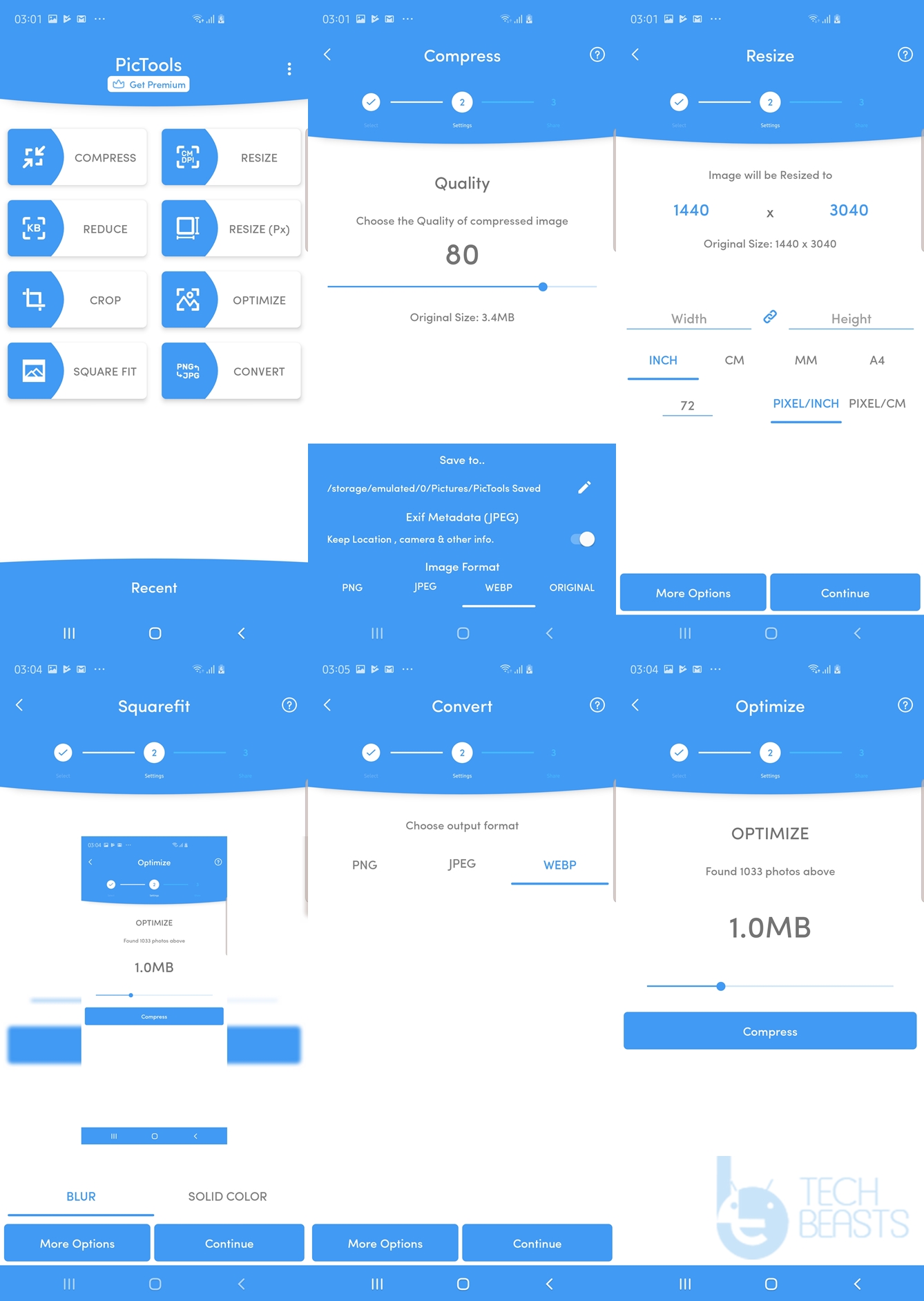
PicTools tends to be a complete photo solution. It has a number of features. PicTools has a photo-compress feature, resize feature, reduce feature, resize, crop, optimize, square fit and the convert feature.

The compress feature will automatically reduce the size of a picture by determining the best quality. In the compress feature, you do not get the option to choose the size. You can only choose quality here.

The Reduce feature will let you resize a picture in CM or in the DPI. You can choose the width and height of a picture in this feature. If you are interested in resizing a picture based on size i.e. KBs, you can use the Reduce feature.

The Resize feature will allow you to select the Px (Pixels) of a picture to resize it. This will affect the resolution of the picture. In the Crop feature, you get pre-defined aspect ratios to fit a picture. You can also crop freely.Android Photo Compressor Apps

Optimize feature is basically a batch-compression mode. It will find all photos above 1MB in your phone and offer you to compress them all at once. This, of course, saves a lot of space on the phone.

Square Fit will fit any picture into a proper square. The last feature is to Convert. It can convert any picture into PNG, JPEG, or WEBP. You can convert any edited picture in all of the features of PicTools too.

You see, almost all the features are doing more or less the same thing. Its just what units you are comfortable with. Whether you want to deal in Pixels, in DPI, or you want to go after the size unit. To sum it up, I’d like to say that PicTools is the best choice for those who want a lot of solutions under one roof.

Photo Resizer

The Photo Resizer has two option; Resize and Crop. Resize can change the dimensions of a picture in percentage or in Px. In both cases, you can maintain the aspect ratio. Lowering down the dimensions will reduce the size in MBs or KBs too. The 2nd option is crop, which can obviously cut down a portion of a picture. Photo Resizer also offers a batch editor. I did not really like the UI of photo editor, which is why I’m putting it at the 4th number.Android Photo Compressor Apps

Photo & Picture Resizer

This is also a resizing and cropping tool. The downside here is, you get the pre-defined resolutions/dimensions and also pre-defined aspect ratios. You cannot manually define the resolution or dimensions in Photo & Picture Resizer. If you are comfortable with the in-built preferences of this application, its good to go with. It has a premium version, but it is not really worth it when you already have great options like the ones listed above. In case none of the apps listed above work well for you, this should be the last choice to go with. Android Photo Compressor Apps

More:


Download Google Installer APK for Chinese Android phones

3
Download Google Installer APK for Chinese Android phones

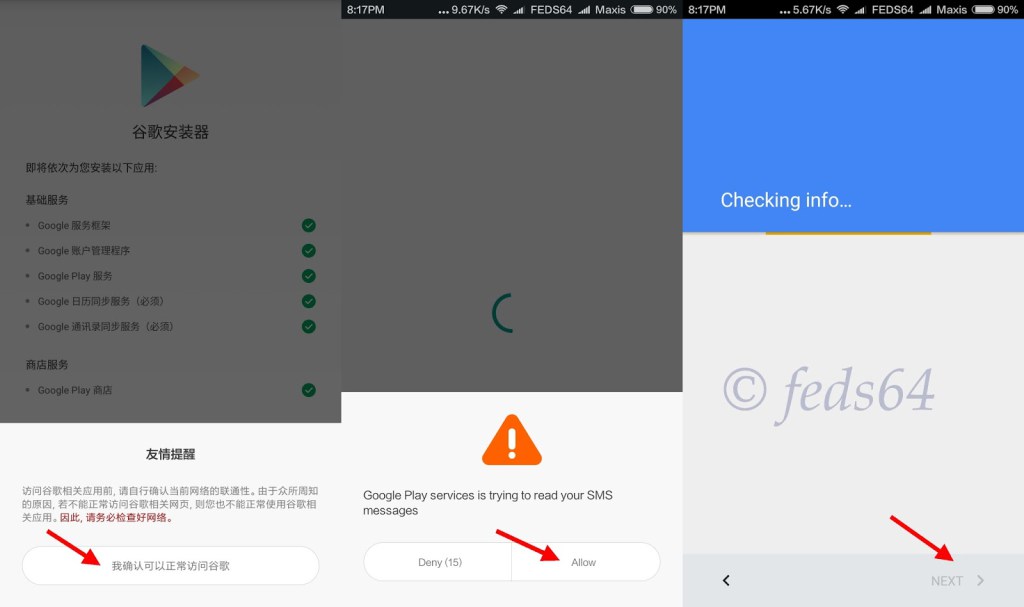
Updated: 9/25/2019. China is kind of a country which doesn’t welcome so many software platforms to work openly within its territory. The best example of this can be seen when it comes to Android. An Android-powered smartphone without Google services is pretty incomplete and those incomplete Android smartphones are all that the Chinese consumers have.google-play-services_1 The Chinese government doesn’t allow Google to conduct any activities in the country. As a result, the Android phones are rolled out without any traces of Google Play Services and the Google Play Store in the phone. Chinese smartphones either have their own app stores or the users have to install applications using third-party sources. But that isn’t what puts a permanent restriction on the users. The open-source nature of Android makes the impossible possible. Making the use of this particular characteristic of Android, you can load the Google Play Services and the Play Store on your phone manually. To do this, you need to run a Google Installer on your Chinese Android smartphone. You can grab the Google Installer APK and install it on your phone manually. Once you have the Installer installed on your phone, you can follow the on-screen instructions to bring the Play Store and Services on your phone. The installer basically brings the entire Google framework in your phone. This is a very handy solution as it doesn’t require you to go through any confusion at all and is guaranteed to work. Just make sure that you are on the latest version of the installer and things should work well. Follow the steps now to download and install Google Installer APK for Chinese Android phones.

Download Google Installer APK for Chinese Android phones

This is not a company or carrier branded solution. It is supposed to work with the smartphones from all manufacturers like Huawei, Xiaomi, ZTE and other manufacturers creating Chinese exclusive smartphones. Follow the steps carefully to make sure that the entire process goes flawlessly. Note: In some cases, you will have to install the GMS installer as well. Download this GMS installer and install it prior to installing the Google Installer APK. The procedure to install the GMS Installer is the same as the Google Installer APK.

Update: Google Installer v3.0 added now.

  1. Download the latest available Google Installer APK file and copy it to your phone’s internal or external storage.
  2. Now on your Android phone, go to settings > security/safety> check Unknown sources option.
  3. After this, open file manager on your phone and locate the copied Google Installer APK.
  4. Tap the APK and install it by using on-screen instructions.
  5. Once the installer APK has been installed, open the installer from the app drawer or application menu.
  6. Now in the installer, tap the yellow button on the bottom to proceed installation.
  7. download-google-play-store-on-huawei-chinese-phones-1
  8. In the next screen, tap install and then tap OK to process it.
  9. download-google-play-store-on-huawei-chinese-phones-2
  10. When it asks you for the Google Play Store, once again tap Install, then tap OK and then tap the red button appearing at the bottom of the screen.
  11. download-google-play-store-on-huawei-chinese-phones-3
  12. Now press the button showing an agreement/asking for permissions > Allow it and press NEXT.
  13. Once done, Play Services and Play Store will be installed on your phone.

Update 9/25/2019: Google Core Installer for EMUI 10 & Below

A new version of Google Core Installer is available. It can install all the missing Google Framework and Services apps including the Google Play Store on your phone running on EMUI 10 and below. The new app has been tested on the Huawei Mate 30 series and it was found running flawlessly. You can download the latest Google Core Installer from below.

Google Core Framework & Services Installer: Download

If the Play Store doesn’t appear in the application menu, you may have to grab the latest Play Store APK file and install it manually on your phone. Since you have installed the Google Framework, installing Play Store will not be an issue now. Here are the guides to install How to download and install the Google Play Store on Android | Download Google Play services 9.6.80 APK. That’s all. If you face any kind of issues regarding the guide above, do reach me out through the comment box below.

Download Castlevania Grimoire of Souls for PC and Laptop

Download Castlevania Grimoire of Souls for PC and Laptop

Here is how you can download and play Castlevania Grimoire of Souls for PC. The Castlevania Grimoire of Souls for PC will run smoothly on Windows and macOS. Before you download the game, let me give you an overview of this new masterpiece by Konami.

Castlevania Grimoire of Souls

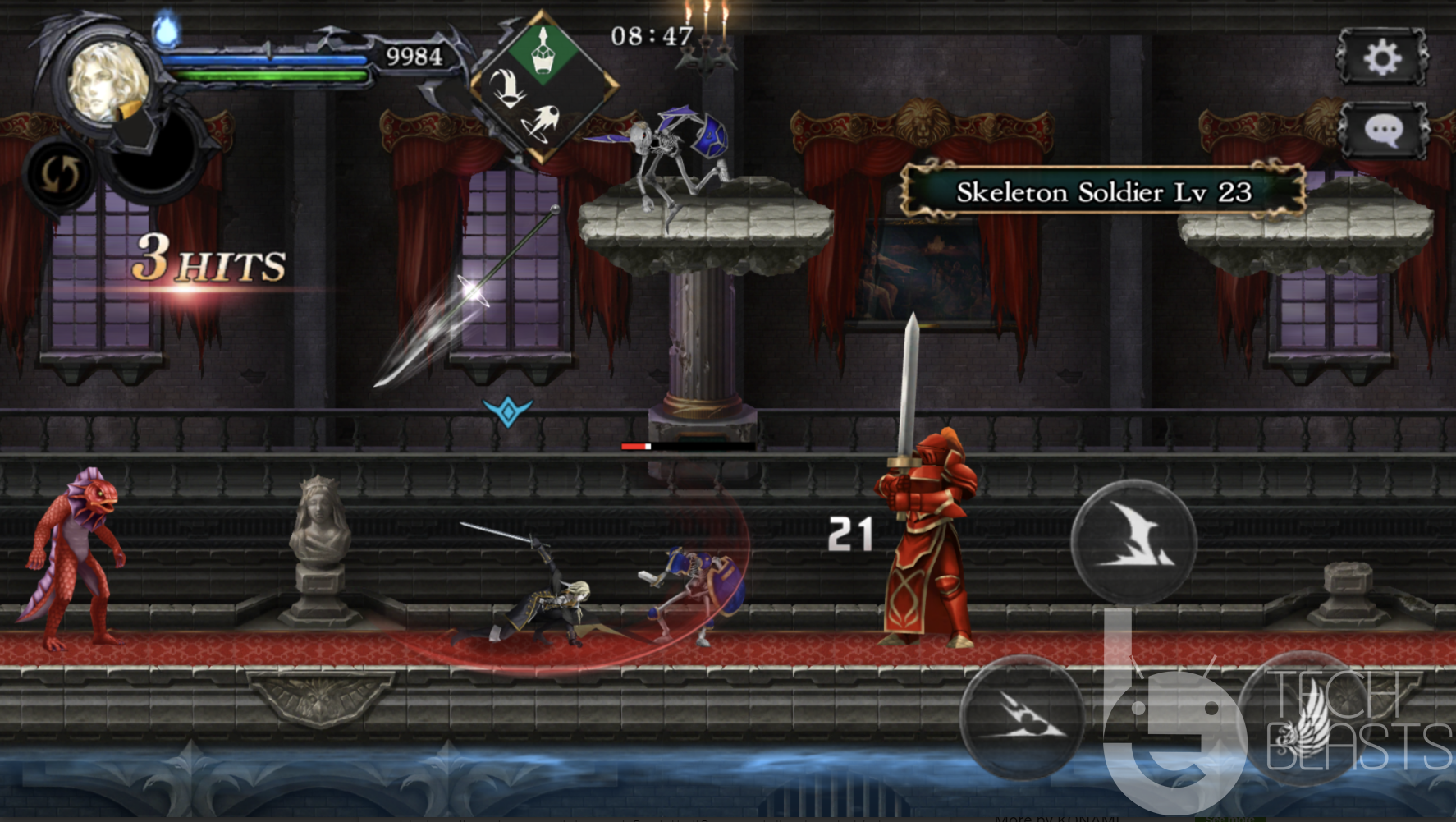
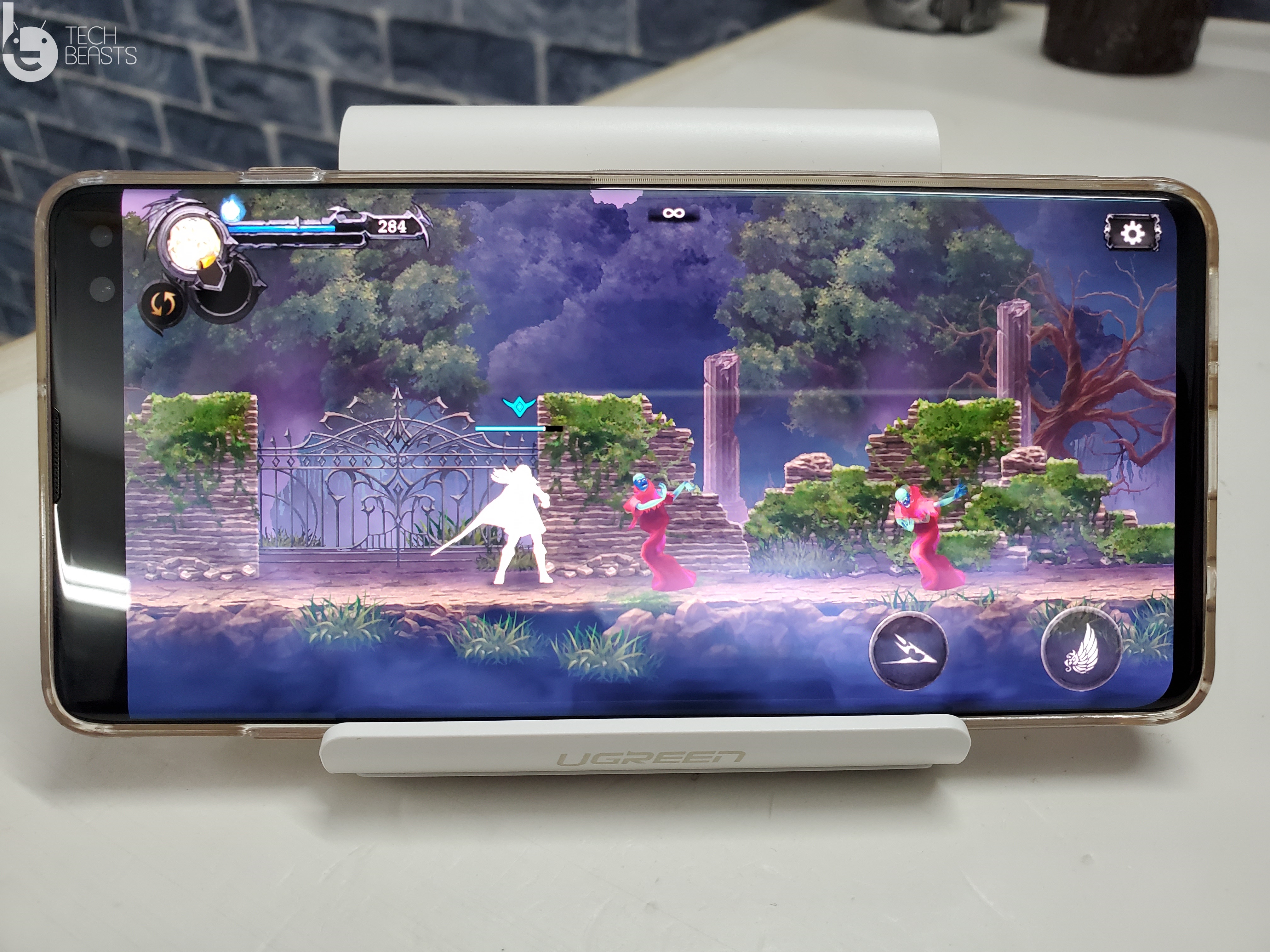
Castlevania is an old gaming franchise which was previously available for Desktop PCs and consoles. The Castlevania games discontinued for computers and consoles a while back. The developers are now aiming to continue the series but for the smartphones only. The very installation of the Castlevania series for smartphones is the Grimoire of Souls. The action-packed game is all set to become your next favorite game. The game looks impressive at the very first glance.Castlevania Grimoire of Souls for PC

Grimoire of Souls has its own exclusive storyline. The story dates back to hundreds of years ago. The evil character, the Count Dracula was descending the world into darkness. There were heroes who defeated the Count Dracula to restore the peace, but the Dracula kept coming back. After a never-ending battle, the Dracula’s castle was sealed with the solar eclipse of 1999. Count Dracula, in everyone’s books, was dead and never coming back. Everything was running smoothly until Genya Arikado received a mysterious letter. Now the Genya Arikado, in himself, is a mysterious character. He is the son of the Dracula but is working with the National security. This way, no one can doubt him or his intentions. The letter that he received reveals that the darkness has awakened once again. To everyone’s surprise, the Dracula will rise once again and come after this world to dominate with darkness.

This is where the battle begins. Players, who are going to play the role of heroes, will start their fearful journey. They will be confronted by the soldiers of the Dracula. All the enemies coming on the way have unique powers. To tackle enemies, players also need unique powers and skills. When the game starts off, the enemies will not be that powerful. Even the bosses will not be powerful enough. However, as the levels go up, you will be facing difficult-to-defeat enemies. Throughout the game, players will keep getting various chances to perform upgrades. They will be able to completely transform their character according to the scenario in the game. The goal is to bring Dracula to an end for good. This is going to be a very interesting and addictive journey.

The best part of this game is that it’s got console-quality graphics. It may never make its way to the desktop PCs officially, but you can definitely play the Android version on the computers. That is what I am going to show you. Since I loved playing this game on my computer, I wanted to share the same with all of you. You can find the steps below to run Castlevania Grimoire of Souls for PC on desktop PCs and Laptops.

Castlevania Grimoire of Souls for PC

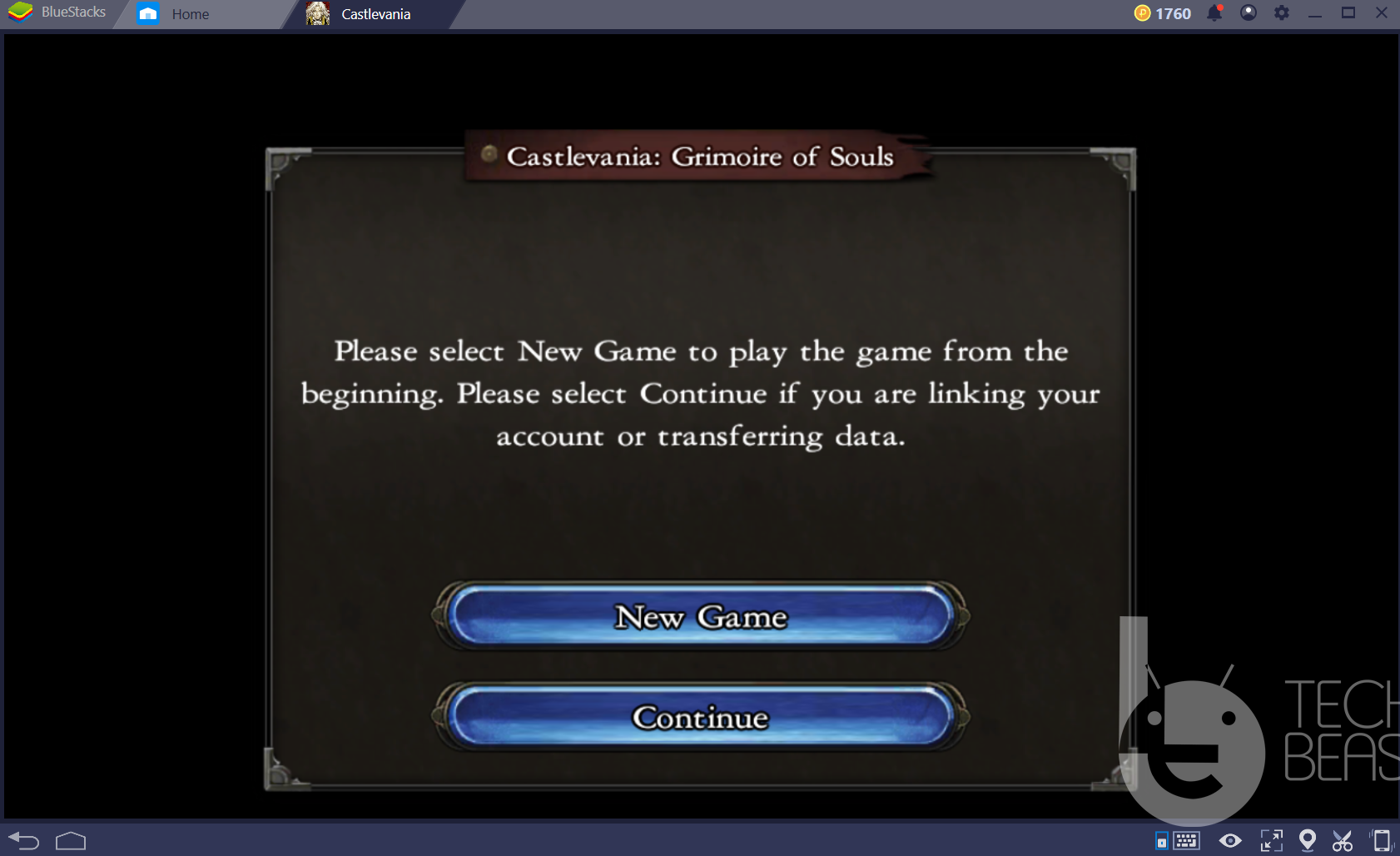
  1. First of all, download and install BlueStacks 4 on Windows and NoxPlayer on macOS.
  2. After installation, open the emulator and set it up using the Google Account.
  3. Now open the Play Store in BlueStacks 4/NoxPlayer.
  4. In the Play Store, type “Castlevania Grimoire of Souls” and find it.
  5. As you find the game, install it.
  6. Now open the game from “all apps” or “app drawer”.Castlevania Grimoire of Souls for PC
  7. Play the game using your keyboard and mouse. That’s all.

Note: This game may not appear in the Play Store at your end because it’s not available globally. If that’s the case, we would recommend download its APK and install it manually. I have personally tested this game and also done Keymapping to play it with the keyboard. It works flawlessly on Windows 10 PC and should work on others too.

If you have any questions or queries, feel free to drop them in the comments below.

Download Castlevania Grimoire of Souls APK for Android

0
Download Castlevania Grimoire of Souls APK for Android

Castlevania Grimoire of Souls has made it to the Android OS. Fans of Castlevania can get this game right now. We have found its APK as well. You can download Castlevania Grimoire of Souls APK for Android phones from here.

Castlevania Grimoire of Souls APK

Before you download the Castlevania Grimoire of Souls APK, let me give you a brief introduction of this game.

Castlevania – Grimoire of Souls

As you might have already guessed, the Grimoire of Souls is the continuation of the Castlevania series on the smartphones. The Castlevania series will not continue for PC or consoles now. However, gamers will be able to enjoy Castlevania games on smartphones now. Grimoire of Souls happens to be the very first smartphone game of the Castlevania franchise. The game was soft-launched a couple of days ago and it was available in a handful of countries immediately after that. Grimoire of Souls is still not appearing in the Play Store or the App Store in most of the countries which is why you need its APK file. The Castlevania Grimoire of Souls APK will let you install this game manually.

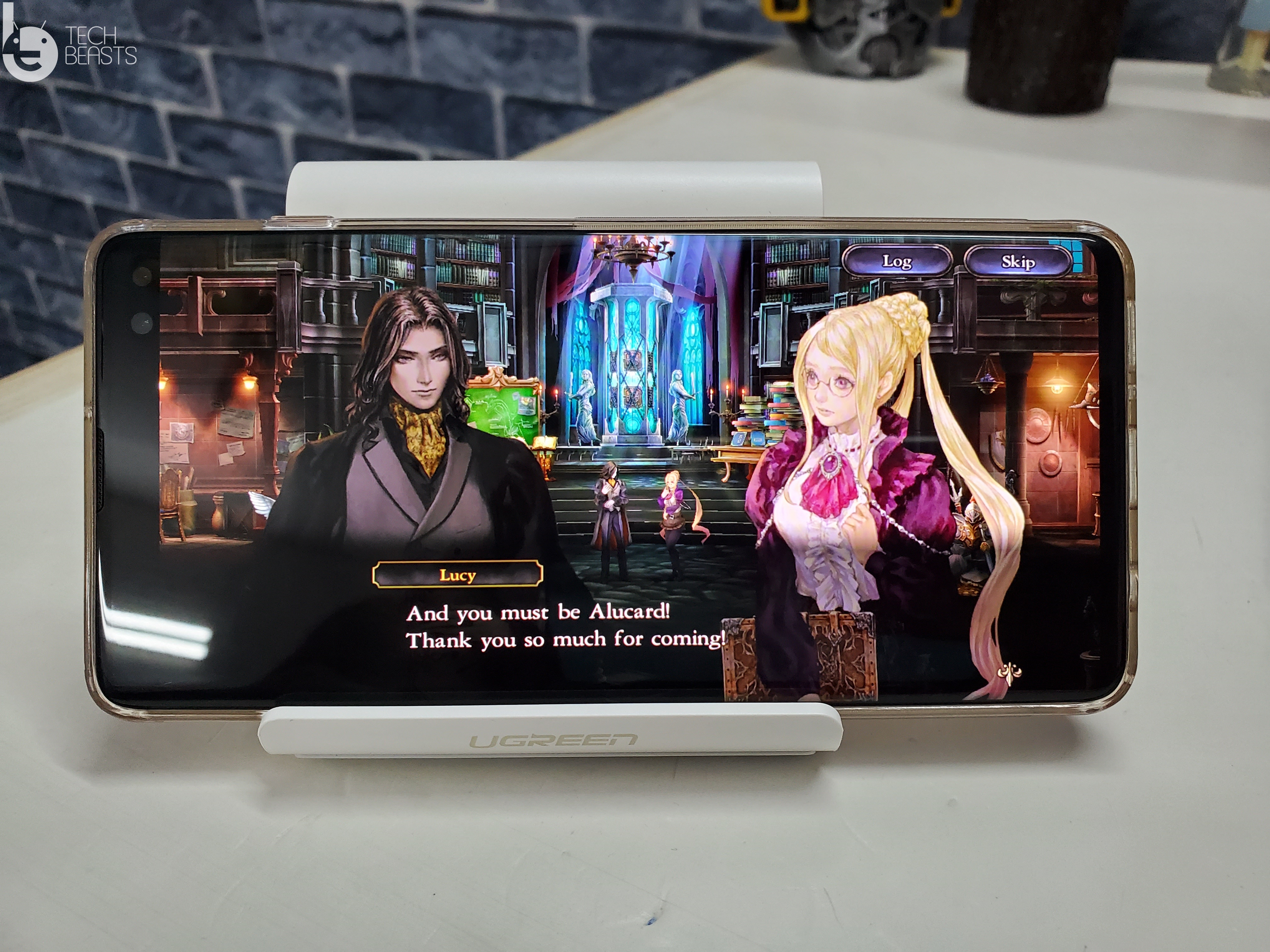
For those of you who are interested in knowing about the gameplay, the game is set in a dark world dominated by the Count Dracula. The game comes with an original story which has the Count Dracula defeated and sealed within the solar eclipse of 1999. The hero of the game, Arikado, has received a mysterious letter which reveals that the son of the Dracula who goes by the name Alucard, is alive and he is coming to take over the peaceful world once again. This is where the game begins.

Castlevania Grimoire of Souls APK

The heroes have to start their journey into an unknown world full of dangers. They will find Dracula’s guards coming in the way. Players have to take all of them to the task to ensure that the darkness doesn’t take over once again. Castlevania has a huge number of levels. Players will fight a boss at the end of each level. The journey will continue until the Dracula and his acquaintances have been defeated once again.

Castlevania Grimoire of Souls APK

The most impressive part of Castlevania Grimoire of Souls is the graphics. The developers and designers have done a marvelous job. The game looks like a piece of art. The sound effects go hand-in-hand with the visuals of the game. Lastly, this game comes for free and runs on almost all Android phones.

Castlevania Grimoire of Souls APK for Android

  • Grimoire of Souls APK 1.0.1 – Download
  1. To install the APK on an Android phone, you can either copy the downloaded APK to the phone or download it directly on the phone.
  2. After you have it on the phone, open a File Manager and open the APK to install it.
  3. Follow the on-screen instructions to install Castlevania Grimoire of Souls APK.
  4. As the installation ends, launch the game from the app drawer.
  5. The game will download its files first. Once done, you can play it.

That’s all. You can also try playing this game on your computer. If you have any questions or queries, feel free to drop them in the comments section down below.

How to upgrade from iOS 13.1 Beta to iOS 13 Stable

0
How to upgrade from iOS 13.1 Beta to iOS 13 Stable

iOS 13 is on the roll now. If you are currently using the iOS 13.1 Beta, it’s time to get rid of it and move to the official stable iOS 13. Here is how you can upgrade from iOS 13.1 Beta to iOS 13 Stable without losing any data. This guide works for both the iPhone and iPad.

upgrade from iOS 13.1 Beta to iOS 13 Stable
My iPhone XS Max running on iOS 13

Before you upgrade to iOS 13, let me give you an overview of the new iOS 13 and its features.

iOS 13

iOS 13 is the latest iOS iteration from Apple. The OS was in works for quite some time. Apple announced the iOS 13 beta program a few months back. With the release of the Apple iPhone 11 lineup, the iOS 13’s stable version also made its way. A few days back, Apple began the official rollout of the stable iOS 13. All the users who have been running their iPhones and iPads on the iOS 13 Beta or the older iOS 12.4.1, they can update their device right away. The iOS 13 brings massive changes and a bunch of new features over the previous iOS versions.

iOS 13 new features

To start off, the biggest new feature of the iOS 13 is the new Dark Mode. The system-wide dark mode is now available in the display settings of the iPhones. Apple users can finally enjoy a dark theme which will put less stress on the eyes and also save a little bit of battery life.

Turn on Dark Mode on iOS 13
Dark Mode on iOS 13

IOS 13 has an enhanced photo editing tool. There are over 15 different ways to tweak your pictures. The video editing tools have been made advanced as well. 

 Apple has also added the new QuickPath keyboard. You can now swipe on the keyboard to type anything. There is no line that appears when you swipe which is why its a little bit tricky to use this feature.

Apple has also added the new Memoji feature which lets you make any memoji or you can just use any stickers from the keyboard. The stickers work on iPhone 8 and previous models as well. You don’t need the TrueDepth camera to create Memojis now.

Apple has also changed the way you interact with the Wifi and Bluetooth toggles. You can now long-press a the toggle and all of your connections will appear under one window.

Find my friends and Find my device apps have been merged. If you don’t see those apps on your iPhone, you don’t need to confuse yourself. The app appears as “Finy My” only.

You can also connect a PS4 controller or a Bluetooth mouse to your iPhone or iPad now. This is happening for the very first time for the iPhones and iPads.

There is a lot more to discover in the new iOS 13, but for that, I recommend that you install the iOS 13 on your iPhone and find it out by yourself.

Let’s take a look at the steps to install iOS 13 over the iOS 13.1 Beta.

Preparations

  • This guide is for both Windows and macOS users.
  • You need an iPhone or iPad running on iOS 12 or iOS 13 Beta.
  • This works for all iPhones including iPhone 6S and above.
  • You need the original data cable to connect the iPhone to the computer.
  • You must have the latest iTunes installed on the computer.
  • Although you will not lose any data while updating to iOS 13, however, it is still recommended to create a backup of everything.
  • Download the iOS 13 IPSW file for your iPhone or iPad.
Image used for demonstration only.

Upgrade from iOS 13.1 Beta to iOS 13 Stable

These are the simple steps to manually update the iPhone or iPad to iOS 13.

Total Time: 10 minutes

Open iTunes on your computer and connect the iPhone/iPad.

First of all, open the iTunes on your computer. Connect the iPhone or iPad to the computer and wait for the computer to detect it.

Navigate to the iPhone options screen in iTunes.

Now click on the small iPhone icon appearing on the top-left side in the iTunes. This will take you to the options where you can see the Update button for the iPhone.Install iOS 13 on iPhone or iPad

Add the iOS 13 IPSW file to iTunes.

Press and hold the Shift button on Windows or Options button on Mac and then click on the “Update” button in iTunes. It will ask you for IPSW file. Select the file that you downloaded above.Update iPhone or iPad to iOS 13

Start the iOS 13 update process and wait for the update to end.

As soon as you select the file, iTunes will start verifying the file from Apple’s servers. In a few minutes, the firmware installation will start. Sit back, relax, and wait for the update to come to an end.

Disconnect the iPhone/iPad and set it up. That’s all.

As soon as the update ends, your iPhone or iPad will restart on its own. At this point, you can disconnect the device and set it up all over again. upgrade from iOS 13.1 Beta to iOS 13 Stable

That’s all. Congratulations! You have just installed the iOS 13. You can now explore all of the new features in the latest firmware. The new iOS 13 brings enhanced performance and a much better battery life as well. Make sure that you turn on Dark Mode on iOS 13 first of all.

If you have any questions or queries, feel free to reach out to us. I will try my best to get back to you as soon as possible.

Download Huawei Mate 30 Pro Stock Wallpapers

Download Huawei Mate 30 Pro Stock Wallpapers

Huawei Mate 30 Pro Stock Wallpapers are out now. You can download all Huawei Mate 30 Pro Stock Wallpapers from this page. There are eight native wallpapers in the Huawei Mate 30 phones in total.

Mate 30 Pro Stock Wallpapers
All Wallpapers of Mate 30 series.

Before you download the stock wallpapers of Huawei Mate 30 family, let me give you an overview of these new phones.

Huawei Mate 30 Family

Huawei announced the Mate 30 family a couple of days ago at an exclusive event in Germany.

The Mate 30 lineup comes with 4 smartphones in total. We have the Huawei Mate 30 Pro 5G, Huawei Mate 30 Pro, Mate 30, and the Mate 30 Lite. The Mate 30 and Mate 30 Pro are out immediately while the other two will take some time.

Mate 30

The Huawei Mate 30 comes in with a 6.62-inches OLED display. The screen-tob-body ratio is 19:9. It’s got a resolution of 1080 x 2340 pixels with 389 ppi. The Mate 30 is protected by glass on the front and back. It has IP53 certification which makes it dust and splash resistant.

The Mate 30 is powered by the latest Kirin 990 SoC. It is based on the 7nm+ process. Mate 30 has a RAM of 6 or 8GB with an internal storage of 128 or 256GB. This is the UFS 3.0 storage standard.

In the camera department, the Mate 30 has three of them at the back. It has the main camera of 40MP, an 8MP telephoto, and a 16MP ultrawide camera. On the front, it has a 24MP camera and a 3D TOF sensor.

The Mate 30 also has a headphone jack. It has an on-screen fingerprint scanner. The battery capacity of this handset is 4200 mAh and it supports 40W fast charging and 27W wireless charging.

Mate 30 Pro

Huawei Mate 30 Pro, on the other hand, has a 6.53-inches OLED screen. The screen-to-body ratio of this phone is similar to the Mate 30. Resolution of the Mate 30 Pro is 1176 x 2400 pixels and its PPI is 409. Mate 30 Pro has the Gorilla Glass 6 on the front and back.

It’s also powered by the Kirin 990 processor. The Mate 30 Pro has a RAM of 8GB and internal storage of 128 or 256GB.

In the camera department, the Mate 30 Pro has got 4 at the back. It has the main camera of 40MP, an 8MP telephoto shooter, and a 40MP ultrawide camera. Mate 30 Pro supports 8K videos from its rear camera. On the front, it has a 32MP camera and a 3D TOF camera as well.

The battery capacity of Mate 30 Pro is 4500 mAh. It also supports 40W fast charging and 27W wireless charging.

Both the Mate 30 and Mate 30 Pro run on the Android 10 out of the box.

That’s all about these phones. Let’s take a look at the Mate 30 and Mate 30 Pro stock wallpapers.

Huawei Mate 30 Pro Stock Wallpapers

The Mate 30 and Mate 30 Pro comes with eight stock wallpapers. These wallpapers have a resolution of 2340 x 2340 and 1080 x 2340 pixels. You can apply these wallpapers to the screen of any Android phone and also to an iPhone’s display.

There are two methods to download these official in-built Huawei Mate 30 wallpapers. You can either download them one by one or you can download them all by using the file below.

All Mate 30/Mate 30 Pro Stock Wallpapers: Download

Huawei Mate 30 Pro Stock Wallpaper
Huawei Mate 30 Stock Wallpapers

That’s all. You can check out more wallpapers in the stock wallpapers section of our site. For any queries or questions, feel free to reach out to us.

Also, checkout:

How to turn on Dark Mode on iOS 13

0

This is how you can enable or turn on Dark Mode on iOS 13. This guide will work for iPadOS 13.1 as well. You can apply Dark Mode on all iPhones and iPads that support the newest version of iOS.

Dark Mode working on my iPhone XS Max.

Before you take a look at the steps to turn on Dark Mode on iOS 13, let me tell you what is Dark Mode and how it works.

Dark Mode

Back in the day, we used to have a number of apps that used a dark UI. At that time, the utility of the Dark UI was not taken into consideration. Back in 2016, Twitter brought its Dark Mode to the table. Twitter’s Dark Mode was not warmly welcomed as it wasn’t the true Dark Mode. However, there were other applications set to implement this idea. With the passage of time, we saw apps like YouTube, Google Chrome Browser, Facebook Messenger, Gmail, and many others adding a Dark theme. Later on, in 2018, operating system and phone makers started implementing the Dark Mode as a part of the phone’s system.

As of today, Google has its Dark Mode in the Android 10 UI. Samsung has the Night Mode in its Samsung One UI. Huawei also has its Dark Mode and OnePlus has been giving a Dark Theme for quite some time as well.

It was only Apple who didn’t join this bandwagon yet. However, with the release of the new iOS 13, it looks like Apple has listened to the masses and it finally added a Dark theme.

Dark Mode on iOS 13

Apple’s Dark theme in the iOS 13 and iPadOS 13.1 turns the entire UI into black. All of native Apple apps also support the Dark Mode. The new UI looks impressive. Especially if you’ve been used to seeing the white UI all your life, you are going to love this sudden change in the UI. The white UI is still there and it is set as the default display mode, the Dark UI is given as an additional option.

The idea of Dark Mode is not to turn the display into black only. It basically has a couple of useful applications. The Dark Mode, at first, doesn’t strain your eyes. If you are using your phone in the night, it’s recommended to switch on the Dark Mode to avoid the stress on your eyes. Furthermore, a darker theme saves a little bit of battery percentage on Super AMOLED screens. Apple’s flagship devices come with Super AMOLED panels which means that you are going to find the Dark Mode useful.

That’s all about the Dark Mode on iOS 13. Take a look at the steps below to enable Dark Mode on your iPhone or iPad right now.

Turn on Dark Mode on iOS 13

These are the few simple steps to get Dark Mode on iPhone and iPad. Make sure your device is running on the new iOS 13.

Total Time: 2 minutes

Open Settings on the iPhone or iPad.

Open the application drawer on your iPhone or iPad and click on the Settings icon.

Go Display & Brightness in Settings.

In the Settings application, find the Display & Brightness option and open it.
enable Dark Mode on iOS 13

From the top, click on Dark Mode icon.

At the top of the Display & Brightness, you will find “Appearance option”. Click on Dark to enable it right away.Turn on Dark Mode on iOS 13

You can also select Automatic mode.

Furthermore, you can click on the Auto button to automatically switch between the light and dark mode.

Get back and check the Dark UI!

Get back to the main menu and enjoy the Dark UI now! That’s all.

That’s all. You can see that all of your native Apple apps have a dark UI. For the third-party apps that don’t have a Dark UI, you can check their settings to see if they support the Dark mode.

If you have any questions or queries, feel free to reach out to us. I will try my best to get back to you as soon as possible.

WhatsApp ++ For iOS | Install WhatsApp IPA on iPhone/iPad

0
WhatsApp ++ For iOS | Install WhatsApp IPA on iPhone/iPad

Today, I will help you to Download WhatsApp ++ for iOS. Also, you will learn how to install WhatsApp IPA on iPhone/iPad. Android users have the perks of GBWhatsApp, Fouad WhatsApp and more modified WhatsApp clones. However, iOS users are always left behind. Thanks to Apple strict policies, that no third-party app is allowed.

WhatsApp ++ For iOS

What’s WhatsApp++:

Everyone is using the stock WhatsApp on their iOS device and we all know that official WhatsApp has a number of restrictions. That’s why Android users go for modded WhatsApp applications. Because they have so much to offer, they have all the features that should be included in the officail WhatsApp. But they are not, that is why today, I made this post.

Since Android users have a number of options to choose but iOS users have limited options when it comes to WhatsApp clones. That’s why I am giving you the WhatsApp ++ For iOS devices. You can do a lot more than just simple text message, voice calls. You will be able to send large files, hide your status, hide your last seen status, change themes and more.

But before we move on, let me tell you one thing. WhatsApp++ for iOS is the modified version of the original app and you cannot download it from App store. Back in the days, WhatsApp++ for iOS was available only for Jailbreak devices but now you can directly download WhatsApp++ on your iOS. Also, you can install the WhatsApp++ IPA file using Cydia Impactor.

If you want to Jailbreak your device, you can use our Jailbreak iOS 12.4 using Unc0ver 3.5.x without a computer guide.

I will tell you all the main feature of the WhatsApp++ below. Keep on reading and you will learn how to download WhatsApp++ for iOS and also, how can you install it. Moreover, once you have installed WhatsApp++ on your iOS devices, you will know about all the hidden features of the WhatsApp++.

We’ve have posted the Android version of WhatsApp Plus. If you want to try it, you can check out post [ Download WhatsApp Plus APK ]

Now it’s time to tell you how to download WhatsApp++ for iOS devices. Also, I will tell you all those methods that will help you install WhatsApp++ IPA file on iPhone and iPad. But first, let me tell you what you need before we start. Also, all the supported iOS version and supported devices.

Pre-Requirements to Download WhatsApp++:

Pre-Requirements.
* Internet connection
* Safari
* iOS 7+ or Higher
* iPhone, iPad, iPod Touch

Supported Devices & Compatible iOS Versions:

Supported Devices:iPhone 11 Pro Max, iPhone 11 Max, iPhone 11, iPhone 8, iPhone 8+, iPhone X, iPhone 7, iPhone 7S, iPhone 6S Plus, iPhone 6S,iPhone 6Se, iPhone 6 Plus, iPhone 6, iPhone 5S
Compatible OS:iOS 13, iOS 12.1.4, 12.4, 12.3, 12.2, 12.1. iOS 12, iOS 11, iOS 11.0, iOS 11.0.2, iOS 11.0.3, iOS 11.1, iOS 11.1.1, iOS 11.1.2, iOS 11.2, iOS 11.2.1, iOS 11.2.2, iOS 11.2.5, iOS 11.2.6, iOS 11.3, iOS 11.3.1, iOS 10, iOS 10.0, iOS 10.0.1, iOS 10.0.2, iOS 10.0.3, iOS 10.1, iOS 10.1.1, iOS 10.2, iOS 10.2.1, iOS 10.3, iOS 10.3.1, iOS 10.3.2, iOS 10.3.2, iOS 9

WhatsApp ++ For iOS | Install WhatsApp IPA on iPhone/iPad:

Those who are bored with the original WhatsApp limited features. This is the post for them, you will be amazed by the awesome features that WhatsApp++ offers. I don’t the basic font of WhatsApp, that is why I use WhatsApp++ and I can easily change the font.

Moreover, original WhatsApp is missing the dark theme and WhatsApp++ has the dark theme. Not only the dark theme, but you will also find a plethora of Themes that can be used for free.

Now let me tell you how to download WhatsApp++ for iOS devices. You can use both the methods provided below, I have tested them and now I am telling you.

WhatsApp++ For iOS 12+/11+/10+/9+/8+/7+ Without Jailbreak:

Step1: First, we need to install TweakBox on our iPhone and iPad. Use the following link to download Tweakbox profile on your iOS device and then install it.

Download

Step2: After that, you need to authorize the profile in order to work. Follow the instructions below.

  • On the iPhone, go to Settings > General > Device Management > Click on Trust <TweakBox Profile> >

Step3: Once you have installed Tweakbox on your iPhone or iPad. It’s now time to install WhatsApp++ on your iOS devices.

Step4: Open TweakBox and head to the apps section. Then tap on Tweaked apps.

Step5: In Tweaked apps section you will a number of modified apps. Search for WhatsApp++. Once you find it, tap on it, the installation process will start.

Step6: You will see a pop-up or you can say a warning message. Ignore it and Tap on install. Now wait for few seconds and WhatsApp++ will be installed on your iPhone and iPad.

Download WhatsApp IPA For iOS and Install it:

First, you need to download the WhatsApp++ IPA file from the link below. Once you have it on our PC or Mac. You need to follow the instruction provided in the link below.

Features of WhatsApp++:

  • Hide your online and last seen status from others
  • Disable read receipts so that others will not know when you read their message
  • Disable delivery receipts so that others will know when the message has been delivered to you
  • Customize the look and feel of Whatsapp
  • Use a full profile picture that doesn’t get cropped
  • Send more than 10 media at once
  • Share music from your device
  • Record audio with a single tap rather than having to tap and hold
  • Lock WhatsApp with Touch ID or passcode

Spectrum TV for PC – Download for Windows and Mac

0
Spectrum TV for PC – Download for Windows and Mac

This is the step by step guide to download and install Spectrum TV for PC. Spectrum TV for PC can be installed on Desktop PCs and Laptops. Before installing this application, let me give you an idea about what Spectrum TV is and how it works.

Spectrum TV Overview

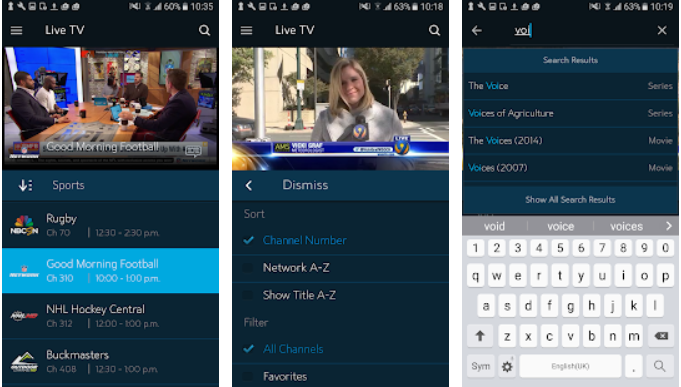
Spectrum TV app by Charter/Spectrum is for the Spectrum TV users who want to keep the TV in their pocket all the time. This companion application allows the Spectrum TV users to enjoy up to 250 live TV channels on the go. Spectrum TV is loaded with over 30,000 On-Demand TV shows and movies. For this, the users have to be connected to the internet via Spectrum Internet WiFi. When the users are using any other internet connection, they can watch up to 150 live channels and the number of TV shows and movies comes down to 20,000 from 30,000.

The Spectrum TV application’s purpose is to replace your TV. It basically means that you do not need your actual TV with you all the time. Your smartphone can do this job pretty well with the help of the Spectrum TV Application. You can turn any room or any place into an entertainment area with the help of the Spectrum TV application. The application comes in handy especially when you are cooking something in the kitchen. You can watch the recipes in parallel in order to enjoy cooking at your best.

Record the shows remotely, parental controls, and more!

Spectrum TV has got everything sorted in an appropriate manner. It is very easy to navigate through this application and find your desired TV shows and movies. Users can recall their recently watched channel, movie, and shows. The application offers customization to configure this application according to your liking.

Spectrum TV also allows its users to control their TV and DVR via the Spectrum TV application. You can change the TV channels on your Spectrum receiver at your home. You can record the TV shows and movies remotely. It is also possible to modify DVR recordings. You can play a DVR recording on the TV as well. The application comes with parental controls. You can set a PIN on your Spectrum TV with the help of this application. The application is filled with a number of other options that are really useful.

To use the Spectrum TV app, all you need is the Spectrum TV subscription and an Android phone. If you do not have an Android phone, you can run the Spectrum TV application on your computer as well. If you are thinking about how you are going to do that, then let me help you here. I am going to show you the steps to download, install, and run Spectrum TV for PC.

Spectrum TV for PC

Spectrum TV users can download Spectrum TV for PC via BlueStacks 4 on Windows and BlueStacks on Mac. Users first need to install the BlueStacks 4 or the old version of BlueStacks depending on their ecosystem. After installing the emulator, users have to add the Google Account in order to set up the emulator.

Open the Google Play Store in the emulator after adding the Google Account. Now find the “Spectrum TV” application. Once found, install the application. The installed application will appear under the “All Apps” tab in the emulator. Launch the application and follow the on-screen instructions to use it.

That’s all. If you have any queries, you can contact me using the comments section below. If you have anything to add to this guide, drop the idea below as well.

Download Google Camera 7 Android APK

3
Download Google Camera 7 Android APK

Google just updated its camera application to version 7. Google Camera 7.0 comes with exciting new features. Google Camera fans can download Google Camera 7 Android APK from here now.

Google Camera 7 Android APK
Google Camera 7 Android APK – Picture Courtesy: XDA-Developers

Before you download the Google Camera 7 APK for Android, let me tell you a little bit about this app.

Google Camera 7.0

Whenever we talk about the Google Camera application, it doesn’t mean that we are talking about the ordinary Camera app that comes in the Play Store. It means that we are talking about the Google Camera that comes bundled inside the Google Pixel phones.

The Google Camera 7.0 is going to be a part of the Google Pixel 4 handsets. The application is bringing massive changes over the previous camera apps and it’s also going to have a couple of new features.

Google Camera 7.0 is all set to introduce the new Astrophotography feature. This feature will be focused on capturing the Astro-objects such as the Moon, Stars, and the Sky. Furthermore, Google has changed the location of some options. It has swapped the options here and there.

The company has also added tons of Night Sight improvements. Google is already the Boss when it comes to capturing low-light photographs. We are really curious to see where the low-light photography will go next after the Night Sight of the new Google Camera app comes into action.

Courtesy: XDA-Developers

Another prominent change in the new camera app is the functionality of the capture button when pressed long. Previously, long-pressing the capture button started a burst shot. The new app will change this. Long-pressing the capture button will start recording a video. As soon as you lift your finger, the video recording will stop.

Google is also adding a new Horizon-level circle which let you straighten your phone while taking the pictures. The camera app also shows a Camera Coaching feature which is aimed at training Google Pixel owners for better photography.

Courtesy: XDA-Developers

There are many other features that are worth giving a try. You can definitely get your hands on the Google Camera 7 and check it out right away. As of now, this application will run smoothly on all Google Pixel handsets. We will start getting its ports for other Android smartphones very soon.

You can go ahead and download the Google Camera 7 Android APK for your Pixel phone. The method to install is also given next to the APK.

Google Camera 7 Android APK

Google Camera 7 APK for Android – Download

  • Copy the APK to your phone.
  • On the phone, open the APK using a File Manager.
  • Install the APK.
  • Launch the Google Camera from the app drawer.
  • Enjoy the all-new features. That’s all.

If you have any questions/queries, feel free to reach out to us. I will try my best to get back to you as soon as possible.