Home Blog Page 25

Best PDF Editors for Mac in 2020
0
Best PDF Editors for Mac in 2020

PDF files are becoming one of the most frequently used document types these days. A PDF file, at its core, is basically a document. You can design this document the way you want. You can add colors, buttons, banners, images and everything else that you need for a certain type of document.

To create, edit, combine or perform any other operation within a PDF file, you need a specific kind of software. Back in the day, we had only 1 or 2 software that could handle the editing and tweaking operations in the PDF files. Right now, we have a handful of PDF editors. If you want to go with the best PDF Editors for your Mac in the year 2017, you might get confused while picking up one. To help you with the selection, we have compiled a list of best PDF Editors for Mac in 2020.

PDFelement 6 for Mac

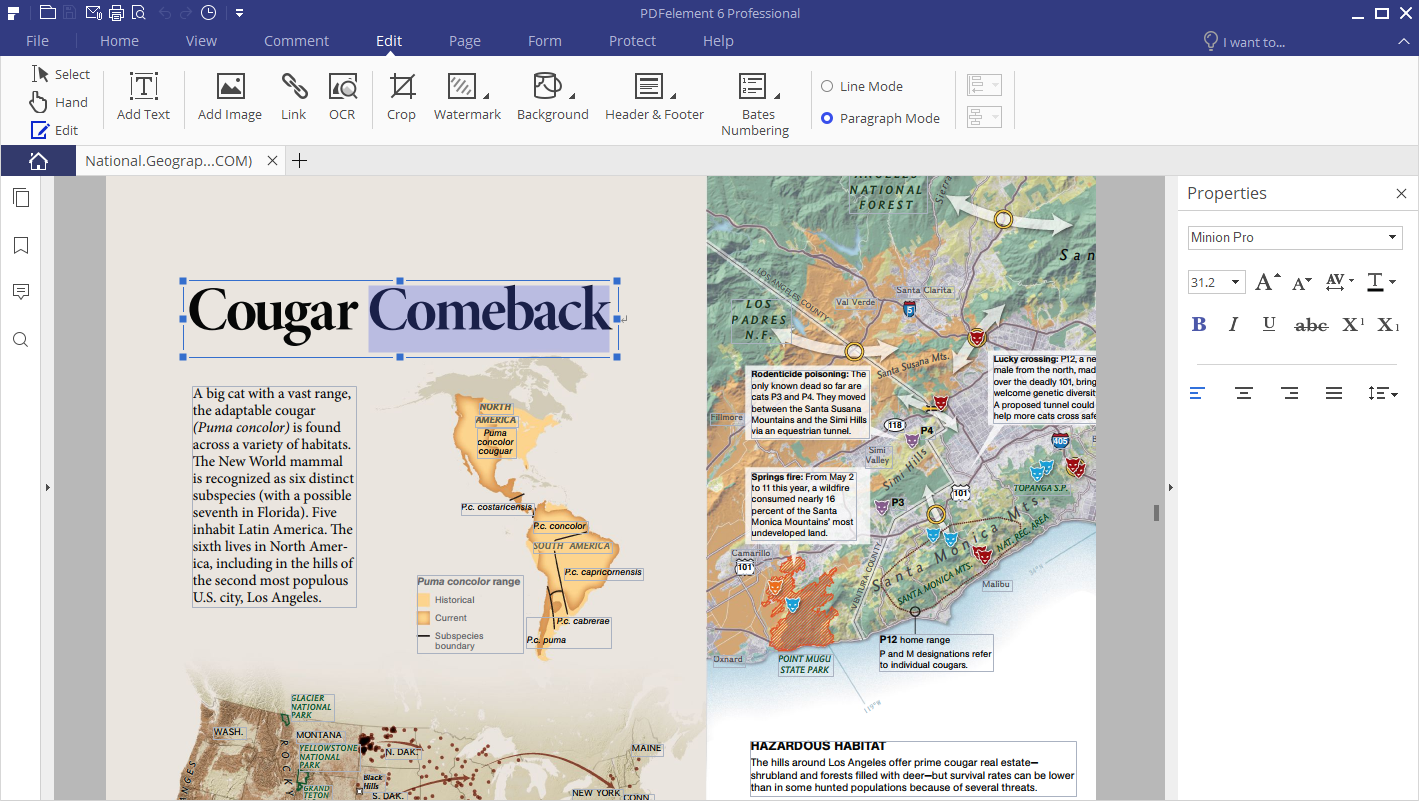
PDFelement 6 comes from a very well reputed company. PDFelement 6 has a number of goodies to offer. The Mac version fulfills all the needs of people looking for an all-in-one PDF solution. With PDFelement 6, users can create, edit and combine PDF files. PDFelement 6 for Mac’s UI is inspired by the office. Apart from having a handful of useful features, PDFelement 6 for Mac also offers a very intuitive UI. Let’s break down the features of PDFelement 6 for Mac to understand it in a better way.The 5 best PDF editors you can use right now
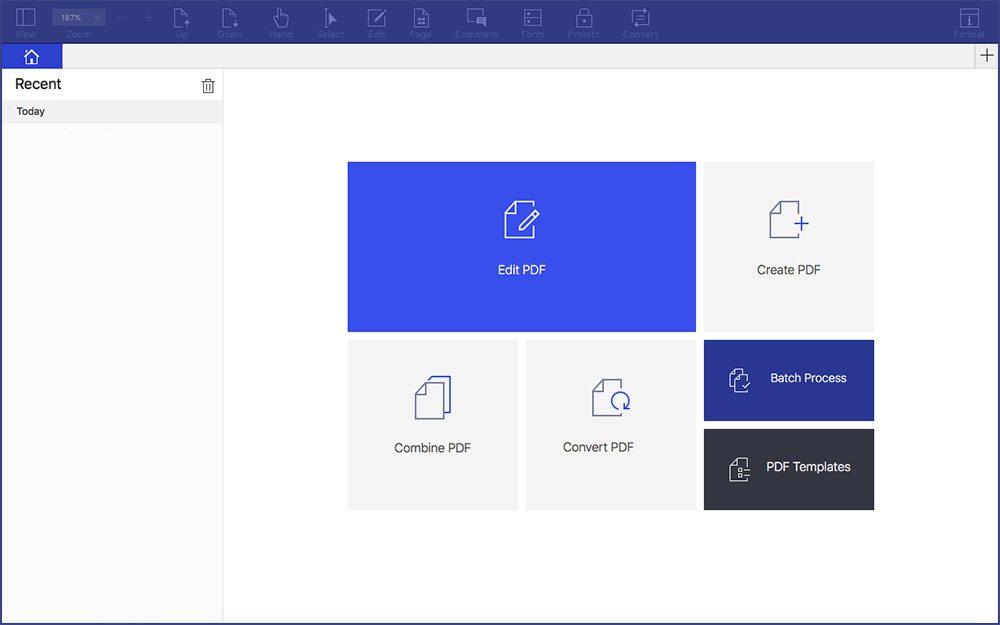
Here is what PDFelement 6 can do:

  1. Create PDF Forms with the option to fill: If you have made any unfillable forms in MS Word, Excel or any other application, you can easily turn them into fillable or editable PDFs with just a single click using PDFEelement 6.
  2. Efficiency: PDFelement 6 is fast and intelligent. It works at its best.
  3. Smarter and Faster Text Editing: Most of the features in PDFelement 6 are inspired by Microsoft Word. It provides a seamless experience that will make the users feel as if they are still using MS Office.

Here are the features of PDFelement 6 [Standard]

  1. Create PDF Files
  2. Convert PDF Files
  3. Annotations and Comments
  4. Secure and Sign PDF Files
  5. Add Watermarks, Backgrounds, Headers, and Footers
  6. Access to Hundreds of PDF Templates
  7. Adjustable Boxes

The free version of this PDF Editor is capable of performing all the basic PDF tweaks. These are just a few features of the PDFelement 6. There’s an extended list of features that this tool supports. To have an idea of every single feature being offered by PDFelement 6, you can have a look at their official website.

There are two versions of this tool. The one that we have discussed above is the standard version. There is a PRO version of PDFelement 6 for Mac. We will discuss the features of PRO version in a short review below.

Adobe Acrobat DC

The thing about Adobe Acrobat for both the Pro and Standard version is that you can choose how you pay for it. You can select annual, annual prepaid, monthly, and others. What you do not get in the standard version is comparing two versions of a PDF to review all differences plus not getting the ability to turn scanned documents into editable, searchable PDFs.

What you also don’t get in the regular version is redaction capabilities, reducing files sizes and adding interactive elements to PDF files ranging from audio and video. Then again, you’ll be paying much less for the standard version in the end.

PDF Expert

PDF Expert gets you everything under one roof when you’re into things like highlighting text, adding notes, filling out forms or signing out documents. You can also edit PDFs as text documents, which is the primary task for the majority of Mac users that are using such editors.

As for the pricing, for three Macs, you will be charged $59.99, Which is less than $20 per computer, so not a bad deal by any means. Do take care to know that there is also a free version available for you, but it will never have as many features than the one that is taking your dollars.

PDFelement 6 Pro for Mac

PDFelement 6 Pro for Mac includes everything that the standard version reviewed above has to offer. Apart from the standard features, there’s a lengthy list of features and operations that the PDFelement 6 Pro for Mac encompasses. PDFelement Pro for Mac comes with a $99.95 price tag. It’s still cheaper than the Adobe PDF Editor. Wondershare has insisted the most on the OCR technology embedded in their latest PDF Editor. The better use of OCR technology certainly makes this editor a very reliable product and also helps it to stand out from the competition if you want to edit scanned PDF Files. OCR is there in other PDF Editors as well, but it’s not about having a feature, it’s about implementing the feature in the best possible way. While we have already had an idea of what PDFelement 6 is, we will only discuss the features that are being offered by PDFelement 6 Pro for Mac. 

  1. Create PDF Files
  2. Convert PDF Files
  3. Annotations and Comments
  4. Secure and Sign PDF Files
  5. Add Watermarks, Backgrounds, Headers and Footers
  6. Access to Hundreds of PDF Templates
  7. Adjustable Boxes
  8. Optical Character Recognition (OCR)
  9.  Automatic Form Recognition
  10.  Form Data Extraction 
  11. Bates Numbering
  12. Redaction 
  13. Batch Process PDF Files
  14. Extended Compatibility Support for File Formats
  15. File Size Optimization
  16. Support PDF/A
  17. Scanner to PDFs

Preview PDF App

Your Mac will always come pre-installed with the PDF Preview app. Labeled just ‘Preview’ in your app drawer, it will allow you to view and edit images plus PDFs. As for the features you get in return, it will allow you to add shapes, texts, notes, a signature, select an area, and fill in forms. While these are just the basic things you’re getting with Preview, it should be noted that in the majority of the cases, this is regarded as more than enough for PDF file-related work.

How to edit a PDF using PDF Element 6 for Mac

PDF Element 6 can be used to edit or create a PDF file. The process is incredibly simple and easy. All you have to do is to follow a few steps given below.

  1. Download and install PDF Element 6 on your Mac using the links given above.
  2. Open the newly installed PDF Element 6 on your Mac.
  3. Now in the PDF Element 6, click on the Edit button and select your desired PF File.
  4. You can now start editing your PDF. You can extract data from a PDF, add new elements to the PDF and a lot more. Once you are done editing the PDF, you can save the changes. That’s all.

That’s all for now. I hope that you find this list helpful.

Top 5 Best Malware Removal 2020

0
Top 5 Best Malware Removal 2020

Here are the best Malware Removal apps and software for your Windows PC. These are the most pouplar Malware Removal apps as of January 2020.

Best Malware Removal. Over the past few years, computers have seen a deluge of innovation. Our daily tasks are getting computerized and there are merely the things that are now done by human hands. When it comes to the computer, things get extremely easy, but at the same time, your security is at extreme risk as well. Computing isn’t as simple as it seems.

Using computers and particularly when you are connected to the internet, every single thing that you do is at risk of being compromised. In order to prevent this compromise, you need to take some extra measures to ensure that no loss happens at any point at all.

Only being aware of the activities going on in your computer is not enough. There are a million ways through which hackers and attackers can inject malware or viruses into your computer. Sometimes, this malware comes into your computer through the applications that you install being unaware. At times, this malware comes in the form of toolbars inside your browsers and at times, the USB devices that you connect to your computer are responsible for damaging your PC.

The best solution to achieve the peace of mind in this regard is to get hands-on an Antivirus or the Malware Removal application. It will simply keep an eye on all the processes on your computer and kick out the fishy activities or block the spammy processes.

Now that you have an idea of what malware is, how it can damage your computer and your safety and also how you can protect yourself from it, the next question is which Malware Removal you should pick up? As soon as you move here and there to stick to one application, you will simply get confused and end up going with no Malware Removal. To make the entire process easy for you, we have shortlisted Top 5 Best Malware Removal 2020. You can use one of these Antivirus Malware Removal application and get rid of all the dirty stuff from your Windows-powered computer.

Top 5 Best Malware Removal 2020:

1. Microsoft Security Essentials/ Windows Defender

Price: Free | Download

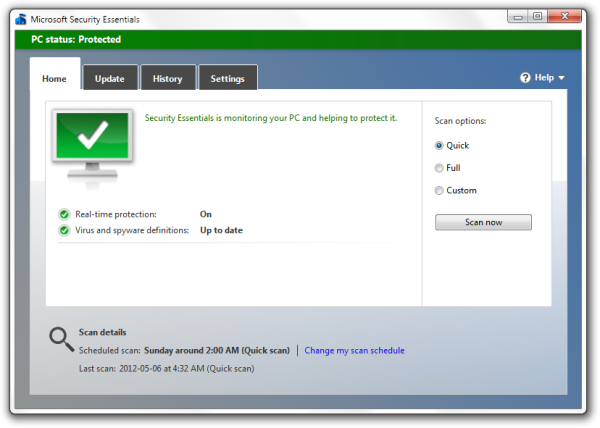
Microsoft Security Essentials are included in each new installation of Microsoft Windows. It works intelligently in the background and keeps a close watch on every single activity happening inside your PC. The Windows Defender in Microsoft Security Essentials is responsible for spotting all the malicious activities and informing you about them. This is the most reliable and most trustable Malware Removal application and works absolutely flawlessly.best malware removal

2. Panda Free Antivirus

Price: Free | Download

Panda Free Antivirus is said to be the lightest and the most easiest Antivirus according to its developers. Panda Free Antivirus is available for Windows and Android platform. The Malware Removal works intelligently in the background and protects your computer from the hackers and attackers trying to snoop into your PC via Wi-Fi. It will also boost up the processes in your PC.

Panda Antivirus keeps a close eye on all of your online activities and keeps you informed with all the malicious content hitting your computer. It also comes with a password manager to ensure that you don’t have to remember all of them.best Malware Removal

3. Avira Free Antivirus

Price: Free | Download

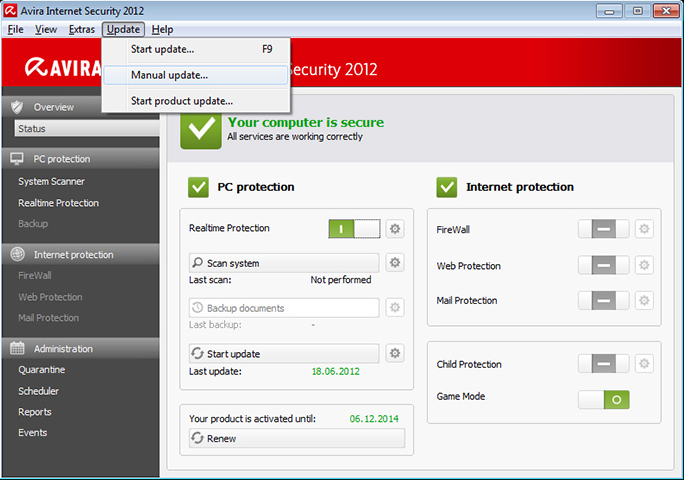
Avira is definitely one of the most popular and also the most trusted Malware Removal software. It’s an award-winning antivirus. The cool thing about Avira is that it’s an all in one package. You don’t need to worry about anything at all once you have installed it.

Avira will wipe off all of your online traces, let you surf the internet anonymously and take care of your privacy over the internet. It also scans your computer on regular basis to prevent spam activities.best Malware Removal

4. AVG Free Antivirus

Price: Free | Download

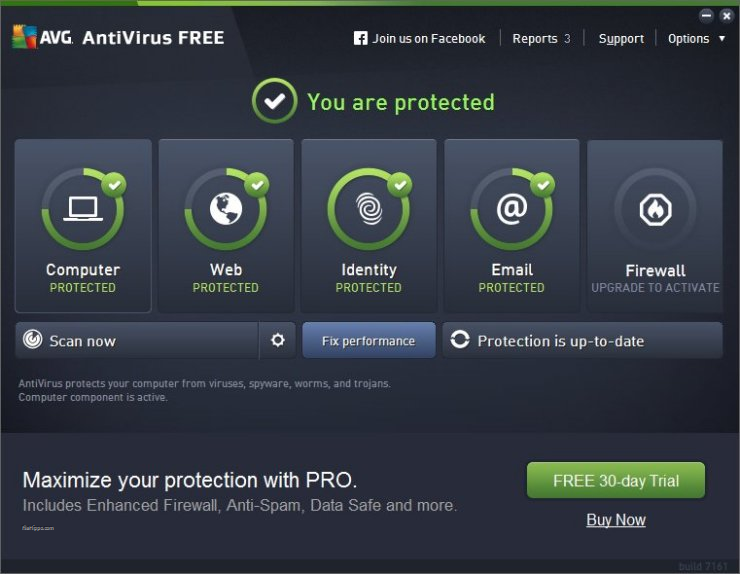
AVG is known for ages as well. It comes with its own tune-up utilities which will simply boost up your PC, remove the content you need not to care about. AVG handles your device’s privacy and security very well. It doesn’t let it’s users to fall into any trouble because of the malware attacks. AVG can be used as your primary malware removal application as well.best malware removal

5. Avast Free Antivirus

Price: Free | Download

Avast stands the last in our list. It’s another Antivirus that really doesn’t need an introduction. Avast has a free version for the users who cannot afford the premium version.  It has been managing to make its way to the list of best Antivirus and malware removal software as well.Malware Removal

That was all from our list. If you have any suggestions, drop them in the comment box below.


Install Huawei Mate 30 Pro Google Play Store and GMS [Working 2020]

12
Install Huawei Mate 30 Pro Google Play Store and GMS [Working 2020]
Mate 30 Pro - All set to install Play Services

This is the tutorial to download and install Huawei Mate 30 Pro Google Play Store GMS. Google Framework will run on all Mate 30 phones. As of January 2020, this is a fully working solution to get Google Play Services on the Huawei Mate 30 and Mate 30 Pro.

Install Huawei Mate 30 Pro Google Play Store and GMS
Mate 30 Pro – All set to install Play Services

Play Store on Huawei Mate 30 

Huawei Mate 30 series was the very first casualty of the US-China trade war. Back in August, the US imposed a ban on all of the Chinese companies doing business with American companies. This included companies like Google, Microsoft, Intel, AMD, and many others.

For those who don’t know, Android is Google’s operating system and Google provides this OS to all the Android phone makers. Huawei is also one of those phone makers. Google is also responsible for all Apps like Gmail, YouTube, Play Store, Calendar, and others on the Huawei phones. 

After the ban, Huawei wasn’t allowed to use the official Android OS or any of the Google Apps on its phones anymore. The Mate 30 Pro was the very first phone that came out after this ban, and as expected, the Mate 30 Pro didn’t have any Google app. The Android on the Mate 30 is the open-source version of Android. Huawei tried its very best to add a Play Store alternative, but honestly speaking, nothing can replace the Play Store. It’s very hard for a Play Store user to hop on to an alternative. It doesn’t matter how big of a Huawei fan you are, a Play Store alternative is just a no-go.

After a few days of the Mate 30’s release, a solution to install the Play Store popped up. A site called LZPlay allowed users to install the Play Store on Mate 30 and other Huawei phones. This solution was a ray of hope, but as soon as it was taken down, the Mate 30 owners were left in the dark once again.

Get Play Store on Mate 30 once again – Another ray of hope!

Come January 2020, and we have one more solution. The solution is good enough, but I can’t say if it’s temporary or permanent. If things stay under the clouds for Huawei, this solution might have the same fate as the LZPlay, but as long as it is there, you must get it and enjoy the Google goodies on the Huawei Mate 30, Mate 30 Lite, and Mate 30 Pro.

This solution to get Play Store and GMS on the Mate 30 involves restoring the backup of a device on your Mate 30. The backup apps have the Play Store. The restore process basically adds the Google Framework or the Google Mobile Servies to the Mate 30. Once you have the Mate 30, you can install the Google Apps one by one. We will be installing the Play Store, Play Services, Play Music, Calendar, and a couple of other apps on the Mate 30. 

This is going to be a lengthy procedure and it has certain requirements. Take a look at the instructions below to prepare your Mate 30 handset for Play Store installation.

Requirements & Preparations

  1. This guide is for Huawei Mate 30 Pro, Mate 30, and Mate 30 Lite.
  2. You need a USB flash drive with Type-C. If you don’t have a flash drive with Type-C, you can use a USB Type-C OTG to and a normal flash drive.
  3. A computer to copy files to the USB flash drive.
  4. This tutorial – follow it to the letter.

Downloads

  • Google Mobile Services & Apps BackupDownload
    • Copy the downloaded zip to your USB flash drive.

Install Huawei Mate 30 Pro Google Play Store and GMS

These are the steps to download and install Huawei Mate 30 Pro Google Play Store and GMS.

Total Time: 10 minutes

Connect the USB flash drive with Type-C OTG to the Mate 30 Pro and get the files.

First of all, connect the USB flash drive to the Huawei Mate 30. Open the File Manager on the phone, and access the flash drive. Long-press the Huawei.zip folder and extract it at the same location to get the Backup folder.
Install Huawei Mate 30 Pro Google Play Store

Copy the Google folder to the internal storage.

From the flash drive, select the Google folder and copy it. Paste this folder in the internal storage of the phone. Do not place it inside any folder, it should be on the main root of the internal storage.

Restore the Apps backup on your Mate 30.

On the Mate 30, go to Settings > System & Updates > Backup & restore > hit Agree & Agree > External Storage > Select the backup > Apps & data will be selected > click on Restore. If it asks for a password, the password will be right-below the password field on your phone, copy it from there.
Install Huawei Mate 30 Pro Google Play Store

Install the Google Apps from the Google folder one by one.

Open the File Manager, go to Internal Storage and open the Google folder that you copied in the first step. Now install all the Google Apps on the Mate 30 one by one. This will be Chinese so just keep hitting the okay/agree/yes buttons in the blue color.Install Huawei Mate 30 Pro Google Play Store

Install the Play Store using the Google App on the home screen.

You will have several Google Apps on the home screen now. Open the App that has a big “G” in the bluish/purple color in its logo. Click on the “Activate” button in this app and then click on the big blue button at the bottom. The app will attempt to install the framework, the first app will fail. At this point, press and hold the power button > restart the phone. As the phone boots up, you will have the Play Store up and running. That’s all.Install Huawei Mate 30 Pro Google Play Store

Congrats! You have just installed the Google Play Store and all Google apps on your Mate 30 phone. Keep in mind that you can go ahead and install other Googe Apps like Google Maps, YouTube, etc from the Play Store now. You can also update the Play Services and Play Store from here on.

Final Words

That’s all. Let us know how you are liking the Google Apps experience on your brand new Mate 30. If you are facing any difficulties regarding this guide or any of the Google Apps on the handset, use the comment section below to reach out to us. I will make sure to get back to you as soon as possible.

5 Best Dialer Apps for Android [Dialer Replacement] 2020

0
5 Best Dialer Apps for Android [Dialer Replacement] 2020

An Android phone’s dialer is undoubtedly its most essential part and also the most used part. There are limitless possibilities to modify your Android phone. You can load install new launchers to change the look of your phone’s entire UI, you can install themes, you can also change the icons. But the Dialer is one part that we neglect often. We can actually change the look of the dialer as well. There’s a handful of dialer applications in the Google Play Store that can give the dialer a new look. If you’re tired of seeing the same stock dialer of your phone again and again, then here are 5 best dialer Apps for Android that you can use every now and then to bring a new dialer UI on your phone.

5 Best Dialer Apps for Android [Dialer Replacement] 2020

  1. True Caller

True Caller is the most popular dialer application. It’s not only the dialer that makes this application popular. It is also the Caller ID feature that puts it ahead of other dialer applications. Anyone, who has ever installed this application and signed up, is in the loop. True Caller keeps your information safe and sound unless you choose to delete it intentionally.

Any other person using True Caller can easily come across your identity if you are calling him or her. True Callier is useful to identify unknown calls and block the people whom you want to get rid of. True Caller’s Dailer has a very nice and minimalistic UI. This application is recommended as it serves multiple purposes. Besides giving your Dialer a brand new outlook, you can get some benefits from it as well. 

2. Hangouts Dialer

We love a lot of things developed for Android by Google. Google Hangouts Dialer is one of them. Google has managed to put together a very nice combination of colors and UI elements in the Hangouts Dialer application. If you have ever used the Hangouts application, you must have seen it. Hangouts Dialer is now available as a standalone application.

It can be installed on your Android smartphone and replace the stock dialer application. Hangouts Dialer has an outbound UI. Whenever you call a number, it can immediately tell you what country or what location this number belongs to. The outbound caller ID can also inform the call recipient about your identity to make them trust your call. 

3. Contacts, Phone Dialer & Caller ID: drupe

If you want a lot of options right in the dialer of your Android phone, then this drupe dialer is the one you want to go with. Contacts, Phone Dialer & Caller ID: drupe is packed up with the options that you usually find in the operating system of your smartphone. There is a caller ID in this dialer as well. This caller ID can track and block all the unwanted calls and SMS messages for you. The dialer adds extended features to your phone’s screen. You can swipe the screen to quickly call your favorite contacts added in the dialer.

There is an inbuilt call-recorder. It’s time to keep a track of all the incoming and outgoing calls. You can add GIFs to all the outgoing calls. It also comes with its very own phone book in which you can keep your contacts without the duplication issues. It also has a walkie-talkie that you can use to send voice messages to your friends who are also using it. The missed calls manager will make sure that you do not go out of contact with your loved ones. 

4. Dialer+

Dialier+ is another dialer replacement application with some incredible UI elements. Dialer+ also comes with a contacts manager. Like other dialer applications, it also comes with an in-built caller ID to protect you from spammers. Dialer+’s contacts manager keeps backing up your contacts every now and then. All these contacts are saved on the cloud storage to ensure that you never lose them. It also creates a backup of your text messages and call logs. Dialer+ is a blend of a very eye-soothing UI with some handy features. 

Dialer +
Price: Free

5. ZenUI Dialer

If you haven’t already guessed it, this is the dialer from Asus’s ZenUI. ZenUI Dialer also comes with an integrated caller ID and contacts manager. ZenUI Dialer brings only the basic features to avoid any kind of confusion. The integrated contacts manager can take care of duplicate contacts. The caller ID can give you a hint about the unwanted calls and SMS messages.

The smart search feature is bound to come up with your desired contacts before you blink your eye. You can add up to 8 contacts in the speed dial menu. You can also password protect your contacts. A security feature in the dialer captures the picture of anyone trying to break the password of your contacts. 

Unknown app
Price: Free

Don’t forget to checkout:

Best Free Note Taking Apps For Android 2020

0
Best Free Note Taking Apps For Android 2020

There was a time when people used to carry heavy notebooks packed up in bags and briefcases just for the sake of noting down the important points/notes,  whenever they wanted to attend a meeting or some other important event. The arrival of Laptop and Notebook PCs definitely minimized this use of notebooks, but that wasn’t enough as carrying a laptop everywhere still seems quite hard.

Another fear that you probably always had on your mind was losing the important documents you made your notes on, what will you actually do if you just lose em’. What has actually minimized the use of Laptops and Notebook PCs is Android. Android smartphones/tablets are used all around the world, and getting an Android-powered device isn’t hard at all as you can find one easily on an affordable budget.

Carrying the Android smartphones and tablets is even easier, so you don’t always need to bring your big bags, notebooks or some other stuff to take notes, an Android device will always do this job on the go, but to take notes on your Android smartphone or tablet, you will definitely need an application, and probably you will look out for the application that performs this task at its best.

Best Free Note Taking Apps For Android in 2020

While going through the Google Play Store, I came across a number of note-taking apps, but it was hard to go with the best one. Before you go through the same confusion, I’ve picked up the 5 best and free applications that can help you to take the notes being convenient. Let’s move forward and go through this list.

1. Evernote


Evernote by Evernote Corporation, happens to be the most popular and the best note taking application for AnFree Note Taking Apps For Androiddroid. It is loaded with tons of features which make it a lot easier for you to take and save your notes and share them on the go. The Evernote offers the users to add pictures to the notes, voice recording option is there that makes it even easier for you to remember and remind yourself anything. It also allows the users to add sketches and handwriting to the notes.

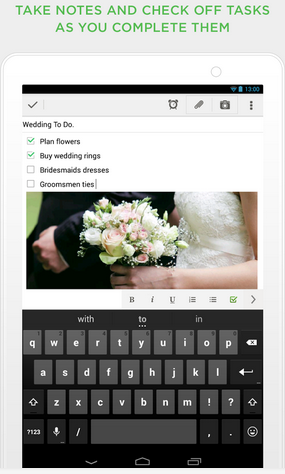
Evernote is available for different platforms e.g Windows and others. Once you install it on your Android device, you can sync your notes between all of your notes so, you don’t always need to transfer your notes or connect your device and you can access your notes across all of your devices without any hiccups here and there. Evernote’s feature list is quite long, we recommend you to install this application and check out everything it has to offer that enhances the note taking experience on your Android smartphone or a tablet device. The application is available for free in the Google Play Store, but also offers some premium features that you may purchase if you wish. Grab it from Google Play Store for free or download it for your Windows PC.

Evernote 2  Evernote1 Evernote3


2. Google Keep 

GoogleKeep

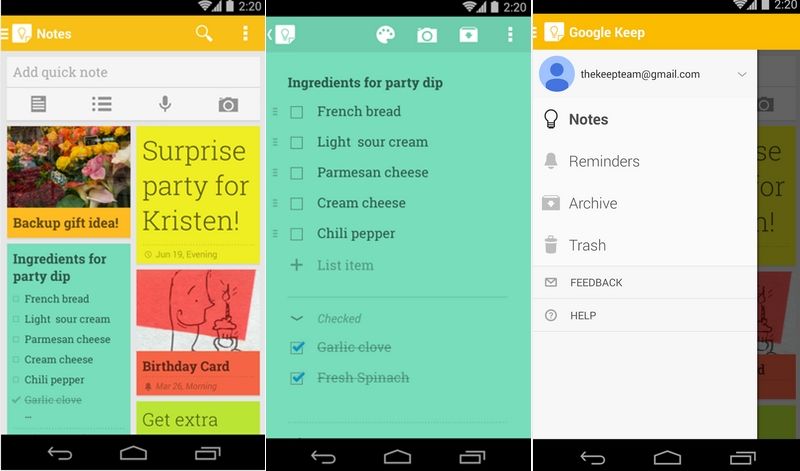
Google Keep by Google, obviously doesn’t need much explanation for standing at the number 2 spot in our list. The Google Keep is quite similar to Evernote but is less complex and simplistic. Google Keep prompts the users to quickly note what’s on their mind, quickly record what they are gonna speak so that they never forget, and quickly capture what’s tinkering with their eyes.

You can make your notes colorful and set a reminder based on location or time in order to get your task done on time, and yeah you can definitely add sticky notes to your device’s home screen using the widgets as well. The Google Keep is also available for multiple platforms that helps you sync between all of your devices using one Google account. Google Keep helps you to keep your notes organized so that you don’t have to face any problems while looking for your important notes in your device. Google Keep is absolutely free, go ahead and grab it from the Google Play or download it for other devices from here.

Keep1-horz


3. ColorNotes 

ColorNotes

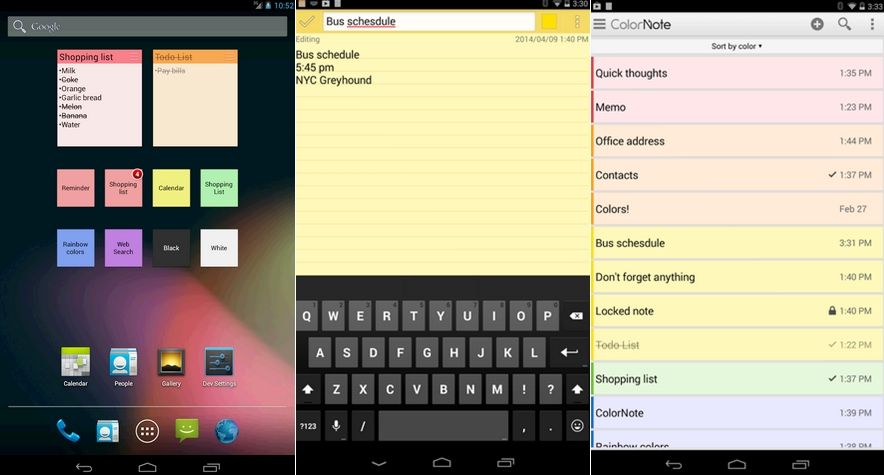
ColorNotes by Notes is way simple. The application isn’t loaded with a hefty list of features that help it to remain simple and easier to use. ColorNote offers the users to quickly note down the important points, emails, memos and make to-do lists and sort them by colors. Another cool feature this application has is the password protection for your important notes and the online and offline backup system that helps to keep the notes as safe as possible.

Sticky note widget is also there that will help you to remember your important stuff by staying at your device’s home screen as long as you do not delete it by yourself. Like the Evernote and Google Keep, ColorNotes also offers to put powerful reminders so that you don’t miss something important. You can install ColorNotes form the Google Play Store for free, and there are no in-app purchases.

ColorNotes 3-horz


4. Inkpad Notepad

Inkpad Icon 

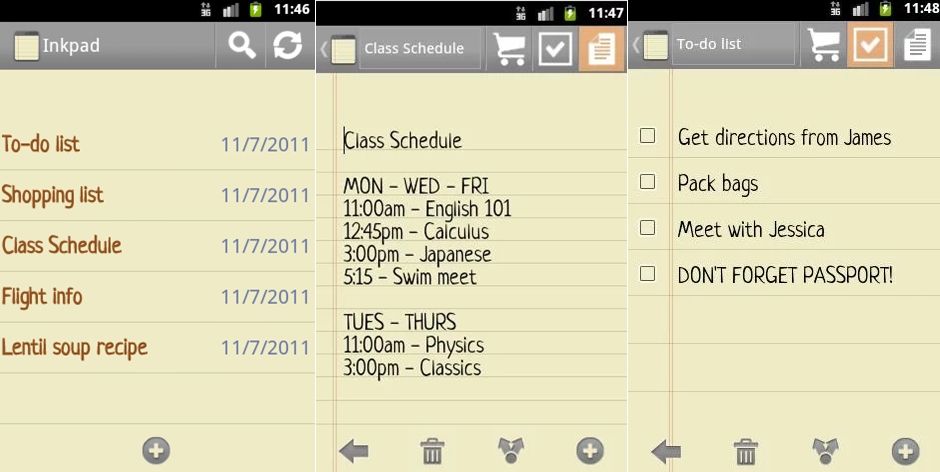
Inkpad Notepad is much similar to the ColorNotes but lacks a number of features that you may want to have in a note taking applications. The Inkpad Notepad offers the users to create notes, to-do lists, shopping lists and save them right away without taking any special actions as everything you write is saved automatically.

You can sync your notes online, and there’s a backup option as well that saves your notes to your phone’s SD card. Inkpad Notepad’s free version if ad-supported, while the paid one doesn’t have any advertisements. Grab it from the Google Play Store for free.


Inkpad1-horz

5. Fast Notepad 

FastNotepad

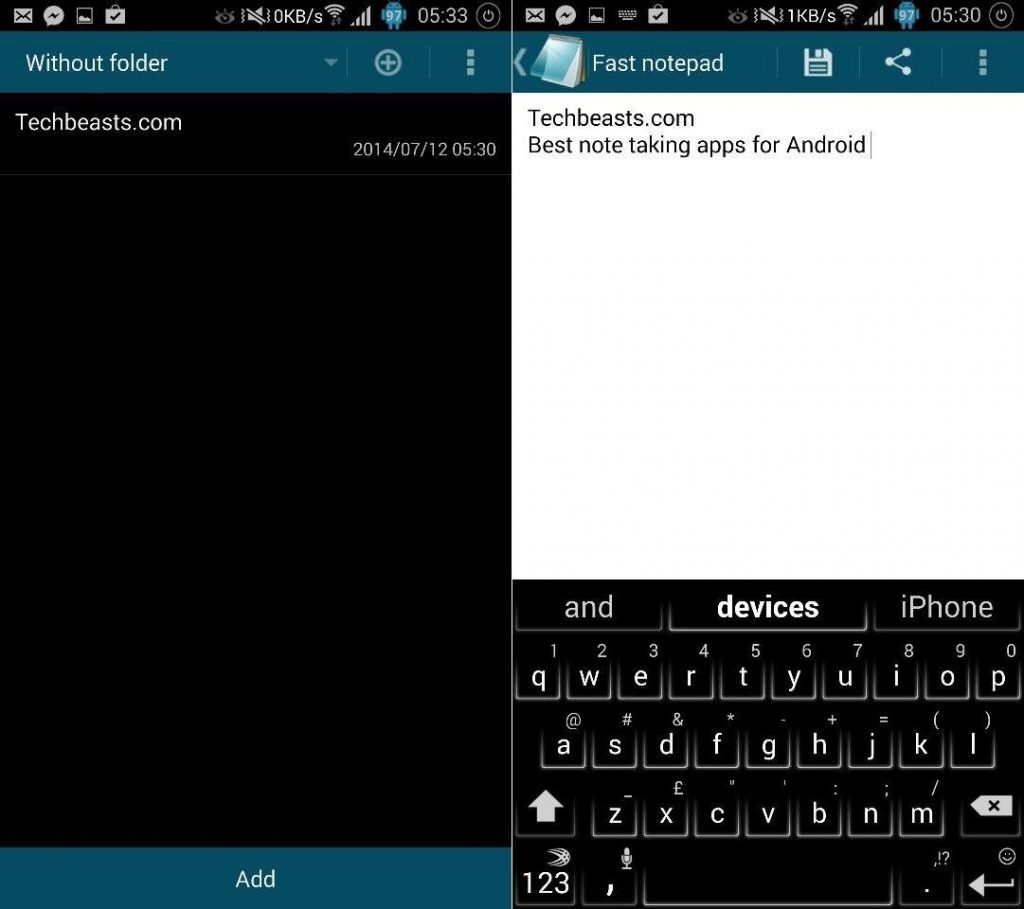
Last, in our list, Fast Notepad happens to the simplest and lightest note-taking applications on the Google Play Store. Doesn’t contain any special or extra features, the application is exactly as the name suggests, fast to take the notes. Simply create your notes, save em and share em’ on the go.
Because of the application’s in complex UI and features, I actually liked it and installed for myself. Just go ahead and install this 351KB application on your Android device for free from the Google Play.

Fastnote1-horz

That’s all. We hope that these applications prove out to be of some help for you. You will only forget your notes as long as you forget your Android device somewhere, so taking notes on Android is actually beneficial in all the ways.

In case you think that this list is missing something more useful, feel free to mention in the comment box below and we will have a look on that for sure. Thank you all.

Don’t forget to check:

Top 5 Call and SMS Blocker Apps for Android

0
Top 5 Call and SMS Blocker Apps for Android

Take a look at the best 5 Call and SMS Blocker Apps for Android. These apps will help you get rid of all unwanted calls & messages.

Someone you don’t know or you don’t want to talk to, is calling you on your phone again and again and also texting you. You want to get rid of this person. The very first thing that will pop up in your mind will be to block the calls and texts from this particular person.Call and SMS Blocker

If you are using an Android phone, you will find this option on your phone under the contacts application or in the settings > call settings application. But this is not the same for all smartphones.

Call and SMS blocking feature has become a standard in the modern Android smartphones. The old smartphones do not have this feature. Users having old Android phones are certainly out of luck. They do not have an inbuilt feature to block calls and SMS from unwanted people around them.

Android phones without a built-in SMS and Call Blocker can achieve this feature by means of a third party application. Google Play Store is glutted with such applications. Upon searching for an SMS or Call Blocker, you will find 100 if not a thousand results.

Now the confusion comes up when you have so many options to go with but you can’t decide which one is the best. Out of those 100s of applications, only a few have seemed to work for the users. The reviews for most of the applications are not impressive at all. It means that there are many applications which are fake.

Also, check:

To save a few minutes of our respected users, I’ve had a look on most of the Call and SMS blockers in the Play Store. I have managed to pick up top 5 Call and SMS Blocker Apps from the Google Play Store. These applications are picked up based on their reviews, ratings, and number of downloads. You can try these applications and keep the one that seems the most flawless at your end.

Top 5 Call and SMS Blocker Apps for Android 2020

TrueCaller: Caller ID and Dialer

TrueCaller is the most popular Caller ID and Dialer application. Any user who once joins TrueCaller, TrueCaller saves his identity forever unless the user de-registers himself from the application. TrueCaller keeps a record of all the information of a user. If an unknown number is calling you on your phone, the caller ID feature of TrueCaller will immediately identify the person and brings the name on-screen. TrueCaller has the feature to block unwanted calls and SMS messages. You can add a number and name to the TrueCaller application and it will keep blocking all the spam calls and SMS for you.

Download TrueCaller

Mr. Number-Block calls & spam

Mr. Number-Block calls & spam occupies the 2nd spot on our list. This application can be used to block any calls or SMS messages from an unwanted person. You can block a number of any region of the world. With this application, you can also redirect wrong numbers to a voice mail. The voice mail will keep the calls safe for your security. You can either select a number from your contact list to block or you can add a new number and name in the application to block it. Mr. Number-Block calls & spam is a free application.

Download Mr. Number-Block calls & spam

Caller ID & Call Blocker Free

Caller ID & Call Blocker Free is much similar to TrueCaller. This application has a list of extended features. It’s a complete package. Whether you want to keep a track of your call logs or install a new dialer on your phone, Caller ID & Call Blocker will do the job for you. It can track unknown callers and give you all the details regarding their name and origin. This application has a blacklist feature in which you can add all the numbers trying to reach you out for no apparent reason. It blocks both the calls and SMS from unknown and unwanted numbers. It also comes with different themes. You can add a contacts widget to the screen of your phone. There is much more that this application can do. If you are looking for an alternative to your smartphone’s phone application, you can get this one.

Download Caller ID & Call Blocker Free

BlackList

BlackList is a very simple application to filter the incoming calls and SMS. Users can create a blacklist on their smartphone. This blacklist will block all calls and SMS messages which are sent in to disturb you. It also blocks MMS messages. It cannot only block the unwanted numbers, but also the private numbers. The app also has an exception list where you can select which contacts to not to block. You can also set up this application to block all the calls during a certain time-span. With BlackList, you can also hide your lists and keep your blocked contacts away from everyone.

Download BlackList

Block SMS and Call

This application is the simplest one to use. It’s straight forward UI will let you add the numbers to be blocked either by manually entering the information or selecting a contact from your saved list. You can also stop all the advertisement calls and SMS messages from coming in your phone. It keeps a history of the calls you blocked and also the SMS messages you didn’t want to read. The advertisers, who usually use the numbers less than 5 digits, can be easily blocked using this application.

Download Block SMS and Call

Conclusion

Generally, a newer Android smartphone will have this feature in it. The applications above are only recommended when your phone lacks this feature. If these applications have helped you get your task done, let us know through the comment box below. If there is another application you want to add to this list, shoot that in the comments section as well. Stay connected with us.

Best Free VPN Apps for Android in 2020

0
Best Free VPN Apps for Android in 2020

Updated: 1/3/2020. VPN apps for Android are a worthy tool when you want to bypass the geographical limitations set on your internet. The internet is a place full of resources that one needs to add to the knowledge. The limits put on the internet make no sense at all as long as the content is fine. If your ISP or your country has set certain restrictions against certain websites and web pages, you can access them with the help of virtual private networks.Best Free VPN Apps for Android in 2018

VPN applications connect you to the internet using a different IP address. It basically masks your IP address. Changing the IP address makes your identity anonymous on the internet. Through this process, it protects your personal information from being compromised on the internet. So in short, we can say that VPN apps are a way to surf the internet being safe and also access the web pages that you are apparently not allowed to do so.

Back in the good old days, it wasn’t so easy to change the IP address since there were no easy to use applications. Users had to manually change their IP address after finding it on the internet. With the improvement in technology and with the advent of Android OS, applications made their way and eased the entire process of changing the IP address.

Right now, there are a plethora of VPN apps available in the Google Play Store. These applications provide unlimited bandwidth, make the surfing very fast. Furthermore, these applications give you the utility to select your desired country to connect the internet from.

After coming across so many applications in the Play Store, you may get confused with the selection. We have hand-picked a few applications. Have a look at the list of best free VPN Apps for Android and install the one that seems the best to you.

Best Free VPN Apps for Android in 2020

Opera VPN

With Opera VPN, you get:
• One of the fastest, most reliable VPN services
• Unblocked access via your choice of five virtual locations (with more coming soon)
• The ability to determine WiFi network security level, as well as connection encryption and protection from threats
• A built-in ad tracker blocker to stop advertisers from following you around the web

Opera Free VPN: Google Play Store

Turbo VPN 

Fastest – Connect successfully as a hare with high VPN speed.
Easiest – One tap to connect to VPN proxy server.
Most Stable – Have lots of free cloud proxy server to provide better VPN service.
Turbo VPN – Free VPN proxy,
Bypass the firewalls as school free VPN proxy for school wifi and school computer.
Unblock websites with free VPN proxy server. It can also unblock video not available in your country.
Protect your network traffic under WiFi hotspot Browse anonymously and securely without being tracked. Enjoy private browsing.
Works with WiFi, LTE, 3G, and all mobile data carriers.
Encrypts data using OpenVPN protocols (UDP / TCP).

Turbo VPN: Google Play Store

Hotspot Shield VPN

✓ Unblock geo-restricted contents: Encrypt all your traffic and get access to global media, video, messaging or social apps and networks.

✓ Secure all online activities: Hide your IP address, identity, and location from trackers, and enjoy maximum privacy and security.

✓ FREE or UNLIMITED: Use the basic features for free (forever), or simply upgrade to Elite for unlimited features!

✓ Unparalleled VPN Performance: our proprietary servers ensure the fastest VPN speed, most stable and secure connections.

✓ Largest VPN Coverage: Powered by AnchorFree, Hotspot Shield offers VPN coverage from 20 countries including US, UK, JP, IN, AU, CA, CN, and more!

✓ No Logs Kept: Hotspot Shield doesn’t track or keep any logs of its users and their activities. Your security and privacy are guaranteed!

Hotspot Shield VPN: Google Play Store

Yoga VPN

Useful – unblock, anonymous browsing,protect privacy, security agent, WiFi hotspot shield, fast and stable.
Easy to use – free, unlimited bandwidth, unlimited time, one-touch connection.

Yoga VPN: Google Play Store

Tunnel Bear VPN

Unblock your favorite websites from anywhere in the world
• Keep your IP Address and location private from websites and online trackers
• Visualize your Bear “tunneling” your data from one country to another
• Safely use public Wifi
• Friendly customer support
• An incredibly simple VPN app for your Android phone or tablet

TunnelBear VPN: Google Play Store

UltraSurf VPN

Fast and Free VPN, No trials, No registrations, No logins, No bandwidth limitations, No Ads.

Unblocks popular apps and websites: YouTube, Facebook, Google, Twitter …

Secure your connections on public WiFi hotspots, hide your IP to browse the web privately & anonymously.

Works with Wifi, 4G, 3G.and all mobile data carriers.

UltraSurf VPN: Google Play Store

SuperVPN

Protect your privacy, keep you safe from 3rd party tracking
* Unblock geographically restricted websites
* No registration required, no settings required
* No speed limitation, no bandwidth limitation
* One-click to connecting VPN
* No root access needed
* Encrypts your internet traffic
* Top server speed & reliability
* Using most secure VPN solution

SuperVPN: Google Play Store

Also Checkout:

Best Free Calendar Apps For Android 2020

0
Best Free Calendar Apps For Android 2020

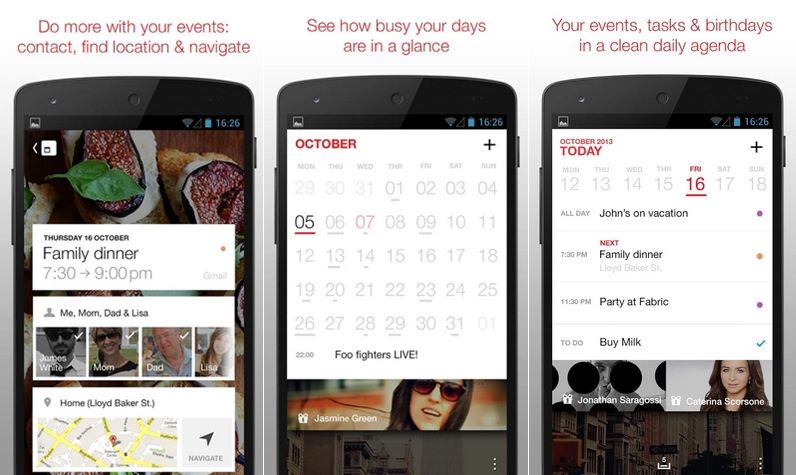
Stock Calendar applications loaded by the device manufacturers are not always so good to stick with. There might be some limitations that are annoying or sometimes seeing the same UI again and again urges you to get rid of the stock application and go after something new and something cool. Google Play Store is loaded with tons of Calendar applications, but the problem may arise when you have to pick up the best Calendar app that also happens to be free for yourself, that actually works perfectly as there’s a number of useless applications available that do not work as mentioned in the descriptions.

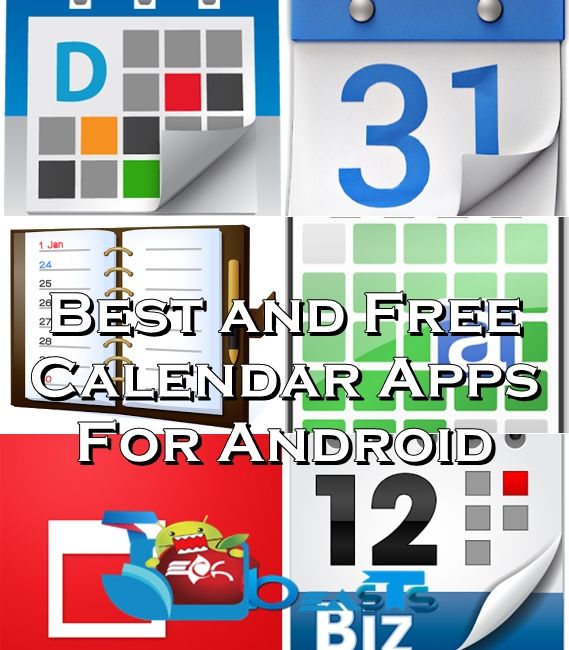
Samsung has installed the S-Planner application in the Galaxy Note 3, that’s quite a great app, but I still wanted to try out something new and for the purpose I started exploring Google Play Store. Out of 100’s of Calendar applications, I’ve compiled up some best ones that are pretty much good to go with. Let’s move forward to the list of best free Calendar Apps for Android and select the one that suites you the best and install on your Android device right away.

Best Free Calendar Apps For Android 2020

1. aCalendar – Android CalendaraCalendar 

aCalendar – Android Calendar by Tapir Apps GmbH is loaded with a number of features that may make you fall for this application quickly. The application has a great and cool UI. Offers 48 different colors per calendar and there’s a variety of widgets that you may choose from to set on your phone’s home screen.

aCalendar offers daily, weekly, and monthly formats. aCalendar is optimized to work efficiently and eat less battery on your Android device. You can grab the freeware of aCalendar – Android Calendar with limited options, while the paid versions offers some enhanced features.


Best Free Calendar Apps For Android 2018


2. Google CalendarGoogleCalendar 

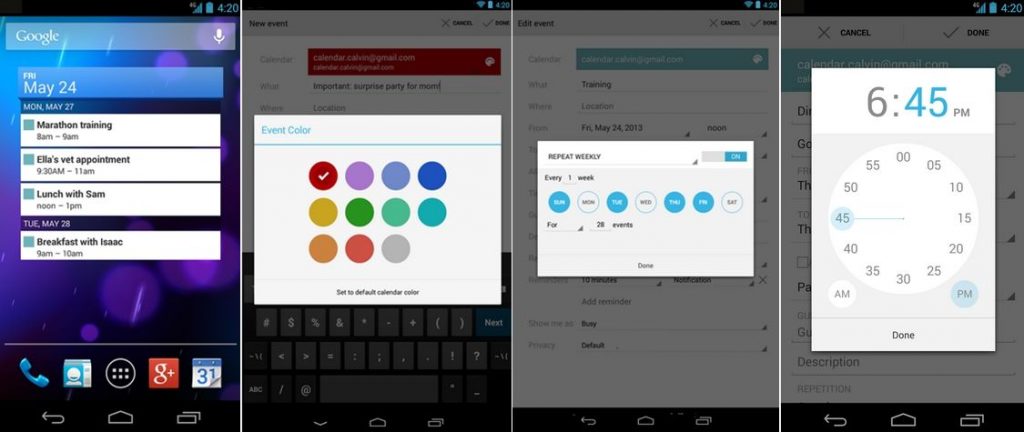
Google’s applications are the best choice to adapt when it comes to simplicity and incomplexity. Google Calendar is absolutely free in the Google Play Store and works on all Android device having Android 4.0.3 or above.

The application didn’t get a hefty list of features that helps it to stay less complex, it offers a simple calendar with an option to set reminders for different events and you can also set the widgets on your home screen so that you don’t miss out something important. Google Calendar allows the users to add colors to the events as well in order to make the schedules look beautiful.

GoogleCalendar4-horz


3. Jorte Calendar & Organizer 

JorteIcon

Jorte Calendar & Organizer is pretty much fancy and colorful. The application is highly customizable, you can set the background of your choice. Jorte also allows the users to add photos to the events in order to set better reminders, besides this, Jorte is capable of syncing up with Google Calendar, Faceook and Yahoo Calendar in order to import your event data to Jorte.

It also offers event calendars that helps you to stay tuned with the ongoing events e.g a Football Worldcup match with the schedules and the scores. Jorte is available for free, but it also offers in-app purchases in order to enhance the functionality according to your liking. Grab it from the Google Play Store.

Jorte-horz


4. Cal-Calendar Google/Exchange 

AnyDoCalIcon

Cal-Calendar by Any.do offers a smooth and intuitive user interface. Cal has a ponderous list of features to offer as well. The application aims at balancing between the life and work of the users.

Cal helps the users to stay supercharged for the meetings using the reminders and the widgets on the home screen, you can also make voice entries to the calendar. Cal is loaded with over 9 different themes to make the application beautiful and attractive. Cal-Calendar is completely free, you may install it here from the Play Store. 


AnydoCal2-horz


5. Digical Calendar & Widgets  DigicalIcon

Digical Calendar & Widgets app also happens to be one of the most popular in its category. It offers day, week, month, agenda, day month, and list view in portrait and landscape.

There are over 9 different and beautiful lock screen widgets for Digical Calendar to choose from. Digical Calendar & Widgets has Android Holo Light and Dark Theme UI, that’s quite attractive. Digical is available for free as well, but the application offers in-app purchases for better working and functionality.


Digical2


6. Business Calendar

BusinessCalendar

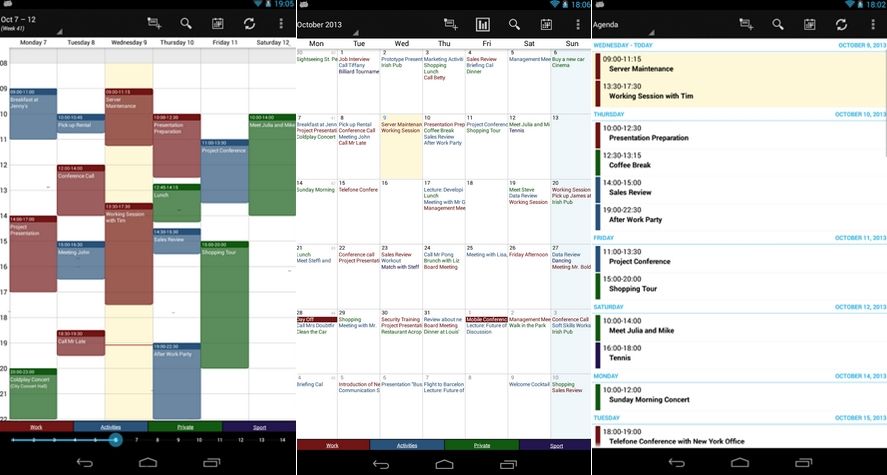
Business Calendar is much similar to the calendar applications listed above and offers almost the same features. This calendar apps has got some nice graphic work that makes it eye-catching for the users. There’s a color-coded year view, besides this month, agenda, event and day views are there.

Business Calendar has a search function as well that helps you to easily locate your events, the app can sync up with Google on your Android device and enhance the user experience. Business Calendar also offers a number of different widgets to stick at your Android’s home screen. It’s available for free in the Play Store, but also has a premium version loaded with some extra features.

BusinessCalendar1-horz

That’s all. In case you think that we are missing something on our list, feel free to mention it in the comment box below and we will have a look on that. Also, let us know which one becomes your favorite Calendar app out of these? Thank you all.

Also Checkout:

*New* WhatsApp Dare Games (2020 March)[Truth Questions, Messages with Answers]

1
*New* WhatsApp Dare Games (2020 March)[Truth Questions, Messages with Answers]

Enjoy the best WhatsApp Dare Games (2020). Previously, I shared lists of Best WhatsApp Group Names which could give a whole new feel to your family and friends’ groups. Now, I am going to share some fun games that you can play on WhatsApp with your friends and family.

 This Post is old but I have added new WhatsApp Dare Games, Please do check at the end of the post. 

These games are really cool and fun so if your WhatsApp is getting a little boring or you want to do something new then enjoy playing these WhatsApp dare games.

Truth or Dare can never go old and the latest trend in the newer generation is Truth or Dare played over WhatsApp where you don’t really have a choice and you can only opt for ‘Truth’. However, the questions asked come with a tick of adrenaline rush with the kind of secrets you are asked to disclose. These games are so much fun that you would want to start playing them right now.

Top WhatsApp Dare Games

WhatsApp Dare Games
WhatsApp Dare Games (2020)[Truth Questions, Messages with Answers]
Let’s move on to the Truth or Dare Questions in these WhatsApp Dare Games after I quickly explain how the games will be played.

There are several questions, each with its own dare to follow a secret to be revealed. Every question comes with a certain number of items that your friends have to choose. For example, a dare could be to choose from numbers 1 to 10. Each number has its own hidden dare or secret question.

Once your friends choose the number, you will tell them what to do based on whatever is hidden behind that number. It’s really easy to play and you’ll get a grasp of it. You can copy and paste the questions and answers from the lists given and send them to your WhatsApp friends and family.

WhatsApp Dare Games (2020)[Truth Questions, Messages with Answers]:

Following are the best WhatsApp Dare Games of all time. Moreover, we have added some new interesting games and pranks to lit up the moment.

WhatsApp Dare Messages:

Choose a ❤ from the given below and I will send you a dare for the selected.❤:

❤1 ❤2 ❤3 ❤4 ❤5 ❤6 ❤7 ❤8 ❤9 ❤10

Answer:

  1. Be My BF/GF for 1 day

  2. Use My Photo as your WhatsApp DP

  3. Reveal your relationship status – Single or committed?

  4. What do you like the most in me?

  5. Rate my look from 1 to 10

  6. Propose me

  7. Kiss Me

  8. What Kind of Relationship do you expect from me?

  9. What qualities do you search for your life partner?

  10. Tell me the name of your GF/BF.

WhatsApp Puzzle Games:

The name of the 15 cities is hidden in the below clue. Decode them and tell the names of all the cities.

  1. ❤li
  2. ????®????
  3. ????
  4. ????
  5. ???? ????
  6. ????
  7. ????????????
  8. ????®U
  9. ????®
  10. ????????N????
  11. ????????????rrr…
  12. ????????????????®
  13. T????????®
  14. ????D????
  15. ????????

Answer:

  1. Delhi
  2. Agra
  3. Indore
  4. Calcutta
  5. Hyderabad
  6. Chennai
  7. Bombay
  8. Bengaluru
  9. Itanagar
  10. Patna
  11. Kanpur
  12. Srinagar
  13. Tatanagar
  14. Chandigarh
  15. Surat

WhatsApp Games for Friends:

Dare: Fill it up

  • How we met:
  • My name on your phone:
  • Who I am to you:
  • One word that describes me:
  • What you dislike about me:
  • First impression:
  • Current impression:
  • Do you trust me:

Send it to your friends and get amazing replies.

Naughty WhatsApp Games for Girlfriend:

Choose a number from 1-10 and reply fast…

  1. Send your selfie in the toilet :p

  2. Sing your favorite song and send the recording to me.

  3. Send me kisses in a video clip.

  4. Use my photo as your DP for 24 hours.

  5. Send your funniest picture to me.

  6. Put my name on your WhatsApp Status.

  7. Click the pic of your legs and sent it to me.

  8. Tell me your favorite actor with the proper reason behind it.

  9. Tell me the brand of your under-garments your wear

  10. Send me a video of yours telling that I am sweet.

WhatsApp Dare for Crush:

Dare: Choose any number between 1 to 25 and I will send you your dare.

Answer:

  1. Write your crush name in your status.
  2. Will you kill anyone if you get permission? If yes, Who is that person?
  3. Be my GF/BF for one day.
  4. The quality you like the most in yourself?
  5. The quality you’d like to change in yourself?
  6. What do you like in me?
  7. The thing you don’t like in me
  8. On your interest, the person you like to marry.
  9. Send me your cutest picture.
  10. Describe me in one word.
  11. The most important person in your life?
  12. My contact name on your phone.
  13. The nickname you want to give me?
  14. Things you like most in me?
  15. A color that suits me?
  16. Relation status you want to be with me? (No cheating)
  17. The thing you like most about my character?
  18. The thing you hate in my attitude?
  19. Which type of dresses suits me most?
  20. Dedicate a song to our relationship?
  21. Rate my WhatsApp profile picture out of 100?
  22. The first thing you notice in a person when you meet them the first time.
  23. Your Best Friend.
  24. What is your opinion on me?
  25. What is your crazy dream?

WhatsApp Funny Games:

Dare: Choose one of your favorite colors from below and I will dare you.

  • Yellow
  • Blue
  • Green’
  • Orange
  • Purple
  • Red
  • White

Answer:

  • Yellow – Ask your neighbor for a roll of toilet paper
  • Blue – Delete your Partner’s Number from your phone
  • Green – Don’t Talk to your partner for 24 hours.
  • Orange – Tell your partner name to your mom.
  • Purple – Drink 1 Glass Water within 10 seconds.
  • Red – Read the last message from your partner loudly.
  • White – Use your partner’s photo on your WhatsApp story.

WhatsApp Slam Book:

Dare: Send these questions to your friends and ask them to reply asap.

  1. The quality you like the most in me?

  2. If you have a chance to kiss any girl from your class which girl would you select?

  3. What is your crazy dream?

  4. What is the name of your first crush?

  5. The thing that you want to change in me?

  6. Which person would you like to make your life partner?

7.  Who is your best friend?

  1. The thing that you hate the most in me?

  2. What is your opinion on me?

  3. What is the best quality of yourself you think?

Dare Games for Facebook:

Dare: Check if there is any miskate in this…

  • 1
  • 2
  • 3
  • 4
  • 5
  • 6
  • 7
  • 8
  • 9
  • 10
  • 11
  • 12
  • 13
  • 14
  • 15
  • 16
  • 17
  • 18
  • 19
  • 20
  • 21
  • 22
  • 23
  • 24
  • 25
  • 26
  • 27
  • 28
  • 29
  • 30
  • 31
  • 32
  • 33
  • 34
  • 35
  • 36
  • 37
  • 38
  • 39
  • 40
  • 41
  • 42
  • 43
  • 44
  • 45

Great… What did you find? Go, Check the spelling of mistake, It’s wrong.  😆  😆  😆  😆  😆

Naughty WhatsApp Games for Friends:

Dare: Choose a three-digit number from below. I will tell you something about you, that you no one else knows.

  • 000
  • 111
  • 222
  • 333
  • 444
  • 555
  • 666
  • 777
  • 888
  • 999

Answer:

  • 000 Handsome
  • 111 Loving and most caring
  • 222 Silent Killer
  • 333 True Lover
  • 444 Cheater
  • 555 Sex Addict
  • 666 Heart Broker
  • 777 Proud & Sweet
  • 888 Lazy person in Bed
  • 999 Hard Worker

WhatsApp Dare Games for Lovers: 😈 

Dare: Select one of the following and I will tell you whom I am to you. Go head be very careful.  🙄

  1. Chocolate
  2. Burger
  3. Pizza
  4. Cigarette
  5. Sweets…
  6. Cake
  7. Chips…

Answer:

  1. You love me
  2. Time Pass
  3. We are friends
  4. You really need me.
  5. Good friends for life
  6. Addicted to me
  7. Can’t live without me.

WhatsApp Dare Messages for Boyfriend/Girlfriend: ❤

Dare: Want to know how you much your Boyfriend/Girlfriend knows you or love you. Try the following questions and you’ll know.

  1. Things you like most in me?

Ans: ___________

  1. Give me a nickname that you want?

Ans: ___________

  1. My contact name saved on your phone?

Ans: ___________

  1. The thing you like most about my character?

Ans: ___________

  1. Which color suits me the most?

Ans: ___________

  1. Relationship status that you want with me?

Ans: ___________

  1. The behavior that you hate about my attitude?

Ans: ___________

  1. What type of dress suits me the most?

Ans: ___________

  1. Rate my DP out of 10?

Ans: ___________

  1. Dedicate a song for our relationship?

Ans: ___________

Best Dare / Challenge Games for Facebook:

Dares:

  1. Hand in Upper Direction >> Slap your own face yourself three times.

  2. Hand in Lower Moment >> Reveal your deepest secret in front of everyone.

  3. Hands in Punch Movement >> Tell us the name of your Crush from our School/College/Class.

There you, These were the best WhatsApp Dare games available on the Web. You can play such games with your friends, family, classmates, office colleagues, boyfriend, girlfriends etc. Please do share your experience with us and if you have any new games, you can tell me in the comments and I will post them here.

10 Best Applications for a Rooted Android Smartphone 2020 – Forever Green

26
10 Best Applications for a Rooted Android Smartphone 2020 – Forever Green

The following are the 10 Best Applications for a Rooted Android Smartphone 2020. These apps are forever green that means when ever you root a device, you can use these apps.

Ever rooted your smartphone and played with your device beyond the boundaries? Well, if you haven’t and if you do not know what does the root access actually means, then let us tell you.

Rooting your Android device gives you the administrative rights over your device. The rooting process involves a custom method consisting of zip files, that may be flashed using your device’s recovery or a flash tool software and gain the root access. Once rooted, you can install custom operating systems (ROMS), you can flash mods on your device, you can increase the internal storage of your device by merging the microSD card if your device has a card slot. Not only this, the rooted device can run all of those applications which do not normally run on an Android device and require more permissions then a normal app.

Overclocking your phone’s CPU and GPU is another advantage of root access. You can remove bloatware, You can explore the internal system using different file managers, you can always take screenshots on your device but ever wondered if you can record the video as well? the root access will allow you to do so. Backing up apps, apps with data and a lot more things are there which can be done after gaining the root rights. It’s a laundry list of enhancements that can be done, so once you’re rooted you may explore and learn more and more.

Many of the Android users, when once rooted, try to find out the best applications to gain the advantages of the root. Or they look out how they can enhance their device using the root access. I’ve compiled up 10 best applications, that are a must-have for a rooted Android phone. Scroll down and have a look through the 10 Best Applications for a Rooted Android Smartphone.

Best Applications for a Rooted Android Smartphone:

1. Titanium Backup [Free]

TTBP

As the name suggests, the most powerful and best application to backup data on your Android device and by far the best application for a rooted Android phone as well. Titanium Backup lets you backup and restores all of your media content, your applications, applications with data, this includes system apps and other user-installed apps with data. You can also backup system settings with this tool. Besides backing up and restoring data, Titanium Backup also let’s you freeze system apps that are causing lag on your device. One of the biggest advantages of Titanium Backup is, you can schedule the backup and forget about losing data because Titanium will always run automatically to backup all of your selected important data. Go ahead and download the free version from the Google Play Store.


2. Root Explorer [$3.98]

Best Applications for a Rooted Android


Root explorer is the basic need after having your device rooted, at least for me. With Root Explorer you can explore your Android Device’s internal system folders, you can execute scripts, send files using email, bluetooth. Root Explorer also allows you to change permissions of the internal system files and extract them out, you can also create / extract .zip / rar files. There is a lot more you can do with Root Explorer. Go ahead and download it from HERE and start accessing your device’s internal system files.


3. ROM Manager [Free]

Rom Manager_Techbeasts

A must have app according to its developers, ROM Manager allows you to install and update ClockworkMod recoveries to the latest version. It also lets you download and flash latest custom roms through the app or through your SD card. ROM Manager is a useful tool if you love to modify your device using custom recoveries and custom ROMS. Go ahead and download it HERE.


4. System Tuner [Free]

System Tuner

Just as the name suggests, System Tuner lets you tune your Andriod system in order to attain the best performance results. The app comprises of  Task Manager, One-Click, Backups and some other options. You can easily kill the annoying apps, you can also freeze those apps. System Tuner lets you easily catch the applications which start their process as soon as your Android device is powered on, you can freeze those apps to be started with the device’s boot and this helps you to save the battery and speeds up your device. You can also analyze your device and view all the stats, clear cache and dalvik cache using this app. Download it here and start using it to enhance your device’s performance.


5. SetCPU for Root Users [$1.99]

SetCPU

SetCPU allows Android users to overclock or underclock their device’s clock speed. It helps you to spy the applications and the process running in the background and easily lets you control the CPU speed. SetCPU is a handy tool for managing the battery life on your Android device by controlling the ongoing processes. Download it Here.


6. StickMount [Free]StickMount

StickMount stands on number 6 in Best Applications for a Rooted Android list. This app is a handy tool to mount and dismount USB sticks on Android devices. You need a USB OTG cable to connect a USB storage disk to your device and StickMount will do the rest of the job for you. It will let you access the files stored on your USB stick. Download it here.


7. GL to SD [Free]

GL to SD

One of my favorite apps as I’m a game freak. GL to SD lets the Android users move the installed apps with data to their SD card. The app cleverly mounts the SD card to your device storage and let’s you enjoy playing plenty of heavy games. While the internal storage of devices is never enough to install a lot of heavy games, GL to SD is the app that will help you in the case. Download it Here.


8. SCR Screen Recorder FreeSCR Screen Recorder

Taking screenshots on your Android device is always easy, but you ever wondered what you can also record videos on your Android device’s screen? To do this task, SCR Screen Recorder Free is there for you. The app requires root access and once installed helps you to easily capture screen videos. It becomes handy when you want to record some important tasks or make some tutorials on your device. Download it Here.


9. WiFiKill

WiFi Kill

The app I love the most, though it crosses the manners. WiFiKill lets you disable the WiFi access for another device, that is running on the same router that you are using. This app is useful if you wish to speed up, and divert all the internet speed for your device. Google has removed this app from Play Store, perhaps you can find it on Xda-developers. 


10. GreenifyGreenify

One of the best utility apps, Greenify helps you to improve your device’s performance by pointing out the apps that are causing lag on your device or that are eating up the battery. The apps helps you to put those apps on hibernation and removes the effect from your device. A must-have app for a rooted phone, go ahead and download it here.


That’s All we have for you. Enjoy the Best Applications for a Rooted Android Smartphone. We would love to hear from you about these apps. For any queries, feel free to leave us a comment. We will try our best to help you out. Thanks All!

How to earn CP in Call of Duty Mobile Easily [COD Points]

0
How to earn CP in Call of Duty Mobile Easily [COD Points]

COD Points, better known as CP, are the most important part of Call of Duty Mobile. If you are frustrated because of your CP being stuck at 0, this guide is going to help you out. I am going to explain what are COD Points and how to earn CP in Call of Duty Mobile.

earn CP in Call of Duty Mobile

COD Points

There are two currencies essentially being used in Call of Duty Mobile. Right when you start playing the game, you will notice the Credits and CP. Credits are the points that you will earn by playing Multiplayer and Battle Royale Matches. Every time you end a match, you will earn a certain number of credits. The number of credits will keep growing as you level up in COD Mobile.

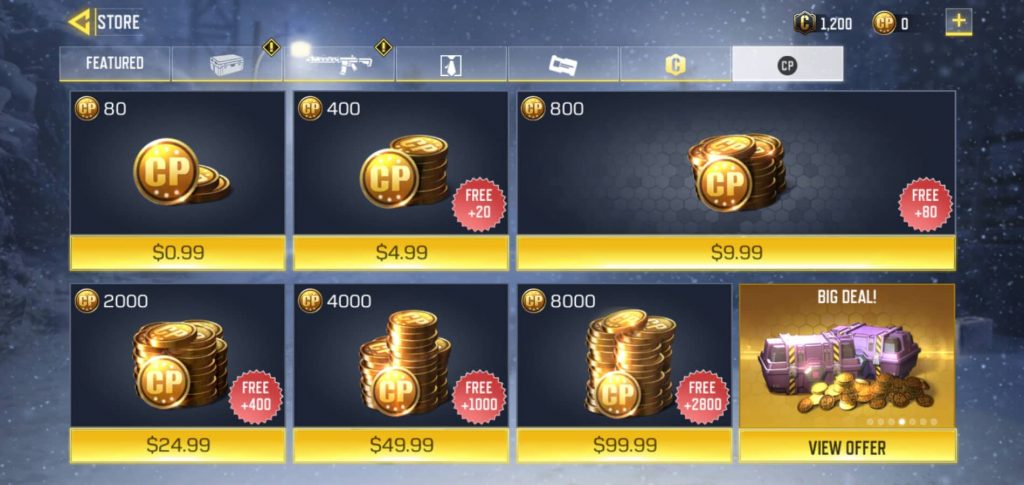
But, the same is not the case with COD Points. The CP value appearing at the top-right corner of your game will stay at 0 unless you do something to bring them up. COD Points are the premium in-game currency. To start earning COD Points, you will have to make a purchase in the game. You can start off by purchasing the Season 1 or Season 2 Battle Pass. Once you buy a Battle Pass, you will earn up to 800 COD Points once you reach the Tier 93.

earn CP in Call of Duty Mobile

To level up the Battle Pass, you will have to complete the daily and weekly tasks/challenges. Battle Pass requires the players to play the Multiplayer mode for a number of times or it requires the players to earn certain medals. Furthermore, the Battle Pass also requires playing the Battle Royale Mode too.

Each time you finish a Battle Pass task, you earn experience which increases your Tier. As soon as you reach 93 Tier, you will get 800 COD Points.

These 800 COD Points can be used to purchase certain items from the store. COD Mobile also offers limited edition skins, characters, weapons, and many other items that can be purchased using COD Points only. You can also save the COD Points to purchase an upcoming Battle Pass. Remember that a Season lasts for about 8 weeks only. At the time of writing this, the Season 2 Battle Pass is going on and it will end around 20th of January in 2020.

Assuming that you have a basic understanding of what COD Points are, let’s take a look at some of the best methods to earn CP in Call of Duty Mobile.

Earn CP in Call of Duty Mobile [COD Points]

  • The easiest way to earn COD Points is by purchasing a Battle Pass. If you are madly in love with Call of Duty Mobile, you will have to shed a few bucks to get the very first batch of COD Points. I recommend getting the Season 2 Battle Pass in order to start earning the COD Points.
  • Once you have the Battle Pass, all you have to do is to complete the daily and weekly tasks to rank up. The higher the Tier you enter, the more COD Points you will earn. As mentioned above, you will get 800 COD Points once you reach 93rd Tier.
  • You can rank up to earn as much as 4,000 COD Points after purchasing the Battle Pass.
  • Just in case you don’t want to purchase a Battle Pass, you can also buy CP directly.
  • Participate in all the limited-time COD events to earn a few CP.
  • Log in daily to get 500 Credits. If you are lucky enough, you may end up getting CP as well someday.
earn CP in Call of Duty Mobile

What are COD Points used for?

  • COD Points can be used to purchase a premium Battle Pass.
  • Once you spend your COD Points on a premium Battle Pass, you can start earning CP once again by leveling up the Battle Pass.
  • COD Points can be used to purchase rare items e.g. Skins, Characters, Weapons, Upgrades.
  • You can also use COD Points to open crates.
  • Lastly, you can purchase new Vehicles using COD Points.
earn CP in Call of Duty Mobile

Conclusion

That’s all. By now, you should be able to get more COD Points in Call of Duty Mobile. If you have any questions regarding the CP or anything else in this game, feel free to use the comment box below. I will try my best to get back to you as soon as possible.

More COD Mobile Guides

How to Download WhatsApp Status of your Friends on Android & iPhone

0
How to Download WhatsApp Status of your Friends on Android & iPhone

Found a funny or useful WhatsApp Status posted by one of your friends? You can download it. Wondering how? You will learn that in a while. In this guide, you will take a look at 3 methods to download WhatsApp status of your Friends. You can download WhatsApp Status on Android or iPhone.

Download WhatsApp Status
Showing how to Download WhatsApp Status

Before you download someone’s WhatsApp Status on your handset, let me give you an idea of its background.

WhatsApp Status

Back in February 2017, WhatsApp introduced the Snapchat-inspired story feature. WhatsApp named its story feature as WhatsApp Status. It worked exactly like    that of the Snapchat or Instagram stories. Since WhatsApp is owned by Facebook, which is also the parent company of Instagram, it shouldn’t have been that much difficult for them to replicate the same feature among all of their apps. Just like Instagram, Snapchat, or Facebook Stories, the WhatsApp status disappears after 24 hours. 
WhatsApp users can share pictures, 30-second long videos, and GIFs in the status. The status is immediately shared with their contacts. The users are given multiple privacy options. They share the status with a few contacts, with all contacts, or with everyone who has their number saved.

Anyone who is allowed to see your status, can swipe right in the WhatsApp app to head to the Status panel and view the status then. The status-posters can view who has viewed their status.

WhatsApp Status is a convenient feature for those who don’t want to go through the hassle of using Instagram or Snapchat to share anything with their friends and family. Also, the reach of WhatsApp Status is very different. If your friends and family are not on Instagram and Snapchat, but they do have the WhatsApp installed, you can share anything with them through your WhatsApp status.

People share almost every kind of content on WhatsApp Status. You can take a peek into the lives of your friends, people often share what they are up to. You can also take a look at the informative video clips or images posted by your friends. 

If you don’t like WhatsApp status of someone, you can hide that person.

So the question is, why you would want to download a WhatsApp status? Well, let’s take a look at the answer.

Why download WhatsApp Status of a friend?

Sharing personal pictures or videos is not the sole-purpose/use of WhatsApp status. As I mentioned above, people share all kind of stuff including informative videos, news pieces, useful posters, etc on their WhatsApp status. Some times, you want to save those images/videos into your phone, but you don’t find a save option in the WhatsApp status feature. Also, you don’t always feel like asking your friends to share a video or picture with you.

To download WhatsApp status of any of your friends and family, you have to use a slightly untraditional approach. In this guide, I am going to share three different methods. All three methods to save WhatsApp status will work for Android and two of these methods will work for iPhone too.

Take a look at the methods one by one now.

Methods to download or Save WhatsApp Status on Android and iPhone

We have three methods. These are the methods.

  1. Access the secret WhatsApp .Statuses folder on Android to find downloaded WhatsApp Status
  2. Use WhatsApp Status Downloader App
  3. Take Screenshot or Record WhatsApp Status using Screen Recording Apps

Guide on how to Download WhatsApp Status on Android

When you open someone’s WhatsApp status on your Android phone, the status is first downloaded to your phone and then shown to you. You must have noted that when your internet connection is poor or you have no internet, the WhatsApp status does not load. This is because it uses your internet to locally store that status first.

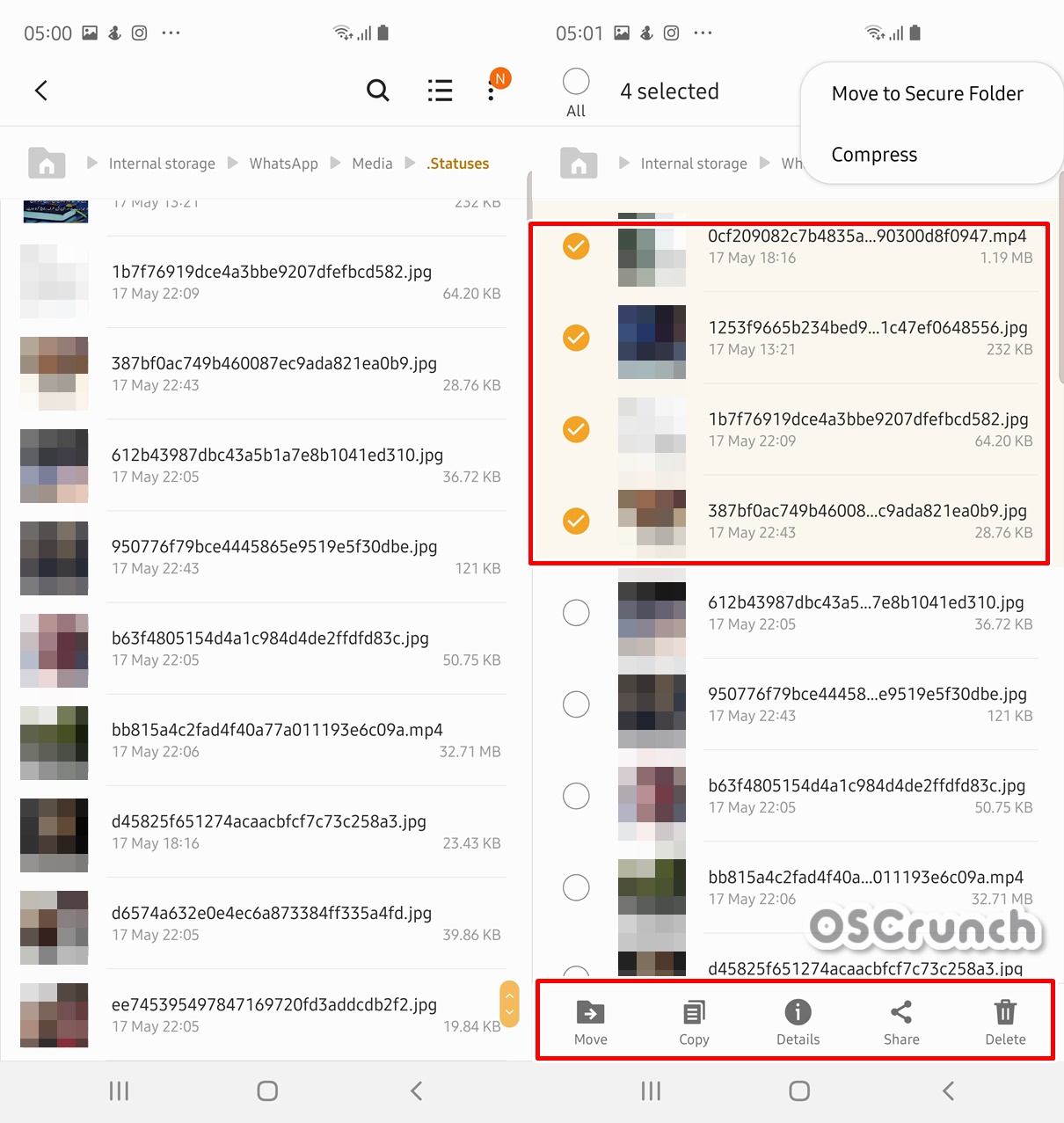
All these WhatsApp statuses are downloaded in the .Statuses folder of your WhatsApp. By default, this folder is hidden because of its a .nomedia file. To access this folder, you have to show hidden files. These are the steps to access the .Statuses folder to see downloaded WhatsApp Status on Android.

(Because the file system used by Apple does not let you access the WhatsApp folder, you cannot use this method on iPhone)

  1. Open the  File Manager on the Android phone.
  2. Go to Internal Storage > Scroll all the way to the bottom > Click on WhatsApp.
  3. In WhatsApp, go to Media > Click on the three-dotted menu button > Settings > Show hidden files.
  4. Go back to Media folder, you will now find a faded .Statuses folder at the top.
  5. Open this folder. You will find recently opened statuses there.
  6. Remember that these statuses stay in the folder for 24 hours only. If you want to download a status, make sure to copy it within 24 hours of its published time.
Accessing .Statuses Folder
Showing Hidden Files
Save WhatsApp Status

Download WhatsApp Status of your Friends on Android & iPhone

This method works for both the Android and iPhone. It is a little different method as it uses a third-party app. 

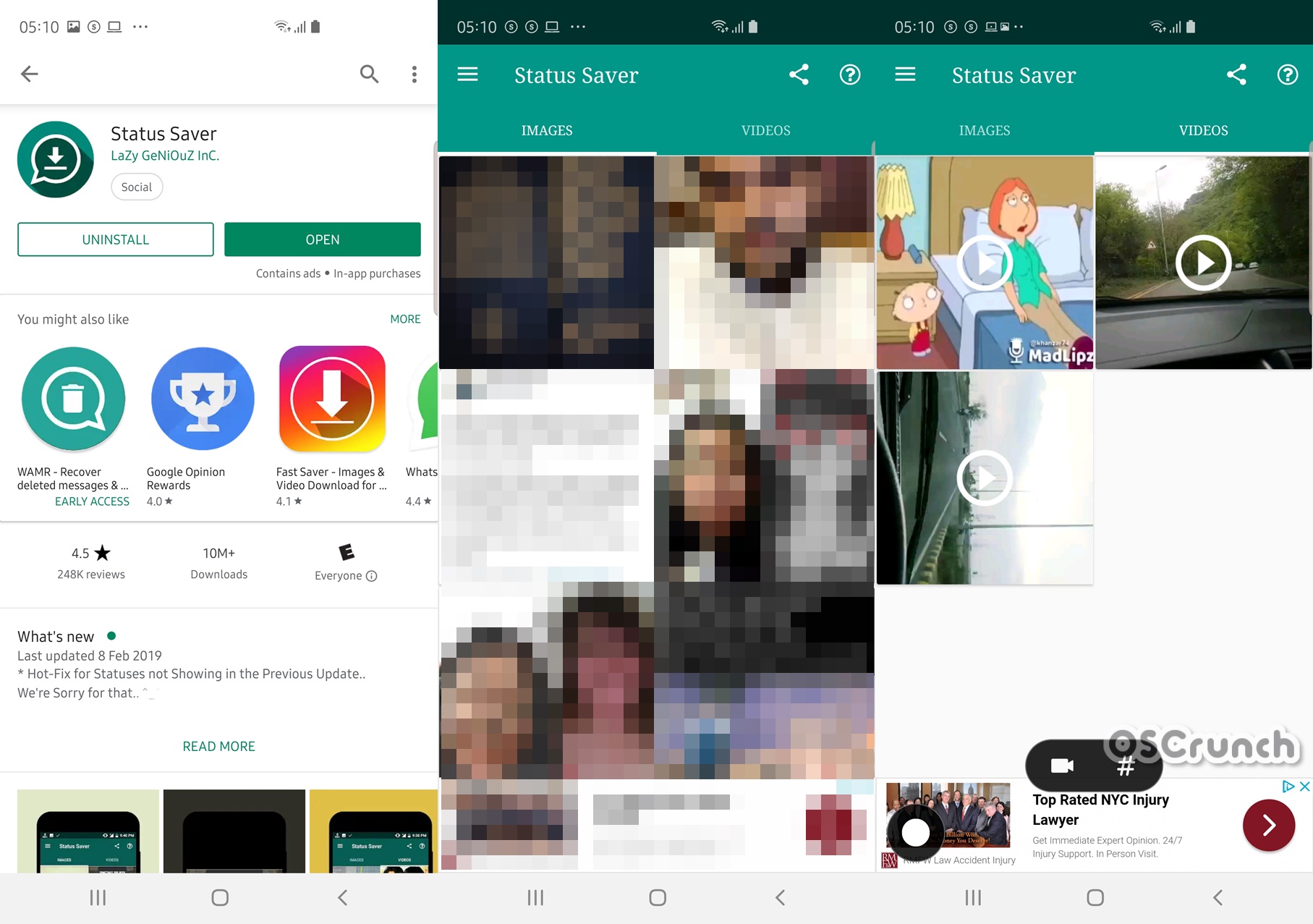
Before you use this method, let me tell you about the technical details of such apps. The Play Store and App Store have hundreds of “Status Saver” apps primarily built for WhatsApp. These apps somewhat use the same mechanism that you were manually doing above. The only difference is, you don’t have to go all the way to the WhatsApp folder and show hidden files to get the status. This app will do all that for you.

Any WhatsApp Status image or video that you will view, that will automatically go to your .Statuses folder, which means it will also appear in all the Status Saver apps. Follow these steps to save yourself from a little bit of hassle.

  1. Open the Google Play Store or App Store on your Android or iPhone
  2. Look for the “Status Saver” app and install it.
  3. Open the Status Saver App.
  4. Grant it the required permissions.
  5. Find all your viewed statuses there.
  6. If you want to download a new status, you first have to view it in WhatsApp and then come back to Status Saver app to find it there. That’s all.
Save WhatsApp Status
WhatsApp Status Saver App

Also, take a look at the best WhatsApp Status Saver Apps in 2019.

Guide to Save WhatsApp Status on Android and iPhone (Screenshot and Screen Recording)

If the above-given method seems a bit tricky to you, then this is the one you can definitely use. There is no rocket science involved here. You can simply open someone’s WhatsApp status, and take a screenshot. 

On most of the Android handsets, you will press the Power + Volume Up or Power + Volume down button to capture a screenshot. On the iPhone, you will use the same Volume Up + Power button combination. 

Download WhatsApp Status
Taking screenshot of WhatsApp Status

You can then use a good Android photo editing application to crop the black sides of a WhatsApp status or make any other changes. Take a look at these best photo editing apps of 2019.

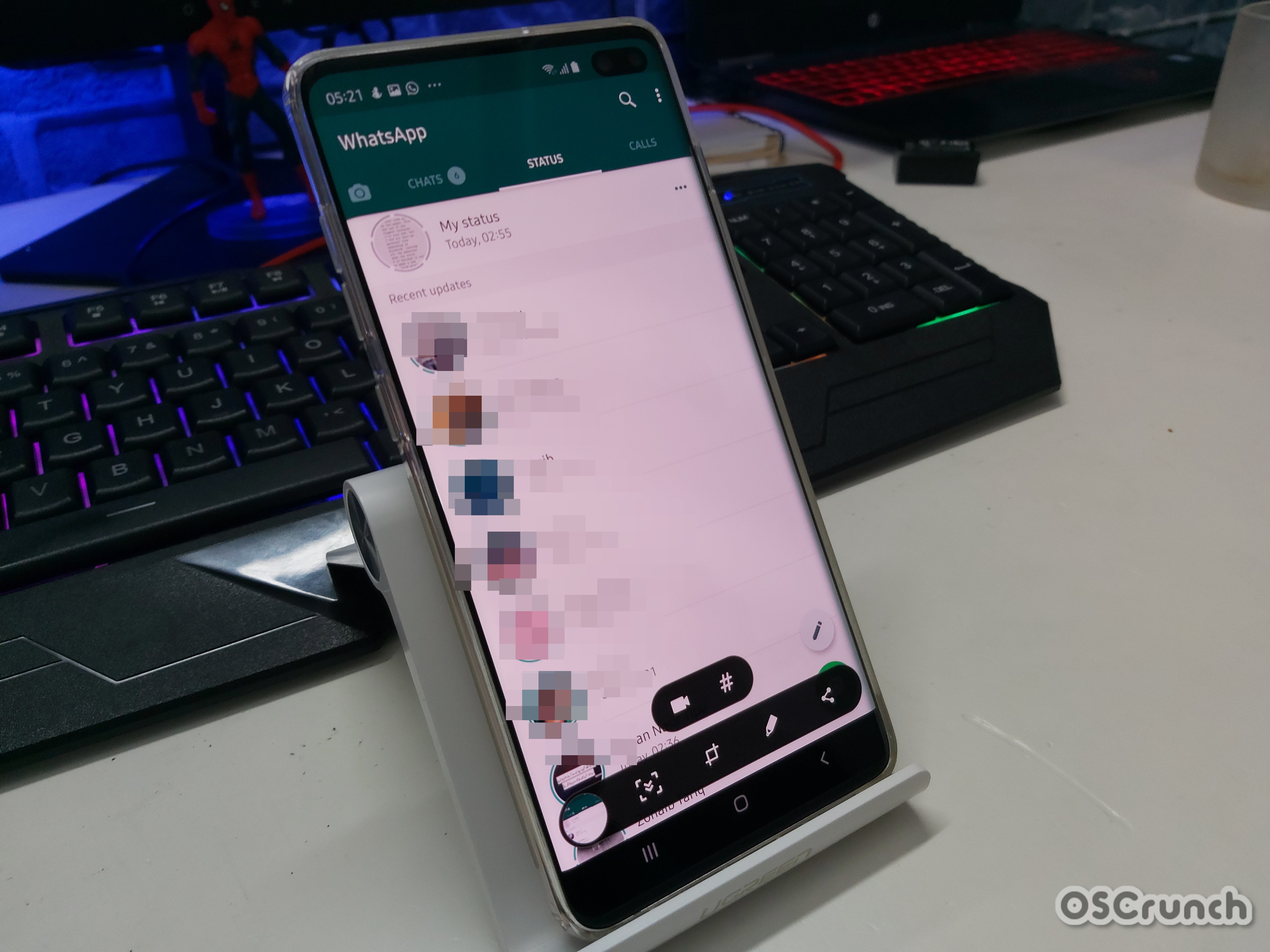
Another approach to downloading a WhatsApp Status is to use screen recording. This is useful if you want to save a video shared by one of your contacts. You can find the native video recording on iPhone by pulling down the notifications panel. On an Android phone, you can find native video recording in Samsung handsets, if you can’t find it, you can install the Nice Shot app which is a part of the Good Lock 2019 app. Nice Shot will add native video recording to your Samsung handset. You will take a screenshot and then press the video recording button to start recording.

Screen Recording of WhatsApp Status

On all other Android handsets, you can install a well-reputed Screen Recording app from the Google Play Store. Furthermore, you can take a look at the best free Android Screen Recording apps on our site.

Wrap Up

That’s all with saving WhatsApp status on your smartphone. Now that you know how to download a status, make sure that you do not misuse these methods. Before downloading someone’s personal pictures or videos, always seek their permission.

I hope that you find this guide really useful and it has added something to your knowledge. If you have any questions to ask, feel free to reach out to us through the comments section below or our contact us page.

Also Check: