Home Blog Page 17

TikTok rating drops to 2.0 – Here’s why this happened

2
TikTok rating drops to 2.0 – Here’s why this happened

TikTok, the famous social media app is under hot waters after the recent YouTube vs TikTok controversy. TikTok’s rating has dropped drastically. The app’s rating was stable at around 4.5 for quite a few years, but all of a sudden, it has dropped to 2.0. It took only a couple of days to happen. You might wonder what happened. We know what happened and let us tell you the whole story.

TikTok vs YouTube

A few days back, TikTokers were roasted by the famous Indian YouTuber CarryMinati. TikTok has one of the biggest user-bases in India. And there is an equal number of people who find TikTok an extreme example of cringe. According to the TikTok-haters, the TikToker’s create queer content without putting much effort. TikTokers from India have millions of subscribers. Some of the TikTokers considering themselves better than the most popular YouTube content creators took this step to raise the voices against them. As a result, they were taken to the cleaners by CarryMinati, in response to what, Amir Siddiqui, a TikToker with 4 Million+ TikTok subscribers responded back belittling the entire YouTube community.

Response to TikTokers

In response to Amir Siddiqui’s defaming video, CarryMinati made another video going harsh on the entire TikTok community. The video went viral and became the most-liked non-music YouTube video in India’s YouTube history. Carry Minati’s video crossed 70 Million views in 3 days and ranged 10 Million likes in this time period. While the video took YouTube India by storm, Tiktokers started reporting it. As a result, the video was removed leaving CarryMinati and other Indian YouTubers in a great shock. This video was on its way to becoming the biggest non-corporate video in YouTube’s history, but breaks were applied after being reported.tiktok vs youtube

Hundreds of Indian YouTubers came out in support of CarryMinati seeking justice. The Indian Tech Prodigy, TechnicalGuruji went ahead to delete YouTube from all of his smartphones and encouraged his 15 Million+ subscribers to do the same.

While CarryMinati’s subscribers are loyal to him, they despise TikTokers at the same time. Finding out what really happened, the Indian users did not only uninstall the app, they also started reporting it in the Play Store and posted negative reviews.

Netizen’s answer to TikTok on the Play Store

Now India has a population of over 1.3 Billion with over 900 Million Netizens. Imagine the impact of such active internet users on an app as small as TikTok. TikTok has over a Billion downloads so far, and I suspect nearly half of these installations came from India. Obviously the TikTokers will still stick to the app, but the users who had the app for the sake of watching the videos only, definitely tried to play their role to support CarryMinati.

As a result, TikTok’s rating has dropped from 4.5 to 2.0 just in a matter of 2 days. If things keep going on like this, we might not be able to find TikTok in the Play Store in a few days.

CarryMinati’s new video

In the meanwhile, Ajay Nagar (CarryMinati) has already made a clarification video which as also got about 42 Million views in 2 days with over 7.1 Million likes in total. Ajay explains in the new video that his slangs have been taken out of context. Ajay’s deleted video was only for entertainment purposes and did not mean anything in reality. Ajay’s new video is well on its way to break the records once again.

What’s next for TikTok?

In the past, there have been several petitions in many countries regarding the removal of TikTok from the Play Store in that specific region. So far, TikTok has managed to survive, but things have taken a new term this time. No one is asking anyone to remove the app, the users are only giving it negative ratings which is much more dangerous than asking the authorities to remove the app. If TikTok ends up hitting the lowest rating, it might automatically meet its fate.

Let us know about your take on this on-going controversy. We would love to hear you out in the comments below.

WhatsApp Transparent APK V9.70 Prime [ Download Free ]

0
WhatsApp Transparent APK V9.70 Prime [ Download Free ]

With the help of my guide, you will be able to download the latest WhatsApp Transparent APK V9.70 Prime for your Android devices.

WhatsApp Transparent is another development of the original WhatsApp that incorporates features such as dating and new emoji.

WhatsApp Transparent APK

In fact, regardless of how many apps are sending chats and the most popular tweets, you can’t reach the throne of WhatsApp yet, even with status like LINE, Telegram, Facebook Messenger. And while some features are left behind, it seems like nobody cares because it’s an instant messaging service with most users (probably around a billion people worldwide).

But with MODs Like WhatsApp Transparent, FM WhatsApp, Fouad WhatsApp, GBWhatsapp, and more. They keep this in mind and provide us with all the best features that we need.

Now Let’s go further and tell you how WhatsApp Transparent works and after that I will provide you people with the download link of WhatsApp Transparent APK.

How to customize WhatsApp?

Let’s get in and know more about how to customize WhatsApp. Despite the fact that its developers aren’t excessively excited about releasing APKs that permit us to improve, broaden and grow its capacities, much the same as LINE does, there are alternative advancements by outsiders of any semblance of Plus or OGWhatsApp for this reason, much the same as the application we’re assessing today: WhatsApp Transparent.

As you’ve likely assembled from its name, it’s a MOD that can assist us with stopping seeing the exhausting backdrop of the messaging app (that you can change to your own preferring with your preferred photograph) to see our smartphone’s home screen. In this way, disregard each one of those heavenly capacities that help you to deal with your protection of different choices to make WhatsApp the best versatile chat application. This is about transparency.

Requirements

Minimum operating system Android 4.0.
System Settings All Unknown sources


What’s New

  • FakeChat Creator is added.
  • Now you can easily download the themes.
  • Expiry Date is Extended.

Download & Install WhatsApp Transparent APK

First, you need to download the WhatsApp Transparent APK from the following button and after that follow the instructions.

Step1: Make backup of your WhatsApp chat, if you want to use it on WhatsApp Transparent.

Step2: Uninstall the original WhatsApp application.

Step3: Head over to the download folder and tap on WhatsApp Transparent APK. Follow the on-screen instructions to install it.

Step4: Launch the WhatsApp Transparent App. You have to configure WhatsApp Transparent the same way you do on original WhatsApp.

It doesn’t work, what should I do?

All you have to do is install the latest version I added above and WhatsApp Transparent will work for you. If you are running the old version, you will be forced to update to the latest version.

Moreover, keep that in mind. The WhatsApp Transparent APK will only work on Android devices. No support for iOS.

Update WhatsApp Transparent

  • Open WhatsApp Transparent App on your Android device.
  • Head over to the Settings and then Tap on help.
  • On the next page, Tap App Info -> Note your current version.
  • Head back to our site and look for WhatsApp Transparent. Check out what is the latest version we have and compare it with yours. If they match, you don’t need to update your WhatsApp Transparent.
  • Otherwise, download the latest WhatsApp Transparent APK and install it.

That’s all.

Download Pixel 4a Stock Wallpapers

0
Download Pixel 4a Stock Wallpapers

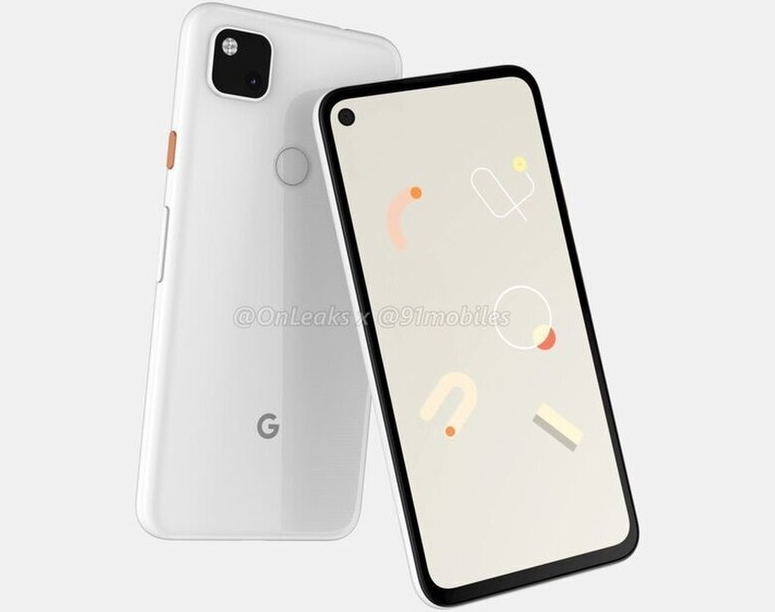
Google Pixel 4a’s stock wallpapers have come out before the phone. You can now download all Google Pixel 4a Stock Wallpapers. All of the official Pixel 4a stock wallpapers can be found right here. There are 16 new beautifully crafted wallpapers in the Pixel 4a.

Pixel 4a Stock Wallpaper
All stock wallpapers of Google Pixel 4a

About the Pixel 4a

Pixel 4a is the upcoming midrange from Google. It is a lower version of the Google Pixel 4. The phone is going to be Google’s best bet so far as the Pixel 4 couldn’t do well in the market. The Pixel 4a is going to have some traits of the Pixel 4 with a few compromises which will pull down its price tag. Phone’s specifications and purported images have leaked several times so far. Here is what we know about the Pixel 4a so far.

Pixel 4a is expected to come with a 5.8-inches display. LCD or Super AMOLED, it is unknown yet. The phone will have a resolution of 2340 x 1080 pixels. Pixel 4a will have only 1 camera at the back. This will be a 12.2 MP shooter. On the front, it will use an 8 MP shooter. Pixel 4a’s processor will be the Qualcomm Snapdragon 730 coupled with Adreno 618 GPU. Since the original Pixel 4 came with 64 GB base storage, it is highly unlikely that the Pixel 4a will offer more than that. The battery capacity of this phone will be 3080 mAh. It will run on the Android 10 out of the box. The design language will be similar to Pixel 4.


Pixel 4a is going to be the direct competitor of the iPhone SE. But the fact that this phone will be using a mediocre SoC alone puts it behind the competition already before its release. The iPhone SE carries Apple’s flagship SoC, while none of the Android-budget phones carry Qualcomm or Samsung’s flagship SoC. Only time will tell how the Pixel 4a performs in the market. The Pixel 4a will be replacing last year’s Google Pixel 3a lineup.

Pixel 4a Stock Wallpapers

Google has crafted 16 new wallpapers for the Pixel 4a. If there is one thing Google is good at, that has to be the wallpapers of its phones. We have always had the best wallpapers come out from Google. Be it the Pixel 2, the Pixel 3, or the Pixel 4, the wallpapers were spot-on. The same goes for the new Pixel 4a now. The new wallpapers are just magnificent. These wallpapers can fit the screen of any Android phone or even an iPhone. All of the Google Pixel 4a Stock Wallpapers carry a full HD resolution i.e. 1080 x 2340 pixels.

You can either downloaded the wallpapers one by one or just use the all-in-one button to download them all together.

To download the wallpapers separately, right-click on your desired image and click on “save image as..”. In order to save on your phone, long-press the image and click on “Download image”.

pixel 4a stock wallpapers pixel 4a stock wallpaperspixel 4a stock wallpaperspixel 4a stock wallpapers pixel 4a stock wallpapers pixel 4a stock wallpapers pixel 4a stock wallpapers pixel 4a stock wallpapers pixel 4a stock wallpapers pixel 4a stock wallpapers pixel 4a stock wallpapers pixel 4a stock wallpapers pixel 4a stock wallpapers pixel 4a stock wallpapers pixel 4a stock wallpapers

Find out more stock wallpapers in the stock wallpapers section of our site.

PUBG Mobile Beta for PC [ Windows 10 & Mac ] Free

0
PUBG Mobile Beta for PC [ Windows 10 & Mac ] Free

Heed the instructions provided in the guide below and you will learn how to download PUBG Mobile Beta for PC Windows 10 & Mac.

Download PUBG Mobile Beta on PC

PUBG Mobile is one of the games revolutionizing the mobile gaming sector. With millions of active users every month, it is one of the most popular games on mobile and also the most popular battle royale game on the internet today. PUBG stands for PlayerUnknown Battlegrounds, which means unknown players will fight in true battle mode.

The gameplay is very simple, players can fight as individual members or in small groups, with the winner being the last person alive. There are several maps and also several game modes to play, such as TDM, Arena Mode, War, Heavy Load, and much more. One of the main reasons for this game is the ability to communicate with your teammates via voice chat. Tencent game publishers usually release updates related to new developments and features in the game.

What is PUBG Mobile Beta?

Parent company Tencent developing PUBG Mobile has also released a beta version of the game. The beta version offers early access to new features to test and launch in the beta version for players and creators to play and test the game.

You can get the latest sand games, weapons, clothes, skins, and other game modes. Beta PUBG comes with unreliable features that can later replace the PUBG Mobile company. If you want to play Beta PUBG Mobile on Windows and Mac PC, you can use an emulator.

Download PUBG Mobile Beta on PC:

Follow the instructions provided below and you will Download PUBG Mobile Beta on PC Windows & Mac. I will be using third-party Android Emulators such as BlueStacks and NOX. Let’s begin.

Step 1. Download and install Bluestacks Player from the official website. The process requires a few clicks. The same goes for Mac.

Step 2. After a successful installation of BlueStacks & Nox, you will see the Play Store application on the Nox/BlueStacks Player main screen.

Step 3. Open Google Store and log in with your Google ID and password.

Step 4. Search Beta PUBG Mobile and install it on Bluestacks emulator.

Step 5. Open the game and enjoy Windows or Mac for free. Done!

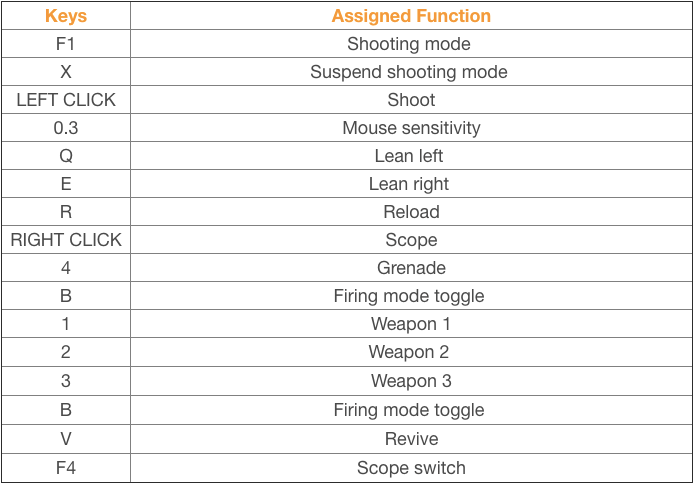
Bluestacks Control for PUBG Mobile:

PUBG Mobile Beta for PC

Install PUBG Mobile Beta on Gameloop:

It’s time to take a look at the steps to install any Android game on TGB Android Emulator. Follow the steps below to get it done without any further ado.

You can download PUBG Mobile Beta On GameLoop Using the same instructions.

  1. First of all, download Tencent Gaming Buddy on your PC.
  2. Now learn how to install APK on Tencent Gaming Buddy.
  3. Furthermore, download Google Play Store on Tencent Gaming Buddy.
  4. Now go to C:\program files\txgameassistant\ui > open AndoridEmulator.exe.
  5. Once the emulator loads, press F9.
  6. Now open Browser in the emulator.
  7. Search for your favorite game or app now. For example, PUBG.
  8. As you find the Play Store link of the game, open it via Play Store.
  9. You will now enter the Google Play Store.
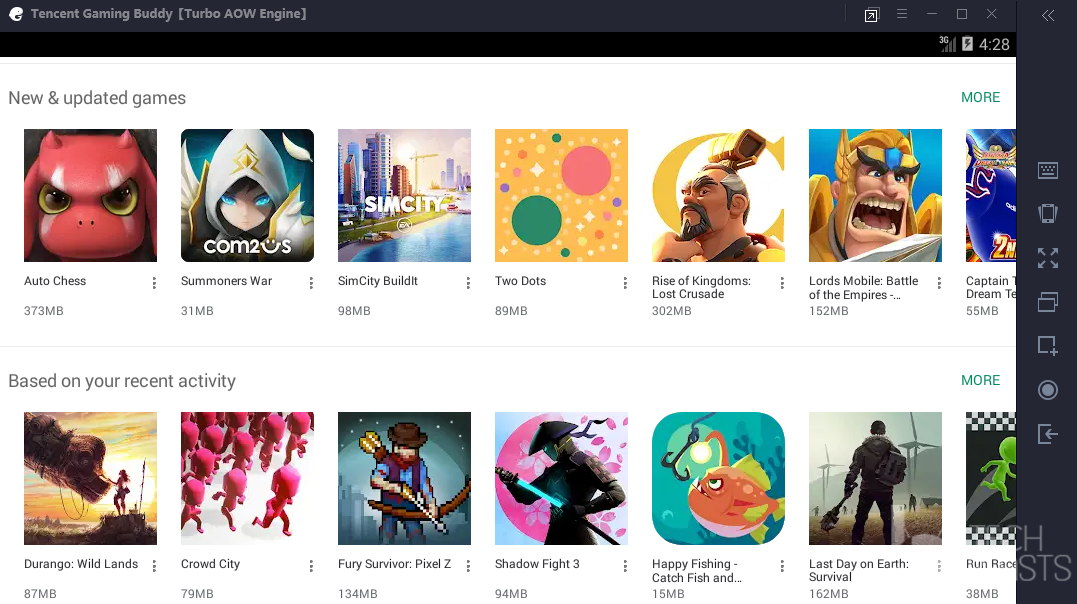
  10. Install any game or application you want now.Play Store Tencent Gaming Buddy
  11. You can launch the games from the app drawer.


If the Play Store method is something you don’t like, you can download the APK of any game and install it using the ES File Explorer. This method is explained in the method to install APKs on the TGB emulator. To play the games, you can configure your computer’s mouse and keyboard. Tencent Gaming Buddy works best with the FPS and Battle Royale games. If you want to play games like Call of Duty Mobile for PC, or PUBG Mobile Lite for PC, or the Frostborn for PC, you may find TGB emulator the best tool to go with.

EasyviewerLite for PC Windows 10 macOS FREE DOWNLOAD

EasyviewerLite for PC Windows 10 macOS FREE DOWNLOAD

EasyviewerLite is a companion application for CCTV, IP, Network, DVRs, and other security cameras. If you have installed any such cameras on your premises, you can greatly benefit from the EasyviewerLite app. It’s a smartphone app, but it works much better when utilized on a computer. It’s a bit tricky to install EasyviewerLite on PC. This is for everyone who wants to get EasyviewerLite PC. Here are the steps to download EasyviewerLite for PC in this guide. Before you download this app, it’s important to learn everything about it.

Usability of EasyviewerLite

CCTV Cameras have transformed over time. Gone are the days when cameras were controlled via wires only. Portability has taken over now. CCTV Cameras now support wireless controls with the help of internet connections. When the internet is involved, we can actually unleash the real potential of any device or application. EasyviewerLite is one such application that helps you make more out of your CCTV, Network, or the IP Cameras. It uses an internet connection to establish a connection between your Camera and your controller device.easyviewerlite pc

EasyviewerLite – Solution for Phones

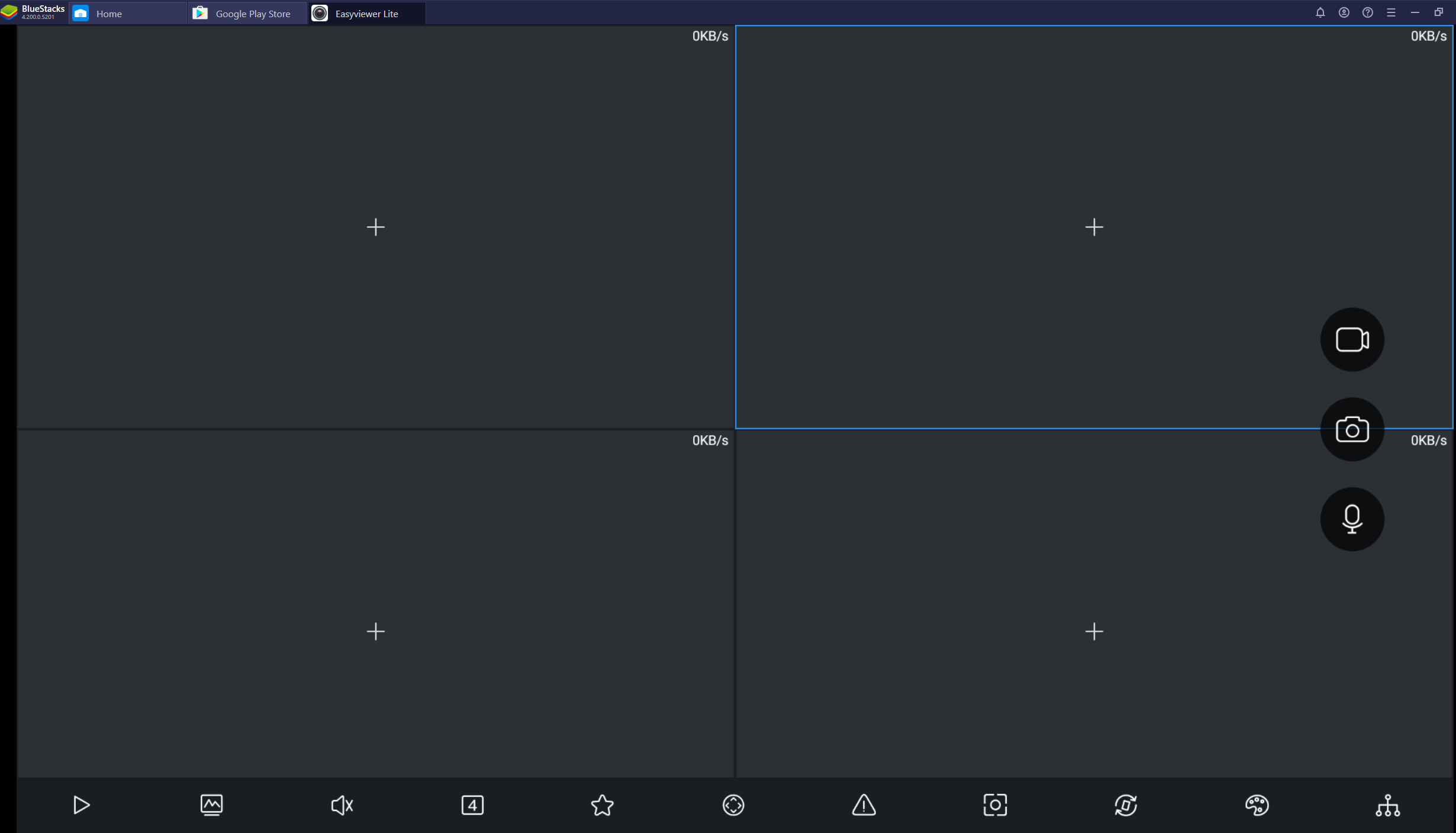
Originally, this app is built for smartphones. The basic idea is to take full control in your hands. With your phone, you can monitor your cameras 24/7. The phone will keep running the cameras in the background. EasyviewerLite allows connecting up to 4 cameras simultaneously. The app shows all cameras at the same time in a tiled window. This app is loaded with features like screen recording, capture, cloud uploads, smart alert, etc. The main purpose is to make things as portable as possible. There is no longer a need to sit next to your monitoring LCD display all the time. Just take the surveillance with yourself wherever you go in the world. This app requires a one-time-connection only. After that, it live streams the videos from your connected security cameras to the screen of your phone.

What makes EasyviewerLite worthy?

There are hundreds, if not thousands of CCTV monitoring apps. But the EasiyviewerLite manages to stand out. First of all, it is a very light application. It’s got a huge list of compatible devices. EasyviewerLite works with almost any other Network/IP/CCTV Camera brand. The app is extremely easy to set up as well. It’s a self-explanatory app which shows you the + buttons on its homepage. Users only have to press the buttons and enter the details of their cameras to set them up. EasyviewerLite is equipped with a talkback feature. With this, you can talk to anyone in front of the camera. This is also useful to make announcements remotely. When you launch this app for the first time, it asks you for your region. This is done in order to pull the list of compatible devices for your specific region.

EasyviewerLite Features

  • Built-in Photo & Video Gallery.
  • Cloud Storage Support.
  • Save to External Storage.
  • Smart Alarm Feature.
  • Pan, Tilt, and Zoom Cameras.
  • Record Video.
  • Automatically save recorded videos.
  • Smart capture feature.
  • Talkback feature – Your camera must have a mic/speaker for this.

EasyviewerLite Alternatives

Although there are over a hundred alternatives to EasyviewerLite, here are a few that we have already covered.

EasyviewerLite on PC

Remote surveillance software like EasyviewerLite is a great utility. By all means, it is worth running on a PC. It may not be officially available for a computer, but with our tutorial, you can install its Android version on Windows or macOS right away. Down below you will find the steps to install EasyviewerLite for PC. You can run EasyviewerLite on Windows and also on the macOS. Take a look at the requirements and then go through the steps.easyviewerlite pc

Requirements to download EasyvieweLite PC

  • Windows or macOS-powered Desktop PC or Laptop.
  • CCTV/IP/Network/DVR Cam installed on your premises.
  • Internet Connection.
  • Your Camera must be connected to the WiFI.
  • Google Account. If you currently do not have an account, you can create it for free.
  • Android Emulator i.e. BlueStacks or NoxPlayer.
  • Download the emulator and install it by following the instructions given in their respective guides. Set up the emulator using the Google Account.
  • Follow the rest of the guide to the letter.

Download EasyviewerLite for PC

  1. Open the BlueStacks or NoxPlayer Emulator on your computer.
  2. Go to the Google Play Store.
  3. In the Search Bar of the Play Store, type “EasyviewerLite” and hit enter.
  4. As you find the app install it.easyviewerlite for pc
  5. Open EasyviewerLite now.
  6. Click on the “+” button in the app and add your camera details.
  7. Connect the cameras and start monitoring.easyviewerlite for pc

EasyviewerLite PC – Video Guide

If you were unable to understand the tutorial given above, we have made an exclusive video for you. Watch how to run the EasyviewerLite surveillance software on PC.

What have we achieved by installing EasyviewerLite on the computer?

The benefits of running apps like Easyviewer on a computer are big. First of all, this app enables you to watch everything on a bigger screen. On a PC, the app won’t consume battery or storage. With your mouse, it is easier to manage all the cameras. Furthermore, you can move all files from the emulator to the Windows instantly to free up the storage of the emulator. Remember that your emulator and the cameras need to be connected to the same internet connection for this to work. If you run into any kind of problems while installing this tool, feel free to reach out to us using the comment section below.

FAQs

Is EasyviewerLite for PC Safe?

Yes, we are using verified methods and software. Rest assured, you can fully trust this guide.

Can I run EasyviewerLite on Windows 10?

Absolutely. The method given above will let you download EasyviewerLite not only on Windows 10, but also on Windows 7, Windows 8, and Windows 8.1.

How to install EasyviewerLite on macOS?

With the help of BlueStacks 4, you can easily run it on macOS.

Can I connect HIK Cameras with EasyviewerLite?

Yes, it supports a variety of cameras. Feel free to connect any cameras to this app.

Does EasyviewerLite have video recording option?

Yes! It has a video recording and also a screen capture option.

Can I install EasyviewerLite via BlueStacks?

BlueStacks is one of the best ways to download and run this tool on your PC.

Is EasyviewerLite FREE?

100%. It’s a completely free app.

Audiomack for PC FREE Download on Windows & macOS

Audiomack for PC FREE Download on Windows & macOS

Audiomack is a free music streaming service. It is available in the form of a site and a smartphone app. For Windows and macOS operating systems, it has no official app. If you still want to run Audiomack on PC, you will find this guide handy. Here on this page, you will find a step-by-step guide to download Audiomack for PC. This is going to be the unofficial Audiomack PC version. Before you download it, let me give you a brief overview of this app.

Overview of Audiomack

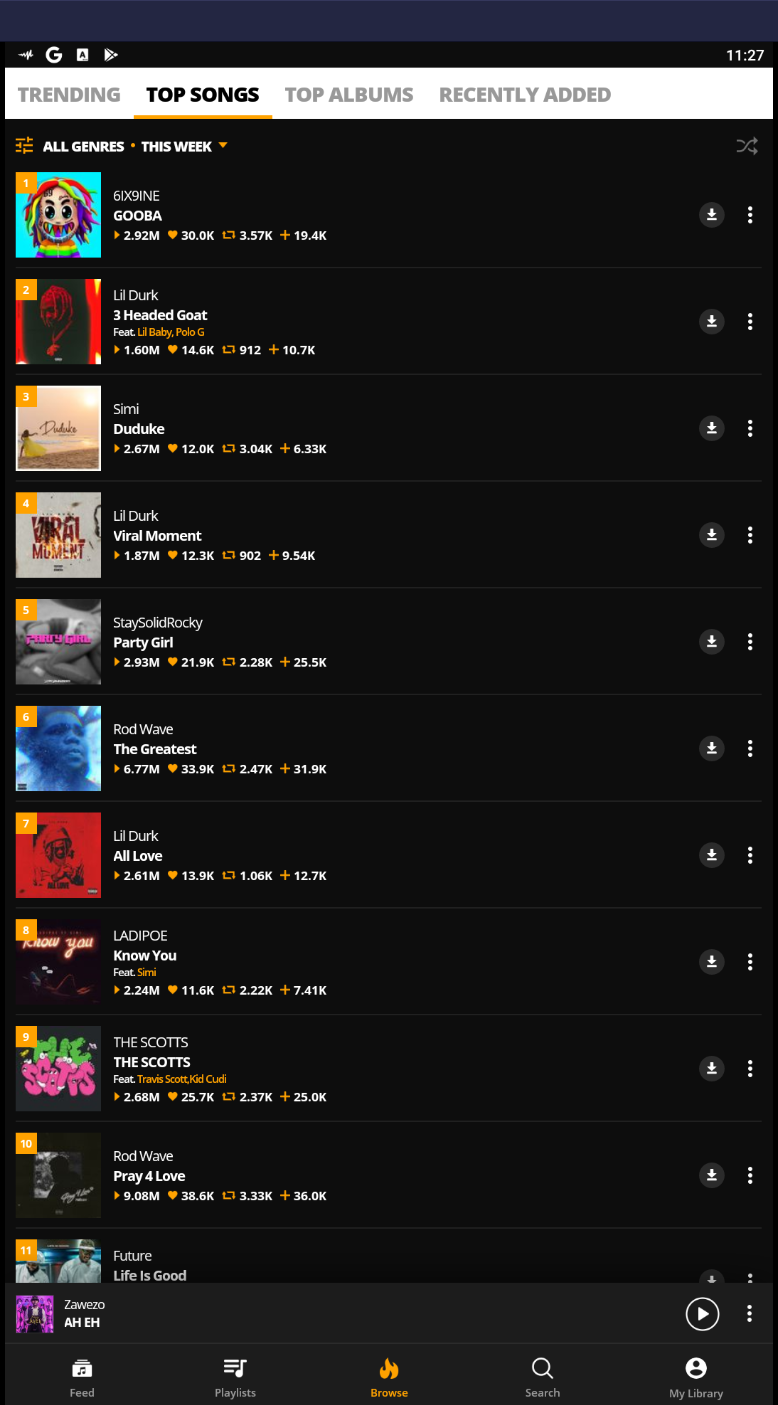
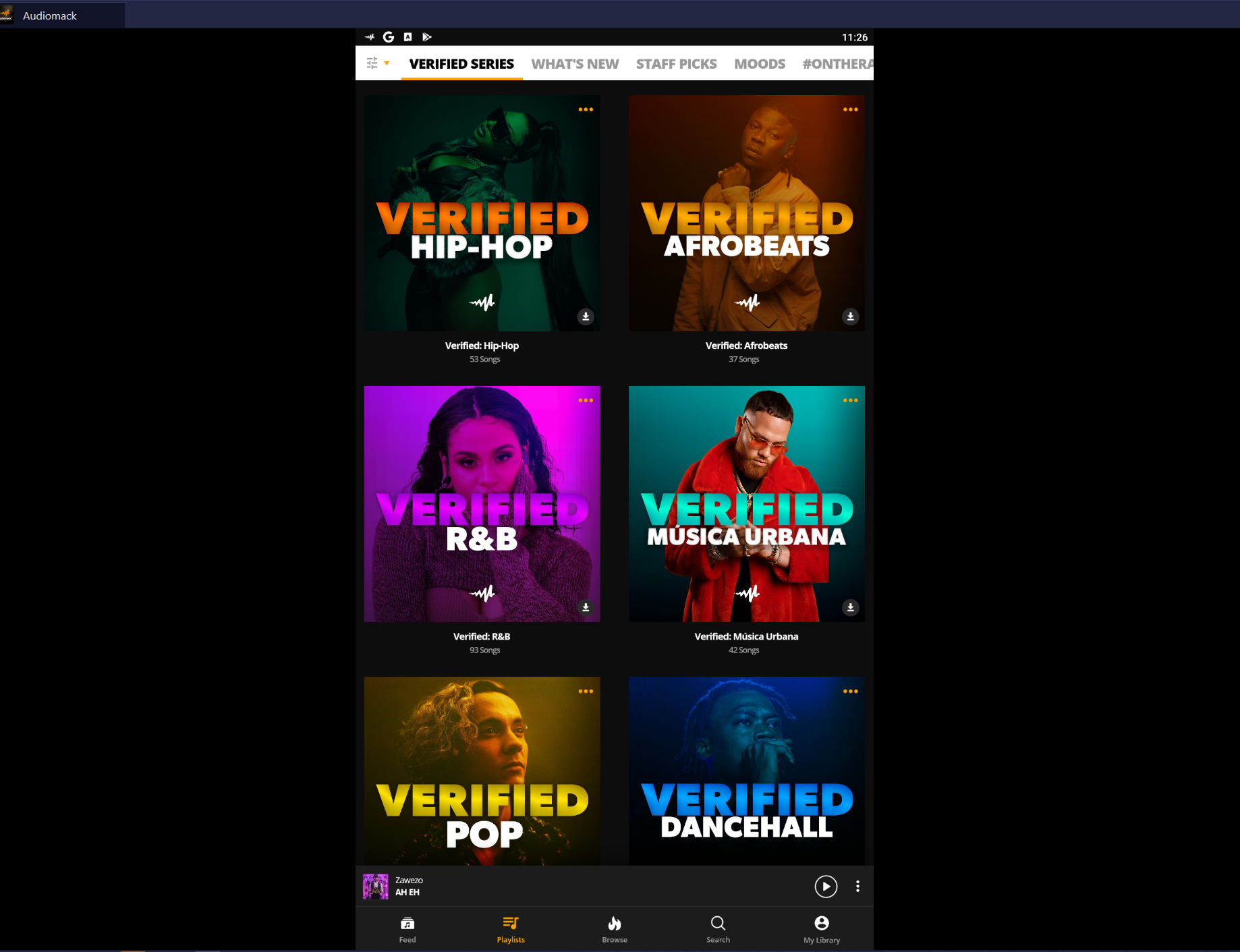
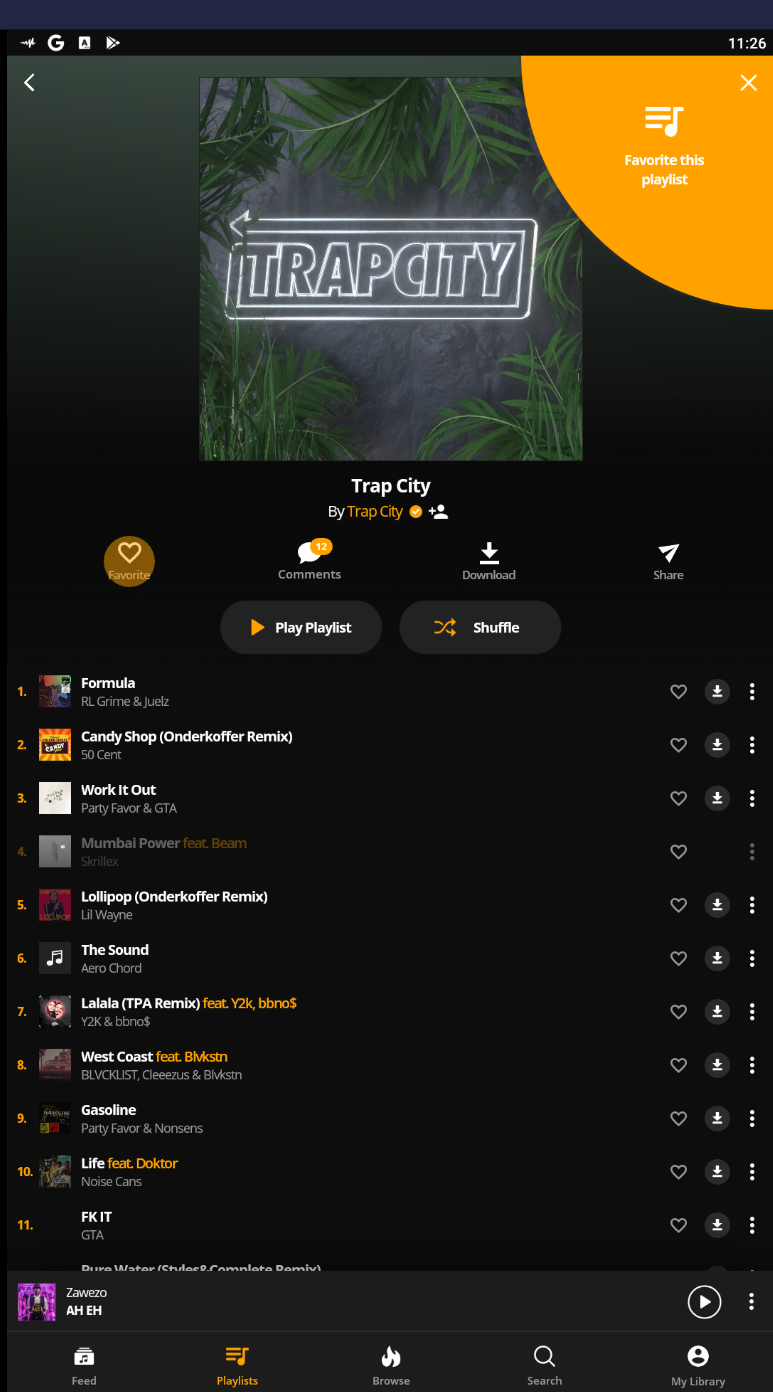
Audiomack is an app built for audiophiles. Fans of music can listen to millions of tracks for free using the Audiomack application. The seamless music streaming application lists tracks from thousands of artists from all around the world. Whether you listen to Hip-Hop, EDM, R&B, or any other genre of music, you will find the relevant tracks on Audiomack.audiomack for pc

There are many music streaming services, but there are a few exclusive features that make Audiomack stand out. First of all, it’s a completely free app with the least amount of limitations. Audiomack allows users to create their own customized playlists. The app has a powerful music player with extended controls. It works nicely with your Bluetooth earphones as well. The player automatically manages to interact with the Bluetooth device.

Audiomack has the ability to recommend the music tracks based on your taste. When you configure this app for the first time, it asks you to select your favorite artists or the music genres. You can change or choose this at any later time too. Take a look at some of the best features of Audiomack.

Audiomack Features

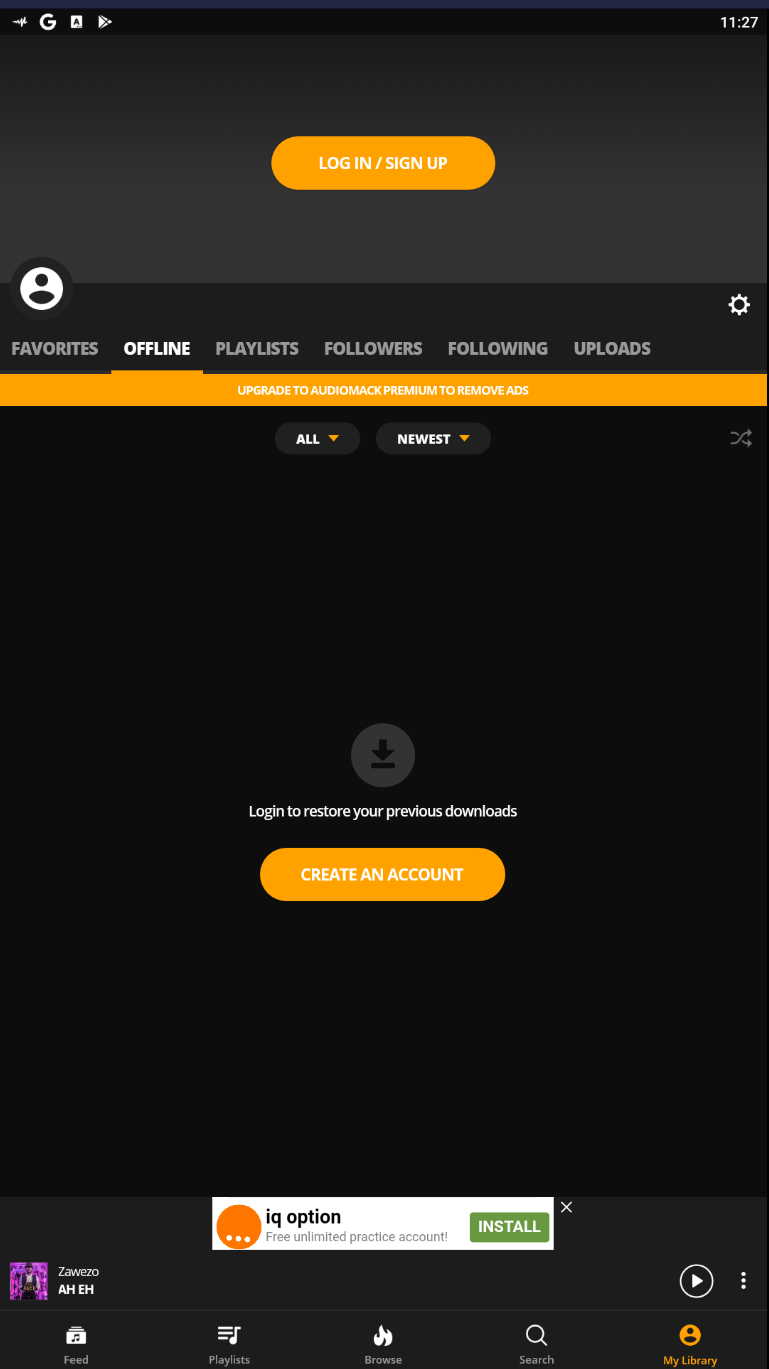
The best feature of this app is the offline download feature. You can download any track on the local storage of your device. Once you’ve downloaded the track, you can play it anytime without the internet connection. These tracks will reside inside the directory of Audiomack. Every time you would want to listen to such tracks, you will access them via Audiomack. The app has a dedicated section for music experts.audiomack pc

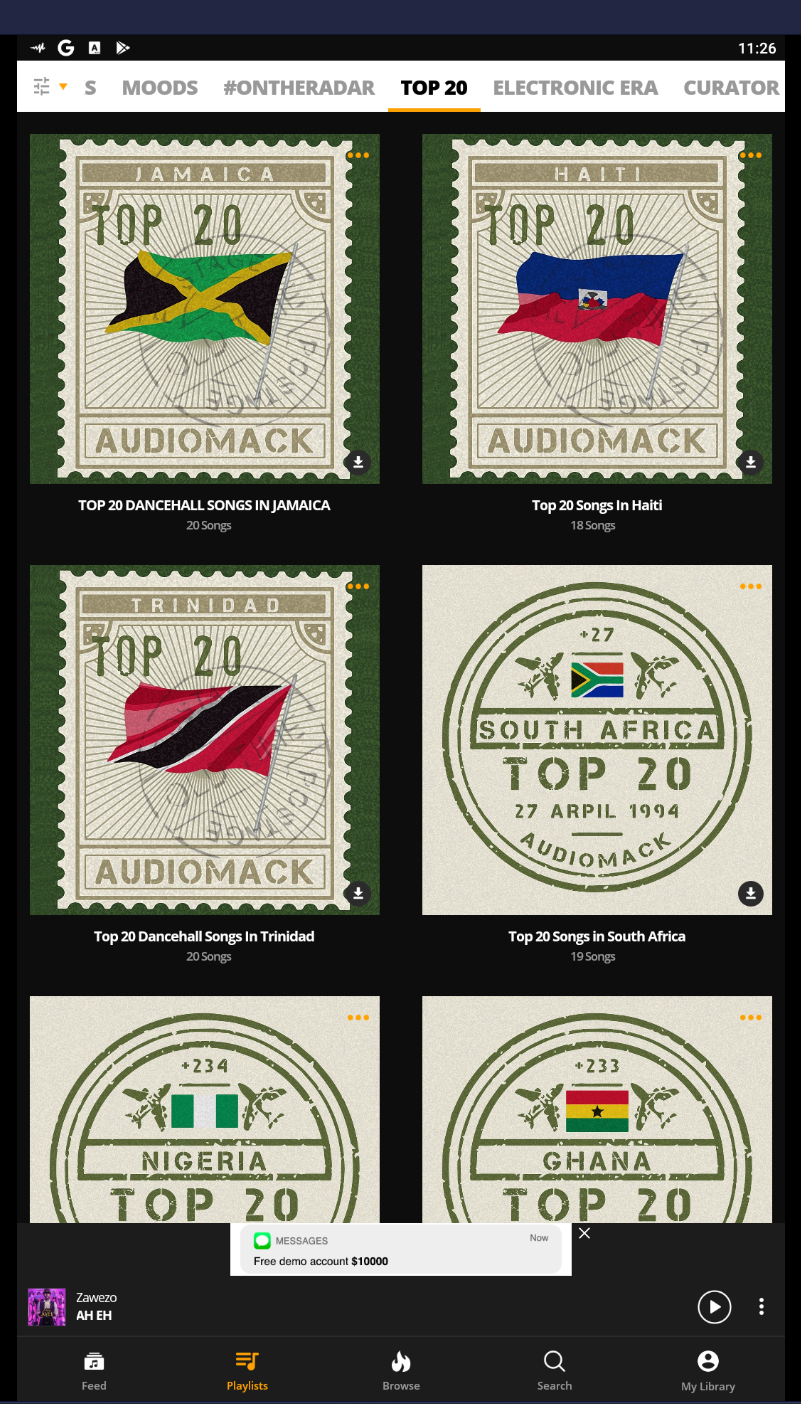
It allows users to publish their profiles. If you are not sure about your own choices, you can trust the Audiomack’s expert users and listen to their playlists instead. The app has a top-20 feature that lists the trending tracks.

It also has a separate tab to show all newly released music pieces. In a nutshell, Audiomack is a complete music solution for people tight on money and also for the people who want the best value for money (talking about Audiomack premium subscription).

Audiomack vs Spotify

The main difference between Audiomack and Spotify is availability. Spotify is a too much-sophisticated application. It’s available in a few select countries only. Spotify’s major part is premium. You can skip a track for only 6 times in an hour on Spotify.

On the other hand, Audiomack is completely the opposite. First of all, it’s widely available in more countries. Audiomack has an offline downloader, unlike the Spotify app. Its limitations are not as tight as Spotify. It is true that Spotify has a better artist reach, but it has its price too. For a user who doesn’t want to worry too much about a mere music app, Audiomack is the safest choice.audiomack for pc

Audiomack Alternatives

The biggest alternative of Audiomack is Spotify, but if you want to look at more similar apps, here is a list for you.

  • Pandora
  • BoomPlay
  • Tidal Music
  • Spotify
  • TuneIn Radio
  • Gaana
  • SoundCloud
  • Apple Music
  • Play Music

Audiomack PC – How?

There are two ways to run Audiomack on a computer. Either you can just launch its web app in your Internet Browser or you can just download the app via an Android emulator. We are here for the later part. It’s pretty easy to download and listen to Audiomack for PC with the help of a software like the BlueStacks or the NoxPlayer. You can get Audiomack for PC on Windows 7, Windows 8, Windows 8.1, Windows 10, and macOS. Just take a look at the requirements below and then follow the remaining steps.

Requirements to run Audiomack on Windows | Audiomack on macOS

  1. Desktop PC or Laptop.
  2. Internet Connection.
  3. Google Account. If you do not currently have one, you can create it for free.
  4. Android Emulator: BlueStacks or NoxPlayer.
  5. Download and install the emulator. Set up the emulator using your Google Account.
  6. Follow the tutorial to the letter now.

Steps to install Audiomack for PC

  1. On the PC, launch the Android Emulator.
  2. Inside the emulator, open the Google Play Store.
  3. Using the Play Store’s Search Bar, find Audiomack.audiomack for pc
  4. As you find the Audiomack app, install it.
  5. Launch Audiomack once the installation ends.audiomack for pc
  6. Pick your favorite artists and get to the home screen of the app.audiomack pc
  7. Play the track via Audiomack and enjoy it!audiomack pc

Audiomack PC – Video Tutorial

Didn’t get the text-tutorial? Here is our exclusive video on how to run Audiomack on PC.

What’s next?

By now, you are done installing the PC version of Audiomack. The main idea behind installing Audiomack on a computer is to be able to keep the app running 24/7 in the background. It won’t hurt your computer. Another advantage is to be able to listen to the songs using bigger and better speakers attached to your computer. If you have run into any kind of problems while installing this application or setting up the Emulators, feel free to reach out to us.

FAQs

Is Audiomack for PC Safe?

Yes, it is 100% safe. This method does not involve any unverified installations. You are using the safest emulator and installing the app officially from the Play Store.

Is Audiomack available for Windows 10?

Yes, the method given above will let you install Audiomack on Windows 10 as well as all other versions of Windows.

Is Audiomack free?

Yes, the biggest part of this app is free.

Does Audiomack offer free downloads?

Yes, you can download any tracks for free inside the Audiomack app.

Is Audiomack better than Spotify?

Yes and No! It totally depends on your usage. Users looking for more premium-ness like Spotify while users on the lookout for the best possible value chose the Audiomack app.

Download Creative Destruction for PC and Laptop

Download Creative Destruction for PC and Laptop

As of May 2020, the Creative Destruction for PC still works on Windows 10/8/7 and macOS. Follow this guide to download Creative Destruction for PC.

Creative Destruction Brief Overview

Creative Destruction is a new hot game nowadays. The game comes from ZuoMasterDeveloper. For the past few weeks, Creative Destruction has been successful in attracting millions of players. The concept of this game is exactly as its name suggests. It’s a sandbox survival game. You have to destroy every single thing that you find around.

Creative Destruction for PC

Creative Destruction Gameplay

The game involved continuous building and demolition of buildings. Everything in this game is destructible. Players have to keep their tools ready all the time in order to hit anything that they find. Since this game is a sandbox survival game, the concept also requires the players to become the last man standing while the world in this game is coming to an end. Initially, the players will make their way to a 4*4 km map which has 13 different locations. Players are given a basic destructor. There are over 100 different players on the field.

Players may build something that they can hide themselves in, however, they have to break all anything constructed by the other 100 players. An option to acquire a gun is also there. Once players have got a gun, the game will switch to FPS mode giving you an opportunity to shoot down the enemies. Creative Destruction for PC

Having enemies on the land is not the only challenge you have. A storm is incoming. If you do not finish your task in time, you will be hit by a snowstorm that will wipe off your identity. If you find yourself lacking, you can form alliances with some other players to finish the game before you run out of time.

The battle in wonderland awaits you. Pull out the beast that you have been hiding inside for long. Go ahead to do something that will make the history remember you. Creative Destruction offers high-quality graphics. The game comes for free. Primarily, this game is built for the Android ecosystem. The popularity of Creative Destruction has urged gamers to play this game on computers. If you are one of the users looking for a method to play Creative Destruction on PC, you have landed in the right place.Creative Destruction for PC

Creative Destruction PC – How is it possible?

Creative Destruction for PC can be downloaded on a desktop PC and Laptop. You can install and play Creative Destruction for PC on Windows 7, Windows 8, Windows 8.1, Windows 10, macOS, and Mac OS X. Windows users can use BlueStacks 3 or BlueStacks N, Mac users will have to use the old BlueStacks to get this game. Have a look at the tutorial now.

Download Creative Destruction for PC Windows 10

  1. Download, install and setup BlueStacks on your computer.
  2. Now open BlueStacks 3 and then open My Apps tab.
  3. Go to System Apps and open the Google Play Store.
  4. Now in the Play Store, search for Creative Destruction.
  5. As soon as you find the game, install and launch it from My Apps.
  6. Follow on-screen instructions to play it using your Mouse and Keyboard now.

Creative Destruction for PC macOS

  1. Download and setup BlueStacks on your computer.
  2. Open BlueStacks now and launch Google Play Store in it.
  3. In the Play Store, search for Creative Destruction.
  4. Install the game and follow on-screen instructions to play Creative Destruction using Mouse and Keyboard.

That’s all for now. Got any questions? Feel free to ask them in the comments box below. Have a good day!

 Updated: May 13, 2020 

Screen Mirror Windows & Mac PC on Android & iOS

0
Screen Mirror Windows & Mac PC on Android & iOS

We have screen mirror our iOS and Android devices to Windows 10 & Mac PC’s a number of times. But today, I will tell you how to Screen Mirror Windows & Mac PC on Android & iOS. This time it’s other way around. Let’s get started.

Before I move on let me clear one thing, screen mirroring Windows & Mac PC on Android & iOS is possible but it will take a bit of time. It’s not simple as it looks, you need to be present while following the steps provided below.

You can mirror your PC screen as well as remotely get to the computer from your mobile device by methods for screen contact and console. You have to download two or three Softwares on your PC and Mobile.

You can cast the PC on mobile regardless of the OS i.e you can mirror Windows on iOS and Android just as macOS on Android and iOS with no issues. A basic yet useful asset to get a bigger screen on your little cell phone for nothing. You need the internet and the software works quite smoothly even with normal internet speeds.

Screen Mirror Windows & Mac PC on Android & iOS:

Heed the instruction below and you will know how you can screen mirror Windows & Mac Pc on your Android and iOS devices. There is not rooting or Jailbreaking involves, just follow the instructions and you good to go.

Screencast PC on Mobile Phone:

I will be using a Chrome Add-on, which means you can easily use it on Mac and Windows PC. Let’s begin and screen mirror Windows & Mac PC on Android & iOS.

Total Time: 10 minutes

Download Chrome Remote Desktop:

You have to initially download the Chrome Remote Desktop (CRD) Chrome Extension on Google Chrome Browser. It goes about as an assistant which bolsters the software by implication. Without CRD Plugin the software won’t work.

Add To Chrome:

Click on Add to Chrome to introduce CRD on Chrome Browser. It will take a spot on the extension menu on the privilege of the URL bar area.screen mirror Windows & Mac PC on Android & iOS

Open Remote Access Website:

Presently click on the CRD Icon on the extension bar to Open Remote Access Website on the browser.screen mirror Windows & Mac PC on Android & iOS.

Download Batch File:

Here Download Remote Access file on your computer. The site progressively gives you Windows or Mac record in the wake of recognizing the OS.screen mirror Windows & Mac PC on Android & iOS.

Add File in Mac Settings:

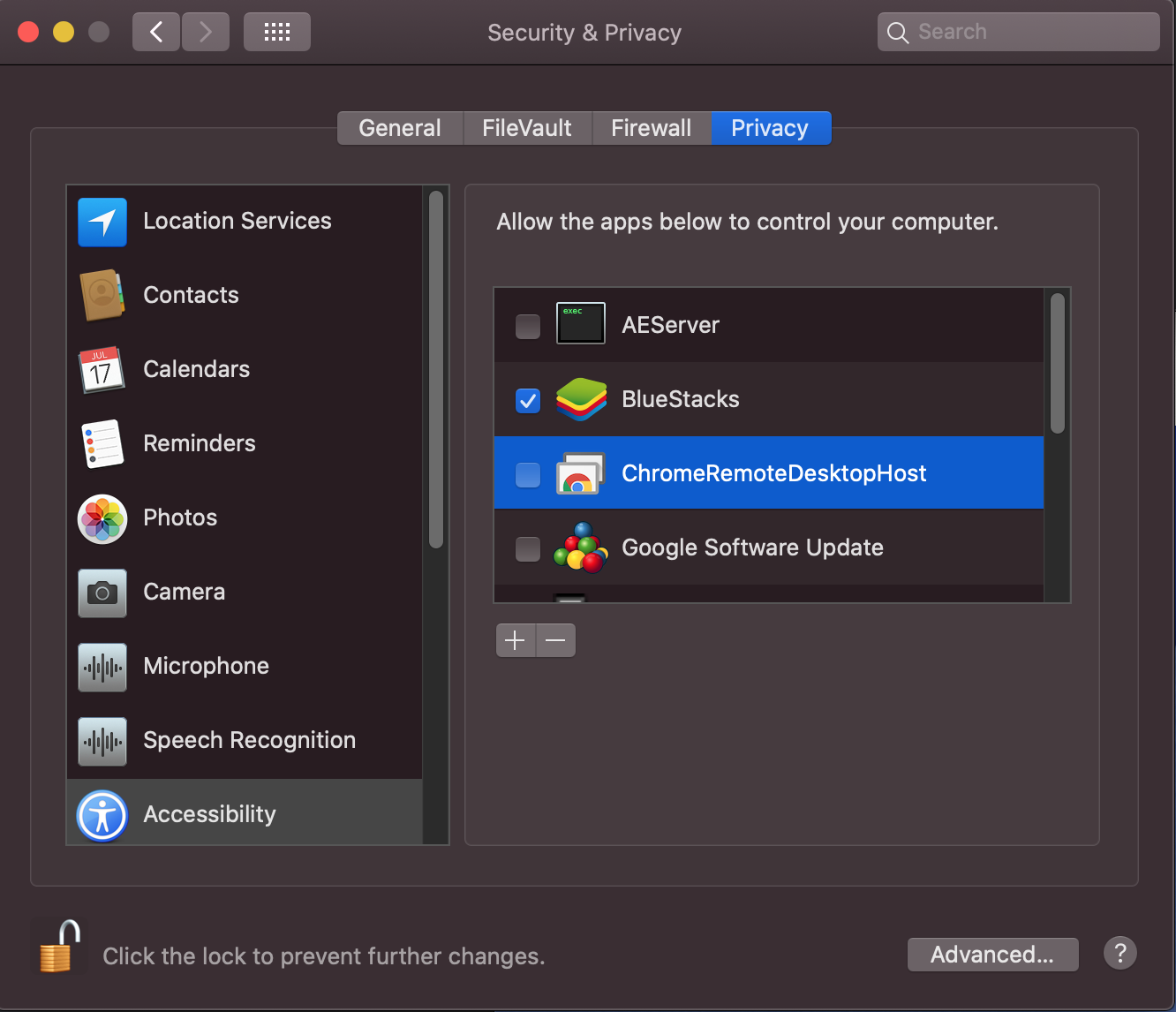
For Mac, you need to install the RAF on your Macbook and Grant the Permissions. You have to allow accessibility consents, click on the Lock icon, enter the screen lock secret key and Grant the Computer Control to the CRD App.
screen mirror Windows & Mac PC on Android & iOS.

Turn On & Add Name:

When the Installation is finished “Turn On” the Remote Access on CRD Website. After you Turn On the Remote Access on the PC, you will be approached to name the computer, pick any Desired Name.
screen mirror Windows & Mac PC on Android & iOS.

Setup a Pin:

Moving on, it’s now time to set up a pin that will be used for security purposes. In order to Screen Mirror Windows & Mac PC on Android & iOS, this pin will be required.
screen mirror Windows & Mac PC on Android & iOS.

Download Chrome Remote Desktop for Smartphones:

It’s time to download Chrome Remote Desktop app for Android & iOS.

Setup CRD App on Android & iOS:

After downloading the CRD app on your Android or iOS. Launch it and use the same Google Account which you have used on your PC. Once you are logged in with the same Gmail ID, you will be your active PC or Macbook connection. Tap on it and Add the Pin you have created before.

That’s all.

Download Wifi Display Miracast for PC Windows – Mac Free

0
Download Wifi Display Miracast for PC Windows – Mac Free

Wifi Display Miracast for PC is now available and can be easily installed on a desktop PC/Laptop running Windows XP/7/8/8.1/10 and MacOS/OS X. Let’s learn a little bit about this all-new app and then have a look at the installation method via BlueStacks or BlueStacks 2.

Wifi Display Miracast for PC

How to Use WiFi Display Miracast:

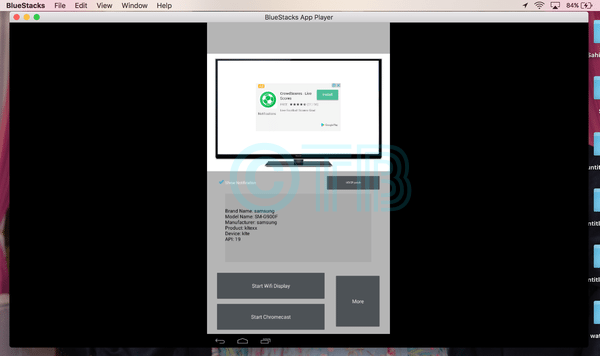
To utilize WiFi display (Miracast) you have to have a Miracrast TV or potentially the dongle and Miracast perfect device. Miracast is an incredible streaming convention that empowers administrators to reflect content from cell phones with Android support or PC Windows to TV screens.

With this present innovation, wireless streaming has been received, it has increased a great deal of prevalence since many streaming devices have been created to support Miracast. Do you know how you can download and introduce it utilizing the BlueStacks emulator? This article will give you a reasonable idea of the most proficient method to do it and you will always remember the straightforward system.

Download Wifi Display Miracast for Laptop Windows-Mac:

Following are the two methods from which you can download and install Wifi Display Miracast for PC, Laptop Windows-Mac. Let’s start the method to download Wifi Display Miracast for PC Windows.

Download Wifi Display Miracast for PC Windows using BlueStacks:

  • First, Download and install BlueSacks on your Windows or Mac. Bluestacks Offline Installer | Rooted Bluestacks |Bluestacks App Player.
  • Once you’ve installed BlueStack, launch it from your desktop. You have to add your Google Account to use Google Play on BlueStack. Goto->Settings->Accounts-Gmail.
  • When BlueStacks screen loads up, click on the Search icon.
  • Now you have to type in the app name. I am looking for Wifi Display Miracast so, in the search bar, I’ll type Wifi Display Miracast and hit enter.

Wifi Display Miracast for PC

  • On the next screen, you’ll see the list of all the apps containing Wifi Display Miracast name, Click on the first one which is developed by PPgirl.
  • Now you’ll be at app page, here you have to click on install. It will start downloading the app and once the downloading is complete, Wifi Display Miracast will be installed.

  • Before moving on you have to give permission to Wifi Display Miracast in order to access your system information. Click on Accept when you’ll see the pop-up.
  • Now, wait for the installation process to be complete, once the Wifi Display Miracast is downloaded and installed, you’ll see a notification as you do on your Android devices. Goto BlueStacks homepage and there you’ll see the Wifi Display Miracast logo in your apps. Click on the Wifi Display Miracast logos to start using it.

Method:2

  • Download Wifi Display Miracast APK.
  • Download and install BluestacksBluestacks Offline Installer | Rooted Bluestacks |Bluestacks App Player
  • Once you’ve installed Bluestacks, double-click the APK that you just downloaded above.
  • The APK will be installed using Bluestacks, once installed open Bluestacks and locate the recently installed Wifi Display Miracast.
  • Click the Wifi Display Miracast icon to open it, follow the on-screen instructions to play it.

5 Best Android Apps to Save WhatsApp Status (WhatsApp Status Saver)

0
5 Best Android Apps to Save WhatsApp Status (WhatsApp Status Saver)

Here are the 5 best Android Apps to Save WhatsApp Status. These apps are also known as WhatsApp Status Saver apps.

Disappearing stories first came to be with Snapchat. This concept is since adopted by apps like Instagram, Facebook, YouTube, and WhatsApp of course. WhatsApp status is becoming commonplace for people to share all kinds of stuff with their phone contacts. Some people use it to share text only, in form of queries or some information. Others use it to share some interesting videos and meme pictures. Therefore, this guide takes you through the best apps to save WhatsApp Status to the phone gallery.

How to WhatsApp Status Saver Apps work?

Before continuing, we should know how the Android WhatsApp status saver apps really work. In Android specifically, file management is pretty easy and open for users to explore. For those who don’t know, the statuses of all contacts are downloaded and saved on the phone’s internal storage. It is actually inside the “WhatsApp” folder. All the statuses are inside the hidden “.statuses” folder. Any users with adequate skills can access it and copy its contents anywhere. Therefore, all the WhatsApp saver apps actually use this folder to begin with. In order to make the experience better suited for everyone, the graphics and division of content come into play.

These apps divide the content into videos and images. There is no contact-specific division since it is not mentioned inside the folder. Therefore, it is all random and users need to find the exact status for themselves. Once found, saving WhatsApp status to the gallery from here on is pretty simple. Just select a file and press save. We have discussed this method in detail in the following guide:

How to save WhatsApp statuses by contacts to Gallery (Manually)

However, some people still prefer the apps to do the heavy lifting for them. Therefore, we have compiled a comprehensive list of all suitable apps for this job. Take a look for yourself and choose one.

Best Apps to save WhatsApp status to Gallery (Contacts’ statuses)

1: Status Saver

best android whatsapp status saver apps

It is one of the cleanest WhatsApp Status Saver Apps out there. It comes with all the essential tools that one can think of. You can save WhatsApp status to the gallery, watch videos directly in-app before saving, repost a status without even saving and all content is divided into two main groups.

Scroll to either left or right to open pictures or videos from statuses from your contacts. The length of videos is, of course, the same as the one in-app. 

There is one shortcoming though. We cannot search the statuses by contact names directly. It is not possible because this app does not have direct access to WhatsApp API or database. Therefore, you have solely relied on searching and browsing skills. If someone has thousands of contacts, then they may have a hard time finding specific videos or images.

Apart from this obvious flaw, this is one of the perfect contenders for this simple job. The interface is snappy, clean and very WhatsApp like. Therefore, you’d feel right at home when using it.

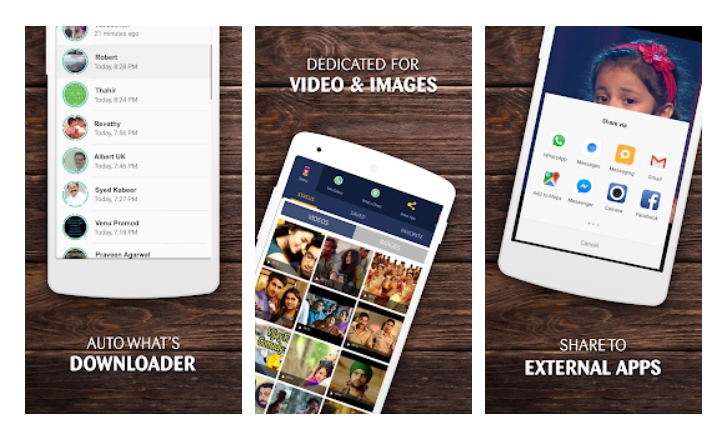
2: Status Downloader for Whatsapp

download whatsapp stories android

Just like our previous choice, this is one comes with pretty adequate graphics and user interface. The color scheme is mostly copied from WA itself. It comes as no surprise. However, it would still be cool for developers to put some effort into making their apps stand out from rest.

In addition to the required function of saving WhatsApp status in the phone permanently, you get some extra bonuses. The first worth mentioning is “Status Wall”. This is a place where users share interesting videos, images, quotes, and GIFs. You can download these directly to the phone and then put them on personal status. How cool is that!

Next up, you’ve got the option to send messages to unsaved WhatsApp numbers. I don’t know who thought this was important to include, but it’s still here for us to use.

As for the main purpose, it is a great WhatsApp status saver app and works just the way you’d expect it to. It copies and displays all the data from the “.statuses” folder into a more digestible form.

3: Status Saver – WhatsApp Status Video Download App

whatsapp status saver for android

What’s different about this app? Well, the interface is not green! That’s a huge difference. If you are not a fan of green looking WhatsApp status downloader apps, then go for this one. 

Under the hood, it works the same as every other app from its competition. It’ll copy videos, images, and GIFs from WhatsApp statuses folder. Afterward, all the files are displayed in a much easy-to-use format. 

The only two categories to use in this case are images and videos. Therefore, if you’re thinking of sorting statuses based on contact names or times, not possible. Scroll through the list and find the one you want.

And oh! One important thing. In order for a status media to show up in this app, you must first view it in the original app. It should download there first. 

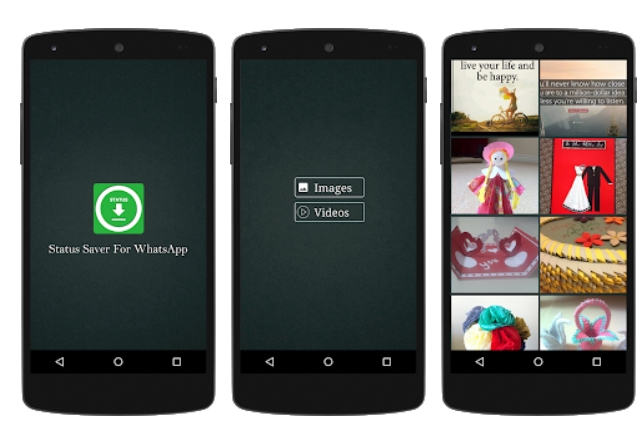
4: Status Saver For WhatsApp

save whatsapp status android gallery

Looking for a simple and minimalistic app? This one may be the right choice for you then. After opening the app, there are just two buttons. One for Images and others for Videos.

It shows the images and videos that main WhatsApp downloaded to the phone while you were checking statuses. Therefore, these media files will disappear when the status disappears from the app. Moreover, a status image or video does not show up in the app unless it is viewed. 

Next up, scroll through the given list of status images and videos. These are not arranged on the basis of contact names or anything like that. At best, these are sorted based on download time or date. Therefore, your best way of finding a status is to just keep browsing until you find the one.

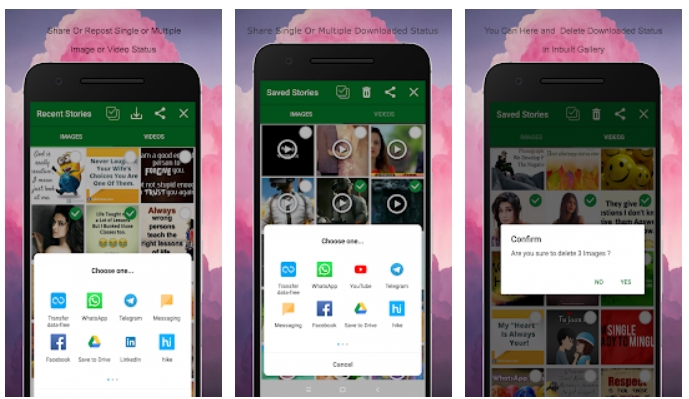
5: Story Saver For Whatsapp

best whatsapp status saver apps android

People share all kinds of interesting stuff on WhatsApp. These include funny videos, GIFs, memes, quotes, political videos, songs, and whatnot. Sometimes we do come across annoying statuses but that’s not important right now. This WhatsApp status saver app lets you download favorites videos and images to the phone gallery. Or just share it directly to your own status.

Either save one by one or select multiple files and save all at once. Just like other options, the only downside is the fact that we cannot sort these statuses with contact names or other filters. All files are shown in random order. In order to find any, just scroll through the list, preview it with a built-in media player and then save it.

Conclusion

We’d just like to highlight that none of these tools are here to help you breach someone’s privacy. It is possible that someone may share personal stuff on WhatsApp status and wouldn’t like anyone to download it. Therefore, please respect people’s privacy. Otherwise, if you find some funny or informative clips/images, then go ahead and save WhatsApp status using any of these apps.

Last Updated: 1/3/2020

Feel free to leave your feedback and queries in the comments section below

Best Android Password Managers

0
Best Android Password Managers

Don’t you want to remember every new password for your accounts? Take al look at the best free Password Managers for Android in 2020.

Every Android user uses a number of apps on their devices including social media. Each of these apps mostly come with their own username and password. It is not possible to memorize all the credentials. And of course, it is a big mistake to use the same combination for all accounts. Therefore, Android Password Managers come into play here. This is a unified system to keep all passwords safe in one place. In addition to this, it will automatically login to whichever app you’re loading. It reduces the number of passwords to memorize, to just one. And this is pretty convenient. Below is a list of the best of the best Android Password Managers to keep your login details safe. We have selected these on the basis of features, after security.

How to select the best Password Manager?

What’s the main reason for using a password manager? No, be able to not remember all the passwords. And it should log you in automatically. It is pretty similar to how Chrome auto-fills the passwords. 

However, in order to be complete, the password managers should not be limited to a single device or OS. Therefore, the best Password Manager for Android is cross-platform. For example, if you save passwords on Android, then it should work on iOS, Windows, and Mac too. Other operating systems like Linux are a bonus. 

In all of this, the most important factor is how protected your data it. Since it is the most sensitive data, the app protecting it should be fool-proof. The best password managers have several checks in place to ensure that your passwords are not stolen. 

Added features like biometric verification are a bonus and to the ease-of-use. Therefore, we are going to discuss all of this and anything extra that these options offer. 

Best Android Password Managers list

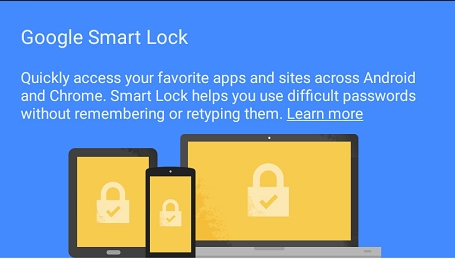
1: Google Smart Lock

Available on Android and Chrome only

Free for Unlimited Usage

Hardcore Android users don’t need to spend a single penny on any password manager. Google’s Smart Lock is the best free Password Manager for Android. It works across Android and Chrome browser. It will save the login details (username/password) with the user’s permission. Then whenever you try to login to that app or website, it will give you the option to enter saved details. 

Use it the same on Chrome Android, Windows, Mac, Linux, Phones, and tablets. Moreover, the sync speed is insanely fast. If you save something on one device, it instantly gets synced to all devices. All you really need is a Google account. And this is totally free. Just remember the login details for this one account. More importantly, Google’s accounts are some of the safest out there. Therefore, you don’t have to worry about anyone stealing your data.

The biggest advantage of using Smart lock is that it stores personal info, credit cards, IDs, addresses and everything is available for autofill. Overall, it is one of the most convenient password managers.

How to enable Google Smart Lock Password Manager?

Despite it being one of the best password managers, a lot of people do not know how or where to enable it. Follow the steps below for the complete guide:

  1. On the Android device, go to Settings.
  2. Open Accounts > Google. (If you have multiple accounts, then open the one you’d like to have passwords in).
  3. Tap on “Info, security, and personalization”.
  4. Slide the top bar and tap on “Security”.
  5. Scroll down and tap on “Password Manager”.
  6. Now tap on “Password Options”
  7. Enable “Auto Sign-in” and “Offer to save passwords” here.best android password managers google smart lock

That’s it! You can view, edit and delete your saved accounts from here too.
best free password managers for android lastpass

2: LastPass Password Manager

Available on Android and iOS

Free for limited Usage / Paid for Unlimited Usage

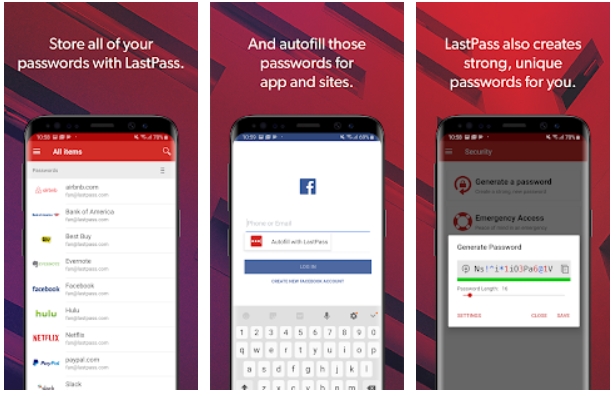
LastPass takes pride in its cross-platform abilities. It not only works for mobile apps, but you can install it on a PC as well. You can rely on it to automatically log in to websites. Similarly, it works for browser on mobile to both save credentials and auto-login.

In order to ensure that all of your data is secure, it is encrypted with a 256-bit key. Now it is very secure but if it’s on a server, then there’s really no use. Therefore, the personal key is saved on the device as well.

Phones with biometric verification like a fingerprint can add an extra layer of security. Set up the fingerprint lock on opening the app on phone to make sure that no one can steal your data. Moreover, the fingerprint unlock is fast and easy to use.

In addition to passwords, use LastPass to save credit card info, make notes and shopping lists. These little features make the app worth using. To get the best out of it, you may get the premium version.

best free android password manager dashlane

3: Dashlane Free Password Manager

Available on Android and iOS

Free for limited Usage / Paid for Unlimited Usage

Dashlane is a good tool to save all login details (Passwords + Usernames), credit card info, secure notes, personal info, and personal IDs. You could save anything in it and consider it a safe vault. 

In addition to saving the info, use the advanced scan features of Dashlance to make sure passwords are strong enough, and all of your accounts are safe from dark web and hackers. Moreover, do a regular or weekly checkup of saved Emails to see if there’s something fishy going on. 

Make sure to check out: Best Bitmoji Alternatives for Android and iPhone

The passwords are available in its built-in browser. Therefore, you may not be able to use it with a browser of choices like Chrome, Opera, or Firefox. However, you can depend on it for auto-filling passwords for all apps installed on the phone. Similarly, allow it to autosave passwords and usernames for you. Overall, Dashlane is one of the most feature-rich Password Managers for Android.

The free version of this app only allows to save up to 50 passwords. In a real-life scenario, this is not enough capacity. Therefore, get the premium version to save unlimited passwords and storage with added monitoring capabilities. A secure VPN is included in Dashlane’s premium version as well.
best password managers for android 1password

4: 1Password – Password Manager and Secure Wallet

Available on Android and iOS

Free for limited Usage / Paid for Unlimited Usage

Also featured in How to transfer Passwords from iPhone to Android.

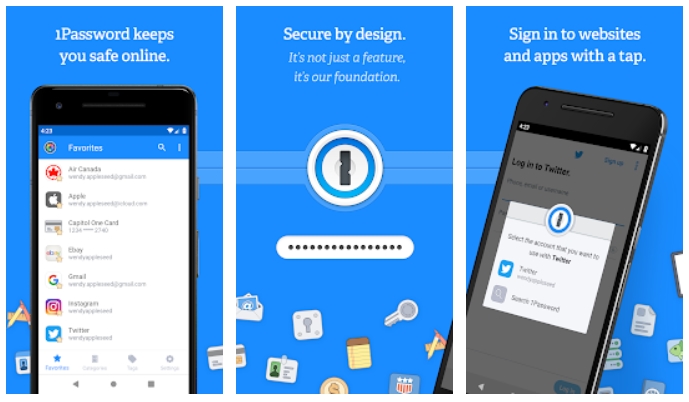
Regarded as one of the best Android Password Managers, 1Password is definitely one you should look into. It offers great tools with intuitive UI and security. All the passwords, data and info is encrypted. Moreover, the encryption key is stored offline only. It means that when your data is saved in the server, it is in an unreadable form. And the only way to make it readable is when it is opened on the user’s phone. Therefore, as long as your phone is safe, all passwords and data is safe inside it.

In addition to passwords, save notes, credit cards, addresses, personal info, IDs, all in one place. Access all this information on Android, iOS and PC. Moreover, the autofill makes it super easy to enter login details, payment details or even addresses in browsers and apps.

The free version of 1Password is available for one month only. After that, buy the premium subscription to continue service. It is one of the best in business therefore, you can get it without worrying about security.

best android password managers password safe

5: Password Safe – Secure Password Manager

Available on Android and iOS

Free for limited Usage / Paid for Unlimited Usage

It is one of the simpler and more traditional solutions. The highlight feature of Password Safe is the fact that all data is stored offline. This app does not have internet access. Therefore, the online sync option is not available. This is done only to make sure that your passwords do not leave your personal phone. Therefore, whenever you feel like moving the passwords to another device, simply make a backup and import it to another device. The encryption keys are stored in the device. It is impossible for anyone to steal your info.

Phones with fingerprint readers can use the fast and secure biometric login. It is fast and reliable. Moreover, create groups of info within the app. It helps keep information segregated. Attach pictures and view passwords history with the pro version. Other features include a password generator, self-destruct, auto local backup and import/export to excel sheet.

Conclusion

Over time, every user creates hundreds of accounts. These are for various apps, services, and websites. We never know when we’re gonna need these again. Therefore, the Android Password Managers make is possible to store and access all the personal info from just one place. Moreover, the autofill makes it even more of a breeze to use. 

Remember, it is the worst practice to keep the same password for multiple accounts. It can jeopardize your entire online profile. Therefore, either use password generators or just keep unique passwords for all important accounts. 

Feel free to leave your feedback and queries in the comments below.

Last Updated: 11/05/2020

How to turn off Samsung Keyboard Character Preview

How to turn off Samsung Keyboard Character Preview

Don’t want the characters popping up every time you type something using your Samsung phone’s keyboard? Well, they can be annoying at times, especially when you are typing something sensitive. The best practice is to turn the Character Previews off. In this tutorial, I will show you the steps to turn off the Samsung Keyboard Character Preview.

turn off Samsung Keyboard Character Preview

Why you should turn off Character Preview on Samsung Galaxy?

Now if you came to this guide while looking for a way to turn off the Character Preview, you probably already know why it’s important. But just in case you don’t have an idea, let me explain it.

The Character Previews are basically the previews of the character that pop-up when you hit any key on the keyboard. For example, when you press A, B, or C on the keyboard, a preview showing the key in a bigger/zoomed-in form pops right up above the key. Imagine that you are typing a password for something on the phone, the character previews keep popping-up, and someone standing next to you easily figures out what you just typed in.

Your phone’s cool-looking visual effect can turn it into a turmoil. So if you are a privacy-centric person who doesn’t want to compromise on a single bit of information falling into wrong hands, you must turn the character previews off. Apart from that, a large number of Samsung Galaxy owners just don’t like those keys popping-up so they look for ways to turn it off.

The idea of making this guide came to my mind when someone commented on my Galaxy A71 Tips & Tricks video on my YouTube channel asking for a way to turn off the character preview. I quickly figured it out and decided to publish the guide here.

Without any further ado, go ahead, take a look at the steps and disable the Samsung Galaxy Keyboard Character Previews.

Turn off Samsung Keyboard Character Preview

Follow these steps to turn off keyboard character preview right now.

Total Time: 2 minutes

Go to Language and input settings on your Samsung Galaxy.

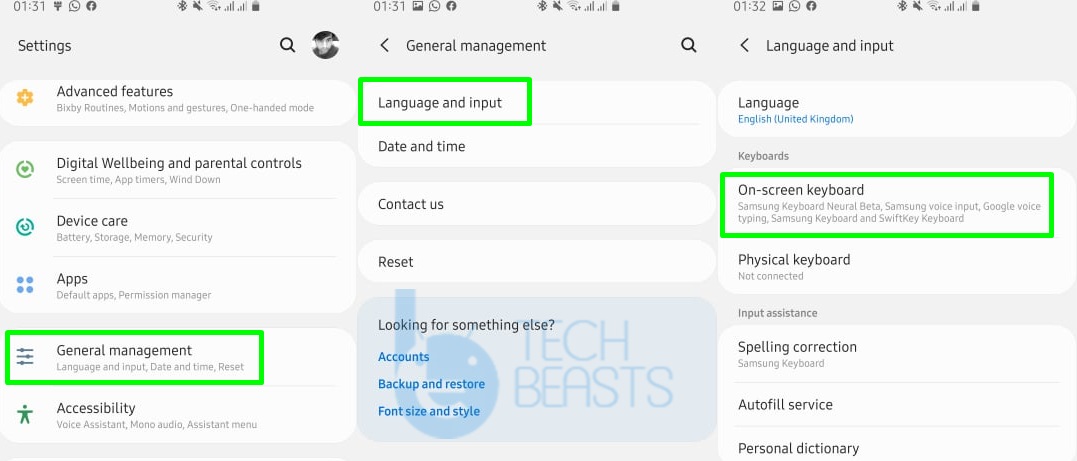
There are two ways to go to Language and input settings i.e. You can either click on the small settings icon appearing inside the Galaxy phone’s Keyboard or you can go to Settings > General Management > Language and input.

Now go to the on-screen Keyboard settings.

In the Language and input, click on the On-screen keyboard and select the Keyboard which is the Samsung Keyboard in our case.samsung keyboard character preview

Enter the Swipe, touch, and feedback settings now.

Inside the On-screen keyboard settings, you will find the Swipe, touch, and feedback settings. Click on this option to enter.

Now go the Touch feedback.

Inside the swipe, touch, and feedback settings, you will find Touch feedback showing Sound, Vibration, Character Preview underneath. Enter this option.

Turn off Character Preview now.

Finally, you will get the Character Preview toggle. Turn it off. Also, if you want, you can turn off the Sound and Vibration as well. Turning off Vibration will turn off Keyboard haptics, so keep that in mind.turn off samsung keyboard character preview

This guide is valid for all Samsung phones running on the Android 9 or Android 10. If you are running a previous version of Android on your phone, your settings may differ from the ones explained above. In that case, use our comment box below to reach out to us.

Also, check out: Download BitLife for PC and Laptop