Home Blog Page 4

Download Google Play on Huawei HMS Phones via Google Space

1
Download Google Play on Huawei HMS Phones via Google Space

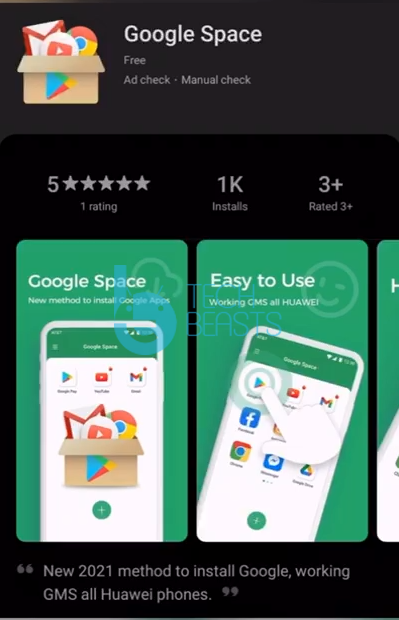
A new method to download Google Play on Huawei HMS phones has just landed. This new method uses an app called Google Space. Luckily, this method seems to be working on all the phones that Huawei has released to date. This also includes Huawei’s newest Mate 40 and might also work on a few upcoming Huawei smartphones. So, in this guide, I am going to show you how you can download Google Play on Huawei HMS Phones via Google Space right now. Before I show you the steps, let me also give you a flashback of the love and hate affair of Google and Huawei.Google Play on Huawei
Google Play Store on Huawei Phones

A couple of years back, Huawei has banned by the US for having ties with the Chinese Government. Since then, Huawei has been facing bottlenecks every now and then which includes termination of Google’s services on Huawei’s devices, Huawei’s network equipment sanctions in the US, several platforms that had to say Goodbye to Huawei, and also the famous chipmaker ARM was disallowed to work with Huawei. As of January 2021, Huawei is not allowed to make any new chips with the support manufacturers from the US or from the UK.

Huawei moved on from Google’s framework long back, but Huawei’s own alternative of the Play Store, the App Gallery is not mature enough yet. In fact, there are millions of common applications that are still unavailable on the App Gallery. The App Gallery’s app installation method is also somewhat tricky. It even lists the APKs from unverified third-party websites which makes a lot of Huawei users a bit curious about its functionality. Even today, a huge percentage of Huawei smartphone users want to see the Google Play Store working on their devices despite Huawei’s best efforts to kill its dependency on Google Apps.

In the last 2 years, there have been over a dozen methods allowing the installation of Google Apps on Huawei phones, but these methods keep getting patched. We have had the solutions like the GMS Installer, the GMSanzhuangqi App, the backup-restore method, and many other such tricks. The only problem with these tricks is that sooner or later, they come to an end leaving Huawei consumers in a street with a dead end.

If you have been eyeing a new method recently and you are on this page right now, first of all, I’d like to congratulate you as a new method is finally here. Let’s now take a look at the simplest, easiest, and quickest method to download Google Play Store on Huawei phones in 2021.

There are no pre-requisites, there are no third-party downloads required, there are no extra steps involved, this method is as sweet as sugarcane.

Download and Install Google Play on Huawei HMS Phones

  1. On your Huawei handset, open the App Gallery.
  2. In the App Gallery’s search, type “Google Space”.
  3. As you find the Google Space App, install it.
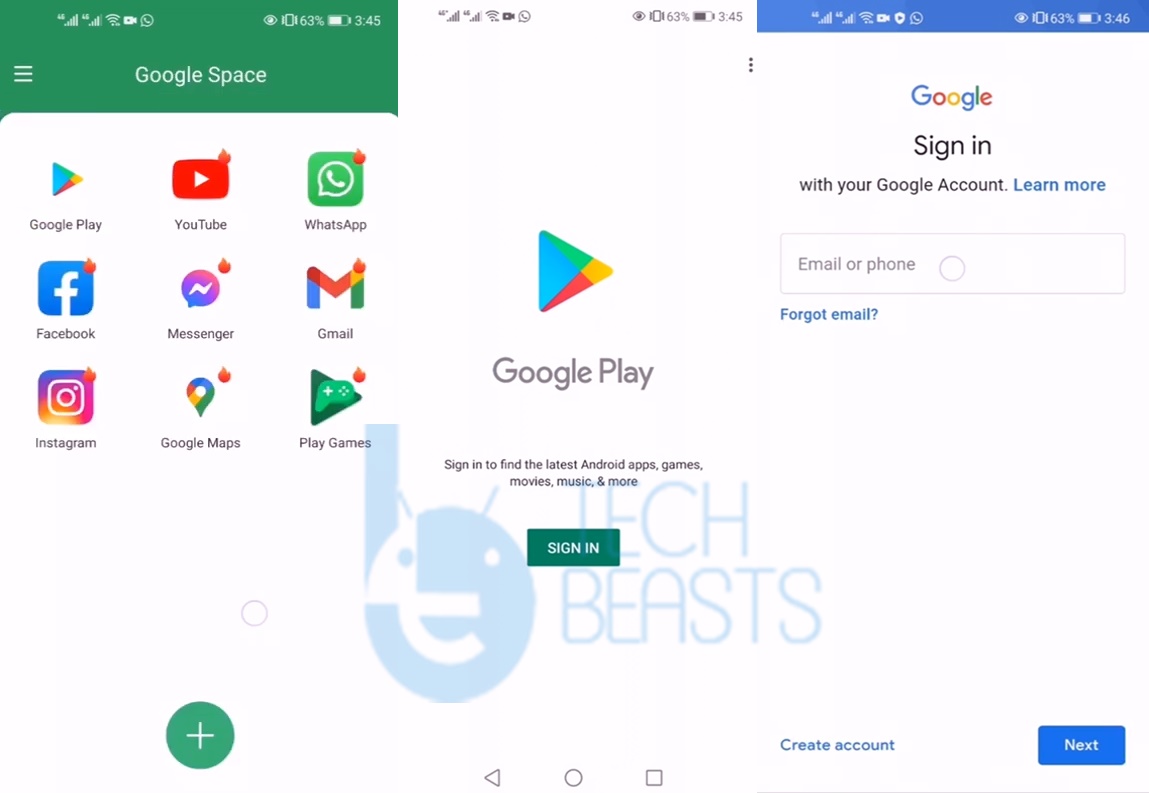
  4. Once installed, click on “Open” at the bottom of Google Space.Google Play on Huawei
  5. Now click on “Google Play” and launch it.Google Play on Huawei HMS Phones
  6. Log into Google Play using your Google Account.Google Play on Huawei
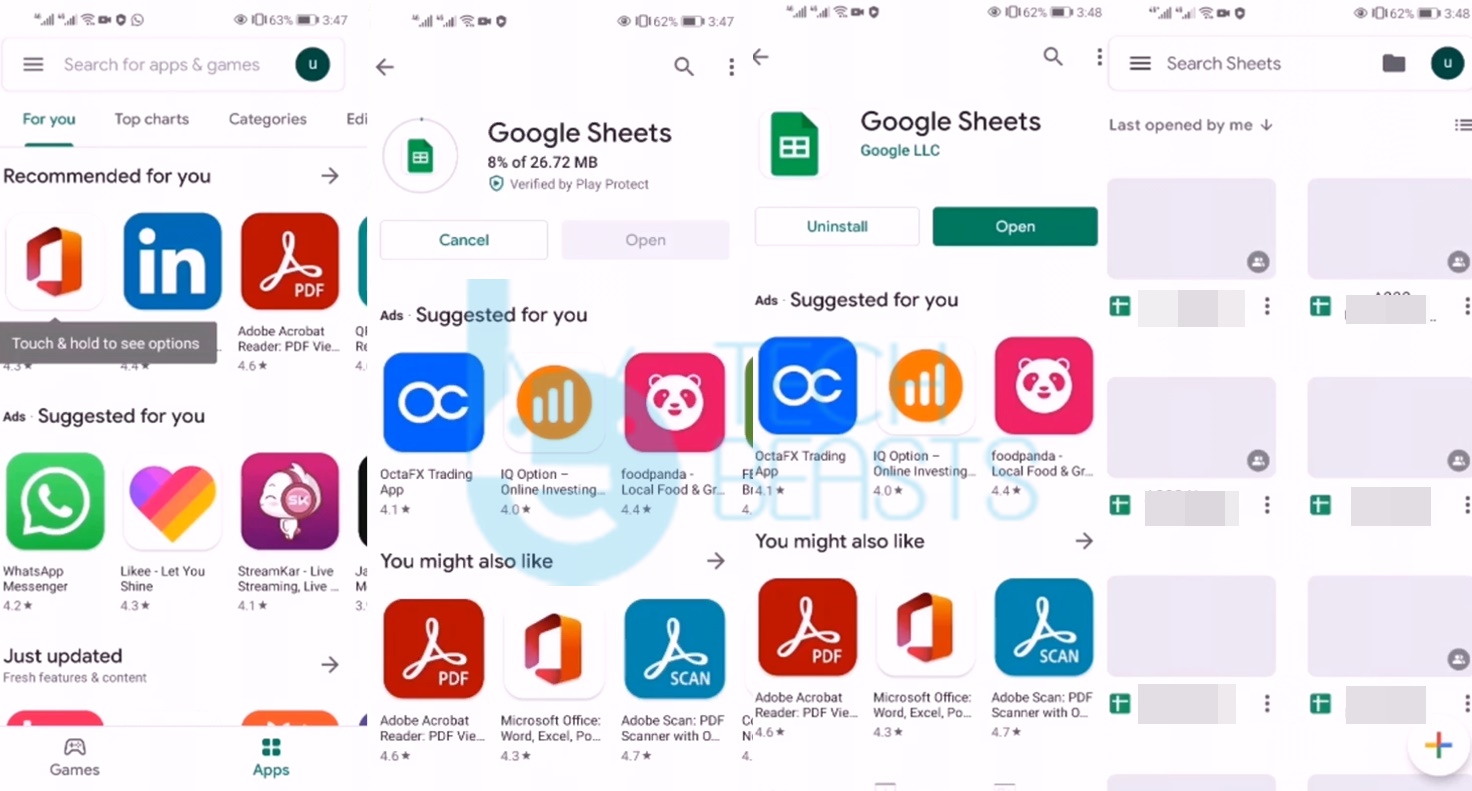
  7. All done, install any app you want and enjoy the Play Store!Google Play on Huawei HMS Phones

Video to download Play Store on Huawei HMS Phones via Google Space

I have also created a short video on the same. If the method above is not clear enough, watch the video where I have demonstrated how you can install Play Store on your Huawei handset in 2021. In this video, I have installed and ran the Google Sheets successfully on a Huawei smartphone.

That’s all. If you still have any queries, feel free to reach out to us via the comment section below. Alternatively, you can use our contact us page too.
Track and locate iPhone 12 Remotely

0
Track and locate iPhone 12 Remotely

In this tutorial, we will talk you through how to use Track and locate iPhone 12 remotely. Find the location of your iPhone now.

The iPhone 12

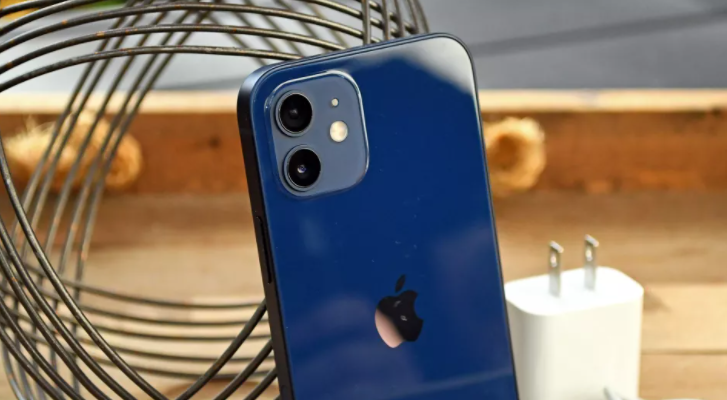
With the past year filled with uncertainty and all the other things besides the pandemic, Apple on October 13, 2020, introduced its newest flagship iPhones, the iPhone 12 and iPhone 12 mini, which offer powerful features at an affordable price tag. Sold alongside the more expensive iPhone 12 Pro and iPhone 12 Pro Max, the iPhone 12 and 12 mini are ideal for anyone who doesn’t need Pro camera features.

The 6.1-inch iPhone 12 is a successor to the iPhone 11, while the 5.4-inch iPhone 12 is an all-new size and marks the smallest iPhone Apple has introduced since the 2016 iPhone SE. Aside from screen size and battery size, the two phones are technically identical. With its small size, the iPhone 12 mini will be ideal for those who prefer an iPhone that can be used one-handed.

All iPhone models this year feature Super Retina XDR OLED displays for the first time, with an edge-to-edge design with the exception of the Face ID notch and small bezels around the edge. There’s no difference in display quality between the standard iPhone 12 models and the Pro models.

The iPhone 12 is the kind of product Apple only releases once in a while — the kind that looks different, is built on a fundamentally new technology, and will ultimately form the basis of future iPhones for years to come.

The iPhone 12 has an attractive new design, a straightforward and complete approach to 5G, good cameras, and even better performance.

You can buy the iPhone 12 from Apple as well as a number of carriers. The phone starts at $829 for an unlocked device with 64GB of storage ($799 if you buy it on-contract from Verizon, AT&T or T-Mobile); opting for 128GB ($879) or 256GB ($979) raises the price.

Track and Locate lost iPhone 12

You’ve probably arrived at this article because you’ve lost your iPhone, or even worse, think it might have been stolen. The good news is that Apple has software that can make it easy to track down a lost iPhone, and if it has been stolen you can use that software to wipe the iPhone and lock it down so that your data is protected.

You can still find and locate your smartphone, lets hope you have the internet connectin and the other services on. Follow the steps below.

Track and locate lost iPhone 12

Step by Step Guide to Track and locate your iPhone 12

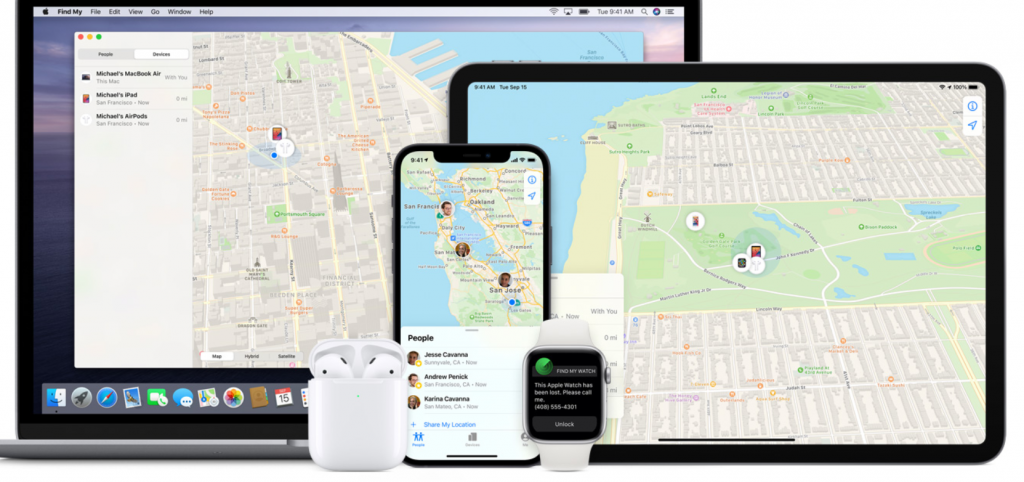
The Find My app must be enabled on each device before use. To see all the devices when you sign in to the Find My app, each device must be set up with the same iCloud account.

if you no longer have access to an iOS device, refer to Locate an iOS Device – iCloud Website.

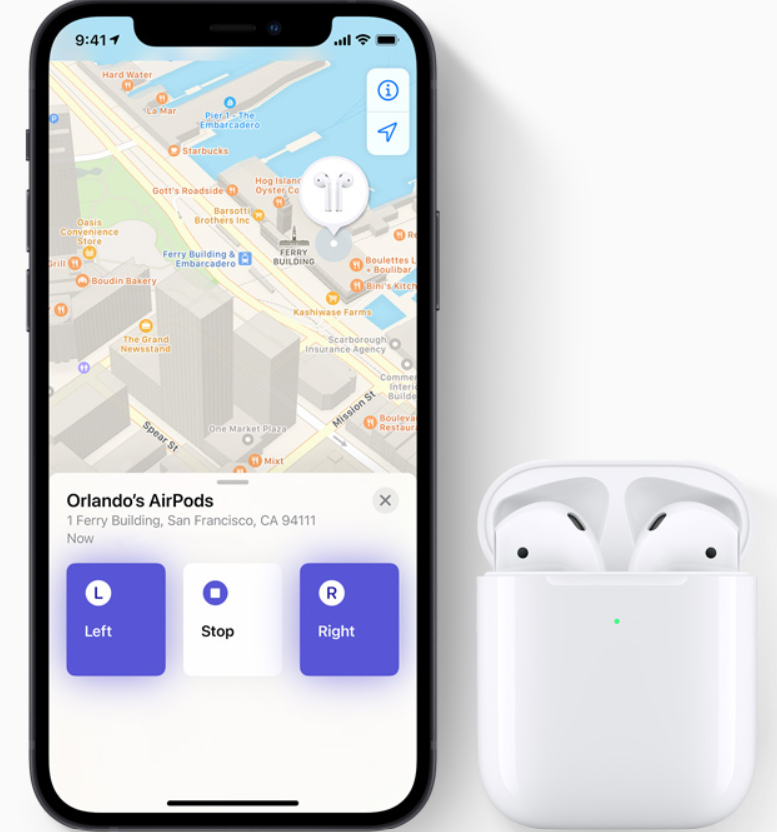
Sign in to iCloud.com/find on the web or use the Find My app on another Apple device.

Locate Device

  • Note See the locations of online iOS devices on a map.
  • From the Devices, the list views the status of each of your devices.
  • Tap a device with an online status (blue/green dot indicator).
  • Note The location of the device displays on the map.

Play Sound

  • Tap Settings and enter the Apple ID and password then tap Sign In
  • open one of the devices.
  • Tap Play Sound.
  • Note A sound plays on the missing iOS device.

Erase iPhone

  • From a Home screen, Find My app icon.
  • Note If prompted, tap Settings and enter the Apple ID and password then tap Sign In
  • Tap Erase This Device.
  • Review the screen message then tap Continue.
  • Add a phone number then tap Next.
  • Write a message then tap Erase.
  • Enter the Apple ID password then tap Erase.
Track and locate iPhone 12

If I don’t have the function «Find my iPhone12» activated

You will not be able to locate your device but you can protect your data by following these steps:

1. Change your Apple ID password

This will prevent other people from accessing your iCloud data from your device.

2. Change all the passwords of your social networks and email accounts

Change all the passwords of the Internet accounts that can be accessed from your iPhone.

3. Report the theft

Report the loss or theft to the police.

4. Tell your phone company

Request to deactivate your account due to loss or theft so that you do not receive calls or data consumption charges from third parties.

Final Thoughts

These are all the steps that you can take to recover your iPhone 12. I hope it is close to you and easily found. If not then this guide will help you erase the data.

Also, check out our other guides if you want to locate an Android device. Follow this LINK

Parler for PC- How to use free on Windows 10, Mac

0
Parler for PC- How to use free on Windows 10, Mac

Download the Parler app on PC. If you are looking for a way to download this app on your PC you have come to the right place.

Parler for Mac

What is the Parler PC app

Parler for PC network has a similar feel to Twitter. You follow accounts, and content appears in a chronological news feed. Users can post up to 1,000 characters, which is more than Twitter’s 280-character limit, and can upload photos, GIFs, and memes.

Parler for Windows was first released in 2018 and quickly caught on as a popular platform for right-wing activists and politicians. Especially those banned by Twitter and Facebook. It surged in popularity following November’s U.S. presidential election.

It has a layout similar to Twitter’s, with a scrolling feed of news and updates from people you follow, and a “discover news” section that’s much like Twitter’s “trending” section. Rather than Twitter’s 280-character limit, you have up to 1,000 characters to get your point across in posts, which can be written statements, links to stories, GIFs, and memes.

A brief History

Launched in 2018, Parler is a social media app created by University of Denver graduates Matze and Jared Thomson. They came up with Parler because they were “exhausted with a lack of transparency in big tech, ideological suppression, and privacy abuse,” according to Parler’s website.

The private company is based in Henderson, Nevada, and has between 11 and 50 employees, according to LinkedIn. Parler means “to talk” in French and is meant to be pronounced as PAR-lay. But as more people started saying the app’s name like the English word “parlor,” that pronunciation took over.

Parler app on PC

Why it became popular

THERE ARE ONLY two rules on Parler for PC, the “free speech” social network: First, nothing criminal. Second, no spam. Other than that, you can post what you want, the site advertises, “without fear of being ‘de-platformed’ for your views.”

PARLER came to be in the aftermath of Twitter, Facebook, and other traditional social media channels’ move to flag posts that promoted blatant misinformation. The site makes no bones that it’s for an ultraconservative audience. It encouraging users to follow people like Sean Hannity, Ted Cruz, Mark Levin, and other celebrities.

While it claims to be a vehicle for free speech, it also states that it can and will ban users for any or no reason. However, the developers have stated that they’ll never ban hate speech. To earn verification, users can upload a picture of their government-issued identification. Those wanting to be included in the Influencer Network also need to share their social security numbers.

The Web Version

You can use Parler though its website as well, just like the other social media platforms.

Parler app PC download

How to Install the Parler app on Windows and Mac

The method I am going to discuss will require you to install the app via the .apk file.

You will first need to download the .apk file from from the Google Play store.

  1. You will need an Android emulator on your PC, I will recommend the BlueStacks emulator
  2. Run the .exe file on your PC and follow the instructions to complete the installation of the emulator.
  3. Download the .apk file for an app from any third-party site and launch BlueStacks on your computer.
  4. Now, press the Ctrl + Shift + B keys or click on the Install apk button from the side toolbar
  5. This will open up a Windows Explorer pop-up, from where you can navigate to the apk file for the app you want to install on BlueStacks
  6. You can also drag and drop the apk file on the home screen of the BlueStacks to begin the installation

Disclaimer

Neither we nor our website is in any way associated with Parler or its makers. The application should not be used to incite violence or promote hate speech.

We are just a fansite covering different apps and methods to run the same on computers. We do not promote the illegal or malicious use of this application.

Track and Locate Samsung Galaxy A71

0
Track and Locate Samsung Galaxy A71

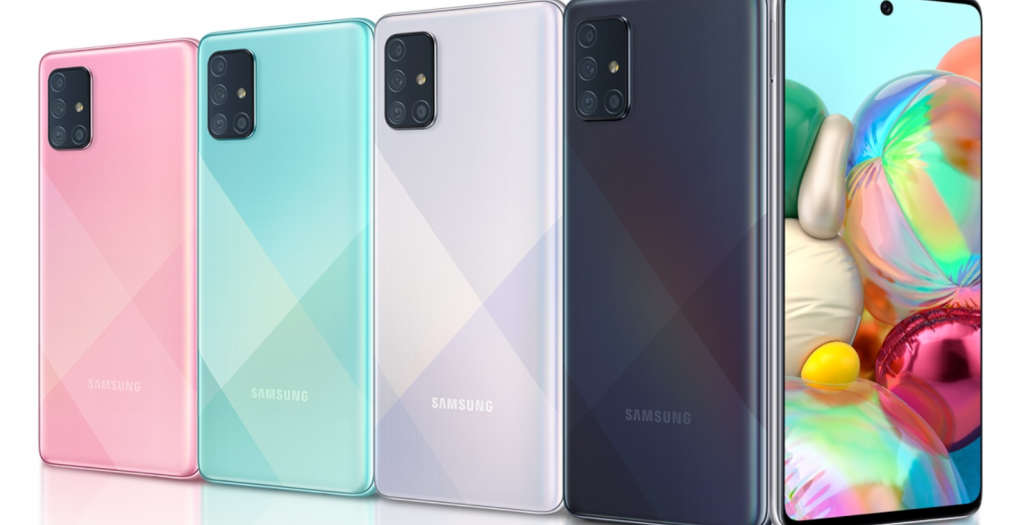
It is not impossible to lose or forget your Samsung Galaxy A71 somewhere and now you can Track and locate Samsung Galaxy A71. Despite everything, thanks to the GPS chips integrated in smartphones, it is now possible to geolocate them. We will precisely, with this article, explain to you how to track a Samsung Galaxy A71?

You may have already noticed that smartphones are more and more expensive. And who says valuable goods says the possibility of theft. Cell phone theft has exploded lately, however in addition to the risk of theft, you can easily misplace them as well.

About Samsung Galaxy A71 Specifications

  • This Samsung smartphone is 26% thinner and 20% lighter, with a sleek design, impressive display, and the ability to surf, stream, connect and capture, wherever you go.
  • Delivering a 6.7″ full-screen viewing experience, with super AMOLED plus display that delivers vibrant color expressions to all your video calls, movies, gifs, and more.
  • Uninterrupted, hole-punch, Infinity-O display comes with a fingerprint scanner and faces recognition for convenient and easy security.
  • The next step in camera technology, multiple cameras include 32MP selfie camera, depth camera, 64MP main camera, 123-degree ultra-wide camera, and macro camera.
  • Built-in WiFi, Bluetooth 5.0, and 25W fast charging keep you surfing, streaming, sharing, and connecting wherever you go, all day long.
Track and Locate Samsung Galaxy A71

Track and Locate Samsung Galaxy A71- Step by Step Guide

It can happen in the blink of an eye. You put your Android phone down on a counter at the checkout stand or feel a slight bump as you get off the subway, only to later realize your phone is missing. Regardless of how you lose it, be it theft or a simple mistake, losing your phone is a stressful experience.

Losing your phone cuts off your access to the rest of the world; it is likely the most personal device you own. Replacing it is a costly nuisance.

In the event your phone goes missing, don’t panic! There are tools built into every Android phone that make it possible to lock and track down a lost phone with ease. But first, you’ll need to take some steps now to set yourself up for success if and when your phone does go missing — even if you only left it in the house.

Let me remind you that the methods that have been discussed all require your device to be connected to the internet if not then it will show you the last location when it was on.

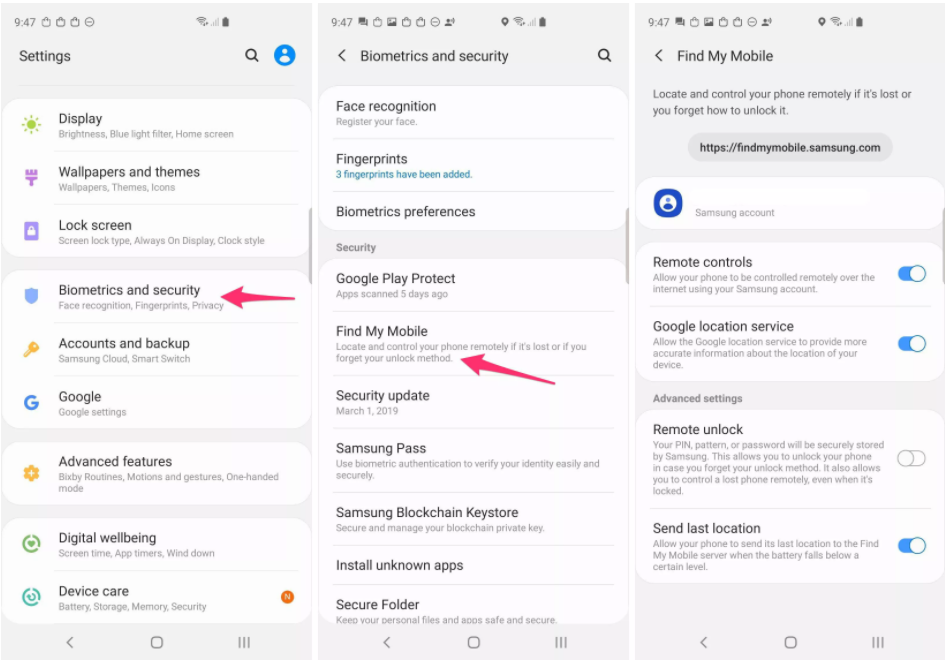
Track and Locate Galaxy A71 with Samsung FindMyMobile

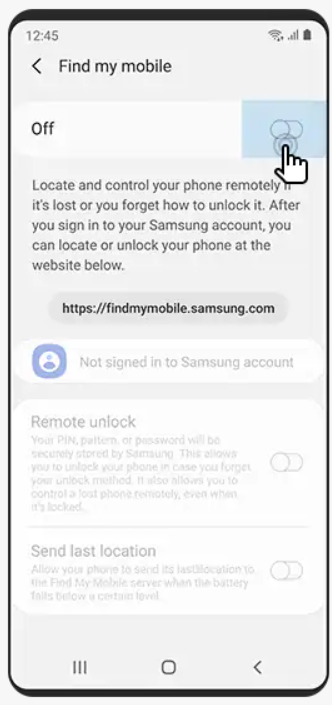
  • Make sure the status switch beside Location is turned on
  • Tap the Back Key
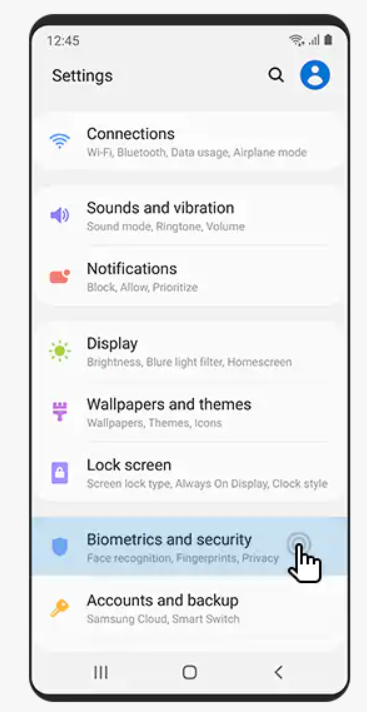
  • Tap Biometrics and Security
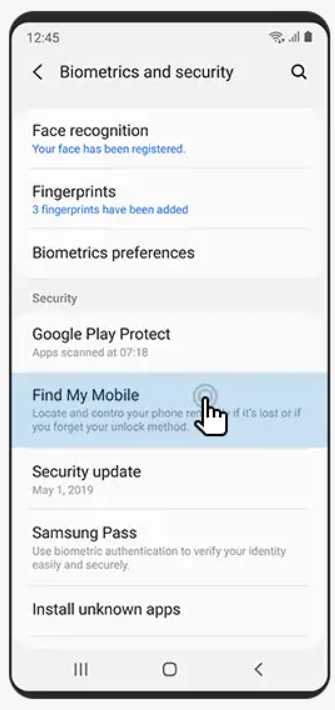
  • Make sure that the status switch beside Find My Mobile is turned on
  • Click on Find My Mobile
  • Make sure the status switch beside Remote Unlock is turned on
  • In the web browser on another device, go to findmymobile.samsung.com
  • Click Sign In
  • Enter the email address or phone number associated with your Samsung account and then click Password
  • Enter your password and then click Sign In
  • The location of your phone will be displayed on the map
  • You can remotely perform actions on your phone such as make it ring, erase it or lock it by clicking on the icons below the phone’s name
Track and Locate Samsung Galaxy A71

With the Help of Google

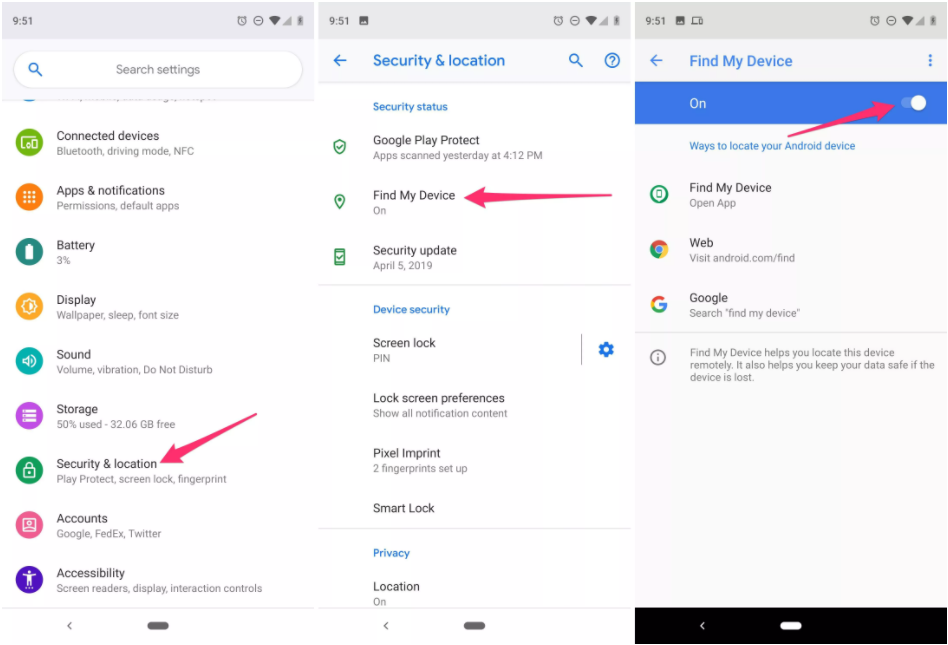
Now that you have prepared the geolocation of your lost or stolen Samsung Galaxy A71, we will explain how you can track it and find it without difficulty. As we told you earlier in this article, you will still need your phone to be on and logged into your Android account, and your location service to be activated. For the rest, follow the instructions below:

  • Go to the website Google tracking. This site gives you the possibility to find your Samsung Galaxy A71.
  • Accept the terms of use and you will be able to directly view your phone on Google Maps.
  • In the event that your phone’s GPS is turned off, you will still have several options available to find or secure it:
    • Ring your Samsung Galaxy A71. This feature allows you to trigger a ringtone, whether your phone is on vibrate or silent. Very handy when it has been misplaced in vibrate mode …
    • Secure the device: You can either change the lock password or display a contact phone number on the screen in the event that you have lost it and want someone to call you or completely lock your Samsung Galaxy A71 and disconnect your Android account.
    • Erase device data: You will no longer be able to locate it, but it will be unusable.

Through Third Party apps

This option will only work by previously installing an APP through the application store, that is, you must install it before losing the Samsung Galaxy A71. There are many applications of this type but all really do the same function as Google’s Find my Device, but in case you do not have a Google account or do not want to use their services there are many applications that you can use.

Final Thoughts

I hope these methods have been helpful in your quest to Track and locate the Samsung Galaxy A71 smartphone. You can always find different methods to find and locate smartphones. But these are the safest methods that you can follow.

Also you can check Samsung Galaxy Fold Stock Wallpapers Here

Find and Locate Samsung Galaxy Note 20 ultra

1
Find and Locate Samsung Galaxy Note 20 ultra

Samsung Galaxy Note 20 and Galaxy Note 20 Ultra have been released. You have Lost your Galaxy Note 20 ultra and now I will list ways to help you Find and Locate Samsung Galaxy Note 20 ultra

After all, even if you can’t find your smartphone back, you can remotely erase all your private data in case of a data leak. Now let’s check the methods below.

About Samsung Galaxy Note 20 Ultra

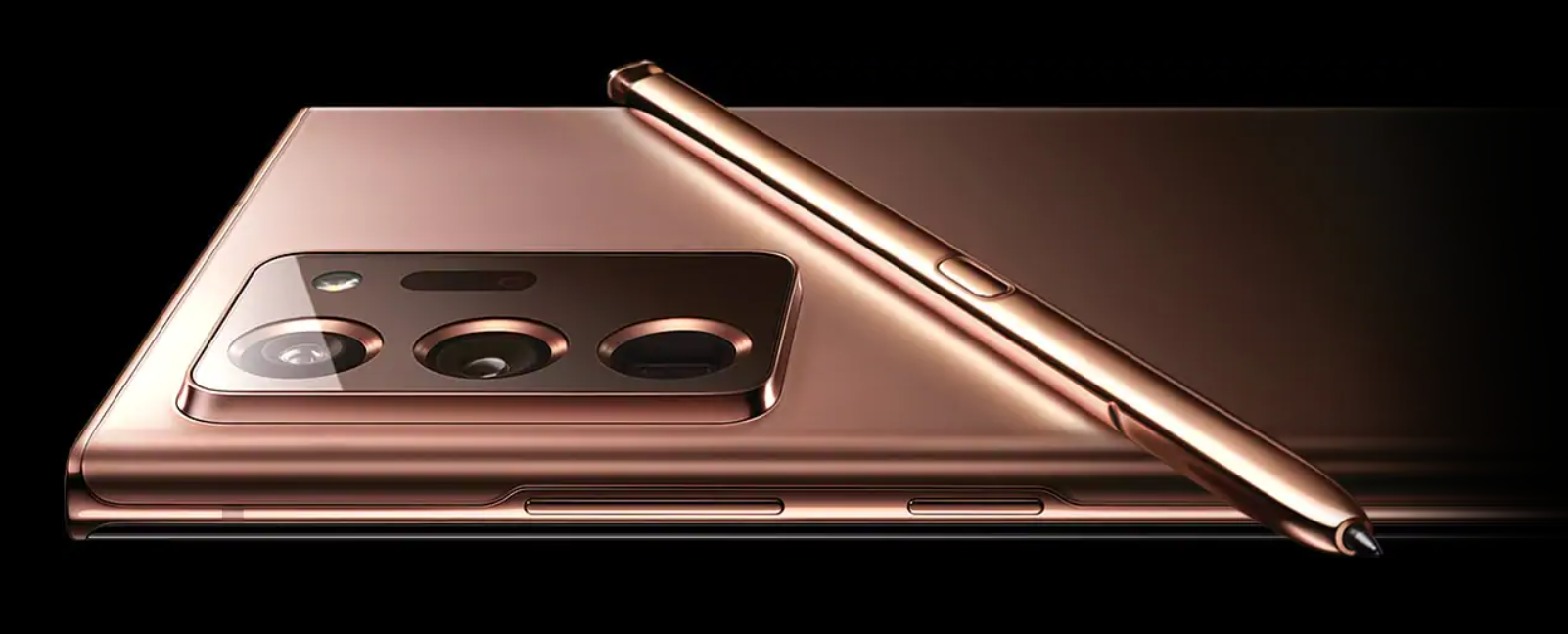
The Samsung Galaxy Note 20 Ultra (starting at $1,299) is the most advanced big-screen phone yet because it’s much more than a phone. It’s a highly evolved note-taking device, a powerful 50x zoom camera and even a mini Xbox and desktop PC all rolled into one gadget.

The Galaxy Note 20 Ultra boasts a huge 6.9-inch display with a dynamic 120Hz refresh rate, a sharp 108MP camera with laser autofocus, and a more responsive S Pen with a 9ms response rate. The regular Galaxy Note 20 is the better option for those who can live without a 120Hz display and more advanced cameras.

Scrolling feels like butter when you have the Adaptive motion smoothness setting turned on. And optimized games like Dead Trigger 2 look really smooth. You get a fast 9ms response time and offer a pen-to-paper feel. Scribbling notes on this panel feels completely natural to the point I forget I’m writing on a screen.

The new Air Actions can come in handy (like drawing a quick arc in the air to go Home). But they don’t always work the first time. I managed to get the Note 20 Ultra to connect to my TCL Roku TV wirelessly and use the phone as a touchpad. And Link to Windows lets you run Android apps on your PC.

Color Scheme

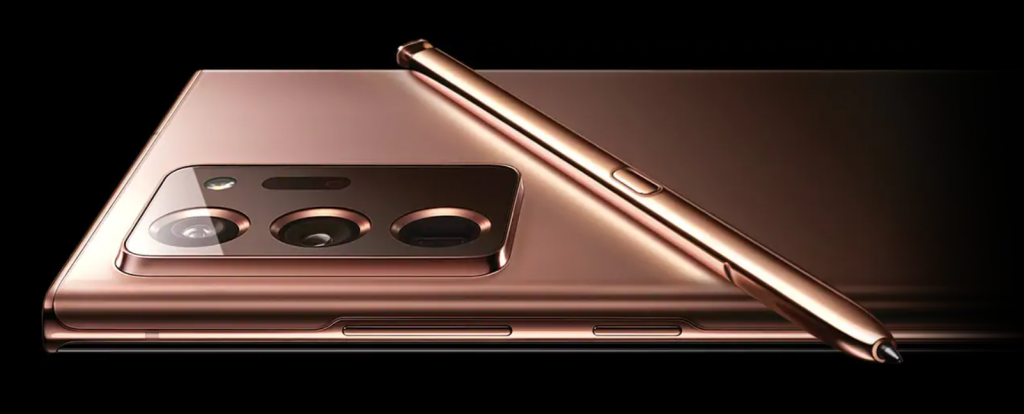
The Note 20 comes in 3 colors, namely Mystic Green, Mystic Bronze, and Mystic Gray. whereas, Note 20 Ultra can be bought in Mystic Black, Mystic White, and Mystic Bronze. I am personally very pissed at Samsung for not releasing Note 20 Ultra in Mystic Green as that color is dope.

Step by Step Guide to Find and Locate Samsung Galaxy Note 20 Ultra

Find your lost Samsung Galaxy Note 20 using Samsung Find My Mobile

Find My Mobile is an app designed by Samsung, which can help you locate your Samsung Galaxy Note 20 just like what Google’s find my device app does. You can simply use it locate lost Samsung device or erase data remotely. And now let’s take a look at how to use this app to locate your lost or stolen Galaxy Note 20.

Step 1. Login your Samsung account.

Open an Internet browser, go to the Samsung website, and then sign in with your Samsung account. Similarly, it will list all your Samsung devices under this account.

Step 2. Choose the device.

Click on the Samsung Galaxy Note 20 ultra so that you can see its current location which will display in the middle of the page. Of course, if your Samsung Galaxy Note 20 doesn’t have an Internet connection or powered off, it will show the last known location.

Step 3. Locate or erase the device

Similar to Google find my device service, Samsung gives three options as well. You can choose to lock down your lost Samsung Galaxy Note 20, ring it for a while or directly erase all data. But if you choose to wipe all data on your device. You can perform these features if you need them.

Find and Locate Samsung Galaxy Note 20 ultra

Track your Lost Samsung Galaxy Note 20 ultra using Google Account

  1. Go to android.com/find and sign in to your Google Account.
    • If you have more than one phone, click the lost phone at the top of the screen.
    • If your lost phone has more than one user profile, sign in with a Google Account that’s on the main profile. Learn about user profiles.
  2. The lost phone gets a notification.
  3. On the map, you’ll get info about where the phone is.
    • The location is approximate and might not be accurate.
    • If your phone can’t be found, you’ll see its last known location, if available.
  4. Pick what you want to do. If needed, first click Enable lock & erase.
    • Play sound
    • Secure device
    • Erase device

Note

For all the methods discussed above your device needs to be connected to the internet. What usually happens is when someone steals your smartphone the first thing they do is turn it off. So it will be rally difficult to find your Galaxy Note 20 ultra with the above methods if it were stolen by someone.

Final Thoughts

I hope these methods will help you find and locate your Galaxy Note 20 ultra smartphone. They are an expensive smartphone device so it will be heartbreaking to loose it or it gets stolen.

Check out the Samsung Galaxy S20 FE Stock Wallpapers Click on this LINK

Xiaomi Mi 11 Stock Wallpapers

0
Xiaomi Mi 11 Stock Wallpapers

Xiaomi has announced its Flagship Xiaomi Mi 11 and yes! you can download the Xiaomi Mi 11 Stock Wallpapers on your smartphone now.

Xiaomi Mi 11 is a performance powerhouse. Equipped with the latest Qualcomm Snapdragon 888 Mobile Platform, which is manufactured using the most advanced 5nm process, Mi 11 offers breakthrough performance with superior power efficiency.

Xiaomi Mi 11 Stock Wallpapers

Xiaomi’s latest flagship is bundled with a bunch of new built-in wallpapers, and apparently, these wallpapers are now available to download for other smartphones as well. There are sixteen stock wallpapers of the Mi 11, which you can download for your smartphone.

A collection of these 16 Xiaomi Mi 11 Stock wallpapers and backgrounds is available for download for free. We hope you enjoy our growing collection of HD images to use as a background or home screen for your smartphone or computer.

Preview

This resolution of all wallpapers is 1080 x 2340 pixels as well as with an aspect ratio of 19:5:9. You can download the Xiaomi Mi 11 Stock wallpapers by clicking on the download button below.

These are some really stunning and beautiful wallpapers certainly one of the best stock wallpapers to come out this year.

Download Xiaomi Mi 11 Stock Wallpapers from here.

About The Xiaomi Mi 11 Flagship Smartphone

Xiaomi Mi 11 smartphone was launched on 28th December 2020. The phone comes with a 6.81-inch touchscreen display with a resolution of 1440×3200 pixels at a pixel density of 515 pixels per inch (PPI) and an aspect ratio of 20:9. Xiaomi Mi 11 is powered by an octa-core Qualcomm Snapdragon 888 processor. It comes with 8GB of RAM. The Xiaomi Mi 11 runs Android 11 and is powered by a 4,600mAh non-removable battery. The Xiaomi Mi 11 supports wireless charging, as well as proprietary fast charging.

Camera

As far as the cameras are concerned, the Xiaomi Mi 11 on the rear packs a 108-megapixel primary camera with an f/1.85 aperture and a pixel size of 0.8-micron; a second 13-megapixel camera with an f/2.4 aperture and a third 5-megapixel camera with an f/2.4 aperture. The rear camera setup has autofocus. It sports a 20-megapixel camera on the front for selfies, with an f/2.4 aperture.

Firmware

The Xiaomi Mi 11 runs MIUI 12 based on Android 11 and packs 128GB of inbuilt storage. Mi 11 is a dual-SIM (GSM and GSM) smartphone that accepts Nano-SIM and Nano-SIM cards. it measures 164.30 x 74.60 x 8.06mm (height x width x thickness) and weighs 196.00 grams. It was launched in Anti-glare frosted glass: Midnight Gray, Horizon Blue, Frost White Vegan leather: Lilac Purple, and Honey Beige colors. It bears a glass body.

Download Xiaomi Mi 11 Stock Wallpapers

Final Thoughts

That is it guys as far as the Xiaomi Mi 11 Stock Wallpapers are concerned. These are some stunning wallpapers and will give your smartphone a refreshed look. We will keep you updated with other latest stock wallpapers as well. For the time being check out the Samsung Galaxy S21 Stock Wallpapers Here.

Find and Locate Samsung Galaxy S20 FE Remotely

0
Find and Locate Samsung Galaxy S20 FE Remotely

So you’ve just lost a brand-new Samsung Galaxy S20 FE phone. It’s OK! You’re fine. You can easily Find and Locate Samsung Galaxy S20 FE with the steps I have discussed. It’s free, and if you signed in to your Samsung account when you first set up the phone, then it’s already set up.

Let’s assume you still have the phone to hand. Instead of waiting for something unfortunate to happen, take a few minutes right now to ensure Find My Mobile is enabled and set up on your Galaxy phone or tablet.

Find and Locate Samsung Galaxy S20 FE

Methods to Recover your Lost Samsung Galaxy S20 FE

Track Samsung Galaxy S20 FE Through your Google account.

Find, lock, or erase a lost Android device

If you lose your Samsung Galaxy S20 FE, you can find, lock, or erase it. If you’ve added a Google Account to your device, Find My Device is automatically turned on.

To find, lock, or erase an Android phone, that phone must be:

  • Turned on
  • Signed in to a Google Account
  • Connected to mobile data or Wi-Fi
  • Visible on Google Play
  • Have Location turned on
  • Have Find My Device turned on

If you used your lost phone for 2-step verification, you must have a backup phone or backup code.

Remotely find, lock, or erase

  1. Go to android.com/find and sign in to your Google Account.
    • If you have more than one phone, click the lost phone at the top of the screen.
    • If your lost phone has more than one user profile, sign in with a Google Account that’s on the main profile. Learn about user profiles.
  2. The lost phone gets a notification.
  3. On the map, you’ll get info about where the phone is.
    • The location is approximate and might not be accurate.
    • If your phone can’t be found, you’ll see its last known location, if available.
  4. Pick what you want to do. If needed, first click Enable lock & erase.
    • Play sound: Rings your phone at full volume for 5 minutes, even if it’s set to silent or vibrate.
    • Secure device: Locks your phone with your PIN, pattern, or password. If you don’t have a lock, you can set one. To help someone return your phone to you, you can add a message or phone number to the lock screen.
    • Erase device: Permanently deletes all data on your phone (but might not delete SD cards). After you erase, Find My Device won’t work on the phone.

Make sure the phone is connected to the internet

In the case of being connected to the internet you will be able to see the approximate location, the charge level, you will be able to make your Samsung Galaxy S20 FE ring even if it is in silence or vibration mode it will sound at maximum volume. You can block it so that it cannot be used and displayed a message so that the person who found it can read it and can return it or as an extreme measure delete all its content, all your linked accounts, files, photos, messages and applications will be deleted.

Keep in mind that geolocation will only work if the device is connected to the internet through the mobile network or has GPS enabled.

Through a third-party app

This option will only work by previously installing an APP through the application store, that is, you must install it before losing the Samsung Galaxy S20 FE. There are many applications of this type but all really do the same function as Google’s Find my Device, but in case you do not have a Google account or do not want to use their services there are applications like Safe365 or SeekDroid.

Samsungs’ Find My Mobile

Indeed, Google already offers a similar app for all Android devices, and there’s nothing wrong with it, but Samsung’s service for its own devices gives you more functionality.

Losing your Galaxy S20 FE phone could be a stressful and one of the most inconvenient experience. It involves your data and precious memories, With the methods being discussed you can easily find and locate your Samsung Galaxy S20 FE

Samsung recognizes this need and if a user prior to losing the phone had set-up the Samsung account on the device, there is a chance for the phone to be found either by being able to ring the phone and send a message on it or track the location using the location service of the device.

Enable the settings

To enable that your phone can be tracked, you have to set-up this service in your smart phone. Please go to:

[Settings -> Lock Screen and Security -> Scroll down and look for “Find My Mobile” option and tap on it.]

Find and Locate Samsung Galaxy S20 FE

What you can do

If it’s powered on, you will see its current location and battery percentage. A popup will also provide a series of actions to take on the lost device:

  • Ring
  • Lock
  • Erase data
  • Back up
  • Retrieve calls and messages
  • Unlock
  • Extend battery life
  • Set guardian

Most of these are self-explanatory. There are a couple that is worth explaining a bit more. For example, retrieve calls and messages will sync with the phone and show you the last 50 calls and messages, complete with phone numbers.

The Extend battery option will provide the option to help you track it longer. Lastly, the Set Guardian option allows you to designate a friend or family member as someone who can log into Find My Mobile on your behalf to track or control your device.

Final Thoughts

That is it folks I hope what we have discussed has helped you Find and Locate your Samsung Galaxy S20 FE smartphone. These are all the methods available for you to use. I hope that you have your internet turned on. If not make sure to look after your Phone in the future.

You can check our other article on how to find your lost Galaxy S10. follow the LINK.

GCam for OnePlus 8T, How to install

0
GCam for OnePlus 8T, How to install

If you are looking for a way to install the GCam for OnePlus 8T you have come to the right place. You will just have to follow some simple steps.

The Google Camera app on OnePlus 8T will just work fine for you. You will not have to even configure the app to get the full experience.

About OnePlus 8T smartphone

The OnePlus 8T is the company’s latest high-end smartphone. The device is a subtle upgrade over the OnePlus 8 that launched earlier this year.

With a 120Hz display, a flat-screen design, and four rear cameras, as well as a dual battery system, the OnePlus 8T is aiming to be the flagship-killer phone OnePlus made its name creating

Furthermore, the device has been running on Android 11 based custom skin OxygenOS 11 out of the box. In terms of camera performance, the device will become with a Quad rear camera module housing a 48Mp f/1.7 Primary + 16MP f/2.2 ultra-wide-angle lens + 5Mp f/2.4 macro lens + 2MP f/2.4 depth sensor. In contrast, it was also using a dual-LED flash and the front housing, a 16MP f/2.4 selfie shooter placed on the upper left corner of the display hidden inside the punch-hole camera.

Pricing

The OnePlus 8T is a $749 5G phone that fits right in between the $699 OnePlus 8 ($635 at Amazon) and $799 OnePlus 8 Pro ($999 at OnePlus), which were released in April.

Display

The best part of the OnePlus 8T’s design is its 120Hz display. Most phones have screens that refresh 60 frames per second. A few phones, like the OnePlus 8, have screens that refresh 90 times a second, and even fewer refresh as often as 120 frames. The effect of the 120Hz display means the phone feels buttery smooth and fast. Scrolling through social media feeds, thumbing through home screen pages and playing games like PUB-G feel super quick and responsive.

In and of itself, the OnePlus 8T is an excellent device and it’ll surely satisfy anyone looking for a high-powered, reliable Android. The brilliant display is my favorite thing about the phone, but there’s a more enticing and cheaper competitor available from OnePlus itself — the OnePlus 8.

Now we look at the details of the camera that One Plus 8T has to offer and why would you need to Install the Google Camera app for One Plus 8T

Main Camera

  • Sensor: Sony IMX586
  • Megapixels: 48
  • Pixel Size: 0.8µm/48 MP, 1.6µm/12 MP four in one
  • Lens Quantity: 6P
  • OIS: Yes
  • EIS: Yes
  • Aperture: f/1.7

Ultra Wide Angle Lens

Megapixels: 16
Aperture: f/2.2
Field of View: 123°

Macro Lens

Megapixels: 5

Monochrome Lens

Megapixels: 2

Video

  • 4K video at 30/60 fps
  • 1080p video at 30/60 fps
  • Super Slow Motion: 1080p video at 240 fps, 720p video at 480 fps
  • Time-Lapse: 1080p at 30 fps, 4K at 30 fps
  • Video Editor

Features

  • CINE Aspect Ratio Video Recording,
  • Video Portrait,
  • UltraShot HDR,
  • Portrait,
  • Pro Mode, Panorama,
  • Smart Pet Capture,
  • AI Scene Detection,
  • RAW Image,
  • Video Focus Tracking,
  • Video Nightscape

Front Camera

  • Sensor: Sony IMX471
  • Megapixels: 16
  • Pixel Size: 1.0 µm
  • EIS: Yes
  • Autofocus: Fixed Focus
  • Aperture: f/2.4

Video

  • 1080p video at 30 fps
  • Time-Lapse

Features

Face Unlock, HDR, Screen Flash, Face Retouching

There’s no doubt that the specs for the camera hardware look quite impressive on paper, but the same couldn’t be said when it comes down to real-time camera usage. It’s not like the hardware isn’t powerful or capable, but the OnePlus camera app often lacks the ability to fully utilize the available hardware.

The photos captured with the stock camera app on the OnePlus 8T are processed with a punchy pre-applied filter effect. This makes the images sometimes provide excessive contrast and brightness, and often miss the details where they matter.

GCam for OnePlus 8T

Download Google Camera for OnePlus 8T

The GCam 7.x versions(s) bring Astrophotography mode, better night sight pictures on OnePlus 8T, and variants along with other older features such as HDR+, Timelapse, portrait mode, etc. The available GCam ports are compatible with Android 10.

Download LINKS for Google Camera on OnePlus 8T

Download one of the following Google Camera APKs depending on your preference, you can also try all these builds one by one if you wish.

  • Uncryx05’s GCam 7.3 – Download
  • Arnova 82G’s GCam 5.2 – 7.3 – Download
  • Arnova82G’s GCam 6 – 8.0 Beta – Download
  • Parrot043’s MGC 7.6 – Download

Note: These Gcam builds come from different developers/modders. These are not guaranteed to work on your device, but one of these will definitely work.

Step by Step guide to use Google Camera OnePlus 8T

It was quite easy to download and install the GCam for Oneplus 8T on their device, Including a thrid-party Google Camera service apk. Let’s take a closer look at it and know more about it.

  1. First thing first, Download the GCam apk on your device based on your preferences.
  2. Then, enable the unknown sources from setting the menu through Security/privacy.
  3. Now, Click on the install button, and it was installed successfully.
  4. That’s it. You can now use Google Camera on your device.

How to configure GCam app on One Plus 8T on your smartphone

Now that the Google Camera port is installed on your phone, you’re can import the configuration file for the best camera settings.

  1. To do this, first, download the config file for the port you’re using.
  2. Then open the file manager, create a new folder in your phone’s internal storage and name it “GCam”.
  3. Next, create a new folder named “Configs7” inside the “GCam” folder. Copy the downloaded config XML file inside <internal storage>/GCam/Configs7/.
  4. The Google Camera app loads its configuration files from this location.
  5. Now to load the config file, double-tap on the area between the shutter button and the preview icon.
  6. Simply choose the config XML file that you want to import and press the “Restore” button. The camera app will automatically restart after the config file is loaded.

To use Astrophotography mode in Google Camera, open the app and switch to the “Night Sight” mode. Then swipe down on the viewfinder and set “Astrophotography” to ON.

Conclusion

There you go! You have just been able to download and install the GCam on your OnePlus 8T. If you have got any questions regarding the installation or usage of the GCam port, feel free to ask.

GCam for Mi 10 and Mi 10T smartphones, follow this LINK.

Enable/Disable Facebook Profile Picture Login

0
Enable/Disable Facebook Profile Picture Login

With the help of my simple and to the point guide, you will be able to learn Enable/Disable Facebook Profile Picture Login.

Whenever you buy a new Android or iPhone device and log in on Facebook. You prompted to setup Profile Picture Login, If you remember back in the days it was called one-tap login.

Facebook Profile Picture Login

Things are upgraded and now it’s called Profile Picture Login and in this post, you will get know how you can Enable Or Disable Profile Picture Login on FB.

Let’s Dig in:

On Facebook today, most people who are active while using Facebook need to be logged in every time. To reduce the login time, Facebook added a new profile picture login feature for web-based users.

After launching this one-tap login feature, some users like it, but others don’t like it for privacy reasons. Although we enable login with a profile picture on FB, it saves a profile picture in the web browser and you do not need to type in your email address or mobile phone number to log in.

Facebook Gaming for PC Free – Windows 10, Mac

This feature is not good if you use your Facebook profile secretly on the office computer, because the login in the browser you are using saved your thumbnail profile picture.

Main Profile Picture Login Setting:

  1. Open Facebook on a web browser.
  2. Head over to the Settings and then Security.
  3. Click on the ” Edit ” in the “Profile Picture Login” area.
  4. From here you can “Turn off profile picture login” or “Turn on profile picture login” as desired.

Enable/Disable Facebook Profile Picture Login on Android & iPhone:

  • For Android, head over to the Settings.
    • Apps
    • Facebook
    • Storage
    • Clear data
  • For iPhone, Head over to the Settings.
    • Storage & iCloud Usage
    • Manage Storage
    • Facebook
    • Delete App
    • reinstall

Once you are through with this, all you need to do is log-in again in the Facebook app on Android & iOS devices.

iMega Cam for PC, Windows 10 & Mac

0
iMega Cam for PC, Windows 10 & Mac

A simple step by step guide on how to download and use iMega Cam on PC. When I mean PC, I mean Windows 10, 7, XP, and Mac operating system.

Before we jump to any conclusion let me clear a few things. First, there is no iMega Cam PC version available it’s only designed for smartphones. You cannot directly install Android Apps on your PC and in order to use iMega Cam for PC. You will be needing an Android Emulator.

What’s iMega Cam and Why it is popular?

  • iMega Cam allows users to view the recorded video on the IP camera in real-time. The app has been optimized by the developers to quickly capture, process, and deliver video and images. iMega Cam offers its users the opportunity to view what is recorded by IP cameras on their mobile devices whenever they want.
  • This app allows users to take an unlimited number of photos using the app. The application is fully optimized so that users can easily capture as many images as possible.
  • PTZ control is integrated with iMega Cam. This feature allows users to tilt and zoom the camera while recording. It also makes camera orientation easier using the iMega Cam app.
  • Videos recorded or viewed using iMega Cam can be easily played as many times as possible. iMega Cam allows users to easily schedule and record videos using the app. Moreover, users can choose to record short or longer videos.
  • With iMega Cam, users can configure a highly functional alarm function using the app’s built-in alarm setting function. iMega Cam users can synchronize their time zones and cell phone clocks using the time setting function in the app.

After reading all these features of iMega Cam you will get the idea why this app is so famous and now it’s time to move on. Having all these features on your smartphones make video surveillance a piece of a cake. Now suppose the same features you can use on a big screen and since it’s a big screen, managing things will be easier.

That’s why I am telling you how to download iMega Cam on PC running Windows 10 & Mac. Enjoy all the features on a big screen, keep a close eye on everything and never miss a bit.

iMega Cam for PC:

Installing iMega Cam on a PC is pretty simple. First, you need to download an Android Emulator and since I am the one who is telling you everything, you should download BlueStacks.

iMega Cam for PC

Why BlueStacks? The main and only reason is that it works perfectly on both Windows and Mac. Also, BlueStacks is frequently updated. You can download BlueStacks from the following link.

Download for 💾 & 🖥

Install Apps on PC
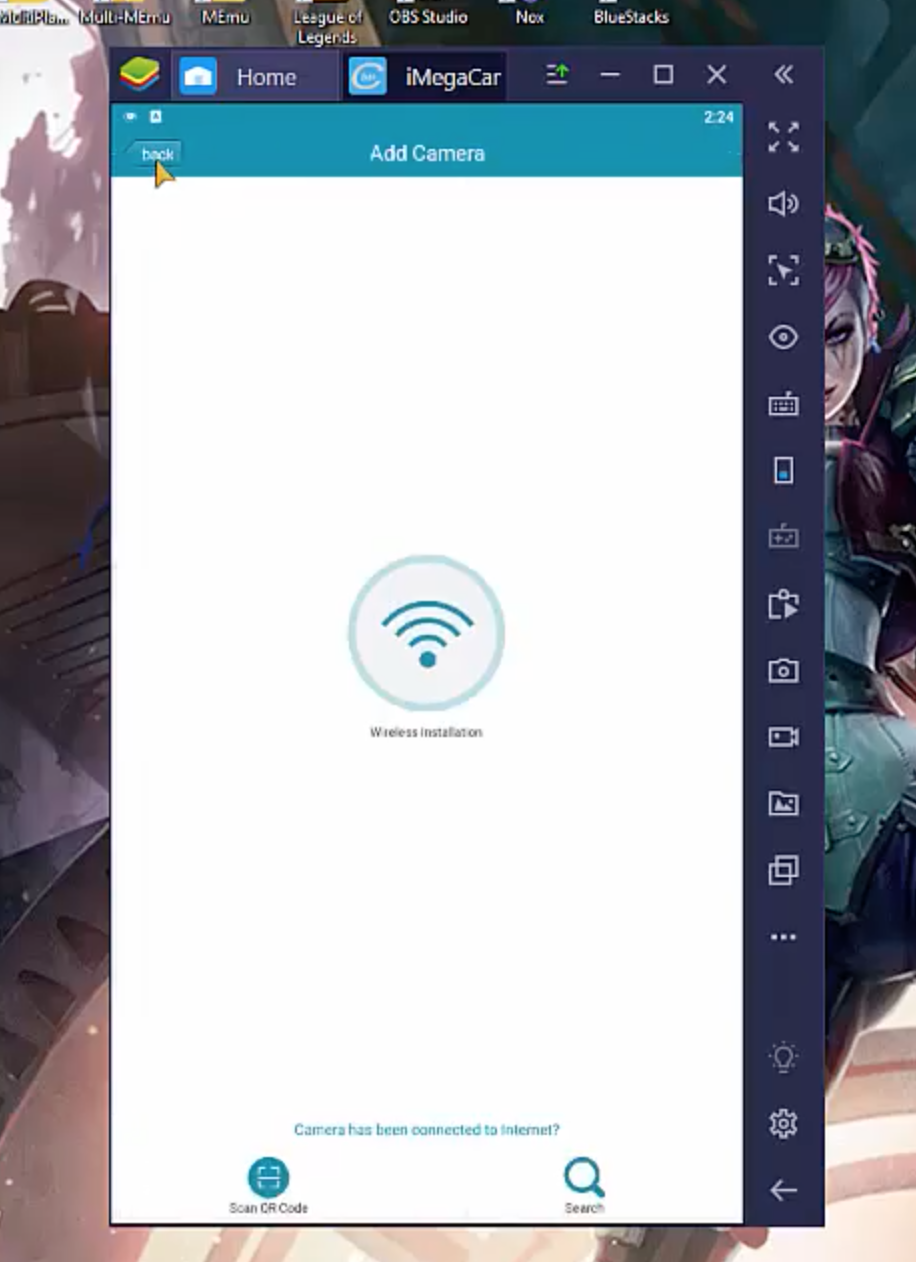
✪ Download and Install BlueStacks on your Windows 10 & Mac.
✪ Open Google Play and Install iMega Cam for PC.

That’s all. This how you can download iMega Cam for PC.

GCam for Galaxy S20 FE 5G, How to install & configure

0
GCam for Galaxy S20 FE 5G, How to install & configure

If you are looking for a way to install the GCam for Galaxy S20 FE 5G you have come to the right place. You will just have to follow some simple steps.

Galaxy S20 FE 5G was released recently and now we have a working port of GCam for Galaxy S20 FE 5G available to download.

The Google Camera app on Galaxy S20 FE will just work fine for you. You will not have to even configure the app to get the full experience.

About the Samsung Galaxy S20 FE Smartphone

If there’s one important spec that the FE carries over from the S20 series, it’s the premiere Snapdragon 865 processor. The 865, along with the Adreno 650 GPU and 6GB of RAM, allowing the FE to deliver outstanding performance. The phone blasts through tasks with ease. The FE offered stellar gaming, social networking, and media consumption power. Though we believe 6GB is the least amount of RAM modern Android phones should have, you’d never know it’s not the 8GB or 12GB that are available to the S20.

Specs

  • 6.5-inch flat Super AMOLED Infinity-O
  • FHD+ (2,400 x 1,080), 407ppi
  • 120Hz refresh rate
  • HDR 10+
  • Gorilla Glass 3 cover
  • 74.5 x 159.8 x 8.4mm
  • 190g
  • Cloud Navy, Cloud Red, Cloud Lavender, Cloud Mint, Cloud White, Cloud Orange

Camera

  • Rear:
    • Main: 12MP Dual-Pixel, OIS, ƒ1.8, 1/1.76in
    • Ultra-wide: 12MP, ƒ2.2, 1/3.06in
    • Telephoto: 8MP, OIS, 3x optical zoom, 30x Space Zoom, ƒ2.4, 1/4.4in
  • Front:
    • 32MP (binned to 8MP), ƒ2.2, 1/2.8in
  • Video:
    • 4K at 60fps

A triple-camera system is expected on today’s top phones, and the Samsung Galaxy S20 FE was sure to include one. With standard, ultra-wide, and telephoto lenses on offer, users have plenty of flexibility to grab the shot they want.

The app is a direct carryover from the S20/Note20 series. That means it has Samsung’s signature feature, Single Take. This mode allows you to capture up to nine different types of photos/videos with a single press of the button. Beyond Single Take, you’ve got pro mode, panorama, food, night, live focus, live focus video, pro video, super slow-mo, slow-mo, and hyperlapse.

That covers the basics and then some. A zoom picker makes it simple to jump between the three lenses and tools that float along the left edge of the viewfinder. You can quickly adjust the resolution, the flash, aspect ratio, and more.

Download Google Camera for Samsung Galaxy S20 FE

One of the best things about the Galaxy S20 FE Snapdragon variant is the Camera2 API sport. As it allows you to install the Google Camera app without needing root access.

The GCam 7.x versions(s) bring Astrophotography mode, better night sight pictures on Galaxy S20 FE 5G, and variants along with other older features such as HDR+, Timelapse, portrait mode, etc. The available GCam ports are compatible with Android 10.

Download LINKS for Google Camera on Poco X3

Download one of the following Google Camera APKs depending on your preference, you can also try all these builds one by one if you wish.

  • Uncryx05’s GCam 7.3 – Download
  • Arnova 82G’s GCam 5.2 – 7.3 – Download
  • Arnova82G’s GCam 6 – 8.0 Beta – Download
  • Parrot043’s MGC 7.6 – Download

Note: These Gcam builds come from different developers/modders. These are not guaranteed to work on your device, but one of these will definitely work.

A preview

GCam for Galaxy S20 FE 5G
Picture from TechwithUsama

Here on the left is the GCam app and on the right is the Stock camera app for the S20 FE 5G. Taken from the Front Camera

A guide to Install GCam on Samsung Galaxy S20 FE

The Google Camera APK file installation process is as simple as installing any other third-party APK file. You don’t have to root your device for this.

  1. Download the GCam APK file from the download link above and tap on it.
  2. Make sure that the Unknown Sources option is enabled on your device.
  3. It will launch the package installer and tap on the Install button.
  4. Once the installation is done, open, and use it.

Final Thoughts

The GCam app on Samsung Galaxy S20 FE does not bring much to the table as far as the Back camera is concerned. But it can certainly give you better result on the front camera. The mods are constantly updated, until all the features are available of the GCam app you will have to do with this. That is all for today folks. Do check below Google Camera Guide for Smartphones.

GCam for Mi 10 and Mi 10T smartphones, follow this LINK.

Use SKEDit for PC – Windows 10, Mac

0
Use SKEDit for PC – Windows 10, Mac

SKEDit on PC is a free and easy-to-use scheduling app that lets you schedule messages, and send emails later. Download on your PC now.

SKEDit for Mac

What is the SKEDit PC app

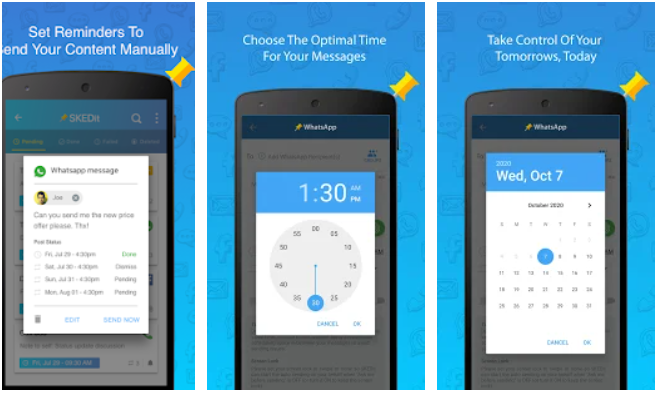
SKEDit for PC is an Android app that lets you schedule posts on both WhatsApp, providing a handy way of relaying messages to friends and colleagues at the most convenient times.

The app is also perfect for greeting people on their birthdays, ensuring that you’ll never forget a birthday again even if you did forget.

How it Works

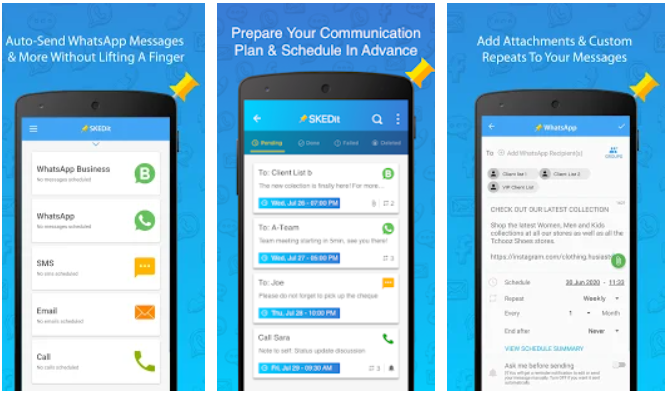
The software is fairly straightforward to use. After downloading the free app, users simply sign up or sign in with their email or Facebook account. Obviously, a Facebook account will need to be linked in order to use that portion of the features.

Once logged in, users then simply select the service they’d like to use to send out a given message or a time they’d like to schedule to make a phone call and then fill in the content they want to send out and who that is going to.

Finally, a date and time need to be selected and then SKEDit For Windows will automate the share or message without any further actions from the user. Of course, if the message is something that needs to repeat, users can also choose options for that. For messages that aren’t quite ready yet, a scheduled reminder can also be set instead of an automated send.

SKEDit effectively serves as an all-in-one automated messaging platform without the hassle of switching between various apps. However, this obviously doesn’t cover every available platform for reaching out to others. With that said, there’s not really anything stopping the developers from adding more services later.

SKEDit on PC

Features

Save Time

Send all your messages, posts, emails & calls automatically. Save countless hours lost in tedious back-and-forth messaging each day.

Eliminate Stress

Streamline all your communication so it runs smoothly. Calmly breeze through your day not worrying about sending work reminders or last-minute phone calls.

Stay Organized

Structure, schedule & plan all your communication down to a T. No more drowning in an ocean of unwelcomed phone calls, emails & messages.

Schedule Date & Time

Set the exact date & time for messages & calls to be sent. Watch as forgetting to stay in touch becomes a distant, blurry thing of the past.

Automate Communication

Swift, automated communication makes everything fall into place like clockwork. Relax as your sail through your day, having already planned it yesterday.

Set Reminders

Enjoy effortlessly staying in-sync with your plans through the power of automated reminders. Or, schedule WhatsApp & email reminders to be sent to yourself.

HOW IT WORKS

  • Quickly Register: Simply fill in contact info, or use One-Touch Facebook register, for a rapid download & install.
  • Choose Communication Service: Select communication method you’d like to automate: Call, SMS, Email, WhatsApp
  • Write Content: Jot down your message or content you’d like to have automatically sent
  • Schedule Date & Time: Set the exact time & date for your message, content, or call. Sit back & relax while SKEDit handles the rest
SKEDit app PC download

How to Install SKEDit app on Windows and Mac

  1. Install the BlueStacks emulator on your PC
  2. Run the .exe file on your PC to complete the installation of the emulator
  3. Open the emulator and look for the PlayStore app on the home screen
  4. You will need to log in using your Google ID
  5. Search for the SKEDit app
  6. Click on the install button to complete the download.

Use this app on your Smartphone to send time messages, follow this LINK.