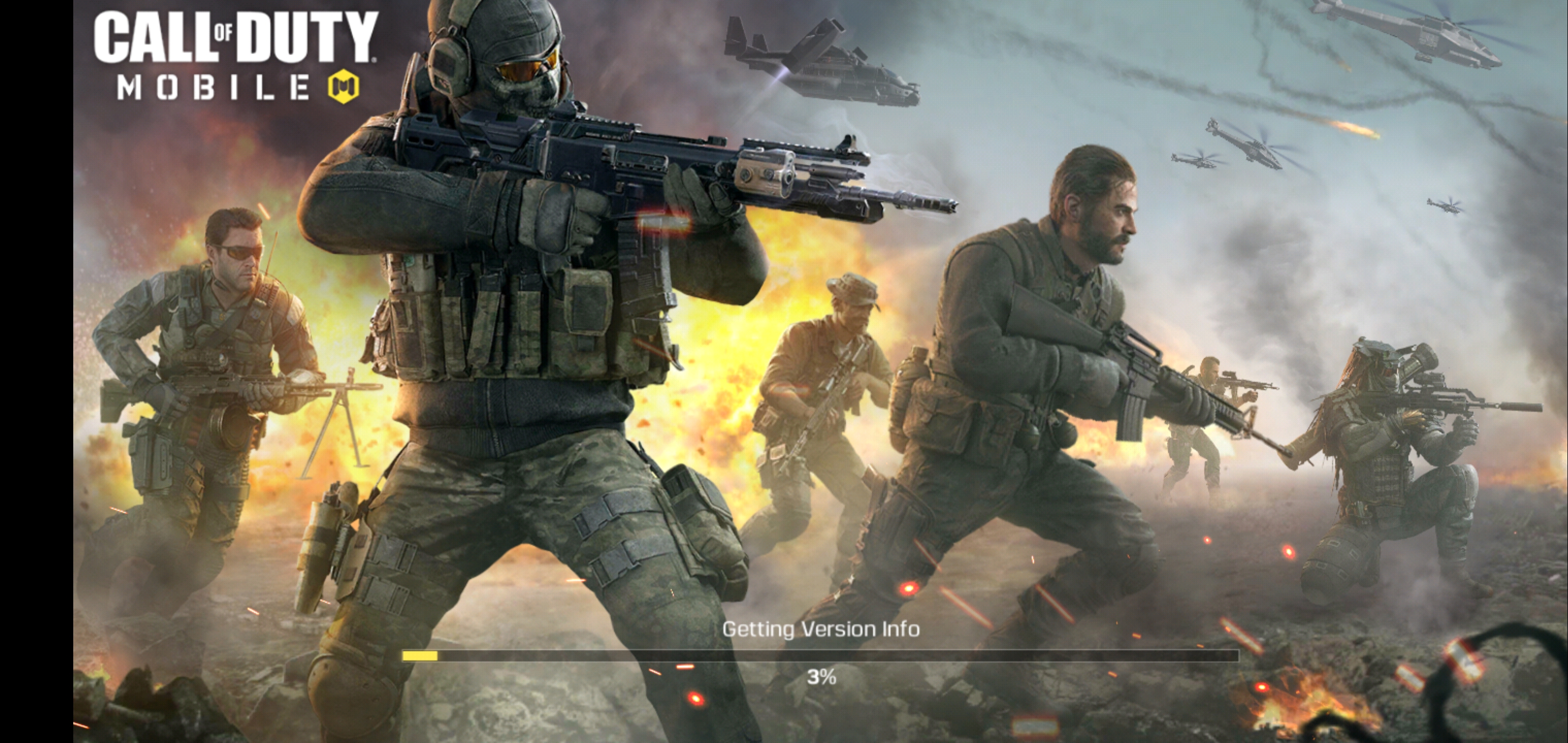
Galaxy S10+: Call of Duty Mobile stuck on Getting Version Info
Hey COD Mobile players, are you annoyed of the Getting Version Info loop? Don’t worry! Here are the steps to fix Call of Duty Mobile Stuck on Getting Version Info. This solution will work for all COD Mobile players anywhere in the world.
Galaxy S10+: Call of Duty Mobile stuck on Getting Version Info
Before you take a look at the steps to fix Getting Version Info, let me tell you why this error takes place.
COD Mobile – Why Getting Version Info?
Call of Duty Mobile has entered its beta stage now. In the alpha stage, that game was not available to a large audience. However, it is now out in several countries. Since gamers have been eyeing this game for over a year, they can’t really wait for this game to officially launch in their country. Most of the players are using workarounds to run Call of Duty Mobile in an ineligible country. Yes, the workarounds are working, but there are a lot of hiccups. Call of Duty Mobile stuck on Getting Version Info is also one of those hiccups.
The most popular method to run Call of Duty Mobile right now is through a VPN. You use a VPN to connect to a country where this game is out. After that, you launch the game and wait for the initial processing. Getting Version Info is the very first thing that the game verifies. This has to do with the Call of Duty servers in that particular country. When your VPN does not connect properly to your desired location and you launch Call of Duty Mobile, it fails to find the working servers.
So, this error has nothing to do with the game, but with your geo-location. But, there is a workaround to fix this workaround too.
If you have been getting this error while trying to launch this game, I’m going to tell how you can fix it.
Guide on how to Fix Call of Duty Mobile Stuck on Getting Version Info
I am assuming that you already know that to run Call of Duty Mobile right now, you need a VPN that can connect to India. If you are trying to launch Call of Duty Mobile without a VPN, it will fail to load straight away.
These are the few steps that will permanently fix the Getting Version Info loop on your Android phone.
Total Time:2 minutes
Close the game completely.
First of all, close the game completely. By completely, I mean to say that the game should not be in the recent apps either.
Open the VPN and check Server Location
Now open the VPN that you were using previously. If you were not using a VPN, get one from the Play Store now. Open the VPN and make sure its connected to India.
If the VPN does not have desired location, find VPN with required location.
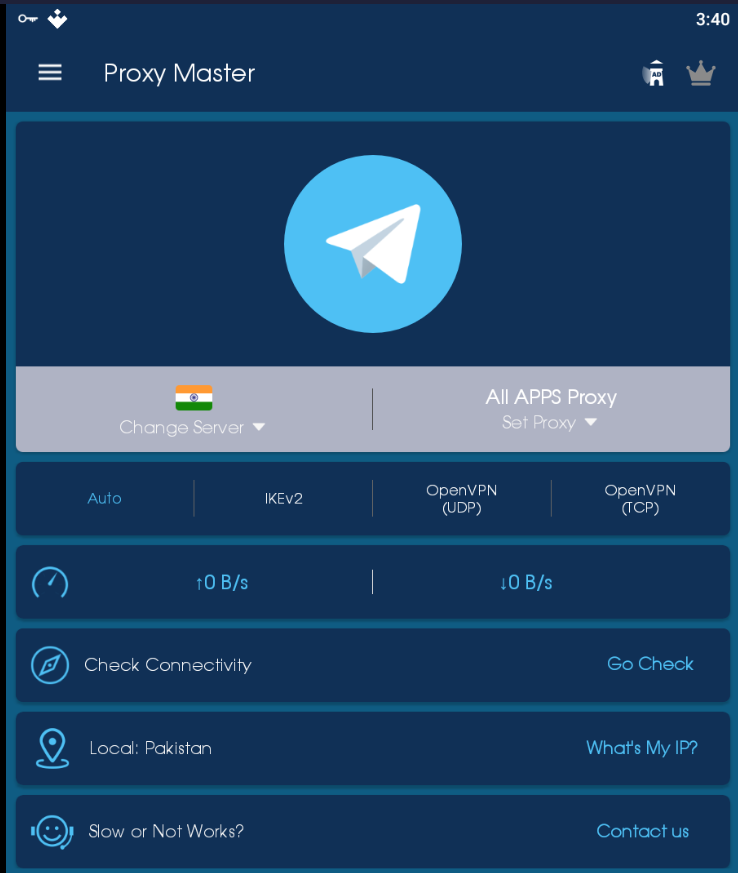
In case your VPN does not have India, get some other VPN and find India in it. You can try Proxy Master VPN for that matter. Or if you can afford, get the Nord VPN now.
Connect to India in the VPN now.
In the VPN, connect to India now. You can use any Indian server in the VPN.
Open Call of Duty Mobile now. Getting Version Info will be bypassed.
After the connection is established, open the game now and you will find it working. That’s all.
That’s all. If this guide has worked for you, make sure that you drop your feedback below. For any queries or questions, feel free to reach out to us. I will try my best to get back to you as soon as possible.
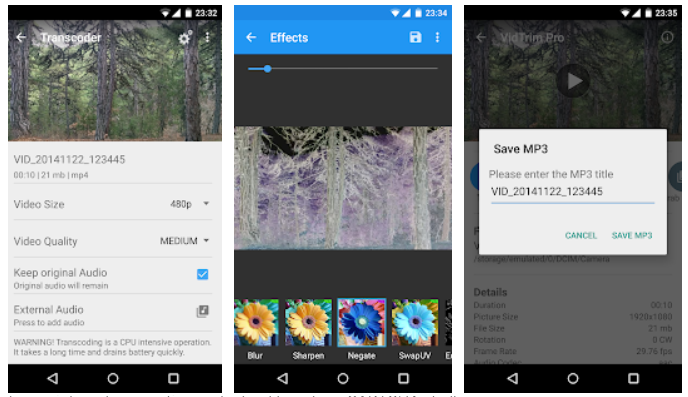
VidTrim app on PC is a video editor and organizer for you. It includes multiple features like trimming, merging, frame grabbing, and different video effects.
Why the VidTrim PC app?
Interested more in social sharing than serious editing?. VidTrim is an all-in-one solution that makes it simple to give your videos extra pop and then publish them to the Web all without ever leaving the app.
VidTrim for PC is entirely cloud-based and as a result, you have to first upload a video to its servers and wait for it to process before you can do anything. This took several minutes with the 56-second clip I used to test the app, which was mildly annoying compared to the instant-on environment other
And that’s about it. If you’re looking for advanced video editing, VidTrim for Windows definitely isn’t for you. But if the most basic video manipulation is all you need, It does a few elemental things reasonably well.
There is also an ad free version of the app that you can purchase and it is called the pro version. The app also supports different languages including – English, Turkish, German, French, Portuguese, Russian, Greek, Hebrew, Dutch, Czech, Arabic, Chinese
FEATURES:
Add music tracks to your videos
Record your own voice over
Trim and cut frame by frame to remove unwanted parts
Edit audio by trimming, adding fade-in and fade-out effects
Beautiful UI with stunning design
Save your edited videos or share on social media with a tap
Pros:
Customizable menu;
A wide selection of modifying options and filters;
Mobility of tasks, for example, return to any stage of editing;
Automation of all work processes for user requests;
Follow this tutorial to change language in Call of Duty Mobile. The COD Mobile is available in 10 different languages. This guide will show you how you can change the language in Call of Duty Mobile on your phone and also on the computer.
COD Mobile Language
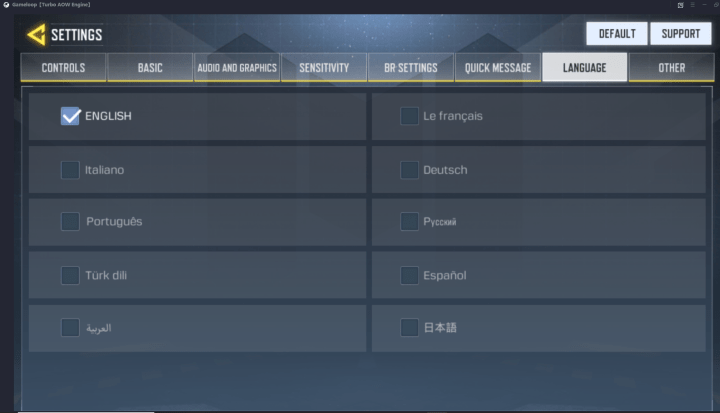
The default language in COD Mobile is English. If you are comfortable playing this game in your native language, you may immediately change it in the game settings. Call of Duty Mobile has 10 languages in total.
The game offers English, French, Italian, Portuguese, Arabic, Turkish, Dutch, Spanish, Chinese, and Russian languages.
Changing the language in COD Mobile will change your entire game. This will not affect your gameplay or the game data. The options, settings, and all the text in your game will be transformed into the language that you have set in the settings.
Assuming that you have a clear understanding of what changing the language in COD Mobile means, take a look at the steps now.
Change language in Call of Duty Mobile
Open Call of Duty Mobile on your Android phone, iPhone, or Gameloop emulator.
In Call of Duty Mobile, click on the small Settings gear icon at the top.
Now go to the Language tab in the settings.
Select the language you want to use.
The game will refresh and language will be changed. That’s all.
Conclusion
That is how simple it was to change the language in Call of Duty Mobile. To revert back to English, use the same guide. If you have any questions or queries regarding this guide or COD Mobile, feel free to use the comment box below. I will try my best to get back to you as soon as possible.
Gyroscope is one of the most useful sensors for any game like the Call of Duty Mobile. If your phone or laptop has the Gyroscope sensor and you have not turned it on, this guide is for you. The steps to turn on Gyroscope in Call of Duty Mobile on Android, iOS, and Windows are given here. Before you enable Gyroscope in COD Mobile, let me tell you what Gyroscope is and how it can improve your game.
Gyroscope – What’s the use in Call of Duty Mobile?
Gyroscope is a device that has a disc mounted in a way that can spin rapidly about a particular axis which can alter in any direction. When you tilt the wheel or disc, the axis is not affected and this is how gyroscopes are used to maintain a reference point and stability in the navigation systems or stabilizers.
The purpose of the Gyroscope in a smartphone is somewhat similar. The gyroscope in phones and laptops, particularly in the ultrabooks, is supported by the accelerometer. The Accelerometer in the phones detects the orientation of the phone and the Gyroscope adds further information to the information provided by the Accelerometer by keeping a track of rotation or twist. Gyroscope uses the X and Y-axis to determine the current position of your device.
Source: WikiPedia
When you are playing Call of Duty Mobile in the default settings, the Gyroscope is turned off. In this mode, you use a wheel or the rotation button on the screen to look around in the game. For example, when you title the phone upward while playing COD Mobile, you will see the sky, when you will tilt downward, you will see the ground. The view changes with the movement, tilt, and pan of your phone.
With the Gyroscope turned on, you will not use the rotation button/wheel anymore. You will only move your phone in your desired and required direction to look around in the game.
There are gamers who like playing the games with Gyroscope, and then there is a major chunk of gamers who do not like it at all. The reason is, with the Gyroscope turned on, you always have to be moving and when it comes to using weapons in the game, your movement has to be extremely accurate. I am talking about the movement of your hands while you are playing the game. The Gyroscope cannot be used at all if you are sitting stable in one state or if you are lying down. To play the game without moving, you should have the Gyroscope turned off.
If you have finally made a mind to use Gyroscope in Call of Duty Mobile, you will find the upcoming steps useful. Take a look and enable it right now.
Turn on Gyroscope in Call of Duty Mobile
Open Call of Duty Mobile on your phone.
Click on the Settings gear icon at the top.
Go to the Basic tab.
Scroll down and find Gyroscope.
Now turn on the Gyroscope for the entire game or turn it on for ADS.
Start the game.
Tilt the phone up, down, left, and right to look around now. That’s all.
Turning on Gyroscope in Call of Duty Mobile
Turn on Gyroscope in Call of Duty Mobile in Gameloop or BlueStacks
Open Gameloop or BlueStacks emulator on your computer.
Now open Call of Duty Mobile.
Click on the Settings icon.
Go to the Basic tab now.
Scroll down and turn on Gyroscope.
Start the game now. Move your Ultrabook to look around in the game. That’s all.
Conclusion
That’s all. You have successfully enabled the Gyroscope now. Using the same guide, you can turn it off as well. Remember that if your device doesn’t have a Gyroscope sensor, the Gyroscope option will be grayed out and you will not be able to change its settings. For any questions/queries, feel free to use the comment box below. I will try my best to get back to you as soon as possible.
This is the step-by-step to download and play COD Mobile on PC.Call of Duty Mobile for PC can be installed on computers powered by Windows operating system.
Call of Duty Mobile – Playing on my PC
Before you download the most popular action game on your desktop pc or laptop, let me give you a brief overview of history.
COD Mobile – A flashback
COD Mobile made it to the worldwide audience a couple of days back, but the game isn’t exactly new. Call of Duty Mobile was in alpha and then beta testing for almost a year. The game made it to the Android ecosystem as “Call of Duty: Legends of War” first of all. This was the alpha stage. Legends’ version of this game was limited to a few countries only. It was also full of bugs which definitely meant that a more stable version was yet to come and there was more to the picture.
A few months ago, Call of Duty Mobile’s beta version made it to India. At that time, the had got enough of hype that the global audience started eyeing the full rollout of the game. The beta version was also not free of bugs. Although the users in India could play the game, they didn’t quite like the topsy-turvy experience. Call of Duty Mobile struggled with network connectivity. The servers often disappointed the players.
Come October 2019 and we have the official rollout of the stable version of the game. It didn’t take more than 24 hours for this game to cross the biggest milestones in terms of the number of downloads. Call of Duty Mobile has now become one of the most played and most popular action games for Android and iOS ecosystems.
With that said, let me give you an idea of this game’s gameplay.
Call of Duty Mobile – Review
If you are not coming across the COD title for the first time, you must already have an idea about what kind of game this is. But in case you don’t, Call of Duty is a decades-old FPS game based on World War II where you join a team and go neck-on-neck with another team. You have to kill the enemies as soon as you see them. Players can use various weapons like shotguns, snipers, rifles, they can use airstrikes, grenades, and many other weapons to get rid of their enemies. Call of Duty had a number of iterations. The experience only improved with each new variant of COD. It successfully became the most popular FPS game and it also set the new directions for the FPS gaming industry. Call of Duty Modern Warfare and Call of Duty Black Ops II were among the all-time popular models of this game.
Activision, the Call of Duty makers decided to bring this game to smartphones and this news was warmly welcomed by the phone gamers.
PUBG Mobile vs Call of Duty Mobile
The Call of Duty Mobile has everything you saw on the COD PC versions, but that wasn’t enough for this game to make a mark. Apart from Deathmatch mode and the Sniper action, it has a mode that’s become a new trend. From what it looks like, the company wanted to give the PUBG Mobile players a new game to hop on to. PUBG Mobile was the most famous Battle Royale game until a couple of days back, I’m not sure if the game is going to hold on to its place after the COD Mobile’s release. I’m saying that because the COD Mobile has a battle royale mode where players have to become the last man standing till the end.
COD Mobile Gameplay
COD Mobile’s Battle Royale mode is more interactive as compared to the PUBG Mobile. Yes, these are two entirely different games, but the main idea of the Battle Royale mode is the same. You get to play with 100 other players on an unknown piece of land. There are bullets coming in from all the directions. You have to get your gear together and find the enemies before they find you. If you manage to become the last man standing among those 100 players, you will be declared the winner. You can join a team in the battle royale mode or you can make your own team.
The Battle Royale Mode in COD Mobile is quite difficult. If you play the Deathmatch mode or the Sniper vs Sniper mode, leveling up isn’t going to be an issue. You can play a match of 5 or 6 minutes and you can easily level up. You can survive easily through a Deathmatch or Sniper vs Sniper. The real struggle is to get through the Battle Royale. At first, you will have to play for the entire 20 minutes duration [only if you survive] and then you will get only a few points which might not be enough to up your level immediately.
COD Mobile brings characters from all previous COD games. You will find your favorite characters, maps, locations, and weapons from Call of Duty Modern Warfare and Black Ops.
COD Mobile Graphics
Graphics are a department where the developers must be given the due credit. COD Mobile does not disappoint you for even an inch. The sound effects of this game are equally good. Graphics and Sound effects are exactly what makes this game worth playing on a computer.
I really wish that this game had a desktop counterpart. But, this guide is going to help you play this game on a computer anyways. You will now find the steps to play COD Mobile on PC. The guide will let you install Call of Duty Mobile for PC on Windows 7, 8, 10. Remember that it doesn’t work on macOS at the moment.
COD Mobile on PC | Call of Duty Mobile for PC
Download Call of Duty Mobile for PC is incredibly easy. You have to download an Android emulator. That is needed because we are going to install the Android version of this game on a computer. If you worrying about the game’s quality, then let me tell you that there isn’t going to be any disappointment. The game on your computer is going to look much better than an Android smartphone. In fact, I will attach a video below so that you can verify its quality and smooth running on a PC.
Requirements
A desktop PC or Laptop
Windows 7, 8, or 10
A Mouse & a Keyboard.
Minimum 3GB of RAM in your computer.
If you a dedicated graphics card, that’s a plus.
Minimum 3GB of Disk Storage
Gameloop [Formerly known as Tencent Gaming Buddy] – Download | Mirror
How to download COD Mobile on PC
Step 1: Install the Gameloop Android emulator that you just downloaded from above.
Step 2: Open the Gameloop Android emulator on the computer.
Step 3: Right on the front, you will find the Download option for COD Mobile. Click on it to start the download.
Step 4: Finish the installation and you will find the “Play” button. Click on the Play button to start the game.
Step 5: You can set the game’s control by click on the keymapping button on the top-right corner of the Gameloop. You can either learn the pre-defined/default controls or set the new controls depending on your choice.
Step 6: Play the game and have fun. That’s all.
Video on how to download and play COD Mobile on PC
If the guide given above is difficult to follow, you can watch this video below. This is our exclusive video showing COD Mobile installation and gameplay on a Windows 10-powered computer.
Here is my first ever COD Mobile gameplay. It may help you walk through the very first battle. Remember that you will have to play Deathmatch or 5v5 battles until you reach level 7 and unlock Battle Royale mode.
Conclusion
That’s all. By this time, you must have the COD Mobile for PC up and running. I hope that you guys like this guide. If you found it useful, make sure to share it with your friends. If you have any questions or queries, feel free to reach out to us. The best way to reach out to us is through the comments section below or else you can use our Contact us page.
FAQs
Can you play Call of Duty Mobile on PC?
Yes. You can easily play Call of Duty Mobile on PC. The guide above shows the method to run COD Mobile on Windows 7, 8, and 10. You can also play it on BlueStacks. The game, however, doesn’t run on macOS.
How do I download Call of Duty Mobile?
To download COD Mobile on phone, you can either download it from the Google Play Store for Android or you can download it from the App Store for iOS.
Does Call of Duty have controller support on mobile?
Call of Duty Mobile had controller support on day 1, but the support was pulled back by the developers for some unknown reasons. At the moment, the game has controller support in the Gameloop emulator. If you are playing it on PC, you can use the controller.
Does Call of Duty Mobile have bots?
Games like Call of Duty Mobile, PUBG are never prone to bots. You will find many bots and the bots are going to be there as long as the game developers do not tighten the game process.
Is Call of Duty Mobile on iOS?
Yes, Call of Duty Mobile is available in the iOS app store. It runs on all iPhones above iPhone 6. You can download it for free.
Can Cod Mobile run on 2GB RAM?
Yes, a phone with 2GB RAM can run Call of Duty Mobile. The game, however, will lag a little bit.
What are the system requirements for Call of Duty Mobile?
To play Call of Duty Mobile on Android phone, you need Android 4.3 or higher. For iPhone, it requires iOS 9.0 or higher. It’s compatible with all iPhones including iPhone 5s and above. The game is of 1.5GB, which means you must have a minimum of 2GB space in your device. For the computer, you need a Dual Core or higher CPU. A RAM of 2GB, 2GB free hard disk space, and Direct X must e installed. COD Mobile runs on Windows 7/8/10 only.
Can COD Mobile run on a phone with 1GB RAM?
It can play, but it will not run as smooth as it should. In fact, it will be very very hard for the game to run. We recommend a RAM of 2GB at least.
Is Call of Duty Mobile Free?
Yes. The game is absolutely free to download and install. It does have IAPs and those depend on your personal choice.
This is the tutorial to change Call of Duty Mobile Server Region on an Android phone and iPhone. This guide also fixes the COD Mobile 5027 error. If Call of Duty Mobile is having problems in your region, you can switch to another region to resolve the problem.
Call of Duty Mobile – The Server Problems
Just Yesterday, Call of Duty Mobile surpassed the whopping mark of 150M downloads. This is by far the highest number of downloads for such a game. Call of Duty Mobile has successfully become the newfound love of mobile gamers. A huge chunk of the audience shifted from PUBG Mobile to the COD Mobile.
Call of Duty Mobile was in the beta stage for almost a year. The game was released in India back in April-May 2019 and in October 2019, the game saw its global release.
When the game was limited to India, players from all around the world played the game by using VPN apps connecting to India. Playing the game from any other region gave the user’s server errors.
It looks like the server issues still exist after the global release of the COD Mobile. Users in Russia and a few other countries have reported that they cannot play the game.
Upon trying to load the game, it often shows this error:
We are excited to see your interest in call of duty mobile, but unfortunately, we are not yet ready to release the game in your area stay tuned and thanks for your patience (5027).
Apart from this error, even if the user manages to load the game, it still keeps trying to connect to the server. The network status error or network unstable error keeps popping up again and again.
To fix all these issues at once, you can change the region of your COD Mobile server.
Earlier we posted a guide to change the COD Mobile server in Gameloop, but that was to change the server to South East Asia or the South Korean. This time, we are talking about changing the region of the server, which will change nothing in the game. In literal words, it means changing the country to load the COD Mobile on a phone.
Take a look at the steps to change your COD Mobile server now.
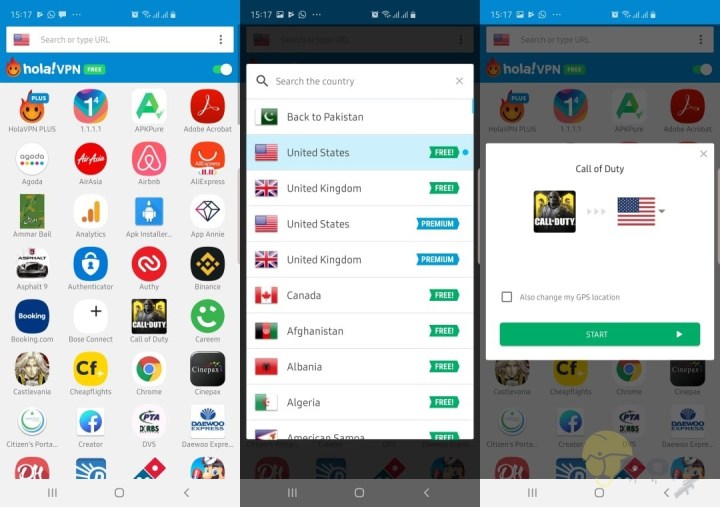
Now click on the country flag and change it to Belgium, India, USA, or any other free server.
You may or may not change the GPS location.
Click on Start and the game will start now. It will run from the changed server. That’s all.
Hola VPN changing COD Mobile Server to USA
If the game fails to load from the newly selected server, try changing it to another country. At the time of writing this tutorial, Hola VPN is the only way to change the Call of Duty Mobile server. If I find any other application providing such a feature, I will update this guide.
Conclusion
That’s all. Hopefully, you have fixed the server error on COD Mobile. If you are facing any other issues, you can locate the guides on our site. For any questions/queries, feel free to use the comment box below.
Updated: 12/11/2020. China does not allow Google Apps on its Android phones. Therefore, all the Chinese smartphone makers have to ship the phones without any Google Apps. This includes all the applications like Play Store, Play Service, Play Books, Play Games and anything else that’s related to Google. China has this strict policy against social media giants too. For example, you cannot use Facebook, Twitter and other such platforms in China. The country has such policies as it intends to protect the privacy of its users. So, if you recently bought a phone from a Chinese maker, it probably lacks all the Google Apps. For an Android phone, especially outside China, survival without Google Apps is nearly impossible. There are millions of Chinese phones that are brought outside China every day.
Such users need a way to access Google Apps on their phone. And why not? They have every single right to install whatever they like. The Play Store is a house to over 4 Million applications in the Play Store after all.
The Play Store is also the best source to install Apps on an Android phone. Using any third party application store can potentially harm your phone. Android users can completely trust the applications coming from Google.
Alongside the Play Store, you can also install all other basic Google applications which are essential for Android. China definitely blocks the Google Apps on its phones, but thankfully, it doesn’t restrict the users from installing those apps.
It means you can manually install the Google Apps like Google Play Store, Google Play Services, and others on a phone. To make this process easy, a developer came up with a package called Google Installer.
The Google Installer can be installed as a simple application. The installer will, later on, let you install the entire package of Google Apps. The Google Installer works on almost all Chinese phones.
You can download the Google Installer on Huawei, Xiaomi, ZTE, Samsung and all other phones. The latest version of Google Installer is V3.0. Latest Google Installer V3.0 works flawlessly in MIUI 9 too. Chines phone users can download Google Installer V3.0 APK from here.
The instructions to install Google Installer APK are also given in the guide below. Go ahead and get the Google goodies on your phone without any further ado.
Update 9/25/2019: Google Core Installer for EMUI 10 & Below
A new version of Google Core Installer is available. It can install all the missing Google Framework and Services apps including the Google Play Store on your phone running on EMUI 10 and below. The new app has been tested on the Huawei Mate 30 series and it was found running flawlessly. You can download the latest Google Core Installer from below.
Google Core Framework & Services Installer: Download
Google Installer APK V3.0 for Chinese Phones
Download Google Installer APK V3.0 and copy it to your phone – Download Link.
Now on your phone, open Settings > Security or Lock Screen & Security > Unknown Sources > Tap the radio button or checkbox to enable.
Using a file manager, locate the Google Installer APK V3.0 on your phone.
Tap the Google Installer APK to start its installation. Follow on-screen instructions to finish the installation process.
Now open newly installed Installer from the App Drawer.
Tap the big circle appearing at the bottom to start Google Apps installation process.
Now tap Install > Ok > Install > Ok > Google Play.
You will now find an option in Chinese, simply tap the Chinese option > Allow > Next.
Your phone will now ask for some permissions. Allow it immediately.
Restart your phone now. The Google Framework should be installed.
Google Play Store not appearing after installing Google Installer?
If the Play Store fails to appear after following the procedure given above, you may have to install it manually. The basic purpose of the Installer was to install the Google Framework, which lays the basis for Google Apps on your phone. You are now free to manually install the Services and Play Store. Download the latest Google Play Store and Play Services APK. Install the APKs as normal apps and it should go fine.
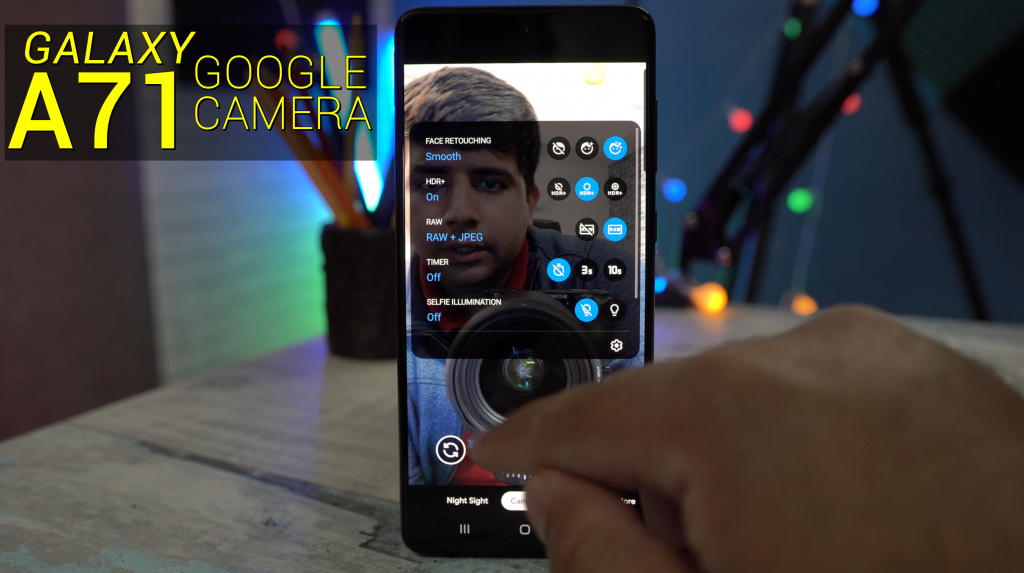
Samsung Galaxy A71 is powered by Qualcomm Snapdragon 730. This opens the door for Camera2API, which means you can eventually install the GCam on your phone. This is the guide to download Google Camera APK for Galaxy A71. The Galaxy A71 Gcam installation and configuration steps are also given below.
Running GCam 7.0 on my Galaxy A71
Google Camera for Galaxy A71
Just like the Galaxy A70, the Google Camera will now work on your Galaxy A71. The latest GCam 7.0 which is compatible with the Qualcomm Snapdragon 730, has been found running flawlessly on the A71. I have personally tested the GCam and to my surprise, almost all the features are working.
The main purpose of Google Camera includes the high dynamic range shots, portraits, and the night sight mode. Fortunately, all these three modes are working up to the mark on the Galaxy A71. The Face Retouching feature also works up to the mark. In my own GCam test, I took a number of portrait shots, the night sight pictures, and the HDR and HDR+ pictures. As always, the GCam does a great job separating the subject from the background in the portrait mode. The HDR is superb with the highest level of detail and equally balancing all the colors in a picture. The night sight also tries to lit up the low-light situations keeping the noise minimum.
Google Camera outputs completely different colors from the stock camera application of the Galaxy A71. For example, the stock camera’s dynamic range is very poor. On the other hand, the Google Camera outputs superb details on that part. I have attached the samples that you can take a look at. I have also attached my own video which explains how you can set up and configure the Google Camera on Galaxy A71. Go ahead, take a look at the steps and watch the video as well.
On the A71, open the file manager and open the APK.
Install the APK now.
Launch the Google Camera.
Now go to the Settings > set the Video resolution to FHD.
Turn on the video stabilization.
Now go to the Advanced settings and turn on the Focus Tracking, Google Photos, RAW & JPEG Control, Maximum Brightness, and Face Retouching.
You are all set to capture cool photos using Google Camera on Galaxy A71
Google Camera on Galaxy A71 – Video
Conclusion
GCam for Galaxy A71 is not in the best form, but for the most part, it works fine. For example, you have got the main features like the portrait, night sight, and HDR+ working on it, but the video and slow modes do not work as of now. Since this is an experimental application, we may or may not get an update fixing what’s broken right now. Let me know about your experience with the GCam on your A71. Do you find it better than your stock camera app? Drop your feedback in the comments below or on my YouTube video.
As of November 2019, Odin 3.13 is still the latest version of Odin. The Odin 3.13 is compatible with all Samsung Galaxy phones released to date. Download Odin 3.13 from here.
Odin 3.13.1 has been released for Samsung Galaxy devices. Samsung Galaxy owners can download the Odin 3.13.1 for PC from here now. The latest version of Odin is available only for Windows. Odin3 v3.13.1 supports the new compression method implemented by Samsung on its firmware files. Odin 3.13.1 supports all the latest phones like the Galaxy S8, S8 Plus, Note 8, Galaxy S9, S9 Plus, and all the previous handsets as well.
The latest Odin 3.13.1 was much needed. Thankfully, the tool just made it out in time. If you own a Galaxy S8 or S8 Plus, you must have heard of the Android Oreo installation issue. That issue was totally related to the existing versions of Odin.
The existing Odin, which was Odin 3.12.10, could not unzip the Android Oreo update files. Samsung is using a new .lz4 compression for the files. The previous versions of Odin supported .tar and .md5 formats. Because of the new compression, the update files failed to flash on the phone.
Samsung pulled the Android Oreo update back for a while. The moment it re-rolled the update, it also released a new version of Odin that supports the new Oreo files. Since the Galaxy S9 and S9 Plus run on Android Oreo as well, you are probably going to need the Odin 3.13.1 for that as well.
Also, to update all the phones that are going to get the Android Oreo update, you are going to need this latest piece of Odin. We have already grabbed it and uploaded it right here for all the Samsung users. You can find all the previous versions of Odin on our site as well. For now, you can go ahead and download the latest Odin 3.13.1 to flash Android Oreo or any other firmware on your Galaxy handset.
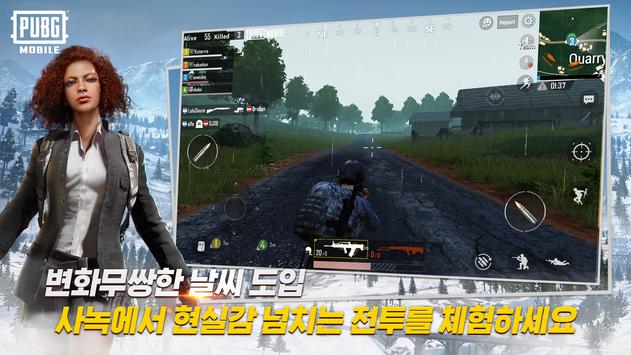
PUBG Mobile Korean Version APK is available in this post. If you are from Korea, you can download PUBG Korean APK right now. PUBG Korean Version comes with exclusive features designed for the Korean region.
Image of PUBG Mobile Korean Version
PUBG Mobile arguably is the best Battle Royale game till date. There have been so many rip-offs of the PUBG Mobile, but none of them were able to compete the original game. PUBG Mobile has millions of players across the globe at the moment. Like many popular games in the past, PUBG’s trend hasn’t settled down even now. With the new updates, the game is becoming even more exciting. The developers of PUBG know all the secrets of keeping the gamers engaged with this game.
PUBG Mobile Korean Version
If there is one thing that I love about PUBG Mobile, that is the variety of its variants. There is a different version of PUBG Mobile for the global audience. There is PUBG Mobile Lite designed for the devices having low-end software. We also have the PUBG Mobile Chinese version with Chinese language and some features exclusive to the Chinese region. Now we have PUBG Mobile Korean as well.
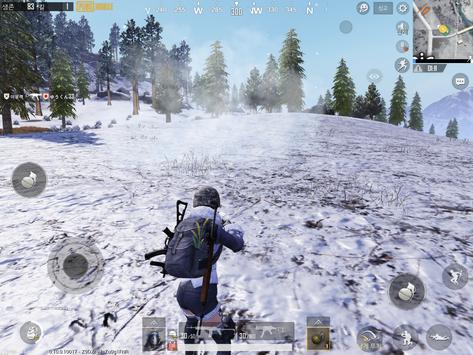
The PUBG Korean comes with the South Korean language. This game is for the Korean audience who do not like the global version of PUBG Mobile. The Korean version has some exclusive UI elements. The latest snow-maps are also a part of this version of PUBG Mobile.
PUBG Korean APK
Before you download the PUBG Mobile Korean APK, let me give you a brief overview of the PUBG Mobile game.
PUBG Mobile
In PUBG Mobile, over a 100 players jump off from a C130 airplane to the ground. Players can chose the area where they want to jump. After jumping off, players can open the parachute and land wherever they want. When the game starts off, players have nothing at all. They are only wearing pajamas. Players have to find everything on the ground. There are abandoned buildings, houses, and crates. Players can look through all these to find cloths, weapons, supplies, and many other items. This is when the quest for life starts.
All players are trying to kill each other. If you are not a part of a team, it means that the other 99 players are coming after you. The one who survives till the end in this game becomes the winner. It also means that you are not allowed to spare anyone’s life in this game. As soon as you find someone nearby, pull out your gun and take them down. After killing the opponent, you can loot their backpacks.
This was just a brief idea of the game. PUBG Mobile is a huge game. It’s better to play this game in order to understand it. It’s time to move towards the PUBG Mobile Korean version APK.
Update:Latest PUBG Mobile Korean APK v0.14.0 added [December 2020]
Download PUBG Mobile Korean Version APK
PUBG Mobile Korean APK: V1.1.0 – December 2020 – Download
Copy the APK to your phone.
On your phone, open Settings > Privacy & Security > Unknown Sources > Allow.
Now open File Manager and find PUBG Mobile Korean Version APK.
Install the APK now.
Launch PUBG Mobile Korean from the app drawer. That’s all.
Wrap up
That is it, folks. I hope that you are enjoying the Korean PUBG Mobile on your phones now. If you have any questions, feel free to drop them below. I will try my best to get back to you as soon as possible.
Aloha Browser for PC is now available and can be easily installed on a desktop PC/Laptop running Windows XP/7/8/8.1/10 and MacOS/OS X.Let’s learn a little bit about this all-new app and then have a look on the installation method via BlueStacks or BlueStacks 2.
Download Aloha Browser for Laptop Windows-Mac:
Following are the two methods from which you can download and install Aloha Browser for PC, Laptop Windows-Mac. Let’s start the method to download Aloha Browser for PC Windows.
Download Aloha Browser for PC Windows using BlueStacks:
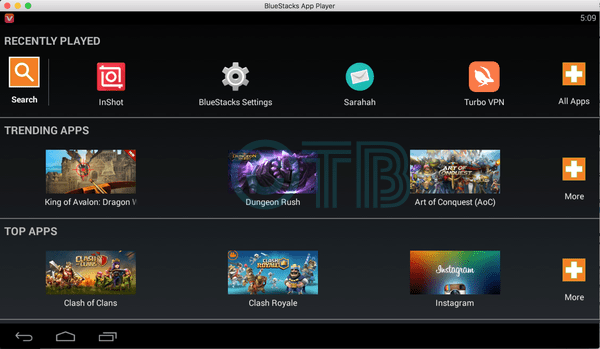
Once you’ve installed BlueStack, launch it from your desktop. You have to add your Google Account to use Google Play on BlueStack. Goto->Settings->Accounts-Gmail.
When BlueStacks screen loads up, Click on the Search icon.
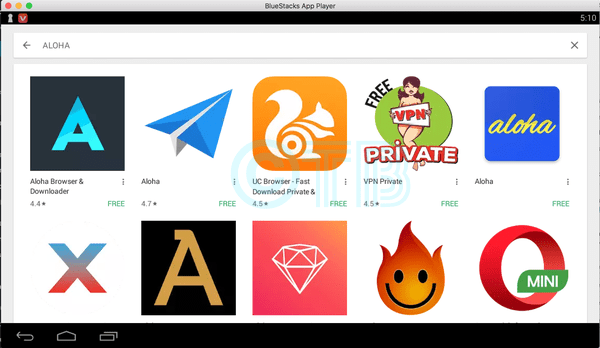
Now you have to type in the app name. I am looking for Aloha Browser so, in the search bar, I’ll type Aloha Browser and hit enter.
On the next screen, you’ll see the list of all the apps containing Aloha Browser name, Click on the first one which is developed by Aloha Mobile.
Now you’ll be at app page, here you have to click on install. It will start downloading the app and once the downloading is complete, Aloha Browser will be installed.
Before moving on you have to give permission to Aloha Browser in order to access your system information. Click on Accept when you’ll see the pop-up.
Now, wait for the installation process to be complete, once the Aloha Browser is downloaded and installed, you’ll see a notification as you do on your Android devices. Goto BlueStacks homepage and there you’ll see the Aloha Browser logo in your apps. Click on the Aloha Browser logos to start using it.
DOWNLOAD Aloha Browser FOR PC ON WINDOWS 8.1/10/8/7/XP/VISTA & MAC LAPTOP:
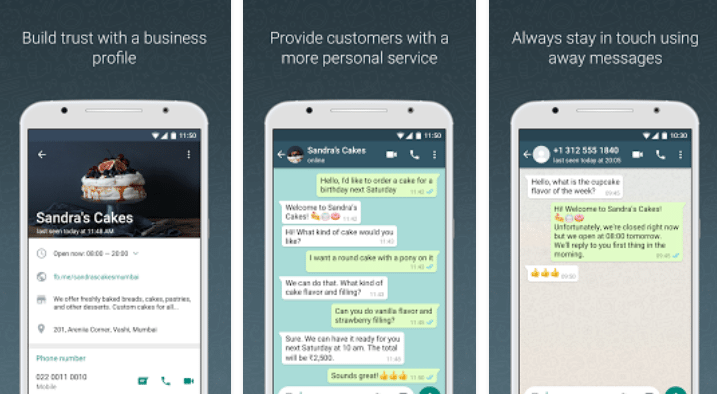
WhatsApp Business has finally made its way out of the beta version. WhatsApp Business came around a few months ago. The application was in the beta stages. Just a couple of days ago, WhatsApp started rolling out the first build of the WhatsApp Business application. WhatsApp Business does exactly what its name suggests.
WhatsApp – Making business easy!
Connecting with your customers has been made so much easy now. If you are an e-commerce store owner, WhatsApp Business has a lot of ease to offer. You can now set up a business profile on the WhatsApp Messenger.
Through this Business profile, you can interact with your customers. If you have two different numbers, one for your personal use and one for your business use, you can set up both at the same time on your phone. Your personal number will keep working fine in the WhatsApp application and you can use your business number to set up WhatsApp Business. You can even use your landline phone number to verify the WhatsApp Business.
The WhatsApp Business is a completely separate application from the original WhatsApp. That’s why you will not have any kind of issues while installing a 2nd WhatsApp application on your phone.
WhatsApp Business has all the options to meet your business needs. It brings the messenger like features right into the palm of your hand. You can set up your entire profile putting up all the information regarding your business on WhatsApp.
It includes adding your landline number, your website, your location, and some other information. You can set automated replies for your customers. If a customer sends a message while you are away, the application will let the customers know that you are away using your automated message.
WhatsApp Web also supports the business application. It’s just a complete solution for your business communication. If you haven’t already switched to WhatsApp Business, it’s time for you to do so now.
WhatsApp Business on a Computer!
Running WhatsApp Business on a computer is quite easy. You can install it on your phone and then use WhatsApp Web. But in case you want to install WhatsApp Business on your computer as an application and then set it up using your computer as well, you will have to try a different solution.
WhatsApp Business can be installed using an Android emulator. Through the Android emulator, you can always stay in touch with your customers. This way, you will not have to install the application on your phone and then open it in the web browser. Here is a step by step guide to install it on your computer.
WhatsApp Business for PC can be installed on a Windows 7, Windows 8, Windows 8.1, Windows 10, MacOS and Mac OS X powered computer. You can get WhatsApp Business for PC on desktop PCs and laptops. Take a look at the tutorial to get it running now.
Download WhatsApp Business for PC using BlueStacks 3
Click on the “Install APK” button located inside BlueStacks 3.
Locate and select the WhatsApp Business APK. Let BlueStacks 3 install it.
Once the installation comes to an end, WhatsApp Business will appear in the My Apps section. It will also appear as a shortcut on your computer’s desktop.
You can open WhatsApp Business now.
In WhatsApp Business, select the number that you want to register.
Upon verification method, select “Call”.
As WhatsApp calls on your number, pick up the call and note down the verification number.
Enter the verification number in the emulator now.
WhatsApp Business will be verified and you can set up your business profile now. That’s all.






![Download Google Camera APK for Galaxy A71 [GCam 7.0]](https://techbeasts.com/wp-content/uploads/2020/02/Screenshot_7.png "Download Google Camera APK for Galaxy A71 [GCam 7.0]")


![Download Odin 3.13.1 for PC [Odin3 v3.13.1]](https://techbeasts.com/wp-content/uploads/2018/03/Screenshot_11.png "Download Odin 3.13.1 for PC [Odin3 v3.13.1]")