Home Blog Page 80

Download Google GApps for Android 8.1 Oreo

0
Download Google GApps for Android 8.1 Oreo

If you are into the stuff like custom ROM flashing, you must have heard of GApps. The most popular and widely used Google GApps by Open GApps is now available for Android 8.1 Oreo.Google GApps for Android 8.1 Oreo

The latest custom ROMs like LineageOS 15.1 make the use of GApps by Open GApps to bring in all the Google Apps on Android phones. Android custom ROM users can download Google GApps for Android 8.1 Oreo from here now. The Open GApps Google GApps package available here are completely untouched.

Google GApps packages include the basic Google Services and applications. These applications usually include the Google Play Services, Google Play Store, Google Play Music and other such apps. The Google Play Store is used to download and install all the apps on an Android phone. For the Android apps to stay synced with the Google Play Store to receive automatic updates, the Google Play Services is necessary.

Without the Google Play Services, the Google applications fail to work. Other applications also refuse to automatically update without the Play Services package. Apart from being the most important part of the Android OS, the Google Apps also serve some really important purpose for the users. Google Play Music is one of the best music apps out there.

There is the Google Play Games app that can store all of your game stats. Google Play Books can bring you the books of your choice. There are Google Docs, a really useful application to handle your documents. The Gmail, as you know, is the most important application to handle your emails if you use a Gmail account. And, the list goes on like this.

Now you must be thinking that if the GApps are this much important for a phone or the user, then why the developers do not include them in the ROMs? Well, the answer is a bit interesting. For years, the biggest problem with the Android OS has been the bloatware. These are the applications which are none of the use to the users. Almost all the stock ROMs by different OEMs come with a plethora of pre-loaded applications which result in slowing down the performance of a phone and also occupy a nominal chunk of space.

Custom ROM developers wanted to do better than the OEMs. So, they decided to not to include any single extra application in their ROMs. This is why the AOSP-based and the other similar custom ROMs are liked by Android enthusiasts. These ROMs are completely bloatware free. They are a lot smaller in size and they are prone to hang and crashes (only if a ROM is in its stable stage).

The developers leave this choice completely for the users. A custom ROM user can decide what apps does he want on the phone. So, keeping this option in mind, a group of developers decided to make the GApps package more feasible for the ease of users. The developer working under the umbrella of Open GApps have provided various packages. All these packages include a different number of Google GApps and the packages vary in size as well.

For example, there is a Google GApps package that is extremely small and then there is one that is extremely large. That is because the smallest package includes the most basic apps and the largest one includes every single Google App that is available till date. In between, there are many other packages and they all have different apps in them.

Download Google GApps for Android 8.1 Oreo

Users, who are on the lookout for Open GApps Google GApps, can download their desired. The description for each bundle is also given below. Go ahead to download Gapps for Android 8.1 Oreo and then flash it on your custom ROM powered Android handset.

GApps for Android Oreo – Package Details & Download

[bg_collapse view=”link-list” color=”#190fd9″ icon=”arrow” expand_text=”GApps AROMA Package” collapse_text=”Show Less” ]

This is a special package developed by Open GApps developers. This package allows users to flash the package using AROMA installer. In the AROMA installer, users can select what specific GApps they want to flash in the phone. If you want to hand pick the Google Apps, this is the package that you need.

[/bg_collapse] [bg_collapse view=”link-list” color=”#190fd9″ icon=”arrow” expand_text=”GApps Super Package” collapse_text=”Show Less” ]
  • Android Messages (not installed on tablet devices) (replaces stock/AOSP SMS App)
  • Chrome Browser (replaces stock/AOSP Browser)
  • Cloud Print
  • Device Health Services
  • Gmail (replaces stock/AOSP Email)
  • Google+
  • Google Apps Device Policy
  • Google Calculator (replaces stock/AOSP Calculator)
  • Google Calendar (replaces stock/AOSP Calendar)
  • Google Camera (replaces stock/AOSP Camera)
  • Google Connectivity Services
  • Google Contacts (replaces stock/AOSP Contacts)
  • Google Desk Clock (replaces stock/AOSP Desk Clock)
  • Google Dialer (replaces stock/AOSP Dialer)
  • Google Docs
  • Google Drive
  • Google Duo
  • Google Earth
  • Google Fitness
  • Google Indic Keyboard
  • Google Japanese Input
  • Google Keep
  • Google Keyboard (replaces stock/AOSP Keyboard)
  • Google Korean Input
  • Google News & Weather
  • Google NFC Tags (replaces stock/AOSP NFC Tags)
  • Google Now Launcher (replaces stock/AOSP Launcher)
  • Google Package Installer (replaces stock/AOSP Package Installer)
  • Google Pay
  • Google Pinyin Input
  • Google Play Books
  • Google Play Games
  • Google Play Movies & TV
  • Google Play Music
  • Google Play Newsstand
  • Google Play services
  • Google Print Service Recommendation Service (replaces stock/AOSP Print Service Recommendation Service)
  • Google Search
  • Google Sheets
  • Google Slides
  • Google Storage Manager (replaces stock/AOSP Storage Manager)
  • Google Street View
  • Google Text-to-Speech (replaces stock/AOSP Pico TTS)
  • Google VR Services
  • Google Translate
  • Google WebView (replaces stock/AOSP WebView)
  • Google Zhuyin Input
  • Hangouts
  • Maps
  • Pixel Icons
  • Pixel Launcher (replaces stock/AOSP Launcher)
  • Photos (replaces stock/AOSP Gallery)
  • Project Fi by Google
  • TalkBack
  • Wallpapers
  • YouTube
[/bg_collapse] [bg_collapse view=”link-list” color=”#190fd9″ icon=”arrow” expand_text=”GApps Stock Package” collapse_text=”Show Less” ]
  • Android Messages (not installed on tablet devices) (replaces stock/AOSP SMS App)
  • Chrome Browser (replaces stock/AOSP Browser)
  • Cloud Print
  • Device Health Services
  • Gmail (replaces stock/AOSP Email)
  • Google+
  • Google Calculator (replaces stock/AOSP Calculator)
  • Google Calendar (replaces stock/AOSP Calendar)
  • Google Camera (replaces stock/AOSP Camera)
  • Google Contacts (replaces stock/AOSP Contacts)
  • Google Desk Clock (replaces stock/AOSP Desk Clock)
  • Google Dialer (replaces stock/AOSP Dialer)
  • Google Docs
  • Google Drive
  • Google Duo
  • Google Fitness
  • Google Keep
  • Google Keyboard (replaces stock/AOSP Keyboard)
  • Google News & Weather
  • Google NFC Tags (replaces stock/AOSP NFC Tags)
  • Google Now Launcher (replaces stock/AOSP Launcher)
  • Google Package Installer (replaces stock/AOSP Package Installer)
  • Google Play Books
  • Google Play Games
  • Google Play Movies & TV
  • Google Play Music
  • Google Play Newsstand
  • Google Play services
  • Google Print Service Recommendation Service (replaces stock/AOSP Print Service Recommendation Service)
  • Google Search
  • Google Sheets
  • Google Slides
  • Google Storage Manager (replaces stock/AOSP Storage Manager)
  • Google Text-to-Speech (replaces stock/AOSP Pico TTS)
  • Google VR Services
  • Google WebView (replaces stock/AOSP WebView)
  • Hangouts
  • Maps
  • Messenger (not installed on tablet devices) (replaces stock/AOSP SMS App)
  • Pixel Icons
  • Pixel Launcher (replaces stock/AOSP Launcher)
  • Photos (replaces stock/AOSP Gallery)
  • TalkBack
  • Wallpapers
  • YouTube
[/bg_collapse] [bg_collapse view=”link-list” color=”#190fd9″ icon=”arrow” expand_text=”GApps Full Package” collapse_text=”Show Less” ]
  • Android Messages (not installed on tablet devices)
  • Chrome Browser
  • Cloud Print
  • Device Health Services
  • Gmail
  • Google+
  • Google Calculator (replaces stock/AOSP Calculator)
  • Google Calendar (replaces stock/AOSP Calendar)
  • Google Desk Clock (replaces stock/AOSP Desk Clock)
  • Google Docs
  • Google Drive
  • Google Fitness
  • Google Keep
  • Google News & Weather
  • Google NFC Tags (replaces stock/AOSP NFC Tags)
  • Google Now Launcher
  • Google Play Books
  • Google Play Games
  • Google Play Movies & TV
  • Google Play Music
  • Google Play Newsstand
  • Google Play services
  • Google Search
  • Google Sheets
  • Google Slides
  • Google Text-to-Speech
  • Maps
  • Photos
  • TalkBack
  • YouTube
[/bg_collapse] [bg_collapse view=”link-list” color=”#190fd9″ icon=”arrow” expand_text=”GApps Mini Package” collapse_text=”Show Less” ]
  • Android Messages (not installed on tablet devices)
  • Device Health Services
  • Google Calculator (replaces stock/AOSP Calculator)
  • Google Calendar (replaces stock/AOSP Calendar)
  • Google Desk Clock (replaces stock/AOSP Clock)
  • Google NFC Tags (replaces stock/AOSP NFC Tags)
  • Google Now Launcher
  • Google Package Installer (replaces stock/AOSP Package Installer)
  • Google Play services
  • Google Search
  • Google Text-to-Speech
  • Gmail
  • Maps
  • Photos
  • YouTube
[/bg_collapse] [bg_collapse view=”link-list” color=”#190fd9″ icon=”arrow” expand_text=”GApps Micro Package” collapse_text=”Show Less” ]
  • Device Health Services
  • Google Calendar (replaces stock/AOSP Calendar)
  • Google Now Launcher
  • Google Package Installer
  • Google Play services
  • Google Search
  • Google Text-to-Speech
  • Gmail
[/bg_collapse] [bg_collapse view=”link-list” color=”#190fd9″ icon=”arrow” expand_text=”GApps Nano Package” collapse_text=”Show Less” ]
  • Device Health Services
  • Google Package Installer (replaces stock/AOSP Package Installer)
  • Google Play services
  • Google Search
  • Google Text-to-Speech
[/bg_collapse] [bg_collapse view=”link-list” color=”#190fd9″ icon=”arrow” expand_text=”GApps Pico Package” collapse_text=”Show Less” ]
  • Google Package Installer (replaces stock/AOSP Package Installer)
  • Google Play services
  • Google Text-to-Speech
[/bg_collapse] [bg_collapse view=”link-list” color=”#190fd9″ icon=”arrow” expand_text=”GApps TV Stock Package” collapse_text=”Show Less” ]
  • Android TV Customization
  • Android TV Widget
  • Gamepad Pairing Service
  • Global Key Interceptor
  • Landscape Wallpaper
  • Leanback Keyboard
  • Overscan Calibrator
  • Pairing Tutorial
  • Remote Control Service
  • Second Screen Setup
  • Second Screen Setup Auth Bridge
  • TV Voice Input
  • Android TV Launcher
  • Android TV Remote Control
  • Backdrop Daydream
  • The Google Cast Receiver
  • Google Play Games
  • The Google Play Movies & TV
  • Google Play Music
  • Google Search
  • The Google Webview
  • Live Channels
  • TalkBack
  • TV Recommendations
  • YouTube
[/bg_collapse]

In order to download the GApps, go to the GApps download page and then select your architecture and your Android version. After that, select your desired GApps package and then click on the download button. Your download will begin immediately.

That’s all for now. If you have any queries, feel free to drop them in the comments section below.

Download WhatsApp for WiFi Tablet [Voice and Video Call Working]

0
Download WhatsApp for WiFi Tablet [Voice and Video Call Working]

WhatsApp is the smoothest communication application available for the platforms like Android and iOS. Back in the good old days, WhatsApp was only a texting messenger. Now, this application is capable of making voice and video calls as well. Installing WhatsApp on your Android phone is not something hard. But installing it on a tablet is a little bit tricky. No, we are not talking about the tablets which have the GSM capabilities. We are talking about the tablets which do not have the GSM and LTE capabilities. To be more appropriate, we are talking about the tablets without a SIM card support.Download WhatsApp for WiFi Tablet [Voice and Video Call Working]

Owning a good Android tablet and not being able to run WhatsApp on it doesn’t look like a good idea. If you have a WiFi tablet, you deserve to make the best out of it. You can install WhatsApp on a WiFi tablet by following a method that involves installing WhatsApp manually and then uses a neat trick to activate it. A couple of years ago, we shared a guide that taught users how to install WhatsApp on a WiFi tablet. Things have changed pretty much since then. Now that WhatsApp is capable of making voice and video calls, you must be wishing to make WhatsApp voice and video calls from your WiFi tablet as well. Keeping this need in view, we have this updated guide here now.

Here is a detailed tutorial to download WhatsApp for WiFi Tablet. Here is a detailed tutorial to download WhatsApp for WiFi Tablet. You can make WhatsApp voice and video calls as well using a tablet device.Let’s have a look to learn how this can be done.

Download WhatsApp for WiFi Tablet [Voice and Video Call Working]

  1. First of all, you need a smartphone with a SIM card. This SIM card must not be already active on a WhatsApp account.
  2. Download the latest WhatsApp APK and copy it to your WiFi only Tablet.
  3. Now on your WiFi tablet, go to settings > security or lock screen & security > unknown sources > tap the radio button to allow unknown sources.
  4. Now using a File Manager, navigate and locate the copied WhatsApp APK.
  5. Tap the WhatsApp APK and install it now.
  6. Once installed, open newly installed WhatsApp from the App Drawer.
  7. As WhatsApp opens up, it will ask you for a phone number. Enter the phone number that you have not linked to any WhatsApp profile.
  8. Now you can either ask for a verification code by a verification message or by a call. Go ahead with what you like.
  9. Get the verification code from your secondary phone and enter the code here in WhatsApp on your WiFi tablet.
  10. WhatsApp will verify the code and you will be in. Now you have WhatsApp running on your WiFi tablet with voice and video calling capabilities.
  11. You will not be able to link contacts with WhatsApp. You can either install a contacts application from play store to save new contacts or you can tell your friends and family to text you on WhatsApp in order to save their numbers from the profile. That’s all.

Best Free VPN Apps for Chinese Android Phones

0
Best Free VPN Apps for Chinese Android Phones

China hosts one of the strongest Internet censorship and firewalls in the entire world. Therefore, if using apps and services like Facebook, Skype, WhatsApp, Instagram, GMail and even Google in China is blocked. Whether someone is visiting China or staying there, they need VPN to access blocked sites and apps. This guide lists the best free VPN apps for Android Phones in China.

Check out Overall Best VPN Apps for Android Here.

best free vpns for chinese android phones

Why do we need VPN in China?!!

Ever heard of “The Great Firewall (GFW)”. This is the China’s solution to controlling all sorts of traffic that goes through their network. This is why, their government is banning all websites and apps that do not share data. These include the likes of Google, Facebook, WhatsApp, Skype and Instagram to name a few.

For anyone who lives outside this country is pretty much dependent on these services. The reason is simply that these are most widely used and work the best. Take Google for example. It has undoubtedly the best search engine in world. However, people cannot use it in China.

Due to this and many other blocked sites and apps, people have to use VPN Apps on Chinese Android Phones.

Also Read:

How to choose a VPN for China

Since the GFW is implemented, Chinese Govt is taking steps to make sure that they block third-party VPN services. The main reason for this is that, they want corporations and users to use their own services and apps instead. And control the traffic too of course. Therefore, GFW keeps banning and blocking international VPN apps and networks.

When choosing a service for China, make sure that this certain VPN app can bypass China’s Firewall (The Great Firewall). Otherwise, it would be waste of time and effort.

Another thing to note is that use a service with highest uptime. This is also important because the govt is continuously blocking networks and these companies keep finding workarounds. Since it is inevitable that these services will get blocked now and then, use a VPN service that can adjust to new changes in China’s great firewall as quickly as possible.

Lastly, the connection speed of VPN in China is very important. While, a lot of VPNs can work but only few can provide good speeds. Since the traffic is routed from different servers all over the world, the drop in speed in inevitable. However, the connection speed and latency are important if someone wants to use Netflix in China for example. This applies to services like Skype too that require high-speed internet connection for smooth video calling.

Important tips to use VPN in Chinese Android Devices

Services like Google, Facebook and Instagram are completely blocked in China. Therefore, it is inevitable that Google’s Play Store is blocked as well. Most Chinese smartphones do not even come with Google services or Play Store pre-installed. It is up to the users to install Play Store on Chinese Smartphones.

Before going to China, make sure that you install the VPN app on your phone or tablet. Since Play Store does not work, you cannot download or setup it from there.

Another important thing to note is that Chinese internet censorship blocks access to the websites of the VPN apps. Since every respectable services requires users to sign up on their website, it would be impossible to do so inside China. To avoid this conundrum, sign up and set up the VPN account completely before entering China.

It is vital to follow these two simple tips. If someone enters China without installing and setting up a VPN app, they might be stuck since all related websites and Play Store will be inaccessible in China.

Here is a list of VPN apps for Android that still work in China. These can bypass the great firewall. Moreover, these services adjust to the changes pretty quickly.

Express VPN

express vpn for china android phones

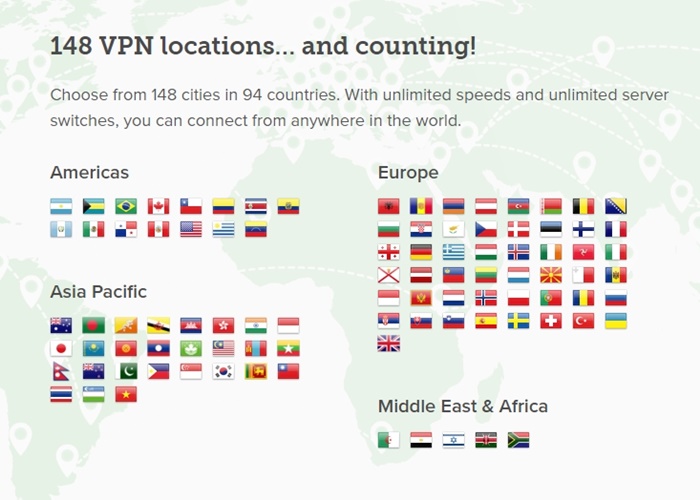
The servers of Express VPN are located in 94 different countries at the moment. Moreover, users can select from a huge list of 148 cities withing these countries. The reason why anyone should use this service is because of how active this company is. We have mentioned it already how China is always making changes to block VPN services. Express VPN is usually the first to adjust to these changes.

All of these changes and robust support makes sure that it has over 90% uptime.

In order to use Express VPN for free in China, use a simple trick. Note that this only works if you are going to use it for less than a month. Just sign up for the 1 month plan on its website and then ask for refund right before the one month period is about to end. This method allows users to use Express VPN 1 month for free.

Highlight features

  • Unlimited bandwidth
  • Suitable for watching Netflix in China
  • Smooth video calling
  • 24/7 customer support
  • Same account works on multiple devices

express vpn china android

NordVPN

nordvpn for china android phones

It is another great option for accessing sites like Facebook, Instagram, WhatsApp, Skype, Netflix etc in China. It offers some of the best download and streaming speeds despite the strong firewall. When using NordVPN inside China, make sure that you use Obfuscated servers. This option allows you to get past the China’s great firewall and internet censorship.

A pro tip: Users can opt out of the NordVPN membership after using it for one month. It offers full money-back guarantee. Anyone can use NordVPN for free in China basically.

Highlight features

  • 5,202 servers in 62 countries all around the globe
  • Unlimited bandwidth
  • Double VPN protection
  • Military-grade encryption
  • Use same account on 6 devices at same time
  • Onion-over VPN and Automatic Kill Switch features
  • Protection against DNS leaks
  • Supports P2P connections
  • Optimized for streaming. User services like Netflix, Prime Video, Hulu and others.
  • 24/7 customer support

nordvpn china android phones

VyprVPN

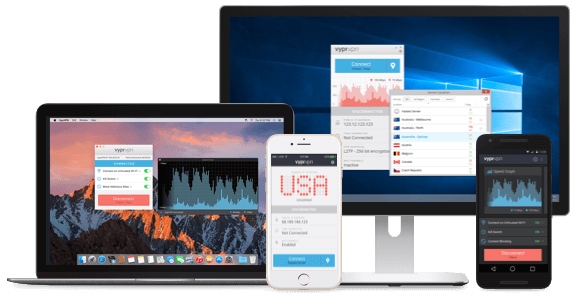
vyprvpn for china android devices

VyprVPN is one of the few major VPN services out there, that is actively working to provide best up time in China. It offers multiple VPN protocols to maximize the security. Moreover, the company claims to use no third-party servers therefore your data is always secured by themselves.

VyprVPN offers over 700 servers in 70+ locations in 6 different continents. It ensures that you can always get the connection of your choice. The premium users can enjoy the Chameleon protocol that is one of the best protection protocols out there.

VyprVPN’s traffic encryption coupled with 256-bit unmodified protocol ensures maximum speed. Use it for streaming services like Hulu, Netflix, Hulu, Prime Video and even apps like WhatsApp, Skype and Instagram.

Highlight features

  • Over 4 Mbps connection speed
  • Dedicated apps for Android, iOS, Windows and Mac
  • More than 70 server locations
  • Encrypted traffic and Chameleon protocol
  • One of the most active VPN services to bypass China’s firewall and internet censorship
  • Unlimited downloads, bandwidth and no speed caps
  • NAT firewall for additional protection

vpn china android get

Tunnelbear VPN

tunnelbear vpn for china android phones

Tunnelbear is one of the few free VPN services that actually work and we can rely on it. It offers great protection and multiple protocols along with multiple locations. However, there is a certain data cap for free users. When using Tunnelbear VPN for free in China, it is suitable only for tasks like WhatsApp, Instagram scrolling, voice calls and stuff like that.

Another cool thing about this app is that how easy it is to use. The overall interface of this VPN service also makes it a pleasure to use. It offers AES-256 bit encryption. Users can select a server from up to 22 different countries in the world!

Highlight features

  • Free users get 500MB of data per month
  • Premium users get no download caps and unlimited bandwidth
  • 256-bit encryption to make sure no one can tap into your personal data
  • The company claims that it does not log any of users’ activities. Expect complete anonymity
  • Super fast speeds for streaming content over VPN in China
  • Available for Android, iOS, Windows, Mac and browser extensions

tunnelbear vpn china android

AstrillVPN

astrillvpn for china android phones

AstrillVPN supports over 327 servers in 65 countries. The servers are spread across the globe so that users have maximum options. Moreover, there is no cap on server switching. Keep changing servers until you find the right one for yourself.

A very cool feature in AstrillVPN is the VPN Kill Switch. What it does is that whenever the VPN disconnect randomly on your phone, tablet or PC, it also stops all internet traffic. The advantage of this is that IP Address is not leaked. Since every VPN gets disconnected now and then, and especially inside China, having Kill Switch is a must.

Highlight features

  • Unlimited bandwidth
  • 7 days free trial period
  • Optimized for streaming Netflix, Hulu, YouTube etc, fast connections and torrents
  •  VPN Kill Switch to protect you against leaking IP Address
  • Multi-hop VPN network. There are multiple servers between you and target to improve privacy
  • Multiple protocols to choose from: OpenWeb, StealthVPN, WireGuard, OpenVPN, CiscoIPSec, IKEv2, L2TP, SSTP, PPTP
  • Easily bypass internet censorship in China with multiple options available

astrillvpn china android get

Ivacy VPN

ivacy vpn for china android phones

Can’t ever miss your favorite show’s episodes? Or just cannot go a day without watching videos on YouTube or a movie on Netflix? Well, Ivacy VPN has got you covered. It specializes in streaming online media from sources like Hulu, Netflix, Prime Video, YouTube and even Torrents. Since all of these services are blocked in China, use Ivacy to watch shows and movies without interruption.

The user’s data is always kept private, thanks to 256-bit encryption. It ensures that no one can spoof your internet traffic. Another cool feature is the split tunneling. This feature allows you to to decide which apps go through VPN and which do not. It makes it easier to user native services at much faster speeds.

Highlight features

  • 24/7 customer support
  • Smart purpose selection (Customize your VPN Plan)
  • Use Ivacy VPN for free (first 30 days only)
  • Optimized for p2p traffic
  • Over 450 servers in 100+ locations
  • Login to 5 devices at same time, with same account

ivacy vpn china android get

PrivateVPN

privatevpn for china android phones

When someone goes to China, they immediately find out that popular services like Instagram, WhatsApp, Skype, Netflix, Hulu, Prime Video, Google are blocked in China. Even the Play Store itself is blocked! The users of PrivateVPN get unlimited access to these services.

If someone is visiting China for a short time, then you may use PirvateVPN free. It is possible because of its 30 day money back guarantee. Use this option only if you do not want to avail its services beyond one month.

Highlight features

  • It does not log or store user’s data/activity. Expect complete privacy and protection online
  • If the VPN disconnects, your IP Address wouldn’t be leaked thanks to IPv6 leak protection
  • 2048-bit encryption for internet traffic through your device
  • Login on up to 6 devices at same time using same account
  • Unlimited bandwidth and no caps on connection speeds
  • VPN servers located in over 50 countries around the globe
  • VPN Protocols: OpenVPN, PPTP, L2TP, IKEv2 And IPSec
  • P2P traffic friendly. It hides your IP effectively while using torrents
  • Kill Switch feature to prevent IP leaks in case of VPN disconnection

private vpn china android get

Conclusion

Due to the strict internet censorship policies in China Republic, people who come here from abroad face lot of difficulties. It has blocked nearly every popular website or service that works internationally. It includes Netflix, Hulu, WhatsApp, Facebook, YouTube, Instagram, Skype and many more. Moreover, China blocks access to the VPN websites as well.

Therefore, make sure that your VPN account is already set up, apps are installed before entering China. Moreover, use the appropriate free or premium packages based on personal needs.

Another important thing to keep in mind is that Chinese govt constantly keeps making some changes to block these VPN services. Although the ones mentioned above can cope with these changes, but it means that none of these are going to provide a 100% uptime. There are going to be disconnects now and then.

Go through the features of all apps mentioned above and select the best possible VPN for China while travelling. It all comes down to particular requirements of all individuals.

Feel free to leave your feedback in the comments section down below.

How to download Play Store on Chinese Android Tablets

2
How to download Play Store on Chinese Android Tablets
download Play Store on Chinese Android Tablets

Chinese manufacturers make incredible tablets. In fact, most of the Android Tablets these days come from Chinese manufacturers like Huawei, Xiaomi, Coolpad, and some others. The Tablets that these companies make for the Chinese region, do not have the Google Play by default. If you wish to use Google Play on such Tablets, you will have to download it manually. This is your guide to download Play Store on Chinese Android Tablets manually. Let us first take a look into the reason why the Chinese Tablets do not have Play Store and then jump up to the tutorial.

download Play Store on Chinese Android Tablets
Download Play Store on Chinese Android Tablets

Chinese Android Tablets and Play Store’s Absence

Chinese government controls all the information that flows across the country. It is totally up to the authorities what they want to allow and what they do not. The Chinese government especially does not allow the applications that belong to other regions. It has a strict policy towards the tech giants that belong to the U.S. Google and all of its applications are banned in China. Facebook and all of its applications are banned in China too. Twitter, Snapchat, and WhatsApp do not work in China either. To understand why China has banned all these applications, we can take a look at the case of Google.

A few years ago when Google refused to share data with the Chinese authorities, it had to face a ban. Google also refused to comply with the information control policies of the Chinese government. As a result, the Chinese government completely blacked out the Google Services including the Google Search, Gmail, Google Play Services, and the Google Play Store in its premises.

Since then, the Chinese Android consumers have been relying on alternatives to all such services. For example, they have the alternative search engines like Baidu and Sogou. They also have alternative email services. As a replacement of social media platforms like Facebook, they have Weibo. To replace WhatsApp, they developed WeChat.

To replace the Play Store, the Chinese app developers crafted a number of alternatives. At the moment, there are over 20 Google Play Store Alternatives in China. It doesn’t matter how good those alternatives are, they still cannot become a full replacement of the Play Store.

Play Store at the moment has applications close to 4 Million. It has billions of downloads per month. It has its own safety checks for all the applications. The Play Store is bound to provide the malware-free, safe and secure applications to its users. So, to cut it short, the Play Store is still missed on the Chinese smartphones and tablets.

Download Play Store on Chinese Android Tablets

Keeping in view the need of Play Store on Chinese Android Tablets, here is how you can download it. Follow the steps given below to download Play Store on Chinese Android Tablets.

Note: This guide is valid for Tablets from all the Chinese Tablet makers. You can download Play Store on Huawei, Xiaomi, Coolpad, Chuwi, Lenovo, Cube, Teclast, Onda, PiPo, Ployer, and all other Chinese Tablets.

Required downloads

  • Google Mobile Services Installer for old Tablets (Before 2018): Download
  • Google Mobile Services Installer new Tablets (2018 and onwards): Download
  • The Google Installer: Download
    • Copy both the APK files to your Tablet’s internal or external storage.

Enable Unknown Sources on your Tablet

  1. On your Tablet, go to Settings > Security & Privacy.
  2. Now find “Unknown Sources” or “Install Apps from Unknown Sources”.
  3. Open this option and then click on the radio button to allow app installs from Unknown Sources.
  4. If you are seeing a list of applications in the Unknown Sources menu then click on Files or File Manager and then allow installations from this source.

Install Google Mobile Services (GMS) on your Tablet

  1. First of all, open a File Manager and find the GMS Installer APK.
  2. Click on the GMS Installer APK and start its installation.
  3. If the installation asks you for any permission, immediately allow it.
  4. Finish the installation and close the setup. Do not open the GMS at this point. Follow the next steps now.

Install Google Installer and run Google Play Store

  1. Open the File Manager once again and this time find the Google Installer APK.
  2. Click on the Google Installer to start its installation.
  3. Finish the Installer installation and then open it.
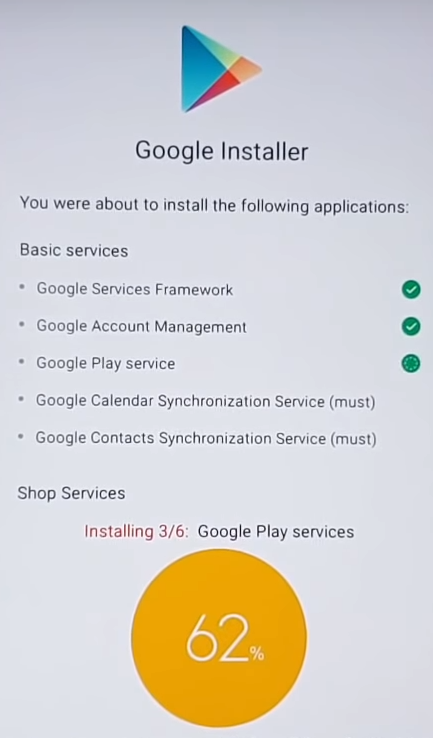
  4. As the Installer opens, click on the big blue button showing the “Install” option.
  5. It will ask you for permission to install six basic Google apps. These apps will be installed along side the Play Services and the Play Store.
  6. The Installer will keep showing you the progress in the big button in Yellow color.
  7. Once done, you will see the “Google Play Store” written inside a red button.
  8. Click on this button to launch the Play Store now. That’s all.

Note: To use the Google Play Store within China, you need a VPN. You can find the best VPN for Chinese Android phones here.

Final Words

That’s all with the Play Store’s installation on a Chinese Tablet. I hope that this guide worked smoothly for you. If you have any suggestions, any queries or questions, feel free to reach out to me through the comments section or using our contact us page.

How to download WhatsApp on Huawei Chinese Phones

2
How to download WhatsApp on Huawei Chinese Phones

Use this guide to download WhatsApp on Huawei Chinese phones. WhatsApp Messenger is not available on the Chinese Android phones. This is the complete step-by-step tutorial to install WhatsApp on such phones.

download WhatsApp on Huawei Chinese Phones
WhatsApp on Huawei Chinese Phones

WhatsApp – Why it’s not there on Huawei Chinese Phones?

Back in 2016, WhatsApp started facing disruption in its services in China. The Chinese WhatsApp users were unable to send videos, music, and files over the most popular connectivity application. In 2017, WhatsApp was completely banned in China. Users were restricted from carrying out any kind of communication over the messaging platform. The ban on WhatsApp disturbed communication between millions of users and also affected WhatsApp’s user base.

WhatsApp in China
WhatsApp in China

In China, the government controls everything. It controls the information that floats through the users. It also controls the right to information. Freedom of speech is not something that you would find in China. It is totally up to the government what it allows and what it doesn’t. So far, the Chinese government has banned all popular social media and messaging platforms including Facebook, Twitter, Snapchat, WhatsApp, and many others. The ban on WhatsApp definitely disturbed a lot of users as it was the most popular mean of communication.

Now WhatsApp is not available on Huawei phones. In fact, WhatsApp is not there on any Android smartphone built for the Chinese region. Companies like Huawei, Xiaomi, and others have to comply with the policies of their government. That is why there is no WhatsApp, Facebook, and Google Play Store in their phones.

What are your options?

Not being able to use the most popular and the best messaging platform is quite painful. It is just bad to see when the entire world is using one common platform and you have to stick to something else simply because your government does not allow.

You can still download and install WhatsApp on your Chinese Huawei smartphone. The only way to do so is to download WhatsApp via its APK file. After installing WhatsApp, you can download a VPN for your Chinese Android phone. You will have to connect to the VPN everytime you want to communicate through WhatsApp. This is one option that the WhatsApp users have. However, if you do not want to use WhatsApp, you do have a choice of alternatives too.

Alternatives to Applications in China

Chinese software developers have developed alternatives to everything. They have the Google Play Store alternatives. There are Facebook alternatives. They do have Twitter and Snapchat alternatives as well. There is a wide range of WhatsApp alternatives for Chinese Android phones. The most popular WhatsApp alternative in China is the WeChat Messenger.

In this guide, we are going to take a look at the steps to download WhatsApp on Huawei Chinese phones. Follow the steps if you are still interested in running WhatsApp on your Chinese Huawei phone.

Download WhatsApp on Huawei Chinese Phones

  1. First of all, download a VPN for your Chinese Huawei Android phone.
  2. Install the VPN and connect to the internet using the VPN.
  3. Now download the WhatsApp APK on your Huawei Chinese phone: WhatsApp APK Download
  4. On your phone, go to Settings > Security & Privacy > More > Install Unknown Apps > Files > Allow.
  5. Now open Files and locate the WhatsApp APK.
  6. Launch the APK to install it.
  7. WhatsApp will be installed and appear on the home screen or under the app drawer now.
  8. Launch WhatsApp now and set it up using your phone number.
  9. Make sure that the VPN does not disconnect during this process. You should be able to enjoy WhatsApp now. That’s all.

Conclusion

Although this is not a very much ethical approach to running on WhatsApp on your Huawei Android phone in China. However, there is absolutely no other method to run WhatsApp on the phone. You can now communicate with anyone sitting in another corner of the world through WhatsApp. A number of users have already been using this method to connect with their friends and family. If you have any suggestions or any queries, feel free to reach out to us using the comments section or our contact us page.

Best Google Play Store Alternatives for Chinese Android Phones

0
Best Google Play Store Alternatives for Chinese Android Phones

In order to download applications on your Android smartphone, you need the Google Play Store. Unfortunately, the Play Store does not work in China. First of all, the Chinese Android phones do not have anything called Google. Even if you manage to download the Google Services and Play Store on a Chinese Android phone, you would still need a VPN to run them. So, the best solution is to get the best Google Play Store alternative. Here are all the best Google Play Store alternatives for Chinese Android phones. Pick up the Play Store alternative for your phone now to start downloading countless applications.

Google Play Store Alternatives for Chinese Android Phones

Why no Google Play Store in China?

Google does not comply with the censorship policies of the Chinese government. For this reason, the Chinese government does not allow Google or any of its applications work within its boundaries. This includes all applications including the Gmail, YouTube, Play Store, Play Services, Google Books, Play Music, and everything else that Google has developed till date.

The Chinese government has a strict control over the information that floats through the country. It wanted Google to help with this censorship. Since Google believes in freedom of speech and openness, it refused to do what the Chinese government wanted. As a result, the company hasn’t been able to operate in the country for over a decade now.

The Android operating system is also owned by Google, but in China, the users get a highly modified version of China. Chinese Android phones come without the basic Play Services and Store applications. Manufacturers who use the Android OS on their phones in China, they have developed their own app stores as well.

Can you still access Google Play in China?

Yes, it is still possible to download Play Store on Chinese Android phones. However, there are a few downsides. While using the Chinese Android phones within China, you need a VPN to access Play Store or any other service by Google. Without a VPN, these services will not work. Outside China, you can enjoy all Google applications without VPN. There are various methods to download Play Store on such phones. You can find a few methods on our site as well.

What are the options other than the Play Store?

Like I said earlier, the application giants and smartphone makers have developed their own app stores for the Chinese users. These stores bring all the applications that are legally available in China. You are not going to find the banned applications in these stores either. If you wish to install applications like Facebook, Instagram, Twitter, Snapchat, and others, you would need the Play Store for those.

The Chinese people have developed alternatives to everything. Be it the app store, the social media platforms, or the communication applications, they have the alternatives to everything. In this post, we are going to take a look at the best free alternatives to Google Play Store for Chinese phones.

  • Update: As of 26th October 2019, these are still the best Play Store alternatives for Chinese Android smartphones.

Google Play Store Alternatives for Chinese Android Phones

Here are your best alternatives to Play Store. These Google Play Store alternatives for Chinese Android phones are sorted on the basis of popularity.

Baidu App Store

Google Play Store Alternatives for Chinese Android Phones
Baidu App Store

Found in 2000, Baidu is the world’s second most popular search engine. It has a 76.05% market share in China at the moment. Baidu has a wide range of internet services that it provides. It has its very own maps, it does have its cloud services, and social networks. Baidu has built an App Store for its Chinese user-base. The Baidu App Store has millions of applications.

Baidu App Store is designed to make things easy for Chinese users. It is very easy to make payments on this platform. It also makes it very easy to find the applications that have no restrictions at all. Ever since its birth, Baidu App Store has been serving millions of Android users. Find the Baidu App Store here.

Tencent MyApp

Google Play Store Alternatives for Chinese Android Phones
Tencent MyApp

In the world of technology, Tencent is the name that sits among the top few names. The company is known for its social media platform, its music entertainment platform, and the games it has developed. Tencent is popular for developing some of the most popular gaming titles for smartphones. Companies like Epic Games (the guys behind Fortnite), Supercell, and Riot Games are the subsidiaries of Tencent. The famous instant messaging platform QQ is also owned by Tencent.

Folks over Tencent have developed a platform called MyApp. This is an application store for the Chinese Android phones. Users in China can use the Tencent MyApp to download any applications of their choice. While having the Tencent MyApp store, they do not need the Google Play Store. Tencent MyApp is one of the most preferred Google Play Store alternatives. Check out Tencent MyApp here.

Xiaomi MIUI App Store

Google Play Store Alternatives for Chinese Android Phones
Mi App Store

Xiaomi is known as the Apple of China. The reason for Xiaomi to win this title is because it manufactures great smartphones. Xiaomi has some of the most popular smartphones under its umbrella. The company has also innovated the smartphone industry. With its smartphones like the Xiaomi Mi Mix, it drove the smartphone industry in a new direction.

A huge number of users in China use the Xiaomi smartphones. They have the Xiaomi MIUI App Store in the phones to download the applications. Xiaomi App Store is not limited to the Xiaomi phones only, it can be downloaded and used on other Chinese phones as well. You can find the Xiaomi MIUI App Store here.

Huawei App Store

Google Play Store Alternatives for Chinese Android Phones
Huawei App Store

Just like Xiaomi, Huawei also has its very own App Store. The App Store in the Huawei smartphones is named as the App Gallery. It has all the applications that the Chines government allows in its premises. The Huawei App Store is installed by default in all the Huawei smartphones. This store can be installed on other Chinese phones as well as it comes in the form of an independent application as well. You can find the Huawei App Store here.

Qihoo 360 Mobile Assistant

Google Play Store Alternatives for Chinese Android Phones
360 Mobile Assistant

Qihoo is a competitor of Baidu. It also has a search engine. Qihoo has a wide range of internet services under its portfolio. The company also runs a handful of internet browsers in China. Qihoo has its mobile app store called the 360 Mobile Assistant. This is Qihoo’s answers to the app stores by companies like Baidu and Tencent. The Qihoo 360 Mobile Assistant can be downloaded on any Android phone that belongs to China. Find the Qihoo 360 Mobile Assistant here.

HiMarket

Google Play Store Alternatives for Chinese Android Phones
HiMarket

The HiMarket is also acquired by Baidu. HiMarket is mostly installed on the grey-import Android phones and tablets. I am not sure about the reason why the illegally imported smartphones use this App Store. However, its a great source to install the applications on the Chinese Android phones. It can be installed through its APK. The HiMarket independent APK is available on its website. You can find the HiMarket store here.

Vivo App Store

Google Play Store Alternatives for Chinese Android Phones
The Vivo App Store

Vivo, the sister company of Oppo and OnePlus has its own store called the Vivo App Store. Actually, there is an Oppo App Store as well. These companies have developed the app stores so that their users do not have to look for third party stores. They have made these applications available for all other smartphones as well. So, if you own a Chinese Android smartphone from a phone maker like Huawei or Xiaomi, you can still use the Vivo App Store on it. Find the Vivo App Store here.

Meizu Flyme

Google Play Store Alternatives for Chinese Android Phones
Meizu Flyme Store

In case you don’t know, Meizu also happens to be a Chinese phone maker. For its users in China, it has a store called the Meizu Flyme. The Meizu Flyme is also accessible on all other phones. You can find the Meizu Flyme here.

Gionee Software Store

Google Play Store Alternatives for Chinese Android Phones
Gionee Software Store

When it comes to great smartphones under a very friendly budget, Gionee has quite a name. Gionee has a huge user base in China. The company has started tapping into other markets lately. Gionee’s phones in other countries support the Play Store, but in China, these phones do not have anything called Google. For Chinese users, Gionee has its own app store called the Gionee Software Store. Users can download any applications from the Gionee Software Store. As the stores of Huawei, Vivo, Xiaomi, and Meziu, the Gionee Software Store is also accessible on phones from other manufacturers. Check out the Gionee Software Store here.

Sogou Mobile Assistant

Google Play Store Alternatives for Chinese Android Phones
The Sogou Mobile Assistant

Sogou is another search engine that operates in China. Since there is no Google in China, there is a great room for these search engines within the Chinese premises. Sogou has expanded its business to the Mobile App store as well. It has the Sogou Mobile Assistant that contains millions of applications for the Chinese Android phones. The Sogou Mobile Assistant can be installed on any Android Chinese smartphone. Find the Sogou Mobile Assistant here.

Wandoujia

Google Play Store Alternatives for Chinese Android Phones
Wandoujia

Wnadoujia is owned by the internet giant Alibaba. The name Alibaba alone is enough to find out the credibility of Wandoujia. This app store is open to all Android phones from all the phone makers. Wandoujia contains all the applications that comply with the rules and regulations set by the Chinese government. Wandoujia is available in the form of an APK and a Website. You can find the Wandoujia app store here.

App Stores of Oppo, Lenovo, and Coolpad

Lenovo Le Store is Lenovo’s Play Store alternative for its phones in China. Coolpad’s Coolmart is its store for all of its devices in China. Oppo users have the Oppo Software Store as the Play Store alternative.

Google Play Store Alternatives for Chinese Android Phones
Lenovo Le Store

Conclusion

That’s all with the list of Alternatives to Google Play Store. If you have any other Google Play Store alternatives for Chinese Android phones to add to this list, feel free to drop their name below. I hope that you guys find this list helpful. You should be able to bring in the applications of your choice into your phone by using one of the app stores mentioned above. If you have any queries, feel free to reach out to us using the comments section or through our contact us page.

How To Add New Contacts to WhatsApp Web [ Tutorial ]

1
How To Add New Contacts to WhatsApp Web [ Tutorial ]

This is how you can Add New Contacts to WhatsApp Web. As we all know that WhatsApp rolled out WhatsApp Web version a few years back. The core purpose of WhatsApp Web was to let users use WhatsApp on their desktop PC. This was best for those who spend a considerable amount of time using their desktops.

WhatsApp Web helps save time, in normal condition whenever we get a message on WhatsApp. We’ve to unlock our phone and then open WhatsApp, read the message and then reply. However, WhatsApp Web made it easier, all you have to open your browser, read the message and reply. This saves a lot of time and effort.

Now if there perks of using WhatsApp web, there are also some cons. For example, you cannot Add New Contacts to WhatsApp Web. However, if you are using WhatsApp on your smartphone, then it is easy, but on WhatsApp Web, there is no such option. It seems they totally forget to add this functionality. Well its okay If they forgot to add, We have found a perfect workaround that will let you Add New Contacts to WhatsApp Web. Let’s get started now.

Add New Contacts to WhatsApp Web

How To Add New Contacts to WhatsApp Web:

Follow the instructions below in order to add new contacts to WhatsApp Web on your PC. Before we proceed to the main method, you need to install some apps and add-ons.

Install InTouch App:

You can download the InTouch App from the following link. InTouch app is a contacts manager app available for both Android and iOS smartphones.

Andorid:

  • Once you have downloaded InTouch app on your smartphone. Open it.
  • Sign up as a new user or if you already using the InTouch app, log in with your ID.
  • If you are signing up a new user, you need to provide email ID, number, and name. Keep on thing in mind, you need to provide the number which is linked to WhatsApp.
  • After you are done with the creating account, Tap on your Profile Photo to access your profile settings.
  • In your profile settings, Tap on accounts and make sure your Gmail ID is synced.

iOS:

IT Contacts Manager
Price: Free+

Install WhatsApp Lead Manager Add-on:

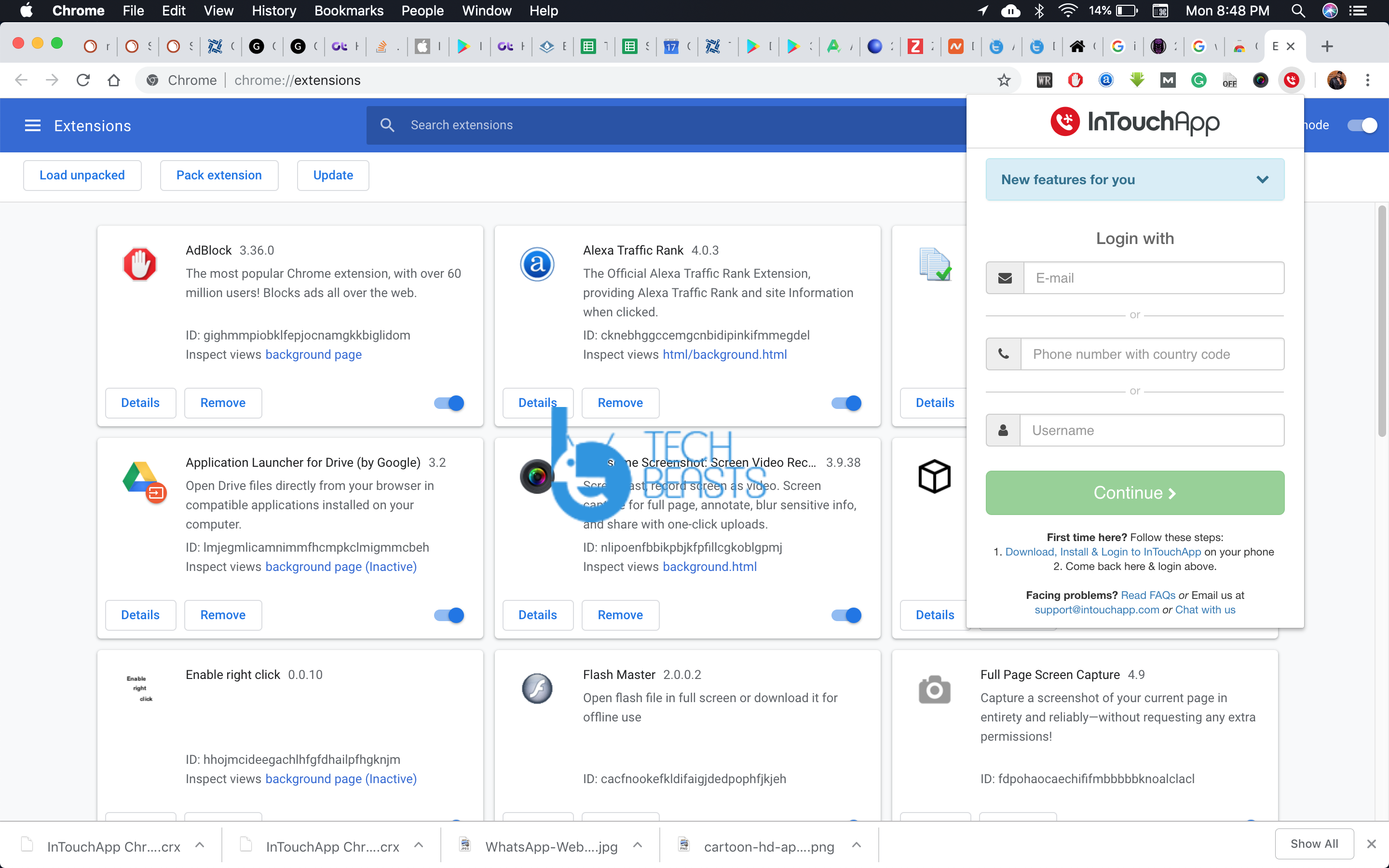
  • Launch Google Chrome on your PC and Install WhatsApp Lead Manager extension using the link below.
  • We’ll need this Add-on to Add contacts on WhatsApp Web, WhatsApp lead Manager is designed by the same guys who created InTouchApp.

Add New Contacts to WhatsApp Web:

  • Open WhatsApp Web on your Chrome.
  • From your smartphone open WhatsApp and Sync it with WhatsApp Web.
  • Once your WhatsApp account is active on your browser, open the new message from an un-saved contact.
  • Now Click on the WhatsApp Lead Manager Add-on icon.

  • Log in with your InTouch Account. Now again click on the Add-on icon.
  • This you will see different options, fill in the required details to save a new contact.

This new contact will be saved on your Gmail ID, the one have synced in InTouch App. So that is all, this is how you can Add New Contacts to WhatsApp Web. 

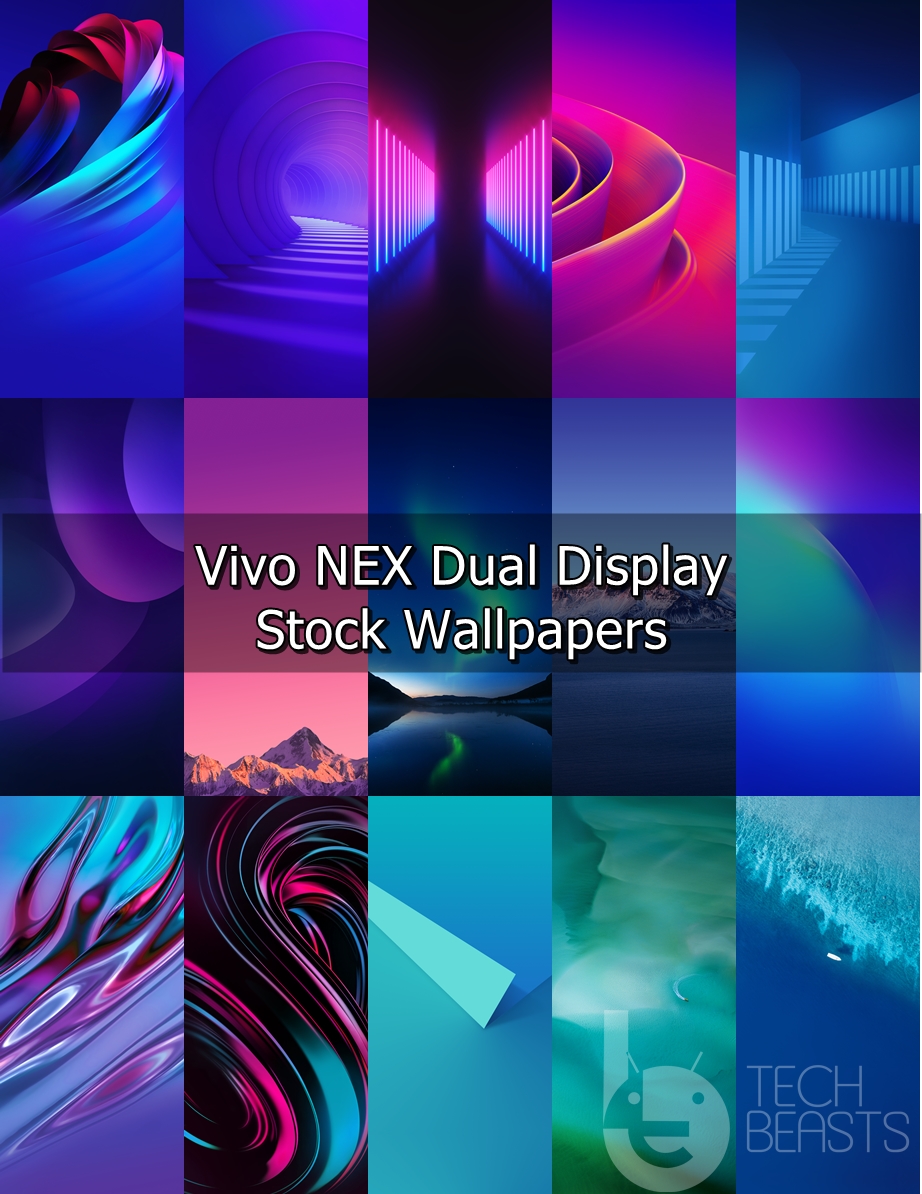
Download Stock Wallpapers of Vivo NEX Dual Display

0
Download Stock Wallpapers of Vivo NEX Dual Display

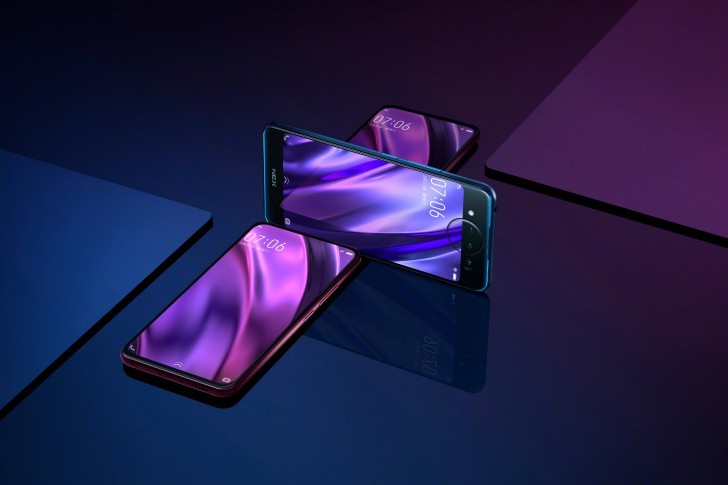
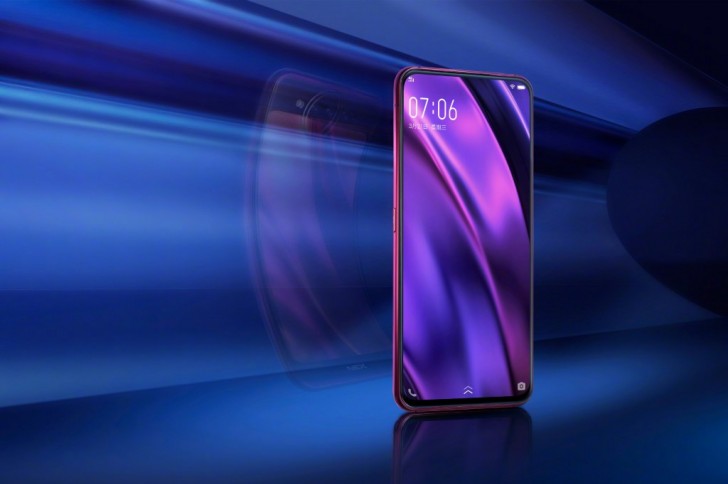
Vivo NEX with Dual Display was announced a couple of days back. As always, the Chinese phone maker has loaded this phone with some amazing wallpapers. The wallpapers specifically designed for the dual Display version of the Vivo NEX make its screen look much more beautiful. The stock wallpapers of Vivo NEX Dual Display are out now. You can download the Vivo NEX Dual Display stock wallpapers from here now. All the wallpapers are available in HD resolution. These wallpapers can be applied to the screens of all Android phones and even to the iPhones. Before downloading the wallpapers, take a look at what is new the Vivo NEX Dual Display.

Vivo NEX Dual Display – Killing the Notch!

Android phone makers these days are trying to kill the notch. Vivo was the first phone maker to come up with an all-screen smartphone. The original Vivo NEX came with a pop-up camera. After that, we saw the Oppo Find X, a phone by Vivo’s sister company. Oppo Find X introduced the slider display hiding the cameras. Since this war of all-screen phones started, many Android manufacturers have come up with their own ways to kill the notch.Vivo NEX Dual Display Stock Wallpaper

It looks like the pop-up camera did not work well for Vivo and they wanted to introduce a new concept. They launched the Vivo NEX with a Dual Display. No front cameras, which means no notch. The phone has a full screen on the front. It has a dual screen at the back. The use of the dual screen at the back is to take selfies with the help of the rear cameras only. Now, this is an impressive concept. Capturing selfies with the main rear camera is going to take selfies to another new level. The Dual Display Vivo NEX has seen a lot of appreciation from the phone enthusiasts so far.Vivo NEX Dual Display Stock Wallpaper

Vivo NEX Dual Display has a 6.39-inches Super AMOLED screen. It has a resolution of 1080 x 2340 pixels. The screen ratio is 19.5:9. At the back, it has another display of 5.49-inches. The rear-display has a resolution of 1080 x 1920 pixels. Vivo NEX Dual Display is powered by Qualcomm Snapdragon 845 SoC alongside the Adreno 630GPU. It has a RAM of 10GB and its internal storage is 128GB. There are three cameras at the back. One is the 12MP shooter, another is the 2MP shooter, and the third one is the TOF shooter. It does have an under-display fingerprint scanner as well. The battery capacity of this phone is 3500 mAh. It runs on Android Pie out of the box which is themed by Vivo’s own Funtouch OS.

Vivo NEX Dual Display is a good looking phone, however, this kind of concept is still far from making its way to the average smartphone consumers. The phone’s two displays have only a 3500 mAh battery to rely on which is a question mark on the battery life of this phone. This phone will make it to the markets later this month. The real-life reviews will give us a great idea about the performance and durability of the Vivo NEX Dual Display. For now, let’s get back to the Vivo NEX Dual Display Stock Wallpapers.

Vivo NEX Dual Display Stock Wallpapers

Here are all the Vivo NEX Dual Display stock wallpapers. These wallpapers have a resolution of 1080 x 2340 pixels. You can apply these wallpapers to the screen of any Android phone and to the iPhones as well. To download the wallpaper of your choice, simply open your desired image and save it to your device.

All Vivo NEX Dual Display Stock Wallpapers: Download

Here are some HD wallpapers that match the display of Vivo Nex Dual Display as well.

Vivo NEX Dual Display Stock WallpaperVivo NEX Dual Display Stock Wallpaper Vivo NEX Dual Display Stock Wallpaper Vivo NEX Dual Display Stock Wallpaper Vivo NEX Dual Display Stock Wallpaper Vivo NEX Dual Display Stock Wallpaper Vivo NEX Dual Display Stock Wallpaper Vivo NEX Dual Display Stock Wallpaper Vivo NEX Dual Display Stock Wallpaper Vivo NEX Dual Display Stock Wallpaper Vivo NEX Dual Display Stock Wallpaper Vivo NEX Dual Display Stock Wallpaper Vivo NEX Dual Display Stock Wallpaper Vivo NEX Dual Display Stock Wallpaper Vivo NEX Dual Display Stock Wallpaper Vivo NEX Dual Display Stock Wallpaper Vivo NEX Dual Display Stock Wallpaper Vivo NEX Dual Display Stock Wallpaper

That’s all for now. Here are some more stock wallpapers for all the wallpaper enthusiasts out there.

Download OnePlus 6T McLaren Edition Stock Wallpapers

0
Download OnePlus 6T McLaren Edition Stock Wallpapers

The McLaren Edition OnePlus 6T comes with a set of beautifully-crafted wallpapers. OnePlus has designed the McLaren Edition OnePlus 6T stock wallpapers from scratch. The wallpapers are designed to show off the McLaren Design in every bit. The stock OnePlus 6T McLaren Edition wallpapers are out now. Wallpaper enthusiasts can download OnePlus 6T McLaren Edition stock wallpapers from here now. The wallpapers are available in HD resolution. You can apply these wallpapers on any Android device or even on an iPhone. Let us take a look at what the OnePlus 6T McLaren Edition has to offer before we download the wallpapers.

McLaren Edition OnePlus 6T – Salute to Speed

OnePlus has finally launched the much-awaited McLaren Edition 6T. OnePlus’s collaboration with McLaren has brought us another great product. As if, the original OnePlus 6T wasn’t already good enough. The McLaren Edition OnePlus 6T is similar to the original OnePlus 6T (Form factory and design language), however, it has got the McLaren-inspired makeover.

OnePlus 6T McLaren Edition comes in a beautiful-looking box. The phone has a book inside which gives the users an idea about the history of McLaren. While shifting between pages, they can find the OnePlus 6T phone placed inside that book. The box of also includes a souvenir which is a nice little glass shield with the “Salute to speed” slogan embedded inside. The charging brick is in the black color with orange accents. The charging cable is also in the orange color.

The new OnePlus 6T has some cosmetic changes which show off the McLaren looks. The orange rim accent at the bottom of the phone looks stunning when it shines in the light. The carbon-fiber texture beneath the glass back is totally worth it. The phone has the McLaren branding at the back.

McLaren OnePlus 6T Specifications

Apart from the cosmetic changes, the McLaren Edition OnePlus 6T has got some upgraded features as well. For example, this version of the OnePlus 6T comes with a RAM of 10GB. You heard it right. It has whopping 10GB of RAM inside alongside the internal storage of 256GB. It also has the new Warp charging which charges the phone up to 50% in just 20 minutes.

McLaren OnePlus 6T also sports a 6.41-inch Optic AMOLED display. It has a waterdrop notch housing the front camera. The display ratio is 19:5:9. Other internals of the phone includes the same Qualcomm Snapdragon 845 SoC accompanied by the Adreno 630 GPU. It has a 16MP + 20MP camera at the back and a 16MP camera on the front. The rear camera comes with the nightscape mode. Battery capacity of this OnePlus 6T is also the same as the normal 6T which is 3700 mAh.  It also runs on Android Pie out of the box. OnePlus has named this color as Speed Orange.

Those were all the specifications of the McLaren Edition OnePlus 6T. Let us take a look at the original stock wallpapers of the McLaren Edition OnePlus 6T.

OnePlus 6T McLaren Edition Stock Wallpapers

The OnePlus 6T McLaren Edition Stock Wallpapers come in a resolution of 1080 x 2340 pixels. This is the resolution that the OnePlus 6T’s screen supports. All the wallpapers are uploaded below. You can apply these wallpapers on any other Android phone and on the iPhones as well. To download your desired wallpaper, simply open it and then download it to your computer.

All McLaren OnePlus 6T Stock Wallpapers: Download

Here are some HD wallpapers for your OnePlus 6T.

OnePlus 6T McLaren Edition Stock WallpaperOnePlus 6T McLaren Edition Stock WallpaperOnePlus 6T McLaren Edition Stock WallpaperOnePlus 6T McLaren Edition Stock WallpaperOnePlus 6T McLaren Edition Stock WallpaperOnePlus 6T McLaren Edition Stock WallpaperOnePlus 6T McLaren Edition Stock WallpaperOnePlus 6T McLaren Edition Stock WallpaperOnePlus 6T McLaren Edition Stock WallpaperOnePlus 6T McLaren Edition Stock WallpaperOnePlus 6T McLaren Edition Stock WallpaperOnePlus 6T McLaren Edition Stock WallpaperOnePlus 6T McLaren Edition Stock WallpaperOnePlus 6T McLaren Edition Stock WallpaperOnePlus 6T McLaren Edition Stock WallpaperOnePlus 6T McLaren Edition Stock Wallpaper

Here are the original regular OnePlus 6T wallpapers: Download All OnePlus 6T Stock Wallpapers.

Download Pixel Sounds APK [ V2.0] [ Latest Version ]

0
Download Pixel Sounds APK [ V2.0] [ Latest Version ]

Download the latest Pixel Sounds APK, The new update rolled out a few days ago. Google recently released a new app named as Pixel Sounds. The best thing about this app is that it improves a certain part of the Android experience, which they should have done earlier. You will see a more expansive set of ringtones on Pixel devices in the future. Moreover, when Pixel Sounds was released it didn’t work as it should have. But with the v2.0 it does now.

Pixel Sounds APK

The core function of Pixel Sounds is to improve the boring system level sound picker, not only this, you will be able to choose sounds from a variety of categories. Now in order to access Pixel Sounds, you need to head over to the system settings and from there you will be able to use it and change ringtone or notification. You can see the app working in the following demo video. It will help you understand all of his functionality.

Pixel Sounds v2.0 Overview:

As you can see in the video the interface is user-friendly and whenever you play a sample the app animates. Moreover, you can see that all the categories are designed separately. Each category has its own color pattern. If you pay more attention you will see that the animation wave is from the Pixel 3 Stock live wallpapers. 

Now when it comes to the installation, you need to have a Pixel device to try it on. Moreover, it is not certain that this app will be available for any other Android device. Although they should have done it till now.

What’s New:

• Updated design.
• Different collections to fit your style.
Google Play

Download Pixel Sounds APK:

Pixel Sounds was available on Google Play but somehow now it is removed. The best way to get your hands-on on Pixel Sounds App is to download the latest Pixel Sounds APK from the following links below. After that, you need to follow the instructions provided below, in order to Install Pixel Sounds APK.

Download links:

Check out these:

Installation Method:

  1. First, Download Pixel Sounds APK.
  2. Download the file to your phone straight away, or copy it to your phone from your PC.
  3. Now on your phone, go to settings > security > allow unknown sources > check this.
  4. Now using a file manager, locate the APK file that you just copied or downloaded.
  5. Tap the APK file and finish installation using the on-screen instructions.

That’s all.

Download PUBG Mobile Lite 0.10.0 for Android [ APK ]

0
Download PUBG Mobile Lite 0.10.0 for Android [ APK ]

Download PUBG Mobile Lite 0.10.0 for Android. This is the latest version of PUBG Mobile Lite. If you have received any update so far, no need to worry. You can download the latest PUBG Mobile Lite 0.10.0 APK from the following links.

PUBG Mobile Lite 0.10.0

PUBG Mobile Lite Overview:

The game is for the devices that couldn’t handle the original PUBG Mobile. There is no difference between the PUBG Mobile Lite and the PUBG Mobile. The Lite version is just optimized to run on devices with less powerful resources. PUBG Mobile Lite can also run on the computers that have a lite Android emulator.

So, if you have been willing to play PUBG Mobile on your smartphone but you couldn’t run it because of its hardware requirements, you can run it now with the help of its Lite version.

PUBG Overview:

PUBG Mobile is a battle royale game. In PUBG Mobile, over 40 players are sent off from a plane. These players have to land in an area which is of 2 x 2 KM. After players have landed safely, they have to start looking for weapons. These weapons will be used for their protection as they have landed in a totally unknown place.

All the 40 players are scattered through this area of 2 x 2 KM. Now they have to go after other players and take them down one by one. During this process, players have to find safe places where they can hide when the enemies come after them. There are vacant houses that the players can break into.

These houses will have loads of weaponry and other useful items. Players can befriend other players in order to form a team. Having an alliance with other players will make you one powerful participant in the game. PUBG Mobile comes with epic graphics. The game is popular for all the right reasons.

Download PUBG Mobile Lite 0.10.0 for Android:

You can download the latest PUBG Mobile Lite 0.10.0 APK from the following link. Moreover, we have added a complete installation method below. So those of you who don’t know how to Install an APK on Android. They can learn.

PUBG MOBILE LITE
Price: To be announced
  1. Download PUBG Mobile Lite 0.10.0 from here and copy it to your phone.
  2. On your phone, go to Settings > Lock Screen & Security or Security Settings > Unknown Sources > Tap the radio button or checkbox to allow it.
  3. Now using a file manager, locate the PUBG Mobile Lite and open it.
  4. Install the APK by following the on-screen instructions.
  5. Once installed, open the newly installed PUBG Mobile Lite game from all apps or app drawer.
  6. PUBG will now start and download its data.
  7. After the data downloads, you can start playing the game.
  8. That’s all.

How to fix common Google Play Store errors

0
How to fix common Google Play Store errors

Learn how to fix the most common Google Play Store errors. Whether it is something related to app download stuck at pending or an error code like 505, we’ve got you covered. Also learn the reasons for these random errors. Note that not all of these errors occur due to Google. Some of these Play Store errors happen because of something to do with the client (smartphone or tablet).google play store errors

To identify an error, note the text or number written in the notification bar. It could say something like “Some random app could not be downloaded due to an error (403)“. Sometimes, the error message is more descriptive and has additional text like “Error retrieving information from server: [RPC: AEC:0]“. It may sound like gibberish to some while others can understand a fair bit.

In this article, we are listing all “known” Play Store errors, what causes them, and how to fix ’em. Our readers are always welcome to contribute by telling us about an error that is not listed here so we can update it.

Numbered Errors Server Related Others
Error 8 Error DF-BPA-09 Download Pending
Error 18 Error DF-BPA-30 Recovery Error
Error 20 Error DF-DLA-15 Authentication Required Error
Error 24 Error RPC:AEC:0 Package File Invalid Error
Error 101 RPC: S-5: AEC-0 Error App not compatible with the device
Error 103 Error BM-GVHD-06
Error 110 Error RPC: S-3
Error 194 Error RH-01
Error 403 Error RPC:S-7: AEC-0
Error 406
Error 413
Error 481
Error 491
Error 492
Error 495
Error 497
Error 498
Error 501
Error 504
Error 505
Error 506
Error 905
Error 906
Error 907
Error 911
Error 919
Error 920
Error 921
Error 923
Error 924
Error 927
Error 940
Error 941
Error 944
Error 961
Error 963
Error 971
Error 975

Play Store Errors, Causes and Solutions

Google Play Store Error 8 – How to fix

Cause

Play Store 8 error occurs when a user is trying to download and app or game and it just stops midway. The possible reasons for this include the external SD Card, unknown sources enabled.

Fix

1: Unmount the SD Card in Settings > Storage and then try downloading the app again.

2: Disable Unknown Sources in Settings > Security.

3: Try initiating Install from the Play Store website.

Google Play Store Error 18 – How to fix

Cause

This is a tricky glitch. The 18 error in Play Store occurs when users want to reinstall an app or game that they had before. It is most likely to happen on the same device.

Fix

1: Clear Play Store App’s cache from Settings > Apps > Google Play Store > Storage.

2: Clear phone’s cache from Settings > Storage > Management > Cache. Clear it from here. You can also clear the cache from the phone’s default or custom recovery. The exact method to use recovery varies with each phone.

Make sure to restart your phone after following either of these methods.

Google Play Store Error 20 – How to fix

Cause

This particular error states something like the app cannot be installed in the default install location. While it may seem like a storage issue, it is often caused by network errors.

Fix

1: Clear Play Store App’s cache from Settings > Apps > Google Play Store > Storage.

2: Try another WiFi network. Some apps can only be downloaded over WiFi (if you’re trying to download it using mobile data).

3: Try deleting the /data folder of a particular application you’re trying to install. This folder holds the downloaded data files. A fresh install can fix Play Store 20 Error.

Google Play Store Error 24 – How to fix

Cause

Facing the “Unknown Error code during application install” or Play Store 24 error code, as most people know about it. As the name suggests, the exact reason for this error is unknown. However, we are sure that if you use the simple trick listed below, it will fix error 24 for you.

Fix

Every application or game that is installed in Android has its own data folder. It holds all the necessary files to run it. If one of these files gets corrupted, the entire process is sabotaged. To fix this, use a file explorer to follow these steps.

1: Open File Manager.

2: Go to Android > Data.

3: Now search for the folder name of your app. It won’t be listed as its regular title. It would be something like com... This is called the package name. If you are not sure about the package name of your concerned app, search for it and then delete that folder from here.

4: Clear Play Store App’s cache from Settings > Apps > Google Play Store > Storage.

5: Restart the phone.

Google Play Store Error 101 – How to fix

Cause

Two theories are proposed as the cause of 101 errors in the Play Store. The first one states that it happens when either the download manager is misbehaving or storage is full. The second one states that is happens when Google account verification is corrupted. Read below to find fixes for both situations.

Fix

1: Delete some old apps or clear storage by deleting old data and then try again.

2: Go to Settings > Accounts > Google > Tap on Menu button > Remove Account. Then log back in. Restart the phone before logging again.

3: Clear Play Store App’s cache from Settings > Apps > Google Play Store > Storage.

4: Clear Download Manager’s cache from Settings > Apps > Show System Apps > Download Manager > Storage. Also clear data.

Restart your phone or tablet and try downloading the app again.

Google Play Store Error 103 – How to fix

Cause

This error pops up when the download is completed and the app/game is about to install. As soon as the installation is about to start, you get the error 103 on Play Store. One of the proposed reasons for this is app compatibility issues. Google may mistake the compatibility signature with your device and allow installation wrongfully. Another proposed reason is Play Store corrupted stored data and cache.

Fix

1: Clear Play Store App’s cache from Settings > Apps > Google Play Store > Storage.

2: Restart the Phone.

3: Try initiating install from the Play Store Website.

4: Remove and re-add your Google account. Go to Settings > Accounts > Google > Tap on Menu button > Remove Account. Then log back in. Restart the phone before logging again. If the compatibility issue was just a bug, it should reset the whole thing for your phone.

Google Play Store Error 110 – How to fix

Cause

This error mainly occurs when an Android service is not working. This includes the Google Play Services mainly. Why does this happen? Well, a lot of people turn on Saving mode on their phones. What is done is block apps like Play Services and several other Android services. Therefore, the 110 Play Store error comes up while installing apps.

Fix

1: Turn off Power Saving Mode.

2: Allow Android Services to run even during the saving mode.

3: Clear Play Services cache from Settings > Apps > Google Play Services > Storage > Clear Cache.

4: Restart the phone and try downloading again.

Google Play Store Error 194 – How to fix

Cause

The 194 error in Play Store occurs while updating apps mainly. Whether you try updating manually or let it update manually, it still happens. Corrupted data and cache are the main reasons here.

Fix

1: Go to Settings > Accounts > Google > Tap on Menu button > Remove Account. Then log back in. Restart the phone before logging again.

2: Clear Play Services cache from Settings > Apps > Google Play Services > Storage > Clear Cache.

3: Force stop Play Store from Settings > Apps > Google Play Store > Force Stop button.

4: Clear Play Store App’s cache from Settings > Apps > Google Play Store > Storage.

5: Restart the phone and try again.

Google Play Store Error 403 – How to fix

Cause

Play Store’s 403 aka ‘Forbidden’ is one of the most common bugs. It has two main reasons. The first one is if APN proxy settings are corrupted. However, this does not apply to every device. The second and most common reason is when there are more than one Google accounts on a device. This may interfere with the installation. Google denies or forbids user app download requests at the server.

Fix

1: Remove all Google accounts. Go to Settings > Accounts > Google > Tap on Menu button > Remove Account. Then log back in. Restart the phone before logging again. Login once again only with one account you want to install the app on. Use other accounts later.

2: Clear Proxy cache. Go to Settings > Networks > Connections > Networks > Access Point Names and select the Clear Proxy option. This option does not apply to all phones.

3: If this does not work, try restarting the router and phone both.

Google Play Store Error 406 – How to fix

Cause

The error 406 shows up usually after a factory reset. It can also come up if you change or reset the Google account on the device. Sometimes, the process does not go smoothly and you can end up with corrupted cache files on the Play Store app.

Fix

1: Clear Play Services cache from Settings > Apps > Google Play Services > Storage > Clear Cache.

2: Force stop Play Store from Settings > Apps > Google Play Store > Force Stop button.

3: Clear Play Store App’s cache from Settings > Apps > Google Play Store > Storage.

Now just restart the phone and try downloading apps again.

Google Play Store Error 413 – How to fix

Cause

Some people use VPN most of the time. It is mostly active. Even though it is a good thing, it can mess up with Play Store downloads sometimes. The 413 error in Play Store usually shows up when the device is connected using a VPN. The server denies connection and therefore, download error.

Fix

1: Turn off VPN device-wide.

2: Restart the phone. Try downloading the app. If it does not work, read the next step.

3: Clear Play Store’s cache and data from Settings > Apps > Google Play Store > Storage.

4: Additionally, try clearing Play Services cache from Settings > Google Play Services > Storage > Clear Cache.

Google Play Store Error 481 – How to fix

Cause

The Google Play Store account associated is corrupted.

Fix

1: To fix the 481 errors on Play Store, remove and re-add the Google account. o to Settings > Accounts > Google > Tap on Menu button > Remove Account.

2: Restart the phone and then add your account again from Settings > Accounts > New Account > Google.

3: Also clear Play Store cache and data before logging in with the account. Settings > Apps > Google Play Store > Storage.

Google Play Store Error 491 – How to fix

Cause

The updates and downloads do not work. None of the apps download. Therefore, 491 error in Play Store is most probably due to Google account’s cache.

Fix

1: Head over to Settings > Apps > Google Play Store > Storage > Clear Cache.

2: If the download does not work, then clear the cache of Play Services from Settings > Apps > Google Play Services > Storage > Clear Cache.

3: None of these methods working, remove, and re-add your Google account. Settings > Account > Google > Account Tab > Menu button > Remove account. Re-do step 1 and 2. Restart phone. Add your account again.

play store error 492

Google Play Store Error 492 – How to fix

Cause

Dalvik cache is one of the key partitions in most Android systems out there. We are not going into the technical details but it has something to do with the apps’ cache. Therefore, if it gets corrupted, you get a 492 error from Play Store. Another possible reason is the Google account malfunctioning.

Fix

1: Open Phone’s stock or custom recovery and clean Dalvik cache. Since the recovery method varies from device to device, it’s not mentioned here.

2: Remove the Google account and re login. Settings > Accounts > Google > Account tab > Menu button > Remove Account.

3: Restart the phone before logging in again.

Google Play Store Error 495 – How to fix

Cause

When users are trying to download apps and games via WiFi, they are often hit with error 495 from Play Store. This interrupts the download process. Any files that are downloaded before, are gone.

Fix

1: Try resetting the router and also restarting the phone.

2: Clear Play Store’s cache from Settings > Apps > Google Play Store > Storage > Clear Cache.

3: Lastly, if it does not work, then remove and re-login with your Google account. Settings > Accounts > Google > Account tab > Menu button > Remove Account.

4: Always restarts the phone after trying out a solution.

Google Play Store Error 497 – How to fix

Cause

This is a common bug when updating already installed apps and games. Users get the error message “App could not be downloaded due to error (497)”. This could be due to a clash in signatures of the application that is installed already and the update.

Fix

1: First possible solution is clearing the cache of the Play Store and Download Manager. Head over to Setting > Apps > Google Play Store > Storage > Clear Cache. Similarly, clear Download Manager’s cache from Setting > Apps > Show system Apps > Download Manager > Clear Cache.

2: If this does not work, then try downgrading Play Store and then updating it again. Head over to Settings > Apps > Google Play Store > menu button > Uninstall Updates. Let the Play Store update after restarting your device.

Google Play Store Error 498 – How to fix

Cause

The 498 error on the Play Store appears mainly due to cache memory getting filled. This memory holds junk data. It has stuff like app preferences and saved data. Therefore, clearing this cache does not pose any threat.

Fix

1: Startup the stock or custom recovery of your phone or tablet. Scroll down to “Wipe cache partition” and select this option. The method of getting to recovery is different for all devices. For Samsung, turn off the phone, hold Volume down + Home + Power keys simultaneously. Wait until you feel a vibration from phone and recovery loads. Use the volume buttons to navigate and the power button to make a selection.

Most of the other devices enter recovery mode by using volume down and power button combo while turned off.

Google Play Store Error 501 – How to fix

Cause

Traditionally, error 501 is associated with the server. The server denies the request from the client. It usually means that the request is not the way the server would have accepted. This bug can come up due to some errors in the Google Play Services cache.

Fix

1: Clear Google Play Services cache from Settings > Apps > Google Play Services > Storage > Clear Cache. Restart the phone before trying again.

2: If the problem persists, clear Play Store’s cache from Settings > Apps > Google Play Store > Storage > Clear Cache. Don’t forget to restart the phone before trying again.

Google Play Store Error 504 – How to fix

Cause

This particular bug could be due to a faulty Google / Gmail account on the phone.

Fix

1: Remove Google account from Settings > Account > Google > Account Email Tab > Menu button > Remove Account.

Remove all Google accounts this way and restart the phone.

2: Upon restarting the phone, go to Settings > Accounts > Add account > Google and add your main account. Only add one account and try downloading an app from Play Store now.

play store error 505

Google Play Store Error 505 – How to fix

Cause

Many users have reported that a 505 error on the Play Store appears when they are trying to install an application with conflicting permissions. This means that an application that is already installed, has the same permissions’ set as the one you are trying to install. This will give the error.

Fix

1: Find out the app that is similar to the one you are trying to install. Uninstall it for now and download a new app.

2: If Play Store or Android OS is not updated yet, do it now.

3: Clear Play Store cache from Settings > Apps > Google Play Store > Storage > Clear Cache.

Google Play Store Error 506 – How to fix

Cause

Got a new phone? Trying to update apps and getting this error? 506 error on the Play Store shows up when the user is trying to update the Google apps. These are pre-installed apps. The problem with pre-installed apps is that they are shipped with older versions. This is caused mainly due to some bug in Google Play Services since it handles all Google Apps’ business.

Fix

1: Try updating Google Play Services and Play Store first.

2: Clear Google Play Services cache from Settings > Apps > Google Play Services > Storage > Clear Cache.

3: You could also clear the Play Store cache following a similar method as above.

Google Play Store Error 905 – How to fix

Cause

This bug shows up when the current version of the Play Store on the device was not properly installed.

Fix

1: Go to Settings > Apps > Google Play Store > menu button > Uninstall updates. Restart your phone and then re-install the Play Store updates.

2: Also try clearing the cache of Play Services. Settings > Apps > Google Play Services > Storage > Clear Cache.

Google Play Store Error 906 – How to fix

Cause

The phones that still use external SD card can produce the 906 error while downloading apps and especially games from Play Store. This means that the Play Store cannot properly decide the install location.

Fix

1: Unmount the SD Card. Go to Settings > Storage > Unmount SD Card / Eject SD Card. Then try installing the app again.

2: After unmounting, clear the cache of the following apps from Settings > Apps > Google Play Store / Google Play Services / Download Manager > Storage > Clear Cache.

Restart the phone/tablet before trying to install that app/game again.

Google Play Store Error 907 – How to fix

Cause

The exact cause for this error is unknown but you can certainly fix it by following the methods given below.

Fix

1: Clear cache of three apps using this method: Settings > Apps > Google Play Store / Google Play Services / Download Manager > Storage > Clear Cache.

2: Unmount the SD Card if there is one. Also restart the phone and router before trying to install it again.

Google Play Store Error 911 – How to fix

Cause

This particular error message pops up when the app download is near completions. It is at something like 90% and then you get the message “Unknown error (911). Can’t download the App”.

Fix

1: Make sure that your WiFi is working correctly. Try restarting it or using a different WiFi altogether. Also, try using mobile data to download the app.

2: Clear cache of Download Manager from Settings > Apps > Show system Apps > Download Manager > Storage > Clear Cache.

3: If the problem persists, then the clear cache of these 2 apps: Settings > Apps > Google Play Store / Google Play Services > Storage > Clear Cache.

Google Play Store Error 919 – How to fix

Cause

This error prevents any apps from installing. All the apps may complete the download process to 100% but show an error message just before installation.

Fix

1: Clear Proxy.  Go to Settings > Networks > Connections > Networks > Access Point Names and select the Clear Proxy option.

2: If you are using a VPN, turn that off too.

3: Clear cache of related Google Apps: Settings > Apps > Show system apps > Download Manager / Google Play Store / Google Play Services > Storage > Clear Cache.

Google Play Store Error 920 – How to fix

Cause

Just like error 919, none of the apps can be installed.

Fix

1: Use the same solution as error 919.

2: Restart the WiFi router once. Also, turn on and off the Airplane mode on your device once.

Google Play Store Error 921 – How to fix

Cause

The Android apps show this message when the user is trying to mass-update the apps. Usually, Play Store schedules updates for a later time. If the user tries to update all the listed apps once, they may give error 921.

Fix

1: Restart the WiFi that this device is connected to. Also, put the phone/tablet in Airplane mode and then turn it off.

2: Clear the cache of Download Manager from Settings > Apps > show system apps > Download Manager > Storage > Clear Cache.

3: If the problem persists, then remove all Google accounts and log back in after restarting the phone. Only use one account when trying again for the first time. Settings > Accounts > Google > Gmail Account tab > menu button > Remove account.

Google Play Store Error 923 – How to fix

Cause

This error may show up if the cache memory is malfunctioning. It is almost impossible for cache memory to fill up as it works intelligently. However, sometimes, due to some bug, it can happen.

Fix

1: Try clearing cache partition. The easier method is from Settings > Storage > Management > Cache > Clear Cache.

2: The more efficient method is by getting into the stock/custom recovery of your phone. Then select the “Wipe cache partition” option from here.

Google Play Store Error 924 – How to fix

Cause

This bug is usually fixed by re-installing Play Store updates. This means that 924 error on Play Store is caused by faulty or incomplete Play Store app update/install.

Fix

1: If you are not using Play Store as a system application, then download it the latest version APK and install it on your phone. Make sure that you remove the already installed one before.

2: Otherwise, Go to Settings > Apps > Google Play Store > menu button > Uninstall updates. And then restart the phone and re-update it to its current version.

Google Play Store Error 927 – How to fix

Cause

This error is also related to faulty or incomplete Play Store app update.

Fix

1: Go to Settings > Apps > Google Play Store > Force Stop. Then press the menu button and select the Uninstall Updates option.

2: Restart the phone and update the Play Store once again.

3: Lastly, go to Settings > Apps > Google Play Services > Storage > Clear Cache. This should reset the Google apps’ preferences on your device.

Google Play Store Error 940 – How to fix

Cause

It is one of those errors that pop up when trying to install large apps or specifically games from the Play Store. The 940 errors do not let installation get complete.

Fix

1: Clear Google Play Services cache. Settings > Apps > Google Play Services > Storage > Clear Cache.

2: Clear Play Store’s cache in the same way as step 1.

3: Uninstall Play Store’s updates if it is a system app on your device. Settings > Apps > Google Play Store > menu button > Uninstall Updates.

4: If Play Store is not your system app, then just delete it and re-install the latest version APK.

Google Play Store Error 941 – How to fix

Cause

This error most commonly shows when trying to update applications. Therefore, it is due to some bug in the download manager.

Fix

1: Clear Download Manager’s cache. Settings > Apps > show system apps > Download Manager > Storage > Clear Cache.

Google Play Store Error 944 – How to fix

Cause

This particular bug interrupts the update of a few apps only. For example, someone could update Facebook and Snapchat successfully but the Gmail app didn’t update and gave a 944 error message.

Fix

1: Identify the apps that are not updating and force stop them before updating manually. Settings > Apps > App Name > Force Stop.

2: Clear Play Store’s cache from Settings > Apps > Google Play Store > Storage > Clear cache. Similarly, clear Download Manager’s cache if the problem persists.

3: Restart the phone before trying to update it again.

Google Play Store Error 961 – How to fix

Cause

This problem appears when there is a slight misconfiguration in Play Store’s files. Therefore, we need to reset it to make it work.

Fix

1: Remove the Google account/s and re-login.

2: Clear Play Store and Download Manager’s cache from Settings > Apps > show system apps > Google Play Store / Download Manager > Storage > Clear Cache.

3: Restart the phone and try again.

Google Play Store Error 963 – How to fix

Cause

Just like error 961, users get 963 errors from Play Store mainly due to bugs in Play Store.

Fix

1: Go to Settings > Apps > Google Play Store > menu button > Uninstall Updates.

2: Clear cache of Play Store, Download Manager and Play Services from Settings > Apps > show system apps > [App Name] > Storage > Clear Cache.

3: If your device has an SD card, try unmounting it and then installing/updating the app.

Google Play Store Error 971 – How to fix

Cause

When users are trying to re-install an application or game that they had in past, 971 error from Play Store pops up. This means that there is some leftover data that is interrupting with a new installation.

Fix

1: Clear cache of Download Manager, Google Play Store, Google Play Services, and Google Services Frameworks. Go to Settings > Apps > show system apps > [App Name] > Storage > Clear Cache.

2: Force stops the Play Store from Apps and restarts the phone before trying to install it again.

Google Play Store Error 975 – How to fix

Cause

The cause of this error is currently unknown. However, you can fix this by trying one of these solutions.

Fix

1: Follow step 1 from the fix of error 971.

2: Uninstall Play Store updates. Settings > Apps > Google Play Store > menu button > Uninstall Updates.

3: If you are using Play Store as a non-system app, then update it to its latest version and then try again. Uninstall the previously installed version before doing it.

Google Play Store Error RH-01 – How to fix

Cause

This one of the most common server errors. The message could read something like “error retrieving information from the server. Error RH-01”. This is mainly due to faulty Google Play services updates.

Fix

1: Uninstall the Play Store updates and install them again. Go to Settings > Google Play Store > menu button > Uninstall Updates.

2: Clear cache of following applications:

– Settings > Apps > Google Play Store > Storage > Clear Cache.

– Settings > Apps > Google Play Services > Storage > Clear Cache.

– Settings > Apps > *show system apps* > Download Manager > Storage > Clear Cache.

– Settings > Apps > *show system apps* > Google Services Framework > Storage > Clear Cache.

3: If someone is using a custom Gapps package, then uninstall it and re-install from another source. It might be buggy. Moreover, use the latest APK version of the Play Store.

Google Play Store Error DF-BPA-09 (Error Processing Purchase) – How to fix

Cause

The title of this error is pretty self-explanatory. It means that there is some issue while making the transaction. Now don’t go on paying for the app again. It may charge you twice. However, follow the solution given below first and then try installing it again.

Fix

1: Go to Settings > Apps > system apps > Google Services Framework > Storage > Clear Cache. Now try purchasing/installing that app again.

2: Clear cache of the following 3 applications in the same way as step 1: Google Play Store, Google Play Services, Download Manager.

3: If all fails, then remove and re-add your Google account onto the device. Go to Settings > Accounts > Google > Gmail title > menu button > Remove Account. Make sure to restart your phone/tablet before trying to install it again.

4: The last solution is going to the Play Store website and then login with the same Google account as your device. Search for the app and initiate install from here.

Google Play Store Error DF-BPA-30 – How to fix

Cause

This is the same as the previous error on this list. It is nicknamed as “Play Store Purchase Processing Error”. Now it could be due to several reasons including a Credit Card not allowing the purchase, the internet connection blocking purchases. However, if it not one of these, and try following.

Fix

1: The solution for the DF-BPA-30 Play Store error is the same as listed in the previous heading. Follows its steps 1-4 to fix it.

Google Play Store Error DF-DLA-15 – How to fix

Cause

This error shows up when the client (device) cannot communicate effectively with the Play Store server. It could be due to some malfunction in configuration at the user’s end.

Fix

1: Uninstall the updates of Play Store from Settings > Apps > Google Play Store > menu button > Uninstall updates. Restart the phone and try updating Play Store again. If you’re not using Play Store as a pre-installed app, then download the latest APK to install it manually.

2: Clear cache of following apps using this method: Settings > Apps > show system apps > [App Name] > Storage > Clear Cache.

– Google Play Store, Google Play Services, Download Manager, Google Services Framework

Google Play Store Error RPC: AEC:0 – How to fix

Cause

It is another one of the errors related to servers. However, the RPC:aec:0 error is fixed by clearing the cache of the device.

Fix

1: Enter stock or custom recovery of your phone. For Samsung, turn off the phone, press and hold Volume down + Home + Power keys until you get the vibration and see the recovery screen. Use the volume keys to navigate and the power button to select the “Wipe cache partition” option.

The method for entering recovery mode is different for all manufacturers. Therefore, you have to find the specific method for yourself or ask us in the comments below.

2: Alternatively, go to Settings > Storage > Management > Cache > Clear Cache. This is kind of an alternative for those who cannot access stock recovery. However, this option may not be available on all devices. The recovery option is available for all.

play store error rpc s-5 aec 0

Google Play Store RPC: S-5: AEC-0 error – How to fix

Cause

The Google account on the device is the main culprit for this bug. To fix this, you need to remove and re-add the account.

Fix

1: Go to Settings > Accounts > Google > Gmail ID > menu button > Remove account.

Note that some users may not be able to pull this off because of having only one logged in the account on the device. To solve this issue, add a temporary account, remove the main account, restart the device, add the main account, and open the Play Store. In-Play Store, select the main account from the menu.

Google Play Store Error RPC:S-7: AEC-0 – How to fix

Cause

This error is only due to some bugs in the Play Store error. It is rare and it affects selected accounts only. The error message would read something like “error retrieving information from server”.

Fix

Unfortunately, there is nothing a user can do to fix this. Since it is an error at Play Store’s end, it would recover in some time itself. However, you can try clearing the cache of Play Services, Google services Frameworks, and Play Store itself. Additionally, try removing and re-adding the Google account. Do not factory reset the phone as it will not help.

google play store gift cards error

Google Play Store Error BM-GVHD-06 (Play Store Gift Card Error) – How to fix

Cause

As the title suggests, this particular error message pops up when trying to redeem the gift code of Play Store gift card/credit card. BM-GVHD-06 error is showing up in a few countries only. It has something to do with the account information.

Fix

1: Go to Settings > General Management > Date and Time. Check your timezone and make sure it is set correctly.

2: Wipe the cache of 3 apps using this method: Settings > Apps > show system app/All > [App Name] > Storage > Clear Cache.

The apps are 1: Google Play Store, 2: Google Play Services, and 3: Google Services Framework.

3: Remove and re-add your Google account. If there is only one account, then you may not be able to remove it. Add a 2nd dummy account to remove the main account.

Google Play Store Error RPC: S-3 – How to fix

Cause

The error message for RPC: s-3 states “Error retrieving information from server”. What this means is that client and server-side cannot exchange messages successfully. It is mainly due to some wrong configuration at the user’s device. It is not sending the appropriate information to the server to get the desired results.

Fix

1: Follow the same steps as the previous error in this list.

2: Additionally, try uninstalling updates for Play Store and installing it again. Settings > Apps > Google Play Store > menu > Uninstall Updates. Restart the phone/tablet and install the latest update again.

3: In case you are using custom GApps for a custom ROM, delete the current Play Store, and install the latest APK manually.

Google Play Store Error Download Pending – How to fix

Cause

This is one of the MOST common Play Store errors. It seems to plague every Android OS version out there. It is caused by many issues therefore it is hard to brief it. You can find a detailed guide of solutions for this particular error below.

Fix

Read Guide to fix download pending issue in Play Store – HERE

Google Play Store Recovery Error – How to fix

Cause

This error can also be shown as “Error retrieving information from server”. This particular error shows up when the phone and Play Store server cannot exchange information. You can try two solutions to fix this.

Fix

1: Remove and re-add the main Google account. You may need to add a dummy account to remove the main one.

2: Clear cache of services framework from Settings > Apps > show system apps > Google services framework > Storage > Clear Cache.

Google Play Store Authentication Required Error – How to fix

Cause

When the error statement is “Google Play authentication required” then it is pretty easy to understand the situation. The account on your device is malfunctioning with system files. Therefore, it is no longer providing correct authentication details to the Play Store server. To fix this issue, follow the steps given below.

Fix

1: Remove and re-add the Google account. You may need to add a temp account to remove the main account. It should reset the credentials.

2: If method 1 does not work, clear cache of Play Store, Play Services, Google Services Framework from Settings > Apps > All/show system Apps > [App Name] > Storage > Clear Cache.

3: Uninstall the update of the Play Store app and re-install it. Settings > Apps > Google Play Store > menu button > Uninstall updates. Restart the phone and re-install updates.

In case of using the Play Store as either a non-system app or as part of custom ROM/GApps, update it manually using the latest APK. Make sure to uninstall the previous version if possible.

Google Play Store Package File Invalid Error – How to fix

Cause

The package file here means the installation file of the app that you’re trying to install. The error message states ” Package file invalid”. This error pops when the download is complete and installation is starting. Therefore, this means that Play Store can probably not verify the package signature and therefore it is not installing. It happens due to bad errors in cache and memory.

Fix

1: Try installing the app from the Play Store site. Go there, log in with the same Google account as phone/tablet, and then initiate install from here.

2: Try removing and re-adding Google account. Use a dummy account as an alternative if the main account is refusing to get removed.

3: Clear the cache of Play Store from Settings > Apps > Google Play Store > Storage > Clear Cache.

4: If the error pops up when updating an app, try uninstalling the old version and installing it fresh from Play Store.

Google Play Store App not compatible with device Error – How to fix

Cause

It is one of the vaguest Play Store messages. This message shows up even before you can tap install. It has two main reasons. 1: The app developer has not specified your phone/tablet’s model in a list of supported devices. 2: The Android version of your device is older than what the app is compatible with. 3: It is not available in your region.

Fix

There is no actual fix for this. However, if someone is getting this message only because that particular app is not available in their region, then follow this. Note that, you can verify this reason if the app does not show up in search results of the Play Store but it does if you use it with a VPN of another country.

Just download and install the APK of that app or game from a third-party source. Note that this is not a reliable solution as Geo-locked applications may not even after installing manually. It is always a hit-or-miss.

If you think that the “App is not compatible with your device” message is showing wrongfully, then try removing and re-adding your Google account. It may fix the bug.

Final Words

This long list of Play Store errors and their fixes contains all possible solutions. However, the actual reasons for some of these bugs are vaguely explained. Therefore, if you are still facing any issue, feel free to contact us in the comments section below.

Moreover, some of the bugs are just Play Store outages and users cannot do anything about these. In this case, contact Google Customer support and confirm if there is something like this going on.

Feel free to leave your feedback in the comments section below.