Home Blog Page 45

How to Fake Harry Potter Wizards Unite Location on iOS (Location Spoofing)
0
How to Fake Harry Potter Wizards Unite Location on iOS (Location Spoofing)

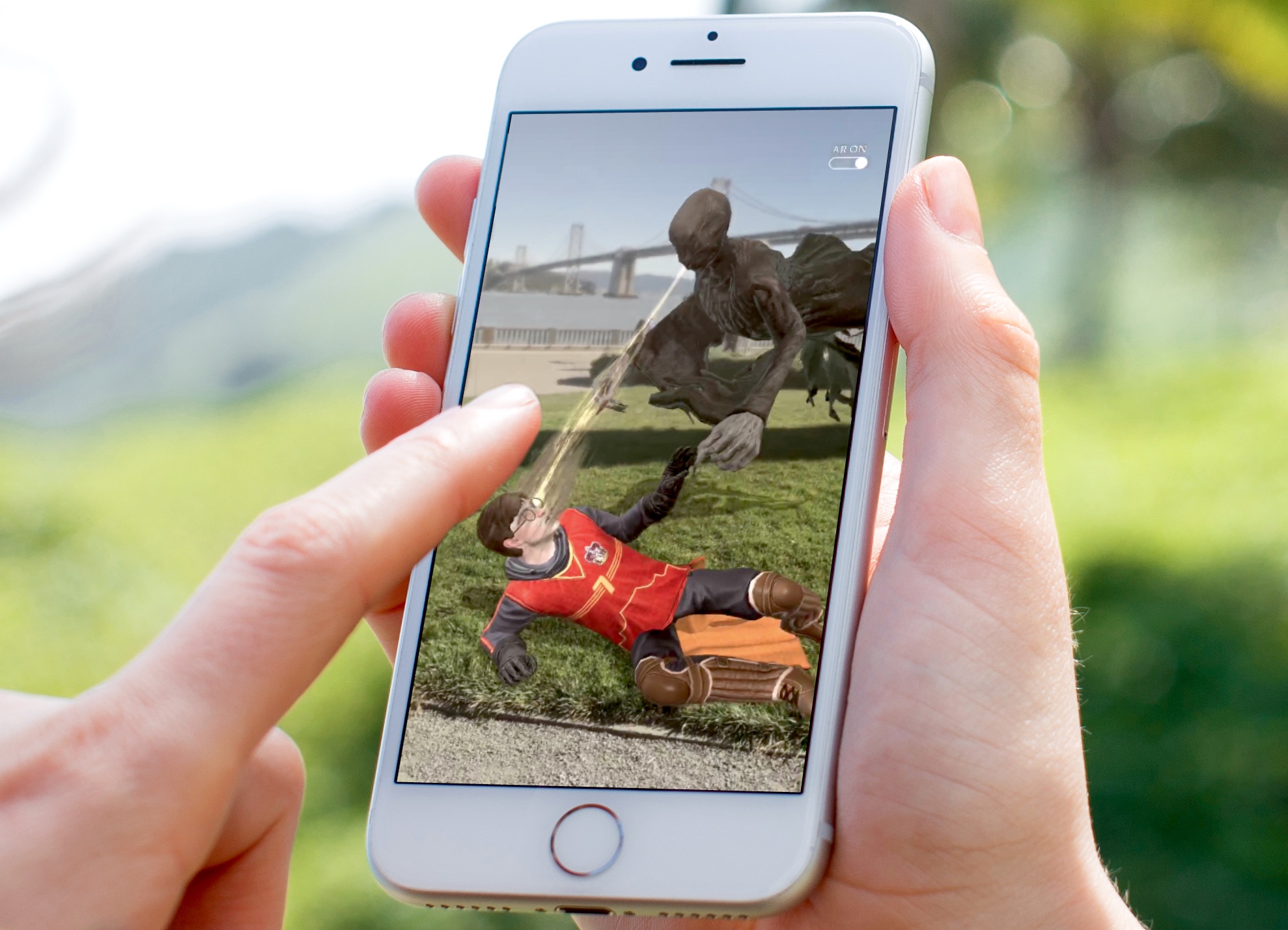
This is the guide to fake Harry Potter Wizards Unite Location on iOS. You can spoof Harry Potter Wizards Unite location on iOS without jailbreak. All you have to do is to follow the few simple steps given below.

Harry Potter Wizards Unite

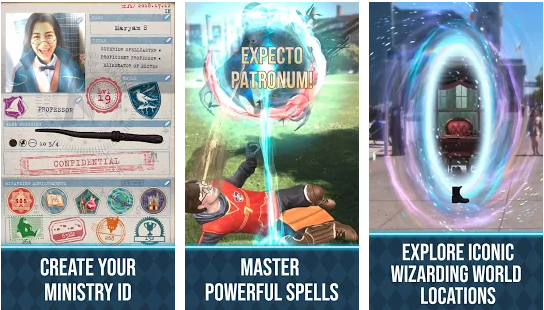
Harry Potter Wizards Unite has quickly become the top choice for smartphone gamers now. The game is a perfect replacement of the famous AR game Pokemon Go. Much like the Pokemon Go, players have to step out of their comfort zone, go to places, and find the magical creatures. Harry Potter Wizards Unite is developed by the developers of Pokemon Go too, so you can expect it to be a masterpiece.

Fake Harry Potter Wizards Unite Location on iOS
Image Credits: iPhon.fr

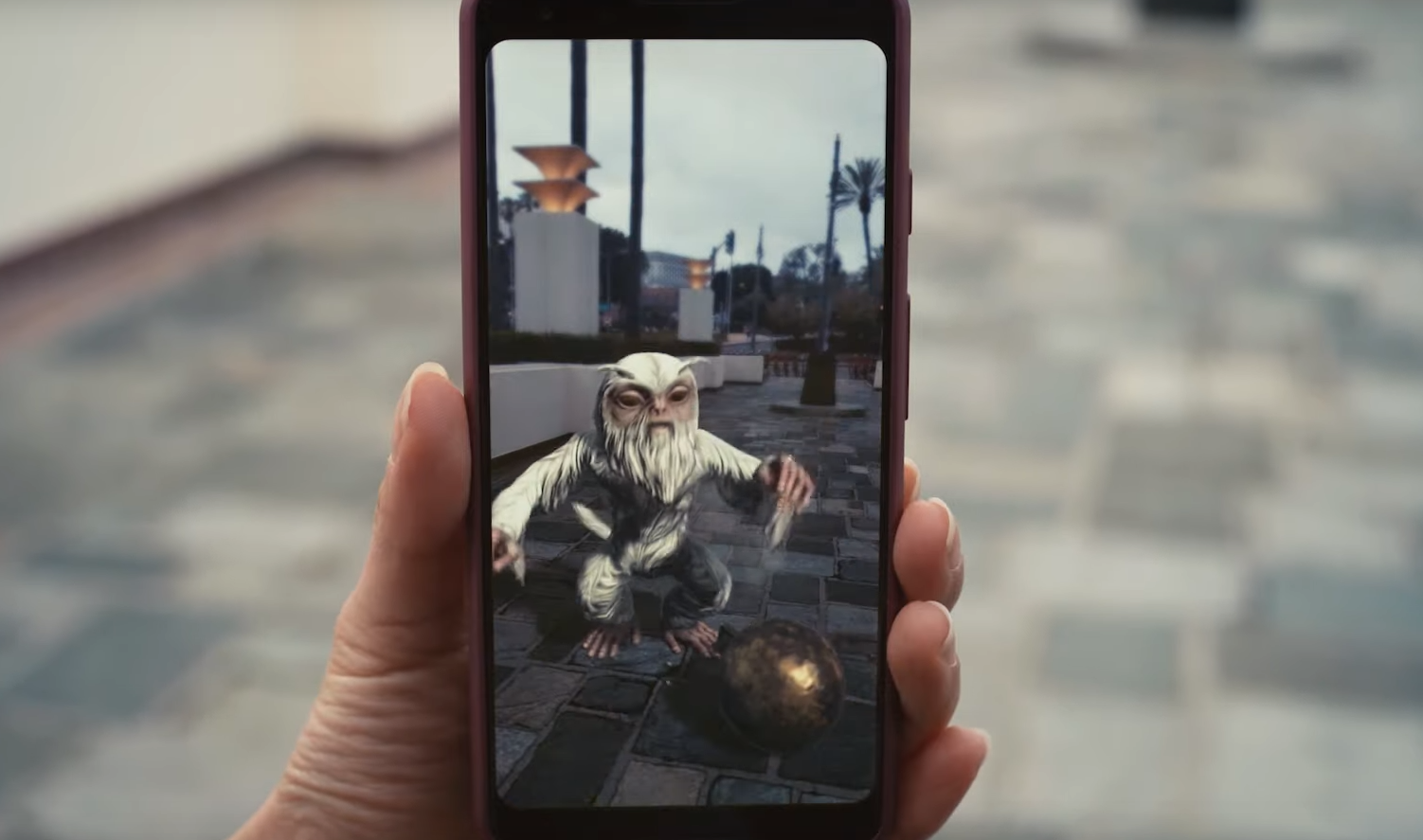
The game is set in a wizarding world where the magical artifacts and creatures have made their way to the world that has no knowledge of it. Players are now recruited in the task force to bring the foundables back home. At any cost, the players must protect the foundables from falling into the wrong hands. On this mission, players will be joined by the famous characters of the Harry Potter series. The 3D creatures in the game are designed to resemble those you saw in the Harry Potter movie series.

Like the “Pokemon Go”, the Harry Potter Wizards Unite uses the GPS of your phone and shows you a map with the locations of the creatures. You have to physically move to that location and then turn on the camera of your phone to capture the creature. Sometimes, it will be really easy to find them and sometimes it will be hard. In fact, you may not be able to find the creatures all the time. This makes the game a little bit challenging as you might have to travel far away just to find them and get ahead on the leaderboards. This is how these AR games basically work.

Wizards Unite Location Spoofing

Now, if you don’t want to move physically, but you still want to play this game and complete the tasks/quests, there is a way for you. You can spoof the location. It will let you fake your location in the game, and let you use a joystick to move to any location virtually. This way, you will collect the creatures while sitting in one place.

Location spoofing quickly rings a bell and takes you back to the Pokemon Go days. Yes, it is still doable and it still has its risks. Niantic comes hard on all the gamers who try to cheat. So, if you are planning of spoofing location in Harry Potter Wizards Unite, you better be prepared for the worst. If caught, Niantic will first ban you for 7 days. If caught again, you will be banned for 30 days, and third time, there isn’t going to be a way back.

Yes, you are definitely going to find the method to Fake Harry Potter Wizards Unite Location on iOS, but you must keep in mind what we just talked about above. Assuming that you have an idea of all the involved risks, take a look at the steps to fake Harry Potter Wizards Unite location on iOS.

Fake Harry Potter Wizards Unite Location

  1. Open Safari Browser on your iPhone.
  2. In Safari, open the sites appinject.co
  3. On this site, you will find Harry Potter Wizards Unite. Click on it.
  4. Now it will show you that the app is not injected. Click on Get Started.
  5. It will now ask you to install two apps, this is important to start the injection process.
  6. Select the apps you would like to install.
  7. After installation, open both apps/games one by one.
  8. Now delete those apps. The spoofer and teleporter have been activated now.
  9. Open the Harry Potter Wizards Unite game now.
  10. A notification will appear on the top of the screen to enable Joystick and access settings.
  11. Once you are in the game, long-press the screen to bring up a joystick. Press with two fingers to access settings.

Conclusion

That’s how easy it was to fake Harry Potter Wizards Unite location on an iPhone or iPad. This method does not require any jailbreak or any other complicated steps. You should now be able to leave everyone behind on the scoreboards. If you have any questions or queries, feel free to reach out to us. I will try my best to get back to you as soon as possible.

More: How to Fake Harry Potter Wizards Unite Location on Android (Location Spoofing)

How to fix Instagram Camera Crashing on Android

0
How to fix Instagram Camera Crashing on Android

Instagram on Android crashes when you open its camera, or the Instagram camera doesn’t work for stories, is this problem you are facing? The time to fix it has come. Follow the steps below to fix Instagram Camera crashing problem on Android.

Instagram

Instagram has become the most popular social media platform. As of July 2019, over Instagram has over 1 Billion active users. 64% of these users are of age 18-29. Instagram has made things easy for business too. The businesses that used to run their advertisement on Facebook back in the day, they prefer using Instagram now. It has also pushed platforms like Snapchat down the queue.

The content trends have changed a lot over the past couple of years. A transformation from textual content to graphical content has taken place. On a platform like Instagram, users express their feelings or share their ideas through pictures or Instagram story videos. This has helped the transformation take place rapidly. Millennials these days prefer watching over reading. Instagram has given them that platform. Furthermore, Instagram has established a better relationship between celebrities and their fans.Instagram Camera Crashing on Android

Not only human beings are popular on Instagram, earlier in 2019, but a picture of an Egg also became the most liked picture on Instagram. A brown Egg hit 53 Million likes surpassing Kylie Jenner’s most liked picture.

Instagram offers two accounts. You can either create a business account or a personal account. For a business account, you have further preferences like a shop or a personal blog. The incorporation of IGTV has helped Instagram to become one of the top video publishing platforms too. It won’t be wrong to say that Instagram has become a complete social media solution now.

So, if you have been facing problems with Instagram’s camera lately, follow the steps given below to fix it without any further ado.

Guide to fix Instagram Camera Crashing on Android

  1. On your Android phone, go to Settings > Apps/App Settings/App Manager > All Apps > Instagram.
  2. Now click on Storage.
  3. In Storage, you will find Cache and Data.
  4. Delete the Cache and Data now.Instagram Camera Crashing on Android
  5. Restart your Android handset.
  6. Launch Instagram.
  7. Turn on the Camera through Instagram stories now.

That’s all. This should fix the camera problem of Instagram on your Android handset. If this solution fails to work, simply uninstall Instagram and re-install it on your phone.

If you have any further queries, feel free to reach out to us through the comments section below. I will try my best to get back to you as soon as possible.

Fix OnePlus 7 Pro Battery Drain Problem

0
Fix OnePlus 7 Pro Battery Drain Problem
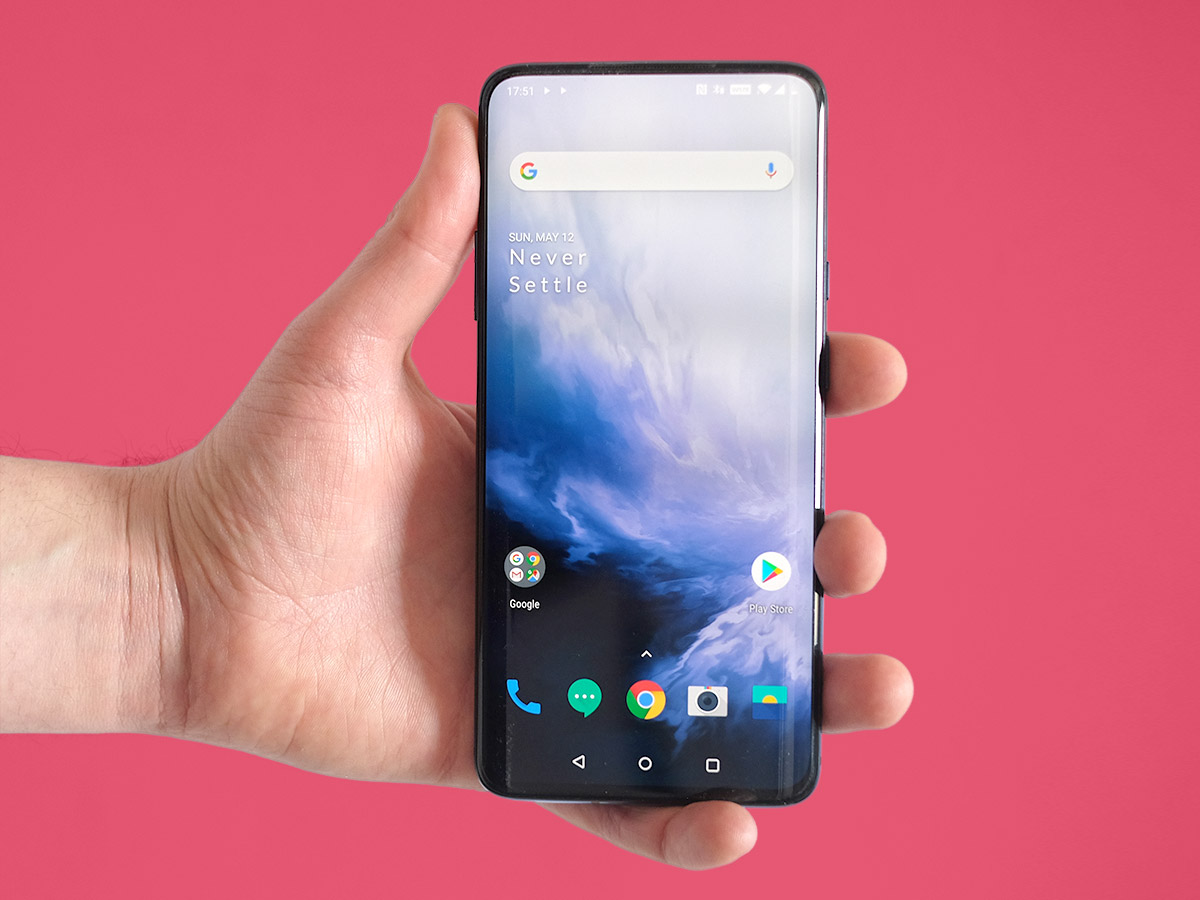
Image of OP7 Pro - Credits: Stuff.tv

OnePlus 7 Pro is one of the best phones to pick up right now. The phone pulls out a star in almost all the departments, but things can still go wrong. Especially with the battery life of the phone. Many OnePlus 7 Pro owners have been talking about the battery life issues of the phone. Some users are getting a superb battery life while some are experiencing a battery drain. In this post, we will talk about all the battery problems of the OnePlus 7 Pro. Furthermore, you will find the solutions to fix OnePlus 7 Pro Battery Drain problems too. Before you start fixing your OnePlus 7 Pro’s battery, let me refresh your knowledge about this handset.

OnePlus 7 Pro Battery Drain
Image of OP7 Pro – Credits: Stuff.tv

OnePlus 7 Pro

OnePlus 7 Pro is the most innovative smartphone by the Chinese giant. It comes with a 6.67-inches QHD+ screen. There is no camera budge or hole on the front, which bumps the aspect ratio to 19.5:9. OnePlus 7 Pro’s screen is protected by Gorilla Glass 5. This is a 90Hz display and it supports HDR10+ too.

On the power end, the OP7 Pro has the Qualcomm Snapdragon 855 Processor accompanied by Adreno 640 GPU. It’s got a RAM of 6GB/8GB/12GB with an internal storage of 128/256GB.

There are three cameras at the back of this phone. It’s got a main 48MP Sony IMX586 shooter. After that, it has an 8MP telephoto shooter and in the end, it has a 16MP ultrawide camera. The front 16MP camera is hidden inside a motorized pop-up on the top bezel.

OnePlus 7 Pro has a 4000 mAh battery. It has the support of 30W warp charging which can charge your phone really quick. The phone comes in three color variants. It has become the most popular phone by OnePlus to date.

That’s all about the spec-sheet of the handset, let’s talk about its battery performance now.

OnePlus 7 Pro Battery Performance

If you take a look at the advanced hardware of the OnePlus 7 Pro, you would think that its battery can’t really last long. 90 Hz display, QHD+ battery, Snapdragon 855, these are too much to handle for a 4000 mAh battery. But that’s not really the case with OnePlus 7 Pro. The company has optimized the hardware and software to perform well with the battery.

After going through almost a dozen discussion threads about OnePlus 7 Pro’s battery, I found out the battery averages reported by different users. Here is what I found.

  • About 75% of people get 5-7 hours of screen-on-time on with the 4G/WiFi turned on, social media apps, and normal gaming.
  • About 4% of users get more than 8 hours of screen-on-time.
  • Lastly, about 9% get below 4 hours of screen-on-time.

The number of users who get screen-on-time of 7 hours or above, was very bleak. About 15% of OnePlus 7 Pro owners get 7+ hours of screen-on-time. These users were mostly playing light games. They had extensive social media use on the phone. Messaging use was normal. The standby time of these users was about 8 – 12 hours. Most of these users used the phone with 90 Hz and QHD+ turned on. More than 50% of these 15% users charge their phone to 100% on a daily basis.

  • In a normal scenario, with the 90Hz and QHD+ graphics, heavy use of Twitter, Facebook, WhatsApp, Reddit, and light gaming, the phone should be able to provide at least 7 hours of sot. The phone in the idle mode overnight looses only 2-5% of its battery. If you leave at 100% and sleep overnight, you will find the phone at 95% or 98% in the morning.
  • If you are a game standby mode r and you play heavy games like PUBG Mobile, Call of Duty Mobile, and others all day long, your phone will not provide you a screen-on-time of over 5 hours.
  • In the idle/standby mode, with stock settings, the phone should be able to stay alive for about 50 hours, slightly more than 2 days. OnePlus 7 Pro can last for almost 2 days if you just use the phone and messaging applications on it.
  • If your OnePlus 7 Pro, for some reason, is not hitting that average screen-on-time, or it is loosing more than 10% of battery in the idle mode, there is something wrong with it that needs to be fixed quickly.

The OnePlus 7 Pro battery drain problems were reported by many users on forums like XDA and Reddit. I personally took a look at all the problems explained by users and then the solutions provided by other users to fix those problems. I compiled all the solutions and decided to make this post. So, if your OnePlus 7 or the OnePlus 7 Pro has been having any such problem, take a look at the quick fixes below now.

Guide on how to fix OnePlus 7 Pro Battery Drain Problem

Quick OnePlus 7 Pro Battery Performance Tips

  1. Set the screen brightness to Auto or use it at 40-50%.
  2. Use WiFi whenever you can. Avoid using 4G/LTE all the time.
  3. Do not keep the WiFi and 4G on at the same time. Automatic switching between these two can eat the battery. Turn off WiFi when using 4G and vice versa.
  4. Do not set the phone to QHD resolution. Use “Auto” for resolution instead.
  5. Refresh rate at 90Hz or 60Hz doesn’t really make a difference, so, leave it to 90Hz.
  6. Use Dark Mode or a Black Theme if it is convenient.
  7. Control background activity of the phone. Disable/uninstall the apps you don’t use.

Uninstall the Battery-hungry Apps from OnePlus 7 Pro

  1. On the OnePlus 7 Pro, go to Settings > Battery.
  2. Check battery usage of different apps.
  3. If an app is consuming an unusual amount of battery, uninstall it.
  4. Restart the OnePlus 7 Pro now.
  5. The battery life of the phone should be fine.

Enable Deep Optimization on OnePlus 7 Pro

  1. Open Settings on OP7 or OP7 Pro.
  2. Go to Battery Settings.
  3. Find Deep Optimization and turn it on.
  4. Watch the battery performance of your OP7 now.

Remember that deep optimization will put some applications to sleep. This will also turn off notifications in the status bar and notification sounds from those apps. So make sure that you are turning it on at your own risk.

Delete OnePlus 7 Pro Cache

  1. Enable Advanced Reboot on the OnePlus 7 Pro.
  2. Press the Power button and reboot into the Recovery.
  3. In recovery, click on Wipe Data and Cache.
  4. Now click on Wipe Cache > Yes.
  5. After clearing the cache, restart the phone. This should help the battery.

Use Safe Mode to detect Apps that eat Battery

  1. Turn off OnePlus 7 or OnePlus 7 Pro.
  2. Now turn on the phone.
  3. As soon as the phone vibrates, press and hold Volume Down key.
  4. As you see the home screen, leave the key.
  5. You should see Safe Mode on lower-left corner, this means the phone is in the Safe Mode now.
  6. All apps are disabled.
  7. Check the battery of your phone for a while. If it performs better, it means one of your apps is causing battery drain.
  8. Go back and check your installations. Uninstall the application that you think is the culprit.

Perform a factory reset

Just in case all the solutions given above fail, the 2nd last option is to perform a factory reset. You can factory reset the OnePlus 7 Pro by going into the Recovery. In the Recovery, select Wipe cache and data and then select Wipe data. This will remove everything from the phone and reset it to factory settings. Set up your OnePlus 7 Pro now and watch its battery life closely.

Clean-install new firmware

If you recently updated your OnePlus 7 Pro and the installation did not go smoothly, it can cause battery life troubles. To overcome this problem, you can reinstall the firmware on your OnePlus 7 Pro. To install the new firmware, just download it from the internet and install it using the Android ADB Command window.

Final Words

That’s all with this guide. It should help boost the battery life of your OnePlus 7 Pro. A little extra care will also help maintain the battery power, for example, do not overcharge your phone and do not always wait for the battery to die down to 0%. If you have anything to add to it, feel free to drop it in the comments section below. For any questions and queries, contact us. I will try my best to get back to you as soon as possible.

10 lesser known Google apps that you probably haven’t heard of

0
10 lesser known Google apps that you probably haven’t heard of

Google has a plethora of Android and iOS applications to entertain its users. Whether you want to hang out with someone on a video call or you want to push some images on cloud storage, you will find all the applications which will serve your desired purpose under the umbrella of Google. Some of the Google Apps like the Google Play Store, Google Play Services is an essential part of an Android smartphone, but other then these, Google has a vast list of applications from which the users can download according to their liking.

Most of the Google Apps are widely-known. You must have heard of applications by Google like Google Camera, Google Home Launcher, Google+, Calculator and many others. But there’s a chance that you probably have no idea about some of the Google applications. It might surprise some of the geeks that even a developer like Google has some applications which did not get any spotlight and make it to the list of well-known applications, but this is something that has happened for real. We’ve gathered around 10 of the lesser known Google Apps. Let’s have a look at them one by one and know their purpose.

Lesser known Google apps

Arts & Culture

Arts and CultureIf you want to get some time off from your geek-life, you should try the Arts & Culture app from Google. Arts & Culture prompts its users to explore the famous museums, artifacts, and archives all across the world. Arts & Culture can give you a close-to-real view of the places with extraordinary on-screen detail. You can take a 360-degree panoramic view of the historic places. Arts & Culture is a great application for explorers. Get it from the Google Play Store.


Arts and Culture picture

Device Assist

Device Assist IconLost the manual of your Android smartphone? Don’t worry! Google Device Assist can help you troubleshooting the basic issues of your Android device. Device Assist can intelligently detect the basic issues like GPS, battery, connectivity and the similar occurring in your device and then provide you with some working tips to get rid of them. Device Assist works with only a few of the devices. It’s available exclusively for Android.


Google Device Assist


Gesture Search

Screenshot at Apr 16 02-49-46Want to find something inside your Android device and finding it a hard task to type to search for it or navigate to the location of your desired option/file? If so, then the Gesture Search is definitely for you. Using the Gesture Search, you can find anything including the settings, applications, music, bookmarks by simply drawing a gesture on your Android phone’s screen. Gesture Search was released back in 2010, but unfortunately, this application also made its way to the less-known Google apps. You can download Gesture Search from the Google Play Store.

Gesture Search


Snapseed

Snapseed

Google’s very own photo editor, but not as popular as the photo editors of the today. Snapseed can modify your images, add details to it, crop the images according to your liking, add some charming effects and do every single thing that you would want to do to make your snaps look stunning. The Snapseed comes with a plethora of filters to enhance the beauty of your shots. Snapseed also manages your edits. Snapseed is available for Android.


Snapseed picture


Google Spotlight Stories

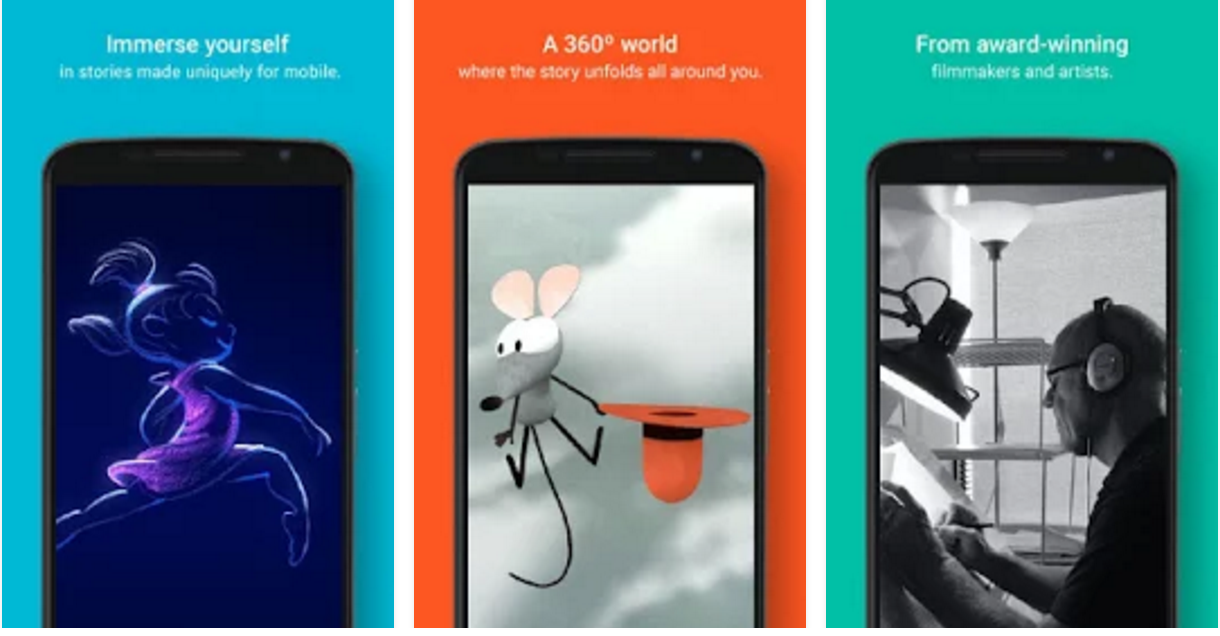
Spotlight stories iconPurpose of Google Spotlight stories is to present you with the stories framed in 3D and 2D animations packed with 360-degree spherical cinema-quality video. It provides you full-sphere surround sound. You can watch any story according to your liking. Google Spotlight Stories acts as a mini theater inside your Android device.

Spotlight stories

Primer by Google

Primer by Google iConPrimer does what its name suggests. If you’re looking for some quick lessons on how to market your content or how to kick-start your startup, Primer probably has got some cool tips for you. The primer has 5-minute lessons on how to bring your product or project under the spotlight. Primer’s purpose seems quite cool, but unfortunately, this application couldn’t get much attention from the users. You can grab primer from the Google Play Store.

Primer by Google


Sound Search for Google Play

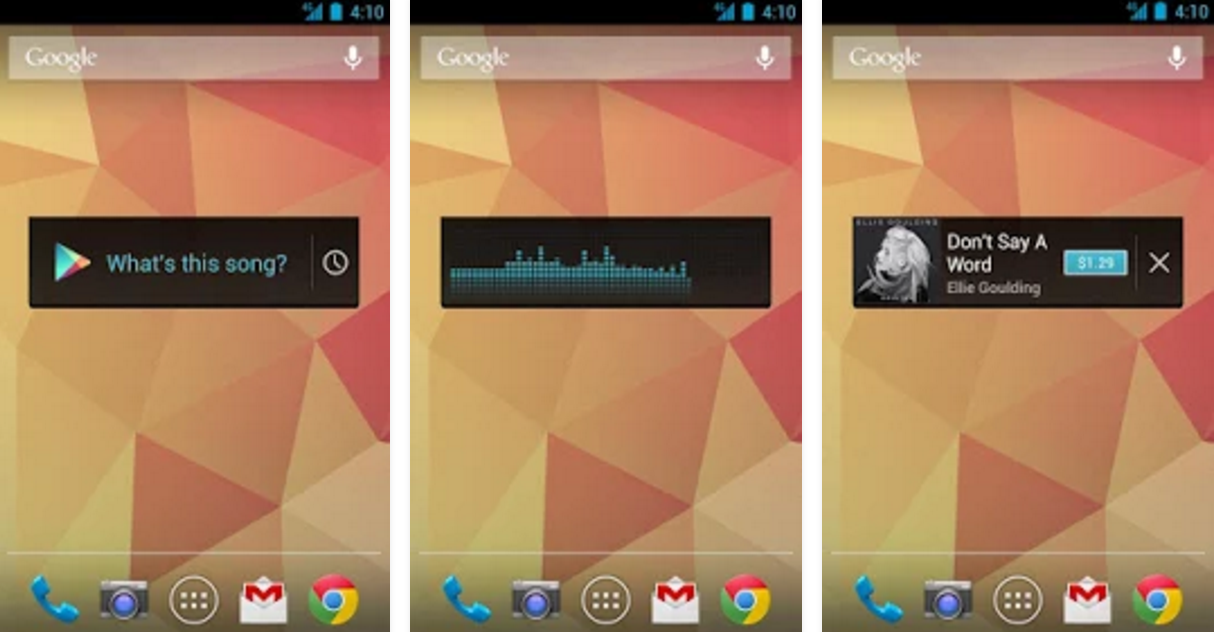
Sound SearchTrying to recognize a song or a tone playing nearby? Sound Search for Google Play might be of some help in this case. Sound Search’s widgets can help you to recognize a song directly from your Android’s home screen. You can then purchase the identified songs from the Google Play and add them to your Google Play Music library. Sound Search for Google Play is available in the Play Store.

Sound Search for Play Store

Backdrop Daydream

Backdrop Daydream simply acts as a backdrop inside your TV screen. You can select a cool image to set as a background on your TV. The TV’s screen will simply act as a screen with a nice stable wallpaper. Screenshot at Apr 16 03-13-14

Google Class Room

Google Class Room Icon
It doesn’t matter whether you’re a student or a teacher, Google-Class Room is meant to be for both. The application works with the users with the Google Apps for Education Account. Class Room helps the teachers to interact with their students using this application. Teachers can start quick sessions to have class discussions using this application. Google Class Room also allows the teachers to set up paperless assignments and quizzes. Students can view their scores and states on the go. Google Class Room is also available for Android and iOS.

Google Class Room

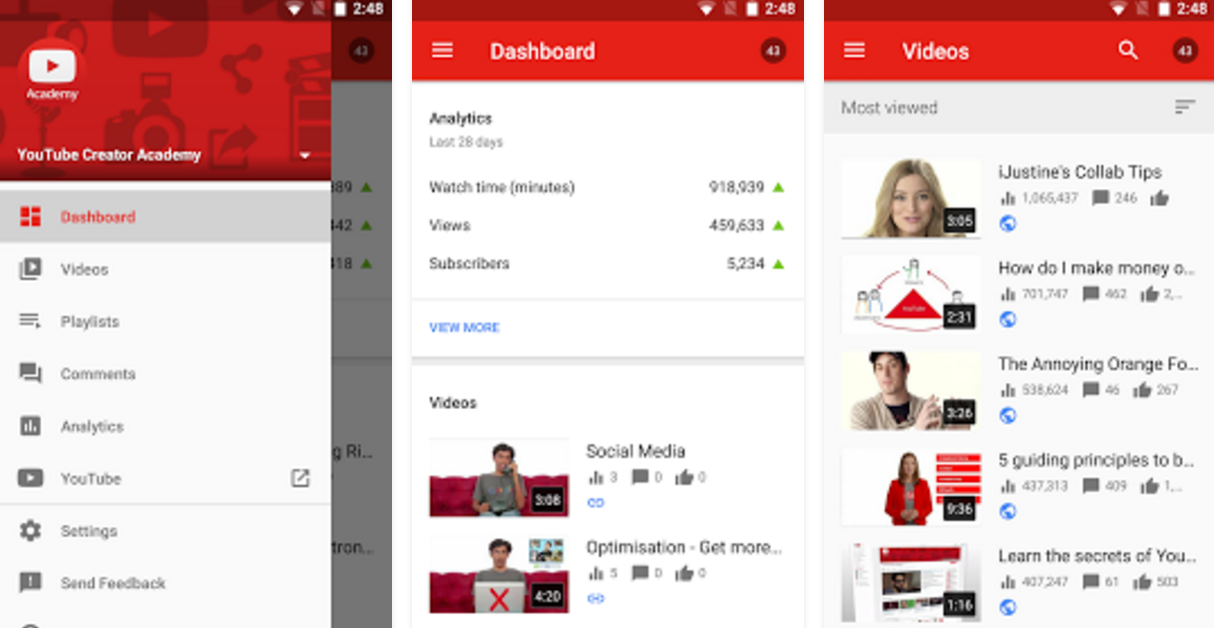
Youtube Creator Studio

youtube creator studio iconGoogle has a very nice Youtube Android and iOS application for its smartphone audience. But Google has another Youtube application to handle the Youtube accounts. This Youtube application is the Youtube Creator Studio. Youtube Creator Studio makes it easy for you to control your Youtube channel from anywhere, any moment. You can respond to comments on your channels, check notifications and other stats. Youtube Creator Studio also allows you to manage your playlists. Youtube Creator Studio is more of a management tool for your Youtube channel.

Youtube Creator Studio


How to get FPS Counter on Android Phones

0
How to get FPS Counter on Android Phones

FPS meter can help you calculate how the display of your phone is acting for a game. By default, there is no FPS counter in the Android phones. With the help of this easy guide, you can get FPS Counter on Android phone. You can get FPS Meter on pretty much all the Android handsets. Before you enable the FPS counter on your smartphone, let me tell you what it is and how it works.Android FPS Meter

FPS Meter

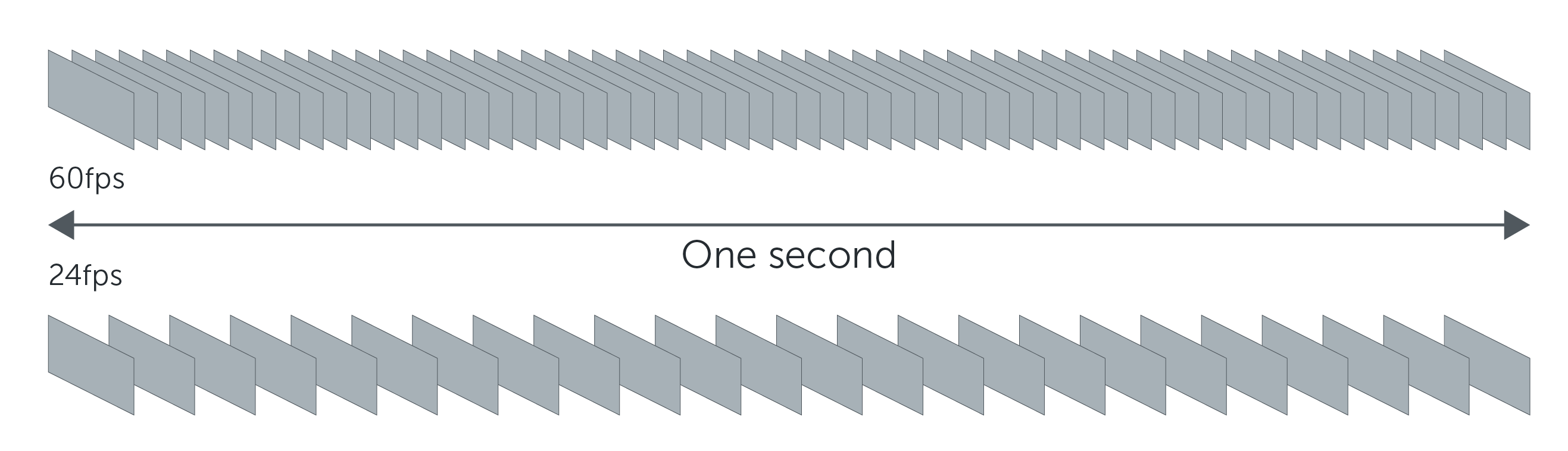
FPS stands for Frames Per Second. It identifies how many times the screen of your smartphone or computer can refresh in a single second. The screens of monitors and smartphones have a different refresh rate. You must have seen gaming monitors and gaming laptops coming with 144 Hz or 165 Hz refresh rate. That means those screens can refresh 165 or 144 frames in a single second. Higher the refresh rate, better is the movement of graphics and elements on the screen. A low number of FPS can significantly disturb the performance of a game on a phone. With the FPS as low as 20 or 22, the game will stutter, the objects will not show up as smooth as they should otherwise.

FPS is something that matters the most to the gamers. Especially, when you are playing a first-person-shooter game, FPS is going to be in the consideration. If you want the graphics to be extremely smooth, you would want to have a maximum refresh rate.

Android phones usually come with a 30 or 60 Hz screen. Even on a 60 Hz screen, the FPS is locked down to 40 or 50. There are tools that you can use to unlock the 60FPS on your Android handset. Android phones have started coming with better displays now too. For example, we have the Razer phone with a 120 Hz screen, and now we have the OnePlus 7 Pro with a 90 Hz screen. You can’t really tell the frequency of frames by just looking at the screen of your phone. To know the exact FPS produced by a game, you need certain tools to display it.

The FPS meter can tell help you improve the graphics performance of the game. For games like PUBG Mobile, having the FPS counter is like a necessity. Better PUBG FPS will enhance your shooting experience. The motion will be more fluent.

The question is, what tool you are going to use to get FPS Meter or FPS Counter on your Android device? And how you are going to set up that tool? This is exactly why we are here today. The only thing you need to do now is to follow the few steps give below to get Android FPS Meter.

Guide on how to get FPS Counter on Android Phones

  1. On your Android phone, enable USB Debugging.
  2. Open the Play Store and find Gamebench. Install it on the phone.
  3. Open Gamebench on your phone now. Make your account and login.
  4. On your computer, download the Gamebench tool.
  5. Connect your phone to the computer now. If the phone asks for any permission, allow it.
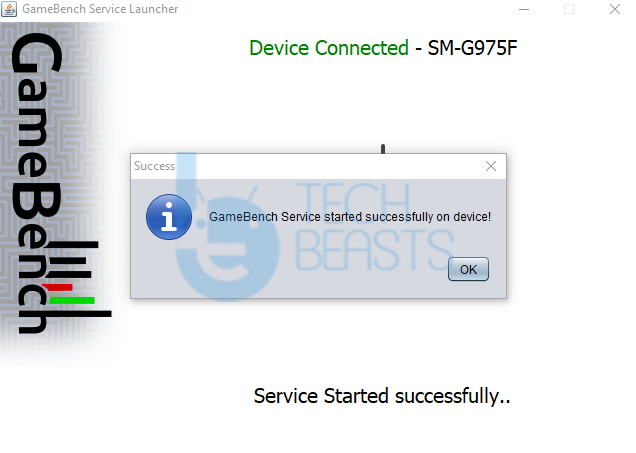
  6. The Gamebench service will now start on your phone and you will get “Finish” on it.
  7. Click on Finish to enter the Dashboard.
  8. You will now see a list of all the apps and games.
  9. Click on the game for which you want to enable FPS Meter.
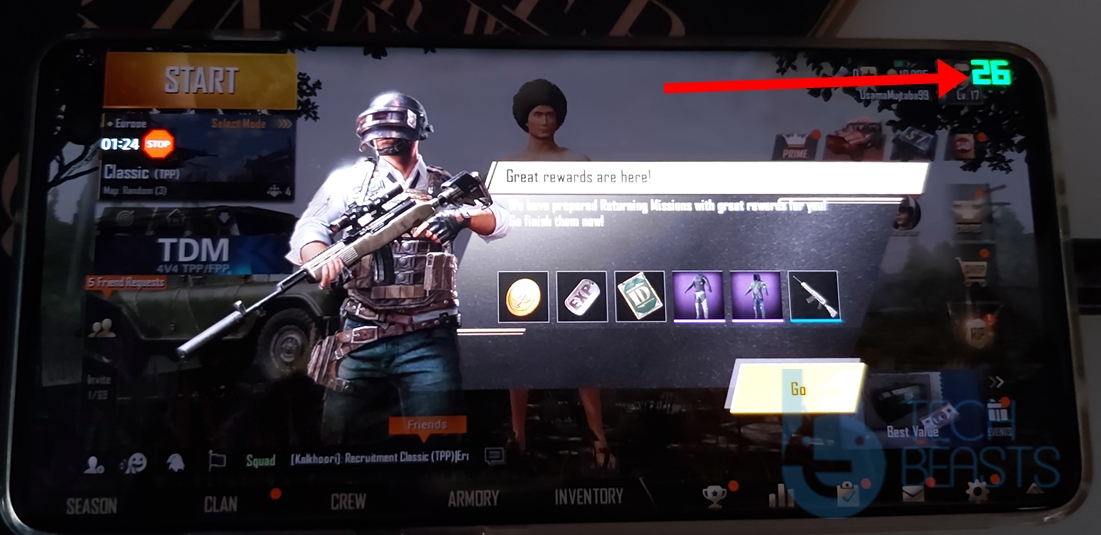
  10. The game will be launched via Gamebench now and you will see FPS Counter on the top-right corner.
  11. Upon closing the game, you can find FPS graph in the application and on the Gamebench site too.

Final Words

That’s all with the installation of FPS counter on your Android phone. Remember that to unlock the full FPS, you have to edit the graphics config files of a game. Since that is a very complicated method, you should only go after it if you are an Android expert. The tutorial above will do nothing but just show the number of frames being produced by your phone for a particular game. If you have any questions or queries, feel free to ask them down below in the comments section. I will try my best to get back to you as soon as possible.

5 Best Ringtone Maker Apps for Android

0
5 Best Ringtone Maker Apps for Android

Back in the days, everyone tries to make their own custom Ringtones. But nowadays, it is not a thing, there are dedicated apps which provides you with the latest ringtones. However, if you are among those who want to make their own ringtones, then in this post in which you will find 5 Best Ringtone Maker Apps for Android. 

Using these apps you can make ringtones of any song, theme, music, etc. You will find hundreds of ringtone maker apps on Google play but not all of them are what they say. Most of these apps contain Ads, Spam content, and malware. But no need to worry because we have tried a number of Ringtone Maker Apps for Android. And after carefully reviewing them, we picked 5 of them.

Ringtone Maker Apps

All of these apps will allow you to cut and join music, songs that way you want. Moreover, few of these apps have voice recording function in it, if you cannot find the song you were looking for, you can record it to make a ringtone. Let’s get started now.

Before we proceed, make sure you have the MP3 file whom you want to make your ringtone. None of the following apps support any video file, you if have a video file make sure to convert into MP3.

Read more: Best Video Converter Apps for Android.

5 Best Ringtone Maker Apps for Android:

Ringtone Maker- MP3 Cutter:

The first in our list is Ringtone Maker- MP3 Cutter, it supports a number of file formats. Such as MP3, FLAC, OGG, AAC, WAV, AMR, and MP4. The interface of this app is user-friendly, Also, you can use the search feature to find MP3 files on your device. Ringtone Maker- MP3 Cutter has a built-in audio recording feature, you can easily record whatever you want.

In order to make a ringtone out of an MP3 file, either you can add values or you can use built-in trim or crop feature. Moreover, you can also merge but without drag feature. Once you are done, you can add it as your ringtone. The only downside to this app is, you cannot save your custom ringtone on your device. Also, since this app is free, you will see a lot of Ads and Pop-up while using it.

Ringtone Slicer FX:

Ringtone Slicer FX is the second in our list. It’s a free app, that is why it has Ads. The best feature of this app is the built-in file manager. The interface is not attractive but since it has its own file manager, things get easier. regardless of the old hag interface.

Editing on Ringtone Slicer FX is fun, they have added zoom in and out feature, which makes selection easy & accurate. This app only supports MP3, WAV, and AMR. But that is not an issue at all, the main thing is, you can use it easily and make ringtones for your Android devices.

Also, if you want to add more details and effects to your ringtone, you can use equalizer settings. The only downside to Ringtone Slicer FX is limited format support.

Ringdroid:

On number 3, it’s Ringdroid. I have heard about this app back in 2008 and since then it’s still open source. But when it comes to functionality, you can bet your cards on it. Since it is open source, you won’t be bothered by Ads and Pop-ups. By default, you will find more audio files then any other Ringtone maker app. It has its own built-in audio recorder and you will shock to know this awesome app has no file manager. Although, after these years, I also thought, they have added a file manager by now.

The only downside to Ringdroid is no file manager and also no built-in search feature. That would’ve been really helpful if they added it.

Timbre:

Timber is on number four in our list of Best Ringtone Maker Apps for Android. Originally Timber was a video editing app but now they have also added audio editing feature. That will allow you to make free ringtones for your Android device. This app is the most advanced from all the others and in features, you will find more than enough.

In their Audio Editing, they provide you with features like cut, join, merge, convert, omit, and increase and decrease the speed. Moreover, it doesn’t end here, they also allow you to convert video into audio. It means you will be able to create a ringtone from a video or a movie.

The one and only downside to Timber is, that they don’t have waveform editor just like all the other apps.

Ringtone Maker- MP3 Editor & Music Cutter:

In the end, we have Ringtone Maker- MP3 Editor & Music Cutter for you. This app maybe not everyone’s first choice but it has everything, you name it and it will have that. Such as file explorer, recorder, waveform editor, etc.

Ringtone Maker for Android is a free app, that means it has Ads but they are not annoying. Editing is easy, you can set start and end time, you can zoom in and out. It also supports all the popular music format.

That’s all for now. These were the 5 Best Ringtone Maker Apps for Android. Give’em a try and let us know how was your experience. In the end, Please do tell you what you think about this article. Also, It would be very nice, If you Share this article with friends and Join Techbeasts on Facebook and Twitter.

Cast iPhone & Android Screen to TV Without Chromecast

0
Cast iPhone & Android Screen to TV Without Chromecast

There are hundreds of online streaming apps designed for smartphones. But to be honest, If you want to enjoy a movie, it would be a big screen rather then small size. Now you are well aware of the fact, we can cast the screen of our smartphones to a TV with the help of Chromecast. It’s the best and the easiest way to do Cast Screen to TV. Although this is not the only option, in this post, we will discuss on how to Cast iPhone & Android Screen to TV Without Chromecast.

In this article, you will learn how to other methods and ways to Cast iPhone & Android Screen to TV Without Chromecast. We’ve tested a number of methods to mirror your smartphone’s screen to TV. We have used Apple TV, Smart TV, also we have used MHL cable and they all worked pretty well. However, every method has its own advantages and disadvantages.

Android Screen to TV Without Chromecast

Let’s get started now and tell you all the ways which you can use to cast your iPhone & Android screens to a TV and without Chromecast.

Cast iPhone & Android Screen to TV Without Chromecast:

Streaming device:

Just like Chromecast, there are others, which work the same way Chromecast does. You can use Roku, Amazon FireStick, and Apple TV as a Chromecast alternative. The best among these is the Amazon Fire TV Stick. First, you have to purchase it, once you have got your hands on it. Insert it in to your TV, Press and hold the home button on FireStick Remote, follow on the screen instructions to mirror your smartphone screen to your TV.

Roku does the same when it comes to screen mirroring. All you have to is setup Roku, head over to the  Home > Settings > System > Screen Mirroring. Before we proceed, make sure both of the devices are on the same WiFi network. Now head over to your smartphone settings > Wireless Display Options. Here you will see Roku wireless display, just tap on it.

Apple TV is also an easy way to mirror your iPhone, iPad & iPod Touch screen. However, it has a limitation, you can only use Apple TV with iOS devices. Apple TV is not supported by Android devices.

Read more: Best Anonymous Chat Apps for Android/iOS

Cast Android Screen to Smart TV:

The first method will work for you but you have to carry an extra dongle with you all the time. But if you don’t want to do that, then you should have a Smart TV. All the latest smart TV comes with the screen mirroring option. You don’t have to use any app or any cable to cast your device screen to a Smart TV.

All you have to do is enable the screen mirroring on your smartphone and you will your smart TV is devices Tab. Tap on your smart TV and it will start casting your smartphone screen on your smart TV. All Smart TV’s are using Miracast technology, that means not only you can mirror your smartphone screen. You can also mirror your Windows PC screen to a TV.

That is the reason, why all of the mirroring devices are compatible with Android and Windows devices. Although, you won’t find Apple devices in the compatibility list. The only downside we find while using Smart Tv is, you need to make sure the screens of your smartphones stays on all the time. Otherwise, the connection will be interrupted.

While using Miracast, you won’t be needing any wireless connection to mirror your screen. It works the same way as Chromecast does.

AnyCast:

This is also a cheap and working solution, instead of buying a SmartTV, you should buy AnyCast dongle. AnyCast can be bought from Amazon and you can consider it the cheapest ChromeCast Alternate. Moreover, you will see on the box of AnyCast that it supports Airplay/DLNA/Miracast. Meaning, you will be able to cast your iOS devices screen to your TV.

First, you need to buy AnyCast, one you do, connect the dongle with your TV using HDMI cable, Turn on the device. Now connect AnyCast with your WiFi network, make sure both devices are on the same network. Once all is done, it will start mirroring your smartphone’s screen with your TV.

There are two downsides to AnyCast, one it is using Miracast standards that is why you won’t be able to use few apps. The other one is price, it will cost you $20 to buy AnyCast. If you are willing to pay this, I think add some bucks and buy Chromecast rather then AnyCast.

AllShare Cast:

  • Turn on your TV and AllShare Cast.
  • Use an HDMI Cable to connect your TV with AllShare Cast.
  • Once the connection is live you’ll see a blue light on your AllShare Cast device.
  • Grab your Android device, head over to quick settings->screen mirroring->Turn on.
  • Once you’ve turned on screen mirroring you’ll get a list of available devices nearby you.
  • Select AllShare Cast’s dongle and enter the PIN as shown on TV.

That will be all. These were the best ways to Cast iPhone & Android Screen to TV Without Chromecast. In the end, Please do tell you what you think about this article. Also, It would be very nice, If you Share this article with friends and Join Techbeasts on Facebook and Twitter.

5 Best Anonymous Chat Apps for Android/iOS [ Talk To Strangers ]

0
5 Best Anonymous Chat Apps for Android/iOS [ Talk To Strangers ]

Install these Anonymous Chat Apps on your Android devices and start talking with strangers. Sometimes we start getting bored and we don’t want to talk with our friends either they are on Facebook or WhatsApp. Change is always good, increasing your social circle is also good. If you are thinking something like that, you should try the following apps given in this article.

Anonymous Chat Apps

We are living in the Digital Age and it has its own cons along with perks. The best among these perks is to chat with random people using different apps and services. All you have to do is install an app on your smartphone either it’s Android or iOS. Create your profile and chat with random, unknown, strangers and one more thing you do it anonymously. Yea, I know, earlier I said to create an account and start chat, well not all apps require Sign up, you can start using such apps by downloading.

Now let’s start our post and tell you the Best Anonymous Chat Apps for Android devices. Before we on, let me tell you something, as you may have read on different anonymous chat sites. That they don’t save you chat records but it’s not true they do. Read the following article.

Read: Create WeChat Account Without Mobile Number

Reference:

According to security researcher Indrajeet Bhuyan, Omegle — a free online chat site where strangers are randomly paired for one-on-one chat sessions — is “not as anonymous as it claims.” MIC

Best Anonymous Chat Apps:

Omegle:

Let’s start with the one which is the most popular, I am talking about Omegle, the oldest of them all. The is the best websites to chat with strangers without any fee, you can chat with anyone in a one-on-one session. They also have an app but not for Android users, this time iOS users are in luck.

But if you use their app, you need to create an account and if you want to go for a specific gender, you might have to pay a small fee. However, the random chat is for free, you can talk with random people, they will try to match your profile. On the other hand, if you use their website, you just have to enter the chat room and start talking with random people.

I would like to clear one more thing, the account you will create on Omegle app, none of that information will be processed or get verified. You can use any data you want.

There is an outdated Omegle Android app available on the Web. You can download the Omegle Android App from the following link.

Download Omegle Android / iOS:

Wakie:

Let’s do something interesting, Wakie is an app which is not just Anonymous Chat App. It is an app which allows strangers to wake you by calling you. Not only this, it has a number of features which you would love to try. First, you can request strangers to wake you by giving you a call. Other than that, you can ask for opinions, suggestions and also listen to other people and help them.

The interface is neat and user-friendly,  all the request made by you and others will be shown on the live feed. If you want to join and or answer any request, just tap on it. They say Wakie is a completely anonymous chat app, but apparently, it’s not.  You will have the option to choose to show your personal profile or not.

Download Wakie from the following links for Android and iOS smartphones.

Reddit:

Well, Reddit needs no introduction. It is the biggest Web community for everyone. You can ask anything, you can find everything, it is the biggest social community available on the Internet. You need to create an account on Reddit, either you are using Web or their app. Moreover, you can also create an anonymous Reddit ID.

In their recent update, they have added chat rooms and now all you have to do is join them. Once you are in, ask questions or answer other people’s queries. You will find different chat rooms on different topics, just as they have on their Website.

You will find plenty of Chat rooms on a specific topic, so choose the one you interested in. Once you find the relevant topic join the chat room and you will require Reddit account for that. Reddit app is available for both iOS and Android devices. Use the following links to download it.

Holla:

If you want to video chat anonymously, Holla is one the one app you should try. Instead of text messages, you can do a video chat with strangers, why waste time on writing message and typing. If you have used Tinder, you will find the Holla interface quite friendly. Moreover, Holla is getting popular and as of right now, Holla has more than 10 million users.

They say all of their users are real, just like tinder you have swipe until you found the right one for you. Moreover, they have a very strict policy over Offensive and adult content. Keep that in mind, if they found someone is doing that, they will terminate his/her account.

Holla is available for both Android and iOS devices. Use the following links to download.

Rooit:

Last but not least, Rooit is the app which is best for those who want to talk with random peoples with similar interests. This will make things more user-friendly. If you are totally new to Rooit, you will be glad to know, they provide a brief tour of their app. They will explain all the features and also, how to use this app. So you don’t have to worry about anything, they have got you covered.

You will find Rooit well-organized app, you can enjoy fun quizzes, also chat anonymously. Every time you will get someone to talk, he/she would have common or similar interests, same as you have. Moreover, they have chatrooms and all the rooms have specified rules, this is to make sure that conversations in the chatrooms never leave the original context.

Rooit is available for both iOS and Android devices. Click on the following links to download these apps.

Final Words:

So these were the best Anonymous Chat Apps for Android & iOS. We’ll be adding more apps soon, so keep on visiting Tecbeasts and you will get tons of free Anonymous Chat Apps. In the end, Please do tell you what you think about this article. Also, It would be very nice, If you Share this article with friends and Join Techbeasts on Facebook and Twitter.

Download Harry Potter Wizards Unite for PC and Laptop

0
Download Harry Potter Wizards Unite for PC and Laptop

The latest installment in the Harry Potter games series for smartphones is the Harry Potter Wizards Unite. Like the previous Harry Potter games, the Harry Potter Wizards Unite can be played on a computer too. This is the guide to download and play Harry Potter Wizards Unite for PC. By following the steps below, you can install Harry Potter Wizards Unite for PC on Windows and Mac-powered Desktop PCs and Laptops. Let’s take a look at a brief overview of this new adventure game before we install it.Harry Potter Wizards Unite for PC

Harry Potter Wizards Unite

The Harry Potter Wizards Unite is an Augmented-Reality game. This game comes from Niantic, Inc. who is also behind the famous AR game Pokemon Go. The gameplay of Harry Potter Wizards Unite is much similar to Pokemon Go, but with its own elements.

Where you caught Pokemons in the Pokemon Go, you will be capturing the magical creatures in Harry Potter Wizards Unite. The game is set in a magical world where a mishap has let the magical artifacts, characters, and creatures to appear in a world of muggles. Before the muggles find out about these creatures, you must find them and bring them back home. Harry Potter Wizards Unite for PC

In order to find all the foundables, a task force has been formed by the Statute of Secrecy Task Force. Players are recruited in this task force to bring the creatures home. The players will work in collaboration with witches and wizards from all across the globe. They can also go online to join hands with other players. In the form of a team, it would be much easier to finish the job.

If you are wondering where you are going to find the collectibles, then let me tell you about that. Harry Potter Wizards Unite comes with a map. This map uses location services of your device to show you the exact location of the magical artifacts. Upon seeing traces of a creature on the map, you will have to move to that location physically to capture. The traces are spread all over the map, you may move to the location that is convenient for you.

All the characters and creatures in this game are from the Harry Potter movie series. The game has been crafted to look exactly what JK Rowling’s stories explain. The 3D creatures look very realistic. The sound effects also match the gameplay. Since this is an AR game, you will have a 360-degree environment to play in.

Although this game is designed to run the best on a smartphone, if you just want to enjoy it on a bigger screen, you can download it on a PC. Take a look at the instructions below to get Harry Potter Wizards Unite for PC now.

Harry Potter Wizards Unite for PC

  1. First of all, download and install BlueStacks or Nox Player on your computer.
  2. Open the emulator and sign in using your Google Account.
  3. Now open the Play Store in the emulator and find Harry Potter Wizards Unite.
  4. As you find the game, install it.
  5. You can now launch the game from the app drawer/all apps.
  6. On a laptop or PC, the Wizards Unite will use the front cam or webcam to find the creatures.


If you are unable to find the game in the Play Store, you can get its APK. The APK can be installed by simply opening it after you have downloaded the emulator. If you don’t like the BlueStacks or Nox Player, you can also play Harry Potter Wizards Unite via Tencent Gaming Buddy.

For any questions and queries, feel free to reach out to us through the comments section below. I will try my best to get back to you as soon as possible.

Download Harry Potter Wizards Unite Android APK

Download Harry Potter Wizards Unite Android APK

Harry Potter Wizards Unite is the latest Augmented-Reality game from Niantic. These are the same developers who were behind Pokemon Go. The Pokemon Go was definitely a big hit, so the company worked hard on another similar game in the form of Harry Potter Wizards Unite. From here, you can download the Harry Potter Wizards Android APK. The latest version of Harry Potter Wizards Unite can be found here.

Harry Potter Wizards Unite

Harry Potter Wizards Unite gives the Harry Potter lovers a chance to interact with their favorite characters and creatures. The idea of this game is to save the magic from falling into wrong hands. The magical artifacts, creatures, and characters have spread in the real world. Before anything magical falls into the hands of those with no skills, you must find them all and pull them back.

To find the foundables, a task force has been formed by the Statute of Secrecy Task Force. As a recruit of this task force, the responsibility of finding the lost foundables has fallen upon your shoulders. On this mission, you will join hands with the witches and wizards from across the globe.Harry Potter Wizards Unite Android APK

Finding magical artifacts isn’t going to be simple. There is a map which will show you the locations of all the items you need to find. Following the location on the map, you may have to step out of your house. Harry Potter Wizards Unite will make you go places, the places that you may not even imagine. Prepare yourself for a whole new magical adventure.

Players can also join hands with other players to complete the missions. In the form of a group or a team, it will be much easier to finish the task. Harry Potter Wizards Unite APK

The game doesn’t compromise on its graphics. The developers have ensured the best possible graphics and sound effects for this game. The 3D creatures look realistic on the screen. The elements of this game are reminiscent of the Harry Potter movies.

The game comes for free. It’s already out in the Google Play Store. If you are unable to find the Harry Potter Wizards Unite in the Play Store at your end, you can get its APK from here. The instructions to install Harry Potter Wizards Unite Android APK are also given below.

Harry Potter Wizards Unite Android APK

  1. Harry Potter Wizards Unite APK – Download.
  2. Copy the downloaded APK to your phone.
  3. On the phone, using a file manager, open the copied APK.
  4. Install the APK by following on-screen instructions.
  5. Now launch the game from the app drawer.
  6. Set up the game and start playing now.

While playing the game, make sure that you have a good-working internet connection. Also, the location services need to be turned on. Remember that this is a resouce-hungry game. It’s going to consume a lot of internet data and the battery power of your phone too.

More:

Download Huawei Nova 5i & 5 Pro Stock Wallpapers

0
Download Huawei Nova 5i & 5 Pro Stock Wallpapers

Amid serious troubles, the Chinese phone maker has managed to pull out two new devices. Huawei has just released the Huawei Nova 5i and the Nova 5 Pro. Both devices come with impressive specs and design. To pop the colors out of these phones’ screens, Huawei has added a bunch of new wallpapers. All of the stock wallpapers of Huawei Nova 5i and Nova 5 Pro are out now. You can download Huawei Nova 5i & 5 Pro stock wallpapers from here now. Before you get your hands on the wallpapers, let me tell you a little more about the new handsets.Huawei Nova 5i & 5 Pro Stock Wallpapers

Huawei Nova 5i

Huawei Nova 5i

Huawei Nova 5i falls in the mid-range category. This device has a 6.4-inches IPS LCD 1080P display on the front. The Nova 5i has a punch-hole camera on the top-left corner. The screen ratio here is 19:9. The Nova 5i is powered by Kirin 710 SoC. This may be the very first midrange device by any phone maker to come with 4 cameras at the back. The Nova 5i has a 24MP main camera, 8MP ultrawide camera, 2MP macro lens, and a 2MP depth sensor. On the front, it has a single 24MP camera. The RAM of this handset is 4GB or 6GB while its internal storage is 128GB. The storage can be further expanded with the help of a microSD card. Huawei Nova 5i has a 4000 mAh with 10W fast charging support. This phone makes the use of USB Type-C for charging and connection purposes. It’s got a headphone jack too. There is no under-display fingerprint scanner on this phone. It has one at the back instead.

Huawei Nova 5 Pro

Huawei Nova 5 Pro

The Huawei Nova 5 Pro is the successor of Huawei Nova 4. This handset comes in with a display size of 6.39-inches. This is an OLED screen with a resolution of 1080 x 2340 pixels. The display has a waterdrop notch, which means its aspect ratio is 19:9. With the Kirin 980 fixed on the board, the Nova 5 Pro falls in the flagship territory. Its got a RAM of 8GB with an internal storage of 128GB or 256GB. Nova 5 Pro supports Nano-Memory slot. In the camera department, it’s got 4 of them at the back. The main camera is a 48MP, then it has a 16MP ultrawide shooter, a 2MP macro camera, and a 2MP depth sensor. On the front, it’s got a single 32MP camera. The Nova 5 Pro has a 3500 mAh battery with 40W charging support. There is no headphone jack in this handset. The Nova 5 Pro runs on Android 9 Pie out of the box.

That’s all about these new phones. Go ahead to download Huawei Nova 5i and 5 Pro stock wallpapers now.

Huawei Nova 5i & 5 Pro Stock Wallpapers

There are 11 wallpapers in these smartphones in total. 2 of these wallpapers belong to the Nova 5 Pro while the remaining 9 are from the Nova 5i. These wallpapers have a resolution of 2160 x 2310. You can apply these Nova 5i & 5 Pro stock wallpapers to any Android phone or even to an iPhone.

To download your desired wallpaper, right click > save image as. To download on the phone, long-press your desired wallpaper and then click on download image as. You can also download all stock wallpapers of Nova 5i and 5 Pro using the all-in-one link given below.

All Huawei Nova 5i & 5 Pro Stock Wallpapers: Download

More:

  1. iOS 13 Stock Wallpapers
  2. Download Official OnePlus 7 Pro Stock Wallpapers and Live Wallpapers
  3. Google Pixel 3a and 3a XL Stock Wallpapers and Ringtones
  4. Download Android Q Stock Wallpapers and Ringtones
  5.  iMac and iPad 2019 Stock Wallpapers

Make a Poll on YouTube Channel [ Tutorial ]

0
Make a Poll on YouTube Channel [ Tutorial ]

Those who run a Youtube Channel and want to engage their audience, this post will help you make it possible. In this article, you will learn how to Make a Poll on YouTube Channel. Yes, it is the best way to make sure your audience is connected with you.

If you happen to have more than 1000 subscribers on your YouTube Channel. You use the Polling option to ask questions to your viewers within a video. Just like you use YouTube cards to add other stuff in your videos. Before we move on, let me tell you a fact, you need to have 1000 subscribers on YouTube before. Otherwise, you won’t be able to Make a Poll on YouTube Channel.

Poll on YouTube Channel

Quick Guide To Make a Poll on YouTube Channel:

We’ll tell you how to make a poll on YouTube from Computer, Android / iOS and using YouTube Cards. There is no rocket science involved in it. Just make sure you have 1000 subscribers and also your community option is enabled. If it’s not, first you need to enable it to form your account Settings -> Your Channel -> Customize channel.

Read more:  Top 9 YouTube Downloader Apps for Android [ 2019 ]

Make a Poll using the community posts:

Let’s start with the Computer first, because 99% of YouTubers work on their Laptops or Desktop.

Computer:

  • First, you need to Sign in to your YouTube Account.
  • Click on the Upload Option, you will find that at the top right side of the page.
  • Next click on Create post, you will be provided with a few options. Click on the poll option.
  • Add your question with the options and click on post button. Once you are done.

Android / iOS:

  • Open the YouTube app on your smartphone, make sure you are using your YouTube Channel Account.
  • At the top right side of the screen, you will see your account icon. Tap on it, next tap on Community tab.
  • Now in order to select the Poll option, Tap on the text box located at the top. Next tap on the poll icon.
  • Type in all your questions and their options. Tap on Post.

Make a Poll using YouTube cards:

It is unfortunate that you cannot use YouTube cards on the mobile app and also on YouTube Studio. So in order to Make a Poll on YouTube Channel using YouTube cards. You will require a computer or if you are in a hurry, you can load YouTube in your mobile browser and switch it to desktop mode.

Best Modified YouTube Apps for Android

However, using YouTube on mobile in desktop mode is not fun at all. You will get a Lousy interface but it does the job. Let’s tell you how you can do it.

  • Open YouTube on your browser, tap on settings and select desktop view.
  • Now Sign in to your Youtube account. Once logged in, head over to the Video Manager.
  • Select the Video on which you want to add cards, Tap on Edit, select Cards.
  • On the next screen, Tap on select add cards and then choose the poll option.
  • In the End, Type in your Questions and options. Tap Create Card.

This is How you can Make a Poll on YouTube Channel.

Now you know, how to make a poll on YouTube Channel and engage your viewer. Just to tell you, these poll last forever, you have delete them if you don’t want them anymore. They don’t get deleted after a span of time, you have to delete them by heading over to to the settings -> community post -> poll -> 3dots -> choose delete.

That’s all. Please do tell you what you think about this article. Also, It would be very nice, If you Share this article with friends and Join Techbeasts on Facebook and Twitter.