Home Blog Page 54

Huawei P30 Pro Stock Wallpapers (UHD)

Huawei P30 Pro Stock Wallpapers (UHD)

Chinese giant surprised the smartphone world with it latest flagship Huawei P30 Pro. It is one of the best camera smartphones out there. Thanks to its incredible camera setup, we can achieve feats like 50x zoom on camera. To even think this is possible, is simply crazy. Even though its camera is its main attraction, we should neglect the overall improvement in this phone. P30 Pro comes with a beautiful UHD display and fast CPU. Some speed tests show that P30 Pro is up there with the likes of Galaxy S10+ and iPhone XS Max. The native resolution of P30 Pro is 1080×2340. Therefore, the P30 Pro stock wallpapers are at 2340×2340 resolution. 

The stock wallpapers are designed to work across multiple home screen setup. Therefore, these are not at the same resolution as native. Below, you can download the stock wallpapers of Huawei P30 Pro in full resolution. None of these wallpapers are compressed therefore, experience no bad quality or pixelation.

Another cool thing about this phone is the fact that it has a very small notch. It is actually a tear-drop style notch. Therefore, we barely notice it. Unlike S10 or S10+, there are no special wallpapers for camera cutout. This notch format does not suit that kind of format.

Huawei P30 Pro Specs

Display:OLED capacitive touchscreen | 6.47 inches | 1080 x 2340 | HDR10

Glass Protection: Front and Back Glass (Unspecified)

Chipset: HiSilicon Kirin 980 (7 nm)

CPU: Octa-core (2×2.6 GHz Cortex-A76 & 2×1.92 GHz Cortex-A76 & 4×1.8 GHz Cortex-A55)

GPU:Mali-G76 MP10

Memory: Internal – 128/256/512 GB | External – Upto 256GB | RAM – 6/8 GB

Camera: Front (Single Lense) | Back (Quad Lense)

Battery: 4200mAh | Fast Charging at 40W

Colors: Aurora, Amber Sunrise, Breathing Crystal, Black, Pearl White

Download Huawei P30 Pro Stock Wallpapers

Below are all the wallpapers extracted from P30 Pro. Either download all at once with the zip file or just choose any picture from gallery and save it to your phone or PC.

Huawei P30 Pro Stock Wallpapers Zip – Download

Conclusion

This is it for now. These are the official wallpapers of Huawei P30 Pro. If you are looking for more stock wallpapers, then check out our Wallpapers collection HERE.

Feel free to leave your feedback and suggestions in the comments section below.

Galaxy S10 Instagram Mode disappeared from Camera App – FIXED

Galaxy S10 Instagram Mode disappeared from Camera App – FIXED

Samsung Galaxy S10 is becoming a problem brigade. Every now and then, the S10 owners report a new issue. At times, the device itself is having problems and sometimes, the third-party apps are being the culprits. Just yesterday, the Galaxy S10 owners reported that they lost Instagram Mode in the camera application. The Instagram Mode disappeared all of a sudden and they had no idea what went wrong. Later on, it turned out that the Instagram application was the problem. If the Instagram Mode has disappeared from your Galaxy S10 too, I would like you to stop panicking first of all. The solution to this problem is really simple and you are going to have it here. In this guide, you will find the steps to fix the Galaxy S10 Instagram Mode disappeared from the Camera App. Before you apply the solution, let me tell you about what this Instagram mode is all about.

S10 Instagram Mode disappeared

Samsung Galaxy S10 Instagram Mode

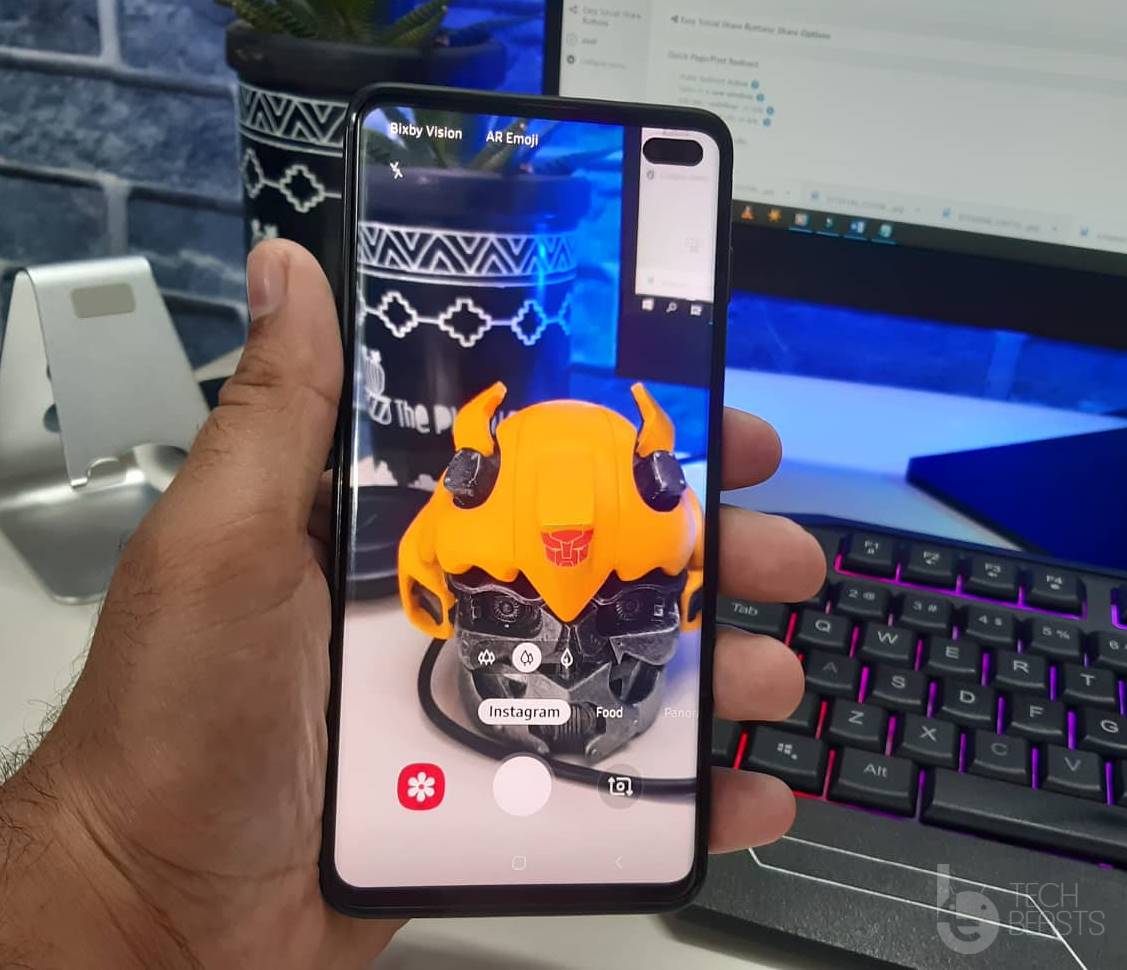
When you post stories on Instagram, you must have noted that Instagram uses the camera in full-screen mode. If you try to put pictures captured from your phone’s camera in an Instagram story, its aspect ratio will be different. You can either zoom-in the picture, but you will lose a part of the picture or video, or the second solution is to make the story using Instagram’s camera. Samsung wanted to equip the Galaxy S10 with a solution to this issue. The South Korean giant, in collaboration with Instagram, added the Instagram mode to its stock camera application.

When you open the Camera on your Galaxy S10, you can find the Instagram mode on the left side next to the Food. This mode will run your phone’s camera in full screen. Any picture or video that you shoot in this mode, can be uploaded on Instagram as it is. You don’t have to zoom in or crop a picture anymore. The Instagram Mode, indeed, is a great utility for Instagram bloggers and users.

Now that the Galaxy S10 owners got used to the Instagram Mode, it started disappearing all of a sudden. It was noted by a Redditor that this happened only after the recent Instagram update. Luckily, they were able to quickly find the solution and get it back immediately. So, as you go ahead now, you can find the steps to get Instagram Mode back on your S10.

Instagram mode dissapeared from stock camera app from r/galaxys10

Steps to fix Galaxy S10 Instagram Mode disappeared from Camera App

  1. On your Galaxy S10, open the App Drawer.
  2. Uninstall the Instagram application now.
  3. Open the Play Store and find Instagram.
  4. Install it again.
  5. Login into Instagram.
  6. Now open your Camera application.
  7. You will find Instagram Mode back there.

That’s all. Since there was a problem with the latest Instagram update, it took the Instagram mode away. You have it back now. Happy storytelling on Instagram now!

More:

Samsung Galaxy S10 GPS Accuracy Issue – How to fix

Samsung Galaxy S10 GPS Accuracy Issue – How to fix

Another day, another Galaxy S10 problem. The Samsung S10 owners have reported accuracy issues with the GPS of the phone. The phone is unable to show them the exact navigation to a place. Furthermore, when the users are using navigation while driving, it is just showing inaccurate results. At first, it looked like this was a problem with all the Galaxy S10 handsets. Later on, it turned out that only the carrier-branded Galaxy S10 phones suffered. The unlocked Galaxy S10 units are working absolutely fine. If you have been facing location accuracy problem on your Galaxy S10, it’s time to fix it. Fixing the location accuracy issue of your Galaxy S10 will take only a minute. The solution resides within the settings of the phone. Just follow the simple steps in this guide to fix Galaxy S10 GPS accuracy issue.

Galaxy S10 GPS Accuracy Issue

Before you apply the GPS accuracy issue fix, let me give you an idea of what other problems the Galaxy S10 owners have faced so far.

Samsung Galaxy S10 – Problems Train

The Galaxy S10 is one great device. In fact, it is the best flagship phone available at the moment. Samsung, after ages, has managed to pull out a perfect smartphone. S10 owners have been greatly enjoying their phone, but in the meanwhile, they have been reporting problems too. First of all, the Galaxy S10’s ultrasonic fingerprint scanner turned out to be a real pain. Samsung fixed the scanner in a biometrics security update. After that, the S10 owners reported that their phone’s alarm won’t go off after a reboot. This problem was fixed too. A huge number of Galaxy S10 owners reported the phone losing 4G LTE signals. And the list of problems goes on. The new problem is with the GPS of S10, as we have discussed it above.

Thankfully, it is really easy to make your S10’s GPS accurate once again. Remember that if you have an unlocked Galaxy S10, your phone’s GPS is already working great. Apply this solution only if you have a carrier-branded Galaxy S10.

Steps to fix Galaxy S10 GPS Accuracy Issue

  1. On the Galaxy S10, go to Settings.
  2. In Settings > Biometrics and Security.
  3. Now go to Location > Improve accuracy.
  4. Turn on options for both Bluetooth and WiFi.

Your phone will now use more power to bring an accurate location to your screen.

Wrap up

That’s all. You have no fixed the GPS lag on your Galaxy S10 or S10 Plus. This problem was first reported by Pokemon Go players as they were unable to capture the Pokemon. If you are facing any other problem, feel free to reach out to us. The best way to contact us is through the comments section below. I will try my best to get back to you as soon as possible.

More:

Google Chrome Extensions on Android [ Kiwi Browser ]

0
Google Chrome Extensions on Android [ Kiwi Browser ]

We’ve covered this same topic before in which we told you how to Install Google Chrome Extensions on Android. In the previous installment, we used Yandex and FireFox browsers. Today, I am using Kiwi Browser, Why? Because they have it easier than others.

As you all know, most of the web browsers use Google open-source Chromium browser as their base. Especially, which are not developed by Google. However, they are few who don’t use open-source Chromium instead, they use Blink browser engine. But not matter technology they use, the search engine remains the same. Moreover, all of these browsers support different features but there are two main features which are missing on all the Chromium-based browsers.

Google Chrome Extensions on Android

Those two features are bookmark and history, both of these features cannot be synced with Google or with the Chrome extensions. However, there are some browsers such as Brave Browser and Samsung Internet, they have both of these features along with the sync support.

The strange thing is Google Chromium builds don’t support Google Chrome extension, especially for Android. But nowadays, there is nothing that one cannot do, in the latest update of Kiwi Browser, they have added Chrome extension support.

So Today, in this post, we’ll tell you how to Install Google Chrome Extensions on Android using Kiwi Browser. Let’s get started.

Try: Adding Chrome Extensions on Firefox Browser:

Install Google Chrome Extensions on Android:

Before we move on, let give a short overview of Kiwi Browser. First thing you should know, Kiwi Browser is running on Google Chromium, it had amazing built-in features. Among those, there are few worth talking about, built-in dark theme, ad blocker, bottom address bar, edge history swipe gesture, reachability button. You can find all these in other Android browser apps but along with all these features, Kiwi Browser is very fast.

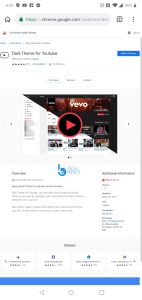
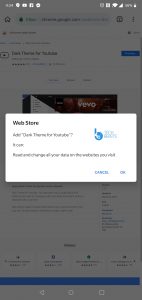
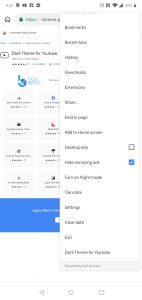
In their latest update, they have added support for Google Chrome extensions but keep that in mind, only extensions which are not under the limitation of x86 binary code. This may cut a number of Chrome extensions out but still many works just fine. I have tried few and all of them were working just fine, I tried YouTube Dark Theme and Bypass Paywall, they seem to work fine.

Now let’s start our guide and tell you how to Install Google Chrome Extensions on Android.

How to install a Google Chrome extension in Kiwi Browser:

Unknown app
Price: Free

  • Before you start downloading any extensions, you need to enable the extension support.
  • Download and Install the Kiwi Browser, launch it. Type chrome://extensions in the address bar.
  • Now enable the developer mode.

Google Chrome Extensions on Android

First Method:

  • Launch the Kiwi Browser, Open Chrome store on desktop mode.
  • From here, pick the extension you want to Install.
  • Click on Install. That’s all.

Second Method:

  • First of all, install a file manager. In this tutorial, I am using TotalCommander file manager.
  • Now download a Chrome extension in.CRX format. Try any Chrome Extension Downloader.
  • Once you have the file, change the file extension from.CRX to.ZIP.
  • Use RAR to Unzip the file. Now launch Kiwi browser, type chrome://extensions and hit enter.
  • Click on “Load unpacked extension.” Choose the manifest.json file using your file explorer.
  • Refresh the page and your extension will be there. Install it.
  • That’s all.

However, I don’t think that you will be doing this. The first method is simple and it is working, so no need to go through with all this fuss. Let’s know how’d go for you and please share your experience in the comments section. Moreover, if you haven’t got the latest update, you can use our download link to get the latest update of Kiwi Browser.

Samsung Galaxy S10 Alarm Won’t Turn Off After Reboot FIXED

Samsung Galaxy S10 Alarm Won’t Turn Off After Reboot FIXED
Galaxy S10 Alarm

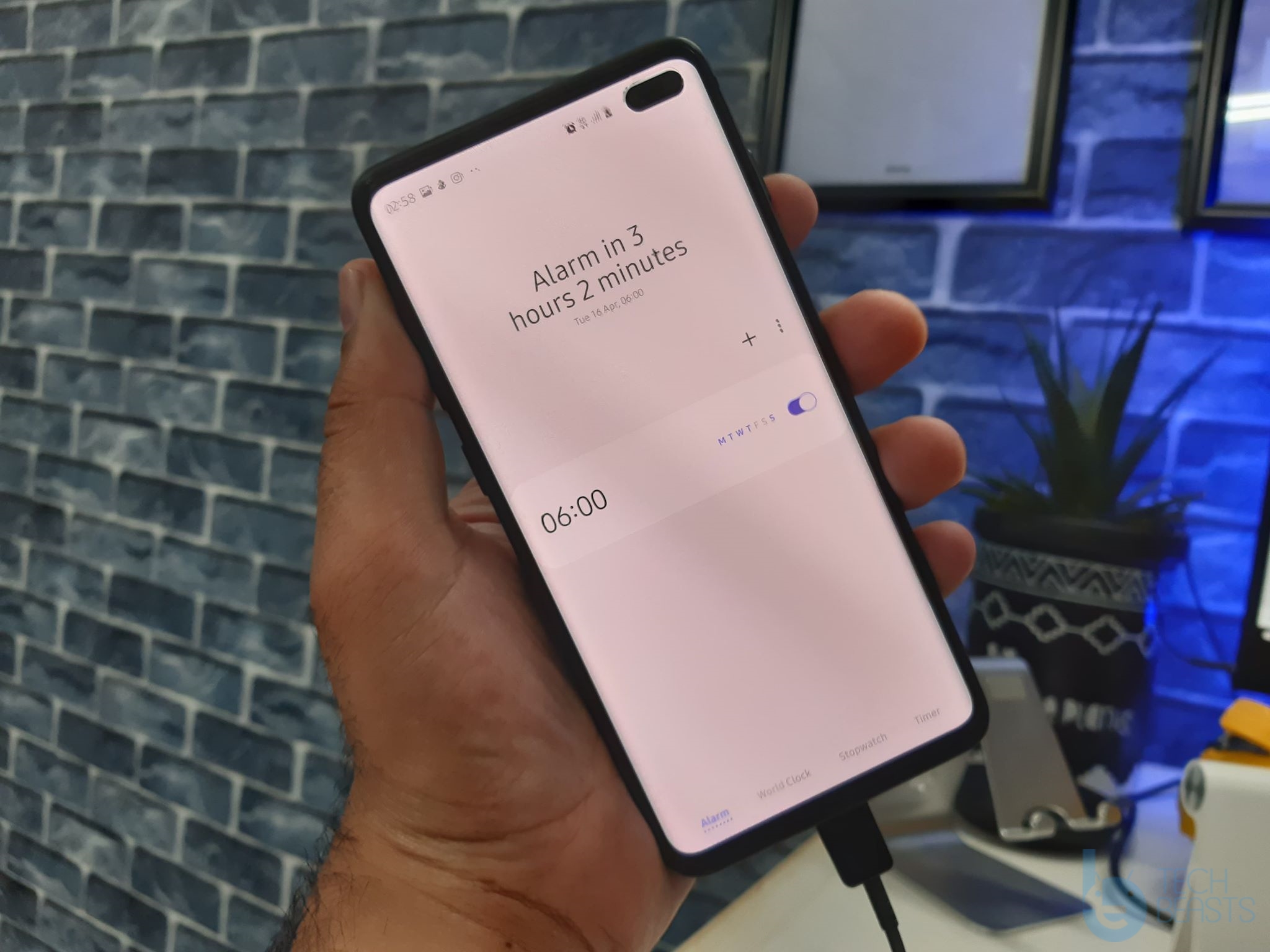
Samsung Galaxy S10 is a great smartphone, but it is suffering from great problems too. Every single day, we see a new problem popping up on this device. The device, first of all, had problems with its fingerprint scanner. Samsung fixed the fingerprint scanner in Biometrics Security update. After that, the Galaxy S10 owners started losing the 4G LTE Signals randomly. The latest problem is with the alarm on the Galaxy S10 phones. The alarm of the phone does not turn off after a reboot. Generally, the alarm is supposed to turn off after you reboot the smartphone. This means that if you just used to reboot the phone to get rid of the alarm, this will not work on the Galaxy S10 anymore. We don’t know whether this is a feature or a bug, but if you just want the old alarm mechanism back, you have landed at the right place. In this guide, I will show you the simplest steps to fix Galaxy S10 Alarm won’t turn off after reboot. This is going to be a really simple and quick procedure, so just pay attention and get it done.

Galaxy S10 Alarm
Galaxy S10 Alarm

Why Galaxy S10 Alarm did not turn off after a Reboot?

If you are wondering why the Alarm started staying on after a reboot all of a sudden, then let me tell you culprit behind this. It is none other than Samsung itself. The South Korean giant recently updated the Clock application. This not-going-off is an addition in the latest clock update. This is the very reason that I mentioned not being sure if this is a bug or a feature, but is there. This problem was noted by a number of S10 owners and they took it to Reddit. A user made a YouTube video on this problem. You can watch the YouTube video below.

To fix this problem on your S10, you just have to play with the clock application. You will have the old Alarm back on your S10 within a minute. Below you can find the steps to fix the Alarm not turning off problem on the Galaxy S10. I have personally tried this method and it works pretty well.

Steps to Fix Samsung Galaxy S10 Alarm Won’t Turn Off After Reboot

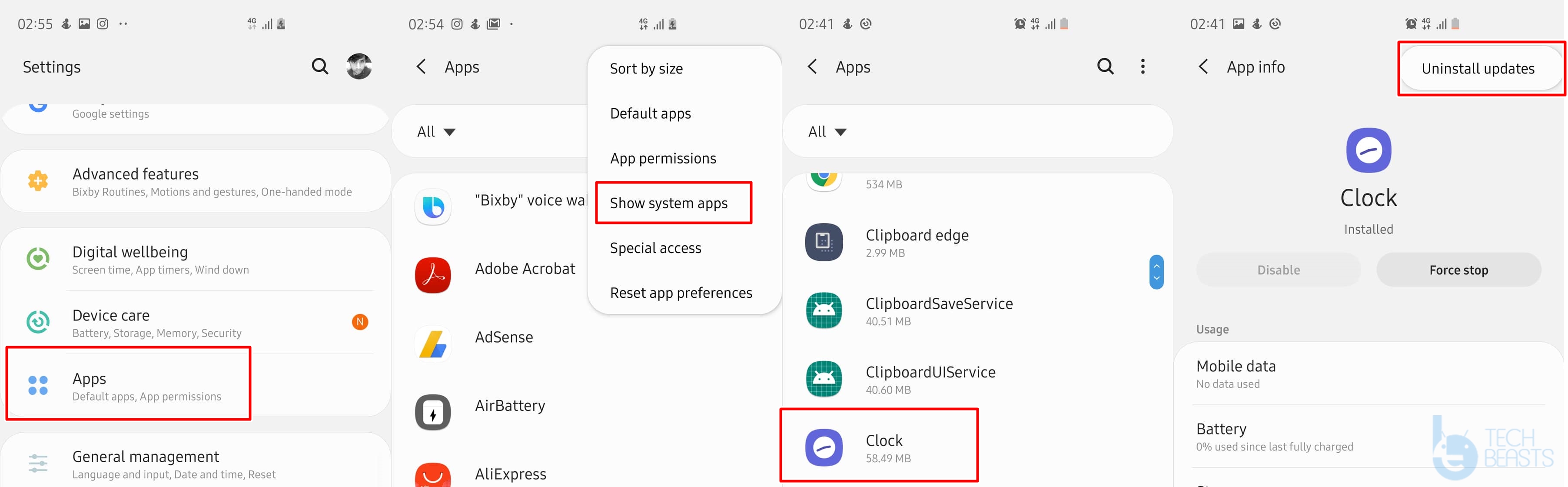
  1. On your phone, go to Settings > Apps.
  2. Click on the Three Dots on top right corner > Show System Apps.
  3. Now scroll down to find “Clock”.
  4. Open Clock > Click on Three Dots on top right corner > Uninstall Updates.
  5. Now uninstall the updates.

    Galaxy S10 Alarm Won't Turn Off After Reboot
    Fix Galaxy S10 Alarm Won’t Turn Off After Reboot
  6. Reboot your phone and you will see the Alarm gone off now.
  7. You can set the alarm again and start using it normally.

Wrap Up

As you have no fixed the Galaxy S10 alarm problem, your phone should be back to normal. If you have any further problems with your S10, you can reach out to us for a solution. The best way to contact us is through the comments section below. I will definitely try my best to get back to you as soon as possible.

How to fix Galaxy S10 4G LTE Signal Problem

How to fix Galaxy S10 4G LTE Signal Problem
Galaxy S10 4G LTE Signal Problem

Samsung Galaxy S10 owners started reporting about an issue with the 4G LTE signals a few days back. After an opening report, it turned out that this was a widespread issue. Galaxy S10 owners on Sprint, Verizon, T-Mobile, and then At&t confirmed to this issue. The 4G LTE first vanishes from the status bar first, it then shows 4 or 2 bars. After a while, it switches to 3G or H+. This has been happening for quite a while now. It has definitely made the Galaxy S10 owners angry. If you are going through such an issue as well, it’s time to fix it. In this guide, I will show you a few solutions to fix Galaxy S10 4G LTE Signal problem. You just have to follow the steps carefully to fix the 4G LTE signals dropping on your phone.

Galaxy S10 4G LTE Signal Problem

Before you go through the solutions, let me give you an idea of the background of this issue.

Galaxy S10 and S10+ 4G LTE Signal Problem – Losing Cell Data and Signals

Samsung Galaxy S10 is the most powerful phone by the South Korean giant. Being the best from Samsung doesn’t make it free of problems. The Galaxy S10 first suffered from the Fingerprint Scanner problems, which Samsung fixed in a Biometrics Security update. At the same time, the Galaxy S10 owners reported that they were having a problem with the LTE and 4G connectivity on their phone.

Initially, Verizon and Sprint users reported this issue. At that time, it seemed that there was an issue with the Network carriers. Later on, the issues were confirmed by At&t and Verizon Galaxy S10 owners. Not only the carrier-branded phone owners, but the US Unlocked Galaxy S10 owners on Verizon reported the phone losing cell data and signals too. An Australian Galaxy S10 owner on Telstra reported that he was loosing the 4G LTE signals on his phone too. At this point, it was already confirmed that this issue is now occurring on a specific network, or in a specific country.

This is a widespread issue with the Galaxy S10 and S10+ phones. Samsung may or may not be working on an update to fix this problem, but this is getting annoying now. As a Samsung Galaxy S10 Plus owner, I can completely understand how it feels having such a problem on your phone while you have spent a fortune on it.

While we are not sure when Samsung will fix the S10’s signal strength problem, we can try a few solutions on our own in the meanwhile. Below in this post, I will share some ideas that you can try on your phone to fix the Signals problem.

Steps on How to fix Galaxy S10 4G LTE Signal Problem

We know that this is not a problem with the SIM card or the Network, so we will not touch the SIM card or any similar settings. We will only try resetting a few settings. Follow the solutions given below one by one. If a solution works for you, you do not need to try other solutions.

Clear Cache of Galaxy S10

  1. Turn off your Galaxy S10 or S10+.
  2. Press and hold Volume Up + Bixby + Power button to turn on.
  3. As you see recovery mode, use Volume Down to highlight “Wipe cache partition”.
  4. Press the Power button to select > Yes.
  5. The cache will be wiped now. Reboot your phone.
  6. Observe the 4G LTE Signals for a while. If the issue doesn’t happen again – Enjoy!

Boot your phone into Safe Mode and check 4G LTE

The apps installed on your phone can greatly effect the functionality of other features sometimes. To check if an application is not the culprit, boot the phone in Safe Mode.

  1. Turn off the Galaxy S10.
  2. Now turn on the phone.
  3. As soon as the phone vibrates, press and hold the Volume Down key.
  4. When you see the home screen, you will find the Safe Mode watermark on the lower-left corner.
  5. All third-party apps have been disabled now.
  6. See the Galaxy S10 LTE performance now. If it works well, it means you need to check your recent app installations and delete any application that may be causing the problems.
  7. Reboot your phone again to get out of the Safe Mode.

Check Network mode on your Galaxy S10

Clearing the cache can work wonders some times. These are the steps.

  1. Open Settings on your S10.
  2. Go to Connections > Mobile Networks.
  3. Make sure that the Network mode is set to LTE/3G/2G/auto connect.
  4. If it’s not, set it now and Reboot the S10.
Galaxy S10 - Network Mode
Galaxy S10 – Network Mode

Reset Network Settings on your Galaxy S10

If you think that there is some sort of misconfiguration between your phone and the Network, you can reset the Network Settings. Here is how to do this.

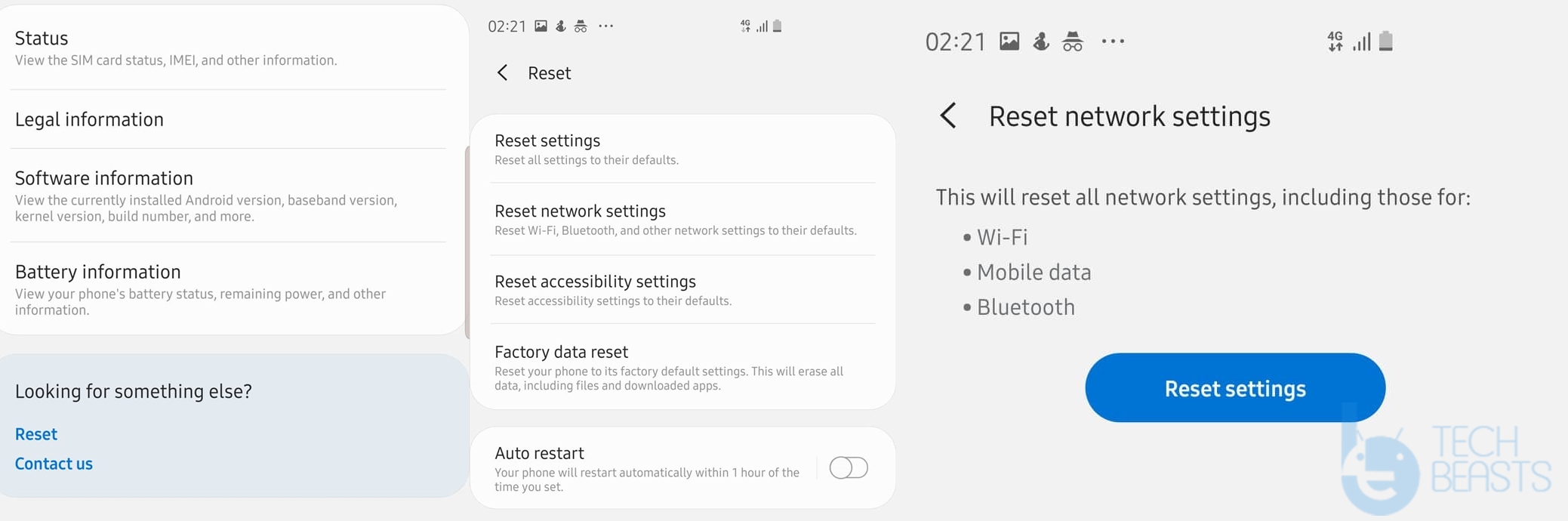
  • On the Galaxy S10, go to Settings > About phone.
  • Now scroll down to the bottom and click on RESET.
  • Under RESET > RESET Network Settings > RESET > RESET.
  • Reboot your phone after resetting Network settings.
  • Check the Galaxy S10 or S10+ 4G LTE Connectivity now.
Galaxy S10 - Reset Network Settings.
Galaxy S10 – Reset Network Settings.

Factory Reset your Galaxy S10

This solution falls at this number because of its complexity. It will definitely wipe your phone completely, so before you decide to reset it, take a look at this guide to backup Galaxy S10. You should only try this method if none of the solutions listed above have worked for you.

  1. Power down your phone completely.
  2. Press and hold Volume Up + Bixby + Power button to boot into recovery.
  3. In the recovery, use Volume Down to select “wipe factory data reset”. Press the Power button to make a selection.
  4. Wipe the data now.
  5. Restart your phone.
  6. Monitor the 4G LTE to see if it’s working fine now or not.

Install new Galaxy S10 Firmware

None of the solutions above worked? Your last bet is to wait for a Software update and install it as it comes in. In this guide to install stock firmware on Galaxy S10, I have explained the methods to install software updates through OTA, and also manually. If Samsung has already released an update for your phone, you should not wait for a second and update the phone instantly. We do expect Samsung to take note of this problem and make things good for S10 owners once again.

Final Words


That’s all with this tutorial. Hopefully, your Galaxy S10’s 4G LTE connectivity will be working fine now. If you are still facing an issue, we suggest you to contact Samsung support or take your phone to the nearest service center. While the Galaxy S10 is a pretty new phone, it must be under warranty and Samsung is responsible for fixing it. It doesn’t matter what Samsung has to do to fix this problem (Update the Software or replace the unit), it must get the Galaxy S10 owners out of this pain. If you have any further queries, feel free to reach out to us. I will try my best to get back to you as soon as possible.

Fixed: Spotify buttons on lock screen no longer working

0
Fixed: Spotify buttons on lock screen no longer working

It seems Spotify new update did mess thing up. We have seen many users reporting about Spotify buttons on lock screen no longer working. Moreover, all of these reports came from Android users, Seems like iOS users are having fun with Spotify without any problems.

In this post, we will tell you what to do if you are among those users. In order to Spotify buttons on lock screen no longer working, you need to work with us. First, let’s tell you what users are reporting and then we will proceed with the fixing process.

Spotify buttons on lock screen no longer working

Spotify buttons on lock screen no longer working on Android:

If you started facing this issue after updating your Spotify app to the latest version, you can fix it with ease. However, if that is not the case, then you need to do a bit more.

Try this: Here Is How You Can Use Spotify Outside UK, US

Users from Reddit:

The buttons for skip/pause are there but don’t work when I press them anymore.Reddit

Macallan82: The software has bugs ranging from this to the proximity sensor not working properly. These are basic things that should be working. It’s tempting me to use my iPhone again where basic functionality works.Reddit

darkfires102: Noticed it with my car, its the new Spotify update. Same thing happened on my s8 till they patched it.
.Reddit

dastinger: It’s probably an issue on Spotify’s side. In the meantime, disable lock screen music controls so you get the regular Spotify notification.Reddit

How To Fix Spotify buttons on lock screen no longer working:

If you are an Android user and facing Spotify buttons on lock screen not working problem. Then heed the instructions below to fix it.

Read: How to Recover Deleted Spotify Playlists

Reboot:

A simple reboot is an ultimate solution to every problem you face on your gadgets. In this case, it might work for you too, as it did work for Reddit user ” Solful “. All he did was he restarted his device and Spotify buttons on lock screen started working.

Clear Cache & Data:

  1. On your Android phone, go to Settings.
  2. Find the Application Manager or Application settings.
  3. In the Application settings, swipe towards the All or the Running Applications tab.
  4. Select the application of which you want to clear the cache and data.
  5. A list of further options will appear now, tap the Storage option.
  6. Under the Storage option, you will find Clear Cache and Clear Data options.
  7. Tap the button according to your liking.
  8. That’s all.

Download and Install Old Spotify Version [ APK ]:

We have added the links of old Spotify versions below, all you have to do is download the old Spotify version APK from the following links. Once you have the APK, follow the instruction provided at the end of the post to install the Spotify APK.


Install Spotify APK:

  • Download Spotify APK
  • Copy the APK to your phone.
  • Open the File Manager on the phone and then open Spotify APK.
  • Install the APK. If the phone asks for unknown apps installation permission, allow it.
  • Finish the APK installation now.
  • Launch Spotify from the App Drawer.

That’s all.

Download Galaxy S10 Biometrics Update Manually via ADB

Download Galaxy S10 Biometrics Update Manually via ADB
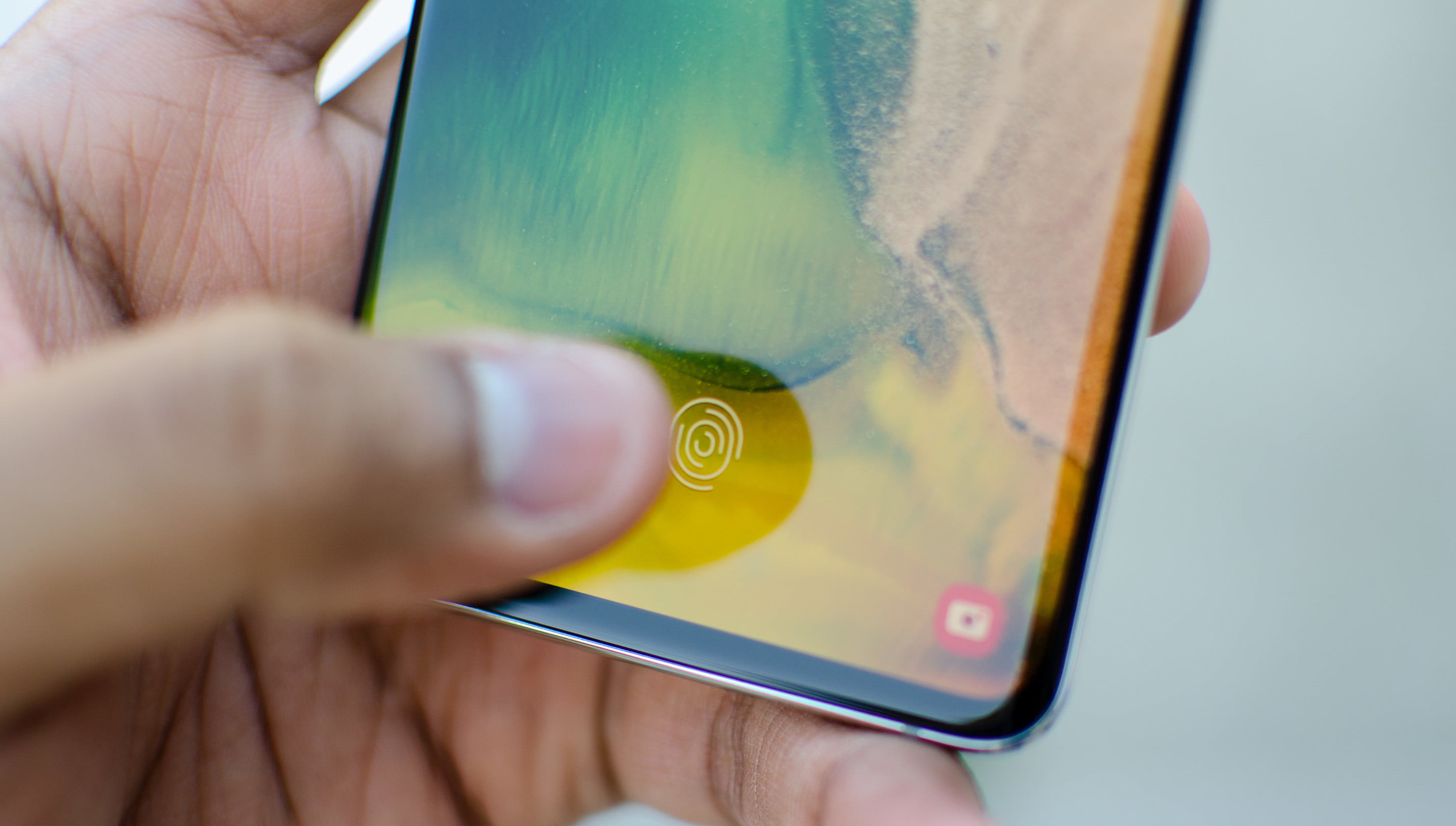
Image Credits: Digital Trends

If you are Galaxy S10 owner who wants to push the Biometrics Update manually can follow this guide. You can find the steps to download Galaxy S10 Biometrics Update manually via ADB. This is by far the best method to immediately get the Biometrics Update on your Galaxy S10 or S10 Plus. I have tried to explain this method in laymen terms. It should be really easy for you to follow it.

Samsung Galaxy S10’s biometrics update is finally here. Samsung promised this update after facing severe criticism for not making the Galaxy S10’s fingerprint scanner efficient. Galaxy S10 and S10 Plus come with an ultrasonic fingerprint scanner beneath the display. The ultrasonic scanner is the most powerful and fastest fingerprint scanner, but Samsung couldn’t show off its real potential in the first term. When the Galaxy S10’s fingerprint scanner was disliked by masses, Samsung promised a software update to fix it.

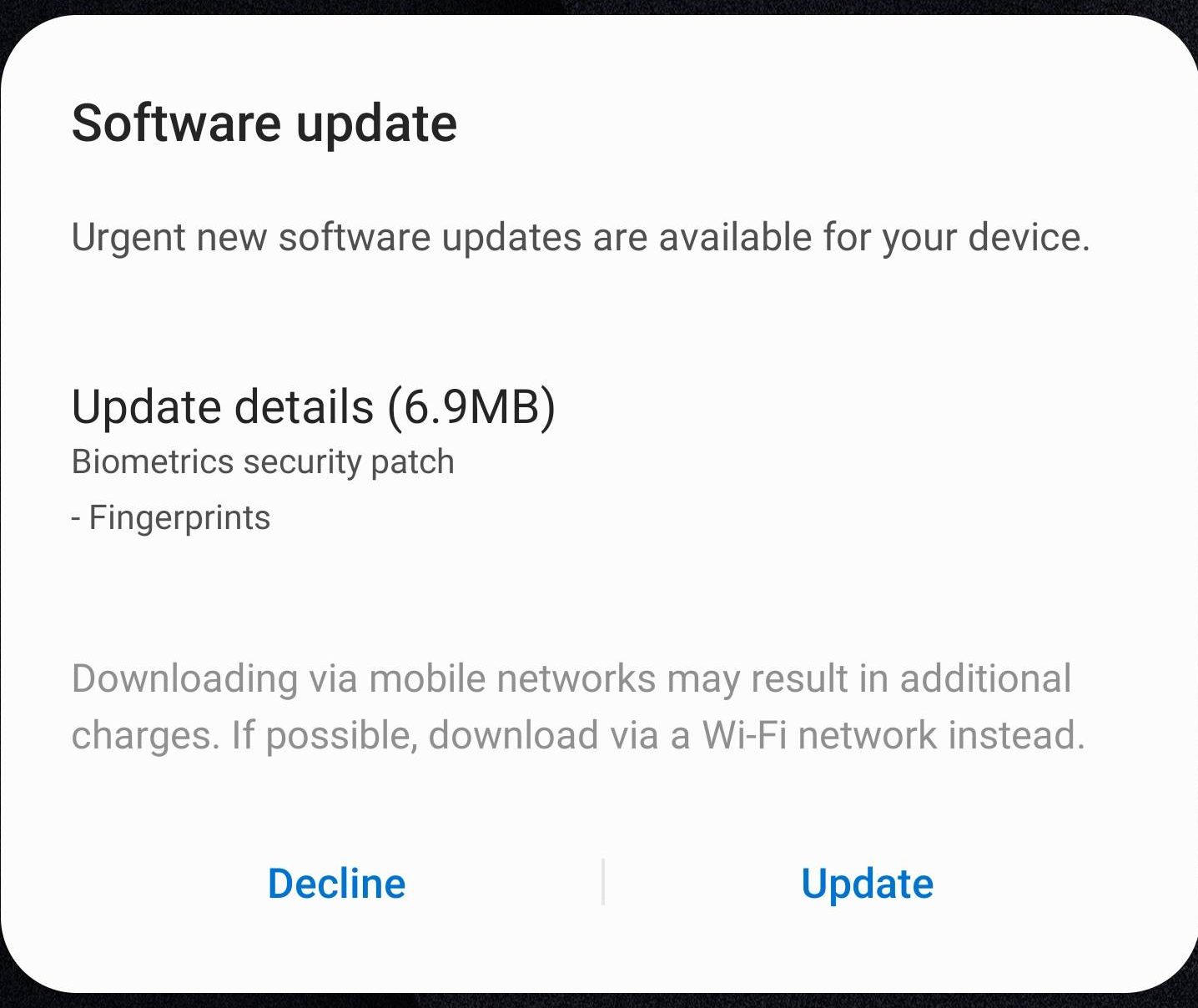
Starting yesterday, Samsung rolled out the update for the users in Canada first. The update then made its way to other countries. This update made its way through the Galaxy App store. It is just a 6.9MB update that can be installed within a few seconds. Unfortunately, the biometrics update has failed for a number of users as they reported on Reddit. Keeping in view the problems users were facing with the Galaxy S10 Biometrics Update, someone came up with the idea of a manual update.

Remember that this method will work only for the devices which are eligible for this update. At the moment, both the Exynos and Snapdragon variants are getting the update. You only need to make sure that your specific Galaxy S10 Model is getting this update, it doesn’t matter where. If Samsung has not pushed this update for your model yet, you may be out of luck. The method has worked for Chinese Snapdragon Galaxy S10 owners. I also tried this update on my G975FD Galaxy S10 Plus and found it working.

Download Galaxy S10 Biometrics Update Manually via ADB

Follow these simple steps to update your Galaxy S10 with the latest Biometrics Update right away. This method will work for both the Galaxy S10 and S10 Plus.

Install Minimal ADB and Fastboot on your computer – Full Guide.

  1. On your Galaxy S10 or S10 Plus, go to Settings > About Phone > Software Information > Tap the build number for 7 times.
  2. This will enable the Developer Options on the phone.
  3. Go back to Settings > Developer Options > USB Debugging > Allowed.
  4. Connect your Galaxy S10 to the computer now. If the phone asks to trust the computer, allow it.
  5. Now open Minimal ADB and Fastboot.exe from your Desktop.
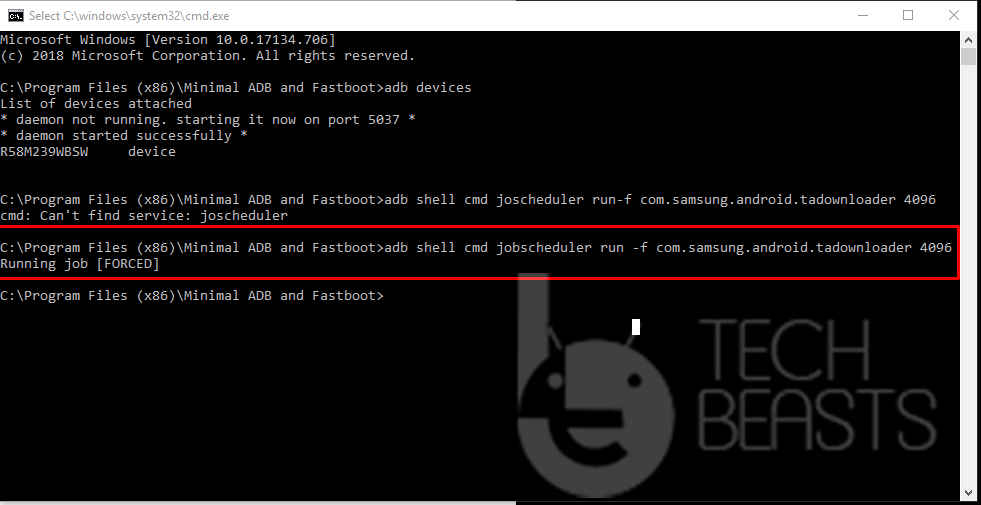
  6. In the ADB Window, enter this command: adb shell cmd jobscheduler run -f com.samsung.android.tadownloader 4096
  7. As soon as you enter the command, you will get this message: Running job [FORCED]

    Galaxy S10 Biometrics Update Manually via ADB
    Galaxy S10 Biometrics Update Manually via ADB – Download &  Enlarge
  8. In the notifications area of your S10, you will find the Galaxy App Store install Biometrics Update.
  9. After the update, restart your S10/S10 Plus. That’s all.

Don’t forget to take a look at Galaxy S10 Battery Drain after Biometrics Update FIXED.

Final Words

That is all. Your Galaxy S10’s fingerprint scanner should be lightning fast after this update. The ultrasonic fingerprint scanner is the best solution for in-display fingerprint and it has got much better with Samsung’s latest update. If you are facing any other issue with your phone, feel free to reach out to us. The best way to contact us is through the comments section below. I will try my best to get back to you as soon as possible. Thank you all.

Galaxy S10 Battery Drain after Biometrics Update FIXED

Galaxy S10 Battery Drain after Biometrics Update FIXED

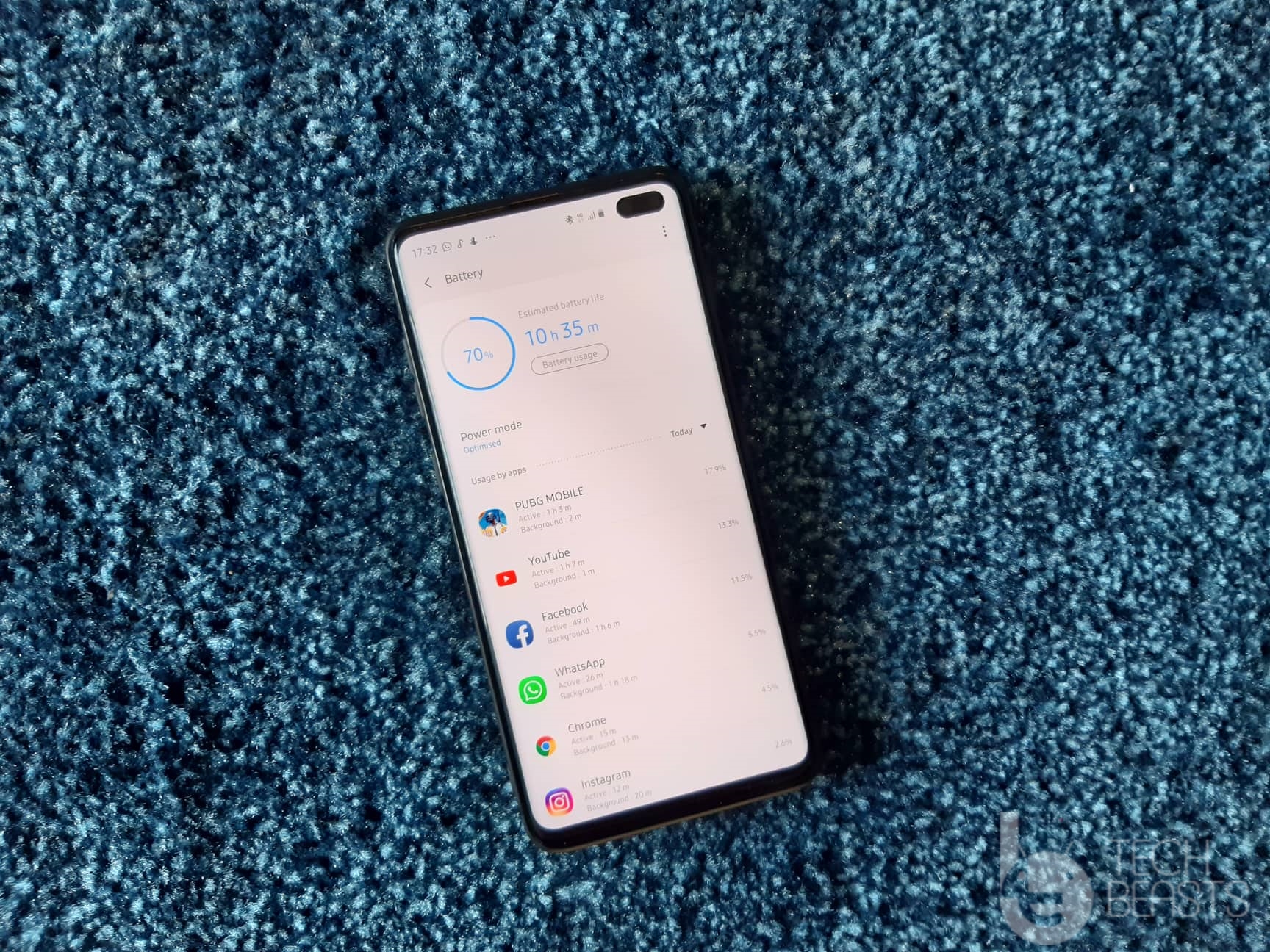
Samsung released the Biometrics Security Patch update for the Galaxy S10 and S10 Plus a day back. The update, which fixed the fingerprint scanner on Galaxy S10 and S10 Plus, seems to have messed a lot of other things. As reported by Reddit users, they are experiencing a horrible battery drain after biometrics update. Some users reported that they were losing 3-4% battery every hour while the phone was on standby. A couple of users claimed that their screen-on-time reduced from 6 hours to 4-5 hours after this update. Now, these stats are terrible. A phone like the Galaxy S10, with efficient hardware and software, should be lasting for long. As a Galaxy S10 Plus owner, I totally understand what you are going through. To ease it up for you, I am going to list down the solutions that have fixed battery drain problem for many users. So, go ahead, take a look at the few simple steps to fix Galaxy S10 Battery Drain after Biometrics update. Keep in mind that this guide is valid for both the Galaxy S10 and S10 Plus users.

Galaxy S10 Battery Drain after Biometrics Update

Before you apply the fix, let me give you a background of this update.

Galaxy S10 and S10 Plus Biometrics Security Patch

Galaxy S10 and S10 Plus are the world’s first phones to come with an ultrasonic fingerprint scanner. The fingerprint scanner, which was supposed to be the fastest in-display scanner, turned out to be a dud. Samsung was criticized by every single tech segment because of not making the scanner work right. The fingerprint scanner failed for at least 8 times out of 10. Furthermore, the fingerprint scanner fails to work under glass screen protectors. Ultrasonic fingerprint scanner uses Air to transfer sound waves in order to cast the thumb impression on the scanner. When you use a glass screen protector, there is no room for air between the screen and scanner. This is why it fails to work with those protectors. It didn’t take long for the glass screen protector companies to come up with a solution, but the fingerprint scanner’s functionality was yet to be improved by Samsung. The South Korean giant promised to fix fingerprint scanner problems in a software update.

Galaxy S10 Biometrics Update Failed
Image Credits: Digital Trends

A day back, Samsung released a “Biometrics Security Patch” update. This 6.9MB update was solely for the fingerprint scanner. The update seemed to work. Galaxy S10 and S10 Plus owners were blushing out of happiness after seeing how fast the fingerprint scanner has got. Galaxy S10 and S10 Plus may have the fastest under-display fingerprint scanner after this update. Not only the fastest, but the ultrasonic fingerprint scanner is also much more secure than the optical readers. Now that we have the S10’s scanner working at its best, a new problem with the battery occurred.

Galaxy S10 Battery Drain after Biometrics Update

Phone owners who reported the battery drain problem, they said that this issue came up only after the update. Before the update, the battery time of the phone was absolutely fine. While going through different forums, I found that some of them were able to fix this problem instantly. I am going to tell you about those fixes here too. The fixes are really simple and easy to apply. Take a look at the 2 procedures below.

Snapdragon 855 Galaxy S10 Battery after update: It lost 12% in Idle Mode.

How to fix Battery Drain after Biometrics Update on Galaxy S10/S10 Plus

  1. First of all, after this update, reboot your phone.
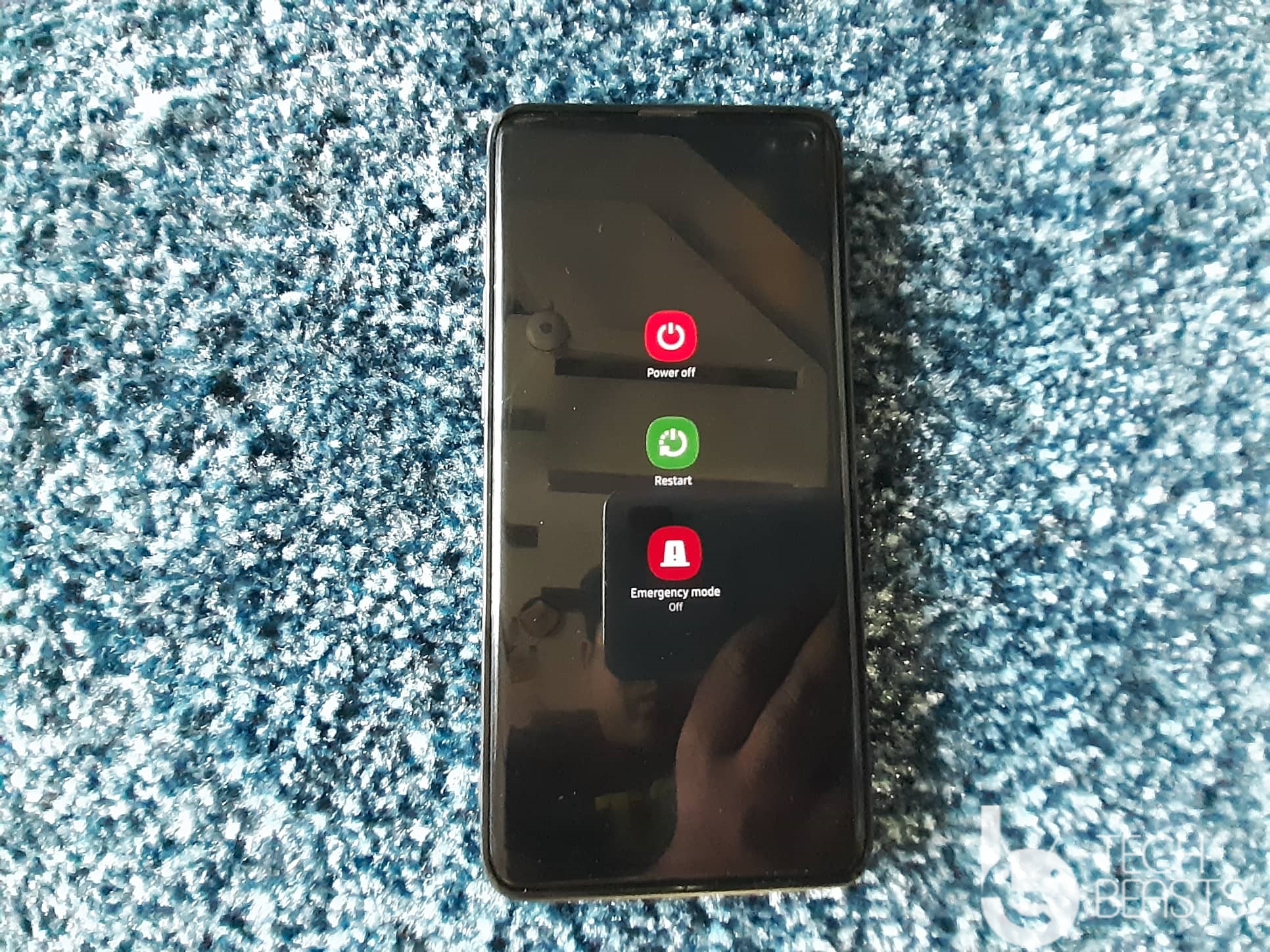
  2. To Reboot the phone, press and hold the Power button for 3 seconds > Click on Restart.Restart Galaxy S10
  3. The phone will take about 10 – 15 seconds to restart completely.
  4. The battery of your phone should be all fine now.

If restarting hasn’t fixed it, follow the next procedure.

Clear Cache of Galaxy S10

  1. Turn off your Galaxy S10 completely.
  2. Press and hold Volume Up + Bixby + Power button to go into recovery mode.
  3. As you see the recovery mode, press Volume Down to highlight “Wipe cache partition”.
  4. Press the Power Key to enter Cache Partition. Highlight “Yes” with Volume Down. Press Power Key to wipe it.
  5. Reboot your phone to the system now.
  6. The battery life of your Galaxy S10 or S10 Plus should be fixed now.

Here’s a video on how to enter Recovery Mode on Galaxy S10.

Wrap Up

That’s all. You have now restored the battery performance of your S10 or S10+. If you have any further issues, feel free to reach out to us. I will try my best to get back to you as soon as possible. Thank you all.

Download Google Play Store APK – June 2019

3
Download Google Play Store APK – June 2019

Here you can find the latest Google Play Store APK. The latest version of the Play Store is 15.2.38. The Play Store 15.2.38 was released on June 7, 2019. Download the latest Google Play Store APK from below and follow the instructions to install it.

Play Store APK

Google Play Store is the most essential part of an Android phone. To keep the Play Store up and running, Google updates it very often. Every week, we see a new version of Google Play Store with some new changes. It is also important for the users to keep the Play Store on their phones updated to avoid security risks. Generally, an Android phone itself updates the Play Store whenever an update is rolled out, but if your phone is failing to do so, you may update it manually. Also, the users who do not have the Play Store on their phones, they can install it manually using its APK.

Google Play Store APK for Android

Back in the day, there was a specific version of the Play Store for each architecture. Gone are the days when the Play Store was dependent on the ARM, ARM7a or ARM8a. Nowadays, Google releases a universal nodpi version of the Play Store. It supports any Android phone running on Android 4.0 or higher. There is still a different version of the Play Store for Android TV and Android Wear, and obviously, you can find that version down below as well.

Play Store Insights

Before you download Google Play Store APK, let me give you an idea about how big the Play Store is right now. As of May 2019, the Play Store has over 2.6M applications. 95.2% of the applications in the Play Store are free while only 4.8% are paid apps. The Play Store generates billions of downloads every month. It is the fastest growing app store among all that exist to date.

Download the latest Google Play Store APK now and pay a little bit of attention to the instructions below to install it right now.

Google Play Store 15.2.38 APK by Google LLC  – June 7, 2019

Data Details
Play Store Version 15.2.38-all [0] [FP] 251724905 (nodpi) (Android 4.1+)
Release Data May 24, 2019
Architecture armeabi/armeabi-v7a/mips/mips64/x86/x86_64 
DPI nodpi
Size 19.12 MB
Package Name com.android.vending
Play Store APK for Android Phones Download


Google Play Store Previous Versions

Google Play Store 15.2.23 APK by Google LLC  –
June 4, 2019

Data Details
Play Store Version 15.2.23-all [0] [FP] 250991211 (nodpi) (Android 4.1+)
Release Data June 4, 2019
Architecture armeabi/armeabi-v7a/mips/mips64/x86/x86_64 
DPI nodpi
Size 19.12 MB
Package Name com.android.vending
Play Store APK for Android Phones Download

Google Play Store 15.1.28 APK by Google LLC  – June 3, 2019

Data Details
Play Store Version 15.1.28-all [0] [FP] 251490413 (nodpi) (Android 4.1+)
Release Data Juen 3, 2019
Architecture armeabi/armeabi-v7a/mips/mips64/x86/x86_64 
DPI nodpi
Size 19.04 MB
Package Name com.android.vending
Play Store APK for Android Phones Download

Google Play Store 15.1.24 APK by Google LLC  – 31st May 2019

Data Details
Play Store Version 15.1.24-all [0] [FP] 250386160 (nodpi) (Android 4.1+)
Release Data May 31, 2019
Architecture armeabi/armeabi-v7a/mips/mips64/x86/x86_64 
DPI nodpi
Size 19.04 MB
Package Name com.android.vending
Play Store APK for Android Phones Download


Google Play Store 15.1.23 APK by Google LLC  – 24th May 2019

Data Details
Play Store Version 15.1.23-all [0] [FP] 249868188 (nodpi) (Android 4.1+)
Release Data May 24, 2019
Architecture armeabi/armeabi-v7a/mips/mips64/x86/x86_64 
DPI nodpi
Size 19.04 MB
Package Name com.android.vending
Play Store APK for Android Phones Download


Google Play Store 15.0.13 APK by Google LLC  – 23rd May 2019

Data Details
Play Store Version 15.0.13-all [0] [FP] 249138589 (nodpi) (Android 4.1+)
Release Data May 23, 2019
Architecture armeabi/armeabi-v7a/mips/mips64/x86/x86_64 
DPI nodpi
Size 19.01MB
Package Name com.android.vending
Play Store APK for Android Phones Download


Google Play Store 15.0.11 APK by Google LLC  – 22nd May 2019

Data Details
Play Store Version 15.0.11-all [0] [FP] 248420241 (nodpi) (Android 4.1+)
Release Data May 22, 2019
Architecture armeabi/armeabi-v7a/mips/mips64/x86/x86_64 
DPI nodpi
Size 19.01MB
Package Name com.android.vending
Play Store APK for Android Phones Download


Google Play Store 14.9.76 APK by Google LLC  – 21st May 2019


Data Details
Play Store Version 14.9.76-all [0] [FP] 248813671 (nodpi) (Android 4.1+)
Release Data May 21, 2019
Architecture armeabi/armeabi-v7a/mips/mips64/x86/x86_64 
DPI nodpi
Size 19.01MB
Package Name com.android.vending
Play Store APK for Android Phones Download

Google Play Store 14.9.70 APK by Google LLC  – May 2019

Data Details
Play Store Version 14.9.70-all [0] [FP] 248420241 (nodpi) (Android 4.1+)
Release Data May 17, 2019
Architecture armeabi/armeabi-v7a/mips/mips64/x86/x86_64 
DPI nodpi
Size 19.01MB
Package Name com.android.vending
Play Store APK for Android Phones Download


Google Play Store 14.7.50 APK by Google LLC  – April 2019

Data Details
Play Store Version 14.7.50-all [0] [FP] 244421004 (nodpi) (Android 4.1+)
Release Data April 24, 2019
Architecture armeabi/armeabi-v7a/mips/mips64/x86/x86_64 
DPI nodpi
Size 19.14MB
Package Name com.android.vending
Play Store APK for Android Phones Download


Google Play Store 14.6.56 APK by Google LLC  – April 2019

Data Details
Play Store Version 14.6.56-all [0] [FP] 243790928 (nodpi) (Android 4.1+)
Release Data April 19, 2019
Architecture armeabi/armeabi-v7a/mips/mips64/x86/x86_64 
DPI nodpi
Size 19.06MB
Package Name com.android.vending
Play Store APK for Android Phones Download

Google Play Store 14.6.15 APK by Google LLC  – April 2019

Data Details
Play Store Version 14.6.15-all [0] [FP] 244070193 (nodpi) (Android 4.1+)
Release Data April 19, 2019
Architecture armeabi/armeabi-v7a/mips/mips64/x86/x86_64 
DPI nodpi
Size 18.87MB
Package Name com.android.vending
Play Store APK for Android Phones Download

Google Play Store 14.5.52 APK by Google LLC  – April 2019

Data Details
Play Store Version 14.5.52-all [0] [FP] 242174447 (nodpi) (Android 4.1+)
Release Data April 11, 2019
Architecture armeabi/armeabi-v7a/mips/mips64/x86/x86_64 
DPI nodpi
Size 18.85MB
Package Name com.android.vending
Play Store APK for Android Phones Download

  • Google Play Store APK for Android Wear – Download [September 28, 2018]
  • Google Play Store APK for Android TV – Download [April 11, 2018]

How to install Google Play Store APK

  1. Copy the downloaded APK to your phone.
  2. On your phone, open Settings > Security > Allow Unknown Sources.
  3. Using a File Manager, open the Play Store APK.
  4. Install the APK now.
  5. Your Play Store will updated/installed.

In some cases, you will need the Play Services too. You can download Play Services APK from here.

This post is updated on regular basis. You will always find the most recent version of the Play Store here on this page. Subscribe to our site to stay updated with the latest Google Apps. If you have any queries or questions, use the comments section given below.

More:

Samsung Galaxy Note 10 Model Numbers and Differences

0
Samsung Galaxy Note 10 Model Numbers and Differences

Samsung is going to release the Galaxy Note 10 this year. The unveiling of the Galaxy Note 10 is going to be different from its predecessors. Samsung is expected to launch 2 different 4 different variants of the Galaxy Note 10. We are going to have two standard Galaxy Note 10 devices and then 2 5G variants of the same devices. Before you get caught up in a lot of confusion regarding the Galaxy Note 10, I decided to make this post. Down below in this post, you can find the Samsung Galaxy Note 10 Model Numbers and their differences.

Galaxy Note 10 Model Numbers

Before you take a look at the Galaxy Note 10 Model Numbers, let me give you an idea of what’s expected from the Samsung Galaxy Note 10.

Samsung Galaxy Note 10

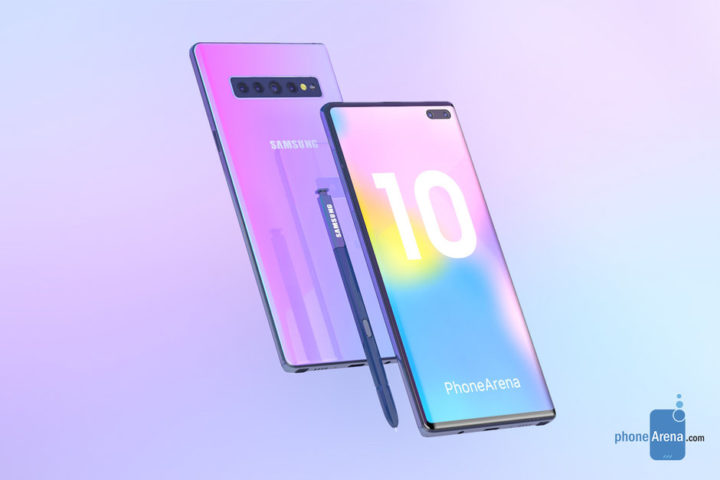
We have the Galaxy S10 lineup out now, which laid the basis for the Galaxy Note 10’s design. Every year, the Galaxy Note smartphone follows the design language of that year’s Galaxy S smartphone. The Galaxy S10 Plus came with 3 cameras at the back and a dual punch-hole camera on the front. The Galaxy Note 10 will most probably sport the same features. As we saw a 5G variant of the Galaxy S10 Plus, which was a more powerful smartphone than the standard S10 Plus, we are expected to see the same with the Galaxy Note 10. There is a 5G variant expected of the Galaxy Note 10 too.

Galaxy Note 10 Concept by PhoneArena

Conventionally, Samsung releases only a single variant of the Galaxy Note smartphone. This time, it is expected to release a standard Galaxy Note 10 and its smaller variant. Samsung might have just wanted to implement its Galaxy S10E strategy here.

Now that we are going to have two Galaxy Note 10 phones, we will see 5G versions of both Galaxy Note Tens. I am sure that you are completely confused right now, but that’s what Samsung does every year.


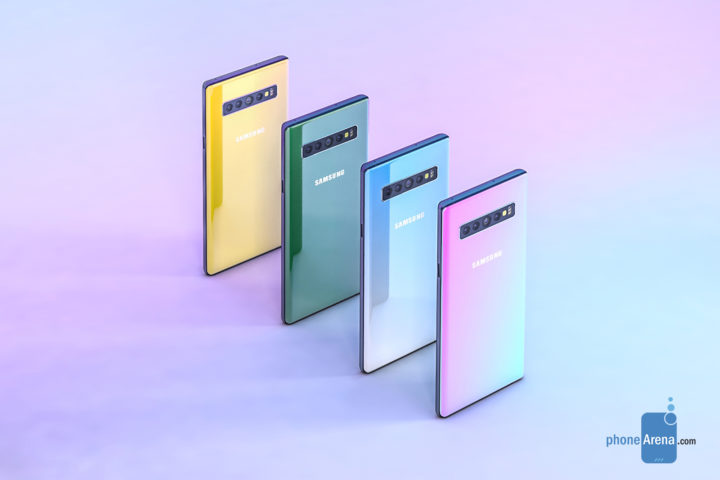
Galaxy Note 10 Concept by PhoneArena

Galaxy Note 10 – Expected Specs

The standard Galaxy Note 10 will have a screen of 6.75-inches while the smaller Note 10 will have a 6.28-inches screen. This will be a Dynamic AMOLED screen. Underneath the display, there will be the ultrasonic fingerprint scanner. These phones will have triple and quad-rear cameras respectively. On the front, both will have dual shooters. These phones will be powered by Exynos 9820 or Snapdragon 855 SoCs. RAM will be 8GB or 12GB in the phones while the internal storage options will be 128GB/512GB and 1TB. The 5G versions are also expected to have the same specifications.

The leaked model numbers have suggested the smaller Galaxy Note 10 to have the model number SM- N970. Its 5G version will be SM-N971. The bigger Galaxy Note 10 will have the model number SM-N975 and SM-N976 for the 5G version.

Apart from these standard model numbers, Samsung will release a different model number for each specific region. So, if you want to know what model number of Galaxy Note 10 your country will get and what will be different in it, you can take a look at the tables below.

Samsung Galaxy Note 10 Model Numbers and Differences

Galaxy Note 10 Model Numbers and Differences – 6.28-inches

Device NameModel NumberChipsetRegionConnectivity
Galaxy Note 10 (6.28-inches)SM-N9700Snapdragon 855China (Hong Kong)SIM1:TDD-LTE+FDD-LTE+WCDMA+TD-SCDMA+GSM;SIM2:GSM
Galaxy Note 10 (6.28-inches)SM-N970FExynos 9820GlobalFDD-LTE+WCDMA+GSM
Galaxy Note 10 (6.28-inches)SM-N970USnapdragon 855T-MobileFDD-LTE+WCDMA+GSM
Galaxy Note 10 (6.28-inches)SM-N970SExynos 9820Korea SKTFDD-LTE+WCDMA+CDMA+GSM
Galaxy Note 10 (6.28-inches)SM-N970KExynos 9820Korea KT+FDD-LTE+WCDMA+GSM
Galaxy Note 10 (6.28-inches)SM-N970LExynos 9820KoreaFDD-LTE+WCDMA+GSM
Galaxy Note 10 (6.28-inches)SM-N970USnapdragon 855Sprint - (United States)FDD-LTE+WCDMA+GSM
Galaxy Note 10 (6.28-inches)SM-N970USnapdragon 855At&t - (United States)FDD-LTE+WCDMA+GSM
Galaxy Note 10 (6.28-inches)SM-N9709Exynos 9820ChinaSIM1:TDD-LTE+FDD-LTE+CDMA;SIM2:GSM;Roaming:WCDMA+GSM
Galaxy Note 10 (6.28-inches)SM-N9708Exynos 9820ChinaSIM1:TDD-LTE+TD-SCDMA+GSM;SIM2:GSM;Roaming:FDD-LTE+WCDMA
Galaxy Note 10 (6.28-inches)SM-N970USnapdragon 855US Cellular - (United States)FDD-LTE+WCDMA+GSM
Galaxy Note 10 (6.28-inches)SM-N970USnapdragon 855Verizon - (United States)FDD-LTE+WCDMA+CDMA+GSM
Galaxy Note 10 (6.28-inches)SM-N970D Exynos 9820Southeast AsiaSIM1:FDD-LTE+WCDMA+GSM;SIM2:GSM
Galaxy Note 10 (6.28-inches)SM-N970W8Exynos 9820CanadaFDD-LTE+WCDMA+GSM
Galaxy Note 10 (6.28-inches)SM-N970JSnapdragon 855JapanFDD-LTE+WCDMA+CDMA+GSM
Galaxy Note 10 (6.28-inches)SM-N970U1Snapdragon 855US UnlockedFDD-LTE+WCDMA+GSM
Galaxy Note 10 (6.28-inches) 5G VersionSM-N971Snapdragon 855 or Exynos 9820Unknown5G & LTE

Galaxy Note 10 Model Numbers and Differences – 6.75-inches

Device NameModel NumberChipsetRegionConnectivity
Galaxy Note 10 (6.75-inches)SM-N9750Snapdragon 855China (Hong Kong)SIM1:TDD-LTE+FDD-LTE+WCDMA+TD-SCDMA+GSM;SIM2:GSM
Galaxy Note 10 SM-N975FExynos 9820GlobalFDD-LTE+WCDMA+GSM
Galaxy Note 10 SM-N975USnapdragon 855T-MobileFDD-LTE+WCDMA+GSM
Galaxy Note 10 SM-N975SExynos 9820Korea SKTFDD-LTE+WCDMA+CDMA+GSM
Galaxy Note 10 SM-N975KExynos 9820Korea KT+FDD-LTE+WCDMA+GSM
Galaxy Note 10 SM-N975LExynos 9820KoreaFDD-LTE+WCDMA+GSM
Galaxy Note 10 SM-N975USnapdragon 855Sprint - (United States)FDD-LTE+WCDMA+GSM
Galaxy Note 10 SM-N975USnapdragon 855At&t - (United States)FDD-LTE+WCDMA+GSM
Galaxy Note 10 SM-N9759Exynos 9820ChinaSIM1:TDD-LTE+FDD-LTE+CDMA;SIM2:GSM;Roaming:WCDMA+GSM
Galaxy Note 10 SM-N9758Exynos 9820ChinaSIM1:TDD-LTE+TD-SCDMA+GSM;SIM2:GSM;Roaming:FDD-LTE+WCDMA
Galaxy Note 10 SM-N975USnapdragon 855US Cellular - (United States)FDD-LTE+WCDMA+GSM
Galaxy Note 10 SM-N975USnapdragon 855Verizon - (United States)FDD-LTE+WCDMA+CDMA+GSM
Galaxy Note 10 SM-N975FD Exynos 9820Southeast AsiaSIM1:FDD-LTE+WCDMA+GSM;SIM2:GSM
Galaxy Note 10 SM-N975W8Exynos 9820CanadaFDD-LTE+WCDMA+GSM
Galaxy Note 10 SM-N975JSnapdragon 855JapanFDD-LTE+WCDMA+CDMA+GSM
Galaxy Note 10 SM-N975U1Snapdragon 855US UnlockedFDD-LTE+WCDMA+GSM
Galaxy Note 10 SM-N976Snapdragon 855/Exynos 9820Unknown5G + LTE

Wrap Up

That’s all with the list of Galaxy Note 10 Model Numbers. It may be kept in mind that this list has been created keeping the past record of Samsung’s phones in view. As soon as the phones come out, I will definitely update this list with the concrete information. I have added information in this list according to my best knowledge just to give you an idea of what’s coming. If you have any queries or questions regarding the Galaxy Note 10, feel free to ask them in the comments section below.

More:

TubeMate Alternatives: Similar Software & Apps

0
TubeMate Alternatives: Similar Software & Apps

Here are the best TubeMate Alternatives for Android, Windows, iPhone, iPad, and more. We’ll provide all the best similar software and apps just like Tubemate.

After Vidmate I think TubeMate is the one you should go for. It works the same as VidMate, the design is user-friendly, one can easily download videos using TubeMate on Android devices.

TubeMate Alternatives

You can download Videos and audio files using TubeMate. Also, you will glad to know, TubeMate lets you convert video into mp3 and then you can download it. Unfortunately, Google has removed the TubeMate App from Google Play, as you all know about the Google policies, etc.

It doesn’t matter that TubeMate is not available at Google Play because you can still download TubeMate from different sources. This app is free, it’s not open source and it also displays Ads. Maybe after checking the Alternative for TubeMate, you might change your mind.

Download TubeMate
You can download TubeMate APK from Here

TubeMate Alternatives: Similar Software & Apps:

NewPipe:

If you don’t want to sign up or don’t want to Google Play Servies, you should use NewPipe. This app doesn’t use YouTube API, it’s a YouTube front-end for Android. Moreover, once you have installed it, you won’t be needing a YouTube account in order to use YouTube.

Features:

  • You can search for videos with ease.
  • All the general information will be provided.
  • Use your desired video player to watch videos.
  • Download Videos & Audio files directly.
  • Multi-language supported.
  • Not age restriction.
  • Ads free, Auto Play, Play in Background.

SnapTube:

I have been using SnapTube for a quite while now, it is clean and UI is user-friendly. Also, they update their app frequently, over the years, we’ve seen many improvements. Now you can download Videos and audio files from YouTube, Facebook, Whatsapp, Dailymotion, SoundCloud, Instagram and more.

Select your medium, search for the video and tap on the download button. Next, you will be provided with a number of options to choose from. Choose a video format and your downloading will be started. If you want to add more sources from you want to download videos. Tap on the + icon to add more sources.

YourTube:

A perfect app for iOS users, YourTube will allow you to directly download videos from YouTube app. It integrates a downloader with iOS YouTube app, thus it allows you to download videos from YouTube on iPhone & iPad. However, YourTube works with only Jailbreak, that means you need to Jailbreak your device or you won’t be able to use YourTube.

Features:

  • Download YouTube Videos on your iOS devices.
  • It provides an amazing download speed.
  • You can play videos in the background.
  • Airplay is supported.
  • Supports 144p up to 1080p.
  • Hide all the Ads whenever you want.
  • All the restricted and blocked videos will be available.
  • iTunes compatibility is available.

RealPlayer:

A perfect copy of real-time player, you will have all main features such as Video Player, Downloader, Converter, and Organizer. It also features the Real Time Stories and the video collage feature.

It comes with the support of AirPlay, ChromeCast, Cloud Sync, DLNA, multi-languages, and a number of filters.

Video-dl:

A complete package and worthy TubeMate Alternate. This service has it all, Video-dl is available for Windows, Android, Web, iPhone, iPad and more.

You can download videos from a number of sources, ouTube, Rai, Rai Replay, Video Mediaset, La7, Witty TV, Dplay, and hundreds more. It supports all sort of videos format, if you download a file and it is not playing, change its extension. Video-dl is freeware app and compatible with all the platforms.

Savefrom.net:

Savefrom.net is a very popular website, which allows you to download video from all the popular social networks and YouTube. All you have to do is grab the URL and paste it into the given filed and let it work. Moreover, if you want to download embedded video, all you have to do is grab the page URL and post it here. Leave the rest to Savefrom.net.

YouTube Vanced:

YouTube Vanced is the best option when are you looking for best TubeMate Alternatives. It is a modified version of YouTube and specially designed for Android devices. The best thing about YouTube Vanced is ad blocking and background playback features. Moreover, it works on all, whether it is rooted, non-rooted.

Addoncrop YouTube Video Downloader:

As the name suggests it all, basically it is an Add-on which is designed for Windows, Mac, Chrome, Opera, Firebox, etc. All you have to do install the Addoncrop YouTube Video Downloader. After that, visit the YouTube page and open the video you want to download. You’ll see a change there, a red download button will be under the video.

Click on the download button and you will be provided with different Video formats. Choose the one you like, click on it and you are good to go. It may not seem as a TubeMate Alternate but if you want to download YouTube Videos on your PC or Mac. Then this is the one or you can download TubeMate for PC using a third-party emulator.

Features:

  • Dark Mode.
  • YouTube cinema modus.
  • Float View
  • Smart Pause.
  • Removes video ads & Auto Play.

YTD YouTube Downloader:

Yet, another top notch Youtube video downloader for Android devices. Moreover, it is also our top pick for TubeMate Alternatives. A layman can use the YTD, copy the YouTueb video link, paste in the app, select the quality & format and you are good too.

Moreover, it also provides video converting option, you can convert a video in MP3 and download it. YTD supports all the qualities and formats, you can search for YouTube videos within the app. This app seems small but it has a number of high-end features that you won’t get in other apps.

That’s all. You might like, Rainiertamayo Alternatives & Vumoo Alternatives.