Home Blog Page 51

Download Abstruct APK – 300+ 4K OnePlus Wallpapers

0
Download Abstruct APK – 300+ 4K OnePlus Wallpapers

The company behind the the famous line of flagship killers are venturing into an uncharted territory for first time. OnePlus 7 Pro is company’s solution to a super competitive high-end phone market with killer specs, design and features but still a reasonable price tag. At $669, OP7 Pro is already becoming favorite phone of many. It is a super nice phone to hold and look at, a snappy and crisp screen and insanely fast Android OS. It is the fastest Android phone to date. Not even Google Pixel series can compete with it right now. Below are the gorgeous OnePlus 7 Pro wallpapers available to download. This app is not just confined to a single phone’s data. The creator behind OnePlus’ wallpapers released Abstrust that contains 4K versions of all of his creations. Now you can just download Abstruct APK from below and use it on any phone or tablet.

download abstruct apk oneplus 4k wallpapers


What’s new in OnePlus 7 Pro

OP7 Pro is the current flagship phone from OnePlus. It is the company’s first phone to come with a near-infinity display and without a notch. Yes! There is not a notch or punch hole display. In order to solve the front facing camera issues, we now get a motorized pop-up camera. While many are worried about how this is going to work in long run, company has assured that you could use it for 150 times a day, for 5 years without any problem! Now these are not just hollow claims or speculations. The R&D department of OnePlus really pushes their devices to their limit. 

90Hz OLED Screen

OnePlus 7 Pro is the first phone by company to come with a display with resolution higher than 1080p. It is now a 1440p display with 90Hz refresh rate. Moreover, it is the first OLED screen in a phone with this kind of refresh rate. Therefore, once you have used this phone, warning, you are spoiled and won’t go back to a regular 60Hz panel again.

In order to complement this screen with best visuals, you should try out the Abstruct App. Either install it from Play Store or just download Abstruct APK from the direct link below.

Insane Speed

It comes with Snapdragon 855 chipset coupled with 6/8/12GB of RAM. Moreover, you can max out the storage at 256GB. It is also the first official phone to come out with UFS 3.0 storage. This means that every files reads and writes much faster than any other phone out there right now.

If we put everything aside, the one feature that sets OnePlus 7 Pro apart from all other phones, is the Speed! This phone is insanely fast and we are not even exaggerating. The biggest plus point of OnePlus, apart from price, is always been the Oxygen OS. It is insanely optimized and free from all the bloatware. Stuff like lockscreen animations are just not there to slow you down.

Fastest in-screen Fingerprint Reader

And yes, OnePlus 7 Pro is now the phone with fast in-screen fingerprint reader (optical and ultrasonic combined). It takes less than half a second to press the screen and unlock the phone. We can say that in-screen fingerprint reader is finally catching up with capacitive reader.

30W Charging

One more notable feature is the huge 4,000 mAh battery. And it is now accompanied with a 30W warp charger. We all know how good the batteries and charging speeds of OP phones are. Well, this phone just takes stuff to next level. You can charge the battery to 50% is just 30 mins!

Also Check out: OnePlus 7 Pro Official Wallpapers + Live Wallpapers

Download Abstruct APK

This company is known for releasing phone with killer wallpapers. And this is the first time we get official 1440p Wallpapers for OnePlus 7 Pro. These look sharp and come with some great graphics. However, the Abstruct App breaks all the barriers. Download any wallpaper in resolution up to 4K! Therefore, if someone likes an old wallpaper that was originally available in 1080p only, get it now in 2K or 4K resolution.

  • Download Abstruct APK from HERE.
  • Place it anywhere on your phone or tablet.
  • Open a file manager and navigate to folder where you put APK in 2nd step.
  • Now tap on its icon.
  • The phone may ask for installation permission from unknown source. Allow it.
  • Next up, tap on Install button at bottom of screen.
  • Once installation is complete, just open the app drawer and open Abstruct from there.
  • That’s it! Now you have the Abstruct app with official OnePlus wallpapers in 4K resolution.

Feel free to leave your feedback and queries in the comments section below.

Download OnePlus 7 Pro Stock Wallpapers and Live Wallpapers (QHD+)

Download OnePlus 7 Pro Stock Wallpapers and Live Wallpapers (QHD+)

The OnePlus 7 and OnePlus 7 Pro have been released today. Official stock wallpapers of both handsets are out. From here, you can download the OnePlus 7 and OnePlus 7 Pro Stock Wallpapers. The OnePlus 7 Pro stock wallpapers also include live wallpapers. All of the stock wallpapers of OnePlus 7 Pro are in the QHD+ resolution. Before you download the wallpapers, it is important to get familiar with what these phones have to offer.OnePlus 7 Pro stock wallpapers

OnePlus 7 – The OnePlus 6T Re-invented

The OnePlus 7, at 157.7 x 74.8 x 8.2 mm is 182g heavy. This phone is equipped with a 6.41-inches Optic AMOLED screen. This screen has got a waterdrop notch which makes the aspect ratio 19.5:9. As far as the resolution is concerned, its a full HD screen which means the resolution is 1080 x 2340 pixels. The glass sandwich design of this handset uses Gorilla Glass 6 at the back and on the front. OnePlus 7 is powered by the Qualcomm Snapdragon 855 SoC which is coupled with the Adreno 640 GPU. OnePlus 7 has a RAM of 6 or 8GB with an internal storage of 128 or 256GB. There is no microSD card slot.

This device offers a double camera system at the back. The main camera is a 48MP Sony IMX shooter and the secondary shooter is a 5MP depth sensor. On the front, there is a single 16MP camera. OnePlus 7 has a whopping 3700 mAh battery inside. There is no headphone jack. This is the first available phone to come with the UFS 3.0 storage. OnePlus 7 uses USB Type-C for charging and connection. It supports 20W fast charging. The sound of this handset is tuned by Dolby Atmos. It runs on Android 9 Pie out of the box.

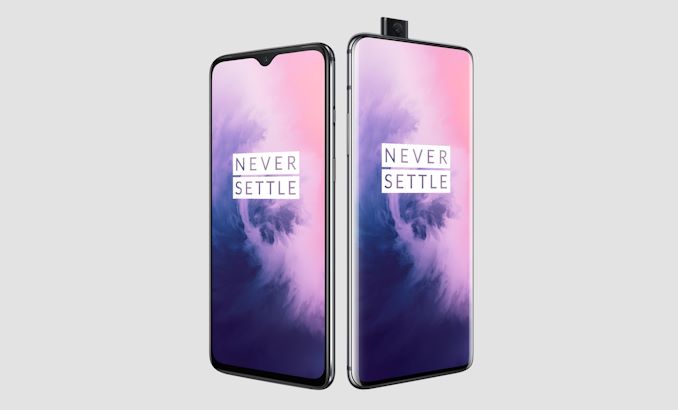
OnePlus 7 (Left) | OnePlus 7 Pro (Right)

OnePlus 7 Pro – The Beast

Since you have already learned about the OnePlus 7, I will just write about what’s different in the OnePlus 7 Pro. 

The OnePlus 7 Pro’s dimensions are 162.6 x 75.9 x 8.8 mm. At 206 g, this is one of the heaviest flagships out there. The screen of this phone is of 6.67-inches. It’s also got better resolution i.e. 1440 x 3120 which is a QHD+ resolution. This is a 90 Hz screen which means it is built for gamers. Unlike the OnePlus 7, this is an all-screen smartphone.

There is no notch. To accommodate the screen everywhere on the front, OnePlus has used a pop-up mechanism for the front camera. The motorized pop-up system hides a 16MP camera. This phone has a triple camera system at its back. It’s got a main 48MP camera, a 16MP ultrawide camera, and an 8MP depth telephoto shooter with 3x zoom. The 7 Pro has a bigger battery too. It’s got a 4000 mAh battery which uses 30W Warp charging technology. Rest of the features of the OnePlus 7 Pro are as same as the OnePlus 7.

OnePlus 7 vs OnePlus 7 Pro – Quick Comparison

Name OnePlus 7 OnePlus 7 Pro
Dimensions 157.7 x 74.8 x 8.2 mm 162.6 x 75.9 x 8.8 mm
Weight 182g 206 g

Display

6.41-inches Optic AMOLED

1080 x 2340 pixels

60 Hz

19.5:9

Gorilla Glass 6

6.67-inches

1440 x 3120

90 Hz

19.5:9

Gorilla Glass 6

CPU and GPU Snapdragon 855 + Adreno 640 GPU Snapdragon 855 + Adreno 640 GPU
Storage and RAM 128GB or 256GB, 6GB or 8GB

128GB or 256GB,

8GB or 12GB

Rear Camera 48MP + 5MP 48MP + 16MP + 8MP
Front Camera 16MP (Waterdrop) 16MP – Pop-up
Battery 3700 mAh with 20W 4000 mAh with 30W
OS Android 9 Pie Android 9 Pie

OnePlus 7 Pro Stock Wallpapers and Live Wallpapers

There are 8 Never Settle Wallpapers in the OnePlus 7. The Never Settle Wallpapers have a resolution of 3120 x 1440 pixels. These have the maximum possible resolution to match any given display. There are 16 wallpapers that are for normal use on the phone. The 16 OnePlus 7 and OnePlus 7 Pro wallpapers have a resolution of 1440 x 3120 pixels.

To download these wallpapers, simply open your desired image, right click > save image as. If you are viewing this post on your phone, simply long-press the image > Download image. It will be saved to the phone then.

You can also download all of these wallpapers using the all-in-one-link given below.

All OnePlus 7 Pro Stock Wallpapers: Download

Take a look at the Never Settle Wallpapers first:


Now take a look at the normal OnePlus 7 wallpapers:

OnePlus 7 Pro Live Wallpapers

The 16 wallpapers that you have seen above, some of these are available in the form of live wallpapers too. Below is a file linked that includes all the live wallpapers. In the file, you can also find a Live Wallpapers APK pulled from the OnePlus 7 Pro. If you have an older OnePlus handset, you can download the OnePlus 7 Live Wallpapers APK on it and install it to run the wallpapers natively. On other handsets, you can copy the wallpapers individually and utilize them.

Download Live Wallpapers of OP7 Pro: Download

That’s all. If you have any questions or queries, feel free to reach out to us.

Also check: Huawei P30 Pro Stock Wallpapers (UHD)

Download Official OnePlus 7 Pro Stock Wallpapers and Live Wallpapers

0
Download Official OnePlus 7 Pro Stock Wallpapers and Live Wallpapers
All OnePlus 7 Pro stock wallpapers

OnePlus has finally unwrapped its latest flagships; the OnePlus 7 and the OnePlus 7 Pro. The new trendsetters of the year 2019 are here with some amazing features onboard. These phones come with top-notch displays. To beautify the screens a little more, OnePlus has added 8 stunning wallpapers. As always, OnePlus has closely worked with well-renowned designers to craft the unique OnePlus 7 wallpapers. The OnePlus 7 and OnePlus 7 Pro wallpapers are up now and you can download them right now. You can find the official OnePlus 7 Pro stock wallpapers and the live wallpapers in this post. Before you download the official OnePlus 7 Pro stock wallpapers, let me give you a brief idea of these phones.

OnePlus 7 Pro stock wallpapers
All OnePlus 7 Pro stock wallpapers

OnePlus 7 and OnePlus 7 Pro – Setting the Bar High

The OnePlus 7 comes in with a screen of 6.41-inches, which is an AMOLED panel. Since this is a smaller variant for this year, this phone has got a resolution of 2,340 x 1,080 pixels. The aspect ratio is 19.5:9 since it has a waterdrop notch. The OnePlus 7’s screen is protected by the Gorilla Glass 6.

The OnePlus 7 (Left) – OnePlus 7 Pro (Right)

On the power end, this phone is powered by the Qualcomm Snapdragon 855 SoC alongside the Adreno 640 GPU. The OnePlus 7 comes with a RAM of 6 or 8GB with an internal storage of 128 or 256GB. There is no mentioned of an external SD Card slot this time either. This phone uses the UFS 3.0 Storage standard, which is a first in the smartphone industry.

OnePlus 7 uses two cameras at the back. Its main camera is a 48MP Sony IMX586 sensor and the secondary shooter is a 5MP depth sensor. On the front-end, the phone deploys a Sony IMX471 16MP camera. The rear cameras are optically stabilized while the front ones are using EIS. There is no headphone jack. The phone uses a USB Type-C. OnePlus 7 has a battery of whopping 3,700 mAh. It uses 20-watt fast charging. There is no wireless charging. OnePlus 7 comes in Mirror Grey and Red colors. It runs on the Android 9 Pie themed by the OxygenOS.

OnePlus 7 Pro – The Beast

The OnePlus 7 Pro sports a screen of 6.67-inches. Unlike the OnePlus 7, it uses a Quad HD screen with a resolution of 3,120 x 1,440 pixels. There is no waterdrop notch on this screen. In fact, there is no notch. The OnePlus 7 uses a pop-up mechanism for the front shooter. This screen has a 90 Hz refresh rate, which is a plus fora the gamers. OnePlus 7 Pro also has a 12GB RAM variant. It has a battery of 4,000 mAh. Rather than having 2 shooters at the back, this OnePlus 7 version has got 3 of them. It has the main 48MP Sony IMX586 sensor, a 16MP Wide sensor, and a 3x telephoto 8MP sensor. Like the OnePlus 7, it’s also got a 16MP camera on the front.

The OnePlus 7 Pro has different color options too. You will get it in Mirror Grey, Nebula Blue, and Almond Colors. Rest of the specifications of this phone are exactly the same as the OnePlus 7.

OnePlus 7 Pro Stock Wallpapers

To download these wallpapers, right click > save image as. To download on your phone, long press the image > download image. You can also download all OnePlus 7 Pro Stock Wallpapers using the all-in-one-link below.

OnePlus 7 Pro has got 8 Never Settle Images. These are different images in a very high resolution. The resolution is 3120 x 1440 pixels. Take a look at the Never Settle images first.

All OnePlus 7 Pro Stock Wallpapers – Download

And then it has 16 QHD Wallpapers. You can take a look at these wallpapers below:

All these wallpapers have got a resolution of 1440 x 3120 pixels.

OnePlus 7 Pro Live Wallpapers

Lastly, some of the wallpapers that you saw above, they have a live version too. To download the live wallpapers, you can download the live wallpapers APK for your old OnePlus phone to run the wallpapers natively. Otherwise, you can download the wallpapers one by one and copy to your phone in order to apply them. The APK and wallpapers are bundled into one file that you can download from here.

OnePlus 7 Pro Live Wallpapers – Download

Remember that you can apply these wallpapers to any Android phone or even to an iPhone. The Never Settle wallpapers are even good enough to apply on a computer. We will soon add the OnePlus 7 Ringtones on our site too. Stay tuned for all the goodies.

More:


Best Happy Mothers Day 2019 Wallpapers, Cards, FB Covers

0
Best Happy Mothers Day 2019 Wallpapers, Cards, FB Covers

Mothers are the most compassionate creatures of all. They nurture generations and we can always rely on them. Every day of the year should be about cherishing and celebrating our mothers. Therefore, we have got one dedicated Mothers Day every year. May 12 is the day when every kid, adult makes special effort to make their mothers feel special. In order to help everyone out there, we have assorted the best Mothers day wallpapers, FB Covers and Happy Mothers day Cards to speed up the preparations. Use these special graphics to both light up the social media as well as real-life celebrations. 

Use the Mothers day cards and either get them printed or just send online via WhatsApp, Facebook or any other medium. Similarly, use the Mothers day wallpapers to decorate rooms and other online and real-life spaces. We have got great ideas for your special day down below. Check these out and select the best one for yourself.

Best Happy Mothers Day Wallpapers

Below is a collection of some of the best happy mothers day wallpapers you can find. It contains both minimal, modern designs and traditional, vibrant options. Moreover, you can find some mothers day quotes in there too. Feel free to navigate through the gallery and get best one for your sweet mom. 

In order to save any wallpapers, right-click on it and then select Save Image as option.

Best Happy Mothers Day Cards

Greeting cards is the best way to show our affection for loved ones. These take a little more effort than just copying and pasting quotes from the web. Therefore, we have collectected the best Mothers Day Cards for you. These contain the most creative Mothers days cards with amazing and witty quotes, graphics and designs. Feel free to download the best ones for yourself from below. Either send them digitally or just print them out on a physical cards.

Best Happy Mothers Day FB Covers / Instagram Panoramas

For past couple of years, Instagram is dominating FB for personal photo sharing. However, both platforms have excellent spaces for sharing in forms of covers and Instagram Panoramas. Below is the best collection of Mothers Day Instagram Panoramas and FB Covers. Choose anyone and download it to either your phone or PC.

Conclusion

Mothers are special to everyone. Therefore, no one should hold back when this day comes. We are doing our part in helping you to make the best out of this day. Get the best covers, wallpapers and card designs/ideas to make this day even more special.

9 Best Local WiFi Multiplayer Games For Android

0
9 Best Local WiFi Multiplayer Games For Android

Following are the 9 Best Local WiFi Multiplayer Games For Android. If you like to play games with your friends on a local Wifi network then you should try the following games. A few days back, I posted about Best Andorid racing games and today, Local WiFi Multiplayer Games. Let’s jump right in.

9 Best Local WiFi Multiplayer Games For Android:

All of these games are also available on iOS devices or maybe not all of them. But you find a number of these games on App Store. That means you can also Play Local WiFi Multiplayer Games on iOS devices.

1: Doodle Army 2: Mini Militia

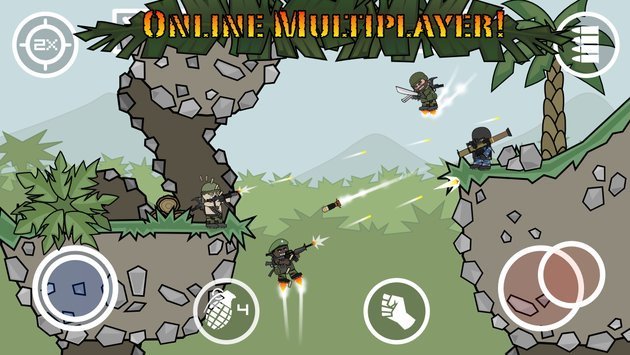
The new Doodle Army is named as Doodle Army 2 Mini Militia. Doodle Army 2 Mini Militia is a purely multiplayer game in which you can jump into the combat forming a team with up to 6 players online on different servers or you can form a team of 12 players available on a same local Wi=Fi connection.

Local WiFi Multiplayer Games

You can train your army offline and then join the battles online to show off your skills. There are Co-op and survival modes to test your skills. There’s a variety of weapons to power up your shooting skills in this game. DA 2 has got some nice graphics to make the gameplay look more enchanting.

Doodle Army 2 is based on stickman aesthetics. DA 2 basically evolved out of the ideas and suggestions are given to the developers by the users. Mini-Militia is a free to play game and offers some in-app purchases. Doodle Army 2 stands on top in our list of Local WiFi Multiplayer Games.

Check out Doodle Army 2 Mini Militia for PC!

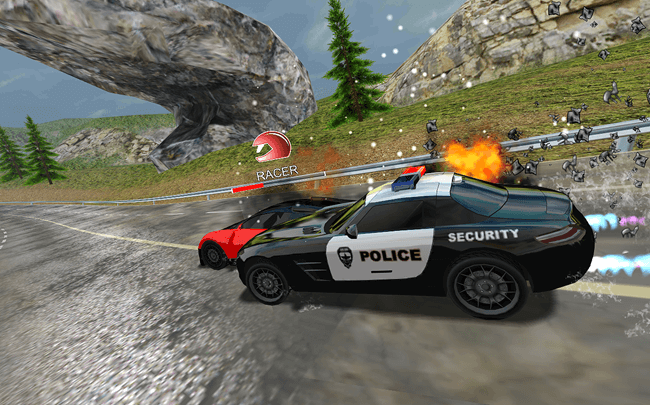
2: Racers Vs Cops: Multiplayer

It is a simple yet very addictive game if you want to play traditional racing games, Racers Vs Cops is not for you. The game-play is very simple, either you can be a Cop or a racer. If you are a Cop then you have to stop the racers before they complete the race. However, if you are a racer then you need to do anything and finish the race without being caught.

Local WiFi Multiplayer Games

Racers Vs Cops is a free game but it contains Ads. In order to upgrade your cars, you will require in-game currency.

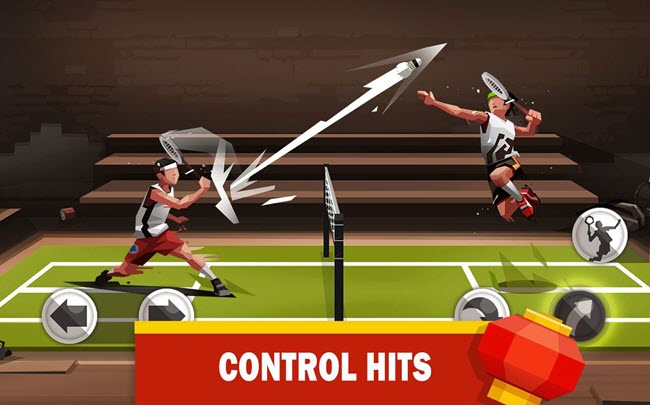
3: Badminton League

If you want to play Badminton with your friends on your Android devices. You should try Badminton League, A simple and fun game to play with friends via WiFi. The game-play is simple and very good at imitating the rocket and shuttlecock. Moreover, you can customize your own character as per your choice.

Local WiFi Multiplayer Games

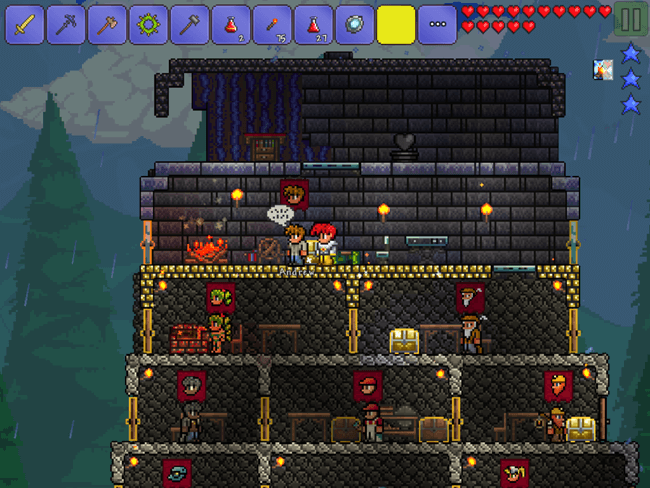
4: Terraria:

If you are a fan of Minecraft, then you will love Terraria. Terraria is a game carrying the concept of Minecraft, dig, build, and fight. You get a chance to explore the flying islands, new worlds, desert and more. Moreover, you can create your own worlds just as you like, prepare your army and fights with friends to take over their worlds. In order to expand yours, Terraria is a paid game and in order to explore the mystic worlds, you have to pay $4.99.

Local WiFi Multiplayer Games

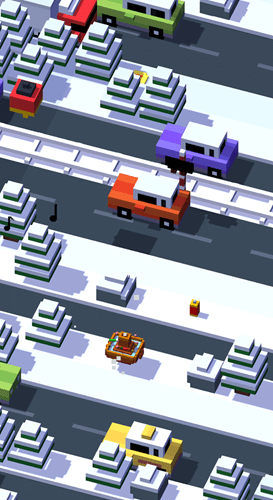
5: Crossy Road:

Disney Crossy Road stands on number 5 in our Local WiFi Multiplayer Games list. Crossy Road presents you your favorite characters from movies like The Lion King, Tangled, Wreck-It-Ralph, and others. There are new locations to play the game in. You can play Disney Crossy Road in the 8-bit movie world. Disney Crossy Road brings a lot of new challenges to spice up your gameplay.

Disney Crossy Road’s concept is pretty much similar to the original Crossy Road. The twist is in the elements, characters, and aesthetics of this game. Disney Crossy Road brings you over 100 funny characters from Pixar. These characters include Mickey, Buzz Lightyear, Rapunzel, Sadness, Mufasa and many of your favorite characters.

You may also want to try Disney Crossy Road for PC.

6: Asphalt 8: Airborne:

Asphalt 8: Airborne, as the name suggests packs up the new Dynamic Aerial stunts. The game consists of new cars, new tracks in addition to these Gameloft also added the Music Track change feature to the game.

The graphics are much improved from the previous additions of the Asphalt series. The game consists of 47 cars, out of which, 80% are new according to Gameloft. The new stunts like barrel rolls, wild 360-degree jumps, and the new locations are just awesome.

This game also sports new features in the career mode, simultaneous multiplayer and ghost challenge mode is also there, while the car damage system looks even more realistic.

7: Mini Motor Racing:

If you are done playing the traditional racing games and want to try something new in racing games. It’s time to try Mini Motor Racing. You will have to drive tiny cars on with over 50+ tracks to race. The game view is Top-down and you will have multiple types of cars in Mini conditions.

Mini Motor Racing is a free game but with Ads & In-app purchases. You can download Mini Motor Racing from Google Play.

8: Minecraft: Pocket Edition:

Want to play Minecraft game with your friends over WiFi, then you would love Minecraft: Pocket Edition. A perfect local multiplayer mode of Minecraft inspired games, it works and you can actually play Minecraft with your friends. However, it comes with a price of $6.99. You can download Minecraft: Pocket Edition from Google Play.

9: Crazy Racing:

Let take the racing games to the next level, Crazy Racing allows you to perform insane stunts, use guns to blow up your friend’s cars, destroy every car that came in front of you. You will be provided with a number of cars, all of them have different features and characteristics.

Moreover, you will be provided tracks with the most extreme conditions. Such as industrial zone & extraterrestrial route etc.

That’s all for today, these were the best Local WiFi Multiplayer Games For Android devices and tablets.

Download Google Pixel 3a and 3a XL Stock Wallpapers and Ringtones

0
Download Google Pixel 3a and 3a XL Stock Wallpapers and Ringtones

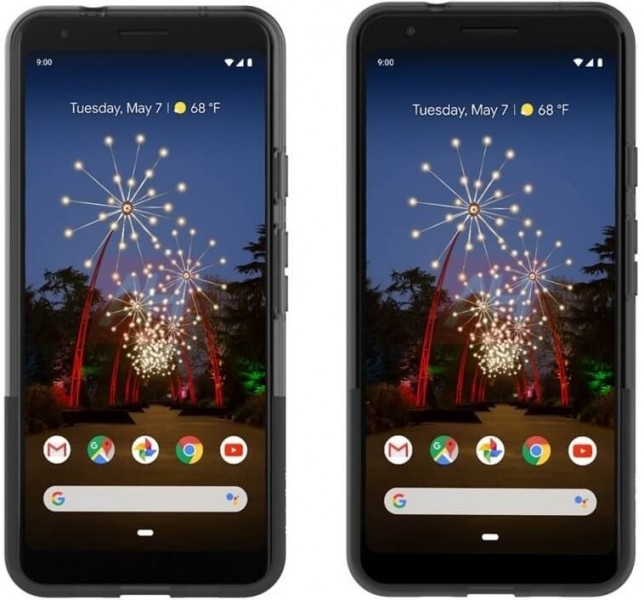
Time to download Google Pixel 3a and 3a XL stock wallpapers and ringtones. The 3 stock wallpapers and a handful of ringtones from the Pixel 3a are out now. You can find them all here in this post.

Google Pixel 3a and 3a XL Stock Wallpapers and Ringtones

The new Google Pixel 3a and 3a XL are out now. Google introduced these phones at Google I/O 2019. These phones are supposed to help Google compete in the mid-range segment. The Pixel 3a and 3a XL are more like a lite variant of the Pixel 3 and Pixel 3XL. The phones try their best to offer the same experience as the flagship Pixel 3 phones with a few compromises. From here, you can download the Pixel 3a and Pixel 3a XL stock wallpapers and ringtones. Before you hop on to the downloads, let’s take a detailed look at these two phones.

Google Pixel 3a

The Pixel 3a comes in with a 5.6-inch 1080P screen. This screen has the 18:9 ratio and its pixel density are 441. Google is not using the Corning Gorilla Glass here. It’s using cheaper protection which goes by the name Dragontrail Glass. The Pixel 3 is equipped with a Snapdragon 670 10nm processor. It’s got the Adreno 615 GPU. The internal storage of the Pixel 3a is 64GB and it has a RAM of 4GB. No microSD card slot is there. At the back, it has a 12.2MP camera and on the front, it’s got a single 8MP camera. The Pixel 3a has a rear-mounted fingerprint scanner. It has a headphone jack too. The phone uses USB Type-C for charging and connection purposes. There is a 3000 mAh battery in this phone and its charger supports 18W fast charging.

Google Pixel 3a XL

The Pixel 3a XL comes with a 6.0-inches 1080P screen. At 167 g, this phone is 20 g heavier than the Pixel 3a. Like the Pixel 3a, it is also powered by the Snapdragon 670, Adreno 615, has a RAM of 4GB and 64GB internal storage. The cameras are the same on this phone too. It has a slightly bigger battery of 3700 mAh. The Pixel 3a XL also has a fingerprint scanner at the back and the USB Type-C port.

Google calls them the midrange devices, but the price bracket is far from the midrange segment. What Huawei, Samsung, and Xiaomi are offering in $250, Google is offering all that, in fact even less, in $500. Millennials have already criticized Google for pulling out such devices keeping a high price-point.

Whether or not you are buying the Google Pixel 3a or 3a XL, you can enjoy their wallpapers and ringtones for sure. Scroll down to download Google Pixel 3a and 3a XL stock wallpapers and ringtones now.

Google Pixel 3a and 3a XL Stock Wallpapers

There are three full HD stock wallpapers in the new pixel smartphones. You can download the wallpapers from below. To download, right click on the image > save image as. To download on your phone, long-press the image, download image.


Google Pixel 3a and 3a XL Stock Ringtones

There are 73 notifications tone in the Pixel 3a. 23 Alarm tones are there. The ringtones are 97 in total while the UI sounds are 24. To download the tones, just download the file from below and extract it. Copy the extracted folder to the internal storage of your phone. After this, just open the sounds and access the ringtones, alarm tones, and notifications tones there. To use UI sounds, your phone must be rooted. You can copy the UI folder to system/sounds directory of your phone.

Pixel 3a/3a XL Ringtones: Download

More: Download Android Q Stock Wallpapers and Ringtones

Download Android Q Stock Wallpapers and Ringtones

Download Android Q Stock Wallpapers and Ringtones

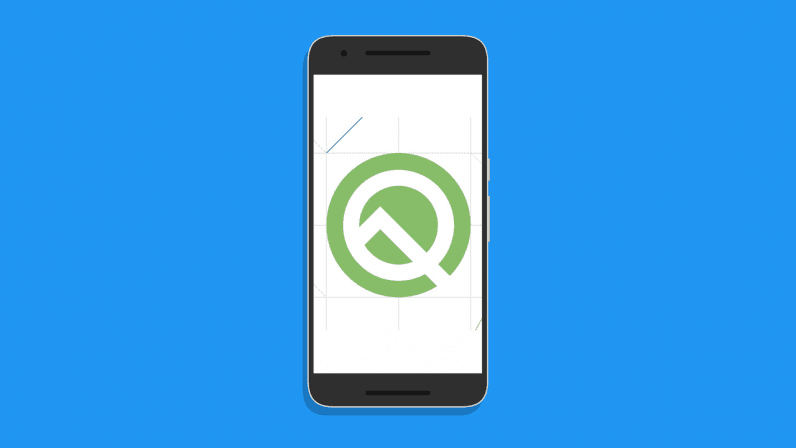
Download the official Android Q Stock Wallpapers and Ringtones. The Android Q brings a handful of brand new wallpapers and ringtones including alarm tones, notification tones, and UI sounds.

A few days back Google released the very first developer preview of Android Q. With the Developer Preview, the Android Q Beta was also released. This is the very first time that Google has released the Beta version alongside the Developer Preview. Usually, it takes 2-3 iterations of the Developer Preview to pave way for the Beta version. Google Pixel 3 owners have already installed the Android Q Beta on their phones. This year, Google is expanding the list of phone makers joining the Android Q Beta program. Companies like OnePlus, Huawei, Xiaomi, and some others will allow their users to test the pre-release of the Android Q. Whether or not your phone gets an early build of Android Q, you can definitely enjoy its wallpapers and ringtones. The official stock wallpapers and ringtones of Android Q are out now. You can download them all from here.Android Q Stock Wallpapers and Ringtones

Before you jump up to the Android Q wallpapers and ringtones, let me give you an idea of what new stuff is coming in the Android Q.

Android Q – Android taking a new shape

Starting from the Android Marshmallow, Google’s major focus has diverted to privacy. Google has been working consistently to improve the privacy of the Android ecosystem. In the Android Q, the company is all set to take new steps. The company seems to have taken some ideas from Apple’s iOS. Google will improve the location services permissions in the Android Q. Where the apps kept using location in the background on previous versions of Android, Google will restrict this access and allow the apps to use location only when the app is in use.

In Android 10, the navigation gestures will become mandatory for all phone makers. Google is killing the back button and replacing it with a swipe-up gesture. The Android Beam is getting killed too. You may never have used it or heard of it, but the Android Beam allowed users to share files by tapping two devices back-to-back. The Android Q will introduce a new battery status in the status bar which will show you the estimated battery life rather than the percentage. Users will be able to connect to a WiFi network using a QR code. Live-captions support is also coming in the Android Q. It will make digital wellbeing and parental controls even better. A lot of other features are on their way to make Android a better operating system for smartphones.

The name of the 10th variant of Android still remains a mystery. We have no idea what the “Q” means here. People are coming up with their best guesses. Some are calling it the Android Quiche, some are calling it the Android Quail or Android Quince. Whatever the Q means here, it has to be a dessert at the end of the day. If you have any guesses to make, drop them in the comments section down below.

Head on to the Android Q Stock Wallpapers and Ringtones now to give your phone an Android Q-ish look & feel.

Android Q Stock Wallpapers and Ringtones

There are 19 stock wallpapers in the Android Q. All these wallpapers have a full HD resolution. These wallpapers are built for 16:9 displays, but it shouldn’t matter if you have an 18:9 or 19:9 screen. The wallpapers should look fine. Take a look at the stock Android Q wallpapers now and apply them to any Android phone or even to an iPhone.

To download the wallpapers, simply open the one you like, right click > save image as > save. To download on your phone, long-press the image > download image. You can also download all these wallpapers using the all-in-one file below.

All Android Q Stock Wallpapers – Download

Android Q Ringtones

Below is the link to download Android Q Ringtones. This package includes 12 Ringtones, 12 alarm tones, 15 notification tones, and 26 UI sounds. All you have to do is to download the zip file, unpack it and copy it to your phone’s internal storage. You can open the Sound settings then and find the new ringtones and other tones there. If you wish to use the UI sounds, you will need a rooted phone for that. You will go to /system/media/audio and copy the UI folder there. After this, the UI sounds should work fine on your phone.

Android Q Ringtones – Download

That’s all with the Android Q goodies. I hope you guys find this post useful. If you have any queries or questions, feel free to reach out to me.

More:

Disable or uninstall Peel remote app from Samsung, HTC or other Android devices

0
Disable or uninstall Peel remote app from Samsung, HTC or other Android devices

A complete guide to Disable or uninstall Peel remote app from Samsung, HTC or other Android devices. 

There are a number of factors in a smartphone which are discussed over the years. Among them there is Infrared (IR) blaster, it is still in the talks. Just like me, there are a number of users who wants Infrared (IR) blaster on their smartphones.

Disable or uninstall Peel remote

Infrared (IR) blaster allows you to easily control your TV, AC and other electronic appliances. But there are others who don’t like this feature at all. However, I think IR is quite handy in many situations. Now let’s get back to our topic. If there is an IR port on your Android device then there will be Peel remote app.

All the device from Samsung, HTC, and others which have IR port, Peel remote app comes pre-installed. Although, this app is handy and it worked pretty good all those years. But now, after the latest update of Peel remote app, things got uglier, Ads, lock screen overlays and more.

Read more: Top New Car Racing Games for Android

Now if you are facing such issue, then follow the instructions below in order to Disable or uninstall Peel remote app.

How To Disable or uninstall Peel remote app:

You can use the following method on mostly all of the Android devices. Since they all have the same settings when it comes to uninstalling or disabling an app.

Download Peel remote app:

Disable & Uninstall Peel remote app from Samsung, HTC:

  • Head over to the Settings on your device.
  • In the Settings menu, Tap on Apps and look for Peel Smart Remote app.
  • Tap on it to access the Settings of the Peel Smart Remote.
  • Now Tap on Force stop and then tap on Disable. Once done, head back to the Settings -> Apps.
  • Look for 3dots, tap on them and then Tap on Special access. Moreover, you can directly search for draw over. From there, you need to Turn off the permission for Peel Smart Remote on other OEM devices.
  • Once you are done with Draw Over, you need to Turn off the Peel Smart remote in modify settings option.
  • Head back and select Change system settings and toggle off the permission for the Peel Remote application.

That’s all.


4 Best Amazon Price Tracker Tools [ Tips ]

0
4 Best Amazon Price Tracker Tools [ Tips ]

If you are among those who do shopping on Amazon then you will love the Amazon Price Tracker Tools. 

Do you like to Shop on Amazon? Looking for the best deals to buy things from Amazon? It can be done but since everyday, there are new deals on Amazon. Also, the prices on Amazon undulate a lot, today the price will be different, after a few hours or the next day. You will see a new deal with a new price.


In order to track the prices on Amazon, you will be needing the best Price Tracker Tools which we have collected for you. Following are the best Amazon Price Tracker Tools you can get and they will save a lot of money for you.

4 Best Amazon Price Tracker Tools:

Most of these Price Tracker Tools are available for Browsers, Smartphones, and few of them are only Websites. All of these tools are working perfectly, after carefully checking and using we are posting them here.

Read more: Install Amazon Appstore on Android Devices

Keepa:

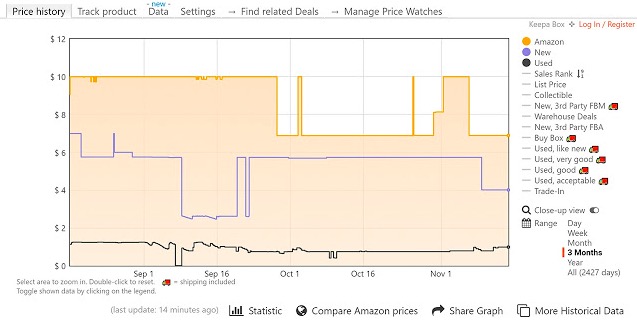
Let’s start with the best in the business. Keepa is the best and the smartest price tracking tool available for Amazon. Not only it provides you price tool it also provides you history graphs, price drop, deal alerts, and more. Keepa Add-on is available for all top browsers.

You can easily use Keepa without any professional or technical help. In order to search for products, head over to the Deals. From there select category, ranges, and sales ranking. Moreover, you can also search for products using Percent Range, for e.g, search for a product and select the Percent Range 20%. On the next page, you will see all the result dropped to 20%.

There is another thing, I would like to add. Not only Keepa tracks prices from the US, but it also tracks deals and price drop alters from a number of international websites & markets. Moreover, you can receive all the alerts via emails, Twitter, Facebook, Telegram, and more.

Keepa has an Android app and also browser extensions. Do as you wish, either use the App or download the extension for your browser. Both worked fine for me.

Camel Camel Camel:

The name may not amuse you but the features will. This site does a perfect job when it comes to Price Tracking for Amazon. You will get all the hot products deals in your inbox. Moreover, if you don’t want to use the Website, you will have two options, Android App or Add-on.

Price Tracker Tools

They have an Add-on named as Camelizer and it’s available for Firefox, Chrome, and Safari. When it comes to working, Camel Camel Camel works the same way as Keepa do. Tag a product, search for products and whenever the price is dropped or a new deal is live. The CCC will notify you via Twitter, only Twitter, it doesn’t support all the platforms like Keepa.

Read more: Watch Amazon Instant Video on Chromecast

You will find all the features which are necessary for Price Tracker Tools. Such as filter by a category, wishlist sync, and search products. However, like Keepa you won’t find the price and percentage range features.  But you can use Siri Shortcuts on iOS devices and CCC Android app to get the price alerts on your smartphones.

Jungle Search:

Jungle Search is a simple website, allows you to search for Amazon products with a number of filters. After selecting the filters, Jungle Search will take you to the Amazon official site. It is easy to use, all you have to do is enter the name, company name, minimum and maximum percentage off, minimum and maximum price, and customer reviews. Hit enter, you can see all the options in the screenshot below.

Price Tracker Tools

Jungle Search is good but it cannot compete with the CCC and Keepa. But still, you can find the best results for your product using Jungle Search.

Honey:

Honey is a good tool in order to track prices on Amazon. They have a browser Add-on which is available for FireFox and Chrome. What it does, it gives you an option to add your product into Droplist. So whenever the price drops on your favorite product, you will be notified.

After installing the Honey Add-on, you will see a new option on Amazon. Add to Droplist, click on that to add your product, whenever the price drops by 5% you will get a notification. Moreover, Honey also provided a timeline for tracking a product, once the timeline is finished, your product will be removed from the Droplist.

That’s all. These were the best Amazon Price Tracker Tools.

How to install Android Q Beta on any Android Phone

0
How to install Android Q Beta on any Android Phone

Google made a very interesting announcement in its most recent conference. We get our first look at Android Q Beta. However, unlike every other year before, it is not limited to Pixel Devices only. For the first time, other companies are joining the developer program. This includes phones like Realme 3 Pro, OnePlus 6/6T, Xiaomi Mi 9, Huawei 20 Pro, Essential phone, and few others. The method to install the Android Q beta image on any of these phones is pretty much the same. However, we have to go through the signup process on each phone’s individual site to download the update file. 

What’s new in Android Q Beta? (Features)

The Year 2019 brought a lot of innovations. We are seeing foldable phones for the first time. Moreover, 5G technology is gaining more traction every day. Therefore, Android Q aims to make the best out of these new changes. Now it is smarter than before with improved on-device AI. 

Below are the highlight changes and introductions in Android Q.

Improved Permission Control

A very cool addition is the improved privacy control in apps. Normally, the apps ask for permissions (location, storage, phone, etc) when starting for the first time. This was only a one-time thing. To give users even more control over what they share, now the app will let you know whenever any app is asking for any kind of personal information. This may include location, access to storage, or anything else. Despite allowing this permission when installing the app, it’s an added layer to make sure that your data is always safe and you decide who to share it with.

Caption

This feature really came as a surprise. The main purpose of this new tech is to paraphrase all media playing on the screen. This is already available on YouTube. The auto-generated captions are useful when watching movies or videos that are either not clear or you’re in a noisy room. We’ll have to wait and see how this innovation turns out to be.

And what is the best part about it? It does not work over the internet. The speech recognition software installed on the phone does all captioning offline. How cool is that! Not all language packages may be available at the start. Therefore, you may have to download language packages for native languages.

Advanced Notification Replies

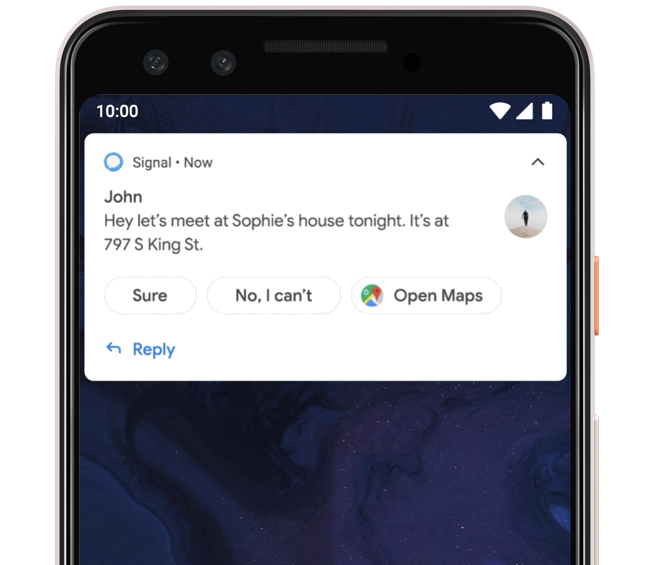
Right now, the notifications provide limited options. For example, if someone sends a message, we can either reply to it or mark it as read. However, Android Q Beta API allows developers to add advanced app integration. For example, if someone adds an address to the message, it will automatically detect and give you the option to add Google Maps with that location directly. Similarly, it should work for Google search, Play Music, and other third-party apps.

android q beta update rom smart reply

Improved Dark Mode and Gesture Navigation

Both dark mode and navigation gestures were a breakthrough recently. Since every OEM is going for a bezel-less infinity display on their phones, therefore, we love to use the full screen as it is. The navigation buttons are cool but they take up a lot of space from the screen at the bottom. It is eliminated by an improved navigation gesture feature in Android Q beta.

Similarly, the Dark Mode is improved to make the experience even more wholesome. It not only is easy on the eyes in dark, but it can save your phone’s battery life too.

Family Link

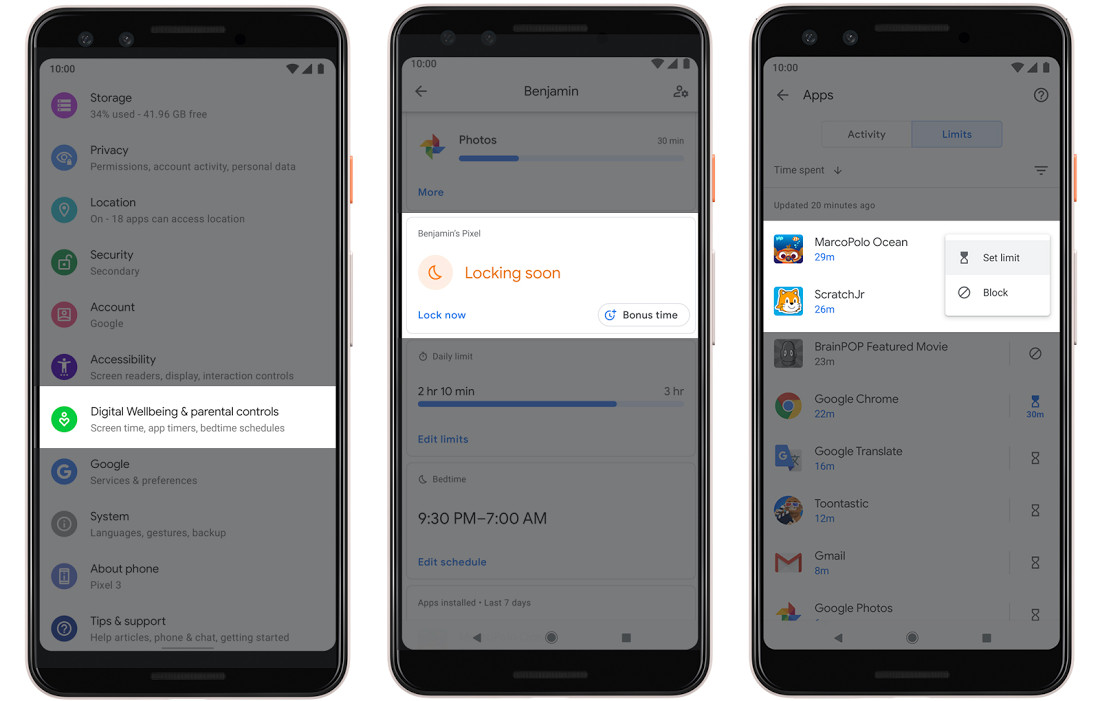
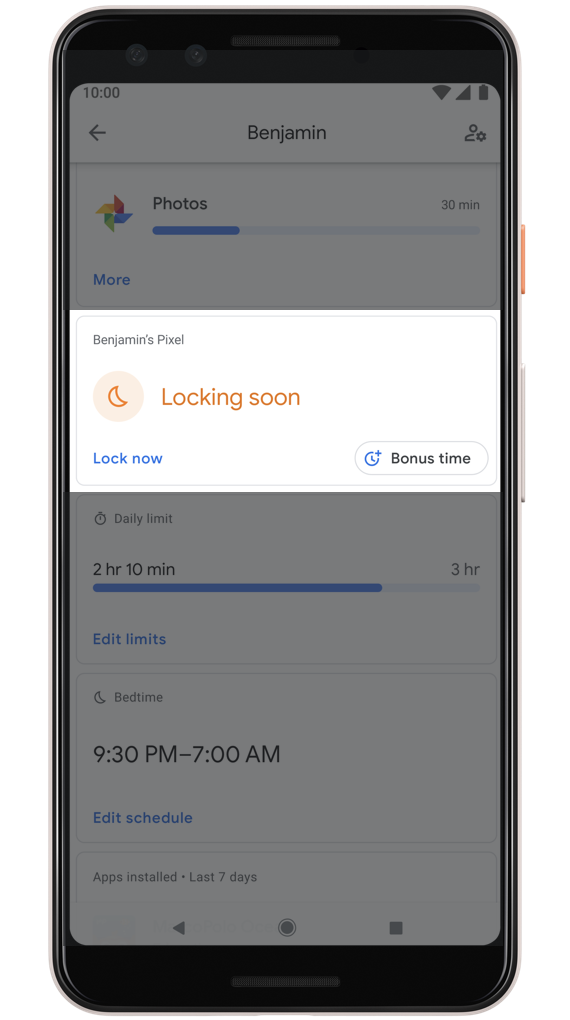
Parents want to always take care of their kids and not let them waste too much time on phones or tablets. Therefore, in Android Q, when setting up a new device for a child, link it to your main device. From here, you can control screen time, apps usage, for long they use it, set limits set a bedtime limit, set specific limits on Apps (YouTube limit to 1 hr a day while the phone app works full day), and even offers bonus bedtimes.

android q beta update zip family link

This a cool initiative to protect your kids from too much exposure to online media. Young children much use phones and tablets under adult supervision. Family Link in Android Q makes is super easy to control what kids are doing.

Which Phones support Android Q Beta?

Here is an official list of the phones that work with Android Q beta. Note that all of these phones’ updates are officially handled by respective phone companies. Therefore, it should be a much better experience than a custom ROM. However, it is still in the beta phase, therefore, you may like to be careful while installing it.

  • Google Pixel, Pixel XL, Pixel 2, Pixel 2 XL, Pixel 3, Pixel 3 XL
  • OnePlus 6T, OnePlus 6
  • Xiaomi Mi 9, Xiaomi Mi Mix 3 5G
  • Vivo X27, Nex S, Nex A
  • Oppo Reno
  • TECNO SPARK 3 pro
  • Sony Xperia XZ3
  • Realme 3 Pro
  • Nokia 8.1
  • LG G8
  • Huawei Mate 20 Pro
  • Essential Phone
  • Asus ZenFone 5Z

How to install Android Q Beta Update Image

Before continuing, let’s get a brief rundown. To install the Android Q beta update on OnePlus 6T, Pixel, or any other device in this list, we’ll use recovery mode. The stock recovery is good enough for it. The overall installation method is the same for all phones. If there are some changes, then it should be mentioned on OEM’s site specifically.

Requirements

  • Charge your phone for more than 50%.
  • Make a backup of all data on internal storage. The update may wipe internal storage.
  • Download the update zip for your phone from HERE. (Select your device from the menu on right). Note that you may need to sign up for it on an individual OEM site.
  • We want you to acknowledge that you’re doing it at your own risk. We take no responsibility if anything goes south. Follow the step by step instructions and everything should be fine. Do not try to flash the wrong files too.

Install Android Q Beta on OnePlus 6/6T

  1. Download the update package for your phone: OnePlus 6 Android Q beta zip | OnePlus 6T Android Q beta Zip
  2. Put the downloaded zip file in the phone’s internal storage root folder.
  3. Now go to Settings > System > System Updates > Tap on icon in top right > Local Upgrade.
  4. Here select the downloaded update zip from step 1.
  5. The phone will reboot after installing updates and into recovery mode.
  6. This step wipes all user data.

Rollback from Android Q Beta to Android Pie on OnePlus 6/6T

It is highly probable that the beta build would be pretty unstable and buggy at times. Therefore, if you do not need it for development purposes, then follow the steps below to roll back to the official and stable Android Pie 9.0 release.

  1. Download rollback package for your phone: OnePlus 6 | OnePlus 6T
  2. Copy this zip file to the root of internal storage.
  3. Now go to Settings > System > System Updates > Tap on icon in top right > Local Upgrade.
  4. Here select the downloaded rollback zip from step 1.
  5. The phone will reboot after rolling back to Android Pie and into recovery mode.
  6. The recovery mode wipes all user data.

Guide to install Android Q beta on other devices

Apart from OnePlus, the installation method on other devices on this list is pretty standard. Most of these OEMs require you to first sign up and confirm to owning a compatible device. The Google Pixel page detects compatible devices associated with the Google account that you login. Therefore, make sure that you open the page with the same account used on a Pixel device. Similarly, other OEM pages have signed up pages that lead up to download pages for update zips. 

  1. Download the update zip from your particular OEM’s site.
  2. Put this update zip file in the root of internal storage.
  3. Now restart the phone in recovery mode. (This method may vary for each device).android q beta recovery
  4. Use the volume buttons to scroll down and select the “Apply update from Internal Storage” option here. This option may be renamed in a few of these devices.
  5. Select the downloaded update zip from step 1 and confirm the installation.
  6. Note that it will wipe all user data on internal storage.
  7. The phone will reboot automatically once the phone is done updating.

How to rollback your phone from Android Q Beta to stable Android Pie

Since it is a beta build, most OEMs provide rollback methods alongside the update zip. It is pretty much the same for all and this is how it works:

  1. Download rollback update zip from your OEM’s site.
  2. Put it in the internal storage root directory.
  3. Now use the Apply update from internal storage from stock recovery.
  4. Once the installation is completed 100% and data is wiped, your phone will reboot back to a stable version.
  5. That’s pretty much it!

Conclusion

Android Q is one of the most promising updates in a while. It is especially important since it is the official 10th Android version. Therefore, Google wants to celebrate this huge milestone with one of the best mobile OS out there. It is not just an incremental update. A lot of new and unique features are added to make the experience the best there has ever been. 

Feel free to leave your queries and feedback in the comments section below.

Download Chrome Android 75 beta APK (Chrome Dark Mode)

0
Download Chrome Android 75 beta APK (Chrome Dark Mode)

The last stable release of Chrome Android has a hidden dark mode theme. It is the first time that public release of this app contains this feature. However, it still look far from polished and much in its infancy. Therefore, we are instantly seeing improvements in Chrome 75 beta. It contain an improved Chrome Dark mode / theme. Now instead of the option named “Dark Mode”, we see a “Theme” tab. In it, there are two options; Dark and Light. This is a not a huge change however it may mean that we will soon be able to add more themes to the Android’s Chrome version. Here you can download Chrome Android 75 Beta APK and install on any Android device.

Chrome 75 Beta Dark Mode / Theme Preview

We got out first look at Chrome’s take at dark mode in Chrome 74. However, it was far from perfect. The text color and background colors did not match well. Therefore, we expected quick fixes for these visual bugs. Thankfully, some of those issues are now gone. However, some new funny bugs are appearing in its place. For example, when you enable the dark theme in settings, the text in that screen totally disappears. We understand that it is still the Chrome 75 beta version. But still, these kind of blunders are not expected from this developer.

The previous version treated this as an on/off option. However, now it is more synchronised with Android OS. The first option here is “System default”. Since Android Pie onwards now comes with a dedicated Dark Theme, it would automatically enable the dark mode if it is enabled in Android settings. This is actually cool as it would automatically change the theme based on your system-wide settings.

download chrome android 75 beta apk

How to enable Dark Mode/Theme in Chrome 75 Beta Version

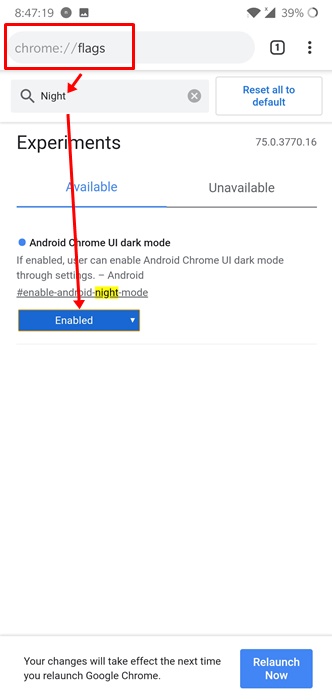
Since it is beta, we’d expect most of the experimental features to be available right off the bat. However, this is not the case once again. The option to enable dark theme will not appear in settings. It is actually hidden and here is how to unlock it.

  1. Open Chrome beta. 
  2. Tap on new tab icon.
  3. Now type “Chrome://flags” and open the page.
  4. This page shows all experimental features enabled or disabled.
  5. Search for “enable-android-night-mode” and you’ll see just one option.
  6. Change its status from default to enabled.Download Chrome 75 beta apk

Download Chrome Android 75 Beta APK

Follow the steps below to download and install it on your phone or tablet.

  1. Download Chrome Android 75 beta APK from HERE.
  2. Put it anywhere on your Android device.
  3. Now open a file manager and navigate to the folder where you put APK in step 2.
  4. Tap on its icon.
  5. Now system may prompt you to enable installation from unknown sources. Allow it.
  6. Then go back and tap on install button at bottom right of screen.
  7. Once installed, tap on Open/Launch button.
  8. That’s it! You can now follow the steps to unlock dark mode on Chrome 75 beta from previous section.

Feel free to leave your feedback and queries in the comments section below.
Post Vertical Photos on Instagram Without Cropping [ Best Apps ]

0
Post Vertical Photos on Instagram Without Cropping [ Best Apps ]

Instagram lets you post both landscape and portrait format. But this feature comes to work when you are posting multiple images and Videos. After a while, this feature was added for a single post but with limitations. In this post, we will tell you, how to Post Vertical Photos on Instagram Without Cropping.

Vertical Photos on Instagram

As I said earlier, you can post vertical photos on Instagram but with a specific aspect ratio. Otherwise, you cannot post it, you must have the required ratio. If you want to know the required ratio to post Vertical Photos on Instagram. Keep reading and you will find out.

Post Vertical Photos on Instagram Without Cropping:

Now let’s come back to our main topic, Yes, it is true that you cannot directly post Vertical Photos on Instagram. But that doesn’t mean there is no other way. In the world of Internet, there are few tools which will help you post Vertical Photos on Instagram without cropping.

Read more: Galaxy S10 Instagram Mode disappeared from Camera App:

Vertical Photos on Instagram Ratio:

  • Portrait: 4:5
  • Landscape: 1.91:1

Following are the apps and services which will help you post Vertical Photos on Instagram in just a few clicks. Moreover, you don’t have to crop your pictures.

No Crop and Square (Android):

You must be thinking about the name as it doesn’t seem professional. Forget about the name, this app is very popular when it comes to posting vertical images on Instagram. This app will allow you to post vertical photos in the original size, means you don’t have crop your photos.

Not only it allows you to post photos on Instagram without cropping. It also provides you a number of filters and effects, 3D emoticons, smileys, stickers, emojis and more. Moreover, you can easily make a collage of your photos. You can also use different fonts on your collage, also you can resize, rotate images and there will be no need to crop your photos.

Whitagram (iOS):

This app is only for iOS users. The basic purpose of this app is to allow you to post full-sized images on Instagram without cropping them. All you have to do is choose the image and Whitagram will do the rest. This app automatically crops the chosen photo to the perfect ratio and also add a white background.

Pixlr (Online):

This is the best service you can get to post vertical images with their original sizes on Instagram. You might be aware of a hidden Instagram feature which allows you to post vertical images. But if you know the right dimension. That’s where an online tool comes into play. It is called Pixlr and it is totally free to use.

Read more: How to rotate Instagram to Landscape mode (Horizontal)

First, you need to choose the image and crop it to 4:5 ratio. After that you need to upload that image on Instagram using your PC browser, you might get an error while trying this. In order to post an image on Instagram, you need to follow the instructions provided below in the video.

After trying this method, when you were about to post the image on Instagram using a PC. You will notice that there will be no borders or white background and your image will be posted in the original 4:5 ratio.

Polarr Photo Editor (Mac):

A simple yet perfect tool to post Vertical Photos on Instagram Without Cropping. This app is available for Mac users, you can download it from the App Store.

Once you have downloaded it, open the Polarr Photo Editor and import a photo from your Mac. You will see a number of options on the right side of the screen. Choose adjustments -> Border, now select the aspect ratio and border color. Once done with the editing, Click on Save to and your image will be saved in photo and iPhoto library.

Gramblr (Windows):

Recently Instagram announced their app for Windows tablet with touch screen support. You can easily download the Instagram app for Windows Tablets from the Windows App Store. But one question remains, those who don’t have the Windows Touch Tablets. What about them, this is where Gramblr comes in the play.

You can easily post Vertical Photos on Instagram using Gramblr, they have now added Vertical image support. Choose a photo, edit it, resize it and post in on Instagram without cropping.

That’s all.