Home Blog Page 52

Download Samsung Galaxy Tab S5E Stock Wallpapers

Download Samsung Galaxy Tab S5E Stock Wallpapers
Samsung Galaxy Tab S5E Stock Wallpapers

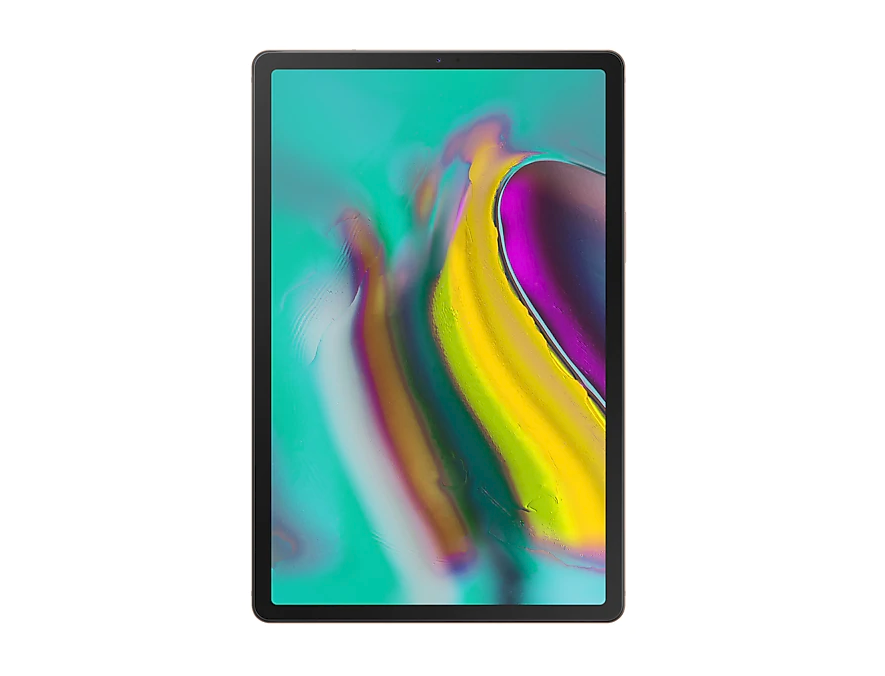
If you ask me about the most beautiful Tablet right now, I’d pick up the Samsung Galaxy Tab S5E without a second thought. It is the thinnest, sleekest, and the most extraordinary Tablet that the South Korean giant has ever produced. Samsung has added equally beautiful wallpapers to light up the display of the Galaxy Tab S5E. The official Galaxy Tab S5E wallpapers are out now. Wallpaper lovers can download Samsung Galaxy Tab S5E stock wallpapers from this post.

Samsung Galaxy Tab S5E Stock Wallpapers

Before you hop on to the stock wallpapers of the Galaxy Tab S5E, let’s learn a bit more about this tablet.

Samsung Galaxy Tab S5E

Galaxy Tab S5E comes in with a screen of 10.5-inches. This is a Super AMOLED panel with a resolution of 1600 x 2560 pixels and 288 PPI. The Tab S5E weighs at 400 g and its dimensions are 245 x 160 x 5.5 mm. Samsung has used the Qualcomm Snapdragon 670 CPU to power this device up. It has a RAM of 6GB and its internal storage is of 128GB. There is a 4GB + 64GB version of this tab too. It does have an external card slot for extra space.

Galaxy Tab S5E
Tab S5E 2019

The Tab S5E has a single camera at the back, it’s a 13MP shooter. On the front, it has a single 8MP camera. The speakers of this device are turned by AKG/HARMAN. Galaxy Tab S5E uses Type-C port for charging and connection. It has a battery of 7040 mAh and supports fast charging too. There is a side-mounted fingerprint scanner too. Tab S5E runs on Android Pie out of the box.

Let’s move on the Galaxy Tab S5E’s wallpapers now.

Galaxy Tab S5E Stock Wallpapers

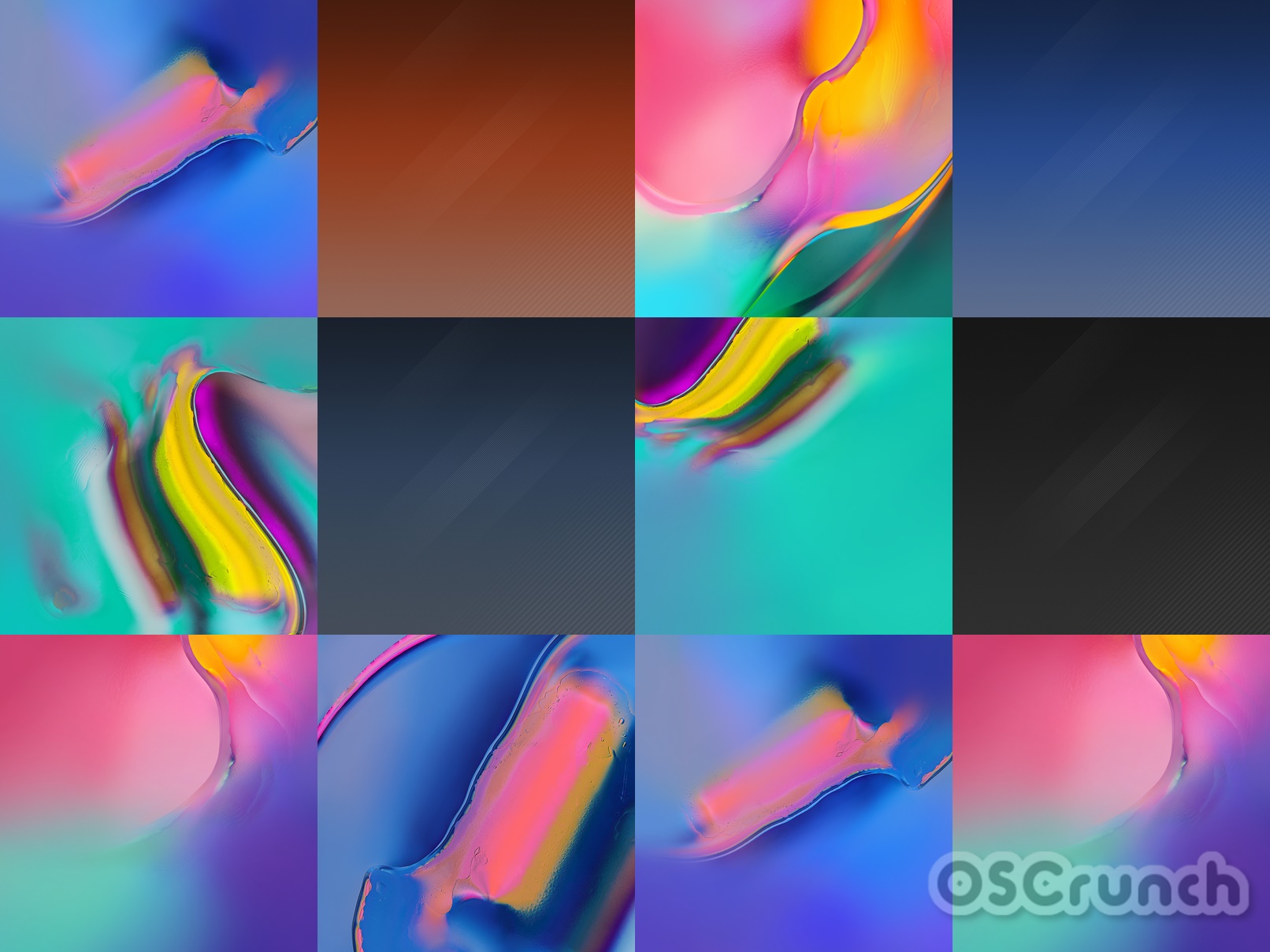
There are 10 stock wallpapers in the Tab S5E in total. Some of these are abstract wallpapers while some are pastel. All these wallpapers have a resolution 1900 x 1900. You can apply these wallpapers to any Android phone or even to an iPhone with a compatible screen.

To download the wallpaper, right click on your desired image > save image as. To save on a phone, long press the image > download image.

Galaxy Tab S5E Stock Wallpaper Galaxy Tab S5E Stock Wallpaper Galaxy Tab S5E Stock Wallpaper Galaxy Tab S5E Stock Wallpaper Galaxy Tab S5E Stock Wallpaper Galaxy Tab S5E Stock Wallpaper Galaxy Tab S5E Stock Wallpaper

More:

Huawei Call Recorder APK for EMUI 9

2
Huawei Call Recorder APK for EMUI 9

Huawei and Honor users can download the latest Huawei Call Recorder APK from here. The attached version of Huawei Call Recorder APK is for EMUI 9 or Android 9 Pie. In this post, I will show you the steps to install it and use it as well.

Huawei Call Recorder APK
P30 Lite with Call Recording Enabled

Huawei Call Recorder

Huawei Call Recorder is the official call recording application from the Chinese phone maker. The Huawei Call Recorder works on all Huawei and Honor phones running on EMUI 9 or higher. Since EMUI 9 is the official Huawei theme of the Android 9 Pie, it means that this call recorder will work on any Huawei or Honor phone which is powered by the Android 9 Pie.

The Huawei Call Recorder was found in the latest update of the EMUI 9. Previous versions of the EMUI 9 lack this feature because the call recording was blocked by Google in the Android system. 

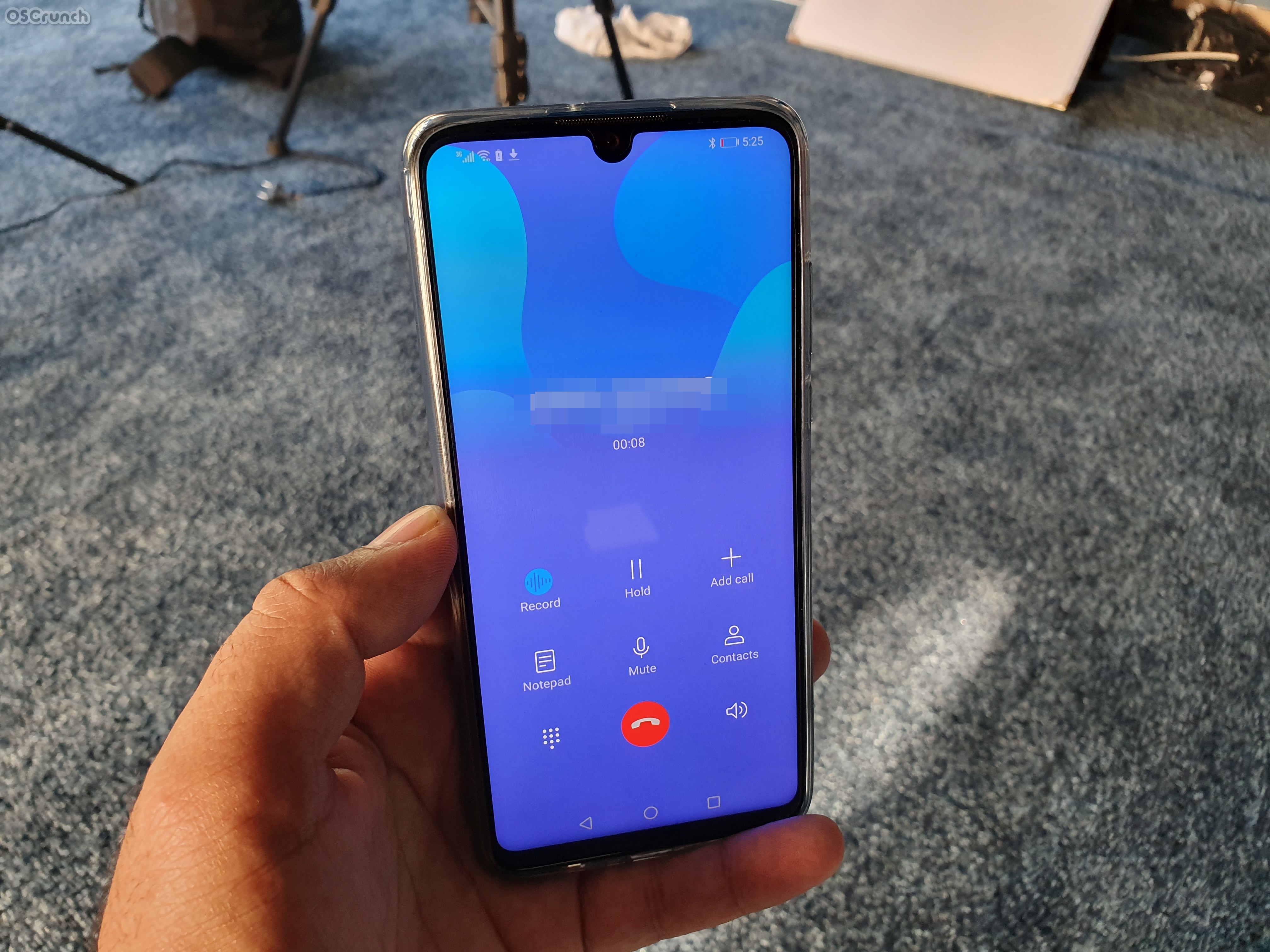
If you have been a fan of this feature, its time to get it back. The official Huawei Call Recorder can be installed within 2 minutes. It then adds the Record button to the dialer of the phone. Upon making a call, Huawei and Honor users can see the Record button. The button works once the call is connected. There is no limit to what amount of time the Huawei Call Recorder can record. For me, it worked quite good for a good number of minutes.

Since this is an official Huawei Call Recorder, it also means that it is not going to harm your phone in any way. Furthermore, you do not need a rooted phone. All you have to do is to grab the Huawei Call Recorder APK and install it by following the instructions given below. 

Go ahead and get it right now without any further ado.

Huawei Call Recorder APK

  1. Call Recorder APK – Download
  2. Copy the APK to your phone.
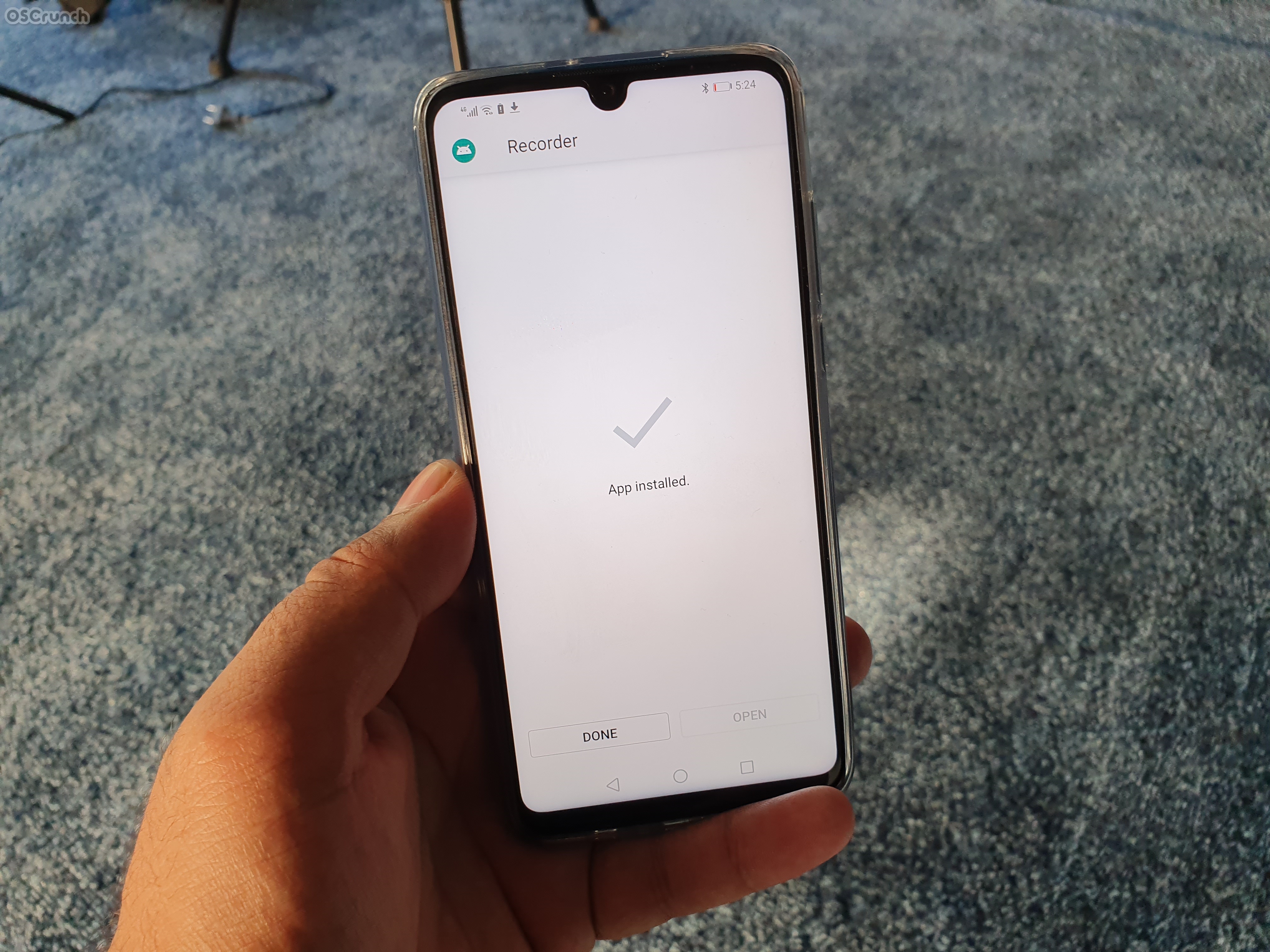
  3. Using a File Manager, open the APK and install it.
  4. Follow the steps in this guide to enable Call Recording on EMUI 9.
  5. That’s all.

That’s all. If you have any questions or queries, feel free to reach out to us. I will try my best to get back to you as soon as possible.

How to enable Call Recording on EMUI 9 (Huawei and Honor Phones)

5
How to enable Call Recording on EMUI 9 (Huawei and Honor Phones)

Huawei and Honor owners can enable Call Recording on their phones now. It is incredibly easy to enable Call Recording on EMUI 9. The method that I am going to share, it works for EMUI 9 only, which means it works well on Android 9 Pie. Before I show you the steps to get Call Recording feature on the EMUI 9, let me give you an idea of its history.

enable Call Recording on EMUI 9
The Call Recorder in action on Huawei P30 Lite.

Call Recording – Back on Android Pie, but how?

Call Recording worked on Android since day 1. It worked flawlessly until the Android 9 Pie happened. Till Android 8.0 Oreo, manufacturers like Samsung and Huawei added Call Recording as a native feature in their phone’s dialer app. There were hundreds of apps in the Google Play Store that could record calls. With the Android 9 Pie, Google took the security and privacy concerns into consideration and it blocked the firmware from letting Call Recorders work.

Android is all about diversity. The blockage of call recording in Android 9 Pie was not welcomed by Android enthusiasts. Most of the Android users criticized Google for removing the feature and they demanded it back. There was an agreement among the users that Google should leave this choice on users whether or not they want to use call recording. Since the backlash, there have been reports circulating that Google is considering bringing call recording back in the next version of Android. Only time will tell if that happens for real or not.

Now comes Huawei, which has somehow enabled call recording in a new release it’s EMUI 9. The EMUI 9 is based on Android 9 Pie. The latest EMUI 9.1 brings the call recorder in the dialer. It turned out that Huawei had its HWRecorder incorporated in the system which can record the calls.

Developers were able to pull this APK and test it on other EMUI 9 phones. The application worked without any problems and that was it. As of now, all the EMUI 9 users can install the Call Recorder on their phones and it will work right inside the dialer. The recorder has worked well for both the Huawei and Honor phones. In a couple of minutes, I am going to show you the appropriate steps to get this call recorder on your Huawei or Honor phone.

Before you enable Call Recording…

Recording someone’s call without their consent is a serious offense. It can land you in serious trouble. Before you chose to secretly record someone’s conversation, make sure that you are well aware of the laws in your country. If the laws about online privacy are strict, you should not commit this act. We do not take any kind of responsibility for the usage of this feature. Using it is going to be your own choice.

Enable Call Recording on EMUI 9

I have personally tried this method on my Huawei P30 Lite. It worked well for me and I am putting images of my own P30 Lite below. Follow the simple steps to get it on your phone without any further ado.

Note: This is only for EMUI 9 or Android 9 Pie powered Huawei and Honor handsets. Do not try on any other phone. Owners of Huawei P30, Mate 20, Honor 8X, and some other devices have already confirmed this method to work well for them.

Update: As of 26th October 2019, this tutorial is still working for all EMUI 9 users. Feel free to use it.

Guide to Enable Call Recording on EMUI 9

  1. Download Huawei Call Recorder APK – Download
  2. Copy the APK to your Huawei or Honor phone.
  3. Using a File Manager, open the APK and install it.
  4. Now open the Dialer and call someone.
  5. The Record button will appear, but it will be faded.
  6. As soon as the other person picks up the call, the Record button will light up.
  7. Press the Record button to start the recording.
  8. Press the same button to stop the recording.
  9. The recorded calls will be saved in Internal Storage > Sounds > CallRecord. That’s all.

You can play the recorded calls in any audio player of your phone. If the stock player of your Huawei phone fails to work, you can download a third-party player from the Play Store for this purpose.

Enable Call Recording on Huawei – Video Guide

Wrap Up

That’s all with this guide. Hopefully, you will be able to record the calls now. There are many positive aspects of recording a call. For example, you are calling customer service of some company, and you want to record the behavior of the support staff, a recorded call can be really nice proof. It is totally up to you how you want to use this option on your phone, but make sure that whatever you do, falls in the legal circle. We do not intend to put this guide for any malicious use. If you have any queries or questions regarding anything tech, feel free to reach out to me. I will try my best to get back to you as soon as possible.

More: Best Android Password Managers in 2019

Fix Google Apps on Huawei Devices, After EMUI 9 Update

1
Fix Google Apps on Huawei Devices, After EMUI 9 Update

If you are among those who are facing issues with Google Apps on Huawei Devices after updating to EMUI 9. In this post, you will learn how to Fix Google Apps on Huawei Devices. I have used Huawei devices but never faced such issues. However, this time it’s different, I have seen people complaining, Google Apps are not even opening. Moreover, some said that they can open Google Apps but they are not working properly.

Fix Google Apps on Huawei

We have seen in the past, Huawei devices had few issues with the Google Play Store. But this time, things were going and at the moment devices got upgraded to EMUI 9, things got uglier. It seems Google Play services stopped working and because of that, users cannot use Google Apps.

I am sure that you are well aware of this fact, Chinese GOVT has banned all the Google Apps and services in China. Not only this, but they have also banned all the popular social media platforms like Facebook and Twitter. Moreover, all the Chinese manufactured don’t even program to support Google Play Services. Well, there are some workarounds which you can use to Install Google Apps and Google Play Store on Chinese phones.

Now let’s get back to our topic, shall we? If you Google Apps were working perfectly on EMUI 8 and after updating to EMUI 9.0.1. Google Play Store and all the other Google Apps have stopped working, Try the following steps to Fix Google Apps on Huawei.

Before we move on let me tell you another thing. There are two types of Phones Huawei made, one is only for China. All the other variants are made for other countries. The difference between both of these variants is, the ones which are designed for other countries comes with Google Apps compatibility. But the Chinese variants doesn’t come with the support of Google Play services.

There are two types of people who are using Chinese devices that are meant for only China. Huawei devices for other countries has a different firmware that has the Google play store and all apps. People who are in China or the people who got the phone from China. This guide is for those who got the phone from China.

This Guide is especially for those who have Huawei Chinese phone.

Fix Google Apps on Huawei after EMUI 9 Update:

Once you have installed the Google Play Store and Google Play Services on your Huawei Chinese phone. You can easily install any app you want. Moreover, there are other apps which are not available on Google Play but in order to work properly, they require Google Play services.

First, we’ll use Google GMS installer and Install Google Play Store/Services and once both these apps are installed. You will be able to Fix Google Apps on Huawei after Emui 9 update.

Steps to install Google play store using GMS installer on Huawei Chinese phone:

GMS stands for Google Mobile Services. This is basically a framework which helps all the Google Apps run on an Android phone. There are two basic things needed for Google Apps to work on an Android phone.

The very first is the presence of Google Mobile Services, and the second is the Play Services App. Without Google Mobile Services, the Google Play Services will not work on an Android phone.

Without the Google Play Services, the Google Play Store or any other Google App will not work on an Android phone. So, to cut it short, without the GMS, you cannot have the Google Play Store on your phone.

GMS Installer APK

There are different versions of GMS Installers available the moment. There is an installer that goes by the name “GMS Installer”. This Installer works on most of the phones from manufacturers like Huawei, Honor, Xiaomi, Vivo, and others. The GMS Installer works on all the phones released before the year 2018.

While the GMS Installer has failed to work on latest smartphones like Honor 8, Honor 8X, Honor 10 Lite, and Honor 8C, a new version of GMS Installer has popped up. This new version goes by the name “GMSanzhuangqi”. So based on the phone you have, download your desired GMS Installer APK from below.

Follow the instructions provided in links below:

Download Google Installer for Chinese Android phones

  1. Google Installer – APK – Download
  2. Copy the Google Installer APK to your phone.
  3. Now on your phone, go to Settings > Security > Unknown Sources > Allow.
  4. Locate the Google Installer using the File Manager now.
  5. Install Google Installer now.
  6. Run Google Installer and follow the on-screen instructions to install Google Apps. That’s all.

Top New Car Racing Games for Android [ 2019 ]

0
Top New Car Racing Games for Android [ 2019 ]

We all love cars, mostly us boys do. Everyone makes sure that their cars in the best shape, we also love race and sometimes harsh driving. Since everybody cannot do such things, they test their skill while playing car racing games on Android devices. I am among the millions of car racing lovers, that is why Today, I have made this post.

Those who love play racing games on their smartphones, this post is for them. In this post, you will find the best car racing games that you can play on your Andorid devices. So without any further ado, let’s jump right in.

Car Racing Games for Android

Best Car Racing Games for Android:

Asphalt 8: Airborne:

Asphalt 8: Airborne, as the name suggests packs up the new Dynamic Aerial stunts. The game consists of new cars, new tracks in addition to these Gameloft also added the Music Track change feature to the game.

Car Racing Games for Android

The graphics are much improved from the previous additions of the Asphalt series. The game consists of 47 cars, out of which, 80% are new according to Gameloft. The new stunts like barrel rolls, wild 360-degree jumps, and the new locations are just awesome.

This game also sports new features in the career mode, simultaneous multiplayer and ghost challenge mode is also there, while the car damage system looks even more realistic.

Asphalt Xtreme:

Asphalt Xtreme takes the racing games to a whole new level. There are no hurdles, no roads and no rules to follow. Drive the way you want to, drift the way you have always dreamed off and made the opponents bite the dust. Asphalt Xtreme brings stunning HD graphics which are a huge improvement over the graphics of Asphalt 8.

Top 5 Android Games That Don’t Need WiFi

The gameplay is awesome from the looks of the trailer. The game has been making rounds in the news for quite some time and finally, the time has come that this game will be here in a few days.

Asphalt Xtreme will let you drive the Monster Trucks. Pick up the car of your choice, you can drive a Muscle Car, a Pickup, an SUV, a Rally Car. Any vehicle that comes on your mind, you name it and Asphalt Xtreme probably has it.

Offroad vehicles are there to fulfill your offroading lust. Almost all the major car manufacturers have their cars in this new racing game by Gameloft. The real-time multiplayer mode is there in which 8 players can play the game at once.

You can also perform various customization and upgrade your gear. 400+ career events will not let you get tired and get your hands off from the screen of your phone.

Real Racing 3:

Real Racing 3 by EA games is by far the best Racing game available on Android. The game provides a quite realistic experience, graphics are that good to make you addictive. Plenty of cars to choose from, lots of tracks and lots of events to join in.

You can go online on the Multiplayer mode and compete with your friends, opponents from other regions and a lot more is there to enjoy.

The awesome thing is, this game is available for free, all you need is an Android device that supports the game and has enough memory to download the 1 GB data of the game and you can spend hours of gameplay without getting tired.

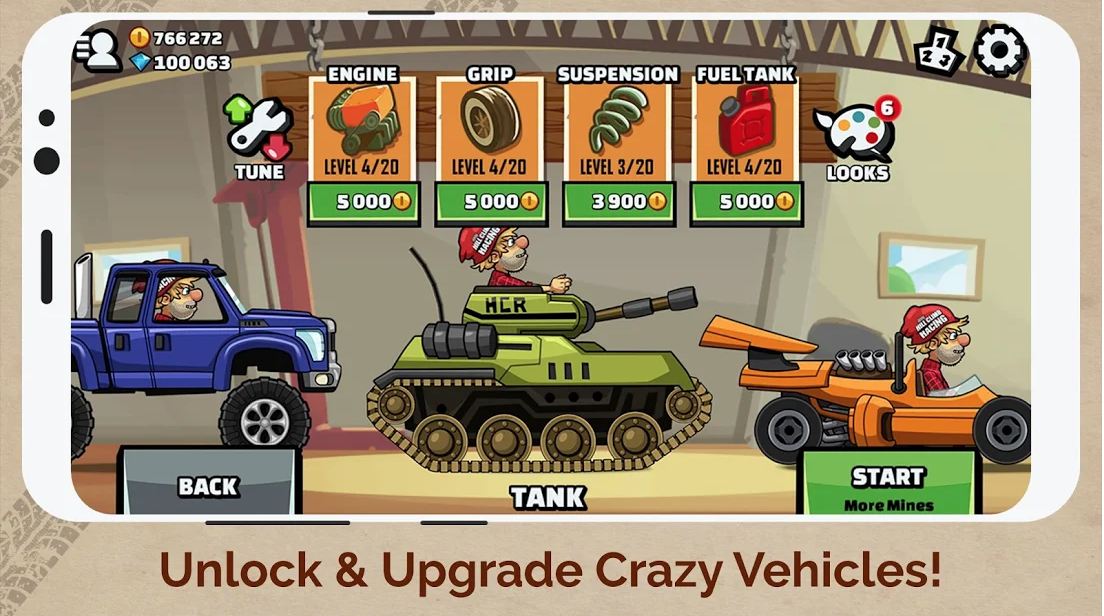
Hill Climb Racing 2:

Hill Climb Racing has a successor in town. Fingersoft, the developers of Hill Climb Racing have released the sequel of their popular racing game. The sequel is named as Hill Climb Racing 2. The game takes the legacy of Hill Climb Racing a step ahead.

The new Hill Climb Racing 2 has the same game-play, it adds a number of new features, packed up in new graphics and brings tons of exciting levels. Hill Climb Racing 2 offers stunning graphics making the game much more beautiful than it ever was. New locations are there for you to have a long-drive while you collect coins and perform stunts.

Beach Buggy Racing:

Beach Buggy Racing is a fun racing game, you will be driving carts on the beach, desert, and in Jungles. You will get a chance to drive, lunar rovers, and monster trucks. Moreover, the unique thing about Beach Buggy Racing is the power-ups, you won’t be able to find such powers in any other game. Power-ups like teleportation and flame-throwers.

This game is totally free but they offer in-app purchases to upgrade your cars and power-ups.

NFS Most Wanted:

NFS stands top on the list whenever racing games names pop-ups. This game has been here like forever, Millions of users play this game still. Since Android gaming industry took off, NFS games developer released a game for Andorid users called ” NFS Most Wanted “.

Car Racing Games for Android

If you are thinking Why NFS most Wanted is famous, Well, Hmm, let see. Because it has a story mode. That’s why. Would you want more? The graphics of the NFS Most Wanted are amazing and there are some pretty insane cars in their garage.

That’s all for today. Enjoy the best Car Racing Games for Android. 🙂

Top Best 3D Games For Android [2019]

0
Top Best 3D Games For Android [2019]

If you like to play 3D games on your Android devices, try the following games. We’ve collected the Best 3D Games For Android users. Since the gaming on the PC era has now shifted to smartphones. Big companies started game development for smartphone users. Games like PUBG & Fornite making there way to smartphones world is the best example. Nowadays people play more games on smartphones rather than on their PC’s.

This is why we have created this post, we have collected the best 3D Games for Android users. Why 3D? it makes the gaming experience richer than other games. You can download all of these games from Google Play, all of these games are designed in 3D. Moreover, all of these games are totally free, well at least some of them.

If you search Google Play for 3D games, you will be surprised to see that they are very limited 3D games. Instead of 3D, you will find games in HD quality. Not only that, it is very hard for a layman to find which games in 3D. That’s why we are here, to provide you the best 3D games for Android.

The list of best 3D games for Android consists of action, puzzle, sports, adventure, board, arcade, and racing games. After playing it myself I add all these games in my list. Not only you will experience action, thrill, adventure, you will also find some of these games educative.

9 Best Android Games Under 10 MB

Best 3D Games For Android:

Grand Theft Auto 3:

Best 3D Games For Android

If you are a fan of GTA then you should try the Grand Theft Auto 3. Rockstar’s games have released this beauty on their game’s 10th anniversary. The gameplay is the same as the original game, it is all set out in New York. You will be playing as Claude a common criminal. As you all know, GTA is an open world action game, there are no limitations.  Shoot people, run them through by driving cars, stab them with different things.

Grand Theft Auto 3 for Android is a ported version of the original PS2 game. All the graphics of GTA 3 is in 3D and trust you will them as good as they were in PS2. All the controls provided in GTA 3 are customizable, either you can choose on-screen controls or you can set tilt-based steering for driving cars. Other than that, all the other controls such as shooting, sprinting, entering cars, punching will be on the screen.

In order to download Grand Theft Auto 3 on your Android devices. Either use the following link provided or you can directly head over to the Google Play.

Sniper 3D Assassin: Free Games:
Best 3D Games For Android

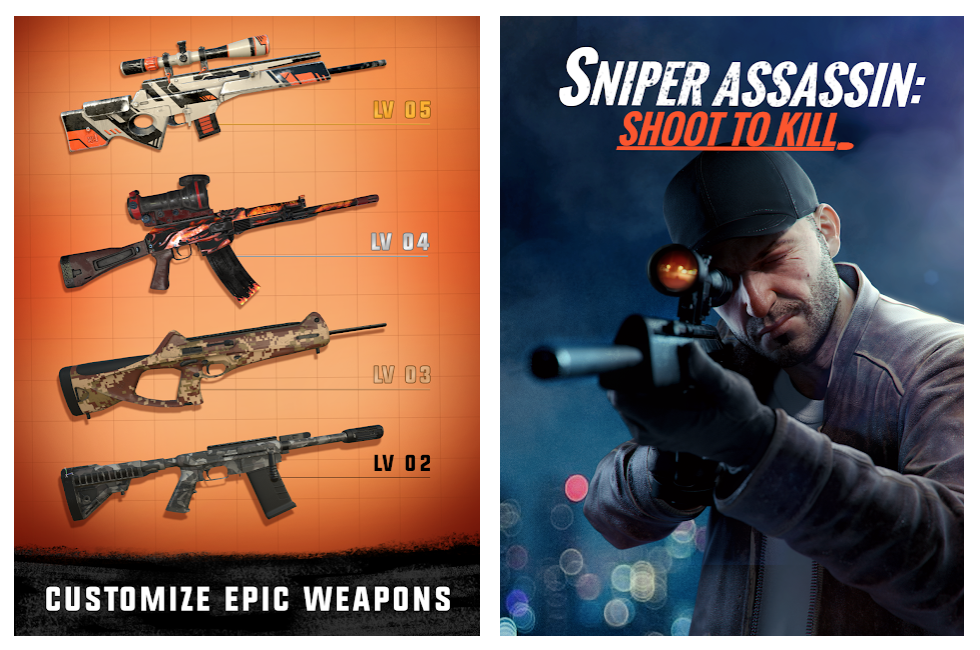
Like to play single person shooting games? If you are with this idea then you should play Sniper 3D Assassin. This game is one to play, players can play in a three-dimensional environment. Graphics of this game are very detailed, you will get to choose from various missions and upon completing a mission you will get rewards. As you progress in the game you will get more upgraded weapons.

All the mission are worth playing and every mission is different from one to another. Some involve kidnappings, bombing cars, kill terrorists and more. Moreover, Sniper 3D Assassin has great on-screen controls, also it has a player-versus-player mode. That means you can challenge your friends to one-on-one combat.

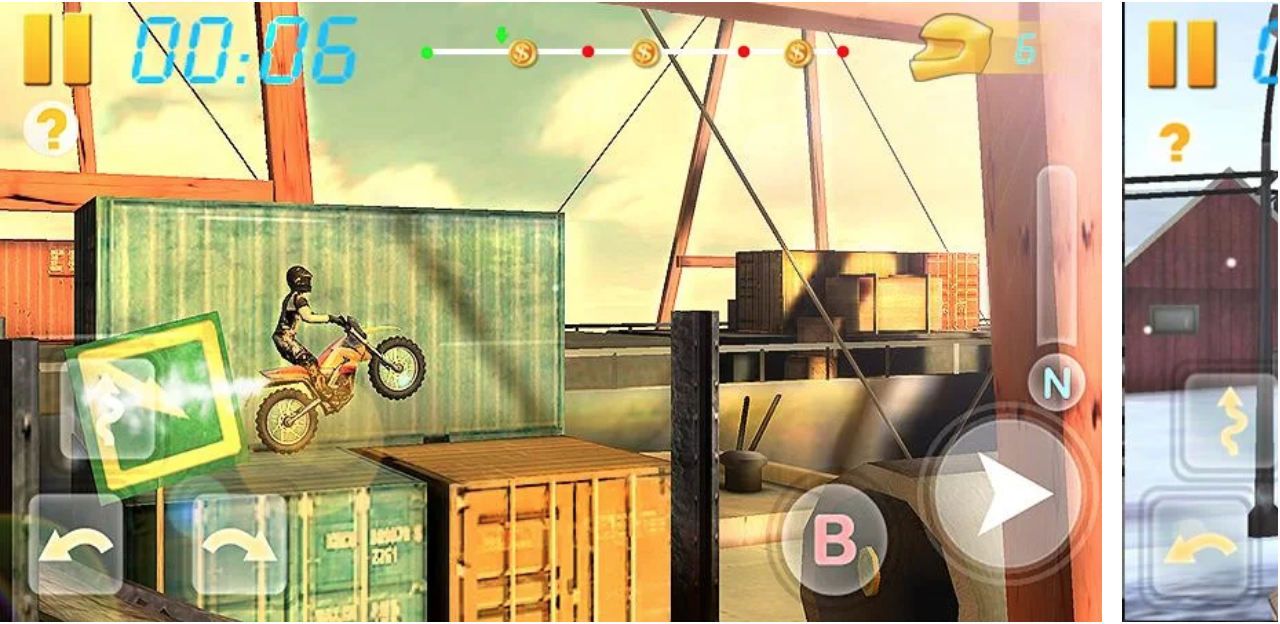
Bike Racing 3D:

Best 3D Games For Android

We have played many BMX games over the years on Android but none of them were as good as Bike Racing 3D. This game has it all, you are allowed to perform cool tricks in the air with your motorcycle. They have provided very responsive controls and it seems like performing a trick is very easy, trust me it’s not.

In order to play like a pro, you required practice and patience. Keep on practicing and you will get there. Moreover, because of this reason the game gets more addicting. One can keep on trying until he/she lands the perfect trick. Once you mastered a trick you go on with the next challenge. You should keep that on your mind, after performing a trick the challenge does not end. There are many different levels and stages you can play. All of them have a particular level of difficulty.

This doesn’t stop here, on each stage there are different obstacles that you have to overcome in order to progress. The graphics of this game are 3D and because of 3D graphics, you will have amazing gaming experience on your Android device.

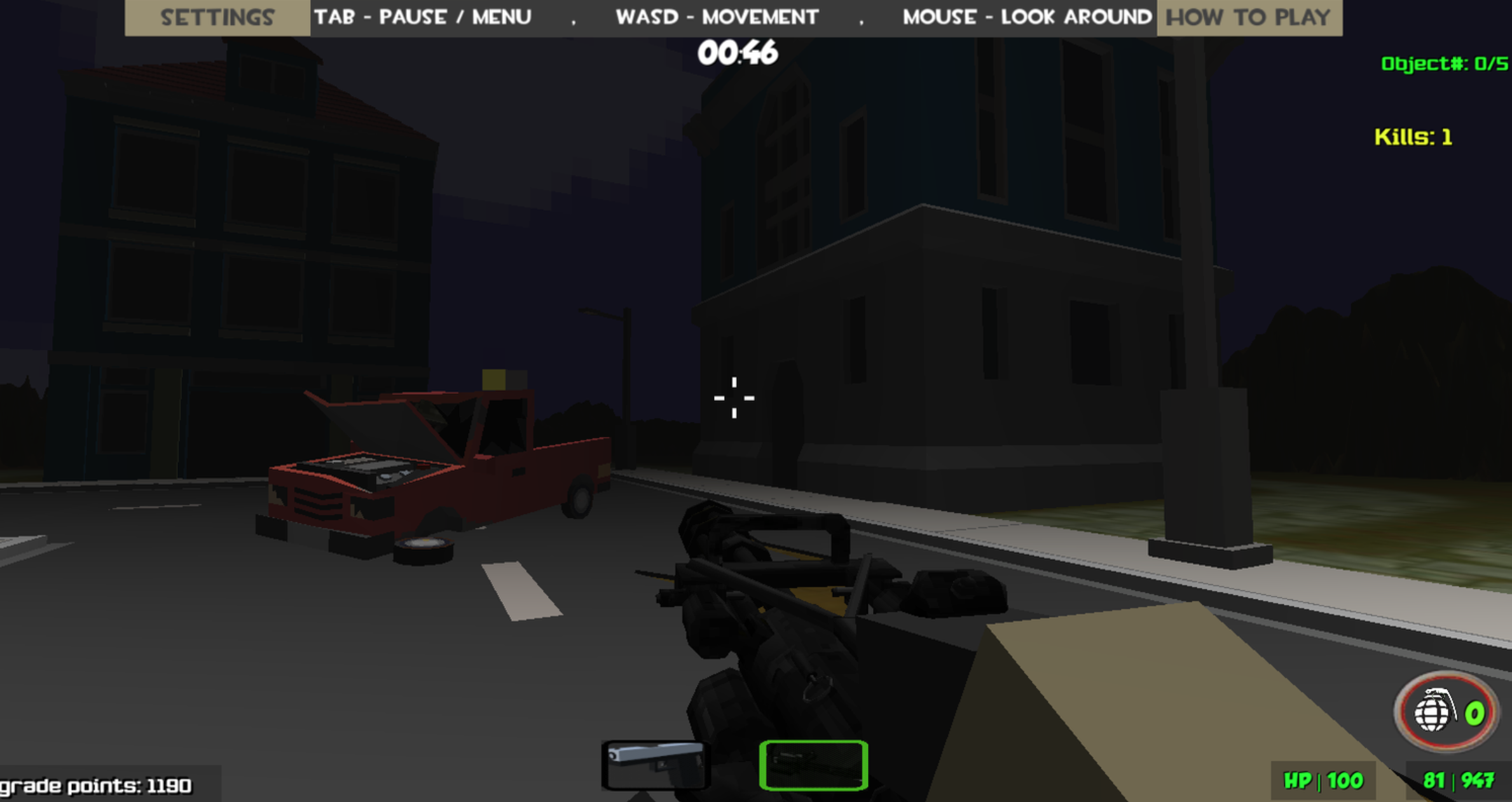
Zombie Arena 3D Survival Offline:

Best 3D Games For Android

Let’s get into some Zombie action, Zombie Arena 3D Survival Offline is an action based game designed for Android devices. This game is all about killing Zombies but not just that, you will find yourself in different arena or stages. Where ever you will go, there will be zombies, dog zombies, & more. In order to survive, you have to kill’em all.

This is also a first-person shooting game, you have to use your best combat skills. The game-play seems pretty simple but don’t take it lightly, these Zombies will show you no mercy. As soon as they spotted you, they will try there best to kill you. Moreover, these bloody zombies are very sneaky, you have to very careful while playing Zombie Arena 3D Survival Offline.

You can use different sorts of weapons in order to kill. Moreover, all of these weapons are upgradeable. Whenever a mission is completed, you will get rewards which will help you upgrade your weapons and skills.

GUNSHIP BATTLE: Helicopter 3D:

GUNSHIP BATTLE: Helicopter 3D

We think, GUNSHIP BATTLE: Helicopter 3D is the best helicopter simulation game and it loaded with 3D graphics. Those who want to fly a military helicopter and engage with the enemy, this game is for them. You will have the option to choose from a variety of helicopters. All the controls and graphics are in 3D, you can arm your chopper with a number of weapons.

Deer Hunter: 3D Sniper Shooter

Deer Hunter: 3D Sniper Shooter

You start off with hunting Deer, and then you go on hunting Beers, Wolves, and Elks. You will also hunt with the help of Dogs and then you will start fishing as well. The game only improved over time. The game gets interesting when you have to target a particular part of an animals’ body. For example, you have to shoot an animal right in its heart or in the lungs. At times, shooting the animals won’t be as easy as it seems.

Beers are the hardest ones to hunt. If you do not shoot them in the right place, there’s a great chance that they will digest you before you blink your eye. Wolves are also hard to hunt, but they are not as dangerous as beers. For wolves, only a single bullet is enough, but for Beers, you need to fire 2 shots at the least.

As you level up in the game, your existing weapons will stop working. You will have to upgrade your entire gear in order to unlock new maps. The more animals you kill, the more money you will earn and the faster you will be able to perform all the upgrades. That’s how this game will go on. Go ahead, pick up the gun and start your hunting activity.

Raft Survival Multiplayer 3D:

Raft Survival puts you all alone in the middle of an ocean. The earth seems something that doesn’t exist while you’re there on a raft. You cannot call for any help. the only thing you can find around yourself is debris which makes you realize that you are a survivor of a ship that just crashed and you found yourself on a raft as soon as you opened your eyes.

The struggle now starts to survive and make your way back to the world. There are horrible sea creatures like a shark and other fish moving around your raft. Build tools, craft weapons, build a shelter, think something for your food and try to survive through every single circumstance. Filter the ocean-water to make it drinkable. Raft Survival packs impressive graphics. The game is totally free. You can play it on your computer as well.
 

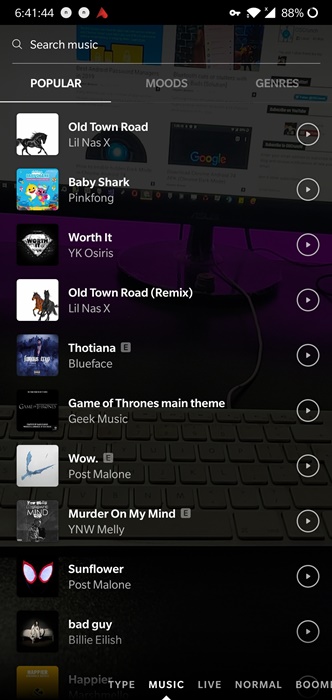
How to get Instagram Stories Music feature in any country

1
How to get Instagram Stories Music feature in any country

The concept of stories was first coined by Snapchat. However, ever since Instagram copied it, it has become the most popular apps of choice. Instagram stories added a handy feature called “Music”. This feature allows users to add original music tracks to Instagram stories. It shows up as a sticker. However, a lot of users may see the error saying “Instagram music is not available in your country”. This is due to some legal geo-restrictions. Therefore, we are going to show you how to use the Instagram Stories music feature in any country around the world. Something as cool as this should not be limited to a few regions.

How does Instagram Stories Music work?

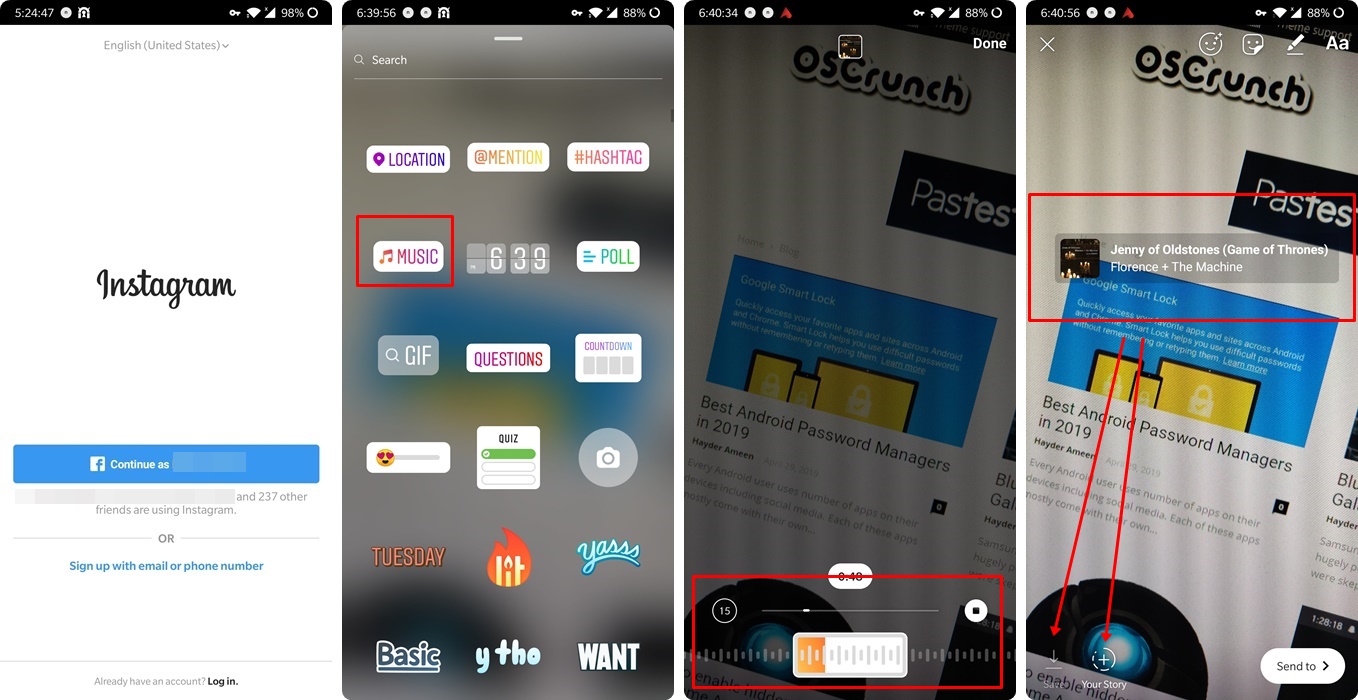
It is common for people to add music to their stories. It adds to the overall appeal. However, since this music is recorded via phone mic, therefore, the quality is not always the best. To make the sound quality super crisp, Instagram and Facebook added a Music sticker. To add music sticker to Instagram stories, follow these steps:

  1. Open the Instagram app on your phone.
  2. Tap on either the camera icon in the top left or “Your Story” icon.
  3. Then add any image or video clip.
  4. Once shot, tap on the stickers icon in the top bar.
  5. Here, you will see a sticker “Music”.
  6. Tap on it searches for the music you want to add.
  7. Once selected, move the slider at the bottom to add any 15 seconds clip from that song to your story.
  8. Once done, drag the music stick anywhere on your story. 
  9. That’s it! This is how to add music to Instagram stories.

How to use the Instagram Stories Music feature anywhere?

If you here, it means that you got the error saying “Instagram music is not available in your country”. This pops up when someone uploads a music track to their Insta story. A sticker shows up but the music does not play. Most likely, the uploaded is from another country. This is because the music feature is available only in countries like the UK, the USA, Australia, Sweden, Canada. Therefore, if you are living outside of these regions, a music sticker will not show up.

Follow the steps below to unlock the music on Instagram Stories.

  1. Turn on the phone.
  2. Go to the app drawer and long-press the Instagram icon.
  3. Tap on Uninstall.
  4. Now go to Play Store and install any VPN. Select one from our list of Best VPNs.
  5. Turn this VPN on and select the UK, US, or Australia as your server location.
  6. Once connected, open Play Store again.
  7. Search for Instagram.
  8. Tap on the Install icon next to it.use instagram stories music feature in any country
  9. Once installed, open the app and login with your personal account.
  10. You don’t need to create a new account for this.
  11. Now tap on the “Add Story” icon and you should see Music in the bottom bar.
  12. Moreover, add a music sticker after shooting a video clip or picture.enable instagram music feature in any country
  13. Similarly, add stickers to a pre-recorded video or picture from the gallery.
  14. Alternatively, scroll right in camera screen, to Music.
  15. Now select any music.instagram story music with vpn
  16. And start recording a video. This clip would be longer than usual.

Error: Instagram Story Music not available with VPN

When trying to enable music on my Instagram, I came across this issue. The Music sticker won’t show up on Instagram even with the VPN. Moreover, changing the location of servers did not help either. It’s like the location on Instagram did not change even with the VPN. Therefore, we need to find a way to change the location of the Instagram account.

The reason for this is the fact that services like Instagram and Facebook go out of their way to block proxies and VPNs. They try to detect the original location despite using VPN. Therefore, we need a VPN to bypass specific country restrictions or “Obfuscated servers“. To solve my issue, I used NordVPN and enabled the Obfuscated servers in its settings. It is working like a charm ever since. 

Below is an example of how to enable it.

  1. Open the NordVPN or any other VPN app.
  2. Go to settings.
  3. Look for an option to bypass country-specific restrictions.
  4. It is titled as “Obfuscated servers” in this case.
  5. Enable it.unlock instagram music story sticker with vpn
  6. Also connect to the VPN with US, UK, or Australia servers.
  7. Now go back to the app drawer.
  8. Long press the Instagram icon.
  9. Tap on App info.
  10. Here open the Storage tab.
  11. Clear cache and storage of the Instagram app from here.
  12. Go back to the app drawer and open the Instagram app again.
  13. The music feature in the Instagram story should now be available.

Conclusion

Instagram stories are currently the most popular platform to share your daily moments. Therefore, a cool addition like a music sticker makes the stories even more special. The above-given method may not work for every VPN on the first try. In that case, try the troubleshooting method mentioned right below it.

Feel free to leave your feedback and queries in the comments section below.

Bluetooth cuts or stutters with Galaxy Buds [Solution]

3
Bluetooth cuts or stutters with Galaxy Buds [Solution]

Samsung introduced Galaxy buds as a competitor to the hugely popular AirPods. At launch, a lot of people were skeptical of this style of wireless earphones. However, over time, it is proven that this is the future. Galaxy buds launched with the Galaxy S10 series. These are pretty good in terms of sound, battery life, and comfort. However, a lot of Galaxy buds users are facing connectivity issues. The Galaxy buds Bluetooth sound stutters or cuts randomly. This may also happen if you put hands over the phone. The sound of music cuts or stutters for just a second on Galaxy buds and then goes back to normal.

What causes Bluetooth sound stutter with Galaxy Buds?

Before continuing, it is worth mentioning that this issue is mainly noticed on Galaxy S10 and Galaxy S10+. Therefore, we can safely say that Android Pie 9.0 certainly has something to do with it. And there is a proof for it too.

Android Pie comes with adaptive battery features. What it does is that it cuts down the power to any app or service that is continuously draining the battery. Especially in the background. Bluetooth is also treated as an app/service by the system. Therefore, whenever the battery usage is continuous, it starts cutting down power.

Instead of completely cutting down the power (Which would mean that Bluetooth sound won’t work), it reduces the signal strength. Android Pie is highly focused on making features that help conserve battery. This aggressive approach can sometimes make the apps behave abnormally. 

What happens in the case of Buds is that the power of the Bluetooth signal is dampened to conserve the battery. Now, whenever the user puts their hand over the phone or moves the phone around too much, the signal is temporarily disturbed. This in turn causes the BlueTooth sound stutter on Galaxy buds connected to the phone. 

In addition to the buds, BlueTooth speakers may also experience stuttering when connected to Galaxy S10, S10+ or any other Android Pie powered phone. Therefore, the issue is not with speakers or buds, but with the phone’s software itself. However, don’t fret, the issue to this is very simple and you can follow the steps in the next section below.

Fix for Bluetooth music stutter

As mentioned earlier, this issue is because of the phone’s settings and not the speakers or buds. Follow the steps below to fix the Bluetooth music sound stutter on any BlueTooth device including Galaxy buds.

  1. Open Settings.
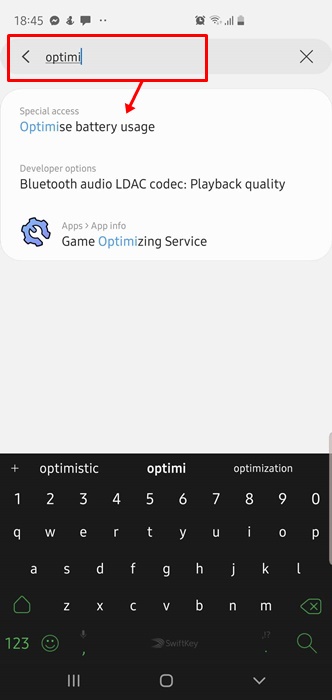
  2. Tap on the search bar and type “Optimize Battery Usage”.
  3. Now you will see the Battery Optimization tab under special Access. Open it.fix bluetooth sound stutter on galaxy buds
  4. Tap on “Optimize Battery Usage” in the next window.fix bluetooth stutter cut galaxy buds speakers
  5. It will open a list of apps under “Not optimized”. 
  6. Tap on it and change it to “All”.
  7. Now scroll down the list and look for “Bluetooth”.
  8. Change its slider to off.fix bluetooth sound cut galaxy buds speakers

That’s it! This is will now put your phone’s BlueTooth back to its maximum output and remove stutter while playing music through Galaxy buds or any other Bluetooth speakers.

Feel free to leave your feedback and queries in the comments section below.

How to enable hidden Dark Mode in Chrome Android 74

0
How to enable hidden Dark Mode in Chrome Android 74

Google teased the Dark mode for Chrome Android a few times in the past. However, most of these time, it was either available on limited number of devices or just not available at all. However, with the release of Chrome Android 74, we finally get a taste of how it is going to look like. It is still a hidden feature and only available in 74 version at time of writing. If you have not already updated your app, then download and update to Chrome 74 from here. Next up, follow this guide to learn how to unlock and enable the dark mode in Google Chrome Android app. iOS users may still have to wait for it.

How does the Dark Mode work?

The final objective of dark mode is to make browsing and reading easy on the eyes in dark rooms. If someone opens Google Chrome at night or in a dark area, its white tone and theme is kind of blinding. It is super unpleasant for the eyes. Therefore, the dark mode basically inverts all the colors. The white is turned to black and black text should be turned to white. 

In theory, this seems very doable. However, when we factor in millions of sites, it is not as easy to build a unified system to suit every single website out there. Moreover, the website owners design their sites in specific colors and graphics to make them stand out. If Chrome messes those colors up, it could have a bad effect on site’s health and its traffic.

chrome android dark mode enable unlock

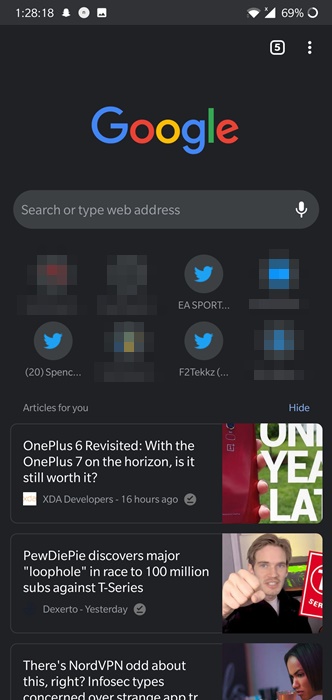
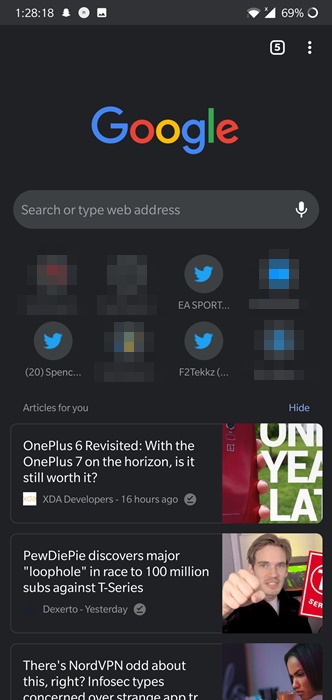
The current iteration of dark mode on Chrome is limited to app-wide settings, homepage and tab headers mainly. If you open the settings, everything is completely darkened out. Moreover, the homepage with frequently visited tabs and related articles is blacked out too. The headers on top of recent tabs menu have a bad contrast. The tabs are dark colored, as they should be. However, the text on these headers is also in a dark color with slightly different hue. This results in barely readable text. This is definitely something that Google will fix in future updates.

How to enable Dark Mode in Google Chrome Android

Before continuing, check the version of Chrome on your device. If it is not 74, then download and install Chrome 74 APK from HERE. Now follow the steps below:

  1. After installing new Chrome version, restart it once. Close it from recent apps and launch it again.
  2. Now open New Tab.
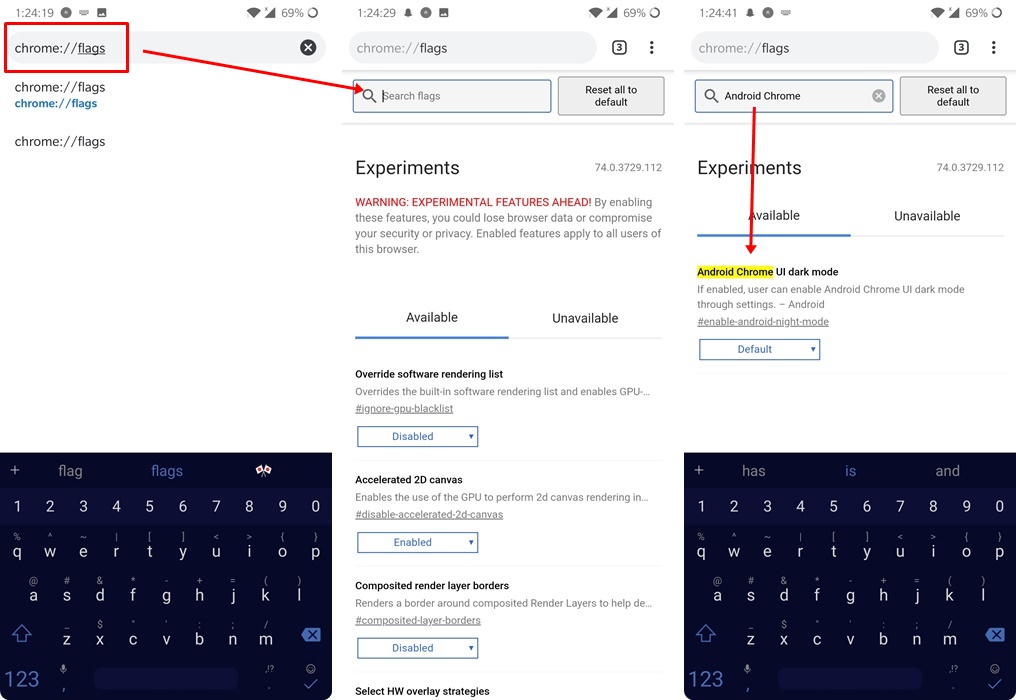
  3. Type “Chrome://flags” in address bar and tap enter.
  4. It will open a page with all experimental modes.
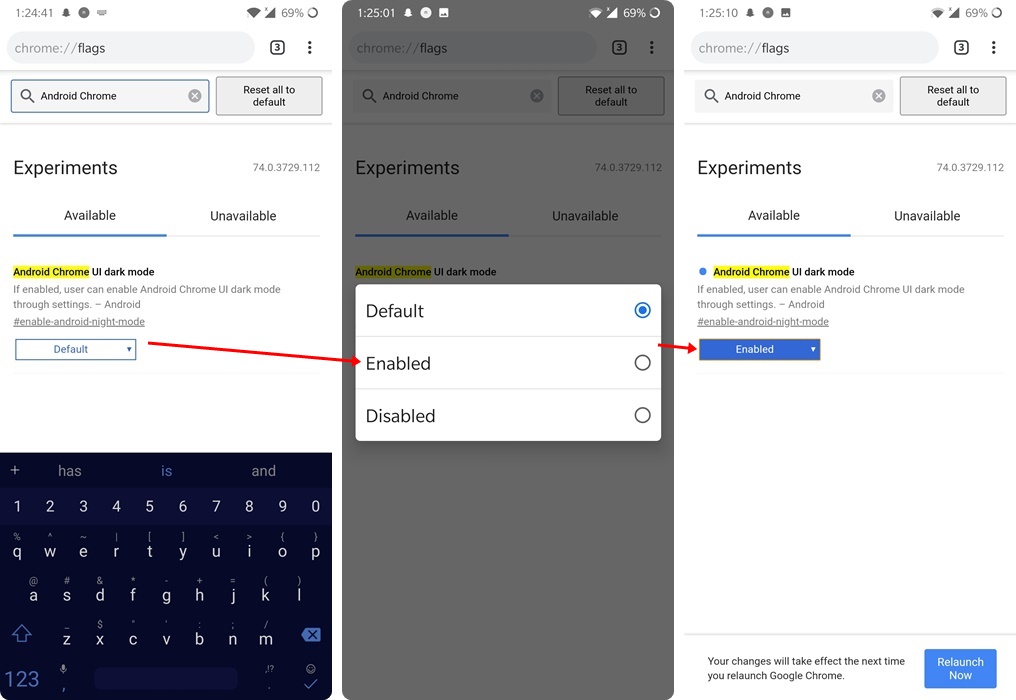
  5. Using the search bar inside this page, type “Android Chrome UI Dark Mode”.unlock dark mode in chrome android
  6. It will search the correct setting in real time. If you still do not find it, then restart Chrome app.
  7. Now tap on “Default” and change it to “Enabled”.chrome dark mode android enable
  8. As soon as you do so, it will give a prompt to restart Chrome. Press the restart button.
  9. Once again close Chrome from recent apps menu and then launch it again.
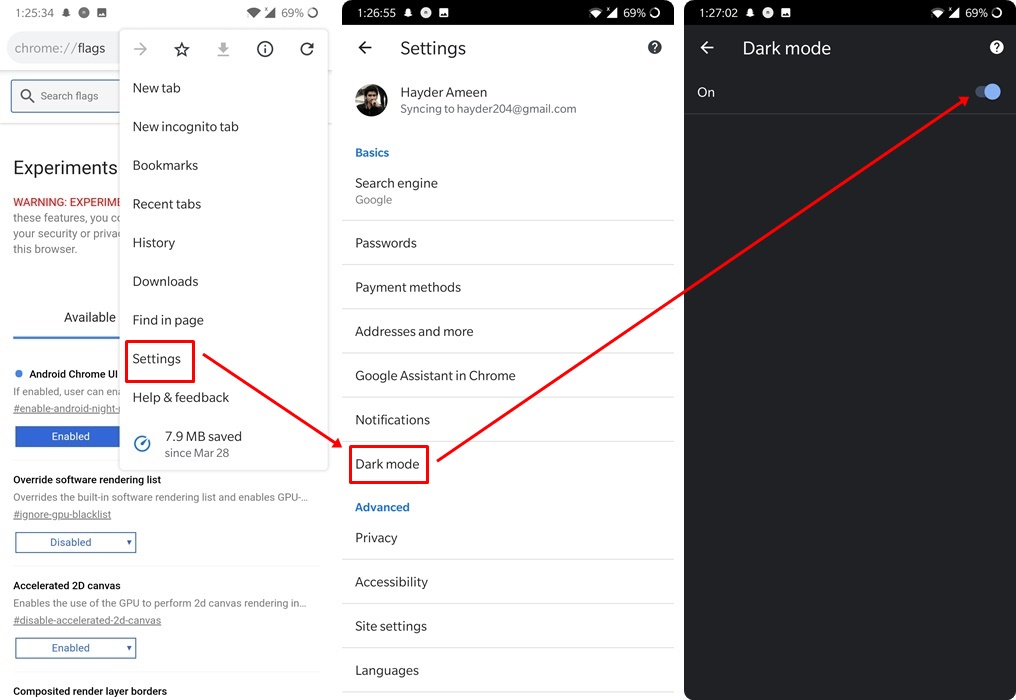
  10. Now tap on the 3 dots in top right and open Settings. Here you will see a new option “Dark Mode”.
  11. Open this tap and activate the dark mode slider in next window.chrome android dark mode settings
  12. It will instantly change the UI of your Chrome to dark theme.
  13. That’s it! You have unlocked the hidden dark mode in Android’s Chrome app.

Conclusion

The dark mode in its current state is not perfect. It is hidden only because it is under development. You could use this opportunity to submit feedback to developers’ team. Some UI elements may appear broken or some times may not load in correct colors right now. However, this is only due to the fact that it’s not in its final stage right now.

Feel free to leave your feedback and queries in the comments section down below.

Download Chrome Android 74 APK (Chrome Dark Mode)

0
Download Chrome Android 74 APK (Chrome Dark Mode)

Download Chrome Android 74 APK on your device. Dark Mode or Night Mode is gaining a lot of popularity in recent days. This is actually surprising that the developers did not realize this earlier. The main advantage or use of Dark Mode in any apps is the fact that it is easier on the eyes in low-light areas.

Especially, if someone wants to use Google Chrome in a dark room, the white background and tone of the app make it very taxing for the eyes. You can check out how to enable Dark Mode on Messenger App on both Android and iOS here. In this guide, follow the steps to download Google Chrome 74 APK version. It is the Android’s Google Chrome Dark Mode enabled APK. Note that this is not in the development stage therefore, it may not work all around the app. However, it is still cool and it could prove very useful.

Google Chrome Android Dark Mode Preview

Currently, the Dark Mode is available only in the Chrome 74 version. Therefore, if you are using an older version, then it may not work. Moreover, a lot of devices around the world are still stuck on 73 versions of Chrome and the Play Store has no update available. Therefore, in order to get all the goodies of this new update, you need to download Chrome 74 APK manually.

Before doing that, let’s take a look at how the dark mode looks. It works well on the homepage, some search pages, settings, and other tabs. However, it may not work on all sites that you load as well as reading mode.

google chrome android dark mode 74 apk

Since it is in the development phase, there is another bug. The text color on tab titles when pressing the tabs button in the top right shows both text and tab headers in dark color. The text is barely readable. This is something that Google will surely fix in future updates.

Download Google Chrome Android 74 APK

Below are the download links as well as the installation steps.

  1. Download Google Chrome Android 74 APK from HERE. (x86 APK HERE).
  2. Put it anywhere on your phone or tablet.
  3. Open a file manager on your device.
  4. Navigate to the folder where you copied APK in step 2.
  5. Tap on the APK icon.
  6. If it asks for permission to install from unknown sources, allow it.
  7. Then tap on the “Install” button at the bottom of the screen.
  8. Once done, go back to the app drawer and open Google Chrome.
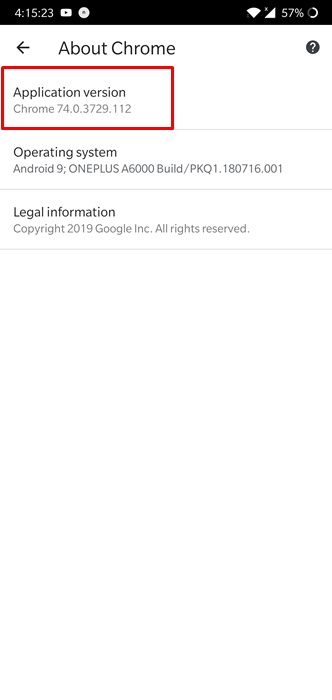
  9. Tap on the 3 dots in the top right, tap on Settings, scroll down and open “About Chrome”.
  10. Here the Google Chrome’s version should now be 74 followed by some other digits.google chrome android 74 apk download

That’s pretty much it! You have now successfully installed Google Chrome Android 74 version on your phone or tablet. Note that the dark mode is hidden even in this version. It is not available in settings. In order to unlock the dark mode, follow the guide linked below.

NEXT: How to enable hidden Dark Mode in Google Chrome Android 74

Feel free to leave your feedback and queries in the comments section below

Downgrade EMUI 9 to EMUI 8 – Huawei & Honor

14
Downgrade EMUI 9 to EMUI 8 – Huawei & Honor

This is the guide to downgrade EMUI 9 to EMUI 8. This guide to downgrade the firmware to EMUI 8 will work for all Huawei and Honor phones.

When Huawei updated its phones from Android Oreo to Android Pie, it introduced a new UI. Huawei updated the UI from EMUI 8 to EMUI 9. This new UI changed almost everything on the phone. Apart from applying the cosmetical changes, it changed the functionality of the phones too. The EMUI 9 did not bode well for the users who bought their phones from China. The Chinese Huawei and Honor phone users were blocked from installing the Play Store on EMUI 9.

Downgrade EMUI 9 to EMUI 8

Previously, the users could easily install Google Play Services and Play Store on any Huawei or Honor phone running on EMUI 8 (Android Oreo) or below. I personally interacted with Huawei Honor 8X and 8X Max owners on our site and they were enjoying the Play Store on their Chinese phones until the EMUI 9 came in. Updating to EMUI 9 first deleted the Play Store from their phones. Later on, when they tried installing Play Store on the Android 9 Pie powered by EMUI 9, the installation went fine, but the Play Store failed to load.

We have tried every possible solution to fix this but to no use. A respect user of our site going by the name “Davide Pasini” reached out to use after he was done installing all GMS Installers and Google Installers. Here is what Davide had to say about this problem.

@UsamaM I have the same situation as Moritz on my Honor 8X bought in China

In my case, the phone does not have the Play Services after factory reset (EMUI 9.0.1). Installing this latest Play Store, the installation process is successful, but when launching it, it force closes (phone goes back to the home screen after a brief blink). I also checked in Accounts, GMS is not there as the Google account is not present.

Installing GMSanzhuangqi + GMSinstaller 3.0 + latest Play Store from this post (where not installing the PlayStore from the GMS or installing it first and then uninstalling it), it results in Moritz situation: the installation is successful, but after opening the Play Store and clicking on the Sign In button, nothing happens (specifically, the click is registered but the screen remains there. there is just the fading animation of pressing the button and then it goes back to its previous green)

Moreover, I also this time tried this process both with my Huawei id registered in China as well as by registering a new id in Italy (of course I unlinked the previous Chinese id before changing it), this, however, did not change the situation whatsoever.

After all the possible solutions put forward online for this EMUI upgrade and previous solutions from 2018, I see that the issue is not much installing the PlayStore (which installs). The issue seems to reside with the functioning of the Google Account, without which Play Store, Google account, Contacts Synchronization, Gmail, Youtube, and all Google services cannot work. In fact, after installing GMS, and trying to add a Google account, this appears as an option in the Accounts list, but upon clicking on it, the screen crashes and reverts to Add Account, making it impossible to add it and therefore to log into any of the Play Services (After Factory Reset, no Google Account option in the accounts list)

Does all of this make any sense @UsamaM ?? I mean, that the issue resides in the EMUI blocking the use of the Google account when any of the Play services makes a request to sign in into it, effectively, therefore, blocking the use of any of the services and apps? I’m not versed into coding apps, but could there be a workaround so that the request of the google account is somehow masked to the EMUI but it can still reach the apps and allow them to sign in?

At this point, we were able to confirm that the problem is not with the files that we are trying to load on the phones. Problem is basically with the EMUI 9 which has system-wide restrictions to stop Play Services from working.

Now, I don’t know why Huawei did this. Huawei just bow-downed in front of the Great Firewall of China. This has disappointed all the users who invested their hard-earned money in Huawei’s products. The Chinese phone maker may have very nice handsets under its umbrella, but these issues just take a major chunk of its audience away.

In an attempt to install the Play Store, another user of our site “Gillou43” commented.

Users who are getting a white screen, or force close errors while opening play store: I had the same issue on my honor 8x Chinese version JSN-AL00a. The only way I found to make the play store work fine was to downgrade my android version to 8.2 (I was 9.0.1, latest). To downgrade I’ve simply used HiSuite software on PC.
Now all google apps work. I’VE BLOCKED AUTOMATIC SYSTEM UPDATES to avoid such problems. Now still waiting for a more elegant solution/custom EU ROM compatible with my phone (I’m not sure it the right way to say it, I would like to remove Chinese content)… maybe later?

After going through all this, I decided to write this guide which will help Huawei and Honor phone owners to downgrade their phones from EMUI 9 to EMUI 8. This is the primary reason for me to write this guide. If you have any other reasons to downgrade, you will still use the same guide anyway. So, without any further ado, let’s take a look at the steps now.

How to Downgrade EMUI 9 to EMUI 8

Before downgrading, you have to prepare your phone.

Preparations

  • This guide is only for Huawei and Honor handsets. Do not try on any other phone.
  • Charge your phone up to 50% prior to following the steps.
  • Backup all of your data as this process will factory reset your phone.
  • Enable OEM Unlocking and USB Debugging mode on your phone.
  • Use original data cable to connect the phone to your computer.
  • Follow the steps with full attention.

Now, there are two methods to downgrade your phone. I am going to put them both below. The first method is easy. If the first works for you, you don’t need to follow the 2nd method. In case the first one fails, the 2nd will definitely work.

Steps to Downgrade Huawei and Honor Phones from EMUI 9 to EMUI  8 – HiSuite Method

  1. Download and install the latest HiSuite on your computer.
  2. On your phone, open Settings, and in search, type “HDB”.
  3. Click on “Allow HiSuite to use HDB” and then click the toggle next to it to turn it on.
  4. Connect your phone to the computer now.
  5. Open HiSuite now.
  6. When HiSuite tries to establish a connection with your phone, the phone will ask for permission, allow it.
  7. The phone is now connected.
  8. In HiSuite, click on Update.
  9. HiSuite will find available firmware for your phone.

If there is an old firmware available, it will give you the option to Downgrade. It will show the latest firmware otherwise.

Guide to Downgrade EMUI 9 to EMUI 8 via FunkyHuawei DNS

  1. Download and install HiSuite 5.0.2.301 on your computer.
  2. On your computer, open the Admin panel of your router. For example, you will use 192.168.1.1 for TP-Link.
  3. On the router page, go to DNS configuration and then enable Manual configuration.
  4. Now add the following in Primary and Alternate DNS: 213.202.238.238 & 1.2.3.4.
  5. Open FunkyHuawei, sign up, and find and select the firmware you want to downgrade to.
  6. Open HiSuite on the computer now.
  7. Connect the phone to the computer. Enable HDB if it asks.
  8. HiSuite will show you the firmware downgrade that you just selected on FunkyHuawei.
  9. Downgrade the firmware now and enjoy! That’s all.
Image by OSCrunch @UsamaM

Wrap Up

That’s all with this process. I know that this is not the most appropriate method to run the Play Store on your Huawei phone, but this is the only method you have for now. We will have to wait unless a workaround to make the Play Services work on EMUI 9 comes up. Till then, you can decide whether the Play Services are what you need or you like EMUI 9 which doesn’t run it.

Here are some more guides that will be useful once you have downgraded.

Last Updated: 26th October 2019

How to show FPS counter in PUBG Mobile

0
How to show FPS counter in PUBG Mobile

Most common jargon of gaming world includes terms like FPS, response time, FreeSync, V-Sync, Anti-Aliasing, Ping and latency. Out of all these terms, FPS or Frames Per Second plays a very important role in how a game plays and feels. Since mobile gaming is entering into eSports now, therefore, pro gamers want full control over their gaming experience. The significance of good FPS score could not be overstated. Therefore, in this guide, I’ll show you how to show a live FPS counter in PUBG Mobile. Use this guide to work on Android. This counter shows up in top corner and works just like PC games.

Why do you need FPS counter in PUBG Mobile?

The mobile gaming right now is split between two main categories: Competitive/fast-paced games and slow-paced and laid-back games. When it comes to competitive games, everyone wants any sort of advantage they can get to compete in online multiplayer. The FPS is not as important in offline and click based games. However, if you want to check FPS of PUBG Mobile on Android phone or iPhone, then this is the way to go.

Games like PUBG Mobile, Fortnite, Creative Destruction, Knives Out and many others are played online in real-time. Therefore, higher the FPS, more responsive your controls are. For example, if two players fire a bullet at each other at same time and player 1 has low FPS compared to player 2 ( considering the ping is similar), player 2 will shoot the bullet first and will see the response of their controls before player 1.

In conclusion, players of games like PUBG Mobile need as many FPS as possible. This makes the overall response rate and smoothness of game much better. Higher the response time, better the chance of utilizing your skills to max level.

How to show FPS Counter in PUBG Mobile [Step-by-Step Guide]

Before continuing, note that the following steps and screenshots are captured on Android device. However, the same steps may not work for iOS devices i.e. iPhone and iPad, too. Moreover, Android users don’t need to root their phones or tablets. It works on stock Android without any special access. 

Requirements

  • Install Gamebench on Android.
  • Make your Gamebench account on Android device.
  • Download and install Gamebench desktop App on Windows.
  • Login to Web Dashboard with same login details.
  • Get a USB cable compatible with phone/tablet and your PC.

Final Steps

  1. Enable USB Debugging on your phone.
  2. To do so, go to Settings > About Phone > Tap on Build number 7 times until the popup saying “You are now a developer” appears.
  3. Next up, go back to Settings main menu, scroll down and tap on Developer Options.
  4. Enable the USB Debugging option here.
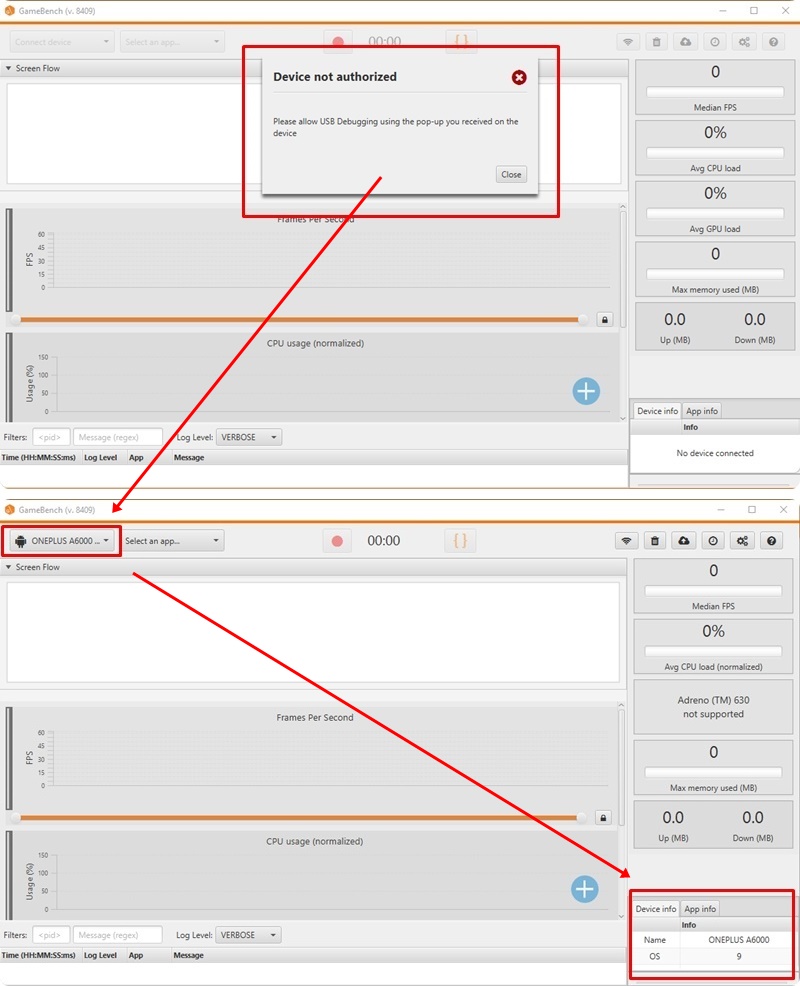
  5. Now connect your phone to PC with USB Cable.
  6. At some point, a permission dialog will popup on phone, to enable the debugging connection. Allow it.
  7. Now launch the desktop Gamebech app.
  8. Once done, open Gamebench app on Android. Make sure you’re already logged into Android app.
  9. When you see the screen with big “Begin” button. Tap on it.show fps counter on pubg mobile android
  10. Now the desktop Gamebench will detect your phone and unlock FPS reading.pubg mobile fps counter gamebench pc
  11. Note that, you need to enable 2 permissions for Gamebench Android app: Usage statistics and Draw over other apps. The app will ask you to enable these at some point, so enable these options too.
  12. Once the setup is complete, the desktop App and mobile app will prompt you to disconnect USB cable. We do not need the USB cable anymore. It will work without it from now on.
  13. Now go back to Gamebench Android app’s homescreen.
  14. Tap on the Plus (+) icon in bottom left of screen.
  15. Here, add PUBG Mobile from the list of installed apps.
  16. Once added, just tap on the play button next to PUBG Mobile icon inside Gamebench homescreen.see pubg mobile fps android with gamebench
  17. This will launch the app for you.
  18. If the app freezes, then it means that one of the permissions from step 11 is missing.
  19. Enable those permissions and then try again.gamebench permissions to view fps counter pubg mobile
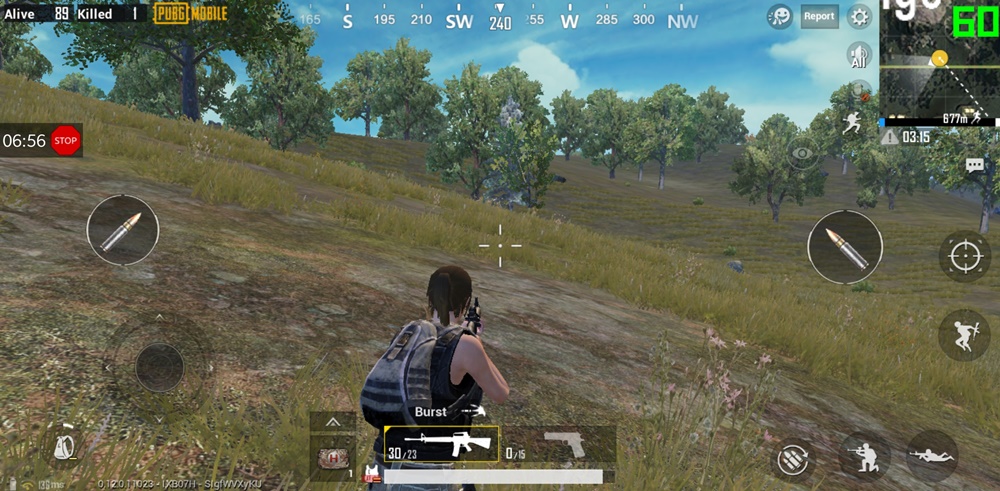
  20. That’s it! Now as the game launches, you’ll see the FPS counter in top right corner.
  21. You may change the overlay and other options in Gamebench’s settings.

How to get 60 FPS on PUBG Mobile?

pubg mobile fps counter android

After you launch the game, you may notice that the FPS are capped at either 30 or 40. This is not nearly as good as it should be. Except few gaming phones out there, most screens come with 60Hz panels. Therefore, the game should run at 60FPS at least. In order to get maximum FPS, change the following settings in PUBG Mobile graphics.

  • Graphics: Smooth
  • FrameRate: Extreme

pubg mobile 60 fps counter

Conclusion

Games like PUBG Mobile and Fortnite are most fun when they run smooth and stutter-free. The Gamebench tool helps see the actual numbers for ourselves. However, note that the overall performance mainly depends on the GPU and CPU of your device. If the GPU is not powerful enough, then even the lowest settings may not get 60fps. However, keep messing around with the graphics settings until you get the best possible gameplay with max FPS on PUBG Mobile.

Feel free to leave your feedback and queries in the comments section below.