Home Blog Page 48

Connect iPhone/iPad To Samsung Smart TV [ Guide ]

0
Connect iPhone/iPad To Samsung Smart TV [ Guide ]

You are iOS user but you have Samsung Smart TV and now you are looking for a way to Connect iPhone/iPad To Samsung Smart TV. Well, you are in the right place. Today you will learn how you can connect the iOS devices with your Samsung Smart TV.

Whether you are an iPhone or Apple user, you cannot deny the fact, Samsung Smart TV is pretty good when it comes to Smart TV. Everybody wants to watch videos and movies on big screens. Android users have perks of screen mirroring option and they are good to go. However, Apple users are not that lucky but today we will help all of Apple users and tell them how you can Connect iPhone/iPad To Samsung Smart TV.

Connect iPhone/iPad To Samsung Smart TV

There are a number of ways through you can mirror iPhone screen to Samsung Smart TV. But we cannot post all of them. However, we have chosen the best and easiest methods you can use.

Connect iPhone/iPad To Samsung Smart TV

Lightning Digital AV Adapter:

This is the best and easiest method an Apple user can use to connect iPhone/iPad to a smart TV. It’s a plug & Play method, you don’t have to set up anything, no need of third-party installations, etc. All you have to do is connect AV adapter to your phone and smart tv.

Follow the instructions below in order to learn how to connect AV adapters. Because there are two kinds of AV adapters, one is for lightning devices and the other is for old devices.

  • First, connect the adapter to your iPhone or iPad charging port
  • After that, you will require an HDMI cable. Connect the HDMI cable to the digital AV Adapter
  • Now connect the other end of the HDMI cable to Smart TV

After applying these steps, all that left is to use your remote and select the HDMI input.

Read more: *New* Top Samsung Smart TV Apps List: 2019

Samsung Smart View:

  1. First, head over to the app store and download the Samsung Smart View app on your iOS devices.
  2. Once installed, Launch the app on your iPhone or iPad.
  3. Now, wait for your smart TV to appear in the list of available connection.
  4. It might take some time. Once it does, Tap on your Smart TV, you will see a notification your Samsung Smart TV.
  5. Tap on allow to proceed with the connection.
  6. On the Smart View app, enable the screen recording, allow the apps access.
  7. After that, Turn on the screen recording module. You can find this option in customizing controls.
  8. That’s it.

Final Words:

These were the best and simple methods you can use to connect your iPhone/iPad to Samsung Smart TV. Let’s know how did it go with you.

Delete Order History On Amazon Permanently [ Clear All you Orders ]

0
Delete Order History On Amazon Permanently [ Clear All you Orders ]

Those who use Amazon to buy all most everything, this is the guide for all of them. With the help of this guide, you will be able to delete Order History on Amazon. Not Temporary, it will be permanent.

Delete Order History On Amazon

Those of you who are still living under the rock will be the ones who are not familiar with the Amazon. The biggest and the most popular online shopping store of them all. Not only this, The owner of the Amazon Jeff Bezos is the world richest man, so you can get the idea, how big Amazon network is.

Delete Order History On Amazon

Read more: 4 Best Amazon Price Tracker Tools [ Tips ]

Now coming back to our main topic How to Delete Order History On Amazon. It is simple and easy, you will get it. Deleting order history means, once your order is successfully delivered at your doorstep and transaction is marked completed. The completed order is moved to your order history. It is a good thing, I mean what if we need to order the same thing, you don’t have to through with the same process again. All you have to do is head over to the order history and order again.

But not everyone’s thinks the same, that’s why they want to delete order history on Amazon. Also, that is why you are here, let me break it to you, there is such option available which allows you to delete order history on Amazon. But you can hide your order history in order to stop them from showing on your dashboard.

Let’s get started now!

Hide Order On Amazon:

  1. First thing you will need to do is, log in to your Amazon account.
  2. Head over to your account and click on the order history.
  3. Here you have to select the order, you want to hide from your dashboard.
  4. Once you select an order to hide, it will be moved to the hidden order menu. Also, you can see all of you hidden order from your account settings -> hidden order menu option.

Archiving Order on Amazon:

It’s the same archiving or hiding order on Amazon. They both serve the same purpose, not allowing orders to showing up in your dashboard.

  1. Open your order history page.
  2. All of your placed orders are here, look for the Archiving Order option under the order settings menu.
  3. That’s it.

Try this: Install Google Play Store on Amazon Fire HD 8 tablet

Final Words:

This is how you can delete order history on Amazon or you can say hide the order history. But still, worth it, do give it a try and tell me how’d gone for you. Please don’t forget to share your thoughts on this article.

Call of Duty Mobile Network error Please check your network status (4,28)(4,50) FIXED
1
Call of Duty Mobile Network error Please check your network status (4,28)(4,50) FIXED

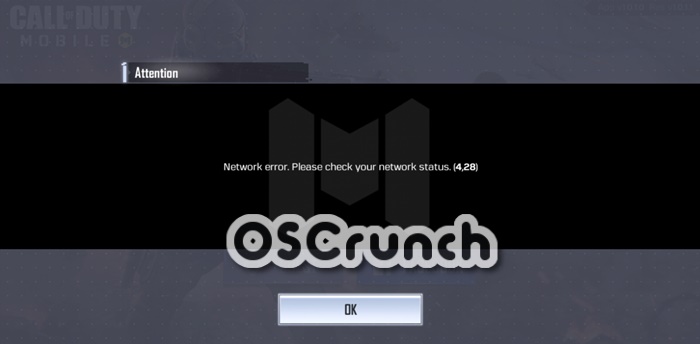
The development of Call of Duty Mobile is still underway. It is currently only available as an open beta in specific regions. Therefore, the only way to play it is via a VPN and some special steps. Read about it HERE. Game keeps running into some issues still. Call of Duty Mobile Network error 4,28 and 4,50 on login screen are pretty common. Either you get it after auto-login or try to login manually. Either way, this error does not let users enter main game menu. The game just keeps going back to homescreen.

call of duty mobile network error 4,28

How to fix Network Error 4,28 and 4,50 in Call of Duty Mobile

At the time of writing, this game is only available in limited number of regions. Therefore, most people must be using a VPN to play it. Reportedly, the Call of Duty Mobile on VPN mostly comes up with this error. 

Also Read: How to install Call of Duty Mobile on Windows 10 PC

Here is the reason for this. Since anyone can just download and install the APK + obb on their Android devices, it is not possible to contain open beta. Therefore, the devs have limited it to geo-location. Everytime someone tries to login, we see the error message: Network error. Please check your network status 4,28. Or sometimes it is Network error 4,50. 

The developers have not clearly specified what these numbers indicate. However, there is a directly correlation between these errors and the VPN servers. Sometimes, the game just restarts randomly. On the other hand COD Mobile network error pops up at login screen. This is where the system determines your location. It is possible that even if you are using a VPN, the error may still show up.

The VPN servers are not all obfuscated. In simple terms, not every server can mask your location completely. Therefore, some servers show the error message even if the apparent location is same. The country specific features still do not work.

Steps to fix it

The exact steps for this are going to vary with whichever VPN anyone is using. However, the underlying concept is still same.

  • In case of both network errors, follow these steps.
  • Open the VPN App.
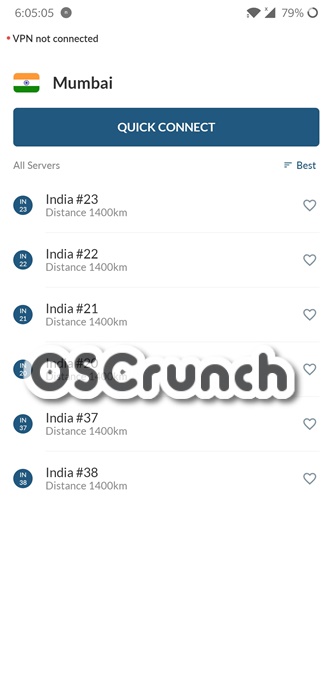
  • Select the country specified in open beta. In this case, it is India.
  • Next up, rather than connecting to “fastest server” automatically, select a server yourself.call of duty mobile network error 4,50 fix
  • Once a server is connected, try to launch the game.
  • If the game launches, then try and save this server in your favorites. Most VPNs come with this feature.
  • Otherwise, change the server from given list (from that specific region only) and try to launch game again.
  • After 2 or 3 attempts, COD Network errors disappear.
  • That’s pretty much it! Enjoy slaying your enemies!

Conclusion

Fans of COD franchise are really excited about an actual mobile version. Network errors can make the experience bitter sometimes. Therefore, try the simple solution above to fix it for good. It works for both COD Mobile 4,28 and 4,50 network errors.

Feel free to leave your feedback and queries in comments below

FIX Call of Duty Mobile Network error. Please check your network status. (4,28)(4,50)(4,51)

0
FIX Call of Duty Mobile Network error. Please check your network status. (4,28)(4,50)(4,51)
Triggered - Call of Duty Mobile Network error

Call of Duty Mobile is on the roll now. All gamers are busy playing this game. The game is limited to a few countries at the moment. Majority of the gamers are using workarounds to play this game in the countries where it isn’t available right now. Because of these workarounds, the game is showing some errors. The most common error that most of the users have faced so far is the Network error. Call of Duty Mobile shows the Network Error. Please check your network status. (4,28) upon trying to connect to Facebook.

Call of Duty Mobile Network error
Triggered – Call of Duty Mobile Network error

The Network error has two more variations. It shows up as “Network error. Please check your network status. (4,50) and “Network error. Please check your network status. (4,51)”. I also got the same error while trying to play Call of Duty Mobile for the first time. Upon trying a few solutions, I was able to resolve this issue and I am going to share the solution with all of you.

Before you take a look at the solution, I would like to tell you why exactly this Call of Duty Mobile Network error popping up.

As I mentioned above, the game is not officially available in all the regions now. To run the game, gamers are using VPN. Call of Duty Mobile isn’t very friendly with the VPNs. It is not going to work with all the VPNs, and it is not going to work with all the servers either. At first, you have to connect to a country where the game is available, and then you have to find the server that will resolve the Network error. So yes, it’s going to be a little bit of trouble, but it can be resolved.

Here are the steps to fix Call of Duty Mobile Network error. Please check your network status. (4,28)(4,50)(4,51).

Call of Duty Mobile Network error. Please check your network status. (4,28)(4,50)(4,51) – How to fix

  1. Close the game first of all.
  2. Open the VPN that you are using.
  3. Connect to India. (COD Mobile is available in India).
  4. Open the game again.
  5. Connect with Facebook.
  6. The game should go through. Just in case it doesn’t, close it again and open the VPN app again.
  7. Now connect to another server in India. (Do not connect to another country, the 2nd server should be of India too)
  8. Open and run the game now. It should definitely go through.

If it fails for the 2nd time, connect to a third server. If your VPN app doesn’t have more than 1 server, you can install 5-6 different VPN apps and try switching to a new VPN app every time, but make sure that the country is India. All VPN apps will have different servers for India, so this will work too. If you have a premium VPN like the Nord VPN, you can find over 30 servers for each country. Furthermore, I personally got this game running with the help of Proxy Master VPN, so you may give that VPN a try too.

That’s all. If you were able to resolve the issue through this method, drop your comment below. If you have any other queries, feel free to drop them here.

Download Call of Duty Mobile for PC and Laptop [Windows/Mac]

Download Call of Duty Mobile for PC and Laptop [Windows/Mac]

Here is the guide to download Call of Duty Mobile for PC and Laptop. By following steps here, you can install Call of Duty Mobile for PC on any Desktop PC or a Laptop powered by Windows or Mac.

Call of Duty Mobile has started coming out of the pre-registration state now. The beta stage has ended. Call of Duty Mobile is now available in a couple of countries.

If you have been eagerly waiting for this game, its time to get your hands on it now. Call Duty Mobile has got everything that you saw in its desktop version. Over the top of existing FPS experience, this game incorporates the Battle Royale mode, which is a first for Call of Duty series. It is extremely easy to install the Call of Duty Mobile on an Android phone, but what if you want to play it on your computer? Well, this is the guide that you are going to need in that case. This guide will explain to you the steps to download Call of Duty Mobile on Windows 10, Windows 8.1, Windows 8, and MacOS/OS X. Call of Duty Mobile on Android

About Call of Duty Mobile

Call of Duty is the most popular FPS game that originated back in 2003. Call of Duty Mobile is the smartphone version of Call of Duty. In Call of Duty Mobile, you get the same experience as that of the original COD. The game brings additional features specifically designed for smartphone users. For example, for the sake of making this game more interesting, the developers have added a PUBG-like battle royale mode where 100s of players jump off from choppers.

Players can team up to take down the teams of enemies. One reason for Call of Duty’s popular was its multiplayer mode. The very same multiplayer mode can be found in Call of Duty Mobile too. Players can join random online servers to collaborate with strangers or they can create their own servers, invite their friends to form a squad. Weapon upgrades are provided. You can earn balance by performing the game and this balance can be used to purchase new gear. The game offers IAPs too, but if you are a pro, you definitely don’t need the IAPs.

Call of Duty Mobile comes for free. This game can be installed without any hassle. If you want to install it on your Android handset, use this guide to install it. To install it on your computer, follow the steps given below.

Easy method to download Call of Duty for PC

Note: This method will only work once Call of Duty Mobile globally rolls out. At the moment, it is limited to a couple of countries only.

  1. Download and install the Android emulator of your choice.
  2. Open the emulator and go to Play Store.
  3. In the Play Store, find Call of Duty Mobile.
  4. Install the game now.
  5. From the home-page or app-drawer, open Call of Duty Mobile now.
  6. Set up the game and set the keys.
  7. Start playing the game now.

In case the game is not available in your country, then the method below is what you need to follow.

Download Call of Duty Mobile for PC and Laptop

Preparations

  • Download and install BlueStacks 4 on Windows and Nox Player on Mac.
  • Open BlueStacks 4 or Nox and set it up using your Google Account.
  • In the BlueStacks 4/Nox, open the Play Store and install a File Manager.
  • Also, install the Proxy Master VPN in the BlueStacks.
  • Open Play Store in emulator and search for Call of Duty Mobile and then click on “Pre-register”. This is important stuff to run this game.
  • Download Call of Duty Mobile APK & OBB Files on your computer – Download Link.
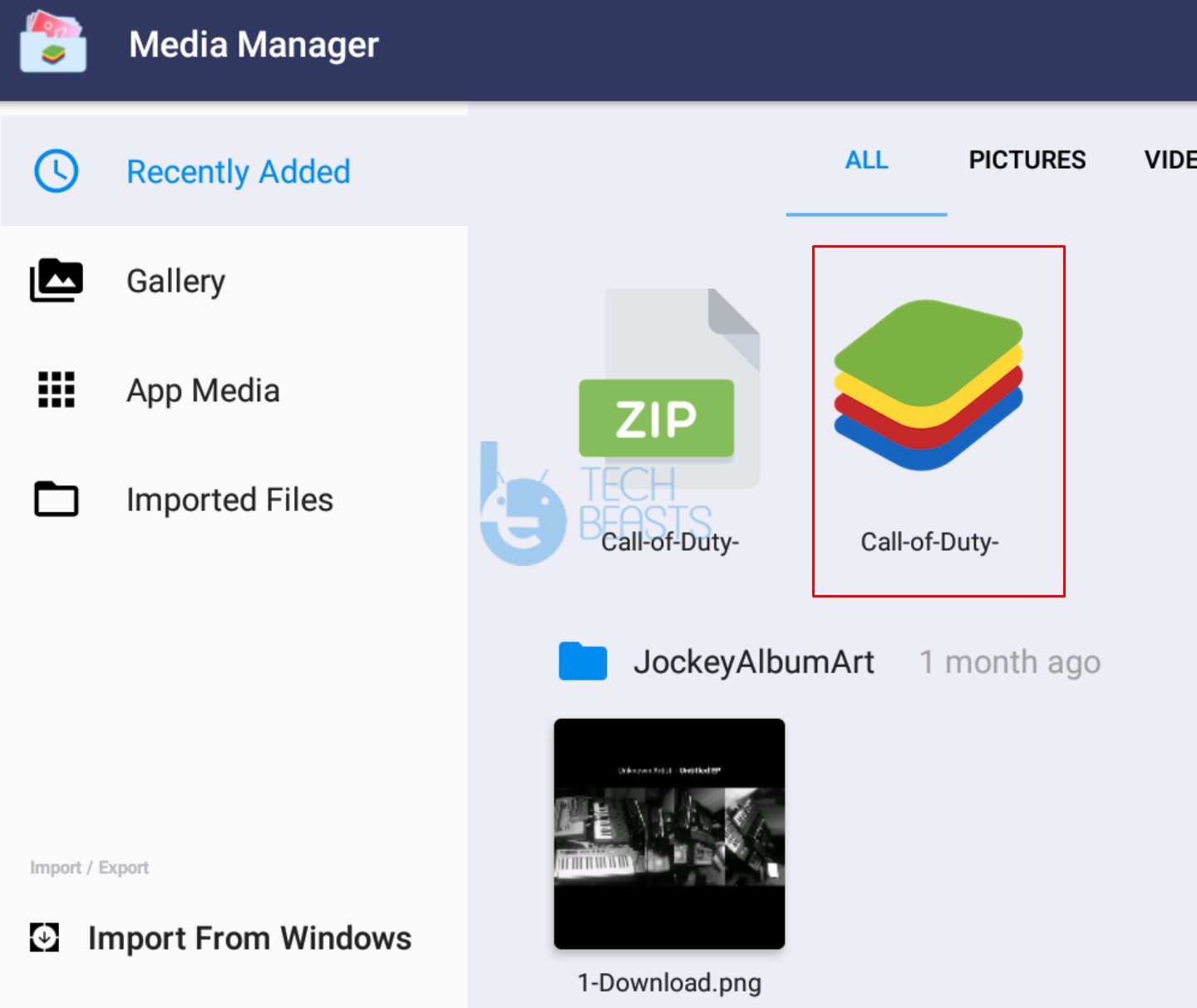
  • In the emulator, click on System App > Media Manager > Import from Windows > Import Call of Duty Mobile.zip and Call of Duty Mobile.apk files.
  • Carefully follow the steps given below.

Copy/move the files

  • In the BlueStacks or Nox, open Files.
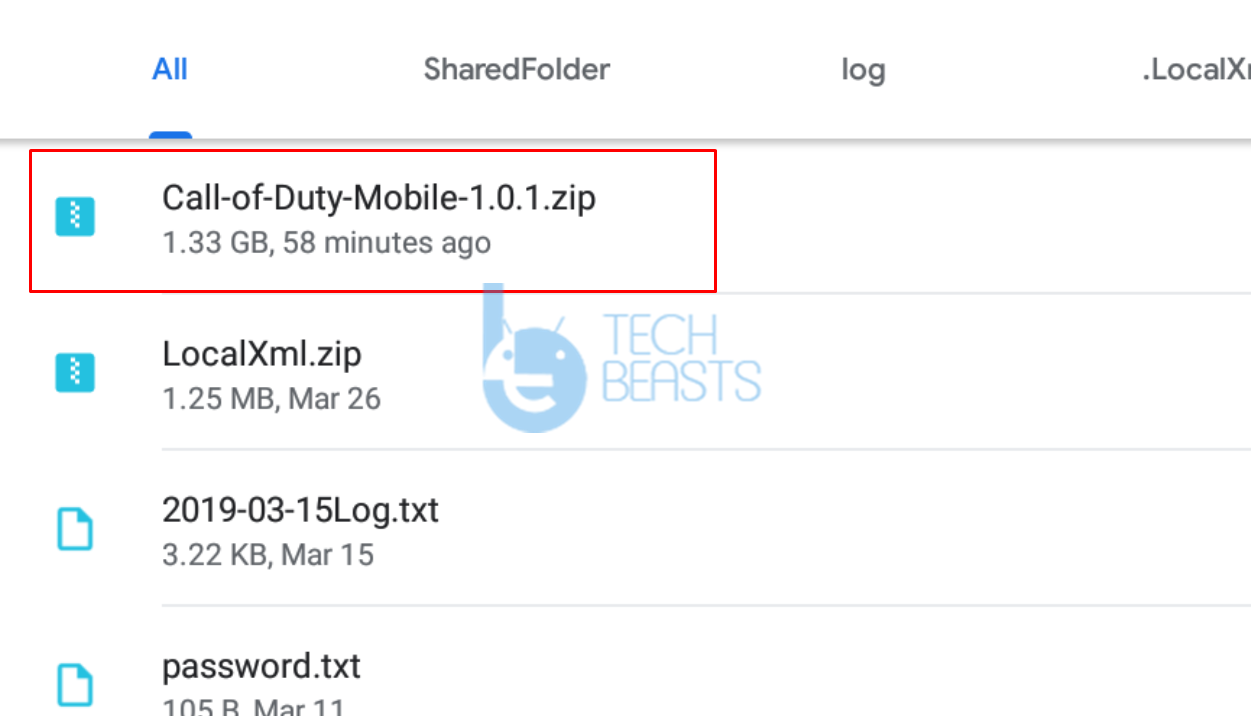
  • In Files, click on Documents and Others > Call-of-Duty-Mobile-1.0.1.zip.


  • Click on Extract now. It will take a few minutes for this file to be extracted.

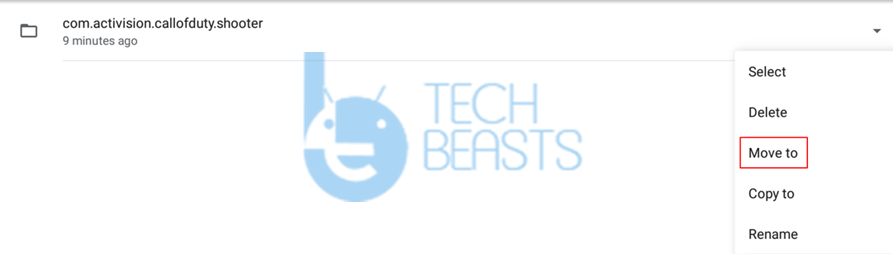
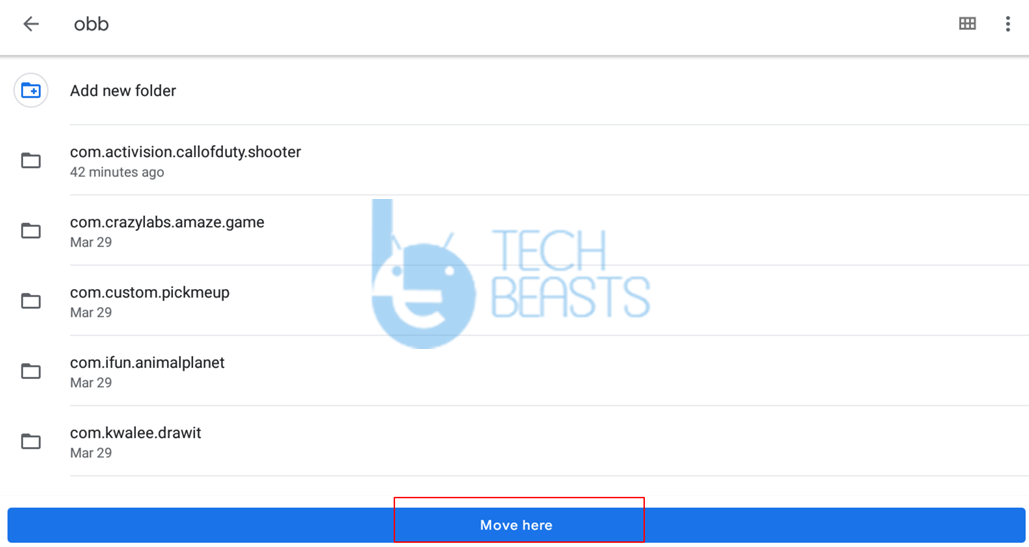
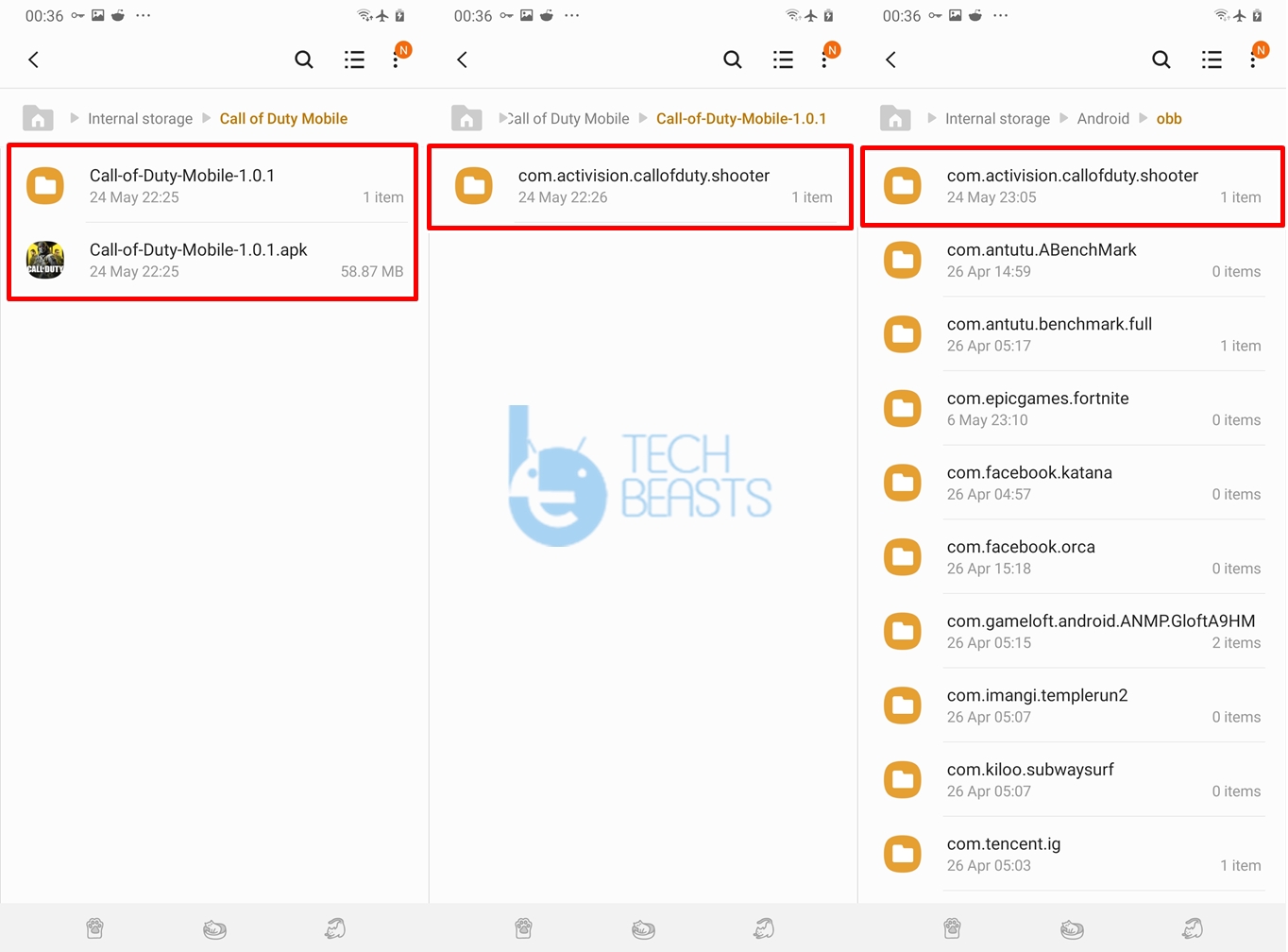
  • After extracting, go to Files > Internal Storage > DCIM > SharedFolder > Call-of-Duty-Mobile-1.0.1 > Call-of-Duty-Mobile-1.0.1 > Select com.activision.callofduty.shooter > Move.

  • Now Move this folder to Internal Storage > Android > obb.

Guide on how to install Call of Duty Mobile for PC and Laptop

  1. Open BlueStacks/Nox and go to Media Manager or Files.
  2. Open the Call of Duty Mobile APK now.
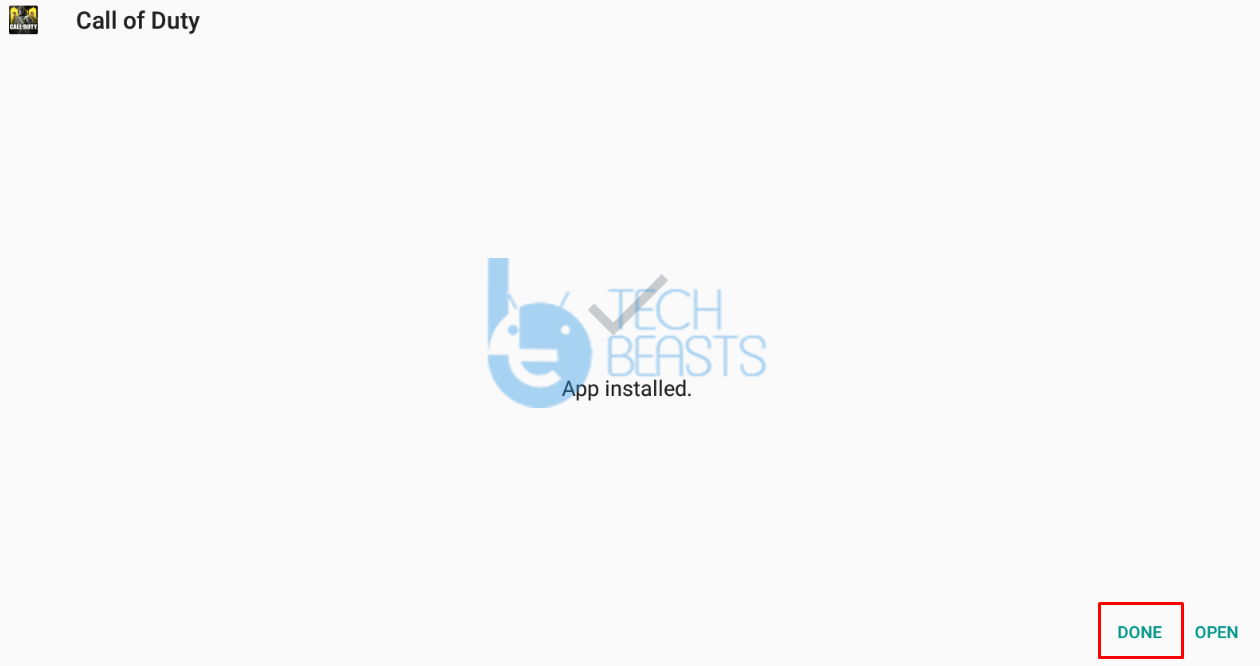
  3. Install the APK and click on Done. Do not open the APK yet.
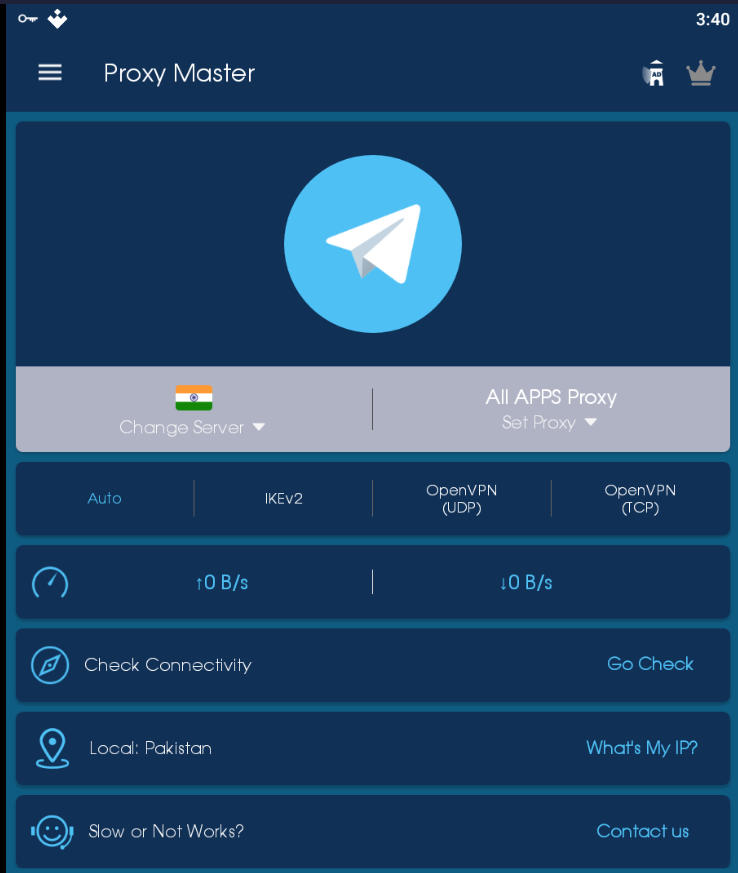
  4. Now in the BlueStacks, go to Home and open the Proxy Master VPN and connect to India.
  5. After the connection is established, open Call of Duty Mobile.
  6. The game will check the files, unpack its resources and take you to the main screen.
  7. The game will verify files and ask you for Facebook connection. Connect it.
  8. You will be able to play the game now. That’s all.

Wrap Up

That’s it with the Call of Duty Mobile installation on the computer. This guide may look a bit complex to you, but this is the only method to install Call of Duty Mobile on a computer right now. I have tried my best to break this method down into easy steps. Don’t forget to share your experience and feedback regarding this game. If you have any queries or questions, feel free to reach out to us.

More: Fix Call of Duty Network Error. Please check your network status. (4,28) (4,50) (4,51)

How to download Call of Duty Mobile on Windows 10 PC

0
How to download Call of Duty Mobile on Windows 10 PC

Hugely popular shooting PvP game Call of Duty Mobile version is now available for download on PC. It is a direct adaptation of the original computer version of this game. However, quite a few changes are made in this version to make it more playable on small devices. However, just like PUBG Mobile, we are going to learn how to download and play Call of Duty Mobile on Windows 10 PC. This guide works for older versions too.

download call of duty mobile for windows 10 pc

Gameplay Features

Fans of this series would be delighted to know that COD Mobile also features modes like deathmatch, direct PvP, kills count and stuff like that. The company behind this game is also promising to deliver a specially curated COD Mobile Battle Royale game mode.

We have already experience the battle royale mode for the COD PC version. It would be interesting to see how it transitions into the mobile version.

There’s one gameplay mechanic that really took us by surprise! The shooting system in this game is totally unexpected. In all shooting games, we expect to have a dedicated button for it. Simple steps. Point the gun at a player and then press the shoot button. It tests the general accuracy of the players. However, COD Mobile does not have a dedicated shoot button. When you point the gun at enemies, the shooting begins automatically. 

Graphics

This is something we are really happy about. The team behind this game made sure that it looks stunning as always. The game feels smooth and crisp. It pays attention to small details. Overall, the game looks and feels pretty great.

Call of Duty Mobile on PC

Since it is a mobile version, there is no direct method to play it like that yet. However, we can use Android emulators for it. The best option right now is Tencent Gaming Buddy or Gameloop. It offers specialized controls for games like PUBG Mobile, Call of Duty Mobile PC and others from this genre. Players are free to map their own keys and controls to the main game.

This is an amazing game and it works well with mouse and keyboard. However, for the best keymapping, use Tencent Gaming Buddy only. Follow the steps below to download and install Call of Duty Mobile on Windows 10 PC.

Requirements

  • A computer running Windows 10, Windows 8, or Windows 7.
  • A Keyboard and a Mouse.
  • Tencent Gaming Buddy or Gameloop – Download
  • Update: COD Mobile no works in BlueStacks too – You can download it from here.

How to install Call of Duty Mobile on PC Windows 10

These are the few simple steps to directly install COD Mobile for PC on Windows 10 or below.

Total Time: 10 minutes

Download and install Tencent Gaming Buddy/Gameloop on the computer.

Tencent Gaming Buddy and Gameloop are the same tools. You can download it from the source given above.

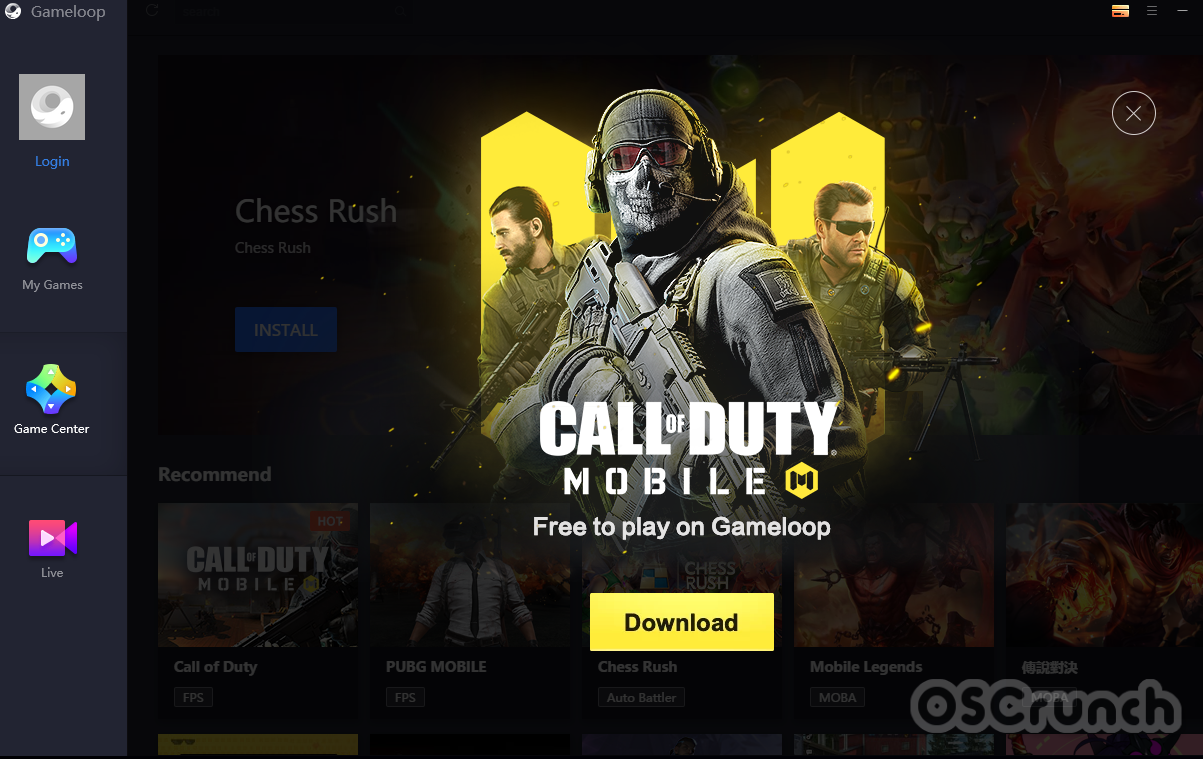
Open Gameloop/TGB and install COD Mobile.

Now open the newly installed emulator and install COD Mobile. You will find COD Mobile on its home screen.call of duty mobile for pc in gameloop

Finish the Call of Duty Mobile installation.

The installation can easily take up to 10 minutes so keep patience. Finish the installation by following the on-screen instructions.

Launch Call of Duty Mobile on the computer now.

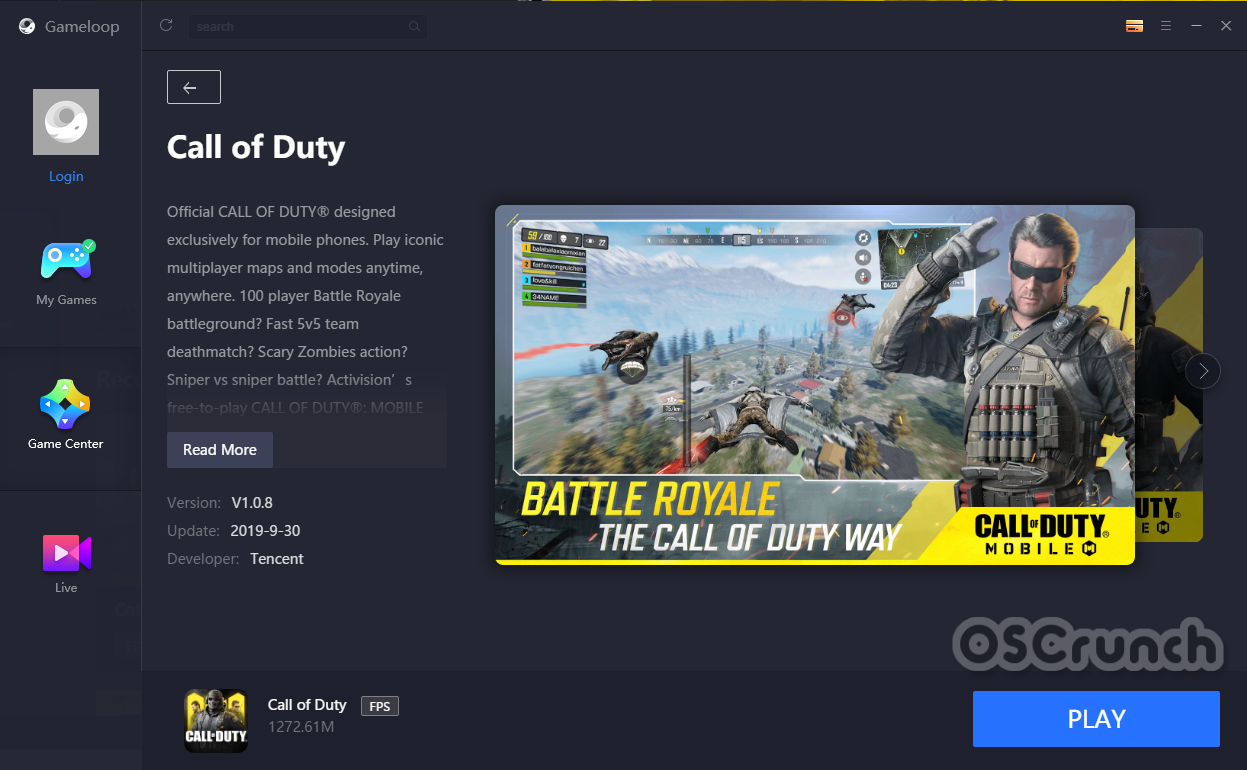
As the installation ends, you will find “Play” button. Click on it to launch the game. You can play it as a Guest or log in as well if you wish.call of duty mobile for pc

Set up the Keys by clicking on the keymapping button on the right-side.

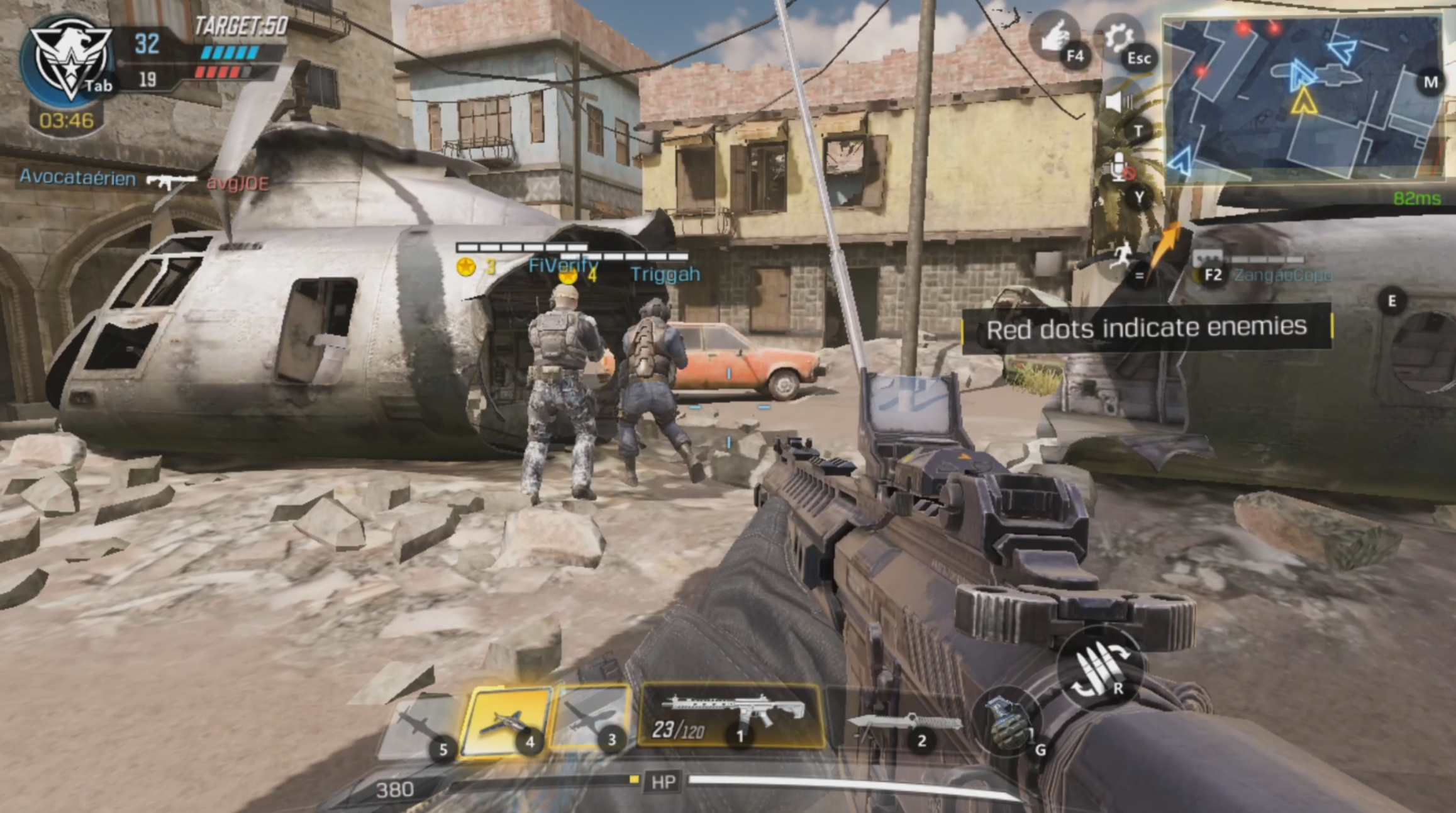
You can set up custom keys by going into the keymapping. Otherwise, you can just learn about the pre-defined controls in the game. That’s all.cod mobile for pc keymapping & controls

cod mobile for pc
playing cod mobile for pc

That’s all. You must have the game up and running now. If the instructions are hard to follow, you can watch our video here to play COD Mobile for PC.

Download COD Mobile on PC via BlueStacks 4

  1. First of all, download the COD Mobile BlueStacks setup: Download.
  2. Open the setup on your computer and install it.
  3. Now open the emulator and log in using your Google Account.
  4. In the BlueStacks, open Play Store and search “Call of Duty Mobile”.
  5. As you find the game, install it.
  6. Now open the game, learn about its controls and play it. That’s all.
COD Mobile on PC via BlueStacks 4
Playing COD Mobile on BlueStacks

Call of Duty Mobile for PC – Video Tutorial

https://youtu.be/1dS335DF-tg

Conclusion

The mobile version of this amazing franchise is nothing to forget about. It comes with great promises and therefore out hopes are high for it. Games like PUBG and other survival games really show the potential for these. Follow the simple steps above and play COD Mobile on PC with Windows 10 or even older versions.

Don’t forget to share your feedback and queries in comments below

How to install Call of Duty Mobile on Android (All Countries)

0
How to install Call of Duty Mobile on Android (All Countries)
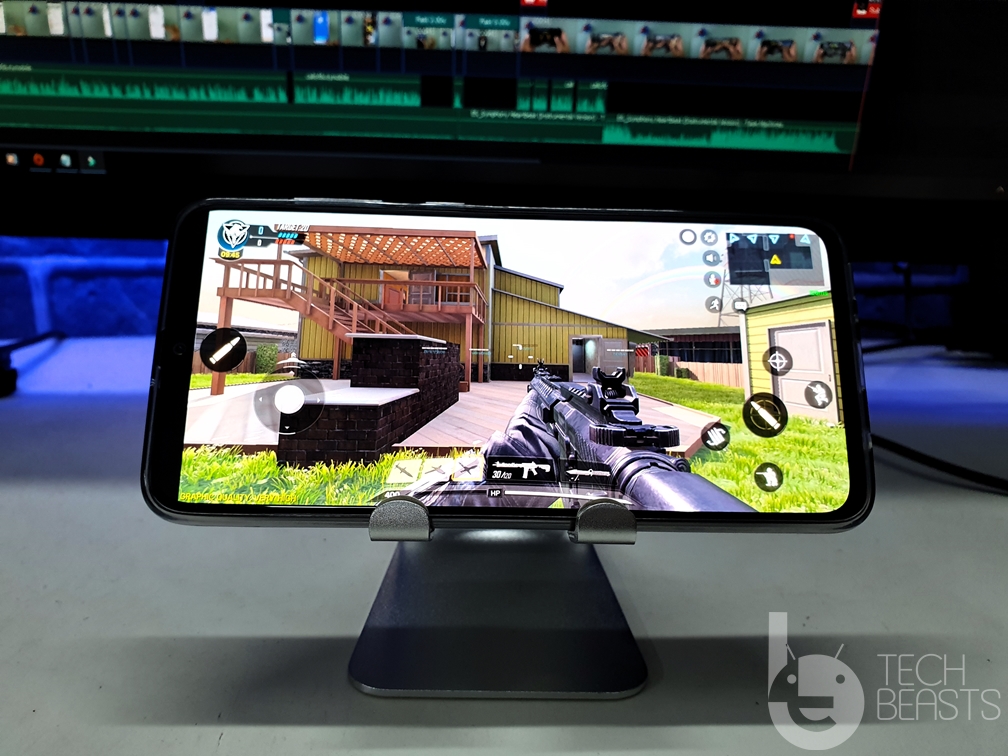
Playing Call of Duty Mobile on Galaxy A70

Call of Duty Mobile for Android has been released. Users in some countries have started getting the Install option in the Google Play Store. Those users who want to install the Call of Duty Mobile without waiting any further, they can follow this guide. The step-by-step tutorial given here will guide you on how to install Call of Duty Mobile on Android in any country. It doesn’t matter whether this game is available in your country or not, this guide is going to work in all the cases.

install Call of Duty Mobile on Android
Playing Call of Duty Mobile on Galaxy A70

Before you download Call of Duty Mobile on Android phone, let me give you a brief overview of this game.

Call of Duty Mobile – The FPS loved by everyone

Call of Duty by Activision dates back to 2003. There are no words that can explain one’s craze for Call of Duty. It changed the way gamers played FPS. Call of Duty, at one point, got everyone stuck with their computers. The multiplayer FPS game was totally worth it.

These days, all the famous PC games have their Android counterpart too. Its been over 10 years that the Android smartphones have grabbed a major percentage of gamers from the Desktop PCs. Take a look at games like PUBG Mobile, Fortnite, Need for Speed, all of these games have a larger audience on the ecosystems of smartphones. Activision was missing on this as they did not have the Call of Duty for the smartphones. They did, however, announced there plans to bring Call of Duty Mobile to Android and iOS.

Call of Duty made it to Android way back, but it was in the alpha, and then the beta stage. The game was called “Call of Duty Legends” and it did not work for everyone.

After all this wait, Activision, in collaboration with Tencent, has finally released Call of Duty Mobile’s final version on Android. The game started making its way to Indian Android users a couple of days back. Call of Duty Mobile as good as the game we once played on the PC. It won’t be wrong to say that Activision has impressed the masses. Yes, it did take a lot of time, but it was worth the wait.

Call of Duty Mobile Gameplay

The first person shooting is the essence of Call of Duty. The same can be seen in Call of Duty Mobile. The developers have actually put in a lot of hard work and efforts to make this a better game than the desktop version. Call of Duty Mobile brings a handful of modes. The feature that I loved the most in this game is the battle royale mode.

Call of Duty Mobile on Android

In the battle royal mode, players jump off from the Choppers and Gunship helicopters onto an Island, or in the mountains, or anywhere that is your location. After making it to the ground, they have to start looking for weapons and supplies and then the saga starts. You have to look for the enemies and shoot them down. In the battle royale mode, you can find a chopper and fly it around. Enemies can shoot down your chopper, so when you are flying it, you better keep a watch on the ground.  It is up to you whether you want to play the battle royale mode along or you want to join hands with a team. 

Furthermore, the game has a multiplayer mode. You can either join an already-built server to play it with the strangers, or you can make a server to play it with your friends. You will go into the towns, break into the buildings, look out for enemies, shoot them in the head and so on. There are weapons spread all over. Keep yourself loaded to increase your chances of survival. Find empty vehicles so that you can roam around in safety. 

Weapon upgrades are available in the inventory. You can either purchase new weapons or upgrade your existing weapons. The entire gear can be upgraded. COD Mobile incorporates daily rewards and bonuses. Yes, the does have IAPs, but the most amazing part is that the game itself comes for free. Yes, you heard it right. The best FPS for Android is up for free.

That was a little bit about COD Mobile, let me show you how to install Call of Duty Mobile on Android right now.

Downloads

Guide on How to install Call of Duty Mobile on Android

These are the steps to install Call of Duty Mobile on any Android phone in any country.

Total Time: 5 minutes

Copy the Call of Duty Mobile APK and OBB Files to the phone.

The files that you downloaded above, copy those files to the internal storage of your Android smartphone.

Pre-register for Call of Duty Mobile in the Play Store.

Open Play Store on your phone, find Call of Duty Mobile and pre-register. This is an important step to install this game.

Install a good VPN from the Play Store now.

In the Play Store, find a VPN as you need to be connected from India. For me, the Proxy Master worked and I’d recommend you the same. It’s free.

Open File Manager and install the Call of Duty Mobile APK.

Using File Manager, open the COD Mobile APK and install it. Do not open the game after installation. Just click on “Done” and get back to the files.

Copy the com.activision.callofduty.shooter to Android > Obb.

Extract the Call of Duty Mobile.zip file to get the com.activision.callofduty.shooter. Copy this file and paste it into Internal Storage > Android > Obb.

Connect the VPN to India now.

Open the Proxy Master now and connect through India. Any location other than India will not work. This is why India is a must.

Launch Call of Duty Mobile now and play it off!

Open Call of Duty Mobile now and login using Facebook. You are all set to play the game. Choose the mode now. Go ahead and show off your FPS skills. That’s all.

Wrap Up

That is it with the installation of Call of Duty Mobile on Android. I hope that you guys have this game running on your phone right now. Moreover, I tried installing it on my S10 Plus and my Galaxy A70 and found it working on both. I have made a video on it a well that I am going to attach below. If you have any questions or queries regarding this game, feel free to ask it in the comments section below.

Download Call of Duty Mobile Android APK + OBB Data Files 2019

Download Call of Duty Mobile Android APK + OBB Data Files 2019

FPS enthusiasts, it is your day. Call of Duty Mobile is now available. The most anticipated game of the year 2019 has successfully met the expectations of the players. We have got our hands on the Call of Duty Mobile APK and OBB Data Files. From here, you can download Call of Duty Mobile Android APK along with the OBB Data files. The attached version of Call of Duty Mobile is the latest as of May 2019.

Call of Duty Mobile for Android has finally come out of its pre-registration stage. The game is already available in countries like India. The game, for the most part, is similar to its desktop counterpart, but there are some new features too. Call of Duty Mobile brings a whole new Battle Royale mode in which you can play against other players just like you play in the PUBG Mobile. Call of Duty Mobile, in my opinion, has completely redefined the Battle Royale gameplay.

The game looks stunning by all the means. If you have been eying this game ever since its announcement, you may want to install it right away. If your country is not in the eligible list of the Call of Duty Mobile, you can download and install this game manually. Go ahead, download the Call of Duty Mobile Android APK and also the Call of Duty Mobile OBB data files. Follow the steps then to get this game up and running on any Android phone anywhere in the world without any further ado.

Download Call of Duty Mobile APK and OBB Files

  • Call of Duty Mobile  1.0.1 Android APK – Download
  • Call of Duty Mobile OBB Files – Download

How to install Call of Duty Mobile on Android

  1. Copy the Call of Duty Mobile APK and OBB Files to your phone.
  2. On the phone, open the Google Play Store, find Call of Duty, and click on pre-register.
  3. Now find a VPN with India in the server list. If you want a free VPN, you can try Proxy Master, if you want a premium VPN, go with Nord VPN.
  4. Connect to India using the VPN now.
  5. Using a File Manager, open the Call of Duty Mobile APK and install it. Do not open it.
  6. Now go back to the file manager, copy the com.activision.callofduty.shooter.
  7. Paste this file into Internal Storage > Android > obb folder.Call of Duty Mobile APK
  8. While the VPN is connected, launch Call of Duty Mobile now.
  9. Connect using your Facebook account.
  10. Play it off now. That’s all.

Final Words

This was just a quick guide to downloading Call of Duty Mobile APK and its data files. I hope that you have the game installed on your computer now. If you have any queries or questions, feel free to reach out to us. For a detailed installation guide, you can check this, also, you can download Call of Duty Mobile on your computer. Don’t forget to drop your feedback below. Stay connected.

Download GCam Mod for OnePlus 7 Pro

0
Download GCam Mod for OnePlus 7 Pro

OnePlus 7 Pro is arguably the fastest Android phone or just overall. In several speed tests, it beats iPhone XS Max in most areas. Therefore, nobody got any complaints in that department. However, camera is not the strongest point of this phone. The OnePlus phones always kept cameras as second priority. There is still a way to improve it. The Google Camera or GCam Mod for OnePlus 7 pro makes significant changes. The reason why Google Pixel 3XL has best phone camera is not hardware but the software. Its optimization is simply the best in smartphone market right now.

gcam mod for oneplus 7 pro download

Thankfully, Android users always have the freedom of changing what they don’t like or adding new stuff. Similarly, some developers have cooked up working GCam Mods for OnePlus 7 Pro. It adds an additional camera app to the phone whose base software and algorithms are from Pixel series. Previously, the picture quality on OnePlus 6T and even Xiaomi phones was enhanced with this simple mode. 

In this guide, we are going through various available OnePlus 7 Pro GCam Mods and how to install these. Since this phone is newly released, therefore, new modded apps still come with few bugs. The app may crash when opening a few settings and so on. On the bright side, new progress is made everyday! The newer versions of GCam Mods seem to fix older issues. 

Download OnePlus 7 Pro GCam Mods

At the time of writing, there are multiple GCam modded apps for OnePlus 7 pro. Some are ported specifically for it while others are actually made for another device. However, all of the following options are tested. It is possible that one may work better than other. We are going to list these options in order of trust level from the users who’ve already tried these. We still insist you to test them for yourself and then post your conclusion here.

  • MGC_6_1_021_xcam6_beta5 – DOWNLOAD
  • MGC_6.2.030_Bulkin043_V3Q – DOWNLOAD
  • Gcam_6.2.030_Advanced_V2.1 beta7 – DOWNLOAD
  • GCam-6.2.030_Arnova8G2_Urnyx05-v1.1 – DOWNLOAD

How to install GCam Mod on OnePlus 7 Pro

The installation method is pretty simple. It is just an APK afterall. The best part is that you don’t need rooted phone to install GCam mod for OnePlus 7 Pro. Therefore, it works with both rooted and non-rooted devices. Follow the installation steps below.

Follow the steps below to install and use GCam mod on OnePlus 7 Pro.

Total Time: 1 minute

Download any of the given GCam Mod APKs given above.

All of the given apps work just fine with slight changes here and there. Since there is no officially ported app for OP7 specifically yet, we have to make do with what’s available.

Copy the downloaded APK to phone’s storage.

Put it anywhere on the phone. Or just download it directly to it.

Open the folder with GCam Mod APK in it. Use any file manager.

Open the stock file manager on your OP7 Pro and navigate to folder with APK in it.

Tap on the GCam APK icon to start installation.

Inside the folder, this APK should show up with its signature icon.

Allow installation from unknown sources when prompted.

Since this APK is not from Play Store, the Android system would ask you to allow installing an app from a third-party aka unknown source. Allow it.

After allowing it, tap on “Install” button at bottom of screen.

This is a basic step and then wait for it to complete.

Once installation is complete, tap on “Open” button.

New camera app is now installed on your phone.

Access the GCam mod app on OnePlus 7 Pro in future from app drawer. It is right next to stock app icon.

Note that this app won’t launch from camera quick launch gesture. You’d have to manually open it from app drawer or just put it on homescreen.

Additional Settings:

If you install V3Q:

  • Go into GCam’s settings and change front camera type to Nexus 6P.
  • Next up, change the image format to YUV.

Some of the settings may not work properly since it is not an proper port. Until then, we have to rely on unconventional sources.

Also don’t forget to turn on HDR settings in image capture. Otherwise, the photos may appear grainier than usual.

OnePlus 7 Pro GCam vs Stock Camera Comparison photos

Following comparison photos are shared by randomhkkid on XDA. You can check the difference in colors, exposure and overall details in photos between OnePlus 7 Pro stock camera vs GCam Mod for yourself here.

Conclusion

Overall, we can see the main improvement in Nightsight compared to Nightscape. The rest of the settings do not work completely well as of now. However, we can still see better colors and overall tone in GCam photos. Therefore, it is up to you to that how and when to use them.

(GCam): Google Camera Mod on OnePlus 7 Pro

0
(GCam): Google Camera Mod on OnePlus 7 Pro
Google Camera Mod on OnePlus 7 Pro

Want to try Google Camera on OnePlus 7 Pro, use the instructions provided below and you will be able to Install GCam on OnePlus 7 Pro.

Google Camera Mod on OnePlus 7 Pro

I am sure you have heard it now, OnePlus 7 Pro is coming on T-Mobile. It means now you can easily purchase it through your carrier. Moreover, it’s confirmed that OnePlus 7 Pro 5G variant is coming soon. However, we all know, it will take time but right now just enjoy the best Android smartphone at a reasonable price. Those who want to have a high-end smartphone at an affordable price, OnePlus 7 Pro is one you should go for.

For the first time, OnePlus really improved his camera this time because in the past, they never really focus on Camera. You will get 3 cameras at the back. It’s got a main 48MP shooter, 16MP ultrawide camera, and an 8MP telephoto with 3x optical zoom. On the front, it’s got the 16MP camera.

To be honest, they could have done better, I mean OnePlus 7 Pro camera system is way better than the previous ones. But we can improve things and get the best out of OnePlus 7 Pro cameras. Don’t worry I will not tell you to wait for update etc.

We can always use camera mods and what will be better than Google Camera itself. Thanks to our hardworking developers, GCam Mod is available for OnePlus 7 Pro. I will provide you download links and method to install Google Camera on OnePlus 7 Pro.

OnePlus 7 Pro Gcam:

Following are the all Gcam version which are compatible with OnePlus 7 Pro. All of these Google Camera Mods are working and I have tested it.

Download any of the given Gcam Mods and you will enjoy the Google Pixel 3 & 3 XL features.

Install Google Camera Mod on OnePlus 7 Pro:

If you have installed Gcam on any other Android device or on the previous OnePlus Models. Then you will be glad to know that the process is as same as it was before.

  • Download the Gcam APK from the links given above, all of these variants are tested and they were working.
  • Once you have downloaded the Gcam APK on your OnePlus 7 Pro, you need to enable the Unknown Source Installations from the Settings.
  • Now select the Gcam APK and Tap on it to proceed with the installation, it will only take a few seconds to install.
  • After Google Camera is installed on your OnePlus 7 Pro, you need to do one more thing.
  • Open Google Camera and head over to the Settings, Click Advanced from the Quick Settings Tab.
  • On the next screen, Tap on Base -> Model -> Select Nexus 6P.

That’s all for now.

Huawei is in the Cumulonimbus – Hasta La Vista!

0
Huawei is in the Cumulonimbus – Hasta La Vista!

The US has become a Cumulonimbus for the Chinese tech-maker Huawei. It is not a Cumulonimbus that formed all-alone, in fact, its the Cumulonimbus in clusters. At the moment, Huawei’s plane is experiencing the extreme kind of turbulence. The chances of Huawei coming out of Cumulonimbus are meager. The Thunderheads can literally crash it. I am going to explain what’s happening and what’s up for Huawei right now.

Hell Breaking Loose on Huawei

May 19, 2019, is the day when hell broke loose on Huawei. Google announced to cut its ties off with Huawei. This measure came out as a result of President Trump’s trade war. Huawei no longer has access to Google’s Android ecosystem or any of Google’s apps. The repercussions of this ban on Huawei will affect all of Huawei’s subsidiaries. Not only that, but the Huawei consumers are also going to face the wrath of this ban. If you don’t know much about this ban, and as a Huawei & Honor smartphone owner, you have no idea how this ban is going to affect you, then, let me break it down for all of you.

For the past 2 years, the US government has been examining Huawei for the backdoor channels in its smartphones and networking equipment. According to the US authorities, Huawei uses shady channels in its devices to pull the personal data of users for the Chinese government. For this reason, the Huawei smartphones were never allowed into the US.

Huawei recently became the 2nd most popular smartphone seller a couple of months back, but it was missing the entire share of the US market. So far, Huawei was doing alright without the US consumers, but it looks like Huawei’s success had the US authorities biting their nails.

Making the backdoor channels a base, the US President announced a ban on the Huawei corporation on the 19th of May. As a result of this ban, all the US companies that had been doing business with Huawei, they were told to walk away from Huawei immediately. Mountain View-based Google was the very first company to implement the orders of the executive authorities.

Google, Microsoft, Intel, ARM, Panasonic – The Thunderheads for Huawei

Google announced that its pulling Huawei’s Android license. This means that Huawei will no longer have access to the Google-built Android. This also means that Huawei phones will not get any further Android updates. This also meant that Huawei phones will no longer run any Google apps. 

This action by Google will not affect the existing Huawei and Honor users, but the future Huawei or Honor devices are going to have a serious problem. In fact, at this point, we are not even sure if we will see Huawei making any further Android handsets or not. Now here is why I think this.

Right after Google breaking its strings with Huawei, a handful of US-based tech giants joined hands with Google. These companies included Intel, Microsoft, the US Carriers which were using Huawei’s network equipment, and a few more companies. As long as the news was limited to Google, Intel, and Microsoft, things looked bad only, but they worsened when ARM also followed the pursuit. 

The famous British chipmaker ARM announced that its also going to finish its business with Huawei. This is the worst news for Huawei’s Hilisicon and Kirin brand as it solely depends on chips manufactured by ARM. So yes, Huawei is definitely hanging up in the air with fire all over the ground. One more push and Huawei will be burnt to ashes.

Companies from UK joining hands with the US

As a result of the measures taken by the US, the network carriers based out of UK and Japan announced that they were also breaking their relationship with Huawei.

The EE network, which was all set to launch Huawei’s 5G services in the UK, it halted the process and announced that its pausing everything. Vodafone followed the suite and announced that it will stop the orders of Huawei’s 5G devices.

The Japanese company Panasonic announced that it was cutting ties with Huawei and 68 other companies of the firm.

This disaster is definitely as big as any world war. As off now, the bad news haven’t stopped coming in. Let’s hope things bode well for Huawei.

Huawei’s Future

Huawei might have survived well without Google, but with all those giants obeying Trump’s order, Huawei is literally strangled right now. Huawei has got a 90-day temporary license to get its affairs in order, but the 90 days will come to an end on August 19 and there is no knowing what will happen after that. The Chinese government has also lodged a protest against the US for this ban.

Its clear that if Huawei wants to survive, it must fix its ties with the US authorities, otherwise, the only thing we can tell Huawei is “Hasta-La-Vista”.

Download Aptoide on Huawei and Honor devices

0
Download Aptoide on Huawei and Honor devices

This is the guide to download Aptoide on Huawei and Honor smartphones. Aptoide is going to replace Google Play Store on Huawei phones. Huawei is already in talks with Aptoide to provide its services since the Play Store support is coming to an end. Before Huawei officially urges its users to install Aptoide, you can use this guide to install Aptoide already.

Download Aptoide on Huawei
A Samsung Galaxy S10 Plus with Aptoide on it

You will install Aptoide on Huawei and Honor handsets to replace the Play Store, but why is the Play Store going away? Well, let’s get the answers to a few questions.

Huawei is in the Cumulonimbus

May 19, 2019, is the day when hell broke loose on Huawei. Google announced to cut its ties off with Huawei. This measure came out as a result of President Trump’s trade war. Huawei no longer has access to Google’s Android ecosystem or any of Google’s apps. The repercussions of this ban on Huawei will affect all of Huawei’s subsidiaries. Not only that, but the Huawei consumers are also going to face the wrath of this ban. If you don’t know much about this ban, and as a Huawei & Honor smartphone owner, you have no idea how this ban is going to affect you, then, let me break it down for all of you.

For the past 2 years, the US government has been examining Huawei for the backdoor channels in its smartphones and networking equipment. According to the US authorities, Huawei uses shady channels in its devices to pull the personal data of users for the Chinese government. For this reason, the Huawei smartphones were never allowed into the US.

The US BAN on Huawei – it happened!

Making the backdoor channels a base, the US President announced a ban on the Huawei corporation on the 19th of May. As a result of this ban, all the US companies that had been doing business with Huawei, they were told to walk away from Huawei immediately. Google was the very first company to implement the orders of the executive authorities.

Google to Huawei – Good Bye!

Google announced that its pulling Huawei’s Android license. This means that Huawei will no longer have access to the Google-built Android. This also means that Huawei phones will not get any further Android updates. This also meant that Huawei phones will no longer run any Google apps. 

This action by Google will not affect the existing Huawei and Honor users, but the future Huawei or Honor devices are going to have a serious problem. In fact, at this point, we are not even sure if we will see Huawei making any further Android handsets or not. Now here is why I think this.

So, while all this is happening, what are the takeaways for Huawei and Honor users? Take a look at these few points.

Future of Huawei and Honor smartphone users

  • Existing Huawei and Honor phone users will not be affected. They will get all Android security updates, but they might miss on the next iteration of Android i.e. Android Q.
  • The Google Apps including the Google Play and others will keep working on existing Huawei phones.
  • Future Huawei and Honor phones will not have the official Google-built Android. They will use the AOSP version of Android (Only if Huawei wants).
  • Huawei might use its own OS on future devices. The HongMeng OS is in the news these days.
  • Huawei is already looking at the Play Store alternatives. It’s talking with Aptoide to replace Play Store in its devices
  • The situation that looks extremely bad right now, this full-of-curse saga may come to an end and things might turn back to normal.

Aptoide on Huawei and Honor

Now that you know that Aptoide is coming to Huawei and Honor phones, then why wait? You can install it right now on your own. Before you install Aptoide, I will give you an idea about this store.

Aptoide, with over 200 Million users, is one of the biggest Play Store alternatives. It has got all the apps that you will find in the Play Store. Aptoide does have many apps that are hard to find on the Play Store. It’s got all the categories and the apps are sorted into their respective categories.

Aptoide provides developers a very friendly process to submit their apps. Unlike Google, the screening process of Aptoide is not very tough. Developers who can’t publish their apps on the Play Store, they can definitely give a try to Aptoide. App developers can create their mini stores on Aptoide.

Aptoide APK

The apps uploaded on Aptoide are first checked by the developers of Aptoide and then assigned a trusted symbol. If an app doesn’t have a trusted symbol, you may not install it. The apps with trusted symbol are completely safe and secure. This is one way of know what apps are good to install through Aptoide.

On the Play Store, the only way to purchase an app is through your credit card by spending $s. Here on Aptoide, you can use a cryptocurrency “AppCoins” to purchase apps. Aptoide is the world’s first App Store that supports cryptocurrencies.

Having said that, let’s move on to the method to download Aptoide on Huawei and Honor phones.

Download Aptoide on Huawei and Honor

  1. First of all, download the Aptoide APK from here.
  2. Copy the Aptoide APK to your Huawei or Honor phone.
  3. Using a File Manager, open the Aptoide installer APK.
  4. Follow on-screen instructions and install the Aptoide Store.
  5. Once done with the installation, open Aptoide from the app drawer.
  6. Accept all the permission.
  7. You have the store now. You may log in if you want. You can use Aptoide without logging in too.

Remember that the way Aptoide installs apps is a bit different. Aptoide will first download the APK of an app and then install it. There is a little bit of manual doing here. For example, after download the APK, you will have to manually press the install button to install an app. Yes, it is not as good as the Play Store, but when you have no Play Store, Aptoide is going to be your life savior.

Wrap Up

That’s all. I hope you guys find this guide useful. If you have found it good enough to download Aptoide on Huawei & Honor handset, don’t forget to drop your feedback below. In case you have any queries/questions, feel free to reach out to us.

More: