
Hugely popular shooting PvP game Call of Duty Mobile version is now available for download on PC. It is a direct adaptation of the original computer version of this game. However, quite a few changes are made in this version to make it more playable on small devices. However, just like PUBG Mobile, we are going to learn how to download and play Call of Duty Mobile on Windows 10 PC. This guide works for older versions too.
Gameplay Features
Fans of this series would be delighted to know that COD Mobile also features modes like deathmatch, direct PvP, kills count and stuff like that. The company behind this game is also promising to deliver a specially curated COD Mobile Battle Royale game mode.
We have already experience the battle royale mode for the COD PC version. It would be interesting to see how it transitions into the mobile version.
There’s one gameplay mechanic that really took us by surprise! The shooting system in this game is totally unexpected. In all shooting games, we expect to have a dedicated button for it. Simple steps. Point the gun at a player and then press the shoot button. It tests the general accuracy of the players. However, COD Mobile does not have a dedicated shoot button. When you point the gun at enemies, the shooting begins automatically.
Graphics
This is something we are really happy about. The team behind this game made sure that it looks stunning as always. The game feels smooth and crisp. It pays attention to small details. Overall, the game looks and feels pretty great.
Call of Duty Mobile on PC
Since it is a mobile version, there is no direct method to play it like that yet. However, we can use Android emulators for it. The best option right now is Tencent Gaming Buddy or Gameloop. It offers specialized controls for games like PUBG Mobile, Call of Duty Mobile PC and others from this genre. Players are free to map their own keys and controls to the main game.
This is an amazing game and it works well with mouse and keyboard. However, for the best keymapping, use Tencent Gaming Buddy only. Follow the steps below to download and install Call of Duty Mobile on Windows 10 PC.
Requirements
- A computer running Windows 10, Windows 8, or Windows 7.
- A Keyboard and a Mouse.
- Tencent Gaming Buddy or Gameloop – Download
- Update: COD Mobile no works in BlueStacks too – You can download it from here.
How to install Call of Duty Mobile on PC Windows 10
These are the few simple steps to directly install COD Mobile for PC on Windows 10 or below.
Total Time: 10 minutes
Download and install Tencent Gaming Buddy/Gameloop on the computer.
Tencent Gaming Buddy and Gameloop are the same tools. You can download it from the source given above.
Open Gameloop/TGB and install COD Mobile.
Now open the newly installed emulator and install COD Mobile. You will find COD Mobile on its home screen.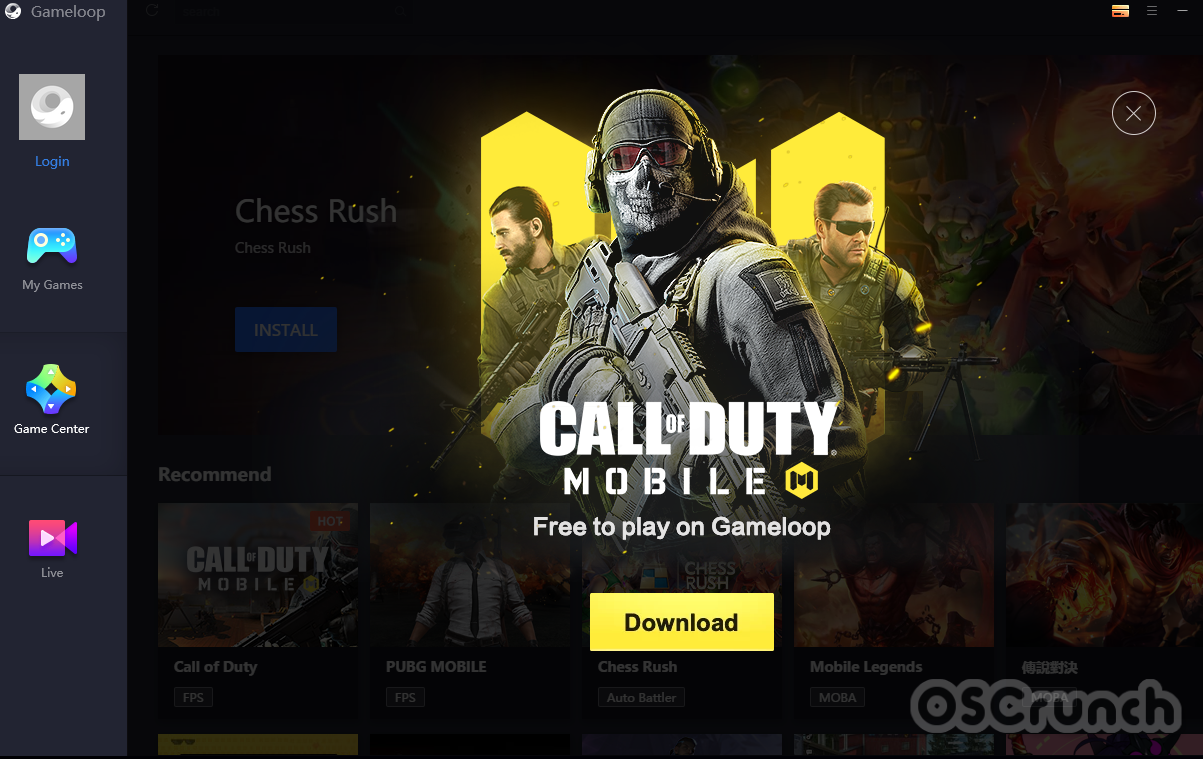
Finish the Call of Duty Mobile installation.
The installation can easily take up to 10 minutes so keep patience. Finish the installation by following the on-screen instructions.
Launch Call of Duty Mobile on the computer now.
As the installation ends, you will find “Play” button. Click on it to launch the game. You can play it as a Guest or log in as well if you wish.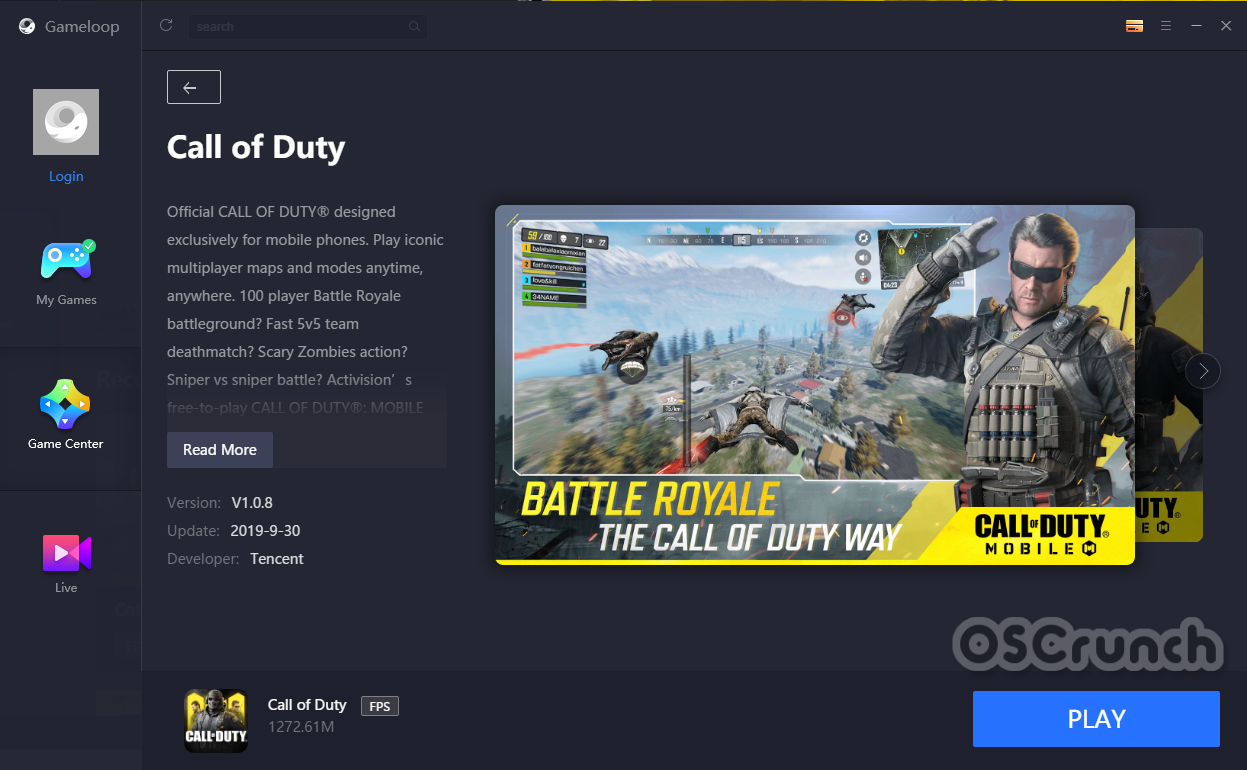
You can set up custom keys by going into the keymapping. Otherwise, you can just learn about the pre-defined controls in the game. That’s all.

That’s all. You must have the game up and running now. If the instructions are hard to follow, you can watch our video here to play COD Mobile for PC.
Download COD Mobile on PC via BlueStacks 4
- First of all, download the COD Mobile BlueStacks setup: Download.
- Open the setup on your computer and install it.
- Now open the emulator and log in using your Google Account.
- In the BlueStacks, open Play Store and search “Call of Duty Mobile”.
- As you find the game, install it.
- Now open the game, learn about its controls and play it. That’s all.
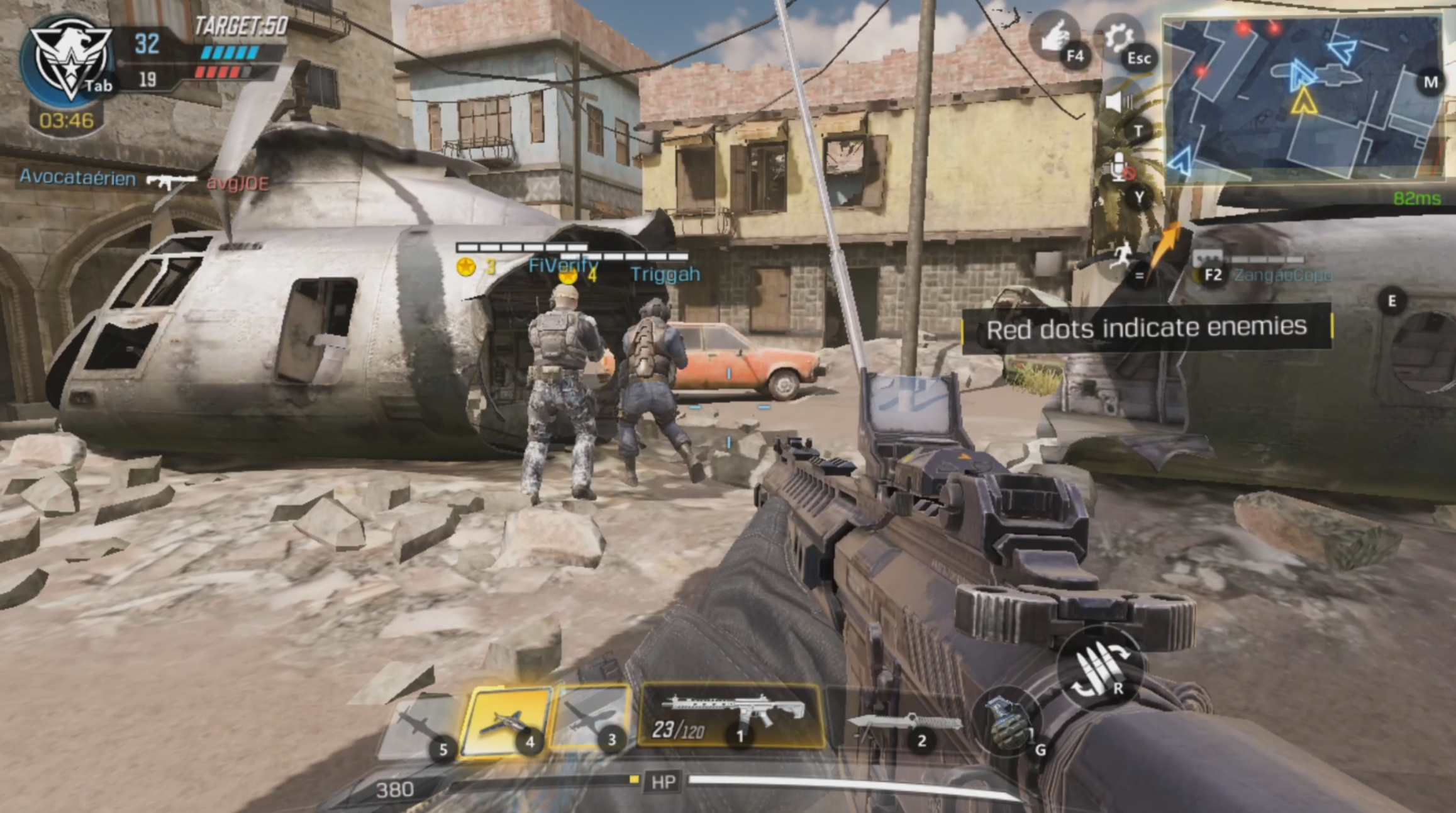
Call of Duty Mobile for PC – Video Tutorial
Conclusion
The mobile version of this amazing franchise is nothing to forget about. It comes with great promises and therefore out hopes are high for it. Games like PUBG and other survival games really show the potential for these. Follow the simple steps above and play COD Mobile on PC with Windows 10 or even older versions.
Don’t forget to share your feedback and queries in comments below