Home Blog Page 12

Play Free Baseball Superstars 2020 on PC

0
Play Free Baseball Superstars 2020 on PC

Download and Play the Baseball Superstars 2020 game for PC and enjoy the PC experience. The game is a dream come true for baseball lovers.

Baseball Superstars 2020 for Mac

What is Baseball Superstars 2020 PC app?

Baseball Superstars 2020 for PC starts with some explanation to get the player caught up with the game. According to the opening animation, baseball has transcended the earth and is now the most popular sport in the galaxy. It was originally a blood sport called the Baseball Battle League. After the legendary King Tiger sacrificed his arm in a gruesome home run hit, there was a call for change.

After the exposition, players will be able to create their own team. First, they’ll customize the team emblem and name. Next, they’ll customize their home, away, and batting uniforms.

Customization options are a bit limited in terms of characters for team names and different uniform options. But there’s still enough for someone to flex their creative muscles.

Baseball Superstars 2020 app

Developing the Players

At a beginner level, you will only have access to the GAMEVIL Superstars. You will see other options like Shining Angels, Curel Pumas, Mechanic Steamboys, and coming soon (which will come later in Baseball Superstars 2020), but you will unlock those at a certain level.

Also give numbers to your players randomly, or manually. You can also choose the Batting Style of your player.

Once you have developed your player, press “Next.” A new screen will show on your screen, and you will be able to select the trainer for your player. You can choose buffs for your trainers too.

There are multiple buffs for your trainers, but as a beginner, you will only have three buffs available. Then, you will be able to train by trainers, meet friends, other players, your agent, and other agents who want to hire you.

Baseball Superstars 2020 app PC download

How to get Trainers in Baseball Superstars 2020?

You will see a “Recruit” button on your home screen. Click on the button to recruit trainers. You will see four types of options available on the left side; Special Recruit, Premium, Friend Recruit, and Rate Up.

Rate Up:

It is an event, which lasts for some days. In the event, you will have to spend Premium Currency/Diamonds on recruiting Trainers. The highest trainer you can get from Rate Up is a UR tier trainer.

Special Recruit:

Special Recruit also charges 500 Premium Currency/Diamonds to recruit 10+1 Trainers. This event is also time-limited. The highest trainers you can get from it can be UR and SR tier trainers.

Premium:

In Premium, you can get trainers from the R-UR tier. Premium also costs 500 Premium Currency/Diamonds for 10+1 Recruit or 50 Diamonds for 1 Recruit. So, it’s better to recruit ten trainers to get one free trainer.

Baseball Superstars 2020 on PC

How to Install the Baseball Superstars 2020 app on Windows and Mac

  1. Download and install BlueStacks on your PC
  2. Complete Google sign-in to access the Play Store, or do it later
  3. Look for Baseball Superstars 2020 in the search bar at the top right corner
  4. Click to install Baseball Superstars 2020 from the search results
  5. Click the Baseball Superstars 2020 icon on the home screen to start playing

Baseball Superstars 2020 PC

Advantages of using an emulator

  • Automate the predictable in the game and transform your gameplay with Macros. Get access to inventive Macros in the BlueStacks Macro Community
  • Play the game on one window. And chat with your friend on the other. Press CTRL + Shift + 8 to open the Multi-Instance Manager. And start creating fresh instances or clone an existing one.
  • With the power of Multi-Instance Sync. Replicate what you are doing on the main instance in all other instances. Level up faster, play more.
  • Script your way to gaming glory in Baseball Superstars 2020 for Windows with BlueStacks Script. Write and run a set of commands to automate repeated tasks. Trigger the command by assigning it to any key.

Install Free Flip This House for PC- Windows 10, Mac

0
Install Free Flip This House for PC- Windows 10, Mac

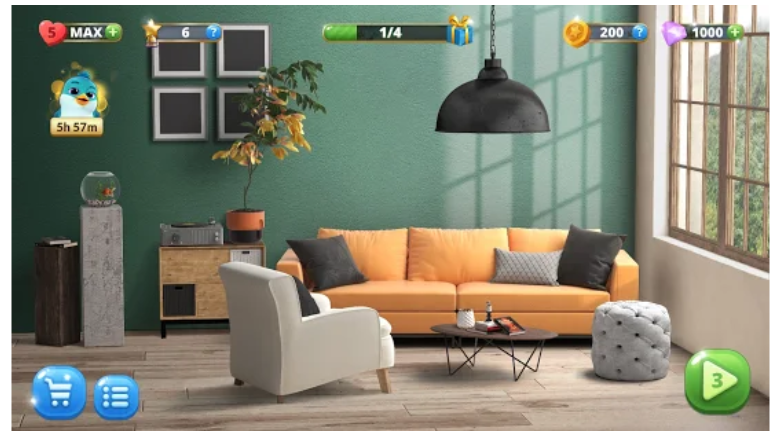
Download and Play the Flip This House app on PC and fulfill your dream of doing a house makeover which you cannot afford. Flip This House for Windows is one of a kind app that will help you pass your time and give you a fun experience of flipping the house.

Flip This House for Mac

What is Flip this House for PC app?

Flip this House PC app is a game for folks who like to obsess over furniture placement and room layouts just as much as it is a game for people who enjoy the simple act of cleaning.

Most of the starter homes you’ll buy are lined with garbage from wall to wall and caked in grime in places I didn’t even know stains could reach. The squalor on display is simultaneously impressive and laughable.

In the game, you will be working with Puzzle.Tv and its crew for the redesigning and modeling of the house. The crew is going to include 3 people Pearl, Harvey, and Flipper

Pearl: The person in charge of the House flipping show by Puzzle.tv

Harvey: With his building and fixing skills he will work as a handyman

Flipper: The star of the show, INTERIOR DESIGNER

Every episode of Flip This House is starred by a good man in need. Are you going to just re-design interior decorating or will it be a total home makeover? Clean messy rooms, remove hidden objects, and select paint, chairs, table, and every decoration item. Not everyone needs to live in a mansion, but it’s up to you whether the guests call the results of your house building efforts “ my home ”. These people deserve to make their home design dreams come true!

Flip This House on PC

How House Flipping Works

Flipping (also called wholesale real estate investing) is a type of real estate investment strategy in which an investor purchases a property not to use, but with the intention of selling it for a profit.

That profit is typically derived from price appreciation resulting from a hot real estate market. In which prices are rising rapidly or from capital improvements made to the property or both. For example, an investor might purchase a fixer-upper in a “hot” neighborhood, make substantial renovations, then offer it at a price that reflects its new appearance and amenities.

Match-3 puzzle games

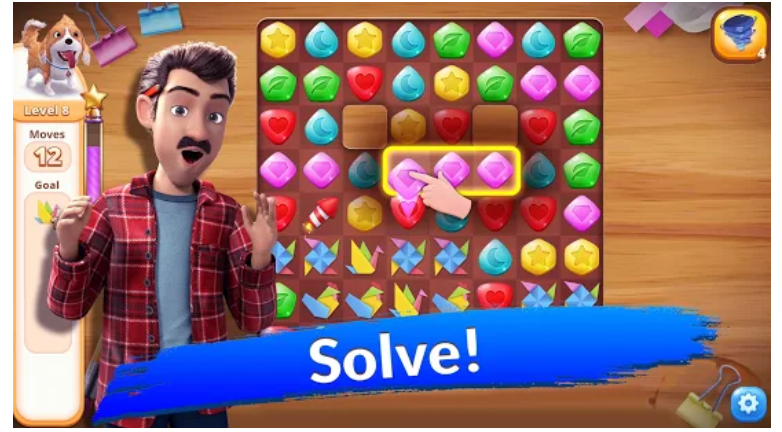
Whether you design, renovate, fix, repair, or just decorate a house, your funds aren’t endless. Still, you can invest more by playing a fun match-3 game! The core gameplay is easy: match 3 jewels in a row to make a blast; match jewels in squares or longer rows to create bombs, rockets, and other power-ups!

Flip This House app PC download

How to Install Flip This House app on Windows and Mac

  1. Install BlueStacks emulator on your PC.
  2. Complete the installation process of the emulator by following the instructions
  3. Open the emulator and look for the PlayStore app on the home screen
  4. In the PlayStore search for the Flip This House app
  5. Click on the install button to get the app on your PC
Flip This House app

How to Play Among US on PC – Windows 10, Mac

0
How to Play Among US on PC  – Windows 10, Mac

Download and join the millions of Players online by Playing Among US on PC. I have compiled for you an article where you will learn about the app. How it is played? and How you can download Among US app on your Windows and Mac PCs?

Among US PC app – The GamePlay

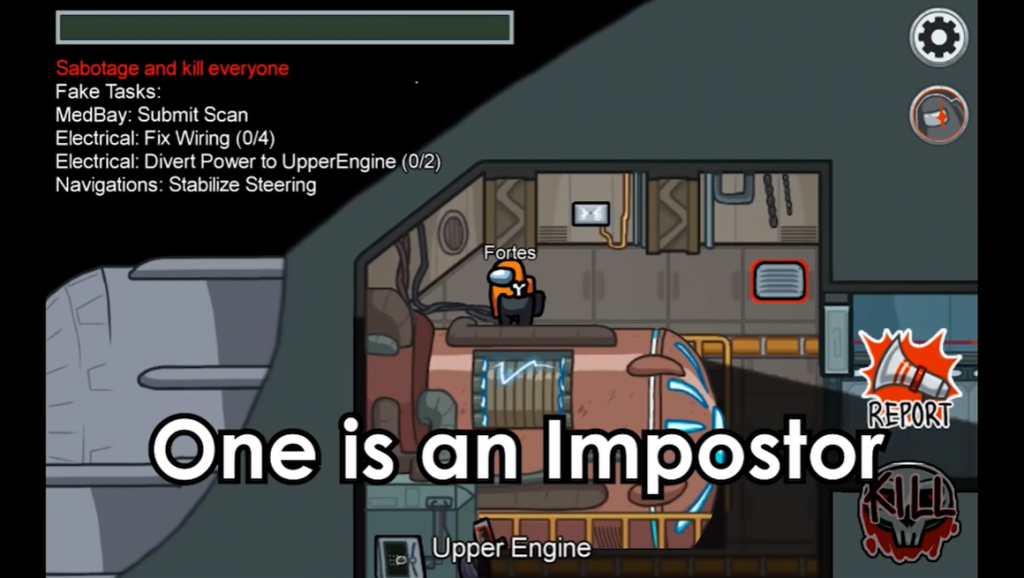
Among Us is a multiplayer game, supporting 4–10 players. The Impostors: 1–3 of these players are randomly selected each game to be Impostors, while the rest are Crewmates. The game can take place on one of three maps:

  • The Skeld (A spaceship)
  • Mira HQ (A headquarters building)
  • Polus (A planet base)

Crewmates

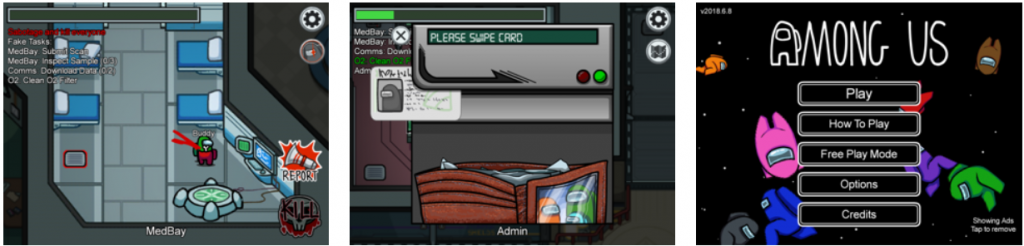
Crewmates are given tasks to complete around the map in the form of minigames, consisting of maintenance work on vital systems, such as electrical rewiring and fueling engines.

Impostors

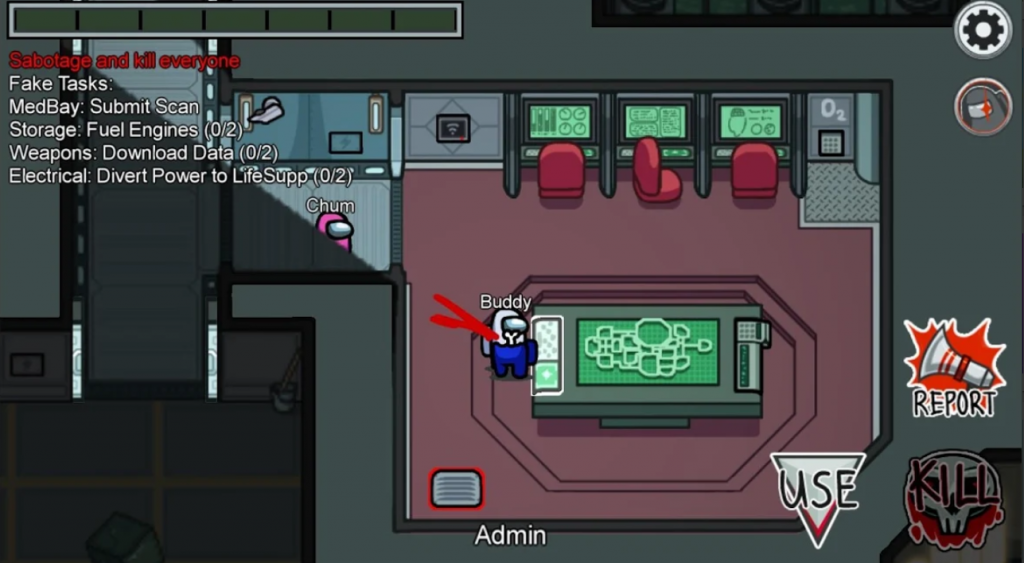
Impostors are given a fake list of tasks in order to blend in with Crewmates and have the ability to sabotage the map’s systems, cross to other rooms using vents, also identify any other Impostors, and kill Crewmates.

Ghosts

If a player dies, they become a ghost; They have the ability to pass through walls, but can only interact with the world in limited ways and are invisible to everyone except other ghosts. All players, aside from ghosts, have a limited cone of vision, only allowing them to see a certain distance around them despite the game’s top-down perspective.

How to Win

  • The Crewmates can win by completing all tasks before being killed or by finding and eliminating all the Impostors;
  • For the Impostors to win, they must kill enough Crewmates such that the number of Impostors is equal to the number of Crewmates or have a sabotage countdown run out;
  • The goal of Ghosts is to help their living teammates by completing tasks and performing sabotages for Crewmate and Impostor ghosts, respectively.

When an Impostor performs sabotage, there is either an immediate consequence (such as all the lights being turned off) or a countdown will begin, and the sabotage must be resolved before it finishes, or else all the Crewmates will die. Sabotages can be resolved by players in varying ways depending on which sabotage is done.

How to Identify The Impostors

If a player finds a dead body, they can report it, which will lead to a group meeting where all other gameplay is halted and players discuss who they believe an Impostor is based on the evidence surrounding the killing. If a plurality vote is reached, the chosen person is ejected from the map and dies.

Players may also call an “emergency meeting” by pressing a button on the map at any time.

How you can Chat with Players

The game is played in a text chat, wherein players can only communicate during meetings, and only if they are alive, although ghosts can speak with each other.

Although the game does not have a built-in voice chat system, it is common for players to use external programs such as Discord while playing. Various customization options to aspects of gameplay, such as vision range and emergency meetings, are available in each game’s lobby. There are also many cosmetic options, including spacesuit colors, skins, hats, and pets, some of which are paid downloadable content.

You Might have Played This Game before or Maybe not?

Among US for PC is and adaptation of the game called Mafia, You might have played it friends on a weekend hangout. There are two group of players, among them some tasks are didvided and on a piece of paper you are told if you are an impostor.

There have been other games as well, Town of Salem in 2014 and Ubisoft’s Werewolves Within in 2016, for example, but both of these just add an online interface for the basic Werewolf rules and depict players sitting in a circle just like you would in person. Among Us adds things to do in between accusations, making it a more active experience and building more tension.

The Popularity

The game has jumped to insane popularity. It’s the third-most-popular video game on Steam, right now. The sudden burst in popularity has caused some server problems for developers Innersloth, a team of three based in Washington.

  • SteamSpy data suggests the game has more than 10 million owners on Steam. Among US app can also be used on your Mobile devices
  • Amoung US for PC recently passed PUBG with 400,000 concurrent users.
  • The game developers have told the users Via a tweet that, “Among Us, servers are filling up again! We’re hitting 1.5 million players online at the same time! We’re slowly getting the hang of things but please bear with us! We’ll get through this.”

Also, one way to check the popularity of a phenomenon are the memes. IF you are seeing the memes of a particular phenomenon, you can clearly say that the thing is popular

Here are some meme for you, regarding Among US for Windows app

How to play with other players

There are public and private rooms you can join. You get the option of choosing between three space shuttles, as well as the number of imposters you want to play with (1, 2, 3).

There are two options of finding rooms: Connecting on a local WiFi or same network, or finding it online, with unknown players.

You can join a public room simply by going to the menu and scrolling through the rooms to pick what room you want to join, or a private room by entering the code shared by the host of the private room with you.

You have to get used to the Lingo

As the game is text-based and not everyone is using external chat software to speak. So most of the time, a player has time to type sentences. So to make the chats short and understandable players use certain specific words.

Everyone communicates in single words, “Who?” as in who died? “Why?” when an emergency meeting is called. “Where?” when a dead body is reported, or “sus” when someone is acting shady. You are only known by your colors – white, red, blue, green, purple, orange, pink, cyan, yellow, light green. no matter the decoration or disguise or name, that’s your identity now.

The talk of a Sequel

There were plans by the developers to release a sequel to Among US, But now they have delayed the project. Although the project was announced just a month back, but sighting the popularity of the current version the developers have decided to improve on it.

One of the reasons for a sequel was, the game codebase was outdated and it was not easy for the developers to add new content to the game. Now the developers are working on some improvements and have hinted that there will also be support for color blind people.

How to Install Among US app on Windows and Mac

  1. Download and install BlueStacks on your PC
  2. You will have to complete the installation process by following the instructions
  3. Look for the Google PlayStore app on the home screen of the emulator and open it. You can also search for the app in the emulator search bar
  4. Search for the Among US app and Locate it
  5. Click on the install button to get the Among US app on your PC
  6. Now you can access the app from the home screen of the emulator

Play The Game with Steam Engine on your PC

You can also play Among US on your PC by downloading the Steam engine on your PC if you do not already have one. The PC version is available for $2.99.

Download Samsung Galaxy S20 FE Stock Wallpapers

0
Download Samsung Galaxy S20 FE Stock Wallpapers

Want to download the Samsung S20 FE stock wallpaper? You have come to the right place. Although there is still some time in the launch of the phone. You can still download these beautiful Samsung Galaxy S20 FE stock Wallpapers on your phone and give your device a stunning look.

Samsung Galaxy S20 FE Stock Wallpapers

A good wallpaper can make a phone feel whole. It’s what really ends up bringing the visual experience of the phone together. Although Samsung S20 FE has not been launched yet, the stock wallpapers are a sight to behold. They are stunningly beautiful. S20 FE’s wallpapers come in at a 2400 x 2400 resolution which should look good on most phones

In this post, you will find a collection of free HD/high-quality stock Samsung Galaxy S20 FE official stock wallpapers. You can use the S20 FE Wallpapers on your iPad, iPhone, and other Android phones as well

You can download the Galaxy S20 FE in-built wallpapers from this LINK

Samsung galaxy S20 FE Stock Wallpapers
Samsung S20 FE Stock Wallpapers
Samsung galaxy S20 FE Stock Wallpapers
Samsung S20 FE Stock Wallpapers
Samsung S20 FE Stock Wallpapers download
Samsung  galaxy S20 FE Stock Wallpapers download

About Samsung Galaxy S20 FE

Samsung Galaxy S20 FE is an upcoming smartphone by Samsung. The phone is rumored to come with a 6.5-inch touchscreen display with a resolution of 1080×2400 pixels and an aspect ratio of 20:9. Samsung Galaxy S20 FE is expected to be powered by an octa-core Qualcomm Snapdragon 865 processor with 8GB of RAM.

As for the cameras, the Samsung Galaxy S20 FE is rumoured to pack a 12-megapixel primary camera; a second 12-megapixel camera and a third 8-megapixel camera. It is expected to sport a 32-megapixel camera on the front for selfies.

The rumors are that Samsung Galaxy S20 FE may have an in-display fingerprint scanner. The 5G variant is expected to be powered by the Snapdragon 865 SoC, whereas the 4G model will be powered by the Exynos 990 SoC. It is tipped to pack 6GB of RAM and has a triple rear camera setup with two 12-megapixel sensors and an 8-megapixel snapper. The phone is expected to have a 4,500mAh battery.

Download more stock wallpapers.

Download Xiaomi Poco X3 Stock Wallpapers

0
Download Xiaomi Poco X3 Stock Wallpapers

Xiaomi will be releasing its Poco series’ new phone Poco X3 in a few days. The mobile phone is a budget device with lots of good features. We have compiled Poco X3 (NFC) wallpapers for the enthusiasts. You can easily download the Xiaomi Poco X3 Stock wallpapers from here. Give your device a new and refreshing look with Poco’s Stock Wallpapers.

Xiaomi Poco x3 Stock Wallpapers

Poco X3 NFC stock wallpapers are available in FHD+ resolution for download, which you can use on your iPhone, iPad, and other Android Phones. These beautiful wallpapers are best suitable for all full-view display phones.

You can Download Xiaomi Poco X3 Stock Wallpapers from this LINK

Preview of Xiaomi Poco X3 Stock Wallpapers

You can get the Preview of these beautiful Xiaomi Poco X3’s Wallpapers below.

Xiaomi Poco X3 Stock Wallpapers
Poco X3 Stock Wallpapers
Xiaomi Poco X3 Stock Wallpapers download
Poco X3 Stock Wallpapers download

About Xiaomi Poco X3 (NFC)

The Xiaomi Poco X3 is packed with 6 GB and 8 GB RAM along with 64 GB, 128 GB, and 256 GB internal storage options. The smartphone is powered by the Qualcomm SM7150-AC Snapdragon 732G Octa-core processor. The display of the smartphone is protected with Corning Gorilla Glass 5 and comes with a 6.67 inches and 1080 x 2400 pixels resolution.

The device consists of a water-repellent coating (IP53 rating) and supports Hybrid Dual SIM (Nano-SIM, dual stand-by). The smartphone is fueled by a Non-removable Li-Po 5160 mAh battery + Fast charging 33W.

The smartphone runs on the Android 10.0 operating system with MIUI 12. The Xiaomi Poco X3 NFC comes in various colors such as Shadow Gray and Cobalt Blue. It is enabled with NFC, and Type-C 1.0 reversible connector, with USB On-The-Go.

Some of the key features of Poco X3:

  • Snapdragon 732G + 6GB RAM + 64/128GB UFS 2.1
  • Dual Stereo speakers, but not front-facing
  • A 5100mAh battery
  • 64MP Main Camera + 13MP Ultra-wide + 20MP FFC
  • IP53 rating
  • 33W charger included in the box
  • Liquid cooling
  • Option to add an external fan (included with 128GB variant)
  • Better haptic feedback vibration motor. “Normally used in flagships” whatever that means
  • Plastic back
  • NFC
  • Price starting €199 (64GB) and €299 (128 GB)

Download Apple iPad Air 2020 Stock Wallpapers

0
Download Apple iPad Air 2020 Stock Wallpapers

Just a day ago, Apple announced the new iPad Air 2020 at one of its very best launch events. The new iPad Air 2020 brings a number of changes on-board including a set of new wallpapers. There are 5 new HD wallpapers tailor-made only for the iPad Air 2020. All-new Apple iPad Air 2020 Stock wallpapers are out now. You can download Apple iPad Air 2020 stock wallpapers from here.Download iPad Air 2020 Stock Wallpapers

Stock Wallpapers of iPad Air 2020

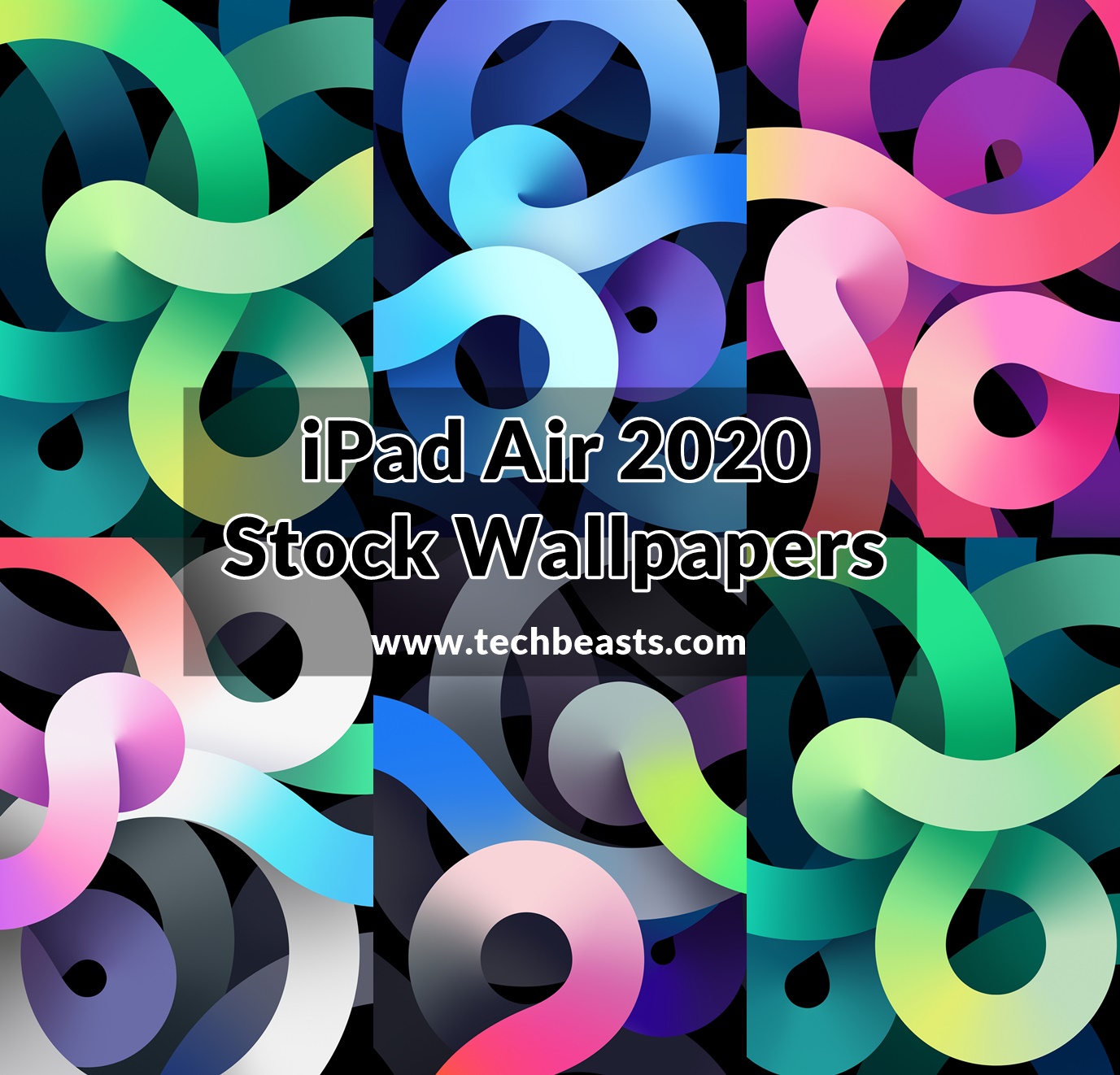
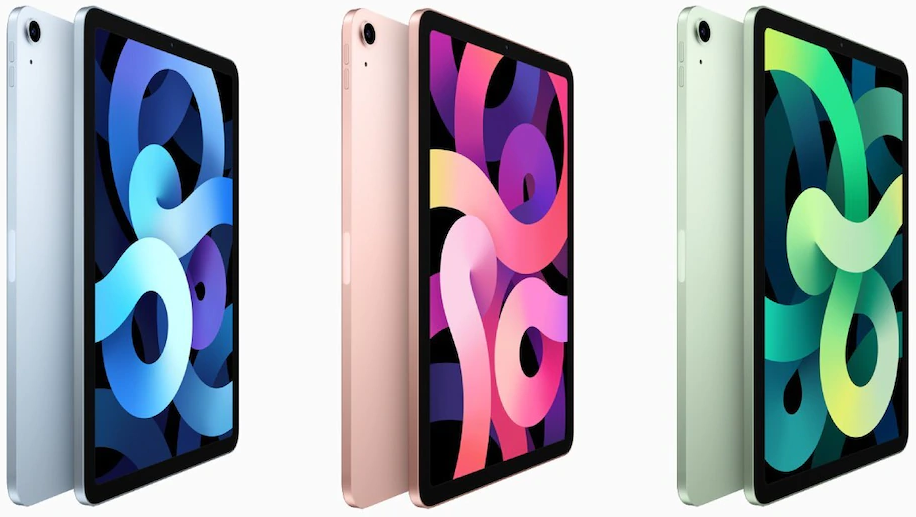
The new inbuilt Wallpapers of the iPad Air 2020 are something that you might have never seen before. All of the 5 wallpapers follow the same theme but in different colors. The wallpapers are available in high resolution which means you can use them on any other iPad, iPhone, or even an Android phone. You can either download the wallpapers one by one, use our all-in-one button below to download them all together.

iPad Air 2020 Stock Wallpapers

iPad Air 2020 Stock Wallpaper iPad Air 2020 Stock Wallpaper iPad Air 2020 Stock Wallpaper

About iPad Air 2020

iPad Air 4 takes a leap ahead in terms of power and efficiency. The main highlight of this new tablet by Apple is its A14 Bionic Chipset. This is a new 5-nanometer chipset which makes the iPad Air 4 faster than the most premium Android tablet available right now. It further uses Apple’s 4-core GPU. The internals of this device includes a storage capacity of 64GB or 256GB. There is only one rear camera of 12 megapixels and a 7 megapixels front camera. It’s also got a big battery. The fingerprint scanner is now mounted into the iPad’s power button.iPad Air 4th Gen

It flaunts a 10.80-inches IPS LCD Liquid Retina Screen carrying a resolution of 1640 x 2360 pixels. iPad Air is being offered in Space Gray, Silver, Rose Gold, Green, and Sky Blue colors. Its price starts at $699.

How to change your iOS GPS Location?

0
How to change your iOS GPS Location?
Dr. Fone Virutal Location

The GPS (Global Positioning System) is responsible for displaying your current location. The GPS chip in your phone is meant to be as accurate as possible, and, when it’s turned on, it continually updates your position by relaying coordinates to your phone’s operating system. After that the OS shares that data with apps that rely on location information.

GPS spoofing is a trick whose main goal is to override a GPS-enabled device’s original location. To do so, the attacker uses a radio transmitter that broadcasts a fake GPS signal and interferes with GPS receivers nearby. As a result, those devices display fake GPS locations. Location spoofing also refers to either faking your current location or hiding it completely.

There are many other tools used for fake GPS on iOS but out of all those, Dr.Fone Virtual Location is one of the best. If you want to get a gps joystick on iOS, this is the only app you need. Now we know what is Fake GPS location Spoofing, let us talk why would you need to spoof your location.

Why would you spoof your location?

There can be a dozen reasons to answer this question and it typically depends on the person looking to spoof his location. However, some common reasons to fake location on iPhone are mentioned below.

  • If you want to play a location-based game like Pokemon Go, then spoofing your location can be very useful.
  • You may also want to spoof your location to deceive a dating application that will think that you are far away.
  • You can use location spoofing to prank your friends and check in to a place on Facebook that you have never been to.
  • If you are a taxi or Uber driver, you can also use GPS location spoofing to earn more money.

  • On a large scale, GPS Spoofing can also be used in warfare as it changes the perceived location of ships, planes, and other vehicles.

Problems in changing iOS GPS location

Well, changing the GPS location might seem fun but it has some shortcomings which can cause you trouble in one way or another. Some of the problems that people generally face with the GPS spoof on iPhone are mentioned below.

  • If you change your location virtually for any reason, you will receive all the information about your virtual location like you won’t receive weather updates of your exact location.
  • Some of the applications won’t work with a fake location, while some phones don’t support changing locations in a fake manner.
  • One most important issue can raise when you change your location virtually, and that is there are many websites that are blocked for your safety on a geological basis. Once you change your location, you are more vulnerable to those harmful sites.
  • Changing your location virtually can lead to messing up with the original app’s settings in your device.
  • You may face legal repercussions for using a fake GPS location changer.

Dr.Fone Virtual Location

As said earlier, there are applications out there that will help you get a fake GPS joystick or GPS joystick with Fake GPS location. But out of them, one of the best is Dr. Fone Virtual Location that lets you change your iOS location virtually. There are multiple reasons why Dr. Fone Virtual Location is one of the best applications for location spoofing.


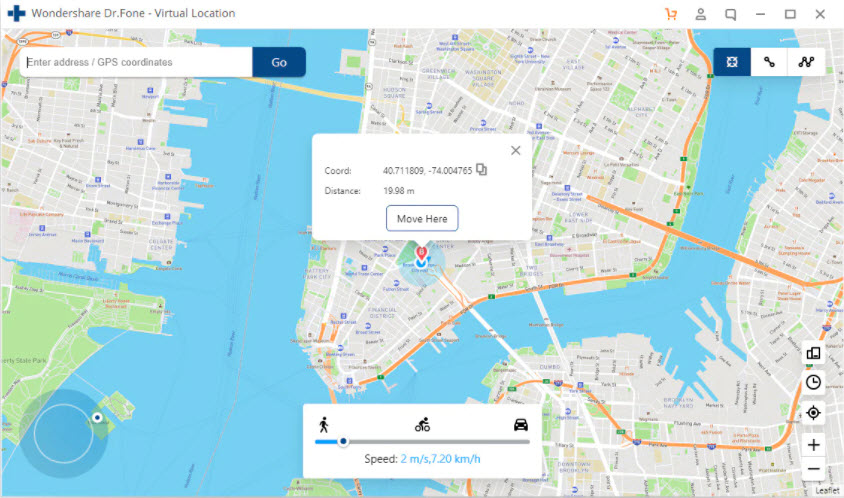
You will find three modes of changing your location where the first one is “Teleport Mode” that allows you to go to your desired location directly and select any virtual location. The other two modes will allow you to simulate your movement between either two or more than two points.

Dr. Fone Virutal Location

Features of Dr. Fone Virtual Location

When it comes to features, Dr. Fone Virtual Location changer offers amazing features that are super easy to use and you will get used to it with ease. Below are some of the features that are explained in detail.

Teleport Anywhere

Once you open the application, on the right top corner, you need to click on the Teleport option, and then you can add your desired location and press the “Go” button, and you will be taken to that location meaning that your location will automatically be changed.

Simulate Route Movements Between Two Places

If you want to simulate a route between two spots, then you need to click the first icon in the upper right corner, which is the “One-stop route”. You will need to enter the desired location, and then you will be asked to about the mode of movement and its speed will be displayed. Then you will be asked a number which indicates how many times you are up to traveling between the two spots.

Simulate Route Movements Among Multiple Spots

If you want to simulate your route among multiple spots, you can do it by clicking on the “multi-spot mode” button on the upper right corner. Once you have selected the multi-spot mode, you will be asked the same information as that of two-spot, but additional you will have to select multiple routes.

Dr. Fone Virutal Location

How to setup Dr. Fone Virtual Location to change iOS GPS Location

Setting up the Dr. Fone Virtual Location to change your iOS location is not a hard job. All you have to do is to follow the steps given below and you will be able to change your iOS location with the help of Dr. Fone Virtual Location.

  • First of all, you need to download the Dr. Fone Virtual Location application for your PC. You can download the application here.
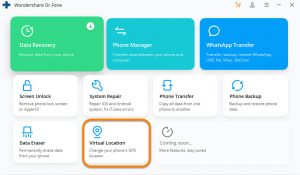
  • Then launch the application and click on the “Virtual Location” tab.
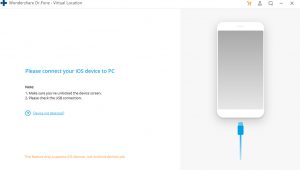
  • Then you need to connect your iPhone in order to proceed, and then click on Get Started.
  • Then you will be able to see your actual location, if you can’t find your actual location, then you need to click on the “Center On” icon.
  • Now in the upper right corner, choose the third one option “Teleport anywhere”, and then type the name of the location you wish to change to and click “Go”.
  • That is it, you have finally changed your iOS location with the help of Dr. Fone Virtual Location changer.
Dr. Fone Virutal Location

Review

There are other applications in the market that will help you change your location but Dr.Fone Virtual location is one of the most premium applications because the coordinates are accurate and it is super easy to use. Setting up this application might take a bit of your time, but that is just a one-time investment.

Not only you can change your location with Dr.Fone Virtual Location changer, but you can also simulate your movement between two or multiple spots which are very beneficial in games like Pokemon Go and others.

5 Free Best GBA Emulators for Windows

0
5 Free Best GBA Emulators for Windows
Courtesy: Nintendo

Fans of Gameboy Advance games can re-live their childhood memories once again in 2020. The Gameboy Advance console might have discontinued, but its legacy will live on for years to come. You can enjoy all the Gameboy Advance classic titles on your Windows PC via the best GBA Emulators. I have listed down 5 free best GBA Emulators for Windows. Before you get your hands on the Gameboy Advance emulators, let me refresh your knowledge about the console.

Best GBA Emulators for Windows

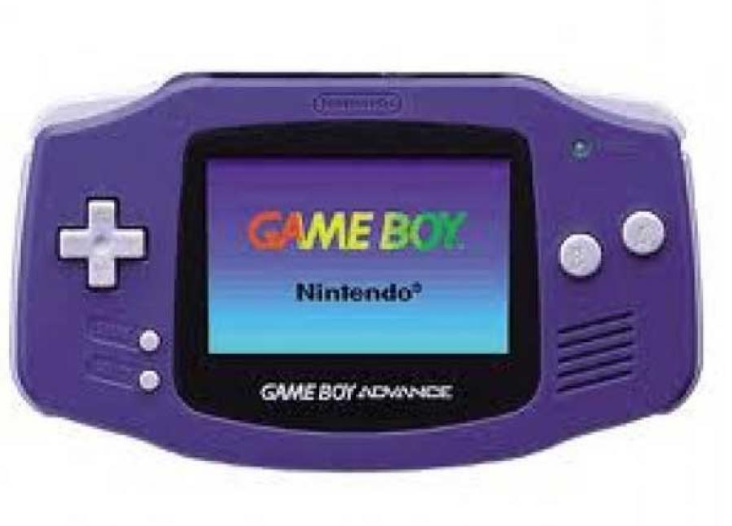
Gameboy Advance

As a part of the 6th-gen gaming consoles, the Gameboy Advance came out back in 2001. It was a bulky handheld emulator with buttons surrounding a tiny screen that wasn’t illuminated. Gameboy Advance supported the Gameboy Advance software, which was also supported by a number of other gaming consoles. Nintendo sold over 81 Million Gameboy Advance devices. The console was succeeded by Nintendo DS in 2004.

Even after discontinuing, the Gameboy remained on the shelves of stores for quite a while. If you happen to be a 90’s or early 2000’s kid, chances are you had this console or you’ve seen it/checked it at the least. Gameboy Advance was fun, a handheld emulator back in those days seemed like a technological wonder. Super Mario Advance was the most popular game among the GBA players. The emulator supported hundreds of games that are still available in the form of ROMs.

GBA Emulators

To give a chance to the GBA owners to experience their childhood once again, developers have come forward with their GBA Emulators. The emulators support the GBA software. GBA classic titles are available in the form of ROMs. These ROMs are basically the setup files of the games that the GBA Emulators can read. You can find a handful of GBA ROM sources and download your desired games. To run those games, you have a bunch of emulators. We have picked up the 5 best GBA emulators for Windows users and listed them below.

mGBA – Currently Active GBA Emulator for Windows

mGBA tops our list because it just got an update back in January. It’s active, and its developers keep trying to improve something every other day. mGBA also happens to be the most diverse and colorful GBA Emulator. It has loads of features that will give a modern touch to your favorite GBA games. mGBA supports High-resolution OpenGL graphics renderer. It tries its best to provide you the best possible graphics.

mgba best gba emulator for windows

mGBA has discord integration. It also adds a color palette for original Game Boy games. The emulator has a debugger incorporated. It’s got a map viewer too. There is a Switch option to use the built-in brightness sensor for some games. It also supports GBA cheats. mGBA is self-explanatory for the most part. It supports a huge library of good old games.

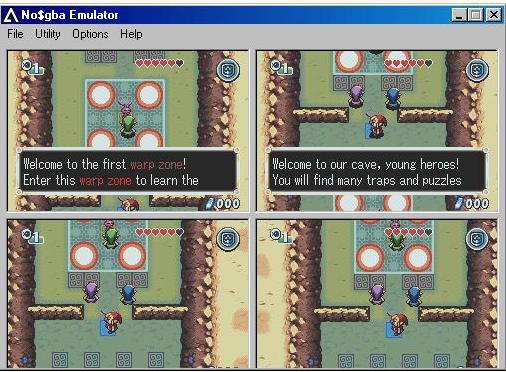
NO$GBA

NO$GBA is also an active GBA emulator. It’s a GBA and Nintendo DS emulator means if you can run the games from both the devices using the NO$GBA emulator. It takes a very different approach and comes with a little bit of complexity.

nogba gba emulators for windows

Users have to set up the NO$GBA emulator according to their own requirements. It’s not a feature-rich emulator, however, one feature that puts it ahead of all the emulators is the external controller support. This is the only emulator on our list that supports hardware controls. 

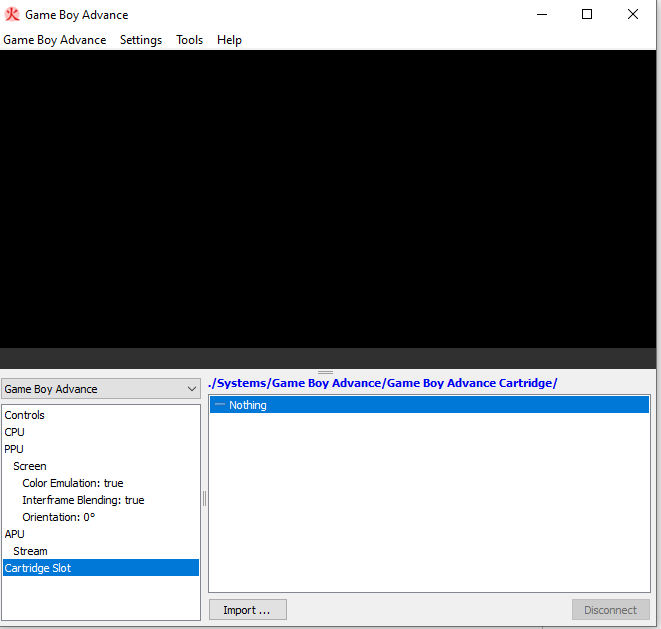
Higan GBA Emulator

Higan is another currently active GBA emulator. It’s a very simple and one of the most popular emulators equipped with all important features like saving a game, recording the gameplay, screenshots, framerates, controls configuration. It doesn’t support an external controller, you will have to use your keyboard’s arrow keys or just choose your own configuration. 

best gba emulators for windows

The best part of Higan is that it’s not just a GBA Emulator. When you launch it, you have to create your own system. It supports systems including ColecoVision, Famicom, Game Boy, Game Boy Color, PC Engine, Wonder Swan, SC 1000 and SC 3000, and many others. After creating a system, you can load the cartridge/ROM of that system.

best gba emulators for windows

BatGBA

BatGBA is a rather simple GBA emulator. It’s a straight-forward emulator with no complexity involved at all. When I say straight-forward, I do not mean that it’s not feature-rich. It’s loaded with all important features like the ability to save the games, loading the information of GBA ROMs, capturing screenshots, recording videos.

best gba emulators for windows

It also shows you framerate on the lower-right corner of the emulator screen. Users can use their keyboard to play the games. The keys configuration appears under the options tab. Keys can be re-configured as well. Users can further tweak the framerate of the games. BatGBA also has a zoom option. If you are not liking the current zoom in a game, you can increase it. 

VisualBoyAdvance Emulator

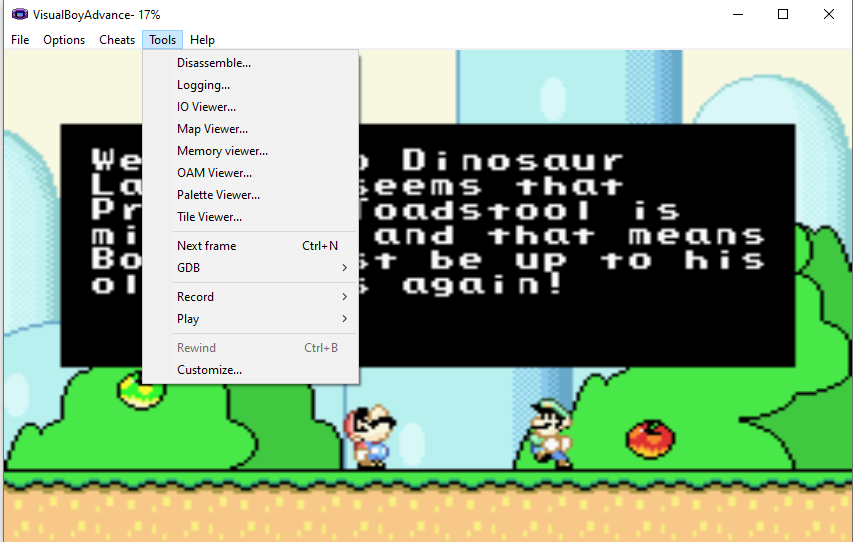
VisualBoyAdvance Emulator is similar to the BatGBA Emulator. There is no difference at all. The UI is the same, the functionality is the same, even the options and features are the same. These two are the best emulators in terms of usability as these do not confuse the user for a single moment. Since these are dedicated GBA emulators, users find it easy to run the GBA ROMs. You can just download any GBA ROM, load and play the desired game.

best gba emulators for windows

Conclusion

That’s all. Remember that these emulators do not come with the GBA ROMs pre-loaded. You will have to find the GBA ROMs from credible sources, it’s super easy to do that, and load them. The ROM files are in KBs or MBs so they will not consume a lot of time while downloading. GBA Emulators do not require any installation, these are the stand-alone packages that run straight-away on a Windows-powered computer. If you have any questions/queries regarding the best GBA Emulators for Windows or the games, feel free to use the comment box below. I will try my best to help you out ASAP.


5 Best Free Online Teaching Apps

0
5 Best Free Online Teaching Apps

Education has shifted from real classrooms to online classrooms these days. If you happen to be a teacher or a student looking for an app to teach online, you have landed at the right place. Here, you will find the 5 best and free online teaching apps for Web, Windows, macOS, Android, and iOS platforms. These best online teaching apps will let you give and attend lectures from home.

Online Teaching Apps: Google Classroom

Online Teaching Apps
Classroom

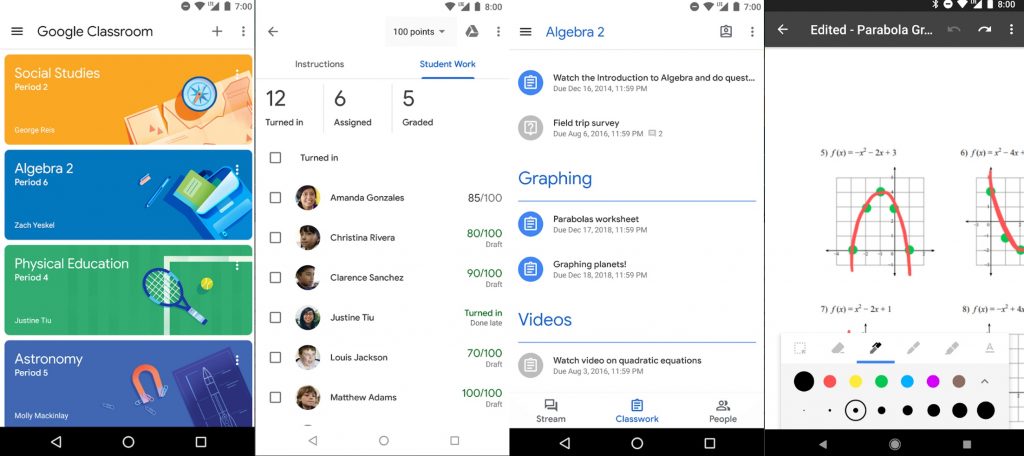
Classroom is Google’s own online-teaching platform. Teachers all across the world can use this application to give lectures from their homes. Google Classroom accommodates learners, researchers, and all the professions that have to do with education. While it’s not an online video tutoring platform, it takes an entirely different approach to online teaching.

Google Classroom’s main goal was to save time and paper. Who knew that a crisis would eventually make this application so important. As of now, it’s one of the best applications to teach your students online. Teachers can create classrooms and share a code with their students to join them. In the classroom, teachers can upload assignments and lectures. A track of whether the students are finishing their tasks or not can be easily maintained. Teachers can make video and voice announcements in the classrooms.

For storage, the Classroom app uses Google Drive. All of your uploads stay in your Google Drive account. Google Classroom is available as a web app, desktop app, and also has its Android and iOS app.

ZOOM Cloud Meetings

Online Teaching Apps

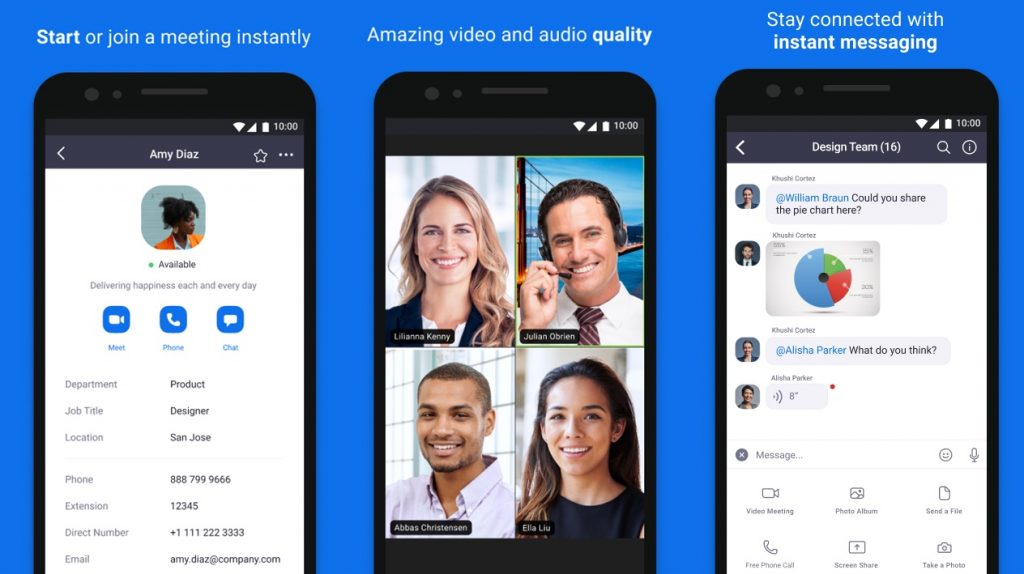
Zoom happens to the favorite-most choice of people looking for online meetings and tutoring platform. Zoom Cloud Meetings app is popular among trainers and boot campers. The platform can be used for online teaching as well. Up to 100 people can join one meeting room. Teachers and students can connect with each other on this platform, they can all have a live video chat and aks direct questions. Zoom Cloud Meetings is not fully free. It comes with a free trial for the first 30 days. Zoom is the best application if you want to have an interactive session with the attendees. It’s also widely available for various platforms.

GoToMeeting

Online Teaching Apps

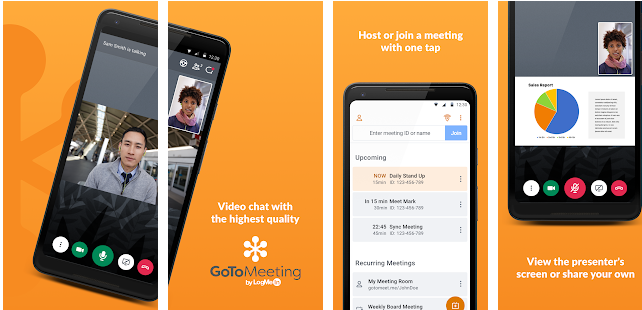
Of all the applications in this list, the GoToMeeting has the highest rating. This app is also free and the best part is it doesn’t require all the attendees to sign up. The meeting host can invite anyone to join the live video conference call. This application is built for online/cloud meetings, but keeping in view its usability and flexibility, we can use it for online tutoring too. Nearly 100 users can join a video conference at the same time. Hosts can share documents, files, and presentations with the users. Hosts can also limit access of the viewers to the files, and also share files/documents with specific users only. You can use this application to conduct an online class or meeting while sitting anywhere in the world. GoToMeeting also works on Windows, macOS, Android, and iOS.

Cisco Webex Meetings

Online Teaching Apps

Cisco Webex, as its name suggests, is an application developed by Cisco Systems. The application is now available for everyone to use. The basic idea of this application was to enable users to host and attend meetings remotely. However, it’s used is not limited to meetings only. Whatever your purpose of a group-video conference/call is, you can utilize the Cisco Webex Meetings for that. While I’m mentioning this application here for online tutoring, you can host an online class and give your students a lecture through the Cisco Webex. Numerous students can join the online classroom. Cisco Webex Meetings works well on all popular operating systems.

Hangouts Meet

Online Teaching Apps

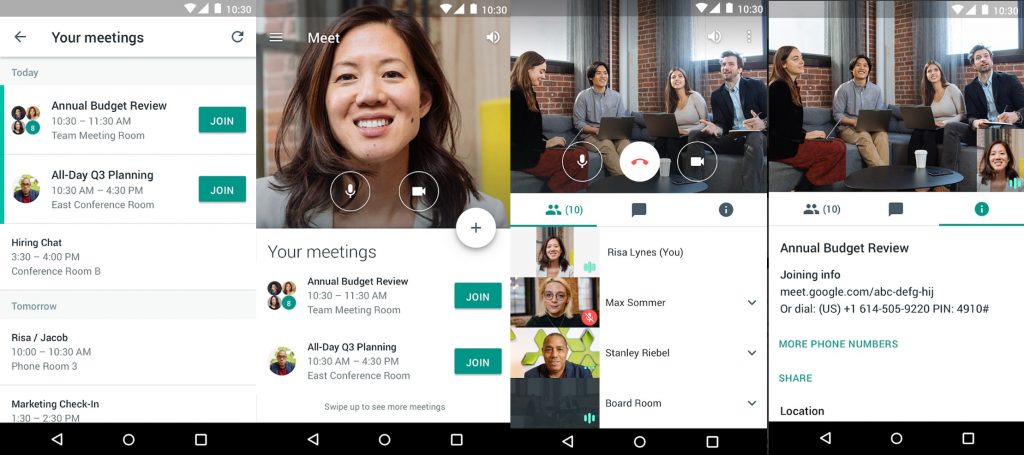
Hangouts Meet is another application by Google. Google Classroom does not offer any video conferencing, but the Hangouts Meet is completely opposite. You can use this application to assign tasks or post your lectures, but you can use it to conduct direct online video meetups and classes. Hangouts Meet is popular for webinars and private meetings, but as I said previously, such apps have a very wide application and you can definitely utilize them the way you want. Hangouts Meet also works on all available operating systems. 

RingCentral Meetings

Online Teaching Apps

RingCentral Meetings is an application similar to zoom. Part of this application is free and a part is paid. Users have to get a RingCentral subscription in order to fully use it. RingCentral can handle up to 200 participants at a time. Hosts and participants can share with each other files, documents, images, videos, links, and everything else they want. The app is equipped with features to make it extremely easy to host or attend meetings from anywhere. It also has a safe driving mode which will let you attend meetings safely while you are driving a car. If you want, you can carry out training and online-teaching sessions instead of meetings using the RingCentral Meetings app. 

Flipgrid

Online Teaching Apps

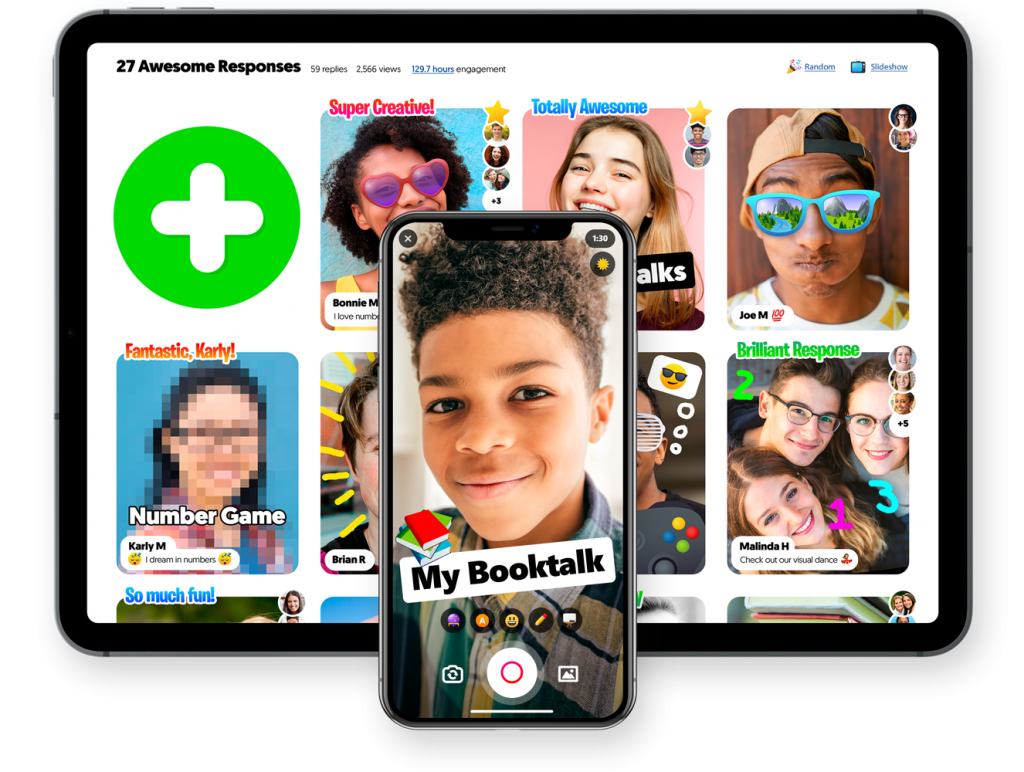
Flipgrid is a completely different teaching platform from all of the ones mentioned above. It’s a global discussion community where scholars, teachers, students, and researchers can collaborate with each other. Anyone can open a discussion and then the users can respond with the knowledge they have. Students can record and upload videos on the Flipgrid platforms. Viewers can benefit from the lectures. If you are a teacher, you can record your lectures and upload them on Flipgrid. You can inform your students afterward to take a look. Flipgrid is also the best in terms of UI.

Conclusion

That’s all with the best free online teaching apps. The RingCentral and Flipgrid apps have been added as a bonus. All these applications are the most discussed right now as business and education have turned online these days. If you have any questions/queries regarding any of these applications, feel free to reach out to us. We will try our best to help you out.

Review: Bitdefender Mobile Security for Android

0
Review: Bitdefender Mobile Security for Android
Bitdefender Mobile Security for Android

Bitdefender Mobile Security for Android is one of the most advanced cybersecurity applications for Android that gives your devices absolute protection against viruses and malware. Not only it protects your phone from malware and viruses, but also it comes with a built-in VPN for a fast, anonymous, and safe experience while surfing the web.

This application allows you to remotely locate, lock, and wipe your Android device in case of loss or theft. It also features a light-weight and fast VPN that will keep you safe while accessing a public Wi-fi. You can access multiple virtual locations from all over the world including the US, UK, IT, AU and more.

Bitdefender Mobile Security for Android offers cloud-based malware detection and a smart anti-theft experience for your smartphone with almost zero impact on your battery drainage. Bitdefender is packed with amazing features that are aimed to provide your smartphone with unbeatable protection, increased performance, and unbreachable privacy.

Bitdefender Mobile Security for Androir
Bitdefender Mobile Security for Android

Best Disney+ VPN

0
Best Disney+ VPN
Using Disney+ on my phone while it's not available in my country.

Disney+, Disney’s official movie, and TV show app is out now. It’s available in the US at the moment. If you are living outside the US, your chances of running Disney+ are bleak. But wait, you can use a VPN and watch it right now. Take a look at this list of best Disney+ VPN in 2020.

Before you take a look at the best Disney+ VPN, let me explain this application a little more.

Disney+

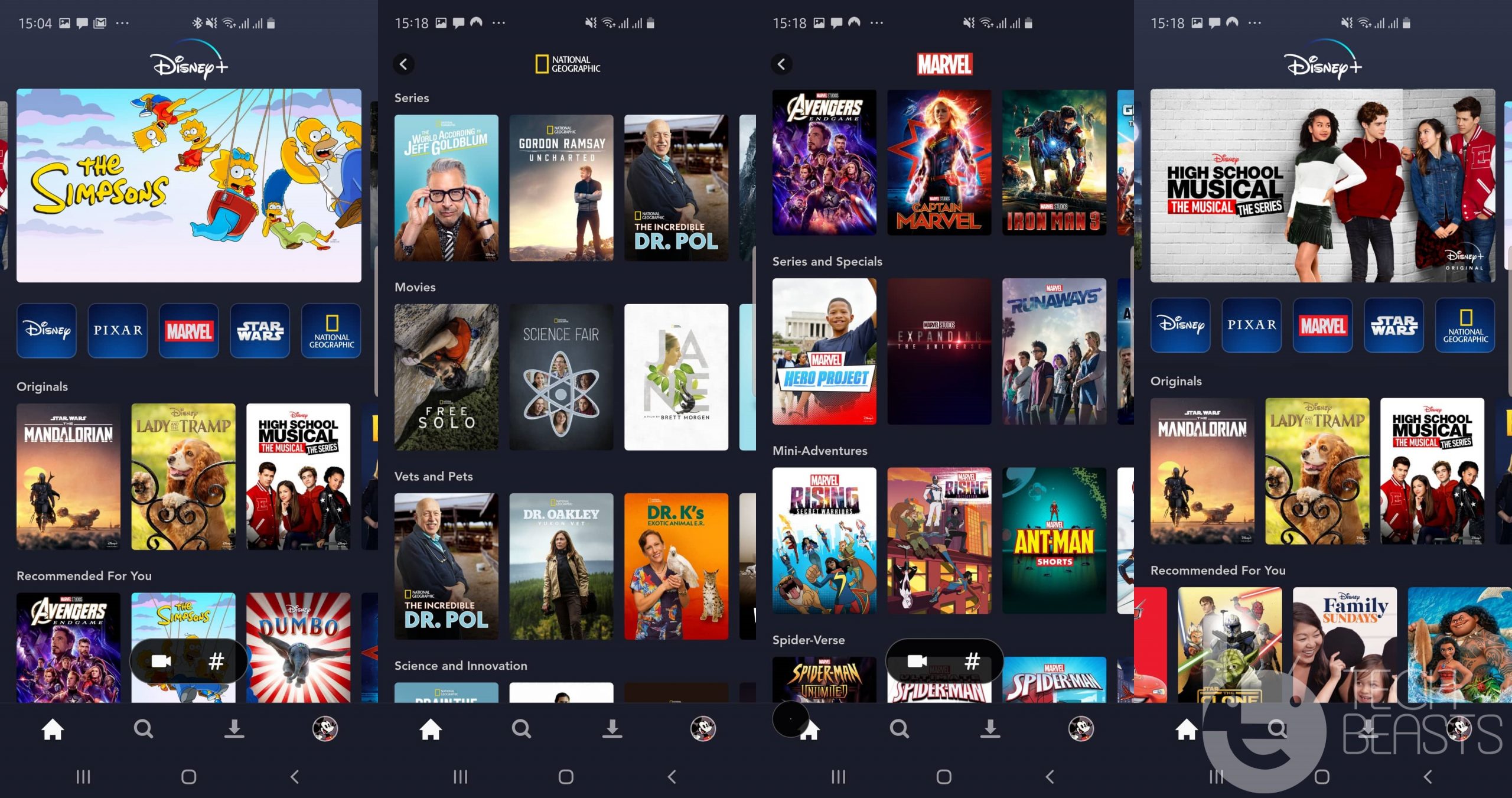
As the name explains everything, Disney+ is Disney’s application with all the movie and TV show titles that Disney has produced to date. If you have grown up while watching those exciting Disney shows, you will find them all once again in the Disney+ app and that too in the best possible resolution. Not only that, but Disney also has titles from Pixar, Marvel, Star Wars. Furthermore, the app lists some TV shows from National Geographic.

Using Disney+ on my phone while it’s not available in my country.

Disney+ offers all the content in HD resolution. If your device has HDR or HDR10 support, you are going to enjoy the content even more. For the most part, the app runs smooth. The viewing experience is seamless. There is a download option that can download the movies within the app so that you can watch them later on. Disney+ works in a manner similar to Netflix. The subscription of Disney+, however, is much cheaper than Netflix and its likes.

VPN for Disney+

Disney+ is available in the US at the moment. The app will make it to other countries in 2020. Even when this app makes it to other countries, there will be a huge chunk of audience missing on it. Take a look at Disney+’s release in other countries:

  • March 31, 2020: UK, France, Spain, and Italy
  • The first half of 2020: Western European Countries
  • The first half of 2021: Eastern European Countries
  • 2020 – 2021: Asia-Pacific countries
  • 2020: Latin America


If you are living outside the US in one of the countries/regions mentioned above, you are not going to see Disney+ in the Play Store. Even if you manage to install it, the app will fail to load.

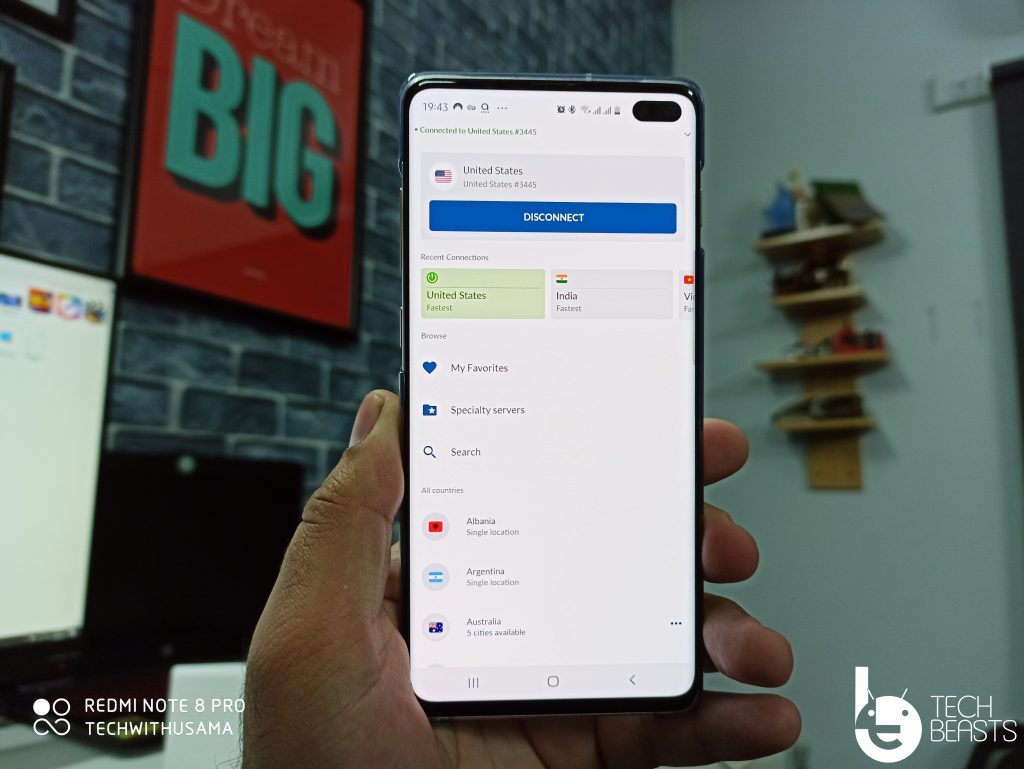
The only way to use it right now is through a VPN. Basically, I was interested in using Disney+ and I used a VPN. I was able to download the app from the Play Store and properly use it. Of course, I used a VPN and that is how the idea of this post popped up in my mind. 

I am going to list the VPNs that I have hand-tested. Take a look to get the best Disney+ VPN now.

Best Disney+ VPN

1. NordVPN

Best choice for not only Netflix but all things internet.

Number of Servers: > 5100 | Number of Countries: 59 | Simultaneous Devices: 6 | P2P & Obfuscated Servers | UDP & TCP OpenVPN | L2TP/IPSec | IPSec | IKEv2 | PPTP

I have been using the NordVPN for many things other than the Disney+ as well. I originally got this VPN for Netflix. Since it has worked great for me, I gave it the first try with Disney+ and it worked. NordVPN has some unique features that you will not find on any other VPN. For example, it has the strongest possible privacy and security-focused protocols in place. It also offers Obfuscated servers which make it nearly impossible for any party to snoop into your online activity.

Best Disney+ VPN

If you want to watch Disney+ every now and then, I’d suggest you to picking up the NordVPN. It’s available at a huge discount right now. Take a look at the NordVPN offers.

Get NordVPN Now for 70% Off

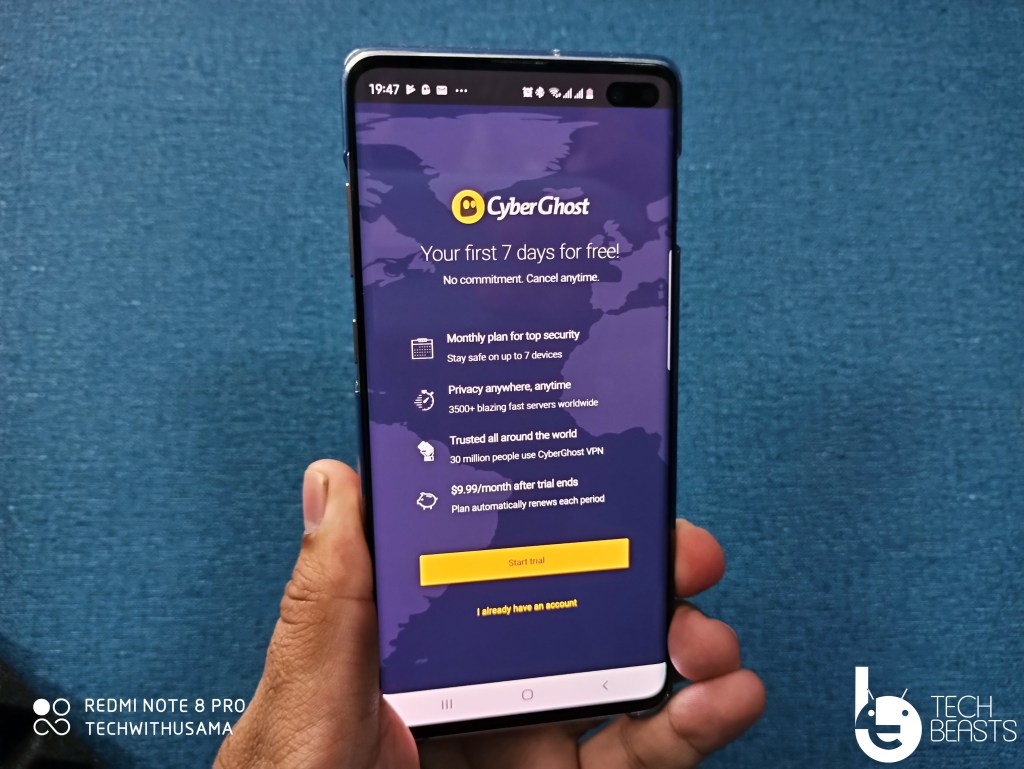
2. Cyberghost

Number of Servers: 5745 | Countries: 90 | Locations: 112 | OpenVPN, L2TP-IPsec and PPTP protocols

This is another VPN that worked flawlessly with Netflix and works with Disney+ as well now.  With a huge number of servers in over 90 countries, this VPN can easily bypass all the restrictions set on your internet. The best part about Cyberghost is the number of devices and operating systems it is compatible with. For example, you will find Cyberghost for Windows, Android, macOS, Linux, Firefox OS, and even the Firestick.

Like the NordVPN, Cyberghost is quite affordable as well. It also offers a 7-day money-back guarantee for the monthly package and 45-days money-back guarantee for yearly package.

Get CyberghostVPN on Discount

3. VyprVPN

Number of IP Addresses: 200,000 | Locations: 70 | Simultaneous Devices: 5

This is the only VPN in this list with its major focus on video streaming services. VyperVPN ensures high quality and flawless video streaming on platforms like Netflix, Prime Video, and now it supports Disney+ as well. Not only it will let you access Disney+ while you are outside the US, it will also keep your experience as smooth as possible.


Final Words

Since our main goal here is to access the Disney+ app, I have not quite explained what these VPN apps are actually capable of. All these apps come with military-grade encyrption which makes it hard for anyone to keep a track of your online activity. Chances of your data getting compromised are zero when you are connected through these apps. A VPN is also a necessity when you are using a public WiFi Hotspot connection. 

Hopefully, you will have the Disney+ accessible now. If you have any questions or queries, use the comment box below. I will try my best to get back to you as soon as possible.

More:

Best Free Rainmeter Skins for Windows

0
Best Free Rainmeter Skins for Windows
best free rainmeter skins for windows

Windows customizations lovers can find the best free Rainmeter skins here. All of these free Rainmeter Skins for Windows are hand-picked.

Rainmeter

Before you download the free Rainmeter Skins for Windows, it’s important to know what this software is. If you are a fan of customization, the Rainmeter is the software you need. Rainmeter changes the entire look of your computer’s desktop. There are a few things that you need to have a clear idea about.

Rainmeter does not tweak or modify the system. It brings features on the top of your existing system instead. If you have ever used an Android phone, you must have an idea about the widgets that can change the look of your phone’s home screen. Back in the day, there used to be dedicated widgets apps, some of the apps still exist which can completely turn around the look of your phone. The Rainmeter does something similar, but for the desktop computers and Laptops powered by Windows.

Rainmeter adds widgets to your computer’s screen. These widgets, known as skins for Rainmeter, can be synced with your computer. For example, if you go for a skin that shows the information about the CPU and RAM, it will take that information from your system and show it on the screen in realtime.

You can install a visualizer skin and sync it with Spotify or Windows Media Player. The visualizer will animate on the Desktop with the songs played in your selected player. While doing this, Rainmeter will not interrupt any of your activities.

I recently got to know about Rainmeter and I was amazed to see how it changes the look of a PC. First of all, I was overwhelmed by the number of options it had. I wanted to pick up the best Rainmeter skins to avoid the confusion between countless options and that’s when I decided to do this post as well. Go ahead and download the best free Rainmeter skins now.

Best Free Rainmeter Skins for Windows

DropTop Four

DropTop Four by BlackSquared adds a macOS like a toolbar at the top of your desktop of Windows PC. It shows a home button on the top-left corner of the screen followed by a tray showing menus like Games, Bookmarks, Controls, Places. On the top-right side, it shows the icons of WiFi, Battery, Weather, Mailbox, Date, etc. DropTop Four is pre-loaded with 20 different skins. It has over 300 icons, you can change the icons of almost everything starting from the home button to the WiFi. Up to 6 toolbars can be added via Droptop Four Rainmeter Skin.

Best Free Rainmeter Skins

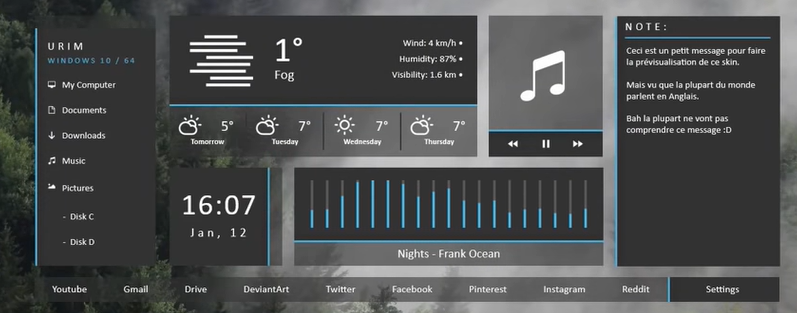
NUXHD

If you love Minimalism, NUXHD is the Rainmeter skin that can bring all of it to your Desktop’s screen. NUXHD has a player, a clock widget, folders, a notes window which acts like sticky notes. It also has a visualizer that syncs with your player. NUXHD also has a Weather and Dock for Websites and of course, the settings menu. The panel of NUXHD appears right in the middle of the screen. Keeping the surroundings clean, you can give an extra-brilliant look to your Windows Desktop via NUXHD Rainmeter Skin. Here is how it looks.

Rainmeter Skins for Windows

Material Taskbar

The name says it all, but if you still don’t know, Material Design language was introduce a few years back. This new design language takes a minimal approach to the icons and UI elements. Material Taskbar can add Material Design icons in a small taskbar that sticks to the bottom-center of the Windows PC’s desktop. You can choose the icons you want to show. Material Taskbar will have its own skin for all the icons, but these icons will open the apps/software that you will assign them to.

Rainmeter Skins for Windows

Cold

The Cold Rainmeter Skin has a Player, Clock, Settings, Date, and a Weather widget. It mixes up the widgets and elements with your wallpaper in such a way that they look like a part of the wallpaper. If you have a winters wallpaper and you want to give a cozy look to your Desktop, you can mix-up the elements of the Cold theme with the wallpaper. The original wallpaper of the Cold Skin is supposed to do something similar and you can find the wallpaper bundled with the theme. Here is how beautiful it looks.

Best Free Rainmeter Skins

Basier

Basier is a simple yet beautiful theme with a lot of minimalism involved. It brings a weather widget, player, mailbox, settings, and calendar widget which can blend into your pre-applied wallpaper. Take a look.

Rainmeter Skins for Windows

Vector Visualizer

Just as its name suggests, it’s built out of vector art and appears at the bottom of your screen. Vector Visualizer can be linked to your music player. It supports Windows Media Player, Google Play Music, Spotify Player, and a number of other players. The vector art keeps animating at the bottom of your screen in sync with the currently played song.

Rainmeter Skins for Windows

UI White

Take your love for white to a whole new level with UI White. This skin brings all-white elements to the screen. It has a white calendar, white icons in a transparent taskbar, a white clock. UI White also shows the computer’s hardware usage information with white icons followed by white progress bars. With a subtle wallpaper, the UI white looks extremely amazing. 

Rainmeter Skins for Windows

Mond

Mond also comes from the developers of Basier. This is one of the best Skins in terms of style. It shows a big calendar right in the middle of the screen followed by a player and a weather widget. This is also one of the cleanest Rainmeter skins. Skins like Mond put the least amount of burden on a PC in order to keep running smoothly. Here is how Mond appears.

Best Free Rainmeter Skins

unFold

unFold shows very nice, clean, and simple icons in a vertical bar on the screen. Upon hovering over the icons, the name of the app unFolds, and that’s the whole concept of this skin. It looks good enough to make its way to our list of best free Rainmeter Skins for Windows.

Rainmeter Skins for Windows

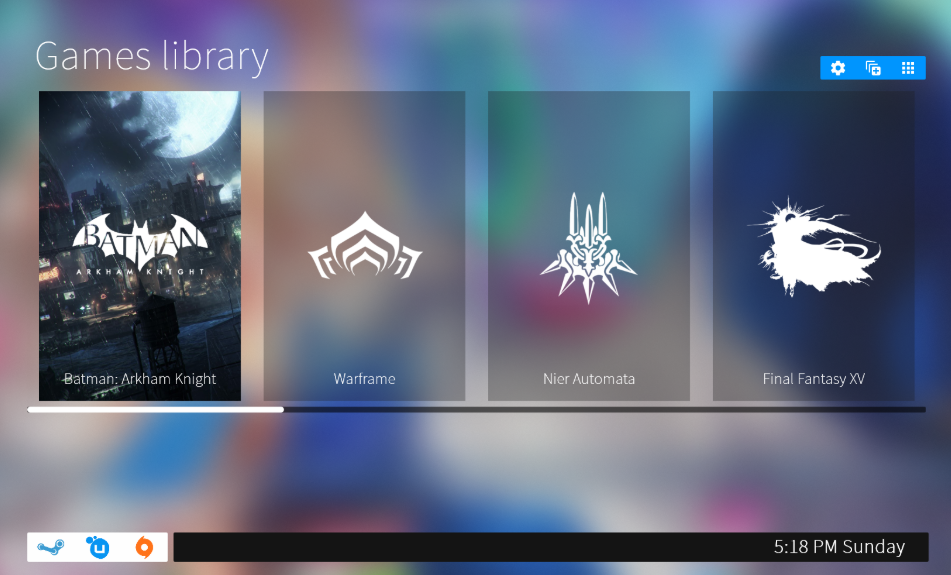
GameHub

Built for gamers, if you want to give your desktop a gamer’s look, you can use the GameHub. It shows all of your games in the form of big tiles and makes the screen look as if it’s a gaming console listing those titles. GameHub also lists the apps of your PC, it has a menu button that shows your apps. GameHub is also inspired by Material Design. It’s a slightly heavy skin and can cause lag, but its looks are worth it.

Rainmeter Skins for Windows

SpotiPlayer

If you are a fan of the mobile (Android/iOS) Spotify Player, you can now bring it to your Windows PC using the SpotiPlayer Rainmeter Skin. The Skin is developed by a Redditor and it works flawlessly. SpotiPlayer syncs with the music stored on your computer.

Rainmeter Skins for Windows