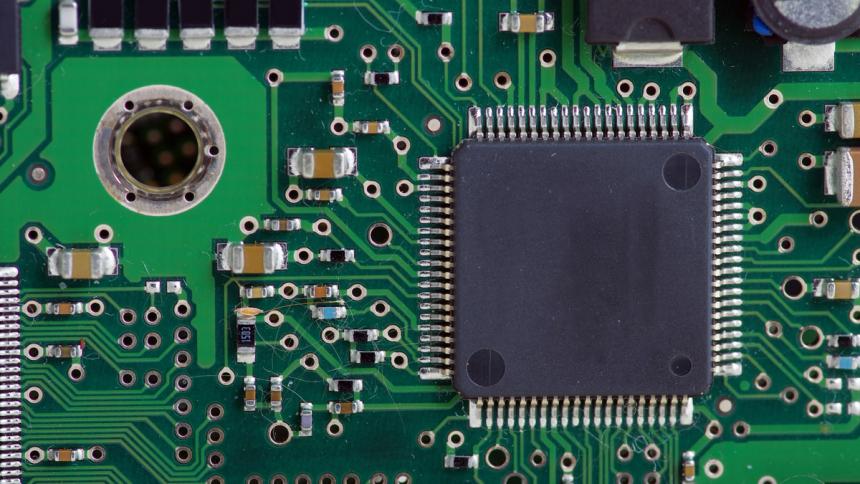
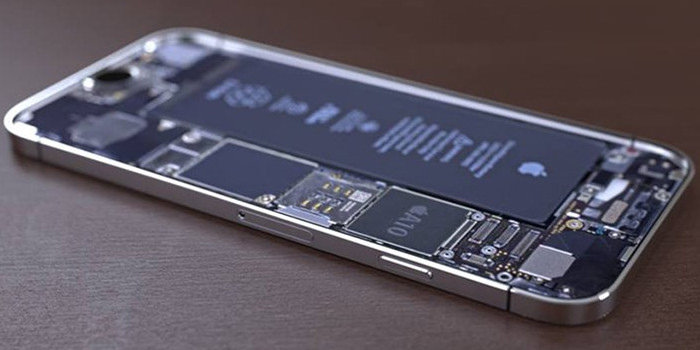
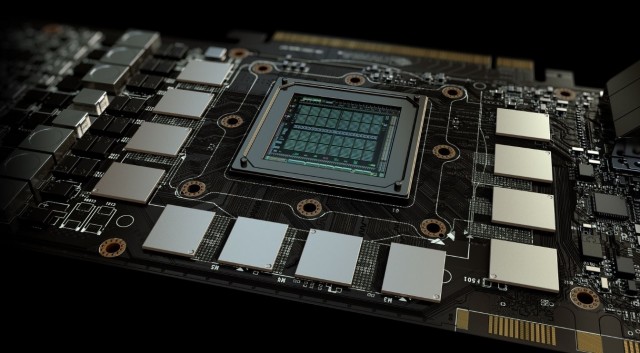
The most important hardware component of an Android phone is its CPU. The CPU determines what apps your phone is going to run, it also determines what load your phone can handle. The entire processing speed of your phone is linked with the CPU. Finding out the CPU of your Android phone is quite useful. Especially when you have to install a certain application that requires a certain CPU to run on. If you know what is the CPU of your Android phone, you will always have an idea about the compatibility of your phone. The CPU is not listed in the About Phone section or anywhere else in the phone. You can either look at the spec-sheet of your phone to find its CPU, or you can use the method given in this guide. Below are the steps to check CPU of an Android phone. Before you check the CPU of an Android phone, let’s learn a little more about it.
CPU in an Android Phone
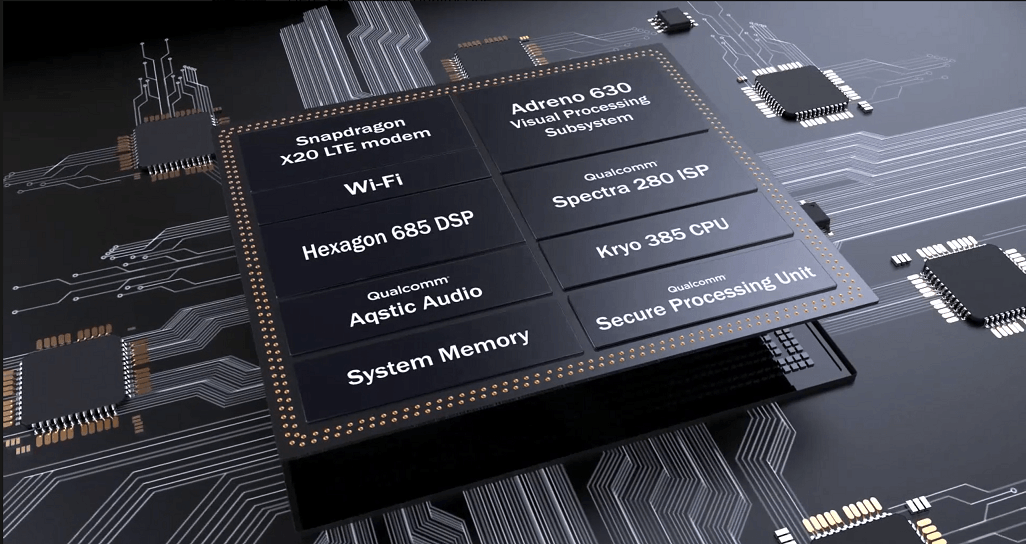
The smartphone processors come as “System on a chip” (SoC). This means that several modules are integrated on a single chip that makes a whole CPU. The SoC encapsulates the CPU, GPU, LTE Modems, AI Accelerators, Signal Processors and a few more chips.
The number of cores and clock speed are not enough to determine how fast a CPU is. The speed of a CPU depends on a number of factors. A good CPU with a powerful GPU and a big RAM is what makes a smartphone good.
CPUs of Android smartphones have evolved a lot over the past decade. CPUs today are built through 7nm and 8nm process. Samsung has its own Exynos series having the latest 8nm Exynos 9820 CPU. Huawei has its Kirin 980 built through 7nm. Qualcomm, the most popular chip maker has its Snapdragon 855 built through 7nm. Lastly, Apple has its A12 Bionic which wsa the world’s first 7nm processor.
Qualcomm, Samsung, and Huawei have tons of low-end and mid-range CPUs. The CPUs today are much more powerful than they ever were. Even the low-end smartphones these days come with 64-bit CPUs. 32-bit CPUs are becoming obsolete.
Since the Applications and Games are becoming resource hungry, phone manufacturers and CPU makers are taking a note of this. The more resource hungry apps are becoming, the more powerful CPUs are being manufactured.
If you have recently felt the need of finding out the CPU of your phone, you will find the steps to do so in this guide. Go ahead, follow the few simple steps to find out the CPU of an Android phone.
Check CPU of an Android phone
These are the steps to find out the exact CPU plugged inside your Android smartphone.
Total Time:2 minutes
Open Google Play Store and install Hardware Info.
Open Google Play Store and find “Hardware Info”. As you find this app, install it on your phone.
Open Hardware Info now.
Now that the Hardware Info has been installed, open it from the App Drawer.
Expand the Processor tab.
In Hardware Info, expand the “Processor” tab. You will find the exact model of your phone’s CPU and also the architecture. If it says ARM64, it means the CPU is 64-bit. That’s all.
So you bought a new phone but you don’t know what RAM does your phone have? Well, here is the guide to check RAM of an Android phone. Before you jump up to the method to find out the RAM of your phone, let us learn a little bit about the purpose of RAM in an Android phone.
RAM in an Android phone
RAM is one of the three most important components of an Android smartphone. The processing speed of your Android phone, after the CPU, relies on the RAM. Higher is the RAM of your Android phone, better will be its performance.
Gone are the days when Android phones used to come with a RAM of 1 or 2GB. Phone manufacturers like Huawei, Xiaomi, and Samsung are adding a RAM of 3GB or 4GB in their low-end smartphones these days. Manufacturers like OnePlus and Samsung have even gone beyond limits to add a RAM of 10GB or 12GB in their phones. To cut it short, the Android phones these days have more RAM than a PC.
The Android gaming and apps industry has evolved enormously over the last few years. These days, the Apps and Games require very powerful hardware to run on. The industry standards have changed. Games and apps today have become resource hungry and phone manufacturers are trying their best to meet the new industry standards.
Manufacturers try their best to make their smartphones compatible with every single app or game out there. Having more RAM on your Android phone makes it compatible with more applications. It also leaves room for better multitasking. Higher RAM can lead to better resource management on a phone as well. If you have a fond of playing multiple heavy games at the same time, you definitely need a heavier RAM in your Android phone.
If you want to find out what is the RAM capacity of your Android phone, but you are unable to find it in the settings application, then this guide is all you need. This guide will show you the steps to find out the RAM of your phone without searching online.
Check RAM of an Android phone
Follow these simple steps to find out RAM of an Android phone.
Total Time:2 minutes
Open Google Play Store on your phone.
Make sure your phone is connected to the internet. Now open the Google Play Store and let it load.
Install Hardware Info from the Play Store.
Find “Hardware Info” application in the Play Store. As you find this app, install it.
Open Hardware Info from the app drawer.
Hardware Info will now appear under the app drawer on the phone. Open the application now.
The third tab “Memory” shows the RAM of your phone.
Next to the processor and display tabs is the Memory tab. This tab shows the RAM of your phone. You can expand it to see System RAM. In the picture below, the 8GB RAM of OnePlus 6 can be seen. Keep in mind that the exact RAM can never be seen. You just have to see the RAM in MB’s and convert it into GBs. 7637MB RAM shown in the picture below translates to 8GB.
GPU of an Android phone plays an important role in processing the graphics. A GPU is responsible for all the games you play. The smoothness of a game has a direct link with the GPU of your Android smartphone. Furthermore, the games sometimes support only a few GPUs. That is when you need to find out what GPU your Android phone has so that you can find out the compatibility of your Android phone with a game or app. Unfortunately, the GPU is not listed on the box of the phone or in the About Phone section. To find out the GPU of your phone you can either check it online or you can learn how to check it right on the phone. This guide will teach you how to check GPU of an Android phone.
Check GPU of an Android phone
Before you learn how you can check GPU of an Android phone, take a deeper look into what is a GPU and how it works.
GPU – What is it and how it works?
GPU stands for graphical processing unit. It is often referred to as a graphic card, however, a GPU is not a graphic card. A graphic card can have multiple GPUs and it is deployed on a PC only. The GPU is deployed in a smartphone.
The basic purpose of a GPU is to process all the images, videos, 2D and 3D animations. GPU lays the burden off from a CPU by performing quick mathematical calculations.
GPU is among the most important hardware components of a device. In the case of Android, GPU plays a vital role in helping the users play all those cool games. The more powerful a GPU is, the more flawless is the gameplay. If you try playing a high-end game on a phone with a very low-end GPU, the display will drop frames, the game will stutter. If you ever wondered why you were unable to play a heavy game on a low-end smartphone, this could have been the reason.
GPU of an Android Phone
Every CPU manufacturer uses a particular GPU. For example, all the CPUs of Qualcomm for Android are paired with the Adreno GPUs. Adreno GPUs are manufactured by Qualcomm itself. You will find the Qualcomm Snapdragon 845 paired with Adreno 630 GPU, Snapdragon 855 paired with Adreno 855 GPU. Similarly, the CPUs of manufacturers like Samsung and Huawei are paired with the Mali GPUs. MediaTek CPUs also use the Mali GPUs which are developed by ARM holdings.
Check GPU of an Android phone
These are the simple steps to find out the GPU of an Android phone.
On your phone, open the Play Store.
Make sure your phone is connected to the internet. Now open the Google Play Store.
From the Play Store, install Hardware Info.
Find “Hardware Info” in the Google Play Store. As soon as you find this app, install it.
Open Hardware Info.
Hardware info will now appear under “App Drawer”. Open this application now.
The GPU is written next to OpenGL.
In Hardware Info, you will find Processor, Memory, and OpenGL options. The GPU version is written right next to the OpenGL options. For example, you can see the Adreno 630 written next to OpenGL in the picture attached below. This is the GPU of the OnePlus 6. Your GPU can be different depending on your phone.
Expand OpenGL to see all the details.
You can now expand the OpenGL values to see all the details of the GPU. That’s all.
Online video streaming services like Netflix and Prime Video offer HD and HDR content these days. To stream HD videos on an Android phone, Netflix checks the Widevine Security Level of an Android phone. If your Android phone’s Widevine Security Level meets the criteria set by a service like Netflix, it can stream a movie or TV show in HD or higher quality. Unfortunately, the Widevine Security Level is not listed in the spec sheet of an Android phone. There is a particular method to check this. The method is given in this guide. Knowing how to check Widevine Security Level of Android phone is useful when you want to check if a certain phone supports HD streaming on Netflix or Prime Video.
Before checking the Widevine Security Level of Android phone, let’s understand Widevine CDM in detail.
Widevine CDM
Widevine is Google’s proprietary DRM architecture. This architecture enables content creators and services to stream protected content. All devices that use Google’s ecosystem support the Widevine DRM. The Android OS incorporates Widevine CDM to stream HD videos from various platforms. Google has added Widevine to its Google Chrome browser which cooperates with the streaming websites. Browsers like Firefox and Opera also use Widevine architecture for video lovers.
Platforms that use Widevine.
Widevine is also used to stream content on devices like Google Chromecast and Android TV. The purpose of Widevine DRM is to ensure that the users get the best HD streaming experience on their devices.
When users are watching videos on Netflix on their Android phone, Netflix first checks the Widevine CDM. The Widevine CDM Security Level has to be at L1 in order to stream anything in HD quality. Android devices generally have two security levels. It can either be L1 or L3. If an Android device supports L3, it means it doesn’t support Netflix or Prime Video in HD.
Widevine CDM is nothing more than a certification. If a high-end smartphone with a display capable of handling HD videos comes with a Widevine CDM of L3, it means that the phone manufacturer is at fault. For example, the OnePlus 5T, at the time of its launch, did not have the security level of L1. The phone couldn’t stream Netflix videos in HD. The company added L1 support later on which proved that it was OnePlus at fault.
Similarly, Xiaomi’s Pocophone F1 did not have Widevine L1 either. The company updated it to L1 later on after facing server criticism. When Xiaomi released the Mi 9 recently, it did mention that the phone supports Widevine L1 so that the users do not take a hard stance once again.
That said, let’s move on to the guide to learn how to check Widevine Security Level of Android phones.
Check Widevine Security Level of Android
Checking Widevine DRM of an Android phone is extremely easy. Just follow these easy steps to determine your phone’s HD video streaming capability.
Total Time:2 minutes
Open Google Play Store on Android phone.
First of all, you need to open the Google Play store on your Android phone. Make sure the internet is connected and then open the Play Store.
Install DRM Info from the Play Store.
In the Play Store, find the “DRM Info” application. As soon as you find this application, install it.
Open DRM Info.
DRM Info will appear under the App Drawer on your phone. Open it.
See the Security Level under Widevine CDM.
At the bottom of the DRM Info application, you will find Widevine CDM. Under this, you will find Security Level. If the Security Level is L1, it means it’s all Hunky-Dory. If the Security Level is L3, your phone doesn’t support HD.
Final Words
By this time, you should have a clear idea about where your phone stands. If you think that your phone’s hardware is capable of handling HD or HDR video, but it doesn’t have security level L1, you can raise voice on various forums to urge your phone maker to roll out an update. Pocophone F1 users forced Xiaomi to get L1 support and they succeeded. Let us know if you found this guide helpful. For any queries and questions, feel free to reach out to us.
Don’t know which is the best Screen protector for galaxy s10. I have got you covered. In the pursuit of a truly bezel-less display, Samsung opted for in-screen ultrasonic fingerprint scanner this year. This is this first commercial implementation of this technology. Some key advantages of this new tech include faster unlocking speed, fingerprint recognition even when either finger or phone is wet and more security. Overall, Galaxy S10 and S10+ are very impressive devices. However, this new tech has a little catch and most people may not already know about it.
How does Ultrasonic fingerprint scanner work?
To put it simply, an ultrasonic pulse is fired at the finger’s underside. This impulse is aimed at the pores and ridges of fingerprint. this pulse bounces back in unique fashion, due to ridges and pores in fingerprint. This return signal is verified to check a person’s identity. It is not a visual verification but actually based on the actual pores and ridges. These are unique for every single person. Therefore, it is practically impossible to cheat.
In order for this to work properly, the fired impulse must travel back unaltered. Otherwise the data is corrupted and scanner won’t read it. Unlike the OnePlus 6T’s scanner that uses bright light to scan fingerprint, it actually depends on the ultrasonic impulse and its response.
Why do normal Tempered Glass protectors not work with Galaxy S10/S10+?
Since the ultrasonic fingerprint scanner depends on accuracy of return signal, therefore, if this signal is distorted, then it won’t recognize. The distortion or difference in result is due to 2 main reasons: you applied tempered glass protector after saving the fingerprint or the applied tempered glass is not compatible with Galaxy S10 or Galaxy S10+.
Samsung has officially announced that all Galaxy S10 and S10+ models will ship with pre-install screen protectors. The company also acknowledges that normal protectors may not work with this tech. However, according to tests done on this phone, plastic screen protects can work. They do not distort the signal as much. However, any average tempered glass protector will cause signal distortion.
List of working Tempered Glass/Protectors with S10/S10+
When it comes to tempered glass, manufacturers have opted for a hole in place of fingerprint scanner. Note that this is not a complete hole. This is just a hollow space under the top surface. The purpose of this hollow space to not let signal distortion. Thicker the glass, more the distortion. Considering this, normal plastic screen protectors should work with S10 and S10+. And according tests conducted by several YouTubers and so, it does work. However, we still recommend you store the fingerprints after applying protector.
1: Samsung’s Recommended protector
Samsung is shipping both S10 and S10 plus with pre-installed protectors. The official replacements for pre-installed parts is priced at $29.99 initially. This price may drop further in future. When the phone launches, you can get it from the official Samsung Galaxy S10/S10+ accessories store HERE.
2: Whitestone Dome Glass protector
When searching for a glass protector for one of these phones, you may come across the term Dome Glass Screen Protector for S10 or S10 Plus a lot. It is one of the best glass protectors for curved displays. However, it takes a bit longer and more effort to apply it.
Despite the effort, at the time of writing, the company claims that it is the only aftermarket glass protector that works with Galaxy S10 and Galaxy S10+. Many consumers have already confirmed that it works well with ultrasonic fingerprint scanner.
However, there is still a catch! Users have to re-register their fingerprints after installing it. Otherwise, the pre-installed settings may not work. The reasons for this is that the glass surface between screen and finger distorts the signal. Fingerprints stored after application of protector take in account the distortion. Therefore, the ultrasonic fingerprint scanner still works.
Since the application is so smooth and uniform all over the surface, there is little to no chance of error after installing it once.
Whitestone Dome Glass Protector for Galaxy S10: Get it Here
Whitestone Dome Glass Protector for Galaxy S10+: Get it Here
Final Words
You might be wonderin, why is the list so short? Well, there aren’t many viable options at this time. Moreover, you may find some glass protectors that have a cutout hole in them. Now, it definitely will work but it is very unpleasant to use on top of being very ugly! We will never recommend those. The best option right now is Samsung’s recommended accessory. However, if you are looking for an aftermarket solution, then go for Whitestone Dome Glass.
We will keep updating this list as more companies make compatible screen protectors for Galaxy S10 and S10+ Ultrasonic fingerprint scanner.
Gone are the days when the videos were streamed in the HD resolution only. Today, in 2019, we have more refined standards like the HDR and HDR10. Services like Netflix and Prime Video support HD, HDR, and HDR10 standards. To watch your desired TV show or movie in one of these resolutions, your device’s hardware and software must support it. Netflix offers HD, HDR, and HDR10 content on Android smartphones too. Before you start streaming in HD, HDR, or HDR10, you must know whether your Android smartphone supports it or not. So, if you are looking for an answer to “Does my Android phone support Netflix HD, HDR, or HDR10?”, you may have spotted the right place. You will learn in this guide how to tell if your Android phone supports Netflix HD, HDR, or HDR 10.
Android phone support Netflix HD, HDR, or HDR10
Before determine your Android phone’s compatibilty with Netflix HD/HDR/HDR10, you may learn more about these standards.
What is HDR?
Since the HD picture quality has been around for quite a while, and most users are already familiar with it, we will jump straight to the HDR.
HDR stands for High Dynamic Range. The purpose of HDR is to add life to a video by enhancing its color tone. The brighter and darker areas of picture often lack details on inferior picture standards. HDR’s purpose is to make your eyes see a darker black and brighter white. HDR is paired with wide color palette. It brings out a more natural and true-to-life picture on the screen of your TV or Android smartphone.
What is HDR10/HDR10+?
HDR10 is a more refined version of HDR. The HDR10 standard is Dolby’s very own. The HDR10 standard uses static metadata to enhance the quality of a video. The static meta data comes into the play right when you play a movie in the HDR10 standard. The colors and contrast then remain the same throughout the streaming. It means that its not changing the colors and contrast according to the scenes. This is the gap that is filled by the HDR10+ standard.
HDR10+ is developed by Samsung. This standard uses dynamic metadata to add true-to-life colors to a video. The colors, contrast, and brightness change with every single frame. HDR10+ was introduced by Samsung back in 2017. Samsung has added HDR10+ support officially on its new Galaxy S10E, Galaxy S10, and Galaxy S10 Plus, thanks to Samsung’s Dynamic AMOLED display.
HD, HDR, and HDR10 on Android phones
Sadly, the HD/HDR/HDR10/HDR10+ support of an Android phone is not listed in the spec sheet. There isn’t a way to find it somewhere in the phone either. There are only two ways to confirm this. Either you can take a look at Netflix’s official lists of the phones that support HD, HDR, and HDR10, or you can install an application from the Google Play Store to check it.
First, we will take a look at the smartphones mentioned by Netflix. If you can’t find your phone in one of the lists given below, you can then use the method given at the end to find it out.
Android devices that support HD
Netflix has listed these Android smartphones in the HD list.
Android Tablets that support Netflix HD
Acer Predator 8
Acer Iconia Tab 10
Fire HD 8″ 2016
Asus ZenPad S8
Asus ZenPad 10
Asus ZenPad Z8
Google Nexus 7 2013
Google Nexus 9
Google Pixel C
Huawei MediaPad M5
Huawei MediaPad M5 10 Lite
Huawei MediaPad T5 10
Lenovo Yoga 3 Pro
Nvidia Shield Portable
Nvidia Shield Tablet
Nvidia Shield Tablet K1
Nvidia Tegra Note 7
Samsung Galaxy Tab S 8.4
Samsung Galaxy Tab S 10.5
Samsung Galaxy Tab S2
Samsung Galaxy Tab S3
Samsung Galaxy Tab S4
Samsung Galaxy View
Samsung Galaxy Tab E
Android phones with Netflix HD support
Asus ZenFone 2
Asus ZenFone 3 Ultra
Asus ZenFone Zoom
Google Nexus 6
Google Nexus 5X
Google Nexus 6P
Google Pixel and Pixel XL
Honor 10
HTC One A9
HTC Butterfly 3
Huawei Mate 10 Pro
Huawei Mate 20
Huawei Nova 3
Huawei P20
LG G3
LG G6
LG G7
LG G7 One
LG Q9 One
LG X5
LG V20
LG V30
LG V35
LG V40
Motorola DROID Turbo
Motorola DROID Turbo 2 (XT1585)
Motorola Moto X 2014
Razer Phone 1 & 2
Samsung Galaxy Note 4
Samsung Galaxy Note 5
Samsung Galaxy Note 7
Samsung Galaxy Note 8
Samsung Galaxy Note 9
Samsung Galaxy S6
Samsung Galaxy S6 Edge
Samsung Galaxy S6 Edge+
Samsung Galaxy S7
Samsung Galaxy S7 Edge
Samsung Galaxy S8
Samsung Galaxy S9
Samsung Galaxy S10, S10e, S10+
Samsung M10
Samsung M20
Samsung M30
Sony Xperia X
Sony Xperia X Compact
Sony Xperia X Performance
Sony Xperia XZ
Sony Xperia XZ Premium
Sony Xperia XZs
Sony Xperia XZ1
Sony Xperia XZ2
Sony Xperia XZ2 Premium
Sony Xperia XZ3
Sony Xperia Z5
Android phones that support HDR and HDR10
Honor 10
Huawei Mate 10 Pro
Huawei Mate 20
Huawei P20
LG G7
LG G7 One
LG Q9 One
LG X5
LG V30
LG V35
LG V40
Pixel 3
Razer Phone
Samsung Galaxy Note 8
Samsung Galaxy Note 9
Samsung Galaxy Tab S3
Samsung Galaxy Tab S4
Samsung Galaxy S9
Sony Xperia XZ Premium
Sony Xperia XZ1
Sony Xperia XZ2
Sony Xperia XZ2 Premium
Sony Xperia XZ3
Android phones that support Netflix in HDR10+
Galaxy S10
Galaxy S10 Plus
Galaxy S10E
Android CPUs that support Netflix HD/HDR/HDR10
If your phone has one of the following CPUs, it will support Netflix in all those resolutions.
If the phone says “L1” next to the Security level under Widevine CDM, it means it supports Netflix in HD.
If the phone says L3 or something else, you are out of luck. That’s all.
DRM Info
Wrap Up
That’s all with this guide. The basic purpose of this guide was to give you a better understanding of those video streaming standards in laymen terms. I hope that by now you have found the standard that your Android phone supports. If you have any queries or suggestions, feel free to reach out to us.
Get the most epic and cool Apex Legends Wallpapers in Full HD resolution here. You can get the wallpapers of characters like Wraith, Mirage, Bloodhound and others. Moreover, get the Apex Legends World Map Full HD Wallpapers here too. As a bonus, we have gathered the most amazing Apex Legends artwork published on Devainart. The artwork wallpapers are in random resolution. Therefore, you may have to cut and squeeze them to fit on to desktop or mobile display. Otherwise, all wallpapers are in 16:9 ratio.
The main premise of Apex Legends is to fight until you are the last one standing. There is no solo or duo mode. Therefore, it is the fight of the fittest and most cooperating team. Either team up with friends or find random players online. Moreover, at start of each match, it is not decided who’s going to be which character. Each player is randomly given a selection number. You could be the 1st of the last one to select. Lastly, while jumping on to map, only one of three is the jumpmaster. Other 2 team member do not have to touch any controls. Either follow the lead of jumpmaster or dispatch from the group when landing.
In order to download any wallpaper, just click on its thumbnail to open the full size image, then right-click on Image. Click on “Save Image as” in right-click menu.
Apex Legends Characters Full HD Wallpapers
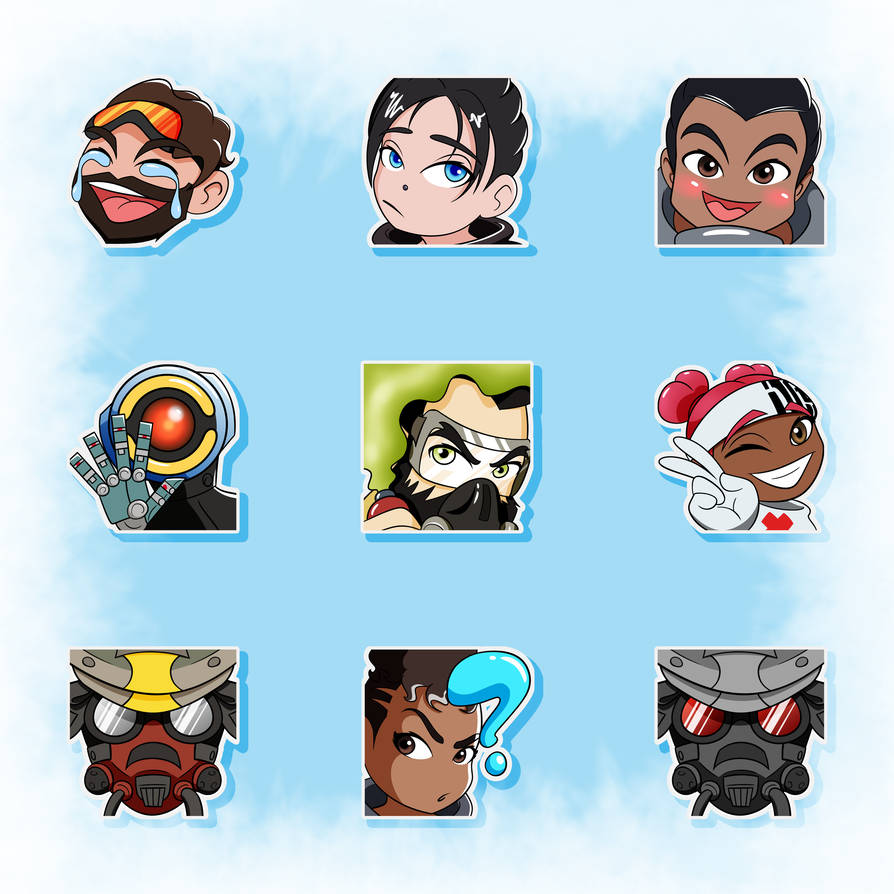
The following wallpapers are in Full HD resolution. Note that some of these wallpapers may not be in regular 16:9 ratio. Since not everyone uses the same stretched monitors, this could be different. This collection includes wallpapers for Wraith, Bloodhound, Mirage, Caustic, Gibraltar, Lifeline, Bangalore and Pathfinder.
Apex Legend World Full HD Wallpapers
For those who do not know, this game is set in the world of Titanfall. Therefore, most of the map is either copied as it is or inspired. Moreover, you get same actions and gameplay mechanics like Wall-climbing, infinite height jumping and more. The gun fights and overall power ups feels pretty similar too.
Apex Legends Logo / Minimal Full HD Wallpapers
Apex Legends is a dynamic game. However, it does not mean that wallpapers are explosive too. The lovers of minimal look can find the best collection below. This includes both official and unofficial artwork for Apex Legends. Some of it is derived from its main logo while others are based on game characters.
Bonus: Apex Legends Devianart Best Artwork
Devianart is home to some of the most creative artists out there. Therefore, whenever a new game or movie comes out, artist that love that game, bring out amazing artwork. Apex Legends is currently one of the most played online games. Therefore, we have collected some of the most inspiring and unique artwork for it. If you like something, make sure to credit the creators and appreciate their efforts.
Temporary email services have become popular over the course of the past few years. As of today, there are tens of such services furthermore Crazymailing is one of them. Crazymailing is popular for its interactive UI and flawless services. Services like Crazymailing help internet users to keep from spam and junk emails. These addresses also help you to sign up on forums and websites and then let those platforms come after you. While Crazymailing is serving thousands of users, some users still don’t find it good enough and look for alternatives. If you are finding the best Crazymailing alternatives, you may have spotted the right place. You can find the best free Crazymailing alternatives of 2019 in this guide. Let us take a deeper look into Crazymailing before jumping to the Crazymailing alternatives.
Crazymailing – Goodbye Spam!
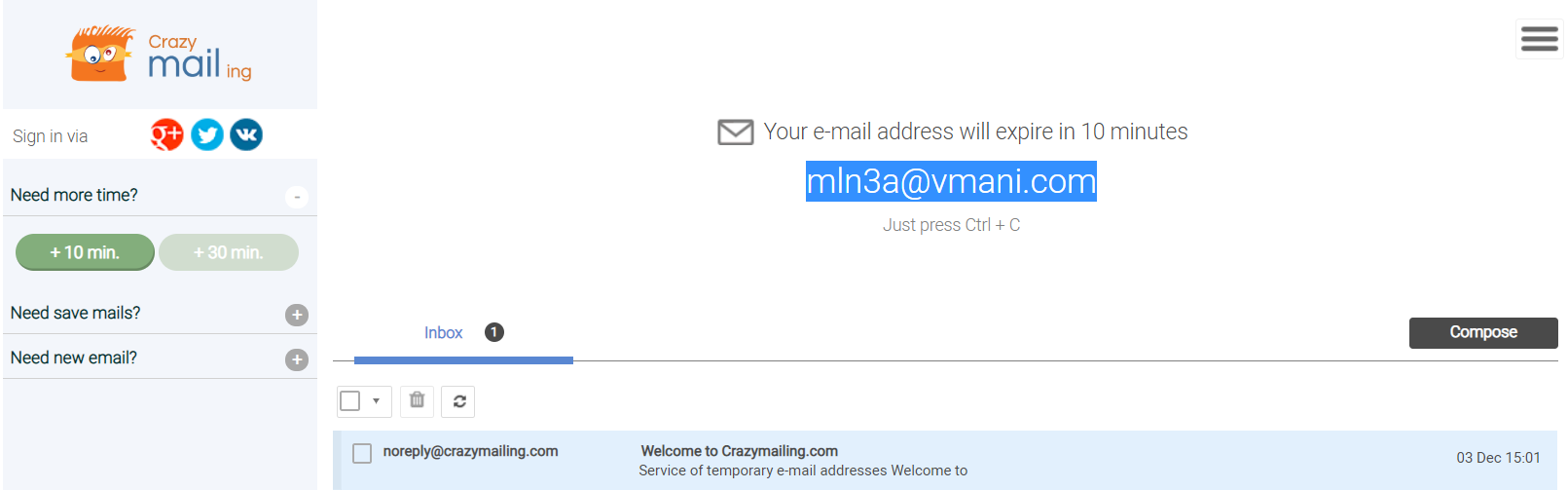
Crazymailing temporary disposable email service provides an email address for starting from 10 minutes to 10 days. Users can press the 10 minutes+ button to buy more time. To use the temporary email address for more than 30 minutes, one has to log in which is a simple process. Right when the users open the site, they get their temporary email address with the Inbox on the page. This is a unique email address that is assigned to your IP address and no one else can access it.
Crazymailing
Now if you are wondering why do you need a service like Crazymailing, then let’s get the answer first. Since this is a temporary email, it helps you fight spam. Whether you want to sign up at different social media platforms for a while, or you want to register an account at forums, you can use Crazymailing. This will save your main email address from all the junk that a service is supposed to send you. You will not get any promotional emails at your real email address. Another great aspect of such services is the anonymity. If you don’t want to reveal your identity on a particular platform, go ahead and use Crazymailing to sign up.
Another useful feature of Crazymailing is email forwarding. If you are expecting an important email within the time span that your temporary email is active for, you can set forwarding to your main email address. This will also keep your main email address hidden.
Temp-mail is among the most popular temporary email address providers. This platform comes with an extremely simple UI. Internet users can find their temporary email address at the top of this website after opening it. Below the email address, there is a mailbox showing incoming and outgoing emails. On the left side, there is a control panel of the email service. Users can refresh the inbox or delete the emails. There is a change option which allows users to change the temporary email address. Temp-mail has 8 different domains. Users can select the domain of their liking to create a disposable email ID.
The 2nd in our list of Crazymailing Alternatives is the Mailnator. The core concept of Mailnator is to bring temporary email addresses to the table, however, all the email address and emails taking place over Mailnator’s network are in the public domain. If you manage a team or have a company, you can get team or enterprise packages to match your needs. Mailnator has a professional UI which says much about its reputation.
Fakemailgenerator is a pretty straight service. It provides temporary email addresses for up to 10 minutes only. Users can also generate an email address of their choice using tens of domains on Fakemailgenerator. What I noted about this site is that it doesn’t have an SSL certificate, which is a downside for this kind of service. If you don’t want to carry out a very important activity over a temporary email address, fakemailgenerator is the way to go.
Guerillamail is becoming popular with every day passing by. This service, like most of the temp-mail services, allows the users to create custom email addresses by using the given domains. Guerillamail keeps an email active for 10 minutes, however, the incoming emails stick to the inbox for 1 hour. All the emails arriving in the Guerillamail inbox stay in quarantine unless the user shifts them into the inbox. Until a few months back, this wasn’t great service. The developers have worked hard to improve it. The site did not even have its SSL certificate back in December. It has it now. Guerillamail is a handy alternative to Crazymailing.
Generator Email falls at this number because of its popularity, but as far as the usability is concerned, this is my favorite service. The temporary email addresses on Generator.email stay active as long as the domain on Generator.email is active. It offers a handful of domains for that purpose. These are all level 1 and level 2 domains. It totally depends on what kind of email address you want to create and how much you want to scramble it. Users can link their main email address with the Generator Email service to avoid losing important emails.
Emailfake follows in the footsteps of Generator Email. The temporary email address will be active as long as the domain on this service is active. The expiry time/up time of each domain is given next to it. You can choose the domain depending on the duration you wan to keep an email active for. Emailfake has a very good-looking UI. If you are on the lookout for a neat and clean fake email address service, Emailfake should be your choice.
This is another service built to serve its purpose well. GetNada recently launched an Android application too. If you want an email address that you can use on multiple devices for a while, GetNada is the way to go. GetNada also offers multiple domains, and a fully managed inbox. Users can filter, delete, and forward emails. GetNada is a lightweight service that doesn’t consume much of resources. You can use it even when you have a poor internet connectivity.
The last on our list is the Maildrop. Users who do not want any extra options and complexity, this is the service for them. Maildrop offers only its main domain to create a disposable email address. Users can create an email address of their choice or they can use the one suggested by Maildrop. Out of all the services that I have tried so far, Maildrop is the neatest. The Maildrop website also has a blazing fast speed when it comes to loading time. Maildrop is last in our list solely because of its popularity, it’s a great Crazymailing alternative otherwise.
Maildrop
Wrap Up
That’s all with the Crazymailing alternatives. I hope that you find this list useful. All these services were handpicked by us based on the number of users they attract in a day. If you have anything to add to this list, feel free to reach out to us. The best way to contact us is through the comments section below.
The universe of Titanfall is now turned into a Battle Royale arena. With the overwhelming growth of Battle Royale genre, it is not surprise that Apex Legends got so popular, so fast. It is one of the most appealing titles in modern times. Ranging from amazing visuals to great gameplay and cool features, it has got it all. Moreover, it takes place in Titanfall universe. Therefore, the fans of that franchise are already fond of it.
Unlike most BR games, Apex Legends starts with only 60 players. Moreover, nobody can land solo. All players land in teams of 3. Therefore, there is no solo or duo mode in this game. The deep integration of team-play in Apex Legends makes it way more fun and a unique experience. Since so many people are loving this game, it is inevitable to want to have Apex Legends wallpapers too. Below is a collection of best and cool Apex Legends 4K wallpapers. Most of these are inn 4K 16:9 ratio. However, some of these may be designed for stretches resolutions. People will all kinds of hardware can enjoy it.
In order to download any wallpaper, click on any image to view it in full size. Then right-click on it and click on “Save image as”.
Apex Legends World Map 4K Wallpapers
The world of Apex is designed to look like a futuristic and apocalyptic land in one. There are technology centers, mountains, terrains, ziplines, natural covers and much more. Moreover, you get to see dinosaurs in far off the map. It is a mix of cool visuals and a great compliment to overall gameplay. Since it does not have building like Fortnite, the map is designed to be more focused on shooting tactics. Also use the surroundings to your advantage with each characters special powers.
Apex Legends Characters 4K Wallpaper
The most popular and badass looking character on Apex is Wraith. This is probably the most popular opinion. However, it does not mean that any character is more OP than other. They way their abilities are set up, anyone who learns the correct way to use them, can be a champion. We love the fact the how much attention to detail there is. Download the Wraith 4K Wallpapers below along with others. This includes the likes of fan favorite Bloodhound, Pathfinder, Mirage, Caustic, Lifeline, Bangalore and Gibraltar.
Gibraltar
Wraith
Bangalore
Bloodhound
Caustic
Gibraltar
Lifeline
Bloodhound
Mirage
Gibraltar
BLoodhound
Pathfinder
Wraith
Pathfinder
Apex Legends Logo and Art 4K Wallpapers
This section is for those who are looking for minimal wallpapers of Apex legends. Following art is mainly inspired by the logo. These work best with minimal desktop setups.
Bonus: Apex Legends UHD Wallpapers
That’s it guys! Feel free to leave your feedback in the comments below.
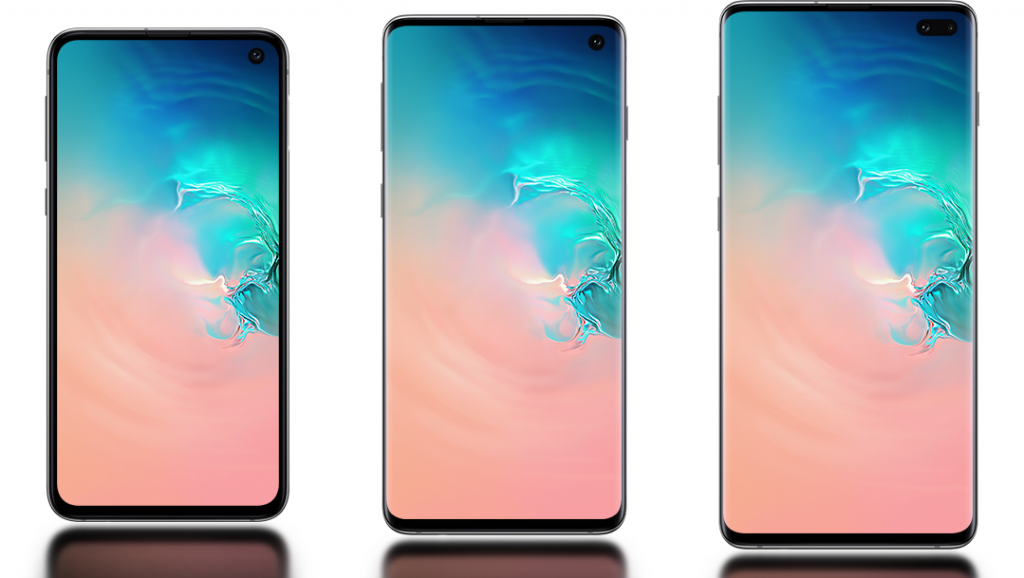
Samsung Galaxy S10 series carries a new display and design language. To stretch the aspect ratio of Galaxy S10’s display to 19:9, Samsung has added a punch-hole camera. The punch-hole camera on the Galaxy S10 houses a single shooter and a dual-shooter on the Galaxy S10 Plus. Punch-hole is Samsung’s take on the notch, but users are not quite ready to embrace this new design by the South Korean giant. A Twitter user Matt B has taken the initiative to help people embrace the camera cutouts on the new Galaxy S10/S10 Plus smartphones. Matt B has designed a handful of wallpapers to hide Galaxy S10 Plus Camera cutouts. You can download wallpapers to hide Galaxy S10 Plus camera cutout from here now.
Before download the creative wallpapers to get rid of the camera cutout on Galaxy Galaxy S10E, Galaxy S10, and S10 Plus, here’s a recap of these devices.
Samsung Galaxy S10E, Galaxy S10 & Galaxy S10 Plus
Samsung has introduced three phones in the Galaxy S10 series. The Galaxy S10E is the budget smartphone, Galaxy S10 is the standard flagship, and the S10 Plus is the most powerful and most expensive variant. These phones share a few common characteristics.
Samsung Galaxy S10E is relatively small. This phone has a 5.8-inch display with Full HD resolution. This phone has a single 10MP camera on the front and a dual 12MP + 16MP camera module at the back. It’s got a 3100 mAh battery, a side-mounted fingerprint scanner, and a headphone jack.
The Galaxy S10 has a 6.4-inch screen with WQHD+ display. It also have a punch-hole holding a 10MP shooter. At the back, it has 3 cameras including a 12MP wide shooter, 12MP telephoto shooter, and a 16MP ultrawide shooter. Galaxy S10 has a battery of 3400 mAh. It has an ultrasonic fingerprint scanner. Galaxy S10 also retains the headphone jack.
Galaxy S10 Plus is the superior device in this trio. It has a 6.4-inch Dynamic AMOLED screen with WQHD+ resolution. This phone has dual cameras on the front including a 10MP and an 8MP shooter. At the back, it has three cameras similar to the Galaxy S10. It also has an ultrasonic fingerprint scanner. Galaxy S10 has a 4100 mAh battery inside.
Galaxy S10E has a RAM of 6GB or 8GB with internal storage of 128GB or 256GB. Galaxy S10 and S10 Plus have a RAM of 8GB with 128GB or 512GB internal storage. Galaxy S10 Plus also has a 12GB RAM + 1TB storage variant.
This is it with the highlights of these devices. Head over to the wallpaperws to hide Galaxy S10 camera cutout now.
Wallpapers to hide Galaxy S10 Plus Camera Cutout
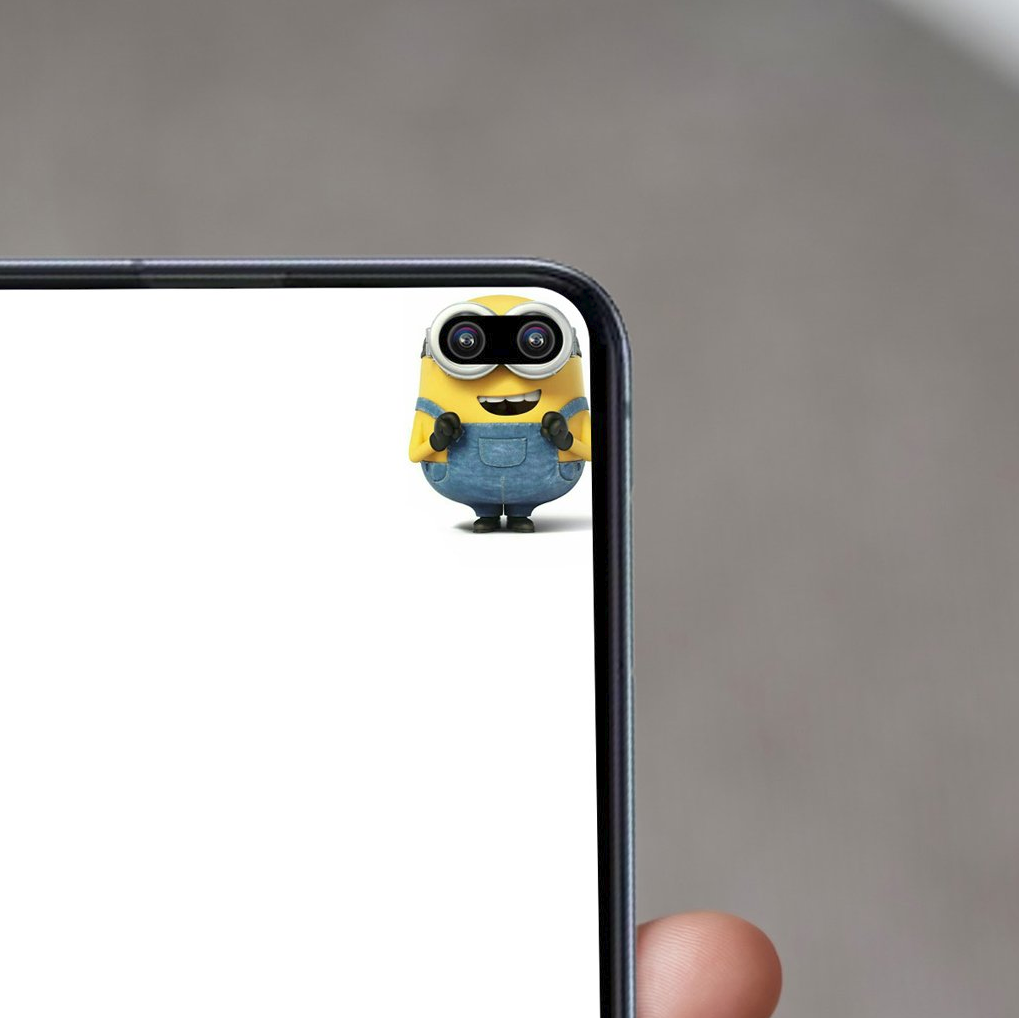
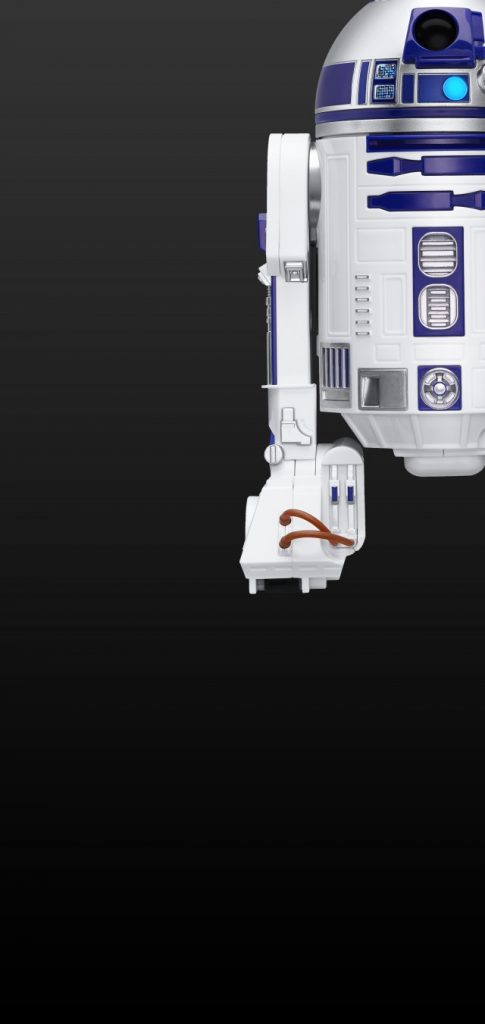
Matt B has designed wallpapers for both the Galaxy S10 and S10 Plus. The wallpapers use Robots to give your Galaxy S10’s display a decent look. The cameras blend nicely in the eyes of the robots. The wallpapers for Galaxy S10 are designed to suit that single camera while the ones designed for the Galaxy S10 Plus take care of both the cameras.
Not only these wallpapers hide the camera cutout, they actually look great on your phone. Whether you are fan of minons, star wars, or transformers, you will find it perfectly rocking the super-cool display of your S10 or S10 Plus.
All these wallpapers are in the QHD+ resolution. You can download the wallpapers from below. We have also uploaded all the wallpapers in one file which is linked below.
All Galaxy S10 Camera Cutout Wallpapers – Download
Yesterday, we told you how you can enable the Dark Mode on Facebook Messenger with Root. Today, we are back with another update, now you can Enable Facebook Messenger Dark Mode Feature On iOS Or Android with a simple trick.
We all know, every app has its hidden features which can be enabled with some kind of secret settings. Same goes for Facebook, we told you, they have added Dark Mode Feature in the Messenger but they are not ready to release it yet. But as we always want something to lean on, we did it this time too. Instead of doing root or trying some workarounds, someone finds a simple way to enable Facebook Messenger Dark Mode.
Good news is, this trick will work on both Android & iOS. Let’s get started and tell you what you have to do.
Enable Facebook Messenger Dark Mode Feature On iOS Or Android:
Heed the instructions below and you will be able to unlock the Dark Mode of Messenger. Just one simple trick and the most awaited feature will be made available for you. 😛
Launch Facebook Messenger, either on Android or iOS. Open up a chat, just pick anyone, there is no specifics required for this.
Tap on message field, now tap on the icon which lets you use the GIFs, Emoji icons, or Stickers.
Select the Emoji Tab, get into the Animals & Nature section. Look for Crescent Moon emoji ( 🌙) and send it over.
You will see a number of 🌙 emoji dropping on your screen, like its raining ( 🌙) everywhere. Once it happened, you will see a notification within the Messenger saying, ‘You Found Dark Mode!’. Along with a button ‘Tap the Turn on Settings button’. Tap on it.
You will be then taken to Settings Page, where at the top you will see the Dark Mode option. Toggle it to turn it on. You will see a warning message don’t bother reading it. Tap on OK.
That’s all. This is how you Enable Facebook Messenger Dark Mode on Android & iOS. However, if you don’t see Dark Mode option after trying all this. Quit Messenger, restart your device and then repeat the same process. You will get this feature for sure.
Galaxy S10 and S10 Plus are two expensive smartphones. As soon as you get your hands on one of these as your primary phone, you have to take some security measures. The security measures will help you to find your device if you lose it or it gets stolen. To find your lost or stolen Galaxy S10 or S10 Plus, you will find this guide helpful. Given that the appropriate security measures were taken beforehand, Galaxy S10 or S10 Plus owners will find the best possible methods to track lost Galaxy S10 or S10 Plus. The guide will also help you to track Galaxy S10 or S10 Plus that you forgot somewhere or you just misplaced it.
Security Measures on your new Galaxy S10/S10 Plus
Its just been a week since Samsung released the new Galaxy S10 lineup. The new smartphones by the South Korean giant are arguable the best to date. While you are excited about your brand new Samsung smartphone, the most important thing is to take the security measures to make sure that you do not lose your phone. Apart from applying a screen protector or a case on your phone, you should also activate the software features which will locate your phone when an unlikely event takes place. Such measures include activating Samsung’s or Google’s Find My Device features.
Activate Security, Add Screen Lock, Keep the Internet On
Now, activating these features doesn’t actually require you to do anything. While setting up your Galaxy S10E, Galaxy S10 or S10 Plus, it asks you to add your Google Account and the Samsung Account. If you added one of these accounts while setting up the phone, chances are your phone is already secure, but that’s not it. Apart from adding the account, you also need to make sure that your phone is protected by a lock screen password or the fingerprint scanner, and the internet on your phone is on all the time.
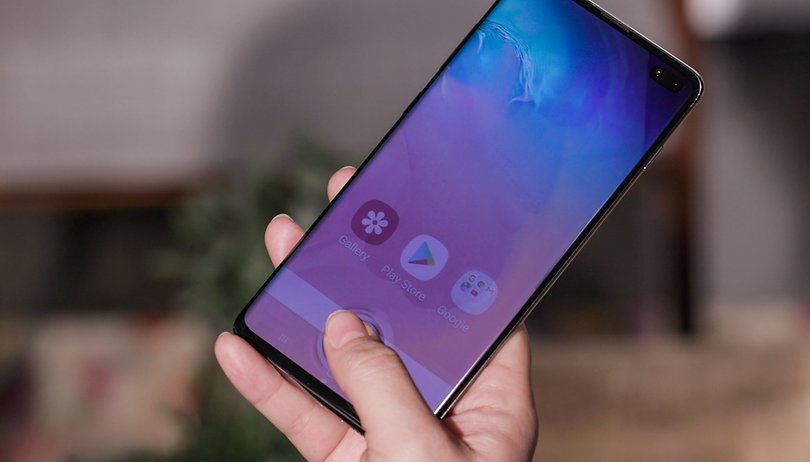
S10 Plus Fingerprint Scanner.
Image: AndroidPit
Services like Find My Mobile use your phone’s internet to locate it. If the internet on the target device is powered off, or the device itself is powered off (that someone can only do when they have access to the unlocked phone), you will not be able to find the phone.
Setting up these basic features on a brand new smartphone is a common practice. As a Galaxy S10 owner, you must already have an idea about these measures. While you are investing a lot of money on a smartphone, you should also know how to protect your investment. Let’s take a look at all the unfortunate events that can push you to using this guide.
Lost, Stolen, Misplaced Galaxy S10 or S10 Plus
If you are on this page, reading this right now, then, first of all, I’d like to apologize for your loss. Since these are expensive devices, I can totally understand what you are going through. Before finding your lost Galaxy S10 or S10 Plus, let’s take a look at the list of all the unfortunate events that took your phone away.
Your Galaxy S10 or S10 Plus was stolen while your attention was somewhere else.
A pickpocket took your Galaxy S10 or S10 Plus away.
You dropped your Galaxy S10 somewhere.
You forgot your Galaxy S10 at a store, office, or somewhere else.
Your Galaxy S10 Plus slided under a sofa, bed, or a table and you are unable to find it.
Your Galaxy S10 or S10 Plus slipped out of your pocket.
What options do you have once your phone is lost or stolen?
If you are lucky enough, you can find your phone.
Either you can remotely ring your phone and find it if its nearby, or else you can find it on the map.
You can lock your phone so that your data doesn’t fall into the wrong hands.
There is an option to remotely wipe your phone. This will also protect your data.
If you are sure that your phone is stolen, your first and foremost priority should be to wipe it remotely. After wiping your phone, you can start the search mission.
Track Lost Galaxy S10 or S10 Plus
These are the steps to locate lost or stolen Galaxy S10/S10 Plus via Samsung’s Find My Mobile service.
Total Time:5 minutes
Open Samsung Find My Mobile and log in.
First of all, open the Samsung Find My Mobile website on your computer. Log in using your Samsung account which was logged in your lost S10.
Take a look at the Map to find phone.
You will now see a Map on the Find My Mobile page. This Map will show yo the most recent location of your phone. If you are unable to see your phone, click on “Switch Map”. You should be able to find it.
Take the action now to bring your phone back, or wipe it.
You have 3 options here now. The options are as follows.RING MY DEVICELOCK MY DEVICEWIPE MY DEVICEDepending on what you want to do, choose the option.
Reach out to your phone now.
If your phone was lost nearby, you can probably find it by just ringing it. In case you lost your phone somewhere else, follow its location on the Map. If the phone was picked up by someone, make sure that you wipe it and lock it. Follow your phone’s location after this. That’s all.
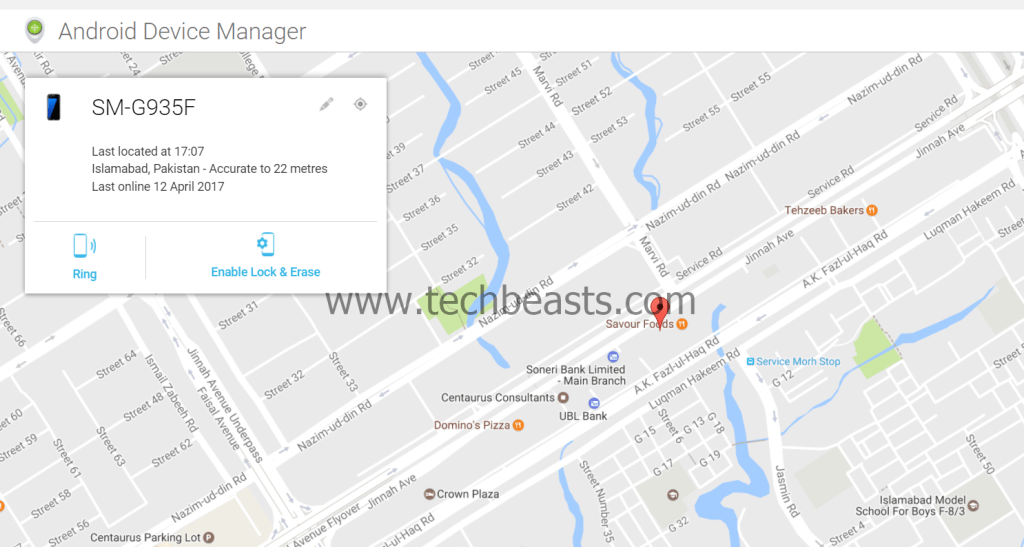
Image used for Reference only – Track Lost Galaxy S10 or S10 Plus
Track Lost or Stolen Galaxy S10/S10 Plus via Google Device Manager