Home Blog Page 23

Download Latest Call of Duty Mobile APK & XAPK

Download Latest Call of Duty Mobile APK & XAPK

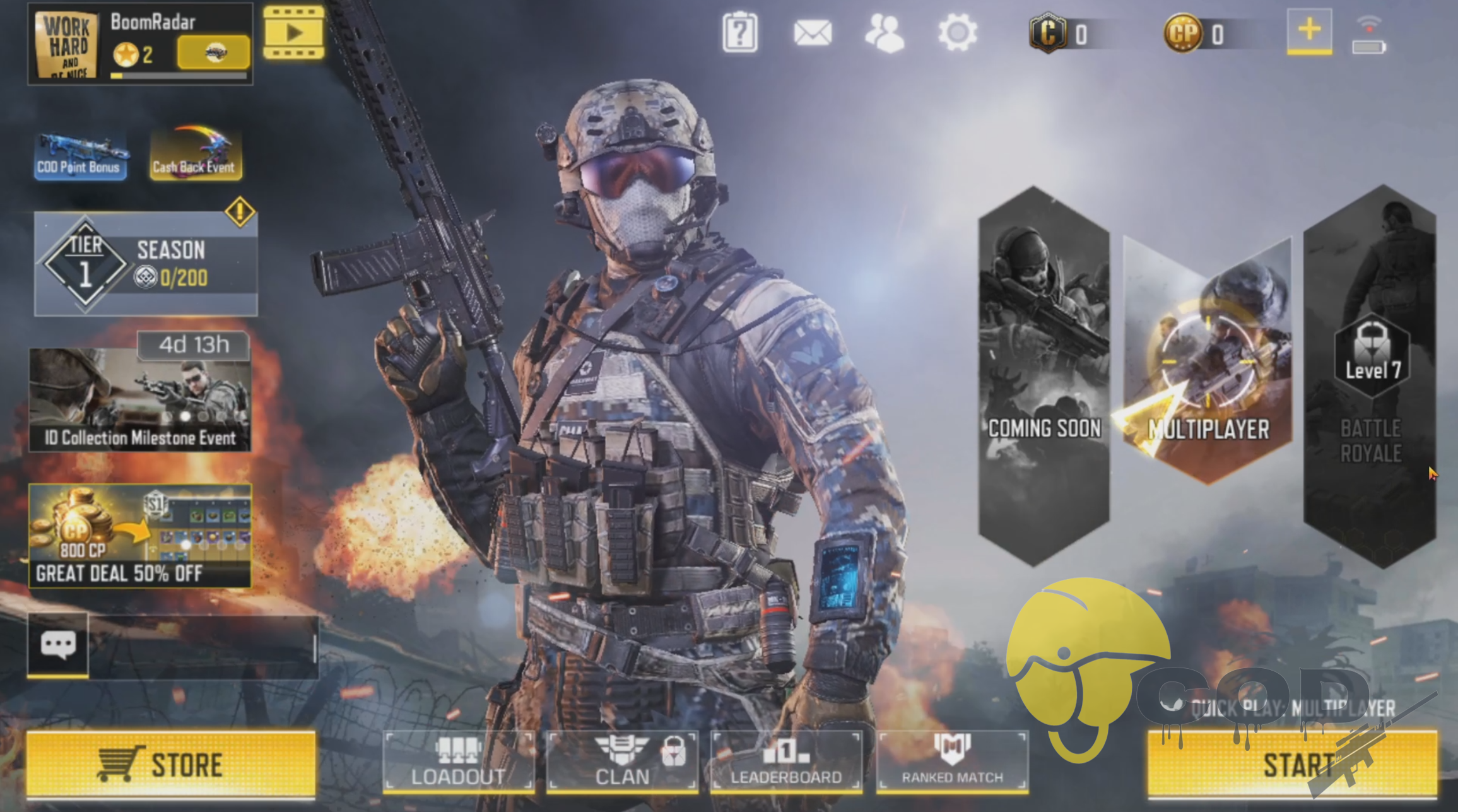
COD Mobile fans can download the latest Call of Duty Mobile APK & XAPK from here. The latest version of COD Mobile at the moment is 1.0.10. COD Mobile is currently at its Season 3.

Call of Duty Mobile APK & XAPK

Call of Duty Mobile is out across the globe now. The game was in beta testing for a few months. Before that, Call of Duty Mobile was in the alpha stage and the game was named “Call of Duty Mobile: Legends of War”. Call of Duty enthusiasts, who have been playing this game for the past few years, were eagerly waiting for the official launch of the game for Android and iOS operating systems. Activision started the official rollout last week. The game has now become the top game in the Google Play Store and App Store’s charts.

If you haven’t played Call of Duty Mobile yet and you also happen to be an FPS, Action, Battle Royale lover, then let me tell you that you are missing something huge. COD Mobile has urged a number of players to switch from games like PUBG Mobile. It looks like while COD Mobile is there, PUBG Mobile is going to become a thing of the past.

Call of Duty Mobile comes with high-quality graphics, intrusive controls, amazing gameplay, an impressive battle royale mode. On top of all these goodies, the game comes for free.

Official COD Mobile Description

Official CALL OF DUTY® designed exclusively for mobile phones. Play iconic multiplayer maps and modes anytime, anywhere. 100 player Battle Royale battleground? Fast 5v5 team deathmatch? Scary Zombies action? Sniper vs sniper battle? Activision’s free-to-play CALL OF DUTY®: MOBILE has it all.

FREE TO PLAY ON MOBILE

Console quality HD gaming on your phone with customizable controls, voice and text chat, and thrilling 3D graphics and sound. Experience the thrill of the world’s most beloved shooter game, now on your phone for easy on-the-go fun.

BELOVED GAME MODES AND MAPS

Play iconic multiplayer maps from Call of Duty®: Black Ops and Call of Duty®: Modern Warfare®, available for the first time for free. Or squad up with friends in a brand new 100-person battle royale survival map. Join the fun with millions of players from all around world!

CUSTOMIZE YOUR UNIQUE LOADOUT

As you play CALL OF DUTY®: MOBILE you will unlock and earn dozens of famous characters, weapons, outfits, scorestreaks and pieces of gear that can be used to customize your loadouts. Bring these loadouts into battle in thrilling PvP multiplayers modes like 5v5 team deathmatch, frontline, free for all, search and destroy, sniper battle, and battle royale.

COMPETITIVE AND SOCIAL PLAY

Use skill and strategy to battle to the top in competitive Ranked Mode or to win the most Clan prizes as you play with friends. Compete and fight against millions of friends and foes in this thrilling free to play multiplayer shooter.

CHOICE AND COMPLEXITY

Whether in gameplay, events, controls, or loadouts, CALL OF DUTY®: MOBILE offers complexity and depth in an ever-changing experience.
Have what it takes to compete with the best? Download CALL OF DUTY®: MOBILE now!

Call of Duty Mobile APK & XAPK

Although this game has already had its global rollout, it may still not be appearing in the Play Store in some countries. If you are facing any kind of issues with the installation of COD Mobile through the Google Play Store, you may download its APK and XAPK to install it manually.

You can find the Call of Duty Mobile APK & XAPK here. The instructions to install the COD Mobile APK and COD Mobile XAPK are also given below.

Before you download Call of Duty Mobile Android APK, let me tell you that the files linked here are completely safe and sound. These are hand-tested and uploaded without touching. You can completely trust the APK and XAPK given here.

Call of Duty Mobile APK & XAPK

  1. To install the APK, copy it to your phone.
  2. Using a File Manager, open the APK on the phone.
  3. Now follow the on-screen instructions and finish the installation.
  4. Open the game and download its data and config files.

Note: This APK will also bring the Call of Duty Mobile Season 3. Basically, this is the COD Mobile Season 3 APK.

COD Mobile APK is only the APK file. It doesn’t contain the data. If you install the APK file, the game will ask you to download the data. You can download the data by connecting to your WiFi.

If you are unable to download the data, you can skip the APK file and install the XAPK file instead. To install COD Mobile XAPK, you can download any good XAPK Installer from the Play Store. The XAPK Installer will automatically extract the COD Mobile XAPK and install it with its OBB Files.

That’s all. Hopefully, you have the Call of Duty Mobile up and running on your phone. Remember that these Call of Duty Mobile APK and XAPK files can be used to download them directly on an Android emulator like the BlueStacks. If you have any questions or queries regarding this game, feel free to ask them in the comments section down below. That’s all.

BIGO LIVE for PC Windows 10/8/8.1/7/XP

0
BIGO LIVE for PC Windows 10/8/8.1/7/XP

BIGO LIVE for PC is now available and can be easily installed on a desktop PC/Laptop running Windows XP/7/8/8.1/10 and MacOS/OS X. Let’s learn a little bit about this all new app and then have a look on the installation method via BlueStacks or BlueStacks 2.

BIGO LIVE for PC

Download BIGO LIVE for PC, Laptop Windows-Mac:

Following are the two methods from which you can download and install BIGO LIVE for PC, Laptop Windows-Mac. Let’s start the method to download BIGO LIVE for PC Windows.

Download BIGO LIVE for PC Windows using BlueStacks:

  • First, Download and install BlueSacks on your Windows or Mac.Bluestacks Offline Installer Rooted Bluestacks |Bluestacks App Player.
  • Once you’ve installed BlueStack, launch it from your desktop. You have to add your Google Account to use Google Play on BlueStack. Goto->Settings->Accounts-Gmail.
  • When BlueStacks screen loads up, Click on the Search icon.

BIGO LIVE for PC

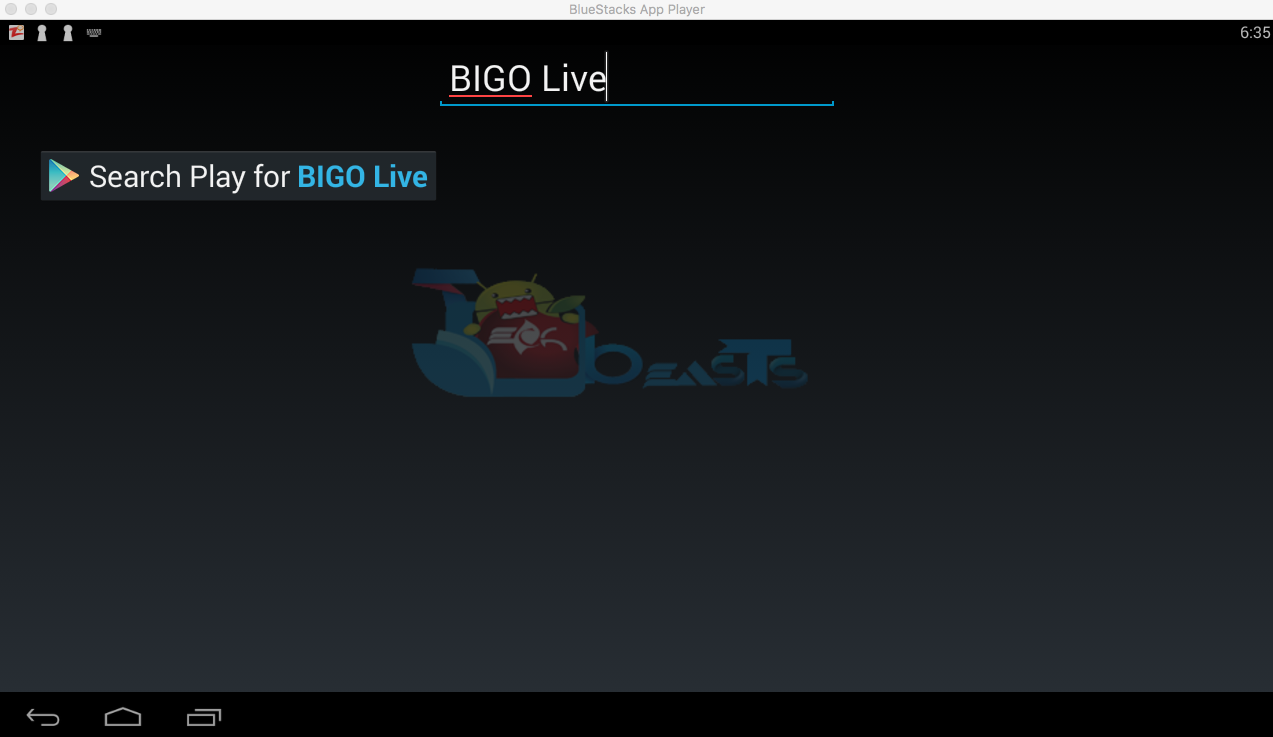
  • Now you have to type in the app name. I am looking for Bigo Live so in the search bar, I’ll type Bigo Live and hit enter.

BIGO LIVE for PC

  • On the next screen, you’ll see the list of all the apps containing Bigo Live name, Click on the first one which is developed by Bigo Technologies.

BIGO LIVE for PC

  • Now you’ll be at app page, here you have to click on Install. It will start downloading the app and once the downloading is complete, Bigo Live will be installed.

BIGO LIVE for PC

  • Before moving on you have to give permission to Bigo Live in order to access your system information. Click on Accept when you’ll see the pop-up.

BIGO LIVE for PC

  • Now, wait for the installation process to be complete, once the Bigo Live is download and installed, you’ll see a notification as you do on your Android devices. Goto BlueStacks homepage and there you’ll see the Bigo Live logo in your apps. Click on the Bigo Live logo to start using it.

BIGO LIVE for PC

DOWNLOAD BIGO Live FOR PC ON WINDOWS 8.1/10/8/7/XP/VISTA & MAC LAPTOP:

Method:2

  1. Download Bigo Live APK.
  2. Download and install BluestacksBluestacks Offline Installer | Rooted Bluestacks |Bluestacks App Player
  3. Once you’ve installed Bluestacks, double click the APK that you just downloaded above.
  4. The APK will be installed using Bluestacks, once installed open Bluestacks and locate the recently installed Bigo Live.
  5. Click the Bigo Live icon to open it, follow the on-screen instructions to play it.

DOWNLOAD Bigo Live FOR WINDOWS 10/8.1/8/7/XP & VISTA AND MAC COMPUTER:

You can also use Andy OS  to install Bigo Live for PC, here’s the tutorial: How To Run Android Apps On Mac OS X With Andy.

You’ve successfully installed Bigo Live for PC Windows/Mac, if you face any issue regarding this guide please do tell me in comments.

Best Free WhatsApp Sticker Apps for Android in 2020

0
Best Free WhatsApp Sticker Apps for Android in 2020

Looking for the best WhatsApp Stickier Apps for your phone? Here is the complete list of the best free WhatsApp Sticker Apps for Android.

The introduction of stickers for chatting applications like WhatsApp gave creative people the freedom for create special stuff. Unlike emojis, the stickers are more focused and meme-like. The stickers offer various moods and emotions. For example, the fans of Rick and Morty may install its WhatsApp stickers pack on Android phone and use it like emojis. Now this artwork is not extracted from shows but it’s actually fan art.

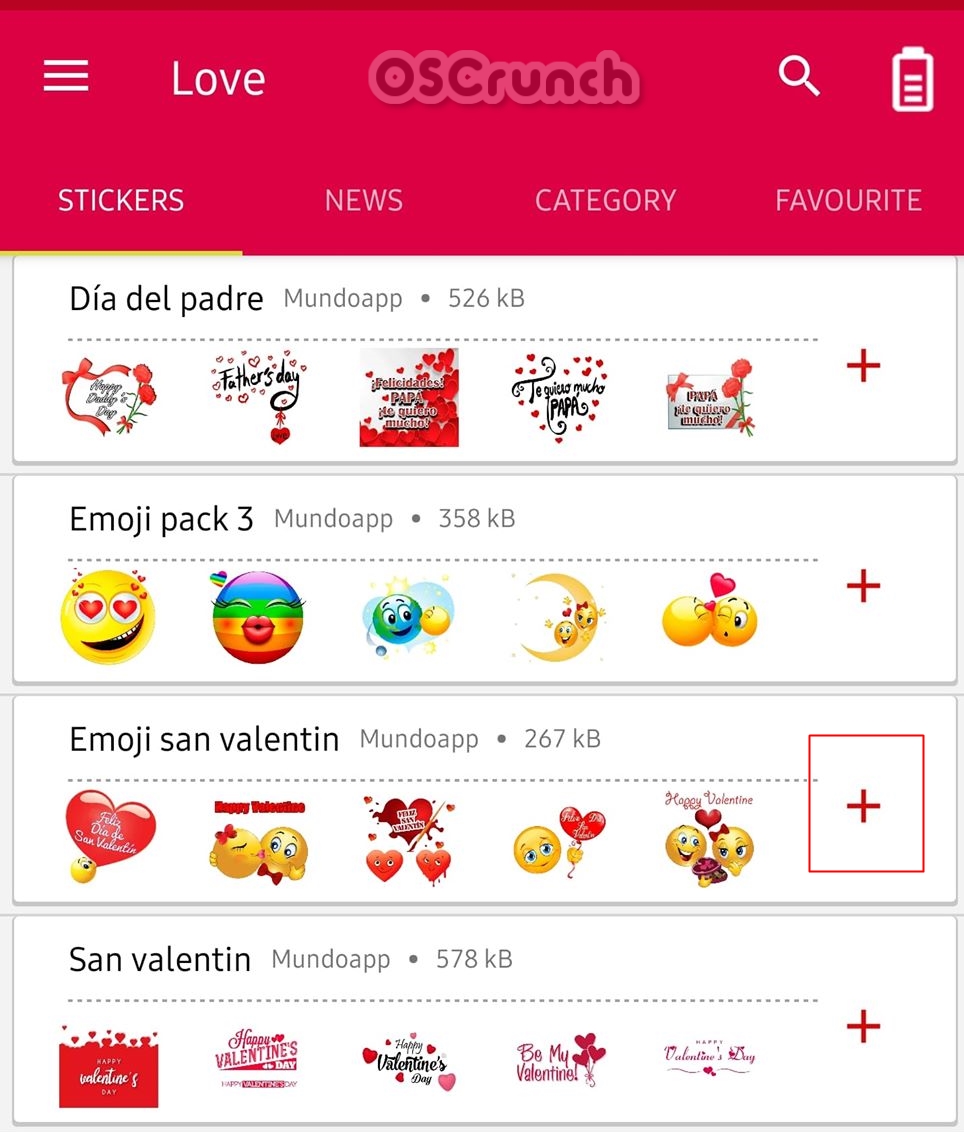
When we search for WhatsApp stickers on Play Store, there is a huge plethora of options. However, it is hard to find the best ones out there. Below is the list of best and free WhatsApp stickers for Android phones/tablets. This list contains several picks from categories like anime, movies, cartoons and more. We are sure that you’re going to love all of these.

Additionally, if you are someone who wants to install a WhatsApp stickers app for first time and don’t know how to, then follow this guide:

How to add or remove WhatsApp Stickers [Complete guide with Pictures]

best free whatsapp stickers apps for android

Best WhatsApp Sticker Apps for Android

1: Anime Stickers for WhatsApp

Anime like Naruto, One Piece, One Punch Man, Bleach are some of the most iconic series ever. These are not only famous for their incredible storylines but the way each scene is depicted. Since anime is mostly hand drawn, therefore, the reactions are expressions on characters face are priceless! They produce some of the funniest memes and artworks. 

Naruto and One Punch Man alone are home to some of the best memes ever. Thanks to creative people out there, we get some of the funniest Anime stickers Apps for WhatsApp on Android. Below is the list of apps from different anime. Feel free to go through all of these and choose the best one for yourself. Moreover, follow the guide mentioned above if not sure how to add or remove and WhatsApp stickers app.

Naruto Stickers

Whenever Anime is a topic of discussion, Naruto is always a part of it. It is one of the most watched Anime series of all time. It has given us some of the most iconic moments to remember. You can find some of the funniest and most creative Naruto WhatsApp stickers with this app.

Anime Stickers for WhatsApp

Unlike the previous, there is more variety with this particular app. The cool thing about this app is the fact that it contains stickers that are not actually anime. For example, stickers like Iron Man and Hulk are also present. However, all the stickers are drawn in anime style. Therefore, it adds a bigger dynamic to overall chatting experience. Feel free to check this app out and leave your review below.

2: Cartoon Stickers for WhatsApp

Some people love the cute cartoon stickers in their chats. There are literally hundreds of thousands of cartoon characters to date. Therefore, it is not possible to just pinpoint one as the best. Therefore, the best creators collect and compile the best stickers into one place. Moreover, some creative people make their own characters and the stickers are different variations of these characters. Following are some of the best cartoon Stickers apps for WhatsApp. Feel free to leave your feedback about these apps.

Marshmallow Sticker for WhatsApp

Light up your chat with one of the most lovable cartoon stickers characters; Marshmallow. Now, note that this is not the cartoon stickers version of music producer we know and love. It is actually a copy of cartoon character from Allo app by Google. In fact, this app contains the entire marshmallow family of stickers. Feel free to enjoy these stickers and leave your feedback in the comments below.

10 Sticker Packs for WhatsApp

Best of the cartoon stickers from telegram are available here. This includes cute cartoon characters of cat, whale, doggy, bears and more. Each of these characters is personally customized and available in various moods and expressions.

ZeroHart WhatsApp Sticker Collection

ZeroHart is a special cartoon character and it is a collection of its possible expressions and moods. Spice up WhatsApp chats with ZeroHart WhatsApp sticker App. It is one of the more diverse collection available. You get an appropriate sticker for pretty much any mode.

3: Animal Stickers for WhatsApp

Talking of cute stickers, how can we leave the adorable animal stickers out of the list. Some apps provide the most adorable Animal WhatsApp stickers for Android. Note that these are the real images but cartoon re-creations of these creatures. These cute stickers include the likes of monkeys, koalas, cats, dogs and many more. 

WAStickerApps – Friends Stickers for WhatsApp

Chat with stickers of animals like Koalas, monkeys, raccoons, dogs, cats, pandas and many more. With each update, a new set more than one set of stickers is added. The latest addition was the fox stickers set. All of the stickers in WAStickerApps are in flat design. Therefore, they look both cute and clean. It does not make the chat awkward or weird looking. 

4: Meep WAStickers

Familiar with FB Messenger stickers? These are unique characters and now use those in WhatsApp with Meep WAStickers App. If described in one sentence, the meep stickers are basically basic emojis on steroids. These are gigantic characters and look quite funny to be honset. If you’re a fan, feel free to try these out and add a new pack of stickers to your WhatsApp.

5: Earthy – WASticker App

Love mother Earth? Then feel free to use the cute Earth character as the WhatsApp sticker for your chats. This is a complete reimagination and complete set of emotions depicted by planet earth herself. How can someone not want it? Feel free to download it and install it on your phone. We would love to know your thoughts on it.

6: Meme Stickers for WhatsApp

Go back few years and meme was not even a word. How did it come to be? And how did this format get so famous? Nobody knows. But, we absolutely love them. Good memes can really make a difference in spreading opinions or information. The latest Pewdiepie vs T-Series meme garnered over 30 Million subs for Felix in less than 6 months. It is something that nobody could even think of! 

Well, over the years we have witnessed a lot of great memes. Some may consider old memes dead. However, a meme is dead only if you forget about it. Below is the collection of both classic and new meme WhatsApp sticker apps for Android.

Meme Stickers for WhatsApp

Fan of the old and classic? Well, you’ll find some of the oldest and dankest memes on this app. Whether looking for pepe the frog or rage memes. It is all available in one place. 

Dump Trump for WhatsApp

The ginger ball that Americans call their president, is one of the most popular memes! Ranging from his hilarious tweets and some questionable actions, Donald Trump has managed to become a part of meme roaster. Therefore, use this app to use Trump as your favorite meme sticker in WhatsApp.

Dank Memes sticker pack

Dank memes? Who doesn’t want them? Well, the fans of old and classic will certainly love this stickers pack for WhatsApp. It is the collection of old and new memes like rage memes and more. Since the developers do not really keep the updated, you may be stuck with old memes only. However, this is not an issue. Keep installing new apps to add new stickers to WhatsApp. 

Meme stickers

Some more meme stickers for the fans of doggy memes? Hell yeah! This pack contains some of the most memorable and funny memes from doggy memes era.

7: Games Stickers for WhatsApp

Just like some people love anime and its stickers, while other love cartoons and memes. There is a community of gamers and they should get their own stickers too. Below is a list of apps with Gaming stickers for WhatsApp. We may keep updating this list based on the availability. Therefore, keep tabs on this page to get more stickers packs in future.

Counter Sticker WAStickerApps

CS:GO is one of the most famous First-Person shooters on PC. It is up there as one of the most skill-hungry games. CS produced gems like Shroud whose aim is literally better than any aimbot! Moreover, companies like Dreamhack hold various competitions throughout the year to help pro players make a living and make names for themselves. Counter Sticker app provides team stickers as well as CS:GO related memes in form of stickers. Feel free to download the CS:GO stickers for WhatsApp with this app. 

8: Stickify: Stickers for WhatsApp

Choose from a collection of various cartoonish and romantic stickers. This is a huge collection from various genre. Whether you’re looking for some funny stickers, cute cartoon character or some romantic stickers for loved ones, it has got it all. Stickify is one of the more complete feeling stickers App for WhatsApp.

9: Christmas Stickers For Whatsapp

Christmas is the holy day for Christians all around the world. It holds special significance among special days. Being one of the most celebrated events, it is but natural to install a special Christmas Stickers pack for WhatsApp. You get one of the finest collections for Christmas stickers here. 

Feel free to leave your feedback and suggestions in the comments below. We will keep updating this list as new promising stickers apps for WhatsApp come on Play Store.


5 Best Google Drive Alternatives in 2020

0
5 Best Google Drive Alternatives in 2020

The following are the best Google Drive Alternatives in 2020. Use these alternates to increase your online storage space.

Goggle Drive is a file storage and synchronization service created by Google. Your files are stored in the cloud, which is a simplified view of what is essentially someone else’s infrastructure. Since it uses the storage of someone else, individuals and businesses are free of all the hassle that comes with in-house, on-site local storage hardware.

Ever since it has been introduced, it’s getting in demand day by day and businesses and consumers are increasingly reliant on the cloud. Given the multitude of cloud storage providers out there, one has to be wise enough to choose the right provider, which provides you with maximum bandwidth and low-cost storage while still safeguarding your privacy.

Read more: Find Who has Access to your Google Drive Files and Folders

Here we are going to highlight the best 5 providers that are there in the market, in competition with the very popular Google Drive.

5 Best Google Drive Alternatives in 2020

Google Drive Alternatives

DropBox

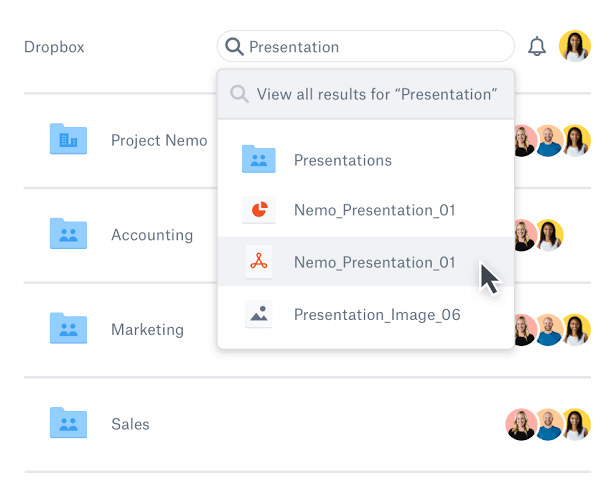
If you are looking for an application that offers mainstream features of Google Drive or even more, then Dropbox could be your best bet. Dropbox is available on iOS, Android, Blackberry, Windows, OS X, and Linux.

By having a client for so many Os’s, pretty much everyone is covered, no matter what kind of device or OS one is using. Dropbox is a versatile tool where you can store your files in an organized manner over the cloud.

You can use Dropbox via the website, by installing a desktop client that creates a folder that you simply drag and drop your files into.

The salient feature of dropbox that makes it promising to use is its ability to sync; it was introduced back in 2007 when Dropbox was first developed. Currently, many services have introduced this feature, but dropbox sync remains unparalleled. 

Google Drive Alternatives
©https://www.dropbox.com/

There is only one version of the Dropbox client, and its functionality is the same for all users. However, the cloud nature of the service makes it necessary for Dropbox to charge users who need a lot of storage space.

There are currently three Dropbox plans. The free plan, which offers two gigabytes of storage space.

The Pro plan, which offers 100 gigabytes of storage and is priced at $9.99 per month and the Business Plan, which predictably offers unlimited space for 5 or more users and is priced at $15 per month.

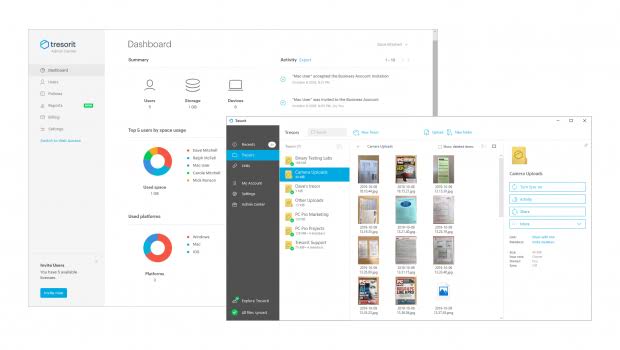
Tresorit

Although, Dropbox is the best for people looking for Google Drive alternatives, there are other services that excel in their own way. For example, Tresorit is a service that focuses on providing military-grade encryption services for your cloud storage, which sadly neither Google Drive nor Dropbox offers.

The service is so secure, the company is offering a reward of $50,000 to anyone who can breach their security, now that’s the confidence I want to see.

Now that you are planning to switch from Google Drive, you should take a moment and think about the type of security that you want for your data on the cloud.

If you are keeping sensitive data on the cloud, Tresorit might be the one for you.

Tresorit is available for Android, Windows, Mac, iPhone, and iPad. It has no hidden charges and provides the same security for desktop clients.

Moreover, you can share your files easily, with a passcode for more security, with your friends and clients. App passcode lock ensures that no one has access to your tesorit files, even if someone gains access to your phone.

Google Drive Alternatives
©https://www.cloudpro.co.uk/

For starters, Tresorit doesn’t offer any free account but only a 14-day free trial and you will have to subscribe to them if you want to enjoy their services. In my viewpoint, it is a small price to pay if you are looking for secure cloud storage services, and Tresorit is one of the best Google Drive Alternatives, that does that. The premium plan comes with a price of $20/user/month, for 2-9 users and $12/user/month for 10 or more users.

pCloud

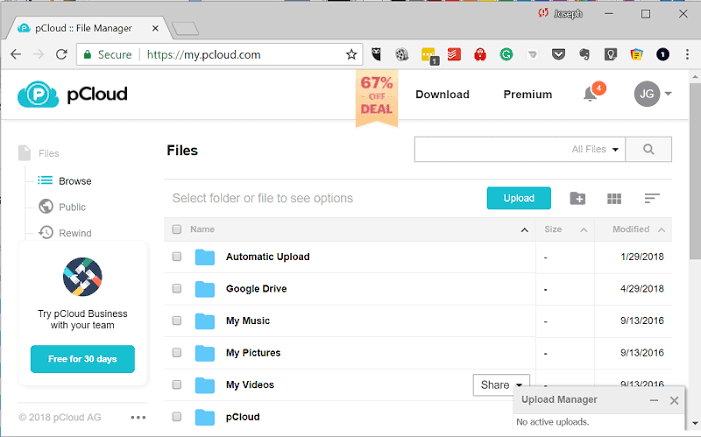
Top security is key to a quality cloud solution, and I can happily report that pCloud is safe and offers a very secure system. All files are encrypted via the pCloud cryptosystem, and they aren’t decrypted until downloaded.

Save your files and have them on your laptop with pCloud Drive phone or the web. pCloud Drive is a desktop application that creates a secure virtual drive on your computer, which you can use to easily store, access and work with your files in the cloud.

pCloud Drive provides a number of additional functionalities, such as integrated file sharing and synchronization through your computer. The app significantly eases your work upon performing file operations in the cloud, because with pCloud Drive you can work with your files using any software on your computer.

Everything you save in pCloud will be synced with your phone, tablet, and laptop, so that your photos, videos, and documents are always available, anywhere you go.  It works well with Android, iOS, Windows, and Linux and so you can easily sync it with all your devices. 

©https://www.maketecheasier.com

You can sign up for pCloud and download it for free. Basic pCloud accounts come with 10 GB of free space right off the bat. If you ever run out of space, you can upgrade your account with a monthly or yearly subscription to a pCloud Premium.

500 GB for $4.99/month or pCloud Premium Plus, 2 TB for $9.99/month.

OneDrive

 Every Microsoft product is designed to drive collaboration and efficiency, Microsoft OneDrive is no exception. Although it is a product of Microsoft, it’s not limited to be compatible with windows only but can be used by Mac and iOS users as well.

The real power of OneDrive is its ability to share data. It acts as a backup device, staying synced with the computer files that you have saved in OneDrive.

Instead of trying to send large files directly, you can simply upload it on your OneDrive cloud and send the link to the recipient, who can download the file from anywhere in the world and work on it.

Save your Gmail Data to Google Drive Automatically

The biggest advantage for one to use OneDrive is that once you buy the package, you get access to the whole Office Suite 365 at no additional cost.

And if you already have bought Office Suite, then take a moment and make your OneDrive account and enjoy it for free.

It is integrated with all the Office apps and works seamlessly with them. Giving unlimited storage for the users of Office Suite 365. 

©staff.brighton.ac.uk

Paying $6.99  per month will grant you access to 1 TB of cloud storage as well as a full suite of Office 365 apps. Otherwise, 5 GB is free when you initially download OneDrive. 

Sync

Sync has a lot in common with the aforementioned cloud-based, file-sharing services. It’s a Canadian based company whose prime directive is to protect the user’s privacy.

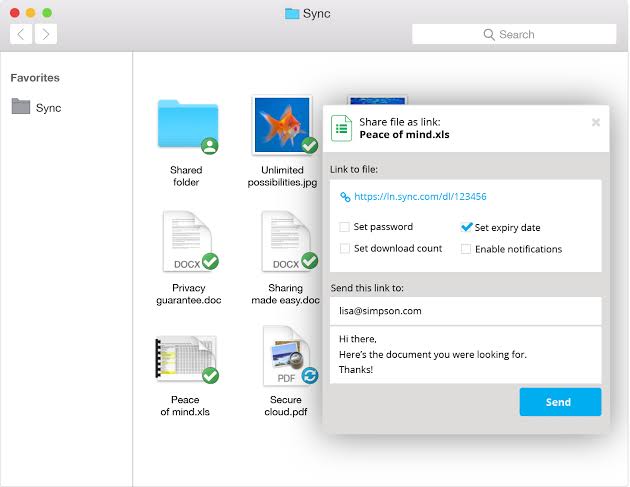
It uses end to end encryption coding as Tresorit, and protects your data through the entire chain, data is encrypted the moment it leaves your computer. With Sync you can send files of any size to anyone even if they do not have a Sync account.

Multiple users can work from the same set of folders, and features such as file requests, password protection, notifications, expiry dates, and permissions ensure that you’re always in control.

It works well with any domain like windows, Mac, iPhone, iPad, Android, and the web. 

Google Drive Alternatives
©https://www.sync.com/

Probably one of the best things about Sync is how easy it makes collaborating with other people. Not only you share files but you can even share entire folders with people you want to collaborate with.

Just like google drive, you can decide the level of access you want to give the people you have shared the files with. Also, as the name suggests, it has lightning-fast syncing capabilities.

You can even allocate bandwidths for the upload speed and is very beneficial if you have low-speed internet and do not want this service to use all of it. 

You can get 2TB of data for as low as $8 per month. Its cheap pricing plans and secure data encryption makes it an attractive alternative to Google drive.

This is all for now, try these Google Drive Alternatives and enjoy the best online data servers for free.

Check your Location History in Google Maps [ Guide ]

0
Check your Location History in Google Maps [ Guide ]

In this guide, I will tell you how to Check your Location History in Google Maps. Google Maps is the biggest source of navigation and nearly all Android users use Google Maps for navigation.

Google Maps helps us find locations, Businesses, Resturants, Pumps, Offices and more. Sometimes we need to re-visit a location and you will be glad to know that, Google Maps stores all the locations you’ve searched for. Find these locations is not a difficult task, you can easily check your location history to do so.

Read more: Clear search and location history in Google Maps on Android

May be most of you don’t know about this setting. That’s why I have created this post to help you Check your Location History in Google Maps.

Check your Location History in Google Maps:

Heed the instruction below to check your location history in Google Maps. You will surprise to know that Google Maps has saved all the locations that you have gone to.

  • Open https://www.google.com/maps/ in your browser.
  • Make sure you are logged in with your Gmail account that you use on your device.
  • Click on the 3 lines located at the top left side of your screen. After that click on the Timeline.

Location History in Google Maps

  • When you will click on Your Timeline, you will be taken to another page. There you will see all of your locations history. On the Map, you will see red dots, which are indicating that you have traveled to these locations. Moreover, at the bottom of the screen, you will see different options along with the number of places you have visited. As shown in the screenshot below.

Location History in Google Maps

This is one way you can check your Location History in Google Maps. Now we move on I’ll tell you more ways to check your visited locations in G-Maps.

How To Fix “google maps not working” Issue [ Tutorial ]

Check Location History on an Android device:

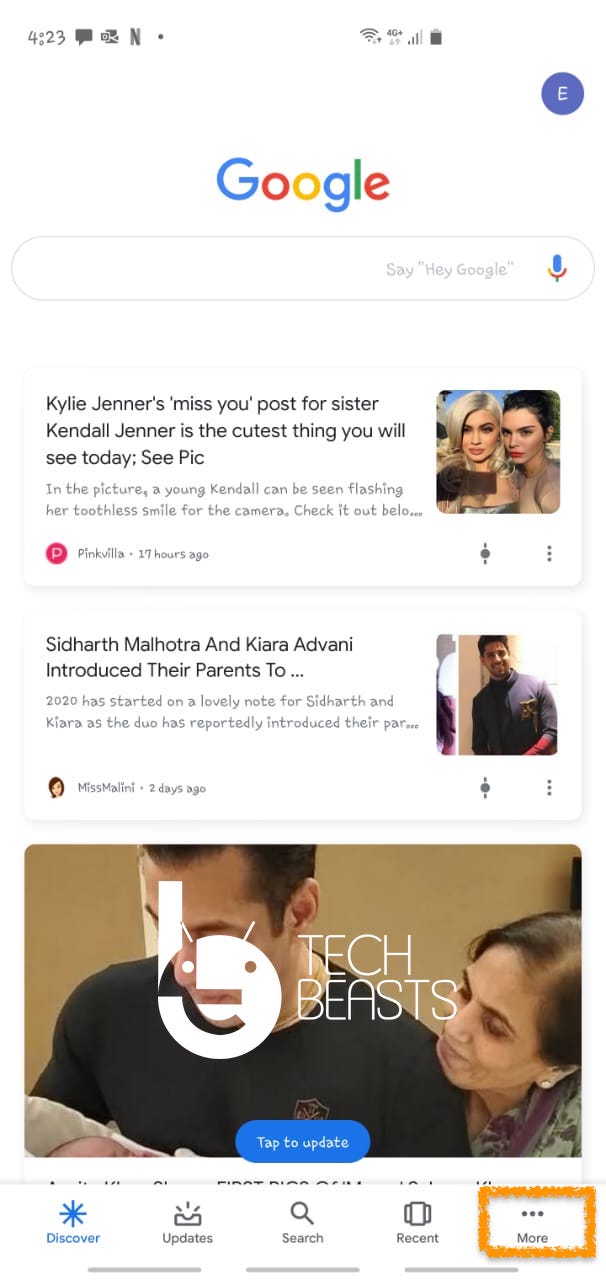
  • Open the Google app on your Android device.
  • Look at the bottom you will see five options. Tap on More.

Location History in Google Maps

  • Now tap on the drop-down symbol right next to your Gmail ID.

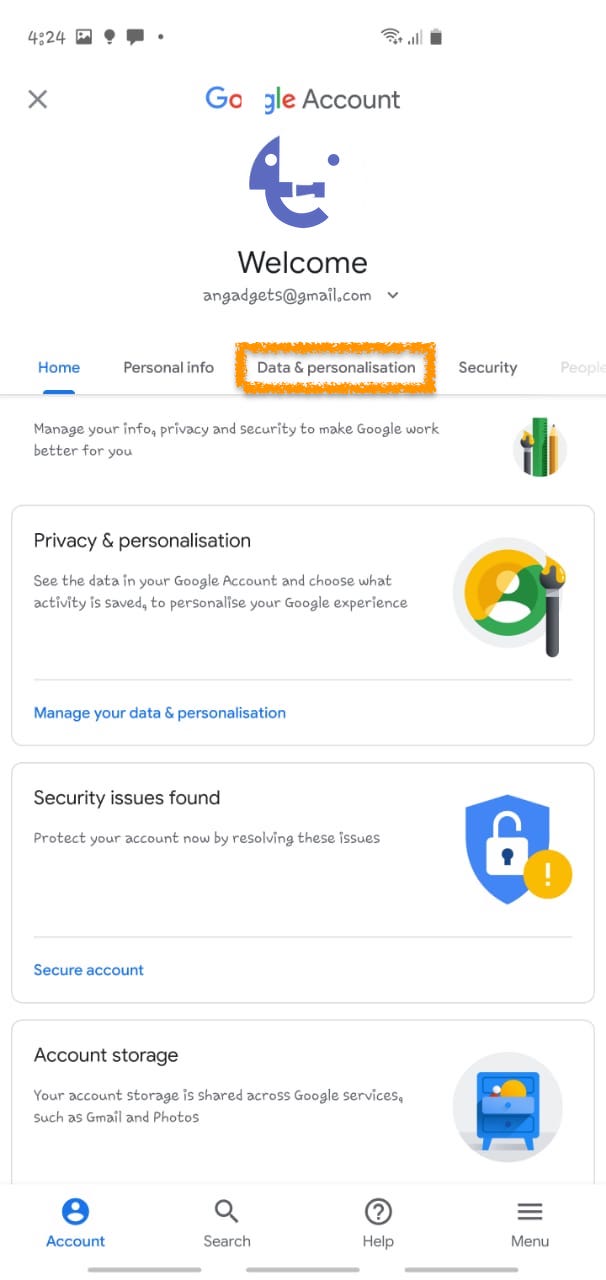
  • A number of a new option will show up, from here Tap on Manage your Google Account.

Location History in Google Maps

  • On the next screen Tap on Data & Permissions.

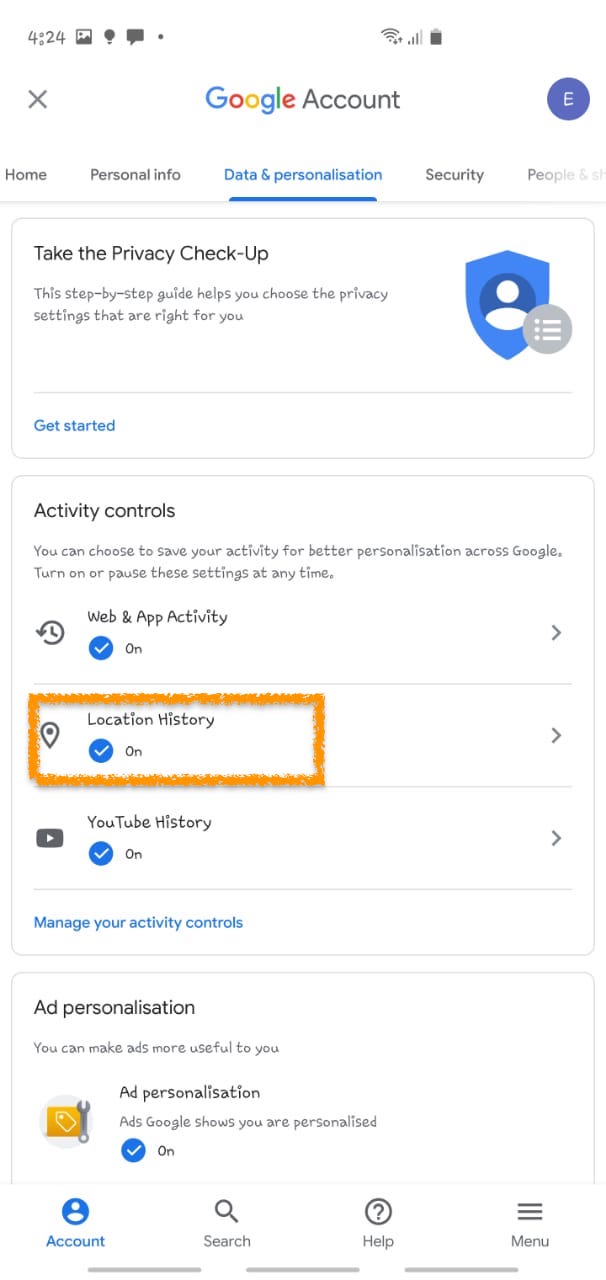
  • Tap on Location History option and after that tap on Manage Activity.

Location History in Google Maps

  • Now you will be redirected to the Google Maps app.

On Google Maps app you will see all your previously visited places along with the Day, Date & Time.

Check Location History Access using Google Chrome Browser:

This is another option to check your location history in Google Maps. Follow the instructions below to access your location history using Google Chrome.

Location History in Google Maps

  • On the next page scroll down and look for the location history-> Tap on Manage Activity.

  • This will take you to the Google Maps app.

Turn Off Location History in Google Maps:

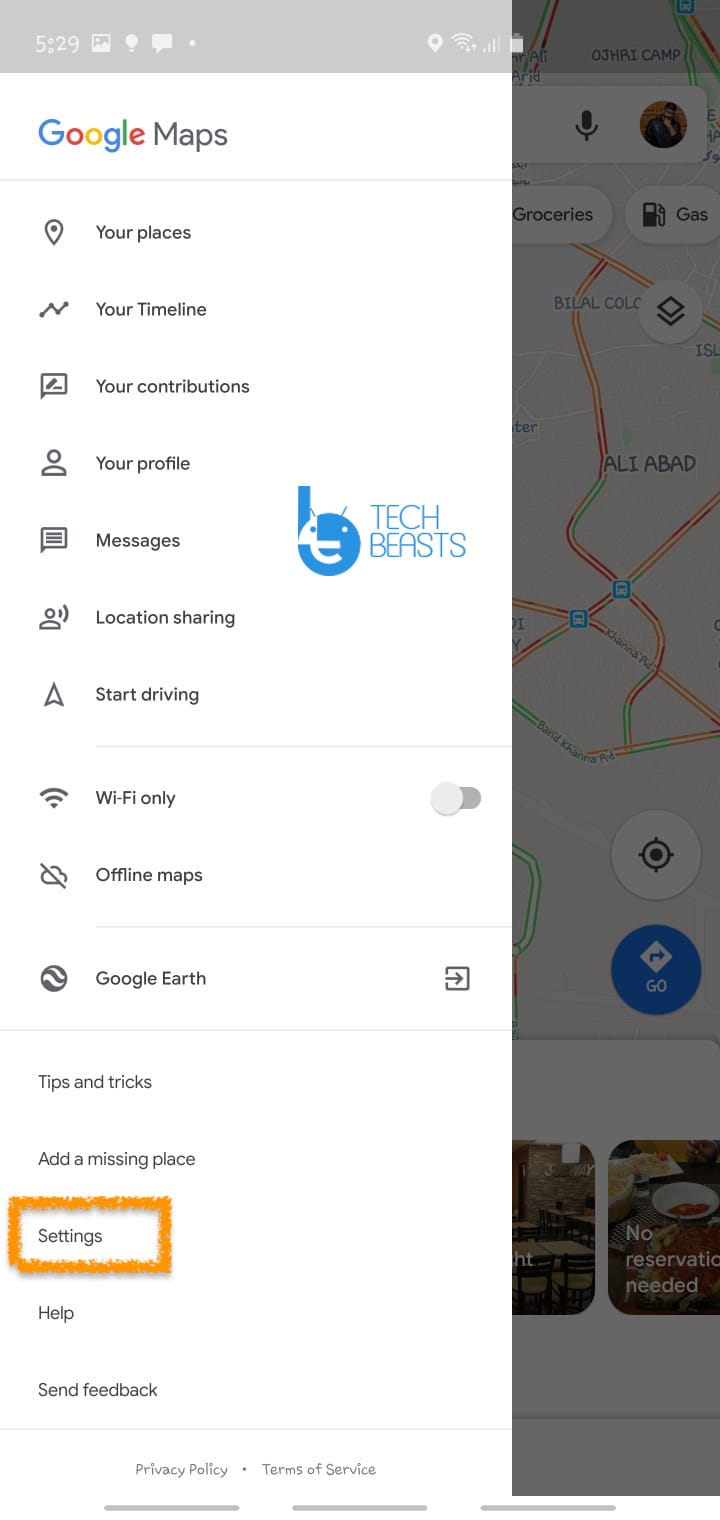
  • Open the Google Maps app on your device. Tap on the menu and select Settings.

Location History in Google Maps

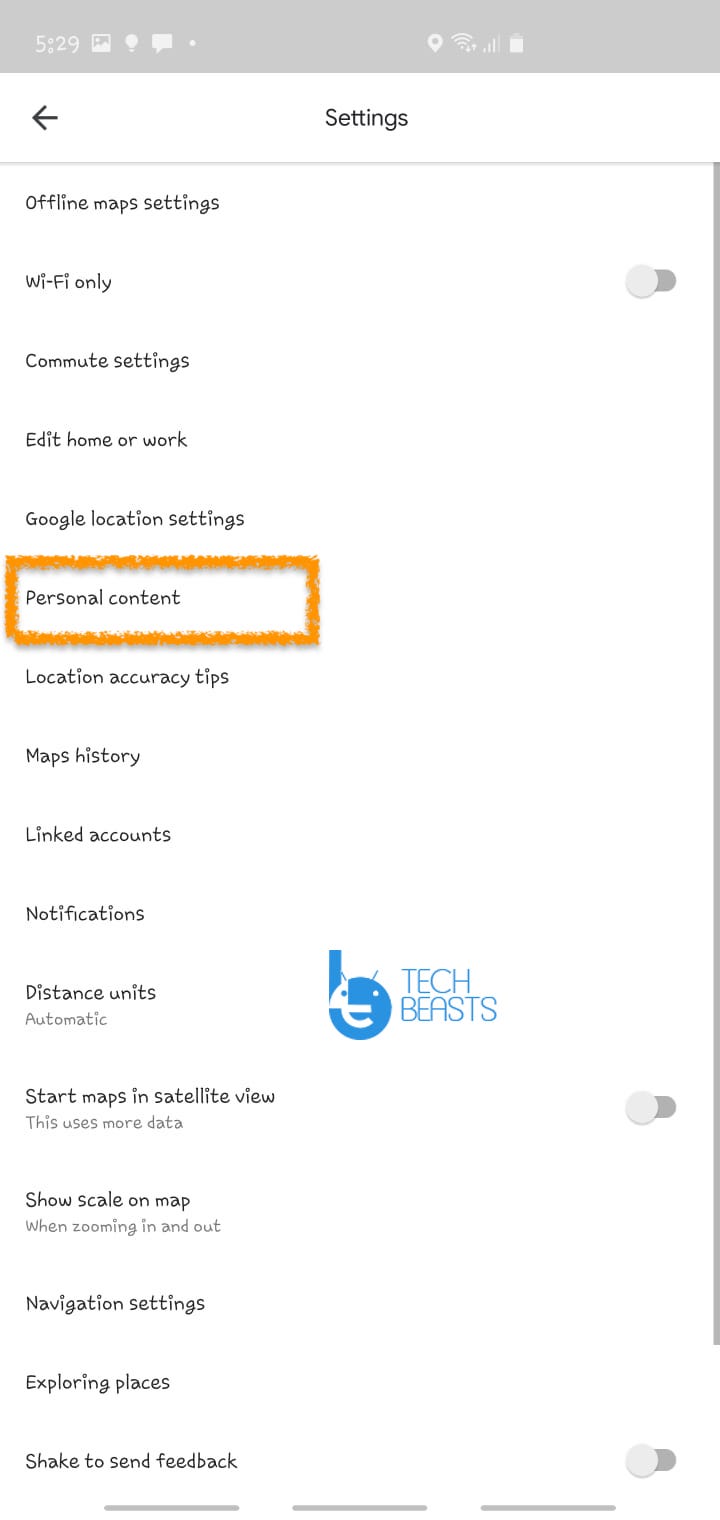
  • On the next page, Tap on Personal content -> Tap on Location History.

  • Simply turn it off by toggling the switch.

Location History in Google Maps

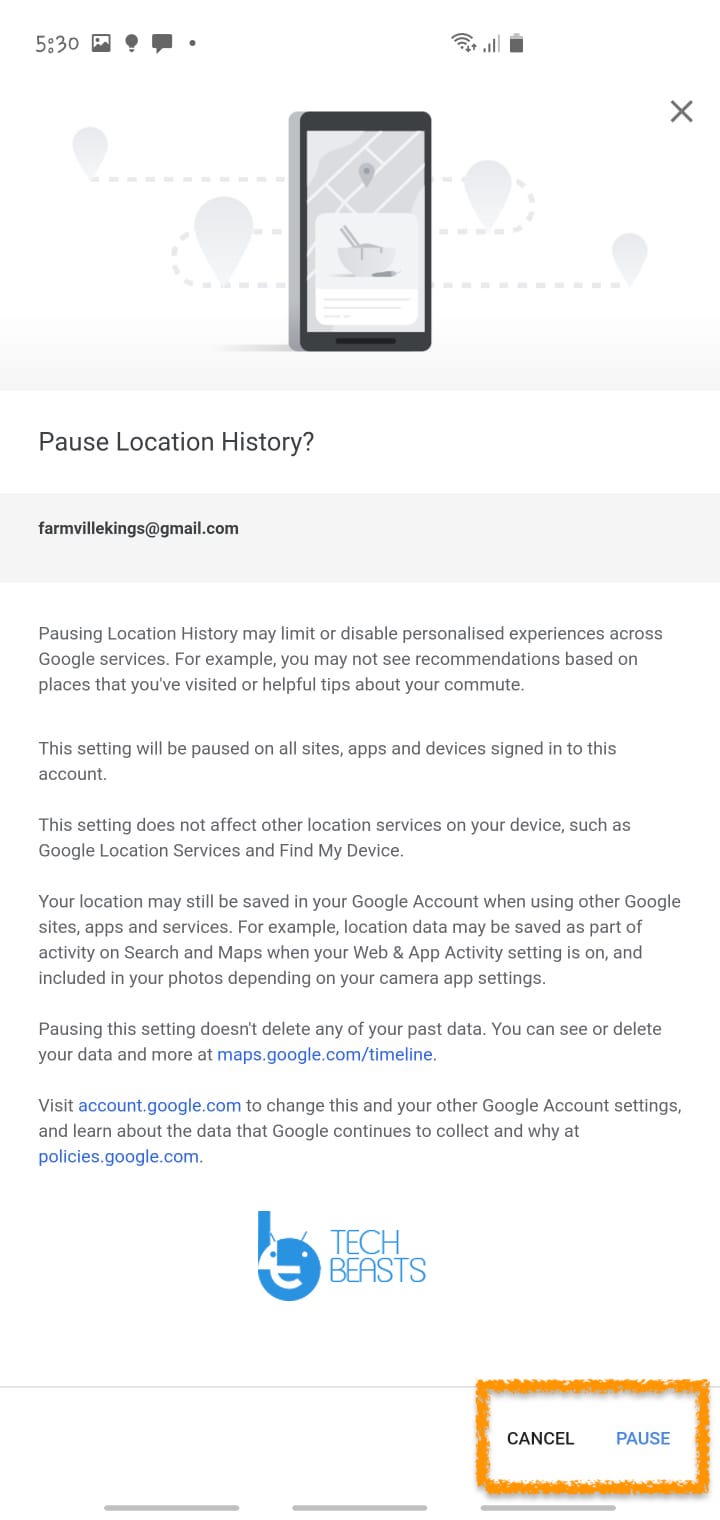
  • On the next page, you will be asked to pause your location history. Tap on Pause.

That will be all for today. This is how you can check your Location History in Google Maps. Do try it and let me know how was your experience.

Download Full HD Oppo Reno A Stock Wallpapers

0
Download Full HD Oppo Reno A Stock Wallpapers

In the past several years Oppo is getting strong in the world of Android Smartphones. Recently they have launched a new smartphone series named Reno and believe me Oppo’s new Reno series is a huge success.

As Oppo’s name is growing they are working on all the ranges to cover and recently they have introduced a new device in Reno series. It’s a mid-range device and it’s called Reno A, I will tell you Reno A specs and features later. First, let me give you the latest Full HD Oppo Reno A Stock Wallpapers. Reno A came out with a resolution of 1080 x 2340 pixels. I thought you might want to get your hands-on Reno A Stock Wallpapers and you use on your other devices as-well.

Oppo Reno A Stock Wallpapers

You will be surprised to know, Reno A is far better than other devices when it comes to display. It has a great display when you compared it with others in the same price category.

Let’s move on and give you the Oppo Reno A Stock Wallpapers and also tell you what are the main features and specs.

Oppo Reno A Stock Wallpapers:

You can use the following link to directly download all the Oppo Reno A Wallpapers. Click on the following link and you will be taken to our sister site Filesbeast. From there click on the download button and you will get your Oppo Reno A Wallpapers.

Oppo Reno A Specs:

The Oppo Reno A was Announced in 2019, September. The Phone came out with a screen of 6.4 inches, 1080 x 2340 pixels, 19.5:9 ratio. Oppo Reno A was powered by Qualcomm SDM710 Snapdragon 710 (10 nm) with Adreno 616. It had internal storage of 128GB & 6GB RAM. There are two cameras at the back of this phone, 16 MP, f/1.8, 1/2.8″, 1.12µm, PDAF 2 MP, depth sensor. Inside this Phone, there was a 3600 mAh battery. The Phone originally ran on Android 9.0 (Pie); ColorOS 6.

There you go, These were the specs and hardware you will be getting after buying Oppo Reno A. You can also check the following links to download more stock Wallpapers of other devices.

Also, See:

Deslide: Remove Slideshow From website

0
Deslide: Remove Slideshow From website

Let me tell you how you can Desilde or Remove Slideshow From the website. I have seen many websites that are using slideshows on their home page rather than simple article lists. To be honest there is no issue using slideshows to feature posts on your homepage.

However, the purpose behind using slideshow is to get more impressions and it does work. But on the other hand, it also leads to more ads and ads. Thus, users get annoyed while visiting such websites, I do.

Remove Slideshow From website

Not only ads, but you also have to click next to a number of times before you get your desired content. Slideshows take things slow when it comes to browsing and that’s why most of the users don’t ever come to websites like these.

Users skip such sites and move to the next one, a lot of us do this. But sometimes whether we like it or not, the article or the content we are looking for is on a website that is using the slideshow. So in order to read the article and Remove Slideshow From the website, there are a number of tools that can be used.

In this post, I will tell you how to Deslide or Remove Slideshow From the website. Let’s get started now.

Read more: Fix Instagram Share to Facebook Not Working

Deslide: Remove Slideshow From Website:

ClusterFake:

In my point of view, the best option is to use a website called Deslide. This web-based app will allow you to easily de-slide a slideshow and after that, it will convert the page into an article.

Not only it will allow you to de-slide a URL it will also allow you to create a Bookmarklet of deslide. That way in the near future whenever you came across a slideshow just click on the deslide bookmarklet and it will take you to the Web-based app.

PageZipper:

Next is the PageZipper, This web-based app is available as an extension for Chrome & Firefox. Moreover, you can also bookmark this website in your toolbar for later use.

PageZipper automatically merges all the pages provided in a slideshow into one page. Using page zipper is very easy, open the PageZipper website follow the instructions provided there. Either you can use the PageZipper bookmark or you can use Firefox or Chrome extension.

Deslide using PrintFriendly:

Let us go a bit further and I will tell you another Website which will help you Remove Slideshow From Website. Heed the instructions below.

  1. Copy the page Url you want to de-slide.
  2. Open PrintFriendly Web-based app on your browser.
  3. Paste the copied URL in the given field and click on the preview button.

There you go you have successfully de-slide a slideshow on a website.

Deslide using PrintWhatYouLike:

Next up is PrintWhatYouLike, it works the same way as PrintFriendly & ClusterFake. Heed the instructions below to Deslide a Slideshow.

  1. Copy the URL you want to Deslide.
  2. Now you need to open the Web-based PrintWhatYouLike App in your browser.
  3. Paste the URL in the required field and hit start.
  4. You need to wait, the PrintWhatYouLike tool will analyze the full page. After that, it will allow you to deslide a specific part

There you go, you have successfully removed Slideshow From a Website. That’s all. Please try these tools and let me know how’d it go for you.

How to take screenshot on Samsung Galaxy A51

How to take screenshot on Samsung Galaxy A51
Galaxy A51 tips and tricks

Take a look at how to capture a screenshot on Samsung Galaxy A51. I have shown three methods to capture screen on the A51.

Samsung Galaxy A51 is the latest mid-range phone from the South Korean giant. The Galaxy A51 successfully takes over the Galaxy A50 with a massive upgrades on-board. It won’t be wrong to say that Samsung has completely re-invented the Galaxy A lineup for the year 2020. The Galaxy A51 has already impressed the lifelong Samsung users.

take screenshot on Samsung Galaxy A51
Galaxy A51 tips and tricks

Recently, a number of users asked me on my YouTube channel about the methods to capture screenshots on the Samsung Galaxy A51. Although I have already made a complete tips and tricks video for the Galaxy A51 owners, I still felt the need for writing this tutorial. Below, I’m going to show you three different methods to take screenshots on Samsung Galaxy A51.

Take a screenshot on Samsung Galaxy A51

  1. Press and hold Volume Down + Power button to capture screen.
  2. Palm-swipe Galaxy A51’s screen to capture screen.
  3. Use the edge panel of the phone to take sized screenshots.
take screenshot on Samsung Galaxy A51
Volume Down + Power button to capture Galaxy A51 screen.
take screenshot on Samsung Galaxy A51
Palm-swipe to capture A51 screen

You can pull out the edge panel from the right side of the screen. There is a vertical black line on the screen which you may not be aware of. That’s the edge panel and it’s got a whole lot of shortcuts.

To take a scrolling screenshot, you will first open a scrollable page. Capture the screen and you will see a scrolling icon on the lower-left corner of the screen. Press the scroll button to take a scrolling screenshot.

Unfortunately, the Galaxy A51 does not have a screen recorder. After seeing the native screen recorder in the Galaxy S10 Plus’s Android 10, I was expecting it to be a part of all the upcoming Android 10-powered Galaxy handsets.

You can find many other Galaxy A51 tips and tricks in the video attached below. The trick to capturing screenshot is the 2nd trick in the video.

If you have any questions regarding the Galaxy A51 or if you want me to write about any other aspects of this phone, please drop your comments below. I will try my best to respond back as soon as possible.

Download Worms Zone Voracious Snake for PC

0
Download Worms Zone Voracious Snake for PC

Follow this tutorial to Download Warms Zone Voravious Snake for PC. You can play this game on any desktop PC or Laptop.

Worms Zone Voracious Snake for PC

Worms Zone .io – Voracious Snake

Okay, the name gives you a great idea of what this game is all about, but there’s a little more to this game. Worms Zone is all about an open zone full of countless worms. Each player is given a baby worm. Players have to move their worms in an open world to grow it. There is a lot of food placed all over the field. Feed your worm as much as you can and for as long as you can in order to become the top-rated worm parent.

Worms Zone Voracious Snake for PC

The worms have an uncontrollable appetite. No matter what you do, the appetite will never come to an end. At one point, your worm will grow big enough that you will not be able to fit it on the screen anymore. On the field, you will find a lot of bonuses which will make your worm extra-healthy. The goal in this game is to grab the top spot on the leaderboards.

Worms Zone Voracious Snake for PC

There is only one thing that can hinder your worm’s journey. While you are eating a lot of fruit, you have to be careful about other worms. If you hit any other worm in the field, the game will be over. Another thing you need to avoid is the walls. Do not hit any wall whatsoever.

With the growth of your worm, your game will level up too. When your worm grows into a snake, it will grow some new features.

This game has endless gameplay. Play it as long as you can to kill your boredom. 

Worms Zone Voracious Snake for PC

Worms Zone Voracious Snake is originally built for smartphones. In fact, there are hundreds if not thousands of such games in the market already. Each new game has something new to offer. None of these games are built to run on computers. The good thing about Worms Zone Voracious Snake is that you can run it on your Windows 10 or macOS PC.

Take a look at the steps below to download and play Worms Zone Voracious Snake for PC now.

Requirements

  1. Download an Android Emulator i.e. BlueStacks.
  2. You need a Windows 10/8 or macOS-powered PC.
  3. Desktop PC or Laptop.
  4. Mouse & Keyboard.

Worms Zone Voracious Snake for PC

  1. Open BlueStacks Emulator on your computer.
  2. Log in into the BlueStacks using existing or new Google Account.
  3. Open the Play Store in BlueStacks, find Worms Zone and install it.
  4. After the installation comes to an end, launch Worms Zone.io.
  5. Use the mouse to play the game now.

Download Samsung Galaxy A51 Stock Wallpapers

Download Samsung Galaxy A51 Stock Wallpapers

Stock wallpapers of the Samsung Galaxy A51 are available now. Wallpaper enthusiasts can download Samsung Galaxy A51 Stock Wallpapers from here. All of the Galaxy A51 Stock Wallpapers are available in full HD resolution.

Samsung Galaxy A51 Stock Wallpapers

Galaxy A51 Stock Wallpapers

There are 6 stock wallpapers in the Samsung Galaxy A51. 6 of these wallpapers have a resolution of 2400 x 2400 while one wallpaper has a resolution of 1080 x 2400 pixels. You can apply these wallpapers to the screen of any Android phone or even to an iPhone. To download your desired wallpaper, right-click on your desired image and then “Save image as”. If you are downloading on the phone, long-press the wallpaper and tap on “Download image”. You can also download all the A51 stock wallpapers using the all-in-one file below.

All Galaxy 51 Stock Wallpapers: Download

Galaxy A51 Stock Wallpaper

Samsung Galaxy A51 – Samsung’s new powerful mid-ranger

Galaxy A51 is the successor to the Samsung Galaxy A50. When Samsung re-invented its mid-range lineup last year, the A50 was the very first phone to come out. Samsung’s new Galaxy A lineup impressed the Samsung users. The series was warmly welcomed by lifelong Samsung users.

It’s already been nearly a year since the A50 came out, and the A51 now takes the place of this phone. Galaxy A51 comes with lots of improvements.

The A51, first of all, carries a 6.5-inches Super AMOLED panel. Samsung has opted for a punch-hole design this time. The phone’s aspect ratio is 20:9.  This screen has a resolution of 2400 x 1080 pixels. The front of the phone is protected by Corning Gorilla Glass 3 while the back still uses the glastic material.

Galaxy A51

On the power end, Samsung is using the in-house Exynos 9611 10nm chipset. It’s coupled with the Mali-G72 MP3 GPU. There is a RAM of 4 or 6GB in this phone and its internal storage is 64GB or 128GB. The A51 also accommodates a microSD card slot for storage expansion.

The A51 is using an entirely new camera system. It has 4 cameras arranged in an L-shape manner at the back. The phone has a main 48 megapixels camera, it’s got a 12 megapixels ultrawide camera, a 5 megapixels depth sensor, and a 5 megapixels macro camera. The punch-hole on the front houses a single 32 megapixels camera.

Galaxy A51

On the connectivity end, this phone uses the USB Type-C port. It’s got a 4000 mAh battery with 15W fast charging. The A51 also supports Bluetooth 5.0.

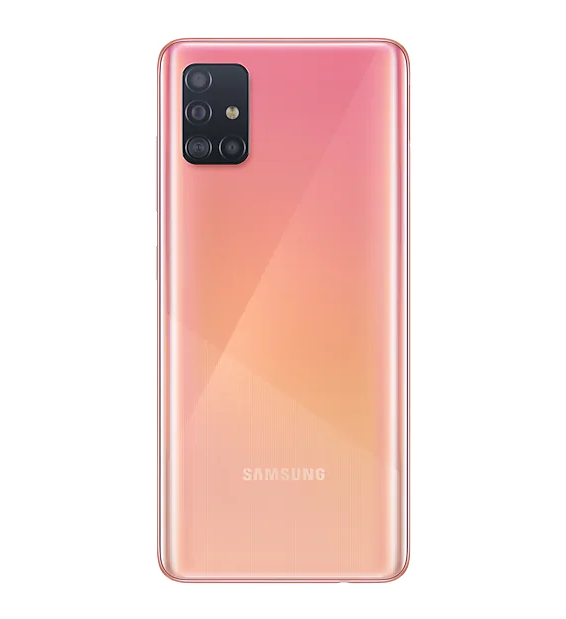
The A51 has a fingerprint scanner under its display. It’s an optical reader which means it’s not super fast like the Galaxy S10’s fingerprint scanner. The phone comes in Prism, White, Blue, Pink, and Crush Black colors. 

5 Best Free Android Voice Recording Apps in 2020

0
5 Best Free Android Voice Recording Apps in 2020

Take a look at the list of best free Voice Recording Apps of 2020. These Voice Recording Apps are for both the Android and iOS-powered phones.

Latest Android phones are equipped with high-end hardware. A lot of people sleep on one of the key hardware parts on a smartphone; the microphone. Of course, every phone comes with a standard microphone. Not so long ago, Android phones used to come with microphones that recorded mono audio.

However, the latest smartphone microphones record stereo and directional sound. One of the leaders in this tech is Samsung Galaxy Series. Even the old phone like Galaxy Note 5 has excellent recording hardware. With options like this, it is no secret that some of us may want to make good use out of this.

Therefore, we are listing down the free and best Android Voice Recording applications. This does not include the built-in recording apps. We are looking for some extra features to make most out of available tech.

Also Read: Best Free Android Voice Changer Apps

What to look for in an Android Voice Recording App?

Nearly every smartphone and its OS comes with its own native recording app. Most of these work well but only for the basic features. These can record sounds but lack number of features that may prove to be useful in lot of cases. 

Skip Silence Feature

The first and most important feature is an recording app to skip silence. Now this may come as a surprise to some people. Lets say someone wants to record a meeting or a lecture, or even a conversation, a normal recorder would record the whole time. It won’t skip even the parts when everyone is silent. It not only makes the recordings very painfully long but very hard to listen back. In this case, users need to trim recordings manually to make them usable.

The basic advantage of a Voice Recording app for Android that skips silence is the fact that it saves lot of storage space. This feature is mainly used by people who need to make long recordings. These recordings take place in meetings, class lectures or some long conversations. Some people even like to put the recorder on at night to see if someone snorts or sleep-talks!

Recording Formats

In addition to this, advanced recording apps include features to choose the recording format; AAC, WAV, OGG etc. Moreover, manipulate the recordings to change playback speeds and more. 

Organization

Lastly, a good recording app allows its users to organize their recordings under separate collections. For example, you may like to take voice notes, record lectures, record songs and even calls. A stock recording app would just stack all of the recordings into single pile. That is pretty hard to manage.

AI Features and Transcription

If someone is willing to use a recording app majorly to record interviews, lectures, meetings, conversations of any sort, then it is useful to get an AI powered recorder. It removes most of the hassle involved in extracting text from sound. Since it takes care of it automatically, therefore, it removes most of the stress and work on user’s end.

Best Android Voice Recording Apps

1: Otter Voice Notes (Otter.ai)

best voice recorders for android

Want your notes, voice notes or even podcasts recorded, organized and even transcribed to text? Then Otter.ai is the best solution. It is one of the few Android recording apps that transcribes speech to text. Well, this is just the surface. As we explore the app even further, it offers a lot of valuable features to ensure that you never look for another alternative.

To start it off, the free users get 600 Minutes per month for transcribing speech to text. Premium users get 6,000 minutes. It all depends on whether or not you need it as much. 

Best Recording App for Transcribing

Otter is especially useful for journalists, podcasters, meeting recorders and students. Not only does it record and transcribe the sound to text, it keeps track of all the info. As the audio plays, you can watch all the words highlighted in live time. Moreover, add artwork and pictures in-between the text. For example, put Otter.ai on for recording a lecture and take pictures of the whiteboard or slides as well. Once the recording is done and transcribed, just use the pictures and insert them to make comprehensive lecture notes.

Similarly, journalists may record their interviews and use transcribe feature to save most of their work. Since it is AI powered, therefore, we can even train the app to learn to recognize who’s talking. It would add the snippets for it in transcribed text later.

Note happy with built-in microphone? Use a bluetooth microphone to record. Once you’re done with the text, export it as PDF, Txt or even srt file. It means that we can generate Android voice recording app to make subtitles (srt) file of a movie or show. 

Use the premium version to even sync all the recordings in cloud storage. Overall, Otter.ai is one of the best options in its genre. It makes recording lectures, meetings, interviews, podcasts and even normal conversations a breeze. 

play store button2: Music Maker JAM

best android voice recording apps

Our first pick in this list was dedicated to recording conversations and transcribing those. Naturally, the second pick is for music lovers and aspiring music producers. Music Maker JAM is the most comprehensive Android Recording App for Music, vocals, mixing and basically producing a song. 

Where there’s talent, there’s a way. Even if someone cannot get their hands on expensive equipment, it does not mean that they should give on their dreams. With Music Maker, you get access to thousands of music loops from genres like EDM, Trap, HipHop, House and more. Mix these built-in snippets in any way and give a sound to your creative ideas. 

You get all the basic mixer tools to get started with music career. Well, what you’re here for actually is to record voice. Add personal vocals or even musical instrument plays into your mix. Tap on a part of timeline where you’d like to add vocals. Simple record through the phone and that’s it.

The biggest advantage of Music Maker JAM is the fact that how easy it is to build a complete timeline for song. You get an intuitive and effective interface for adding, manipulating music as well as recording vocals. Overall, it is a great music producing app for Android. And use it to record your vocals and add favorite background music and sound effects.

play store button3: Easy Voice Recorder

best voice recording apps for android

Our third pick in this list does exactly what it’s title says. It is one of the easiest to use Voice Recorders for Android mixed with just the right features. Easy Voice Recorders makes it super easy to record lectures, meetings, conversations, voice notes and organize in separate folders. Moreover, assign unique names or just sort by date to make sure you quickly find what you’re looking for.

The only downside for this app is that some of the features are locked for pro mode. Therefore, if you want to have all the goodies, you need to purchase a one-time upgrade. However, once done, it is permanent and works across all Android devices with that account. 

The pro features include the likes of Skip Silence, Setting custom bitrate, uploading files to cloud storage and volume boost. Additionally, the pro mode allows user to record via a bluetooth microphone. 

This Android voice record works with Smart Watch as well. Want to start a recording, just use its widget directly from the watch. As mentioned earlier, Easy Voice recorder is built just for the ease. It does nothing fancy but makes the basic tasks super easy to use. 

play store button4: RecForge II

free android recording apps

RecForge is a relatively unknown Recording app for Android. And truth be told, it is one of the best out there. The number of features that it includes is simple astounding. Even though there is a pro version, the free version even is more than enough for most of the tasks.

In the words of developers, it is actually an Android dictaphone. For those who are not familiar with this term, it was/is a popular device to record quick voice notes, letters in a small device. This device then serves as a carrier of these messages. It was actually a patented device. Ever since Android became so powerful, there is no need to carry a regular dictaphone anymore.

When recording with RecForge II, change settings like bitrate, sample rate, audio codec and even switch between mono and stereo settings. Mono is normally useful for recording speeches and podcasts while stereo is more suited for music. Use this app with an external bluetooth microphone to enhance the recording experience. You can manually switch between directional microphones or use all at once to make the sound more dimensional. 

The available audio codecs are  mp3, m4a, ogg, wma, opus, flac, speex and wav. Just like any other good voice recorder, there’s a skip silence feature built-in as well. This allows you to keep the recorder alive in background and still keep the recordings short. Audiophiles and experts can also manually control the gain on microphones with this app.

Once audio is recorded, use built-in editing tools to mix, trim, edit and compile various audio sources. Podcasters, musicians, journalists all use it in their own unique ways. 

play store button5: Hi-Q MP3 Voice Recorder

best android voice recorders

For our last pick, Hi-Q MP3 Recorder seemed liked a no-brainer. It is one of the simplest voice recorders on Android with ton of useful recording options. Change the quality, bitrate, edit, trip, skip silences and more. 

Change the input between front and back microphone depending the type of recording you want. Or just record a stereo sound. Moreover, use cloud sync feature to automatically update recordings to Dropbox or Google Drive. 

Choose from the available formats of WAV, FLAC, OGG and M4A. When using cloud storage, the space is not an issue. However, you may like to opt for a high-compression format with low-bitrate if recordings will stay on phone’s storage.

Use Hi-Q MP3 Recorder to even record voice calls. Note that recording calls is illegal in lot of countries around the world. Therefore, the recording automatically stops when there’s a call. However, anyone can turn it off inside settings. Make sure you’re always following the law of your country.

Another useful feature is changing the microphone gain level. This means that we can change after which level of dB or decibels does the app start recording. It is very much like condenser mic for Android. It automatically ignores all background noise. You’ll get clean and clear recordings.

play store button

Conclusion

All five selections above specialize in unique features. Therefore, it all comes down to personal preference. The musicians and music producers may love to use the Music Maker JAM while transcribers would love Otter.ai. Similarly, the RecForge II is like a raw app with more features that we can handle. It does not have the best of interfaces but offers lot of actually helpful features. 

Feel free to leave your feedback and queries in the comments section below.
Best Free Spotify Alternatives in 2020

0
Best Free Spotify Alternatives in 2020

Take a look at the best free Spotify Alternatives in 2020. These Spotify Alternative Apps are for both Android and iOS-powered smartphones.

As good as Spotify is, there are certain constraints that make us look for other music streaming services. This article goes through the best Spotify Alternatives (Music Streaming services) that fit the bill. The streaming quality on Spotify is limited and you may not always find the songs or artists that you’re looking for. Moreover, the free version comes with skip limit and ads. Lastly, Spotify is not available in lot of countries around the world. And therefore, users in those regions need to look for other music streaming apps like Spotify.

Before going into the list, let’s take a look at pros and cons, and how should a competitor stack up against it. The most important aspect of Spotify is the fact that it has amassed a huge music library since it launched. Almost every artist uploads their new albums and tracks on this platform. However, some artists may still opt for alternative streaming services depending on how much it benefits them. 

Lets go through the list of now and discuss pros and cons alongside.

Best Alternatives to Spotify

1: YouTube Music

best free apps like spotify youtube music

Available on Android & iOS.

When we talk in terms of quantity and variety, then YouTube Music is definitely way beyond Spotify. YT has become the homepage of internet for all latest videos, music videos, covers, indie artists, remixes and what not. We do not only find the original tracks on YT Music. It is one of the best Spotify Alternatives.

It works on both Android and iOS. Moreover, the web users may just access their playlists on a Chrome tab. Lastly, the YouTube’s recommendation algorithm is pretty refined. It recommends songs and covers based on our listening habits, likes and dislikes. The free version of YT Music comes with ads of course. However, it is not a dealbreaker and it works quite well anyway.

2: Deezer

best music streaming apps like spotify

Available on Android & iOS.

Deezer is like a replica for Spotify with pretty much same kind of features and overall interface. It offers great collection of songs, albums and artists. Deezer is available in more regions around the world compared to Spotify. This reason alone makes it more suitable for a lot of people.

We can easily create our own playlists. Once the system starts analyzing listening habits, favorite songs and so on, it recommends new songs based on this learning. The recommended system is pretty decent to say the least. No recommendation system works as good as YT Music but it is still good enough. If you are looking for a song, artist or an album, the search functionality is robust and reliable.

The free version is good enough for basic listening. However, more enthusiastic audiophiles may get the premium subscription to unlock full range of features and take their experience to max level.

3: SoundCloud

best music apps like spotify soundcloud

Available on Android & iOS.

When talking about music streaming apps like Spotify or just in general, how can one not mention one of the oldest in the business. SoundCloud has been around since forever. The only downside to this streaming service is the face that most artists do not upload their original tracks here. However, a lot of now-famous artists gain initial recognition from here. One of the famous ones include Alan Walker who initially came through NCS on SoundCloud.

Similarly, SoundCloud is a cool place to discover podcasts, radio stations, indie artists, remixes, bootlegs and much more. Of course, there are still many official tracks on the site but it is not the focal point of this service. With over 130M tracks, you’re bound to find some amazing and untapped talents out there. 

4: Google Play Music

best free spotify alternatives google play music

Available on Android & iOS.

If someone owns music offline and would love to store it online and stream anywhere, then Google Play Music is best alternative to Spotify. The most likeable feature is the fact that we can upload our music in personal account and then access it anywhere. Imagine having lot of premium CDs for music that you love. With Google Play Music, when it is uploaded, access and stream the music anywhere. It does not act like a cloud storage. The streaming is pretty straightforward.

However, in order to truly compete against Spotify, we need original music. And yes, Google Play Music is one of the top destinations for finding the latest music from artists all around the globe. It comes with both free and paid subscriptions. Therefore, you don’t have to break the bank to use this service. 

The recommendation algorithm of Google Play Music is also one of the reasons we’d recommend this. All music lovers eventually get bored of the songs they listen to everyday and want to discover new music. The recommendation algorithm makes music discovery a complete breeze. You get very similar recommendation according to personal music taste.

5: JioSaavn (Formerly Saavn)

best alternatives to spotify jiosaavn

Available on Android & iOS.

Saavn or JioSaavn is the biggest hub for all sorts of Indian and Pakistani music. It covers Hindi, Urdu, Punjabi, Marathi, Telugu and many more languages. However, this is not it. You can still find the mainstream English language artists on this service. However, the main user base for this app is from India, Pakistan and other neighbouring countries. 

The free version of JioSaavn works flawlessly and offers unlimited access to all songs. However, you cannot store the songs offline in free version. The sound quality on free version is also a little bit lower compared to the premium version. Thanks to its deep integration in its target countries, getting its subscription is not only cheap but super easy. 

Conclusion

All the streaming services compared to Spotify above offers some unique perks. Make sure to go through all of these and choose the best one for yourself. It is always a good idea to first test out the free version and then unlock the premium subscription. Feel free to let us know about your thoughts, experiences and queries in the comments section below.