Home Blog Page 83

Best HD Happy New Year 2019 Wallpapers

Best HD Happy New Year 2019 Wallpapers
Happy New Year 2019 Wallpapers

Ladies and Gentlemen! Here are the Best HD Happy New Year 2019 Wallpapers, Happy New Year 2019 Images, Happy New Year 2019 Pictures, and Happy New Year 2019 Cards for you.

We are just a few days away from another great year. The year 2019 is around now. This time of the year is always great as it brings the Merry Christmas, Winter Holidays, and then the New Year celebrations altogether. Everyone these days is busy buying presents for their loved ones, decorating their houses, and leave the happenings of the year 2018 in 2018. The vibes and feelings around this time are great. The winters just add charm to this season.

The year 2018 was great for some people and for some, it did not work out well. Whatever the case it was with you, it is the time to say it goodbye. Prepare yourself to welcome the year 2019 with a thought that you will make this the best year of your life. It is the time to leave the regrets in the past and move on. It is the time to forget whatever went wrong in 2018. The goal now should be just to look forward to 2019, set new goals, and focus on the new year resolution.

Here are some of the greatest things that happened around the world in 2018.

  • France won the football world cup.
  • Women in Saudi Arabia can now drive cars.
  • Orange snow-fall in Europe.
  • A 13-year-old Kid woke up after being declared dead.
  • Winter Olympics happened this year.
  • Black Panther movie was released.
  • And many more such events!

To add to your New Year 2019 feels, we have put in a little effort as well. We have collected a huge collection of the best HD Happy New Year 2019 wallpapers for your Desktop PCs, Smartphones, and Laptops. If you have been looking for such New Year Wallpapers, New Year Images, or New Year Cards, you can find them all here. I have tried to collect all the images in the best possible resolution.

Happy New Year 2019 Wallpapers

Here are all the best Happy new Year 2019 wallpapers. Download the wallpaper according to your liking. You can apply these wallpapers on any device including a Laptop, a Desktop PC, or a Smartphone.

Happy New Year 2019 Wallpapers

Happy New Year 2019 Lights Wallpaper

Happy New Year Fireworks Wallpaper
Happy New Year 2019 Wallpapers


Happy New Year 2019 Wallpapers

Happy New Year Fireworks Wallpapers

These are some fireworks wallpapers from different countries in the world.

Happy New Year Fireworks Wallpaper

Happy New Year Fireworks Wallpaper
Fireworks on New Year’s Eve, Singapore
Happy New Year 2019 Fireworks Wallpaper

More Happy New Year 2019 Wallpapers

Here are more wallpapers to give a new look to your computers and smartphones.

Happy New Year 2019 Images
Gold glitter Happy New Year 2019 background. Happy new year glittering texture. Gold sparkles with frame. Chic glittering invitation template for new year eve.
Happy New Year 2019 Images

Happy New Year 2019 Cards

Happy New Year 2019 Cards

Happy New Year 2019 greeting card
Happy New Year 2019 Cards

Happy New Year 2019 Pictures

Happy New Year 2019 Pictures




To download the wallpaper, simply open your desired image and save it to your computer or your phone.

Disclaimer: We do not own any of the images listed above. These images are the property of their rightful owners. We have only collected them and listed here for the viewers.
How To Fix Samsung Galaxy S6 and S6 Edge Not Registered On Network

7
How To Fix Samsung Galaxy S6 and S6 Edge Not Registered On Network

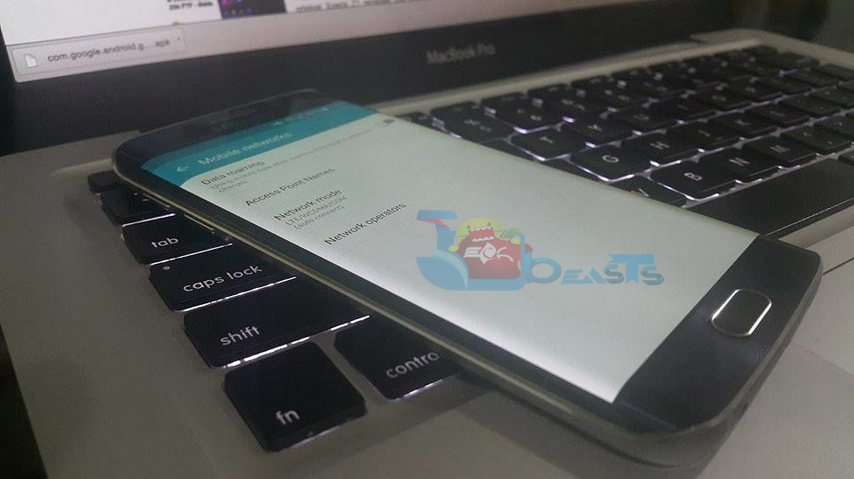
As we have covered all the Samsung Galaxy devices general issue like Not registered on Network, Restore Null IMEI, unknown baseband and how restore EFS backup. Now a days Samsung Galaxy S6 and S6 Edge are the trending devices from Samsung so they have same issues and problem as we have seen in the past with other Samsung Galaxy devices, Samsung Galaxy S6 and S6 Edge have same problems like battery drain issue, bluetooth connectivity issues and Not registered on network. Today i’ve prepared a guide in which i’ll help you to fix Samsung Galaxy S6 and S6 Edge Not Registered On Network. There is no rooting involved in these methods, but if you want to perform root on your Galaxy S6 and S6 Edge you can check our guide from here.

fix s6 not registered on network

Before going any further let me clear few things in all of these methods we are using any root or unlocking method. Following steps are for troubleshooting and all worked on only unlocked devices, if you have unlocked your device using root i would suggest you not to perform any of these steps. let’s begin with the guide to fix Fix Samsung Galaxy S6 and S6 Edge Not Registered On Network.

How To Fix Samsung Galaxy S6 and S6 Edge Not Registered On Network:

^ First of turn off all the wireless connection on your device and enable the Airplane mode, wait for 2-3 mins and turn off the Airplane mode.

^ Turn off your device and take out the sim card, now insert back the sim card and turn on your Galaxy S6.

^ Please make sure that your sim is nano sim, otherwise it won’t work properly.

^ Update your device to latest OS, it may be the reason that your device is running on old OS that’s why it is showing not registered on Network. One more reason is that cause of incomplete software update you are facing such issue, to fix not registered on network you have to flash the stock rom using Odin on your Samsung Galaxy S6.

^ Open mobile networks from settings on your Galaxy S6, now press the Home button for 2 seconds along with power button for 15 seconds. Now your device will blink few times and it will reboot.

^ If none of these methods worked for you then last option is to restore IMEI and Efs backup, please use this guide to restore efs backup on Samsung Galaxy S6 and S6 edge.

Please do tell me in comments which method worked for you, and if you have any suggestion please do tell me so i can add and share it.

Fix Samsung Galaxy S9 is not recognized by your computer

Fix Samsung Galaxy S9 is not recognized by your computer

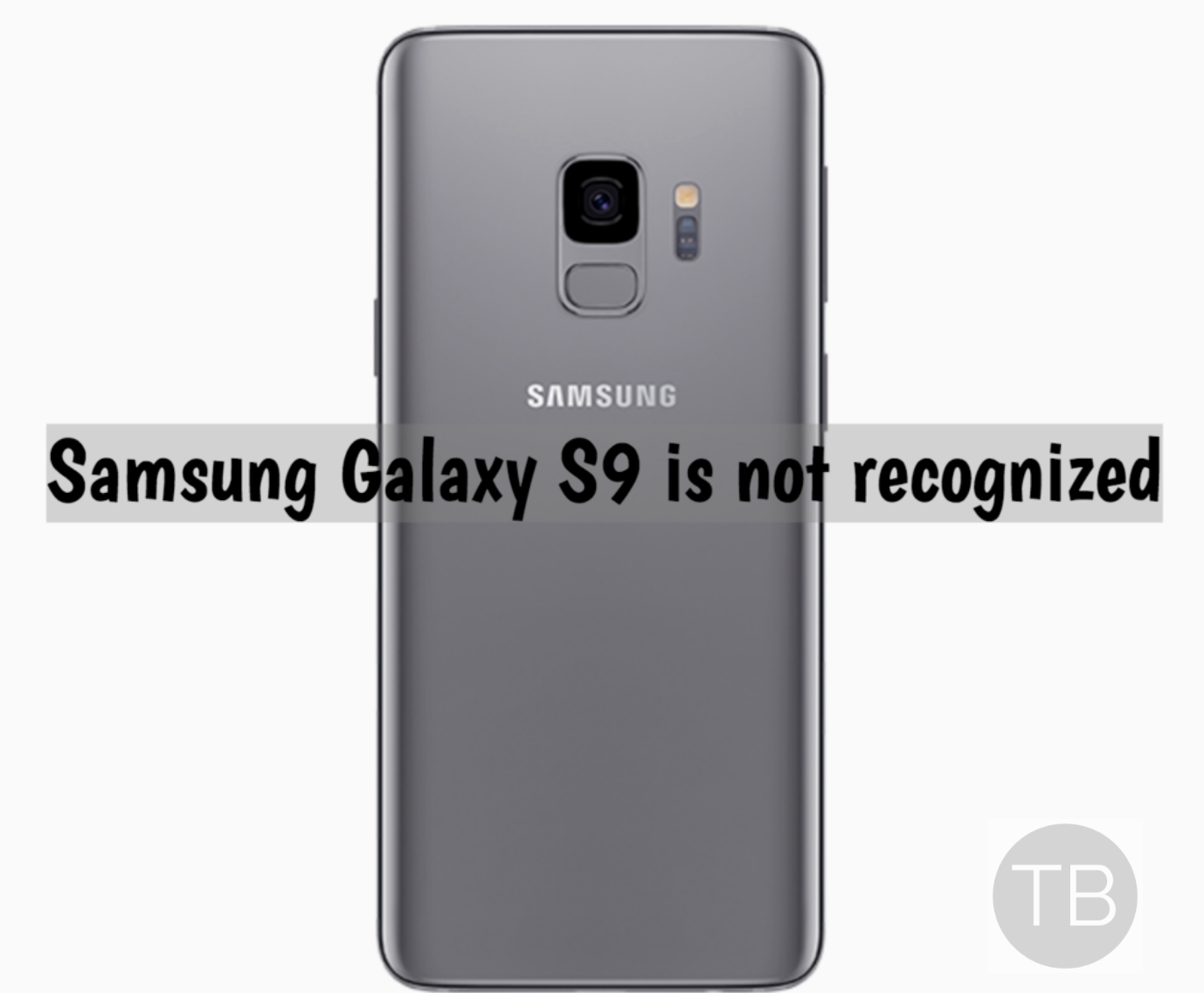
We’ve prepared a step by step guide to help you fix Samsung Galaxy S9 is not recognized by your computer. This is a common error and we have seen this same error with many smartphones. Every now and then we have to connect our device to our PC. In order to move and manage our important files, but sometimes we start facing device is not recognized by your computer. There can be many reasons, we have addressed all basic solutions below which can be very helpful.

Galaxy S9 and S9 Plus follow the design language of the Galaxy S8. There are a few changes in how the elements are placed at the back. The fingerprint scanner, which was beside the camera and flash on the Galaxy S8, has now moved beneath the camera. This makes using the fingerprint scanner a lot easier.

Both the Galaxy S9 and S9 Plus come with incredible cameras. The Galaxy S9 has a single shooter at its back and the Galaxy S9 Plus has a dual shooter with dual-aperture mode and dual-OIS. The Galaxy S9 has a screen of 5.8-inch and the S9 Plus has a screen of 6.2-inch. Galaxy S9 comes with a 3000 mAh battery and the bigger variant has a 3500 mAh battery.

Now let’s start the troubleshooting to help you with Galaxy S9 is not recognized by your computer.

Galaxy S9 is not recognized

Fix Samsung Galaxy S9 is not recognized by Computer:

Heed the instructions below to Fix Galaxy S9 is not recognized by the computer problem. You can also check more general guide of Galaxy S9 and S9 Plus below.

Why Galaxy S9 not recognized by your computer?

It can be caused by many reasons. Maybe something is preventing the device and PC to establish a connection. Sometimes your PC is having issues and if not then phone system might get corrupted. If it’s your phone the most likely miscreant apps and firmware glitches are behind all this. However, if it’s from your PC end then it could be missing drivers, and system errors. You can not be specific, that this is the one behind all this fuss.

Best solutions to Galaxy S9 that’s not recognized by computer:

First thing, you should do after failing to connect your Galaxy S9 to your PC, reboot both of your devices. This will help you to get rid of this problem, sometimes a temporary glitch which was preventing your device from establishing a connection. If Reboot doesn’t give it a kick, proceed with the following workarounds.

  • Make sure your device is connected to the computer using the original cable.
  • Swipe down your notification panel and look for USB options. Tap on it to view what else you got.
  • You’ll get different options, try all the options such as ( MTP – PTP ).
  • Both of these options are different and each performs different task.

More Workarounds:

  • Try changing the USB ports on your PC. If one is not working plug into other.
  • Turn off your Phone and leave it as like for 30 seconds. Turn your device on and plug it back to your PC.
  • If you have installed the USB drivers for the first time. You must reboot your computer.
  • Hold your device firmly, change the position of the cable in different angles. Maybe your USB port on Galaxy S9 is loose and because of that, it could not be able to connect.
  • Download the latest Samsung USB drivers and install them on your computer. Once you’ve installed the USB drivers, connect your device to PC and it would work now.
  • You might need to re-install Samsung USB drivers if they are already installed on your PC. Un-install them first, completely remove all the files and then install USB drivers again.

Reset your Galaxy S9:

  • Turn off your device.
  • Now press and hold Bixby+Power+Volume Up key.
  • Release the power button once you see the logo, but keep holding home and Volume up keys.
  • Now when you see Android logo, let go both buttons.
  • Use the volume down button to navigate and highlight wipe data/factory reset.
  • Now use the power key to select the option.
  • You have to select ‘Yes‘ when you’ll be prompted for next menu.
  • Now wait for the process to be completed, once it’s done highlight ‘Reboot system now’ and press power button to select it.
  • All Done.

Disable firewall or security software:

This will help because sometimes your firewall, antivirus, or any other security software is not allowing both devices to connect with each other for security purposes. Turn of all the security software including Firewall and Antivirus. If none of this gave you any hope then I think you should go to the nearest Samsung service center to get it fixed.

That’s how you can Fix Samsung Galaxy S9 is not recognized by Computer.

9 Best Android Games Under 10 MB [ 2019 ]

0
9 Best Android Games Under 10 MB [ 2019 ]

Here are the 9 Best Android Games Under 10 MB. I have seen people playing mini-games more than games like PUBG or Fortnite on mobiles. Moreover, not everyone buys high-end Android devices. You will see that low-end devices are sold more than big guns. That’s why we have created this post. Today you will get 9 best Android games under 10 MB. These games are lightweight when it comes to space. Not only that, they are addictive like hell.

The best thing about these games is that they perform really well on low-end mobile devices. We have seen huge improvements in Android games since the first day. No one has ever thought that games as big as 1GB can be played on a smartphone. But now things are changed and there are many games which are bigger than 1GB. But all of these games can be played on high-end devices, low-end devices cannot support such heavy graphics.

Android Games Under 10 MB

Well, it seems low-end devices owners can have this type of entertainment. But who cares there are a plethora of Android games which are less than 10MB in size. All of these games will run smoothly on your low-end devices. So let’s get started and give you the Best Android Games Under 10 MB.

9 Best Android Games Under 10 MB:

Following are the best Android games under 10 MB. We’ve collected these games, especially for low-end smartphones.

7X7:

It’s a simple matching game. You need to match four or more square of the same colors to empty the grid. The main goal of this game is to stop the grid from filling. Keep in mind that if you miss a single attempt, new squares will be added to the grid. So your goal is to get going and keep the gird empty. Upon clearing a level you will get points and a number of achievements will be unlocked. You can download the 7×7 game from the link below.

Flow Free: Bridges:

Flow Free is one of the widely played puzzle games available for Android. Once you play it, you will definitely fall in love with this game as it is addictive more than anything. You got join different colors by drawing pipelines in the puzzle boxes and you can’t let pass 2 pipes from the same line, else you will break the flow. There are over 1000 puzzles available, and you can easily spend hours of playing if you are getting bored because this game will never let you feel bored.

Flow Free: Bridges
Price: Free

One More Brick:

If you love bubble shooter game then you will love One More Brick. This game has the same gameplay as bubble shooter but not only you will get the bubbles. Instead of that, you will get brick and bubble. Download the One More Brick from the following links.

One More Brick
Price: Free

Flying Bird: Arcade Game:

If you loved Flappy Bird then you will love this game. Flying Bird is the clone of Flappy Bird and you will get nuts while playing this game as you use to do while playing Flappy Bird.

Chain Reaction:

If you were looking for a lightweight strategy game then you got your self one. Chain Reaction is the one for you, I have played this game and trust me it is not as easy as it looks. The game is pretty simple, you have to place your orbs in the contained cell. Now once the Cell has reached to the deciding mass the orbs placed in the cell will explode. Once the orbs explode they will claim all the cells in the surroundings.

Chain Reaction
Price: Free

Pixel Dungeon:

Pixel Dungeon is a rouge-like turn-based dungeon crawler with pixel workmanship illustrations. While investigating the profundities of Pixel Dungeon, you need to gather valuable things, battle beasts and discover antiques. In this diversion, you advance, you bite the dust, you begin once again. Every one of the components of this diversion including weapons are arbitrarily created.

Pixel Dungeon
Price: Free

2048:

If you love to solve the puzzles then you’ll love 2048 puzzle game, a unique and mind-blowing puzzle game. You have to join the tiles and get to 2048 tile exciting, isn’t it. ( Swipe (Up, Down, Left, Right) to move the tiles. When you touch tiles with the same number, they merge into one and when 2048 tile is created, the player wins ).

2048
Price: Free

One touch Drawing:

This game is pretty simple yet very addictive. You have to draw everything but there is a catch, all of these drawings you will make. You have to do it with one touch. There will be a number of Shapes which you need to draw with one touch. The difficulty will be increased as you move on to further levels. You have to connect all the points with one touch. Make sure you don’t cross one line over another, if you do, you need to start over.

Dots:

You have to connect dots with each other through lines, making longer lines results in earning more points. The game has different challenging modes, including the timer mode where you have to complete the challenge within a given time. You are able to earn different power-ups and credits that can be used in later stages of the game.

Important Message.
Please follow us on Facebook, Twitter, and Google Plus. Help us grow our social family.

PUBG Mobile 0.11.3 Chinese Version for Android

0
PUBG Mobile 0.11.3 Chinese Version for Android

China is the first to get the latest PUBG Mobile update and then comes the rest of the world. This new PUBG Mobile 0.11.3 version brings so much new. You can check the changelog below to find out what’s new in the PUBG Mobile 0.11.3. Let’s begin now and give you the PUBG Mobile 0.11.3 Version.

PUBG Mobile 0.11.3 Chinese

PUBG Mobile Overview:

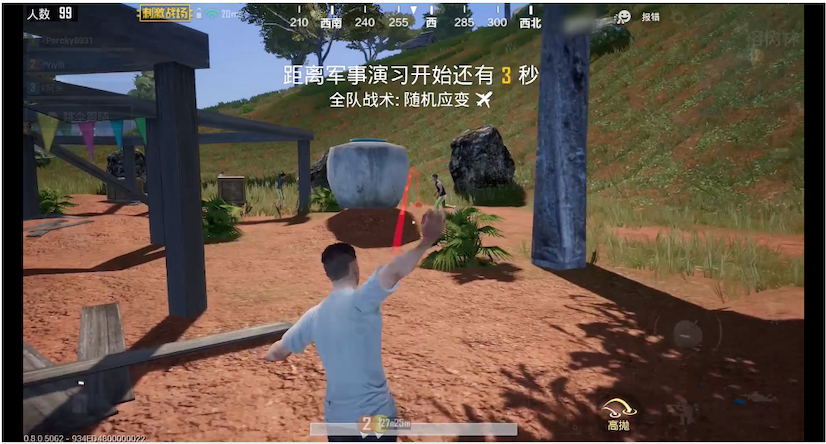
PUBG Mobile is about a very intense battle that’s going on in a remote Island. About a 100 different players have made their way to the Island through a parachute. These players now want to become the last man standing. The last man standing is going to be declared as the winner of the battle. In order to achieve this goal, players have to kill every other player on the Island. To do so, they can look for resources to craft weapons. While this process is going to be very long, players will have to make complete arrangements to survive on the Island. They will learn to cook food, they will learn to craft items to help their survival. PUBG Mobile’s outstanding graphics will make you fall in love with it within no time.

Disclaimer:

WE ARE NOT PROVIDING ANY APK MATERIAL. WE ARE ONLY PROVIDING THE OFFICIAL LINKS OF THE FORUMS FROM WHERE A USER CAN DOWNLOAD THE LATEST PUBG MOBILE CHINESE VERSION. ALL THE LINKS PROVIDED HERE ARE THE PROPERTY OF RESPECTED OWNERS.Techbeasts

What’s New:

[New Weather] 1) Island Map – Allenge, Desert Map – Miramar, new random dynamic weather – cloudy, in which cloudy, rainy and foggy days will alternately and dynamically change; all day Unlimited delivery, small probability to brush out;
[new firearms, new accessories] 1) New firearms: MK47 assault rifle – use 7.62mm caliber bullets, will be brushed out on all three maps;
2) New accessories: Laser sight – the grip of the grip of the firearm, the bullet spread when the gun is fired slightly after assembly, will be brushed out on the map of the three maps;
[new vehicle] 1) New vehicle: tricycle – – Only in the rainforest map – Sano brushed out; 2) Vehicle brushing out adjustment: Rainforest map – Sano no longer brushes out jeep and sedan.
For more, Please Visit the link.TapTap

How to Download PUBG Mobile 0.11.3 and install it on Android

  1. Download PUBG Mobile 0.11.3 from here. and copy it to your phone.
  2. On your phone, go to Settings > Lock Screen & Security or Security Settings > Unknown Sources > Tap the radio button or checkbox to allow it.
  3. Now using a file manager, locate the PUBG Mobile and open it.
  4. Install the APK by following the on-screen instructions.
  5. Once installed, open the newly installed PUBG Mobile game from all apps or app drawer.
  6. PUBG will now start and download its data.
  7. After the data downloads, you can start playing the game. That’s all.

WhatsApp APK 2.18.370 beta [ Latest Version ]

0
WhatsApp APK 2.18.370 beta [ Latest Version ]

Download the latest version of WhatsApp APK. We have made this post to provide our users with the latest version of WhatsApp Beta APK. As you all or maybe you don’t at all, WhatsApp beta version allows you to test the new versions of WhatsApp. But if you haven’t enrolled in WhatsApp Beta program then you cannot get the latest WhatsApp Messenger 2.18.370 beta. This post will be updated frequently, whenever a new update is rolled out you will find it right here.

WhatsApp APK

WhatsApp Details:

WhatsApp is available for free in the Google Play Store. You can download it and install it on your Android or iOS device and start chatting with your friends and family for hours without any cost. But, in order to proceed with WhatsApp verification, you will need a SIM card in your device as WhatsApp will use your number to activate your profile after verification.

Since there is a number of devices available around powered with Android, these devices include various smartphones, tablets, cameras, etc. Android-powered tablets are further divided into 3G, LTE, and WiFi models. So, you got a hefty list to choose from. A Tablet with 3G support will let you use a SIM card, you will be able to dial calls, send text messages, use Viber and other such social chat apps including WhatsApp as well, but a WiFi tablet will not let you use a SIM card, thus, you won’t be able to do any SIM verification related activity.

So you got a Tablet with no 3G support but WiFi and you’re willing to get WhatsApp on it? Well, as mentioned above, without a sim card in your device you won’t be able to verify it and you will start feeling trapped having an awesome device but no social chat app like WhatsApp. Well, there’s no need to ponder about it anymore. We have the complete solution to your worry. In the following post, we will go through a method that will let you install WhatsApp on your WiFi tablet. Also, this tutorial is only for Android tablets.

Download Links:

WhatsApp Messenger
Price: Free

WhatsApp APK:

Version Info:

Version: 2.18.370 beta
Size: 33.58 MB
Updated: December 4
Package Name: com.whatsapp
Minimum Android Version: Android 4.0.3

What’s New:

Introducing stickers! You can now download and send expressive stickers in chats. Tap the “emoji” icon while in a chat and then tap the “sticker” icon at the bottom to get started. You can also tap the “+” icon to download more sticker packs. If you’d like to create your own stickers for WhatsApp, visit whatsapp.com/stickers to get started.
• You can now swipe right on a message to reply.Google Play

How To Install Whats App APK 2.18.370 beta on Android:

  1. Download WhatsApp APK from the link provided above.
  2. Copy the APK file to your phone now.
  3. On the phone, open Settings > Security > Unknown Sources > Allow.
  4. Now using a file manager, locate the APK files that you just copied.
  5. Tap on the APK file to proceed with the installation. Heed the instruction provided on the screen and you will be able to Install WhatsApp.
  6. After the installation, launch the WhatsApp for Android from the app drawer.
  7. Follow the on-screen instructions to activate your WhatsApp account.

That’s all.

How a VPN Works and Why You Need One

0
How a VPN Works and Why You Need One

Going online has never been more dangerous.

While the internet was originally created to be unregulated, today it’s anything but. Everything you do online is recorded. What specific information is kept and how it’s used is still unclear, but the possibilities are endless. Fortunately, there is a way to fight back. Using a VPN can help you protect your private information and let you browse the internet the way it was meant to be.

What Is a VPN?

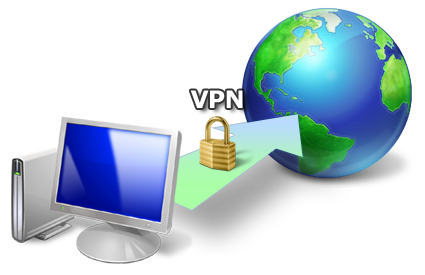
A VPN stands for virtual private network. When a user connects to a VPN, they’re able to encrypt their connection and anonymize their IP address. Here’s an example: If someone in California connects to a VPN server in Australia, they’ll be able to browse the internet as if they were actually in Australia. A website would simply assume they were in Australia based on their IP address, allowing a user to not only browse anonymously but also access all the sites and services that are available in that area.

Most VPNs also offer their own encryption networks. When you connect to a VPN, your information in encapsulated through a secure tunnel. This works by taking your data packets and essentially placing them inside another data packet. ExpressVPN offers military-grade 256-bit encryption on all their servers, so if someone was to spy on your network, all they would see is a random string of numbers and letters.

Other VPN Uses

While a VPN helps secure your connection and lets you browse with peace of mind, there are other benefits to using one. A VPN is useful for people whose ISPs (or internet service providers) throttle or regulate their internet access. Users can use a VPN to bypass internet throttling and in some cases even experience faster speeds and load times.

VPNs also help users access sites and services that may not be available in their country. This is extremely helpful for expats or people traveling to heavily Internet-censored countries. Because you’re able to hide your IP address and take on another in the location of your choice, you’re able to access sites and services that may not have been available before.

Using a VPN to Save Money

You may not be aware, but some websites and services actually charge higher prices based on a user’s location. This little-known tactic is called Dynamic Pricing and has been around for years. By using a VPN, you can save money and hotels, flights, and car rentals by allowing you to check and compare prices in different locations.

In most cases, a single VPN subscription can also be used to protect multiple devices. With ExpressVPN, a single subscription covers three devices simultaneously. Users have to option to install the VPN app on their desktop, laptop or smartphone, as well as their gaming console or router to protect even more devices.

Staying Anonymous on Public WiFi

Public Wifi hotspots may be convenient, but they’re anything but helpful. When you connect to a public network, like those found in most coffee shops and airports, anyone on that same network can easily see what you’re doing. Whether they realize it or not, most people tend to waive their privacy rights as soon as they connect, but with a VPN you can anonymize your connection and thereby secure your connection on an open network.

If you’re concerned about your privacy, a VPN is the best tool you can use to help protect it. Anyone can use one, and they offer immediate protection. Most VPN apps are easy to install and even easier to use.

Don’t sit idly by while your rights are slowly being taken away. Arm yourself with a VPN and take back your internet today

DroidVPN for PC Windows 10, 8, 7 and Mac

0
DroidVPN for PC Windows 10, 8, 7 and Mac

DroidVPN for PC is now available and can be easily installed on a desktop PC/Laptop running Windows XP/7/8/8.1/10 and MacOS/OS X. Let’s learn a little bit about this all-new app and then have a look at the installation method via BlueStacks or BlueStacks 2.

DroidVPN for PC
©Techbeasts: DroidVPN Running on PC Windows & Mac.

Download DroidVPN for PC, Laptop Windows-Mac:

Following are the two methods from which you can download and install DroidVPN for PC, Laptop Windows-Mac. Let’s start the method to download DroidVPN for PC Windows.

Download DroidVPN for PC Windows using BlueStacks:

  • First, Download and install BlueSacks on your Windows or Mac.Bluestacks Offline Installer | Rooted Bluestacks |Bluestacks App Player.
  • Once you’ve installed BlueStack, launch it from your desktop. You have to add your Google Account to use Google Play on BlueStack. Goto->Settings->Accounts-Gmail.
  • When BlueStacks screen loads up, Click on the Search icon.
DroidVPN for PC
©Techbeasts: BlueStacks Running on Mac.
  • Now you have to type in the app name. I am looking for DroidVPN so, in the search bar, I’ll type DroidVPN and hit enter.
DroidVPN for PC
©Techbeasts: Search DroidVPN in BlueStacks.
  • On the next screen, you’ll see the list of all the apps containing DroidVPN name, Click on the first one which is developed by DroidVPN Inc.
DroidVPN for PC
©Techbeasts: Click on DroidVPN – Android VPN
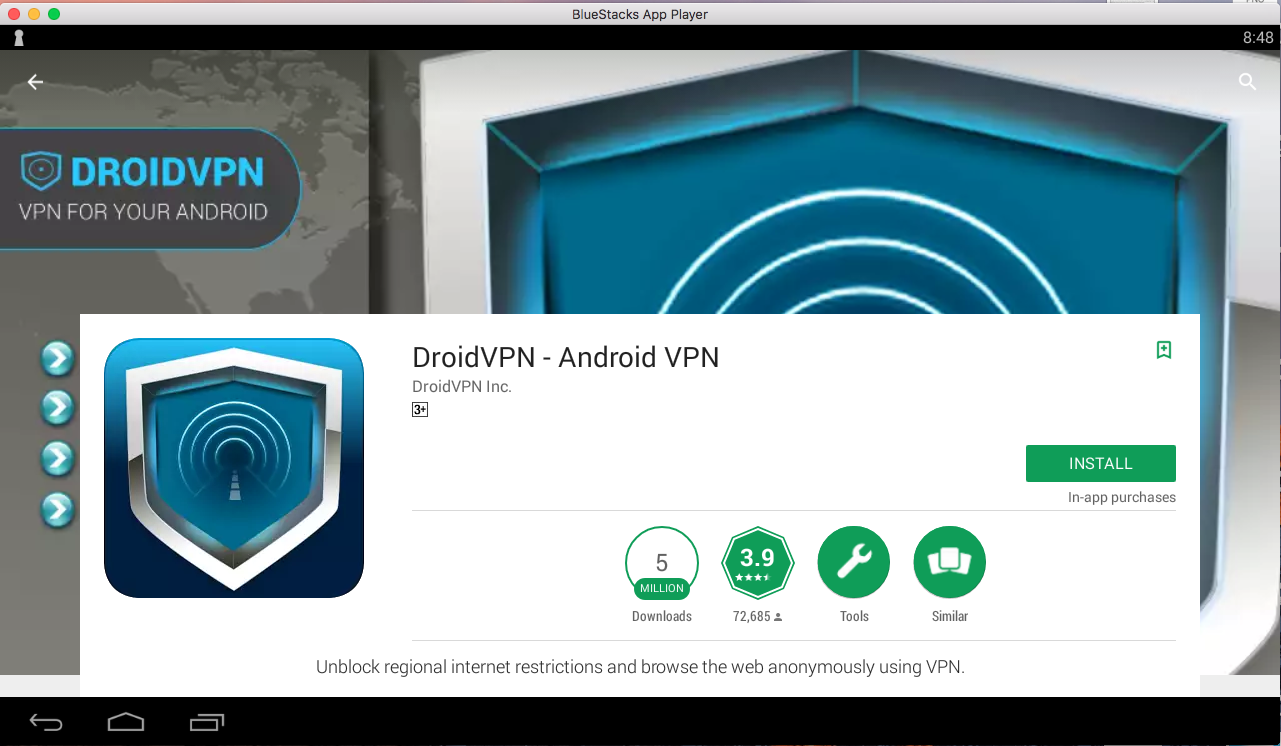
  • Now you’ll be at app page, here you have to click on install. It will start downloading the app and once the downloading is complete, DroidVPN will be installed.
DroidVPN for PC
©Techbeasts: DroidVPN App Page.
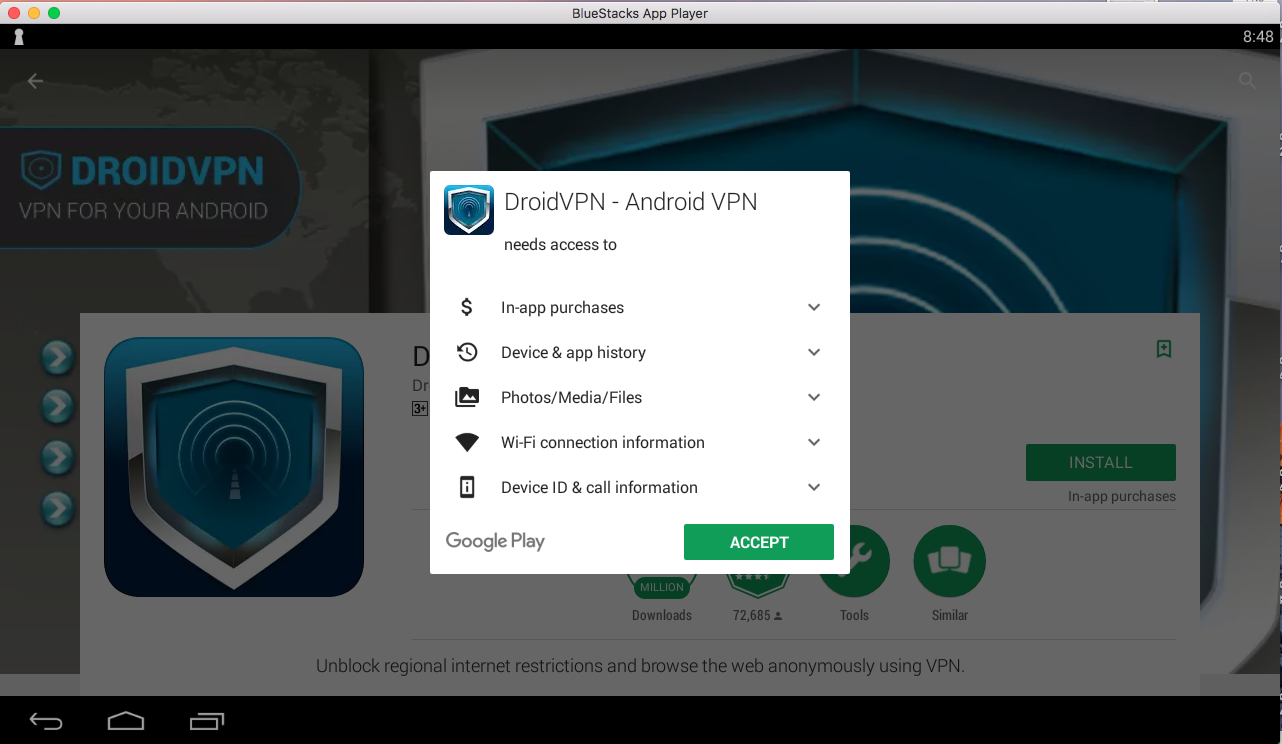
  • Before moving on you have to give permission to DroidVPN in order to access your system information. Click on Accept when you’ll see the pop-up.
DroidVPN for PC
©Techbeasts
  • Now, wait for the installation process to be complete, once the DroidVPN is download and installed, you’ll see a notification as you do on your Android devices. Goto BlueStacks homepage and there you’ll see the DroidVPN logo in your apps. Click on the DroidVPN logos to start using it.

DOWNLOAD DroidVPN FOR PC ON WINDOWS 8.1/10/8/7/XP/VISTA & MAC LAPTOP:

DroidVPN for PC

Method:2

  1. Download DroidVPN APK.
  2. Download and install Bluestacks: Bluestacks Offline Installer | Rooted Bluestacks |Bluestacks App Player
  3. Once you’ve installed Bluestacks, double click the APK that you just downloaded above.
  4. The APK will be installed using Bluestacks, once installed open Bluestacks and locate the recently installed DroidVPN.
  5. Click the DroidVPN icon to open it, follow the on-screen instructions to play it.

DOWNLOAD DroidVPN FOR WINDOWS 10/8.1/8/7/XP & VISTA AND MAC COMPUTER:

You can also use Andy OS  to install DroidVPN for PC, here’s the tutorial: How To Run Android Apps On Mac OS X With Andy.

You’ve successfully installed DroidVPN for PC Windows/Mac, if you face any issue regarding this guide please do tell me in comments.

Download X-VPN for PC on Windows and Mac

2
Download X-VPN for PC on Windows and Mac

Want to surf the internet safely and securely? What you need is a VPN application that works properly and up to the mark. X-VPN is here to give you this peace of mind. X-VPN has a one-tap connection setup. A user has to install this application, open it and click the connect button to start surfing the internet by securing his identity and other important information. X-VPN shows you anonymous on the internet.

No websites or web applications are able to tap into your personal data or information when you are connected through an application like X-VPN. X-VPN doesn’t have any restrictions on the bandwidth or the speed. It doesn’t keep any logs or history of your internet activities. It has various locations through which you can go online. X-VPN is useful particularly when you are going to connect the internet through a public hotspot like bus stands and the airports.

X-VPN is apparently available for Android only, but this application can be installed on computers like Desktop PCs and Laptops as well. If you are willing to make the use of this application on a computer, then this guide is for you. You can install X-VPN for PC on computers running Windows XP, Windows 7, Windows 8, Windows 8.1, Windows 10 and MacOS, OS X. To get X-VPN for PC right now, have a look on the steps given below.

Download X-VPN for PC

  1. Download and install BlueStacks or Remix OS Player: Bluestacks Offline Installer | Rooted Bluestacks |Bluestacks App Player | Remix OS Player for PC
  2. Open the installed BlueStacks or Remix OS Player and open the Google Play Store in it.
  3. Now search for “X-VPN” using the Play Store.
  4. Install the game and open the app drawer or all apps in the emulator.
  5. Click the X-VPN icon to open it, follow the on-screen instructions to use it.
  6. X-VPN will only work inside an Android emulator. To use this application, open the browser from BlueStacks or from the emulator you installed.

You can also download the X-VPN APK and install it via APK in the BlueStacks or BlueStacks 2 Android emulator.

You can also use Andy OS  to install X-VPN for PC, here’s the tutorial: How To Run Android Apps On Mac OS X With Andy.

Install Yoga VPN for PC – Windows&Mac

0
Install Yoga VPN for PC – Windows&Mac

Yoga VPN for PC is now available and can be easily installed on a desktop PC/Laptop running Windows XP/7/8/8.1/10 and MacOS/OS X. Let’s learn a little bit about this all new app and then have a look on the installation method via BlueStacks or BlueStacks 2.

Yoga VPN for PC

Download Yoga VPN for Laptop Windows-Mac:

Following are the two methods from which you can download and install Yoga VPN for PC, Laptop Windows-Mac. Let’s start the method to download Yoga VPN for PC Windows.

Download Yoga VPN for PC Windows using BlueStacks:

  • First, Download and install BlueSacks on your Windows or Mac.Bluestacks Offline Installer | Rooted Bluestacks |Bluestacks App Player.
  • Once you’ve installed BlueStack, launch it from your desktop. You have to add your Google Account to use Google Play on BlueStack. Goto->Settings->Accounts-Gmail.
  • When BlueStacks screen loads up, Click on the Search icon.
  • Now you have to type in the app name. I am looking for Yoga VPN so, in the search bar, I’ll type Yoga VPN and hit enter.

Yoga VPN for PC

  • On the next screen, you’ll see the list of all the apps containing Yoga VPN name, Click on the first one which is developed by Rovio.
  • Now you’ll be at app page, here you have to click on install. It will start downloading the app and once the downloading is complete, Yoga VPN will be installed.
  • Before moving on you have to give permission to Yoga VPN in order to access your system information. Click on Accept when you’ll see the pop-up.
  • Now, wait for the installation process to be complete, once the Yoga VPN is downloaded and installed, you’ll see a notification as you do on your Android devices. Goto BlueStacks homepage and there you’ll see the Yoga VPN logo in your apps. Click on the Yoga VPN logos to start using it.

DOWNLOAD Yoga VPN FOR PC ON WINDOWS 8.1/10/8/7/XP/VISTA & MAC LAPTOP:

Yoga VPN for PC


Method:2

  • Download Yoga VPN APK.
  • Download and install Bluestacks: Bluestacks Offline Installer | Rooted Bluestacks |Bluestacks App Player
  • Once you’ve installed Bluestacks, double-click the APK that you just downloaded above.
  • The APK will be installed using Bluestacks, once installed open Bluestacks and locate the recently installed Yoga VPN.
  • Click the Yoga VPN icon to open it, follow the on-screen instructions to play it.

DOWNLOAD Yoga VPN FOR WINDOWS 10/8.1/8/7/XP & VISTA AND MAC COMPUTER:

You can also use Andy OS  to install Yoga VPN on PC, here’s the tutorial: How To Run Android Apps On Mac OS X With Andy.

You’ve successfully installed Yoga VPN for Laptop / Windows/Mac if you face any issue regarding this guide please do tell me in comments.

Turbo VPN for PC – Laptop – Mac – Windows

2
Turbo VPN for PC – Laptop – Mac – Windows

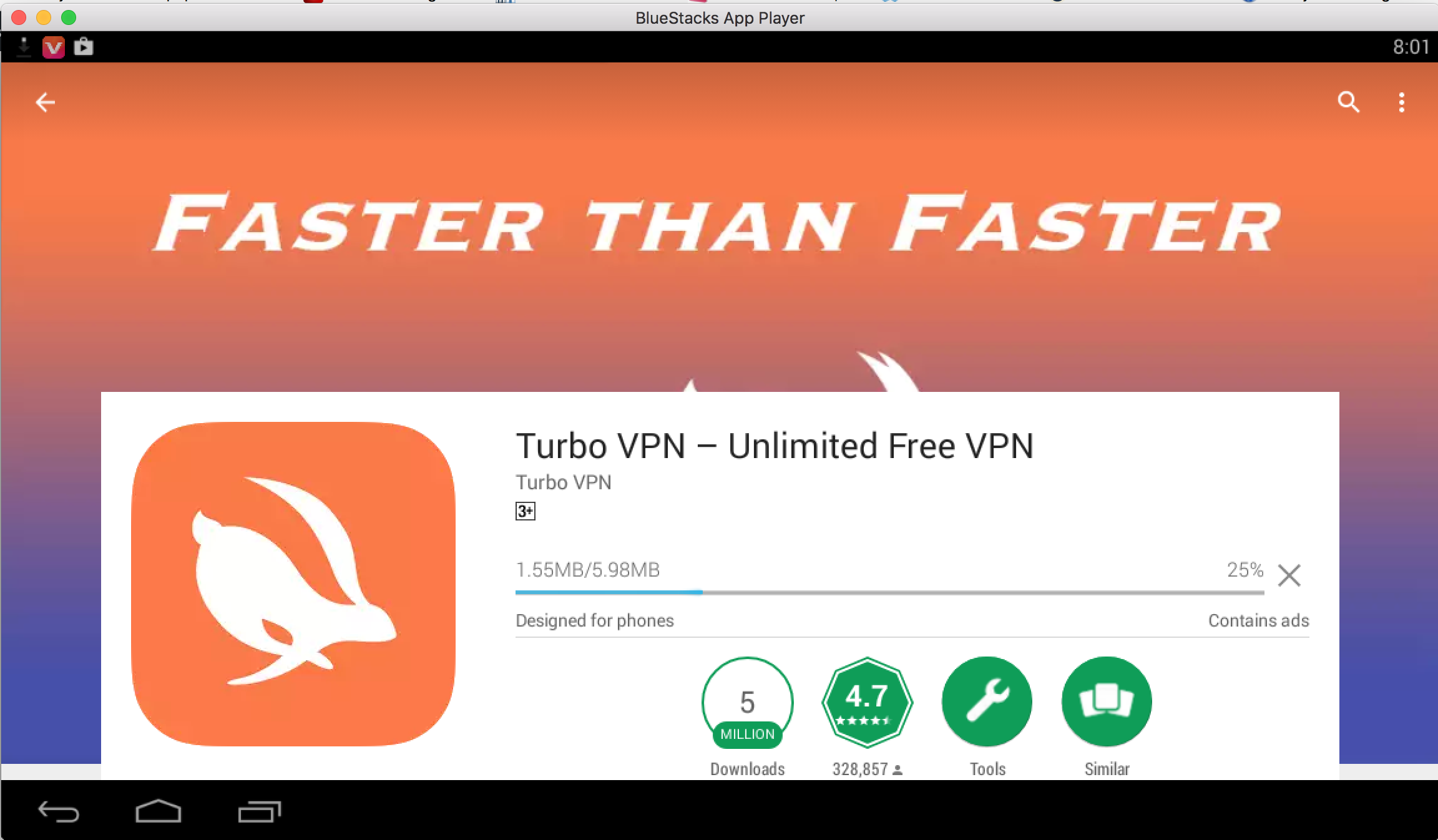
Turbo VPN for PC is now available and can be easily installed on a desktop PC/Laptop running Windows XP/7/8/8.1/10 and MacOS/OS X. Let’s learn a little bit about this all new app and then have a look on the installation method via BlueStacks or BlueStacks 2.

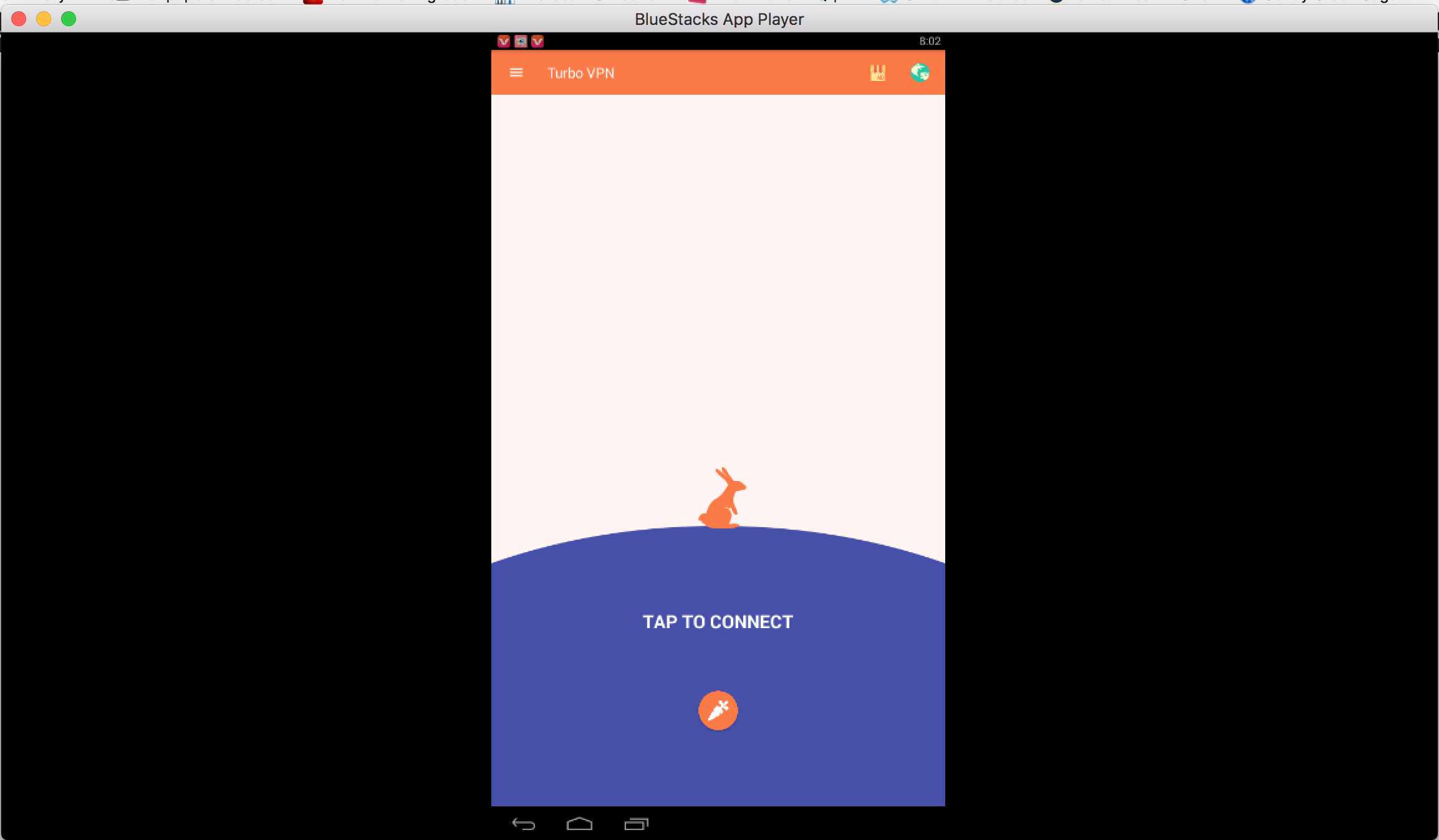
Turbo VPN for PC
©Techbeasts: Turbo VPN running on PC.

Download Turbo VPN for Laptop Windows-Mac:

Following are the two methods from which you can download and install Turbo VPN for PC, Laptop Windows-Mac. Let’s start the method to download Turbo VPN for PC Windows.

Download Turbo VPN for PC – Tested and Working Method

  1. Download and install Nox App Player on your computer.
  2. Now download the Turbo VPN APK.
  3. Double-click the downloaded Turbo VPN APK to start its installation via Nox App Player.
  4. Wait a minute and let Nox install the APK file now.
  5. Once the APK has been installed, it will appear on the home-screen of Nox.
  6. You can now click on the Turbo VPN icon in Nox to launch it.
  7. Now proceed with the on-screen instructions now.
  8. The app won’t take too long to run now. You’re all set to use it now. That’s all.

Download Turbo VPN for PC Windows using BlueStacks:

  • First, Download and install BlueSacks on your Windows or Mac.Bluestacks Offline Installer | Rooted Bluestacks |Bluestacks App Player.
  • Once you’ve installed BlueStack, launch it from your desktop. You have to add your Google Account to use Google Play on BlueStack. Goto->Settings->Accounts-Gmail.
  • When BlueStacks screen loads up, Click on the Search icon.
  • Now you have to type in the app name. I am looking for Turbo VPN so, in the search bar, I’ll type  Turbo VPN and hit enter.
  • On the next screen, you’ll see the list of all the apps containing Turbo VPN name, Click on the first one which is developed by Turbo VPN.

Turbo VPN for PC

  • Now you’ll be at app page, here you have to click on install. It will start downloading the app and once the downloading is complete, Turbo VPN will be installed.
  • Before moving on you have to give permission to Turbo VPN in order to access your system information. Click on Accept when you’ll see the pop-up.

Now, wait for the installation process to be complete, once the Turbo VPN is download and installed, you’ll see a notification as you do on your Android devices. Goto BlueStacks homepage and there you’ll see the Turbo VPN logo in your apps. Click on the Turbo VPN logos to start using it.

DOWNLOAD Turbo VPN FOR PC ON WINDOWS 8.1/10/8/7/XP/VISTA & MAC LAPTOP:

Turbo VPN for Laptop.
©Techbeasts: Turbo VPN for Laptop.

Method:2

  1. Download Turbo VPN APK.
  2. Download and install Bluestacks: Bluestacks Offline Installer | Rooted Bluestacks |Bluestacks App Player
  3. Once you’ve installed Bluestacks, double click the APK that you just downloaded above.
  4. The APK will be installed using Bluestacks, once installed open Bluestacks and locate the recently installed Turbo VPN.
  5. Click the Turbo VPN icon to open it, follow the on-screen instructions to play it.

DOWNLOAD Turbo VPN FOR WINDOWS 10/8.1/8/7/XP & VISTA AND MAC COMPUTER:

You can also use Andy OS  to install Turbo VPN on PC, here’s the tutorial: How To Run Android Apps On Mac OS X With Andy.

You’ve successfully installed Turbo VPN for Laptop / Windows/Mac if you face any issue regarding this guide please do tell me in comments.

How to use an Android VPN application on your PC

3
How to use an Android VPN application on your PC

Updated: 12/4/2018. Android has a variety of VPN applications in the Play Store. Most of the VPN applications for Android are found working. Apart from their working capabilities, the applications are very easy to use. Competition between Android VPN apps is quite tough and for that reason, we keep coming across improvements in the applications every other day. From turning on the VPN application to switching the location or boosting up your internet surfing speed, everything has been made more than easy with the help of a few taps. These applications are a great tool if you want to use them on a computer as well. You must be wondering how using an Android VPN application on your PC makes sense? Well, the answer is pretty obvious.

For computers and laptops, there are many VPN and proxy tools, but most of them do not work as promised. The addons installed by these tools are annoying as well and then the use itself is complex. There merely are 3 or 4 tools that you will find working up to your expectations. To overcome this hunt of an intact VPN application for a computer, we can use an Android application instead.

In case you are wondering how you are going to use the VPN of an Android device on your computer, we have got an answer for that as well. We are about to go through a short and easy method, but understanding the entire process beforehand is necessary. Basically, we can install an Android VPN application on a computer running Windows or Mac using an Android emulator. Emulators like BlueStacks and Remix OS Player are all there to make it easy. Now installing the VPN in an Android emulator will not make the VPN work on the browser of your computer, you will have to use the browser of your emulator to make it work. This is how it’s going to be possible. Let’s go through the process now.

How to use an Android VPN application on your PC

  1. Download and install BlueStacks or Remix OS
    Player: Bluestacks Offline Installer | Rooted Bluestacks |Bluestacks App Player | Remix OS Player for PC
  2. Open the installed BlueStacks or Remix OS Player and open the Google Play Store in it.
  3. Now search for a VPN application like “Opera VPN, Turbo VPN or Yoga VPN” using the Play Store.You may want to have a look at Best Free Proxy Apps for Android.
  4. Install the application and open the app drawer or all apps in the emulator.
  5. Click the Android VPN app icon to open it, follow the on-screen instructions to run it.
  6. Now open the browser within the Android emulator to start using the VPN.
  7. That’s all.

You can also use Andy OS  to install Android VPN app for PC, here’s the tutorial: How To Run Android Apps On Mac OS X With Andy.