Home Blog Page 518

How To Run Android Apps On Windows PC or Mac

3
How To Run Android Apps On Windows PC or Mac

A complete guide to tell you how to Run Android Apps on Windows & Mac. Android has changed the era of smartphones allowing the users to do so many things being an open source platform and having tons of apps in it’s Google Play Store.

There is a number of people who can’t afford an android smartphone and thus can’t enjoy the apps / games available in the Google Play Store, and there are also those people who want to play/run the android apps / games on PC for a different kind of experience.

How To Run Android Apps On Windows PC or Mac:

So, today we are going to learn how we can run Android Apps on a Windows PC or Mac. This tutorial is specified for a Windows PC but it should be the same for a Mac as well.

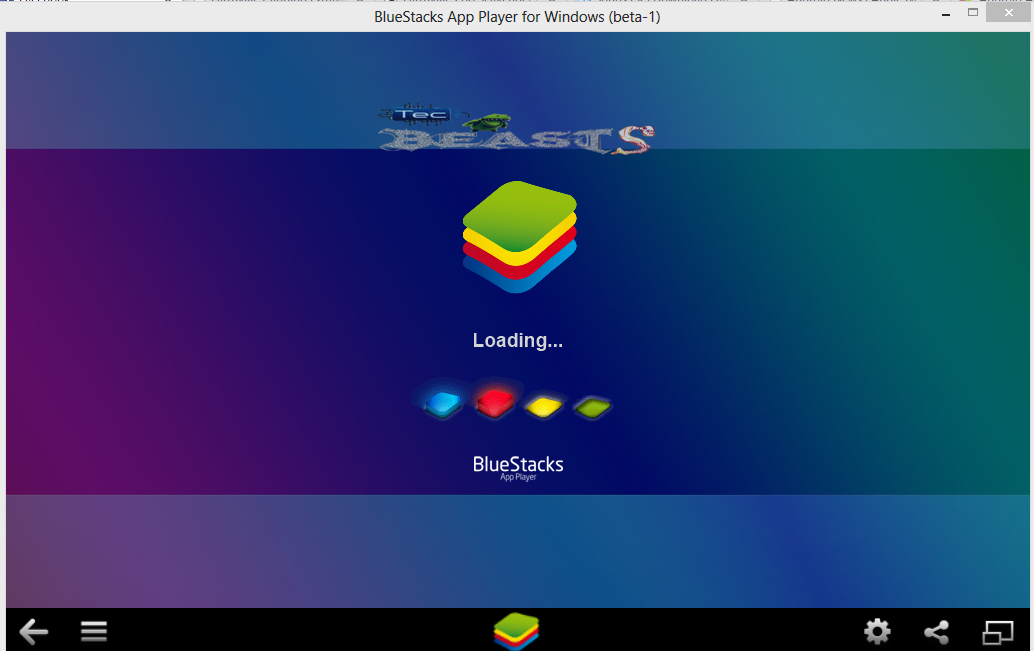
First of all, you need to download and install an Android Emulator, the one we selected is BlueStacks. BlueStacks is an awesome software developed to run Android Apps/Games on a Windows PC and Mac.
Screenshot_3

Required Downloads:

  • Download BlueStacks for Windows PC here: Download
  • Download BlueStacks for Mac here: Download
  • After downloading, run the setup and install it, as soon as the installation is done,  follow the following steps explained with images to run android apps/games on your PC.

How To Run Android Apps On Windows PC or Mac

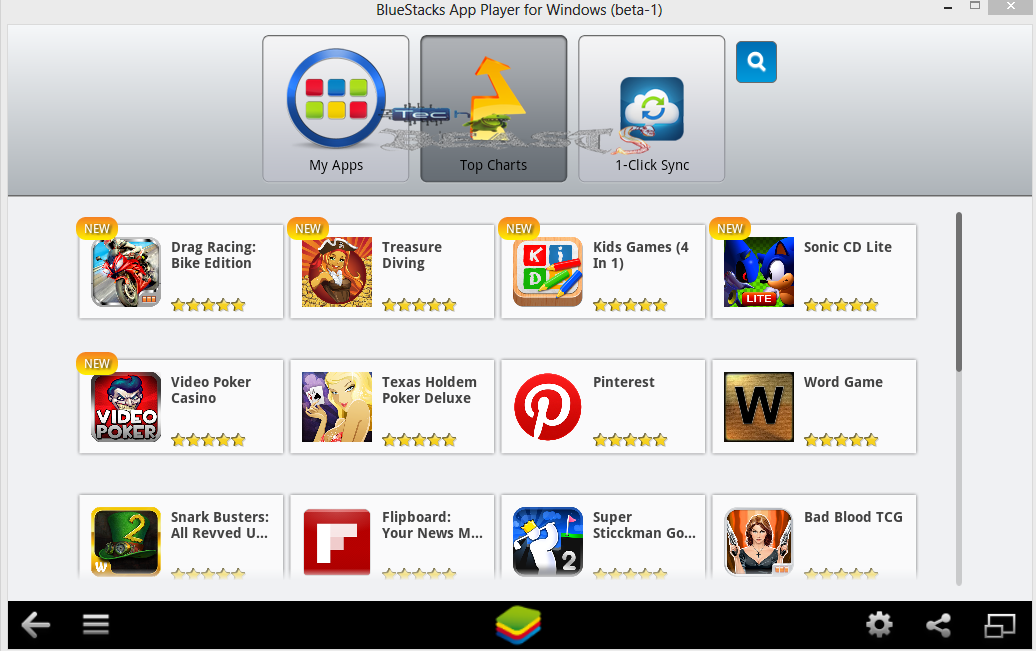
After installation you will get the home screen of BlueStacks, the one shown below having the options ”My Apps”, ”Top Charts” (Currently open in the screen) & “One Click Sync”

  • My Apps: Shows you the apps you have installed on your Gmail account which is currently in use on BlueStacks.
  • Top Charts: Shows the top applications
  • Allows you to enable app store and synchronize the apps installed on your specific device in BlueStacks.
Screenshot_1

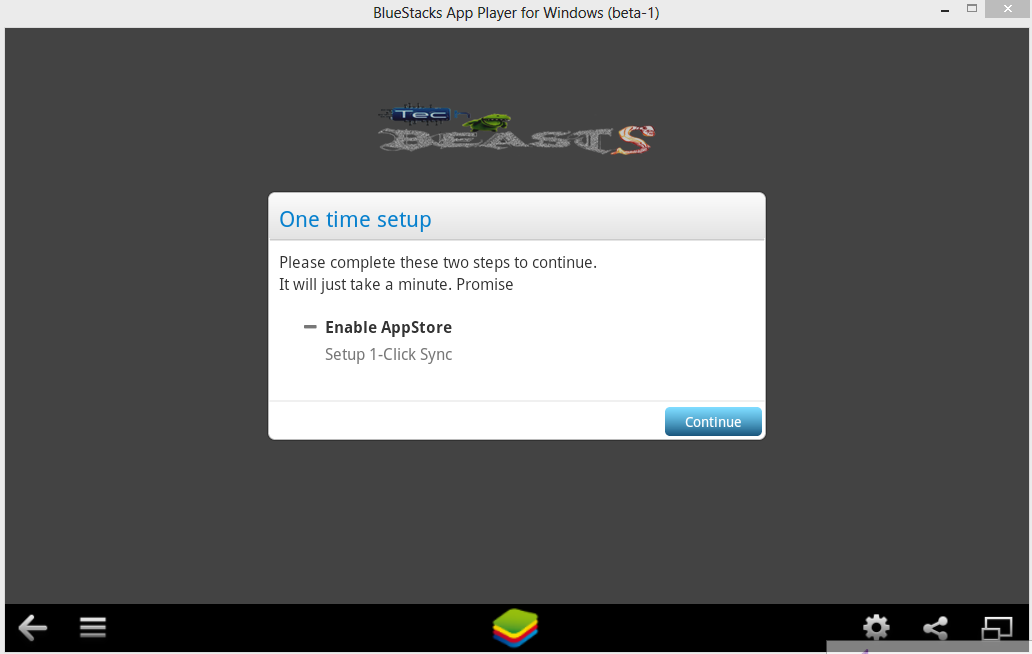
  • You can Enable Appstore and continue to 1 – click setup as shown.
Screenshot_2

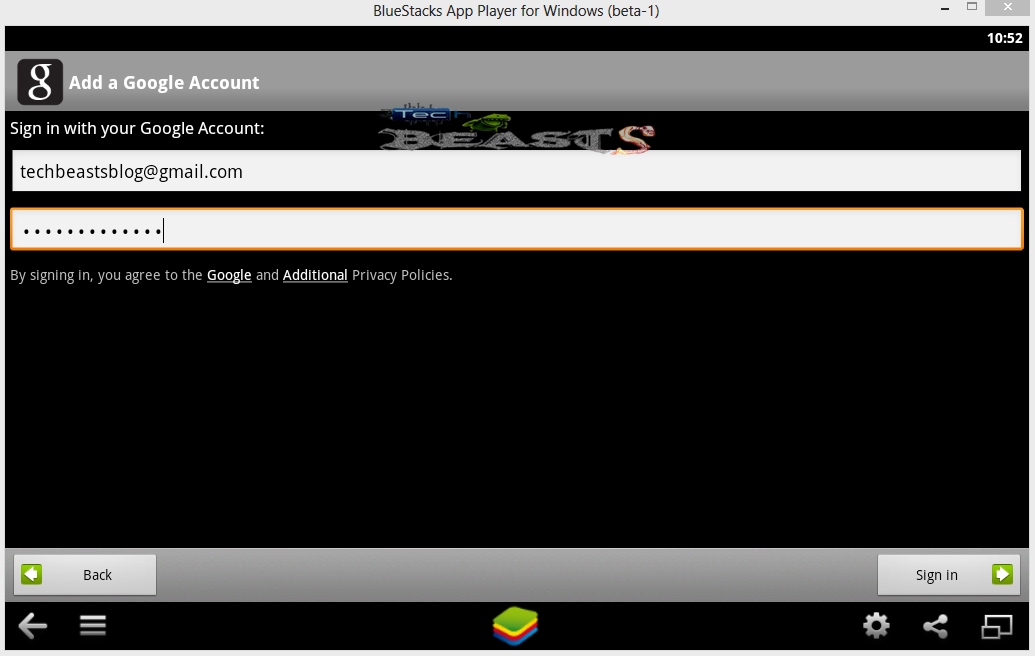
  •  Click Sync you will have to add your Gmail account from which you want to use the apps.
  • As soon as you add a Gmail account it will ask you to synchronize apps from the device, you can select the device and the apps from that device will appear in ”My Apps” tab.
Screenshot_5

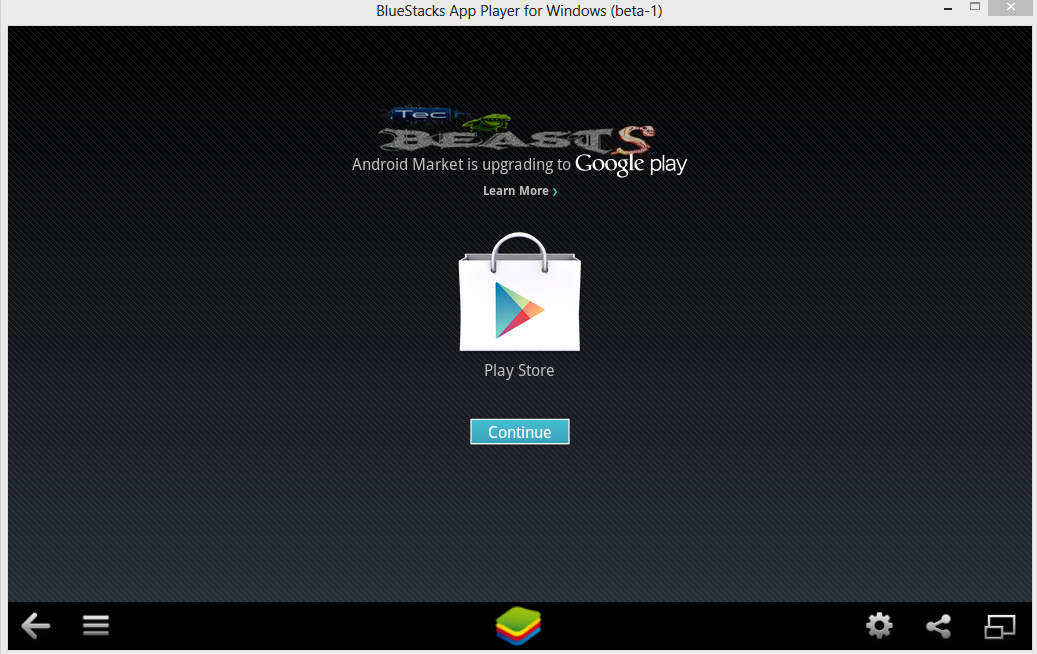
  • You can also use google play store in the BlueStacks to install the apps directly on your pc after adding a Gmail account.
Screenshot_7

  • You can also manage the accounts and other settings of BlueStacks by heading to the settings section, here is how to do it.

Screenshot_18

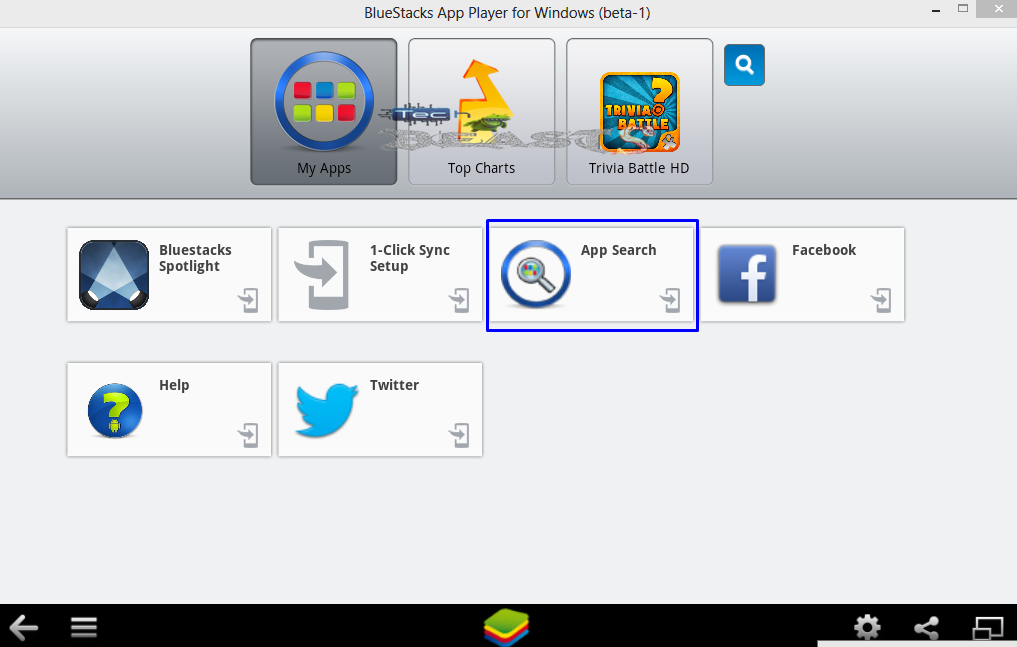
  • After the account is added, you need to come back to the home screen and press ”App Search” button to start.
Screenshot_9

  • You can type your desired app’s name to start searching after you have found you need to click ”Install”.
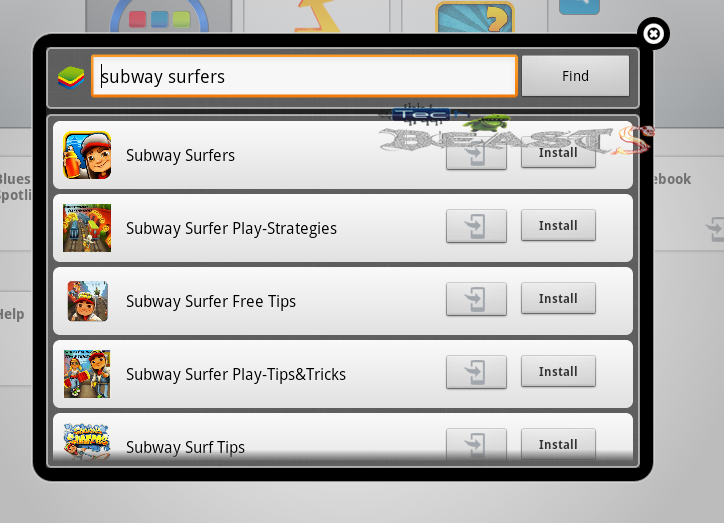
Screenshot_8

  • After searching it will show you your desired app from 3 different apps stores. The leftmost is Google Play Store,  press it to continue to the process.

Screenshot_11

  • Just like you download the apps on your android phone, you need to do the same here. Press the ”Download” button to begin.
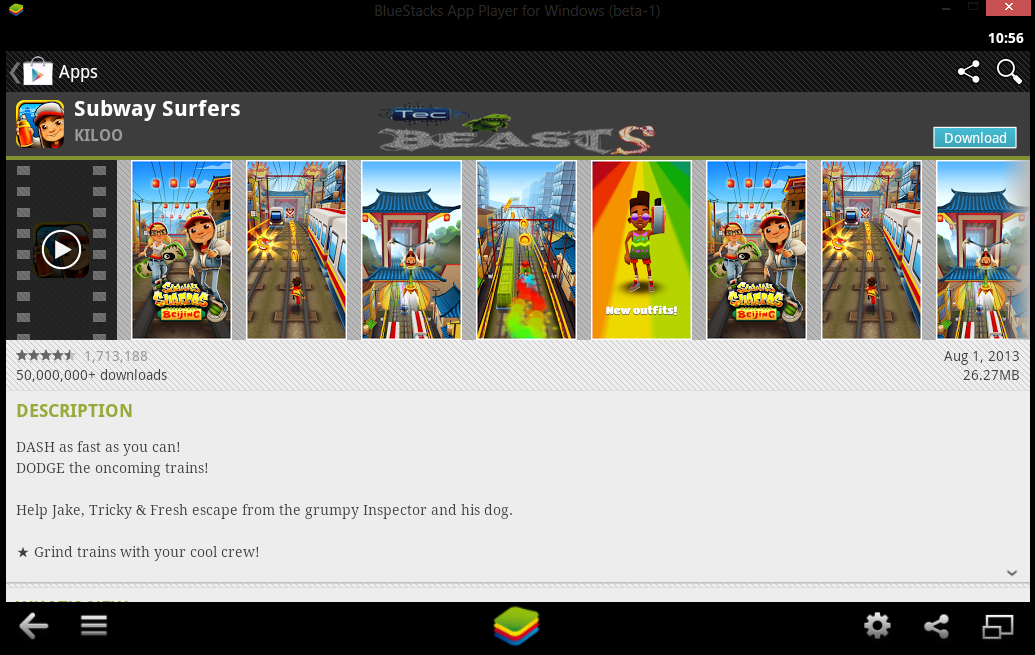
Screenshot_10

  • Now your app download is in progress and it will start installing it after the download is done.
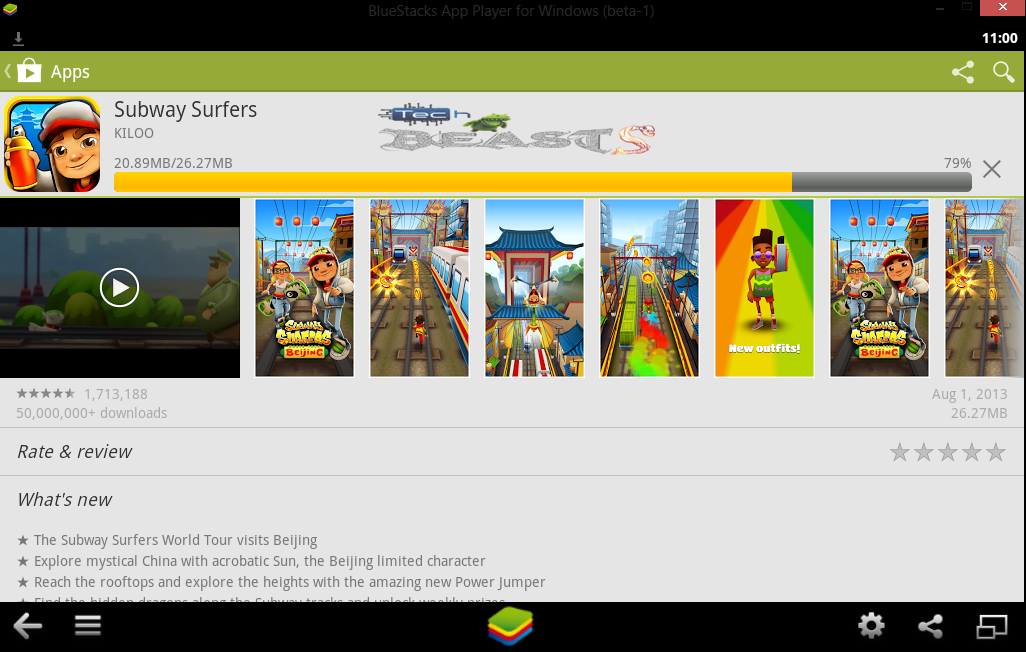
Screenshot_12

  • The installed app will appear on your home screen. You can jump to your home screen by pressing the BlueStacks icon in the bottom center.  Screenshot_14
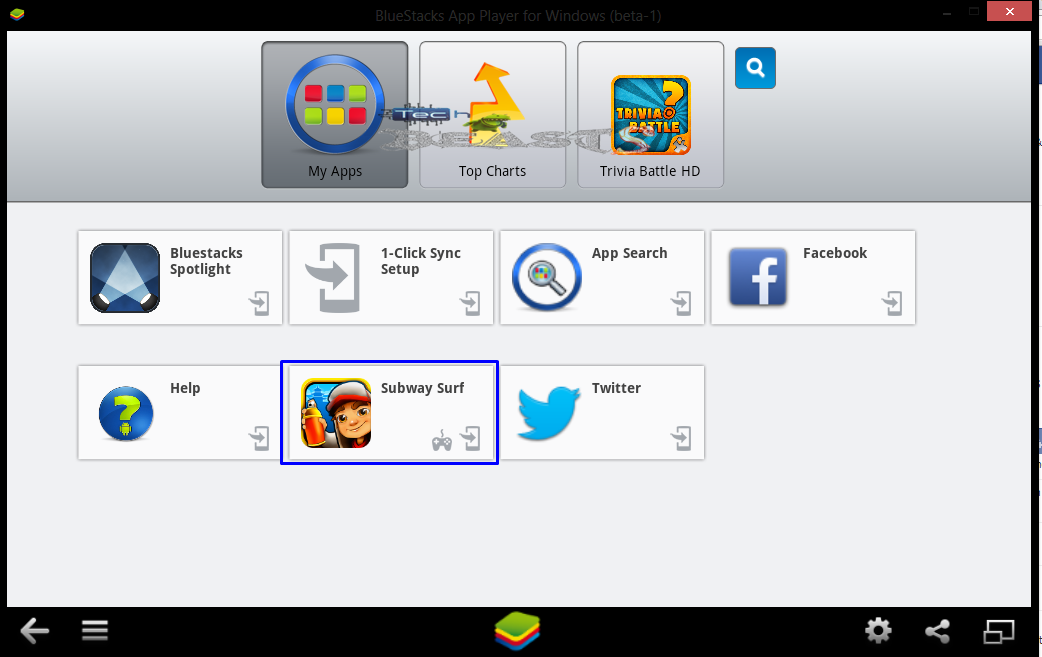
  • Open the app you installed and it will show you how to play/use that app, as shown below.

Screenshot_15

  • Here you go, tap the screen / click to start.
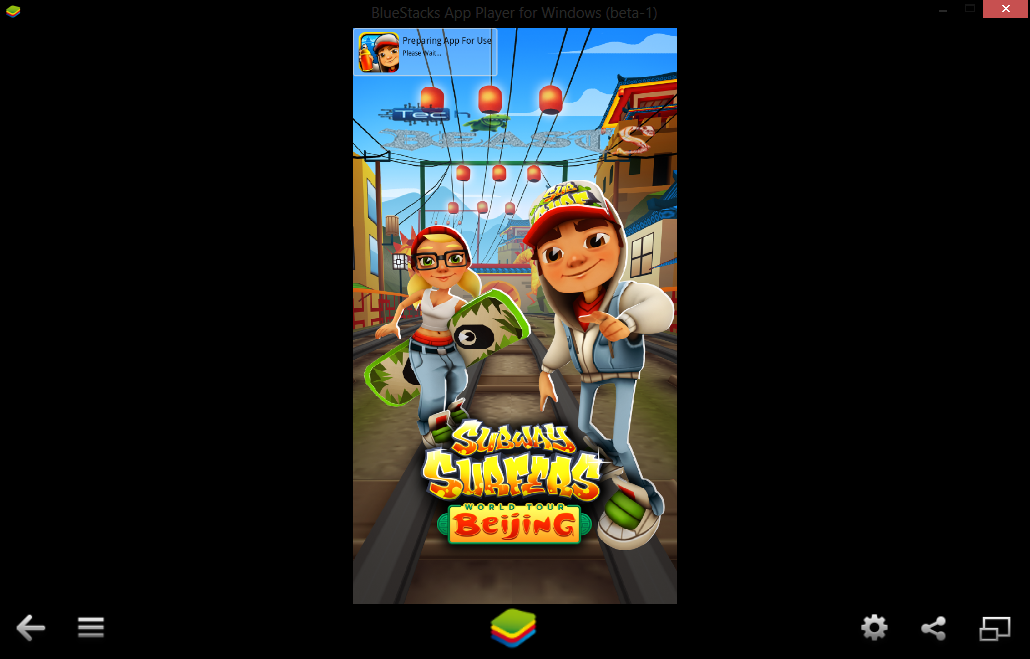
Screenshot_16

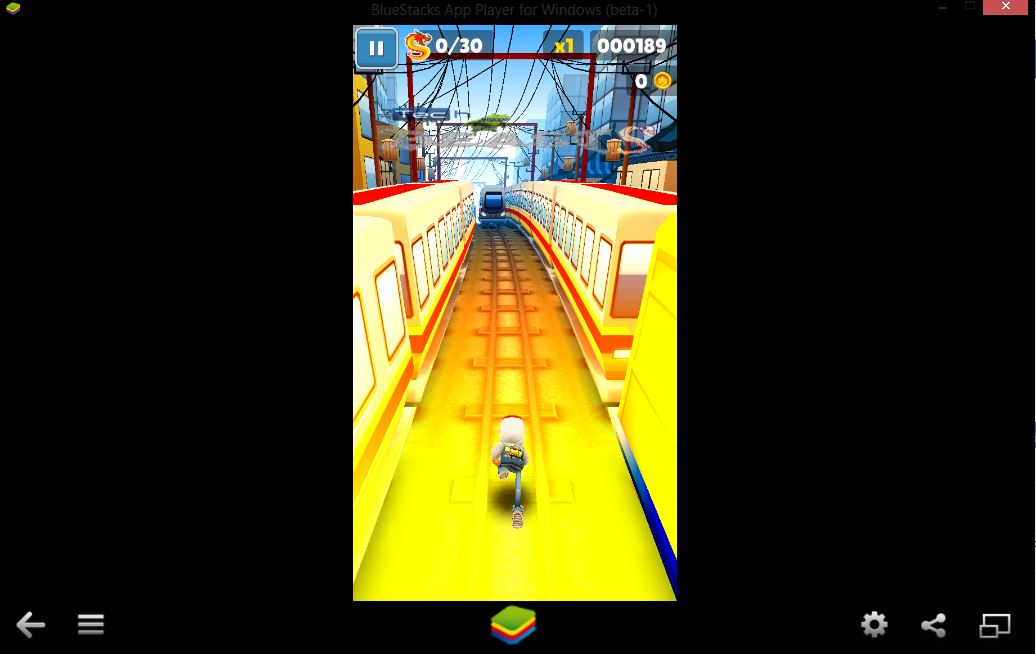
  • Phewww… You are done, enjoy playing 🙂

Screenshot_17

Got any questions? feel free to leave us a comment regarding any queries you got. We would love your feedback about this guide.

Download Odin PC Latest Version [V 3.07]

61
Download Odin PC Latest Version [V 3.07]

Download Odin PC Latest Version: Odin is a software for windows developed by Samsung to update/flashing the ROMS in Samsung Android Smartphones. It is very easy to use and handy tool. The term flashing is used in the mobile language and means updating / modding your phone, it is mostly related to flashing the ROM (operating system package files) manually in your phone while the Samsung Kies software upgrades the OS automatically. Odin can also be used to root the phone, and flash mods to personalize your phone.

Update: Download Odin3 v3.10.6 [ Latest Version ] 

Installing Odin: 

Installing Odin is pretty easy. There are different versions of Odin available on the web, but having the latest version installed is always recommended. In case you are using an older version, you may update to the latest one by downloading it using the link attached below, the latest version always packs up with the best functionality and the fixed bugs.

You need to download the file from the link attached below first, and then unzip the downloaded zip file and extract the files in that downloaded folder. The extracted files can be kept anywhere on your pc, these files do not need to be installed running a setup. The Odin’s exe runs the application directly.

Now after the installation process is done, head next to the connectivity. Plug in the USB cable in your phone and connect it to the PC. Turn off the phone and wait for 30 seconds and turn it on.  Open Odin and you may notice a blue highlighted box on the top left. Now, there are several options in Odin, You may select only a few depending upon your requirement. The image below is showing the standard settings for flashing a ROM / mods / rooting the phone.

Using Odin:

Check ”Auto Reboot”(Reboots your phone automatically after flashing) and ”F.Reset Time”(Resets the flash counter after upgrading the firmware). Other options (Re-partition, LED control etc) are selected upon requirement. PIT stands for partition information table, if you press the PIT button, the .pit files can be browsed in the firmware upgrade folder/package files folder, otherwise, leave it as it is if there is no .pit file.

ODIN 3.07

The formats supported by Odin are *.bin, *.tar & *tar.md5. The firmware files usually come in *.tar.md5 format, you can apply these files using the PDA button in Odin. Once you have done setting up odin according to your requirements, you need to press the ”Start” button and start the flashing process, as soon as the process is finished, your device will restart automatically and you will see a ”Pass” notification on a green background on the top left corner. That’s all!

For your device to work with ODIN, you need to put it in download mode in order to start flashing the files. To do so turn off your phone and then turn it on by pressing and holding Volume Down + Home Button + Power key simultaneously and the press Volume Up key to continue,  your phone should boot into the download mode. After that connect it to your PC and start using ODIN.

Download Odin PC Latest Version [V 3.07]

Update: Download Odin 3.13.1

Download Odin PC Version 3. 07  Here: Download Odin 3.07

Odin 3.09 – Download HERE.

Feel free to contact us through the comment box below for any queries regarding this.

One-Click Root Method For Sony Xperia Devices(Xperia Z, ZL,S,P & More) [Guide]

80
One-Click Root Method For Sony Xperia Devices(Xperia Z, ZL,S,P & More) [Guide]

One-Click Root Method For Sony Xperia Devices. Want to root your Sony Xperia device? Well, the guys at the XDA developer’s forum have made it a lot easier for you. You just need to go through this rooting guide and gain the root access on your Sony Xperia device. As of now, this method is working for 21 Sony Devices including Sony Xperia Z, Zl, Tablet Z, Xperia S, Xperia P and more, perhaps more Sony Devices will be added to the supported list soon.

One-Click Root Method For Sony

What does the root access mean? Well here is the answer to your question.

Rooting your phone gives you complete access of all the data which is apparently locked by the manufacturers. This includes removing the factory restrictions and making changes to the internal system and the operating system. Gaining the root access gives you the privileges to install various applications to enhance the performance of your device, allows you to remove the built-in applications/programs, helps you to upgrade the battery life of your device & install the apps which require the root access for the proper functionality and modify your device in so many other ways e.g using mods and custom ROMs.

While rooting your phone, please keep it in mind that the Root Process isn’t official and has nothing to deal with Google Inc and the device manufacturer, which is Sony in our case. Follow the guide carefully to prevent any damages to the device as the method is completely custom.

One-Click Root Method For Sony Xperia Devices:

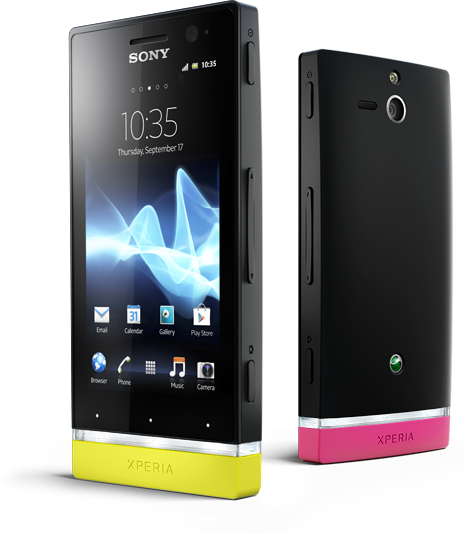
Sell-Your-Sony-Ericsson-Xperiaxperia-u-black-464x533

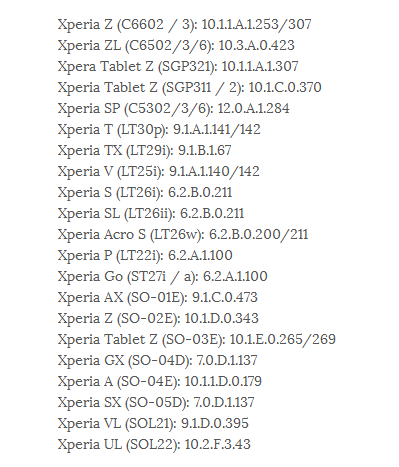
Here is a list of the devices, which are currently supported by this method.

Screenshot_1

Before heading to the root method, here are the must apply guidelines and  pre-requisites to prevent any data loss / damage / bricking.

  • Follow the steps to root your phone carefully, do not mess with any extra thing, this may result in malfunctioning/bricking your device. Select your device carefully from the supported devices list above, In-case your device is not listed above, this rooting method may result in bricking it.
  • As soon as you root your device, you will void the warranty of your device.
  • The warranty can be gained back using an un-root method, or by flashing a stock ROM into your phone again. Any official update will also put your warranty back.
  • Make sure to back up your internal sd card’s data, also take backup of your contacts, messages etc. Taking the backup is quite safe as the rooting may result in any kind of mishap during the procedure. You can look out for the appropriate backup applications in the Google Play Store.
  • Setup your computer, your Sony Xperia device using its data cable with the computer as you will run this tool using your computer, Before connecting your device, make sure that you enable the USB Debugging mode on your phone. you may find the USB Debugging mode in Settings > Applications >Development > USB Debugging.
  • The rooting process may take a few seconds, but it safer & recommended to have your phone charged over 60%.
  • Make sure to deactivate the windows firewall & any anti-virus program if you have before running the tool, having it activated may interrupt the root process.

Rooting Method:

  1. First of all you need the rooting package on your computer, Click here to download the one click root tool from the xda developers page.
  2. Save the file anywhere on your computer, unzip the file.
  3. After unzipping it, execute the runme.bat file.
  4. Connect your Xperia device with the computer following the guidelines explained above.
  5. Make sure that you use the official/stock USB cable for establishing the connection between your device and the computer.
  6. Now come back to the root tool, follow the directions on the tool’s screen and get the root access on your phone.
  7. As soon as the process if completed, unplug your phone and reboot it!

[ Update ]: One Click root method has been patched for Sony Xperia S & SL running on the latest firmware. In order to root these two smartphones you may use this thread.

[Update]: To root your Xperia Z (C6602/3) FW 10.3.1.A.0.244  follow this post

[Update]: To root your Xperia Z1 follow this post.

[Update]: To root your Xperia SP (C5303/2) FW 12.0.A.2.254 follow this post.

Hurray! You’ve rooted your Sony Xperia Phone / Tablet successfully now. We would love to get your feedback if you used this guide to root your phone. Leave us a comment in case you got a query. Good Luck!

Crazy Taxi For Android: Sega Finally Did that

0
Crazy Taxi For Android: Sega Finally Did that

Download Crazy Taxi For Android: Do you remember Axel, Gus, Gena, and B.D Joe, Well! If you don’t remember, Let us remind you about the arcade console classic game Crazy Taxi that we used to play a few years ago, The game comprised of different levels of  3, 5 & 10 minutes. The user had to pick up the passengers and drop them to their destination within the given few seconds.

Crazy Taxi For Android

Finally, Sega has released the game for Android after keeping it for a long time on IOS. You can play the game and have fun on your android device now as the game is available in the play store, You can either play the light version for free or you’ll have to spend $4.99 to get your hands on the full version of the game.

The gameplay appears to be as same as it used to be for the computer and IOS. The time/level criteria is same, along with that the mini-games are also packed in, also same as the old ones. Along the touch interface, the users can also play the game using the virtual controls.

Download Crazy Taxi For Android:

Crazy Taxi Classic
Price: Free

The game appears to be compatible with most of the Android devices.  Moreover, it is not too large to download as the files are of the only 227MB. Different versions of the game are linked below from the play store, Hit your choice below and enjoy playing the game right now 🙂

Top Spying Apps For your iPhone And iOS Devices

1
Top Spying Apps For your iPhone And iOS Devices

Top Spying Apps For your iPhone: Some days back we posted best spying apps for android. I have Got Some Fascinating and interesting apps of Spying For iOS operating Devices.

Spying Apps For your iPhone

Some of them work better than others, But still, Give them a try on your iPhone. If they are useful or not, it’s up to you, Nevertheless, they are still cool to have and they might get you some laughs at very least.

Some of them are worth using on your phone, as a protection feature to keep files safe or to recover them if your Smartphone is stolen or lost.

Nowadays everyone is interested in CIAFBI, ISI, MOSSADMi5. These Cool Apps can give you an Idea of  Is to be a Spy..

Remember that spying on someone is in some cases illegal, so we recommend using these apps with care.

Here is the List For Spy Apps For your Android Phone:

  • My Hidden Folder Pro ($0.99) – You can Keep your private and sensitive information in this App.
  • Spy Kit ($0.99) – Offering a number of tools for the spy, this useful toolbox can be easily accessed and its tools can be useful in a number of situations.
  • ReconBot ($2.99) – This App Allows you to Record Audio and Video Secretly. You Can Get your enemies with this app
  • Security Cam with Dropbox & YouTube Sync ($9.99)– this app has impressive tools, such as audio triggers and video filters, Files can be uploaded on your drop-box aswell. its quite expensive but the app is worth it
  • Secret Voice – Recording Voice Secretly ($0.99) – This Application allows you to record Voices even when your iPhone Is turned off, so its un-recognizable for others if the recording is going on.
  • GPS Location Tracker for iPhone and iPad – Standard Edition ($3.99) –This Application Allows you to track your Smartphone to the exact doorstep its great app if you lose your phone or forget it somewhere.
  • The Spy Recorder ($1.99) – you can Schedule your iPhone to start recording on a  specific time through this app,
  • Self Destructing Message (Free) – This app deletes the message after a specific time of delivering its a cool app you can Send Sensitive information and then just Stop worrying about it that it might get into wrong hands.
  • Spy Gizmos (Free) – Sharing and sending Secret information Carries a risk; this app Encrypts your message into the code so that no one else expects from the person required to read it.
  • Night Vision Camera ($0.99) – A Spy mostly works during the night, Soo for that they need NightVision With this App You Can Atleast Pretend you have NightVision.

Best Spying Apps For your Android Smartphone

Best Spying Apps For your Android Smartphone

Enjoy the top Spying Apps For your Android. You want to be a Spy. Well, I have got Some Apps that The Spy inside you Would Love. these Spy app have great features, I have collected some great applications that have very interesting features, Some of them are worth using on your phone, as a protection feature to keep files safe or to recover them if your Smartphone is stolen or lost.
Nowadays everyone is interested in CIAFBIISIMOSSADMi5. These Cool Apps can give you an Idea of  Is to be a Spy.

Spying Apps For your Android


Remember that spying on someone is in some cases illegal, so we recommend using these apps with care.
Here is the List Of Spy Apps For your Android Phone. You Can Check also Check out Top Spying Apps For iPhone And ios Devices here.

Best Spying Apps For your Android Smartphone:

  • Automatic Call Recorder (Free) –  This application will allow the user to record a conversation that they have on their device. The app also allows users to set the recorder to start every time or to some specific contact calls.
  • Spy Camera OS (Open Source) (Free) – One way to obtain sensitive information from your enemies is to film them with an app that will do so Silently. This App Can Capture videos and no one will know when you are doing soo.
  • IP Cam Viewer Lite (Free) – This Application is useful in Discovering a Camera that is present somewhere in the room as spy needs privacy this app gives him that.
  • Call, GPS, SMS Tracker (Free) – This app is perfect if you want to know where someone is at all times, who he calls and texts and how much he talks on the phone.
  • APP Lock (Free) – You can Lock your private apps with the help of this application any app that you don’t want others to know about you can put a lock on it.
  • Call Spy (Free) – This application can record calls from the specified caller or every caller, which are stored as an MP3 format.


  • M-Spy (Free) – You can use your android device as a bug. Just put your phone somewhere; where you need to eavesdrop and And when you want to start recording, just send a text message to it and it will start.
  • Ear Spy (Free) – Ear Spy Magnifies voice that is present around you this app is useful if you want to listen to someone’s conversation in other room or someone Who is sitting on another table in a cafe

Windows Version Of Android USB Drivers 2013

0
Windows Version Of Android USB Drivers 2013

Download the latest Android USB Drivers 2013. I have collected the drivers that are required to Use your phone or format it or if you want to install Some Software of Application Through your Laptop OR PC. These softwares can be used for data transfer or Updating your music library from windows it can also make a back up on your computer so if you somehow lost your mobile you would not lose your valuable data.

Android Mobile Drivers 2013
Following is the list of Drivers For Windows of Different Smartphones: Android USB Drivers are available for Windows users. These are required to connect your Android Device to PC. Moreover, if you want to Root your Android or want to update your device using your Laptop or PC suite. You will need to Install USB Drivers on your Windows PC.

Not only you required USB Drivers to connect your device to your PC. Those who in Android development, they also have to install these USB drivers for many purpose and tasks.

Android USB Drivers 2013:

Android 5.0 Key Lime Pie to Be Revealed In Second Quarter of 2013

0
Android 5.0 Key Lime Pie to Be Revealed In Second Quarter of 2013

Google is soon going to release Android 5.0 Key Lime Pie after the great success of android 4.2 Jelly Bean, Key Lime Pie is expected to be revealed at Google’s upcoming I/O event on 15th May 2013. Android is getting popular day by day, and at the moment it is the most used mobile operating system worldwide and has left IOS far away. We’ll be surely seeing a lot of improvements in the Android 5.0 Key Lime Pie.

Android 5.0 Key Lime Pie

Key Lime Pie will be probably having a new look. We are expecting Google to put the features which were missed in the previous Android versions. So We are expecting that they should add all these in the Key Lime Pie.

Android 5.0 Key Lime Pie Features:

Pick up where you left off
★ The songs, photos, apps, and even recent searches. All of these on one of your Android devices can be immediately enjoyed across all of your Android devices.
Material design: fluid, purposeful motion
★ Content responds to your touch in an intuitive way.
★ For fewer worries and disruptions, adjust your settings so only certain people and notifications get through. When it’s important, respond directly from your lock screen.
★ Power for the long haul with a battery saver feature that extends your device by up to 90 minutes. And now it’s easier to manage your power usage – see the estimated time left before you need to charge, and when you’re charging, approximately how much time until it’s topped up and ready to go.

Samsung Galaxy Note 8.0 Leaked: 2013 A whole New Tablet

0
Samsung Galaxy Note 8.0 Leaked: 2013 A whole New Tablet

Check out the all-new Samsung Galaxy Note 8.0. The gigantic smartphone company Samsung is all set to reveal its next monster at the MWC 2013. Samsung is likely to reveal Galaxy Note 8.0 along with some other gadgets, the pictures of Galaxy Note 8.0 have been spotted by dday.it first of all. Galaxy Note 8.0 is expected to have a quad-core processor of 1.6 GHz with a powerful 1280 x 800 Super Clear TFT screen. It is also expected to have a Ram of 2Gbs.

Samsung Galaxy Note 8.0

Earlier we have seen the Note Series devices such as Galaxy Note , Galaxy Note II and Galaxy Note 10.1, Galaxy Note 8.0 seems to have a same design and look as that of the earlier phones.

Those who are heavy users, tablets are best for them. Samsung has done a very good job with Note 8.0. This device has a number of good specs, you can get Galaxy Note 8.0 in both modules WiFi & 3G. The processor is also high-end, along with 2GB RAM.

Those who want more internal storage, they will have the option to choose from 16 Gb, 32Gb. Moreover, you can also use SD Card to extend your storage. Now I think you can say that, we might have an answer to Apple’s iPad. If you want to know more about Samsung Galaxy Note 8.0, you can read it below.

Here’s a brief info about the specifications of Galaxy Note 8.0

  • The phone will be having a code name ”Kona”
  • Official name: Galaxy Note 8.0 (Wifi, 3G)
  • Product Code: GT-N5100, GT-N5110
  • Pre-loaded Android version 4.2 ( Jelly Bean )
  • Processor: 1.6 GHz Quad Core
  • Ram: 2 Gb
  • Storage: 16 Gb, 32Gb, MicroSD card slot (up to 32 Gb)
  • Display 1280×800 Super Clear TFT
  • Battery: 4600 mAh
  • Camer: 5 megapixels (rear) , 1.3 megapixels(front)

In order to get the complete spec sheet of Samsung Galaxy Note 8.0. Click here.

Temple Run 2- Now Available for Android

0
Temple Run 2- Now Available for Android

Download Temple Run 2 for free. The successor of the popular Android game Temple Run has been released and is now available to download at Google Play (Android Market). Temple Run & Temple Run 2 are presented by Imangi Studios, along with the third part Temple Run Brave. Temple Run 2 has been updated with more cool graphics, more tough hurdles and a lot of other features. Download it here now. Temple Run 2

The predecessor – Temple Run has been played by over 170 million users and was full of fun, enjoyment and a good way to pass the time. Temple Run 2 has got new obstacles, a beautiful look, and new surroundings. Currently, the game is available for free download in the android market. The game is aimed to get a good as a response just like its predecessor.


ZTE launched Nubia Z5 A 5’’ full HD display phone

1
ZTE launched Nubia Z5 A 5’’ full HD display phone

ZTE launched Nubia Z5- A 5’’ full HD display phone. The Chinese company ZTE has recently launched its new flagship smartphone named Nubia 5, the phone has been officially announced by the company. Nubia Z 5 is likely to hit the Chinese markets in black and white colors in the beginning of January 2013 for 3,456 Yuan (around $555 USD). There is no info available about the availability of the phone in other regions.

Let’s talk about the hot features of Nubia Z5. This might be one of the very best Android-equipped devices launched by ZTE so far. The Nubia  Z5 works on Android 4.1.1 (Jelly Bean) operating system and packs up a 1.5 GHz quad-core S4 processor with a powerful 2GB RAM. The phone also powers a long-serving battery of 3000mAh.


Nubia Z5 is one of the very thinnest full-HD smartphones launched so far weighing at 126 grams and having dimensions of 138 x 69.2 x 7.6mm.  ZTE is also planning to unveil a second 5” full HD device at CES 2013 in Las Vegas.Nubia Z5 A 5

Let’s have a summarized look at the specs of the Nubia Z5.

  • Operating System: Android 4.1.1 (Jellybean)
  • 1.5GHz quad-core Qualcomm Snapdragon S4 Pro (APQ8064) processor
  • Display:  5’’ IPS, 1920 x 1080 pixels.
  • Storage: 32 GB (internal)
  • Camera: 13 Megapixels (rear), 2 Megapixels (front facing)
  • Battery: 3000 mAh
  • NFC,HSPA+connectivity, Wi-Fi 802.11 a/b/g/n and Bluetooth 4.0

Read more: Download Android USB Drivers for Xiaomi, Oppo, Lenovo, Alcatel, ZTE & More

Welcome To TechBeasts.com

0

Welcome To Techbeasts.com

We are here to inform you about the latest technology and help you with your gadgets.

Thank You for visiting us, we hope you’ll like our work and appreciate it,

your suggestions are always important.