Home Blog Page 289

Awesome Tech Revealed at CES 2017

0
Awesome Tech Revealed at CES 2017

The tech industry kicked off 2017 in style by bringing some innovative technology. From home appliances to robots with some nifty features, all was seen at the CES. This is the best part about this event, that it brings all the latest tech innovations by different brands under one roof. Apart from that it also gives us an idea of where things are headed and what are the different developments we may look at next year. We have complied a list of awesome tech revealed at the CES 2017, let’s have a look at what caught our fancy.

Sony XBR-A1E Bravia 4K OLED TV

If there was just one word to describe Sony’s latest TV it would be ‘stunning’. Sony unveiled their latest Bravia at the CES, the Sony XBR-A1E Bravia 4K OLED TV. With its latest flagship, Sony has made a shift from making use of LED to OLED. To date only LG was using the OLED panels for its TV’s, with Sony stepping in, it shows where the tech is heading next. Sony XBR-A1E Bravia is powered by a 4K HDR processor  X1 Extreme. It supports that Dolby Vision. The TV is quite slim and the best feature of the TV is the sound, there are no supporting speakers. One would think that at almost 1 inch think, where would the sound come out of. Well Sony apparently has used the Acoustic Surface sound technology. They have integrated the audio in the OLED panel which allows for a richer audio experience. This is what Sony had to say about this feature:

Taking advantage of the OLED’s backlight-less structure, Sony developed a new Acoustic Surface sound technology. Thanks to the ingenious design, the entire screen resonates with rich sound emanating directly from the screen itself.

Sony Bravis is powered by Android TV. You can sync your smartphone and tablet with it and even make use of the Google Home speaker to control it. This series will be available in 55-, 65- and 77-inches.

LG W-Series TV

Every year LG impresses us with its OLED TV’s and this year was no different. They have managed to out do their campaign of ‘Picture on the Glass’ to bring us the spectacular ‘Picture on the Wall’ TV’s with their W-series. At ONLY 2.5 mm thick, the television can stick to the wall and become a part of the wall, instead of another device which has been mounted there. Unlike the Sony Bravia XBR-A1E, it makes use of an external unit which houses the rest of the hardware and is attached to the panel with a think optical wire. The TV comes with a Dolby Atmos sound bar with the subwoofers integrated in the bottom. Apart from that expect a sharper image quality with brighter colors which hint to the improvement in the OLED panels by the company.

LG InstaView Refrigerators

Apart from TV’s, LG dazzled with their home appliances in which the refrigerator was the most note worthy. From the last few years the focus of different brands has been on producing ‘smart’ appliances and this year was not so different. At the CEs 2017, LG showed off an InstaView Refrigerator which was powered by Amazon’s Alexa. In 2016, the company introduced a touch screen panel on which people could also play minesweeper, this year around they took the concept even further.

There are cameras located inside the refrigerator that makes it possible for you to access different compartments and see what you have to pick up from the superstore. Apart from that you can look up recipes, shop from the pantry at Amazon Prime, play music and even tell jokes. The best thing is that you can remotely access it from your smartphone, in case you forgot your grocery list at home.

Dell 2-in-1 Latitude 7285

Apart from smart appliances, some fascinating  laptops were also seen at the event. Dell with Latitude 7285 introduced wireless charging for their laptop. This is the world’s first wireless charging laptop. So, if you love the wireless charging functionality on the Android smartphones, this is something up your alley. Dell makes use of the WiTricity wireless charging technology.  The charging mat and the wireless dock make it easier for users to carry them without any wires coming in the way.

The Dell Latitude 7285 not only enables a more productive working environment, but accelerates establishment of a broader magnetic resonance-powered wireless charging ecosystem for a wide range of devices.

There is no doubt that brands bring out their best and most innovative ideas for display at the CES. The rapid inclusion of virtual assistants like Amazon Alexa and Microsoft Crotona in home appliances indicates to a future where smart devices will run our homes and will be an integral part of your daily fabric. Devices like laptops are aiming for a powerful graphics and functionality. Smartphones are moving towards integrating not only Virtual Reality but Augmented Reality. All of these developments are amazing and showcase how technology has the power to shape our daily lives and hence define the society.

Source: 1 | 2

How To Install TWRP Recovery and Root OnePlus 3T

0
How To Install TWRP Recovery and Root OnePlus 3T

OnePlus 3T is the latest rockstar from OnePlus. OnePlus 3T was released just recently. It brought prominent upgrades over its predecessor, the OnePlus 3. OnePlus 3T carries a 5.5-inch display with 401 ppi. The phone runs on Android 6.0.1 Marshmallow out of the box, but it has already been updated to Android 7.1 Nougat as off January 1, 2017. OnePlus 3T pulled off the Snapdragon 821 CPU accompanied by Adreno 530 GPU. The RAM is 6GB, which is the same as the OnePlus 3 and the internal storage is either 64GB or 128GB. A 16 MP shooter at the back and a 16 MP shooter on the front is fixed. OnePlus 3T has a whopping 3400 mAh battery juice.How To Install TWRP Recovery and Root OnePlus 3T

One of the best things about OnePlus is that it produces development-friendly smartphones. It has always been very easy for Android developers to get around the corners and unleash the beast out of OnePlus powered phones. Same is the case with the OnePlus 3T as well. The phone has already been blessed by a TWRP recovery and root access. TWRP straight away points towards freedom. With the recovery, you can flash zip files, backup every single partition and wipe certain partitions of your phone.

TWRP recovery is just the way of getting complete control of your phone. With the root access, you can tweak the performance of your phone and also bring in new features using applications like Xposed Framework. There is a lot more you can do with the help of a custom recovery and root access. If you’re planning to become a power Android user, then these are the two very basic things that you must experience on your Android smartphone.

How To Install TWRP Recovery and Root OnePlus 3T

Now that you guys have an idea about TWRP recovery and root access, it is the time for us to flash it on your OnePlus 3T. Here’s a detailed guide on how to install TWRP custom recovery and root your all-new OnePlus 3T. Follow the guide carefully to avoid any trouble later on.

Precautions & Prep

  • This guide is intended for OnePlus 3T only. Do not try this method on any other device otherwise, you may result in bricking it.
  • Make sure that your phone’s battery is charged up to 80% in order to avoid any power issues during the flashing process.
  • Backup all of your important contacts, call logs, SMS messages and media content to stay on a safe end.
  • Enable USB debugging mode on your OnePlux 3T in developer options. To do so, go to settings > about device > tap build number for 7 times. You will have developer options in settings now. Open developer options > Enable USB debugging. If you have the OEM Unlocking option, enable it as well.
  • Use your original data cable to establish a connection between your phone and your PC.
  • Follow this guide to the letter to avoid any mishap.

Disclaimer: The methods involved in flashing custom recoveries and rooting the device are highly custom. Rooting the device and flashing a custom recover is never recommended by a device manufacturer. In case something goes wrong, TechBeasts or the device manufacturers may not be held responsible. Make sure that you’re doing everything at your own risk.

Required downloads & installations

  1. Download and install OnePlus USB drivers.
  2. Download and install Minimal ADB & Fastboot drivers.
  3. Download SuperSu.zip file and copy it to your phone’s internal storage after unlocking the bootloader.

Unlock OnePlus 3T Bootloader

Unlocking bootloader will wipe your device. Make sure that you’ve backed up everything before going ahead.

  1. Make sure that you’ve downloaded and installed Minimal ADB & Fastboot drivers on your Windows PC or installed Mac ADB & Fastboot for Mac.
  2. Connect your phone to your PC now.
  3. Now open Minimal ADB & Fastboot.exe from your desktop. If you do not have this file on your desktop, then go to your Windows installation drive i.e. C drive > Program Files > Minimal ADB & Fastboot > Press and hold Shift Key + Right-click on an empty area with the open folder > click “Open command window here”.
  4. Now in the command window enter the following commands one by one.
    • adb reboot-bootloader

      This will reboot your Nvidia Shield in bootloader. Once booted up, issue the following command.

      fastboot devices

      This command will verify the connection of your device with your PC in fastboot mode.

    • fastboot oem unlock

      This command will unlock the bootloader. As soon as you press the enter key after typing this command, you will get a message in your phone asking for the confirmation of bootloader unlocking. Use volume up & down keys to navigate through options and confirm unlocking.

    • fastboot reboot

      This command will reboot your phone. That’s all, disconnect your phone.

Install TWRP Recovery and Root OnePlus 3T

  1. Download recovery.img file for OnePlus 3T
  2. Copy recovery.img file to Minimal ADB & Fastboot folder which is located in program files in your windows installation drive.
  3. Now boot your OnePlus 3 into fastboot mode as suggested in step 4 above.
  4. Connect your OnePlus 3 to your PC now.
  5. Open Minimal ADB & Fastboot.exe explained in step 3 above.
  6. Now in the command window enter following commands:
    • fastboot devices

    • fastboot flash recovery recovery.img

    • fastboot boot recovery.img

    • (this will boot your device in TWRP recovery mode)

  7. At this point, TWRP will ask you whether you want to allow system modifications. Typically, you would want to allow modifications. By swiping right, you will trigger the dm-verity verification. Right after triggering it, you will have to flash SuperSU on your phone.
  8. Go ahead now and flash the SuperSU by tapping the Install option. In case your phone’s storage isn’t working, you will have to perform a data wipe to enable storage. After wiping the data, go back to the main menu and tap the “Mount” option and then tap Mount USB Storage.
  9. After mounting USB storage, connect your phone to your PC and transfer SuperSU.zip file to your phone.
  10. Through all this process, do not restart your phone. Stay in the TWRP recovery.
  11. Now get back to the main menu and once again tap “Install > Locate newly copied SuperSU.zip file and flash it”.
  12. After flashing SuperSU, reboot your phone. You are all done.
  13. Your device will boot up now. Find SuperSu in the app drawer. Install the Root Checker app to verify root access.

To boot manually into TWRP recovery mode, unplug USB cable from your OnePlus 3T and turn off your device completely by keeping the power key pressed for a while. Now press and hold Volume Down + Power Key to turn on your OnePlus 3T. As soon as your phone’s screen turns on, leave the Power Key and keep the Volume Down Key pressed. Your device will now boot into TWRP recovery mode.

Don’t forget to create a Nandroid Backup for your OnePlus 3 now. Also, check out how to use Titanium Backup since you’ve got your phone rooted. That’s all. Stuck with something? Don’t worry! Reach us out through the comment box below.

Source

Android powered Nokia 6 unveiled for the Chinese market

0
Android powered Nokia 6 unveiled for the Chinese market

HMD Global has unveiled the first Android powered Nokia smartphone, the Nokia 6. The company has been working on reviving the iconic Nokia brand since they acquired rights to use the brand name exclusively. Rumors going around a few months back suggested that the company is working on two smartphones. Now, true to their goal they have launched Nokia 6 for the Chinese market.

Nokia 6 sports a 5.5 inch Full HD display with a 1080 x 1920 resolution. The smartphone is equipped with a Qualacomm Snapdragon 430 SoC and a 4GB RAM and a 64 GB of internal storage. The MicoSD slot is available for expansion of internal memory. A 16 MP main camera adorns the device and an 8 MP selfie shooter is there to take amazing pictures. Along with that the smartphone will be running the Android Nougat. Nokia 6 is powered by a 3,000 mAh battery. The company claims that the the Nokia 6 can play 22 hours of continuous music, 18 hours of talk time on 3G and 32 days on stand-by.

Well the specs do sound good for the price point set for the device. Nokia 6 will be priced at $245. HMD Global has strategically chosen the Chinese market as there are a lot of growth opportunities there. There is no doubt that China is one of the biggest smartphone markets at the moment but there is a lot of competition there. Apart from international brands like Samsung and Apple and home based brands like Xiaomi and One Plus are vying for market share among consumers. HMD Global is betting on Nokia’s brand name, the device’s premium specs and economical price of make their mark. Nokia 6 will be available exclusively through JD.com and is expected to arrive in the market in a couple of weeks.


Source: 1 | 2


Neko Atsume Kitty Collector for PC Download Free

0
Neko Atsume Kitty Collector for PC Download Free

Neko Atsume Kitty Collector for PC is now available and can be easily installed on a desktop PC/Laptop running Windows XP/7/8/8.1/10 and MacOS/OS X. Let’s learn a little bit about this all new app and then have a look on the installation method via BlueStacks or BlueStacks 2.

Neko Atsume Kitty Collector for PC

Neko Atsume Kitty Collector is the best game for Cat lovers, you can make your collections with more than 40 varieties of cats. You can also catch Rare cats but to catch them you’ll need particular items to entice those elusive felines. Attract cats with food, give them toys to play, help them grow, and you can also purchase cats from the store. To check more details click on the following links.

Download Neko Atsume Kitty Collector for PC

  1. Download and install BlueStacks or Remix OS Player: Bluestacks Offline Installer Rooted Bluestacks |Bluestacks App Player | Remix OS Player for PC.
  2. Open the installed BlueStacks or Remix OS Player and open the Google Play Store in it.
  3. Now in Play Store, search for “Neko Atsume Kitty Collector“.
  4. Install the game and open the app drawer or all apps in the emulator.
  5. Click the Portal Worlds icon to open it, follow the on-screen instructions to play it.

Method:2

  1. Download Neko Atsume Kitty Collector APK.
  2. Download and install BluestacksBluestacks Offline Installer | Rooted Bluestacks |Bluestacks App Player
  3. Once you’ve installed Bluestacks, double click the APK that you just downloaded above.
  4. The APK will be installed using Bluestacks, once installed open Bluestacks and locate the recently installed Neko Atsume Kitty Collector.
  5. Click the Neko Atsume Kitty Collector icon to open it, follow the on-screen instructions to play it.

You can also use Andy OS  to install Neko Atsume Kitty Collector for PC, here’s the tutorial: How To Run Android Apps On Mac OS X With Andy.

Smartphones Unveiled at the CES 2017

0
Smartphones Unveiled at the CES 2017

CES 2017 is underway and we have seen some amazing products from different brands. From stunning LG’s 1.5 inch W-TV to smart appliances running Amazon Alexa, it has been one fascinating event. Even though home appliances, laptops and robots were the dominant at CES 2017, smartphone brands also launched some amazing new products and kicked off 2017 in style. Let’s have a look at which smartphones got unveiled at the CES 2017.

Asus Zenfone AR & Asus Zenfone 3 Zoom

Asus is one of those brands that through its products proves how determined they are to become one of the key players in the smartphone industry. The company unveiled two stunning smartphones at the CES 2017, the Asus Zenfone AR and the Asus Zenfone 3 Zoom.

Asus Zenfone AR combines both Virtual Reality and Augmented Reality (AR) with a set of nifty features. The device is compatible with Google’s DayDream VR handset and along with that supports the Google Tango platform. The Zenfone AR is equipped with a tri-camera system that allows for the creation of indoor 3D maps. The cameras are optimized for depth tracking, room mapping and motion tracking. The smartphone makes use of Sony’s latest IMX 318 sensor with a 23 MP resolution. The combination of VR and AR, sound interesting and showcases Asus vision for its devices.

Asus Zenfone AR

The device is equipped with a whopping 8 GB RAM and a Snapdragon 821 SoC which has been tweaked to support both the VR and AR capabilities. Asus Zenfone AR sports a 79% screen-to-body ration with 5.7-inch Quad HD Super AMOLED display. The specs of the smartphone hints to which direction devices in the future will take and what aspects will be focused on. Asus Zenfone AR will be hitting the markets in second quarter of 2017, at the moment the price point has not been announced.

The second device that the company unveiled at the CES 2017 stage is the Asus Zenfone 3 Zoom, through not as impressive as the Zenfone AR is ‘built for photography’. Asus Zenfone 3 Zoom features a dual camera setup which is powered by a 12 MP Sony IMX362 sensor and another 12 MP camera with a 2.3 x optical zoom capabilities. The features of the front facing camera area also boast worthy as the device makes use of a 13 MP Sony IMX214 sensor. Under the hood, the smartphone sports a 4 GB RAM, Snapdragon 625 SoC and a 128 GB internal storage. Along with that the device features a 5.5 inch Full HD display and a 5,000 mAH battery. At 7.9 mm thick, Asus claims it is the thinnest and the lightest smartphone. The Zenfone 3 Zoom is expected to arrive in the markets by February, the colors variants and prices will be revealed when it launches in the markets.

Asus Zenfone 3 Zoom

Xiaomi MI Mix (Pearl White)

One of the popular Chinese brands, Xiaomi took center stage at the CES 2017 to unveil a pearl white variant of their bezel less Xiaomi MI Mix. Even though Xiaomi has not branched out to USA yet, they strategically picked the CES to showcase one their most impressive smartphones to the the US market. Well it looks as if Xiamoi is testing waters and assessing what would be a good time to venture into the US market.

Xiaomi Mi Mix was unveiled without any upgrades, the only noticeable element was the new Pearl White color of the device. Lets have a look the features of the MI Mix. The Xiaomi MI Mix boasts an impressive 91.3% screen to body ratio. With a 6.4 inches, 1080 x 2040 resolution display the device is stunning. The smartphone is equipped with a Snapdragon 821 SoC that clocks at 2.35 GHz, 4 GB RAM and a 256 GB. In contrast the Pro variant of the the MI Mix has a 6 GB RAM with 18K gold detailing near the fingerprint sensor and the camera. In addition it sports a 16 MP main camera with a 6MP selfie shooter. The smartphone is powered by a 4,400 mAH battery with a quick charging ability.

Xiaomi MI Mix- Pearl White

Alcatel A3 XL

Alcatel is known for producing good quality budget smartphones. This time around they unveiled their latest offering, Alcatel A3 XL at the CES 2017. The first thing that anyone notices about the this smartphone is it size. A3 XL is a phablet with a 6-inch IPS LCD display with a 720 x 1280 resolution.  A 3,000 mAH battery powers the smartphone, which may not look much at the first glance but looking at the lower resolution quality, it is enough. Alcatel A3 XL comes with a 1 GB RAM and an 8 GB internal storage. The smartphone sports a 5MP selfie shooter and an 8MP main camera. A3 XL is powered by Android 7.0 Nougat. The smartphone is expected to launch in Europe, Middle East and Asia Pacific is the first quarter of 2017. The price point is also expected to be quite low looking the features offered.

Alcatel A3 XL

Honor 6X

Honor also unveiled their new smartphone, the Honnor 6X at the CES 2017. The device has a metal body construction that gives it a premium feel. The company with its devices aims at giving people premium specs at a mid-price range and with the Honor 6 they seem to be following the same route. The best feature of the Honor 6X is its dual-lens camera. A 12 MP main camera is paired with a 2MP sensor at the rear of the device which allows users to take pictures with some special effects. An 8 megapixel front facing camera graces the smartphone. Apart from that the Huawei Kirin 655 octa-core processor powers the device. The Honor 6X has a 3GB RAM and 32 GB internal storage with an extendable battery option. At the moment the smartphone comes with Android Marshmallow but the company promises that it will be updated to Android Nougat by the end of the first quarter. Honor 6X will be powered by a 3,3,4omAh battery and will be available in gray, gold and silver colors.

Honor 6X

ZTE Blade V8 Pro, ZTE Blade V8 & ZTE Hawkeye

ZTE also unveiled  3 devices at the CES 2017: Blade V8 Pro, Blade V8 and Hawkeye. ZTE with its new lineup seems is focusing on producing mid-range devices with good specs. ZTE Blade V8 Pro sports a 5.5 inch full HD display. Below the display is a home button with an embedded finger print sensor. The smartphone sports a dual camera which seems to be the norm among smartphones launched at the CES. The Blade V8 Pro makes use of two 13 megapixel sensors which are able to take some amazing shots. Under the hood the device makes use of Snapdragon 625 SoC and will come with both a 3GB and 4GB RAM variants. ZTE has made use of both metal and textured plastic for the design of this device which gives it a rugged sporty feel. ZTE Blade Pro will be available for sale in the USA and it is priced at $230.

ZTE Blade V8 Pro

The second smartphone that ZTE unveiled at the CES 2017 is the ZTE Blade V8 which is another mid range device. Like the Blade V8 Pro, the Blade V8 also sports a dual camera but is different in spec. The ZTE Blade V8 has a 13MP and 2MP maim camera sensors. The best part about the smartphone is its ability to take 3D pictures. What the camera does is that it combines different images together for a 3D shot. Seems like a nifty new features that we will have to keep our eyes on and see how that works out. The device has a 5.5 inch Full HD display and is powered by a 2730 mAH batter. Along with that it is equipped with a Snapdragon 435 chipset and is powered by a 2730 mAh battery. It will be shipped in two variants one with a 2GB RAM and 16GB of internal storage and the other one with a 3GB RAM and a 32GB internal storage. ZTE didn’t announce the price but expect it to cheaper than the Blade V8 Pro. The ZTE Blade V8 will be available in different markets globally by March 2017.

ZTE Blade V8 (PC: GSM Arena)

The third much talked about device by the company is the ZTE Hawkeye. At the CES 2016 ZTE announced Project CSX which aimed at producing a crowdsourced device. Everything from the device concept, design to specs and name would come from ZTE’s online community. The ZTE Hawkeye was available for public viewing at the CES but no one could test it as it is still under development. At the moment its specs are not clear apart from the fact that it has a self-adhesive ability and eye tracking features.

ZTE Hawkeye

Blackberry Mercury

Blackberry was present at the CES 2017, they didn’t unveil a smartphone but had a prototype out for their upcoming smartphone Blackberry Mercury. Chances are that this smartphone will officially launch on the MWC 2017. Under the TLC brand, the company is working towards bringing the best of Blackberry back. The prototype device available at the CES sported a physical keyboard on which one could swipe as well. With an aluminum build the focus is on giving the device a premium look. At the moment the specs of the device are not confirmed, as the company says that it is not final yet. Whether or not Blackberry would be able to make a successful come back with this device depends on how good the device is and which market is it targeting with its specs and features.

BlackBerry Mercury (PC: CNET)

At the CES 2017 some interesting devices were unveiled. One of the most prominent features across different smartphone brands has been the focus on camera. Most of the devices unveiled at the CES 2017 sport a dual-lens camera. Apart from that the focus on bringing mid-price range devices with premium features shows how competitive the market is and how different brands are vying for that space in the market. Well 2017 has kicked off with some nifty devices, we cannot wait to see what the year in store for us.

View Saved Wi-Fi Passwords On Android-iOS

0
View Saved Wi-Fi Passwords On Android-iOS

Here’s the guide in which I’ll tell you how you can View Saved Wi-Fi Passwords On Android-iOS devices, sometimes we forgot our WiFi passwords and to recover it we have to go through a lot. I have faced such situation like so many times that’s why I thought why not get the passwords from my own devices and after successfully doing it, I am sharing my experiences with you. Let’s start the method to View Saved Wi-Fi Passwords On Android-iOS.

Read more:

View Saved Wi-Fi Passwords On Android-iOS

View Saved Wi-Fi Passwords On Android-iOS:

Show WiFi Password Android: [ Rooted Devices ]

Before moving on let me tell you one thing, you need a rooted device in order to view saved WiFi passwords on your Android device. If your device has no root access you can check out Android Rooting sections for guides.

show wifi password android

  • Download and install ES File Explorer on your Android device.
  • Open Internal Storage. 
  • Search for a directory called root.
  • Once you are in the right directory, navigate through data/misc/wifi.
  • Here in WiFi folder, you’ll see a file named as wpa_supplicant.conf.
  • Tap on it and open it with built-in text/HTML viewer.
  • All the networks and their passwords will be in wpa_supplicant.conf file. Keep that in mind don’t edit this file.

Show WiFi Password iOS: [ Jailbroken ]

You need Jailbroken device in order to view save passwords on your iOS devices. Follow the instruction given below.

  • Open Cydia on your iOS device.
  • Install a tweak called NetworkList.
  • Once the NetworkList is installed, Open Settings on your device.
  • Tap on WiFi, now you’ll see a new option at the bottom. { Network Passwords }.
  • Tap on Network Passwordsyou’ll see the list of all WiFi networks which you’ve used.
  • Just tap on any network and you’ll able to see Wi-Fi passwords.

How To Reset Samsung Galaxy S6 / S6 Edge

0
How To Reset Samsung Galaxy S6 / S6 Edge

In this Post, I’ll tell you how to Reset Samsung Galaxy S6 / S6 Edge, you’ll learn both hard and soft reset methods. When you feel your device is glitchy or laggy a soft reset will get the job done. Hard reset will bring you device back to its factory state and this helps when you about sell your device or your device won’t strat up, freezes constantly, or malfunctions, and more. Let’s the method to Reset Samsung Galaxy S6 / S6 Edge.

galaxy-s6-how-to-soft-hard-reset

How To Reset Samsung Galaxy S6 / S6 Edge:

Hard reset Galaxy S6:

  • Turn off your device.
  • Now press and hold home+Power+Volume Up key.
  • Release the power button once you see the logo, but keep holding home and Volume up keys.
  • Now when you see Android logo, let go both buttons.
  • Use the volume down button to navigate and highlight wipe data/factory reset.
  • Now use the power key to select the option.
  • You have to select ‘Yes‘ when you’ll be prompted to next menu.
  • Now wait for the process to be completed, once it’s done highlight ‘Reboot system now’ and press power button to select it.
  • All Done.

Hard reset Galaxy S6 Edge:

  • Turn off your device.
  • Now press and hold home+Power+Volume Up key.
  • Release the power button once you see the logo, but keep holding home and Volume up keys.
  • Now when you see Android logo, let go both buttons.
  • Use the volume down button to navigate and highlight wipe data/factory reset.
  • Now use the power key to select the option.
  • You have to select ‘Yes‘ when you’ll be prompted to next menu.
  • Now wait for the process to be completed, once it’s done highlight ‘Reboot system now’ and press power button to select it.
  • All Done.

Method#2:

Open Settings on your device->Scroll down and Select ->Backup and Reset->Factory Data Reset.

Soft reset Galaxy S6/ S6 Edge:

Soft reset is simply restarting your device by holding down the power button for 10 seconds and when you pop-up icons tap on power off. Soft Reset will help you fix small issues like the device is running slow, laggy, freeze up, apps are not working etc.

This is how you can hard/Soft Reset your Samsung Galaxy S6 and S6 Edge.

Download Best Camera Apps for PC [ Windows/Mac ]

0
Download Best Camera Apps for PC [ Windows/Mac ]

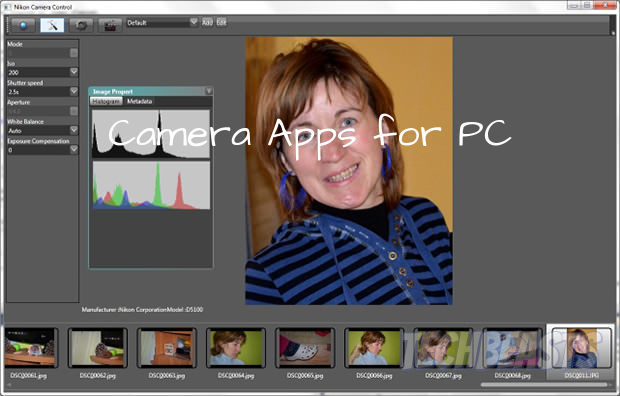
Camera App for PC. No matter how important smartphones are getting nowadays, but still, we need our computers and laptops to do our official work. Today I’ve collected the best Camera Apps for PC Which can be installed on Windows 10, Windows 8, Windows 7, Windows XP and some of the apps that can be installed on Mac. Enjoy!

Camera App for PC

Download Best Camera App for PC:

Following is the list of all the camera apps which you can use on your Windows and Mac, now choose the best camera app for PC.

SparkoCam:

Camera App for PC

SparkoCam webcam gives you different graphics effects while you are doing live chats and video recordings. The best thing about SparkoCam is that you can use Canon PowerShot and EOS cameras as your regular web cameras and you can use them with any video recording application.

Facebook Video Calling:

Camera App for PC

This Official Facebook app enables you to make video chat with all your Facebook friends. The application is powered by Skype so you know the video and audio quality will be awesome. Once the application is installed, simply go to Facebook.com and open up the Chat tab in the lower right corner of your browser. You will see all your friends and a new little camera icon next to their name. Just click on the icon and you will start a video chat with them, It’s just that simple. What’s great is that if they are not answering, you can leave them a video message. Your video message will be waiting for them in your friend’s inbox next time they check their messages.

ManyCam Virtual Webcam:

Camera App for PC

ManyCam needs no introduction, this application is the total package when it comes to webcam software. ManyCam gives you features like the video switcher, use ManyCam with Skype, Youtube or Livestream, add effects, change a background, connect with Yahoo, MSN, CamFrog, PalTalk, ICQ, and more. You can download ManyCam on your Windows as well as on Mac.

Arcsoft WebCam Companion 4:

Camera App for PC

If you like to capture HD or 3D images and videos with your Webcam then ArcSoft WebCam Companion 4 is the best camera app you can get. Not only this you ArcSoft WebCam Companion 4 provides you easy to use smart photo/video editing tools and once you are done with your editing stuff, but you can also share your work directly to YouTube, Flickr, and Twitter, etc.

PhotoBooth for Win7:

Camera App for PC

IF you have used MacOS Photo Booth then you can easily use PhotoBooth for Win7, this app is similar to the macOS app. It allows you to take snaps while video calling and let you edit them using different filters and effects.


[OxygenOS 4.0.0] OnePlus 3T Android 7.0 Nougat Full ROM ZIP and OTA

0
[OxygenOS 4.0.0] OnePlus 3T Android 7.0 Nougat Full ROM ZIP and OTA

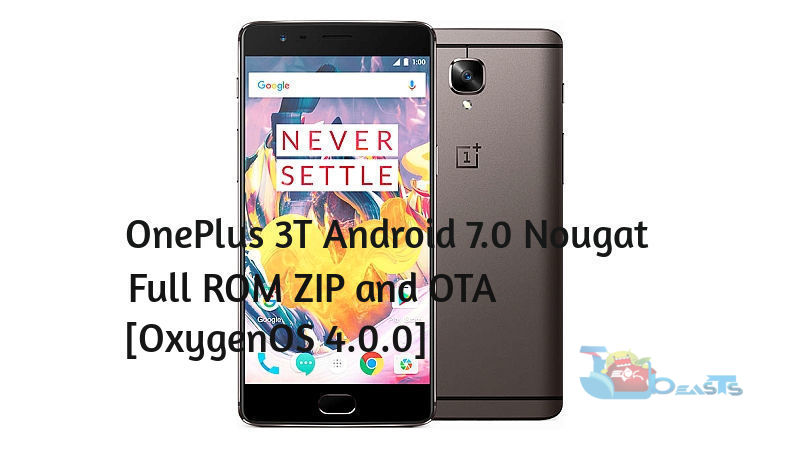
In this post, I’ll tell you how you can download OnePlus 3T Android 7.0 Nougat Full ROM ZIP and OTA. If you don’t know how to install OnePlus 3T Android 7.0 Nougat Full ROM ZIP and OTA, you can use the following guide at the end of the post.

OnePlus 3T Android 7.0 Nougat Full ROM ZIP and OTA

Also See: [Download OTA] OnePlus 2 OxygenOS 3.5.5  and Install

Download OnePlus 3T OTA:

OxygenOS 4.0.0 OTA Android 7.0 Nougat → OnePlus3TOxygen_28_OTA_029-035_patch_1612310259_a8e4f.zip

OxygenOS 3.5.3 OTA → OnePlus3TOxygen_28_OTA_023-027_patch_1611222319_884473ff95304c30.zip.

Download OnePlus 3T Firmware [Full ROM]

OxygenOS 4.0 Full ROM [Android 7.0 Nougat] → OnePlus3TOxygen_28_OTA_035_all_1612310259_2dc0c.zip

OxygenOS 3.5.4 Full ROM →OnePlus3TOxygen_28_OTA_029_all_1612131737_17e7161d2b234949.zip

OxygenOS 3.5.3 Full ROM →OnePlus3TOxygen_28_OTA_027_all_1611222319_884473ff95304c30.zip

Install OxygenOS 4.0.0 update on OnePlus 3T:

Follow all the steps as mentioned below in the guide in order to successfully install OnePlus 3T OxygenOS 4.0.0 update. Before moving on let me tell you one thing, you must have stock recovery installed on your OnePlus 3T.

Step 1: Setup ADB and Fastboot on your PC.

Step 2: Download the OTA Update file on your PC and rename it to ota.zip.

Step 3: Enable USB Debugging on your Oneplus 3T.

Step 4: Connect your device with your PC/laptop.

Step 5: Open the folder where you downloaded the OTA.zip file, Press “Shift + Right click” in order to open command windows here.

Step 6: Type the following command.

adb reboot recovery

Step 7: Once you are in recovery mode, select the “Install from USB” option.

Step 8: Type the following command.

adb sideload ota.zip

Step 9: Now wait for the installation process to be completed, Once the process is finished select reboot from the main recovery menu.

This all, you have successfully installed the OxygenOS 4.0.0 update.

How to Download and Install OxygenOS 4.0 for OnePlus 3T

0
How to Download and Install OxygenOS 4.0 for OnePlus 3T

In this Post, I’ll tell you how to download and install OxygenOS 4.0 for OnePlus 3T, as we all know that Android Nougat 7.0 is released for OnePlus 3 but at the moment we have to sit back and wait because they have very slow updating system. I cannot wait like many others so we have got our hands on OnePlus 3T Android 7.0 Nougat Full ROM ZIP and OTALet’s start the method.

Download OxygenOS 4.0 for OnePlus 3T

We all knew that Android 7.0 update is underway for OnePlus 3 but it become real when they officially released it, you can see the Android 7.0 on OnePlus 3 in following screenshots.

OnePlus-3T-Nougat-OTA-ZIP

Download OxygenOS 4.0 for OnePlus 3T:

Now before moving on let tell you one thing, this update is OTA version that is extracted from a device so you have to manually flash it. I would suggest you should backup your device and then install Oxygen 4.0 on your OnePlus 3T. You can download the OnePlus 3T Android 7.0 Nougat Full ROM ZIP and OTA from the following links.

[ Download Link ]

Install OxygenOS 4.0 for OnePlus 3T:

[ Click Here ]

15 of the Best High Definition Daredevil Wallpapers

15 of the Best High Definition Daredevil Wallpapers

Daredevil Wallpapers HDMarvel has given us many heroes and wonderful movies, comics, series and more. Today I’ve collected the Best High Definition Wallpapers for Marvel’s own famous series Daredevil. I have seen this series many times and still do, those who loves Marvels Daredevil series would also love 15 of the Best High Definition Daredevil Wallpapers. Download the Best Daredevil HD Wallpapers from the below.

daredevil wallpaper

15 of the Best High Definition Daredevil Wallpapers:

daredevil wallpaper

Daredevil Wallpapers HD.

daredevil wallpaper

Daredevil Wallpapers HD Free Download.

daredevil wallpaper

Daredevil Wallpapers HD Images Download.

daredevil wallpaper

Daredevil background wallpaper.

daredevil wallpaper

Daredevil hd wallpaper download. daredevil wallpaper

Daredevil High Resolution Wallpaper Widescreen. daredevil wallpaper

Daredevil Netflix Movie High Definition Wallpapers 1080p. daredevil wallpaper

Daredevil Netflix Movie Images.

daredevil wallpaper

Daredevil Season 2 daredevil netflix wallpapers 1920 1080. daredevil wallpaper

Free Download Daredevil Wallpapers HD. daredevil wallpaper

Images Download Daredevil Wallpapers HD. daredevil wallpaper

Magnificent Daredevil Wallpaper.

daredevil wallpaper

Photos Download Daredevil Wallpapers HD.

daredevil wallpaper

Pictures Download Daredevil Wallpapers HD.

daredevil wallpaper

Daredevil Wallpapers HD.

Geometry Dash World for PC Download Free

1
Geometry Dash World for PC Download Free

Geometry Dash World for PC is now available and can be easily installed on a desktop PC/Laptop running Windows XP/7/8/8.1/10 and MacOS/OS X. Let’s learn a little bit about this all new app and then have a look on the installation method via BlueStacks or BlueStacks 2.

Geometry Dash World

RobTop Games is back with another hit Geometry Dash World, a new arcade game. Geometry Dash games are very popular and with this new game, they are rocking the charts. Geometry Dash world is a very simple but very addictive game, the gameplay of Geometry Dash world is very simple all you have to do is tap to jump, fly and flip your way through dark caves and spiky obstacles. Now in order to check out more details kindly click on the following links.

Geometry Dash World
Price: Free

Download Geometry Dash World for PC

  1. Download and install BlueStacks or Remix OS Player: Bluestacks Offline Installer Rooted Bluestacks |Bluestacks App Player | Remix OS Player for PC.
  2. Open the installed BlueStacks or Remix OS Player and open the Google Play Store in it.
  3. Now in Play Store, search for “Geometry Dash World“.
  4. Install the game and open the app drawer or all apps in the emulator.
  5. Click the Portal Worlds icon to open it, follow the on-screen instructions to play it.

Method:2

  1. Download Geometry Dash World APK.
  2. Download and install BluestacksBluestacks Offline Installer | Rooted Bluestacks |Bluestacks App Player
  3. Once you’ve installed Bluestacks, double click the APK that you just downloaded above.
  4. The APK will be installed using Bluestacks, once installed open Bluestacks and locate the recently installed Geometry Dash World.
  5. Click the Geometry Dash World icon to open it, follow the on-screen instructions to play it.

You can also use Andy OS  to install Geometry Dash World for PC, here’s the tutorial: How To Run Android Apps On Mac OS X With Andy.