Home Blog Page 432

How To Force the Google Play Store app to update

0
How To Force the Google Play Store app to update

Google Play store on your Android devices gets the update automatically and you didn’t even get to know that, from point of view its a good thing but some time cause of some problems your update gets stuck and you don’t get the latest update features. Most of us don’t know how to update your play store manually or How To Force the Google Play Store app to update. This is the main reason that I’ve prepared a step by step guide on how to force Google Play store to update.

How To Force the Google Play Store app to update

How To Force the Google Play Store app to update:

Before starting the procedure let me tell you one thing by default your Google Play Store is set to auto-update. This guide for those who have facing issues with their Google Play Store updating.

  • Goto your phone home screen.
  • Search for Google Play and tap on it.
  • Now you’ll be in Google Play Home.
  • Tap on the app’s icon on your screen top left side.
  • Now you’ll see a list of options.
  • Choose settings to form them.
  • Now tap on setting and you’ll be promoted on the setting page.
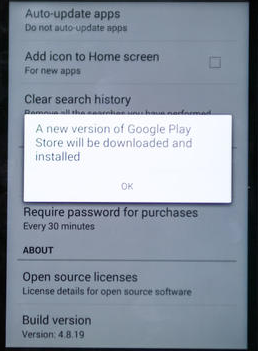
  • Scroll down and tap on build number ( First tap one time if you don’t see a pop-up the tap twice same time. )
  • Now if new update is available you can update your Google Play Store. Otherwise, a pop-up will appear saying your Appstore is updated to the latest version.

Monster Legends For PC (Windows 7, 8, 8.1, XP and Mac)

1
Monster Legends For PC (Windows 7, 8, 8.1, XP and Mac)

Now that you have got your hands on the Monster Legends Apk, if you have followed our recent post, then it is time to give it another try. Before that, let me just do a little time pass. We all know that Android is a huge platform, when it comes to apps and games, and we also know that not everyone has an Android device, but yet they want to play games which are specifically available for Android OS. They can do a couple of Things, either become a developer and make same games for other Platforms, not only will you get to enjoy them, but also you’ll get blessing from other people, plus you can do a job or stuff. Second, you can Pay Someone else to make it for you, or you can just grab your friends Android devices and start playing on it.

Screenshot_13

But all of them are not very user friendly, I mean you can’t have your friend device for like months, what if he deletes the games, and also becoming a developer is time taking, so what now is to follow our way, which is much more simple and we will get down to that. Monster Legends is available for Both Android and iOS, and now you can play in on PC too. Just Follow our Guide and All is Well. However, remember this is not an official release for PC, it is just being run on PC using a Third Party Emulator. That is our Solution and our way.

Also See: Empire: Four Kingdoms V1.7.57 Apk

Also See: Doodle Basketball 2 For PC

How to Download and Install Monster Legends on PC:

  1. You need an Android emulator to run this game on your Windows PC or MAC. We recommend using Bluestacks. Use our guide to install it on your PC.
  2. After downloading and installing Bluestacks, Open it.
  3. Download Apk Of Monster Legends, Double click the Apk File and Bluestacks will install it automatically.
  4. Open BlueStacks now > All Apps > Monster Legends.
  5. The game will start now, follow the on screen instructions.
  6. Follow the initial screen, you’ll be able to play it.
  7. Tap the screen by clicking inside the game frame.
  8. Enjoy rebuilding the Quahog.
  9. Don’t forget to let us know about your high score.
  10. That’s All!

How To Download Monster Legends using iPadian:

Well to install Empire: Four Kingdoms on PC, you’ve to use an emulator and you can either download  iPadian. In order to install Guess the Emoji for PC.

Step 1: Download iPadian on your PC or Mac.

Step 2: After downloading iPadian install it on your system.

Step 3: Now open iPadian on your PC and click on search.

Step 4: Write Monster Legends and enter.

Step 5: Now click on install and wait for installation to be completed.

Step 6: When the installation is done, go to my apps, there you’ll see the Empire: Four Kingdoms’ icon.

Step 7: Double click on it to launch the app and start playing it.

How To Remove Bloatware on AT&T and Verizon LG G3

0
How To Remove Bloatware on AT&T and Verizon LG G3

No matter which brand or which mobile you’ll go after, you are sure to see some Bloat apps in it, Bloatware means, the app which are pre-installed by the Company in it, and can’t be removed without proper permissions. Most of them are just unwanted apps that no users use till the end of their experience with the device. These app not only keeps your App drawer, populated but also takes internal storage, consume RAM and CPU, thus making the device performs slowly. Most of these apps, keeps running the Background and also sucks the battery. Since Android is an open source platform and because of that Some of the OEMs are now passing the law that the Software Manufacturer should make the Bloats Un-installable.

LG latest flagship, LG G3 is out now and like LG G2, this device is amazing and one of the best smartphones in Market. However, like any other device, LG G3 also has some pre-installed apps, that most of the users wants to delete, we don’t have the solution for the International version, but if you own a Verizon or AT&T LG G3, and wants to get rid of Bloatware, also we will provide a list of Safe to Remove apps to help you in removing only those which are safe to remove.

lg-g3-screencap

Also See: Remove Bloatware From Any Android Device With NoBloat

Requirements:

Root your device, you can follow the link to do so: Link

How To Remove Bloats:

unnamed

  1. Download and Install Root Browser from Play Store.
  2. Open it and Grant the Root permission.
  3. Navigate to System/app folder and navigate to the Apk listed in the upcoming list.
  4. Tap and Hold and select Delete.
  5. Now if you want to keep the apk file but wants it to be erased from the App Drawer, just rename the file and change the extension to .bak
  6. Once you are done, Reboot your LG G3
  7. Enjoy

List of Verizon Bloat Apps:

VZ Tones— com.vzw.hs.android.modlite
VZ Messages— com.verizon.messaging.vzmsgs
VZ Support & Protection— com.asurion.android.verizon.vms
Cloud— com.vcast.mediamanager
NFL Mobile— com.gotv.nflgamecenter.us.lite
Slacker— com.slacker.radio
Visual Voice Mail— com.vzw.vvm.androidclient
VZ Navigator— com.vznavigator.Generic
ISIS Mobile Wallet— com.isis.mclient.verizon.activity
Caller Name ID
VZMobile
Kindle— com.amazon.kindle
Mobile— com.amazon.mShop.android
MP3— com.amazon.mp3
Audible— com.audible.application
IMDb— com.imdb.mobile
Twitter— com.twitter.android
Facebook — com.facebook.katana
Google+ — com.google.android.apps.plus
Music — com.google.android.music
Newsstand— com.google.android.apps.magazines
Youtube— com.google.android.youtube

List of AT&T Bloat Apps:

Mobile Locate / com.asurion.android.mobilerecovery.att
YPmobile— com.yellowpages.android.ypmobile
DriveMode / com.drivemode
myAT&T—com.att.myWireless
Navigator— com.telenav.app.android.cingular
FamilyMap— com.wavemarket.waplauncher
Locker— com.att.android.digitallocker
Mobile TV / com.mobitv.client.tv
Smart Wi-Fi— com.att.android.attsmartwifi
Address Book
Device Help
Mobile Hotspots
Google+ — com.google.android.apps.plus
Music— com.google.android.music
Newsstand— com.google.android.apps.magazines
Youtube— com.google.android.youtube
Famigo— com.famigo.sandbox
Lookout— com.lookout
ISIS Mobile Wallet— com.isis.mclient.atnt.activity
Beats Music— com.beatsmusic.android.client
Uber — com.ubercab
Amazon Kindle— com.amazon.kindle
Facebook— com.facebook.katana
Twitter— com.twitter.android

100 Ballz For PC (Windows 7, 8, 8.1, XP and Mac)

0
100 Ballz For PC (Windows 7, 8, 8.1, XP and Mac)

There you go, a hundred balls are awaiting for you to pass them all through the maze and either throw them in a bucket or just on the floor, simple han! I don’t think so, the game is fun to play and I can say not much difficult either, but no that east as is sounds. If you miss a ball from the target, you’ll loose it, if you miss all your balls, you are done in that stage and be ready to play it again. Every time you clear a ball, you’ll be awarded with points, depending on the its color, you’ll either get more or less. You can start passing the balls, by opening the gate, but don’t let all the balls star dripping at once, or you’ll get confused.

Screenshot_12

You’ll be given the time of 100 seconds to pot all the balls or clear all the balls. The game doesn’t have intense graphics, a really simple gameplay, normal graphics, the more progress you make in the game, the more difficulty will increase. This game is available for Both Android and iOS, and now you can play in on PC too. Just Follow our Guide and All is Well. However, remember this is not an official release for PC, it is just being run on PC using a Third Party Emulator.

Also See: Empire: Four Kingdoms V1.7.57 Apk

Also See: Doodle Basketball 2 For PC

How to Download and Install 100 Ballz on PC:

  1. You need an Android emulator to run this game on your Windows PC or MAC. We recommend using Bluestacks. Use our guide to install it on your PC.
  2. After downloading and installing Bluestacks, Open it.
  3. Download Apk Of 100 Ballz, Double click the Apk File and Bluestacks will install it automatically.
  4. Open BlueStacks now > All Apps > 100 Ballz.
  5. The game will start now, follow the on screen instructions.
  6. Follow the initial screen, you’ll be able to play it.
  7. Tap the screen by clicking inside the game frame.
  8. Enjoy rebuilding the Quahog.
  9. Don’t forget to let us know about your high score.
  10. That’s All!

How To Download 100 Ballz For Mac:

Well to install Empire: Four Kingdoms on PC, you’ve to use an emulator and you can either download  iPadian. In order to install Guess the Emoji for PC.

Step 1: Download iPadian on your PC or Mac.

Step 2: After downloading iPadian install it on your system.

Step 3: Now open iPadian on your PC and click on search.

Step 4: Write 100 Ballz and enter.

Step 5: Now click on install and wait for installation to be completed.

Step 6: When the installation is done, go to my apps, there you’ll see the Empire: Four Kingdoms’ icon.

Step 7: Double click on it to launch the app and start playing it.

How To Speed Up Your Galaxy S5 [10 Tips]

0
How To Speed Up Your Galaxy S5 [10 Tips]

Galaxy S5 was released by Samsung at its Unpacked Event 5 that took place at MWC 2014. As off now, this device happens to be Samsung’s flagship device and also Samsung’s best device. Galaxy S5 is powered up with a Snapdragon 801 CPU or a Exynos CPU accompanied by Adreno 330 GPU and a RAM of 2GB is there. Although the device has very nice and a heavy processor that is capable of performing all of your tasks, capable of flawless multitasking, you still might feel that it lags sometimes and you may want to speed it up to get the maximum out of your Galaxy S5. The devices costs a whopping amount and after all it runs on Android, so you have every right to optimize the open nature operating system and make your device fly high.10566438_10203748970217393_382187385_n

How To Speed Up Your Galaxy S5

Recently I got my hands on the Galaxy S5. This device definitely is a powerhouse, as mentioned. But they say there’s always a room for improvement. Even though it worked much faster, I still applied a few changes and found that it added charm to the device’s performance. I’ve gathered all the changes that I made here and there to get the maximum performance output, and compiled up in the following post. If you happen to be a lucky Galaxy S5 owner and you’re looking for the performance optimizations, this post might be for you.

Disable “Open via Home Key” for S-Voice

Did you ever note that pressing the home key on your Galaxy S5 takes quite long to take you to the home screen? Well, that is because of the S-Voice. When you double press the home-key, it opens up the S-Voice and that is what’s slowing down the performance of your device’s home button. In able to make it work faster, you need to disable the S-Voice’s “Open via Home Key” option. Here’s how you can do it.

      1. Open home screen on your Galaxy S5.
      2. Double tap the home button.
      3. Bypass the S-Voice activation screen if you haven’t already.
      4. Once done, press the options key and tap “settings” in S-Voice
      5. In settings > general > uncheck the 3rd option “open via home key”.
      6. Close S-Voice now.
      7. Open the app drawer or any other application now, and try pressing the home key. It should be much faster now.
      8. That’s all.

Homescreen1-tile

Use a Static Wallpaper – Avoid Live Wallpaper

Live wallpapers surely look cool and are liked by so many users. Live wallpapers sometimes play the role of a game as you can play with the effects on your device’s screen. But that’s not a good thing at all when you come to know that it’s slowing down the performance of your device, and it’s also draining the battery of your device. The effects in the Live wallpapers are the processes eating up your device’s RAM and CPU for no use. This slows down navigating through the app drawer or home screens on your Galaxy S5.

In order to make your device work a little faster, it is recommended that you should always use a static wallpaper. Using a static wallpaper won’t run any extra processes and will make it a lot easier to navigate through your device without any speed hiccups. To set a static wallpaper, long press your Galaxy S5’s home screen, tap Set Wallpaper > Home/Lock Screen Wallpaper > Select wallpaper from anywhere except “Live wallpapers”.

S5_Static Wallpaper

Disable Animations:

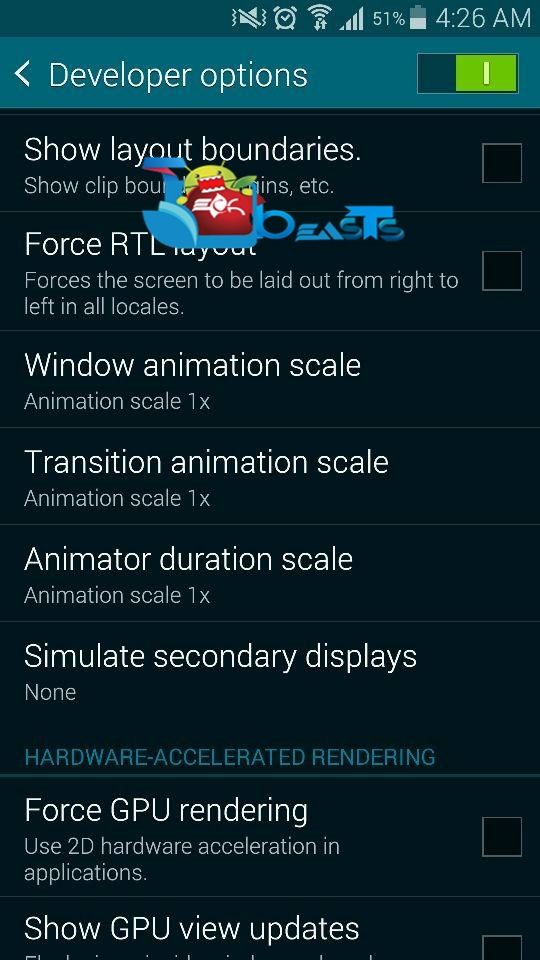
Another way to speed up your Galaxy S5 is to disable the Window, transition animations, and animator duration scale. These animations generally occur whenever you’re switching between an application or you open any new application. You must have noticed that applications take a quite long while switching, this is only because of the animations that load before the application opens up or gets switched. Here’s a little activity to get rid of the animations.

      1. First off all you need to enable developer options on your Galaxy S5. In order to do so, go to Settings > More/General > About Device > Tap the build number for 7 times and the developer options are enabled. Now get back to the More/General Tab > Developer Options.
      2. Once in developer options, scroll down and find “Window Animation Scale > Tap it and turn it Off”.
      3. Now tap “Transition Animation Scale > Turn it Off”.
      4. Now tap “Animation Duration Scale > turn it Off”.
      5. Now open any application or switch between applications, you will find it much faster now.
S5_Transition1S5_Trasnsitons2

Remove Animation Effect From Lock Screen

Samsung has loaded new animation effects on the Galaxy S5 including the Watercolor, Particle Effect, Light Effect and Ripples Effect. When these effects are activated, they slow down unlocking your device. It always is a good idea to avoid the use of any of these effects as it fastens up unlocking your Galaxy S5. In order to turn off the effects follow these steps.

Go to Settings > Personal > Lock Screen > Unlock Effect > None.
Once selected “None”, try unlocking your device and it should be fast enough now.

Get Rid of TouchWiz – Use a Custom Launcher

Samsung’s TouchWiz isn’t a great choice to stick with. The launcher is full of features that slow down the working and functionality of your Galaxy S5. In order to get rid of the TouchWiz launcher, it is recommended that you use a custom launcher. I’m using Google Now launcher and it works quite flawlessly. You may use it or try using Nova Launcher, Apex Launcher or some other that suites you the best. You will definitely find the difference between TouchWiz and other launchers.

Clear up your RAM with time

After you use an application, make sure that you clear up your device’s RAM. Leaving an application running at the background will put much burden on the RAM and it might result in slowing down your device’s performance. In order to clear your RAM, follow these steps.

      1. Long press the home button.
      2. Swipe away the applications shown in the task manager.
      3. Now press the very first button at the lower left corner now.
      4. Tap the “Clear memory” button.
      5. That’s all.

S5_CloseApps

Turn off the background process

Sometimes, some applications launch the background process that is not shown in the task manager. These are the background processes and can be found in the application manager only. These processes might play a role in slowing down the performance of your device as well. Here’s what you can do get rid of these background process.

Go to settings > more/general > application manager >swipe through the “running” tab > find the process that’s not in use and stop it.

S5_RunningProcesses

Root your Galaxy S5

Android’s greatest characteristic is the root access. Once rooted your device, you can easily go beyond the boundaries and make a number of tweaks to your device in order to get the maximum out of it. There are tons of applications that require root access and enhance your device’s functionality to the maximum extent. For example, you can perform CPU Under & Overclocking, you can remove bloatware applications, you can make changes to your device’s system and a lot more.

S5_Rooted

Remove Bloatware Apps [Root]

Samsung has loaded the Galaxy S5 with a number of useless applications that are called Bloatware. Removing these applications will not only free up the extra space on your Galaxy S5, but will also boost up the performance of your device. Here’s our guide that explains how you can remove bloatware from your Android device.

Bloatware2

Kill Startup Applications [Root]

Whenever your device boots up, there are so many applications that start up with your device as well and eat up the RAM and CPU. It’s hard to point out these applications as these might not even appear in the application manager. A very nice application to perform this task is the System Tuner. You can use the “Startups” tab in the System Tuner and kill all the applications that startup with your device. This will make your device turn on faster and will also make it work faster.

System Tuner1-tile

That’s all. There surely is a number of so many other ways to enhance the performance of your Galaxy S5, but these are the best 10 I came across. In case I’m missing any important, don’t hesitate to mention it in the comment box below. Thank you all.
How to install Amazon Appstore on Android Devices

0
How to install Amazon Appstore on Android Devices

There are other apps store which are the best alternates to Google Play Store so when ever Google Play Store is not working you can use them instead of Google Play Store. Amazon Appstore is the best alternate to Google Play Store, with millions of app that can be easily installed on Android device. How ? Here’s how you can install Amazon Appstore on Android Devices. Following is the tutorial in which i’ll tell you how to install and use Amazon Appstore on your Android Device.

How to install Amazon Appstore on Android Devices

How to install Amazon Appstore on Android Devices:

Following is the step by step guide on how to install Amazon Appstore on Android devices. If you have install apps through apk file then it will be easy for your.

  1. First you have to allow Unknown Source installation by going into Settings->Security->”Unknown sources”. Now tap on check box to enable “Unknown sources”.
  2. Open your mobile browser add this in url bar ( http://www.amazon.com/getappstore ).
  3. After page is loaded tap on ” Download the Amazon AppStore “.
  4. After tapping on the button, it will download apk file.
  5. Once download is complete goto ” Downloads “.
  6. Tap on the apk file and select package installer.
  7. Now follow the instruction provided on your phone screen.
  8. Now wait for installation to completed.

Once done ! Now you can use and download Amazon Appstore your Android devices.

How To charge your Android, BlackBerry, iOS, or Windows Phone device faster.

1
How To charge your Android, BlackBerry, iOS, or Windows Phone device faster.

In today’s world smartphones are the important part of our life. Since its everything is social and our phones manage everything so every one needs device with better battery life. Mobile companies are doing their best to gives us more battery time. When mobiles goes bigger so dose the battery and it will take more time to charge. So today i’ll tell you how to charge your Android, BlackBerry, iOS, or Windows Phone device faster.

10501430_799463803417415_471801626_n (2)

How To charge your Android, BlackBerry, iOS, or Windows Phone device faster:

  • First connect your device with charger.
  • Now close all the open apps by going into task manager.
  • Put your device in AirPlane Mode. It will close all your connection Wifi, Mobile data and incoming calls.
  • When your phone is on charging don’t use GPS, Web and Games.
  • Make sure you are using original charger.
  • Clear all the backgrounds apps that will make your device charge faster.
  • Turn off your device and then connect your device with charger.
  • When your device is on charging don’t see after few minutes because backlight and display require a specific amount of power.
  • Turn off sync and bluetooth while charging.

These all tips will help you to charge your device faster. Do tell me in comments how was your experience !!

Download Timberman v1.4 APK

0
Download Timberman v1.4 APK

Timberman is an oldschool arcade game that has reminded the users of an annoying and frustrating game. The game’s taste is good enough to remind you Flappy Bird. The 2D game that left everyone in a state of extreme annoyness. Well, Flappy Bird’s difficulty definitely remains unbeaten and it’s quite hard to keep the temperament in control once you play and the game gets over again and again. Those frustrating Mario style pipes are disgusting and kill your bird within no time and thus results in creating a hatred for the game but it might result in making you addictive with this little 2D game as well.

If you’ve forgotten the game or just in case you’re missing it, there’s something new that will remind you of Flappy Bird. The new game with minimal graphics that just landed in the Android app store is pretty much easy, doesn’t have the difficulty as Flappy Bird had. But the ease this game has, actually rips off your mood. Timberman by Digital Melody has gone viral and has been downloaded over a half of million times, and still counting. The game, as the name suggests, prompts the players to timber down the branches of trees coming down. You just got to save your Timberman from getting hit by the down-coming branches.Timberman1

The faster you timber down the branches, the faster your game gets and the faster your level gets up. Timberman offers 8 different characters that you may unlock by having enough coins that you earn during the game. There are 4 different environments to play in as well. Timberman is packed up only in 11 MBs and requires an Android device having Android 2.2 or higher. You can grab it for free from the Play Store, but in case you can’t find it or you’re unable to find it at your end, an APK file will do the job for you. We’ve pulled out the Timberman v1.4 APK and embedded the download link right here with installation instructions. Just scroll down and install it manually.

Download & Install Timberman APK:

      1. Download Timberman v1.4 APK
      2. Connect your phone to your laptop or PC now.
      3. Copy the APK file to your phone’s SD card.
      4. Disconnect your phone.
      5. Locate the Fruishoot APK file on your phone now and tap to install it.
      6. If prompted to select installer, then select “Package Installer”.
      7. Allow “Unknown Sources” from settings > security if prompted.
      8. Proceed with the installation and complete it.
      9. Once done, access the game from app drawer.
      10. That’s all! Play and timber the wood now!

Fruit Shoot APK v1.1 – Download

0
Fruit Shoot APK v1.1 – Download

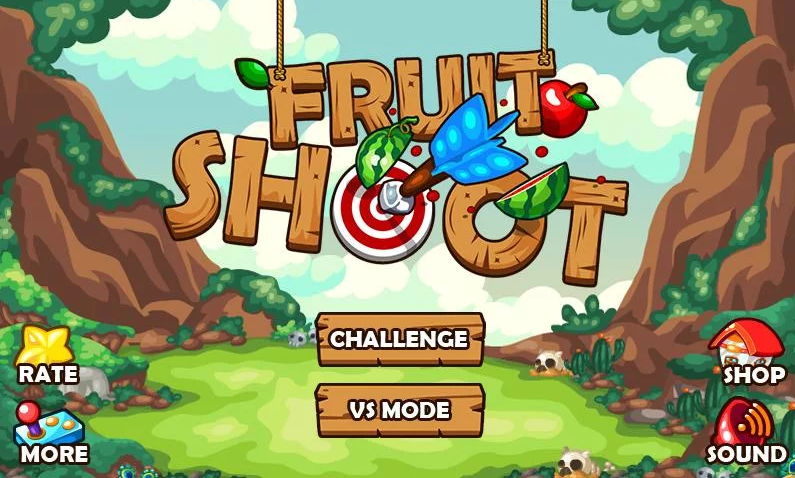
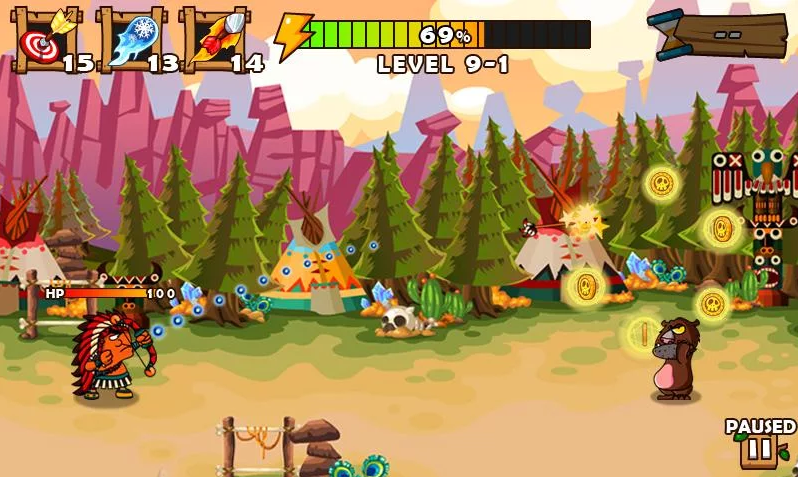
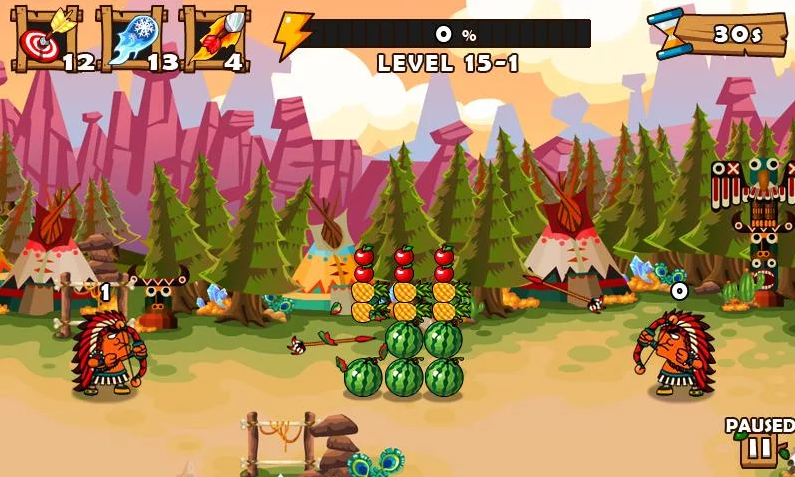
Out of fun? Or just bored enough to have your mood messed up? Well if so, you got to play Fruit Shoot then. Fruit shoot is a new mood-booster Adventure game, available for Android, absolutely free in the Google Play. The gameplay is quite simple, you just got to shoot the fruit placed on the heads of the amazing characters like Bears, Brave Soldiers, Dragons and others.  Tap on the screen anywhere and drag the dotted line to release the arrow, but make sure that you don’t kill the Bear or Soldier, it will immediately result in ending your game.

FruitShoot3

Fruit Shoot is loaded with a number of level and their are three different locations to play in, by default Indian is unlocked and you got to unlock the others (Viking and Sparta) two by playing all the levels with maximum stars. What I loved the most about this game are its graphics. Good enough to keep your eyes on your phone’s screen. To spice up your interest in the game, there’s a spice up and an VS Challenge mode. Fruit Shoot also offers in-app purchases that can enhance your game play.

FruitShoot2Fruit Shoot

Although Fruitshoot is available in the Google Play Store, but some users might not be able to access the Google Play or some might not be able to find this game in the Play Store. If that’s the case with you, we’ve done this little job for you and pulled out the APK file of Fruitshoot and embedded the download link right here. Just scroll down and follow the instructions carefully in order to install it successfully on your Android device using the APK file.

Download & Install Fruit Shoot APK:

      1. Download Fruit Shoot v1.1 APK
      2. Connect your phone to your laptop or PC now.
      3. Copy the APK file to your phone’s SD card.
      4. Disconnect your phone.
      5. Locate the Fruishoot APK file on your phone now and tap to install it.
      6. If prompted to select installer, then select “Package Installer”.
      7. Allow “Unknown Sources” from settings > security if prompted.
      8. Proceed with the installation and complete it.
      9. Once done, access the game from app drawer.
      10. That’s all! Play and Shoot the Fruit now!

Download Cloud Raiders v3.02 APK

0
Download Cloud Raiders v3.02 APK

Cloud Raiders is a real-time strategy game that recently landed in the Google Play Store. If you’ve already played Clash of Clans, you will be much familiar with the concept before we tell you. Cloud Raiders tempts the players to create clans and fight with other clans in order to achieve the highest levels of respect and glory. You are set to fight in order to save your very own clan and rip off all the attacks made by the enemy bosses and enemy clans. The best way to keep your side heavy during a clash is to train your warriors at your best, by unlocking their skills and by providing them the strongest and the most powerful weapons. More efficiently your clan is trained, more efficiently you can fight a battle.CloudRaiders APK!

So, are you set to defeat the legendary bosses and topple the clan charts? Well if so, you’ll have to play this game at your best. Cloud Raiders is available for free in the Google Play Store and requires a device with Android 2.2 or higher. However if you’re unable to find this game in the Play Store at your end, or just in case you can’t access it, we’ve pulled the APK for you so that you can battle the Clans and calm yourself down. Just go ahead and grab the APK and follow the instructions to install it on your device.

CloudRaiders APK2

CloudRaiders APK3

Download & Install Cloud Raiders v3.02 using the APK file:

      1. Download Cloud Raiders v3.02 APK
      2. Connect your phone to your laptop or PC now.
      3. Copy the APK file to your phone’s SD card.
      4. Disconnect your phone.
      5. Locate the APK file on your phone now and tap to install it.
      6. If prompted to select installer, then select “Package Installer”.
      7. Allow “Unknown Sources” from settings > security if prompted.
      8. Proceed with the installation and complete it.
      9. Once done, access the game from app drawer.
      10. That’s all! Play and battle with the clans now!

Empire: Four Kingdoms For PC (Windows 7, 8, 8.1, XP and Mac)

0
Empire: Four Kingdoms For PC (Windows 7, 8, 8.1, XP and Mac)

Recently, we posted an Article of Empire: Four Kingdoms Apk file, the download link and the installation procedure and let’s rehearse a bit more about it. In this game, you need to gather an alliance and built a huge fortress around your Kingdom, create an army for the protection of your kingdom and lead that army, if you feel threatened by the Enemy or if you think that it is time to increase your area. You can even go to war with your friends or against your friends, the game is totally free and offers in-app purchases, which is somehow the most important part of this game because some users said that after a certain stage, you need to purchase some Rubies. This game is available for Both Android and iOS, and now you can play in on PC too. Just Follow our Guide and All is Well. However, remember this is not an official release for PC, it is just being run on PC using a Third Party Emulator.

10647257-1372430137442

Also See: Empire: Four Kingdoms V1.7.57 Apk

Also See: Doodle Basketball 2 For PC

How to Download and Install Empire: Four Kingdoms on PC:

  1. You need an Android emulator to run this game on your Windows PC or MAC. We recommend using Bluestacks. Use our guide to install it on your PC.
  2. After downloading and installing Bluestacks, Open it.
  3. Download Apk Of Empire: Four Kingdoms , Double click the Apk File and Bluestacks will install it automatically.
  4. Open BlueStacks now > All Apps > Empire: Four Kingdoms.
  5. The game will start now, follow the on screen instructions.
  6. Follow the initial screen, you’ll be able to play it.
  7. Tap the screen by clicking inside the game frame.
  8. Enjoy rebuilding the Quahog.
  9. Don’t forget to let us know about your high score.
  10. That’s All!

How To Download Empire: Four Kingdoms For Mac:

Well to install Empire: Four Kingdoms on PC, you’ve to use an emulator and you can either download  iPadian. In order to install Guess the Emoji for PC.

Step 1: Download iPadian on your PC or Mac.

Step 2: After downloading iPadian install it on your system.

Step 3: Now open iPadian on your PC and click on search.

Step 4: Write Empire: Four Kingdoms and enter.

Step 5: Now click on install and wait for installation to be completed.

Step 6: When the installation is done, go to my apps, there you’ll see the Empire: Four Kingdoms’ icon.

Step 7: Double click on it to launch the app and start playing it.

How To Disable Talk Back Mode in Samsung Galaxy S3

0
How To Disable Talk Back Mode in Samsung Galaxy S3

Today i’ll tell you how to disable talk back mode in Samsung Galaxy S3 .. What is talkback mode ? Well this a feature that comes builtin in Samsung Galaxy device and i don’t think its a help in any way. People find it annoying because if the Talkback mode is enabled then you’ll get every incoming notification ( Messages, Calls, etc ) through voice and if you want to or not but it will keep telling you so i thought let me tell you how to disable Talkback Mode on Samsung Galaxy. You were thinking why this is important let me tell you if users try to disable talkback most of the time there device stuck means you can not use touch screen, this is why i am telling all the possible ways to disable  talkback mode in Samsung Galaxy s3.

How To Disable Talk Back Mode in Samsung Galaxy S3

Tip: When you stuck in Talk Back Mode your device will not respond to touch you have to use it different way. you will have to single tap to select menu items, and double tap to choose menu items.

How To Disable Talk Back Mode in Samsung Galaxy S3:

Following are the different method to disable the TalkBack Mode in Samsung Galaxy s3 and you can try these method on other variants.

  1. First Goto Settings from your galaxy device home.
  2. Now goto menu options.
  3. Note that if you are in TalkBack Mode you have to use mobile in a different way, you will have to single tap to select menu items, and double tap to choose menu items.
  4. In setting goto Accessibility.
  5. Now uncheck the Talkback.

You have to disable 2 more Modes in order to properly disable the Talk Back Mode in Samsung Galaxy. Other two mods are Driving Mode, and TTS (Text To Speech) Engine.

How to turn off driving mode in Samsung Galaxy S3.

  1. First you can disable it by Google voice just say the command ” Turn off Driving Mode”.
  2. Goto Setting from your Galaxy S3 home.
  3. Select “Language and Input “.
  4. Now tap on ” Text to Speech out “.
  5. Scroll to the bottom and uncheck ” Driving Mode “.
  6. You can also disable it by going to setting->My device option-> Hands free mode. 

How To Disable Google TTS (Text to Speech).

  • First goto settings.
  • Now select Application Manager.
  • You’ll see running apps tab swiper  left and goto All Application tab.
  • Now click on ” Google Text To Speech Engine “. Disable it.

You can Watch Videos on How to Disable Talk Back Mode in Samsung Galaxy device. [ Disable Talk back ] [ How to Disable Talk Back Mode ]