Home Blog Page 341

Leaked Photos Of iPhone 7 Display Backlight Show Altered Internal Layout

0
Leaked Photos Of iPhone 7 Display Backlight Show Altered Internal Layout

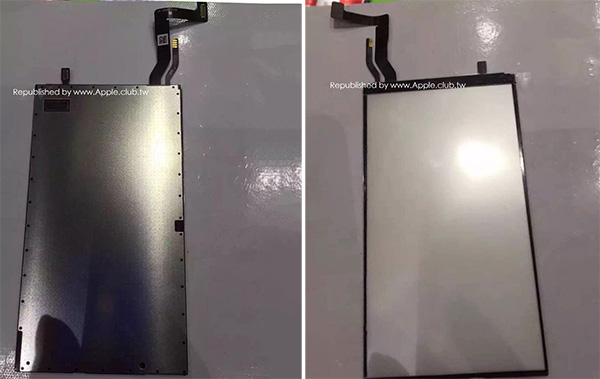
Still too many months to go for the arrival of the hyped iPhone 7 yet, the internet has started to come up with the leaks associated with the upcoming iPhone 7. Among these iPhone 7 leaks is one seen at the Apple.club.tw. This leak apparently shows the display backlight of iPhone 7. The new leak of iPhone 7 shows a display backlight which is quite in resemblance with the previous iPhone 6s model. However, as Apple announced that the iPhone 7 will be carrying a whole new design, we can see that the LCD flex cables as well as the 3D touch chip is not in the same position as iPhone 6s.

iPhone-7-backlight-leaks

The website Apple.club.tw has previously been coming up with quite authentic leaks regarding the iPhone 6, iPad Air 2, etc. This time, the website suggests that this new image might also belong to iPhone 6c. However, we would like to stick to the iPhone 7 as the size that the image suggests, belongs to a device that is more than 4.7 inches in size. This clearly rules out the iPhone 6C.

iphone-6s-6s-plus-backlight

Besides, there are also rumors spread about Apple not planning to include the 3.5mm earphone jack. However, this still can not be claimed unless we get a leak of what the earphone jack looks like.

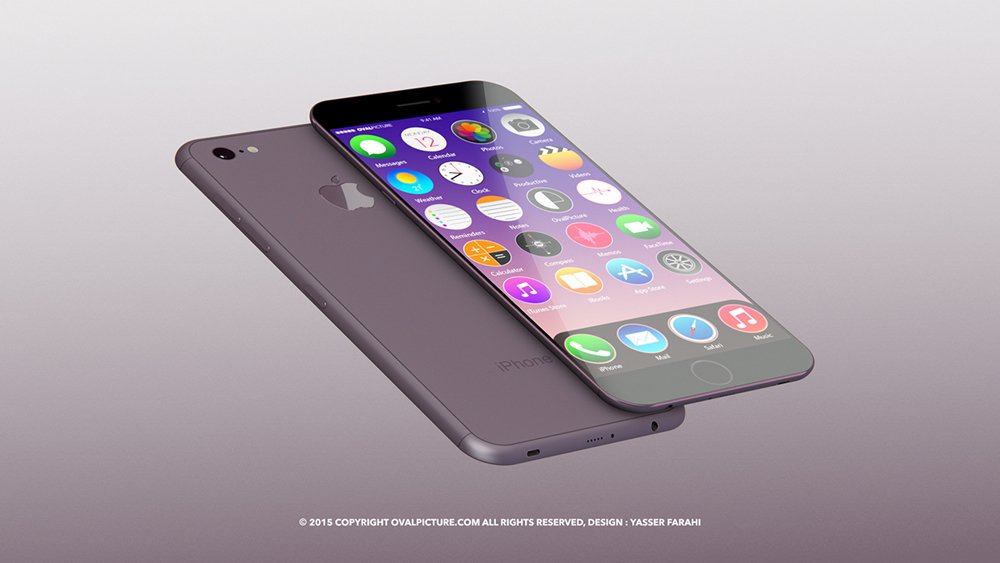
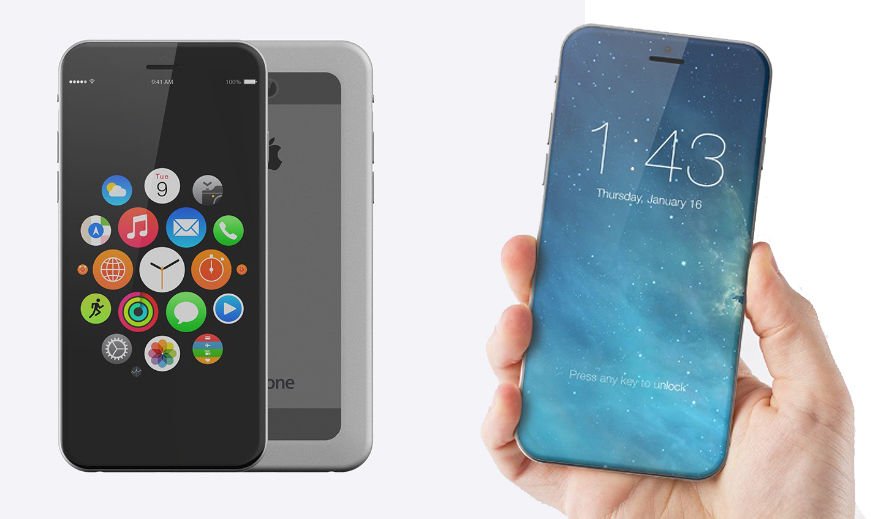
Following are the more concept of iPhone 7 rendering web, we’ll update this post as soon as we got more information on iPhone 7.

iPhone_7_image_Martin_Hajek_800home
Source: www.macworld.co.uk
iphone-7-design-with-ios-10
Source: www.macworld.co.uk
150608_iphone_concept_1
Source: www.theweek.co.uk
iPhone_7_illustration_Yasser_Farahi_1000e
Source:www.macworld.co.uk
iPhone-7-concept-970-80
Source:www.techradar.com

How To Browse Netflix Hidden Genres Using Secret Codes

0
How To Browse Netflix Hidden Genres Using Secret Codes

Netflix has become one of the largest platforms for videos and movie streaming. With millions of users and still adding on, it is impressive the way Netflix has been keeping up with all the users by continuously adding more and more content for users from different regions with various interests. You can find almost anything you want to stream thanks to the huge library and updated database. However, one problem is inevitable in cases like such where the more the content available, the more it is difficult and time consuming to search what you are looking.

For all the active Netflix users out there, good news is that you can actually make your search and browsing faster and easier by some easy tips and tricks. Follow one easy trick for easier Netflix catalogue browsing.

browse Netflix Hidden Genres Using secret codes.

How To Browse Netflix Hidden Genres Using Secret Codes:

Follow all the instruction stated below in order to browse Netflix Hidden Genres Using secret codes.

Netflix-sub-genre-browse

  • When you open Netflix in your internet browser, you will notice that the URL includes a code at the end of it. This code varies depending on the category being browsed. You can make use of this code to find subcategories.
  • Simply change the code and you will have access to the subcategories that are otherwise hidden and not readily available in the usual Netflix browsing Menu.
  • So, simple four digit code combination can actually help you discover a lot of content.
  • However, if you do not want to waste much time guessing the codes, and remember some of the codes you enter might not be accessible depending on your region, you can look for website that are dedicated to this specific trick.
  • You can find codes on platform like Google Spreadsheet.

Netflix is the largest growing platform for video streaming and it has been recently launched in 130 countries.

(Via: Gizmodo)

Candy Crush Jelly Saga for PC Download – Windows and Mac

0
Candy Crush Jelly Saga for PC Download – Windows and Mac

Following are the instruction on how to download Candy Crush Jelly Saga for PC running Windows and Mac OS X.

Candy Crush Jelly Saga is the new successor in the Saga series games by King. Candy Crush Jelly Saga brings a whole lot of new Candies in the game. The storyline of this game is interesting enough. You will be playing the boss battles against the Jelly Queen, who’s a new wiggling jiggling player in the town. You’ve to perform some Jellyicious moves to take on the Jelly Queen.

Overview:

It’s time to taste the sweetness of Jellyicious candies in the all-new Candy Crush Jelly Saga now. The game brings over 100 levels that will be taking you through some enchanting locations. The game also features some new game modes. You will be going through a mode “Spread the Jelly & Release the Pufflers”.

Basically, your focus in this game will be to stay ahead of the Jelly Queen while you play with the new mesmerizing candies. Candy Crush Jelly Saga offers efficient graphics. The colorful display makes this game look much more lucrative as compared to the previous Saga games by King. Candy Crush Jelly Saga has just made its way to the Google Play Store.

Install Candy Crush Jelly Saga fo Pc Windows 10.

Candy Crush Jelly Saga fo Pc

How To Install Candy Crush Jelly Saga For PC:

Method 1:

  1. Install Bluestacks on your PC or MAC.
  2. Download Candy Crush Jelly Saga Apk on your PC.
  3. Make sure that you have installed Bluestacks. Double-click the downloaded Candy Crush Jelly Saga Apkto install it.
  4. The APK will be installed through Bluestacks, once the notification pop-ups determining the installation completion, open Bluestacks.
  5. Now click on My Apps and then click on Candy Crush Jelly Sagar.
  6. The application will open up. Now follow on-screen instructions to Candy Crush Jelly Saga.

Method 2:

  1. Install Bluestacks on your PC or MAC.
  2. Open Bluestacks and set up your Google Play Store account.
  3. Now open Google Play Store and search for “Candy Crush Jelly Saga“.
  4. Once found, install Candy Crush Jelly Saga.
  5. Now click on My Apps and then click on Candy Crush Jelly Saga.
  6. The game will open up. Now follow on-screen instructions to Play Candy Crush Jelly Saga.

Candy Crush Jelly Saga For PC or MAC Using Andy OS:

  1. Download and install Andy OS on your Windows PC or MAC.
  2. Once downloaded, open Andy OS.
  3. Setup Google Play Account on it.
  4. Now open Apps > Google Play Store and search for “Candy Crush Jelly Sagar“.
  5. Install Candy Crush Jelly Saga and wait for it to finish the installation.
  6. Once done, open “Uncategorized” portion in Andy and click on Candy Crush Jelly Saga to play it.
  7. That’s all.

How To Get iOS Live Photos On Android Devices

0
How To Get iOS Live Photos On Android Devices

Apple’s latest devices, iPhone 6s, and iPhone 6s Plus come with a feature called Live Photos. Which is, of course, exclusive for iOS devices. But After some time it got available for other iPhone models as well. Now the feature can be owned on Android devices as well. Known as ‘Live Shot’ instead of Live Photos, the latest update to the Camera MX app has been able to bring it on Android devices.

iOS Live Photos On Android

Overview:

Live Shot will let you take the best instant moments photos.  Moreover, this feature is capable to bring out the best and flawless photos by capturing a few frames rather than a single click. Android has taken a step ahead, unlike iPhone, the app actually lets you set the frame length along with other customization options.

Once you have captured a Live Shot, you can go through the captured frames. Edit them and use the Trim feature to remove the blurry frames. Once you are done with the editing, you can save it to your Gallery. Moreover, you can share the shot directly from the app to your social media like Whatsapp, Viber, Facebook, Twitter, and other apps.

get live shot on android

Get iOS Live Photos On Android:

To get iOS Live Photos on your Android devices, you need to download Camera MX. Use the following link and download Camera MX on your Android. This app is compatible with Android 4.3 and above.

Those of you who have Camera MX already installed on your devices. Make sure that it has been updated to the latest version in order to get Live Shot feature on your Android devices.

Once the app is downloaded on your device. Head over to the app drawer and tap on the Camera MX icon.

Download Camera MX:

  • (Download: Camera MX for Android from Google Play)

10 Hidden Tricks for SnapChat [ Make Snap Better ]

0
10 Hidden Tricks for SnapChat [ Make Snap Better ]

Hidden Tricks for SnapChat: If you are a SnapChat user, you will not always be notified by the new additions made to the app. Because of this, you might as well be relying on the old features of the app and might not have any knowledge about the new tricks you can do with your app and get additional features.

Hidden Tricks for SnapChat:

Hidden Tricks for SnapChat

Use Multiple Filters:

You can use two filters at once in your snaps. In order to do so, add the first filter like you normally do by swiping on the photo. To add the second filter, press and hold on the screen and swipe using another finger. You might find it a bit tricky but a few tries will have you end up with a photo with two filters.

Secure Snapchat Account:

hidden snapchat features

You might have heard about the two-step verification process. Like many other social networks, you can secure your Snapchat account as well through two-step verification. If you are one of those users who need their accounts to be extra secure and want the app to give you control over which devices you want to permit to sign into your Snapchat account, this can be helpful.

  • Firstly, go to App Settings and enable Login Verification. You will receive a security code through SMS.
  • Now, you can only log into your Snapchat account from a new device if you provide the security code.
  • If you want to change your phone number, you can also do that by going into App Settings> Login verification.

Add New Friends:

hidden snapchat features 2hidden snapchat features 1

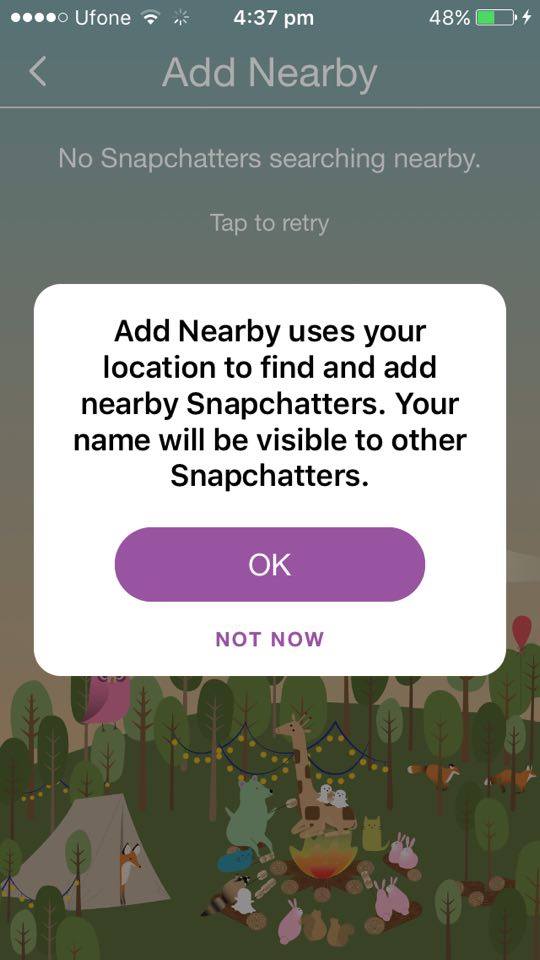
You can now easily add new friends without having to share the contact info. If you are sitting among a group of friends and want to add them, you can simply use the nearby feature instead of giving details for easily adding them.

Go to ‘Add Friends’ and select ‘Add Nearby’. This will let you see your nearby friends logged into the nearby section as well.

Use Old Lenses:

As you know, Snapchat keeps on adding new lenses every now and then. But, if you are by simply changing the date of your phone to the one of a specific update.

Go to your phone’s Settings> General> Date&Time and disable set automatically. Now you can select the date on which the lenses were available. Once you are done using the old lenses, it is advised to set your phone back to the current date.

Change Contact’s Name:

hidden snapchat features hidden snapchat features 3

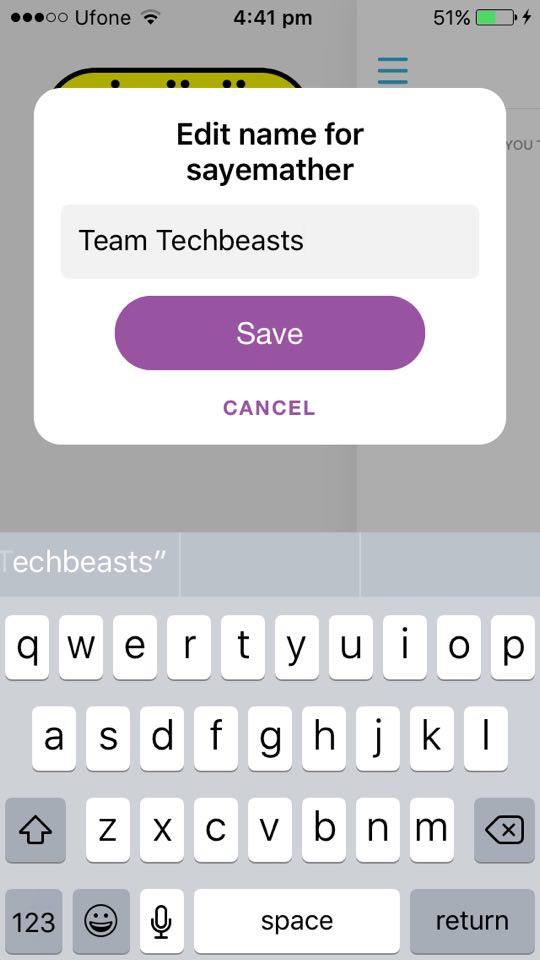
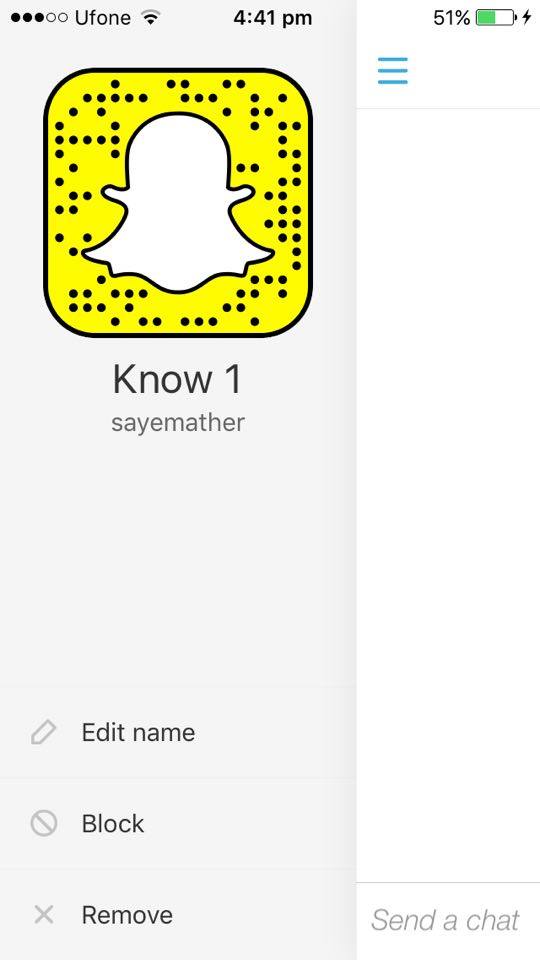
Snapchat allows you to edit your friends’ contact info and also lets you change their names. If you wish to give another name to any of your contacts or rearrange them if you have a long list of friends, go to Menu from top left where you will find your contact’s SnapCode and Snapscore. You will also be able to edit name, block or remove the contact.

Adding Extra Text:

If you like to write longer descriptions and Snap texts, you can take advantage of apps like Notes to do so. This is simple; add a longer blank text on the Notes. Then copy it from Notes and paste into the Snap. To add Text, you will have to manually move the cursor in the snap text.

Save Data:

hidden snapchat features

Snapchat has an added feature that saves data and battery life for you. You no longer have to worry about your phone’s battery life sucked by the app. Simply switching on the ‘Travel Mode’ will conserve battery by disabling download automatically feature for received stories and videos.

  • To switch to Travel Mode, go to App Settings> Additional Services> Manage.

Camera Night Mode:

hidden snapchat features
Hidden Tricks for SnapChat

If you want to take photos in low lights or at night time, you can use the Camera night mode feature for better photos. The Night Mode is represented by the Moon near the Flash icon. You can also use the same Night Mode feature in any kind of light for better results. Simply cover the Camera lens with a dark object to activate the Night Mode.

Change Emojis in Friend List:

hidden snapchat features
Hidden Tricks for SnapChat

If you are looking for a way to change Emoji in Friend list or miss the Best Friend feature, you can have just as much fun with the new Friend Emoji feature. You can assign Emoji and also know their descriptions by going to App Settings> Additional Services> Friend Emojis.

Stay Tuned for more Hidden SnapChat features:

Add Color and Play with Emojis:

There are a number of different ways to use Emojis to bring life to your Snaps. Besides adding Emojis to your Snap Text or in the corner, use them in creative ways. You can add an extra filter to your snaps by zooming in the Emoji by stretching it with two fingers till it fits the size of the screens or fully covers the frame. There a lot of other ways to use Emojis that you can find in various YouTube video tutorials.

Remove My Device From Google Play Store [ Tips ]

0
Remove My Device From Google Play Store [ Tips ]

Here’s how you can remove My Device From Google Play Store. Google stacks up device after device, creating a huge mess over time. Just try to install an application from the web, and you will find a ton of devices in your device list. In this guide, we will be having a look on how to remove my device from Google Play Store easily.

Follow our in-depth guide on how to remove my device from Google Play Store easily, and reach us through the comments below if you need any assistance.

How to Remove My Device From Google Play Store:

Instructions:

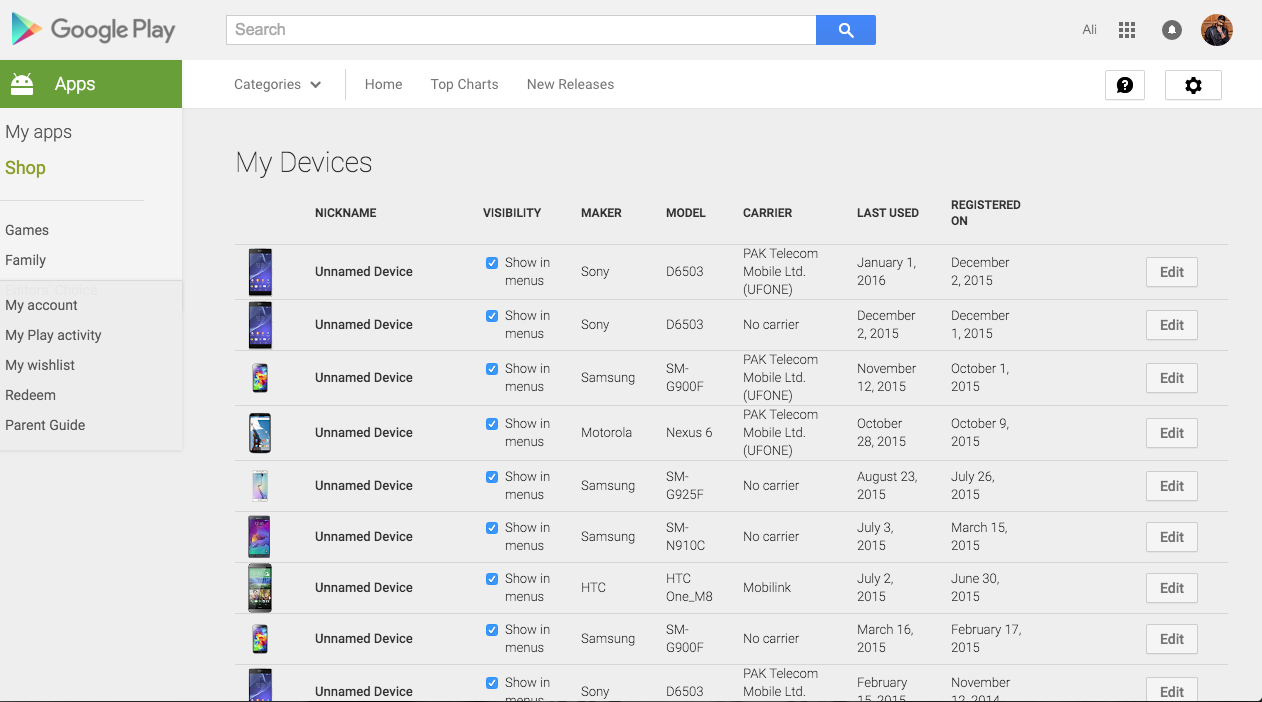
  1. Launch Google Chrome on your desktop PC, and then head to the Google Play Store website.

remove device from Google Play

  1. On the top-right corner, you’ll find a gear icon. Click on that, and then click on Settings.

remove device from Google Play

  1. From there, you will have a see ‘My Devices’ section. Here you will find all of your devices. If you haven’t removed your devices from Google Play in a while. You will see all of your devices in the list.

  2. In order to hide the device from the common menus that you see, uncheck the box which reads ‘visibility’ next to the device in mind.

  3. Do this for all the devices which you feel you don’t need anymore.

  4. Once done, scroll all the way down, and click on ‘Update’.

Voila! You no longer need to struggle to find the right device to install an application, or do any task from the Google Play Store. If you have any doubts, that’s why the comments section for. For more content as such, stay tuned around our space.

How To Customize Home Button Shortcuts on Android

0
How To Customize Home Button Shortcuts on Android

Learn how you can Customize Home Button Shortcuts on Android. The best thing about Android is that it is open source. We can do a hell of customization with almost everything. We have seen that our home button can do a lot more. Moreover, we can change the default task of our device home button.

You can set whatever you desired, instead of What manufactures, you can take control of your device home button. With every gesture, you can set a specific task on your home button. All you have to do is follow the instructions below and you will be able to Customize Home Button Shortcuts on Android.

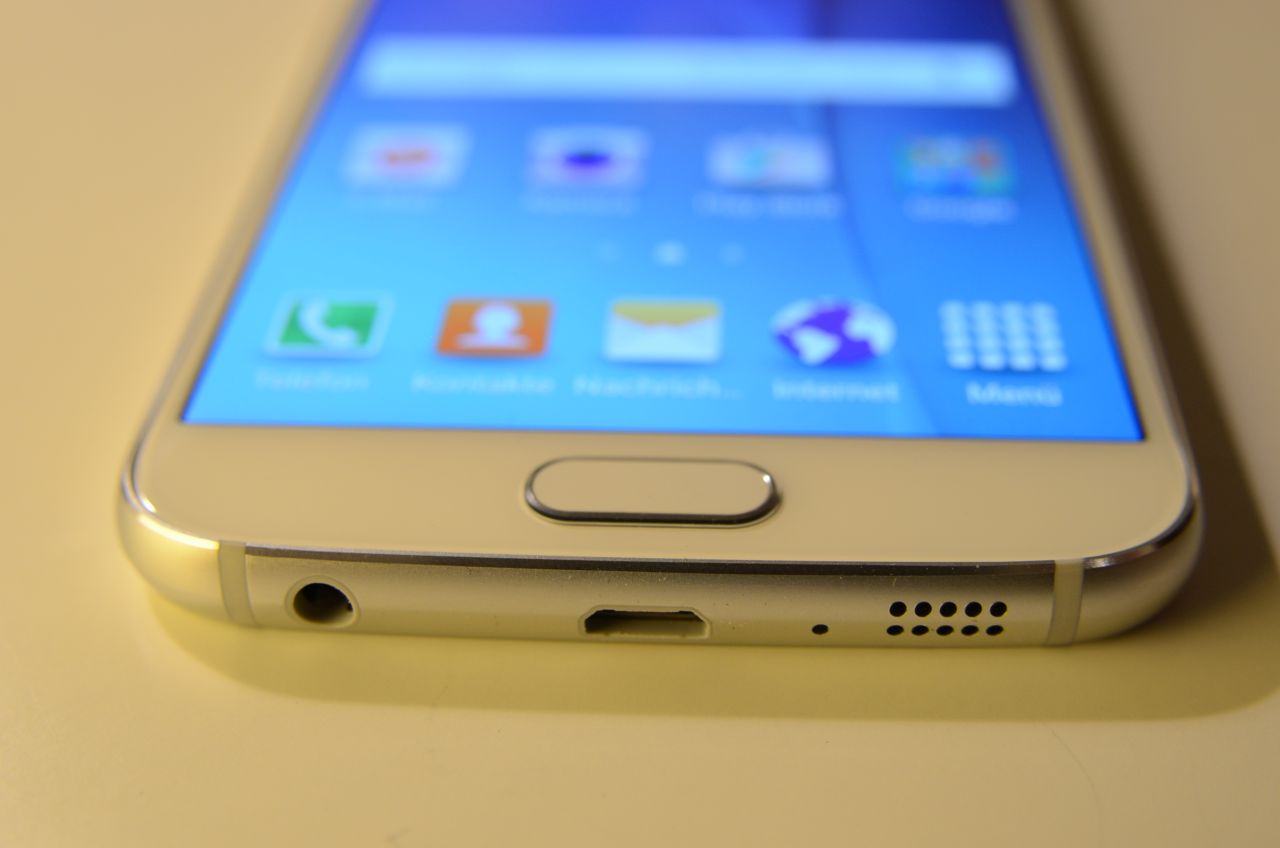
Many users don’t know that holding your device’s physical home button will trigger a special function, such as launching Google Now. After trying our guide, you can add anything’s shortcut instead of Google Now.

customize home button on Android

How To Customize Home Button Shortcuts on Android:

Instructions:

  • Head over to the Google Play Store, and download an application called Home2 Shortcut.
  • Launch the applications, and provide the permissions if prompted.
  • Keep in mind, that in order configure your home button. You need to carefully perform all the steps below:

Method:

  • First of all, tap ‘Choose Application’, and then tap on the application which you desire, for example, the Google Play Store.
  • Next up is a nifty little feature. Here you can select the duration of your press so that you accidentally don’t trigger the shortcut every often.
  • Now, it’ll ask you for your current launcher, select one from the list.
  • In the end, when you press your home button, it’ll ask for which launcher to use, and tap on the one which says Home2 Shortcut.
  • From now on, you can trigger the double-press thing to open the Google Play Store.

If you think our guide was of any use, then stay tuned at our space for more information such as this.

How To Conserve Your Smartphone Battery Life [ 10 Tips ]

0
How To Conserve Your Smartphone Battery Life [ 10 Tips ]

Users of iOS, Nokia and Android phones are lucky to have such multi-purpose smartphones. No doubt these phones offer so much to do from instant messages, voice and video calls, selfies and listening to music to browsing web, using apps and playing games. No wonder with so much functionality, the phones are bound to consume battery and users are often seen complaining about battery life.

If you are one amongst million others, good news for you is that there are some useful tips that can actually help you conserve battery life. This can be extremely useful in situations where you can not charge your phone such as traveling. In these situations, what you can do at most is to try to minimize battery consumption.

In the following guide I’ll explain you how to Conserve Your Smartphone Battery Life.
How To Conserve Your Smartphone Battery Life

How To Conserve Your Smartphone Battery Life:

Turn Off Vibration Alert:

If you usually like to get notified by not only a ringtone but also want your phone to vibrate or just like to receive silent vibrate alerts while at a place you do not want to be disturbed, you might want to give the idea for at least the time you are planning to conserve battery. Vibration alerts demand more battery than normal ring alerts. So in order to conserve battery life, try to turn off vibration alert.

Adjust Screen Brightness:

Smartphones now come with auto-brightness settings, so instead of lighting your display on full brightness, you can instead keep it on low or select auto brightness. This will help in conserving battery life for longer.

Adjust Screen Time-out:

As with the case above, adjusting screen time-out to the shortest will also help you conserve battery life by turning off the display when you no longer need to use your phone.

Power Off:

If you think that you do not need your phone for a long period of time, it is actually better to turn your phone off rather than to let it stay in sleep mode. While inactive, the phone might still consume some amount battery.

Charge Appropriately:

If your phone runs on a Nickle based battery, you should charge it when they are at the lowest. The battery life of this kind is reduced every time you charge them. If your phone runs on a Lithium based battery, need to be charged as frequently as it hits 50% and have the longest battery life.

Close Apps:

Your phone has the tendency to multi-task and so it lets you use more than one app at a time. However, some users might just forget to close the apps after using them and they still keep running in the background.After using an app, make sure that you close it. You can also use apps like ‘Advanced Task Killer’ to do the job for you.

Disable GPS:

As you know, some apps consume more battery than the rest and GPS is one such app that requires sending and receiving location data for your apps like Facebook or Google Maps. If you let the app enabled and running in the background, it will end up consuming more battery. So, in order to conserve battery opt for disabling GPS and only enable it when you need to share your location.

Disconnect WiFi, Mobile Data and Bluetooth:

Another good option to conserve battery life is to disconnect from WiFi, mobile data and Bluetooth when not needed. The reason behind this is that these connectivity tools are constantly busy in sending and receiving signals in order to maintain connection to the satellite or other devices which in result consume battery. You can also keep your phone in Airplane mode. If you want to use your WiFi or 3G, make sure to be in a place where you can receive good signal strength to prevent the device from constantly searching for signals.

Turn Off Notifications:

There are many apps that might be set to send you notifications from time to time. These apps also use up WiFi or mobile data for each notification they send in which reduces battery life. One option is to turn off notifications from these multiple apps to conserve battery.

Avoid Overheating:

Try to protect your phone from over-heating due to high environmental temperature or by directly placing your phone in sunlight. Over-heating is also one of the factors that cause faster battery consumption. In order to save your battery from dying faster, place your phone in a mild to cool temperature and protect your phone from exposure to heat.
Download Qubed for PC – Windows and Mac

0
Download Qubed for PC – Windows and Mac

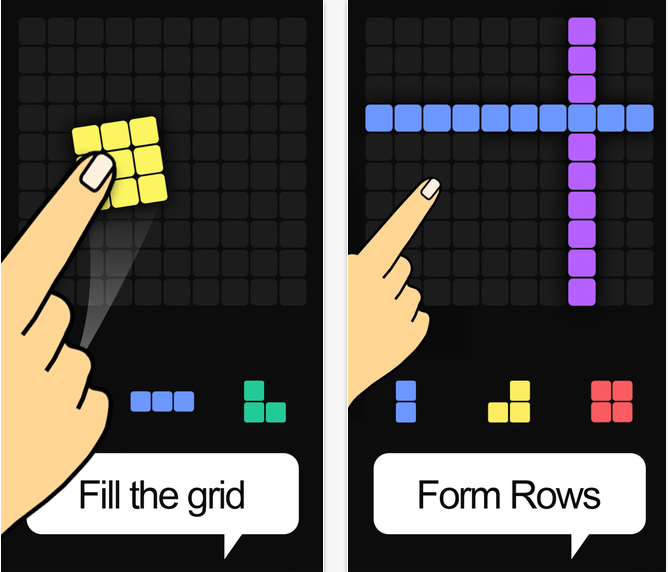
Following are the instruction on how to download the Qubed for PC running Windows and Mac OS. Qubed is a simple puzzle game and it’s very addictive, the concept of Qubed is same like the famous brick game which we use to play on our gameboy. Qubed is only released for iOS, so we won’t be needing BlueStacks and Andy to install this game on our Pc. We’ll be using iPadian iOS simulator to install Qubed on our PC.

Before going any further let me give you an overview on Qubed. As I told you earlier that its a puzzle game, all you have to do is Fit the shapes into all the empty spaces. Fill an entire row to wipe it out and gain points and remember don’t run out of space.

Now let’s start the process on how install Qubed for Pc.

Qubed for Pc

Download Qubed for PC – Windows and Mac:

ipadian for pc

  1. Download iPadian for Windows.
  2. Open iPadian.
  3. Tap on the App Store.
  4. Tap the Search Bar.
  5. Enter the Qubed.
  6. If the app is available in iPadian store, then you’ll be promoted to Install it.
  7. Tap the Install button and Let the Installation begin.
  8. Once the Installation is over, head back to Main Page.
  9. Tap the Game icon to start playing it.
  10. Enjoy!

How to stop your smartphone battery from exploding

0
How to stop your smartphone battery from exploding

It is common mishap that a smartphone’s battery might explode or the phone catches fire. A number of incidents have been reported on this, some of them causing major damage and life threat. So, let’s understand how this happens, the causes behind and how to prevent your smartphone’s battery from exploding.

Firstly, a smartphone’s battery alone can not cause much damage and usually some other factors that cause the battery to explode. This is usually when there is a major flaw regarding the design or assembly of the battery. Otherwise, such a mishap of battery exploding, be it of your smartphone, tablet or any other electronic device, is quite uncommon.

Following are the detailed instruction on how to stop your smartphone battery from exploding.

How to stop your smartphone battery from exploding

Two common factors involved to result in such a mishap are battery and charger (that is not original).

How to stop your smartphone battery from exploding:

Now, let’s look at the first factor, Battery.

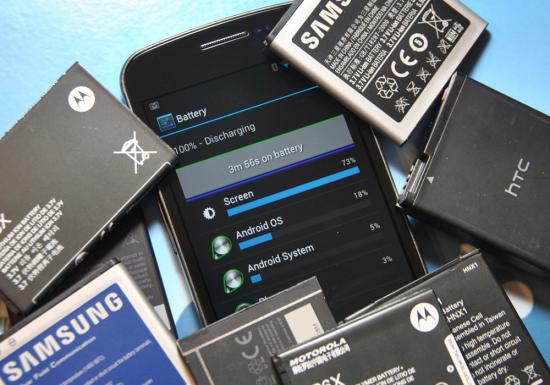
  • Smartphone batteries that are composed of Lithium. These battery may face a problem called runaway caused due to overheating. To prevent runaway, these battery are often designed to shield against over-charging which is most likely to over-heat the battery. The positive and negative plates in the battery are supposed to maintain some amount of distance. The smartphones now days come with progressively thinner batteries. As a result, the distance between the two plates is lesser. In such a case, if the necessary standards have been compromised, things like over-charging may result in serious consequences.
  • Another compromise in the smartphone battery manufacturing standards, in some cases, is a missing fuse. This fuse is responsible to break the circuit in case of over-charging or over-heating. In case no fuse has been inserted into the circuit, the risk of battery over- heating increases especially for those of you who forget their phones while charging.
  • These were some of the factors that are involved in exploding batteries. Now, let’s have a look at the precautionary measures that you can take to avoid such mishaps. It is advised to use the original battery that comes with your device only.
  • In case you need to replace the original battery, make sure you buy the new one from a recommended replacement brand instead of opting for low-priced batteries from companies who claim their products to be as good as original but the case might not be true. Remember, it is better to invest a little more amount of money to get a good battery rather than to risk your lives.
  • Try to prevent your device from overheating. Avoid placing your device in high-temperature environments especially while charging your device.
  • Try to take your phone out of its case to ensure ventilation if you are charging your device for a longer time (especially overnight) or using functions that are likely to cause your device to heat.
  • Try to charge your phone once the battery goes down to 50% and do not wait for the battery to drain out completely before you charge it.

Download Candy Crush Jelly Saga APK

0
Download Candy Crush Jelly Saga APK

Candy Crush Jelly Saga is the new successor in the Saga series games by King. Candy Crush Jelly Saga brings whole lot of new Candies in the game. The storyline of this game is interesting enough. You will be playing the boss battles agains the Jelly Queen, who’s a new wiggling jiggling player in the town. You’ve to perform some Jellyicious moves to take on the Jelly Queen. It’s time to taste the sweetness of Jellyicious candies in the all new Candy Crush Jelly Saga now. The game brings over a 100 levels that will be taking you through some enchanting locations. The game also features some new game modes. You will be going through a mode “Spread the Jelly & Release the Pufflers”. Basically your focus in this game will be to stay ahead of the Jelly Queen while you play with the new mesmerising candies. Candy Crush Jelly Saga offers efficient graphics. The colourful display makes this game look much more lucrative as compared to the previous Saga games by King. Candy Crush Jelly Saga has just made its way to the Google Play Store. In some regions this game is available to download and install, but in some regions the game still on pre-registration. You can try your luck and see if you can grab Candy Crush Jelly Saga from the Google Play Store for your device, but in case you’re not lucky enough, we’ve got your back.Candy Crush Jelly Saga for PC

We’ve pulled out the Candy Crush Jelly Saga APK for all of you. The download link for Candy Crash Jelly Saga APK is attached below in this post. Instructions to install Candy Crush Jelly Saga APK are also listed below. Go ahead and download Candy Crush Jelly Saga APK and install it on your phone.

Candy Crush Jelly Saga features:
• Over 100 Jellylicious Levels
• New Jelly Queen Boss Modes
• Marvelous game modes including: Spread the Jelly & Release the Pufflers
• Tasty new Color Bomb Lollipop booster
• Mezmerizing new Candies
• Dreamy new treetop world and a host of quirky characters led by the Jelly Queen and her stooges.

Download Candy Crush Jelly Saga APK and install it

  1. Download Candy Crush Jelly Saga APK
  2. Download the file to your phone straight away, or copy it to your phone from your PC.
  3. Now on your phone, go to settings > security > allow unknown sources > check this.
  4. Now using a file manager, locate the APK file that your just copied or downloaded.
  5. Tap the APK file and finish installation using the on-screen instructions.
  6. Once installed, access the newly installed game through app drawer.
  7. That’s all. Enjoy Candy Crush Jelly Saga!

How to know who is stealing your WiFi and Block them using Android

0
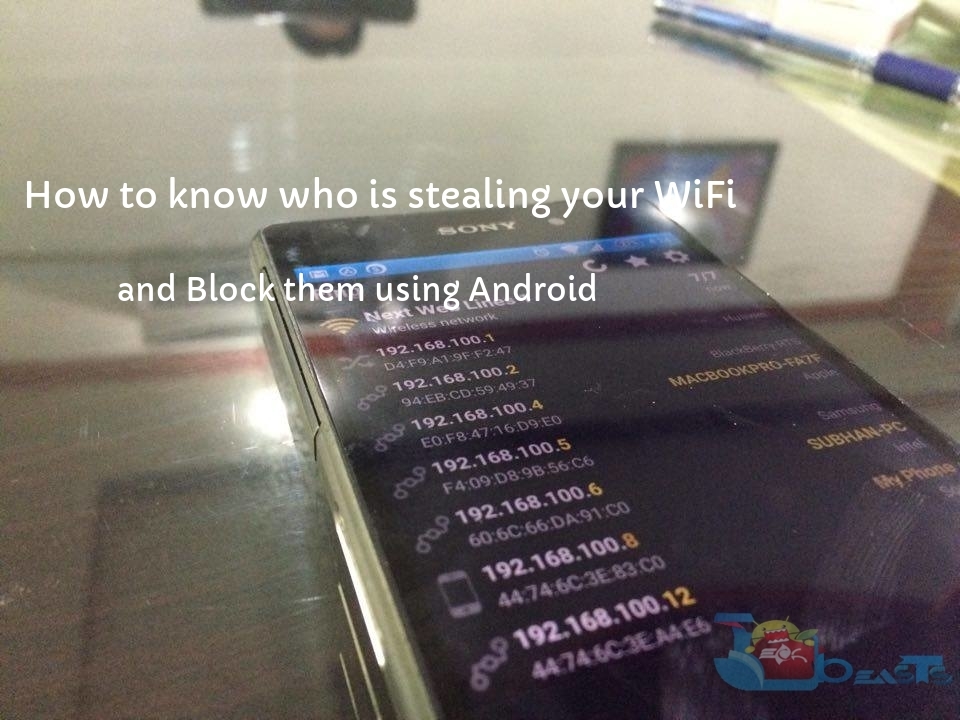
How to know who is stealing your WiFi and Block them using Android

Have been wondering lately about your slow WiFi? When everything with the network seems to be fine, you can get agitating by constantly trying to figure out what can cause the speed to be slow. While most of times, a slow internet connection on your Android device can be just due to the poor network, there might be a chance that some intruder might also be feeding on your internet connection and you do not even know it. Well, that can be troublesome but, luckily we have figured out a way to deal with these nasty intruders. This can also be not so favorable as far as your internet related security is concerned.

Read on to find out who is using your Wifi and how to block them. This can also be useful when you have a bunch of people over at your place using your WiFi but you want to solely use your network for some important work but can not ask them directly to get their devices disconnected. In the following guide we’ll tell you how to know who is stealing your WiFi and Block them using Android.

who is stealing your WiFi and Block them using Android

How to know who is stealing your WiFi and Block them using Android:

  • First of all, make sure that you are connected to the concerned WiFi network.
  • Now, download the app ‘Fing-Network Tools’ through Google PlayStore.
  • Once the app has been installed, go ahead and open the app.
  • The app will display the network connection it is connected to on the homescreen. You will also be able to see a refresh icon on the top of the homescreen along with settings.
  • You’ll see a list of devices that are connected with your Wifi.

If you see a devices connected to your network which otherwise should not have been, you can go ahead and block it by following the guide below.

  • In order to block a device from further using your network connection, simply tap on the device and note down its MAC Address from the details log.
  • Now, head over to your PC which is connected to the router. Here, open internet browser and enter your router IP.
  • Now, you will need to log into your router by giving your login details.
  • Once you have logged in, head over to Settings/Advanced Settings and go to Security.Here, go to MAC Filtering and Add Device.
  • Here, go to MAC Filtering and Add Device.
  • In the Add Device details, enter the MAC Address you had previously noted down and hit apply/save.
  • That’s all. The intruder device will be blocked and will no longer be able to sneak into your WiFi network any longer.

Note: It is also advisable to change you WiFi password as you are logged into your router in case you have found an intruder device, for protection in the future.