Home Blog Page 292

Install GBA4iOS 2.1 Game Boy Advance Emulator On iOS 10 [ Without Jailbreak ]

0
Install GBA4iOS 2.1 Game Boy Advance Emulator On iOS 10 [ Without Jailbreak ]

In this post, I’ll tell you how to Install GBA4iOS 2.1 Game Boy Advance Emulator On iOS 10 without Jailbreaking your device. Follow the step below in order to install GBA4iOS 2.1 on iOS 10 running on iPhone, iPad, and iPod Touch.

Install GBA4iOS 2.1 Game Boy Advance Emulator On iOS 10

Install GBA4iOS 2.1 Game Boy Advance Emulator On iOS 10:

  • First, open this link in your Safari browser. ( iemulators.com/gba4ios. )

GBA4iOS 2.1 Game Boy Advance Emulator On iOS 10

  • Tap on GBA4iOS 2.1 as shown in the photo.

GBA4iOS 2.1 Game Boy Advance Emulator On iOS 10

  • Tap on install when you see a popup.

GBA4iOS 2.1 Game Boy Advance Emulator On iOS 10

  • You’ll see another confirmation page, Tap on install again.

GBA4iOS 2.1 Game Boy Advance Emulator On iOS 10

  • Now the installation process will start and it will take 2-3 minutes depending on your internet connection.
  • Once the installation is done, Open Settings->General->Device Managment-> Tap on Trust.

GBA4iOS 2.1 Game Boy Advance Emulator On iOS 10

  • Once you hit trust, you’ll see another confirmation page. Tap on Trust again.

GBA4iOS 2.1 Game Boy Advance Emulator On iOS 10

This all, You’ve successfully installed GBA4iOS 2.1 Game Boy Advance Emulator On iOS 10 without Jailbreak. If you face any issue please do tell me in comments.

Happy New Year 2017 Images HD Wallpaper With Wishes

Happy New Year 2017 Images HD Wallpaper With Wishes

You can download Happy New Year 2017 Images HD Wallpaper With Wishes from the following links, share these Happy New Year 2017 Images with your friends and family. Enjoy Happy New Year 2017 with these free New Year 2017 HD Wallpapers and Wishes.

Happy New Year 2017 Images HD:

happy new year 2017

happy new year 2017

Happy New Year 2017

Happy New Year 2017 Images

Happy New Year 2017

Happy New Year 2017 Images

Happy New Year 2017

Happy New Year Images 2017

Happy New Year 2017 Wallpaper:

Happy New Year 2017

Happy New Year 2017 Wallpaper Free Download

Happy New Year 2017

Happy New Year 2017 Wallpaper 3D HD

Happy New Year 2017

Happy New Year 2017 Wishes:

happy new year 2017

happy new year 2017

happy new year 2017

c

happy new year 2017

happy new year 2017

Amazon Underground for PC Download – Windows/Mac

0
Amazon Underground for PC Download – Windows/Mac

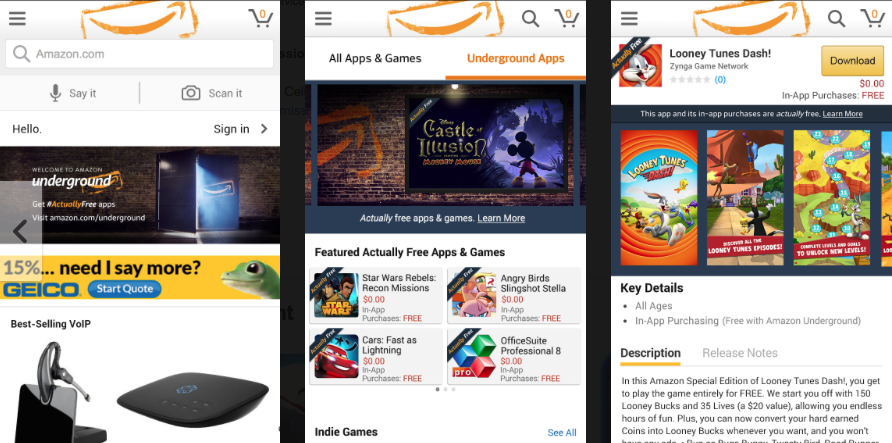
Amazon Underground for PC is now available and can be easily installed on a desktop PC/Laptop running Windows XP/7/8/8.1/10 and MacOS/OS X. Let’s learn a little bit about this all-new app and then have a look at the installation method via BlueStacks or BlueStacks 2.

Amazon Underground for PC


Amazon has many apps which are used for different purposes and also they have their own App Store which can be used on Android devices and today there is another app from Amazon. Amazon underground which includes awesome features and content that is not available on their own shopping app. Here you can get your hands on best mobile shopping experience, Amazon Instant Video in apps, games, and even in-app items that are actually free. So I think its time to leave Amazon Shopping app and switch to Amazon Underground, In this post, I’ll tell you how you can download and install Amazon Underground for PC.

Download Amazon Underground for PC

  1. Download and install BlueStacks or Remix OS Player: Bluestacks Offline Installer Rooted Bluestacks |Bluestacks App Player | Remix OS Player for PC
  2. Open the installed BlueStacks or Remix OS Player and open the Google Play Store in it.
  3. Now in Play Store, search for “Amazon Underground“.
  4. Install the game and open the app drawer or all apps in the emulator.
  5. Click the Portal Worlds icon to open it, follow the on-screen instructions to play it.

Method:2

  1. Download Amazon Underground APK.
  2. Download and install BluestacksBluestacks Offline Installer | Rooted Bluestacks |Bluestacks App Player
  3. Once you’ve installed Bluestacks, double click the APK that you just downloaded above.
  4. The APK will be installed using Bluestacks, once installed open Bluestacks and locate the recently installed Amazon Underground.
  5. Click the Amazon Underground icon to open it, follow the on-screen instructions to play it.

You can also use Andy OS  to install Amazon Underground for PC, here’s the tutorial: How To Run Android Apps On Mac OS X With Andy.

Best Ways to Access Local Group Policy Editor on Windows 10

Best Ways to Access Local Group Policy Editor on Windows 10

You can easily access Local Group Policy Editor on Windows 10 by using following methods. No need to stick with one and only traditional way. Let’ start the post, 5 Ways to Access Local Group Policy Editor on Windows 10.

Best Ways to Access Local Group Policy Editor on Windows 10:

Access Local Group Policy Editor on Windows 10

Access the editor by Run:

  • Access Quick Access Menu, and open Run.
  • Now in run Type gpedit.msc and click OK.

local group policy editor windows 10

Enter Group Policy Editor via Search:

local group policy editor windows 10

  • Windows+X to open the Quick Access Menu.
  • Click on Search.
  • Type group policy in the box.
  • Click Edit group policy.

Access the editor from Start Menu:

local group policy editor windows 10

  • Click on start button to open the start menu.
  • Type gpedit.msc in the empty box.
  • Click on gpedit.

Access Group Policy Editor through Command Prompt:

local group policy editor windows 10

  • Press Windows+X and Click on Command Prompt.
  • Type gpedit  and hit Enter.

This is all, these were the best Ways to Access Local Group Policy Editor on Windows 10.

5 Ways to Open Control Panel in Windows 10

5 Ways to Open Control Panel in Windows 10

In this following post, I’ll tell you 5 Ways to Open Control Panel in Windows 10. All of these methods are simple and easy, it comes handy sometimes when you several methods to open Control Panel in Windows 10Let’s start the guide now. !

5 Ways to Open Control Panel in Windows 10:

windows 10 control panel

  • Click the Start button to open the main Menu.type
  • Type control panel in the search box.
  • Click Control Panel from the result list.

Access Control Panel from the Quick Access Menu:

Open Control Panel in Windows 10

  • Press Windows+X and then choose Control Panel from the list.

Go to Control Panel through the Settings Panel:

open-control-panel-in-windows-10

  • Press Windows+I, and tap Control Panel on it.

Open Control Panel in the File Explorer:

Open Control Panel in Window

  • File Explorer-> select Desktop->double-tap Control Panel.

Open the program via Run:

enter-control-panel-and-tap-ok

  • Start button-> input cmd-> click Command Prompt to open it.

Download Portal Worlds for PC

2
Download Portal Worlds for PC

Portal Worlds for PC is now available and can be easily installed on a desktop PC/Laptop running Windows XP/7/8/8.1/10 and MacOS/OS X. Let’s learn a little bit about this all new game and then have a look on the installation method via BlueStacks or BlueStacks 2.portal-worlds-for-pc

Portal Worlds is a new sandbox inspired adventure game in which you get a chance to build your own multiple worlds. Players are enabled to grow the world from scratch and then setup the whole life-cycle by establishing businesses, trade, education centers, hospitals, agriculture and everything that the world needs the most. Blocks and other different materials are given to the players for creating and crafting items in the game. Players can craft furniture, they can manufacture weapons and they can even produce their own clothes to sell. There is a trading opportunity using which they can run the economy of their world. Blocks and other items can be easily traded with players and the price totally depends on you. You will learn the entire system of running a world just like a leader leads his country. The game is easy and really funny. Portal Worlds is absolutely free and it can be downloaded from the Play Store for Android. If you wish to play it on your computer, that is possible as well. Let’s have a look at the guide now.

Download Portal Worlds for PC

  1. Download and install BlueStacks or Remix OS Player: Bluestacks Offline Installer | Rooted Bluestacks |Bluestacks App Player | Remix OS Player for PC
  2. Open the installed BlueStacks or Remix OS Player and open the Google Play Store in it.
  3. Now in Play Store, search for “Portal Worlds“.
  4. Install the game and open the app drawer or all apps in the emulator.
  5. Click the Portal Worlds icon to open it, follow the on-screen instructions to play it.

You can also use Andy OS  to install Portal Worlds for PC, here’s the tutorial: How To Run Android Apps On Mac OS X With Andy.


Happy New Year HD Wallpapers Free Download – 2017

Happy New Year HD Wallpapers Free Download – 2017

Let’s celebrate this New Year with a swag, I have collected the best Happy New Year HD Wallpapers Free Download. You can download Happy New year wallpapers for your smartphones and laptops, Also you can share it with your friends on Facebook, Twitter, SnapChat and WhatsApp. Enjoy !

Happy new year

Happy New Year HD Wallpapers Free Download – 2017

Happy new year

New Year 2017

Happy new year

happy new year 2017

Happy new year

New Year greetings

Happy new year

happy new year wishes 

Happy new year

happy new year greetings

Happy new year

happy new year greeting card

Happy new year

Happy new years image hd.

Happy new year

Happy new year wishes images.

Happy new year

Happy New Year Images Wallpapers.

Happy new year

Happy New Year HD Wallpaper Facebook Cover

Happy new year

HD Happy New Year Backgrounds

How To Disable Narrator Voice Windows 10-8-7

How To Disable Narrator Voice Windows 10-8-7

Learn how to disable Narrator Voice in Windows 10, many of us have accidently enabled Narrator Voice in our Windows and after that whatever you type you’ll hear a narrator’s voice. Even when you start your computer or mouse over an item. In this post, I’ll tell you how you can disable Narrator Voice in Windows 10. Now Let’s start the method.

Disable Narrator Voice

Disable Narrator Voice

How To Disable Narrator Voice Windows 10:

Following are the simplest method to disable Narrator Voice in Windows 10, if you are facing such issues on other versions of Windows you can also try these steps on them.

Disable Narrator Voice Windows 10:

Best Solution: Hold Windows Key and press “Enter“.

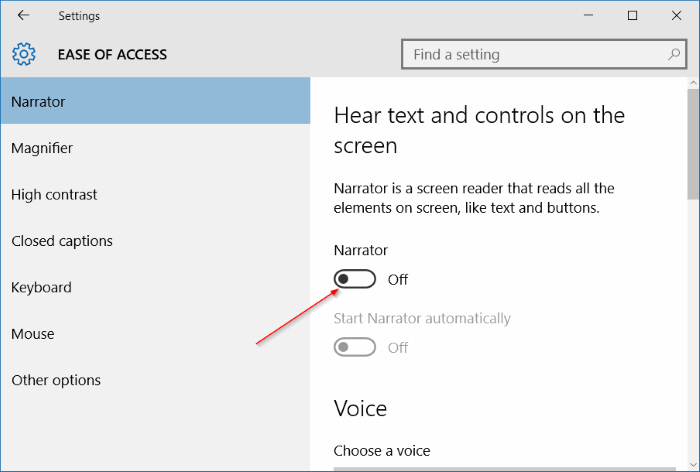
  • Start” > “Settings“.
  • Ease of Access“.
  • Narrator“.
  • Toggle “Narrator” to “Off“.

Disable Narrator Voice Windows 8:

  • Caps Lock+Esc to open Narrator Windows.
  • Click on Yes to exit it.

2nd Method:

  • Open Narrator Settings.
  • Select Exit.
  • Click on Yes to exit it.

Fix Samsung Galaxy Note 4 problems after Marshmallow update [ updated ]

21
Fix Samsung Galaxy Note 4 problems after Marshmallow update [ updated ]

Samsung Galaxy Note 4 users are receiving Android 6.0  updates in specific countries and also carrier rolled out latest Android update. The latest update brings a lot of new improvements and features, but on the other hand users are facing a lot of issue after updating to the Android 6.0. I’ve got emails from our readers reporting issues like Galaxy Note 4 no sound on videos, Note 4 Crashes After Software Update, Note 4 Drains Fast Not Charging Completely, Note 4 Freezes, Note 4 Keeps Restarting After Marshmallow Update, Note 4 Slow Restart Issue, Note 4 Unfortunately, samsung accessory service has stopped After Software Update, Note 4 Notification Panel Missing After Marshmallow Update and more. Now let’s start the method to fix Samsung Galaxy Note 4 problems after Marshmallow update.

[note] 6/6/2016Check out more problems user are facing after marshmallow update below [/note]

Fix Samsung Galaxy Note 4 problems after Marshmallow update

Fix Galaxy Note 4 Crashes After Software Update:

Now to fix this issue, I would suggest you to factory reset your device because it will eliminate the firmware issues. Before doing this you must backup your data first and if a factory reset didn’t worked for you, try wipe data / factory reset using recovery option.

Fix Note 4 Drains Fast Not Charging Completely After Software Update:

  • Try using a new battery.
  • Perform a wipe cache partition from recovery.
  • Clean the charging port and then plug in USB cable.
  • Charge your device with PC.
  • Backup your device and factory data reset.

Fix Galaxy Note 4 Freezes issue:

The best solution is that you should remove your battery and wait for few seconds, put the battery back. Use a new battery, because I’ve heard many people reporting that after replacing the battery freezes issue is fixed. If you are using SD Card on your Samsung Galaxy Note 4 take it out and restart your device.

Fix Galaxy Note 4 Keeps Restarting After Marshmallow Update:

I have faced this issue many times and there are two solutions for this issue, first if you can access recovery mode then perform a factory reset. The other solution is that you should download the latest update firmware and flash it again.

Fix Galaxy Note 4 Slow Restart Issue After Software Update:

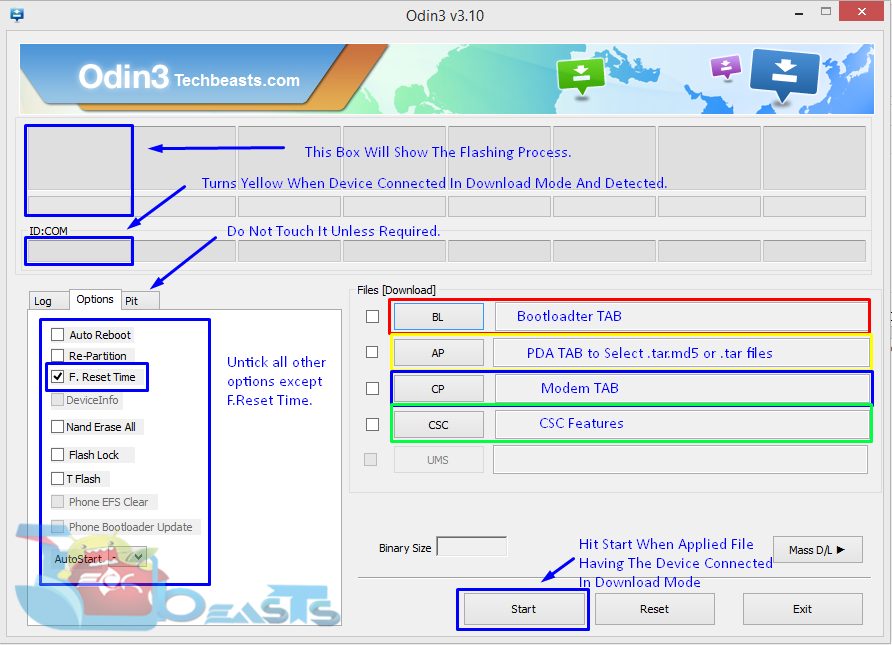
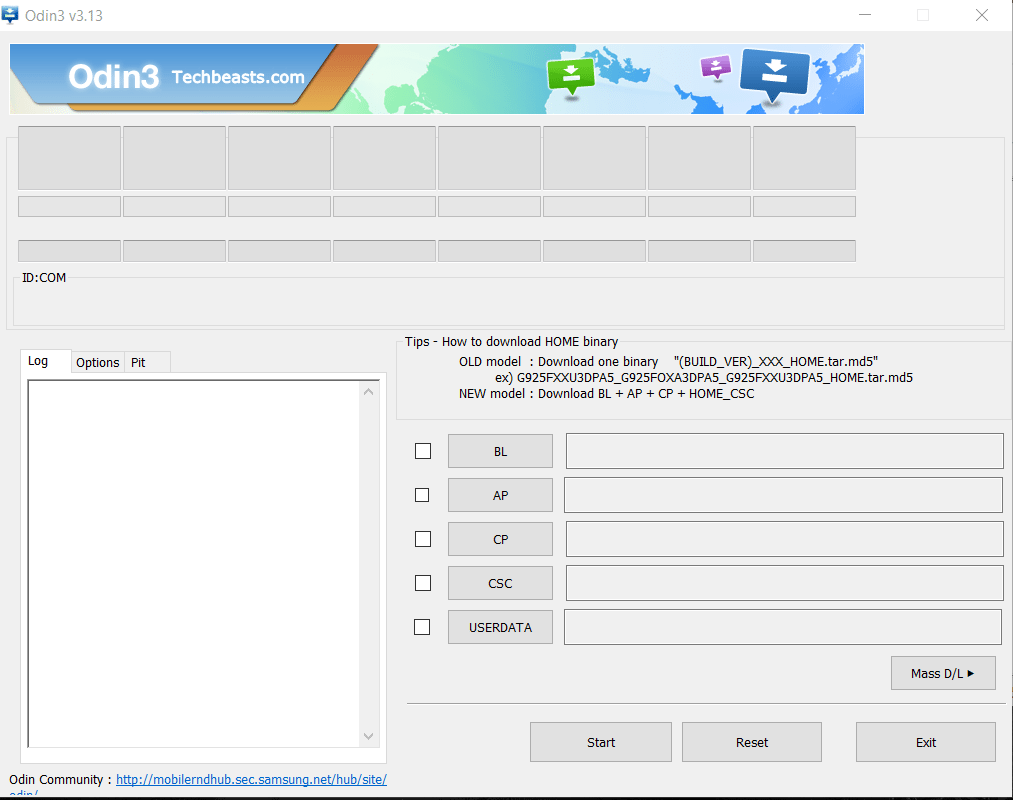
Now since you have factory reset your device, all you can do is download the old firmware and flash it. Once your phone start working fine download the Android 6.0 and flash it using Odin. This will fix all the issue and if still your device is restarting slow try the following steps.

  • Turn off your device.
  • Now press and hold home+Power+Volume Up key.
  • Release the power button once you see logo, but keep holding home and Volume up keys.
  • Now when you see Android logo, let go both buttons.
  • Use the volume down button to navigate and highlight wipe cache partition.
  • Now use the power key to select the option.
  • You have to select ‘Yes‘ when you’ll be prompted to next menu.
  • Now wait for the process to be completed, once it’s done highlight ‘Reboot system now’ and press power button to select it.
  • All Done.

Fix Galaxy Note 4 Unfortunately, samsung accessory service has stopped After Software Update:

Boot your device into Safe Mode, once your are in safe mode try the following steps.

Step#1: Open Settings on your Android device.

Step#2: Now tap on More tab.

Step#3: Tap on Application Manager from the list.

Step#4: Now select All Application by swipe to left.

Step#5: There you’ll see all your installed apps, Tap on Gallery.

Step#6: Now all you have to do tap on Clear Cache and Clear data.

Step#7: Now goto home screen and restart your device.

All Done ….

Method#2:

  • Turn off your device.
  • Now press and hold home+Power+Volume Up key.
  • Release the power button once you see logo, but keep holding home and Volume up keys.
  • Now when you see Android logo, let go both buttons.
  • Use the volume down button to navigate and highlight wipe cache partition.
  • Now use the power key to select the option.
  • You have to select ‘Yes‘ when you’ll be prompted to next menu.
  • Now wait for the process to be completed, once it’s done highlight ‘Reboot system now’ and press power button to select it.
  • All Done.

Fix Galaxy Note 4 Notification Panel Missing After Marshmallow Update:

The best solutions to fix Galaxy Note 4 notification panel is missing are as follow.

  • Turn off your device.
  • Now press and hold home+Power+Volume Up key.
  • Release the power button once you see logo, but keep holding home and Volume up keys.
  • Now when you see Android logo, let go both buttons.
  • Use the volume down button to navigate and highlight wipe cache partition.
  • Now use the power key to select the option.
  • You have to select ‘Yes‘ when you’ll be prompted to next menu.
  • Now wait for the process to be completed, once it’s done highlight ‘Reboot system now’ and press power button to select it.
  • All Done.

Method#2:

  • Turn off your device.
  • Now press and hold home+Power+Volume Up key.
  • Release the power button once you see logo, but keep holding home and Volume up keys.
  • Now when you see Android logo, let go both buttons.
  • Use the volume down button to navigate and highlight wipe data / factory reset.
  • Now use the power key to select the option.
  • You have to select ‘Yes‘ when you’ll be prompted to next menu.
  • Now wait for the process to be completed, once it’s done highlight ‘Reboot system now’ and press power button to select it.
  • All Done.

Galaxy Note 4 Apps Freezing:

This happens whenever your device is updated and if the update was major. Now to fix Galaxy Note 4 Apps freezing, you need to wipe your cache partition using recovery mode. After that reboot your device and check everything is working fine, if not backup your device and perform a factory data reset.

Galaxy Note 4 Error 505 When Downloading Facebook App:

The main reason of this error is ” incompatibility issue “. Update your device to the latest OS and try downloading the app again if still you are getting the same error. Try the following steps below.

Open Settings->Application manager-> All Apps-> Google Services Framework and Google Play Store-> Clear Cache and Data.

Galaxy Note 4 App From Play Store Randomly Pops Up To Be Installed:

The best solution for this issue, Goto Settings->Lock screen and security->disable unknown sources.

Galaxy Note 4 Lag In Netflix App:

Open Settings->Application manager-> All Apps-> Netflix-> Clear Cache and Data.

Galaxy Note 4 App Opens After Being Updated By The Google Play Store:

Uninstall the version you are using, install the latest version and check if its working fine. If not download the old version which was working on your device. After trying this still you are not getting any success try the following method.

  • Turn off your device.
  • Now press and hold home+Power+Volume Up key.
  • Release the power button once you see logo, but keep holding home and Volume up keys.
  • Now when you see Android logo, let go both buttons.
  • Use the volume down button to navigate and highlight wipe cache partition.
  • Now use the power key to select the option.
  • You have to select ‘Yes‘ when you’ll be prompted to next menu.
  • Now wait for the process to be completed, once it’s done highlight ‘Reboot system now’ and press power button to select it.
  • All Done.


VPN Master for PC Download – Win/Mac

0
VPN Master for PC Download – Win/Mac

You can use VPN Master by Smule for PC on your Windows XP/7/8/8.1/10 Desktop PC/Laptop and also Mac OS X Macbook/iMac. Playing VPN Master by Smule for PC has been made possible by using Android emulators like BlueStacks, Andy, and Remix OS. Before going through the installation instructions, let’s learn a little bit about this app.

VPN is the very important tool for our smartphones, but not every VPN works properly most of them are on trial period and then you have to pay to use more.

Today, I have an app which you can use for free as much as you want, but if you want to get more features then you have to pay for the subscription, I am talking about VPN Master, it’s the best free & unlimited VPN tunnel, Bypass location restrictions, Bypass firewalls and Protect data privacy. You can check out all the features of VPN Master from the following link. Let’s start the method to download and install VPN Master for PC.

VPN Master for PC

VPN Master for PC

The app was not found in the store. 🙁

VPN Master for PC Download – Windows/Mac:

  1. Download VPN Master APK.
  2. Download and install Bluestacks: Bluestacks Offline Installer | Rooted Bluestacks |Bluestacks App Player
  3. Once you’ve installed Bluestacks, double click the APK that you just downloaded above.
  4. The APK will be installed using Bluestacks, once installed open Bluestacks and locate the recently installed VPN Master.
  5. Click the VPN Master icon to open it, follow the on-screen instructions to play it.

You can also use Andy OS  to install VPN Master for PC, here’s the tutorialHow To Run Android Apps On Mac OS X With Andy.

Archery King for PC Download – Win/Mac

0
Archery King for PC Download – Win/Mac

You can play Archery King for PC on your Windows XP/7/8/8.1/10 Desktop PC/Laptop and also Mac OS X Macbook/iMac. Playing Archery King for PC has been made possible by using Android emulators like BlueStacks, Andy, and Remix OS. Before going through the installation instructions, let’s learn a little bit about this game.

Miniclip has done it again, every time Miniclip team released a new game there is no doubt you won’t see in the top lists. They are back with another addictive game Archery King so those who love to play Archery games this one is for you for sure. Archery King is the complete package you can train yourself, play matches online, customize your Bow, you’ll different locations and much more. Now Let’s start the method to download and install Archery King for PC.

Archery King for PC

Archery King for PC

Archery King
Price: Free+

Archery King for PC Download – Windows/Mac:

  1. Download Archery King APK.
  2. Download and install Bluestacks: Bluestacks Offline Installer | Rooted Bluestacks |Bluestacks App Player
  3. Once you’ve installed Bluestacks, double click the APK that you just downloaded above.
  4. The APK will be installed using Bluestacks, once installed open Bluestacks and locate the recently installedArchery King.
  5. Click theArchery King icon to open it, follow the on-screen instructions to play it.

You can also use Andy OS  to installArchery King for PC, here’s the tutorialHow To Run Android Apps On Mac OS X With Andy.

Samsung Galaxy Note 8 Specs, Features, News & Release Date

0
Samsung Galaxy Note 8 Specs, Features, News & Release Date

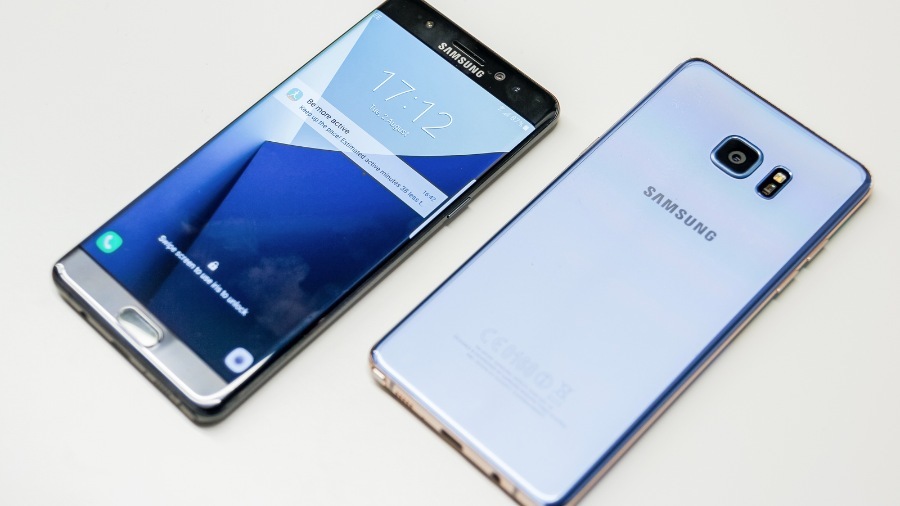
Good news for all the Note fans, Samsung is working on the next Note device, the Galaxy Note 8. Evan Blass (@evleaks) tweeted that a device with the model number SM-N950 is under development. The N-series model numbers are always assigned to Note devices. Galaxy Note 7 had the model number SM-N930 and it is logical that the next note device will have the model number SM-N950. Samsung skips number 4 in their model numbers as it is an unlucky number in South Korea. More bad luck is not something that they can afford at the moment.

After Samsung discontinued Note 7, industry analysts predicted that the company will kill off the Note line after the exploding battery disaster. Despite the Korean tech giants efforts leading to a global recall, they could not save Note 7 from its untimely death. This was a big blow for Samsung as the Note brand is known to produce one of the the best devices with top notch specifications. In this situation, is continuing on with the Note brand a wise choice on Samsung’s part? It all depends on the features the Note 8 gets and how they market it amidst fierce competition from rivals like Apple and Google. So, what is Samsung up to, would they be able to redeem themselves with Note 8, let’s have a look.galaxy-note-8

Samsung will be equipping Galaxy Note 8 with a 5.7″ inch, 4K display. The 4K display will work perfectly with the company’s aim at making Virtual Reality more mainstream and pushing their own Gear VR tech. Samsung has been at the forefront on bringing the best to its customers. The 4K UHD display will make the Gear VR experience even more amazing. There are chances that one of the variants of the Galaxy S8 will have a 4K display, if that is the case, the company will get more time perfecting the elements of the display for Note 8.

Galaxy Note 8 will be powered by either by Exynos 8895 or the Snapdragon 835 SoC which was recently announced by the company. News is that Qualacomm will be producing the Snapdragon 835 in collaboration with Samsung. This chip makes use of the 10 mm process and is more energy efficient. Two of the major features of Snapdragon 835 are longer battery life and Quick Charge 4. With a 4K display, one of the major concerns among users will be an optimal battery time, if this SoC can do that, then its a win win situation for Samsung.

Talking about the battery, what is Samsung’s strategy for the next round? After the Note 7 debacle, they should be reconsidering what they can do. To date the company is unable to ascertain what went wrong and why did the battery overheat and explode. It is imperative that Samsung works on finding out what went wrong, so that they can work on these issues. A report out last month suggests that Samsung is in talks with LG to make use of the LG Chem batteries in a bid to diversify their suppliers. If this partnership works out than a major concern among users about exploding battery will be dealt with. This is going to be a difficult decision for Samsung as LG is one of its major competitors. But if Samsung wants to reinstate consumer trust, it will have to make difficult decisions to re-establish the Note brand.

Samsung is also working on bringing a digital assistant for its flagships. Interestingly, this is one area that the company has not focused on to date. The Korean tech giant acquired Viv Labs, which also produced Siri, AI assistant that iPhone makes use of. Wall Street Journal reports that Samsung Galaxy S8 will have a dedicated button just to launch the AI assistant. This means that Galaxy Note 8 will also be equipped with this feature. Apparently, the name of Samsung’s AI assistant will be Bixby. The company claims that it will be smarter than other software’s present in the market at the moment. Samsung users have been looking forward to such a feature for a while. We hope that they are able to develop and bring one of the best AI assistants and prove that they are still part of the game.

Not much is known about the camera features for Note 8. Most probably the smartphone will sport a dual lens camera with the selfie-shooter getting an upgrade. The dual-camera feature is also in books for the Galaxy S8, it would be interesting to see how Samsung works on this feature. To date, Samsung’s cameras have never failed to impress and we hope that’s the case this time around too. Galaxy Note 8 will have an 12 MP main shooter with a 13 MP secondary lens. This will definitely improve the image quality by focusing on features that make mobile photography an experience. The selfie shooter will most probably get upgraded from 5MP to 8MP.

The S-Pen may get some needed upgrades this time around. A recent patent filing by Samsung at U.S. Patent and Trademark Office shows an S-Pen with a speaker. The speaker can function even when it is not attached to the device. As of yet it is unclear what technology they will be employing for this. One aspect has to kept in mind, companies file many patents but it is not necessary that everyone of them results in a physical product. The company cannot afford to take a chance with Galaxy Note 8.

Well nothing but the best for the upcoming Note will be top priority for the company and we can understand their need to do so.  Till yet the rumored features do show how serious the company is about proving how well they can bounce back from failure.

Samsung at the moment faces serious competition from rivals like Apple and Google in phablet category that it used to dominate. Apple is also working on their next generation iPhones; one of variants, most probably the iPhone Pro is set to give Note 8 some fierce competition. Google with Pixel XL has impressed users with its not notch features and it is ending up in the list of best smartphones of the year. So, with Galaxy Note 8, Samsung needs to bring a top notch device to reclaim place in the phablet category and win back loyal consumers.

Interesting rumors are making rounds about Galaxy Note 8’s release dates.  Updates claim that the nest Note device will be unveiled at the CES 2017 or the MWC 2017. Both the events take place in January and February respectively and according to Note’s release schedule it is never unveiled in the first quarter. Samsung unveils their S-series devices in the 1st quarter and the Note-series devices in the 3rd quarter. So, any new regrading the early release of Note 8 should be dismissed as Samsung at the moment if focusing on their S-series flagship Galaxy S8, which will be unveiled at the MWC 2017.