Home Blog

Apple Just Dropped Some Serious Heat at WWDC 2025
Apple Just Dropped Some Serious Heat at WWDC 2025

Apple’s Worldwide Developers Conference is technically where app developers get schooled by the company’s engineers on new system features. But let’s be real—it’s become the stage where the public gets their first taste of all the incredible tech heading to their devices.


At this week’s keynote in Cupertino, we witnessed dozens of game-changing features rolling out across Apple’s six operating systems (all sporting version 26 badges, thanks to the company’s shift to year-based naming conventions). These updates hit beta next month before their full release later this year.


Tim Cook kicked things off by greeting developers with his trademark enthusiasm, setting the stage for what would prove to be one of Apple’s most ambitious update cycles in recent memory.

Apple's new Liquid Glass visual design in action

Liquid Glass: When Your Interface Becomes Pure Magic

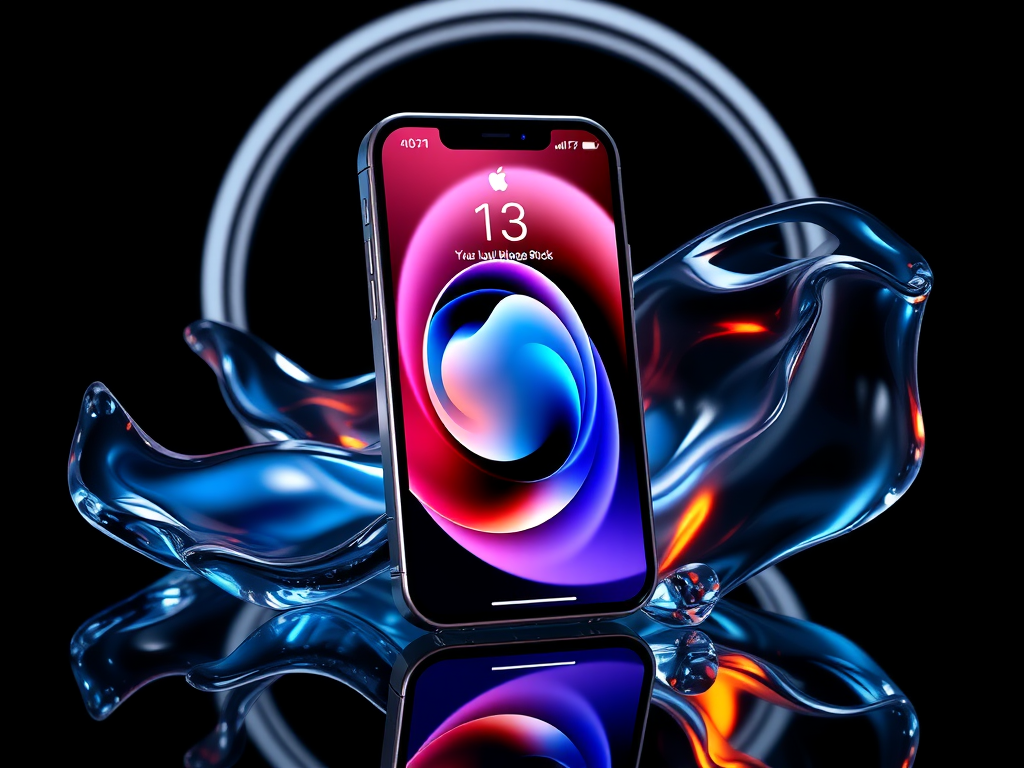
The absolute star of the show was Liquid Glass—Apple’s revolutionary new visual design language that’s about to transform every single one of their devices. Picture this: operating system elements that appear as though they’re crafted from magical, floating, shape-shifting glass that can be either brilliantly colored or crystal transparent, complete with glossy highlights and mesmerizing refractions of whatever elements lie beneath them.


This isn’t just aesthetic eye candy either. In many apps, interface elements will intelligently appear only when you actually need them, or they’ll elegantly expand when tapped to reveal additional functionality. Take the iPhone’s lock screen time display—it’ll dynamically morph its size and shape based on context and usage patterns. And here’s where it gets really wild: alongside the familiar light and dark modes we’ve grown accustomed to, there’s now a completely transparent mode that transforms your app icons into what looks like carefully stacked pieces of pristine clear glass. It’s giving major futuristic sci-fi vibes, and honestly, we’re absolutely here for it.


Games App: Apple Finally Gets Gaming Right

Enter the new Games app—essentially Apple’s long-overdue answer to the question “why don’t we have a proper gaming hub?” This brilliant creation takes the best elements from both the App Store and Game Centre, then smashes them together into what can only be described as Apple’s own gaming launcher that actually makes sense.


Here’s what you can expect: complete visibility into every single game you’ve ever installed across your devices, comprehensive views of your friends and their hard-earned achievements, and genuinely useful personalized recommendations for your next gaming obsession. Mac users get an extra treat with an slick in-game overlay system that provides quick access to essential options without breaking your gaming flow. It’s like Apple finally realized that gaming deserves the same level of thoughtful integration as everything else in their ecosystem.


iPhone: iOS 26 Brings the Heat

Beyond the stunning Liquid Glass makeover and the new Games app, iOS 26 is absolutely packed with features specifically designed to eliminate visual clutter while laser-focusing on the functions you actually use daily. This is streamlining done right:


Camera now defaults to displaying just “photo” and “video” options for a beautifully clean, streamlined appearance. All those other shot types and advanced options? They’re still there, just cleverly hidden until you touch or swipe the top or bottom of the screen.


Photos takes a similar approach—the main tab simply showcases your library of shots in all their glory, while everything else gets relocated to a secondary Collections tab. No more hunting through cluttered interfaces.


Safari goes absolutely full-screen with your web content spanning the entire height of your display, while actions and tools live in those gorgeous expandable glass menus. Music, News, and Podcasts are all getting similar redesign treatment that prioritizes content over chrome.


Maps is getting seriously smart, with the ability to remember the places you’ve been and develop an understanding of your daily routes. This means it can proactively alert you to delays and changes before they ruin your day.


Phone introduces an optional new view that uses AI magic to condense all your current tabs into a single, intelligently organized screen that surfaces the most relevant content based on your usage patterns.


And speaking of the Phone app, it’s gaining two features that’ll make Android users seriously jealous:


Call Screening is a game-changer—it automatically answers those sketchy unfamiliar numbers for you, deploying an AI agent that politely asks callers for their name and the purpose of their call. Text appears on your screen letting you know exactly what the agent discovered, so you can make an informed decision about whether these people deserve your precious time or not.


Hold Assist activates automatically when your phone detects you’ve been sentenced to hold-music purgatory. The call stays connected in the background, but you’re free to continue using your phone normally or go handle other tasks. When it detects a real human has finally returned to the line, your phone will ring to bring you back to the conversation.


Messages is receiving a comprehensive overhaul that brings it much closer in line with other popular texting platforms that people actually enjoy using:


Custom backgrounds can now be set for individual chats, choosing from Apple’s curated pre-sets, your own photos, or even AI-generated images that match your conversation’s vibe. In group chats, users can send polls to help streamline decision-making with friends (because we all know how impossible it is to pick a restaurant), and your phone will intelligently suggest creating one when it detects the conversation could benefit from some democratic input.


Also in group chats, typing indicators will now appear for each individual member, so you’ll know exactly who’s crafting that novel-length response. And if you’re drowning in spam messages, you can enable intelligent screening that automatically routes messages from unknown numbers to a dedicated folder where they won’t clog up your important conversations. The system is smart enough to still surface messages it thinks might be urgent or time-sensitive, so you won’t miss anything crucial.
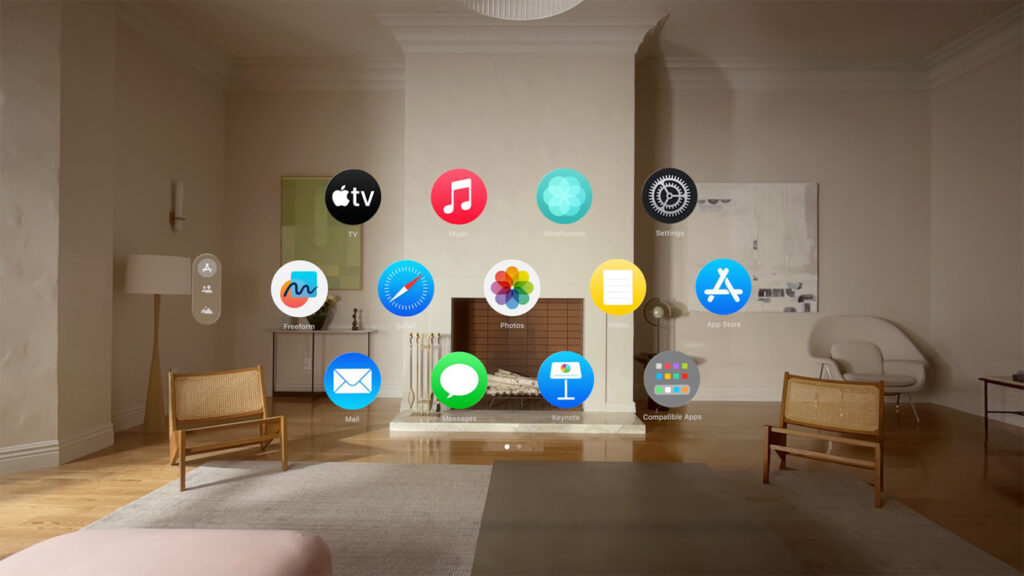
Apple's visionOS 26 widget system with 3D elements
Apple’s visionOS 26 widget system with 3D elements

The Apple Intelligence suite is also getting some serious upgrades:


Live Translation becomes deeply embedded across Phone, Messages, and FaceTime, enabling seamless conversations between people speaking entirely different languages. Everything processes locally on your device, so none of your private conversations ever touch the cloud, and the person you’re talking to doesn’t even need an iPhone for it to work. This translation magic also extends to Music, appearing automatically when you’re viewing song lyrics in languages you don’t speak, complete with helpful pronunciation guides.


Visual Intelligence is expanding beyond what your camera can see in real-time—it now works with any screenshots you capture. Spot something interesting on your phone? Just screenshot it and start asking questions. The system can connect directly to Google and other apps to help you make purchases or get more information about whatever caught your eye.


Genmoji now lets you create entirely new emoji by combining multiple existing ones, optionally guided by text prompts for maximum creative chaos.


New Shortcuts are available that can give direct instructions to the AI system, enabling you to create sophisticated automations involving text summarization, image generation, and other AI-powered tasks.


Perhaps most exciting for the broader ecosystem, Apple is opening up its foundation models to third-party developers, meaning we’ll start seeing much more on-device AI functionality appearing in non-Apple apps throughout the coming months.


iPad: The Tablet Finally Grows Up

Most of the features mentioned above are also making their way to iPadOS 26, but that larger screen real estate comes with some unique tricks all its own. Apple boldly claims this represents the biggest iPadOS release in the platform’s history, and it’s especially massive if you’re someone who’s been trying to get serious work accomplished on your tablet:


An entirely revolutionary windowing system can make apps behave much more like traditional windows on a desktop computer. They still open in full-screen by default, so nothing changes if that’s your preferred workflow. But grab that little tab in the corner and you can resize any app exactly how you want it. Mac-style window control icons materialize, you can flick apps to the sides of your device for automatic tiling, and apps will intelligently remember their size and position for the next time you launch them.


There’s now a menu bar that becomes accessible by swiping down from the top edge of the screen. Just like on Mac, this provides access to commands that are specific to whatever app you’re currently using.


Files is finally becoming genuinely useful and much more desktop-like in its capabilities. There’s a proper list view, the ability to customize folder colors or even place folders directly in your dock, and you can set default applications to handle each specific file type.


The Preview app is making the journey from Mac to iPad, bringing with it the ability to markup images and PDFs with professional-grade tools.


There are also significant new updates specifically designed for creative professionals:


Computationally intensive and long-running tasks like media exports can now happen entirely in the background. A Live Activity will appear at the top of your screen showing progress while you’re completely free to accomplish other work on your iPad without interruption.


A new input picker lets you choose which specific microphone you want each app to use, including the system microphone and any external ones you have connected. Voice Isolation can intelligently remove distracting background noise from your recordings.


A local capture option works seamlessly with any video conferencing application and will save a high-quality recording of your side of any conversation. Other participants can be invited to record their end as well, then send those recordings over afterward for comprehensive documentation.


The Journal app is finally making its cross-platform debut, arriving from iPhone to give iPad users the same thoughtful reflection tools.
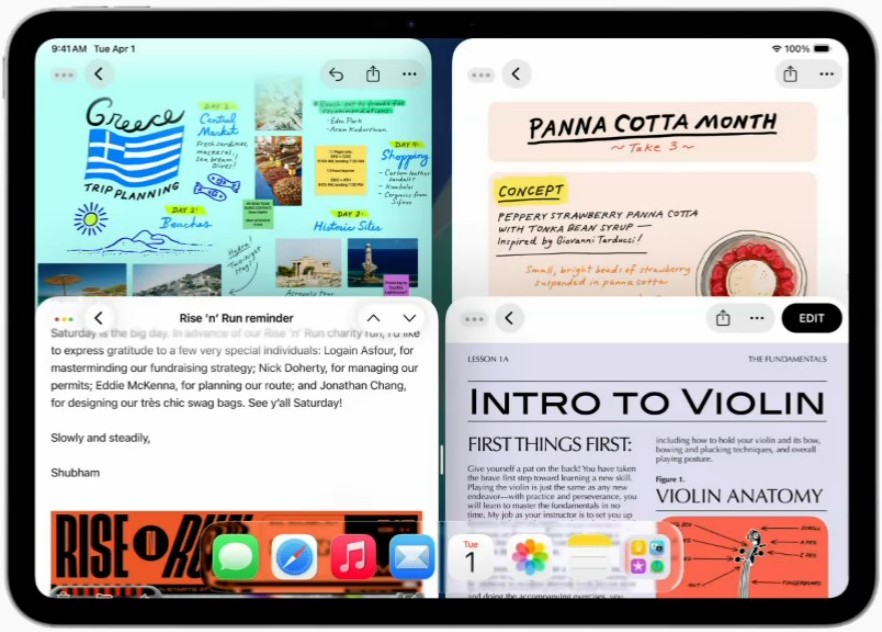
Apples's new iPadOS 26 windowing capabilities -  multiple resizable app windows open simultaneously
Apples’s new iPadOS 26 windowing capabilities – multiple resizable app windows open simultaneously

Everything Else Gets Love Too

The iPhone and iPad may have dominated the announcement spotlight at WWDC, but Apple’s other devices definitely didn’t get left behind.


macOS Tahoe 26 will enable users to make and receive phone calls directly through their connected iPhone, and will display Live Activities from their phone as persistent notifications in the desktop environment. A massive overhaul to Spotlight transforms the search bar into a command center that can take actions, trigger shortcuts, browse through files, and even access your clipboard history.


watchOS 26 introduces Fitness Buddy—a feature designed to serve as your personal AI coach speaking directly into your AirPods. This virtual trainer knows your complete fitness history and has access to real-time workout and biometric data streaming from your watch. It’s powered by an AI-generated voice that, based on the demo’s relentlessly enthusiastic tone and constant celebration of every minor achievement, might prove a bit overwhelming for many users who prefer their fitness motivation in smaller doses.


tvOS 26 doesn’t get much that’s dramatically new beyond the comprehensive visual design refresh, though there are meaningful improvements coming to user profiles, FaceTime integration, and the karaoke Sing mode functionality. Plus, there’s a collection of gorgeous new screen savers to keep your Apple TV looking fresh.


For visionOS 26, the most significant update is the introduction of widgets. These work similarly to what you’d expect on a phone or tablet, except they’re rendered in full 3D and can be positioned anywhere within your physical space. These widgets remember their designated locations, so you can effectively decorate your actual walls with digital calendars, clocks, photo displays, and music playlists. Apple also demonstrated an impressive mode that allows two Vision Pro users to see and interact with the same shared experience, and introduced some exciting partner hardware that integrates with the headset, including Sony’s PlayStation VR2 Sense game controllers for enhanced gaming experiences.
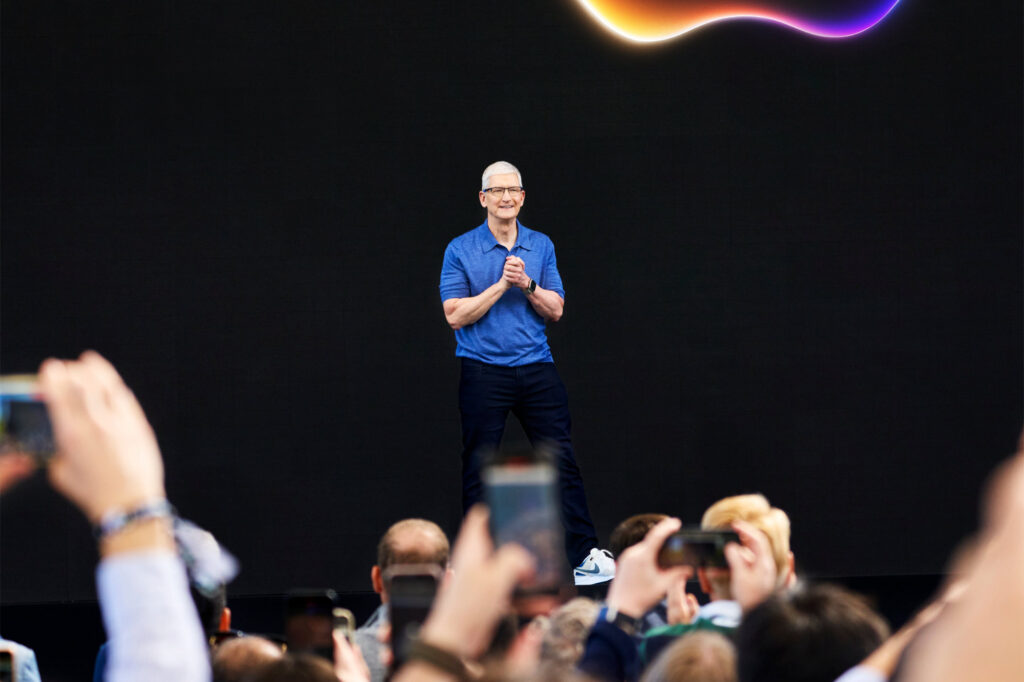
 

Apple WWDC Event photos with Tim Cook

Nintendo Switch 2: What You Need to Know Before Jumping In

0
Nintendo Switch 2: What You Need to Know Before Jumping In
The Nintendo Switch 2 is significantly more powerful

Nintendo’s long-awaited next-gen console lands this Thursday — and it’s packing serious upgrades, new features, and a price tag to match.

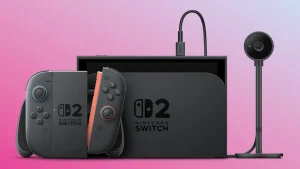
After what feels like a lifetime of rumours, leaks, and speculation, Nintendo is finally rolling out the Switch 2 — and yes, it’s real, it’s powerful, and it’s landing this week. Like its predecessor, it’s a hybrid console you can dock at home or take on the go. But unlike the 2017 original, this isn’t just a minor upgrade. With a $700 price tag, Nintendo’s making a play for more hardcore territory — and they’ve brought a load of tech to back it up.

We only got limited time to mess with it — Nintendo gave us two days under tightly controlled conditions — but that, combined with everything they’ve officially released, gives us a solid picture of what this thing can do. Here’s your full breakdown of the Nintendo Switch 2 — no hype, no waffle, just the good stuff.

Nintendo Switch 2
The Nintendo Switch 2 is significantly more powerful than its predecessor.

The Short Version: Yes, It’s a Big Upgrade

The Switch 2 is way more powerful, completely redesigned, and adds a bunch of long-overdue features. It even supports an optional camera (more on that later).

From top to bottom, it’s a much more modern device. You’re looking at:

  • A significantly sharper, faster display

  • Better build quality and form factor tweaks

  • Dramatically improved performance

  • Smarter, more flexible controllers

  • A native chat system for voice and screen sharing

  • More storage, more RAM, and modern game-sharing features

Nintendo might be late to the party with some of these upgrades, but they’ve clearly taken notes — and the result is a console that feels like it’s finally caught up with where handheld gaming has been heading.


What’s Actually Better?

Let’s break it down. The original Switch dropped in 2017, and tech has moved a lot since then. So Nintendo went back to the drawing board.

The form factor is familiar, but it’s definitely evolved: the Switch 2 is slightly larger but still thin, with an upgraded kickstand and a second USB-C port on top, which is super handy when the system is standing up.

Now let’s talk screen, because it’s the first thing you’ll notice. The new 7.9-inch LCD display runs at 1080p, supports HDR, has variable refresh rates up to 120Hz, and it’s just plain gorgeous. Compared to the original’s 6.2-inch, 720p, 60Hz panel, it’s a massive visual upgrade — and it holds its own against high-end handheld PCs.

Dock it, and the Switch 2 outputs up to 4K resolution at 60Hz, or 120Hz at 1080p or 1440p. It’s a beast for TV gaming too.

That’s all powered by a custom Nvidia chip, said to be 10 times more powerful than the original Switch’s CPU/GPU. Add in triple the RAM and eight times the storage, and it’s safe to say the Switch 2 has the raw horsepower to finally run modern games without gasping for breath.


GameChat and GameShare: Welcome to 2025, Nintendo

Finally — and we mean finally — Nintendo is adding native chat to the Switch ecosystem. The built-in GameChat system lets you voice call friends, share your screen, or stream gameplay to others — whether they’re playing the same game or not.

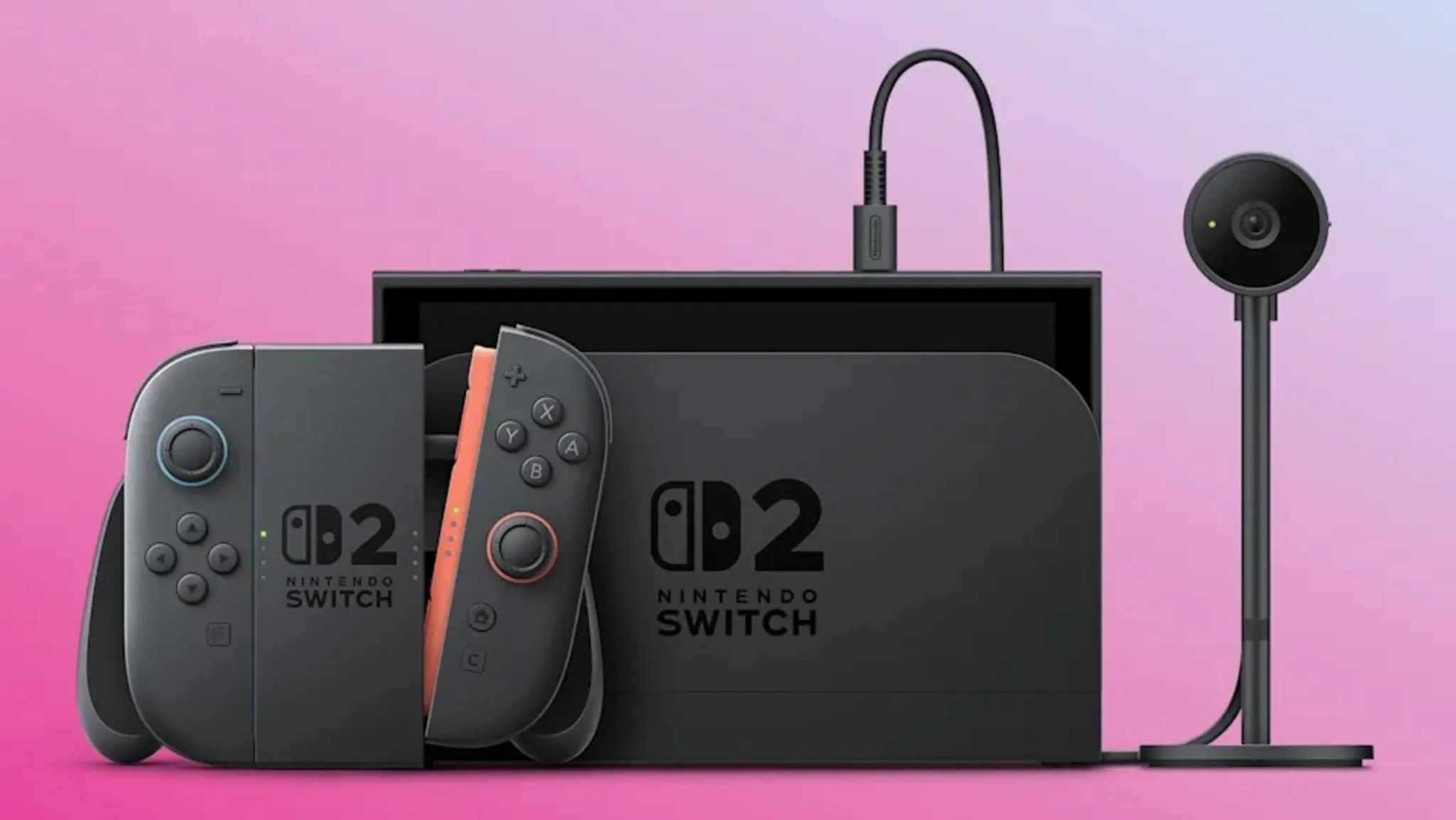
And if you’ve picked up the new Switch 2 Camera (a separate accessory), you can even include video of yourself while you play. It’s like Discord-lite, but built into the console.

GameChat is activated by a new “C” button on the controller, and it’s surprisingly flexible. You can use it to chat in the middle of games, hang out while watching friends play, or host little co-op sessions via a feature called GameShare, which lets others join your session — even if they don’t own the game.

The Joy-Con 2 Are a Legit Upgrade

The Joy-Con 2 Are a Legit Upgrade

Let’s be honest: the original Joy-Con had issues. From stick drift to awkward ergonomics, they were charming but flawed. The new Joy-Con 2 fix a lot of that.

They’re:

  • Bigger, with larger buttons and triggers

  • Magnetically attached (no more annoying rails)

  • Able to be used individually or together, just like the originals

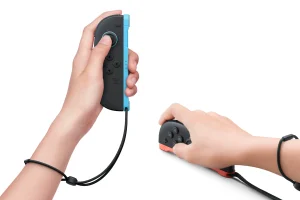
But here’s the cool part: each one now has a sensor on the inside edge that turns it into a mini mouse. Place it on a flat surface (like a desk or your lap), and you can move it around like a pointer. It works on the menu, on the home screen, and in some games. Weirdly useful, and surprisingly precise.

Vibration has also gotten an upgrade — there’s now more advanced textured rumble, which adds subtle sensations beyond the standard buzz. It’s not just HD Rumble 2.0 — it’s way more immersive.

Nintendo also promises that stick drift is no longer a problem, thanks to redesigned internals. We’ll see.


What Games Can You Play?

This is where it gets interesting — because the Switch 2 supports a massive range of titles from day one.

There are three main types of games:

  1. Original Switch games — Cartridges and digital titles from your Switch library will mostly work on Switch 2. Nintendo says only a small handful aren’t compatible.

  2. Switch 2-native games — New games built from the ground up to run on Switch 2. These can be far more technically ambitious — like Cyberpunk 2077, which wasn’t even possible on the original hardware.

  3. Switch 2 Editions — Enhanced versions of existing games that take advantage of the new hardware. You’ll pay an upgrade fee (usually $20–$30) if you already own the original.

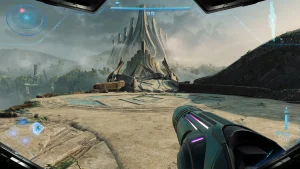
For example, Metroid Prime 4 launches this year on both systems, but only the Switch 2 version supports 4K or 120Hz. If you don’t upgrade your hardware now, you can play it on the OG Switch and upgrade the game later.


Launch Line-Up: What Can You Actually Play?

Two major titles will be available day one:

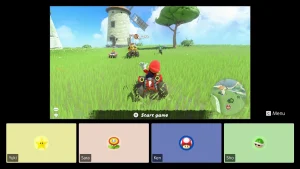
  • Mario Kart World — Think of this as Mario Kart 8 Deluxe, completely reimagined. Open-world exploration, seamless transitions between races, new characters (yes, you can race as a Goomba), and virtual hangout features. There’s even a Knockout mode. Easily Nintendo’s most ambitious Mario Kart yet.

  • Nintendo Switch 2: Welcome Tour — Half behind-the-scenes museum, half interactive tutorial. It’s a cool intro to the console’s features, but it’s not included with the system. As a paid extra, it’s a bit of a hard sell.

Other launch titles include:

  • Arcade Archives 2: Ridge Racer

  • Bravely Default HD Remaster

  • Cyberpunk 2077

  • Deltarune Chapters 1–4

  • Fast Fusion

  • Fortnite

  • Hitman: World of Assassination

  • Hogwarts Legacy

  • Kunitsu-Gami: Path of the Goddess

  • The Legend of Zelda: Breath of the Wild (Switch 2 Edition)

  • Tears of the Kingdom (Switch 2 Edition)

  • Street Fighter 6

  • Sonic x Shadow Generations

  • Yakuza 0

  • …and plenty more

Mario Cart World
Mario Cart World on the new Nintendo Switch 2

Physical Games Are Still a Thing (But a Bit Weirder)

Yes, you can still buy boxed games — but there are now three types of physical releases:

  1. Full cartridge games — Classic plug-and-play.

  2. Box with a download code — No cart, just a printed code you redeem online.

  3. Game-Key Cards — A special cartridge that doesn’t contain the game, but still needs to be inserted to play it after a download.

You’ll find clear labels on the lower-right corner of the box to help you figure out which version you’re getting.


Game Prices: Welcome to the $120 Club

Nintendo’s ditching the fixed-price model. Instead, they’re going all-in on variable pricing:

  • Top-tier Nintendo games like Mario Kart World are priced at $120

  • Others, like the upcoming Donkey Kong Bananza, land around $110

  • Some third-party titles go as low as $60 or as high as $130

Upgrade fees for Switch 2 Editions are generally $20–$30, so if you already own the original version (or can find it cheap), upgrading can save you cash.


Do Older Games Run Better?

Short answer: yes, but results vary.

Thanks to the Switch 2’s much-improved hardware, you’ll see faster load times, smoother framerates, and fewer slowdowns in many games — even without any updates.

But the biggest improvements — like 4K visuals, HDR, and GameChat integration — depend on whether the developers push out patches or full-blown Switch 2 Editions.

Nintendo says at least 12 of its own games will get free performance upgrades. Others, like Sonic x Shadow Generations, will require a full repurchase if you want the enhanced version.

Also cool: the Switch 2 has improved emulators for retro titles. The N64 app now includes a rewind feature, and there’s a GameCube app (with Wind Waker and F-Zero GX) exclusive to Switch 2.

The Legend of Zelda
Legend of Zelda – The Wind Waker is playable on Nintendo Switch 2

Online Play & Subscriptions: Mostly Unchanged

If you played online on the original Switch, you’ll feel right at home here. The Nintendo Switch Online subscription system is the same:

  • $30/year for individuals

  • $55/year for families (up to eight people)

  • Expansion Pack tier costs double, and adds DLC + more retro games

Perks include online play, cloud saves, the retro library, smartphone apps, and access to things like Tetris 99 and Nintendo Music.


Parental Controls Still Run Through the App

If you’re buying this for your kids (or just like to keep tabs), the parental control setup is still handled via Nintendo’s smartphone app.

You can:

  • Set time limits

  • Track what’s being played

  • Block games by age rating

  • Control GameChat access

  • Set rules for different accounts

Each kid gets their own Nintendo ID, which links to your account for full oversight.


What Comes in the Box? And What Doesn’t?

Here’s what you get out of the box:

  • Nintendo Switch 2 console

  • Two Joy-Con 2 controllers with straps

  • Grip for TV play

  • Dock

  • HDMI cable

  • Power supply

And here’s what you can buy separately:

  • Pro Controller – $120

  • Charging Grip – $50

  • Extra Joy-Con 2 pair – $140

  • Switch 2 Camera – $70

  • Joy-Con wheels – $30

  • Extra dock – $170

  • Travel case + screen protector – $40

  • All-in-one carry case – $110

Naturally, third-party accessories will explode soon after launch.

Metroid Prime 4
Metroid Prime 4 will be released for the Switch 2 later this year

Will My Old Stuff Still Work?

Mostly, yes.

  • Your original Joy-Con and Pro Controllers still connect, but support for new games may be limited.

  • Most USB accessories will continue to work — for now.

  • The old dock doesn’t fit. The Switch 2 is physically larger.

  • microSD cards from the original Switch? No go. The new system only accepts microSD Express, which is faster but more expensive.


Final Word

The Switch 2 is Nintendo finally growing up. It’s modern, powerful, and full of thoughtful touches — and for hardcore fans or everyday players who want the best experience, it’s a tempting leap forward.

Is it expensive? Yes. Is it worth it? If you’re playing regularly, absolutely. It’s not just a nice-to-have — it’s the future of handheld gaming, and it’s finally caught up to 2025.

Nintendo Switch 2 Handheld Mode

Snapchat not working? Here are the top 7 solutions you should try

0
Snapchat not working? Here are the top 7 solutions you should try

Snapchat is one of the most popular social networking sites around the world with reportedly over 100 million users just in the US. Whether you use it to share pictures/images and messages that expire after a short period of time, or for video chats, it can be frustrating when the service is offline or doesn’t seem to work. If you are having trouble with Snapchat, there are several ways you can try to make it work again.

In this article I will explain the top 7 methods you can use if Snapchat isn’t working.

Basic Troubleshooting

If Snapchat isn’t working properly, there are a number of possible causes. The most common solution is to restart the app and if that still doesn’t work then you should try restarting your phone. Nine out of 10 time that should fix the issue. If that still doesn’t work then you should try clearing the app cache and deleting conversations. If you are still experiencing problems with Snapchat then continue reading this article with the top 7 Snapchat solutions.

Top 7 Snapchat not working solutions

When Snapchat isn’t working, there are generally a handful of possible causes. Typically the best approach to solve the problem is by trying the simpler solutions, one at a time, starting with the easiest or quickest to test. Here are seven things to try next time you’re having trouble with Snapchat.

1. Check your Snapchat permissions

Snapchat mostly works, but are there some things you can’t do in the app? For example, suppose you can’t take a photo or can’t use filters. It seems like a permissions problem, in the sense that you haven’t given the app the right permissions to use all the features of the phone. Open the permissions settings and make sure to turn them all on.

If you have an iPhone, do this:

  1. Launch the Settings app.
  2. Scroll down to the app list and tap Snapchat.
  3. Activate each permission by sliding the button to the right – important permissions to check include Location, Photo, Camera, Cellular Data, and Microphone.

If you have an Android:

  1. Launch the Settings app and tap Apps & Notifications.
  2. Find Snapchat in the app list – you may need to tap View all apps.
  3. Tap Permissions.
  4. Check each permission and activate them.

2. Restart Snapchat

If a software glitch occurs, often the quickest way to fix it is to simply “restart” the app. In other words, close Snapchat and then restart it. If doing so doesn’t fix your problem, try restarting your phone. Often, restarting the phone can fix a problem with an app like Snapchat.

3. Check if the Snapchat servers are working

Snapchat is a very reliable service. Typically, if you’re having trouble accessing the service, you can assume that the problem is probably with your phone, not Snapchat. But no service can be “always on,” so it’s worth checking if Snapchat servers are working. You can easily check Snapchat’s network status page on DownDetector or search for “Snapchat not working” on Google.

4. Make sure you have an Internet connection

It might seem obvious, but make sure you have a good internet connection. Make sure you have a Wi-Fi connection or at least a good cellular signal. If you’re using cellular data to use Snapchat, make sure you’ve turned on cellular data permission – see the first section of this article.

If you’re having trouble with your WiFi connection, restart your router or modem, turn both off for at least two minutes, then turn them back on. If it still doesn’t work, there may be a service outage in your area, you should contact your internet service provider to see if there is a problem.

5. See if there is an update available

If you haven’t updated your apps recently, you may have an older version of Snapchat that has a bug or incompatibility with your phone’s operating system or some other software. It’s a good idea to leave automatic updates turned on in your phone’s Settings app, but if you need to update Snapchat, you can turn on automatic updates on your iPhone or update the app on your Android phone .

6. Empty the cache

If you’re still having trouble getting Snapchat to work properly, you may have a Snapchat app data problem, in a nutshell with the app cache. Okay: you can clear the cache. If you are using an Android phone, the steps to clear the cache may vary slightly depending on the version of Android you are running, but here is the general procedure:

  1. Launch the Settings app.
  2. Tap Apps & Notifications.
  3. Go to the app list (tap See all apps if needed) and tap Snapchat.
  4. Tap Memory & Cache.
  5. Tap Clear cache.

If you are using an iPhone, there is no way to clear Snapchat cache directly. Instead, you have to uninstall the application and reinstall it from the App Store.

7. If Snapchat still doesn’t work, delete the conversations

If you’ve restarted the app and cleared the cache or reinstalled Snapchat and it’s still not working properly, specifically you can’t send Snaps to one or more people, you might have a fairly rare problem with the conversation cache. The solution? Delete the conversations associated with the friend who caused you the problem and try again. The downside to deleting conversations is that you will lose those messages, including unopened Snaps.

  1. In Snapchat, tap your account avatar on the top left of the screen.
  2. Tap the Settings icon (in the shape of a gear) in the top right.
  3. Tap Clear Conversations.
  4. In the friends list, tap the X to the right of the conversation you want to remove.

Android 12: Details on the CDD arrives – How the performance classes will work

0
Android 12: Details on the CDD arrives – How the performance classes will work

Starting from Android 12, manufacturers must specify the performance classes of their devices. This is one of the most relevant innovations (at least for manufacturers) of the new version of the so-called Compatibility Definition Document (CDD), which is the set of rules that must be observed for Google to certify the ability to pre-install its services and applications. These include Play Service, Play Store, Search, Chrome, YouTube and others. The class issue had already been announced at the time of the first Android 12 beta, but the CDD with all the official details was only released a few hours ago.
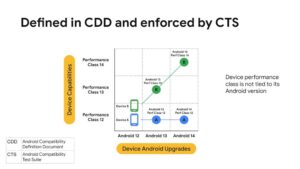
Defined in CCD and enforced by CTS


To clarify, it will not be a subdivision into bands, for example top / high / midrange / entry level, as you might think. It will work like this:

  • Each version of Android will introduce a new performance class, identified with the same number (or letter) as the operating system. Android 12 => Performance class 12 (or S); Android 13 => Performance class 13 (or T); and so on. It starts with Android 11: Google has created a “posthumous” one for reference.
  • The performance class surprisingly won’t evaluate CPU or GPU power – at least not in the classic way. Screen resolution, camera capabilities and memory speeds will mainly be evaluated, as well as details that we could define as secondary or more advanced – codecs, ISPs, and so on.
  • Manufacturers are not forced to adhere to the performance class of the new version of the system: in short, these are not minimum requirements. In the future, it will be possible for a native Android 13 smartphone to fall into performance class 11, for example. It will clearly be a budget device.
  • The system could be useful for developers, who may disable different features of their apps based on available hardware.

These are the basic requirements of the two performance classes defined to date in the CDD; the differences between the two are only in the speed of the storage memories:

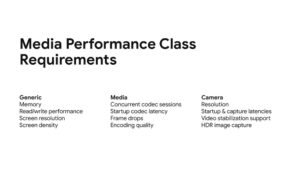
Media Performance Class Requirements

  • Class 12
    • At least 6 GB of RAM
    • Display: at least 400 DPI and resolution at least 1080p
    • Minimum speeds of storage memories:
      • 120 MB / s sequential write
      • 250 MB / s sequential read
      • 10 MB / s random write
      • 40 MB / s random read
    • Rear camera: at least 12MP, video recording at least 4K / 30 FPS
    • Front camera: at least 4MP, video recording at least 1080p / 30 FPS


  • Class 11
    • At least 6 GB of RAM
    • Display: at least 400 DPI and resolution at least 1080p
    • Minimum speeds of storage memories:
      • 100 MB / s sequential write
      • 200 MB / s sequential read
      • 10 MB / s random write
      • 25 MB / s random read
    • Rear camera: at least 12MP, video recording at least 4K / 30 FPS
    • Front camera: at least 4MP, video recording at least 1080p / 30 FPS

Telegram: Beta 8.0.0 news for Android plus new feed for channels

0
Telegram: Beta 8.0.0 news for Android plus new feed for channels

While with the latest stable version released at the end of July, Telegram has announced among other things the “group video calls 2.0“. So now is the time to analyze the news that appeared in preview on the beta for Android, and in particular on version 8.0.0.

What stands out most is probably the introduction of an infinite feed dedicated to channels, which will show their notifications and allow you to consult them all. By scrolling up, the icon of the channel protagonist of the next notification will appear, allowing you to choose whether to open it to view it or not.

Telegram Beta for Android 8.0.0
New chat features for channels.

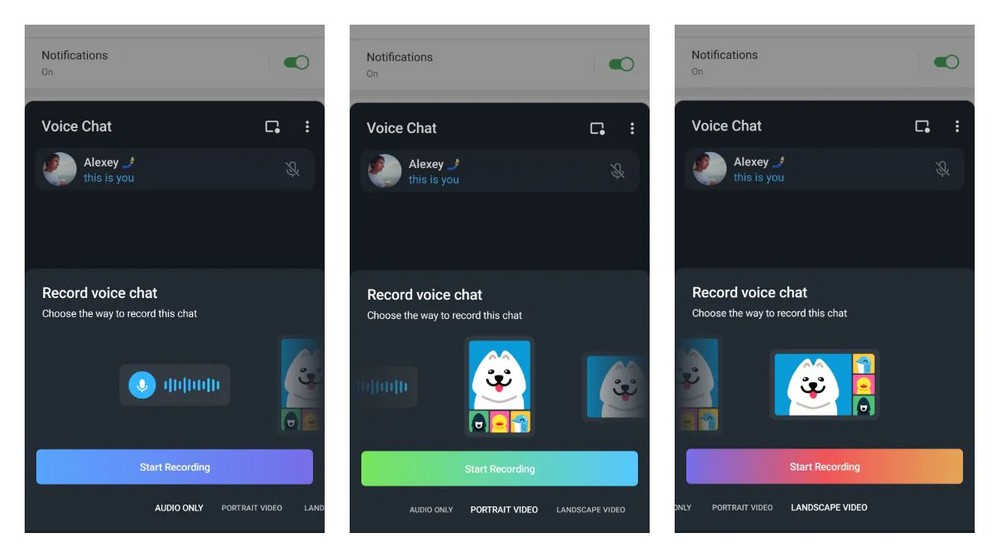
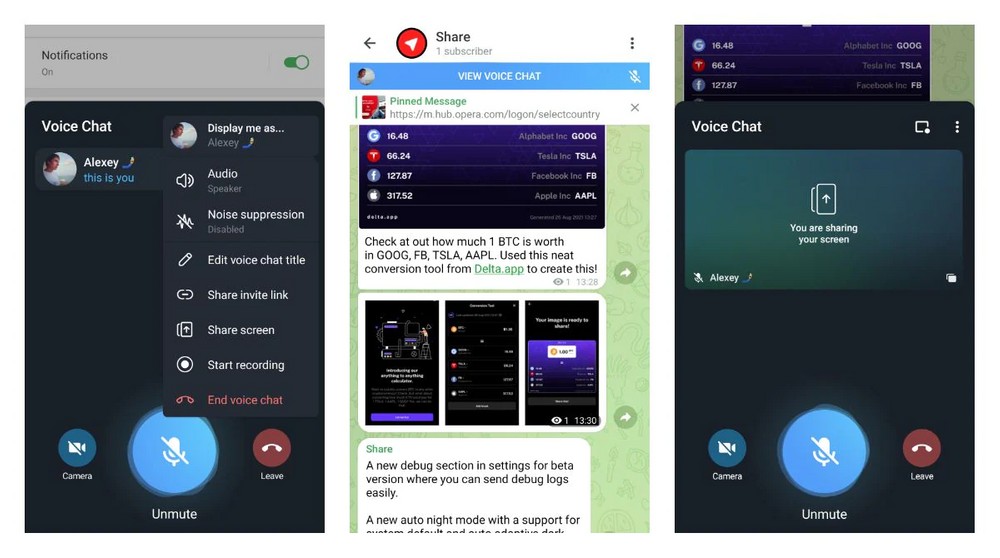
Still on the subject of channels, there are other new features with support for live video streams in channels (a feature previously only available in groups), as well as the ability to share your screen. Finally, again with regards to the channels, it will now be possible to decide whether to conduct a voice chat by recording only the voice, or by activating the camera as well (for a video horizontally or vertically).

Telegram Beta for Android 8.0.0
Support for live video streams in channels.

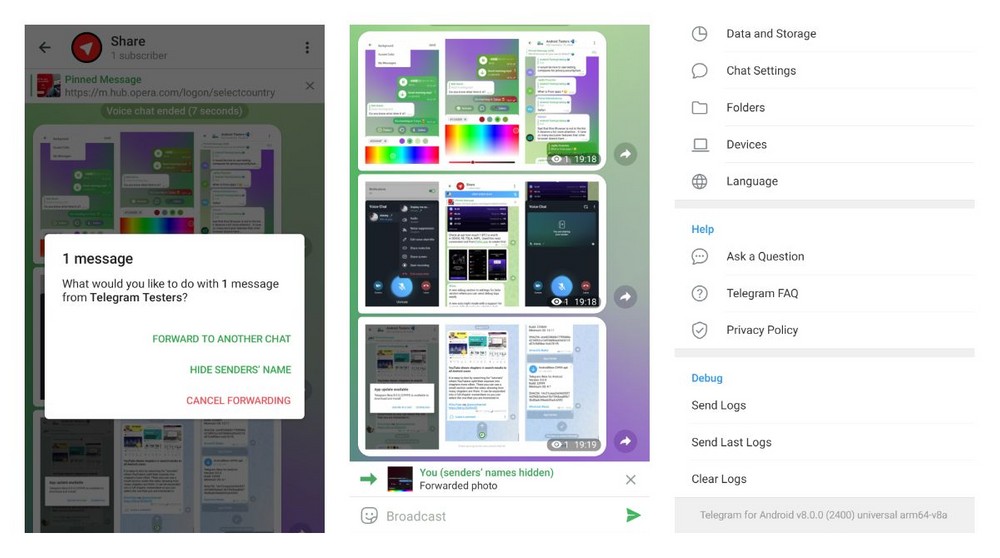
Very interesting then is the possibility of removing the sender’s data when forwarding a message. It will be sufficient to select the relative option before proceeding with the sending. However, in the current state of things, the function is not yet functional and in fact it seems that the name of the sender is preserved in any case. With the next versions of the beta this problem will probably be corrected (we hope).

Telegram Beta for Android 8.0.0
Possibility of removing the sender’s data when forwarding a message

For the chats also comes a touch of color, with the themes that can now integrate color gradients and some new animations applicable to the bubbles that contain the messages, as seen in the screenshot below.

Telegram Beta for Android 8.0.0
Themes that can now integrate color gradients and some new animations.

Finally, a small section dedicated to Debugging has appeared in the Settings screen that allows easier sharing of the related logs with Telegram. Among all the various innovations, it is likely that this is destined to remain exclusive to the beta channel.

Blackout Bingo for PC – Play for free on Windows 10, Mac

0
Blackout Bingo for PC – Play for free on Windows 10, Mac

Download the Blackout Bingo app on your PC. With a competitive twist to the classic game where you can win Real-World Rewards and Cash prizes

Blackout Bingo for Mac

What is the Blackout Bingo PC app?

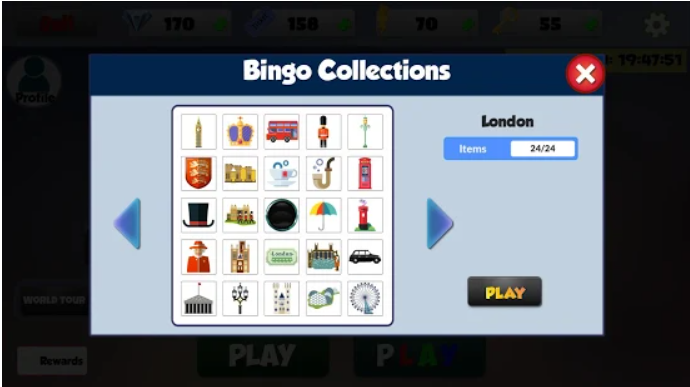
Playing bingo is a great way to pass the time, but there’s a little bit of strategy involved if you want to play for real money. One of the toughest decisions that you’ll need to make is which rooms to play in, because every room has a different pattern. One of the top patterns to play is the blackout pattern.

Blackout Bingo for PC, formerly called Blackout Blitz, is a brand-new Bingo-style game developed by Big Run Studios Inc. and powered by the Skillz platform family that promises cash prizes for playing Bingo on your Android, iPhone or iPad. The app allows you to play the game for free to win real money playing against other opponents.

What does it Offer?

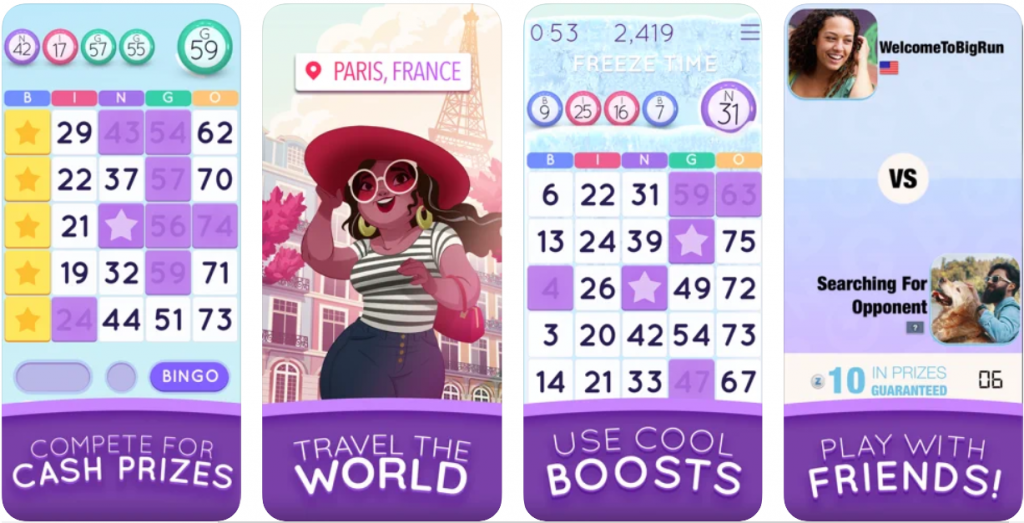
As the name suggests, you only get to call bingo when you’ve marked out every single number on the card. If you haven’t done that, then it’s considered a bad bingo. By the way, if you get too many bad bingos in one room, they disqualify you and you can’t play there for a few rounds. That would be a huge waste of your money, so make sure that you avoid that as much as possible.

Blackout Bingo for Windows takes a completely different approach. You are matched head to head with an opponent and you both have exactly the same card and the same balls. It is how you react to the balls that is the key. Are you daubing the right numbers?

Blackout Bingo app on Windows

Gameplay

At the end of each game you are awarded points in the following categories:

  • Correct Daubs
  • Speed Bonus
  • Bingos
  • Multi-Bingos
  • X2 Bonuses

One way to get free money, even though it requires you to have some money to begin with, is obviously to win. Winning is as much about skill as it is about luck, so you will want to build your skills, so that you can take on other players and win.

While playing the Blackout Bingo for PC game, every time you hit three Bingo matches you will earn a Daub. These are boosts that can be used to select a square anywhere on the board to help you reach Bingo faster. You will have 2 minutes to play the game with a clock counting down and can get multiple Bingos during your play.

You can play in leagues at Blackout Bingo and potentially win trophies. These trophies can come with bonuses, such as cash prizes or tickets to other games, so keep an eye out for when these opportunities arise.
KEY FEATURES:

  • Use special Boosts to help get bingos, you don’t have to count on luck anymore!
  • Games only take about 2 minutes to play, pick up and play whenever you like
  • Travel from New York to Paris, Hawaii, and more
  • Powered by Skillz, earn real-world rewards and cash prizes (where available)
  • Beautiful graphics and effects
  • Practice your Bingo skills in simple one card play
  • Add up to 4 cards to increase skill and fun

How to Install the Blackout Bingo app on Windows and Mac

  1. Install the BlueStacks emulator on your PC.
  2. Complete the installation of the emulator by following the on-screen instructions.

  3. Now you need to download the apk file from a trusted source on the internet.
  4. Open the file location and right-click on it.
  5. Select the open with BlueStacks option to start the installation
  6. Or you can just drag and drop the file on the home of the emulator.

You can also use the app on your smartphone as well. follow this LINK.

Wombo for PC – Use for free on Windows 10, Mac

0
Wombo for PC – Use for free on Windows 10, Mac

Download the Wombo app on your PC. All you have to do is add a selfie, pick a song, and let WOMBO work its magic.

Wombo for Mac

What is the Wombo PC app?

Wombo for PC, a new app sensation that creates deepfakes by making any photo sing, has been doing rounds on social media, but concerns have arisen about its data collection.

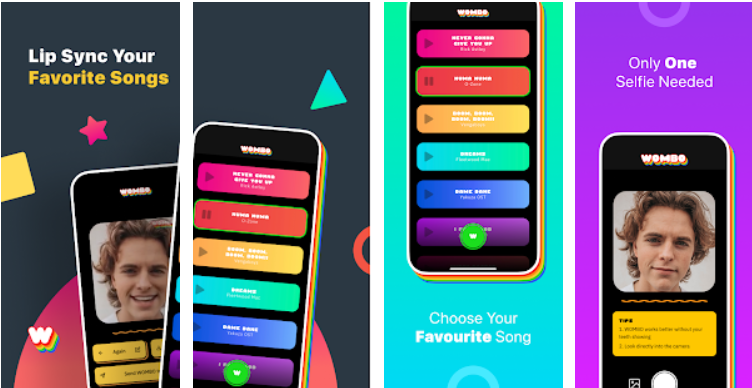
Believe it or not, it only requires you to take or upload a selfie to lip-sync the music you want. Afterward, Wombo will magically return an animated video wherein you are seen singing the song you picked. You will be stunned as to how it manages to vivify the eyes, mouth, and body that emulates human movements. Although, this actually comes at a cost of long processing time.

How you can use it?

Wombo for Windows app is free and easy to use. Just snap a picture of your face or upload an image from your camera roll, and push a button to have the image lip-sync to one of a handful of meme-adjacent songs

Wombo for PC is a newfangled entertainment tool to make fun and amusing animated videos that will help you go viral. By simply taking or uploading your selfie, the app will automatically generate a video of you lip-syncing to the music you like. Although you have to be patient enough to endure its long processing time, the lengthy waiting duration will surely be worth it.

Wombo app on Windows

Features

  • Upload Images
  • Tons of tunes
  • Ready to
  • Lots of themes to choose from

Once you take the picture and press the green Wombo button, all that’s left is to choose from the list of songs. Each one has its melody and facial animation. The list is packed with hits with 15 choices from all genres:

  • Tunak Tunal Tn by Dale Mehndi
  • Dame tu cosita by El Chombo
  • What is love by Haddaway?
  • Chug Jug by Leviathan
  • Never gonna give you up by Rick Astley
  • Numa by O-zone
  • Boom, boom, boom, boom, boom!!! by Vengaboys
  • Dame Dane by Yakuza OST
  • I feel good by James Brown
  • Witch Doctor by Cartoons
  • Every time we touch by Cascada
  • I will survive by Gloria Gaynor
  • Don’t Cha by The Pussycat Dolls
  • Ding Dong Song by Gunther
  • Thriller by Michael Jackson
Wombo app PC download

How to Install the Wombo app on Windows and Mac

  1. Install the BlueStacks emulator on your PC.
  2. Complete the installation of the emulator by following the on-screen instructions.
  3. Open the emulator it will install some additional files.
  4. On the PlayStore search for the Wombo app, and click on the install button.
  5. Log in with your Google ID to start the download process.

You can also use the app on your smartphone as well. follow this LINK.

Golf Rival for PC – Play for free on Windows 10, Mac

0
Golf Rival for PC – Play for free on Windows 10, Mac

Download the Golf Rival app on your PC. Follow the steps discussed below to get the app on your Windows and Mac PCs for free.

Golf Rival for Mac

What is the Golf Rival PC app?

The newly-designed Golf Rival for PC is a multiplayer online golf game where you can play 1v1 with global players online, or log in to Facebook and challenge your friends

Golf Rival for Windows has realistic 3D visual effects and real physical effects, making you feel like you are on the scene of the game and you can experience the excitement of real games on your mobile phone!

Gameplay

The gameplay of the game is quite simple. All you have to do is use your fingers to swipe and release to swing your golf clubs. You can choose the clubs you want to use from the realistic golf equipment. You can also use the precise aiming device to shoot almost all your golf balls with a precise aim and shoot perfectly.

In Golf Rival for PC you’ll start out with the basic golf clubs that every user starts with and you’ll play against players found on the same level as you. You’ll start out the adventure with a short tutorial that will teach you how to play.

Touch the ball to gauge the force, concentrate to achieve the best accuracy, and try to position the ball closer and closer to the hole and in a safe place, away from the sand or tall grass. As you win matches in Golf Rival, you’ll earn gold and unlock chests that hold new golf clubs and improvements for the ones you already have.

Golf Rival app on Windows

Features:

  • Detailed instructions when you enter the game for the first time!
  • Thousands of online golf players around the world!
  • Quick opponents matching can make you play against the best global golfer at any time!
  • Find and challenge excellent golf players at the League and Global ranking list!
  • Unlock a next-level golf course to improve your golf playing skills!
  • Spectacular graphics and smooth operation bring you a better experience!
  • Various courses and abundant scenes style will meet your special preferences!
  • Wonderful visual and sound effects make you immerse in the game!
  • Invite your Facebook friends to join the addictive golf game!
  • Accept gifts from your friends by playing with or challenging them!

Golf Rival is also a game that has the most amazing and immersive gaming experience for gamers.

The realistic and impressive graphics make you feel as though you’re actually out there playing on the golf course. You can meet new people across the globe and connect with golf champions.

You can also keep playing tournaments and establish yourself as the ultimate golf champion in the world.

Golf Rival app PC download

How to Install the Golf Rival app on Windows and Mac

  1. Install the BlueStacks emulator on your PC.
  2. Complete the installation of the emulator by following the on-screen instructions.
  3. Open the emulator it will install some additional files.
  4. On the PlayStore search for the Golf Rival app, and click on the install button.
  5. Log in with your Google ID to start the download process.

You can also use the app on your smartphone as well. follow this LINK.

ToonME for PC – Use for free on Windows 10, Mac

0
ToonME for PC – Use for free on Windows 10, Mac

With ToonME app on your PC. Get your portrait re-drawn in cartoon or vector style automatically using the magic of Artificial Intelligence.

ToonME for Mac

What is the Toonme Editor PC app?

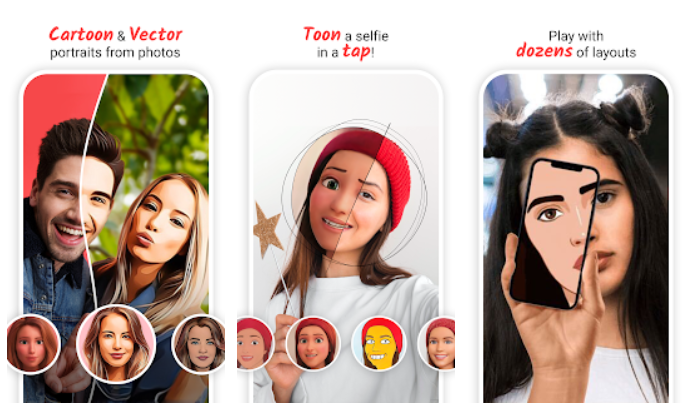
Transform yourself into an animated character in just a couple of clicks with the entertaining app ToonMe for PC. If you want to look like a character from a comic, TV show, or even Springfield, check out this app. With its loads of templates and dozens of options to choose from, it’s never been easier to become a cartoon.

Get your portrait re-drawn in cartoon or vector style automatically using the magic of Artificial Intelligence in ToonMe for Windows app. What used to take several days to be made and could only be ordered from professional artists is now available with just one tap, making you your own digital artist. It immediately makes excellent portraits like it was hand-drawn and gives the AI version of the users in high quality.

Key Features:

  • Simple and Easy to use Cartoon Picture Converter App.
  • Powerful selfie camera Photo Editor app.
  • Cartoon Photo editor with different cartoon filters.
  • Cartoon photo maker with Cartoon art Filters, pencil art Filters, drawing, and color pencil sketch effect.
  • Amazing photo art filters, powerful cartoon effects
  • Photo painting, photo editing, cartoon animation filters & cartoon photo effects
  • Selfie camera for live photo editing and amazing filters.
  • Sketch art & Smooth pencil sketch art & Hard pencils sketch art by art filters cartoon photo editor
  • Experience the art exhibition of filters, sketches, canvases, paintings, cartoons, oil paintings, artsy pictures, effects, photos of Cartoon Me.
  • Turn my picture into a cartoon drawing by using toonme cartoon photo editor.
  • Toonme Photo Editor will convert into Cartoon yourself
  • Convert your photo to a cartoon with toonme for PC app
  • The application that makes pictures like cartoons/turn yourself into a cartoon and make your character.
ToonME for Windows

They include the following:

  • Once you subscribe to a plan and you don’t cancel it manually like you subscribed, that plan will renew automatically because you gave the permission.
  • When you subscribe for a trial period and then you cancel, you run the risk of losing that trial content altogether.
  • You must remember to manually cancel a subscription 24 hours before the trial period ends.

How to Install the ToonME app on Windows and Mac

  1. You will need to install an Android emulator on your PC, I will recommend the BlueStacks emulator.
  2. Complete the installation of the emulator on your PC by following the on-screen instructions.
  3. Open the emulator and look for the PlayStore app on the home screen
  4. Search for the Espn Tournament Challenge app, click on the install button
  5. You will be asked to give your Google ID and the download process will start.

You can use the app on your smartphone as well, follow this LINK.

ToonME app PC download

FAQs

How to Cancel ToonMe for PC Subscription on your iPhone or iPad.

  • First, open the Settings app and tap on your name.
  • Then, tap on the “Subscriptions” tab.
  • (Note that you might not automatically see this tab. In that case, tap on iTunes & Appstore)
  • Next, tap on your Apple ID. View Apple ID then sign in and scroll down to the “Subscriptions” button.
  • Next, tap on ToonMe (subscription) you want to review.
  • Now, Tap on Cancel.

 How to Cancel ToonMe Subscription on your Android device

To cancel ToonMe subscription on Android, you need to realize that deleting the ToonMe app alone won’t cut it. Follow the steps below:

  • First, open the Google Play Store. If you have multiple Google accounts, be sure you’re signed in to the right one.
  • Click on the menu, then go to “Subscriptions”.
  • Choose the ToonMe by TOONME.COM subscription you wish to cancel and tap on the “Cancel Subscription” option.
  • Finish up as directed.

ESPN Tournament Challenge for PC – Use free on Windows 10

0
ESPN Tournament Challenge for PC – Use free on Windows 10

Download the ESPN Tournament Challenge app on your PC. Compete against friends, ESPN personalities, and celebrities to see who finishes with the best bracket.

ESPN Tournament Challenge for Mac

What is the ESPN Tournament Challenge PC app?

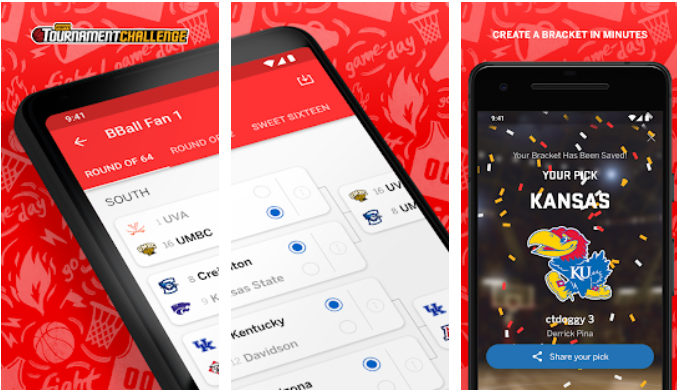
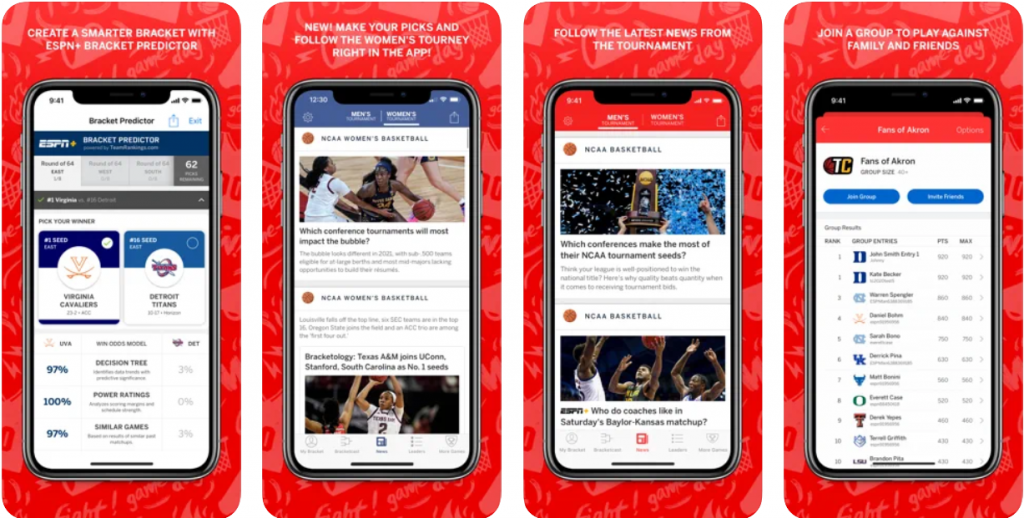
ESPN Tournament Challenge for PC is a special app that allows ESPN fans to create their own brackets in an easy and interactive way. There are huge prizes waiting to be one by lucky users and a large number of other features to enjoy.

The ESPN Tournament Challenge for Windows app is built for the sole purpose of creating March Madness brackets and competing with other users for the chance to with $10,000. You can create up to 25 brackets and you might even win a trip to Hawaii for the Maui Invitational.

Main functions of the app:

  • Includes information about the historical and present season’s performance for each team.
  • Quick creation of brackets and access to groups and knock-out rounds.
  • Complete brackets with random teams in a matter of seconds with the autocomplete function or by importing your own brackets.
  • Compare your scores to those of your friends, relatives, or even celebrities.
  • Join up to three groups and compete against celebrities, friends, athletes, and players from all over the country.
  • Available for both men’s and women’s tournaments.
ESPN Tournament Challenge for Windows

How do you subscribe to ESPN Tournament Challenge app

  • You will automatically be billed for the full amount of your subscription every 30 days if you purchase a monthly subscription, or every 365 days if you purchase an annual subscription.
  • Payment will be charged to your Google Play account at confirmation of purchase unless you are offered and are eligible for a free trial.
  • If you receive a free trial, you will be charged when your free trial period ends.
  • Your account will be automatically charged for renewal, at the above purchase price, within 24-hours prior to the end of the current period.
  • If you cancel prior to such 24 hour period, you will not be charged for the following applicable subscription period.
  • Your subscription may be managed, and you can turn off auto-renewal, by going to your iTunes account settings after purchase.
  • No refunds for the current subscription period are granted. Cancellations of the current subscription take effect at the conclusion of the current subscription period.
ESPN Tournament Challenge app PC download

How to Install the ESPN Tournament Challenge app on Windows and Mac

  1. You will need to install an Android emulator on your PC, I will recommend the BlueStacks emulator.
  2. Complete the installation of the emulator on your PC by following the on-screen instructions.
  3. Open the emulator and look for the PlayStore app on the home screen
  4. Search for the Espn Tournament Challenge app, click on the install button
  5. You will be asked to give your Google ID and the download process will start.

You can use the app on your smartphone as well, follow this LINK.

FAQs

Q: How do I create an entry?

From the game’s frontpage click on the “Create A Bracket” button. You will next be asked to enter your game settings such as entry name. After you are done editing these options, click the Create A Bracket button at the bottom of the page.

You have now created an Entry. From your entry page, you now can make your selections in the Men’s College Basketball tournament bracket and create or join a group.

How do I join a new group?

From the “My Groups” dropdown menu click on “Create or Join a Group” or click on the Group Directory link in the Entry navigation links. From the Group Directory you will have the option of joining a public or private group. You may also create a new group if you desire a place for personal friends, family, co-workers, or random basketball fans like yourself to compete. Note: As the creator of a group you must set the name, motto and the group’s parameters.

Q: Can I play against ESPN Celebrities?

Absolutely! From the Group Directory, you can select the “Fans of” or “Celebrity” links to display only those groups. Select the celebrity group that you would like to join and click on the “Join Group” button from within that Group’s page.

What do PTS, PCT, and RK mean?

PTS are the total amount of points that your team has accumulated since the start of the tournament. PCT represents the percentile your performance falls within, graded against all other entrants in the game. RK is your numerical rank in the entire field of entrants.

CBS Sports for PC – Use for free on Windows 10, Mac

0
CBS Sports for PC – Use for free on Windows 10, Mac

Download the CBS Sports app on your PC. Stream all live sports events from CBS, CBS Sports Network, and CBS All Access with one app.

CBS Sports for MAc

What is the CBS Sports PC app?

The CBS Sports for PC App provides you with On Demand, Live CBS Video streams, CBS Sports Radio, and access to special events. Get the latest highlights, breaking news, scores, analysis, and trending videos for football, baseball, basketball, and more.

In addition to all the sports-related news and information, you can also find tons of videos. You can even listen to a radio of live sporting events. However, incomprehensibly, the app doesn’t have any information about soccer (neither men’s nor women’s).

Besides offering a large number of features, like lightning-fast scores, stats, and news, CBS Sports for Windows also offers a wide variety of different games you can interact with and even receive weekly cash prizes.

These are the main features of this app:

  • The main North American sports and competitions such as the MLB, NBA, NHL, MLS, NCAA, golf, tennis… but also football competitions such as LaLiga, Premier League, Seria A or Champions League, amongst others.
  • Faster news, results, and stats: read them as soon as they happen and share them with your contacts.
  • Watch sports broadcasts straight from your device (provided that it’s legal to do so in your country).
  • Receive notifications about the teams and athletes you follow.
  • Play the latest videos about sports news.
  • Listen to radio streams featuring the most famous CBS sports journalists.
  • Customize the interface and browse through the contents however you like the most.
  • CBS Sports Radio: Ability to live stream radio by simply pressing volume on or off to hear the latest gossip.
  • Chromecast Enabled: Option to cast CBS Sports for PC on demand and live video to your TV, and control video playback and volume directly from the app.
  • Live Video: Get on-demand access to highlights, analysis, and original video programs.
  • News, Standings, and Schedules: Personalize teams news and tweets you wish to see. Standings for every league, including college rankings. All of your teams schedules are easily displayed in one platform.
  • Special Events: Access to a multitude of events, such as: NCAA March Madness, NBA Draft Day, PGA Tour, and more!

Highs

  • Intuitive
  • Great sports coverage
  • Extra features

Lows

Need to pay for live video

CBS Sports app on PC

How to Install the CBS Sports app on Windows and Mac

Step 1:

First, you will need to install an Android emulator on your PC. What an emulator does is it emulates the android on your PC. In no way are emulators illegal. So download the BlueStacks emulator on your PC.

Step 2:

Now go to the location where the file is downloaded. right-click on the file and run it as an administrator. An installation wizard will appear. Now follow the on-screen instructions to complete the installation of the emulator.

Step 3:

Open the emulator. It will take some time to start the emulator at the initial stage. The emulator will further install additional files. Now on the home screen click on the PlayStore app.

Step 4:

In the search bar type, the CBS Sports app. You will also need to log in using your Google ID to access the PlayStore features and to start the download.

You can use this app on your smartphone as well. follow this LINK

Panda Gamepad Pro for PC – Use on Windows 10 and mac

0
Panda Gamepad Pro for PC – Use on Windows 10 and mac

Use the Panda Gamepad Pro app on your PC. Follow the steps discussed below to get the app on your Windows and Mac PCs.

Panda Gamepad Pro for Mac

What is the Panda Gamepad Pro PC app?

Panda Gamepad Pro is an application that allows you to connect a gamepad to your mobile phone to be able to control and manipulate more simply.

Panda Gamepad Pro for Windows is a very helpful program for mobile game users. You will find a great assistant to help you in the configuration of your devices and have the best performance in your favorite video game. Use the convenient tutorial system in order that the installation does not present you with any type of problem. Use the Panda Gaming Studio app and be the best among your friends.

It also comes with calibration to make itself compatible with any mobile devices. Users must remember it only works with gamepads so keyboards or mouse are not compatible with the application. Any mobile devices must be rooted or activated via PC first before starting.

Its unique features:

  • Run games directly without cloning
  • Support Google Play login
  • Won’t be banned by some games in which duplication running is not allowed.

A big minus point for the application is that you need to root. It is well known that rooting a device is risky and can turn your device into a brick for a moment if it goes wrong.

Panda Gamepad Pro fully supports wireless gamepad only but does not accept mouse with wireless keyboards. Therefore, you need to take note of this to avoid wondering why the application does not accept the device.

What’s New on New Version of Panda Gamepad Pro for Windows?

  • Update Battery optimization permission requests and tips. Now you can skip it.
  • Fixed an issue that the key mapping will inaccurate in some phone’s notch.
Panda Gamepad Pro for Windows

How to Install the Panda Gamepad pro App on Windows and Mac

Step 1:

First, you will need to install an Android emulator on your PC. What an emulator does is it emulates the android on your PC. In no way are emulators illegal. So download the BlueStacks emulator on your PC.

Step 2:

Now go to the location where the file is downloaded. right-click on the file and run it as an administrator. An installation wizard will appear. Now follow the on-screen instructions to complete the installation of the emulator.

Step 3:

Open the emulator. It will take some time to start the emulator at the initial stage. The emulator will further install additional files. Now on the home screen click on the PlayStore app.

Step 4:

In the search bar type, the Panda Gamepad Pro app. You will also need to log in using your Google ID to access the PlayStore features and to start the download.

You can use this app on your smartphone as well. follow this LINK