Home Blog Page 507

Comparison: Samsung Galaxy Note 3 vs Google Nexus 5

Comparison: Samsung Galaxy Note 3 vs Google Nexus 5

Samsung’s next generation Galaxy Note 3 got unveiled at the IFA event held in Berlin on 4th of September, 2013. The Note series has always taken over the phablet market as it was the trendsetter by Samsung which got the high attentions from the users being smaller than a tablet and a little bigger than a smartphone.

The innovation took place through each Galaxy Note from 2011 to 2013 so far. Like the Galaxy Note 1 originally was a phablet having 5.3 inch display, with a dual core processor and the device was a bit heavy, Galaxy Note 2 got a little sleeker and lighter than the note 1 and had a lot of hardware changes, the display just got bigger within the same bezel i.e 5.5 inch and the recently unveiled Galaxy Note 3 has got even better sporting a 5.7 inch full HD display and much lighter and sleeker then both of the previous notes.
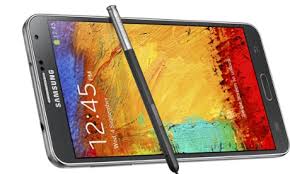
Galaxy Note 3

As this is the era of technology and innovations have no break and the competitors are giving each other a tough competition. Where HTC brought its One Max, Sony pulled the curtains off from its Xperia Z1, LG from its G2, Apple from its new iPhone(s) and Samsung from its Note 3, the left and much awaited was only the Nexus 5 by Google.

The most highly anticipated device, Google Nexus 5 is officially out now. A day passed, full of Nexus 5 news, reviews, talks about its features specifications as it got unveiled by Google at a press release event. Nexus 5 is manufactured by the same manufacturer “LG” who also joined hands with Google for its predecessor – the Google Nexus 4. It is expected to give a tough time to all of its competitors being a little cheap and running on all the latest and best hardware / software.
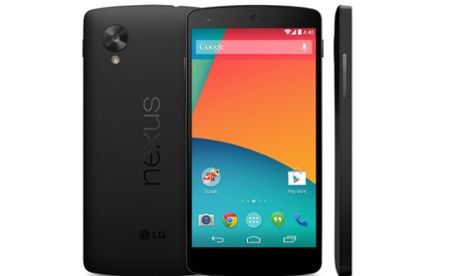
Nexus 5 vs Note 3

We’ll be comparing the Samsung Galaxy Note 3 and Google Nexus 5 in order to know what’s better and which one is the phone you should go for. To begin with, let’s compare the Galaxy Note 3 and Google Nexus 5 Display

Dimensions:

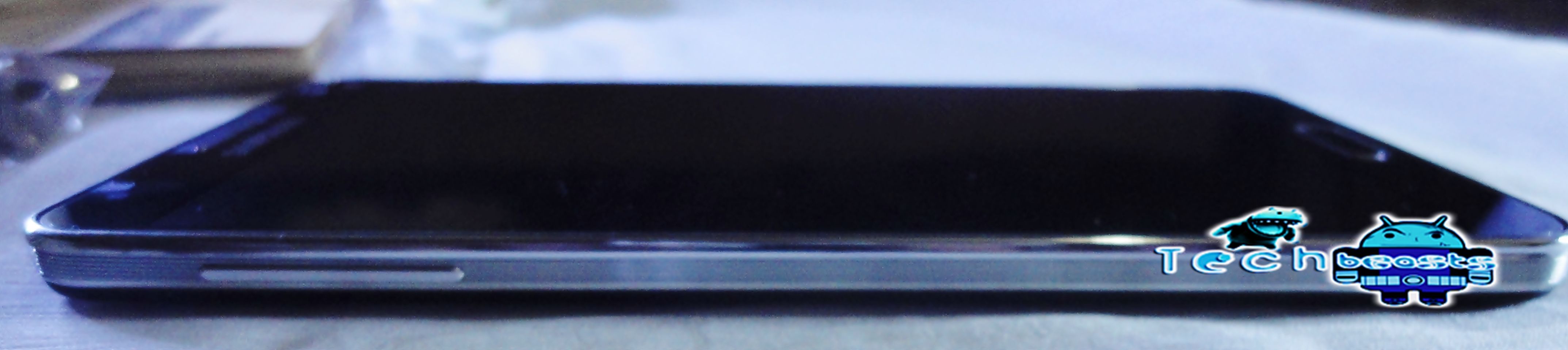
The Nexus 5 weighs at 130g, while the dimensions are 137.9 x 69.2 x 8.6 mm (5.43 x 2.72 x 0.34 in). The Samsung Galaxy Note 3 weighs at 168 g (5.93 oz) and the dimensions are 151.2 x 79.2 x 8.3 mm (5.95 x 3.12 x 0.33 in).
LG-Nexus-5-mockup DSC02339

Build Quality: 

After being criticized over its plastic body, Samsung impressed its fans by introducing a new design and improving the build quality of the phone. The Galaxy Note 3 is still packed up in a plastic body but Samsung has shown the brilliance here. The Note 3 has got a back that looks and feels like stitched Leather, it is much grippy, much better, the device is more square now, unlike the previous curved shape.

 DSC02342-1024x594

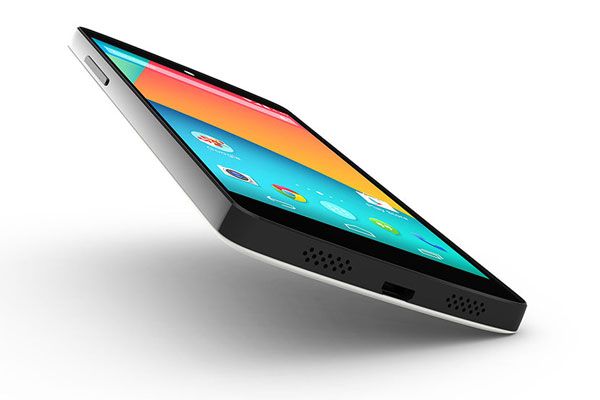
The Nexus 5, on the other side, the material used to build the Nexus 5 is soft touch matte finish, and is also much grippier. Nexus 4 had a glass body, while the new Nexus 5 has a plastic body.

Nexus 5 Back

Display:

Galaxy Note 3 sports a 5.7” Super AMOLED full HD display with 445 ppi and 1920 x 1080p. The pictures, videos and other graphics look great on the large screen with the Full HD resolution. Samsung has done an awesome job in the display department which makes the device much more better than the previous Galaxy Notes and let’s it take over other phablets as well.

DSC02349-1024x709

On the other hand, Google Nexus 5 sports a 4.95”  IPS LCD Full HD display with 445 ppi and 1920 x 1080p resolution. The difference is obvious only in terms of size while the resolution is not much different.
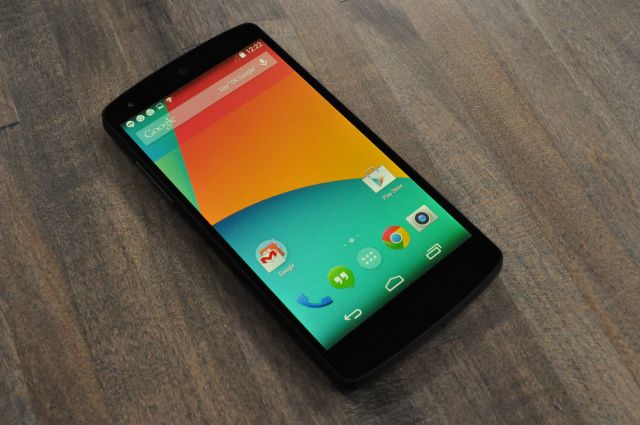
Nexus 5

Hardware (Processor, RAM, Camera etc): 

The Google Nexus 5 runs on the latest Qualcomm’s Snapdragon 800 Quad Core CPU clocked at 2.26 GPU, while the GPU is Adreno 330. It has got a 2 GB RAM, an 8 MP camera with Optical Image Stabilization at the back while a 2.1 MP camera at the front. The device is equipped with 16/32 GB internal storage and there is no microSD support. Supports USB 2.0 and also supports wireless charging.

On the other side, Galaxy Note 3 runs on either Snapdragon 800 Quad Core CPU clocked at 2.3 GHz or Exynos 5 Octa Core CPU clocked at 1.9 GHz. The Snapdragon variant has Adreno 330 GPU while the Exynos has ARM Mali T628 GPU. Both variants have a 3 GB RAM. Samsung has skipped the 16 GB variant, the device now equips 32/64 GB internal storage and also supports a microSD card slot that supports up to 64GB of the memory. Galaxy Note 3 is the world’s first phone to get USB 3.0, that is much faster. There is a 13 MP camera at the back and a 2.1 MP camera on the front. I consider Samsung Galaxy Note 3 a winner in this house, as the device is much better then the Nexus 5 in terms of Hardware.

Software: 

Google Nexus 5 runs on the latest Android 4.4 KitKat which actually came out installed in the device, As off now, Nexus 5 is the only device in the world that runs on Android 4.4 KitKat. Nexus 5 may get much attention from those who want to get their hands on the Android 4.4 KitKat before other devices get it. There is a new Hangouts application that now supports SMS/MMS and GIF, there is a new UI for so many other applications like Email, the Google Home Launcher has got better as well. It is obvious that each new version of Android is much more better than the previous one and sports a number of new features as well. Google aims at providing the best software to the users and has said that it wants all of its devices to be running on the same Android version in the year 2014.android_kitkat

Samsung Galaxy Note 3 runs on Android 4.3 – the predecessor of KitKat. Android 4.3 Jelly Bean was unveiled by Google back in 2013 and many of the devices haven’t even tasted it yet. Only those of the recently released devices, which came out before Android KitKat, run on the Android 4.3 Jelly Bean. There are not much UI changes in the Android 4.3, it is just stable and the performance was enhanced in this update.

It may be noticed here that the Google Nexus is always the device which receives the Android updates for a long term and for sure. While it is a device by Google, Google is always keen to provide the latest Android first of all on its Nexus devices. The other companies like Samsung, HTC take quite long to roll out the updates for their flagships.

Battery:

Samsung Galaxy Note 3 occupies a massive 3200 mAh battery. Based on my personal experience, the battery life is just way better than any other Android smartphone / phablet. It is good for game freaks, music fans and those who like to watch videos for a long time. The standby time is extra-long.

Nexus 5 has got a 2300 mAh battery under the hood. While the smartphones of its kind like HTC One, Xperia Z and Galaxy S4 support almost the same battery capacity except the extra 300 mAh of Galaxy S4, it may considered normal for a Smartphone’s daily use.

Conclusion:

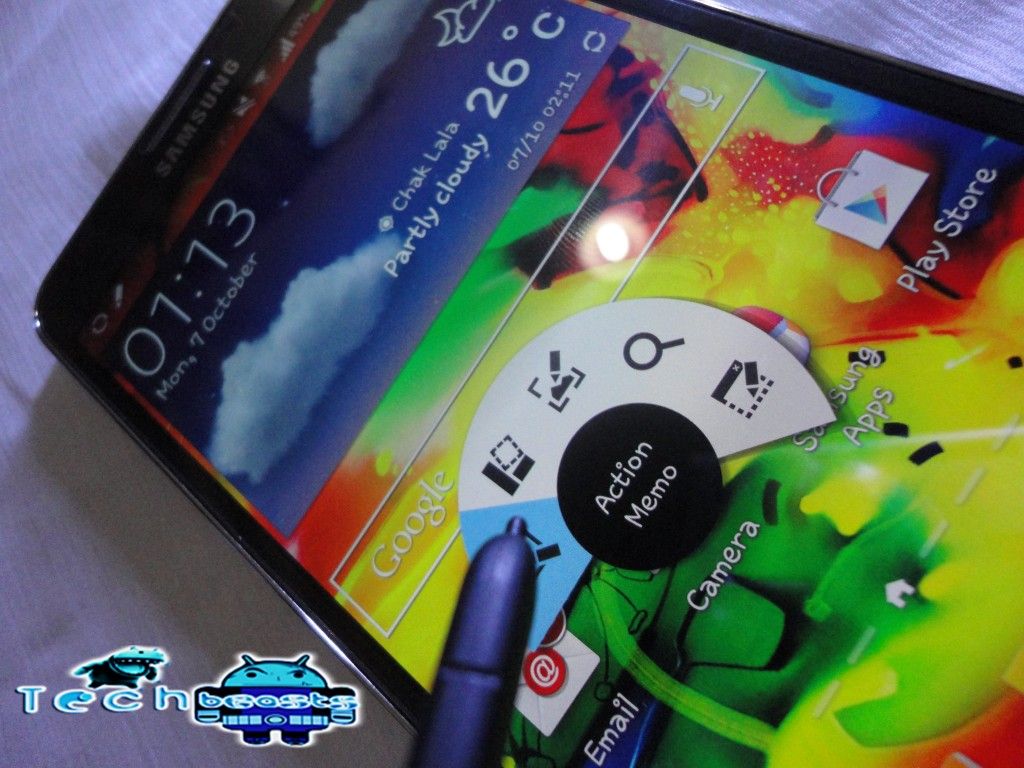
Bringing the rumor mills to end, the Nexus 5 is already available on the Play Store to be sold out for just $399 off the contract. Both the devices Galaxy Note 3 and LG Google Nexus 5 have the LTE and 3G variants for the different markets. Nexus 5 is a cheap smartphone having all the features of a premium smartphone, the device is much reliable, as it’s Google’s very own device, it should not have a lag in terms of software performance. The Galaxy Note 3 is not even less, but is much more expensive than the Nexus 5. Also, the Note 3 runs on Android 4.3 but its massive hardware, its Stylus and other exclusive features like Air Command help it to sit atop of the list.
DSC02378-1024x768 nexus-78

That’s All. We would like to hear from you about this comparison, feel free to leave us a comment. Thanks!

Nexus 5 Vs Nexus 4, A Small Comparison.

0
Nexus 5 Vs Nexus 4, A Small Comparison.

Nexus 5 was released yesterday so it is not possible to get hands on it that fast and since we don’t own it yet we won’t be able to give you the proper Pictures of Nexus 5. But that does not mean that we should stop posting about Nexus 5. Today we will show you a precise comparison of Nexus 4 and Nexus 5, just to let you know the difference in 2012 and 2013.

SAMSUNG DIGITAL CAMERA

Let’s get started.

1.CPU and RAM

Nexus 5 supports a Qualcomm MSM8974 Snapdragon 800,  while Nexus 4 Qualcomm APQ8064 Snapdragon. As far as the Speed is concern, Nexus 5 is clocked at 2.3GHz while Nexus 4 was on 1.5GHz. Both the devices supports 2GB of RAM.

2. GPU

Nexus 5 is equipped with Andreno 330 while Nexus 4 was powered by Andreno 320, not much of a difference because there is no game that can start lagging on Andreno 320 with a powerful processor of 1.5GHz Krait.

N4_vs_N5_SoC-590x330

3. Operating system

Nexus 4 was arrived with Android 4.2.2 received the update of Android 4.3 Jelly Bean, but Nexus 5 won’t be getting any further updates of Jelly Bean, because it is arrived with the highest level of OS yet, Android 4.4 Kit-Kat, Nexus 4 and others are still waiting for such update.

Screenshot_27

4. Body, Weight and Design

Nexus 4 weighs only 139g but feels a little bit heavier, while on other side Nexus 5, despite that it is bigger than Nexus 4 weighs only 130g, but looks comparatively lighter than mentioned weight. Body is slightly curved and the Soft Back which is quite grippable, Google calls it Silky, is quite a big change than the back of Nexus 4. The Back is plain and there are no hidden spot on it. Nexus 5 supports a 4.9″ True HD IPS Touchscreen, while Nexus 4 was equipped with the same Technology just the difference of resoluiton.

SAMSUNG DIGITAL CAMERA  

nexus-78

5. Display and Screen

Nexus 5 is supporting a True HD IPS Capacitive Touch Screen with 4.9″ Size and 1920 x 1080p Revolution, While Nexus 4 was arrived with the same Touchscreen just the difference was the size 4.7″ Screen and 1280 x 720p Resolution.

SAMSUNG DIGITAL CAMERA

6.Camera

Nexus 5 is said to be equipped with such a Camera that it won’t let Nokia Lumia 1020 and iPhone 5S users thinks that they are missing out. It’s still 8-MP like Nexus 4, the only difference is the Optical Image Stabilization and HDR+. Camera interface is still the same, and limits are still there.

SAMSUNG DIGITAL CAMERA

Download Google Nexus 5 Stock Wallpapers

1
Download Google Nexus 5 Stock Wallpapers

Google Nexus 5 is out officially now, manufactured by LG, who also manufactured its predecessor, the Nexus 4. Google and LG have brought up the device to give a tough competition to the other market rivals i.e Galaxy Note 3, HTC One Max, Galaxy S4 etc.

Nexus 5 sports a full HD 4.95 inch display with 445 ppi, and to add charm to its display Google has added some awesome wallpapers. We’ve pulled out those wallpapers for all of you, have a look below and download for your device.

wallpaper_15wallpaper_16 wallpaper_17wallpaper_19 wallpaper_20wallpaper_22 wallpaper_50wallpaper_51

Download all these Wallpapers HERE.

Experience the Nexus 5’s Google Home Launcher – Download it Here.

6
Experience the Nexus 5’s Google Home Launcher – Download it Here.

While Google has pulled off the curtains from its next generation flagship device, the all new Nexus 5, everyone is talking about its features and the applications it brought under the hood. The device runs on Android 4.4 KitKat out of the box, as the Android 4.4 KitKat is just unveiled by Google along with the Nexus 5, many of you will be looking out to get your hands on the applications and the new Google Launcher from the Nexus 5.


In case you don’t know, let’s have a recap, the all new Nexus 5 sports a full HD 4.95 inch display with 445 ppi, powered up with Qualcomm’s Snapdragon 800 Quad Core CPU clocked at 2.26 GHz along with the Adreno 330 GPU. Under the hood, it has got a RAM of 2 GB and the internal storage is either 16 GB or 32 GB, there is an 8 MP camera at the back that features the OIS. Nexus 5 is manufactured by LG – who also manufactured its predecessor, the Nexus 4.

It’s been a pretty busy day with the Nexus 5 and the apk files and other system applications starting getting pulled out, also, Google has officially published the source code. We have linked in the Google Home launcher below for all of you, go ahead and download it and experience the Nexus 5’s launcher in your Android device.

Download the following files: 

      1. Google Velvet apk – Download Here.
      2. Google Home Launcher apkDownload Here.
      3. Google Play Services apk (PrebuiltGmsCore.apk) Download Here.
      4. Get all other pulled out Nexus 5 Applications HERE.

Install all the downloaded apk files on your smartphone, and hit the Launcher from the app drawer. You should be able to make a choice between the launchers and launch the Google Home.

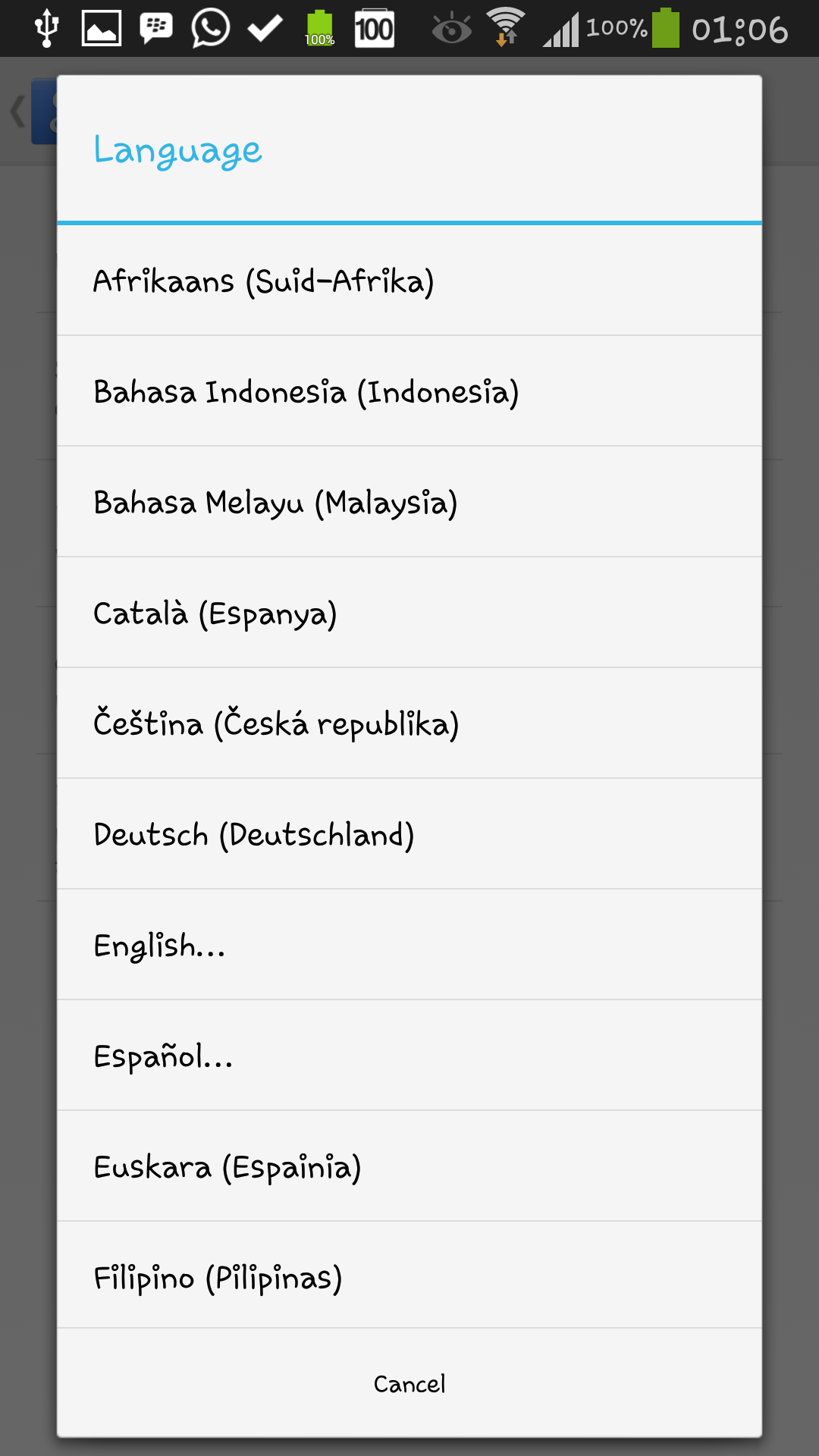
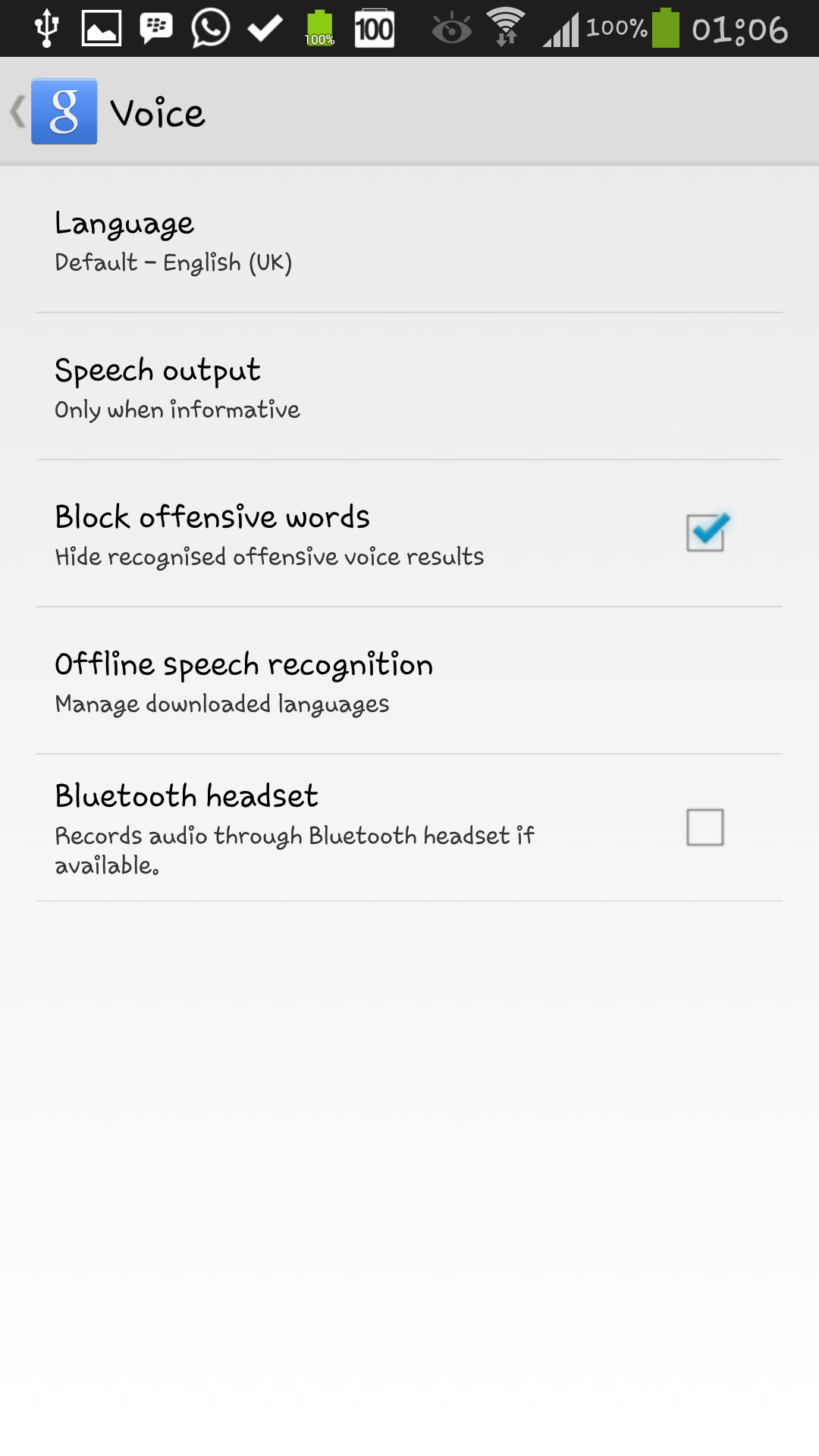
In case you get the ”Google Play Services Force Close” error, Long press the home screen and tap settings > voice > language or Open Google Now > Settings > Voice > Language > and change it from default to some other. I have tested the Google Home on my Galaxy Note 3 and its working fine, the default language is English UK, while it worked fine, I did not have to change the language.

Here are the screenshots from my Galaxy Note 3:

Nexus5 apks_Techbeasts (1)Nexus5 apks_Techbeasts (16)Nexus5 apks_Techbeasts (8)Nexus5 apks_Techbeasts (5)Nexus5 apks_Techbeasts (7)Nexus5 apks_Techbeasts (13)nexusae0_hangouts_thumb2Nexus5 apks_Techbeasts (10)Screenshot_2013-11-02-01-11-57Screenshot_2013-11-02-01-06-20Screenshot_2013-11-02-01-06-27Screenshot_2013-11-02-01-06-34

That’s All! I hope that it works fine for you, in case you got any queries or difficulties, feel free to leave us a comment. Thank You!


[HOW TO] Setup a Proxy Server with 3G or 4G Data Connection on Android

0
[HOW TO] Setup a Proxy Server with 3G or 4G Data Connection on Android

You can always use a proxy server to surf the internet anonymously without any restrictions on your Android phone . There are four ways by which you can setup a proxy server on your android phone .

  • Method 1: The first method is by manually adding the proxy server addresses and ports in the Access Point Name ( APN ) of the 3G or 4G data settings .
  • Method 2:  If you’re using a WiFi connection to browse the internet then you can manually add a proxy server address to the WiFi access point on your android phone .
  • Method 3:  The third method will be setting up a proxy server within a web browser .
  • Method 4:  Last but not the least the fourth method of setting up a proxy server on an Android phone will be by using android apps to setup a proxy server .

Lets find more about how we can setup a proxy server on an Android phone for surfing the internet on a 3G or 4G data connection . Before we start with the process of setting up a proxy server on your android phone , you need to find out a reliable proxy server first . You can do a quick Google search and find a lot of free and public proxy servers . If you don’t want to wait then check out this free and public database of proxy server list by hidemyass.com .

Note: the proxy servers listed in the above site are all third party open proxies available for public use . We cannot vouch for your security . Therefore we recommend using a proxy server with good reputation from your known sources .

Steps to setup a Proxy Server with a 3G / 4G data connection

  • Step 1: Go to the settings on your android phone .
  • Step 2:  Under wireless and networks tap on more settings .
    • Step 3:  Under the network menu tap on Mobile networks .

    setup proxy server on 3g Setup a Proxy Server with 3G or 4G Data Connection on Android

    • Step 4:  Under mobile networks tap on Access Point Names (APN) .
    • setup proxy server on 3g 2 Setup a Proxy Server with 3G or 4G Data Connection on Android
      • Step 5:  Under APN , tap the access point used to connect to the internet and add the proxy server and port addresses .

      setup proxy server on 3g 3 Setup a Proxy Server with 3G or 4G Data Connection on Android

      • Step 6:  Enter the respective proxy server and port details as below and click ok to save the settings .

      setup proxy server on 3g 4 Setup a Proxy Server with 3G or 4G Data Connection on Android

      Now your android phone is set to use the proxy server to surf the internet anonymously and without restrictions  .

      Thanks to my friend Rohan for the Screenshots.

APK’s From Android 4.4 Grab Them..!

0
APK’s From Android 4.4 Grab Them..!

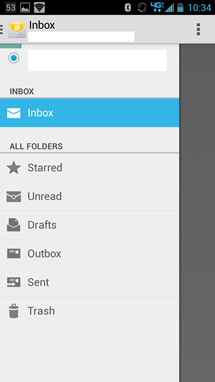
The email.apk. This is not Gmail Duh..! This is the stock Android apk. The interface has been given a full update to make it look very, very similar to the updated Gmail. You’ll get the same white Holo interface, the same icon and action bar, and the same slide-out menu, plus the swipe gestures for refreshing and deleting mail. Unfortunately the core functionality hasn’t changed that much – you’re still limited to the basic POP/IMAP/Exchange setups, with the same nearly universal settings and options.

nexusae0_2013-10-31-22.34.48_thumb
Grab it here


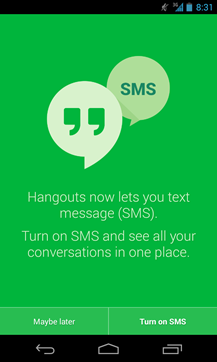
Hangouts 2.0 With Support For SMS, Animated GIFs, Location Sharing, Moods, And Statuses . The updated version 2.0 comes with SMS support as well as location sharing, the ability to display animated GIF files, as well as the previously discovered in a teardown statuses and moods

nexusae0_110_thumb nexusae0_hangouts_thumb2

Grab it here

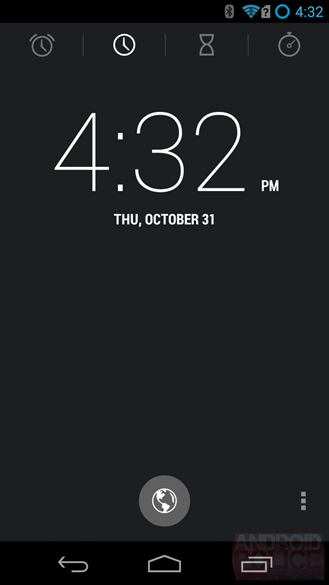
APK Download: Android 4.4 Clock/Alarm/Timer/Stopwatch App

The updated clock pulls the alarms out of the clock Activity into its own tab, which means the tab count changed from three to four. In KitKat, Google got rid of the ugly bold, increased the font ever-so-slightly, and made a subtle tweak to the timer icon.

The Alarms screen has been revamped quite a bit as well. First of all, because the Alarms Activity is now part of the swipable tab UI.

nexusae0_wm_Screenshot_2013-10-31-16-32-19_thumb
Thanks to Android Police for the Screenshot.

Grab it here.

Feature List- Android 4.4 KitKat.

0
Feature List- Android 4.4 KitKat.

So Finally..! After all the rumors and stuff. Google came out with the Nexus 5 and android 4.4 Kitkat running on it..!
Here is our exclusive take down on the new features on the Android 4.4.

Just say “Ok Google”
You don’t need to touch the screen to get things done. When on your home screen* or in Google Now, just say “Ok Google” to launch voice search, send a text, get directions or even play a song.
voice

Full Screen Album art on LockScreen.
While listening to music on your device, or while projecting movies to Chromecast, you’ll see beautiful full-screen album and movie art when your device is locked. You can play, pause, or seek to a specific moment.
art

Immersive Mode (Now the Navigations Keys Hide themselves)
with the new immersive mode, which automatically hides everything except what you really want to see. Just swipe the edge of the screen to bring back your status bar and navigation buttons.

immersive
Better, faster , Smoother multitasking..!!
Android 4.4 takes system performance to an all-time high by optimizing memory and improving your touchscreen so that it responds faster and more accurately than ever before. This means that you can listen to music while browsing the web, or race down the highway with the latest hit game, all without a hitch

multitasking
New Dialer App/Phone app.- Google calls this. The future is calling..!
The new phone app automatically prioritizes your contacts based on the people you talk to the most. You can also search for nearby places and businesses, your contacts, or people in your Google Apps domain.

Added to this is Smart Caller ID.
Whenever you get a call from a phone number not in your contacts, your phone will look for matches from businesses with a local listing on Google Map
callid
The new Hangouts app.
All of your SMS and MMS messages are together in the same app, alongside your other conversations and video calls. And with the new Hangouts, you can even share your location and send animated GIFs.messages
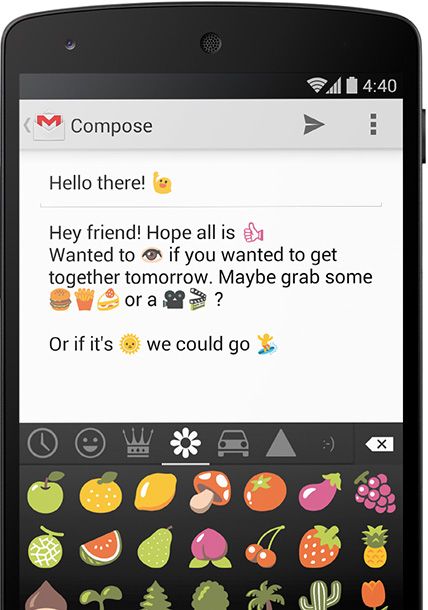
Emojis
Sometimes words can’t express how you feel. For that, there’s Emoji, the colorful Japanese characters, now available on Google Keyboard.
emoji

I Hope you guys like the Take Down on the latest features.
Wait for our exclusive tear down on all the Features exclusively.

Latest Firefox Browser for Android 25.0 apk version: Free Download

0
Latest Firefox Browser for Android 25.0 apk version: Free Download

Firefox for Android is the free web browser that puts the power of the open web in your hands. The official Mozilla Firefox android browser is fast, easy to use, & customizable, with the latest security and privacy features to help you stay safe on the internet.

Fast— Access, browse, and search the web at blazing speeds
Smart— Keep your favorite sites and mobile videos at your fingertips with smart searching, easy-to-use tabs, and desktop-to-mobile Sync features
Safe— Make sure your Android web browser stays safe & private with extensive security settings, add-ons, and features like Do Not Track

In the Press:
“For many Android users, Mozilla’s updated Firefox app could quickly become their favorite mobile browser… I’ve found it to be the best mobile browsing experience I’ve had yet.” – VentureBeat

“The first thing you’ll notice about the new version of Firefox for Android is how fast it really is…Firefox stands out for quick page loads and really smooth panning and zooming around web sites. “ – Lifehacker

“On my Samsung Galaxy S II, the new Firefox glides smoothly through any web page, whether it’s optimized for mobile browsing or not.” – TIME

“Firefox for Android is a lot snappier now. It starts up quicker and loads Web pages faster… What that means for the user is a much better browsing experience” – Information week.

Firefox Browser for Android apk free

Features:
★ Add-ons: Customize your web browser just the way you like it with add-ons including ad-blocker, password manager, and more
★ Awesome Screen: Firefox’s Android browser keeps everything organized so you don’t have to. The Awesome Screen automatically sorts your favorite sites onto one, easy-to-read page
★ Awesome Bar: Firefox learns from you as you browse, so you never have to waste time looking for a website. Search your Top Sites, Bookmarks, and History, and Firefox will help you find the site that you are looking for—with little to no typing.
★ Fast: Get to the internet faster, with quick start-up and page load times
★ HTML5: Experience the unlimited possibilities of the mobile internet with support for HTML5 and Web APIs
★ Mobile Video: Firefox’s Android browser is perfect for mobile video, and has mobile video support for a wide range of video formats including h.264
★ Reader Mode: Automatically transform cluttered articles and stories into beautiful, easy-to-read pages right in your browser
★ Security: Keep your browsing safe & private. Control your privacy, security and how much data you share on the web.
★ Sync: Sync your Firefox Desktop tabs, history, bookmarks, and passwords to all your devices and streamline your browsing

What’s New

What’s New:
* [New] Guest Browsing added for handing your phone & browser to a friend
* [New] Web Audio support
* [New] Romanian, Irish, and Ukranian added
* [Changed] Mixed content blocking enabled to protect users from man-in-the-middle attacks
* [Dev] Remote debugging with desktop Firefox can now be enabled from the settings
* [Dev] Add-ons can now add indicators to the URL Bar.
Firefox Browser for Android apk

Download Latest Construction City for Android 1.0.5 free for download

0
Download Latest Construction City for Android 1.0.5 free for download

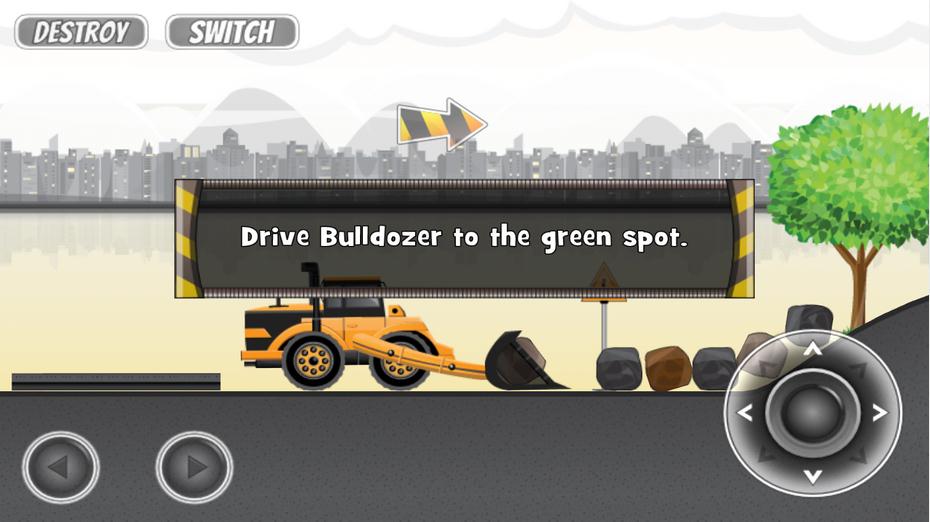
Construction City is a construction game where you can control 12 machines, such as cranes, excavator, trucks, tractor, helicopter, forklift and more! Use those powerful vehicles to complete all levels!

– 5 thematic worlds
– 105 levels
– 12 fully controllable construction vehicles – telescopic crane, excavator, bulldozer, tractor, trailer trucks tower crane tipper, trailer trucks, and even more.
– level editor, create your own levels and share with different players!
– build bridges and buildings
– realistic physics

It’s like a tractor game, a driving game, and a bridge building game, all in one!

Construction City


What’s New

version 1.0.5:
– controllers stucking/blocking fixed
– instruction window issue fixed
– stability improvements.

Download Latest GO Weather Forecast & Widgets 4.21.1 apk for Android

0
Download Latest GO Weather Forecast & Widgets 4.21.1 apk for Android

Weather Forecast – 50 million people are using this app to receive live and accurate weather info or local alerts. This one has the highest 4.5 star rating. GO Weather forecasts on 100,000+ locations worldwide, provides detailed weather report, accurate weather forecast, interactive maps image, incredibly beautiful user interface with variety of widget themes and live wallpapers. Being your best weather prophet is always what we are pursuing.

GO Weather Forecast & Widgets 2

Free Features
– Accurate and local forecasts for 100,000+ locations worldwide
– Detailed weather report, including time, date, feeling like, high & low temperature, wind, humidity, visibility, sunrise and sunset, severe weather alert, etc.
– Multiple cities feature is perfect for a trip plan
– 2*1, 4*1, 4*2 current weather widgets & 4*1, 4*2 future weather forecast widgets
– Widget themes and live wallpaper for 7+ weather conditions in day and night mode: sunny, rainy, snowy, thunder, cloudy, overcast and foggy
– Share your current weather info with your friends by taking a picture.

GO Weather Forecast & Widgets 3

Pro Features
– Probability of precipitation forecast
– World clock integrated to display current time and weather info for selected cities
– 24-hour & 10-day detailed weather forecast
– Interactive radar image, satellite for North America, Europe and Australia
– Exclusively designed widget themes for Premium Version (keep increasing)
– No sponsored messages or Ads.

GO Weather Forecast & Widgets

Download GO Weather Forecast & Widgets 4.21.1 apk

How To Root Nexus 4, 10, 7 and Galaxy Nexus On Android 4.3.

0
How To Root Nexus 4, 10, 7 and Galaxy Nexus On Android 4.3.

One thing about Google is that they are giving supreme priority to their device upon any other, Android 4.3 was released and at the same time they start giving updates to their Nexus series. Any Nexus smartphone can now be updated to Android 4.3, well I am not sure about Nexus S, otherwise Nexus 7, 10, 4 and Galaxy Nexus have received their Android 4.3 update. Now to the next step, Root your Nexus device running Android 4.3, HOW? Follow our guide and Root your device.

root

In this Article, we will show you How To Root Nexus 4, 10, 7 and Galaxy Nexus On Android 4.3. But before we begin make sure to Backup all your data placed on your phone’s internal storage, contactscall logs and messages. This is necessary as if something go wrong during the process, so you will be able to restore it afterwards.

Disclaimer:

The methods involved in flashing custom roms and rooting your phone is highly custom and may result in bricking your device, and has nothing to do with Google or the device manufacturers which is Samsung in our case. In case of any mishap we may not be held responsible. Follow these instructions to the letter to avoid any mishap or bricking. Make sure that whatever you do, you are doing it at your own responsibility.

Downloads Required:

Nexus Series USB Drivers

Super SU by Chainfire

CF-Auto Root for Nexus 7  (WI-FI – 3G)

Nexus Root Toolkit , Using this install any Cusom Recovery on Nexus 4, 10 or Galaxy Nexus.

Important things:

  • Your Device must be on Android 4.3.
  • Any type of Custom Recovery must be installed on your device.
  • Enable USB debugging mode.
  • Make sure that battery level is at 85% or more.
  • CF-Auto Root tutorial is only for unlocked Nexus 7 and Nexus 7.
  • Super SU method is only for Nexus 4, 10 and Galaxy Nexus.

How To Root Nexus 7 Using CF-Auto Method.

Nexus7


Rooting Process:

  1. Extract the CF-Auto Root file and save it anywhere on your PC.
  2. Reboot Nexus 7 into Fastboot Mode. HOW? Power Off your Device then Turn in On by Pressing Volume Up + Volume Down + Power Buttons.
  3. Once in Fastboot mode, connect your Nexus 7 to PC and wait till all the drivers are installed.
  4. Navigate to the folder where you have saved the Extracted files and run the ‘root-windows.bat’ file.
  5. Follow the on-screen instructions and wait for the Tablet to Reboot.

That’s it your Nexus 7 has been rooted on Android 4.3 Jelly Bean, Install the Root Checker app to Verify

How To Root Nexus 4, 10 and Galaxy Nexus On Android 4.3.

Nexus-4-Nexus-101


Rooting Process:

  1. Download the Super-SU file and transfer it to your device.
  2. Now if you haven’t install any Custom Recovery, do it now using the preferred method.
  3. Boot your device into Recovery.
  4. Once in Recovery, Navigate to ‘Flash zip from sdcard’ then select ‘Choose Zip from sdcard’.
  5. Now select the Super-Su zip file and Confirm the installation on next screen.
  6. After the Installation, Navigate to ‘advance’ and select ‘Devlik Cache Wipe’, just in case so you won’t stuck in any bootloop.

That’s it you Nexus device running Android 4.3 has now been rooted, use Root Checker from Play Store to Verify.

Install TWRP Recovery on Sony Xperia Z C6602/3 [Locked/Unlocked Bootloader]

3
Install TWRP Recovery on Sony Xperia Z C6602/3 [Locked/Unlocked Bootloader]

Sony’s flagship device Xperia Z, having a waterproof body and an awesome 13.1 MP camera installed behind a 5 inch Full HD display, runs on Android Jelly Bean. The phone was pretty well received by the users back in January, 2013.

While Android is an open source operating system as you all know, there is a number of developments taking place every minute, and the thing i love about Android is you can tweak your device the way you want.  Having your device rooted, and installed a custom recovery allows you to play with the device beyond boundaries. For example, you can play with the clock speed of your phone’s processor, install root required apps, improve the battery life of your device and a lot more.

Having installed a custom recovery along the root access is the basic requirement for flashing the zips directly to your device, or install any custom roms. While the device comes with a locked bootloader, there is a little confusion for the people whether they can root it, and install a custom recovery or not. In the following tutorial we will be learning how we can install a custom recovery on the Sony Xperia Z C6602 or C6603 having the bootloader unlocked or locked, while the root tutorial for the phones having locked/unlocked bootloaders can be found HERE.

The installation requires simply running an application having an apk file on your device, please make sure that you are rooted before you begin.

      1. Go ahead and download the XZRecovery-1.0.apk from HERE.
      2. Download it directly to your phone, or download it to your PC and transfer it to your phone.
      3. Access the apk file using a File manager on your device, in case you are prompted to allow unknown sources, check the unknown sources from that pop up or from Settings > Security > Unknown sources.
      4. You’ve the XZR-Recovery installed now, access the application from the App Drawer.
      5. You can find the options here to Install/Uninstall or Reboot into the recovery mode.
      6. 1383459_10201913762178339_1677871124_n
      7. Tap the Install recovery, it should take a few seconds to install the recovery and your device will reboot.
      8. To reboot into the recovery mode now, simply open the app and tap reboot recovery or power off your device, power it on and keep pressing the Volume Up + Volume Down keys simultaneously on the boot until you see the pink led.
      9. You can Backup your rom, install zip files, wipe your phone completely, restore it to the last running state if backed up properly, and a lot more options are there in the TWRP recovery. Enjoy!

601424_10201913800179289_2102856914_n

That’s all! In case you got any queries or difficulties, feel free to leave us a comment. Thanks.