Home Blog Page 324

How To Fix iPhone 6 Not Connecting To Wi-Fi

0
How To Fix iPhone 6 Not Connecting To Wi-Fi

I have seen many people are reporting about their iPhone won’t connect to wifi, iPhone not connecting to wifi etc. Well for those who are facing such kind of issues, I’ve prepared a step by step guide to fix iPhone 6 Not Connecting To Wi-Fi issue. iPhone 6 has many other issues so does any other smartphones, but this issue, not connecting with WiFi network, it’s very annoying because you cannot use the internet at all. Now let’s Fix iPhone 6 Not Connecting To Wi-Fi.

fix iPhone not connecting with wifi

How To Fix iPhone 6 Not Connecting To Wi-Fi:

Following are the all the possible methods which can easily fix iPhone 6 is not connecting with Wifi networks.

No.1 Turn off Wi-Fi networking:

  1. Go to settings on your iPhone 6.
  2. Tap on Privacy.
  3. Tap on Location Services.
  4. Now Choose System Services.
  5. Tap on Turn off Wi-Fi networking.

Once you have done this, turn off your device and wait for 1-2 minutes. Now Turn on your iPhone and try to connect with your Wifi network.

No.2: Reset network settings:

  1. Go to Settings on your iPhone.
  2. Tap on General.
  3. Tap on Reset.
  4. Tap on Reset Network Settings.

No. 3: Update iOS:

Open Settings on your device, Tap on General-Software Update-> Tap on install it. You may be facing this issue because you are running an old version on iOS on your device. Updating to the latest version might get rid of this problem.

No. 4: Factory Reset:

  1. Open Settings and Tap on General
  2. Tap on Reset from the list.
  3. Tap on Erase all Content and settings
  4. If you have the passcode/fingerprint, enter it
  5. Tap on Approve ->Erase iPhone.

After trying all these solutions, still you have no luck then you should go to service center and let it checked by the staff.

Best Free Android and iOS Games of 2016

0
Best Free Android and iOS Games of 2016

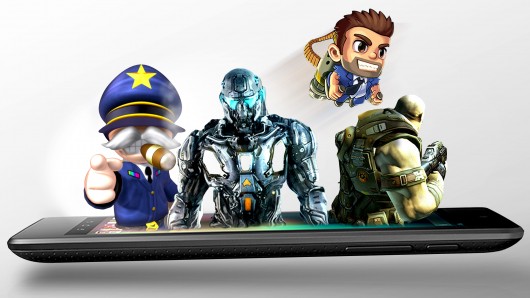
best-android-gamesAndroid’s Google Play Store and iOS’s  App Store have been very active and entertaining for quite some time now. There are thousands of apps and games for the users, but the problem is, which one to choose? This is why we have come up with the top picks of the Android and iOS. The categories of the store are available for the user’s rescue, but choosing the best app is the challenge!

This list includes the best free Android and iOS games of 2016. We hope we can help you find your favorite game for all your free times.

Angry Birds Action

The game mainly casts angry Mr. Little Red, who has been accused of the mysterious mess around the village. He has to clean up the mess, rescue eggs and also clear his name of the accusation. Angry Birds Action is also an attention catcher for those who loved Pinball, as it includes a bit of the playing technique of Pinball.

This new part is much more fun to play because it is more than blowing birds. Rather than aiming birds at the pig-infested blocks, here you are shooting along the ground in a pinball-inspired series of levels that keep getting interesting as Mr. Red find proofs for his innocence.

Plants vs Zombies Heroes

The new ultimate release from the makers of Plants vs Zombies and Plants vs Zombies 2 has made it to many lists. The makers have made this one a whole lot more fun than the former ones. The graphics are improved and given the effect of a comic book theme.

You get to collect heroes and make an army with amazing superpowers and step into the lawn of a new battle where you fight friends and foes. Lead a journey to find new characters, superpowers, fight the clever and challenging enemies and win extraordinary rewards. A must play for fight and graphic fanatics!

Hungry Shark World

A new game by the Hungry Shark Evolution has come with more excitement for its players. Sharks eat anything they find, go on new and challenging adventures and keep the tummy satisfied for as long as they can.

Discover and swim through all the oceans of the world! Experience the beauty and beasts of each location with a huge amount of food, hurdles and enemies that will get in the way of your challenge. Unlock bigger and better sharks with the collected gems, each with different power and skills. It also has an interest for the fashion freaks as you can buy new fashion accessories for the sharks with the passing levels and challenges!

Hungry Shark World
Price: Free
Hungry Shark World
Price: Free+

Piano Tiles 2

A sequel to the Piano Tiles 1 is among the most popular games of 2016. And much loved like its prequel, it has new graphics and color scheme and great sound quality with new tunes to play.

The new feature of the game is the long tap tile to cover the longer tunes. Rest of the rules and known and clear to not touch anywhere except the black tiles. The game is lovely addictive and a perfect gameplay for music lovers and those who love to make music. A must play to experience the grace of playing the Piano.

Piano Tiles 2™
Price: Free+

Traffic Rider

Another masterpiece from the makers of Traffic Racer. The game keeps all the previous and classic features. Except that this time, you’re riding the wheels of a bike which gives a much better and realistic gaming experience to the player. The time keeps changing from day to night as you keep riding.

Upgrade and pimp your ride and try different modes of racing/riding. It gives a choice o 20 different bikes to choose from and ride on the highway with the realistic sound.

Traffic Rider
Price: Free
Traffic Rider
Price: Free+

Blossom Blast Saga

A new make from the creators of Candy Crush Saga & Farm Heroes Saga. Experience the beautiful and ‘flowery’ gaming through the colorful gardens of Blossom Blast Saga. Clear the entire plot before you run out of moves. The rules are similar with Candy Crush, link 3 or more flowers of the same color to grow them to an awesome size.

But keep an eye out for the weeds! They might get in your flowery way!

Blossom Blast Saga
Price: Free
Blossom Blast Saga
Price: Free+

Seven Knights

A must play for the fans of superheroes and superpowers. In this game, you are the hero who has to save the land of Ladenberg from the God of Destruction. As only you are destined to face him, fight and bring peace to the land. Alongside your partners Evan and Karin you go on the adventure and form an army!

The game comes with different modes of playing. It has Adventure, Battle, Celestial, Dungeon and Castle Rush modes. Upgrade your powers with time and ace the adventure!

Seven Knights
Price: Free
‎Seven Knights
Price: Free+

Disney Crossy Road

We still don’t know the answer to ‘Why did the chicken cross the road?’ But Disney definitely knows the answer through its own characters! Go on a road crossing spree with Mickey, Buzz Lightyear, Mufasa, Rapunzel and many more!

The game becomes more Disney-ish when popular Disney tunes are played. A great attraction for all the crazy fans out there! Each world of the game comes with new challenges, breezes, stampedes and many such horrific hurdles. Have fun tapping, swiping and crossing roads!

Clash Royale

Battle station! The creators of Clash of Clans come with their new creation. A card brawl style game where you play against an opponent. Form clans, defeat and win cards. Each card carries powers and upgrades.

Clash Royale is an actual multiplayer game where you fight against enemies to win Trophies, Crowns from the Crown Towers. Win the prizes, form an army and rule the land!

Clash Royale
Price: Free
Clash Royale
Price: Free+

Miitomo

Miitomo is an app from Nintendo which brings a new and fun idea of gaming. You have to make a Mii of yourself. A Mii is a character of yourself that is completely customized to your own look and moods. Add your friends and interact with them in a whole new way!

Earn coins and rewards and buy clothes, food and anything you want! Dress your Mii in different outfits and out-style your friends.

Futurama: Game of Drones

Our very own Professor Farnsworth has come up with a solution for the negative feedback from his customers. And his solution is the Delivery Drones! His invention seems to be working perfectly fine, until the enemy, “Spy Drones’ comes in their way!

The game covers the concept of linking the same colored drones in various shapes to send them to the moon, with the Spy Drones sent after them. But Professor Farnsworth is not to be underestimated! He has already created Battle Drones to get rid of the enemy!

Slither.io

Takes us back to the good ol’ game ‘Snake’, where the snake is after the food. But here you will play against opponent snakes for getting the tummy satisfied! The snake follows and eats the food along with many others.

The advantage that this snake has, is that whichever snake touches it, dies and the snake eats them too, it makes him grow faster and stronger. But be sure not to bump into other snakes, or you’ll die!

slither.io
Price: Free
slither.io
Price: Free+

Pocket Mortys

Based on the famous TV show ‘Rick and Morty’ comes the game starring the both characters. Rick has invented a device named ‘Morty Pad’ that collects stats of all the Mortys, though which he finds that all the Mortys are being taken away from their Ricks! When Rick’s Morty is about to be taken from him, he competes his Morty with the Mysterious Rick’s Morty.

There are much other Morty of other dimensions to compete with. Rick must train his Morty to fight all the rest! Train, Fight and make sure you are not taken away by the Mysterious Rick!

So players! If you fancy playing any of these games, go to your App Store, click away download the game and start playing! Go on multiple adventures, challenge yourself and level up. Each game with its own style and mysteries to be unveiled. So pick your favorite and start downloading. There’s so much waiting for your attention.

Online and Offline Slither.io for PC

0
Online and Offline Slither.io for PC

Slither.io has become a game that needs no introduction. Slither.io gained a lot of popularity in a very short span of time. The game will revive your memories of the Snake game that you played on those old Nokia handsets. Slither.io takes the concept of the Snake game to an entirely new level. The game brings a display with some beautiful Snakes. Although Snakes are the deadly creatures, you might fall in love with the Snakes after playing this game.

So what this game is actually about? Well, all you have to do is, you have to become the biggest Snake in the town. Collect as many shining dots as you can and keep your Snake growing. The only thing that you need to take care of is that the head of your Snake doesn’t strike the head of another Snake, it will end up your game otherwise. You will find a lot of other Snakes around you sporting some stunning colors. Take care of your Snake while you’re growing it up.

Slither.io is an absolutely free game. It’s available for both Android and iOS platforms. The game has become so much popular that so many users are willing to play it on their computers as well. Developers of Slither.io noted the need of a desktop version of Slither.io and launched a dedicated website which allows the players to play this game online in their browser. That’s not it, just in case you do not have an internet connection and you cannot connect to the internet, there still is a way to install Slither.io on your computer and play it. We have discussed both the methods i.e.  the offline and online Slither.io on a computer in the on-going guide. Let’s have a look on them one by one.

How to play Online Slither.io for PC

  1. Make sure that you’re connected to the internet.
  2. Open any browser on your computer.
  3. Now open the Slither.io website.
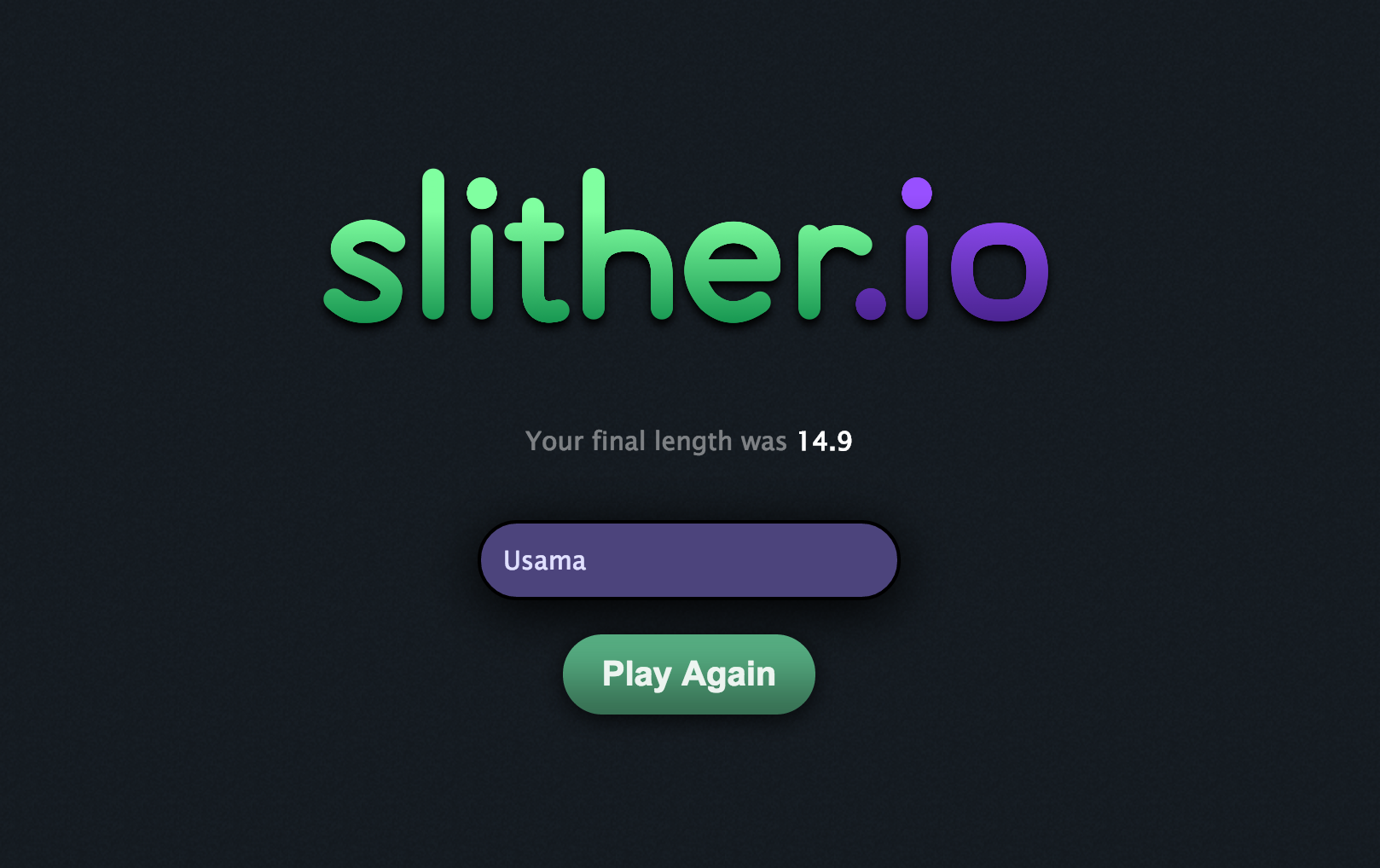
  4. Enter your name and start playing this game now.
  5. Simply moving your fingers on your trackpad or simple moving your mouse will move your Snake.
  6. That’s all.Slither.io for PC Image
  7. Screenshot at Apr 16 19-13-53

Download and install Offline Slither.io for PC (Windows and Mac)

Slither.io for PC can be played on Windows XP, Windows 7, Windows 8, Windows 8.1, Windows 10 and Mac OS X powered Macbook Pro, Macbook Air and iMac.

  1. Download Slither.io APK
  2. Download and install Bluestacks: Bluestacks Offline Installer | Rooted Bluestacks | Bluestacks App Player | Rooted BlueStacks 2
  3. Once you’ve installed Bluestacks, double click the downloaded Slither.io APK.
  4. The APK will be installed using Bluestacks, once installed open Bluestacks and locate the recently installed Slither.io.
  5. Click the Slither.io icon to open it, follow the on-screen instructions to play it.

You can also use Andy OS or Remix OS to install Apps for PC such as Slither.io, here’s the tutorial:  How To Run Android Apps On Mac OS X With Andy | How to launch Remix OS for PC and install Apps for PC via Remix OS.

The Andy OS and Remix OS tutorial explains how to play a game on your Mac OS X, but the same guide will also work for a Windows PC.

That’s all. In case you’re stuck with anything, reach us out through the comment box below.

How to fix unfortunately Slither.io has stopped on Android

0
How to fix unfortunately Slither.io has stopped on Android

Slither.io is the talk of the town at the moment. Everyone is playing this crazy game to become the biggest snake to beat their friends. Slither.io came out for the Android platform just a few days back and the game has already been downloaded for over 5M.

Screenshot at Apr 16 19-03-25

Slither.io can get you really busy once you start playing this game. Any sort of interruption in your gameplay will annoy. One of the very unfortunate reasons that can plunge into your Slither.io gameplay is the “unfortunately Slither.io has stopped” error. This is one of the most common errors when it comes to the Android OS. This error has several reasons to pop up. Sometimes there’s a new update in queue because of what the installed version of application or game starts crashing in your Android phone and sometimes the game itself is the culprit.

Fixing this error is no big deal. You only need to play with the settings of your Slither.io game using the application manager and get rid of this error.

In the succeeding post, a method explains how to fix unfortunately Slither.io has stopped error on Android.

How to fix unfortunately Slither.io has stopped on Android

  1. Open “Settings” on your Android device.
  2. In settings, locate the Application Manager and tap it to open it.
  3. In Application Manager, go to “All” applications tab.
  4. Now in All applications tab, scroll all the way down and find Slither.io.
  5. Tap Slither.io to open its settings.
  6. Now in Slither.io settings, clear the Slither.io cache and data.
  7. Restart your device now.
  8. Launch Slither.io again. Hopefully the error should have vanished now.
  9. That’s all.

Alternatively, if there is a new version of Slither.io available in the Google Play Store, you can try installing that. Simply updating the application fixes this error most of the times.

We hope that this guide has worked for you. Just in case it failed to work, reach us out through the comment box below.

How To Fix iPhone 6, 6 Plus, 6s, 6s Plus Doesn’t Ring [ Tips ]

0
How To Fix iPhone 6, 6 Plus, 6s, 6s Plus Doesn’t Ring [ Tips ]

I am using iPhone 6 from quite long now and today I faced an issue my iPhone 6 stop ringing when someone is calling, first I thought that I have turned on mute on but I didn’t. The next thing I did, I turned off my device and after 1-2 minutes turned on and still iPhone is not ringing. After few hours of trying different method I finally fixed iPhone 6 Doesn’t Ring, So people who want to fix iPhone not ringing, iPhone won’t ring and more. Follow the instruction below in order to fix all the iPhone issues.

iphone won't ring

How To Fix iPhone 6, 6 Plus, 6s, 6s Plus Doesn’t Ring:

  • Check if Mute is ON:

First thing you all should do is check that the Mute is On or not. Because in iDevices mute button is located at very stupid location, so it can be turned on accidently.

  • Do not Disturb:

Do not disturb is very effective feature in iPhones, but sometimes you forget to turn it off and cause of this you face such type of issues. Head to Settings->Do not disturb->Turn Off.

  • Reset Network Settings:

This might came handy although didn’t worked for me but many users have reported that, after resetting the network settings their iPhone start ringing again.

  • Turn off 4G:

I have no idea about this, but as I said people have reported that this helps to fix iPhone is not ringing. Go to Settings->Cellular->Turn off 4G.

  • Factory Reset:

This is the best option I found, Settings->General->Reset->Erase all Content and Settings.

  • Update to latest iOS:

This will help you fix many bugs, Open Settings->General->Software Update.

Fix iMessage is not working on iPhone running iOS 9 or iOS 8

0
Fix iMessage is not working on iPhone running iOS 9 or iOS 8

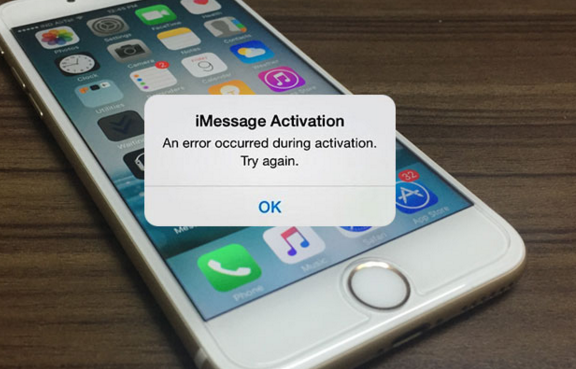
The best thing about iPhone is iMessage and FaceTime no other manufacturer is giving such options by default. Well, iMessage is good in many ways, but there is one thing that creeps me, once you start getting the error ” iMessage is not Working “. Then it will be a headache because this message popup will not go away unless you fix it, so today I’ve prepared a step by step guide in which I’ll tell you how to fix iMessage is not working on iPhone running iOS 9 or iOS 8. Now let’s start the tutorial and fix iMessage is not working. 

Read more: Fix iMessage “Waiting for Activation” Error on iPhone

iMessage is not working

Fix iMessage is not working on iPhone running iOS 9 or iOS 8:

Check Network Settings:

Now first thing you do is check your Network settings because you need an active Wifi/3G connection in order to use iMessage and iMessage on work on strong signals. While using iMessage stay close to WiFi router and if you are using mobile data then stay in the area where you get better reception.

Turn OFF and then Turn ON Again:

  • First go to Settings on your iPhone.
  • Tap on Messages.
  • Turn off iMessage if it’s on.
  • Now reboot your device and Turn on iMessage, wait for activation process to complete.
  • Open Message app and send iMessage to someone, keep that in mind stay near to WiFi router so you can get better reception.
  • If still you have no success then move on to next step below.

Send & Receive Options:

  • Goto Settings on your iPhone.
  • Tap on Messages-> Send & Receive.
  • Now you’ll see different options, Your number, Apple id and more.
  • Tap on number to select for iMessage and try sending the iMessage now. If it didn’t worked then select the email for iMessage and try sending the iMessage now.

These are all the available options that will help you to fix iMessage is not Working. I’ve seen on Apple forum a user reported that after deleting the old message from my device iMessage started working again. You can give it a try, might be helpful.

How To Fix Unable to Delete Songs in the Music App [iOS 7]

0
How To Fix Unable to Delete Songs in the Music App [iOS 7]

Few days back I’ve posted about how to delete photos on iPhone / iPad in iOS8 – 9, today I’ll tell you how to fix Unable to Delete Songs in the Music App [iOS 7]. Now the procedure is almost same but few things are changed as iOS8-9 are updated version so we have to do a bit more to delete songs in iPhone and iPad running iOS 7. Now let’s start the tutorial on how to fix Unable to Delete Songs in the Music App.

Read more:

  1. How To Open Hidden Invisible Files on OSX 10.11 El Capitan.
  2. Bypass iCloud Activation Lock iOS 8.1.3 / iOS 9.2.1 / 9.3

Unable-to-Delete-Songs-in-the-Music-App-in-iOS-7-on-iPhone-and-iPad

How To Fix Unable to Delete Songs in the Music App [iOS 7]:

Read more: delete photos in iOS when the trash can icon is grayed out

Step1: Open Settings on your iPhone or iPad.

Step2: Now Tap on Music from the list.

Step3: Scroll down and Turn OFF the switch for iTunes Match.

Step4: Also turn off “Show All Music“.

Step5: Open App tasker and quit the music app.

Step6: Now to delete all the Songs, Tap on Edit located on the top right corner.

Step7: Once you tap on Eidt, you’ll see a red minus sign against ” All Songs ” . Tap on it.

Step8: You’ll see red delete button on right side of all songs. Tap on Delete.

All Done.

Now if you see few songs in your music app, that means you have turn on the backup for iCloud and now if you want to delete them tap on the iCloud button and download the songs on your device. Once the songs are on your device, you repeat the same process and delete all the songs.

Instagram 8.0.0 Apk Download

Instagram 8.0.0 Apk Download

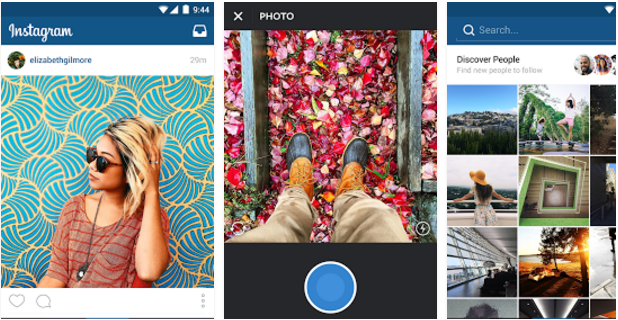
Instagram new update is available for Android 6.0, there are no bugs fixes nor any new features. In this update developers have targeted Android 6.0 version, we have added Instagram 8.0.0 Apk download links below, you can download the latest update from Google Play.

Screen Shot 2015-11-28 at 18.43.46

About Instagram:

* Edit photos and videos with free, custom-designed filters.
* Improve photos with 10 advanced creative tools to change brightness, contrast and saturation as well as shadows, highlights and perspective.
* Find people to follow based on the accounts and photos they already love.
* Instantly share photos and videos on Facebook, Twitter, Tumblr and other social networks.
* Connect with Instagrammers all over the world and keep up with their photos and videos.
* Send private photo and video messages directly to friends.

How To Download and Install Instagram 7.12.0 (18187053) Android Apk:

1. Download Instagram 8.0.0 Android Apk.

2. Copy the downloaded APK file to your smartphone or tablet.

3. Now on your Android smartphone or tablet, go to settings > security > check “allow unknown sources”.

4. Now using a file explorer locate Adaway APK that you just copied on your phone.

5. Tap the APK file and follow the on-screen instructions to install it now.

6. Once installed, open the application through app drawer.

All Done !

Download Free Music on Your iPhone/iPod Touch [ Tutorial ]

0
Download Free Music on Your iPhone/iPod Touch [ Tutorial ]

When it comes to download something free on smartphones, I would prefer Android cause you can download anything for free. On the other hand, when it comes to iOS you have very limited resource that allows you download free music but again not like Android. No need to be sad, today I will tell you how to download free music on your iPhone and iPod Touch after all Apple is known for music and stuff. You can listen free music on iTunes, Radio, Spotify, Pandora and more. It’s good but, now if you want to download music legally on iPhone or iPod Touch follow the instructions below.

Read more:

  1. How To Open Hidden Invisible Files on OSX 10.11 El Capitan.
  2. Bypass iCloud Activation Lock iOS 8.1.3 / iOS 9.2.1 / 9.3
  3. Delete songs from iPhone.

free music downloads for iphone

How to Download Free Music on Your iPhone/iPod Touch:

The best and safest way is that use iTunes and wait for Apple’s iTunes Single of the Week. Every week iTunes give away a free song and if not then try the following apps.

FMA:

FMA is a free music app which allows you to download and share handpicked “Featured Playlists”. Also you can download the your queued songs to the app, and save them for offline listening. Social media sharing support is also available.

‎FMA
Price: Free

MyMP3:

This is sort of MP3 converter which allows you convert any video you can view on your device to MP3 and good thing is that you can also share the MP3 on social media.

FinalTube Free:

Youtube is the biggest medium to watch videos online and also you can download the video from Youtube but not on iOS devices. FinalTube allows you to save videos on your device so when you are offline you can still watch them.

Downloader for SoundCloud:

SoundCloud has tons of songs and playlist which cannot be downloaded, but there is a app which works like charm when it comes to download music from SoundCloud. Downloader for SoundCloud works as a client and it allows you to create playlists and also download them.

The app was not found in the store. 🙁

How to delete songs from iPhone/iPad In iOS 8 – iOS 9

How to delete songs from iPhone/iPad In iOS 8 – iOS 9

iPhone is complicated in many ways, a layman cannot easily use when it comes to deleting something in iOS devices. Few days back I posted about how to delete photos in iOS when the trash can icon is grayed out and toady I’ll tell you how to delete songs from iPhone/iPad In iOS 8 – iOS 9. There are more than one method to delete songs or music from iPhone or iPad as compared to iOS 7. Now let’s start the method to delete songs from iPhone.

Read more:

  1. How To Open Hidden Invisible Files on OSX 10.11 El Capitan.
  2. Bypass iCloud Activation Lock iOS 8.1.3 / iOS 9.2.1 / 9.3

delete songs from iPhone/iPad In iOS 8 - iOS 9

How to delete songs from iPhone/iPad In iOS 8 – iOS 9:

Step1: Open Settings on your iPhone or iPad.

Step2: Now Tap on General from the list.

Step3: Scroll down and Tap on Usage.

Step4: In usage menu Tap on Manage Storage.

Step5: There you’ll see of list of the apps with the space. Tap on Music.

Step6: Now to delete all the Songs, Tap on Edit located on the top right corner.

Step7: Once you tap on Eidt, you’ll see a red minus sign against ” All Songs ” . Tap on it.

Step8: You’ll see red delete button on right side of all songs. Tap on Delete.

Step9: Now to check that All the Songs are deleted head back to Usage and check the space against Music App, if it’s showing nothing that means all the songs are deleted from your iPhone or iPad. If the music app is still showing space, turn off your device wait for 30 seconds then turn on your device and repeat all the steps.

Read more:

Update Sony Xperia Z3 D6603 To Official Android Marshmallow 23.5.A.0.570 Firmware

0
Update Sony Xperia Z3 D6603 To Official Android Marshmallow 23.5.A.0.570 Firmware

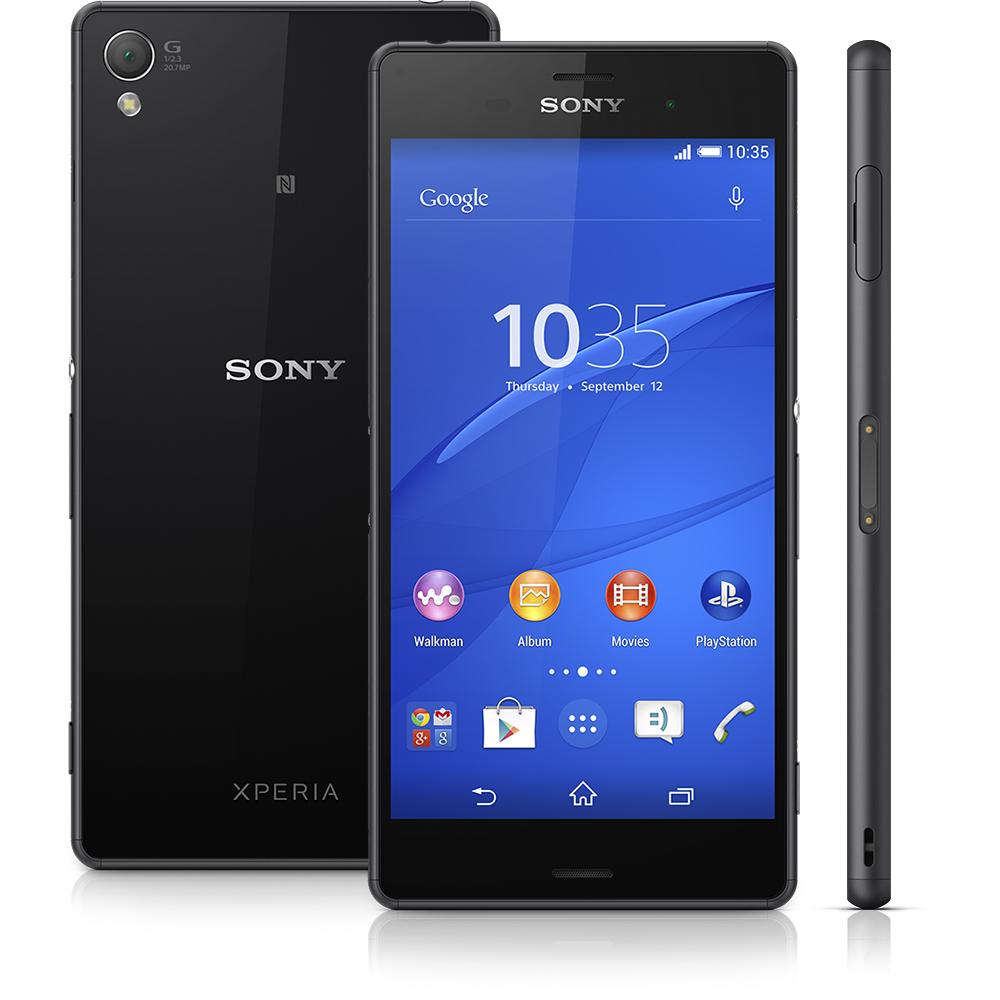
Treat time for Xperia Z3 owners is finally here. It’s time to stop using the beta Android Marshmallow firmware and jump up to the official complete build of the Marshmallow firmware for our beloved device. Sony broke the silence today and finally started rolling out the long-awaited Marshmallow firmware for Xperia Z2, Xperia Z3 and Xperia Z3 Compact. As it was expected, Marshmallow has brought all of its cool changes to the Xperia Z3. You may note a new Camera 2.0.0 application with a new UI and some enhanced features. Apart from that, you will come across some notable performance and battery life enhancements.sony-xperia-z3-full-specification

The latest update is based on Android 6.0.1 Marshmallow firmware. It comes with the build number 23.5.A.0.570 which was also the build number for the most recent Android Marshmallow beta program. This update is reaching out the users through OTA and Sony PC Companion. If you happen to be one unlucky Xperia Z3 user who hasn’t got this update through the mentioned means, you shouldn’t be disappointed at all since you can update your device manually as well. The guide here demonstrates how you can update your Sony Xperia Z3 D6603 to official Android Marshmallow 23.5A.0.570 firmware. Let’s have a look on the method now.

Early Preparations:

1. This is only for Sony Xperia Z3 D6603. 

This ROM is only for the device mentioned above. Make sure that your model number matches the one listed above. To do so, go to Settings > About Device on your device and see your model number. Flashing this firmware on any other device will result in bricking it so make sure that you meet this requirement first of all.

2. Battery should be charged at least over 60%.

Make sure that your battery is charged enough to complete the flashing process. In case your battery is low and your device goes dead during the flashing process, you may end up soft bricking your device as it won’t complete the flashing process.

3. Backup everything!

Just to be on the safe side, you may consider backing up each and everything from your Android device. This is highly recommended so that in case anything goes wrong, you still have the access to all of your data and you can restore it immediately. You may backup everything as listed below.

4. Enable USB Debugging Mode on your device.

Enable USB debugging mode on your device. To do so, tap settings>developer options>USB debugging. If you can’t find developer options in settings, then tap settings > about device and tap “Build Number” for 7 times and you’ll get em’ activated under settings.

5. Install and setup Sony Flashtool.

You must have installed Sony Flashtool.  Find the full guide here. After installing Sony Flashtool, open the Flashtool folder from the drive where you installed it.Now open Flashtool>Drivers>Flashtool-drivers.exe and install the Flashtool, Fastboot & Xperia Z3 Compact drivers from the list. [Important]

6. Use OEM data cable to establish connection.

Make sure that you use the phone’s original data cable to establish connection between your phone and the PC. Using a different data cable might result in interrupting the firmware installation.

How To Update Sony Xperia Z3 D6603 To 23.5.A.0.570 Android 6.0.1 Marshmallow Firmware

 Before moving forward, please make sure that you’ve read the pre requisites and ensure that you are set to go ahead.

  1. Download the latest firmware Android 6.0.1 Marshmallow 23.5.A.0.570 FTF file.
    1. For Xperia Z3 D6603 [Generic/Unbranded] Link 1  Create your own FTF using this guide
  2. Copy the file and paste in Flashtool>Firmwares folder.
  3. Open Flashtool.exe now.
  4. Hit the small lightening button on the top left corner and select Flashmode.
  5. Select the FTF firmware file that you placed in the Firmware folder.
  6. From the right side, select what do you want to wipe. Data, cache and apps log, all wipes are recommended, perhaps you may select if you don’t want.
  7. Click on OK, and it will start preparing the firmware for flashing. This may take a little while to load.
  8. As soon as the firmware is loaded, it will prompt you to attach the phone by turning it off and keeping the back key press.
  9. For Xperia Z3, Volume Down key will do the job of back key, just turn off your phone, keep the Volume Down key pressed and plug in the data cable.
  10. As soon as the phone is detected in Flashmode, the firmware will start flashing, Do not leave the Volume Down key until the process is complete.
  11. As soon as you see “Flashing ended or Finished Flashing” leave the Volume Down key, plug the cable out and reboot.
  12. That’s All! Congrats! You’ve installed latest Android 6.0.1 Marshmallow on your Xperia Z3. Enjoy

In case you got any queries or face any problems regarding this guide, please feel free to stop by the comment box below and let us know. We will get back to you as soon as possible. Thanks all!