Home Blog Page 307

Download GoIV 3.0.0 APK

0
Download GoIV 3.0.0 APK

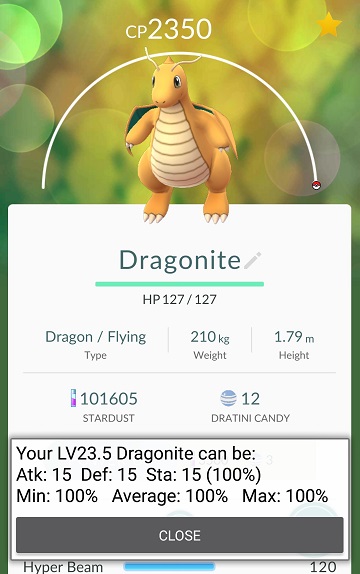
GoIV is one of the IV calculators that is working for Pokemon Go. GoIV’s APK file is available for download here.

Pokemon Go players are looking out for some applications that can boost up their gameplay. Niantic, the developers behind Pokemon Go are trying to make sure that they do not let the players use any third party applications to level up fast in the game or even get any kind of assistance. In the past few days a number of Pokemon Go companion apps came out and met their fate within a very short time-span. At the moment, you will merely find a Pokemon Go Map application or Pokemon Go IV calculator working. In case you already don’t know about IV values, these are the Individual Values which are the hidden stats of each and every Pokemon in the Pokemon Go. IV ranges from 0 to 31 for each Pokemon. For level 100, each IV adds one point and for a lower level, the point also lows down e.g. for level 50, 2 IV make one stat point.Pokémon-Go-logo-620x389
GoIV is luckily one of the applications which is still working and helping Pokemon Go players out there. Like other Pokemon Go companion applications, this application is also not available in the Google Play Store and the only way to install it on your Android smartphone is by grabbing its APK file and putting it down manually.


GoIV’s latest APK version is 2.1.0. We’ve got our hands on this APK and attached it right here for all of our readers. You may go ahead and download the latest GoIV (Goiv) APK v3.0.0 and install it by following the instructions next to the download button.

Download GoIV APK for Android and How to Install it

  1. Download GoIV APK
  2. Download the file to your phone straight away, or copy it to your phone from your PC.
  3. Now on your phone, go to settings > security > allow unknown sources > check this.
  4. Now using a file manager, locate the APK file that your just copied or downloaded.
  5. Tap the APK file and finish installation using the on-screen instructions.
  6. Once installed, access the newly installed game through app drawer.
  7. That’s all. Enjoy GoIV!
68747470733a2f2f692e696d6775722e636f6d2f614e48554556492e6a7067 68747470733a2f2f692e696d6775722e636f6d2f627652666d5a562e6a7067

Just in case you’re willing to play the new version of  Pokemon Go on your  PC then checkout GoIV for PC!

7 Best Antivirus For iPhone, iPad 2016

0
7 Best Antivirus For iPhone, iPad 2016

Here are the Best Antivirus For iPhone, iPad 2016. iOS devices are mostly connected to the internet in order to use basic programs and apps. While that is a necessity, of course, your iPhone and iPad devices need to be protected from the malicious and harmful programs that constantly try to invade your devices. Everyone understands the need to have the Best Antivirus For  your iPhone and iPad devices. When are so many different Antivirus programs by various developers claiming to be the best, how would you choose the Best and good Antivirus For iPhone, iPad? We have analyzed different Antivirus available for iOS devices and come up with the Best Antivirus For iPhone, iPad. These Best Antivirus For iPhone, iPad come with excellent security features as well as some other additional features as well. You can choose any of the Antivirus from the list of Best Antivirus for iPhone and iPad 2016 below.

best-antivirus-iphone-ipad-2016

Best Antivirus for iPhone in 2016:

Avast Secure Me:

ASM_3-2

First up in the list is Avast Secure Me which is developed by the top and reliable antivirus and security brand Avast. The Antivirus has proven to be quite effective and is capable of securing your private data and protecting your device from malicious software and virus while you work on the internet. The program stays active at all times and notifies you immediately of any threats especially while your device is connected to a public or unsecure internet connection.

McAfee Mobile Security:

screen568x568

This next Antivirus does not only protect your iOS device over the internet but it also protects your private documents and personal data from being accessed by any snooper in your nearby zone. You will be immediately notified if anyone tries to access the shielded data in your phone. The program also includes a backup system including Secure vault that lets you secure all of your media files and pictures directly into the McAfee secure cloud.

Lookout Mobile Security:

screen322x572

If you are clumsy and prone to losing your phone, this is one program that you should have installed. Lookout takes backup of your data on regular basis and is helpful in case of theft or loss. The app is capable of locating your phone within seconds even ifyour device is on silent mode as well as it saves the last location of your phone in case the battery drains out. You can also retrieve your important data in case you have lost data on your phone under any circumstances.

Norton Mobile Security:

screen568x568-1

Another reputable and effective Antivirus recommended for your iPhone and iPAd is Norton Mobile which constantly scans your device for any external threats and malware as well as takes a regular backup of your data. Additionally, the program is also useful in case you lose your device. It will save the last location of your device, trigger alarm and locate it using internet connection.

Avira Mobile Security:

screen568x568-2

Next in the list is Avira, a smart Antivirus that not only protects your emails and other data from being invaded but also keeps a track of your device, has an extensive dashboard to let you manage your device alongwith 4 other devices that can be located through Avira in case of loss or theft.

F-Secure Safe:

screen322x572-2

F-Secure is effective when it comes to inline surfing. You donot have to worry about invaders or threats while using internet on your phone as long as you have your device protected via F-Secure. You will be immediately notified if you try to browse a threatened website. The program also includes ‘Parental control’ feature to protect your children from seeing any inappropriate stuff on the internet.

360 Security:

screen322x572-1

Lastly, we have 360 Security which is also one of the recognized and reliable Antivirus brand. This is an all in one Antivirus and device manager. You do not have to worry about scanning your phone for duplicate media files or pictures that take up unwanted space. It also includes a battery optimization feature to keep the apps from draining your device’s battery.

These were some of the most reliable, effective and Best Antivirus For iPhone, iPad that not only protect your device from malware but also include some other useful features like data backup, locate your phone feature in case of loss or theft and other additional features. Get any of the above mentioned Best Antivirus For iPhone, iPad 2016Because your iPhone or iPad is as vulnerable to threat as your PC or laptop.

These Android handsets will be updated to Android 7.0 Nougat

0
These Android handsets will be updated to Android 7.0 Nougat

Android 7.0 Nougat has been released in all its glory. Google officially announced the 7th Android iteration yesterday. The new features make the Android 7.0 Nougat the sweetest and the best version of Android till date. With the release of Android 7.0 Nougat, a new debate has started and that is all about when and which smartphone manufacturer will update their phones to Android 7.0 Nougat.

Earlier, whenever a new version of Android came out, we witnessed Google’s Nexus smartphones to be the very first and new ones carrying the latest piece of software on-board. This time, Google introduced the new Android version all-alone and the very first device to run the Android 7.0 Nougat out of the box is going to be LG’s upcoming gunner V20.android-nougat-h1

Google has already rolled out the Android 7.0 Nougat for some of its Nexus devices. If you carry one of Google’s latest handsets, you are lucky enough to update to the latest firmware right now. Now all eyes are set on other major smartphone manufacturers. Like every time, expectations are high this time as well. Samsung freaks are waiting for Samsung to drop some words on the Nougat update. Sony fanboys are holding on tight for their Xperia handsets, LG users are keeping their hopes high and the same goes for all other smartphone users.

Here we have tried to make a wild guess hinting towards the Android smartphones which will be updated to the Android 7.0 Nougat. Some of these devices have been confirmed by the manufacturers for the next Android update while some are just a guess so far. Let’s have a look at the list of the Android devices which are going to get the Android 7.0 Nougat update and find out if your device is has made its way this list or not.

Manufacturer / Brand Smartphone
Google
  • Nexus 6P (Updated)
  • Nexus 5X:  (Updated)
  • Nexus 6: Coming soon
  • Nexus Player: Coming soon
  • Pixel C:  (Updated)
  • Nexus 9 (LTE): Coming soon
  • Nexus 9 (Wi-Fi):  (Updated)
  • General Mobile 4G: Coming soom
Samsung
  • Galaxy Note 7 (Confirm in 2-3 months)
  • Galaxy Note 5
  • Galaxy Note 4
  • Galaxy Note Edge
  • Galaxy S7 Edge
  • Galaxy S7
  • Galaxy S6
  • Galaxy S6 Edge
  • Galaxy S6 Edge +
Sony

All these devices have been confirmed by Sony today.

  • Xperia Z3+
    Xperia Z4 Tablet
  • Xperia Z5
  • Xperia Z5 Compact
  • Xperia Z5 Premium
  • Xperia X
  • Xperia XA
  • Xperia XA Ultra
  • Xperia X Performance
Motorola
  •  Moto G4 (Promised by Motorola as soon as after launch of Android Nougat)
  • Moto G4 Plus (Promised by Motorola as soon as after launch of Android Nougat)
  • Moto X Style
  • Moto X Play
  • Moto X Force


HTC
  •  One A9
  • One M9
  • HTC 10
LG
  •  LG V20 (first phone to run Android Nougat out of the box. Coming soon)
  • LG G5
    LG G4
  • LG V10


OnePlus
  •  OnePlus 3
  • OnePlus 2
Huawei
  •  Huawei P9
  • Huawei P8
  • Huawei Mate 8

Best Budget and Cheap Gaming Laptops [ 2016 ]

Best Budget and Cheap Gaming Laptops [ 2016 ]

Here are the Best Budget and Cheap Gaming Laptops that are affordable and will provide you the best gaming experience as well. These Best Budget Gaming Laptops are perfect for the gamers with the required specifications and features. Best thing is that they can be purchased for up to $800 only.

Let me first tell you that if you are looking to buy a laptop for gaming purpose, you need one that can support at least 8GB of RAM along with good processor along with at least 2GB graphics card and 1TB hard drive. The laptops included in the list below carry these specs and are the Best Budget and Cheap Gaming Laptops. So let’s move on to the list of Best Budget and Cheap Gaming Laptops.

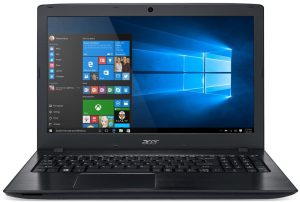
1. Acer Aspire E5-575G-53VG Budget Gaming Laptop:

Acer-Aspire-E5-575G-53VG-Budget-Gaming-Laptop

First in the list is a good budget laptop by Acer that can be used for gaming. It is designed with Intel Core i5-6200U and 8GB RAM with 2GB NVIDIA GeForce 940MX graphics and 256GB Solid-State drive.

More Details:

2. Acer Aspire E5-573G Gaming Laptop:

Acer-Aspire-E5-575G-53VG-Budget-Gaming-Laptop

Another gaming laptop by Acer carries a comfortable HD display of 15.6-Inch. The laptop is efficient for gaming with Intel core i5-5200U processor, 8GB RAM and 2GB NVIDIA GeForce GTX 940M GPU. It also comes with 1TB hard drive.

More Details:

3. Dell Inspiron i7559 FHD Gaming Laptop:

Dell-Inspiron-i7559-763BLK-FHD-gaming-laptop-e1446348211129

Third in the list is the gaming laptop by Dell which runs on 2.6GHz 6th Generation Intel Core i5-6300HQ processor and 8GB RAM. It includes  4GB NVIDIA GeForce GTX 960M graphics card and preinstalled Windows 10.

More Details:

4. ASUS K501UX-AH71 Gaming Laptop:

ASUS-K501UX-AH71-FHD-Laptop

This one is made as a powerful laptop with intel Core i7-6500U 2.6GHz processor and 8GB RAM. The device also supports 2GB NVIDIA GeForce GTX 950M graphics and 256 GB Solid state drive.

More Details:

5. Lenovo Z70 Gaming Laptop:

Lenovo-Z70-17-inch-Video-Editing-Laptop-e1446351507572

Lenovo Z70 is considered a good gaming laptop under budget with 2GB NVIDIA GTX-840M graphics and runs on Intel Core i5-5200U processor.

More Details:

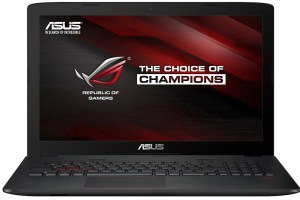
6. ASUS ROG GL552VW-DH71 Budget Gaming Laptop:

ASUS-ROG-GL552VW-DH71-laptop

Another good budget gaming laptop with 2.6GHz Intel Core i7-6700HQ processor, enough to fulfill the gaming requirements and keep up with the speed with 2GB NVIDIA GTX960M graphics card. The laptop supports 15.6 inch HD display as well.

More Details:

7. MSI GP62 Leopard Pro Cheap Gaming Laptop:

MSI-GP62-Leopard-Pro-Cheap-Gaming-Laptop

This one is a cheap laptop but best for gaming with Intel Core i5-4210M processor and 8GB RAM. It also supports 2GB NVIDIA GeForce GT 950M graphics and 1TB hard drive.

More Details:

The above-mentioned laptops will fall under your budget. They can be purchased for upto $800 and are best for high-end gaming including games like Call of Duty, GTA 5, Final Fantasy, Assassin’s Creed and many others. There other good gaming laptops that are cheap and can be purchased for upto $500 but they will only support small games. Take a lot at the Best Budget and Cheap Gaming laptops for high-end gaming in the list below.

8. Dell Inspiron i7559-2512BLK Budget Gaming Laptop:

Dell-Inspiron-i7559-763BLK-FHD-gaming-laptop-e1446348211129

If your budget is around $1000, then this laptop is the best choice for high-end gaming. It comes with a 15.6-inch display and runs on latest Intel Core i7 processor with 8GB RAM. It also includes 4GB NVIDIA graphics and 1TB hard drive.

More Details:

9. ASUS ROG GL752VW-DH71 17-inch Gaming Laptop:

ASUS-ROG-GL752VW-DH71-17-inch-Gaming-Laptop-e1452496266374

Good thing about this compact device is that it supports 17 inch display providing a good game view. It runs on Intel Core i7-6700HQ processor with 16 GB RAM and 2GB NVIDIA GeForce GTX 960M graphics.

More Details:

10. Acer Aspire E 15 Cheap Gaming Laptop:

Acer-Aspire-E-15-Cheap-Gaming-Laptop-e1461128385809Lastly, we have Acer Aspire E 11 which is good gaming laptop Intel Core i7-6500U processor, 8GB RAM, 1TB hard drive and 4GB NVIDIA Geforce graphics.

More Details:

Download Opera Free VPN for PC (Windows and Mac)

0
Download Opera Free VPN for PC (Windows and Mac)

Opera Free VPN for PC can be installed and used on a computer running Windows (XP/Vista/7/8/8.1/10) and also a Mac OS X powered Macbook or iMac. You can install Opera VPN Free for PC using an Android emulator like BlueStacks or BlueStacks 2. Before heading up to the installation method, let’s understand what a VPN application does and shed some light on Opera Free VPN as well.

Opera VPN APK

Why do you need Opera Free VPN?

If you have ever wanted to surf the internet anonymously keeping yourself safe and secure or if you have ever wanted to surf the websites which are otherwise blocked in your region, you have a few different methods to access them. These methods include the use of a proxy, changing your IP address or simply using a VPN service. All these things, at the backend, are somehow the same.

Using a proxy or VPN simply changes the internet location of your device. Now when you go after such an application or a method, finding something working will be just like a nut which is really hard to crack. As far as Android OS is concerned, you will find a plethora of VPN and Proxy applications in the Google Play Store which, according to their description will serve the purpose well. Upon trying the applications, you get really disappointed and lose your faith in the working of such applications.

The application released by Opera today is something which won’t disappoint you and it does what it says. The all-new Opera Free VPN – Unlimited VPN is bound to work for you. It changes your internet connectivity region within a few taps, makes your connection safe and secure and allows you to surf the internet the way you want. Just as the name suggests, its an absolutely free application and can be downloaded from the Google Play Store.

After using Opera VPN for a while, I wanted to get the same application on my computer as well. A direct version of Opera Free VPN for a computer isn’t available, so I tried running the Android version on my PC and succeeded. Let’s follow the method and start using Opera Free VPN for PC on your computer as well.

Download Opera Free VPN For Windows PC & Mac

  1. First of all, Download Opera Free VPN APK
  2. Download and install Bluestacks: Bluestacks Offline Installer | Rooted Bluestacks |Bluestacks App Player
  3. Once you’ve installed Bluestacks, double-click the downloaded Opera Free VPN APK.
  4. The APK will be installed using Bluestacks, once installed open Bluestacks and locate the recently installed Opera Free VPN.
  5. Click the Opera Free VPN icon to open it, follow the on-screen instructions to play it.

You can also use Andy OS to install Opera Free VPN, here’s the tutorialHow To Run Android Apps On Mac OS X With Andy


Download Opera Free VPN APK

0
Download Opera Free VPN APK

Opera just released its very first VPN application today. The new Opera Free VPN is an absolutely free application and upon trying it for the very first time, we found it to be working pretty great. Opera Free VPN basically helps you to browse the internet staying anonymous or to browse the websites which maybe blocked in your region. You can easily connect your internet through a different region of your choice and start surfing the internet without any hurdles. Opera Free VPN is way flawless as compared to the other VPN applications available for Android. There’s a huge number of VPN applications in the Google Play Store, but one just can’t be sure about which application is going to work. Investing a few bucks in a paid VPN application is also not a good choice as you cannot be sure about them either. Opera Free VPN came out to be one such application that is guaranteed to work and allow you to access any of the website staying safe and secure. Opera Free VPN allows you to select from 5 regions including Canada, Germany, Netherlands, Singapore and the United States. There is a guardian mode in this application which prevents the ad trackers from keeping an eye on your online activity. With no complexity at all, it’s a very simple, easy to use and light tool.Opera VPN APK

Opera Free VPN just made its way to the Google Play Store earlier this evening. The application may not be available in some regions as the rollouts are completely based on the regions. To help Android users access this application right away, we have pulled out its APK file. You may now download the Opera Free VPN – Unlimited VPN latest version 1.0 APK and install it using the instructions listed below now.

Opera Free VPN – Unlimted VPN Description

Opera VPN blocks ad trackers and lets you change your virtual location. Unblock more content and access your favorite websites and apps from anywhere – completely free.

With Opera VPN, you get:
• One of the fastest, most reliable VPN services
• Unblocked access via your choice of five virtual locations (with more coming soon)
• The ability to determine WiFi network security level, as well as connection encryption and protection from threats
• A built-in ad tracker blocker to stop advertisers from following you around the web

Opera VPN is one of the best and fastest ways to access more of your favourite online content for free. With super-fast VPN servers and other premium features included for free, Opera VPN is a smart choice for you.

Opera VPN is a service provided by SurfEasy Inc., an Opera company. Opera’s 20-year history of web innovation enables more than 350 million people worldwide to do what matters most to them online. Get the performance you need from people you can trust.

Download Opera Free VPN APK for Android and How to Install it

  1. Opera Free VPN Google Play Store: Link
  2. Download Opera Free VPN 1.0 APK
  3. Download the file to your phone straight away, or copy it to your phone from your PC.
  4. Now on your phone, go to settings > security > allow unknown sources > check this.
  5. Now using a file manager, locate the APK file that your just copied or downloaded.
  6. Tap the APK file and finish installation using the on-screen instructions.
  7. Once installed, access the newly installed game through app drawer.
  8. That’s all. Enjoy Opera VPN!

You may want to download: Opera Free VPN for PC (Windows and Mac)

15 Best Laptops for College 2016 for Daily Use

0
15 Best Laptops for College 2016 for Daily Use

Here are the 15 Best Laptops for College 2016. The list of 15 Best Laptops for College 2016 includes Laptops that students can keep for daily use. Although in this era, smartphones rule, they can not, however, replace laptops by any means. This especially goes for the students who have to carry out researches, make assignments and a lot of other things that require time. These 15 Best Laptops for College 2016 are not only affordable but also carry excellent specs among all.

If you want to buy a laptop for daily use but do not know what to look for in a good laptop, here is what you need to know. No matter which field of studies you belong to, you need to be sure that you are buying a laptop that is not only easy on the budget but also performs up to expectations. Firstly, for a laptop to be reliable and efficient, it needs to possess good RAM. There are other things also that you need to focus on including the hard drive, etc. Have a look at these 15 Best Laptops for College 2016 for daily use. I have also mentioned the highlights specs of these laptops so that you can choose the one that suits your usage.

1. HP Pavilion 15 Laptop for College:

HP-Pavilion-15-Laptop-for-College

First up in the list is the HP Pavilion 15 which runs on Intel Core i7-6700HQ quad-core 2.6GHz processor and 8GB RAM. It includes 1TB hard drive and HD graphics 530 with a battery span of 7 hours comfortably.

More Info.

2. HP 15-ay011nr Laptop for Students:

HP-15-ay011nr-Laptop-for-Students-e1463458862940

The second one among the Best Laptops for College 2016 is by HP. It is an affordable laptop with Intel Core i5-6200U processor. 8GB RAM and 1TB hard drive. The laptop supports Windows 10 and 15.6-inch display as well as comes with HD Graphics 520.

Full Details.

3. Dell Inspiron i7559-763BLK Laptop for College:

Dell-Inspiron-i7559-763BLK-Laptop-for-College-e1451889991650

If you have to work with Animation and design, then this laptop supports your requirements with 4GB NVIDIA GeForce GTX 960M graphics, 15.6-inch display, 256GB storage capacity and Windows 10 supports. Its Intel Core i5-6300HQ 2.6GHz quad-core processor with 8GB RAM makes it a faster device. It also has a battery capacity of more than 10 hours.

More Details.

4. ASUS K501UX-AH71 Multimedia Laptop:

ASUS-K501UX-AH71-Multimedia-Laptop-e1451798167998

The device runs on Intel Core i7-6500U 2.6GHz processor with 8GB RAM and supports 15.6-inch display, NVIDIA GTX950M 2GB-VRAM, 256GB Solid-State drive and Windows 10.

More Details.

5. ASUS ROG GL552VW-DH71 College & Gaming Laptop:

ASUS-ROG-GL552VW-DH71-College-and-Gaming-Laptop-e1451890189318

Here is a laptop that can be used for both studies as well as for small time gaming. It supports 2.6GHz quad-core i7-6700HQ processor, 16 GB RAM, 1TB hard drive as well as 2GB NVIDIA GeForce GTX 960M graphics for better gaming.

More Details:

6. ASUS ZenBook Pro UX501VW Laptop:

ASUS-ZenBook-Pro-UX501-Programming-Laptop-e1451798220445

Next is the ASUS ZenBook Pro UX501VW which supports Intel Core i7-6700HQ quad-core processor, 15.6 UHD display and 2GB NVIDIA GeForce GTX 960M GPU with Windows 10 support. This is suitable for the Medical Students out there.

More Details:

7. Apple MacBook Air MMGG2LL/A Laptop (Newest):

Apple-MacBook-Air-MMGG2LLA-Laptop-e1463459188957

If you need to carry your laptop to College every day, you should go for a lightweight laptop like this one. This featherweight device should not, however, be underestimated. Its 1.6 GHz Dual-Core Intel Core i5 processor with RAM of 8GB makes it quite efficient. It also supports 13.3 inch HD display and 256GB storage capacity.

More Details:

8. Dell Inspiron i7559-7512GRY Laptop for Engineering:

Dell-Inspiron-i7559-763BLK-Laptop-for-College-e1451889991650

This laptop has a strong processor of (i7-6700HQ) 2.6GHz and 16 GB RAM. The laptop supports NVIDIA Geforce GTX960M 4GB graphics and has a 15.6 UHD display, best for Engineering students.

More Details:

9. Acer Aspire E5-575G Laptop for College Students Under 500:

Acer-Aspire-E5-575G-Laptop-for-College-Students-Under-500-e1469333161310

If you are looking for the best laptop for daily use which can also support gaming and comes under $500, then go for this one running on Intel Core i5-6200U processor, 8 GB RAM and carries 2GB NVIDIA GeForce 940MX graphics also.

More Details:

10. ASUS ROG GL752VW-DH74 Laptop for Architecture Students:

ASUS-ROG-GL552VW-DH71-College-and-Gaming-Laptop-e1451890189318

For the Architecture and design students, this one suits your requirements. It runs on a Intel Core i7-6700HQ 2.6 GHz Processor with 16GB RAM making the device work efficicently. In addition to that, 4GB NVIDIA GeForce GTX 960M graphics and 1TB hard drive.

More Details:

11. ASUS F555UA-EH71 Laptop

ASUS-F555UA-EH71-Laptop

This device runs on Intel Core i7-6500U processor with 8GB RAM. It comes with Windows 10 support, 15.6 inch display and 1TB hard drive.

More Details:

12. ASUS ZenBook UX305CA Laptop for Business Students:

ASUS-ZenBook-UX305CA-Laptop-for-Business-Students

If you are a Business student, you should look into getting this laptop which has 8 hours battery life, 6th Generation Intel Core M3-6Y30 processor, 8 GB RAM and 256 GB storage capacity along with a 13.3 inch QHD / IPS display.

More Details:

13. ASUS F555LA-AB31 FHD Laptop:

ASUS-F555LA-AB31-Laptop

A display of 15.6 inch, HD graphics, 500 GB storage and running on Intel Core i3-5010U 2.5GHz Processor and 4GB RAM, this is perfect for the Economics students. The laptop supports Windows 10 OS.

More Details:

14. Dell XPS9350-4007SLV QHD Laptop:

Dell-XPS9350-4007SLV-QHD-Laptop-e1451890057255

Running on Intel Core i7-6200U 2.3GHz processor and 8GB RAM along with 256 GB Storage and above all Intel HD 5500 Graphics, this laptop is best for the Art and Design students. The device also has a 13.3-inch QHD display.

More Details:

15. ASUS F556UA-AS54 Laptop for Law:

ASUS-F556UA-AS54-Laptop-for-Law-e1463458890243

If you are a Law student, then this one is the most suitable for you. The laptop comes with a display of 15.6 inch and HD graphics. It runs on Intel Core i5-6200U processor with 8GB RAM. The extended storage has a capacity of 256 GB.

More Details:

This is all for today, Please keep visiting TechBeasts and you’ll know more about the latest and Best Laptops for Colleges. 

Download Google GApps for Android 6.0.x Marshmallow [All ROMs]

0
Download Google GApps for Android 6.0.x Marshmallow [All ROMs]

Google GApps are undoubtedly the fundamental elements of an Android smartphone. Since Android is powered by Google, the name GApps literally means all the applications owned and preloaded by Google into the Android system for its better working and functionality. GApps packs applications like Google Play Services, Google Play Store, Google Play Music, Google Drive, Google Books, Calendar, and a lot more. Whenever you flash a custom ROM on your Android smartphone, you must have come across the step “flash Google GApps”. This means that a custom ROM comes completely neat and clean, doesn’t contain any GApps and any other kind of bloatware. You’re given the choice of flashing the GApps for your choice or flashing the compatible GApps.Google-Apps

Why do you need GApps?

You may wonder why you must flash Google GApps. Well, let’s have a look at the answer; In order to make the Google Play Store work on your Android smartphone, you need Google Play Services, which is a component of the GApps package. Google Play Services keeps all of your applications connected with the Google Play Store and helps them to be updated on time. Google Play Services is also responsible for keeping a track of all your activity with the applications that are connected to your Google Account. Other Google Apps have their role in the device as well, but Google Play Services and the Play Store are the two most important things that you will want to install on your Android phone immediately after flashing an empty custom ROM.

android-6-marshmallow-4When you’ve to choose the right GApps package for your phone, you will come across many packages. It might get a little hard for you to choose which one is right for your phone and guaranteed to work. There’s a huge number of GApps packages available around. Finding one exactly for your firmware is also a little bit of work. To save a few minutes of yours, we’ve collected the GApps packages for Android 6.0 and Android 6.0.1 Marshmallow [all custom ROMs] and put them right here.

The Marshmallow custom ROMs that you will come across will include CyanogenMod 13, Resurrection Remix, Slim ROM, OmniROM, Paranoid Android and many others. These GApps are provided by OpenGApps, which is quite an active community working hard to keep the package alive for Android enthusiasts. The description of packages is also explained below. You can go ahead, read up the description and choose the package which suits your needs.

Download Google GApps for Android 6.0.x Marshmallow [All ROMs]

Gapps Aroma Package For Android 6.0.x Marshmallow 

Aroma Package has a graphical interface and it allows the users to choose which applications do they want to install. The installation pop up comes up as soon as you flash the GApps package in the custom recovery.

ARM: Download | ARM 64: Download


PA Gapps Pico Package For Android 6.0.x Marshmallow

The pico version of PA Gapps for Android 6.0.x Marshmallow comes with the absolute minimum Google applications. These include Google system base, Google Play Store, Google Calendar Sync only, Google Play Services. This version of GApps is intended for the users who don’t like all other Google applications and want the basic ones only.

ARM: Download  | ARM 64: Download


PA Gapps Nano Package For Android 6.0.x Marshmallow

This version of Google GApps is intended for the users who want to use the minimum possible Google GApps having the “Okay Google” and “Google Search” features. Other GApps include Google system base, off-line speech files, Google Play Store, Google Calendar Sync and of-course, Google Play Services.

ARM: Download   |  ARM 64: Download


PA Gapps Micro Package For Android 6.0.x Marshmallow

Intended for legacy devices having small partitions. This package included applications like Google system base, off-line speech files, Google Play Store, Google Exchange Services, Face Unlock, Google Calender, Gmail, Google Text-to-speach, Google Now Launcher, Google Search and Google Play Services.

ARM: Download   |  ARM 64: Download


PA Gapps Mini Package For Android 6.0.x Marshmallow

For the users who use limited Google applications. This package includes almost all basic Google applications including core Google system base, off-line speech files, Google Play Store, Google Exchange Services, FaceUnlock, Google+, Google Calendar, Google Now Launcher, Google Play services, Google (Search), Google Text-to-Speech, Gmail, Hangouts, Maps, Street View on Google Maps & YouTube

ARM: Download  | ARM 64: Download

PA Gapps Full Package For Android 6.0.x Marshmallow

This package is similar to the stock Google GApps. It only misses Google Camera, Google Keyboard, Google Sheets and Google Slides applications while includes almost all other Google GApps.

ARM: Download  | ARM 64: Download


Gapps Stock  Package For Android 6.0.x Marshmallow 

Stock Google GApps package. Includes all Google applications. Intended for the users who do not want to miss any application.

ARM: Download  | ARM 64: Download

Here’s a chart that explains the GApps packages. The chart is from PA GApps, which is not active anymore. However, the packages linked above should have similar applications packed inside.

Credits: Tkruzze [XDA Senior Member]


Source: OpenGapps

Download GoIV for PC (Windows/Mac)

0
Download GoIV for PC (Windows/Mac)

There are only a few applications which are working for calculating Individual States of Pokemon characters in Pokemon Go. GoIV is one of those working applications. Like other Pokemon Go assistant applications, GoIV isn’t available in the Google Play Store as well. The only way to install GoIV maybe by through its APK file. While we’ve already posted the APK file of GoIV, it’s the time for us to introduce all the Pokemasters to the method to install GoIV on their desktop computers and laptops.

GoIV for PC can be easily installed and used on a desktop PC/Laptop running Windows XP, Vista, 7, 8, 8.1, 10 or even a Mac OS X powered device. You will need an Android emulator like BlueStacks, BlueStacks 2, Andy OS or Remix OS to run GoIV on your computer. Once you’ve installed GoIV, all you will have to do is to follow the on-screen instructions and enter the required values to calculate the IV value of your Pokemon.Pokémon-Go-logo-620x389

Download GoIV For Windows PC & Mac

  1. Download GoIV APK
  2. Download and install Bluestacks: Bluestacks Offline Installer | Rooted Bluestacks |Bluestacks App Player
  3. Once you’ve installed Bluestacks, double click the downloaded GoIV APK.
  4. The APK will be installed using Bluestacks, once installed open Bluestacks and locate the recently installed GoIV.
  5. Click the GoIV icon to open it, follow the on-screen instructions to play it.

You can also use Andy OS to install GoIV, here’s the tutorialHow To Run Android Apps On Mac OS X With Andy

The Andy OS tutorial explains how to play a game on your Mac OSX, but the same guide will also work for a Windows PC.

Download Latest Odin 3.12.3

2
Download Latest Odin 3.12.3

The newest version of Odin, the version 3.12.3 is now available which takes over the previous version v3.11.1. The new version of Odin brings some improvements including a fix for the flashing error that occurred on the Galaxy S7 and the S7 Edge. The new version also brings support for latest devices which just came out including the Galaxy Note 7 and others. In case you don’t already know about Odin, you may be interested in knowing that it is Samsung’s official tool for manually flashing firmware and files on your Samsung Galaxy handsets. Odin can flash Bootloaders, Modems, CSC files, Firmware files, Recovery files and Root files on your Samsung Galaxy.

Odin’s most common uses include flashing a stock firmware to recover your device from a bricked state or simply flashing firmware to upgrade it manually when the OTA doesn’t reach your region on time. One of the most popular uses Odin is the flashing of CF-Autoroot files which are available for hundreds of Samsung Galaxy phones and root the phone within a few clicks. The latest version of Odin brings more stability and flashes the files flawlessly. You can download the latest Odin 3.12.3 from here now.

Odin 3.12.3

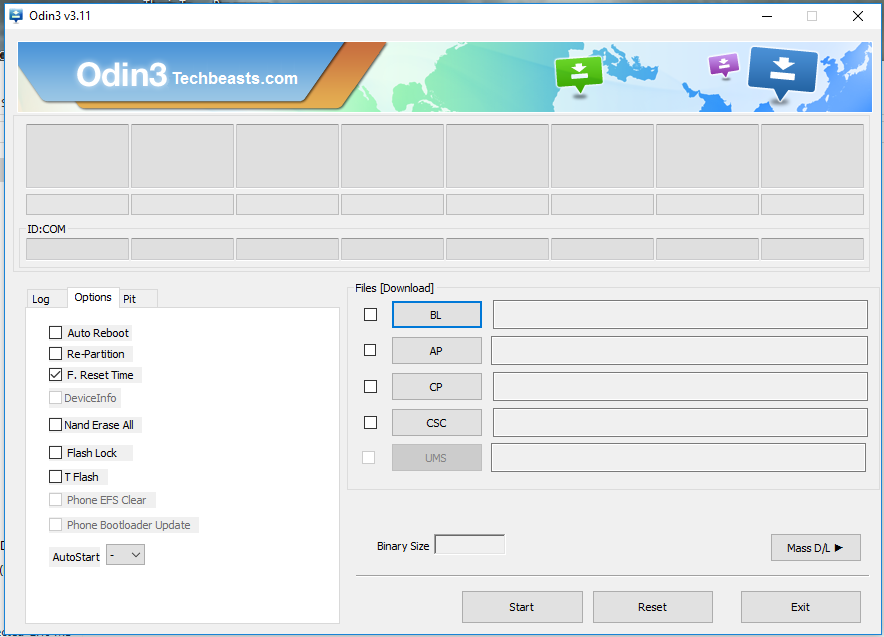
The formats supported by Odin are *.bin, *.tar & *tar.md5. The firmware files usually come in *.tar.md5 format, you can apply these files using the PDA button in Odin. Once you have done setting up odin according to your requirements, you need to press the ”Start” button and start the flashing process, as soon as the process is finished, your device will restart automatically and you will see a ”Pass” notification on a green background on the top left corner. That’s all!

For your device to work with ODIN, you need to put it in download mode in order to start flashing the files. To do so turn off your phone and then turn it on by pressing and holding Volume Down + Home Button + Power keys simultaneously and then press Volume Up key to continue,  your phone should boot into the download mode. After that connect it to your PC and start using ODIN.

Download Latest Odin 3.12.3

Latest Odin 3.13.1 is now available for newer Galaxy phones. Download Odin 3.13.1 for PC [Odin3 v3.13.1]

Here are the tutorials:

Download Latest Odin 3.11.1

1
Download Latest Odin 3.11.1

Download Odin 3.11.1 for Samsung Galaxy devices. Odin 3.11.1 supports all phones running on Android 9 Pie and prior.

Odin is Samsung’s flashtool which helps Samsung Galaxy users to flash stock firmware, bootloaders, modems and other such files on their smartphones. The Odin is pretty much of a handy tool particularly when a software bug has bricked your device and you are unable to recover it using Samsung Kies.

What’s the use of Odin?

Samsung’s Odin can be used to flash a stock firmware to restore your device back to its factory state,  to unroot the device to remove any kind of customization that you have applied. This tool has been around ever since Samsung produced the very first Samsung Galaxy smartphone.

With the evolution of Samsung Galaxy lineup, the Odin software also improved. The software was made compatible with the latest devices with time, the bugs were fixed and its performance was also enhanced. With the arrival of new Samsung Galaxy S7 and S7 Edge, a new version of Odin came out which succeeded the version 3.10.7.

The new version carries the version number Odin3 v3.11.1. As mentioned, it is compatible with almost all new Samsung Galaxy smartphones and also fixes some flashing bugs which were caught on the previous versions. You can now download the latest Odin 3.11.1 from here.

Odin 3.11.1

Formats supported by Odin

The formats supported by Odin are *.bin, *.tar & *tar.md5. The firmware files usually come in *.tar.md5 format, you can apply these files using the PDA button in Odin. Once you have done setting up Odin according to your requirements, you need to press the ”Start” button and start the flashing process, as soon as the process is finished, your device will restart automatically and you will see a ”Pass” notification on a green background on the top left corner. That’s all!

For your device to work with ODIN, you need to put it in download mode in order to start flashing the files. To do so turn off your phone and then turn it on by pressing and holding Volume Down + Home Button + Power keys simultaneously and then press Volume Up key to continue,  your phone should boot into the download mode. After that connect it to your PC and start using ODIN.

Download Latest Odin 3.11.1

Latest Odin 3.13.1 is now available for newer Galaxy phones. Download Odin 3.13.1 for PC [Odin3 v3.13.1]

Here are the tutorials:

Install Dr.Ketan ROM on Galaxy Note 5 and get all Note 7 features

1
Install Dr.Ketan ROM on Galaxy Note 5 and get all Note 7 features

Samsung Galaxy Note 7 brought a lot of goodies on-board. Apart from equipping the up-to-date and top-notch hardware, Samsung improved the software up to a great extent as well. The Galaxy Note 7 brings a new enhanced TouchWiz UI. A new Air Command has made its way for the S Pen. The new S Note application is way cool. Gallery application has been revamped, there’s a new UI for the settings application and the entire System UI has been revamped as well. Galaxy Note 5 users looking forward to upgrading to the Galaxy Note 7 just for the sake of these features might want to wait for a while. The software of the Galaxy Note 7 has already been ported to the Galaxy Note 5, that means you can already get your hands on all the new cool stuff without upgrading your device and spending a thousand bucks.Samsung-Galaxy-Note-7---all-the-official-images

The ROM has been ported by our friend Dr Ketan. Dr.Ketan’s ROM for the Galaxy Note 5 incorporates plethora of features which makes the device a power-hub. The new Note 7 port ROM still incorporates all those features running the new UI on the top. The ROM is based on Android 6.0.1 Marshmallow Grace UX N920KKKU2ZPG5. The new Note 7 Port ROM can be installed on Samsung Galaxy Note 5 N920I, N920G and N920C. I myself have consistently remained a user of the Dr.Ketan ROM starting from the Samsung Galaxy Note 3, then Galaxy Note 4 and at the moment Galaxy Note 5 and found it to be the best replacement for the stock firmware of Note. The ROM gives you a complete control over its features. You can choose the features you wish to install and enable and leave others untouched. Apart from the features, the performance and stability are the two things that you will find great in this ROM. It’s time for us to move ahead and have a look at the list of all the features embedded in the ROM and then flash the ROM safely.

Galaxy Note 7 Port ROM for Galaxy Note 5 Features

[showhide type=”link” more_text=”Show ROM features” less_text=”Hide…..”]
  • N7 Edge features (No AOD,)
  • N7 Air command with working Air dictionary (Translator) and Glance, S Note
  • N7 Applications and frameworks for most features and UI related like SystemUI,Settings,Video, gallery etc

– Supports Gear Watch
– Support Gear VR
– Fully working N5 Camera
– Light Debloated
– Deodexed
– De-Knoxed
– Pre rooted
– Enabled all languages
– Included stock Kernel
– 5 Way reboot menu
– Screen mirror fixed
– Auto Call record
– Smart Call block
– Camera shutter sound toggle
– Messaging Features

  • Backup/Restore Option
  • No SMS to MMS conversion
  • 200 recipient

– Shortcut you assigning to long press home (aroma selectable)

  • Flashlight
  • GoogleOK
  • KillApp
  • Screenshot

– Power menu updated for two more fetures apart from 5 way reboot

  • TorchLight – Flashlight
  • Shortcut – You can select any application or shortcut (special shortcut you can get from aroma like google/Kill app/ScreenShot/Torch) You have to select Shortcut as default action when you first time click on it. Later you can re assign shortcut anytime from ROM Tool – Reser power menu shortcut

– Two Display scaling (Settings-Display)
– Key light duration
– Outdoor Mode
– 3Minit (will be available as separate flashable zip)
– Potato clock
– ScreenShot Toggle
– Network meter with color option
– System UI clock options

  • Stock clock (ROM Default)
  • 3 minit clock
  • Stock Clock with Second
  • Stock Center Clock with seconds

– Viper Sound Mode (Stock built in kernel compatible)
– Dolby Sound Mode (Stock built in kernel compatible)
Aroma have chouce to select Viper only Dolby only OR Both
– Long press home customization.
You can use almost any app or short cut with long pressing home. To use it open settings – default application – device assistance app – device assist app – select LP home in place of google.
– SystemUI mode preinstalled.with following modes

  • Memory View near brightness control (Toggle available in ROM Tool – SystemUI mods)
  • Memory view color option
  • Lt statusbar virtual key for recent (Toggle available in ROM Tool – SystemUI mods)
  • Rt statusbar virtual key for power meni (Toggle available in ROM Tool – SystemUI mods)
  • Network meter Lt side statusbar (Toggle available in ROM Tool – SystemUI mods)

-Toolbox updated for 12 app (Need to select from aroma)
– Screnshot shortcut added to aroma. (Requires if you want to assign long press home/Power menu shortvut to set as screenshot)
– Backup/Save option added to messaging app.
– High Volume warning disabled
– No call end delay pre activated.
Ongoing notification clear option
– Fixed Gray color in power saving mode
– KeyLight duration setting (Settings-Display)
– Titanium and Mega Preinstalled as user app and you can simply remove as normal apk.

[/showhide]


Early Preparations

  1. This ROM will work for Galaxy Note 5 N920I, N920C and N920G only. Do not try this on any other device or else you will result in bricking it.
  2. Charge your Note 5 up to 50% to avoid power issues during flashing process.
  3. Enable USB Debugging and OEM Unlocking on your Galaxy Note 5.
  4. Backup EFS partition. This is important in order to avoid EFS corruption later on.
  5. Backup your media content, important call logs, contacts and sms messages as well.
  6. If you already have a TWRP recovery installed, backup Nandroid. Otherwise backup Nandroid before flashing the ROM using TWRP recovery.
  7. Turn off/close Samsung Kies in your computer since we are going to use Odin3.
  8. Turn off Firewall/Antivirus if you have enabled.
  9. Follow this guide to the letter to avoid any mishap during the entire process.

Disclaimer: Flashing custom ROMs or tweaking the device in any way is not recommended by device manufacturers. In case a mishap occurs, we or the device manufacturers or the ROM developer may not be held responsible. Make sure that you are doing everything at your own risk.


How to Install Dr.Ketan ROM on Galaxy Note 5 and get all Note 7 features

  1. Download Samsung USB drivers and install them.
  2. Download Odin 3.10.6 and extract it to get Odin.exe file.
  3. Now download the Bootloader and Modem.zip file according to your Note 5.
  4. Extract the downloaded .zip file to get the .tar/md5 file now.
  5. Download N920 Dr.Ketan custom ROM M12_XDA_N7 Port.zip file and copy it to your phone’s internal storage or a USB OTG if you have one.
  6. Now put your Galaxy Note 5 in download mode. To do so, turn it off and then turn it on by pressing and holding Volume Down + Power + Home Key. Once booted up, press Volume Up to continue into download mode.
  7. Connect your Galaxy Note 5 to your PC now.
  8. Open Odin.exe now. Odin should show a blue light over the ID:COM box as an indication of successful connection and also show “Added” in the log on the left.
  9. Uncheck the “Auto-Reboot” option under the “Options” tab in Odin. The only selected option should be F.Reset Time.
  10. Now click on “AP” tab in Odin and select the Bootloader_Modem.tar/md5 file that you got for your device after extracting the zip file in step 3 & 4.
  11. Once the file has been selected in Odin, flash it.
  12. After the file has been flashed, Turn off your device by pressing and holding Volume Up + Down + Power key.
  13. Now boot your device into TWRP recovery mode. To do so, press and hold Volume Up + Home + Power Key. TWRP was flashed alongside the Bootloader and Modem, so your phone will now boot up into the recovery.
  14. In recovery, select “Install > Locate the ROM.zip file that you copied in step 5″. Select the ROM.zip file to begin flashing.
  15. As AROMA installer opens up, select the options/tweaks that you want on the ROM and follow on-screen instructions to flash the ROM.
  16. Upon finishing installation, reboot your device. First boot can take up to 10 minutes.
  17. Once the phone boots up, you will have the new Note 7 UI running on it. That’s all.

Got stuck with something? Don’t worry. Reach us out through the comment box below.