![How to protect your Mac using FileVault 2 [ Easy Guide ]](https://techbeasts.com/wp-content/uploads/2014/05/Screen-Shot-2014-05-04-at-05.53.38.png "How to protect your Mac using FileVault 2 [ Easy Guide ]")
Everyone wants to keep their PC, Laptops, Mac’s, Cell Phone and their mails to be secure. It’s a good thing to have safety precautions beforehand, well today I will tell you how you can protect your Mac Using FileVault 2. It isn’t a third party app and you don’t have to download it from an App Store. FireVault 2 is sort of built-in Function added in OS X Lion 10.7 or later. Here is how you can enable it.
How to Enable and Protect your Mac using FileVault 2:
- Click on the menu.
- Then Select System Preferences.
- Click on Security & Privacy.
- Here you’ll get 4 tabs General, File Vault, Firewall and Privacy. Select File Vault.
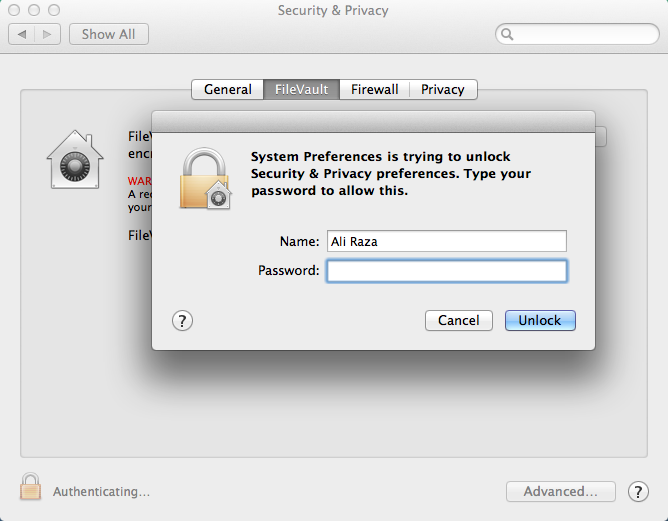
- Now click on Padlock located on the lower left corner.
- Now enter your system password and enable the FileVault.
- After you enable the FileVault you’ll be provided with a recovery key. Save it somewhere you can easily find so that if anything goes wrong, recovery key is the only thing that can get you the access back.
- Now restart your Macbook, activate FileVault and begin the encryption process.