Home Blog Page 420

Best HD Happy Halloween Wallpapers For Your Desktop PC

0
Best HD Happy Halloween Wallpapers For Your Desktop PC

The most fancy vent of the year, Halloween 2014 is on the way. Are you ready to prepare your house into a haunted one and play pranks with your friends and family? Well, It’s time to scare all of them and freak them out. The kids are ready to play the treat-or-trick games, everyone is preparing to have a most scary makeover enjoy this event at their best.  While you prepare the most scary stories to tell others in your haunted house, and show horror movies to others, you may not forget giving your Desktop PC’s a scary makeover.

Wondering, how is that possible? Well, probably, using some nice Halloween Wallpapers will do the job. While going through some images, I managed to make a collection of some very nice, attractive and HD wallpapers in order to give your computers a nice look this Halloween. Just go through the images, pick up your favorite one and save it to your computer and then apply as a wallpaper. Alternatively, you can download all the wallpapers from the all-in-one download link embedded at the bottom of this post.

halloween-disneyland-gates-M

Download All Halloween 2014 Wallpapers

All these wallpapers are collected from random sources and are property of their respectful owners. We do not own any of the above images, we have just show cased them here for the purpose of using as wallpapers.

Spider-Man Unlimited for Pc – ( Windows,8,8.1,XP,Vista,7 and Mac )

0
Spider-Man Unlimited for Pc – ( Windows,8,8.1,XP,Vista,7 and Mac )

Spider-Man Unlimited is available for Pc, Yes you can download and install this game on PC running Windows 8,8.1,7,XP,Vista and also Mac. Originally Spider-Man Unlimited is released for Android and iOS but with the help on third party emulator it can be played on computers and laptops. Before starting the installation tutorial let me give you a overview on Spider-Man Unlimited.

Spider-Man Unlimited for pc

About Spider-Man Unlimited:

Spider-Man Unlimited is developed by the famous Gameloft, its a action based arcade adventure game in which you have your own spider man to fight with evil. In this game you’ll have to recruit an army of Spide-Men to fight the new villains named as ” Sinister Six ” who have opened a dimensional portal in New York to summon endless versions of themselves! The Sinister Six are moving from dimension to dimension, destroying each one. Now ours is fighting to survive. Following are the main features of Spider-Man Unlimited.

THE FIRST FREE SPIDER-MAN GAME!
• Enjoy the thrill of the first Amazing Spider-Man arcade web-runner! Swing, run and fight through chaotic NYC in over 5 different environments!
• Go beyond an endless runner game with superior fighting and running gameplay! Combat dimensional super villains, web-swing, go running up walls and perform skydives!
• Play story mode with 5 boss battles to fight and 25 missions per Issue! The action never stops with new daily and weekly events and spectacular rewards in Events Mode! Or run to the top of the leaderboards in Unlimited Mode!

THE FIRST NARRATIVE RUNNER!
• A continually running, episodic adventure game: The Sinister Six are moving from dimension to dimension, destroying everything in their path – and our world is next! But this ultimate army of Spider-Men is fighting to give the Six a run for their money!
• Dive into the endless fun of the amazing Marvel Universe, spanning over 50 years of Spider-Man with iconic characters, including multiple variations of each hero (as well as Nick Fury, Mary Jane, and Black Cat) and villain!
• Written with an experienced Spider-Man comic writer to ensure a faithful recreation of the Spider-Man comics in an arcade running game!

THE MOST SPIDER-MEN IN ONE GAME!
• Summon, collect and play with an endless supply of Spider-Man cards from across Marvel’s amazing comics, including Spider-Man Noir, Iron Spider, Cosmic Spider-Man, Scarlet Spider, and the Bombastic Bag-Man!
• Collect, fuse, and level up your cards to make the ultimate Spidey runner. Each has their own unique super-powers to help fight through Spidey Ops missions around NYC!
• CONSISTENT RELEASE OF NEW SPIDER-MEN!

A VISUAL BLAST
• An amazing cel-shaded art style inspired by the Marvel comics.
• Super-smooth graphic animation that brings your runner’s every action to life.

Download and InstallSpider-Man Unlimited on PC:

  1. To download Spider-Man Unlimited for PC, you will need an Android emulator like Bluestacks. If you do not have it already, you can download it from the website Bluestacks.com.
  2. Open Bluestacks and search for Spider-Man Unlimited using search tool on the top of the homepage.
  3. Click on install button. The game will automatically download and install.
  4. Once the app has been installed, go to My Apps in Bluestacks homepage.
  5. The icon for the game will appear in My Apps.
  6.  Click on this icon to open Spider-Man Unlimited.

Now, you can start playing the game any time on your Pc simply by opening it from My Apps. Get mesmerized by the amazing graphics of the game.

Hopefully, you will be able to install the game easily on your PC through this guide. If you still have any issues, please let us know and we will help you solve them. Enjoy !

Install Android 4.4.4 KitKat 10.5.1.A.0.283 FTF on Xperia ZL C6502, C6503

13
Install Android 4.4.4 KitKat 10.5.1.A.0.283 FTF on Xperia ZL C6502, C6503

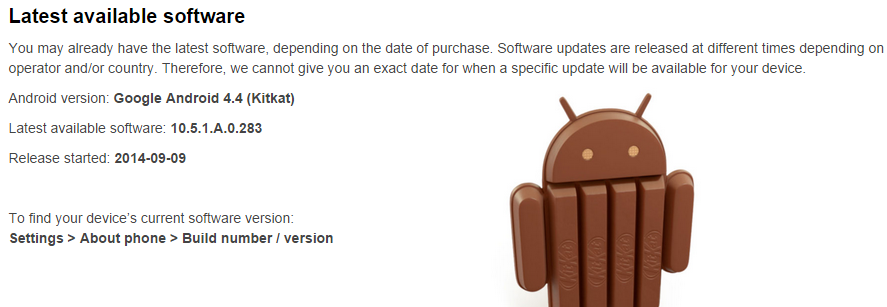
Xperia ZL and its siblings have finally received the update to latest and greatest version of Android, Android 4.4.4 KitKat. The new update has the build number 10.5.1.A.0.283. In the new update, the device goes to Android 4.4.4 first of all, a part from that there are improvements to the components like mms, calendar etc. A lot of bugs have been fixed. Email stability has been improved as well. Sony improved the battery life and performance of the device to a great level as well.

Xperia ZL owners, who have been waiting for get the latest Android version running on their devices will get this update depending on their region. Just in case your region is not lucky enough to receive this update yet and it’s hard to keep patience, you may consider updating your device manually using FTF file and flashing it through Sony Flashtool. Before you start wondering about how you can do that, we already have the comprehensive guide here. As you move forward, you will the method to update your Xperia ZL C6502, C6503 to Android 4.4.4 KitKat with the build number 10.5.A.0.283. Just follow the instructions carefully.Xperia-ZL_US_6-640x428-1

Early Preparations:

1. This is only for Sony Xperia ZL C6502 & C6503!

This ROM is only for the device mentioned above. Make sure that your model number matches the one listed above. To do so, go to Settings > About Device on your device and see your model number. Flashing this firmware on any other device will result in bricking it so make sure that you meet this requirement first of all.

2. Battery should be charged at least over 60%.

Make sure that your battery is charged enough to complete the flashing process. In case your battery is low and your device goes dead during the flashing process, you may end up soft bricking your device as it won’t complete the flashing process.

3. Backup everything!

Just to be on the safe side, you may consider backing up each and everything from your Android device. This is highly recommended so that in case anything goes wrong, you still have the access to all of your data and you can restore it immediately. You may backup everything as listed below.

4. Enable USB Debugging Mode on your device.

Enable USB debugging mode on your device. To do so, tap settings>developer options>USB debugging. If you can’t find developer options in settings, then tap settings > about device and tap “Build Number” for 7 times and you’ll get em’ activated under settings.

5. Install and setup Sony Flashtool.

You must have installed Sony Flashtool. Find the full guide here.After installing Sony Flashtool, open the Flashtool folder from the drive where you installed it.Now open Flashtool>Drivers>Flashtool-drivers.exe and install the Flashtool, Fastboot & Xperia ZL drivers from the list. [Important]

6. Use OEM data cable to establish connection.

Make sure that you use the phone’s original data cable to establish connection between your phone and the PC. Using a different data cable might result in interrupting the firmware installation.


 How Install Android 4.4.4 KitKat 10.5.1.A.0.283 FTF on Xperia ZL C6502, C6503

  1. Before moving forward, please make sure that you’ve read the pre requisites and ensure that you are set to go ahead.
  2. Download the latest firmware Android 4.4.4 KitKat 10.5.A.0.283 FTF file.
    1. For Xperia ZL C6502 [Generic/Unbranded]
    2. For Xperia ZL C6503 [Generice/Unbranded]
  3. Copy the file and paste in Flashtool>Firmwares folder.
  4. Open Flashtool.exe now.
  5. Hit the small lightening button on the top left corner and select Flashmode.
  6. Select the FTF firmware file that you placed in the Firmware folder.
  7. From the right side, select what do you want to wipe. Data, cache and apps log, all wipes are recommended, perhaps you may select if you don’t want.
  8. Click on OK, and it will start preparing the firmware for flashing. This may take a little while to load.
  9. As soon as the firmware is loaded, it will prompt you to attach the phone by turning it off and keeping the back key press.
  10. For Xperia ZL, Volume Down key will do the job of back key, just turn off your phone, keep the Volume Down key pressed and plug in the data cable.
  11. As soon as the phone is detected in Flashmode, the firmware will start flashing, Do not leave the Volume Down key until the process is complete.
  12. As soon as you see “Flashing ended or Finished Flashing” leave the Volume Down key, plug the cable out and reboot.
  13. That’s All! Congrats! You’ve installed latest Android 4.4.4 kitkat on your Xperia ZL. Enjoy

In case you got any queries or face any problems regarding this guide, please feel free to stop by the comment box below and let us know. We will get back to you as soon as possible. Thanks all!

FTF Credits: Jamal_RS

Install Android 4.4.4 KitKat 10.5.1.A.0.283 FTF on Xperia ZR C5502, C5503

5
Install Android 4.4.4 KitKat 10.5.1.A.0.283 FTF on Xperia ZR C5502, C5503

Sony rolled the long awaited Android 4.4.4 KitKat update for the very first Xperia Z family including Sony Xperia Z, Xperia ZR and Xperia ZL. For the Xperia ZR, the new firmware is based on the build number 10.5.1.A.0.283 and packs up a lot of enhancements. Atop is the the latest Android 4.4.4 KitKat by Google. A part from that, there are performance enhancements, battery life of the device has been improved, Email stability, general improvements to some of the features have been made and number of bugs has been fixed.

As usual, the update is on a slow roll out and will hit each region depending upon its turn. Android enthusiasts, who can’t wait to get their hands on this latest update running on their devices will have to flash this firmware using ftf file in Sony flashtool. Just in case you’re wondering how you can do that, you may stop worrying as we are going to flash Android 4.4.4 KitKat 10.5.A.0.283 in our beloved Sony Xperia ZR C5502 and C5503 in the succeeding post. All you need is, you need to follow this guide being very careful.Xperia ZR
Early Preparations:

1. This is only for Sony Xperia ZR C5502, C5503!

This ROM is only for the device mentioned above. Make sure that your model number matches the one listed above. To do so, go to Settings > About Device on your device and see your model number. Flashing this firmware on any other device will result in bricking it so make sure that you meet this requirement first of all.

2. Battery should be charged at least over 60%.

Make sure that your battery is charged enough to complete the flashing process. In case your battery is low and your device goes dead during the flashing process, you may end up soft bricking your device as it won’t complete the flashing process.

3. Backup everything!

Just to be on the safe side, you may consider backing up each and everything from your Android device. This is highly recommended so that in case anything goes wrong, you still have the access to all of your data and you can restore it immediately. You may backup everything as listed below.

4. Enable USB Debugging Mode on your device.

Enable USB debugging mode on your device. To do so, tap settings>developer options>USB debugging. If you can’t find developer options in settings, then tap settings > about device and tap “Build Number” for 7 times and you’ll get em’ activated under settings.

5. Install and setup Sony Flashtool.

You must have installed Sony Flashtool. Find the full guide here. After installing Sony Flashtool, open the Flashtool folder from the drive where you installed it.Now open Flashtool>Drivers>Flashtool-drivers.exe and install the Flashtool, Fastboot & Xperia ZR drivers from the list. [Important]

6. Use OEM data cable to establish connection.

Make sure that you use the phone’s original data cable to establish connection between your phone and the PC. Using a different data cable might result in interrupting the firmware installation.


How to Update Sony Xperia ZR C5502, C5503 to Android 4.4.4 KitKat 10.5.1.A.0.283 Firmware:

  1. Before moving forward, please make sure that you’ve read the pre requisites and ensure that you are set to go ahead.
  2. Download the latest firmware Android 4.4.4 KitKat 10.5.A.0.283 FTF file.
  3. For Xperia ZR C5502 [Generic/Unbranded]
  4. For Xperia ZR C5503 [Generice/Unbranded]
  5. Copy the file and paste in Flashtool>Firmwares folder.
  6. Open Flashtool.exe now.
  7. Hit the small lightening button on the top left corner and select Flashmode.
  8. Select the FTF firmware file that you placed in the Firmware folder.
  9. From the right side, select what do you want to wipe. Data, cache and apps log, all wipes are recommended, perhaps you may select if you don’t want.
  10. Click on OK, and it will start preparing the firmware for flashing. This may take a little while to load.
  11. As soon as the firmware is loaded, it will prompt you to attach the phone by turning it off and keeping the back key press.
  12. For Xperia ZR, Volume Down key will do the job of back key, just turn off your phone, keep the Volume Down key pressed and plug in the data cable.
  13. As soon as the phone is detected in Flashmode, the firmware will start flashing, Do not leave the Volume Down key until the process is complete.
  14. As soon as you see “Flashing ended or Finished Flashing” leave the Volume Down key, plug the cable out and reboot.
  15. That’s All! Congrats! You’ve installed latest Android 4.4.4 kitkat on your Xperia ZR. Enjoy

In case you got any queries or face any problems regarding this guide, please feel free to stop by the comment box below and let us know. We will get back to you as soon as possible. Thanks all!

FTF Credits: Jamal_RS

20 HD Wallpapers for iPhone 6 and iPhone 6 Plus [ Free ]

0
20 HD Wallpapers for iPhone 6 and iPhone 6 Plus [ Free ]

iPhone 6 and iPhone 6 Plus both are the latest flagship of Apple, Announced on September 9 with iOS 8. This time Apple finally increased the screen size, iPhone 6 comes with 4.7 and iPhone 6 Plus with 5.5 Inches. I would love to get hands on both of these devices but right now i’ve collected 20 HD Wallpapers for iPhone 6 and iPhone 6 Plus for Free.

Also See: Samsung Galaxy Note 3 HD Wallpapers.

I’ve a huge collection of HD Wallpapers for smartphones, desktop, laptops and Macbook. You can check them in our Wallpapers category.

iPhone-6-amp-iPhone-6-Plus-3

20 HD Wallpapers for iPhone 6 and iPhone 6 Plus [ Free ]

Drops-6-iPhone-5-wallpaper

Download Sony Xperia Z3 Stock Wallpapers

0
Download Sony Xperia Z3 Stock Wallpapers

Sony’s Xperia Z3 is loaded with so many wallpapers that can make your device’s Full-HD display stunning. XDA member JanM-RS has grabbed out all the stock wallpapers from the Xperia Z3 and uploaded for the users. Although the newer smartphones like the Galaxy Note 4 are coming with QHD displays, but chances aren’t that high for using that much high resolution for you.

butterfly_and_wildflower_hd1080p

The wallpapers are listed below, just go ahead and grab your favorite and download it or download all wallpapers from the all-in-one package linked below.

Download all Xperia Z3 stock wallpapers

Download Samsung Galaxy Note 4 Stock Wallpapers

0
Download Samsung Galaxy Note 4 Stock Wallpapers

Samsung Galaxy Note 4 came out of the curtains a week back and as expected, the device once again grabs all the spotlight. Galaxy Note 4 sports a beautiful 5.7-inch Quad-HD Super AMOLED display with 515 ppi and (1440 x 2560 pixels). The device has a 2.7 GHz Qualcomm Snapdragon 805 CPU while there’s a variant with Samsung’s very own Exynos 5433 Chipset as well. A RAM of 3 GB is placed inside, internal storage begins from 32 GB. There’s a 16 MP shooter at the back with tons of new futures and a 3.7 MP shooter at the front for better selfie experience.

Well, that’s all about the device. To make this QHD display look even more stunning, Samsung has added some cool wallpapers that you would love to download for your Android device.  These wallpapers are 2560 x 2560, and will match the best on a QHD display. Droid-Life has collected a few of them and listed in 1000 x 10000 resolution. Just go ahead, pick up your favorite or download the all in one package linked below having the wallpapers in 2560 x 2560 resolution.

wallpaper_007

Download all wallpapers in QHD resolution

Purchased Android Apps can be ” return ” within Two hours

0
Purchased Android Apps can be ” return ” within Two hours

There are a couple of things that everyone likes, especially when it comes to purchasing and that means anything and from any source, whether it is a shop or online shopping, if the Shop is offering these two things, the consumer is always happy and also it increase the goodwill of Shop too. One of them is, if the Shop is offering Home Delivery, is Cash at Delivery, that means you get to pay when the package arrives at your house, Consumer feels safe because he knows that the money won’t go to waste, it gives Confidence to consumer and increases the popularity of the seller, most of the Online shop sites are offering this and they are getting best results.

Google-Play-Store-logo

The second thing is Purchase Return, if the Shop is offering returns of Purchases you made, it will make you feel even safer because you know that you have a specific time to try this thing and in case of any fault you can easily return it. It applies to all the Shopping medias, whether they are real shops or you are shopping online. Most of the times they gives you a 7 days check warranty and after that you are on the warranty of the company.

However, Google Play Store has something else to offer, Google has updated some of its policies and now you can Return the Apps you purchased, but only within Two hours after the Purchase has been made. That gives you the time of 2-hours to test the app and if you don’t want or like it, just return it. Before it was a whole day a timeframe of 24 hours, but developers thought it as quite extreme and Google thus brought it to only 15-minutes and the recent policy declared that TimeFrame to be a time of 2-Hours. The Windows Phone are taking the lead in such cases, as they give a Trial of the Paid App and iOS lack both of them.

Pre-Order your iPhone 6 on September 12 Here’s How

0
Pre-Order your iPhone 6 on September 12 Here’s How

Finally wait is over Apple has released their new flagship along with iPhone 6 plus with 5.5 inch screen. Apple is putting iPhone 6 and iPhone 6 Plus on Sale September 19. But if you cannot wait for the device then you can pre-order iPhone 6 and iPhone 6 plus. Most of us don’t know how to to pre-order the new iPhone 6, well in the following guide i’ll tell how you can pre-order iPhone 6 and iPhone 6 plus.

image-iPHone-6-pre-order


Apple is only opening sale on September 19 for United States,France, Canada, Germany, Hong Kong, Singapore, United Kingdom, Australia, and Japan but they also mentioned that in the end of 2014 iPhone 6 and iPhone 6 Plus will be available in 115 countries.

Screen Shot 2014-09-11 at 02.40.58


Gsmarena Says:

EE, Vodafone, and Three UK announce iPhone 6 pre-orders ” No carrier prices have been announced so far although you can get them unlocked for £539, £619, and £699 for the iPhone 6 and £619, £699, and £789 for the iPhone 6 Plus for the 16, 64 and 128GB models, respectively. “

You can start pre-ordering form the given link: iPhone 6. Pre-order online Starting September 12.

Source: The Verge

Download And Install iOS 8 GM On iPhone 5s, 5c, 5, 4S, iPad, iPod touch

0
Download And Install iOS 8 GM On iPhone 5s, 5c, 5, 4S, iPad, iPod touch

iOS 8 is the latest iOS from Apple which will come by default in their lates flagship iPhone 6 and iPhone 6 Plus. For those who are using iPhone 5,5c and 4s, now they can also install iOS 8 GM. Butt as iOS 8 is not opened for public, so in order to download iOS 8 GM you must have Apple Dev account. In this guide i’ll help you on how to download and install iOS 8 GM On iPhone 5s, 5c, 5, 4S, iPad, iPod touch.

topic_ios_7


How To Install iOS 8 GM On iPhone 5s, 5c, 5, 4S, iPad, iPod touch:

This following guide will help you to download and install iOS 8 that was announced yesterday. Kindly follow all the steps carefully in order to install iOS 8 GM on your devices.

iOS 8 Compatible Devices:

  1. iPhone 5s
  2. iPhone 5c
  3. iPhone 5
  4. iPhone 4S
  5. iPad Air
  6. Retina iPad mini
  7. iPad mini 1
  8. iPad 4
  9. iPad 3
  10. iPad 2
  11. iPod touch 5

Installation Guide:

  1. First sign up on iOS Dev center developer.apple.com/programs/ios/.
  2. Now sign into iOS Dev Center https://developer.apple.com/devcenter/ios/index.action.
  3. After signing in you’ve to register device using UDID.
  4. Find UDID by connecting your device with iTunes. Now in iTunes on left side your info is displayed, you can find UDID there.
  5. Now add your device name and UDID in iOS Dev Center. developer.apple.com/account/ios/device/deviceList.action
  6. After successfully adding your device, now in development portal goto iOS 8 section.
  7. Now choose iOS 8 file for your device. Download it.
  8. The downloaded file will be in .Zip format, extract it on your desktop.
  9. Connect your device with iTunes, click on restore button while holding shift button. ( For Mac hold the Alt key ). Select your downloaded firmware.
  10. All done now iTunes will do the work, it will take few minutes to complete the process.

Also See:

Verizon Samsung Galaxy S5 Updated to Android 4.4.4

0
Verizon Samsung Galaxy S5 Updated to Android 4.4.4

Those who are using Verizon Samsung Galaxy S5 I’ve a good news for them, Verizon has rolled out Android 4.4.4 OTA update for Samsung Galaxy S5 user’s. Well there is not a big interface change but the good thing is that it includes device-specific fixes for Bluetooth audio issues. Now all you have to do is head over to setting-> System -> About Device -> Software update -> Check for updates.

gs5-update

When ever a new updates rolled out everybody thinks new interface , new features, new gesture and more. But now a days its nothing like that, same goes with Verizon Samsung Galaxy s5. This is not a big update it is rolled out to fix bugs.

Gotcha. Well I just installed it, definitely on 4.4.4 now. I think 4.4.3 and 4.4.4 are primarily just bug fixes for 4.4.2. I wouldn’t expect any major updates until Android L is released. What interface changes have you noticed? I haven’t had much time to play around with the phone.

1410282606268

All of you who didn’t get the OTA update no need to worry i’ll post a guide on how to update Verizon Samsung Galaxy S5 to Android 4.4.4. Keep checking Techbeasts.

Source: Androidcentral

Update Sony Xperia Z C6602,C6603 To Official Android 4.4.4 10.5.A.0.283 Firmware

64
Update Sony Xperia Z C6602,C6603 To Official Android 4.4.4 10.5.A.0.283 Firmware

The much awaited update for the very first Xperia Z device and its siblings, Android 4.4.4 KitKat is finally here. Earlier today, Sony started rolling out Android 4.4.4 KitKat with the build number 10.5.A.0.283 to the Xperia Z users, the firmware is now listed on the official site of Sony as well. As usual, the new update packs up so many enhancements. Atop is the Android 4.4.4 KitKat tag and are its camera application enhancements, the device gets charged better now, performance and stability enhancements have been made. General improvements to WiFi, Calender and some other applications have been made as well.

The update is on a slow roll out and will take some time to spread all around the world. But not all Xperia enthusiasts will be able to calm themselves down and wait for this update through OTA or through Sony PC Companion. In this case the only way to get this update on your device as soon as possible is by flashing an official firmware using an FTF file through Sony Flashtool and that’s what we are going to do in the proceeding guide. We will be flashing Android 4.4.4 KitKat based on the build number 10.5.A.0.283 on our beloved Sony Xperia Z C6602 and C6603. Let’s go through early preparations and then flash this firmware.Android 4.4.4. Xperia Z

Early Preparations:

1. This is only for Sony Xperia Z C6602 & C6603!

This ROM is only for the device mentioned above. Make sure that your model number matches the one listed above. To do so, go to Settings > About Device on your device and see your model number. Flashing this firmware on any other device will result in bricking it so make sure that you meet this requirement first of all.

2. Battery should be charged at least over 60%.

Make sure that your battery is charged enough to complete the flashing process. In case your battery is low and your device goes dead during the flashing process, you may end up soft bricking your device as it won’t complete the flashing process.

3. Backup everything!

Just to be on the safe side, you may consider backing up each and everything from your Android device. This is highly recommended so that in case anything goes wrong, you still have the access to all of your data and you can restore it immediately. You may backup everything as listed below.

4. Enable USB Debugging Mode on your device.

Enable USB debugging mode on your device. To do so, tap settings>developer options>USB debugging. If you can’t find developer options in settings, then tap settings > about device and tap “Build Number” for 7 times and you’ll get em’ activated under settings.

5. Install and setup Sony Flashtool.

You must have installed Sony Flashtool. Find the full guide here.After installing Sony Flashtool, open the Flashtool folder from the drive where you installed it.Now open Flashtool>Drivers>Flashtool-drivers.exe and install the Flashtool, Fastboot & Xperia Z drivers from the list. [Important]

6. Use OEM data cable to establish connection.

Make sure that you use the phone’s original data cable to establish connection between your phone and the PC. Using a different data cable might result in interrupting the firmware installation.


 How To Update Sony Xperia Z C6602,C6603 To Official Android 4.4.4 10.5.A.0.283 Firmware:

  1. Before moving forward, please make sure that you’ve read the pre requisites and ensure that you are set to go ahead.
  2. Download the latest firmware Android 4.4.4 KitKat 10.5.A.0.283 FTF file.
    1. For Xperia Z C6602 [Generic/Unbranded]
    2. For Xperia Z C6603 [Generice/Unbranded]
  3. Copy the file and paste in Flashtool>Firmwares folder.
  4. Open Flashtool.exe now.
  5. Hit the small lightening button on the top left corner and select Flashmode.
  6. Select the FTF firmware file that you placed in the Firmware folder.
  7. From the right side, select what do you want to wipe. Data, cache and apps log, all wipes are recommended, perhaps you may select if you don’t want.
  8. Click on OK, and it will start preparing the firmware for flashing. This may take a little while to load.
  9. As soon as the firmware is loaded, it will prompt you to attach the phone by turning it off and keeping the back key press.
  10. For Xperia Z, Volume Down key will do the job of back key, just turn off your phone, keep the Volume Down key pressed and plug in the data cable.
  11. As soon as the phone is detected in Flashmode, the firmware will start flashing, Do not leave the Volume Down key until the process is complete.
  12. As soon as you see “Flashing ended or Finished Flashing” leave the Volume Down key, plug the cable out and reboot.
  13. That’s All! Congrats! You’ve installed latest Android 4.4.4 kitkat on your Xperia Z. Enjoy

In case you got any queries or face any problems regarding this guide, please feel free to stop by the comment box below and let us know. We will get back to you as soon as possible. Thanks all!