Home Blog Page 321

Download Best HD Happy Mothers Day 2016 Wallpapers for your Desktop PC

0
Download Best HD Happy Mothers Day 2016 Wallpapers for your Desktop PC

Mothers Day 2016 is up now and everyone’s preparing at their best to greet their Mothers. Everyone around is busy getting some cards, gifts and stuff to make their Moms happy on this upcoming Mothers Day 2016. While you prepare for the day, we have collected some beautiful HD Happy Mothers Day 2016 Wallpapers to fill your desktop PCs and laptops with the happiness of this great day.Mother-Day-HD-Wallpaper-1

All these wallpapers are in HD resolution. Apart from using these on your desktop PC, you can also use these wallpapers on your Android or iOS devices. All you need to do is, go ahead and choose your favourite wallpaper. Right click on your desired wallpaper and then save it to your computer. You can use it once you’ve downloaded it.

Note: All these wallpapers have been collected from different sources. We do not own any of these images. They belong to their rightful owners.

Uncharted Fortune Hunter APK Download

0
Uncharted Fortune Hunter APK Download

Popular game character Nathan Drake has made his way to the Android and iOS gaming world through the latest game by Sony: Uncharted Fortune Hunter. Very much different from the original Uncharted series, this game makes you play the puzzle. Uncharted: Fortune Hunter brings over 200 difficult levels in which you have to make your way towards the fortune carefully. There are hurdles on your way which you have to crush. Approach the fortune carefully as approaching from the wrong end will kill your beloved Nathan Drake. The game takes you through 6 unique adventures. Your goal in this game is to become a master Fortune Hunter. In order to become the master Fortune Hunter, you will have to discover 50+ hidden treasures in four different worlds. Fortune Hunter brings a lot of rewards and bonuses to make the gameplay interesting.Fortune Hunter

Uncharted Fortune Hunter is a free to play game and is now available for Android and iOS. Just in case this game does not happen to be appearing at your end in the Google Play Store, you will want to acquire its APK file in order to be able to install it manually. Luckily, we have got our hands on the APK file of Fortune Hunter. You can go ahead and download the Fortune Hunter APK and then install it using the installation instructions listed next to the download link.

Here are the Fortune Hunter features as per Google Play Store:

  • USE YOUR SMARTS to survive and solve over 200 deadly puzzle chambers.

  • FOLLOW THE LEGENDS OF HISTORY across six unique adventures.

  • BECOME A MASTER FORTUNE HUNTER and collect 50+ treasures hidden across four worlds.

  • PARTNER WITH SULLY to maintain a continued supply of valuable smuggled loot.

  • UNLOCK REWARDS and game-changing costumes to further your adventures.

Download and install Uncharted Fortune Hunter APK

  1. Download Uncharted Fortune Hunter APK.
  2. Download the file to your phone straight away, or copy it to your phone from your PC.
  3. Now on your phone, go to settings > security > allow unknown sources > check this.
  4. Now using a file manager, locate the APK file that your just copied or downloaded.
  5. Tap the APK file and finish installation using the on-screen instructions.
  6. Once installed, access the newly installed game through app drawer.
  7. That’s all. Enjoy Uncharted Fortune Hunter!


Download Hungry Shark World for PC – Windows and Mac

1
Download Hungry Shark World for PC – Windows and Mac

Hungry Shark World for PC can be installed and played on Windows XP/7/8/8.1/10 Laptop and Desktop PC and also on a Mac OS X powered MacBook Air, MacBook Pro, and iMac. All you need to play Hungry Shark World for PC is an emulator like BlueStacks, BlueStacks 2, Remix OS or Andy OS. Before we jump straight up to the method, we will have a look at a brief overview of this game.

Hungry Shark World takes the likes of Shark Evolution to a whole new level. Hungry Shark World is in-fact the sequel of Hungry Shark Evolution. This new game has been put forward by Ubisoft, the same guys who are behind popular titles like Rayman Origins, Trials Frontier and others. Hungry Shark World’s gameplay is much simple. What you’ve to do in this game is exactly what its title suggests. You’re given a Hungry Shark, you’ve to feed it and grow it up.

Your Shark is free to eat every single thing that comes on its way. You have a variety of 17 Shark species in this game. As your shark grows up, it can swim faster, bite harder and take over the sea as fast as you can imagine. You can roam in the world like Pacific Island, Arctic Ocean, and the Arabian Sea. Hungry Shark World packs up a plethora of features inside stunning 3D graphics to spice up the gameplay. This game happens to be absolutely free to download and play. Android geeks can grab it from the Google Play Store and iOS freaks can pull it out of the App Store.screen640x640 (1)

Hungry Shark World is winning a huge number of audience. A number of people have been found looking for a way to play Hungry Shark World on a computer. If you’re one of those users who is looking for the same, we would like to tell you that it’s pretty easy to play this new game by Ubisoft on a desktop PC or Laptop. The method to install and play Hungry Shark World for PC is illustrated in the instructions given below.

Download and install Offline Hungry Shark World for PC (Windows and Mac)

  1. Download Hungry Shark World APK
  2. Now, download and install Bluestacks: Bluestacks Offline Installer | Rooted Bluestacks | Bluestacks App Player | Rooted BlueStacks 2
  3. Once you’ve installed Bluestacks, double click the downloaded Hungry Shark World APK.
  4. The APK will be installed using Bluestacks, once installed open Bluestacks and locate the recently installed Hungry Shark World.
  5. Click the Hungry Shark World icon to open it, follow the on-screen instructions to play it.

You can also use Andy OS or Remix OS to install Hungry Shark World, here’s the tutorial:  How To Run Android Apps On Mac OS X With Andy | How to launch Remix OS for PC and install Apps for PC via Remix OS.

The Andy OS and Remix OS tutorial explains how to play a game on your Mac OS X, but the same guide will also work for a Windows PC.

That’s all. In case you’re stuck with anything, reach us out through the comment box below.

Top 3: Web Apps to Identify a Song by Humming the Tune

Top 3: Web Apps to Identify a Song by Humming the Tune

Have you ever had a song in mind but could not reach to the lyrics? Well, it has happened to almost every one of us and it sure is quite frustrating when you wished you could just identify song by humming tune. In that case, even the search will leave you disappointed but we have some useful apps to help you get rid of the mystery of identifying a song. Here are some intelligent web apps to identify a song by humming. These apps basically use the voice recognition feature to identify a song if you hum the tune or lyrics.

So, lets move on and have a look at the web apps to identify a song by humming.
[note]If you want to download music on your Andorid device Check out

Top 3 Android Applications To Download Music For Free!

[/note] Shazam:

melody-search03

Shazam is probably the most used app for identifying songs and the results are reliable. The smart app is designed with a user friendly interface and it only takes one click to reach the song you are listening to. The apps works best if you have a music source playing a song and if you hold the app closer to the sound, it will not only identify the song but will give you details including artist, album, release date, etc.

Shazam also has a huge community and you can see new releases and trending music in the music feed as well. Song sharing option is also available.

Midomi:

identify-song-by-humming-tune-using-web-apps

Number one on the list is Midomi which was designed to provide users with a vast database that makes indentifying a song much easier. The app will identify the song through voice recognition and present you with matching searches alongwith the videos. The app is designed to identify various languages as well as different genres of music. Unlike Shazam which could only identify song to the music, this app work with humming tunes and sound as well.

[note]

Check out the Top 5 Music Players: The best way to play music on Android.

[/note] Musipedia:

identify-song-by-humming-tune-using-web-apps

Just like Wikipedia, Musipedia is a hub of searchable music, Melodies and tunes.

The app makes it easier to identify a song if you know the tune or melody to it. The app provides various tools to search a song; you can use Flash based Piano, JavaScript based Piano, by whistling into the microphone or by dragging the mouse. Good thing is that the tunes or melodies on this site can be edited any of the other users making it easier and precise.

Through melody or tune, a song can be search much more easily. Provided that these three web apps to identify song by humming welcome user contribution, make the apps even better performing. So, the next time you want to identify a song by humming, you can use any of these three apps.

Easily Fix Samsung Galaxy ”mobile Network Not Available” [ Guide ]

6
Easily Fix Samsung Galaxy ”mobile Network Not Available” [ Guide ]

Samsung Galaxy devices are not as good as they look. These devices face many issues, but one of the most common issues among all the Samsung Galaxy devices is Mobile Network Not Available issue on Samsung Galaxy devices. I’ve faced this issue on Samsung Galaxy S3, Samsung Galaxy s4 and Samsung Galaxy Note 3. Therefore I decided to help out those who are experiencing same issues and share my experience with you to fix mobile network not available on Samsung Galaxy devices. In the following guide I’ll explain that how to fix mobile network not available on Samsung Galaxy mobile.

Also See: How toRestore Galaxy Null IMEI # & Fix Not Registered on Network.

Update1x: 

[note] IF none of this worked for you then you should go to a Samsung Service center and get it if fixed. [/note]
  1. Open Settings.
  2. Select Mobile Network Settings.
  3. Now Hold the power button and home button together until your device turns off.
  4. Remove your battery.
  5. Now you have to press home+power button together for 10 times.
  6. Once you are done with the step 5, now press and hold power+home button for 1-2 minutes, by doing this you’ll drain all static charges.
  7. Now insert back your battery and power on your device.
  8. While your device is on, remove and insert your SIM Card for 3 times.
  9. You will be asked to restart your device.
  10. Once your device boots up, you will no longer see the error.
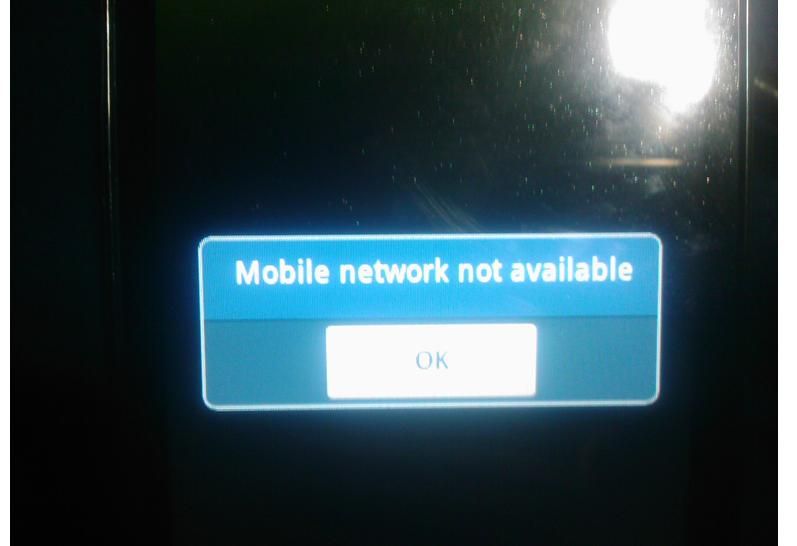
mobile Network Not Available

How To Fix Samsung Galaxy ”mobile Network Not Available”:

You can apply these steps on most all Samsung devices, but in order to Fix mobile Network Not Available follow all the steps carefully.

Step 1: Open Settings on Samsung Galaxy device.

Step 2: Tap on Wireless and Networks.

Step 3: Tap on Mobile Networks.

Step 4: Now select Network Operators.

Step 5: By default its on automatic mode.

Step 6: Select your mobile network manually.

Step 7: Restart your device.

Method # 2.

Step 1: Open the dialer on your Samsung Galaxy device.

Step 2: Now dial *#*#4636#*#*  in the dialer.

Step 3: A new testing menu will be shown.

Step 4: Tap click phone/device information.

Step 5: Tap on Run ping test.

Step 6: Select GSM Auto (PRL) from the list.

Step 7: Tap on Click Turn off radio.

Step 8: Restart your device.

Method # 3.

Step 1: Goto Settings on your device.

Step 2: Tap on About device.

Step 3: Tap on Software update.

Step 4: Select Check for update.

Step 5: Install the latest update on your device.

Method # 4.

If none of these methods works for then last option is that you should perform a factory reset and your mobile Network Not Available will be fixed.

Step 1: Goto Settings.

Step 2: Tap on Backup and Reset.

Step 3: Now select Factory Data reset.

All Done !

How to delete multiple photos in Instagram [ Tutorial ]

0
How to delete multiple photos in Instagram [ Tutorial ]

Instagram is the biggest photo sharing social media platform, users daily upload 100’s of photos to share it with your friends and families. Sometimes we need to delete multiple photos, but as you know that we can only delete single photo at a time means you have to delete photos one by one, but what if you can delete multiple photos you want to know how ? In the following guide, I’ll tell you How to delete multiple photos in Instagram.

[note]

You can Repost Instagram Photos learn How to Repost Instagram Photos from Android and iOS.

[/note] delete multiple instagram photos

How to delete multiple photos In Instagram:

  • Open Instagram on your web and log in.
  • You’ll see your Instagram homepage click on the avatar icon located on top right side of your screen. ( Profile icon ).
  • Now scroll down and select all the photos you wish to delete. Once you are done, right-click on the photo and select “Open link in a new tab”.
  • Repeat this step with all of your photos you want to delete. 
  • Once you have opened all the photos in new tabs, start posting comments on each photo ( #delete12345678910 ) you can use whatever you want.
  • Open Instagram App on your device and search for the hashtag  ( #delete12345678910 ) you posted in comments.
  • There you’ll see all of your photos you want to delete nothing else, now all you have to do is open the photos and tap on menu and delete.

All Done!

That’s all for now, Please keep visiting Techbeasts for more interesting guides and tips. If you found this guide helpful please share it with your friends.

How To Sync Your iPhone With iTunes Wirelessly [ Tutorial ]

How To Sync Your iPhone With iTunes Wirelessly [ Tutorial ]

Hey everyone, if you are wondering how to Sync Your iPhone With iTunes Wirelessly, I can help in the following guide I’ll tell you how you can easily sync iPhone over Wifi. Let’s start the method.

itunes wifi sync

How To Sync Your iPhone With iTunes Wirelessly:

  1. First, connect your iPhone or any other iOS device with your PC / Mac.
  2. Open iTunes on your PC.
  3. Now from iTunes sidebar select your device, if you are running the latest iTunes version then you can select your device from the top of iTunes.
  4. Click on Summary Tab.
  5. You’ll see different options here, look for ” Sync with this iPhone over Wi-Fi” once you find it, click on it to enable it.
  6. Now click on Apply and then Ok, to save these changes.
  7. After that your iPhone will start syncing and once it’s done you can unplug your device. Now you don’t need to plug your device with your PC to sync.
  8. All Done.

That’s all for now, Please keep visiting Techbeasts for more interesting guides and tips. If you found this guide helpful please share it with your friends.

15 Beautiful Wallpapers Of Mountains and Rivers

15 Beautiful Wallpapers Of Mountains and Rivers

Olla !  I am back with a new collection of 15 Beautiful Wallpapers Of Mountains and Rivers. Wallpapers of Mountains and Rivers gives a really refreshing look, also they color combination in these Wallpapers are awesome. You can use these Wallpapers for your Desktop, PC, Mac, iMac, iPhone, iPad and Android devices. Download the 15 Beautiful Wallpapers Of Mountains and Rivers for free.

great_mountain_landscape-wallpaper-1280x76815 Beautiful Wallpapers Of Mountains and Rivers

465337 Beautiful-Snowy-Mountain-Wallpaper-HD browny-mountain-wallpaper 8C1AqVT mountain_nature_elegant_wallpaper_3f 30-snow-mountain-wallpaper-9 R6ZWbAb Snowy_Mountains_Range_in_New_South_Wales_Australia_Wallpaper mountain_at_night-wallpaper-1024x768 Mountain-Wallpapers-HD-2015 mountain-3d-wallpaper-8

www.hdnicewallpapers.com

WDF_994883 Free-Download-Mountain-Hd-Wallpapers 22567 473154 wallpaper-722590cp

That’s all for now, Please keep visiting Techbeasts for more interesting guides and tips. If you found this guide helpful please share it with your friends.

Fix My Windows Screen is Flipped Upside Down

0
Fix My Windows Screen is Flipped Upside Down

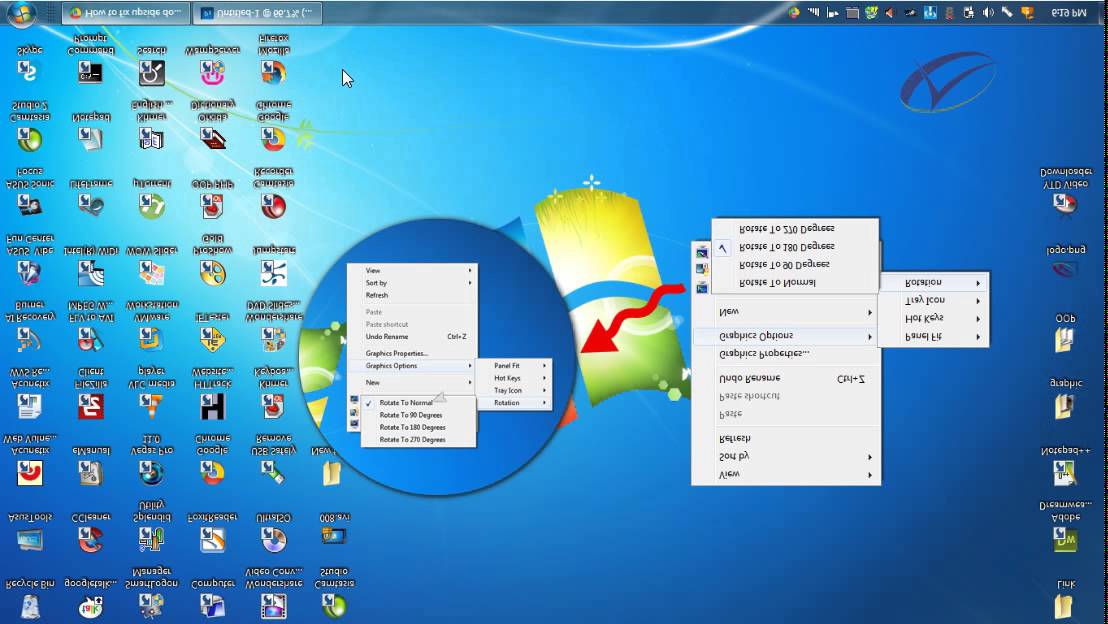
Have you ever got yourself in a situation, like when you turn on your computer and your Windows Screen is Flipped Upside Down, I had this situation 2 days ago and after a little bit of browsing, finally i found a working solution and it worked. In this post, I’ll tell you how  to fix computer screen upside down, my computer screen is upside down or windows screen upside down. 

computer screen upside down

Fix My Windows Screen is Flipped Upside Down:

Up and Down Keyboard Shortcut

  • CTRL + ALT + DOWN ARROW


Sideways Keyboard Shortcut

  • CTRL + ALT + LEFT ARROW

or

  • CTRL + ALT + RIGHT ARROW

Display Driver Software:

This is very rare that your display software is causing this issue, but since you are in a mess so its worth a shot.

  • Right Click on your desktop and select Screen resolution.
  • Click on “Advanced settings”.
  • You’ll see different options, search for “Orientation“. Once you find it, set it to your desired setting.

If you are using NVIDIA’s graphic card the follow the steps below.

  • Open NVIDIA Control Panel by right clicking on NVIDIA icon in the taskbar.
  • Click on “Rotate display”.
  • Now set orientation as desired.

How To Automatically Forward Email in Outlook 2016, 2013, 2010, & 2007

Following are the instruction on how to Automatically Forward Email in Outlook 2016, 2013, 2010, & 2007 to other emails address, this came handy because you don’t have to go through with all the intense configurations to setup Outlook exchange account on your device or PC.

  • Open Outlook 2016, 2013 or 2010 on your PC. Select File” > “Rules and Alerts“ and if you are using Outlook 2007, select “Tools” > “Rules and Alerts“.
  • You have to set a new rule, from the “E-mail Rules” tab, choose “New Rule”.


  • Now you’ll be in rule wizard, under “Start from a template or from a blank rule” click on “Check messages when they arrive“, and click “Next“.


  • In next page you’ll see many options, if you want to select specific emails then you can choose from any of the following but if you want all the emails then leave everything unchecked. Now when you click on next you’ll get a message ” This rule will be applied to every message you receive. Is this correct?” Select “Yes“.


  • Click on “forward it to people or public group” and click Next.


  • Then next page will be Rule Address, you’ll see all of your contacts. Choose the contacts from you want to get emails. Select “OK” then “Next” when done.


  • If you want to set any exceptions, here you can setup. Once done select “Next“.


  • Now you want to save your Rule with a name, under the ” Specify a name for this rule“. Check the both box as shown in the photo.


  • Turn on this rule
  • Run this rule now on messages already in Inbox

When you are done, Click on finish.

That’s all for now. 

Windows : Enable or Disable Cookies in Internet Explorer 11

Windows : Enable or Disable Cookies in Internet Explorer 11

If you don’t know how to enable or disable Cookies in Internet Explorer 11, follow the method below to learn how to disable or enable cookies in Internet Explorer 11. 

ie-enable-disable-cookies

Enable or Disable Cookies in Internet Explorer 11:

  • Open Internet Explorer on your PC, click on settings->“Internet Options“.

IE-gear-and-Internet-Options

  • If you have menu bar, “ToolsInternet Options“.
  • Now click on “Privacy”->“Advanced”-> First-party Cookies”.
  • Choose one of the following options.
  • Accept
  • Block
  • Prompt

ie-enable-disable-cookies

  • Now if you want to save cookies for a specific site, you can set it Sites option.

IE-Per-Site-Cookies

  • Go to Pre Site privacy actions page, type the URL in required field. Now select to “Block” or “Allow” cookies on that website. Click “OK”.

That’s all for now, Please keep visiting Techbeasts for more interesting guides and tips. If you found this guide helpful please share it with your friends.

Lords Mobile for PC Download ( Windows – Mac )

0
Lords Mobile for PC Download ( Windows – Mac )

Are you a fan of strategy games like Clash of Lords 2 and Castle Clash, then you will love the game for IGG.Com. Lords Mobile is the latest strategy game developed by IGG and in no time this game has reached the top free games list. In this post I’ll tell you how to download and install Lords Mobile for PC running Windows XP/7/8/8.1/10 Desktop PC and Mac OS X Macbook, iMac. You will need to install an emulator like BlueStacks to play Lords Mobile for PC. 

*Note* ” Right now Lords Mobile is not available for Android so you cannot install it on PC. There are other emulators on the Web which claims to run iOS App on PC. But I won’t recommend it. “

Lords Mobile for PC

Download Lords Mobile for PC and Mac

  1. Download Lords Mobile APK from a credible source.
  2. Download and install Bluestacks: Bluestacks Offline Installer | Rooted Bluestacks|Bluestacks App Player | Rooted BlueStacks 2
  3. Once you’ve installed Bluestacks, double click the downloaded Lords Mobile APK.
  4. The APK will be installed using Bluestacks, once installed open Bluestacks and locate the recently installed Lords Mobile.
  5. Click the Lords Mobile icon to open it, follow the on-screen instructions to use it.

You can also use Andy OS or Remix OS to install Lords Mobile, here’s the tutorial: How To Run Android Apps On Mac OS X With Andy | How to launch Remix OS for PC and install Apps for PC via Remix OS.

The Andy OS and Remix OS tutorial explains how to play a game on your Mac OS X, but the same guide will also work for a Windows PC.

That’s all. In case you’re stuck with anything, reach us out through the comment box below.

That’s all for now, Please keep visiting Techbeasts for more interesting guides and tips. If you found this guide helpful please share it with your friends.