Home Blog Page 489

Root Samsung Galaxy Note 10.1 2014 LTE P605 With CF-Auto Root[Guide].

1
Root Samsung Galaxy Note 10.1 2014 LTE P605 With CF-Auto Root[Guide].

CF-Auto root is one of the best way to root Samsung Devices. On the other hand, if you try any other rooting tutorial, they first offers Custom Recovery to be installed then manually install Super SU from recovery.So, why would anyone go for Manual rooting, if everything is done automatically and not to mention, works perfect. All thanks to Chainfire, who invented such reliable way for everyone to root their device without any issues. CF-Auto Root tool is available for Galaxy Note 10.1 LTE P605 and in this tutorial you will find out how to Root your Galaxy Note 10.1.

Screenshot_1

Rooting allows you to get full control over your device, Stock apps and mods are good, but installing Custom Mods gives you better support and great battery life, you might need to delete some Stock apps from the device, a non-rooted device can’t do that, but a rooted one has the power to remove stock apps too. If you are familiar with Odin and it’s working, then this tutorial might not be difficult for you. Otherwise read the whole tutorial first before trying it on your device. In this Article, we will show you How To Root Samsung Galaxy Note 10.1 2014 LTE P605.But before we begin, Make sure that:

  1. That you have a Well Charged Battery.
  2. Back-Up all your important ContactsCall Logs & Messages.It is highly recommended in case of any mishap or data loss to back up all your important data.
  3. Back-Up your Mobiles EFS DataHow To Restore and Back-Up EFS Data On Samsung Galaxy Devices.
  4. Check your device model, Go To Setting > About and Make sure that it is SM-P605.

Disclaimer: 

The methods involved in flashing custom roms and rooting your phone is highly custom and may result in bricking your device,and has nothing to do with Google or the device manufacturers which is Samsung in our case. In case of any mishap we may not be held responsible. Follow these instructions to the letter to avoid any mishap or bricking. Make sure that whatever you do, you are doing it at your own responsibility.

Warning:

Rooting an Android device Voids Manufacturers Warranty, the CF-Auto Root method for Galaxy Note 10.1 is tested and Found Working. If you don’t follow the Procedure as we instructed, You only are responsible for your device. We won’t be liable if any damage occurs to your device and/or its components.

All done and good, let’s head towards the Next page to See, How you can Root Samsung Galaxy Note 10.1 2014 LTE P605.

Pages: Page 1 | Page 2

RoboCop APK v 1.0.3 – Free Download

1
RoboCop APK v 1.0.3 – Free Download

Glu has just pushed RoboCop in Play Store this morning. RoboCop is an upcoming Hollywood Action movie, that is dubbed by Glu, the  people behind famous Frontline Commando, Deer Hunter and other games. The movie surely packs up action, thriller and lots of amazing stunts but the game packs a little extra action that will just make this game addictive for you to play.

So basically the theme of RoboCop is simple, as the name suggests it’s a Robot who is a Cop. You got to save the civilian hostages from the enemies, shoot them down, use drone strikes, save yourself from snipers, bring down the robotic enemies. You can use a scanner to find week points of your enemies.Robocop1

Description

Welcome to the official game of RoboCop the movie.

In 2028 Detroit, when Alex Murphy, a loving husband, father and good cop is critically injured in the line of duty, the multinational conglomerate OmniCorp sees their chance for a part-man, part-robot police officer.

Join the OmniCorp program to become RoboCop, the ultimate law enforcement officer! Battle human crooks, robot enemies and learn how to defend the citizens from the corrupt streets of Detroit.

Start your training now!

SHOOT your way through console quality training simulations
USE drone strikes to take out large groups of enemies
SAVE human hostages and capture informants
BATTLE aggressive robot enemies from the film, like the EM-208 and the ED-209
UPGRADE your weapons and robotic suit to the latest technology that OmniCorp has to offer
SCAN your targets with body heat vision to find their location and weak points

RoboCop2

We’ve just got our hands on the APK and have embed the direct download link here. In case you can’t find the game in play store or the game isn’t appearing in the play store at your end, you may download it from here and play the it for as long as you want.

RoboCop: Download APK | Google Play

CyanogenMod Installer for Mac – Direct Download

0
CyanogenMod Installer for Mac – Direct Download

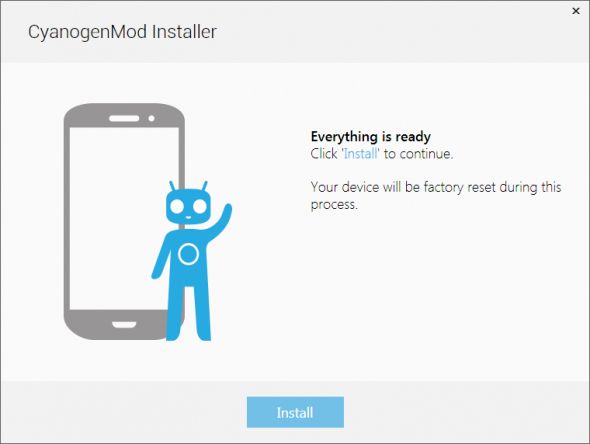
CyanogenMod Installer is now available for Mac finally a good news for Mac user’s now they can easily flash a custom rom on their Android devices. 70% of Mac user’s uses iPhone but there are fews that use Android. As i do 😛 . CyanogenMod Installer of Mac is a beta version so there will be few bugs for sure, with time bugs will be fixed till then use as it is.

cyanogen-install


Features supported by CyanogenMod include native theming support, FLAC audio codec support, a large Access Point Name list, an OpenVPN client, an enhanced reboot menu, support for Wi-Fi, Bluetooth, and USB tethering, CPU overclocking and other performance enhancements, soft buttons and other “tablet tweaks”, toggles in the notification pull-down (such as wi-fi, Bluetooth and GPS), app permissions management, as well as other interface enhancements. CyanogenMod does not contain spyware or bloatware. In many cases, CyanogenMod may increase performance and reliability compared with official firmware releases.

We have found the direct download link of Mac, how to use it is simple first you have to connect your device with Mac through usb cable in debugging mod. Then rest installer will do automatically. Do the CyanogenMod Installer for Mac from the following link.

Also See: CyanogenMod installer apk download

DOWNLOAD THE INSTALLER HERE:

Follow more : Here

How to Root Samsung Galaxy Tab 7.7 P6800/P6810/I815

0
How to Root Samsung Galaxy Tab 7.7 P6800/P6810/I815

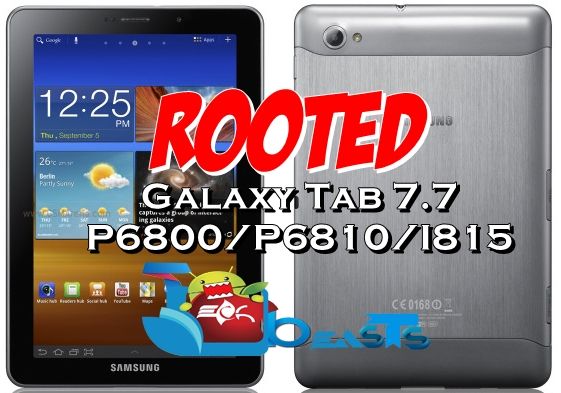
Galaxy Tab 7.7 can be easily rooted now. In the following post we will go through this easy method and get your device rooted. In case you’re a Galaxy Tab owner and came here searching for a root method, you may not worry any more as we will not disappoint you at all. Just go through this tutorial and root your P6800, P6810 or I815 device.

Before we begin the process, some of you may be new to rooting and may be willing to know what is root access and why you should root your device. If that’s the case with you, then let’s have a look on a little intro to root access and a custom recovery as well below.samsung-galaxy-tab-7-7-000

Rooting your phone gives you complete access over all the data which is apparently locked by the manufacturers. This includes removal of the factory restrictions and making changes to the internal system and the operating system. Gaining the root access gives you the privileges to install various applications to enhance the performance of your device, allows you to remove the built-in applications/programs, helps you to upgrade the battery life of your device & install the apps which require the root access for the proper functionality and modify your device in so many other ways e.g using mods and custom roms. By installing custom recovery, you can flash custom roms in the phone easily. Custom recovery also let’s you backup your current rom and restore it in case of any mishap. There is a laundry list of things you can do after having your device rooted and installed the custom recovery, now once you’re rooted and haveinstalled custom recovery, go ahead and enjoy it on your phone. Here’s our collection of 10 Best Root Apps.


Here are some instructions that you must follow in order to gain root access on your Galaxy Note Tab 7.7 P6800/P6810/I815:

      1. This guide is only for Galaxy Tab 7.7 P6800,P6810 or I815. Do not try this on any other device, please check your device’s model number in Settings > General > About Device.
      2. Your phone’s battery must be charged at least over 60%. This is highly recommended in order to prevent any power issues during the flashing process.
      3. ake sure that you backup your important media content, ContactsCall Logs & Messages. This is highly recommended just in case something goes wrong and you need to reset your phone.
      4. Alright! Go ahead and flash the custom firmware, follow this guide to the letter.

Disclaimer: The methods involved in flashing custom roms and rooting your phone is highly custom and may result in bricking your device, and has nothing to do with Google or the device manufacturer that is SAMSUNG in our case. Also rooting your device will void its warranty and you will be no longer eligible for any kind of free device services by the manufacturers/warranty providers. In case of any mishap we may not be held responsible. Follow these instructions to the letter to avoid any mishap or bricking. Make sure that whatever you do, you are doing it at your own responsibility.

How to Root Galaxy Tab 7.7:

      1. Your device must have a CWM Recovery installed. Follow our full guide here to install it on your device.
      2. Download Super.zip file and place on the SD card of your Galaxy Tab.
      3. Boot into CWM Recovery now. To do so, turn off your device completely. Now turn it while pressing and holding Volume Up + Power Key. In case this method doesn’t work for your device, try one of the methods explained in this guide.
      4. In CWM select “Install Zip>Chooe Zip from SD Card > SuperSu.zip > Yes”.
      5. Wait for the flashing to complete.
      6. Reboot your Galaxy Tab.
      7. Find SuperSu in App Drawer.
      8. Phewwwww! You’re rooted now.


That’s All! We hope that you found this guide of much help. In case you got any queries or face any difficulties regarding this guide, don’t hesitate to stop by the comment box below and leave us your message. We will try our best to help you out. Thanks All.

Install CWM 6 on Samsung Galaxy Tab 7.7 [How to Guide]

5
Install CWM 6 on Samsung Galaxy Tab 7.7 [How to Guide]

Samsung’s 7.7 inches Galaxy Tab comes modeled under various variants. You may be a Galaxy Tab 7.7 owner and looking for a way to get CWM Recovery on you device, well no need to worry about it anymore as In the following post we’ll be going through a method that will let you install CWM [ClockworkMod] Recovery 6 on your Samsung Galaxy Tab 7.7 P6800, P6810 and I815.

In case you don’t know what is a custom recovery and why you should install it, then let’s have a look on a little intro the custom recovery that is CWM in our case and proceed after that.samsung-galaxy-tab-7-7-000

A custom recovery allows you to install custom roms, mods etc. Along with these, you can make a Nandroid backup, this helps you a lot as you can move back to the previous working state of your phone at any time you want if you have backed up your current system. In some cases, to root the phone you need to flash SuperSu.zip file in the custom recovery, having installed the recovery may help you while in some cases to install the recovery easily, you need to have the phone rooted. You can also wipe cache and dalvik cache of your phone using a custom recovery.

Here are some important instructions and pre-requisites that you must keep in mind before you head towards the installation method.

      1. This guide is only for Galaxy Tab 7.7 P6800, P6810 and I815. Do not try this on any other device, please check your device’s model number in Settings > General > About Device.
      2. Your phone’s battery must be charged at least over 60%. This is highly recommended in order to prevent any power issues during the flashing process.
      3. Make sure that you backup your important media content, ContactsCall Logs & Messages. This is highly recommended just in case something goes wrong and you need to reset your phone.
      4. Use only on OEM data cable to connect your Galaxy Tab to your PC.
      5. Turn off your Anti-virus, Firewall and other security programs to avoid connection interruption.
      6. Use a stable connection/device. Your laptop must have enough battery charged to perform this method, in case you’re using a desktop PC make sure that you’re not on a risk of power loss during the flashing process.
      7. Follow this guide carefully. Do not go ahead if you don’t know what you’re going to do.
Disclaimer: The methods involved in flashing custom roms and rooting your phone is highly custom and may result in bricking your device, and has nothing to do with Google or the device manufacturer that is SAMSUNG in our case. Also rooting your device will void its warranty and you will be no longer eligible for any kind of free device services by the manufacturers/warranty providers. In case of any mishap we may not be held responsible. Follow these instructions to the letter to avoid any mishap or bricking. Make sure that whatever you do, you are doing it at your own responsibility.

Files you need to download / install:

  1. Download and extract Odin PC – Get it here
  2. Download and Install Samsung USB Drivers – Get here
  3. Download the CWM 6 Recovery for your device:

How to Install CWM 6 on Samsung Galaxy Tab:

  1. Download the file for your variant carefully.
  2. Open Odin3.exe.
  3. Put your phone in download mode, to do so, turn it off completely. Now turn it on by pressing and holding Volume Down + Home Button + Power Key, you should see a warning now, press Volume Up to continue.
  4. In case the download mode method doesn’t work for your device, try one of the methods from this guide.
  5. Connect your phone to your PC.
  6. The ID:COM box in Odin should turn blue now, that means your phone is connected properly in download mode.
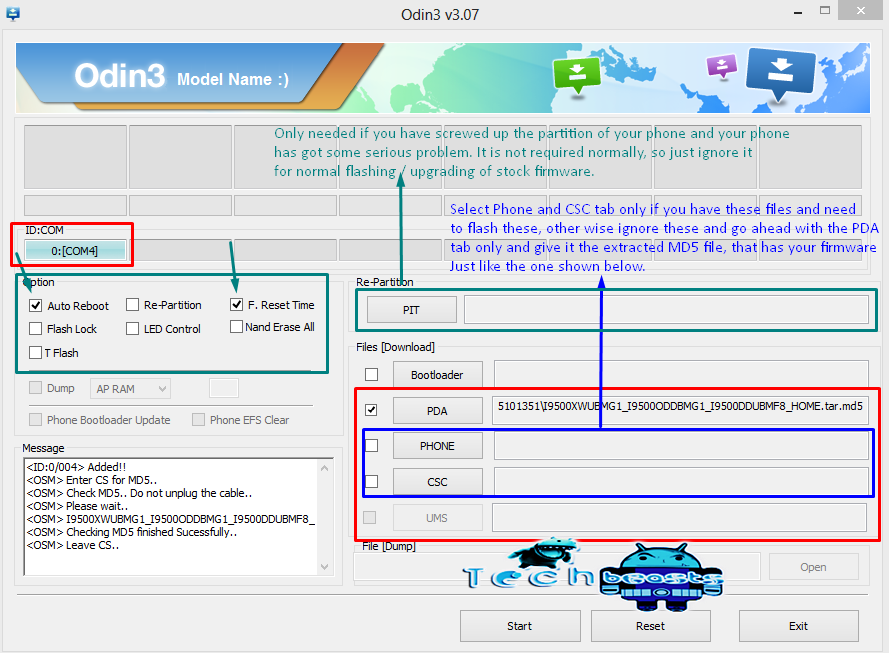
  7. Click the PDA tab in Odin and select the downloaded Recovery.tar file and let it load. Your Odin should look exactly as shown below, make sure that no extra options are selected.
  8. odin_explained
  9. Hit start now and sit back, it will take a few seconds to flash the recovery and your device will reboot.
  10. Press and hold Volume Up + Home Button + Power Key to access the CWM Recovery that you just installed.
  11. You can backup your current ROM and do a lot of other things using the options in CWM Recovery.
  12. That’s All.

That’s All! We hope that you found this guide of much help. In case you got any queries or face any difficulties regarding this guide, don’t hesitate to stop by the comment box below and leave us your message. We will try our best to help you out. Thanks All.

Download Box v2.4.3 apk Android app

0
Download Box v2.4.3 apk Android app

When you are using a smartphone storage is never enough for you no matter how much you have at that time Box came in a free storage app same like dropbox but the good this is that BOX is offering 50gb from starting for every one now you can save more pics, songs and videos on your smartphones. With 10GB free, Box makes it easy to access and edit your files, share content and stay connected with your team from anywhere on any device. Box allows you to do all these things and more! More than 150,000 companies—including 92% of the FORTUNE 500—rely on Box for simple, secure content sharing.

Download Box v2.4.3


Box v2.4.3 apk Android App Features:

* Share important files with your coworkers
* Have your presentation at your fingertips
* Comment on documents on the go
* View updates to your spreadsheet instantly

* Access, view, edit, share and manage files directly on your Android phone or tablet
* Secure your content with file-level encryption, passcode and auto logout when the app is closed
* Upload multiple images, videos and files from your SD card
* Save files to your SD card for offline access
* Easily share files and folders with links
* Invite colleagues to shared folders and leave comments on files for them (note that you’ll need to grant permission for the app to access your contacts, but we only use this permission to quickly retrieve email addresses when you want to invite collaborators and do not store any contact information on Box servers)
* Find content fast with built-in search
* Save files you edit or create in other Android apps to your Box account and access Box files from within other Android apps using the File Picker
* Add a widget or shortcut to a file or folder on your home screen to see updates on files by colleagues

Plus, Box OneCloud is our ecosystem of apps where you can annotate, e-sign and do more with your favorite productivity apps.
* In Box OneCloud apps, open and edit Box files in other apps installed on your device
* Save content directly to Box from more than 50+ compatible apps.

Downlaod Box v2.4.3 apk Android App

Download Box 2.3.0 APK for Android

Download Box 2.1.1.apk Android app

How to Root Galaxy Ace S5830/S5830i

3
How to Root Galaxy Ace S5830/S5830i

Are you a Galaxy Ace owner and looking for a way to root your device? Well, no need to worry at all as in the following post we will be having a look on a method to root Galaxy Ace S5830 and S5830i. You will need to follow the instructions to the letter in order to get it done successfully.

Some of you may be new to rooting, in case you don’t know what is root access and why you should root your device, let’s first have a look on a little intro to root access and then move forward to the rooting guide for both the variants of Galaxy Ace.Samsung Galaxy Ace Double-580-100

Rooting your phone gives you complete access over all the data which is apparently locked by the manufacturers. This includes removal of the factory restrictions and making changes to the internal system and the operating system. Gaining the root access gives you the privileges to install various applications to enhance the performance of your device, allows you to remove the built-in applications/programs, helps you to upgrade the battery life of your device & install the apps which require the root access for the proper functionality and modify your device in so many other ways e.g using mods and custom roms. By installing custom recovery, you can flash custom roms in the phone easily. Custom recovery also let’s you backup your current rom and restore it in case of any mishap. There is a laundry list of things you can do after having your device rooted and installed the custom recovery, now once you’re rooted and have installed custom recovery, go ahead and enjoy it on your phone. Here’s our collection of 10 Best Root Apps.

Here are the important instructions and pre-requisites that you must keep in mind before rooting your device:

      1. This guide is only for Galaxy Ace S5830 and S5830i. Do not try this on any other device, please check your device’s model number in Settings > General > About Device.
      2. Your phone’s battery must be charged at least over 60%. This is highly recommended in order to prevent any power issues during the flashing process.
      3. ake sure that you backup your important media content, ContactsCall Logs & Messages. This is highly recommended just in case something goes wrong and you need to reset your phone.
      4. Follow this guide carefully. Do not go ahead if you don’t know what you’re going to do.

Disclaimer: The methods involved in flashing custom roms and rooting your phone is highly custom and may result in bricking your device, and has nothing to do with Google or the device manufacturer that is SAMSUNG in our case. Also rooting your device will void its warranty and you will be no longer eligible for any kind of free device services by the manufacturers/warranty providers. In case of any mishap we may not be held responsible. Follow these instructions to the letter to avoid any mishap or bricking. Make sure that whatever you do, you are doing it at your own responsibility.

How to Root Galaxy Ace S5830 or S5830i:

Download the Root.zip file for your device:

    • Download the file for your device carefully and copy it to the SD card of your phone.
    • Boot into recovery mode on your device. To do so, turn off your phone completely, now turn it on by pressing and holding Volume Up + Home Button + Power Key. You should see the recovery interface now.
    • Now select “Apply Update.zip or Install Update.zip from SD card”.
    • Select the RootPackage.zip file that you placed on your phone’s SD card.
    • Install the file.
    • Reboot your device.
    • Find the SuperSu app installed in your App drawer.
    • That’s all.

Don’t forget to check out:  How To Install CWM Recovery on Galaxy Ace S5830/S5830i

That’s all with installing CWM Recovery on Samsung Galaxy Ace. In case you got any queries or you face any difficulties regarding this post, do not hesitate to stop by the comment box below and drop us your words. We will try our best to help you out. Thanks All!

Root LG G2 On The Latest OTA Update Android 4.2.2 [Verizon/Sprint/T-Mobile/AT&T].

0
Root LG G2 On The Latest OTA Update Android 4.2.2 [Verizon/Sprint/T-Mobile/AT&T].

LG G2 for many reasons is a Superb Device featuring best of LG’s Smartphone Technology. The Specs and Features of this device can make any phone look cheap in front of it. The Device has successfully claimed its spot in the top Smartphones of 2013, because of its amazing Features and Specification and don’t forget its uniqueness. Back in November 2013, we posted an article about Rooting and installing Custom Recovery on LG G2, that older tutorial, However, will only work with the Firmware LG G2 was Shipped With and LG G2 has received the OTA update of Android 4.2.2, thus removing the Root access along with Custom Recovery. Now all that left is for you to install Custom Recovery and Root your device again, but as I said the old tutorial will not work with this OTA update, So, then What To Do?

how to root lg g2.tmobile.att.rogeres.telus.korean.all

Thanks to XDA Memeber autoprime, who has provided us with the Tutorial on how to root LG G2 on the brand new OTA update. But don’t you think that Android 4.2.2 looks a little Outdated while others are enjoying Android 4.4 Kit-Kat. Anyways, if you have already updated your device with the Latest Firmware update and looking for a way to Root your device, we have just the tutorial you are looking for.

The Latest version of iRoot tool will work on Windows , Mac and Linux, allowing you tot root your LG G2 running latest Android 4.2.2. The new version of tool is compiled and works with LG G2 Variants Mentioned below:

  • Korean LG G2 F320k with F320K20a KitKat
  • Korean G2 (SKT) F320S with F320S20a ROM
  • AT&T G2 D800 with ROM version D80010o
  • T-Mobile G2 D801  with ROM version D80110G
  • Sprint G2 LS980 with LS980ZV8 OTA
  • Verizon G2 VS980 with VS98011A and VS98012B OTA
  • All G2 variants with older ROM version

Warning:

Rooting an Android device Voids Manufacturers Warranty, the iroot method for LG G2 is tested and Found Working. The list of Compatibility is Compiled by the developer on his XDA Thread, Follow the Guide at your own risk.

All read and Done, let’s head towards the next page to learn how to root your LG G2.

Pages: Page 1 | Page 2

How To Install CWM Recovery on Galaxy Ace S5830/S5830i

39
How To Install CWM Recovery on Galaxy Ace S5830/S5830i

One of Samsung’s very early device to run on Android, Galaxy Ace is still alive and is widely being used all over the world. Galaxy Ace sports a 3.5 inches display with 165 ppi, 5 MP camera at the back while none on the front. Under the hood, it got an 800 MHz processor along with a RAM of 512 MB and Adreno 200 GPU. Galaxy Ace runs on Android 2.3 Gingerbread.

Well, let’s get back to the topic. Our concern today is to install CWM [ClockworkMod] Recovery on the Galaxy Ace S5830 and S5830i. You may be a Galaxy Ace owner and just in case you were looking for a method to install this recovery on your device, you’re on the right spot at the moment. Follow this guide to the letter and get the recovery installed on your device, in case you don’t what is a CWM or Custom Recovery, here’s a little intro for you first.Galaxy-ace1

A custom recovery allows you to install custom roms, mods etc. Along with these, you can make a Nandroid backup, this helps you a lot as you can move back to the previous working state of your phone at any time you want if you have backed up your current system. In some cases, to root the phone you need to flash SuperSu.zip file in the custom recovery, having installed the recovery may help you while in some cases to install the recovery easily, you need to have the phone rooted. You can also wipe cache and dalvik cache of your phone using a custom recovery.

Here are some important instructions and pre-requisites that you must keep in mind before you head towards the installation method.

      1. This guide is only for Galaxy Ace S5830 and S5830i. Do not try this on any other device, please check your device’s model number in Settings > General > About Device.
      2. Your phone’s battery must be charged at least over 60%. This is highly recommended in order to prevent any power issues during the flashing process.
      3. Make sure that you back up your important media content, Contacts, Call Logs & Messages. This is highly recommended just in case something goes wrong and you need to reset your phone.
      4. Follow this guide carefully. Do not go ahead if you don’t know what you’re going to do.

Disclaimer: The methods involved in flashing custom roms and rooting your phone is highly custom and may result in bricking your device, and has nothing to do with Google or the device manufacturer that is SAMSUNG in our case. Also rooting your device will void its warranty and you will be no longer eligible for any kind of free device services by the manufacturers/warranty providers. In case of any mishap we may not be held responsible. Follow these instructions to the letter to avoid any mishap or bricking. Make sure that whatever you do, you are doing it at your own responsibility.

How to Install CWM 5 on Galaxy Ace S5830 or S5830i:

-> Download the recovery.zip file for your device:

Install CWM 5 or 6 Recovery on Galaxy Ace S5830:

      • Download the file for your device and copy it to the SD card of your phone.
      • Boot into recovery mode on your device. To do so, turn off your phone completely, now turn it on by pressing and holding Volume Up + Home Button + Power Key. You should see the recovery interface now.
      • Now select “Apply Update.zip or Install Update.zip from SD card”.
      • Select the CWM Recovery.zip file that you placed on your phone’s SD card.
      • Install the file.
      • That’s all.
      • Although you’ve installed the CWM 5 recovery for use, do not delete the file from your SD card. Every time you want to use CWM Recovery, you will have to flash it first. You may try flashing CWM 6 above CWM 5 to make it stay on your phone and get rid of flashing it every time before you use.
      • To flash CWM 6 you must first flash CWM 5.
      • Download CWM 6 from here and copy the downloaded file to your phone’s SD card.
      • Now boot into CWM Recovery. [Volume Up + Home Button + Power].
      • In CWM select Install Zip > Choose Zip from SD Card > CWM Recovery.zip > Yes.
      • Complete the installation.
      • Go to the Advanced Options in CWM and reboot into recovery mode.
      • Checkout CWM 6 now.
      • That’s All!

Install CWM 5 on Galaxy Ace S5830i:

      • Download the file for your device and copy it to the SD card of your phone from the links attached above..
      • Boot your Galaxy Ace S5830i into recovery mode on your device. To do so, turn off your phone completely, now turn it on by pressing and holding Volume Up + Home Button + Power Key. You should see the recovery interface now.
      • Now select “Apply Update.zip or Install Update.zip from SD card”.
      • Select the CWM Recovery.zip file that you placed on your phone’s SD card.
      • Install the file.
      • That’s all.

Also Check:  How to Root Galaxy Ace S5830/S5830i

That’s all with installing CWM Recovery on Samsung Galaxy Ace. In case you got any queries or you face any difficulties regarding this post, do not hesitate to stop by the comment box below and drop us your words. We will try our best to help you out. Thanks All!

Best HD Happy Valentine’s Day Wallpapers For Your Desktop PC

2
Best HD Happy Valentine’s Day Wallpapers For Your Desktop PC

Love is in the Air!. Season of love has started and the wonderful day is just a few weeks away now. Are you ready to celebrate? or you’re not in a state to celebrate yet at the moment? (Single?), no worries if you’re one you will find someone one day for sure lol. To add some charms to the Valentine’s Day celebrations, we’ve collected some cool wallpapers / cards to make your Desktop PCs, MAC and your Android smartphones and Apple iPhones. Go ahead and pick up the best ones that suite your device’s display.

To download these wallpapers, simply click on your desired image and then right click > save image as and save it. In case you want to download all these images, you can get the all one link at the bottom.

Checkout: Best HD Happy Valentine’s Day 2015 Wallpapers For Your Desktop PC

happy-valentines-day-greetings-2014-collections


I hope the first picture didn’t bother you guys, let’s have a look at what we’ve collected for you.2014-Happy-Valentines-Day-1024x768 2014-Happy-Valentines-Day-Bright-Colors-Wallpaper   Happy-Valentine-Day-2014-8 Happy-Valentines_Day-2014 Happy-Valentine-Day-2014-7Happy-Valentines-Day-14-February-2014-Romantic-Couple-in-The-Pink-Wallpapers1

Happy-Valentines-Day-2012-Wallpapers1 Happy-Valentines-Day-2014 Happy-Valentines-Day-2014-1 Happy-Valentines-Day-2014-HD-Wallpapers-in-The-Pink-Backgrounds Happy-Valentines-Day-2014-Wallpapers  Valentines Day 2014 Facebook Cover For Couples valentines-day-2014 Valentines-Day-2014-Love-Sms-Messages-For-Couples

Download All Wallpapers.

Note: All the images are collected from different sources based, we do not own any of these and all these are the copy rights of their respective owners.

How to Unzip Files on Android

1
How to Unzip Files on Android

Are you wondering how you can open or extract zipped files on your Android smartphone? Well if so, we’ll be having on a method to open/extract zip files on your Android device. If you’re familiar with unzipping the files, you will probably be familiar with the tools like winzip, winrar, 7zip etc. All these tools can be used to zip and unzip or archive the files. Earlier, these tools were only available for Windows but the goodness of Android, winzip is now available for Android as well.

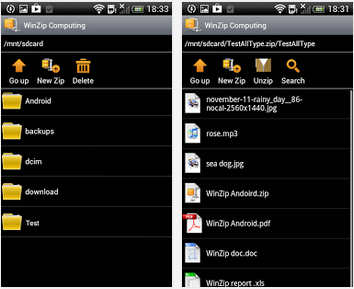
That means you won’t have problem unzipping the zipped files anymore now. You just got to go through this post and access your files. Let’s have a look on what Winzip for Android has to offer.  WinzipAndroid

WinZip for Android Top Features

– Receive a zip file and view supported image, text and web files directly within the WinZip app. Easily open other popular file formats with 3rd party app integration.
– Open encrypted Zip files (including AES128 and AES256) to review sensitive material safely while on the go.
– Copy unzipped content to the clipboard to paste into an email or another application. Save the last extracted zip file to access at later time.
– Automatically unzip and install Android apps (.apk files) delivered as .zip files from Google Play or the Amazon Appstore.

File Support and 3rd Party Integration
WinZip for Android lets you view:
– Photos and images (.jpg, .jpeg, .png, .bmp, .gif)
– Text files (.rtf, .csv, .txt, .ini, .inf, .bat, .js, .log, .xml,.css, .java, .cs, .h, .m,.cpp,.c,.sql,. properties)
– Web files (htm, .html,.jsp,.asp)

WinZip for Android lets you open other popular file types in 3rd party apps:
– Word documents (.doc, .docx)
– Excel spreadsheets (.xls, .xlsx)
– PowerPoint presentations (.ppt, .pptx)
– PDF files (.pdf

How to unzip files using Winzip on Android:

    • Download and install Winzip for Android. Get it HERE.
    • After installing Winzip, Open it from the app drawer.
    • Navigate to the file you want to unzip.
    • Long press the desired file and select from the options whether you want to unzip here or unzip to a specific location.
    • In case you are trying to open a zipped file directly from your file manager, select winzip to open it and it will show you the contents of that file.
    • Similarly, you can zip any file you want using winzip.
    • That’s All!

Winzip For Android1Winzip For Android

2014’s Top Expected Smartphones

1
2014’s Top Expected Smartphones

2013 ended, a great year for the smartphone giants and for the viewers as well, as there was pretty good stuff to have a look at. Samsung, HTC, Sony, LG, Motorola, Apple and all other manufacturers brought up their flagships in the past year and somehow tried their best to stay in the competition. Samsung’s Galaxy S4 and Galaxy Note 3 took the lead over all other phones for sure but Sony and Apple surely gave a tough competition with their Xperia Z lineup and iPhone 5S, 5C respectively while LG’s G2 was not less then others as well and HTC remained pretty old with their hardware but somehow managed to produced world’s most beautiful smartphone HTC One. Seeing from the past year, we can have a pretty good idea about the innovation and about the future of innovation and we can also say that it is not going to get a full stop anytime soon.

2014 has just started and the news, rumors and hints about the next flagships of all the smartphone manufactures started evolving quite a long time ago after their latest devices got unveiled. As off now, enough information is available about what we will be seeing in the year 2014 and it looks like the competition, innovation and discoveries will be just more than great this time. To sum up all this, I’ve compiled up the mainstream upcoming smartphones and their concepts right here. Let’s go through em’ one by one.

Samsung Galaxy S5:

Samsung is the only giant which will never let the rumors mills get a break. People sometimes say that Samsung has more galaxies than there are the sky, that’s pretty much funny and quite true as well. Since the start of Galaxy lineup, Samsung stepped up the ladders and kept on bringing a new Galaxy smartphone every 2nd day, and kept on winning some space in user’s pockets. Samsung’s mainstream series, Galaxy S is paused at S4 at the moment and new rumors are coming out every minute about the next generation Galaxy S (aka Galaxy S5).xl_Samsung-Galaxy-S5-Concept-4

As off now, it is rumored that Galaxy S5 will come in two variants, one with a metallic body and one having a plastic body. The phone will sport a 2,560×1,440 QHD Super Amoled display sized at 5.25 inches, Exynos 6 or Snapdragon 805 will power up the device with a RAM of 4 GBs inside. A 16 MP camera sensor will be fixed at the back a 2 MP on the front. Atop of all these the device will run on Android 4.4 KitKat, that’s not a thing to wonder about at all. It is expected that Samsung will launch the next gen Galaxy at an event in London somewhere around Mid-March, 2014.xl_Samsung-Galaxy-S5-Concept-5

Apple iPhone 6:

Expectations were great until Apple pulled off the curtains from it’s 5S and 5C in September, 2013. And unfortunately there was nothing new to see as Apple just rolled out the old iPhone with different colors and branded as iPhone 5C and a fingerprint scanner fixed in one having a 64 bit processor branded as iPhone 5S. Apple fever is always, and the users definitely got their hands on the newer devices for sure. What we can hint at now is, the upcoming next generation iPhone (dubbed as iPhone 6).ADR_Iphone6_01
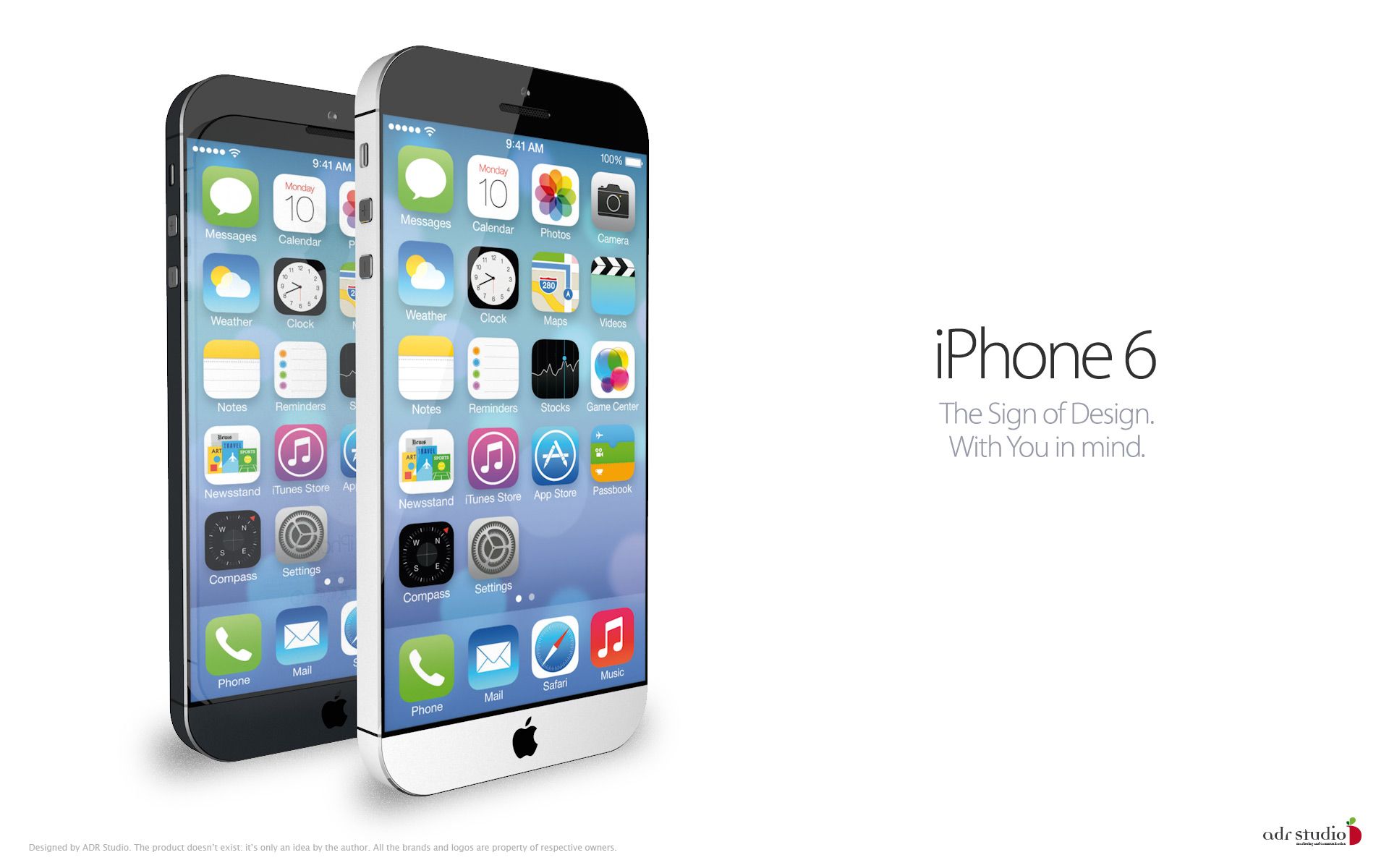
According to the latest reports, it is expected that Apple is considering larger displays for it’s next iPhone. There are chances that Apple will launch the phone in two different sizes i.e 4.7 inches and 5.7 inches. While Samsung, HTC, Sony, LG and others have already crossed full HD displays, Apple is thinking to fight back and the display will be most probably a Full HD. Rumors have also suggested that iPhone 6 will have a Quad Core CPU. It will be built up with Sapphire glass and will be extra thin. Some reports have also suggested that iPhone 6 will be named as iPhone Air and will follow the footsteps of iPad Air in terms of thin body. The launch is expected in Q4, 2014.

HTC One 2:

World’s most beautiful smartphone, as mentioned above, HTC One gave a new life to HTC’s drowning ship, but didn’t help as it was expected. The costlier and the charming smartphone HTC One took lead only on over it’s design, while it’s other specs did not actually surprise the people. It was expected that HTC will use a new processor in it’s first phablet, HTC One MAX but it disappointed the users when it came up having the same processor as HTC One. It is expected that HTC will improve the hardware in HTC One 2.HTC-M8-Smartphone

HTC One 2 modeled as M8 is in the talks right now. The successor of HTC One is expected to have a larger display i.e 5.0 inches full HD. The device will be powered up with Snapdragon 800 Quad Core CPU. Oh Boy! HTC is quite late here. Well, the other specs include a 2 GB RAM and no changes are expected in camera. The device will sport same 4MP Ultrapixel camera at the back a 2.1 MP camera on the front. HTC will surely not leave it’s latest design it impressed the users, leaked photo suggests that it will have the same design and same material will be used to build the phone as that of the HTC One. M8’s launch is expected on MWC 2014 or somewhere around March, 2014.

Sony Xperia Z2:

Sony’s flagship series Xperia Z is quite impressive. The phones sport nice specifications, beautiful design and the build quality is good as well. Sony launched Xperia Z and Z1 in the same year, both the devices are water proof and dust resistant as well. Looking at what Sony has been doing we can easily assume that Sony is not in a mood to pave a way for other smartphone manufacturers so easily and wants to occupy it’s very own identity in the market. Xperia Z1’s high hardware specifications and features definitely hint at something greater and awesome coming in 2014.sony-xperia-Z2-concept

Rumored and code-named as “Sirius”, Xperia Z2’s launch is expected MWC, 2014. The alleged specifications have hinted at a beautiful and huge display of 5.25 inches with 2560 x 1440 resolution. A 20.7 MP camera sensor at the back. Under the hood the device will have a massive 3700 mAh batter. Xperia Z2 will probably be water and dust resistant, the device will have Mobile Bravia Engine 3 to add charm to it’s display. Speculations have also suggested that Xperia Z2 will be extremely slim as compared to it’s predecessors. No surprise, the device will run on Android 4.4 KitKat.

Nokia Normandy:

Nokia is struggling at the moment with it’s Nokia Lumia series. Viewers are often found talking about Nokia’s move to Android but never seen any signs of Nokia coming to Android. In the past years, Nokia always remained the choice of people but with arrival of Android and the great smartphones by Samsung, HTC, Sony and others, Nokia’s popularity started going down every single minute. nokia-normandy-leaked-render-635

It looks like Nokia has taken a serious note and is set to make a bold move this time. Over the past few months, a number of leaks has surfaced over web hinting at a new Nokia device named as Nokia Normandy and running Android OS atop. If rumors are going to get true, this will surely raise Nokia’s bars and help to get it’s users back. There hasn’t been any word about Normandy’s specifications, but the leaked pictures give us quite a good idea about how the device look like. Nokia Normandy is also expected at Mobile World Congress (MWC) 2014.

Samsung Galaxy Note 4:

A new stream of rumors has just started as the Galaxy Note 3 is already there. The device will probably sport the highest specs of the time having all the features of the Galaxy S5 and running on the latest version of Android available at that time. Anything will be before time to say right at the moment, all we can say is “Galaxy Note 4 is coming in 2014.”Galaxy Note 4

That’s all we got to tell you at the moment. What do you think about these smartphones? Which ones you are actually looking after and which ones are you planning to get your hands on? Do tell us through the comment box below. Thanks All!