![Install At the Flix Add-on Kodi 17.3 Krypton [ Tutorial ]](https://techbeasts.com/wp-content/uploads/2017/06/Install-At-the-Flix-Add-on-Kodi-17.3-Krypton.jpg "Install At the Flix Add-on Kodi 17.3 Krypton [ Tutorial ]")
Here’s How to Install At the Flix Add-on Kodi 17.3 Krypton, this Add-on is in the list of Top Best Kodi Movie Add-ons for 4K, Full HD, 3D Movies 2017. At the Flix is worth having when it comes to watching movies including 4K and 3D movies.
Let’s start the method to install At the Flix Add-on Kodi 17 Krypton.
*Kodi Tips*:
- Now keep that in mind if you need a proper coverage of Kodi then we would suggest you install IPVanish the best and low-cost VPN. IPVanish is specially designed for Kodi and it has multiple high-speed servers with no throttling or logs.
- Learn how to enable Unknown Sources in Kodi. Click Here.
Important Kodi Links:
- Enable Unknown Sources in Kodi 17.3 Krypton.
- Best Kodi Video Add-ons.
- Top Best KODI 17.3 Krypton Builds.
How To Install At the Flix Add-on Kodi 17.3 Krypton [ Tutorial ]:
- Download Kodi and Install it, Click on the Settings icon.

- Click on File Manager.

- Click Add Source.

- Click None.

- Use this URL ( http://maverickrepo.net/ ).

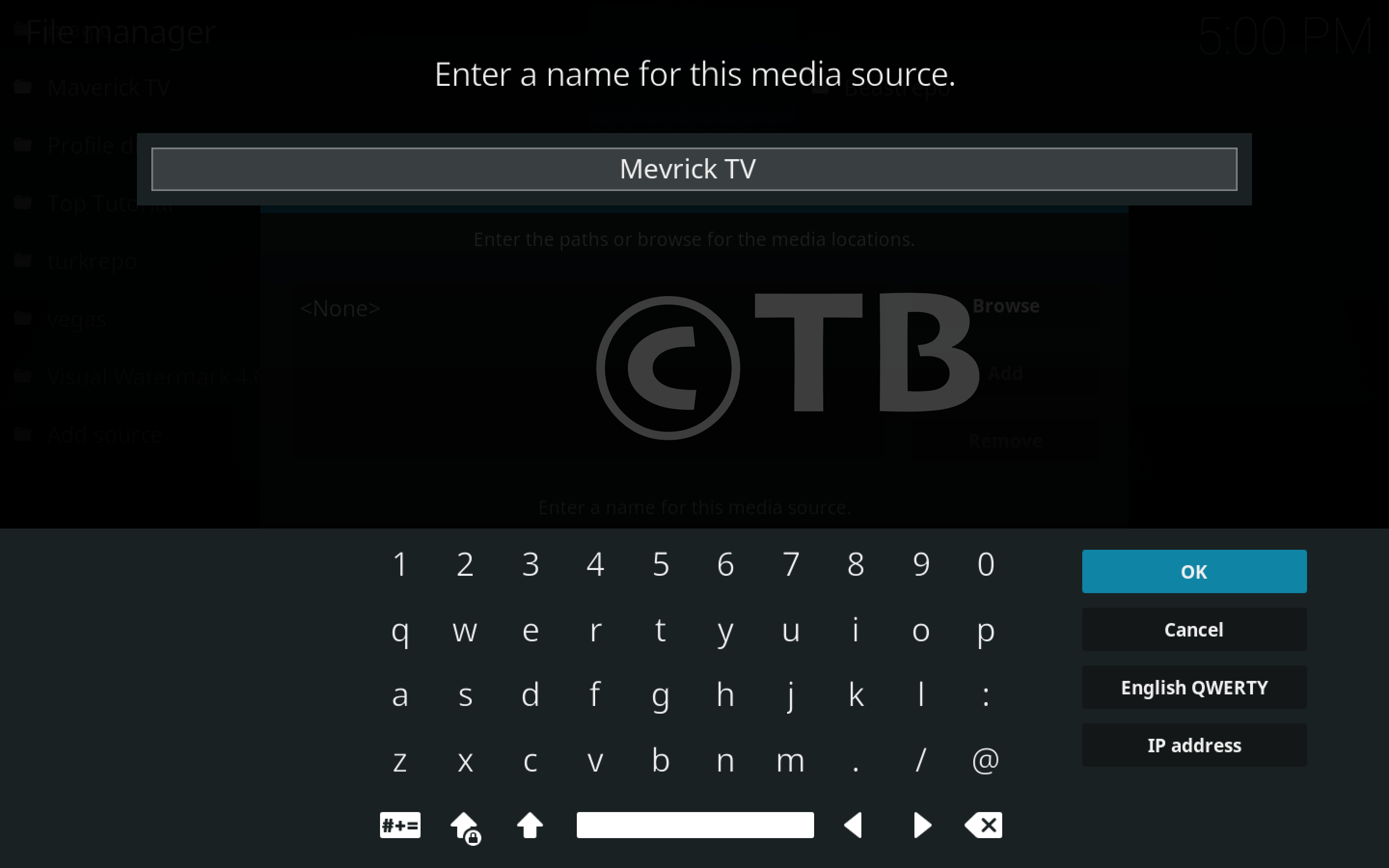
- Name it Maverick TV.
- Home Page-> Add-ons.

- Click on Package Installer as shown in the photo.

- Click Install from zip file.

- Click Maverick TV.

- Click repository.maverick-1.3.zip.

- Wait till you see Add-on enabled Pop-up, Click on Install from Repository.

- Click Maverick TV.

- Click Video Add-ons.

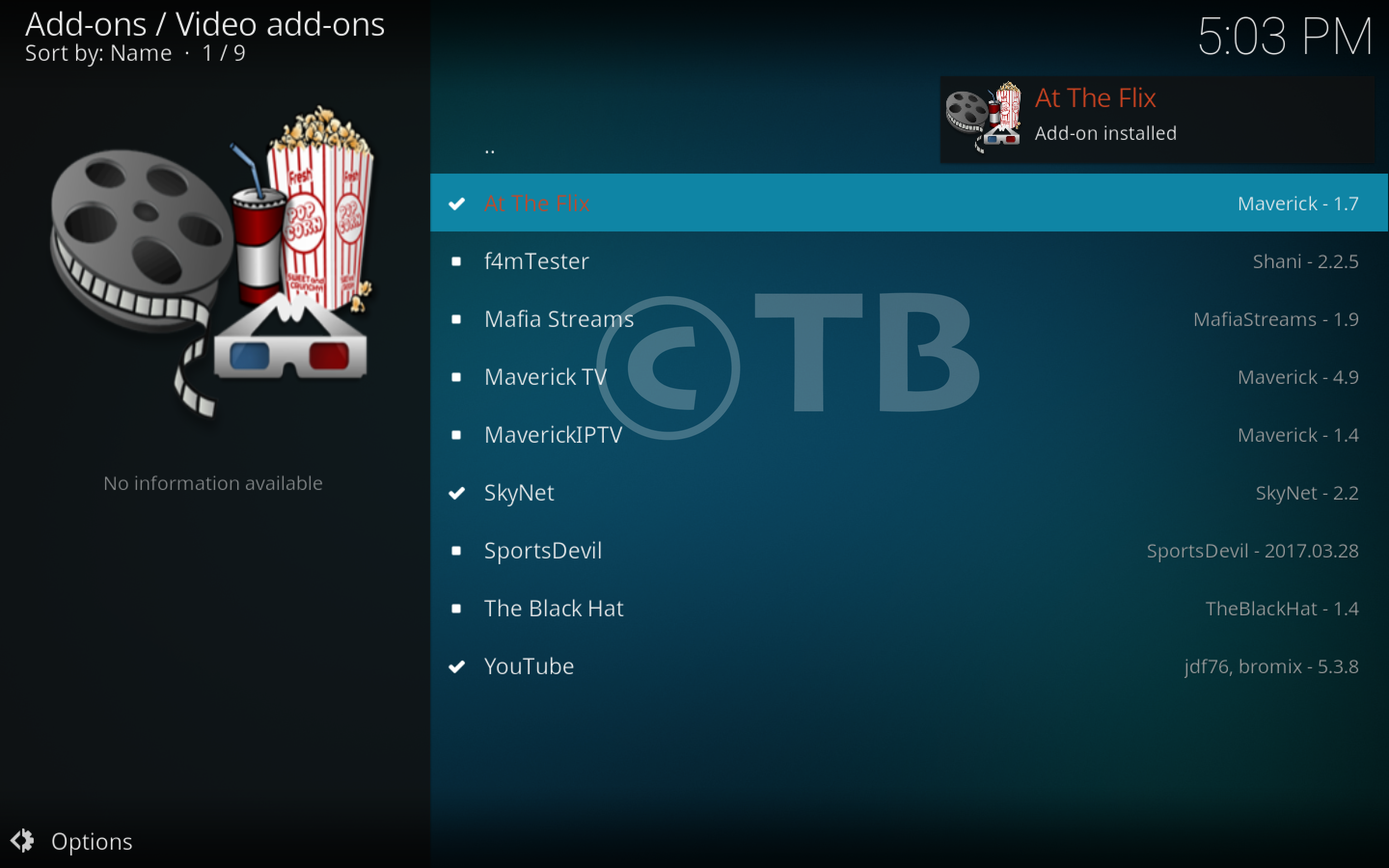
- Click At the Flix.

- Click Install.

- Wait till you see the ” At the Flix ” Add-on Installed.
That’s all. That would be all If you face any issue you can tell me in comments. Thanks.
See More: