![Enable Dark Mode on the Chrome Browser [ Guide ]](https://techbeasts.com/wp-content/uploads/2019/11/IMG_5869-scaled.jpg "Enable Dark Mode on the Chrome Browser [ Guide ]")
Nowadays, Dark Mode is every where, we haves seen dark mode adopted by Samsung, Apple, Google and more. It seems Dark mode will soon necessary and it should be, Dark mode provides more battery life on devices and it won’t hurt eyes. Today, I will tell you how to enable dark mode on Chrome Browser.
As you may all know, the dark mode provided on a computer turns Chrome browser dark. However, not everything picks the dark mode, some websites still left as they were. So rather than settling with some draw backs. I think you should follow my guide and enable dark mode on Chrome browser system wide. What ever you will open in Google Chrome, will adopt the dark mode.
Read more: How to turn on Dark Mode on iOS 13
I’ll be using two methods to enable the Dark Mode on Google Chrome. One is using the Google Chrome extension and the other is using Chrome Flags. Both methods work perfectly and after testing both, I made this post.
Enable Dark Mode on Chrome Browser:
In my first method, I’ll be using Google Flags. heed the instructions below to enable the Dark mode.
Chorme Flags:
Total Time: 5 minutes
Open Chrome Flags:
Launch Chrome Browser on your Window or Mac. Type in [ chrome://flags ] hit enter.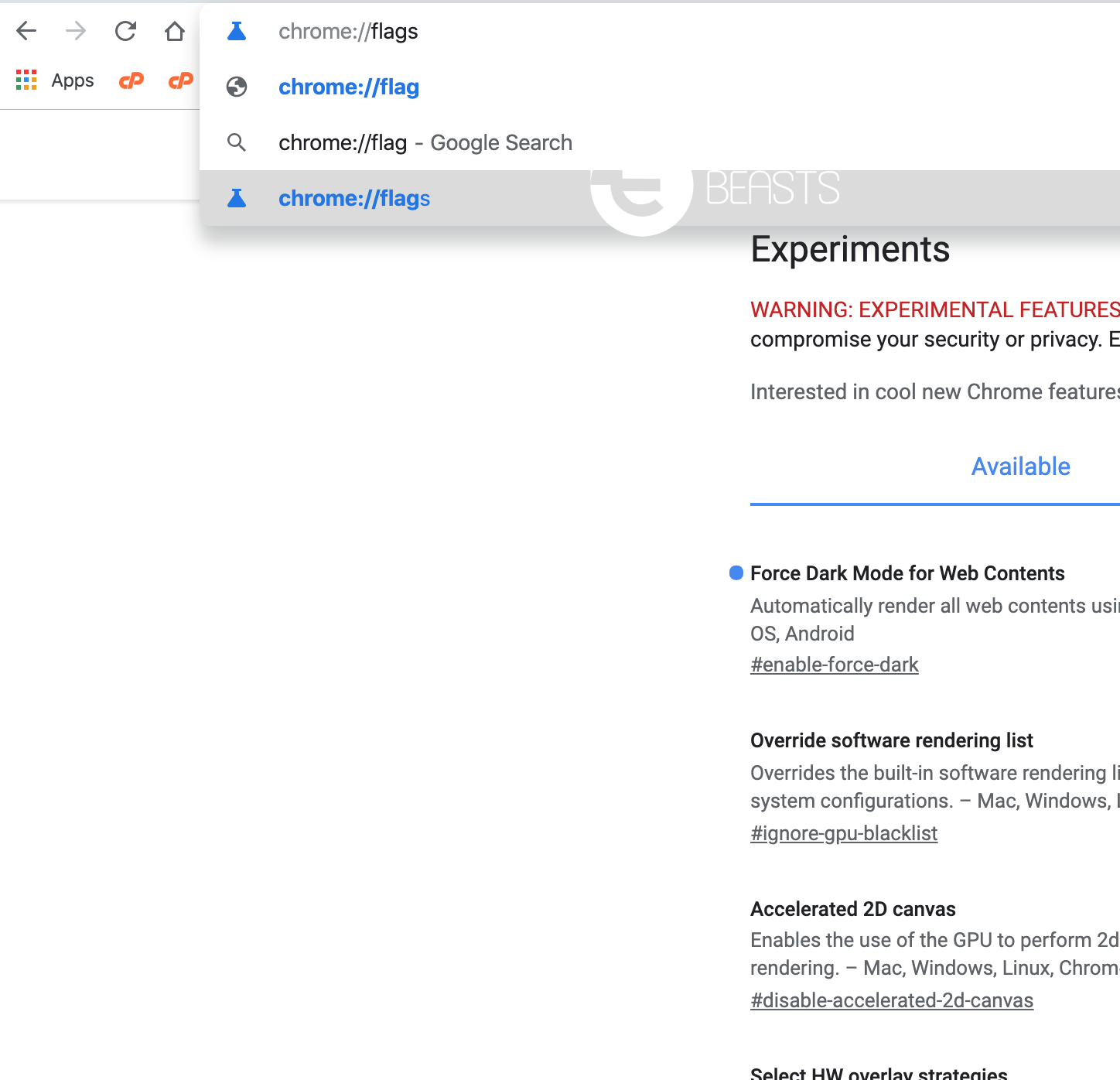
Search for Dark Mode:
Upon loading, you will see all the experimental features that you can use to get more functionality on Chrome Browser.
Click on the search bar and type in [ Dark ]. You will be provided with a number of results. The one we will use is ‘force dark mode for web content’.
Now click on default and a drop down list will show up, select Enable. Relaunch your Chrome browser.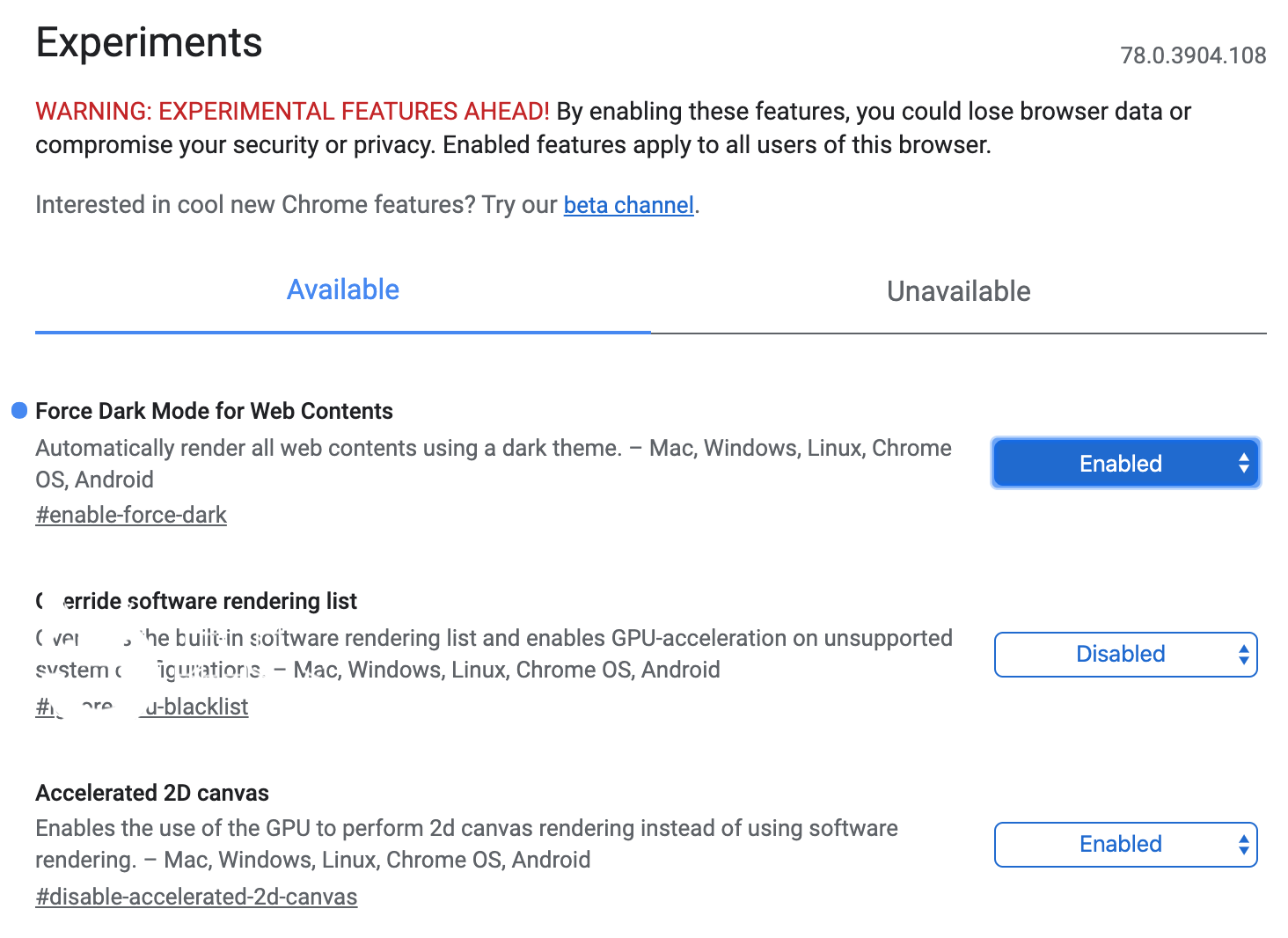
Open Different Websites:
After Chrome is relaunched. Try opening different Websites and you will see Dark Mode is working with all of them. I have taken a number of screenshots to show you the results.