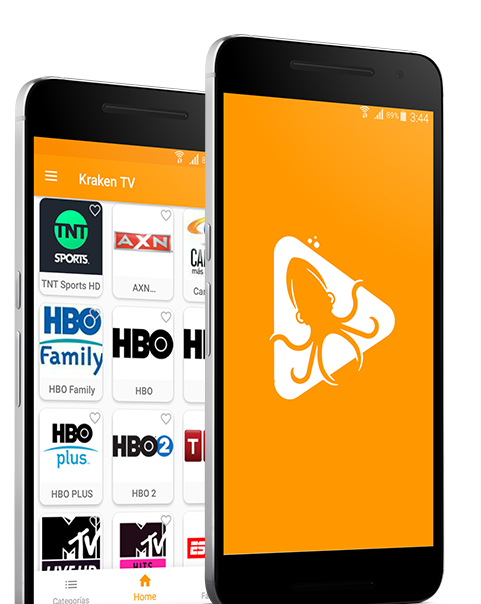
Kraken TV is a famous entertainment application to watch live TV channels, movies, and TV shows. There are only a few TV applications that work up to the mark, and Kraken TV is one of those. This guide is the Kraken TV fans who have been looking for a way to run this application on their computers. As you go ahead to take a look at the steps to install Kraken TV for PC, you will also find more details about this application. So, it is the time to go through an overview of Kraken TV and then download Kraken TV for PC.

Kraken TV – It stands out!
Before take a deep dive into the features of Krakten TV, let us understand how the trends have changed over the course of past few years which urged the smartphone users to opt for such applications.
Smartphones and Computers have killed TVs
Smartphones these days have replaced most of the gadgets we used to own one. For examples, our smartphones these days perform every single job that we usually use our computer for. Smartphones have replaced our scientific calculators. The MP3, MP4 Players, iPods (to some extent) have been replaced by smartphones too. Smartphones outnumbered Telephones too. Another important gadget that’s now being replaced by smartphones is the TV.
Gone are the days when watchers used to sit in front of TVs switching between channels waiting for their favorite show. Smartphone users demand portability now. Keeping in view this growing interest for portability, companies have built applications which stream live TV channels directly on smartphones and computers. And of course, Kraken TV is one such application.
Kraken TV – What’s good?
While most applications like Kraken TV focus on free movies and TV shows, Kraken TV brings slightly different content for its viewers. It brings 100s of TV channels right into the palm of your hand. Kraken TV hosts TV channels from dozens of countries. Whether you are living in the Americas, in the Europe, in Asia, Middle East, or South Africa, you will find the TV channels of your liking in Kraken TV.

The Kraken TV has got all the channels sorted into their appropriate genres. Users can find Sports, Entertainment, News, Knowledge, Science & IT, and many other categories. Since Kraken TV has a very easy-to-use UI, navigating through this application couldn’t be easier.
Another interesting thing about Kraken TV is that like other applications, it does not require the users to download any files. It does not require users to make any configurations either. No registration is required either. It’s a simple install-and-watch application.
Kraken TV for PC – What do we want to do?
By this time, you should have a clear idea about Kraken TV. Now here’s what we are going to do. Kraken TV is an Android application. It does not have a desktop/PC version. It brings to our point here. We will use a neat trick to install the Android version of Kraken TV on our computer. Kraken TV for PC will run smoothly on Windows 7, Windows 8, Windows 10, MacOS/OS X. Furthermore, Kraken TV for PC will work fine on all desktop PCs and Laptops. In case you don’t know, we can run all Android Apps for PC using Android emulators. So, without wasting a further minute, let’s install Kraken TV for PC.
Kraken TV for PC
Time needed: 5 minutes.
Follow these steps to get Kraken TV running on your computer(Desktop or Laptop) right away.
- Download and install Nox App Player or BlueStacks 4 Emulator.
BlueStacks 4 is the best choice for Windows users. Nox App Player is for the Mac users. Download and install the emulator based on your OS. After installation, open the emulator.
- Add your Google Account to the emulator.
Just like an Android phone, set up the emulator using your Google Account. You can either use your existing account or create a new account. Once done, open Play Store in the emulator.
- Open Play Store and search for “Kraken TV”.
As you find Kraken TV in the search results, install it. It will appear on the Home Screen of BlueStacks 4 and under the application drawer of Nox.
- Open Kraken TV now to watch any TV channel now.
You are all set now. Launch Kraken TV now. Check out the huge list of the channels. Watch anything you want.

The method given above should work fine. However, if you are unable to find Kraken TV in the Play Store, the other way to install it would be via its APK file. You can download Kraken TV APK from here. Having BlueStacks 4 or Nox installed, double-click to launch Kraken TV APK. It will be installed via emulator automatically. You can now open Kraken TV on the computer now.
Wrap up!
That’s it, that’s all. I am assuming that by this time you are successfully watching your desired TV channels on your computer. If you have anything to ask about the emulators or about the Kraken TV app, feel free to ask. I will make sure to get back to you as soon as I get your message.