![How to Increase the Headphone Jack Volume on OnePlus 6 [Root]](https://techbeasts.com/wp-content/uploads/2018/07/techbeasts-google-pixel-2-combine-wll.jpg "How to Increase the Headphone Jack Volume on OnePlus 6 [Root]")
The latest flagship from OnePlus, the OnePlus 6 was launched in May this year. It’s the latest flagship device from the manufacturer. OnePlus usually offers a clean user interface, so there would be fewer bugs in the OS. The most frequent issue that nags the OnePlus 6 owners is its low headphone volume level. However, you’ll be relieved to hear that the method of changing a value in the appropriate mixer_path file to increase the volume levels can also be implemented on the OnePlus 6. In this tutorial, you’ll be able to know how to increase the headphone jack volume on OnePlus 6.
Apart from a few setbacks, OnePlus 6 boasts mighty specs. It is powered by Qualcomm Snapdragon 845 processor and comes with 3 storage options- 128/256 GB with 8 GB RAM & 64 GB with 6 GB RAM. It will be available in four color options i.e. Midnight Black, Mirror Black, Silk White & Amber Red. The device has a moderate battery backup with 3300mAh. On the camera front, the OnePlus 6 packs a dual camera setup with 16 MP f/1.7, 27mm, 1/2.6, 1.22µm lens and 20 MP f/1.7, 1/2.8, 1.0µm lens on the rear. The selfie camera is a 16MP camera.
You’ll have to root your OnePlus 6 before proceeding with the tutorial. So, make sure you’ve root access on your device. Without any ado, let’s see how to increase the headphone jack volume on the OnePlus 6.
Downloads
- Download any root explorer of your choice. You can download the Solid Explorer app from below.

How to Increase the Headphone Jack Volume on OnePlus 6
- You have to root the device before doing the process. If you have any doubt in rooting your OnePlus 6 you can follow our simple tutorial on How To Root OnePlus 6.
- OnePlus has moved the mixer_paths file to the vendor partition. Specific libraries and other binaries of the device are located in this partition. Navigate to /vendor/etc open mixer_paths_tavil.xml file in text editor.
- You can see a lot of audio-specific settings for your device. Move on to headphone jack volume output settings, for which you should type =”headphones” this in the search bar.
- The values you need to modify are RX1 Mix Digital Volume and RX2 Mix Digital Volume. The value is set to 80 by default, so set it to 90.
WARNING: Increase the value in small intervals as it can damage your ears.
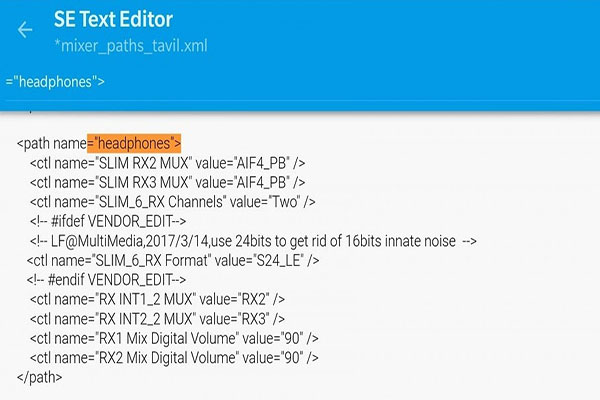
- Reboot your device once you’ve changed this value.
That’s it, your headphone jack volume level would be increased noticeably. Make sure you would be changing the value slightly as it is going to affect your eardrum, as well as your audio (say distortion).
Source: XDA