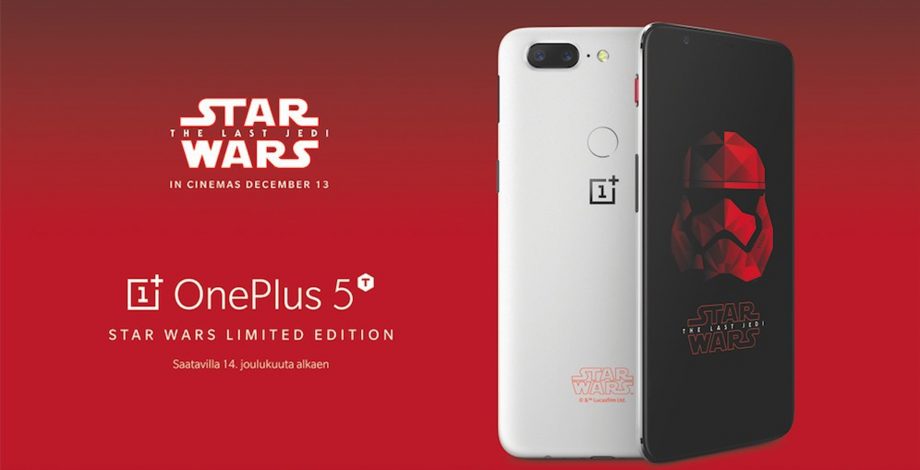
OnePlus 5T is a beast when it comes to hardware and OS. One other thing that I liked the most is that OnePlus is celebrating their 4th anniversary and also they have released OnePlus 5T: Star Wars Edition. OnePlus 5T has everything and with that Star Wars theme, this device is more appealing. Now for all those who are the fan of Star Wars, but they cannot afford to buy a new OnePlus 5T, no worries you can get OnePlus 5T Star Wars Edition Look on any Android device. Here we’ll tell you how you can do that.
Read more: OnePlus 5T tips and tricks: Everything you want to know about mastering the phone
Get OnePlus 5T Star Wars Edition Look on Any Android Device:
We have prepared a step by step guide to install the theme and ringtones of OnePlus 5T: Star Wars Edition on any Android device. Heed the following instructions below.
OnePlus 5T: Star Wars Edition Wallpapers:
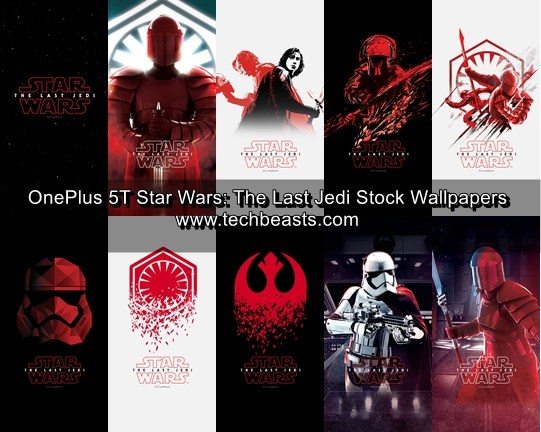
First, you’ll be needing the OnePlus 5T: Star Wars Edition Wallpapers. We have added all the OnePlus 5T Wallpapers in a sperate post, Click the following link to get them.
OnePlus 5T: Star Wars Edition Ringtone:
OnePlus 5T: Star Wars Edition comes pre-loaded with its own custom ringtone, heed the following instruction to install it on any Android device.
- First, you need to download the ringtone file from here.
- Install the following File Manager, or you choose from the best Android File Managers.

- Open Settings on your device and scroll down. Tap on Sounds -> Phone Ringtones.
- Select your file manager and head over to that ringtone file you downloaded in the first step.
- Now tap on the ringtone file in order to select it.
Install OnePlus 5T: Star Wars Edition Theme:
You can easily get the OnePlus 5T: Star Wars Edition look by installing a simple theme and change few settings. Follow the instructions below.
- Before moving on, you need to download the following apps first.


- Once you have installed both apps on your Android device, open Substratum app and select the Swift Black theme.
- Tap on Pick your Android version on the next screen. Tap on your Android version from the drop-down list.
- Now you’ll see three drop-down menus, you have to change to values of these menus. Select Red for first one and select System accent for other two.
- Check the Toggle for Android System, Settings, and System UI.
- You’ll see pink color button at the end of the screen, Tap on it and select Build & Enable.
This one is Bonus for you all, heed the instructions below to get the OnePlus 5T: Star Wars Edition navigation bar.
- Before moving on, you need to download the following apps first.
![[Substratum] Navigate Theme](http://play-lh.googleusercontent.com/I3-TIaVvUGEP-EjDI0FtWYUlBFrInHGUZBHJmU6lpSkmQmMjlI33BNOtzHj7bL0DaLCK=s128-h480)
- Once you have installed both apps on your Android device, open Substratum app and select the Navigate theme.
- Scroll down and look for System UI Status Bar Icons-> Choose the Navbar -> Select from starwars1, starwars2, or starwars3.
- Check the checkbox next to System UI Status Bar Icons.
- You’ll see pink color button at the end of the screen, Tap on it and select Build & Enable.
That’s all. This is how you can get Get OnePlus 5T Star Wars Edition Look on Any Android Device. Enjoy and do let us know if you face any issue regarding this post.