In this post, I’ll tell you how to enable and disable Pop-up Blocker in Safari on Windows, Mac OS, and iOS devices. It’s a simple guide just follow the steps mentioned below.
How To Enable/Disable Pop-up Blocker in Safari:
Windows and OS X Version
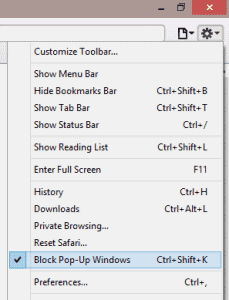
- Open Safari on your Windows PC, -> Setting icon.
- A drop down menu will appear, Select “Block Pop-Up Windows“.
- Now if the option is checked that means Block Pop-up option is enabled and if not that means it’s disabled.
Option 2:
- You can use this command to enable/disable Block Pop-up Windows. ( Press “Ctrl” + “Shift” + “K” in Windows ).
- Mac users can use this command ( “Command” + “Shift” + “K” ).
Option 3:
This method is for both Windows and Mac.
- Windows users select the gear icon to access Settings->“Preferences“. Mac users “Safari” > “Preferences“.
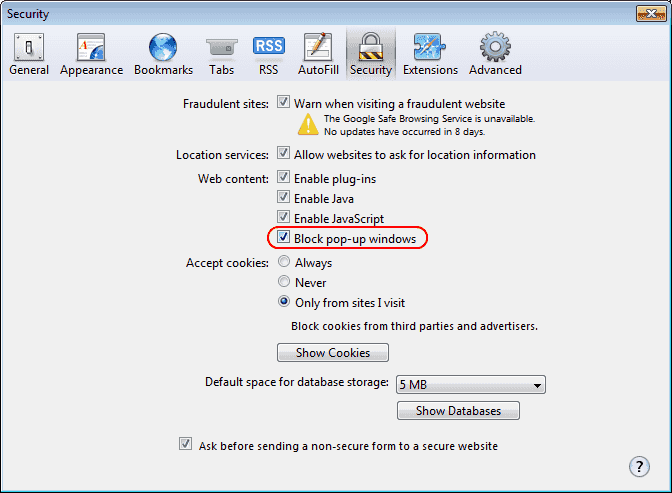
- In Preferences tab click on “Security”.
- Click on “Block pop-up windows” to enable this feature. Uncheck it to disable it.
iOS Version
- Open Settings on your iOS device.
- Scroll down and tap on Safari.
- In General section you’ll see “Block Pop-ups” silde it to turn on and if it’s already turned on then Slide it disable it.
This all, See it’s very easy to Enable/Disable Pop-up Blocker in Safari on Windows PC, Laptop, Mac and iOS devices.