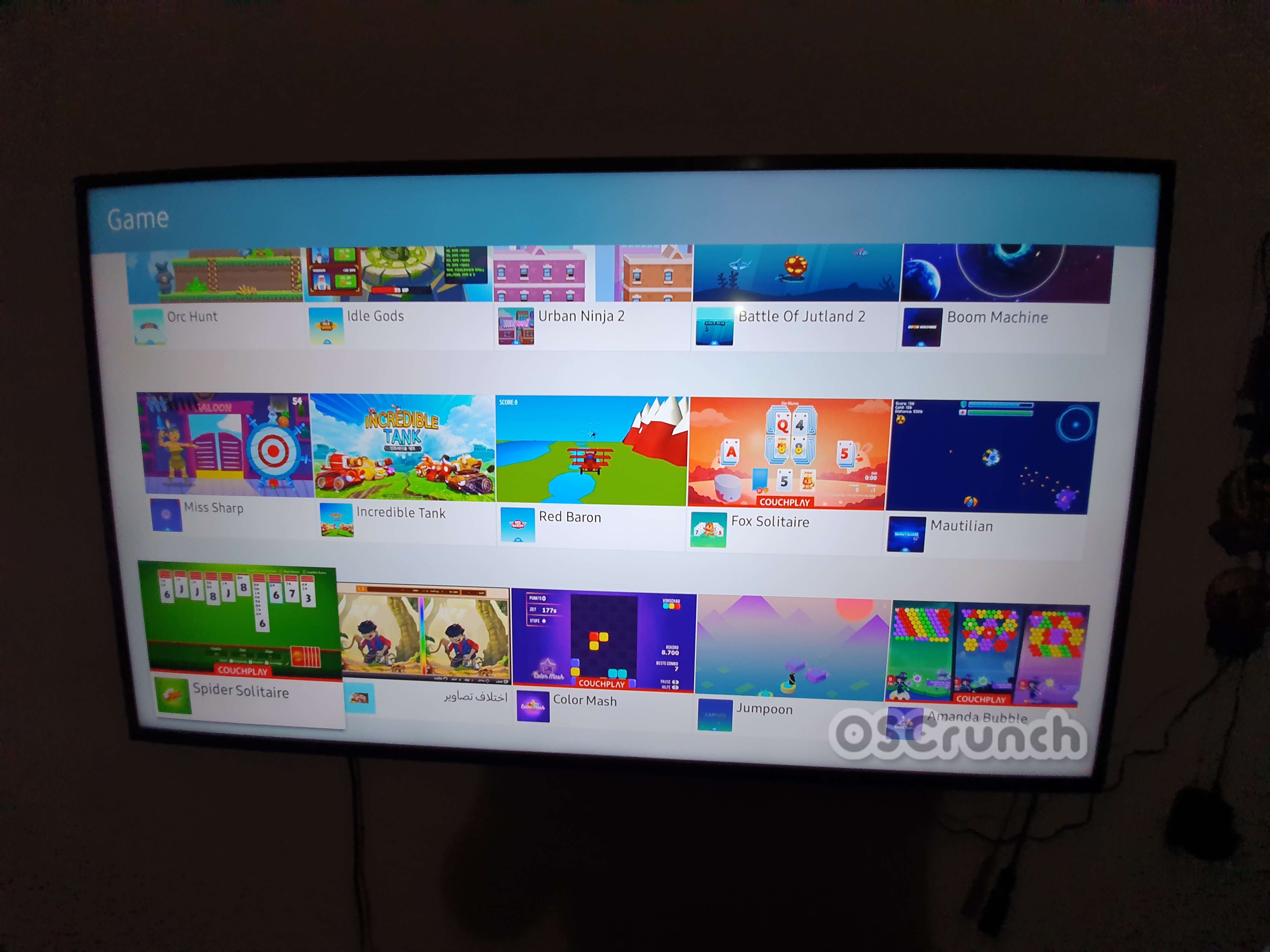
Deleting apps from Samsung Smart TV is a fairly simple process. Because the uninstall/delete option resides under settings of the apps, finding it can be a bit tricky. Owners can use this guide to delete Apps from Samsung Smart TV.
Delete Apps from Samsung Smart TV
These are the simplest steps to uninstall or delete Apps from Samsung Smart TV.
Total Time: 1 minute
Turn on Smart TV and go to Smart Hub.
Plugin the switch of your TV and turn it on. Using the remote, enter the Smart Hub.
Open Apps in the Smart Hub.
In the Smart Hub, press the right button of the remote twice to select Apps and then press enter/ok.
Click on the Settings Gear Icon in the Apps.
Now highlight the Settings Gear icon appearing on the top-right corner and then press enter/ok to enter settings. You will see a list of all of your installed apps now.
Select the application you want to delete.
Using the arrow keys on your remote, highlight/select the application you want to remove from the TV.
Open App options and delete it. That’s all.
Press the arrow-down key to access options of that app. Highlight Delete and press ok/enter to delete it. That’s all.

That’s all with this quick tutorial. I hope you guys found this useful. If you have any questions or queries, feel free to reach out to us. Thank you.